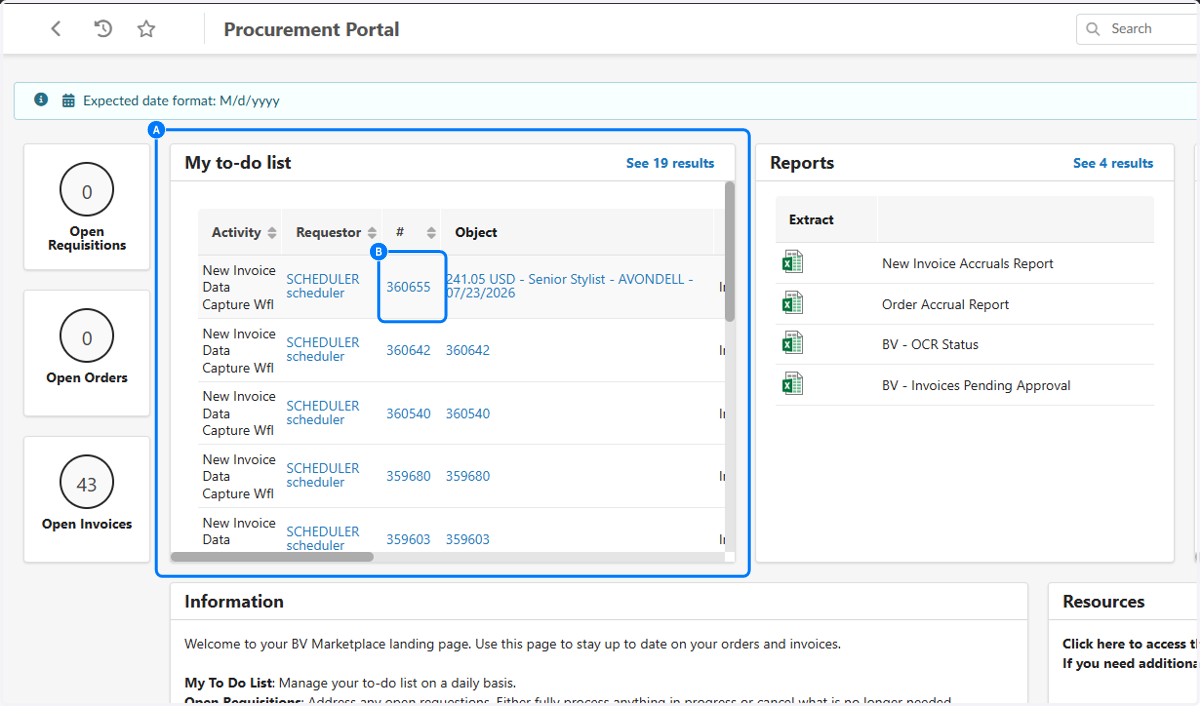
OCR Invoice Cleanup- Organization Assigned
The purpose of this user guide is to provide step by step guidance for AP team users who have identified an OCR invoice sitting in the OCR bucket, assigned to a community, but not showing up in the assigned community to-do list.
1. Click on Invoicing
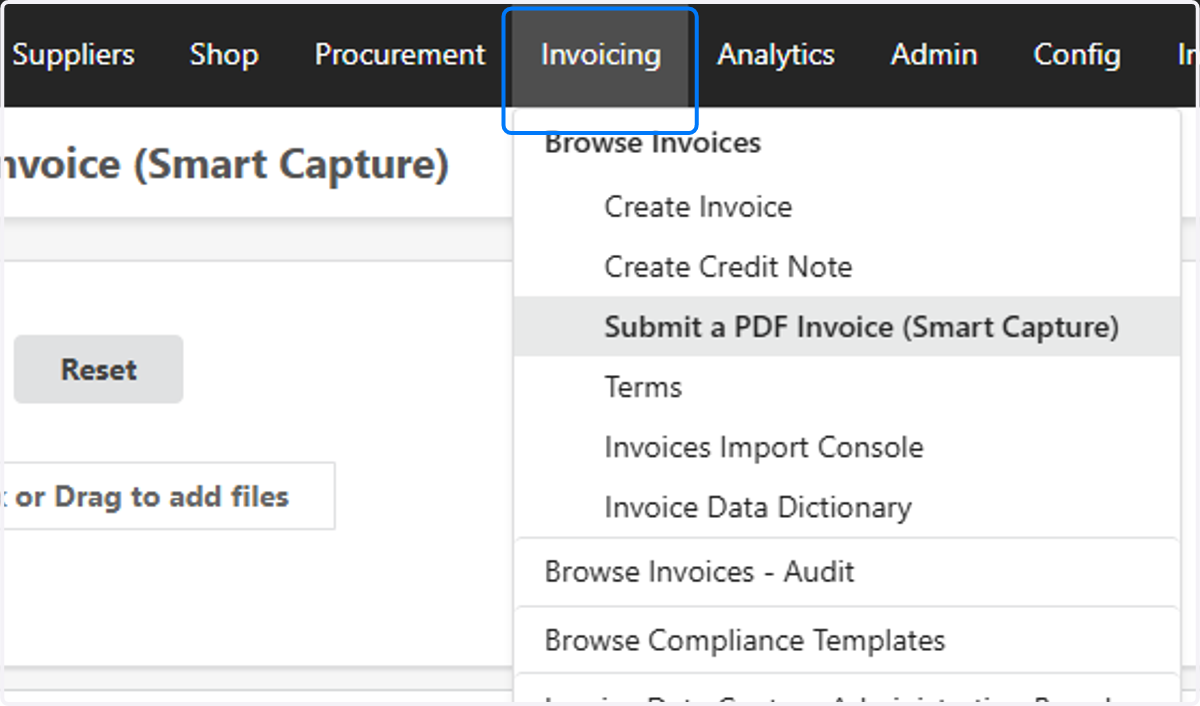
2. Click on Submit a PDF Invoice (Smart Capture)

3. Filter the Creation Date to view invoices either current or older

4. A. You will see a community has been assigned
4. B. Click on BVINV360655
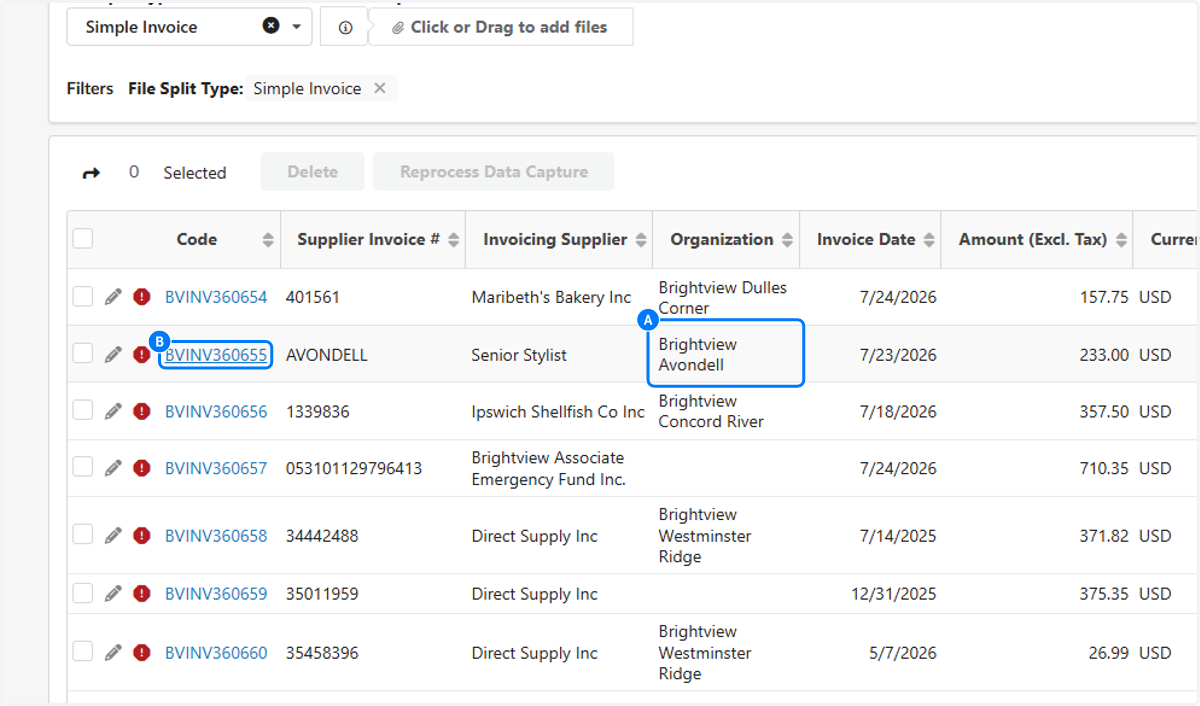
5. The Community will already be populated for these invoices. As a best practice, verify the correct Community was captured in the Organization ID bucket
In this scenario, Avondell is the community

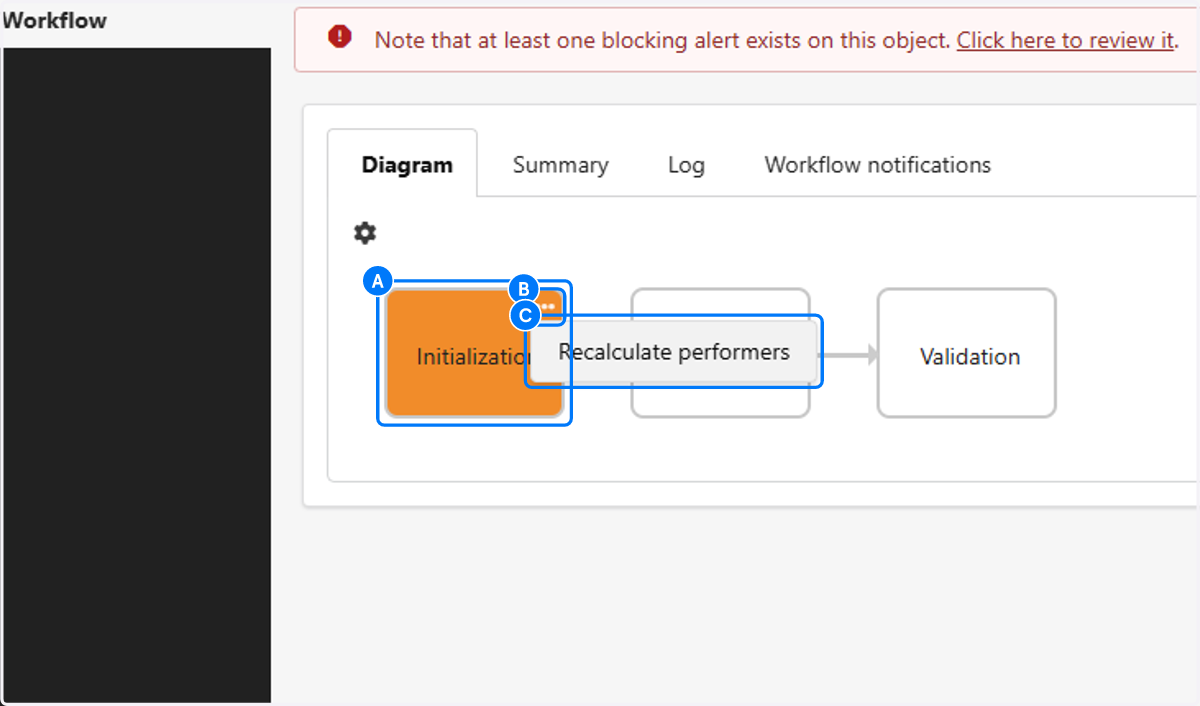
6. On the far left corner, Click on Workflow

7. A. You will see the highlighted Initialization box
7. B. Click on the three dots
7. C. Click on Recalculate performers
8. Click on Go back to the previous page

9. Under the Avondell BOD profile

10. A. The BOD to-do List now has the OCR invoice under their activity to now action.
10. B. 360655