Inviting a Teammate to the Portal

localhost

  1. 1. Go to https://portal.summitinterconnect.com

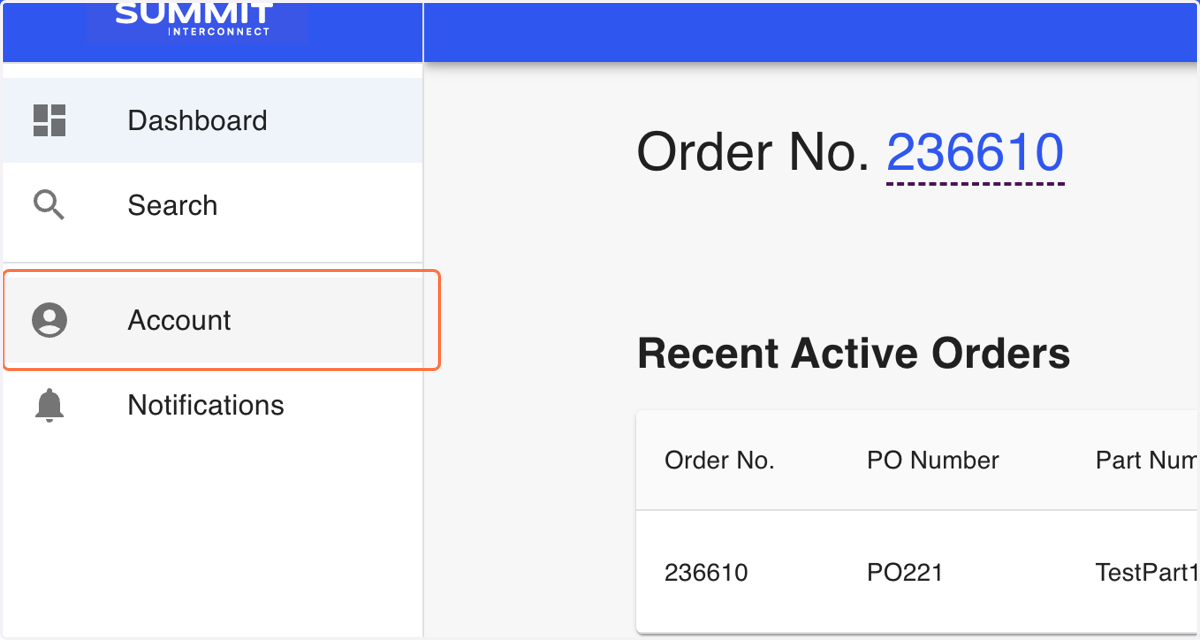
  2. 2. Click on Account

    Click on Account
  3. 3. Type in the email of the team member you wish to invite to the portal
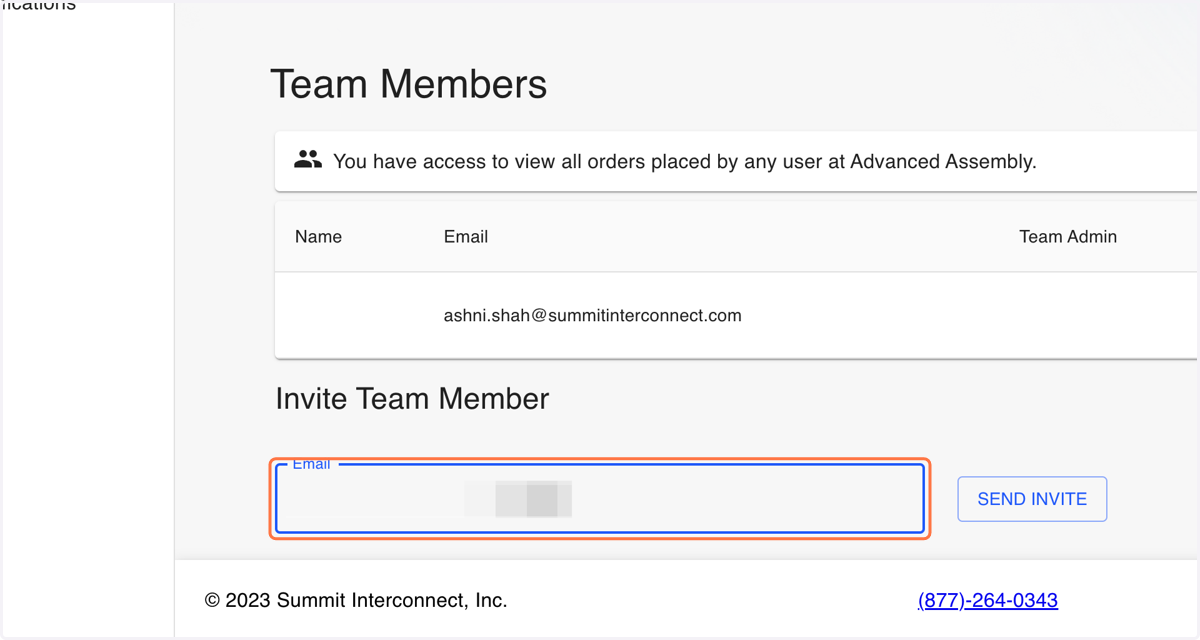
    Type in the email of the team member you wish to invite to the portal
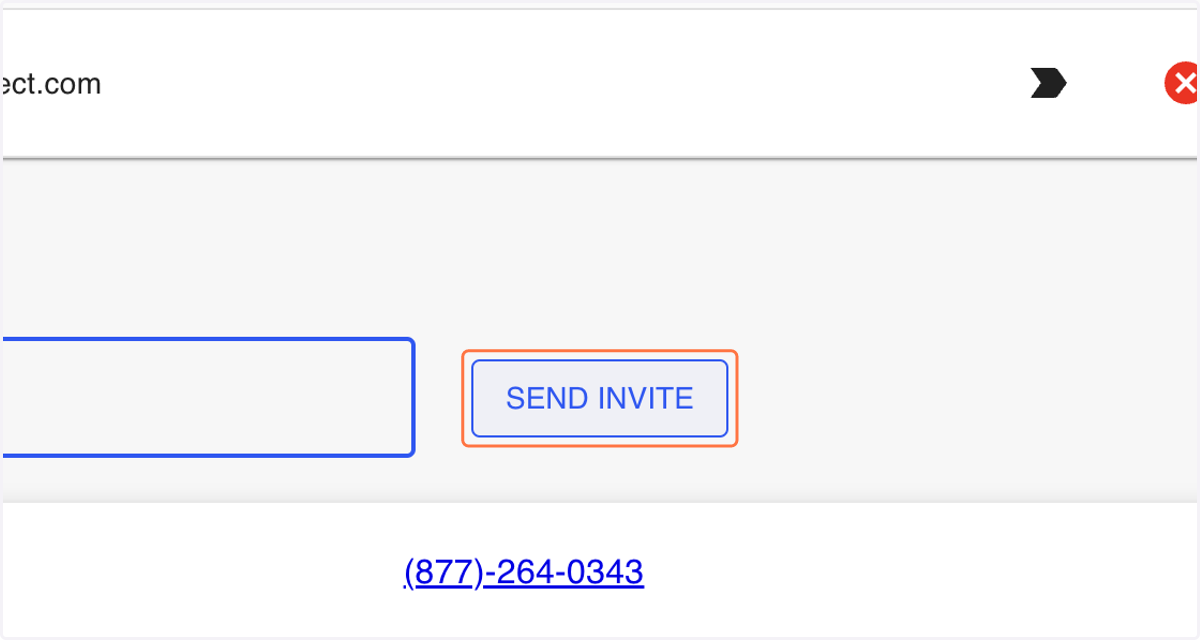
  4. 4. Click on SEND INVITE

    Click on SEND INVITE
  5. 5. Ensure the confirmation notification shows up
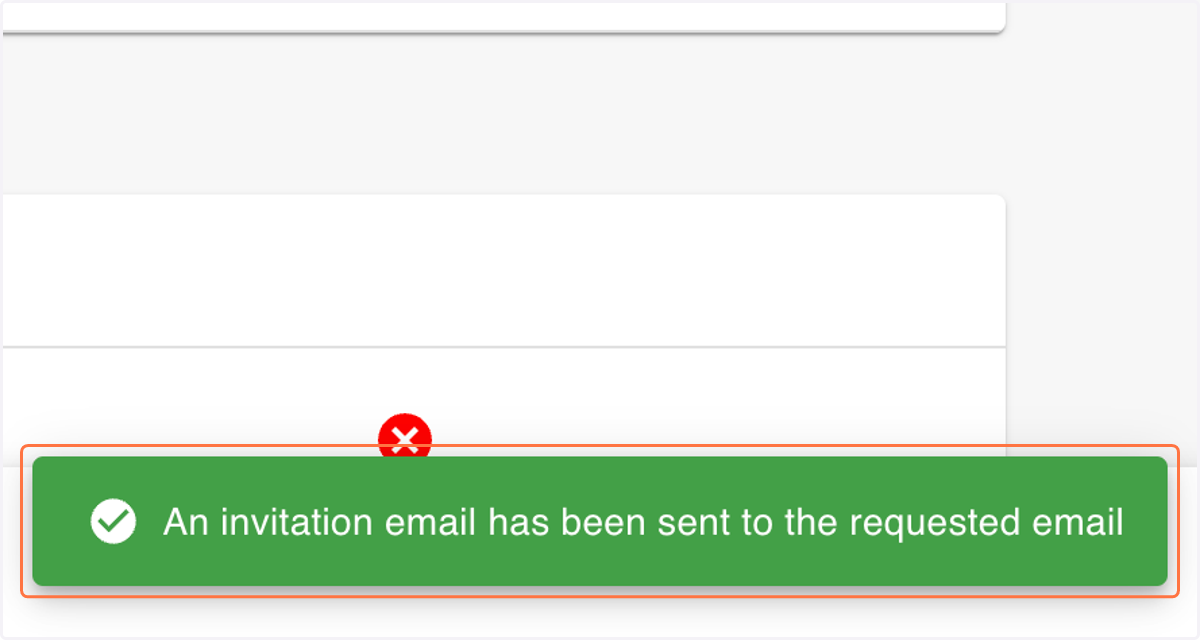
    Ensure the confirmation notification shows up
  6. 6. Refresh the page and you should see a new table with a list of invited team members
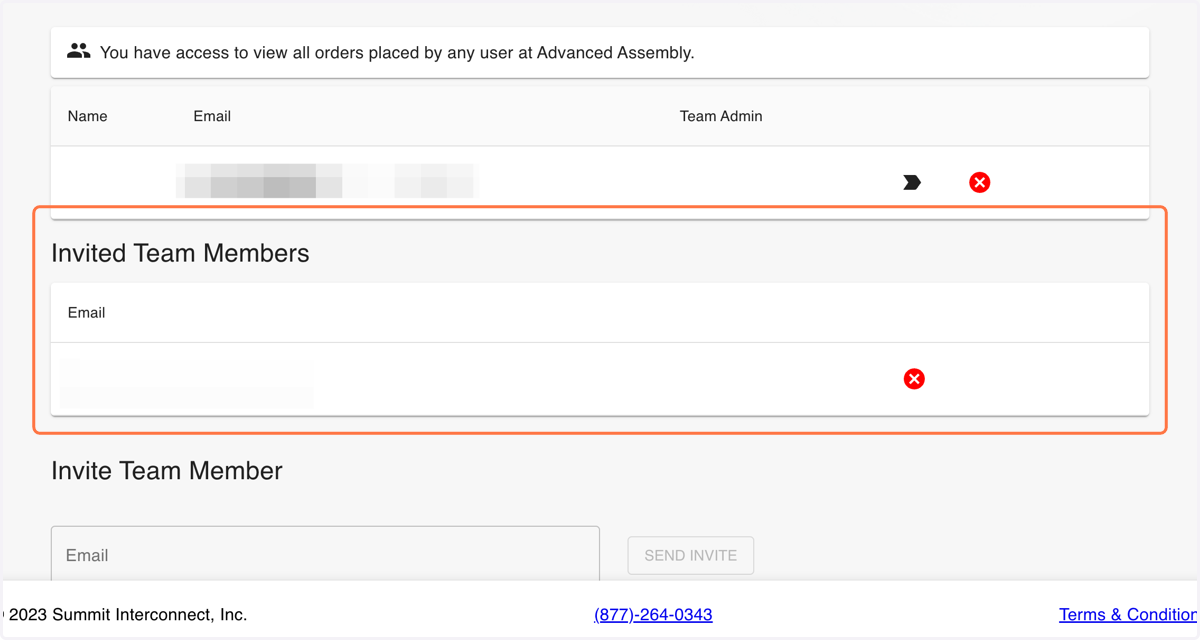
    Refresh the page and you should see a new table with a list of invited team members

Summitinterconnect

  1. 7. Your team member should receive an email like the one below inviting them to register
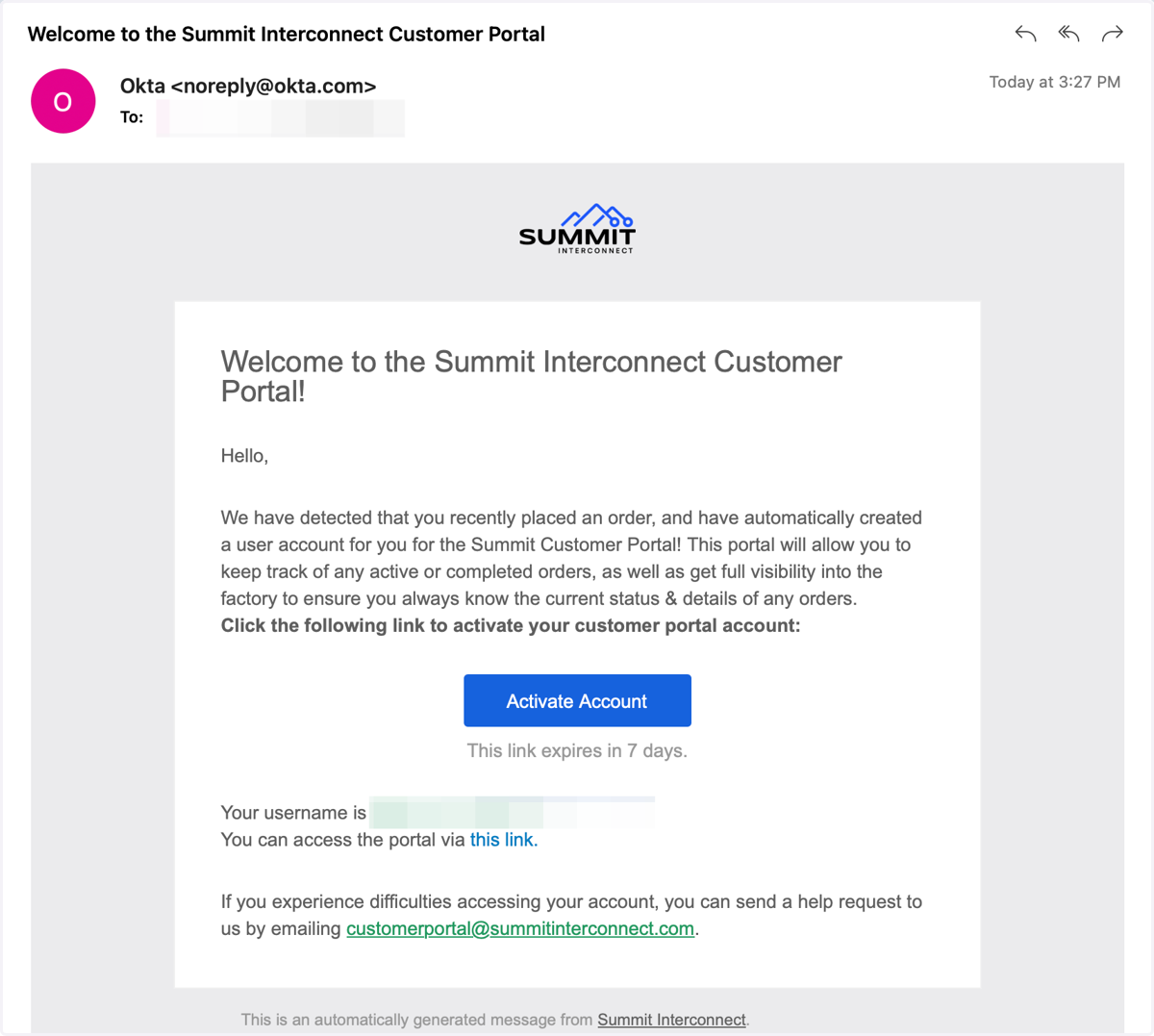
    Your team member should receive an email like the one below inviting them to register
  2. 8. Clicking Activate Account in the email will send them to the registration page
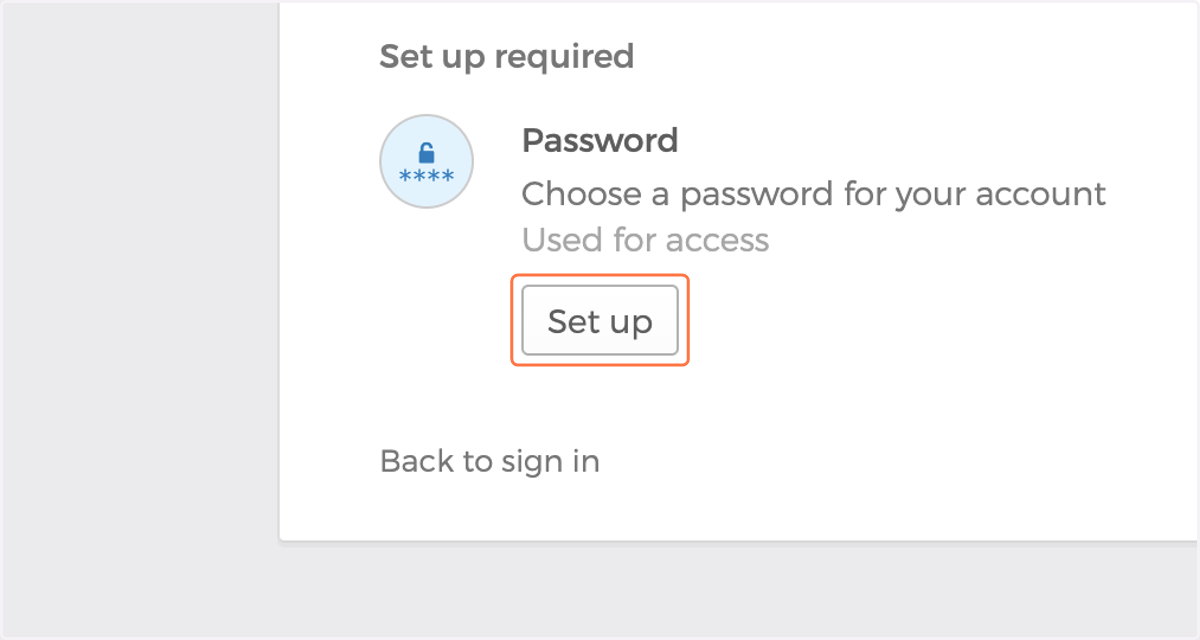
    Clicking Activate Account in the email will send them to the registration page
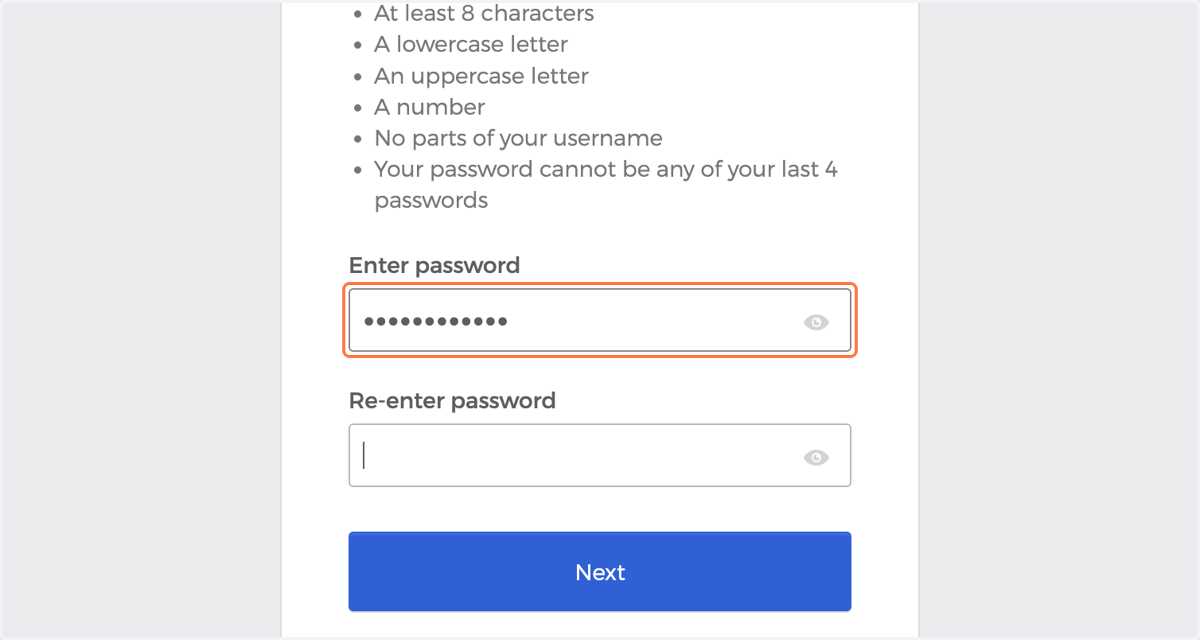
  3. 9. Type in a password

    Type in a password

Azurewebsites

  1. 10. Setup 2FA via the Okta Verify app, or your mobile phone
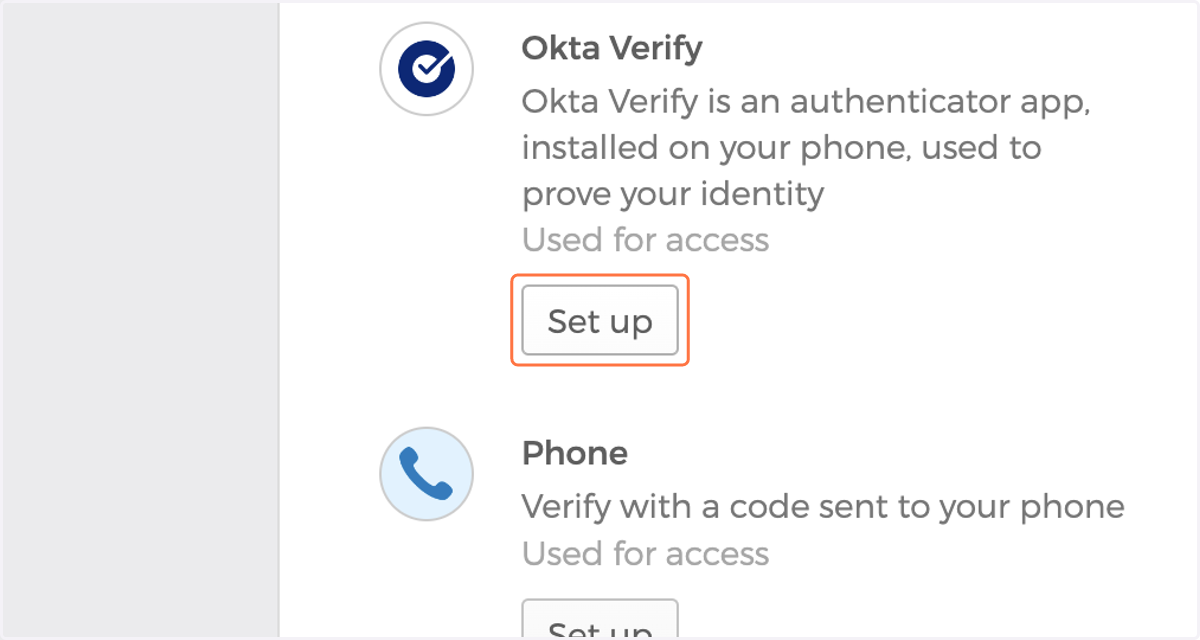
    Setup 2FA via the Okta Verify app, or your mobile phone

localhost

  1. 11. Your teammate can now visit the portal website and login with these new credentials!