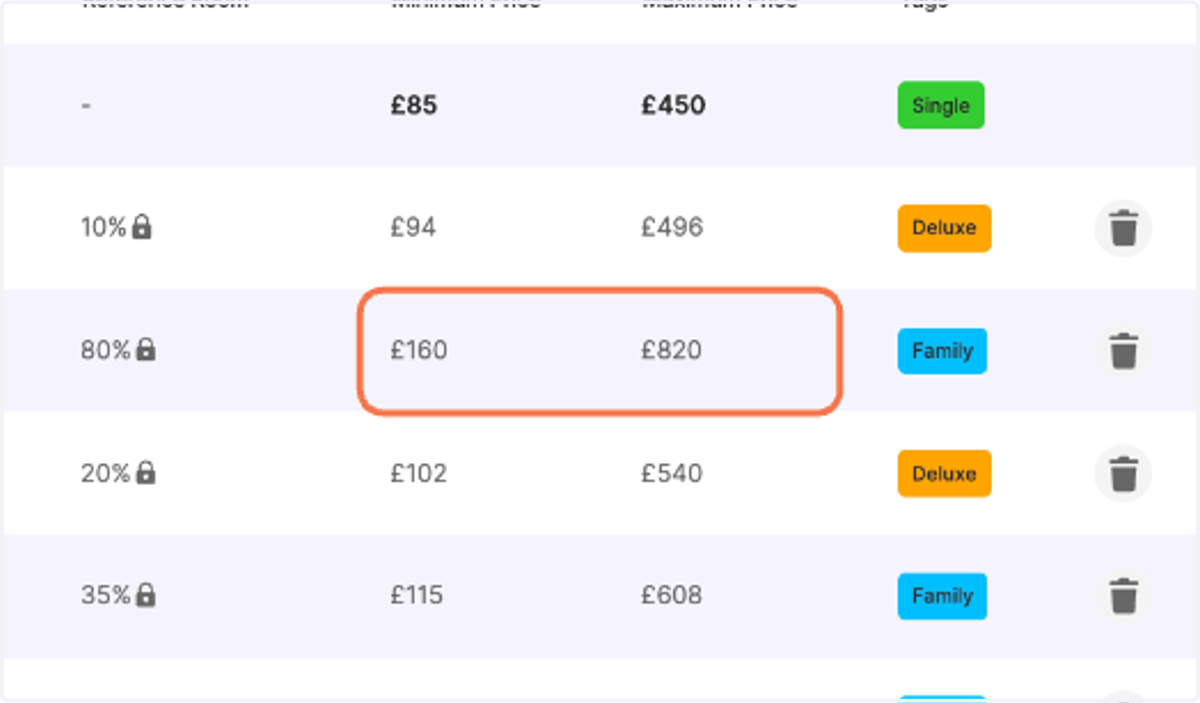
Setting Minimum and Maximum Price for your Derived Rooms
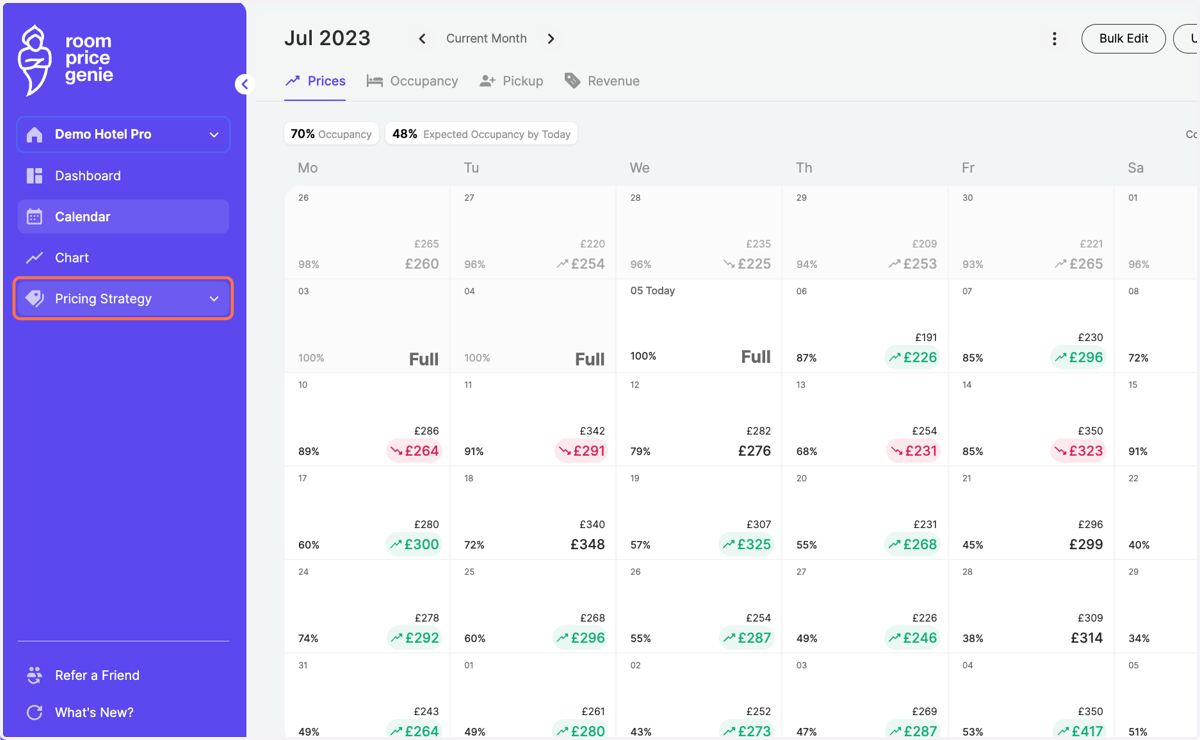
1. In the navigation bar, navigate to "Pricing Strategy"
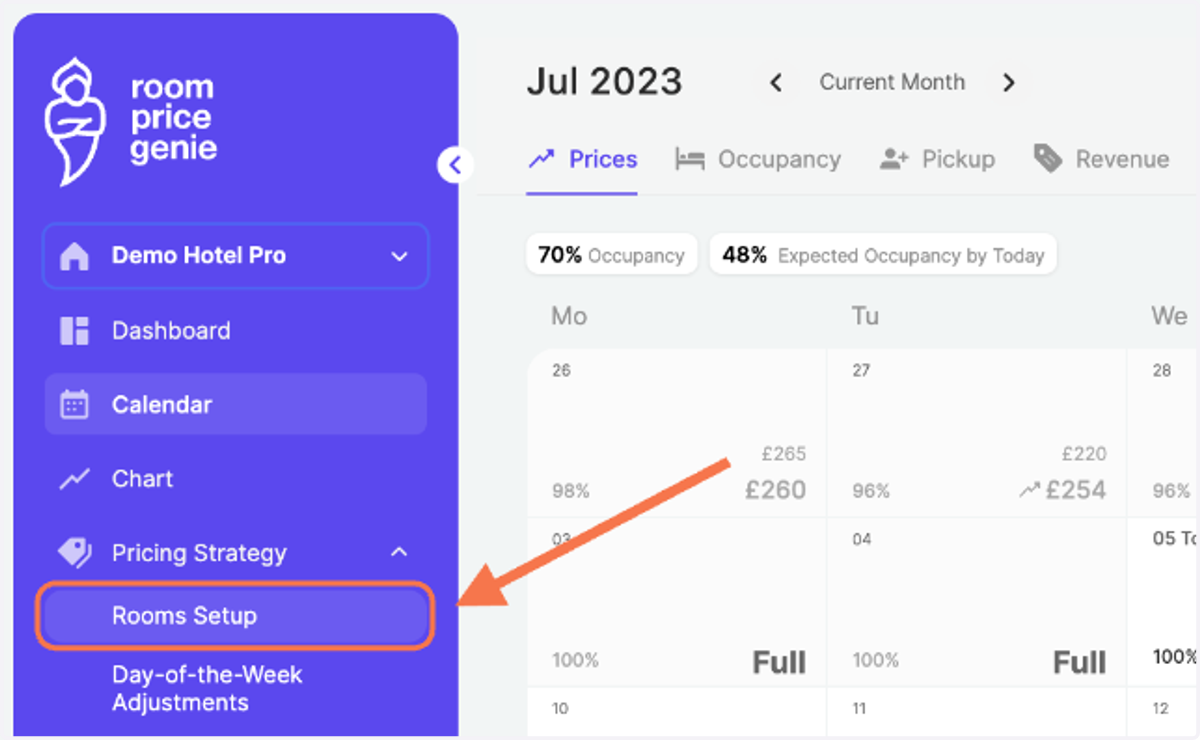
2. Click on "Rooms Setup"
3. In the list, select the category you would like to change
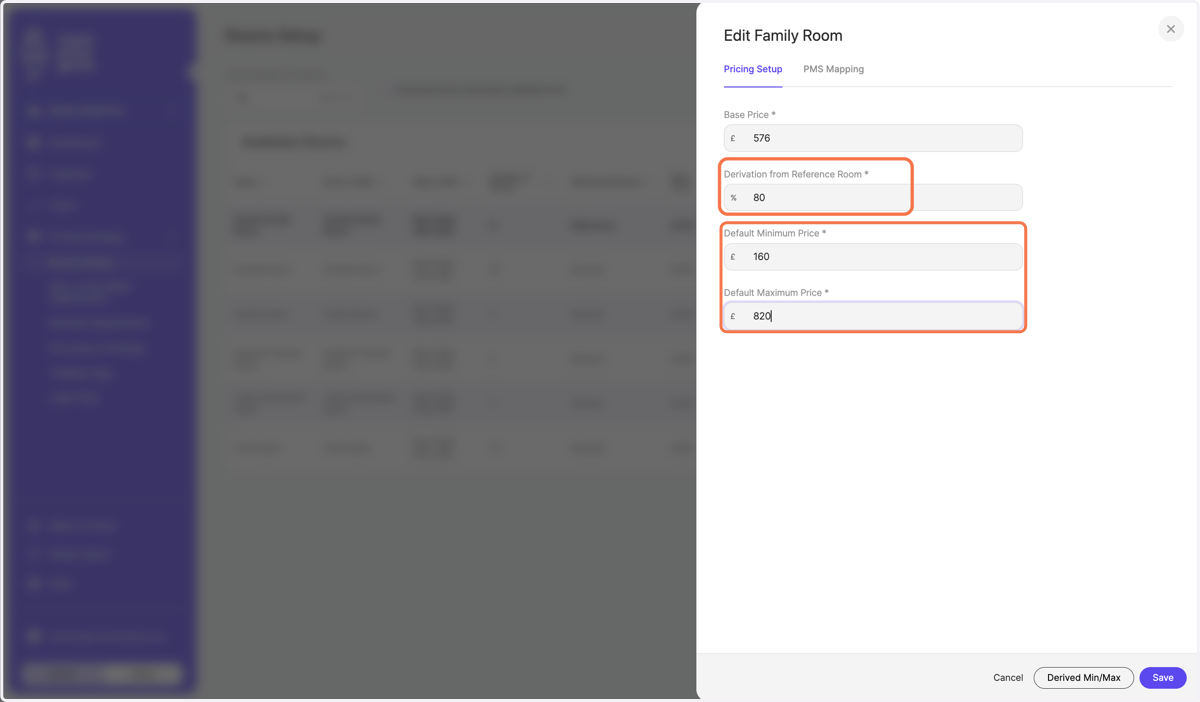
In this example, we decide to make changes to the Family Room
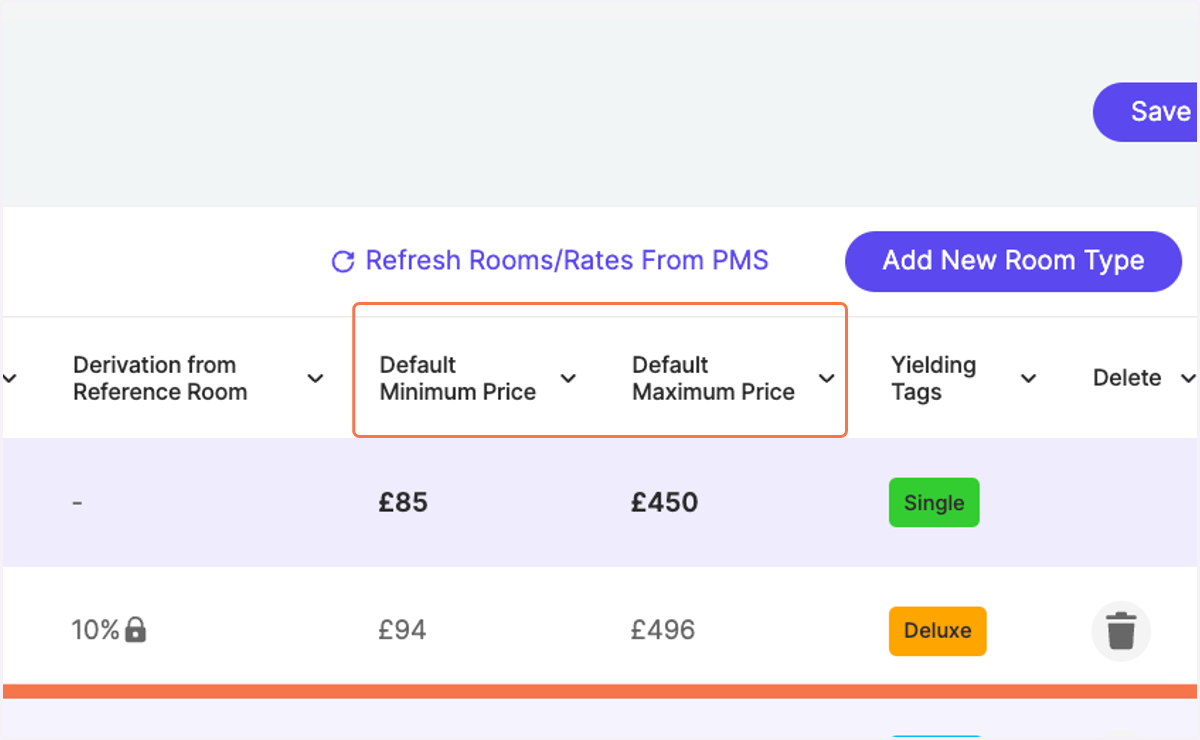
4. Under the tab " Pricing Setup", definer your default Minimum and Maximum Prices for your derived room
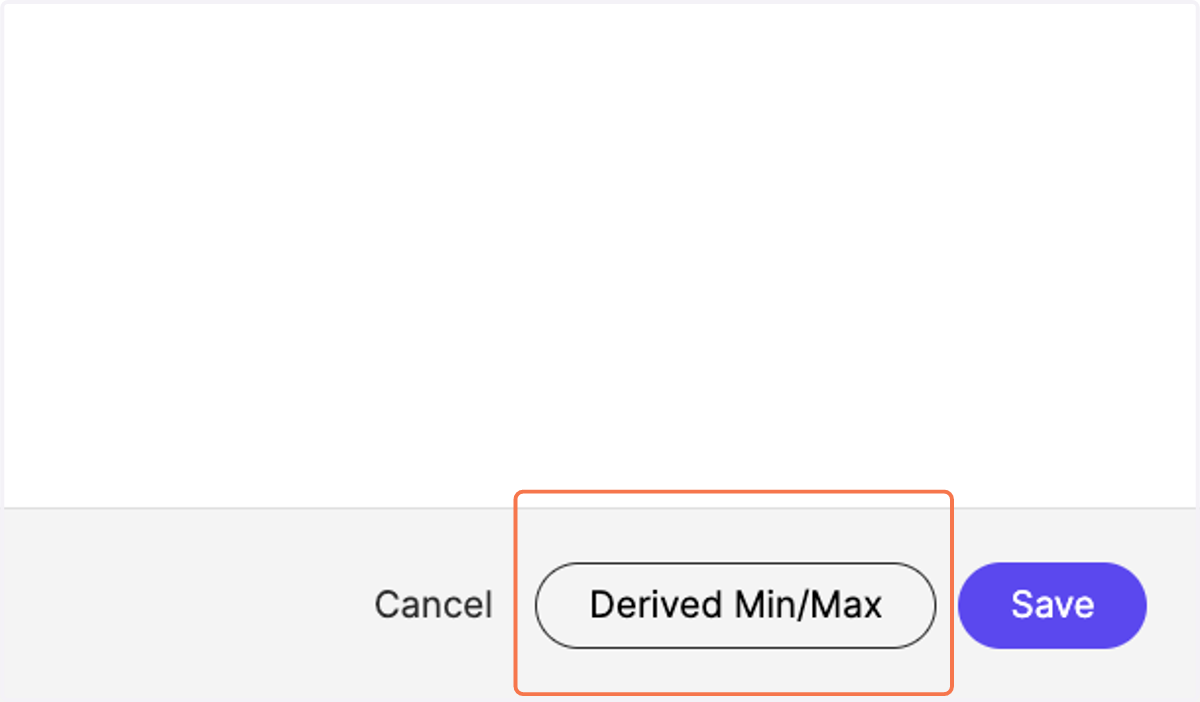
5. Optional 1: On the bottom, you find the "Derived Min/Max" button. Instead of setting your new boundaries manually, you can derive them from your reference room following the derivation rules.
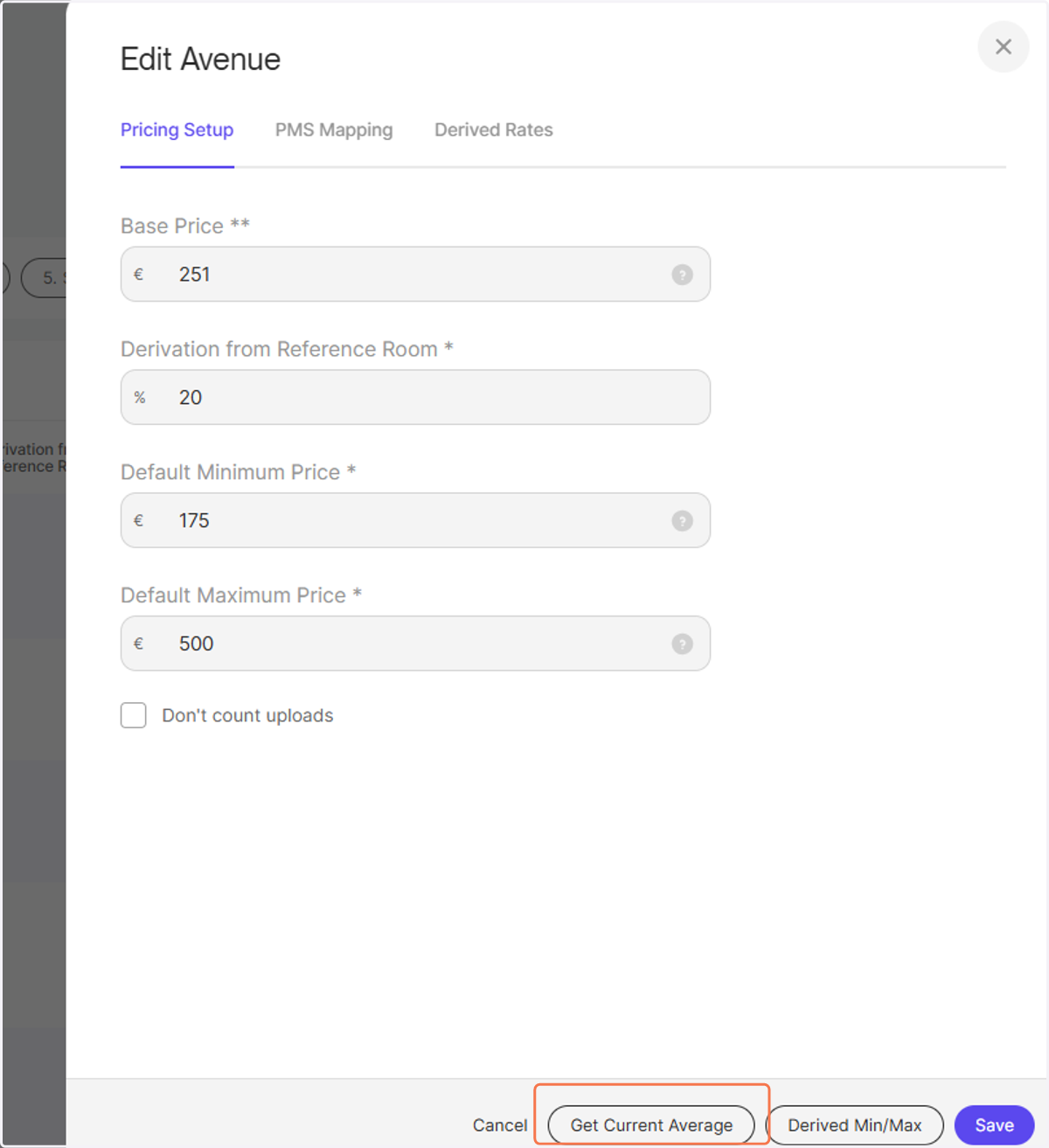
6. Optional 2: you can also use the avage price applied for the next 365 days to calculate a minimum and maximum price by clicking on "Get Current Avarage"
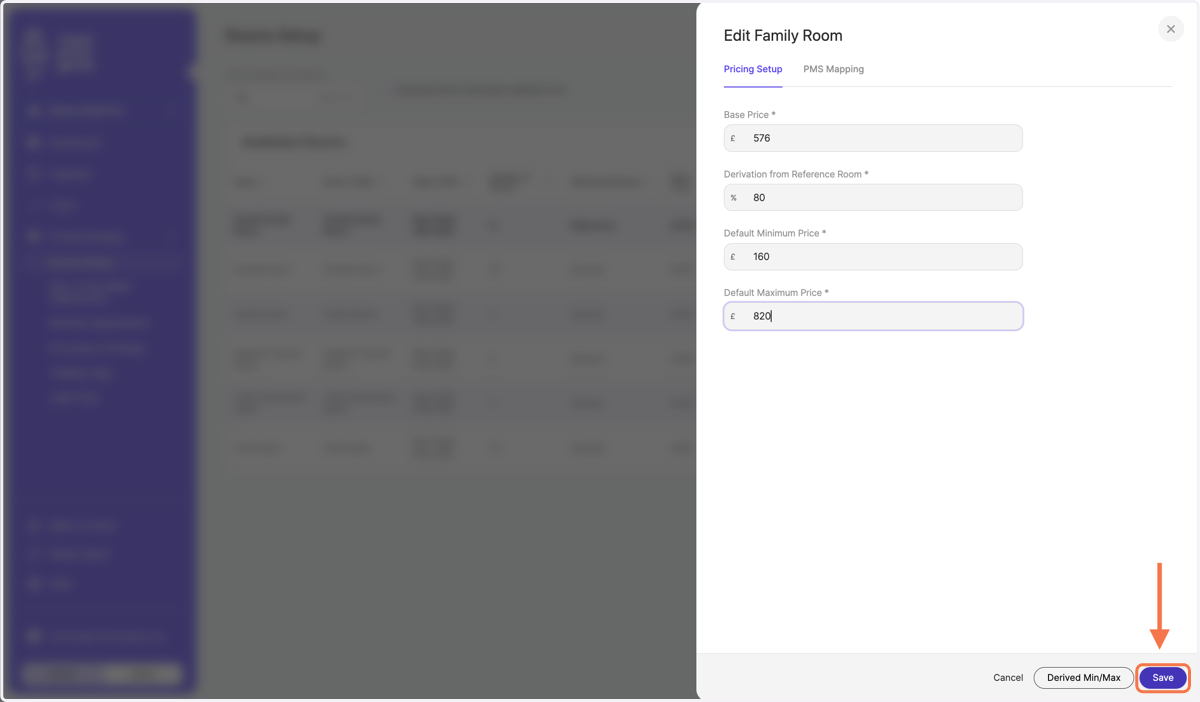
7. Click on "Save"
8. In the list, review your new Minimum and Maximum Prices for your derived categories