1.2 How to create and send customer invoices

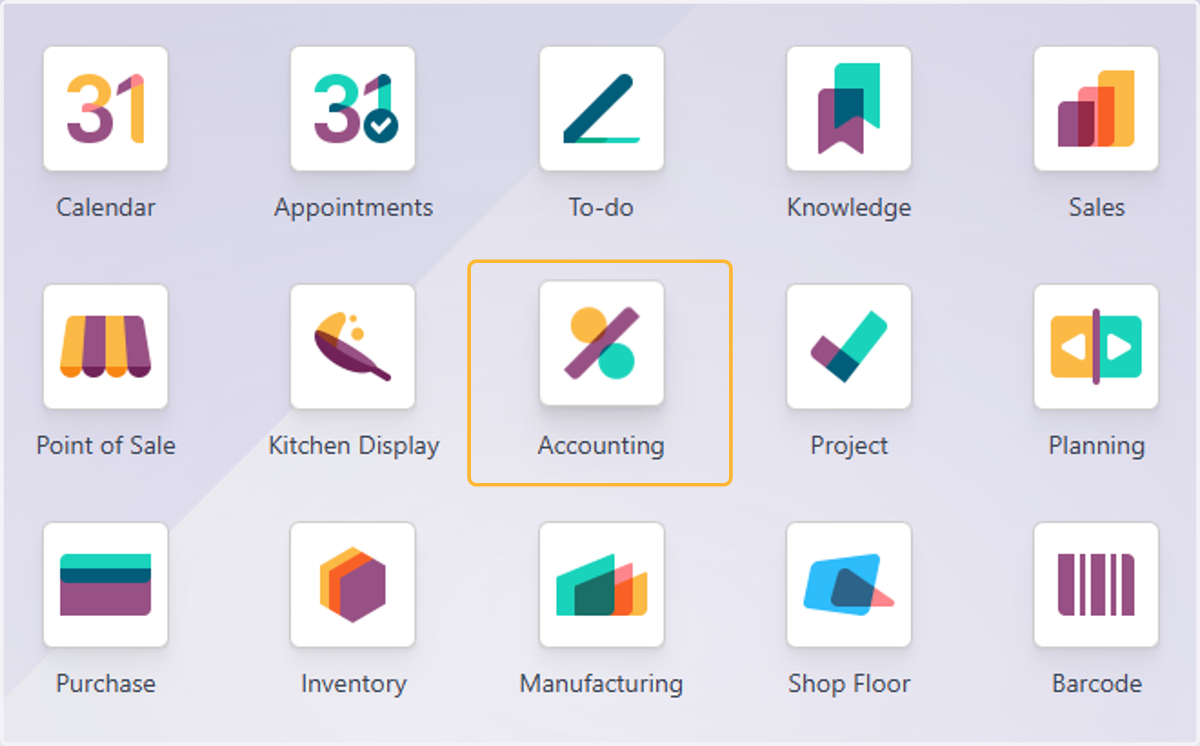
  1. 1. Click on Accounting

    Click on Accounting
  2. 2. Click on Dropdown menu of Customer Invoice Journal in dashboard
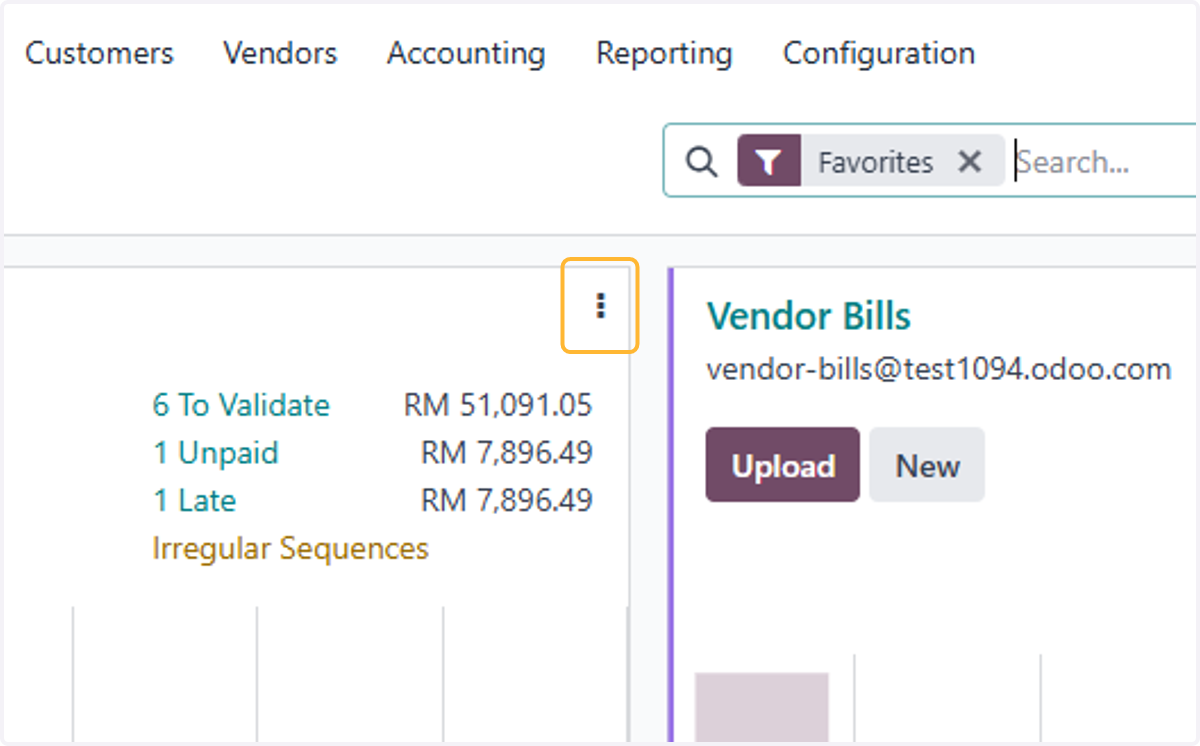
    Click on Dropdown menu of Customer Invoice Journal in dashboard
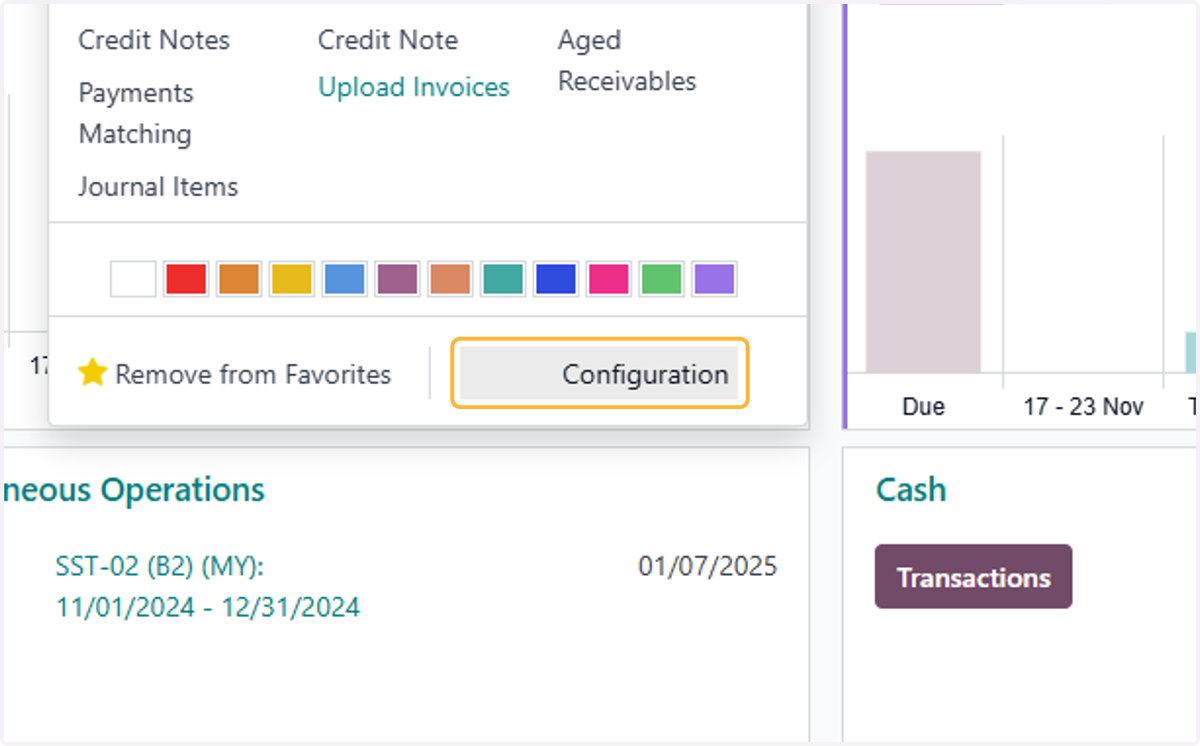
  3. 3. Click on Configuration

    Click on Configuration
  4. 4. Here you can set your Default Income Account for this journal.
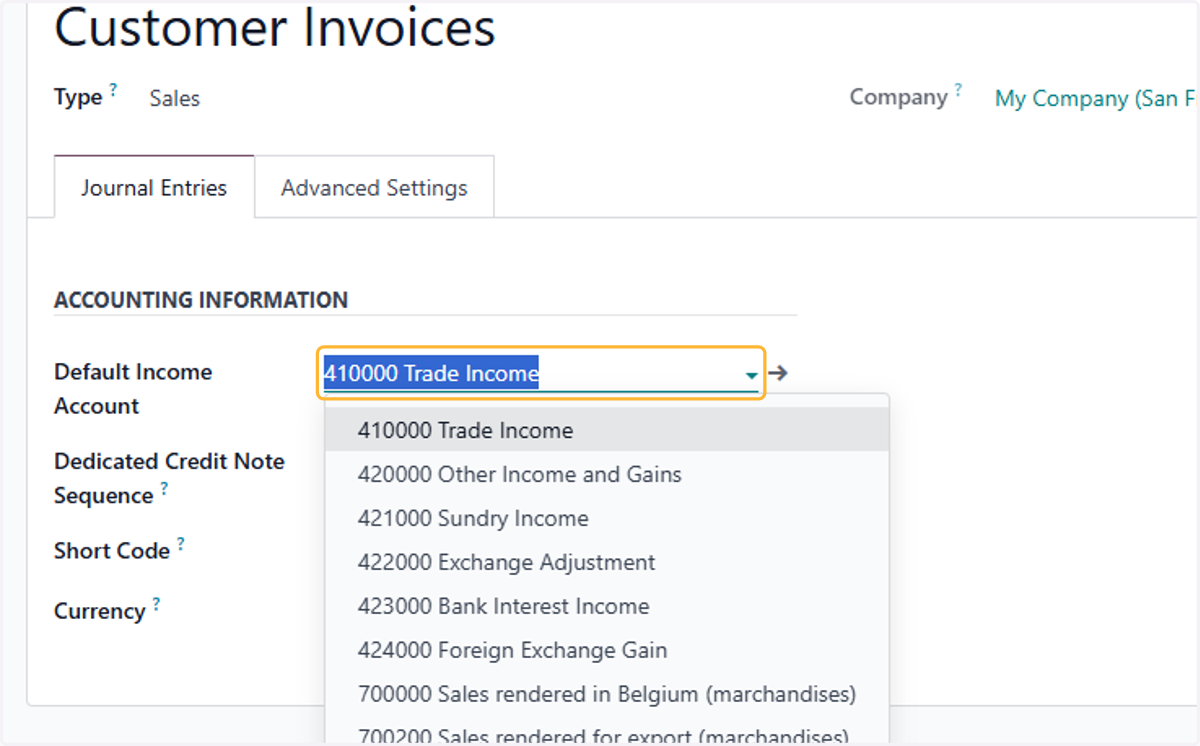
    Here you can set your Default Income Account for this journal.
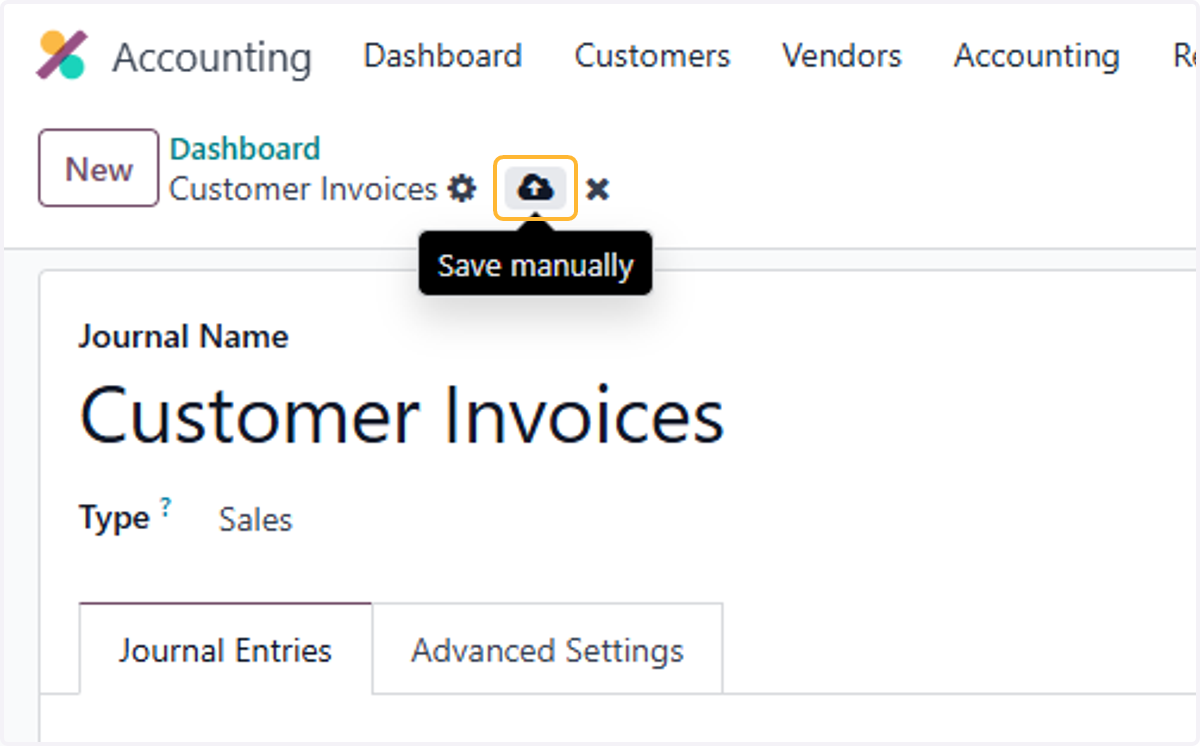
  5. 5. Click on Save manually

    Click on Save manually
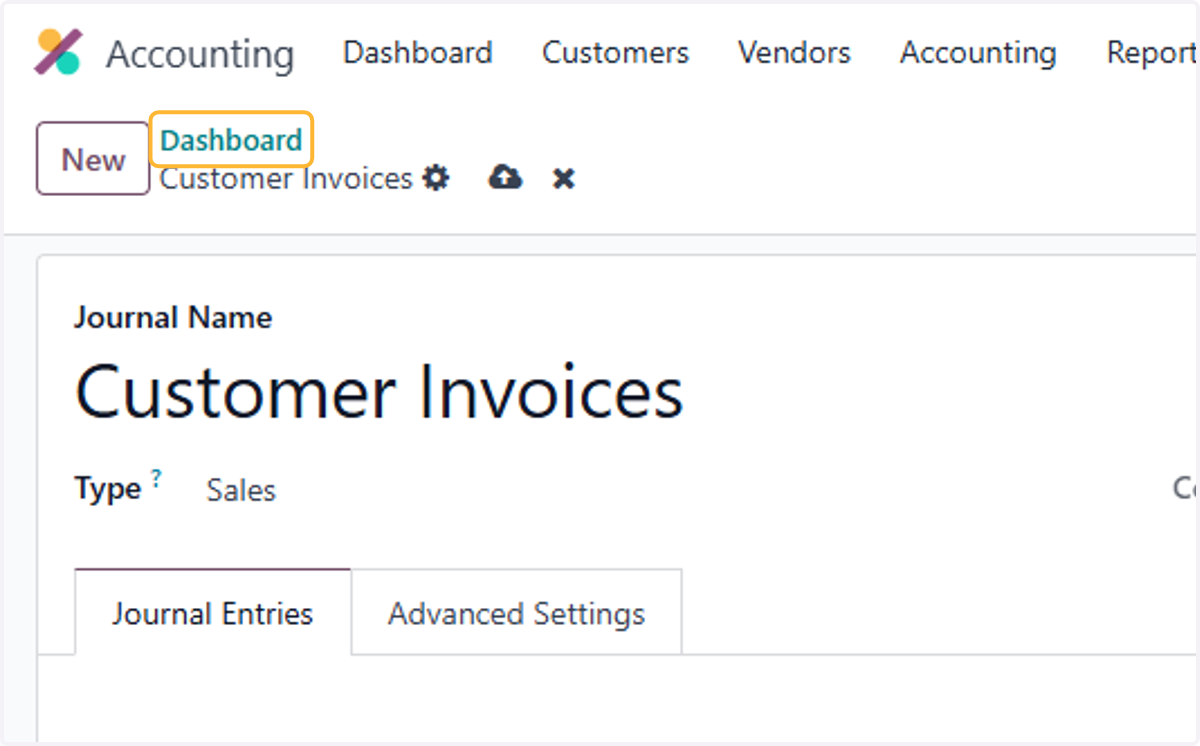
  6. 6. Click on Dashboard

    Click on Dashboard
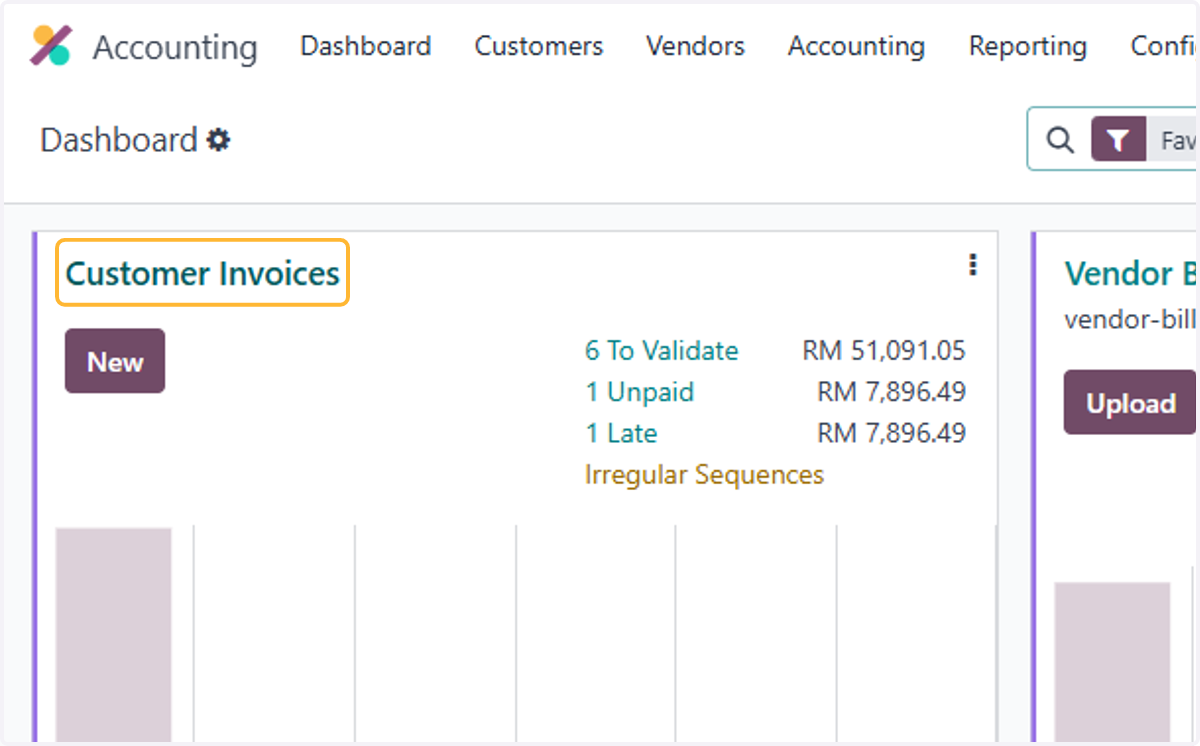
  7. 7. Click on Customer Invoices

    Click on Customer Invoices
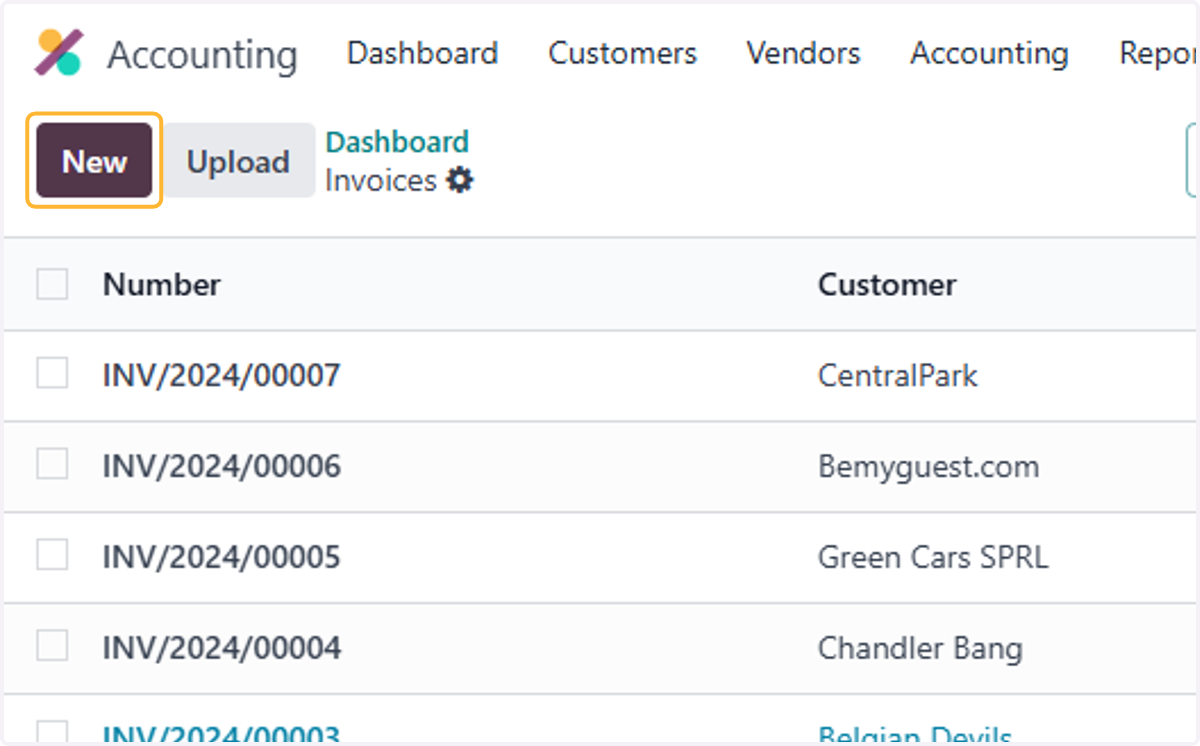
  8. 8. Click on New

    Click on New
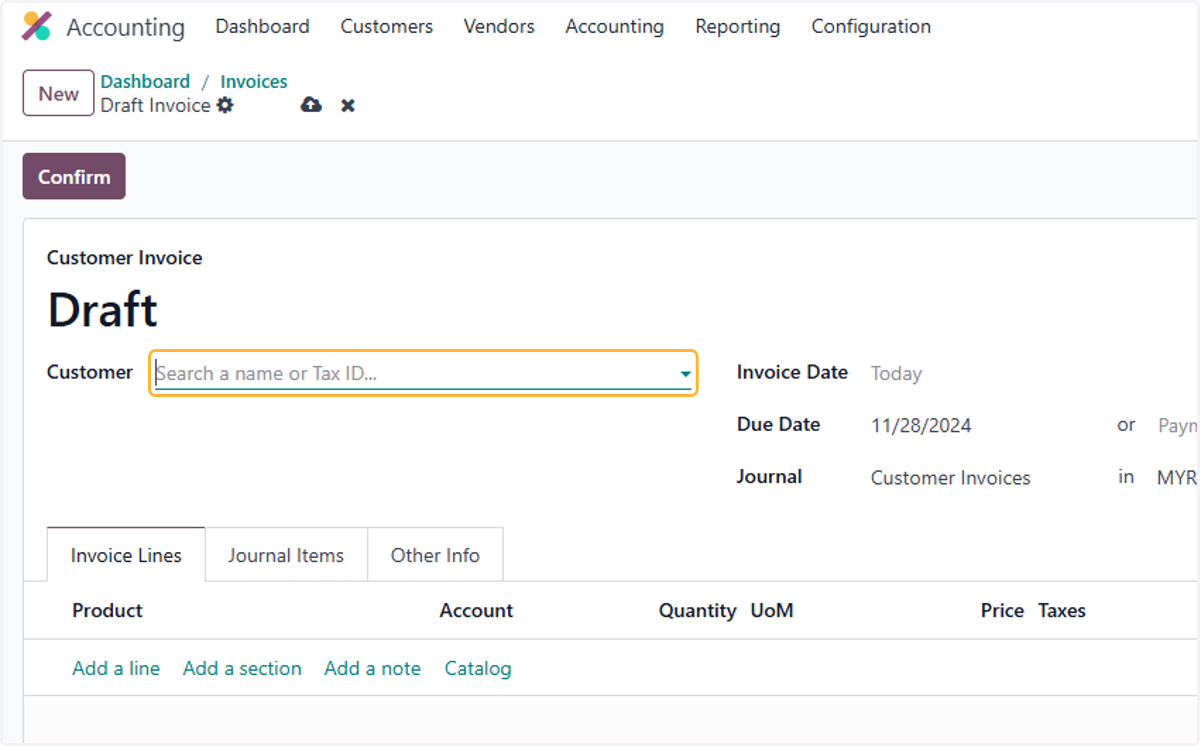
  9. 9. Click on Customer

    Click on Customer
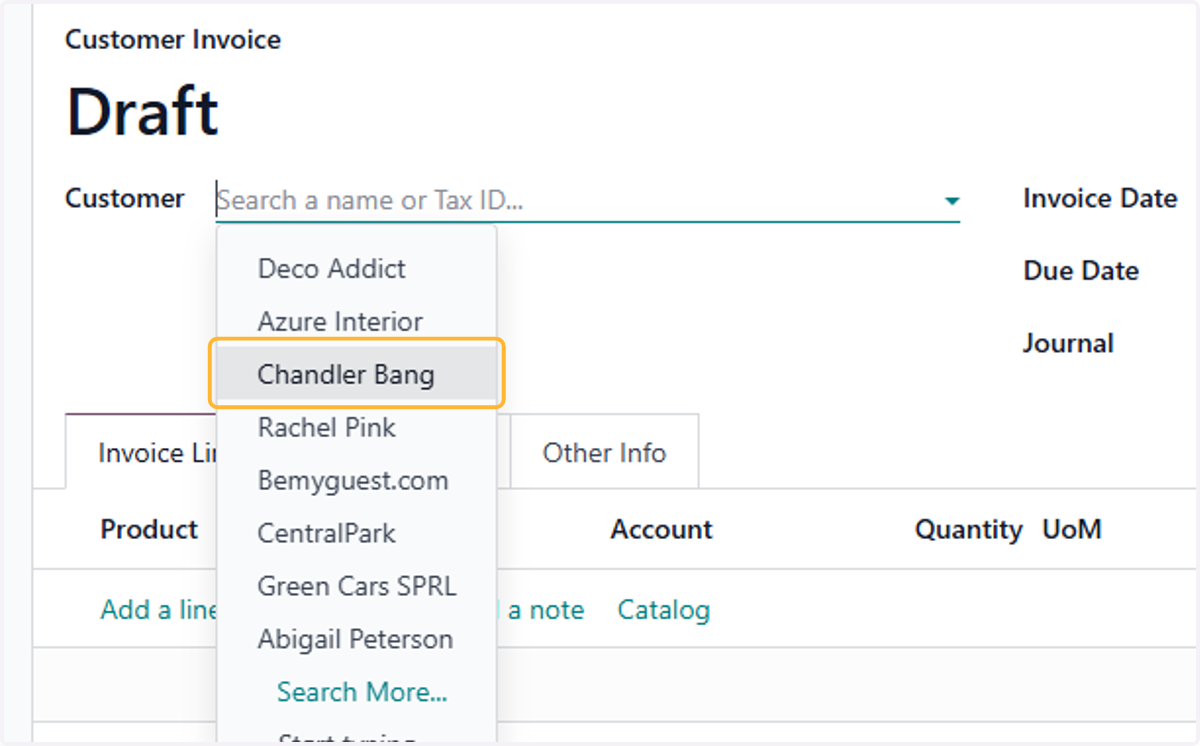
  10. 10. Click on Chandler Bang

    Click on Chandler Bang
  11. 11. Here you can Add a section to easily layout the details of the invoice
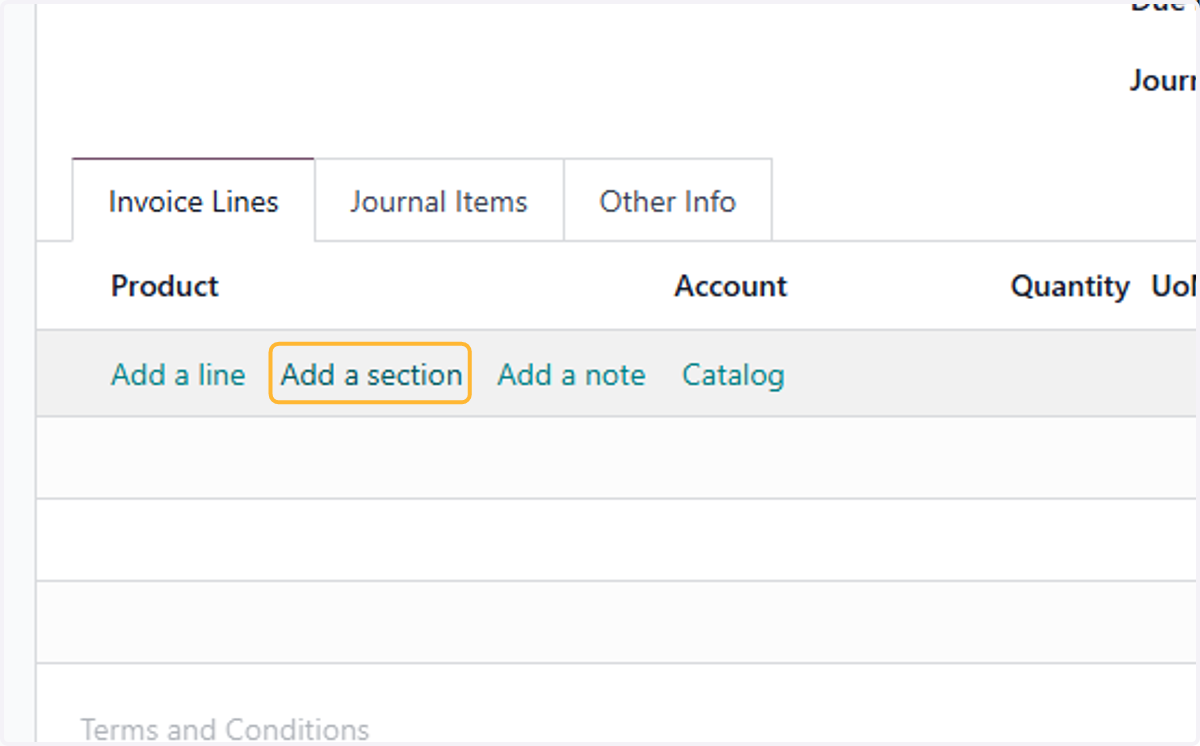
    Here you can Add a section to easily layout the details of the invoice
  12. 12. Fill in a section . For example, Food has been put as a section header.
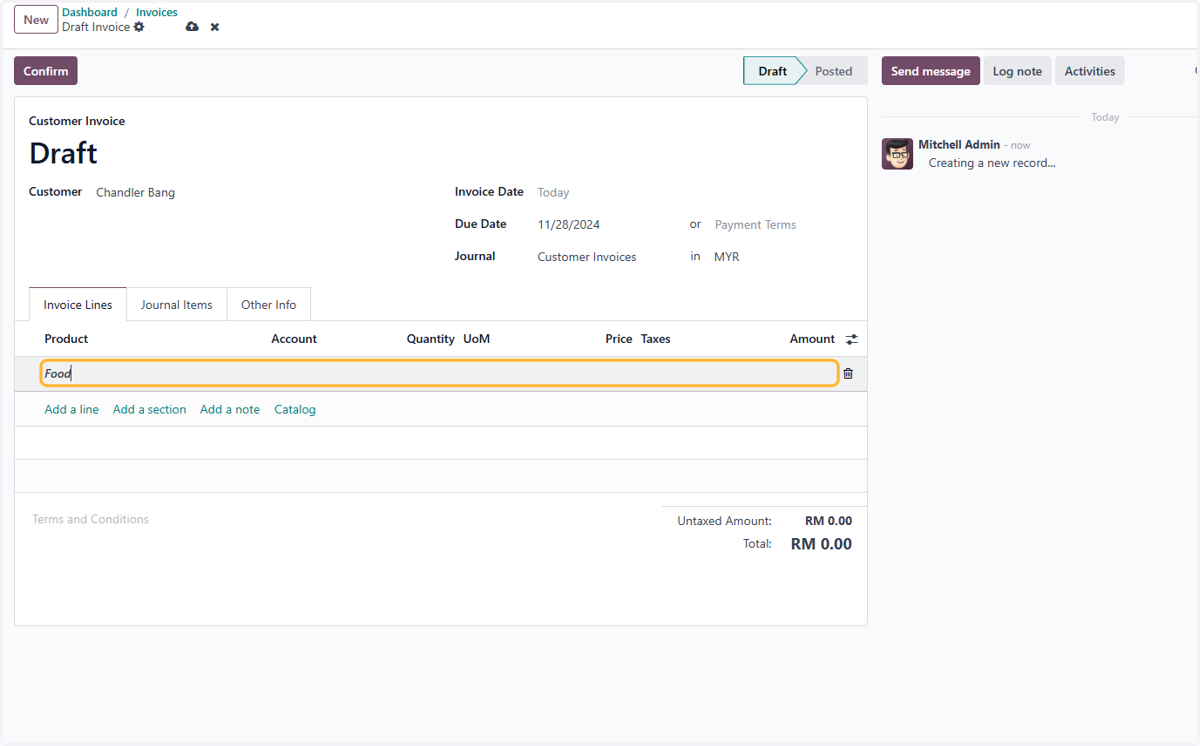
    Fill in a section . For example, Food has been put as a section header.
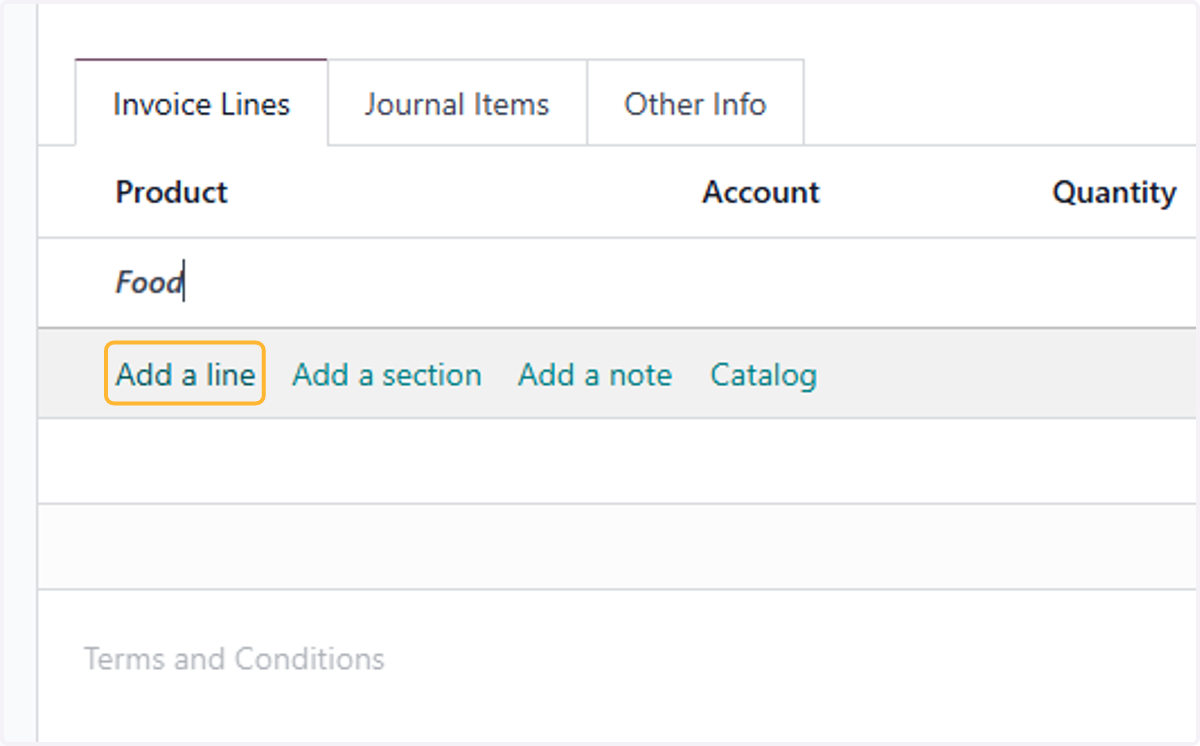
  13. 13. Click on Add a line

    Click on Add a line
  14. 14. Here you can select your products. For example here, I've selected apple pie
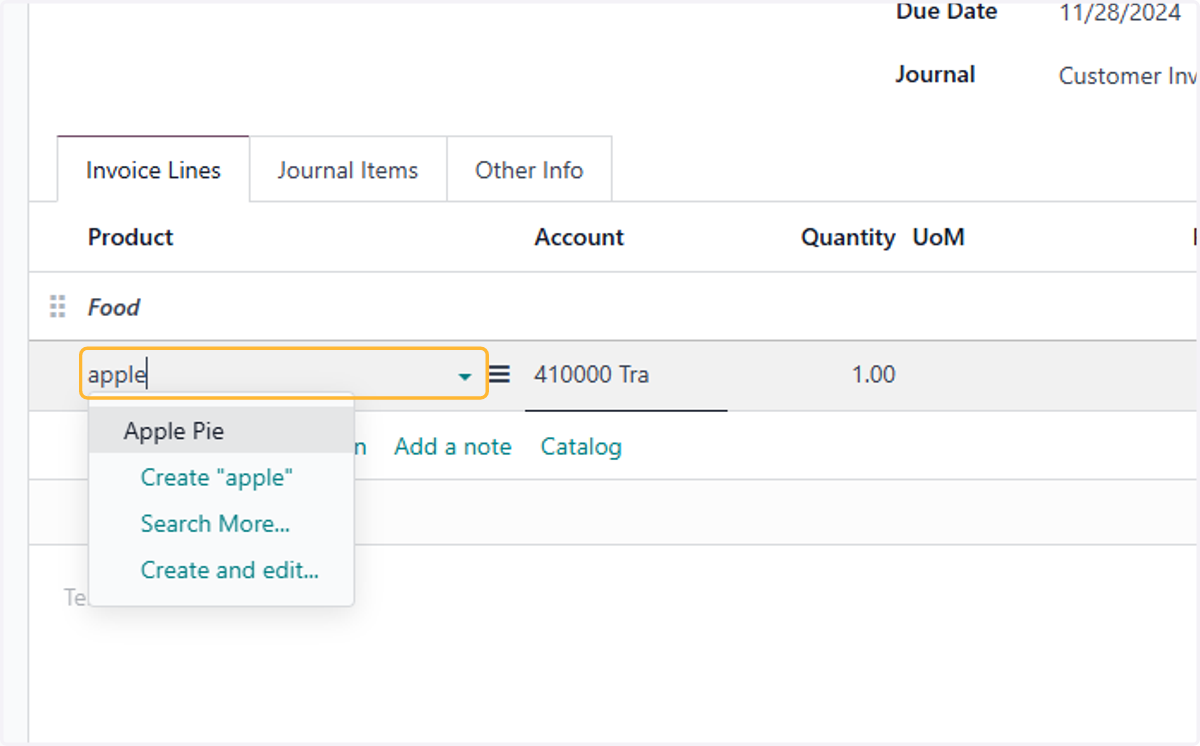
    Here you can select your products. For example here, I've selected apple pie
  15. 15. You can adjust the quantity of the products here
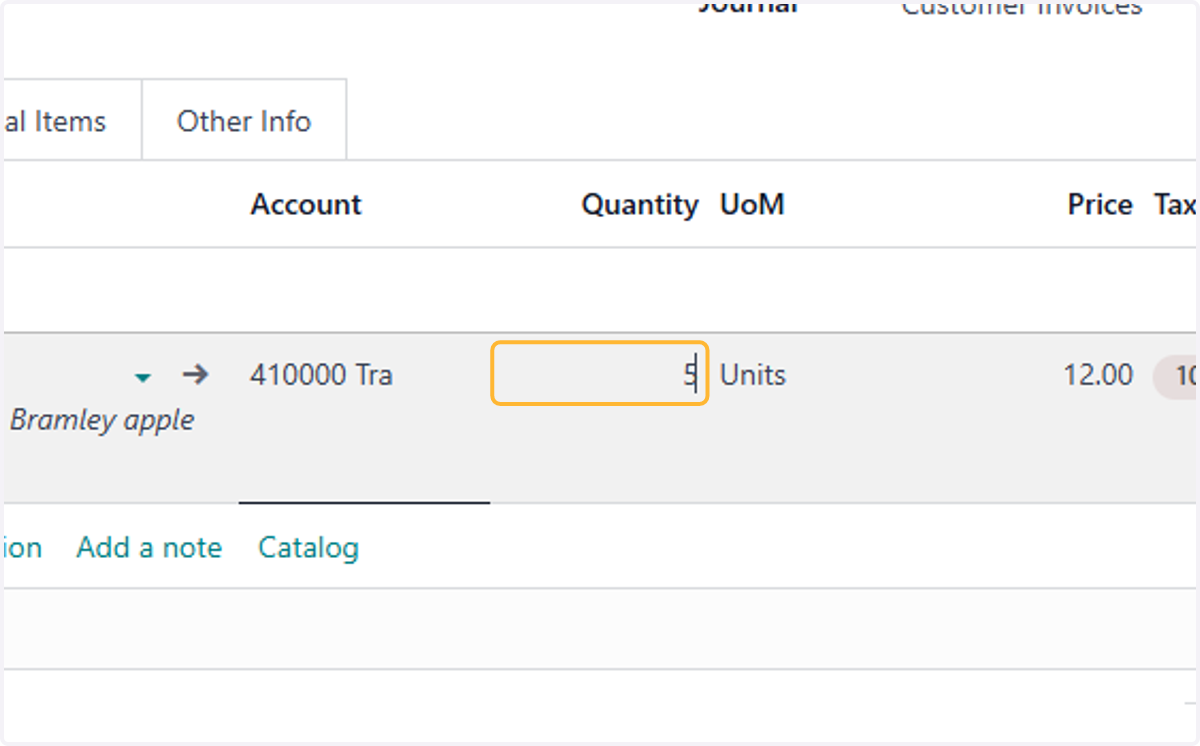
    You can adjust the quantity of the products here
  16. 16. The default price given is based on the product sale's price but you can adjust if needed
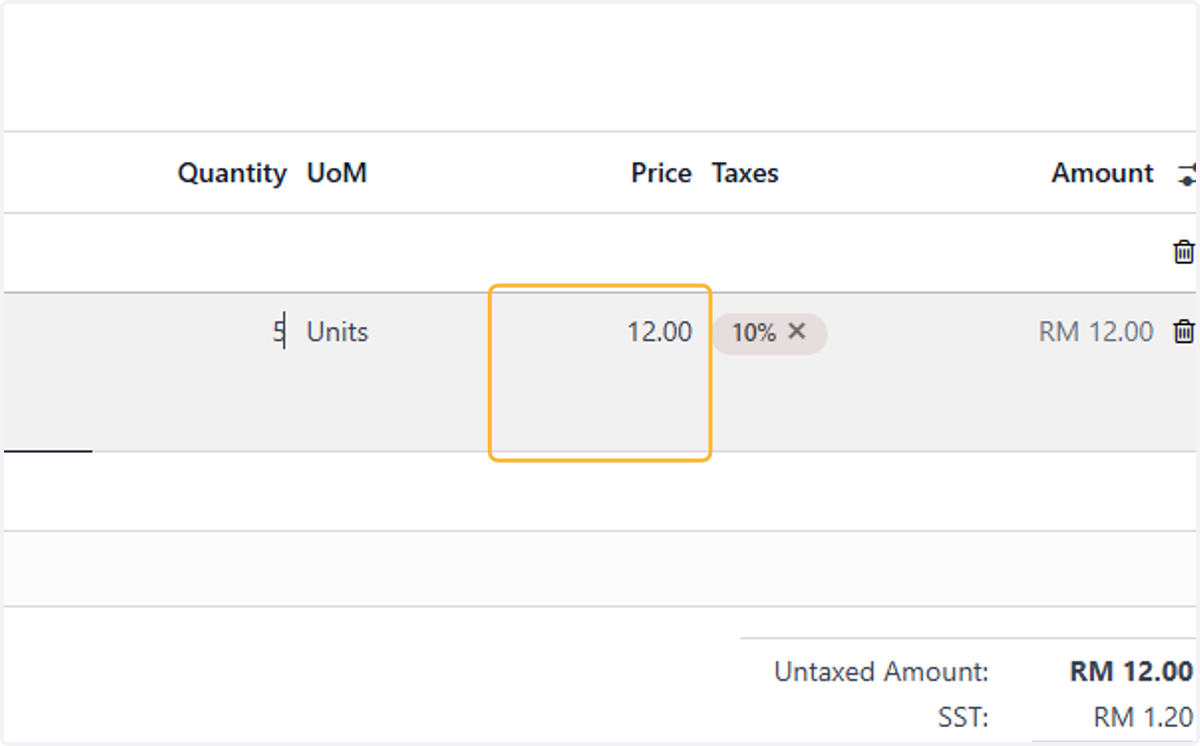
    The default price given is based on the product sale's price but you can adjust if needed
  17. 17. You may Add a note for further description
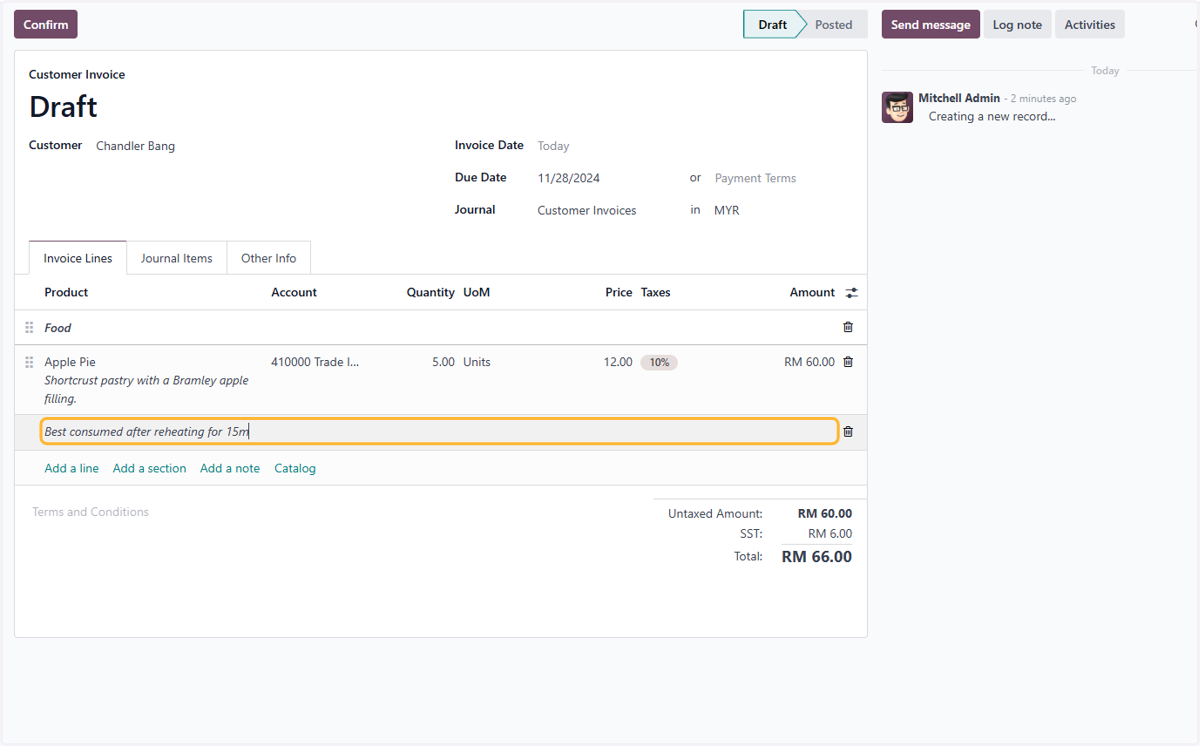
    You may Add a note for further description
  18. 18. You may select an date for the invoice, if left blank will default to the current date
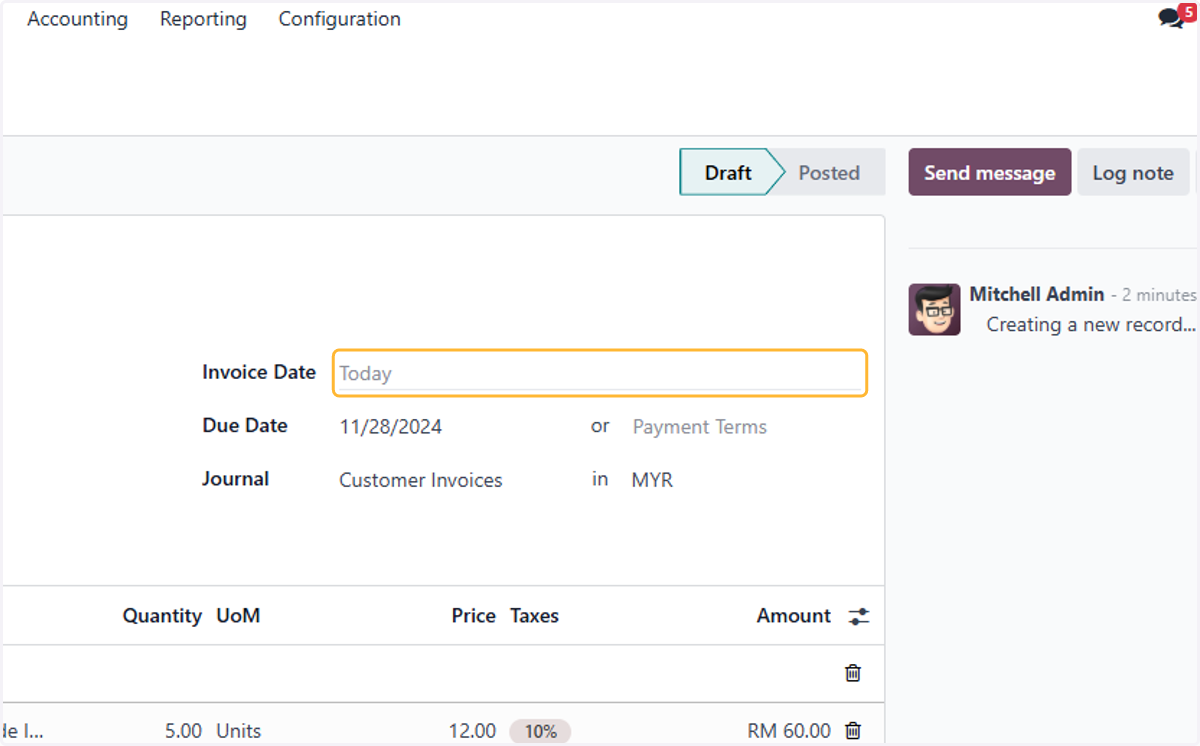
    You may select an date for the invoice, if left blank will default to the current date
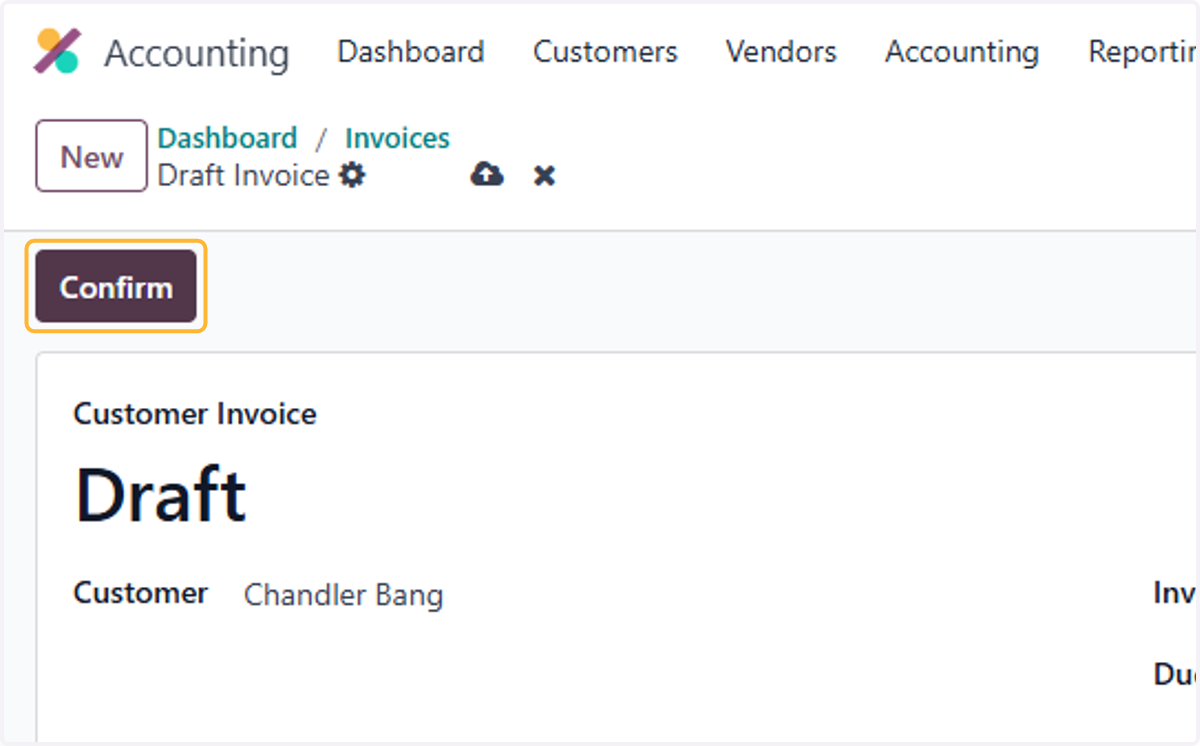
  19. 19. Click on Confirm

    Click on Confirm
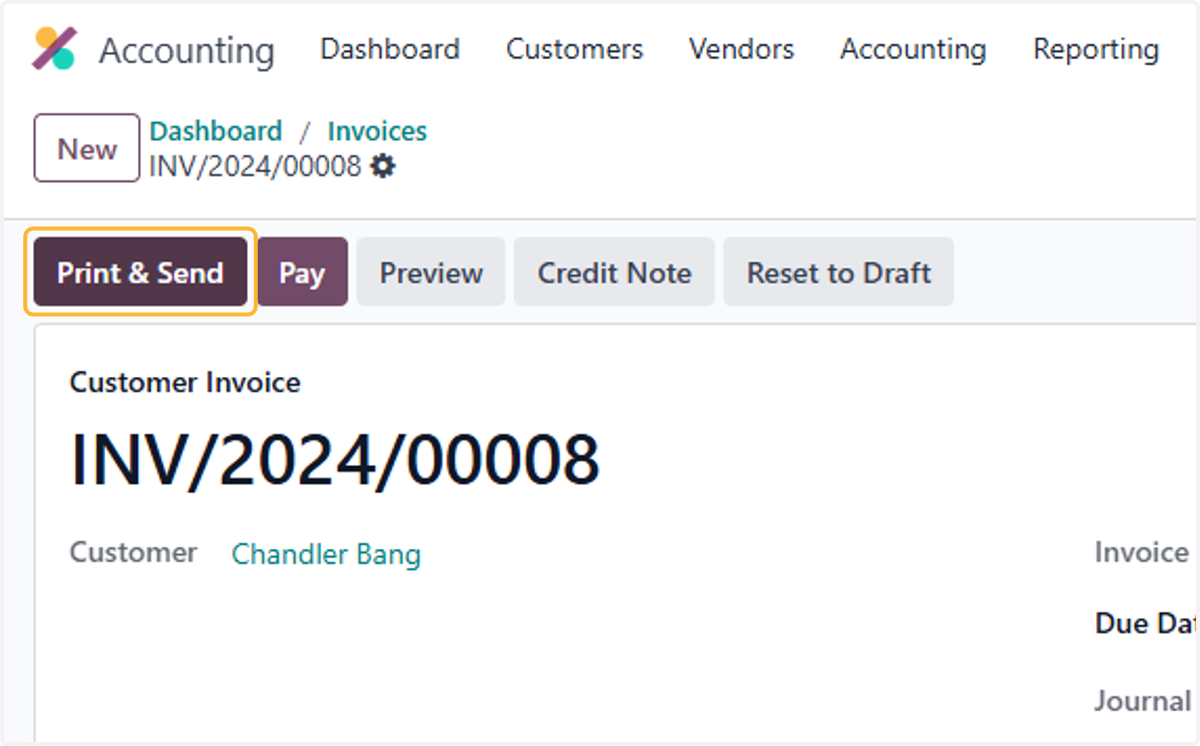
  20. 20. Click on Print & Send

    Click on Print & Send
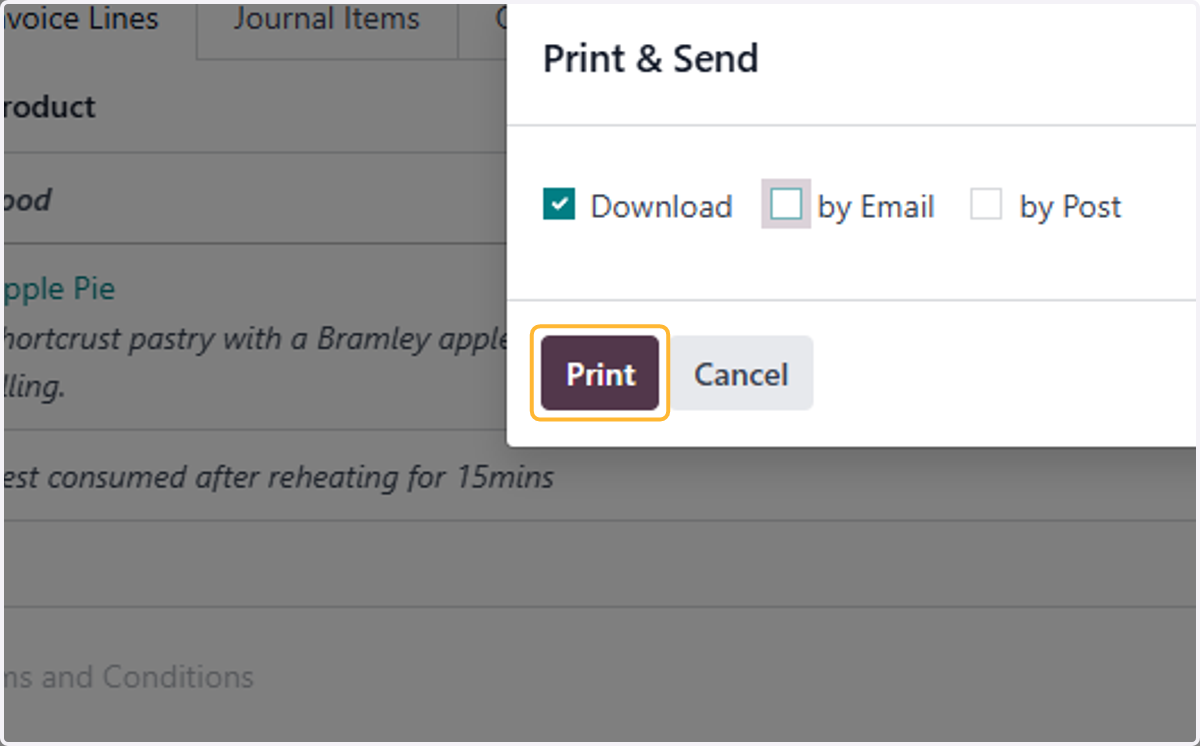
  21. 21. You may send invoices automatically by Email if you have the customer's email & details.
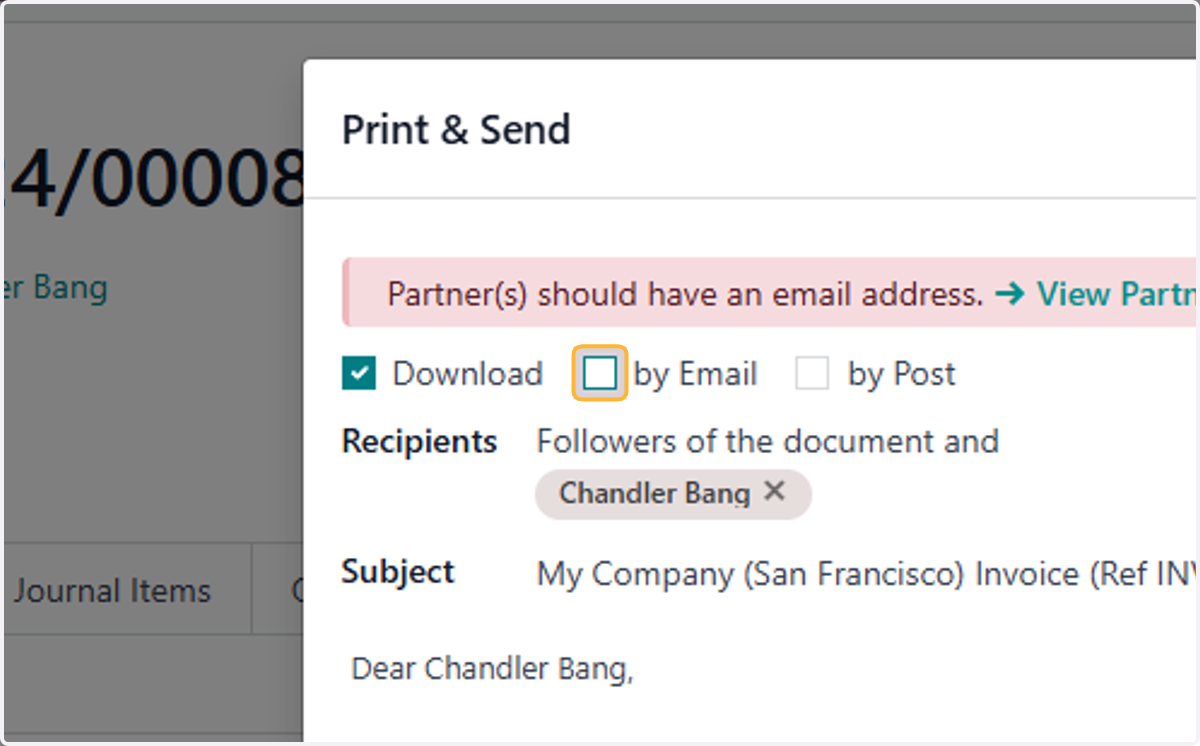
    You may send invoices automatically by Email if you have the customer's email & details.
  22. 22. Click on Print

    Click on Print
  23. 23. Once sent/printed, your invoice will be displayed on right
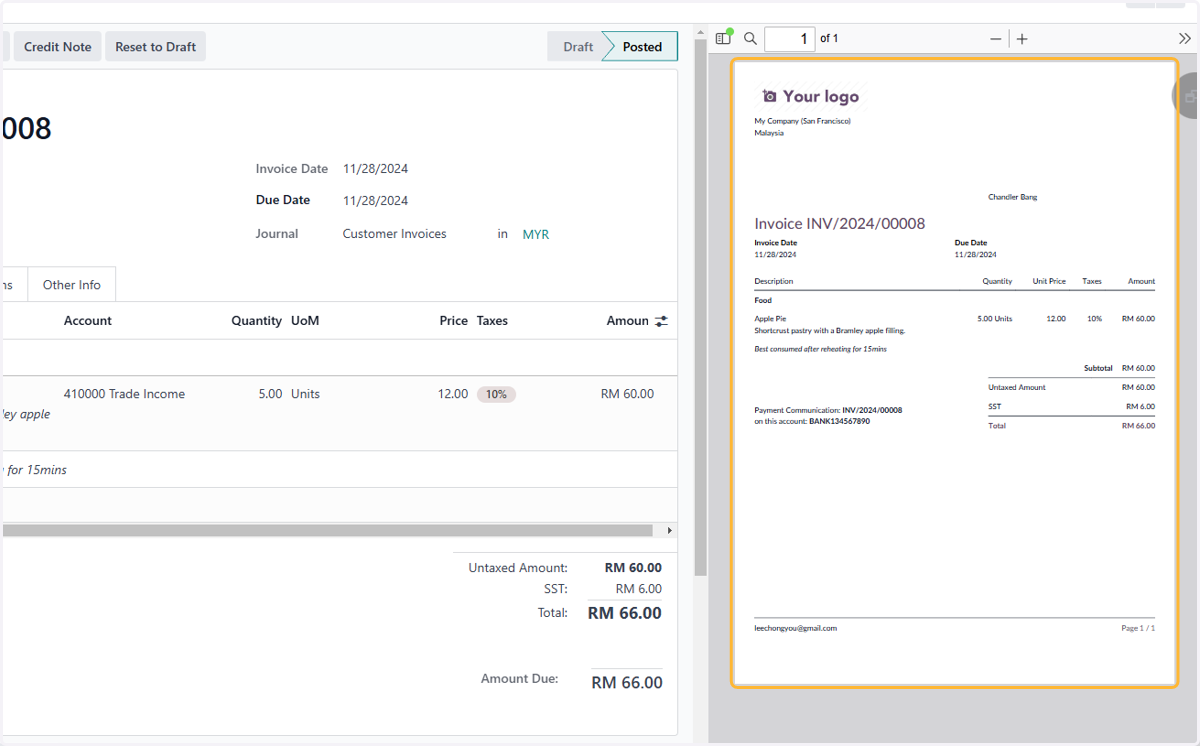
    Once sent/printed, your invoice will be displayed on right
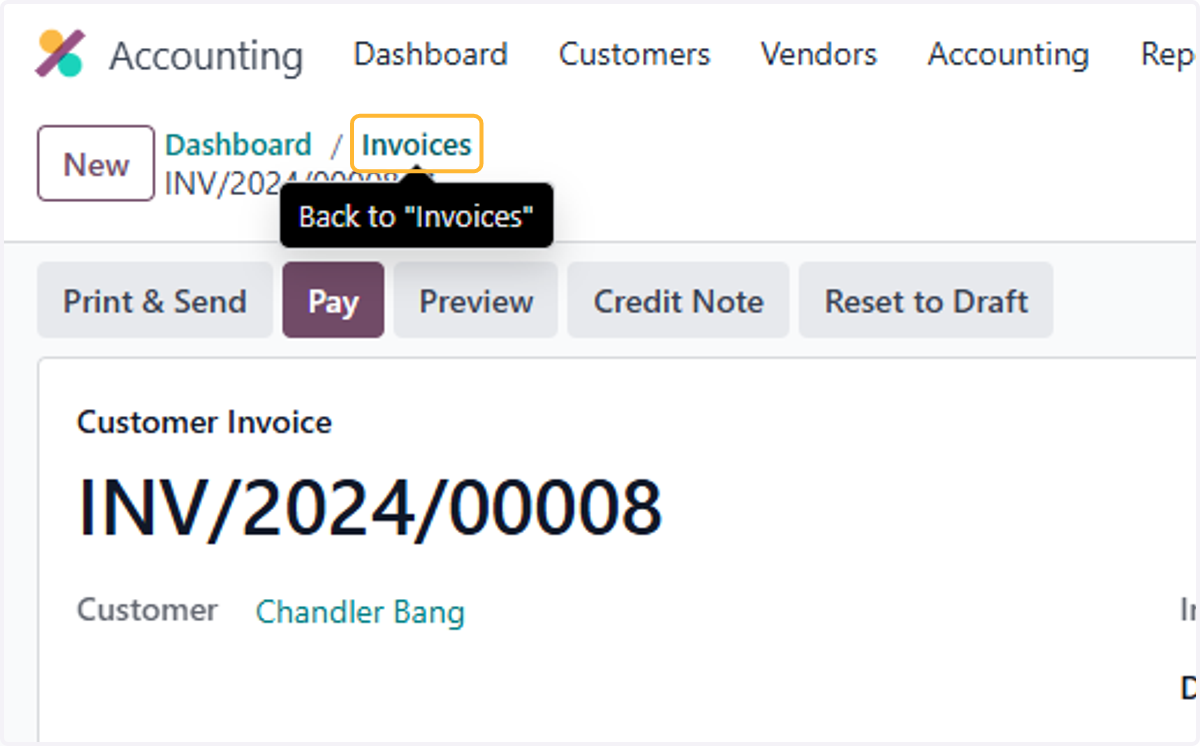
  24. 24. Click on Invoices

    Click on Invoices
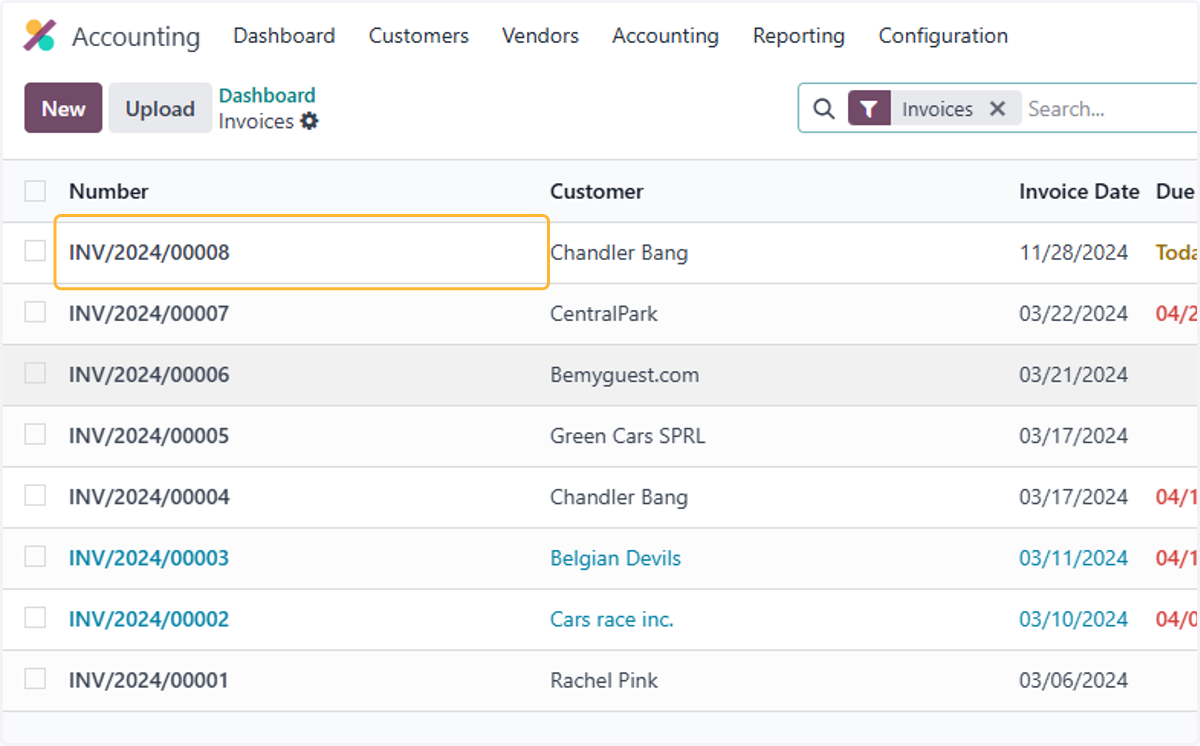
  25. 25. View of posted invoice

    View of posted invoice