Building DTM Tours

Chateau

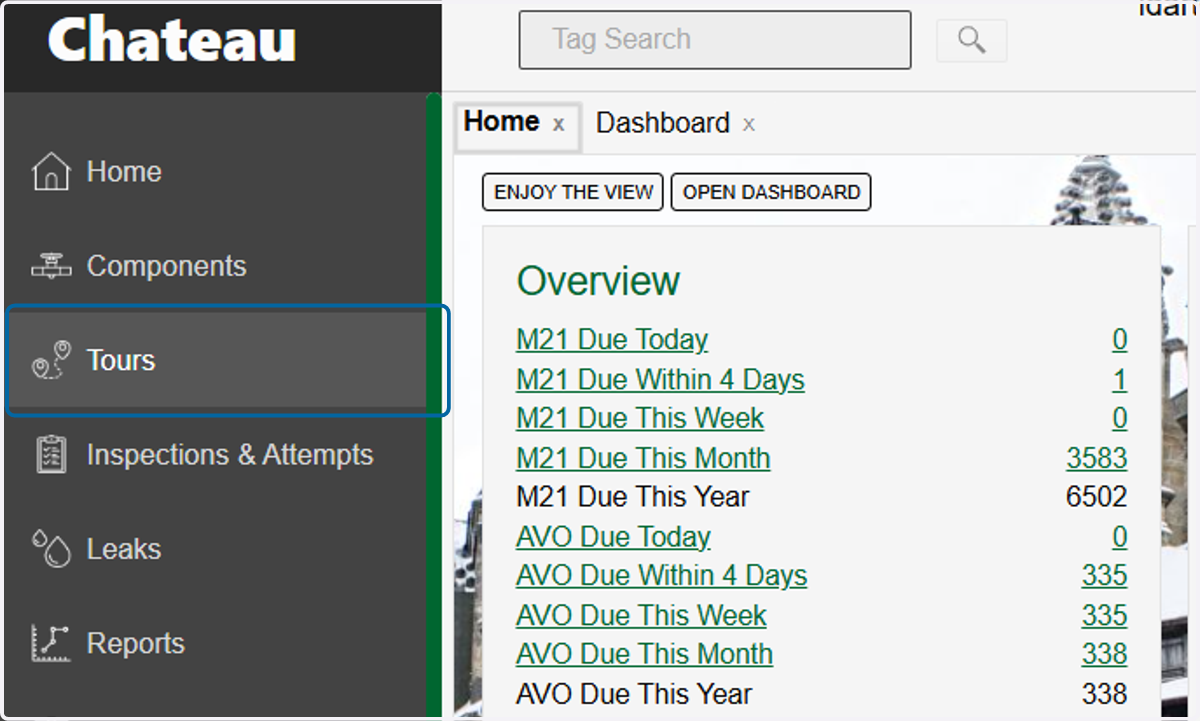
  1. 1. Click on Tours

    Click on Tours
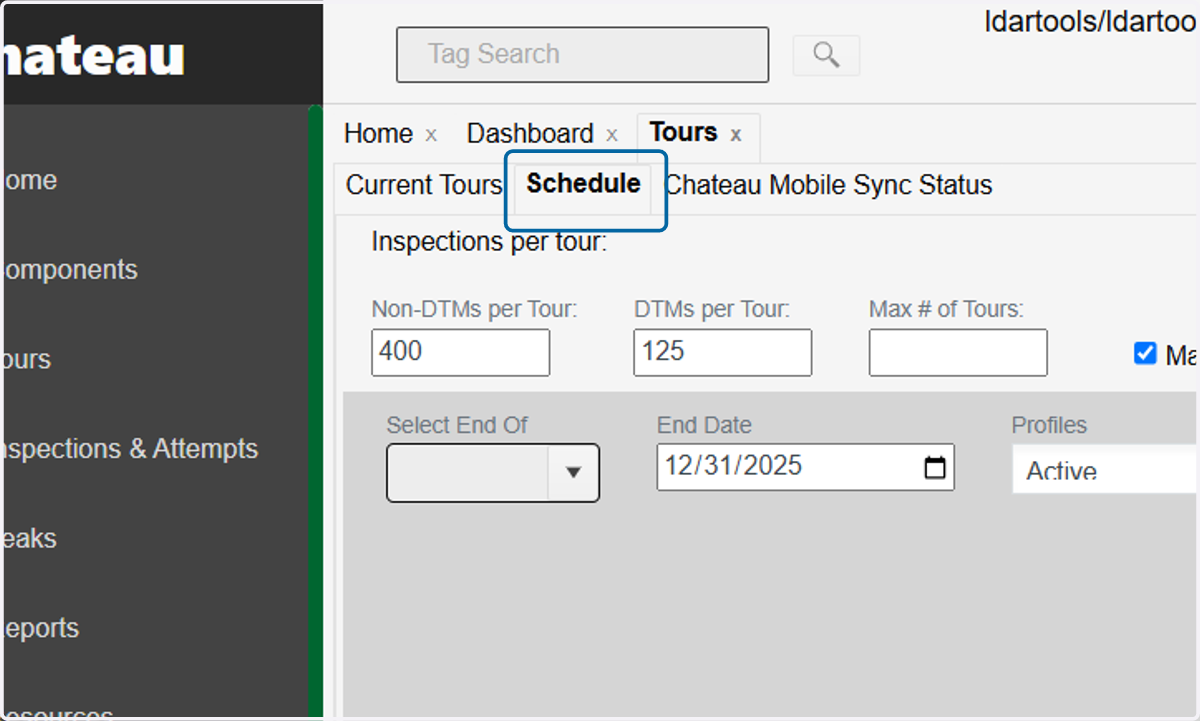
  2. 2. Click on Schedule

    Click on Schedule
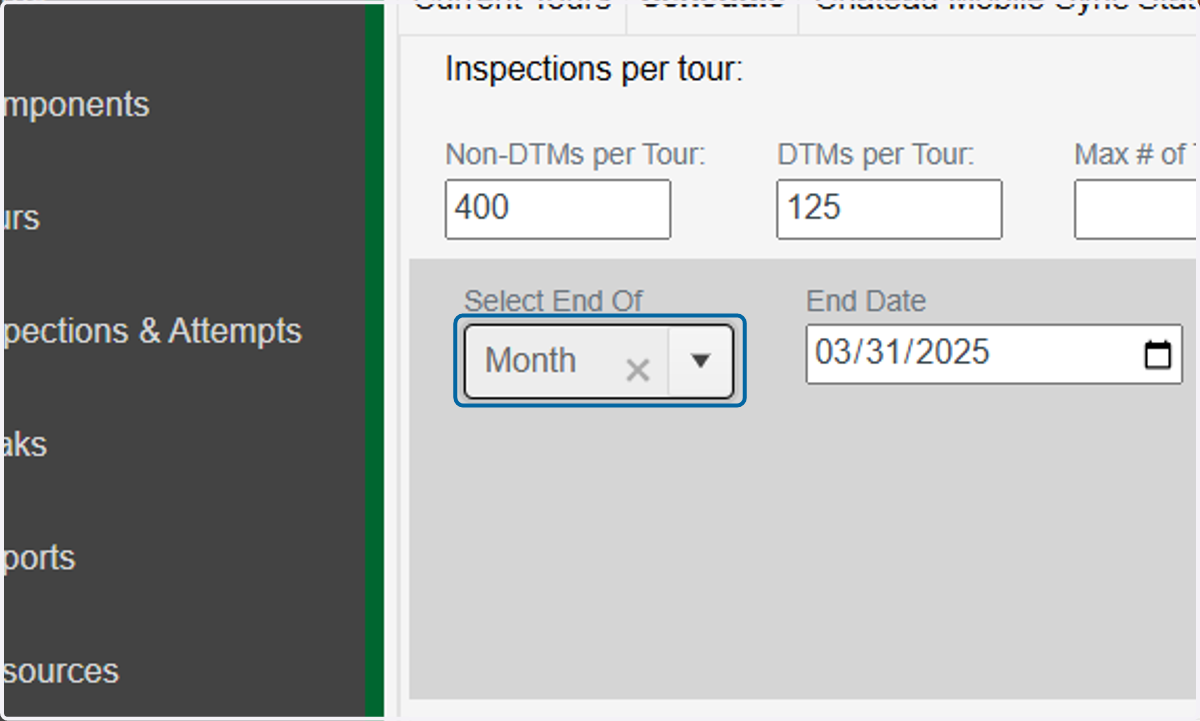
  3. 3. Click on 'Select End Of' dropdown

    Click on 'Select End Of' dropdown
  4. 4. Click on Year or whenever your DTMs are due
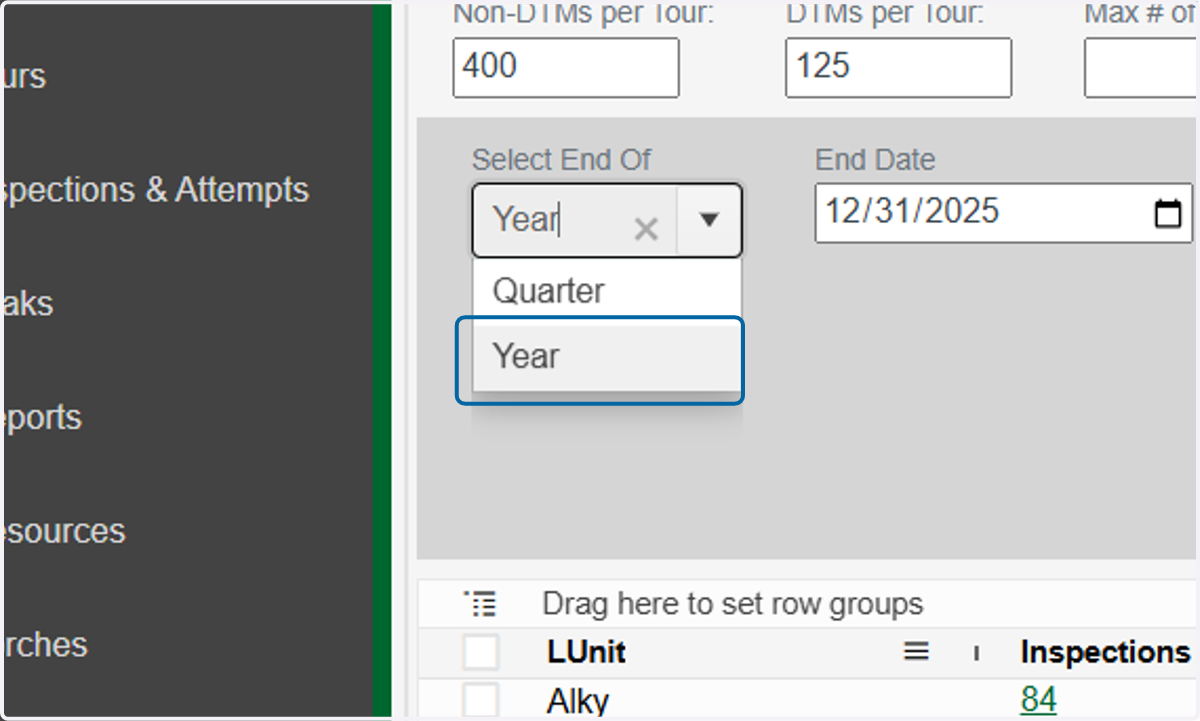
    Click on Year or whenever your DTMs are due
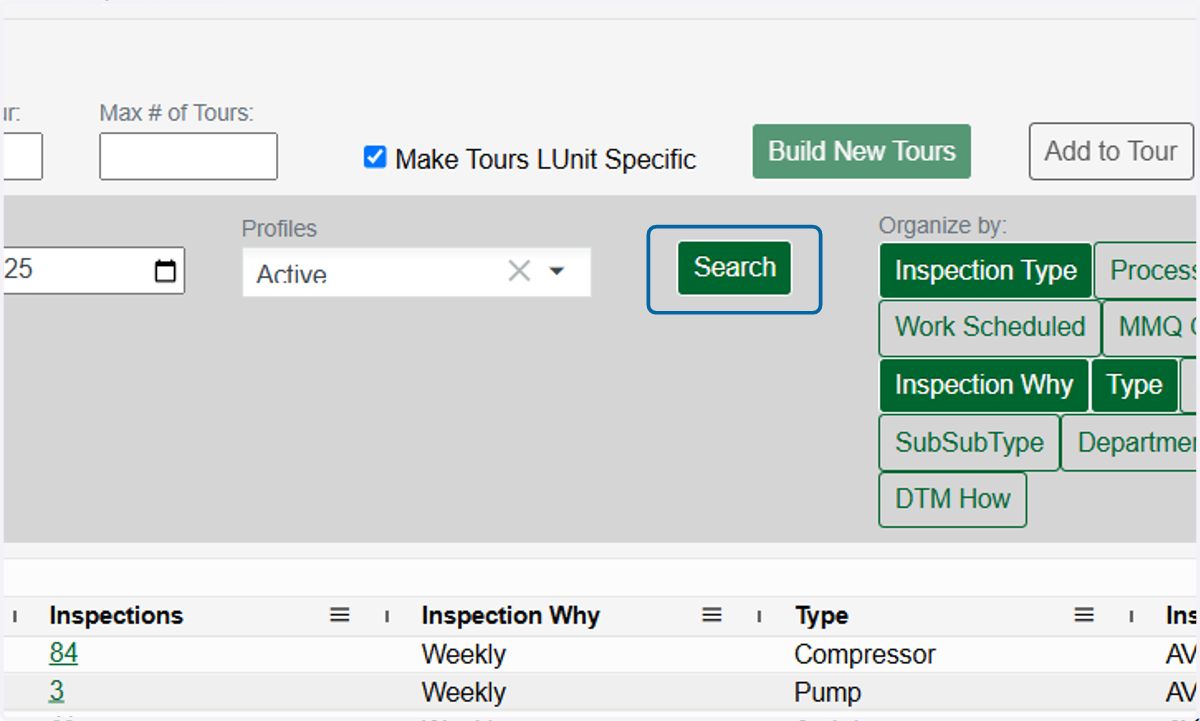
  5. 5. Click on Search

    Click on Search
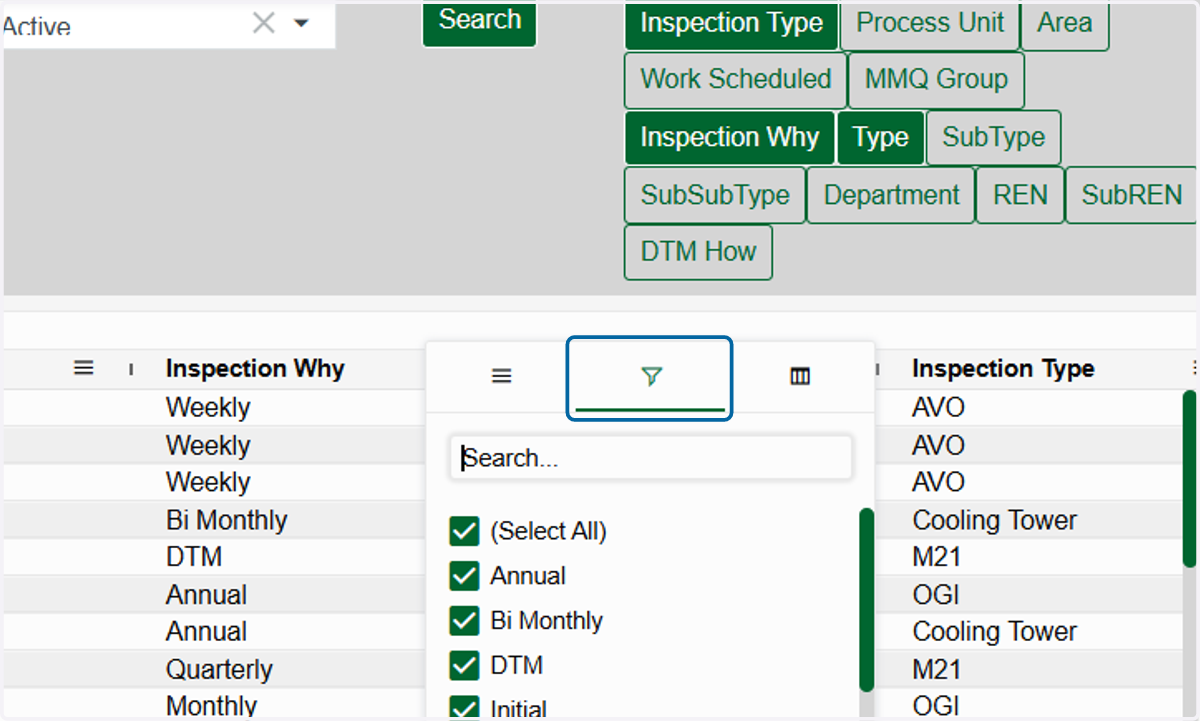
  6. 6. Click on Inspection Why header Menu icon
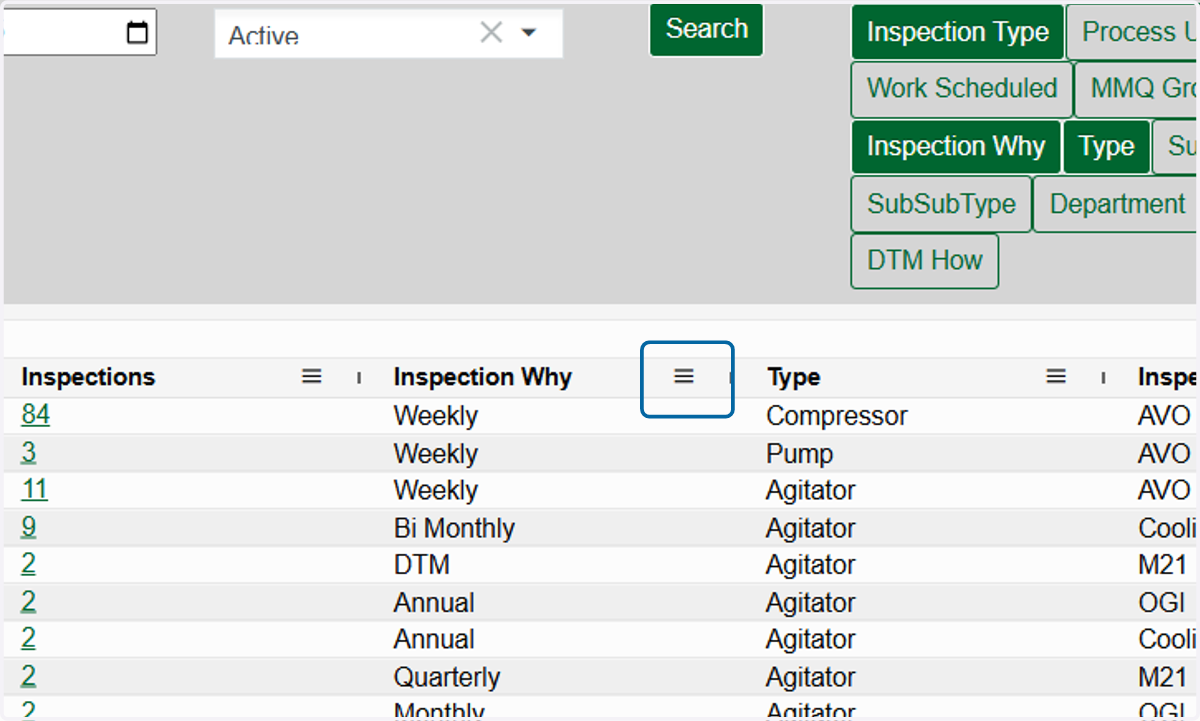
    Click on Inspection Why header Menu icon
  7. 7. Click on filter

    Click on filter
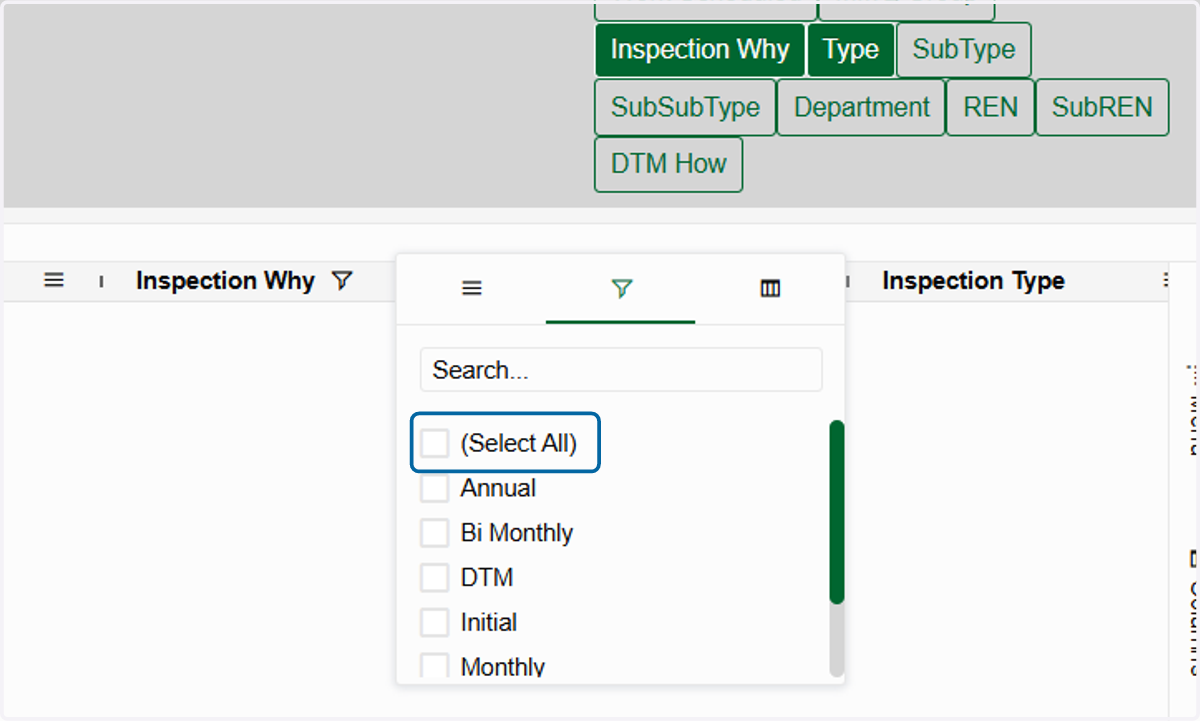
  8. 8. Click on (Select All)

    Click on (Select All)
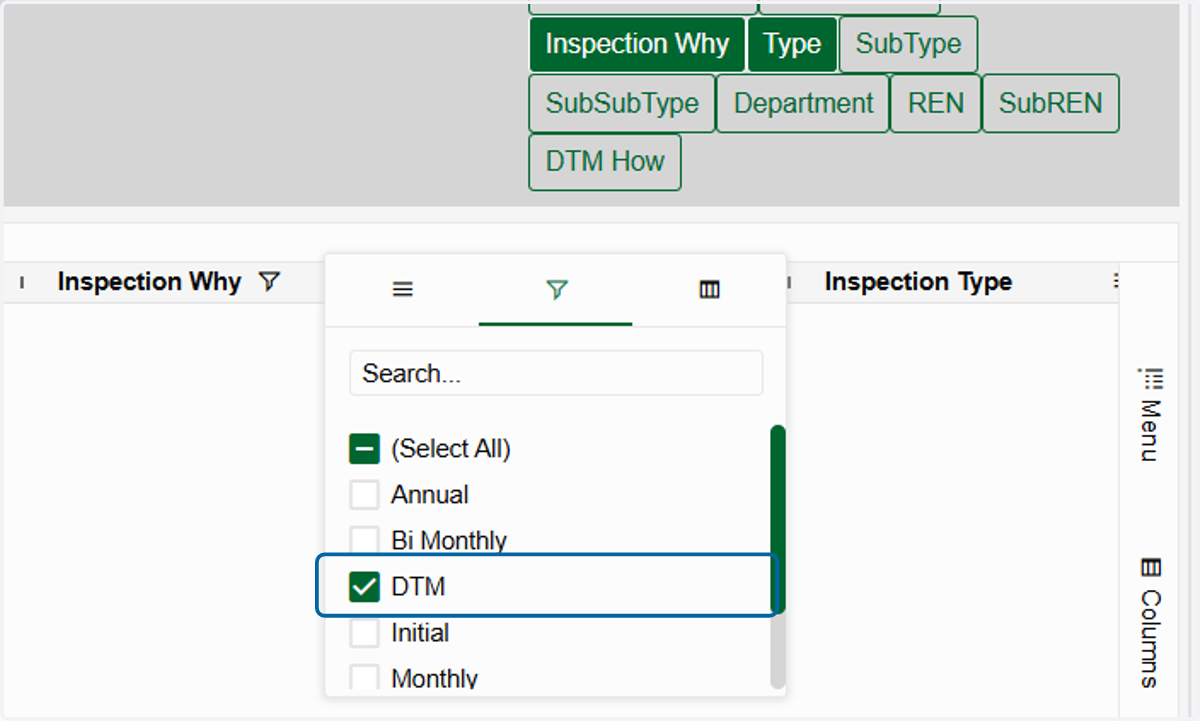
  9. 9. Click on DTM

    Click on DTM
  10. 10. Optionally, you can also organize by the DTM How if you want to only grab DTMs that you get to in a similar way.
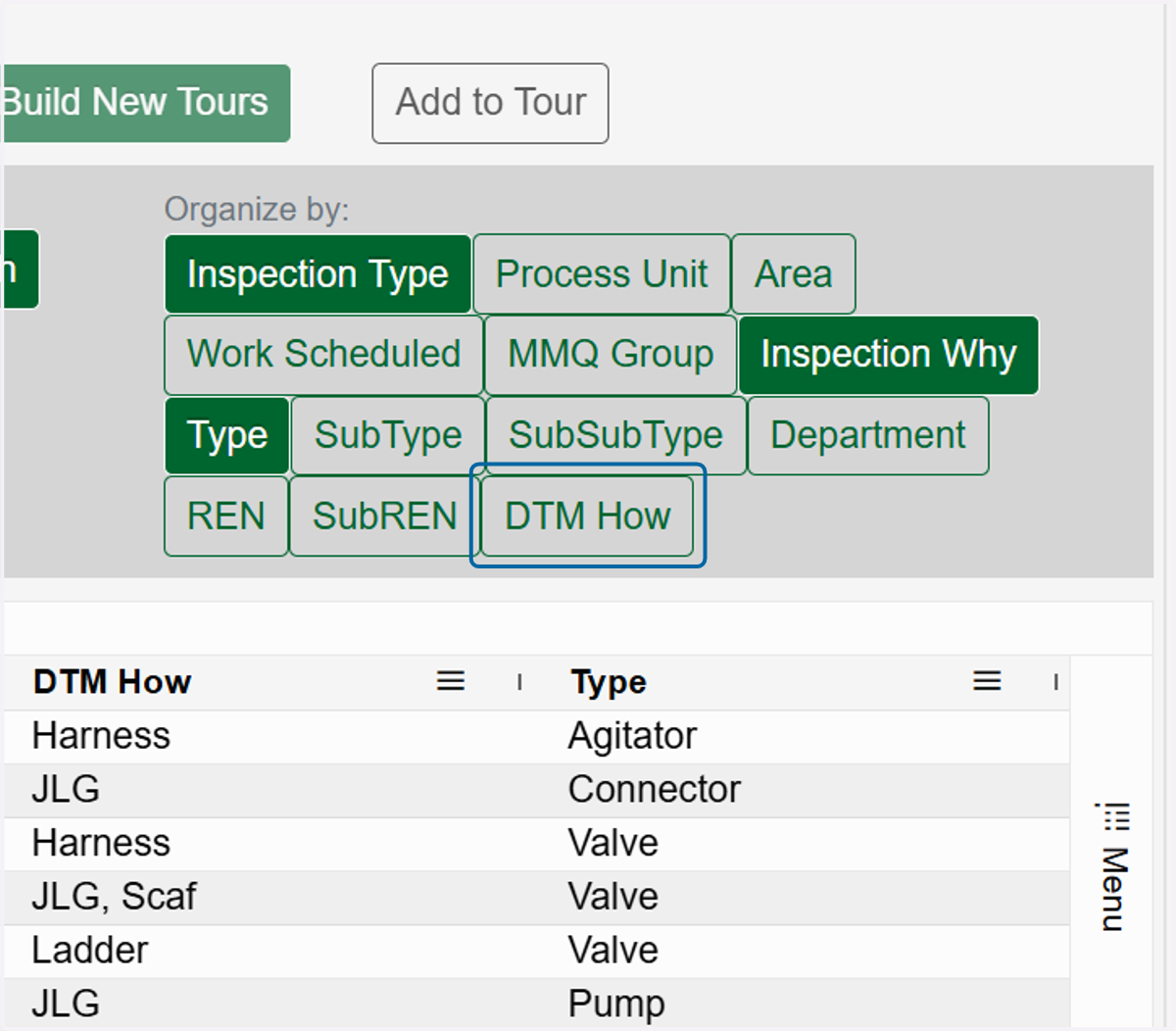
    Optionally, you can also organize by the DTM How if you want to only grab DTMs that you get to in a similar way.
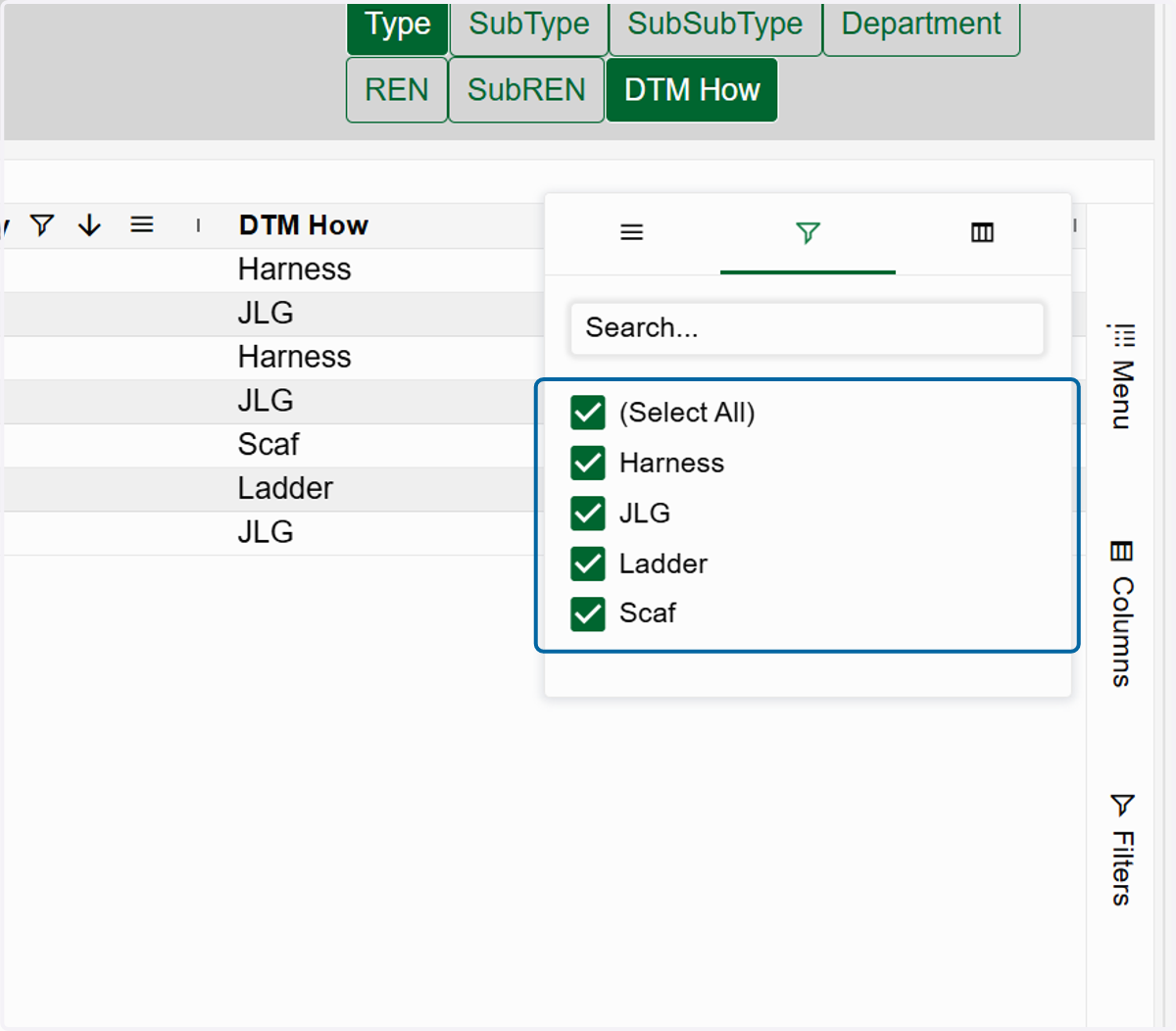
  11. 11. This will expand the rows so only one DTM How shows per row. Click on the header menu to filter the specific How you want.
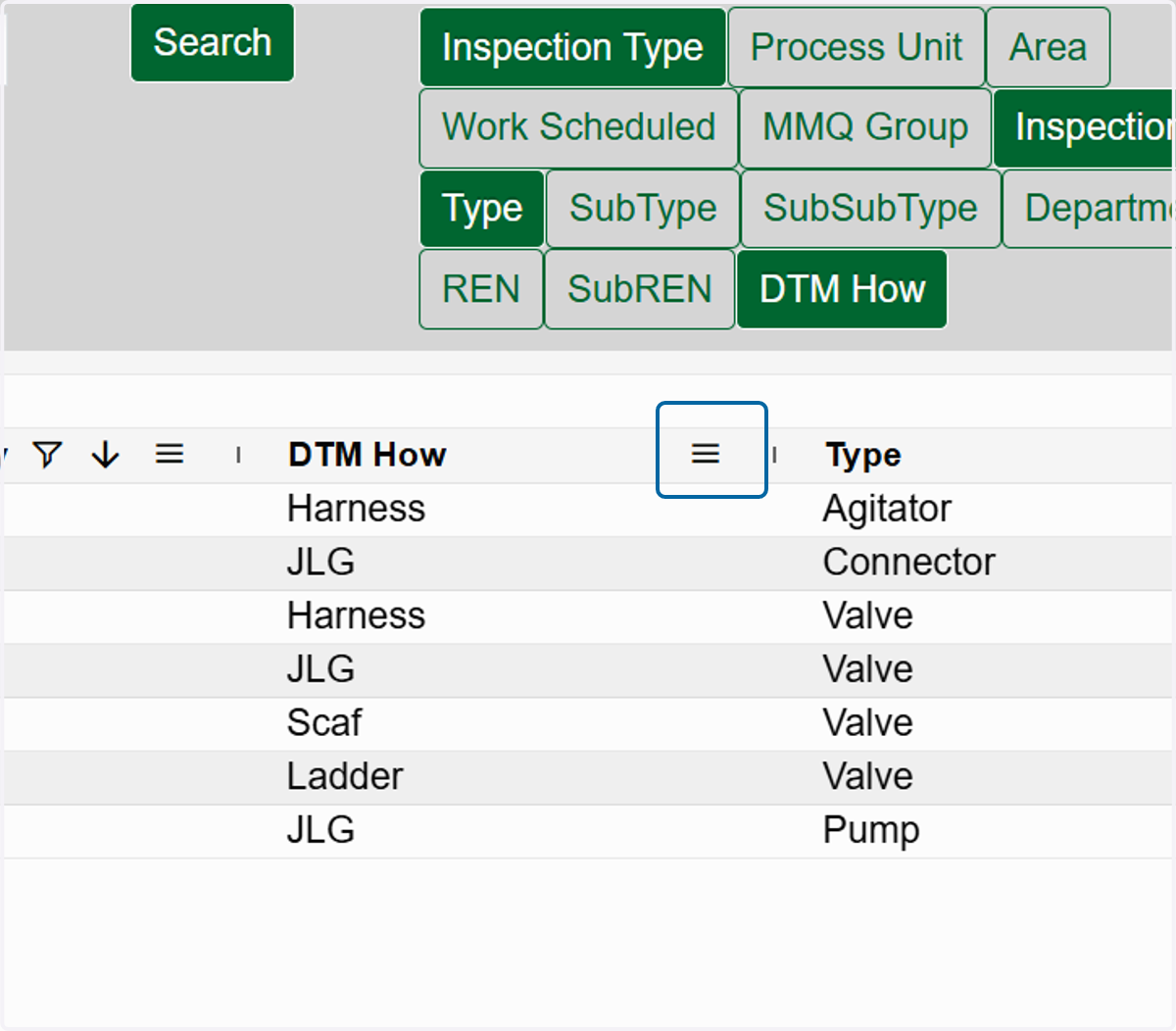
    This will expand the rows so only one DTM How shows per row. Click on the header menu to filter the specific How you want.
  12. 12. Click on (Select All)

    Click on (Select All)
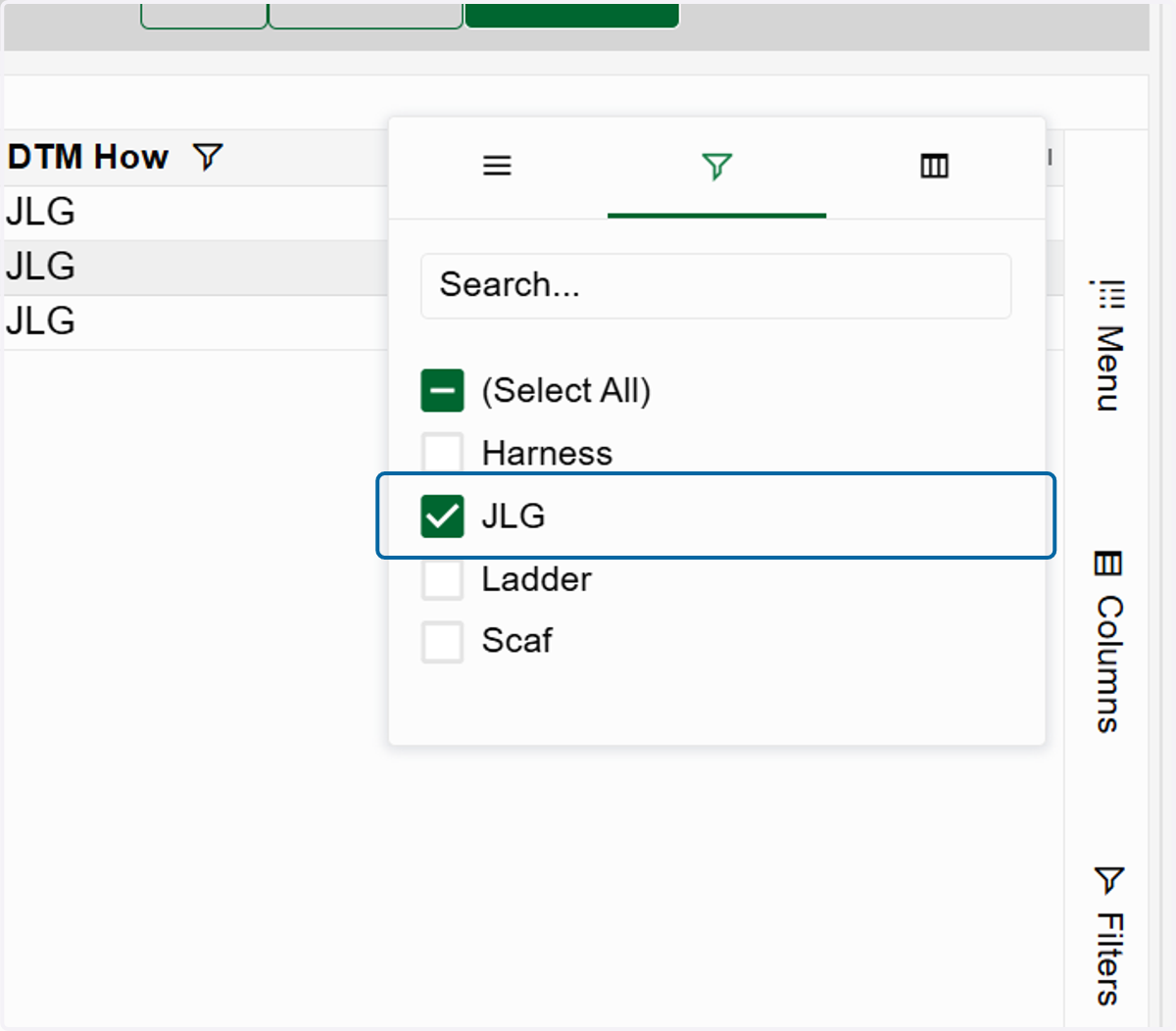
  13. 13. Click on JLG

    Click on JLG
  14. 14. Click on Type to deselect. This will condense the types down into one for each LUnit
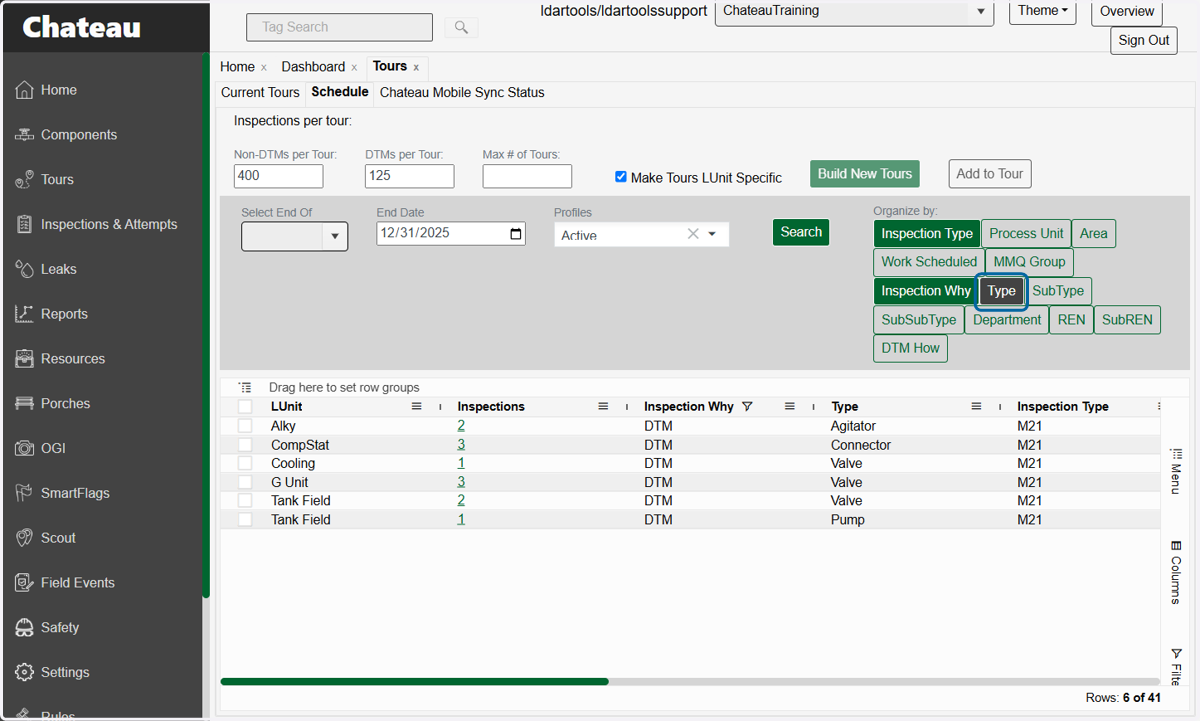
    Click on Type to deselect. This will condense the types down into one for each LUnit
  15. 15. Select the LUnits you want to create tours for
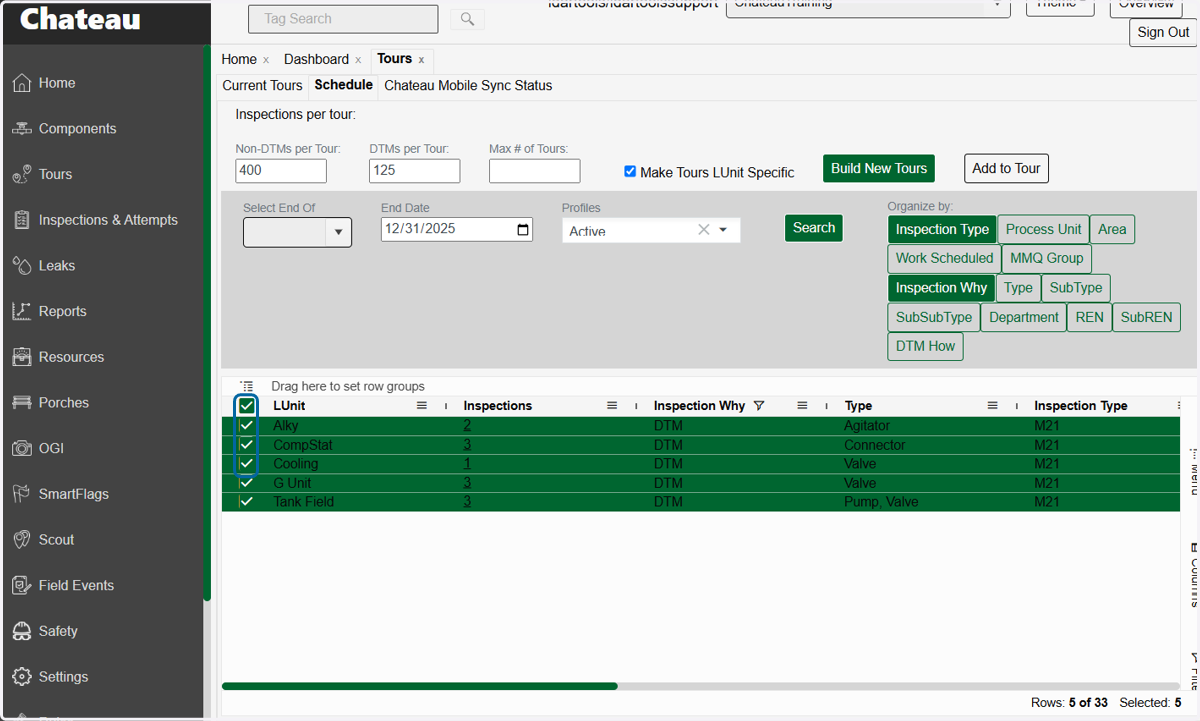
    Select the LUnits you want to create tours for
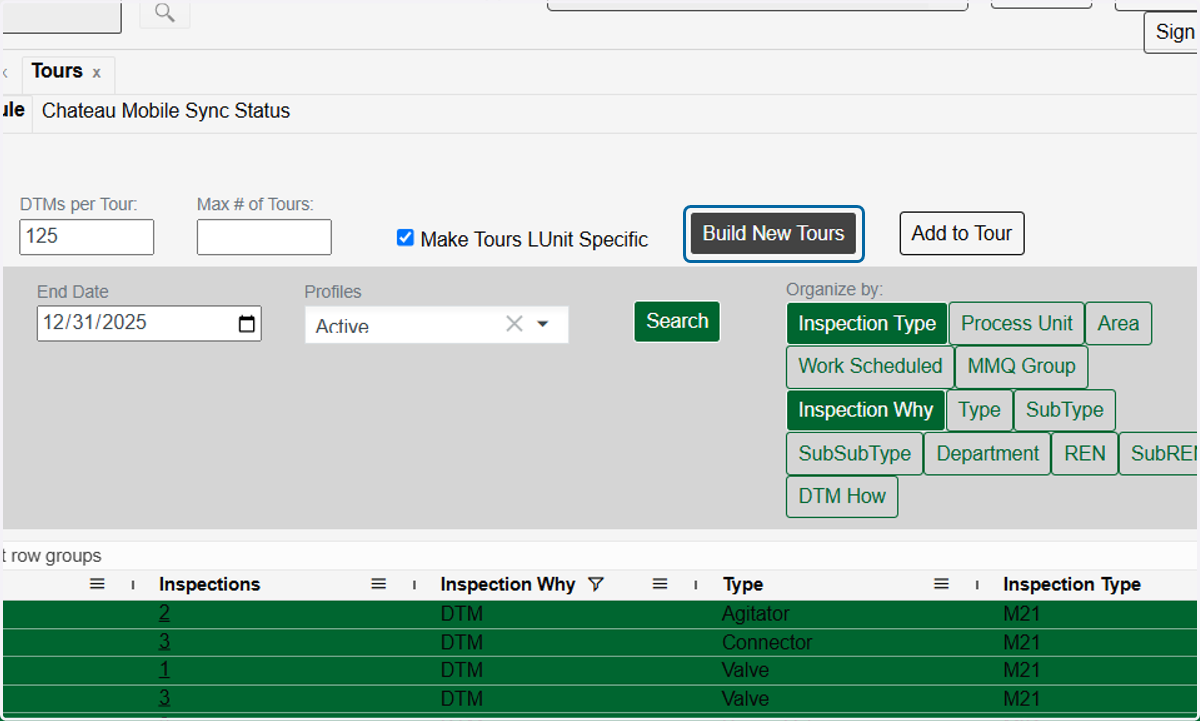
  16. 16. Click on Build New Tours

    Click on Build New Tours