EventPass Pass Creation: Listing Status, Currency, and Total Price Preview
We have refreshed the Pass Creation experience for EventPass to make key information clearer and pricing easier to understand.
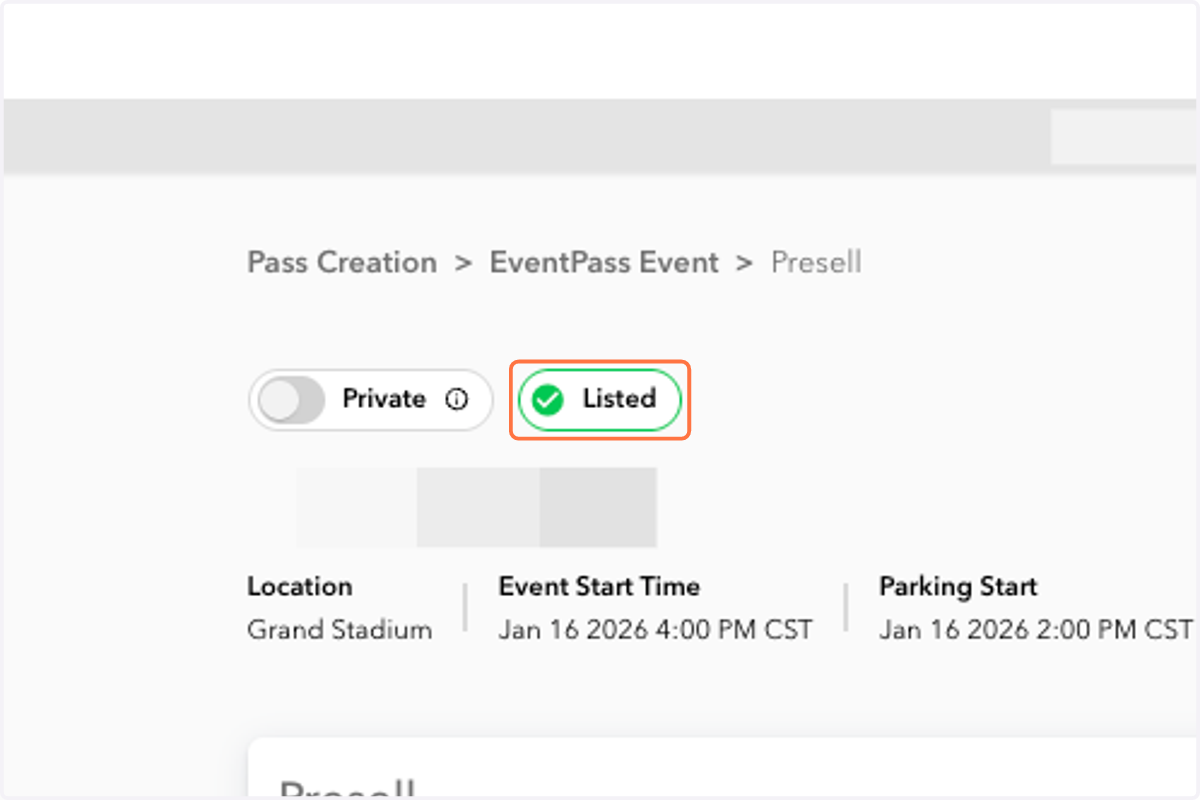
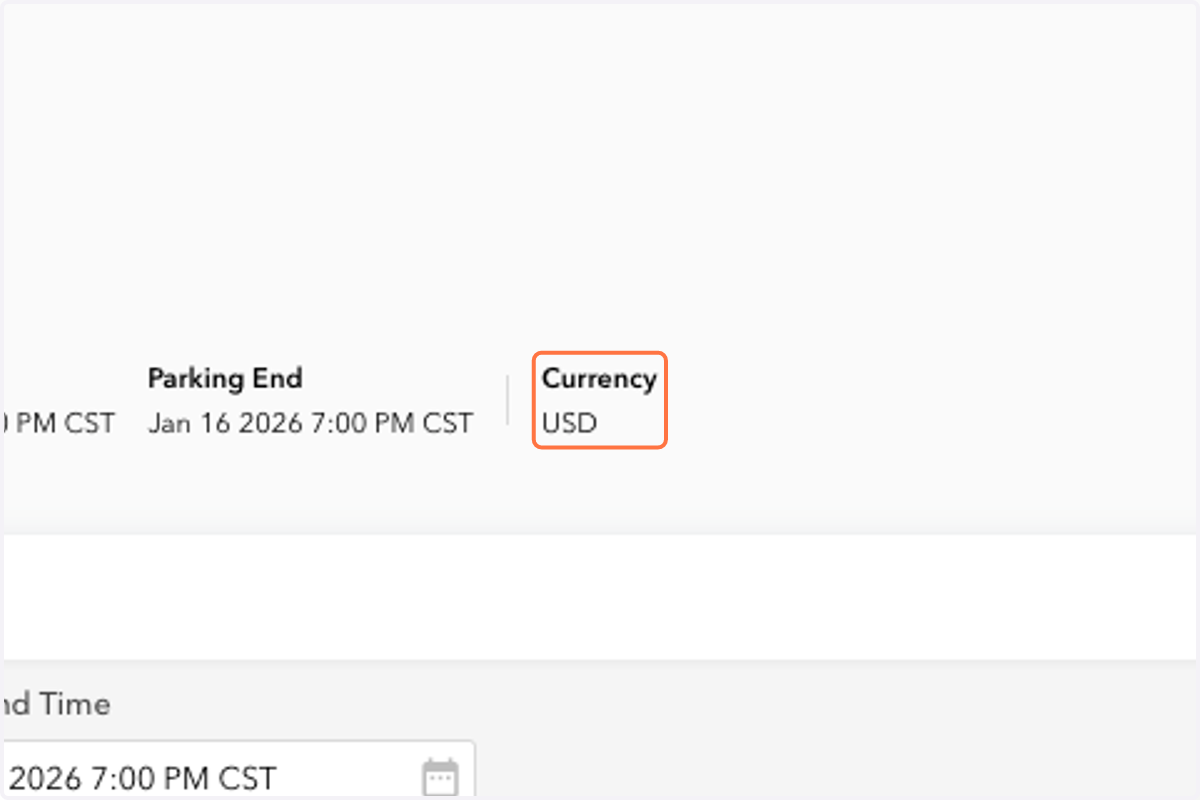
You will now see your EventPass listing status and currency at the top of the Pass Creation flow so you can confirm you’re configuring the right listing.
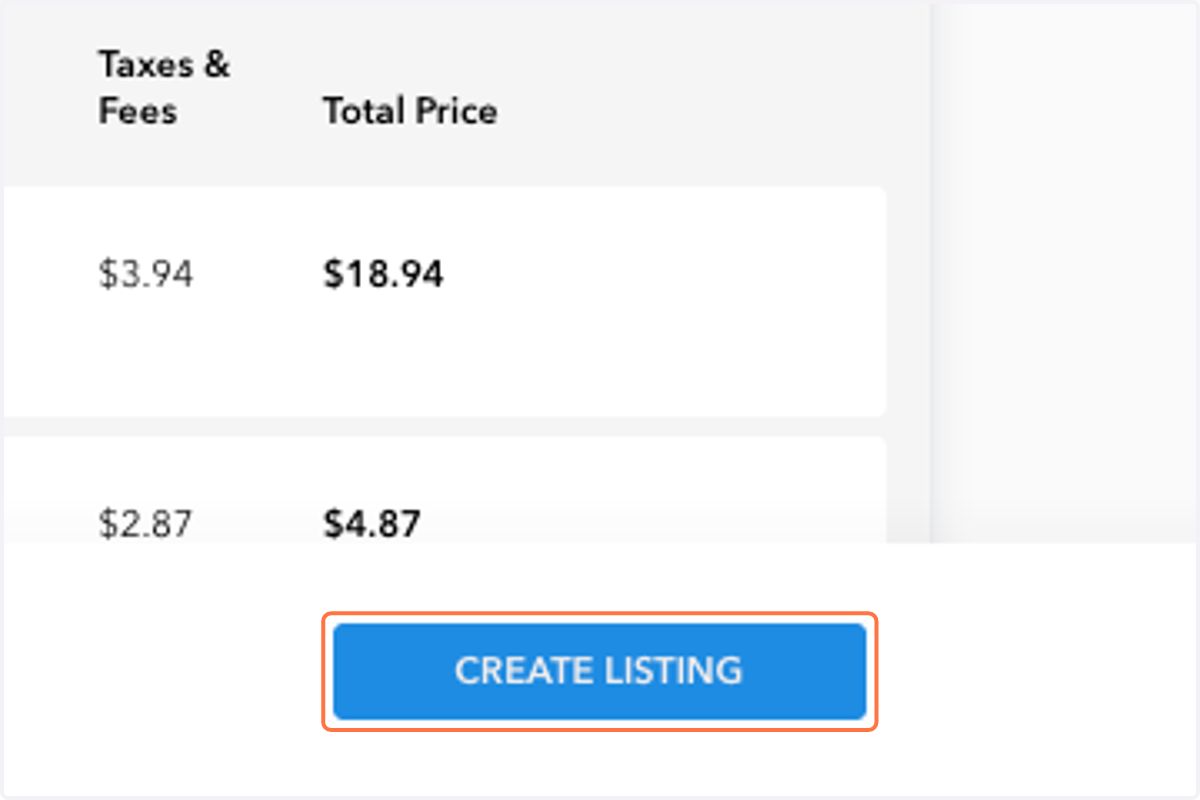
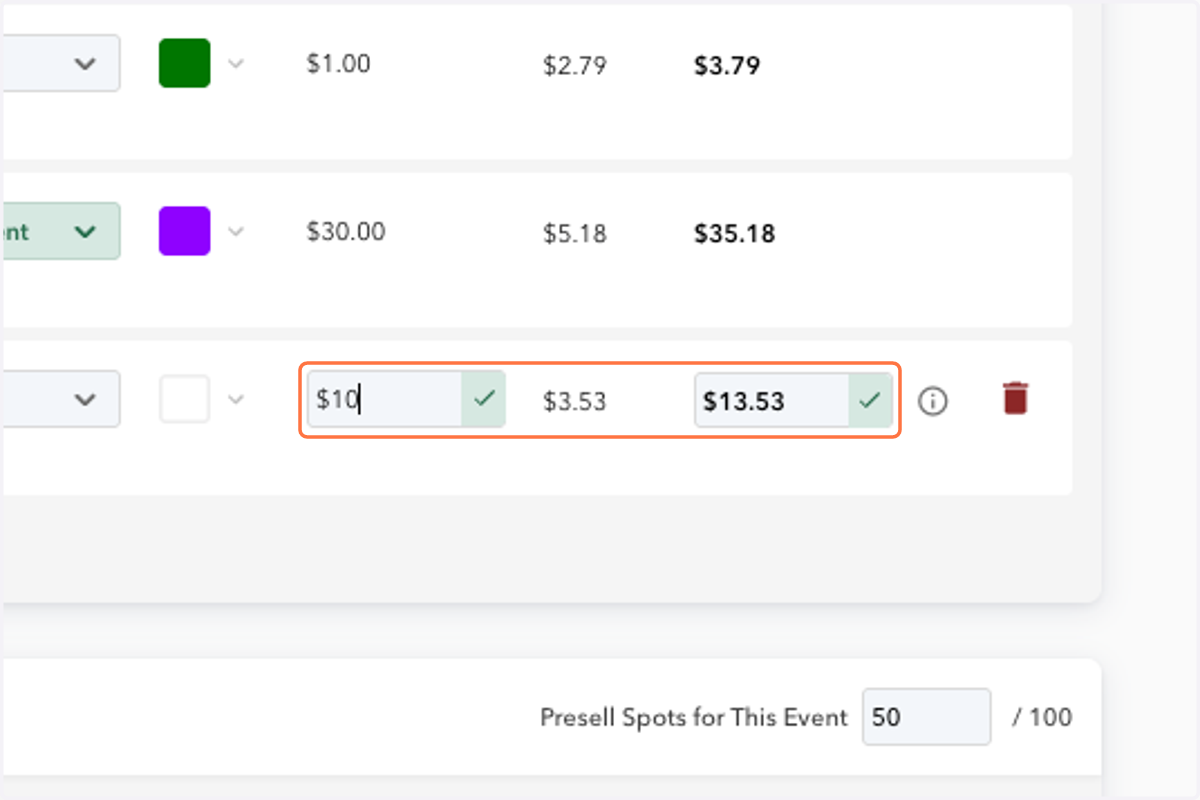
We also added a Total Price Preview calculator to help you understand how taxes and fees affect what fans pay. You can:
Start by entering a Base Price to preview the Total Price (taxes + fees included), or
Start by entering a Total Price and we’ll calculate the Base Price automatically.
Login to JustPark Suite.
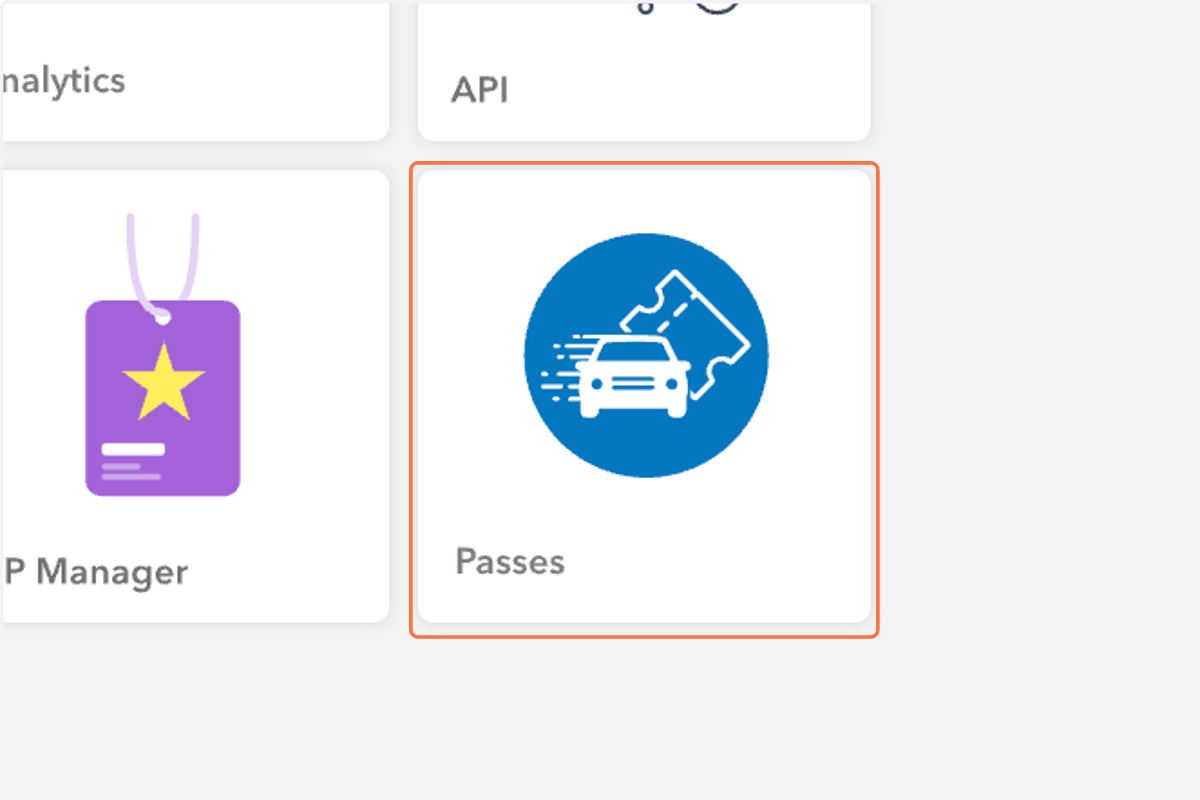
1. Click on Passes.
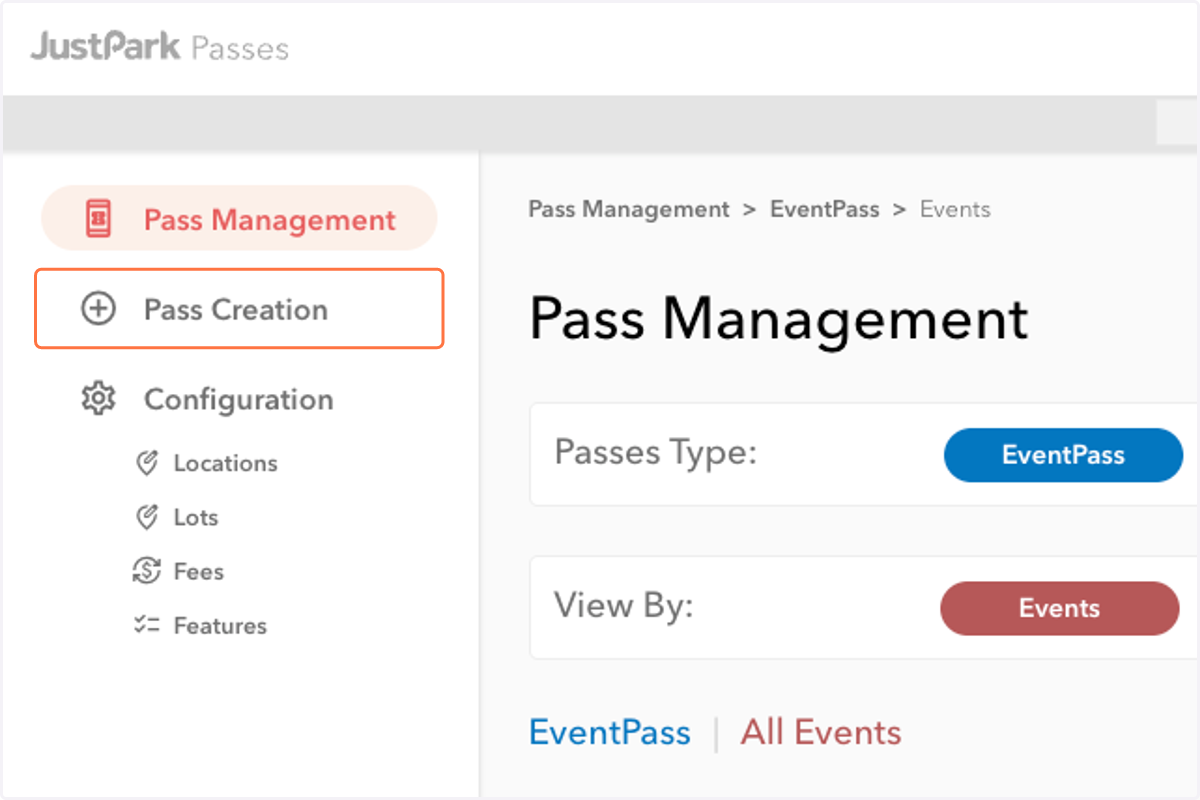
2. Navigate to the left-hand sidebar and select Pass Creation.
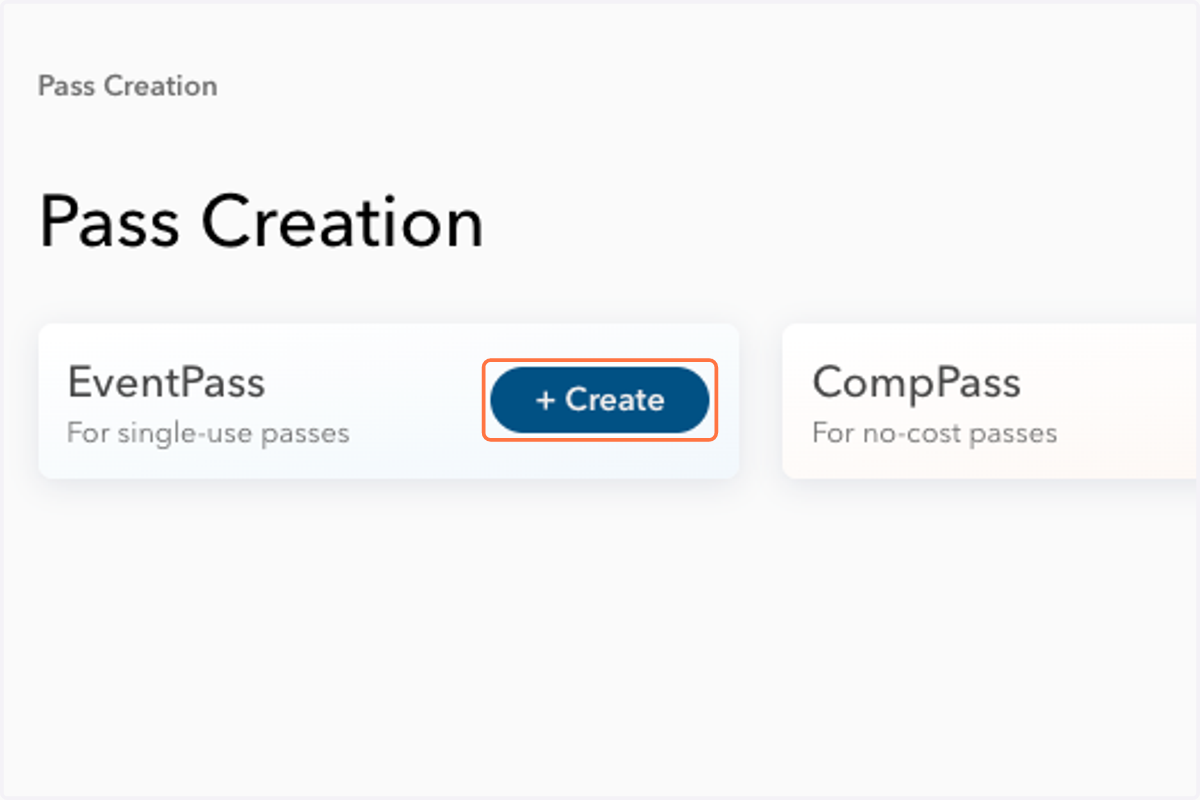
3. Click the +Create button for EventPass.
4. Select the event you want to edit.
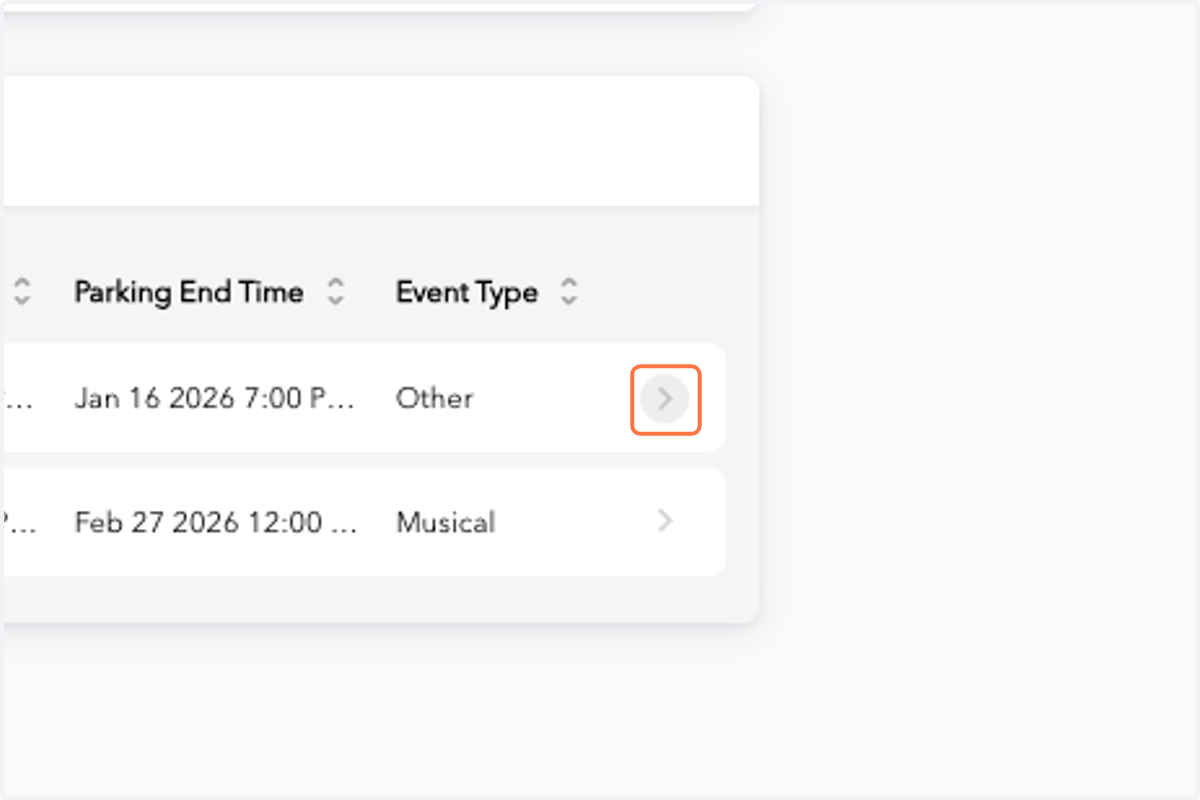
5. You will now see the EventPass Listing Status displayed above the event name.
6. You will also see the relevant currency displayed.
7. Next, click the Pricings→ button to view the new pricing calculator on the following page.
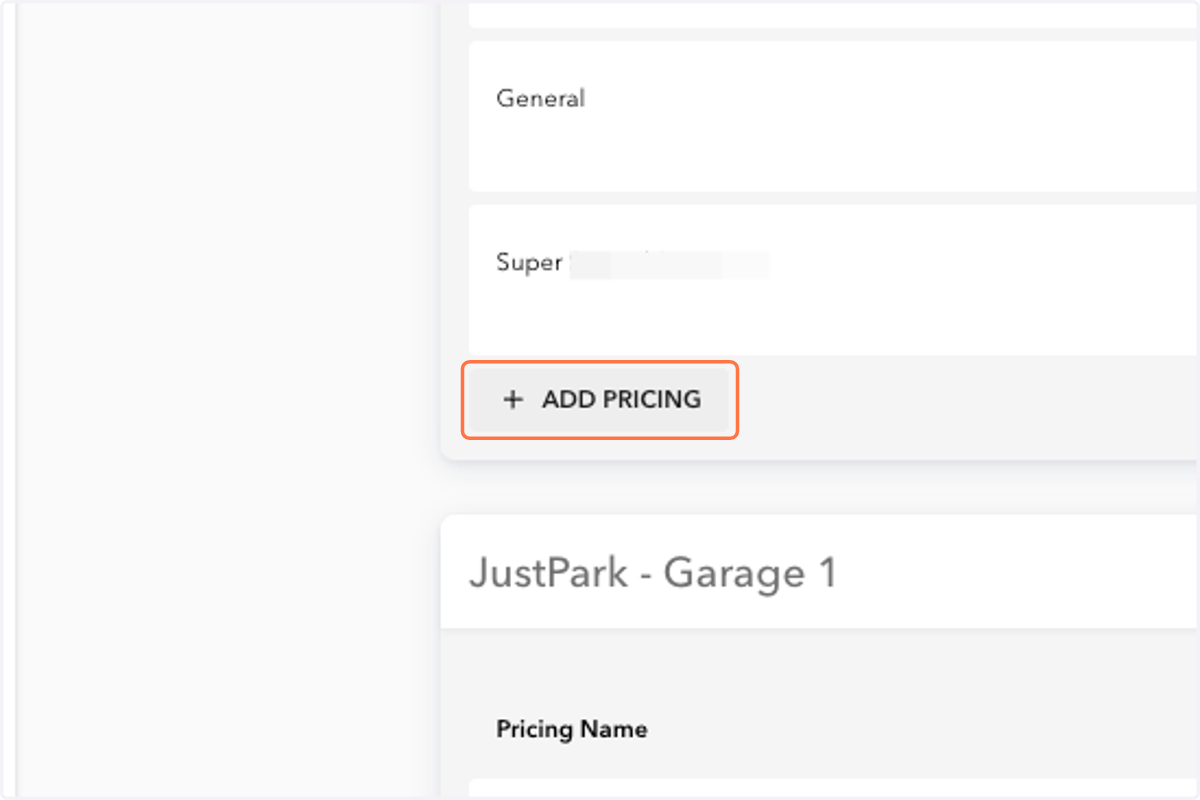
8. Click on the +Add Pricing button for any lot.
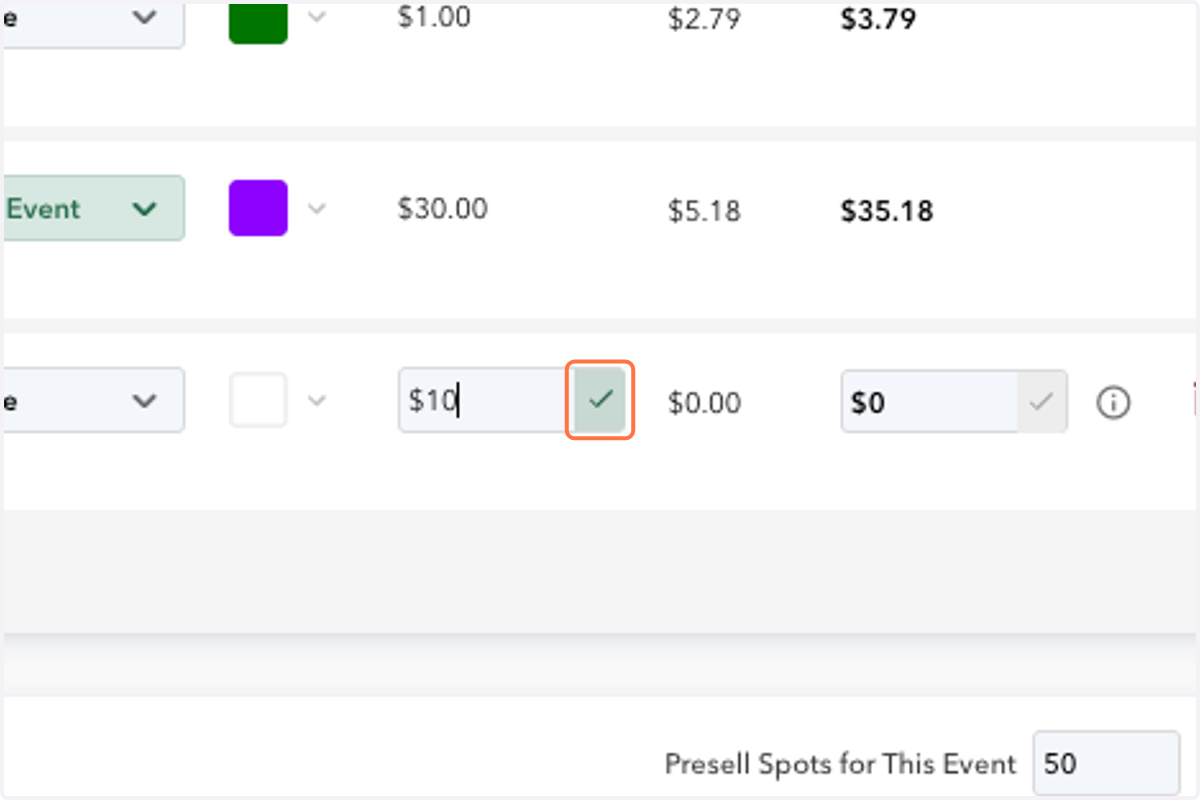
9. If you would like to start with a base price, enter it in the Base Price column, then select the green checkmark.
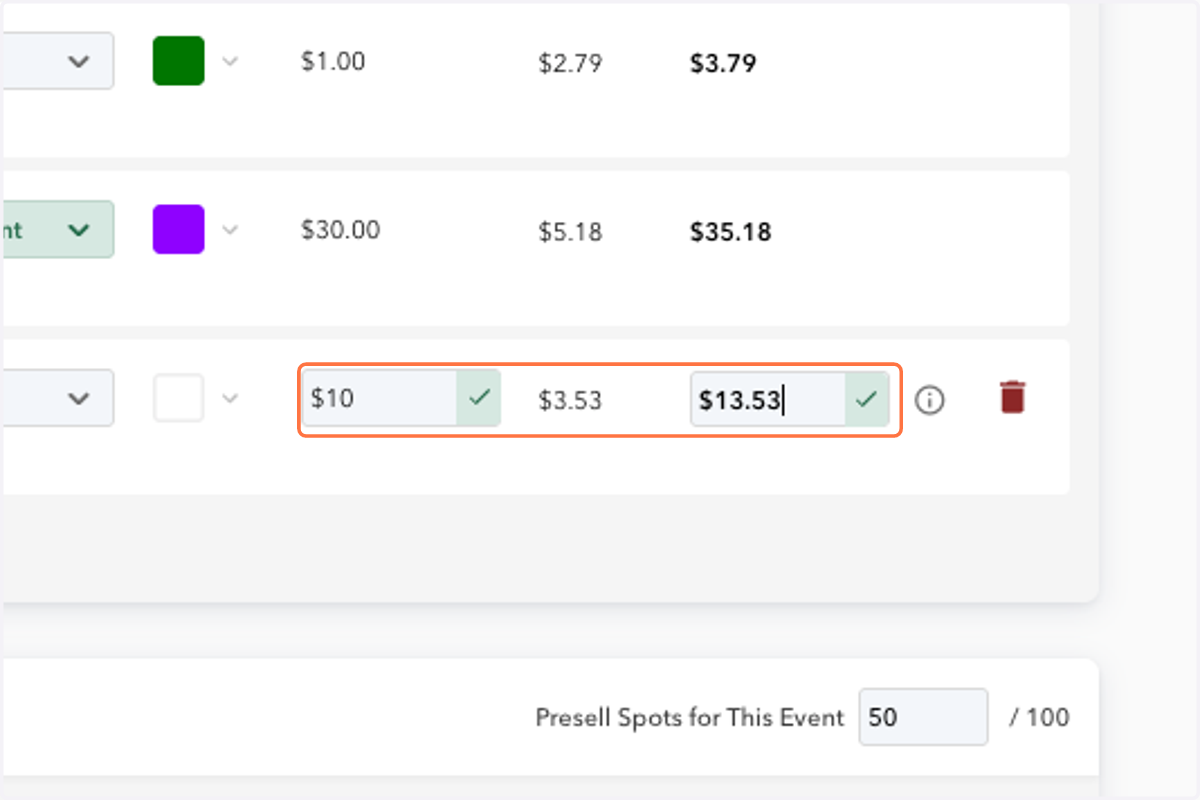
10. Your Total Price, including taxes and fees, will calculate automatically.
11. Alternatively, if you’d like to start with a total price, enter it in the Total Price column, then select the green checkmark.
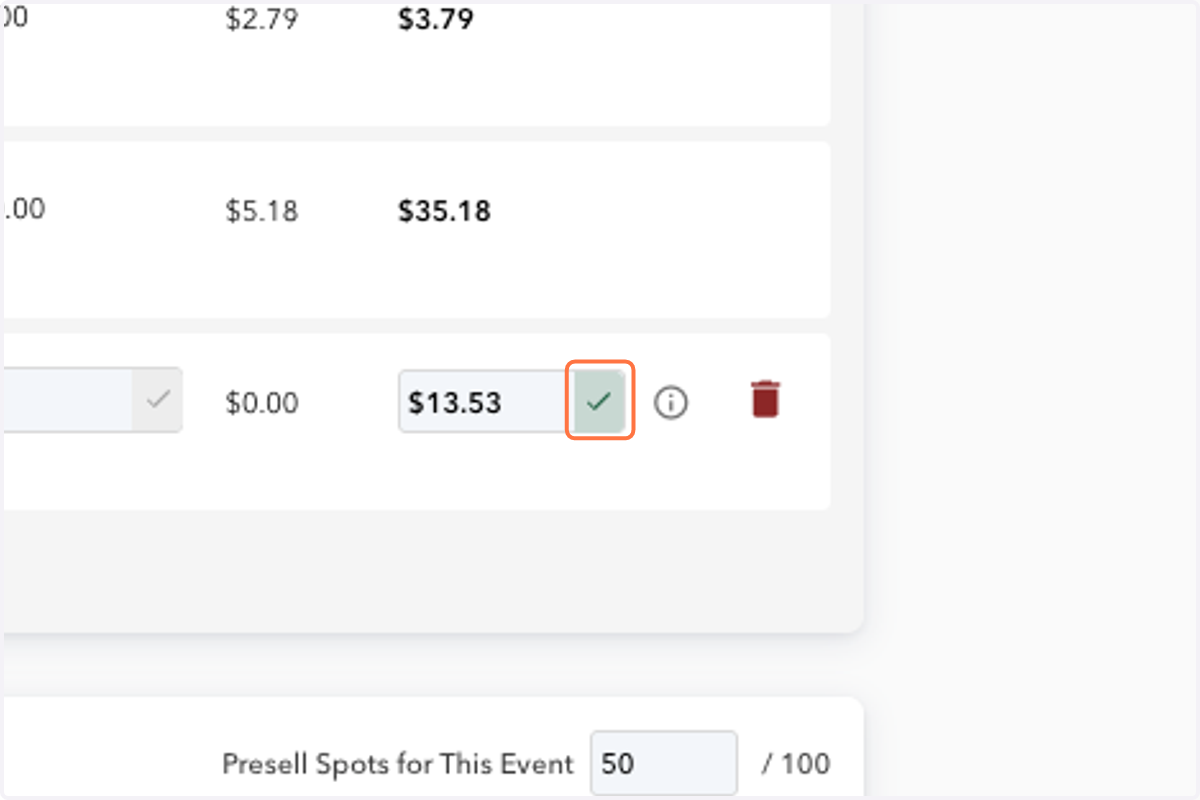
12. Your Base Price will now calculate automatically.
13. Whichever approach you prefer is up to you! Be sure to click the Create Listing button to save your changes.