FBLA Collegiate Excellence Award Portal Navigation
FBLA Collegiate Excellence Award Portal (in Airtable)
Overview
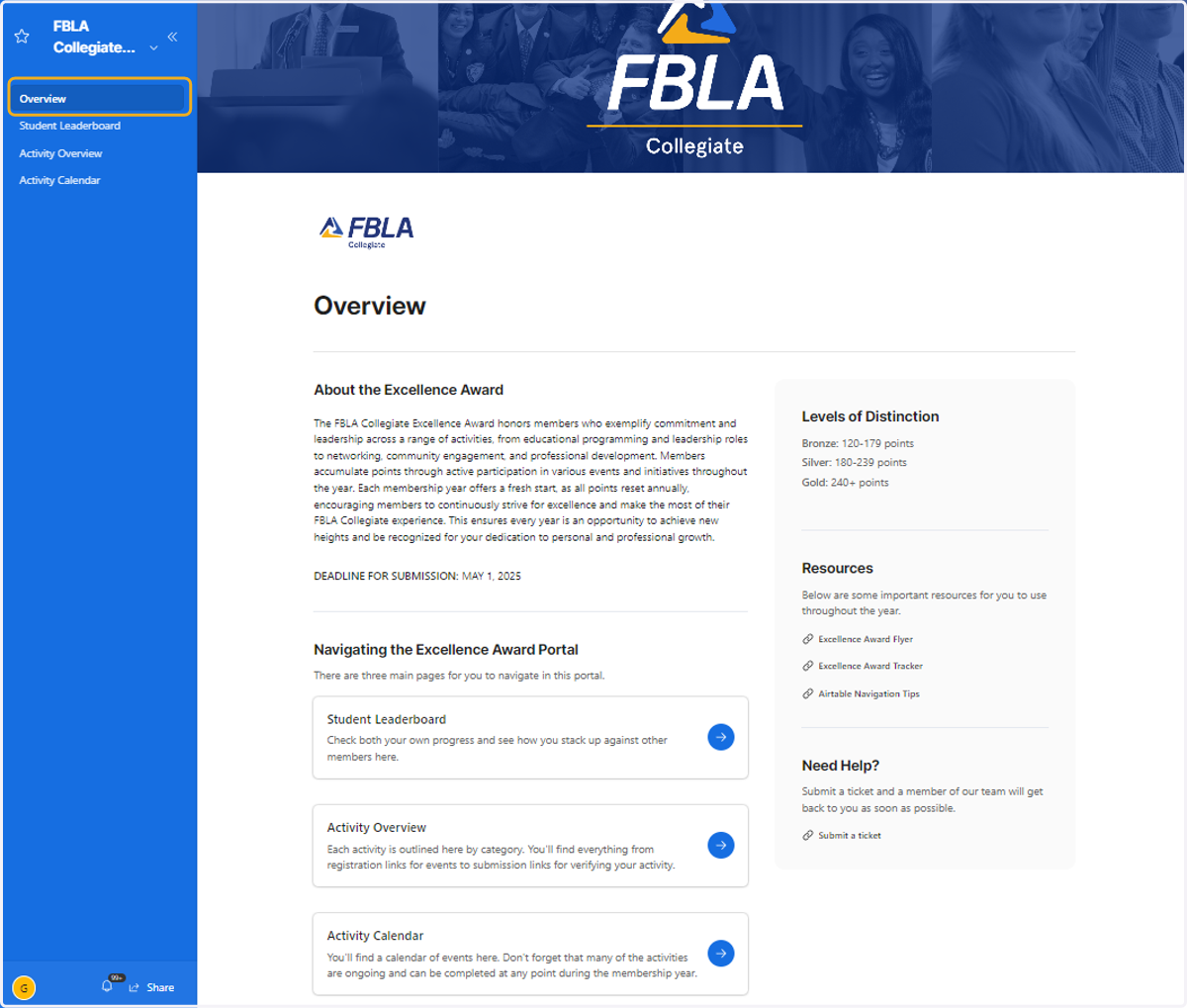
1. Overview: This tab includes basic instructions and links to important resources.
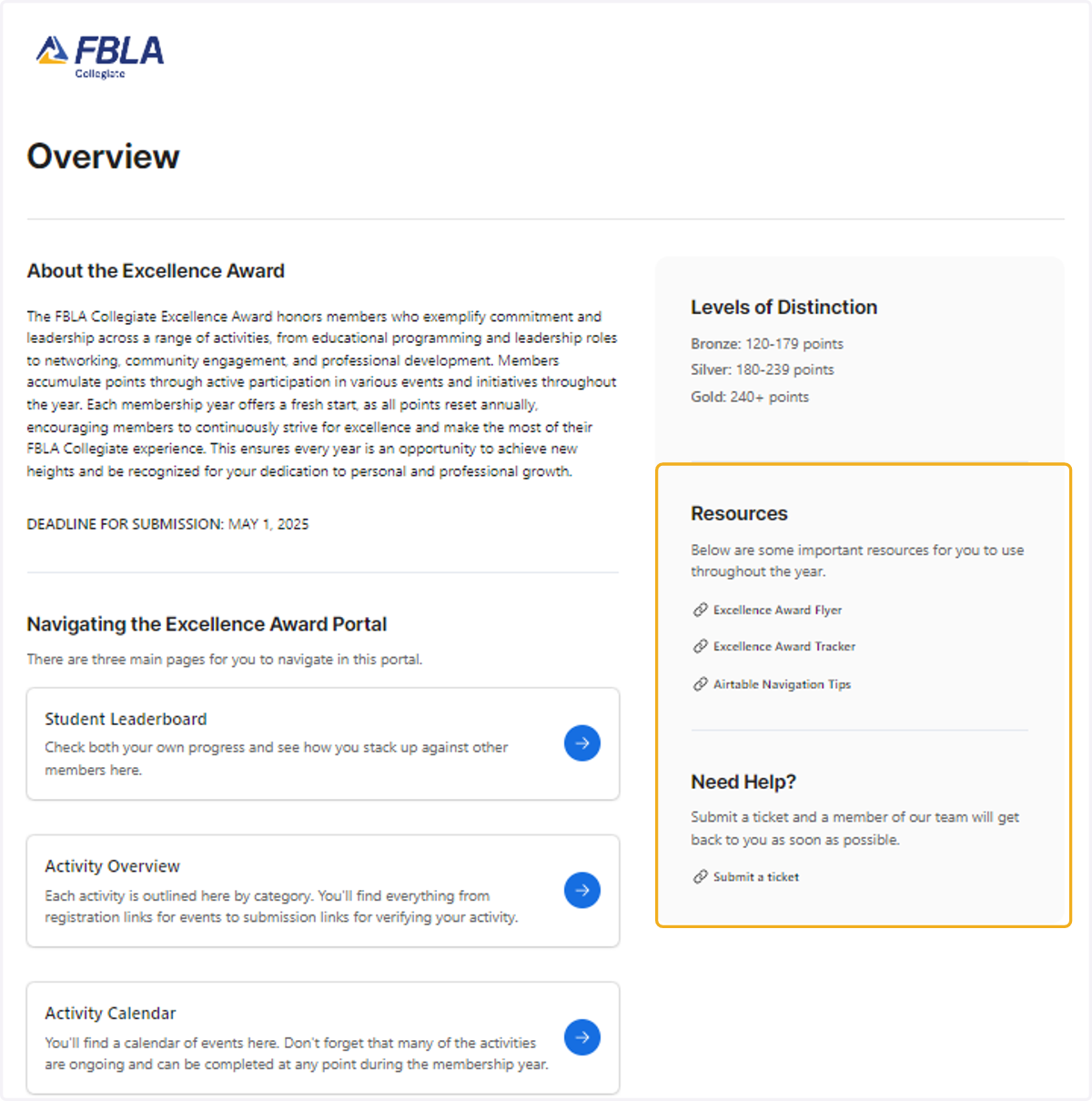
2. You'll find important resources such as the Excellence Award Tracker and a link to the FBLA Helpdesk where you can submit a ticket if you need help.
Student Leaderboard
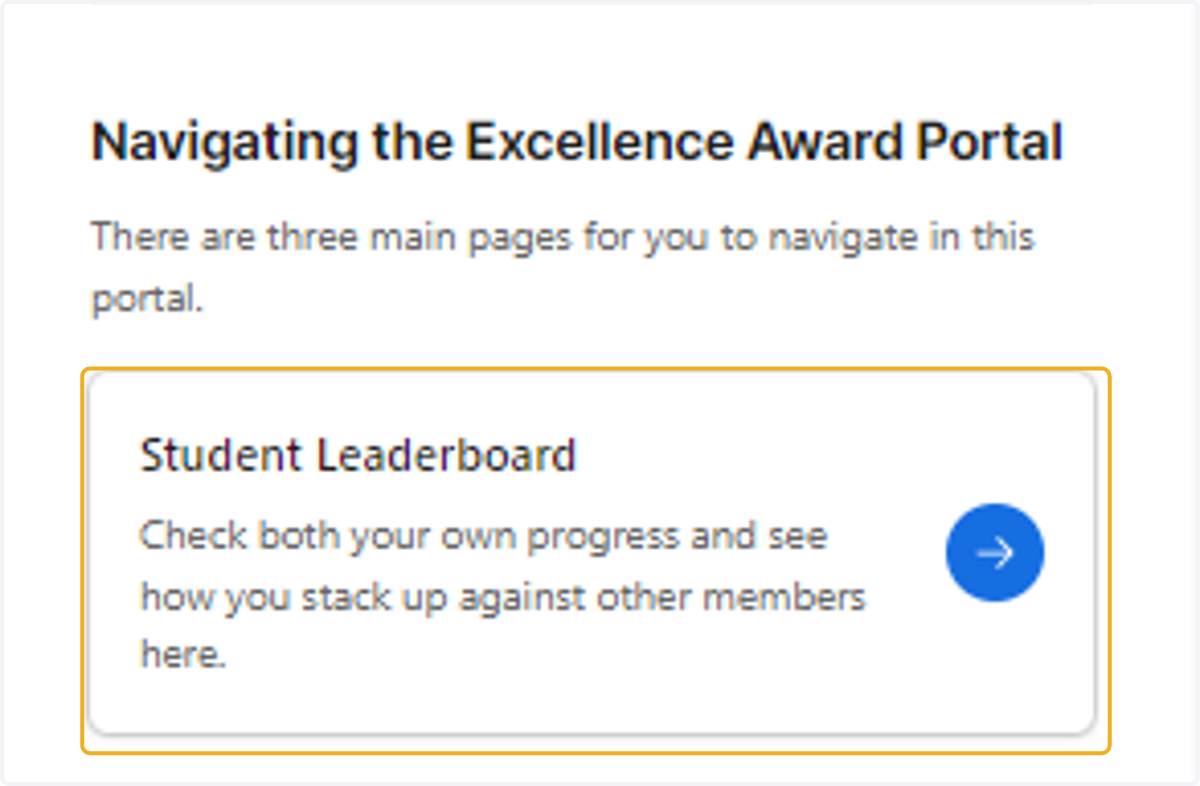
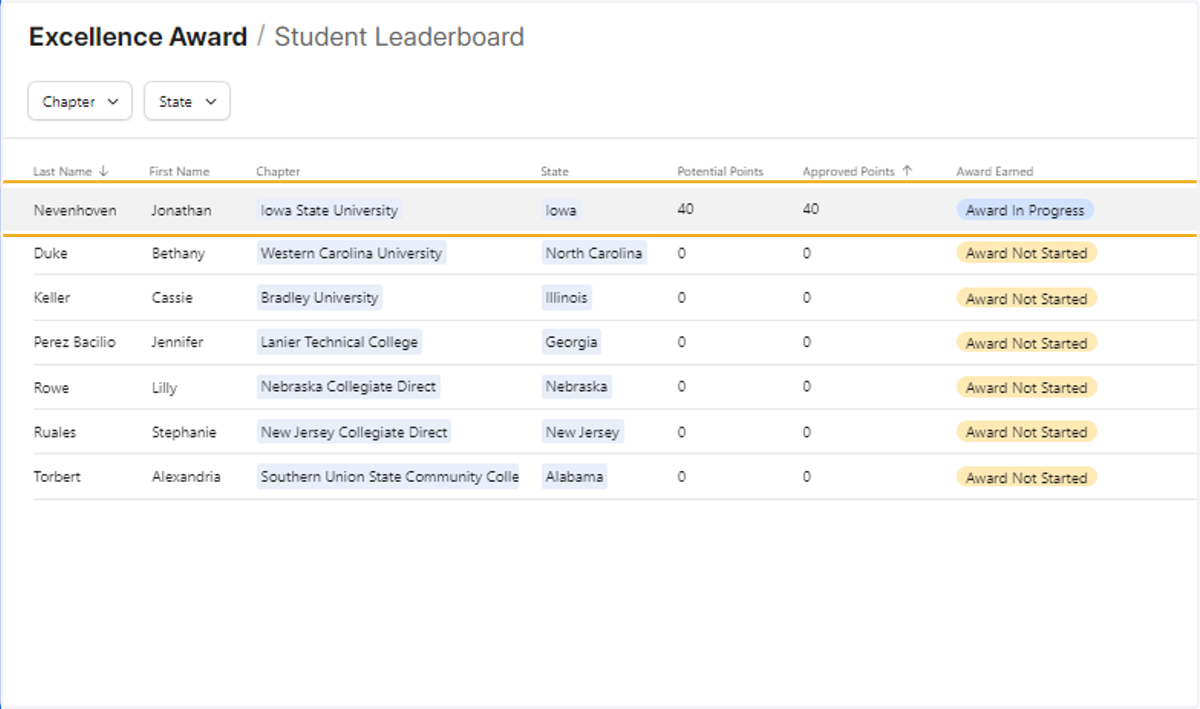
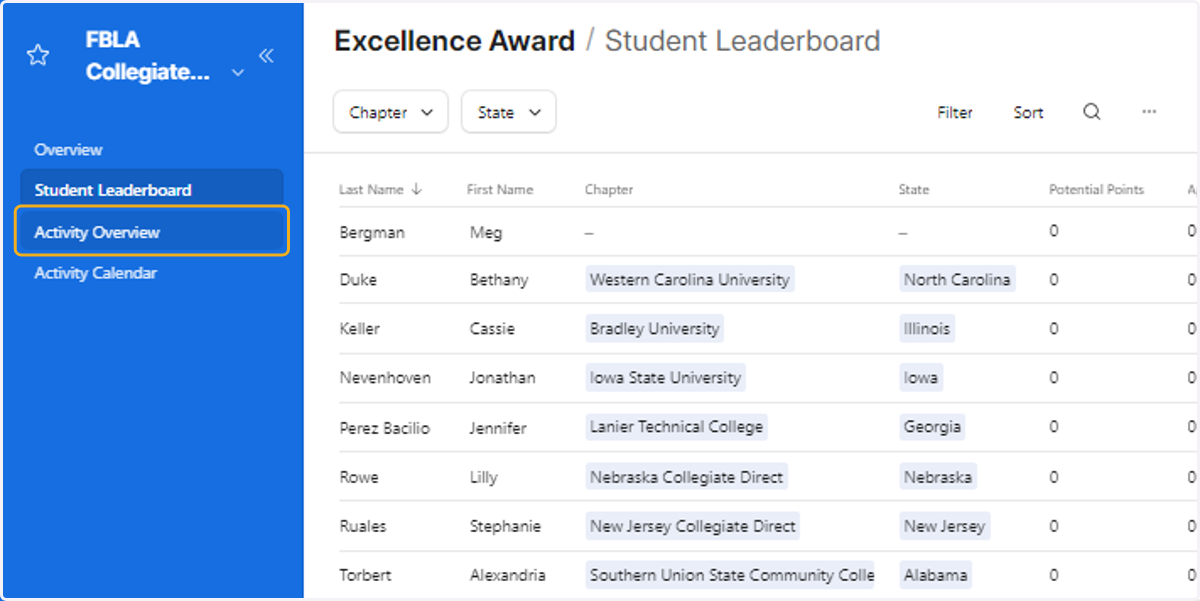
3. Student Leaderboard: This is where you can check your award progress and see how you stack up against other members around the country.
4. Select a member by clicking on their name.
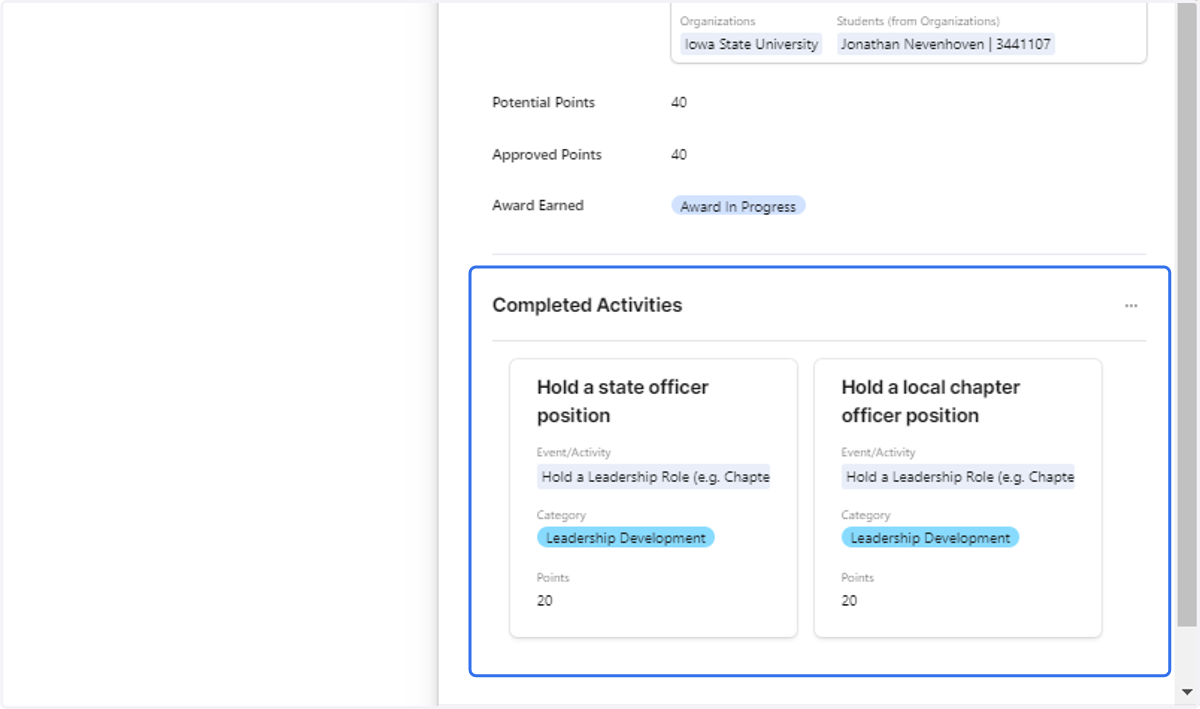
5. Completed Activities - You can also view all activities that have already been completed.
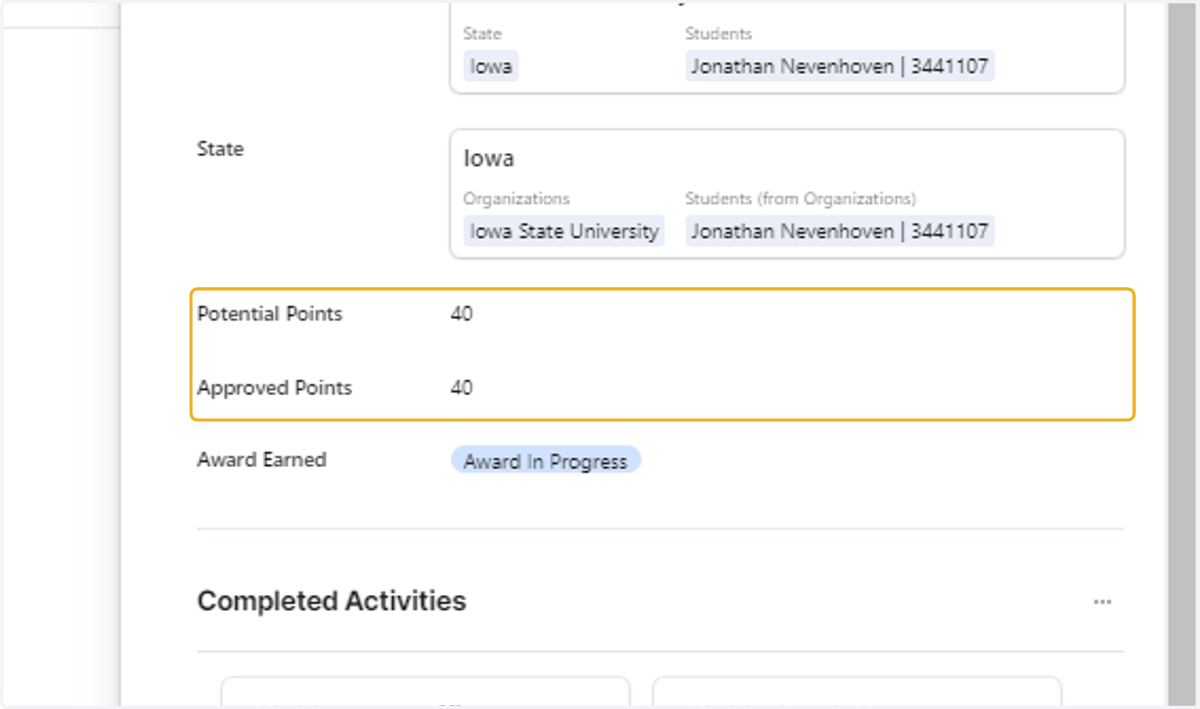
6. Point Status - View a breakdown of points at any given time.
Potential Points: This indicates the number of points possible based on submissions.
Approved Points: This indicates the official number of points the member has earned from approved submissions.
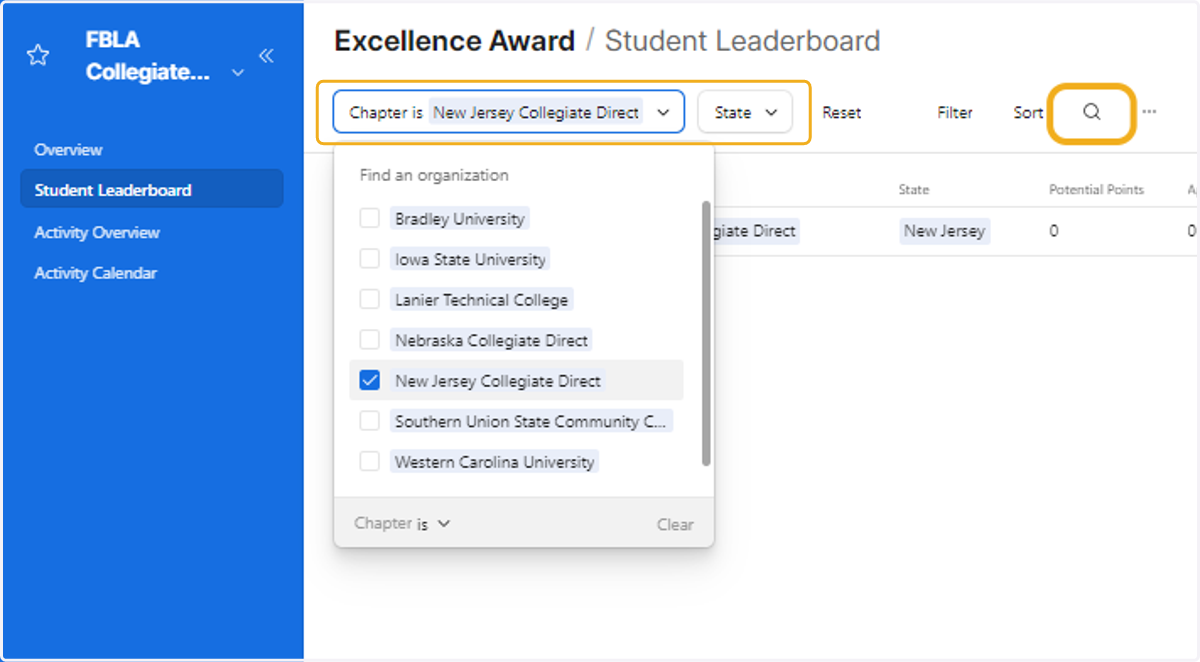
7. Sort by Chapter Name or State OR use the search bar to locate the correct member.
Activity Overview
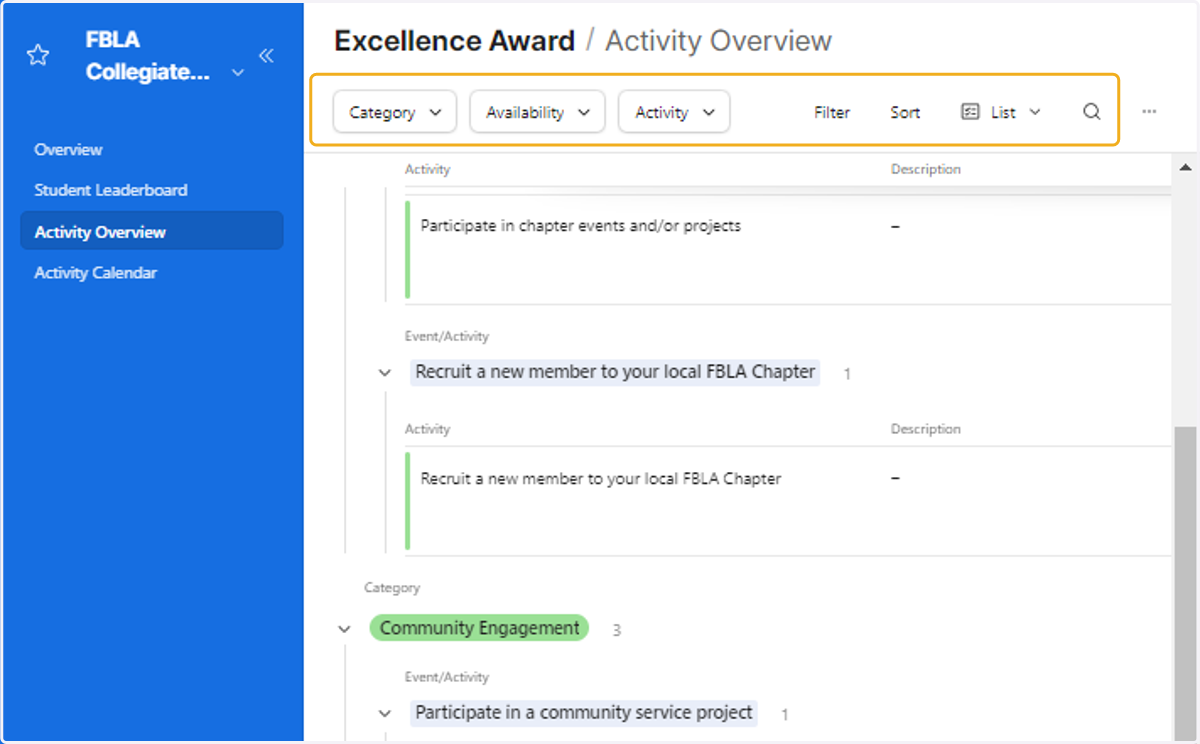
8. Activity Overview: Each activity is outlined here by category. You'll find everything from registration links for events to submission links for verifying your activity.
9. Filter the list of activities by category, availability, or activity. You can also use the search bar by clicking the magnify glass.
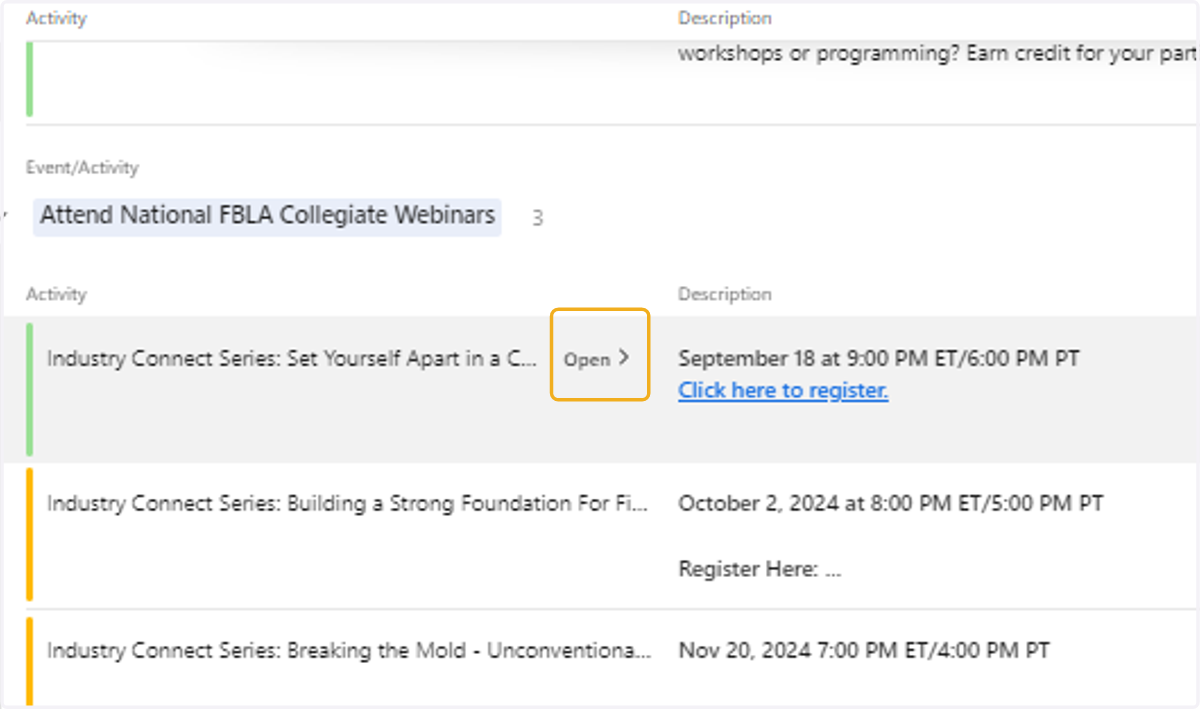
10. Click 'Open' next to an activity name for more information about that activity.
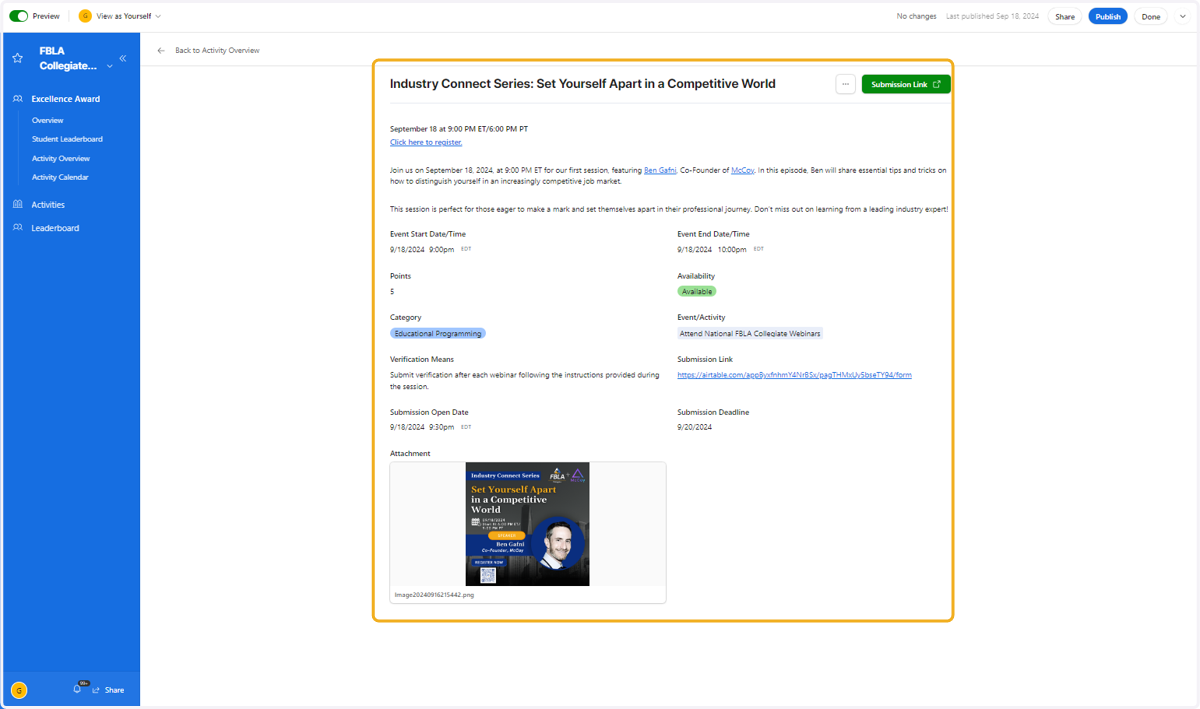
11. You'll find relevant information to that activity including registration instructions (when appropriate), as well as instructions for submitting your verification to earn points.
Activity Calendar
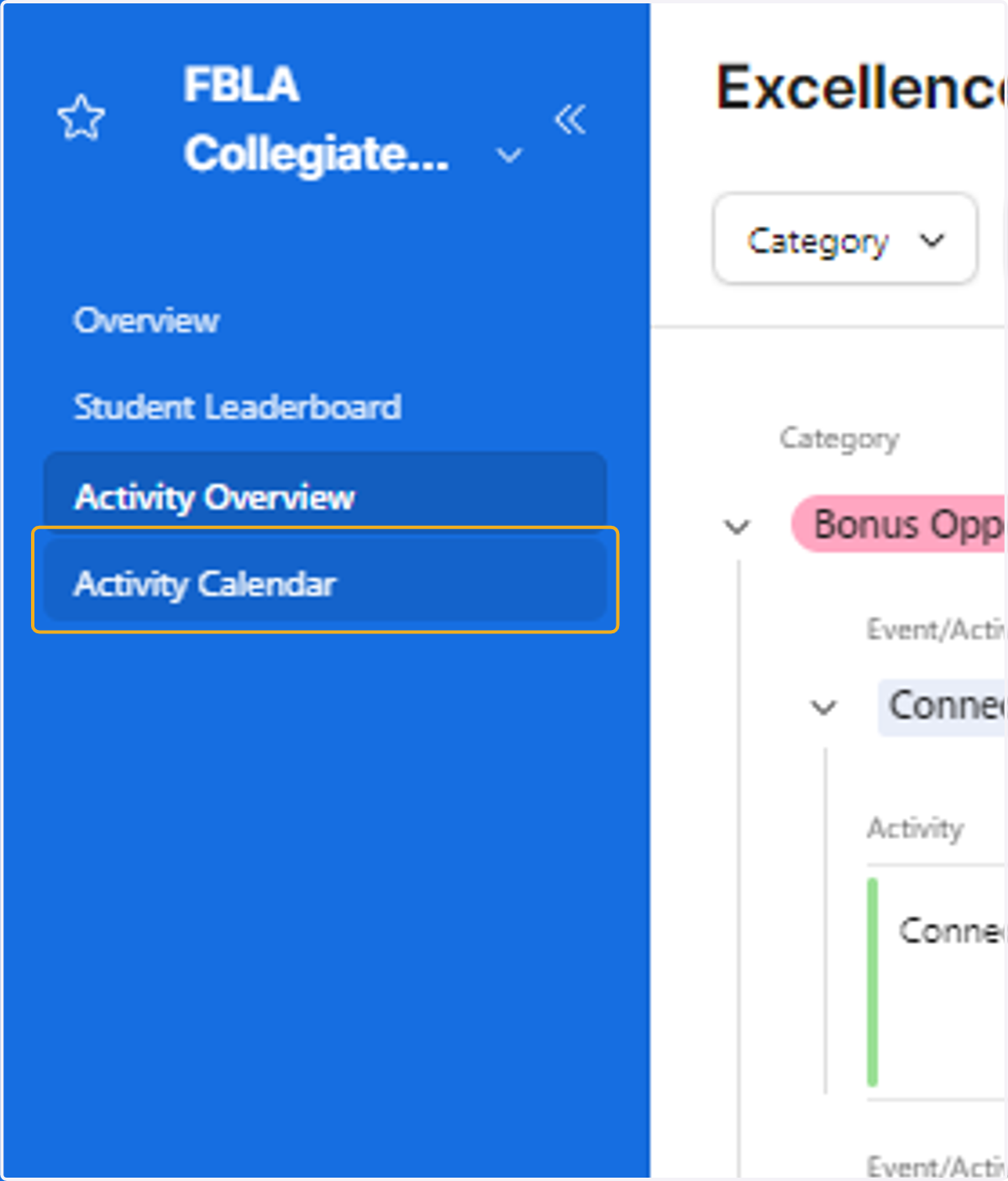
12. Activity Calendar: You'll find a calendar of events here. Don't forget that many of the activities are ongoing and can be completed at any point during the membership year.
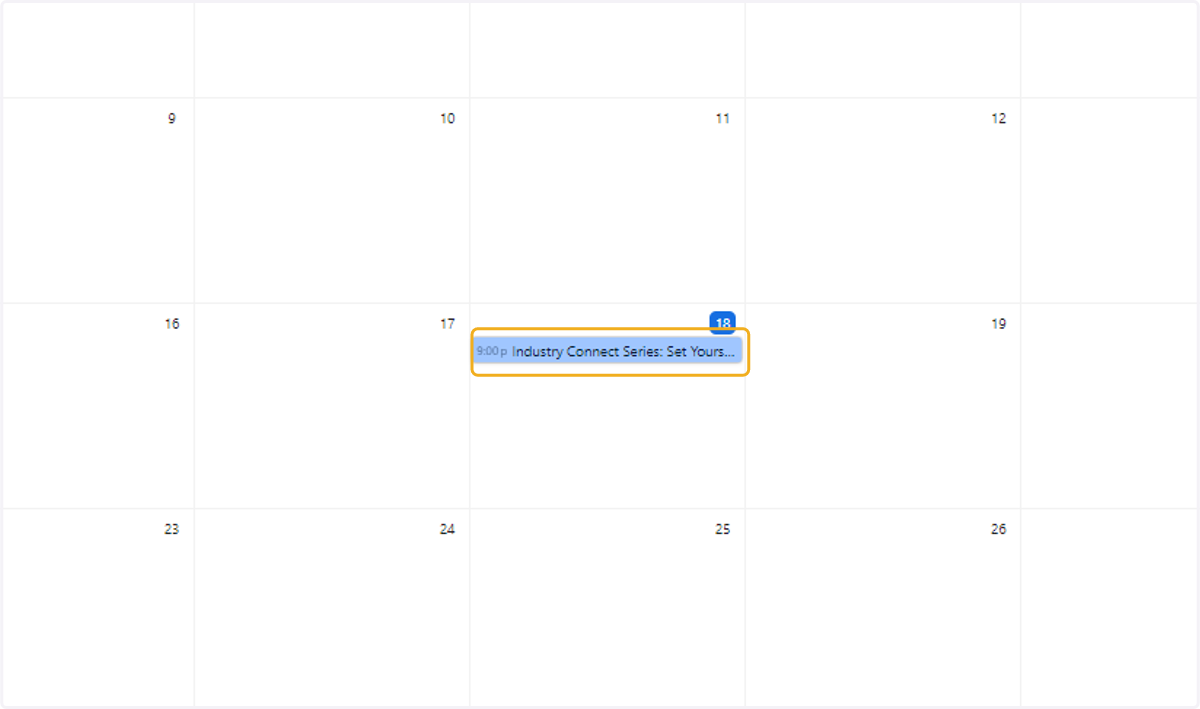
13. Click on an event in the calendar for more information.
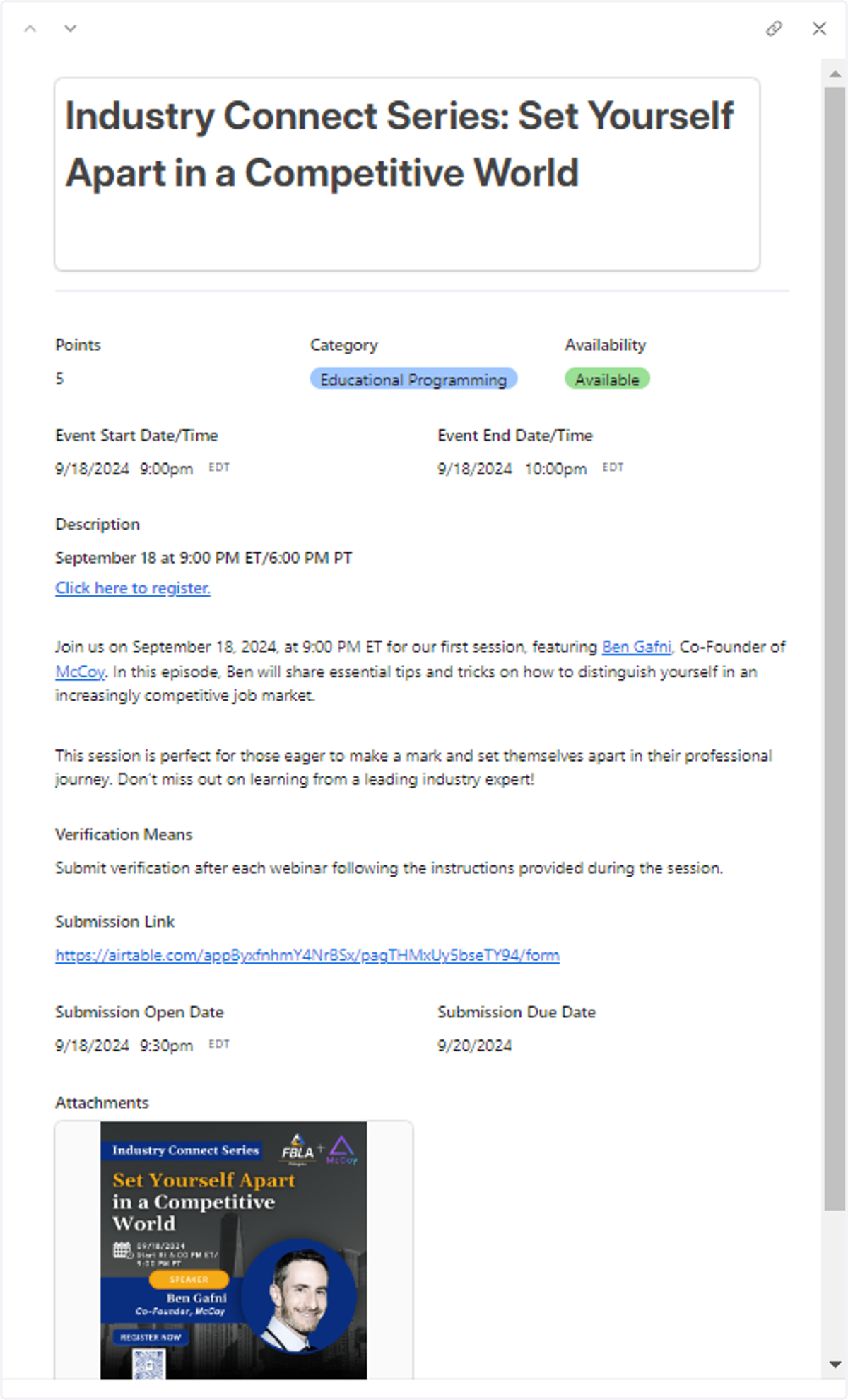
14. You can expand the pop-up window by clicking the expansion in the top right-hand corner.
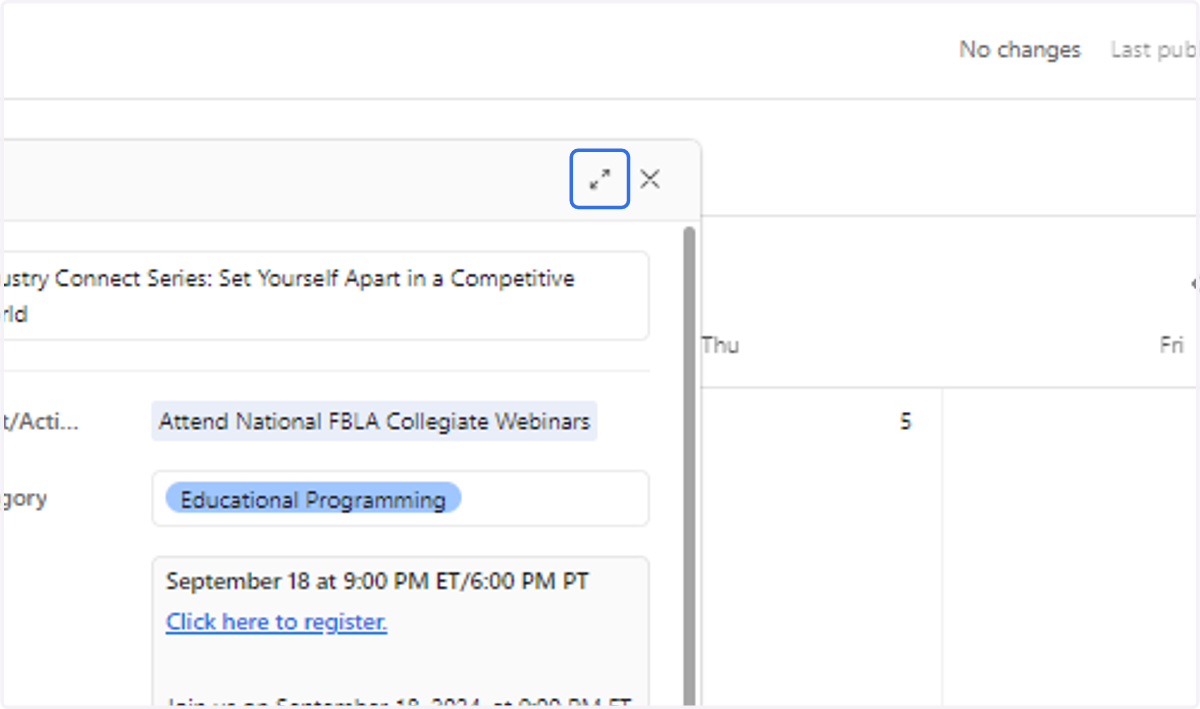
15. You'll find relevant information to that activity including registration instructions, as well as instructions for submitting your verification to earn points.