How to Update your Moodle Profile

  1. 1. Click on your User Menu in the upper right corner of your Moodle window.
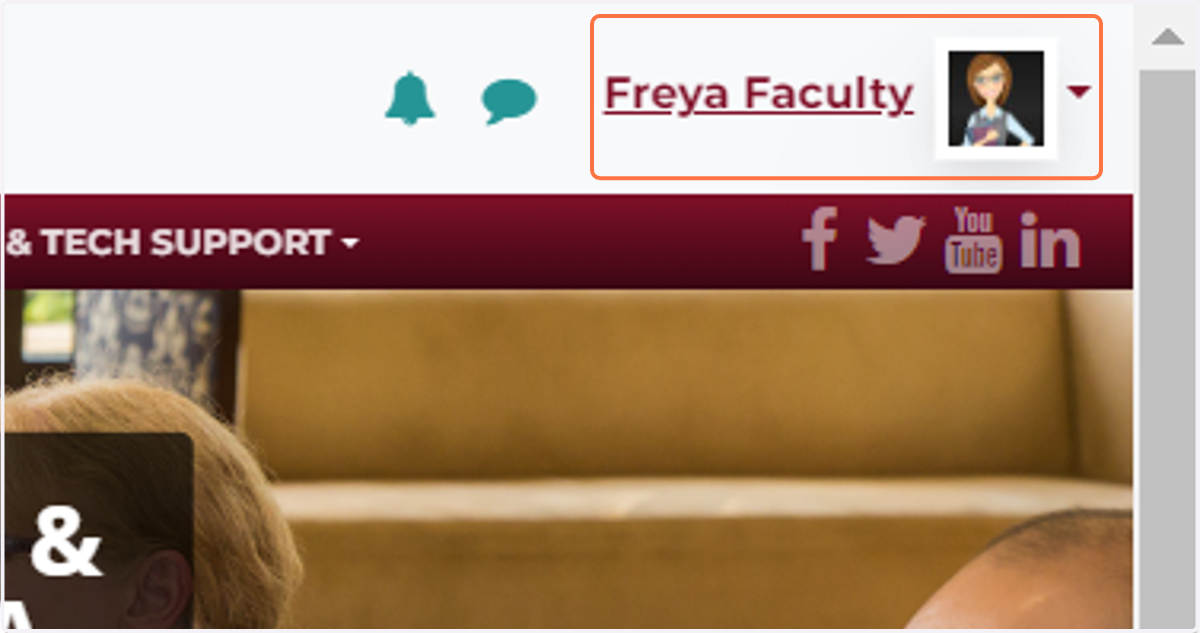
    Click on your User Menu in the upper right corner of your Moodle window.
  2. 2. From the dropdown menu, click on Profile.
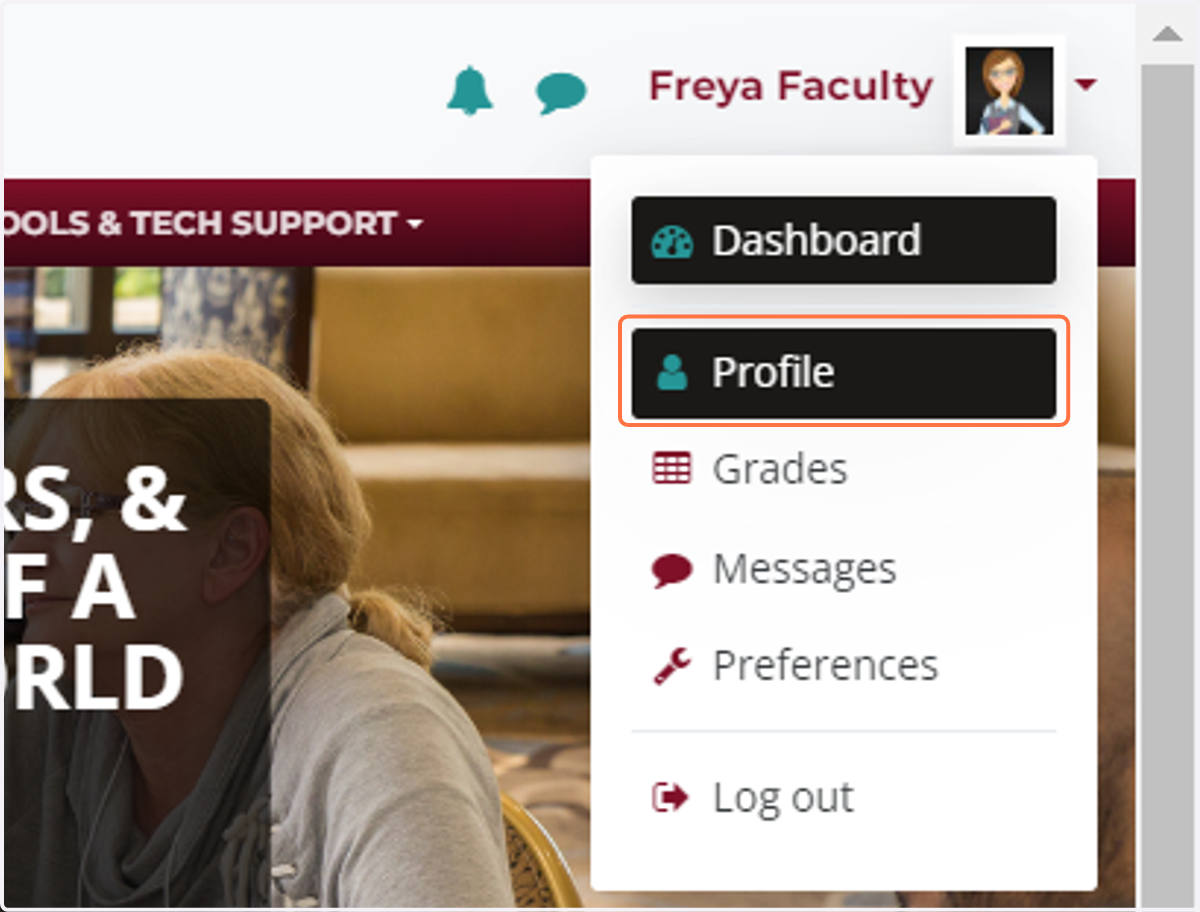
    From the dropdown menu, click on Profile.
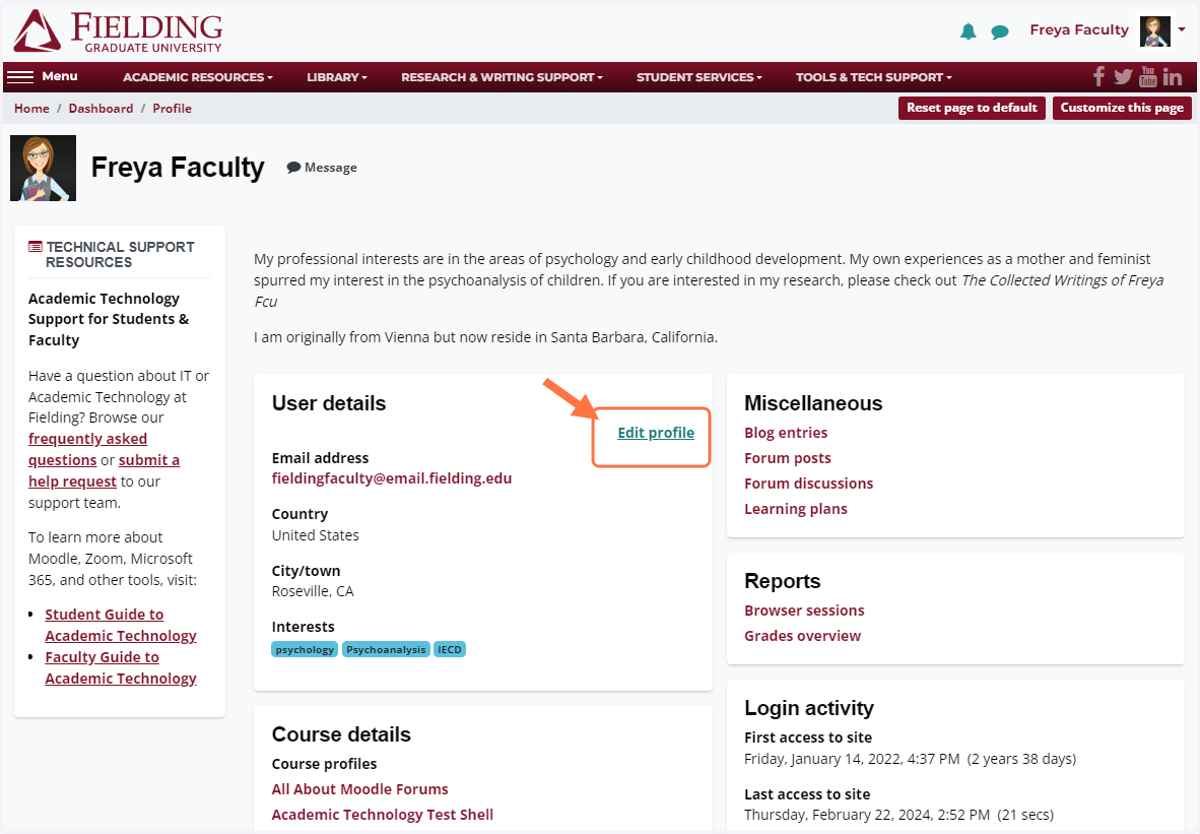
  3. 3. Click on Edit profile.

    Click on Edit profile.
  4. 4. On your Profile page, you can update your location and enter a bio/description to introduce yourself to colleagues and classmates.
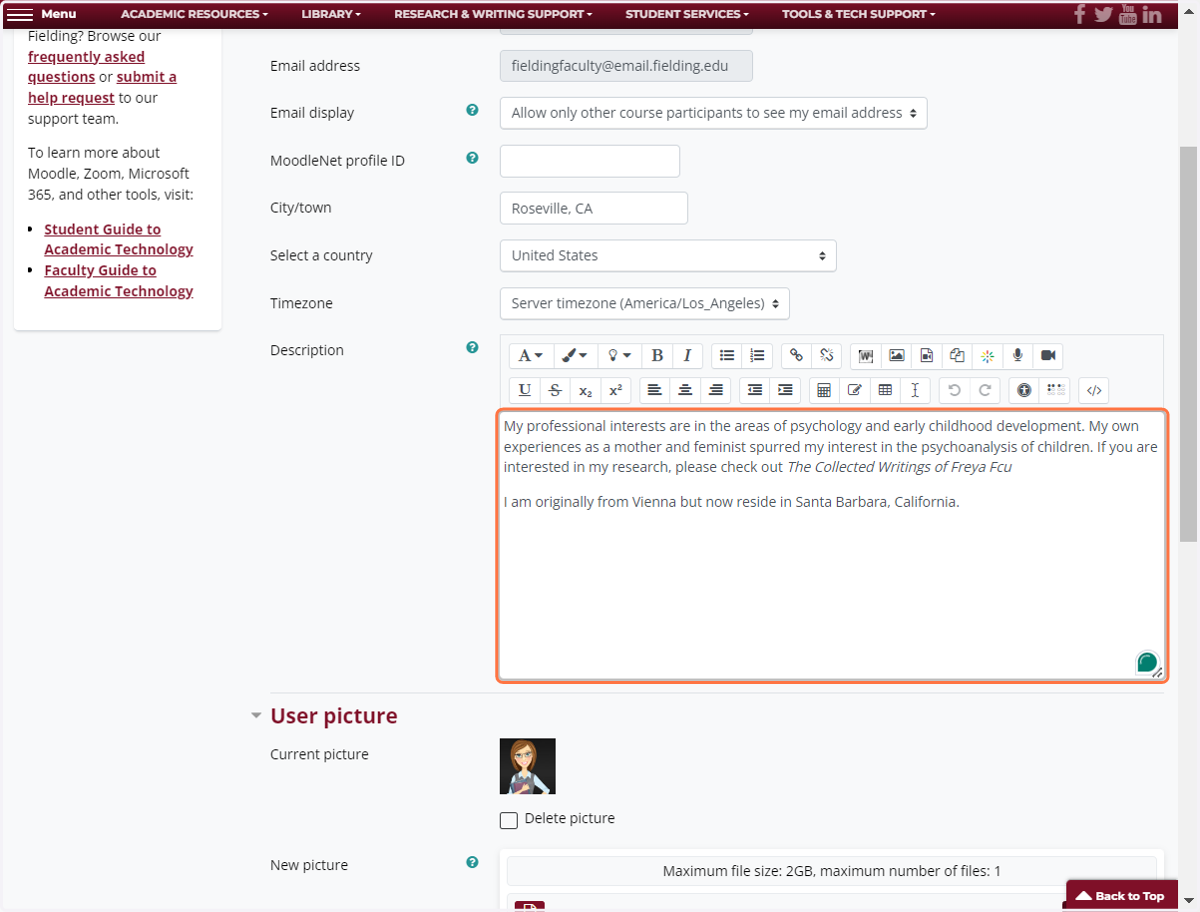
    On your Profile page, you can update your location and enter a bio/description to introduce yourself to colleagues and classmates.
  5. 5. You can upload a profile picture by clicking on the file icon...
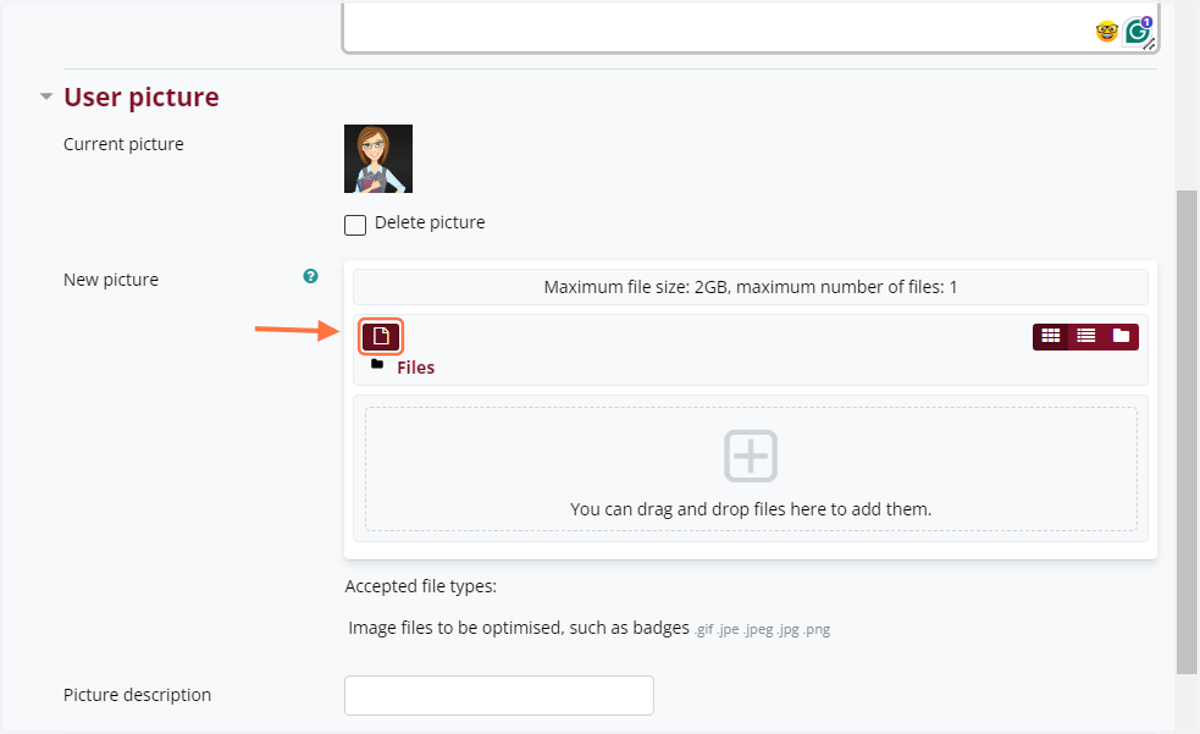
    You can upload a profile picture by clicking on the file icon...
  6. 6. ... and then clicking on "Upload a file." Choose your image from your computer or cloud storage, and click "Upload this file."
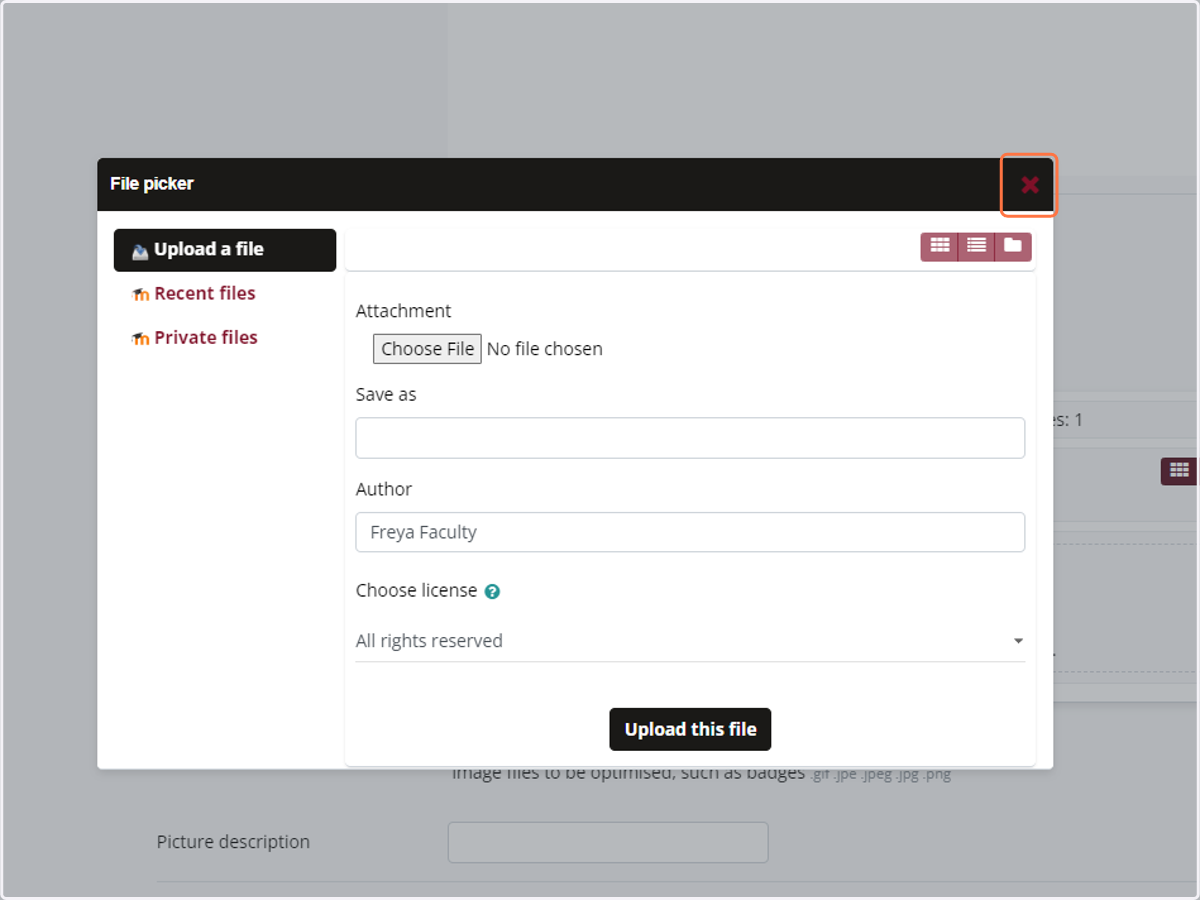
    ... and then clicking on "Upload a file." Choose your image from your computer or cloud storage, and click "Upload this file."
  7. 7. Other profile information, such as Additional Names and Interests, is optional.
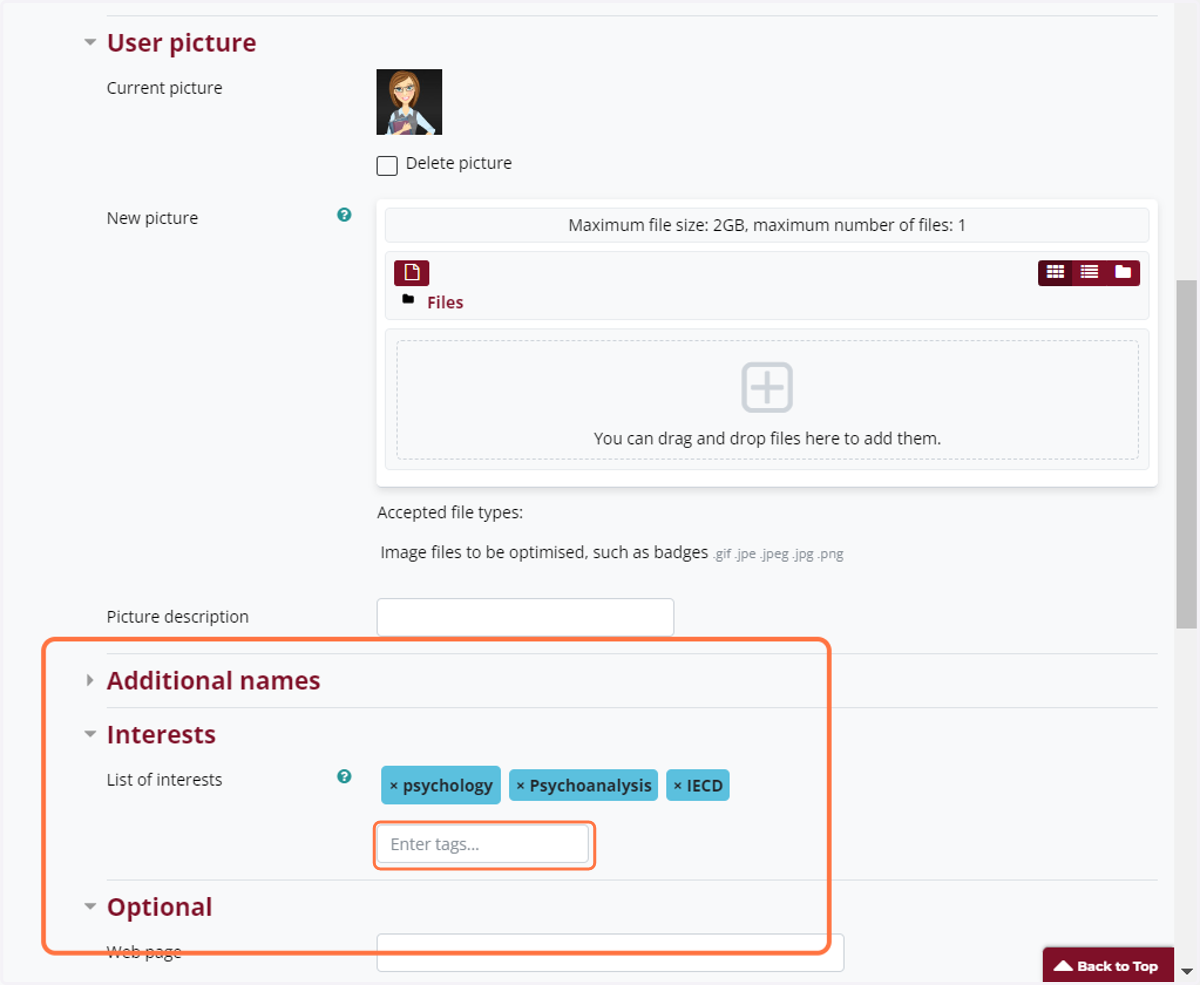
    Other profile information, such as Additional Names and Interests, is optional.
  8. 8. Your updated profile will be available to other users.
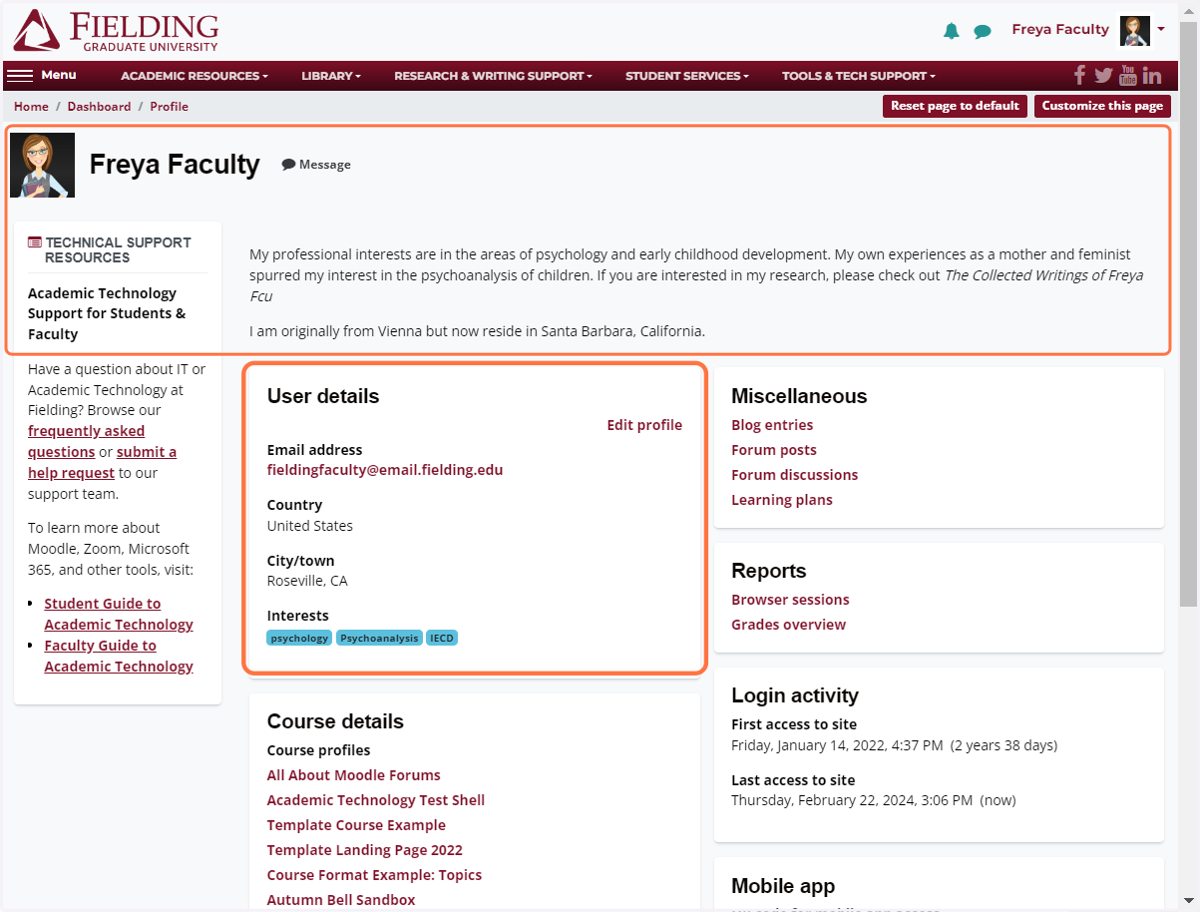
    Your updated profile will be available to other users.
  9. 9. If you do include tags (key words) in the Interests section of your Profile, you can click on those tags to discover others with similar interests.
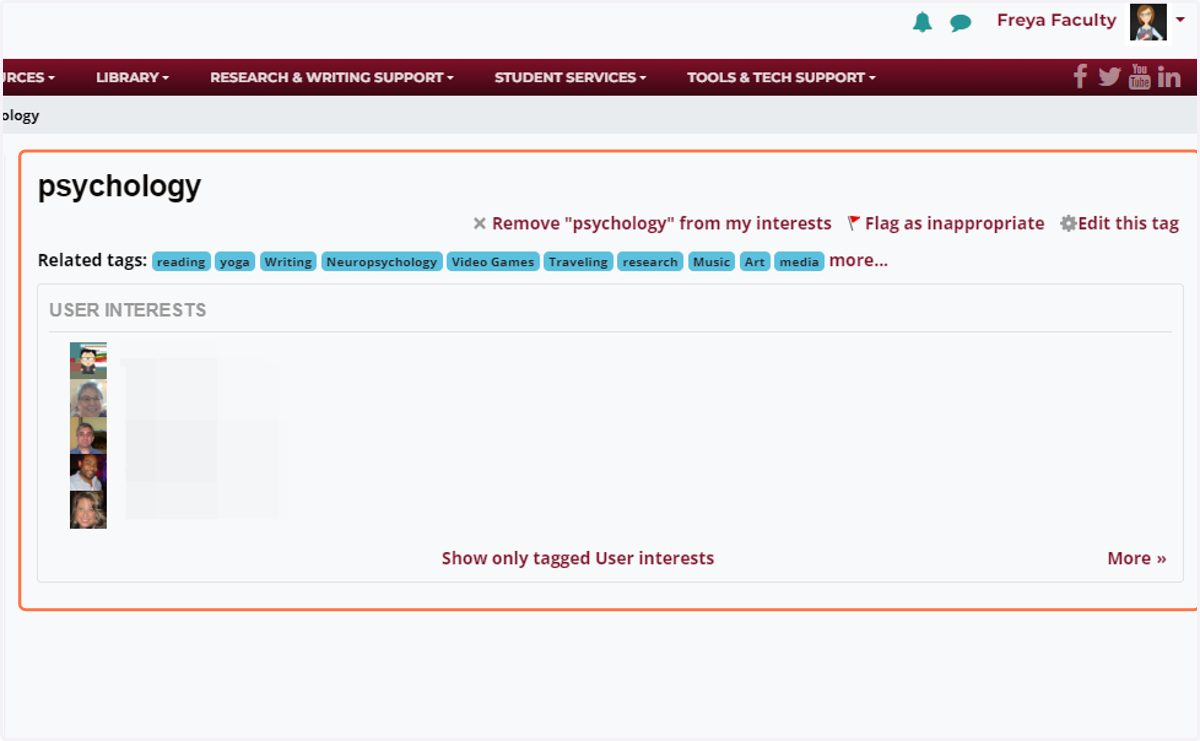
    If you do include tags (key words) in the Interests section of your Profile, you can click on those tags to discover others with similar interests.