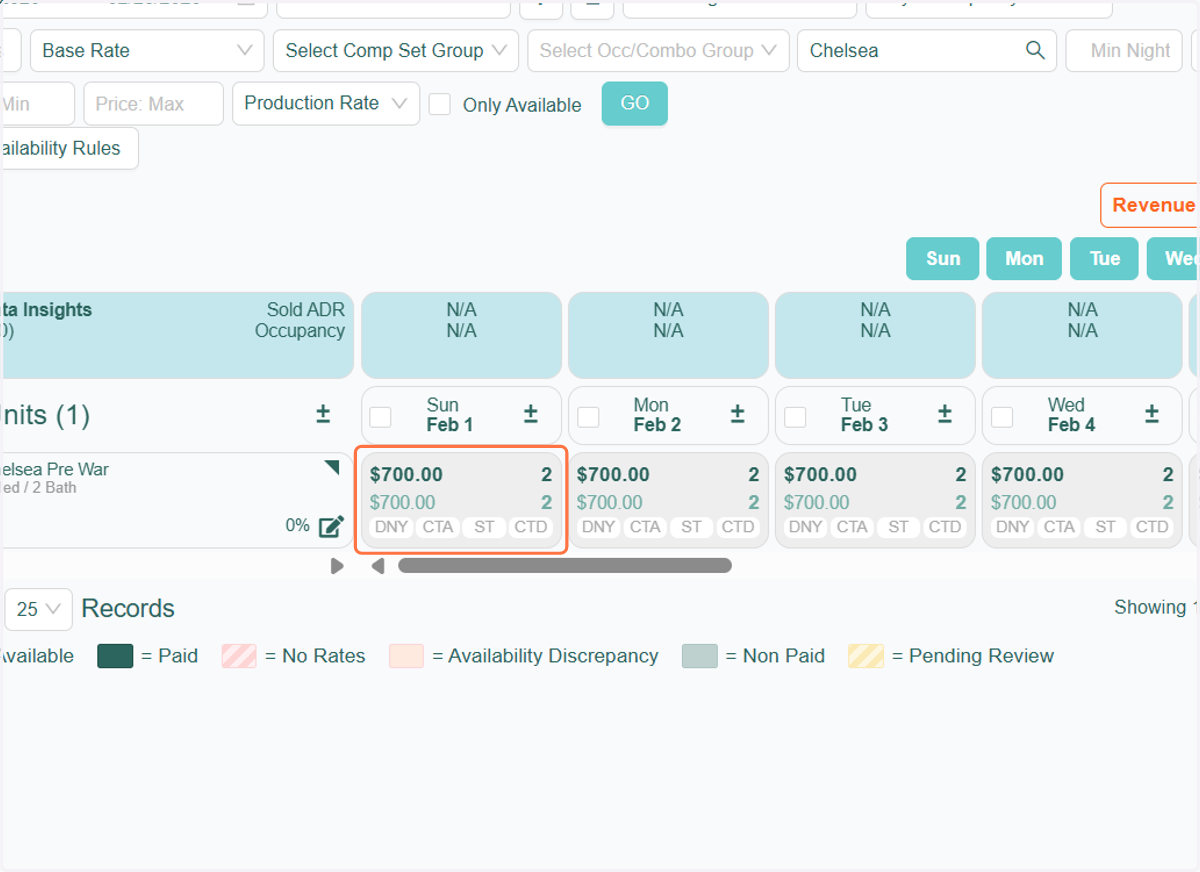
RevMax Tape Chart: Reset Manual Overrides
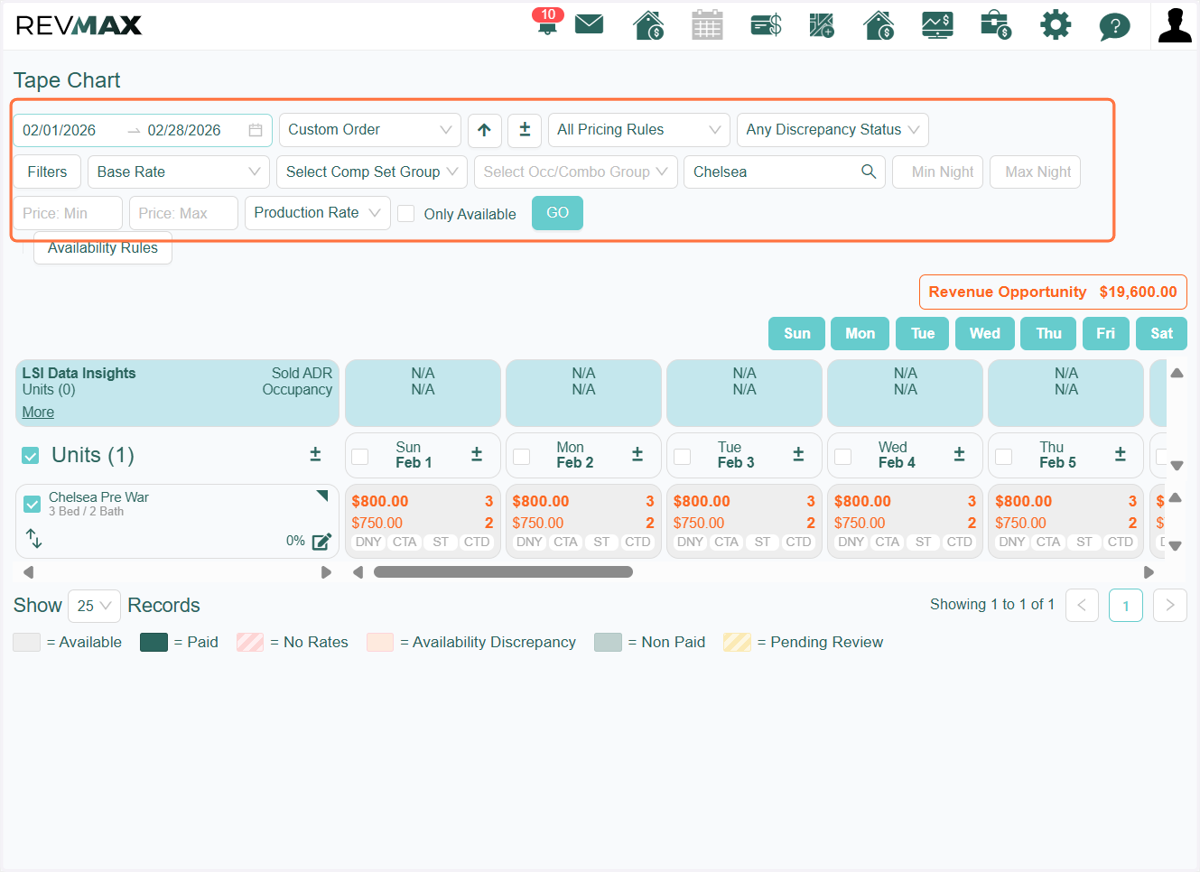
1. Filter the date range or select the specific units for which you'd like to reset the manual overrides. You can also apply additional filters to narrow down your results more efficiently.
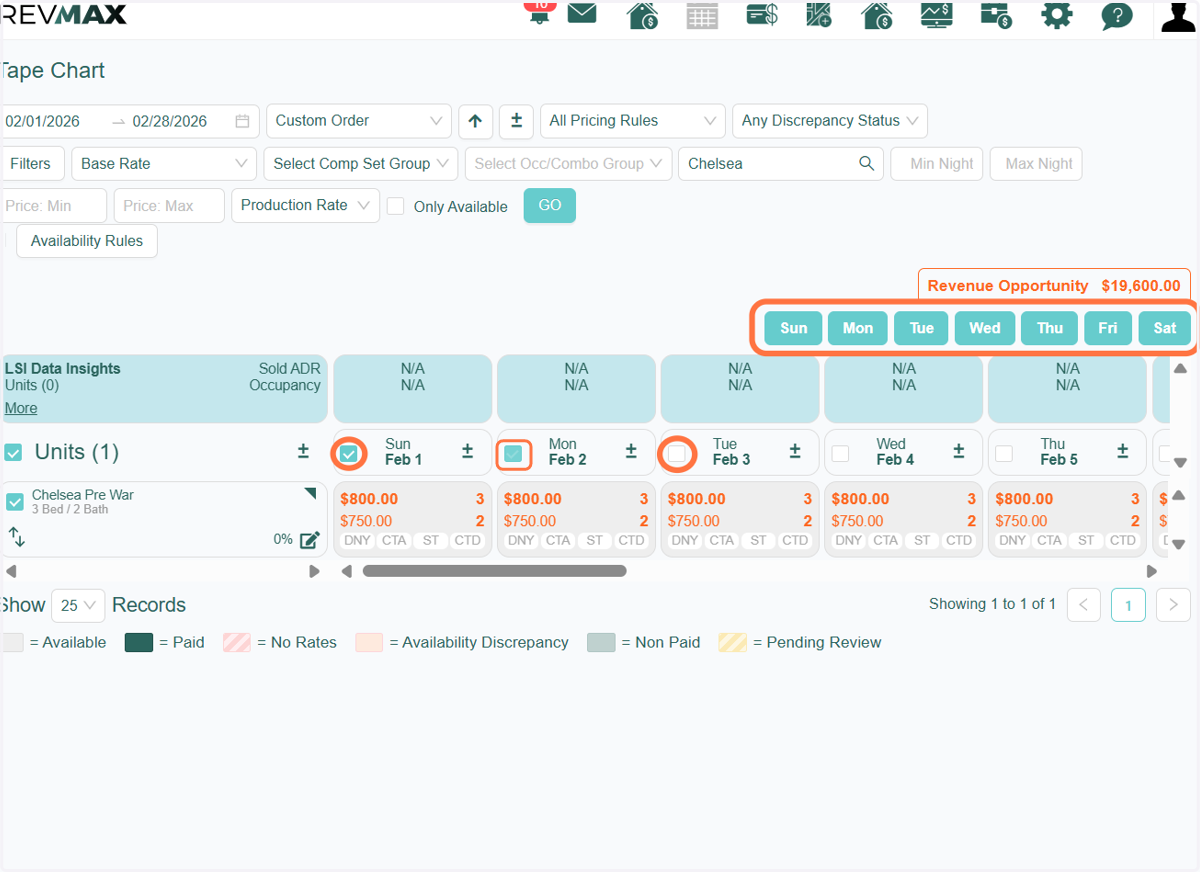
2. You can also check each checkbox for the preferred dates within the filtered date period. A 'Days of the Week' filter is also available for you to select specific days you'd like to reset.
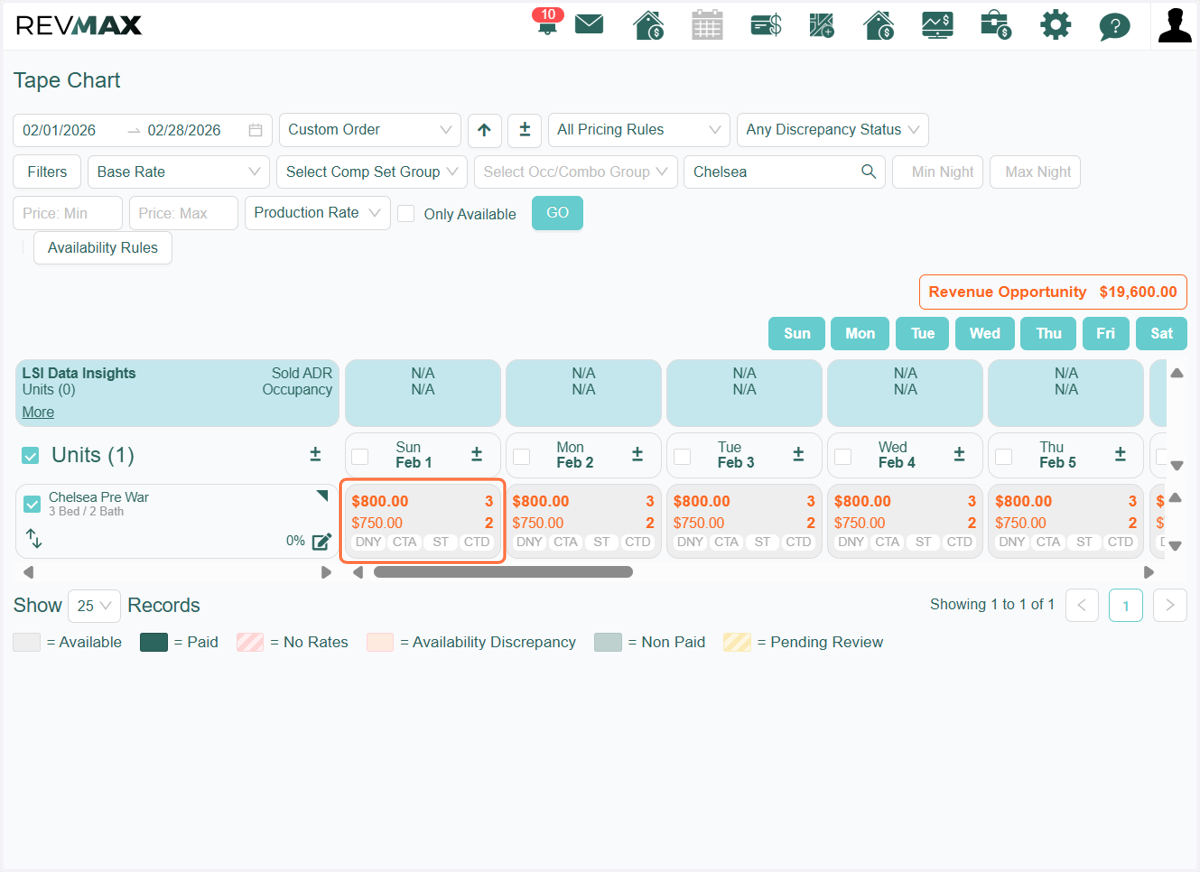
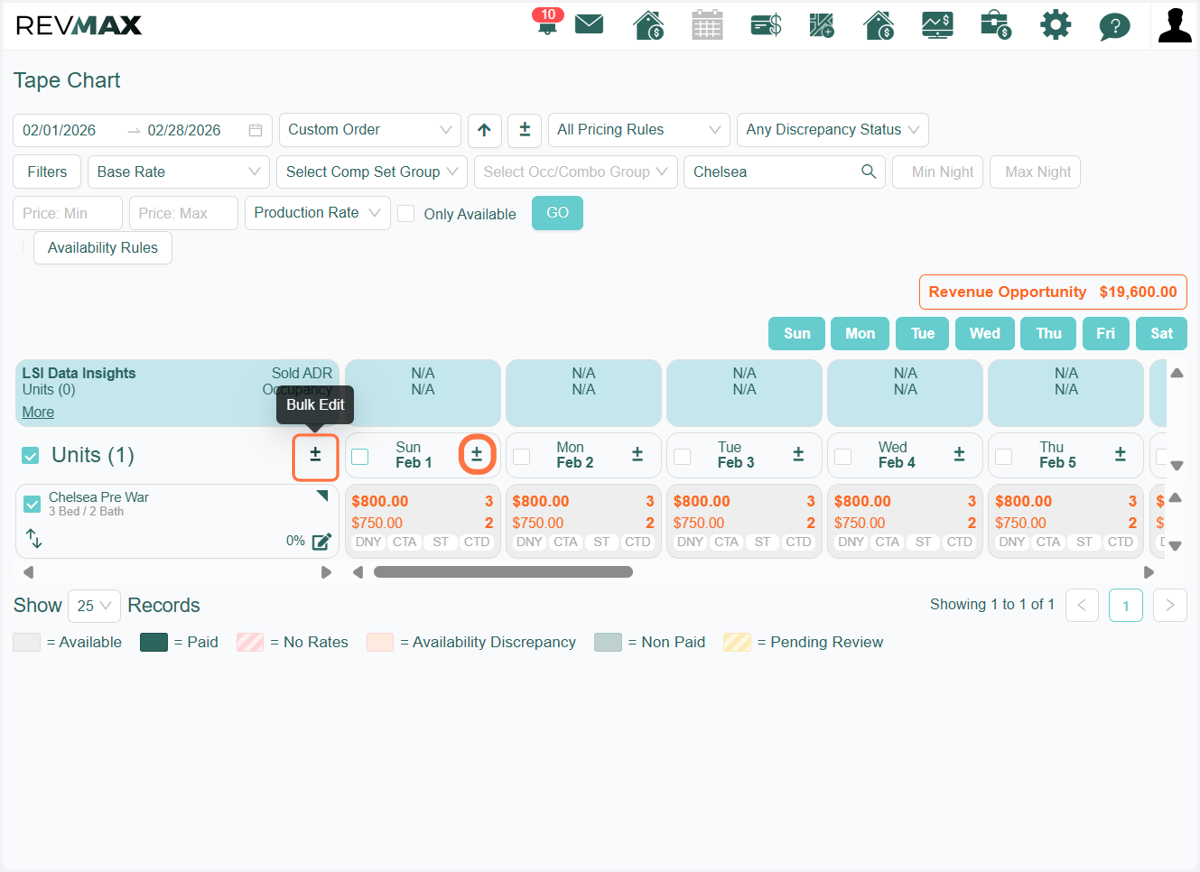
3. Overrides are highlighted in bold orange for easy identification. Review the existing overrides to confirm whether they are the ones you'd like to reset.
4. After selecting the unit and dates for which you want to reset manual overrides, click the 'Bulk Edit' icon.
If you prefer to reset a specific date for the selected units, you can also use the bulk edit icon located on each date.
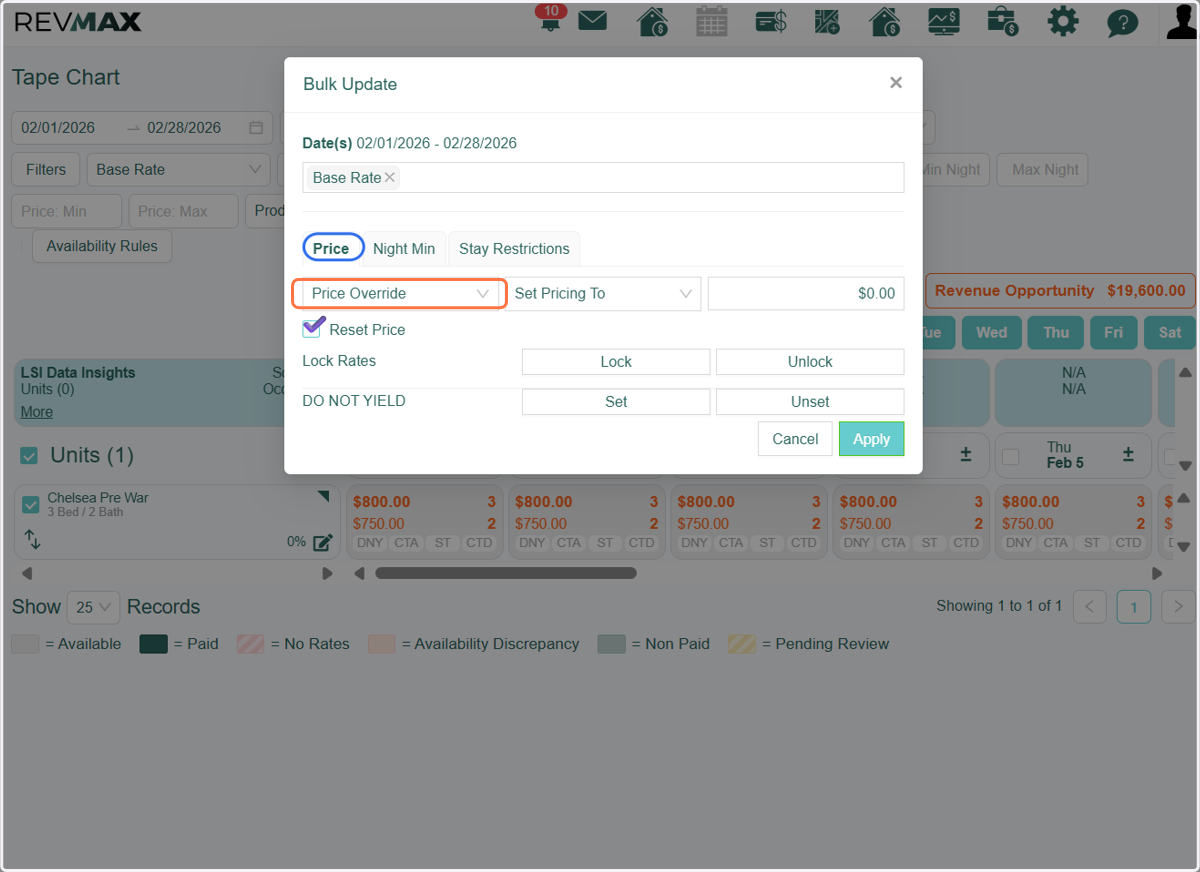
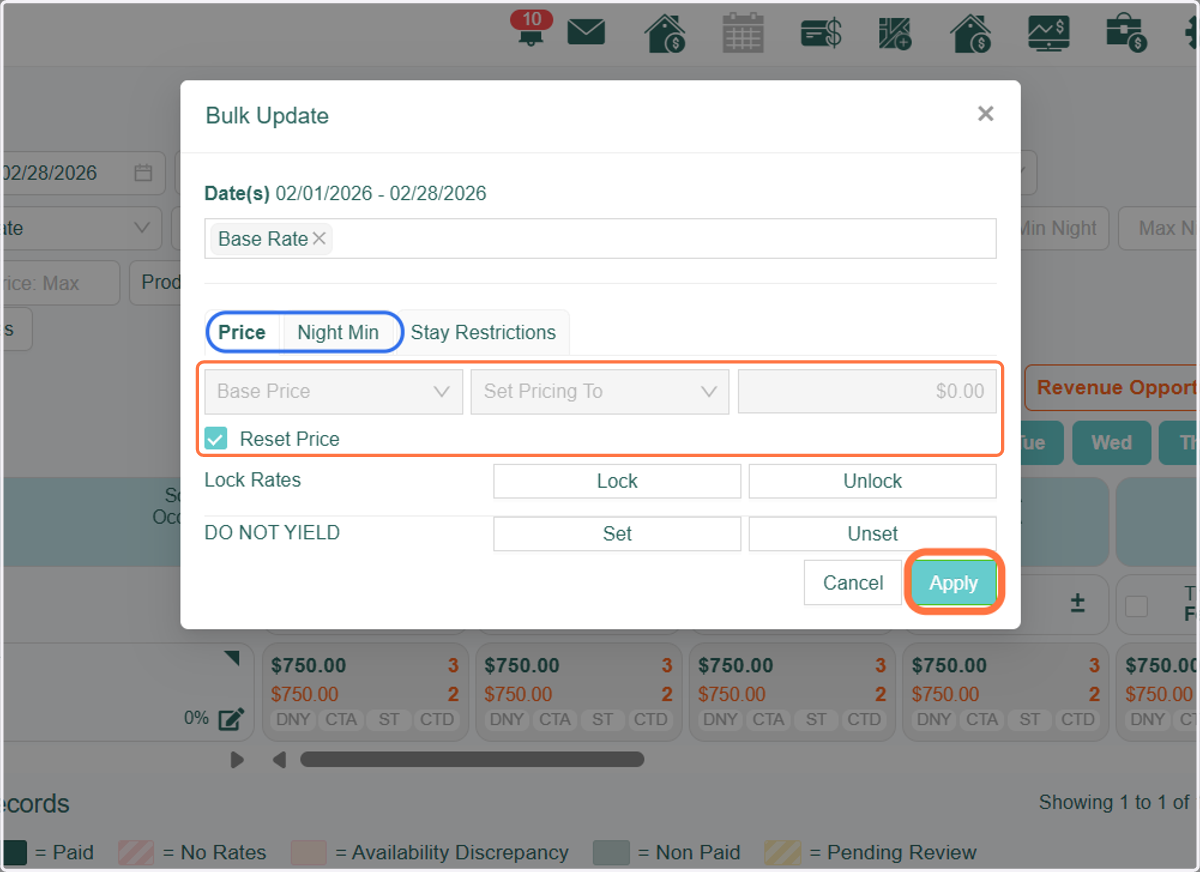
5. After clicking the Bulk Edit icon, a pop-up window will appear with several bulk update options, including Price (Rates), Night Minimums, and Stay Restrictions.
In this example, we’ll reset the manual override for the Top/Final rate. To do this, go to the "Price" tab, then select "Price Override". From there, simply check the "Reset Price" box to remove the override.
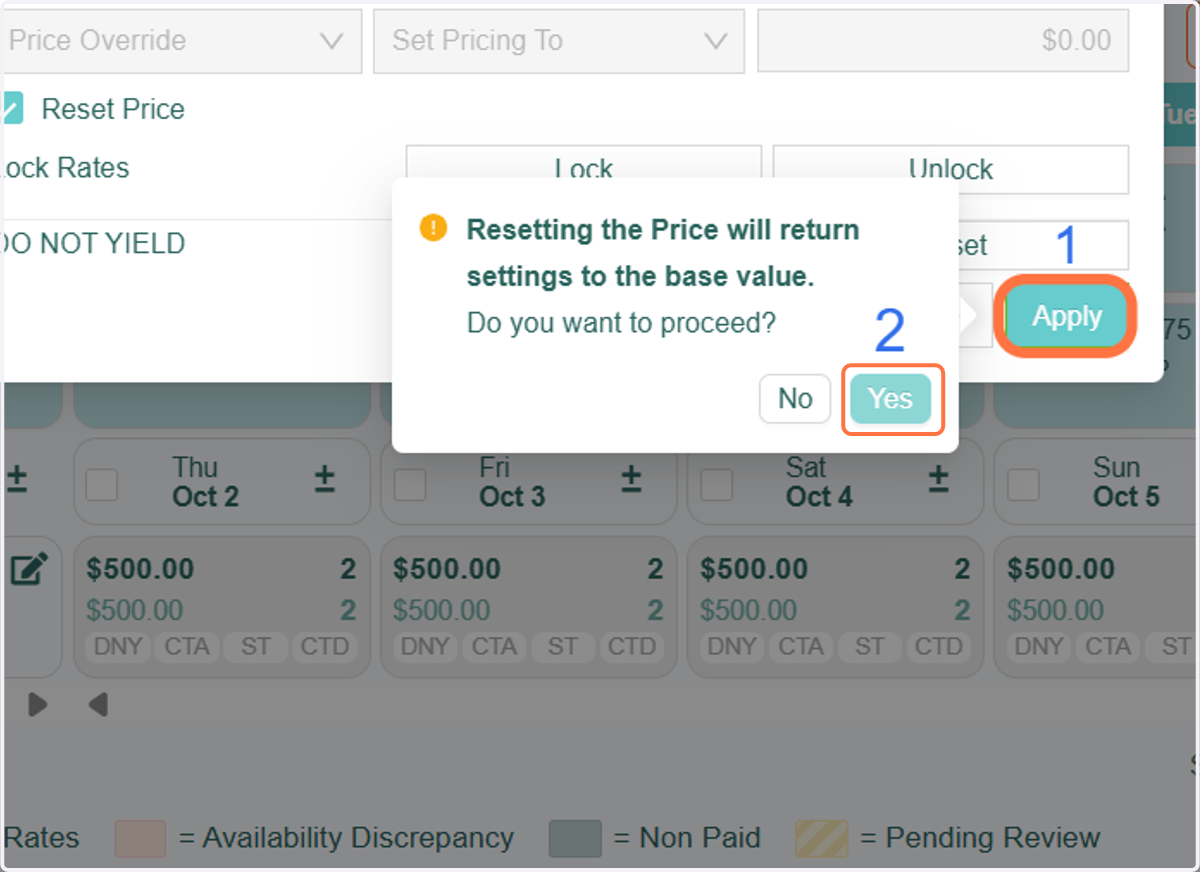
6. After clicking the "Apply" button, an alert message will appear to confirm your action, informing you that the settings will be reset to their base values. Click "Yes" to proceed.
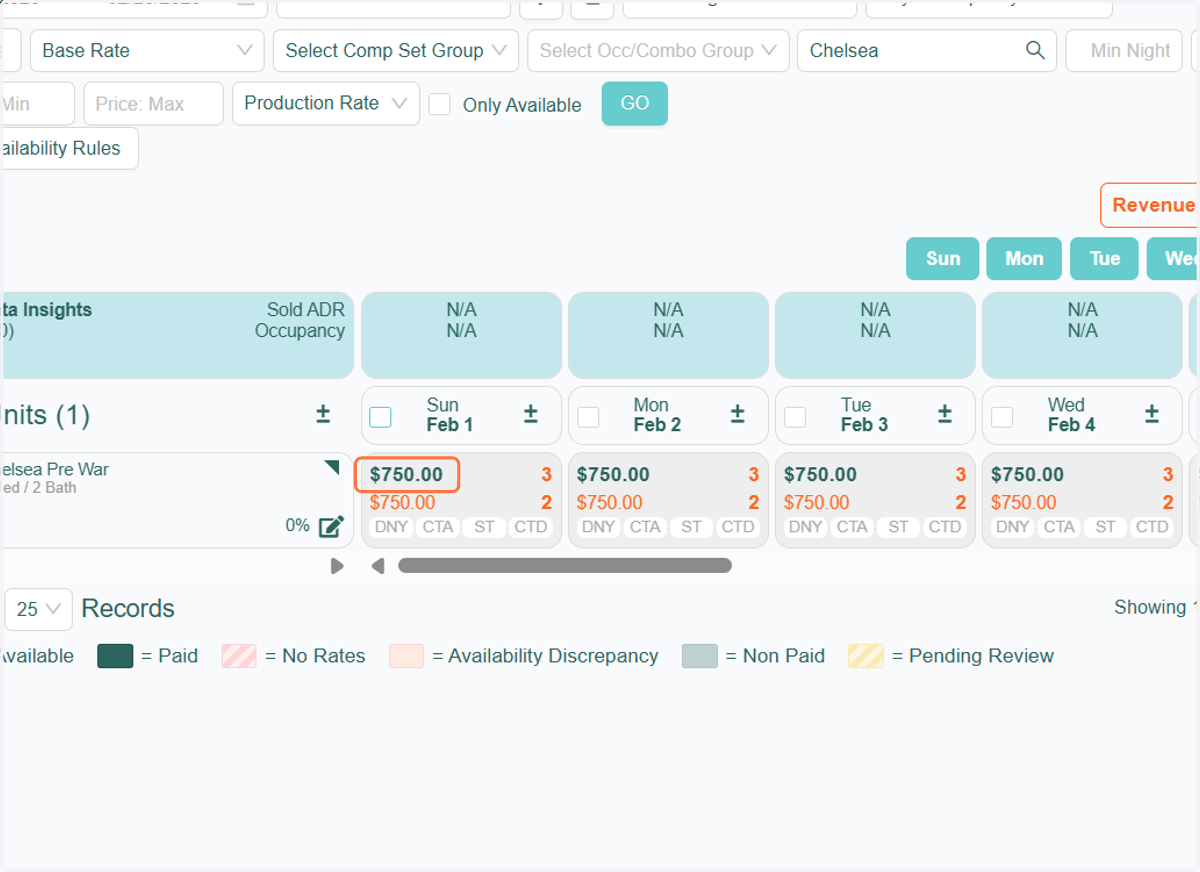
7. You’ll notice that the font color of the Top/Final rate has changed, this indicates the manual override has been successfully reset.
8. You can now proceed to reset other overrides in this example such as the Base Rate/Price, Final and Base Night Minimums, by using the other available options in the Bulk Edit feature. Simply follow the same steps outlined above.
9. In this example, we’ve reset all manual overrides applied to the Top/Final and Base Rates, Final and Base Night Minimums. As a result, the orange font color is no longer visible, indicating that all values have returned to their base settings.
Important note: If you encounter any issues while performing a reset or using any feature within the Bulk Edit tool, please don’t hesitate to contact the RevMax Support Team for assistance.