Editing Committee Members in General
Interfolio
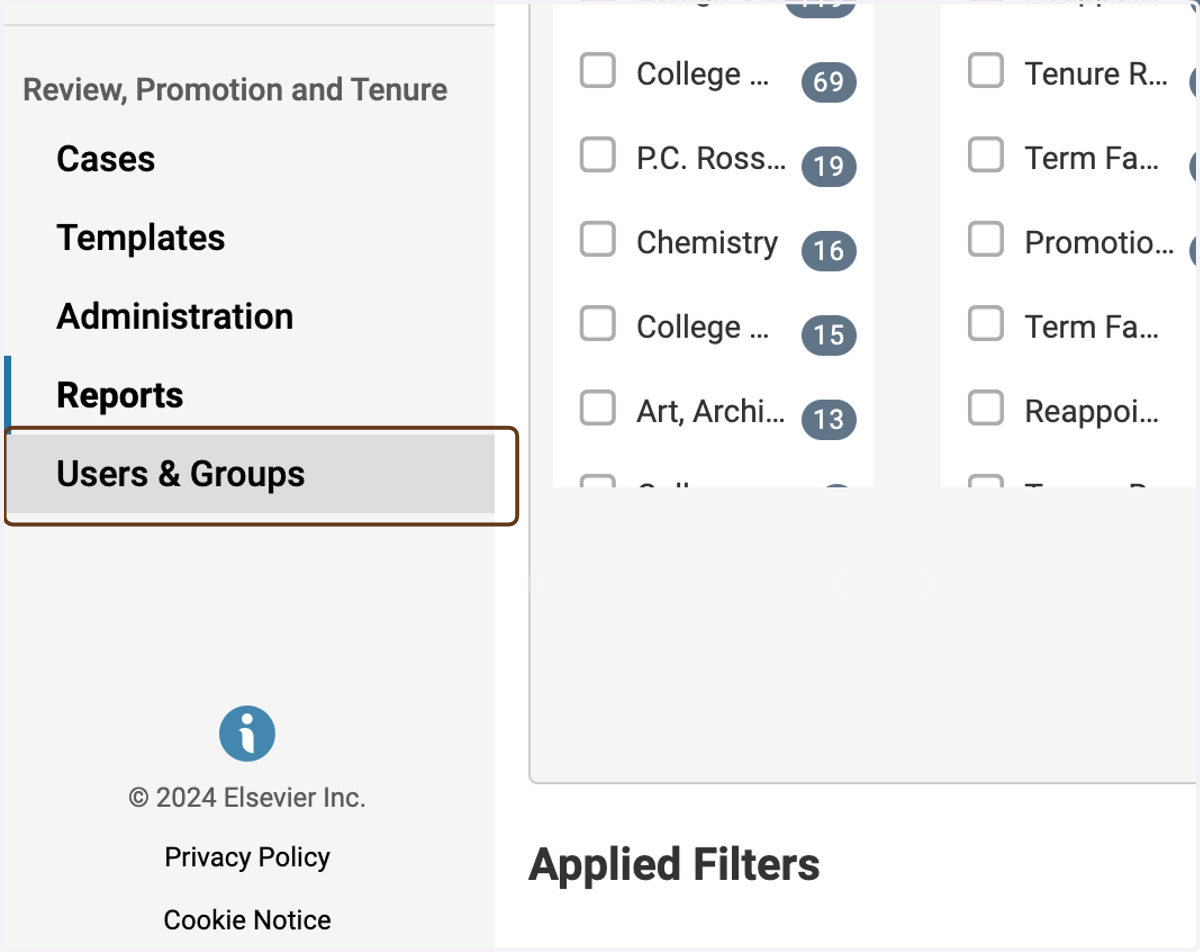
1. Click on Users & Groups
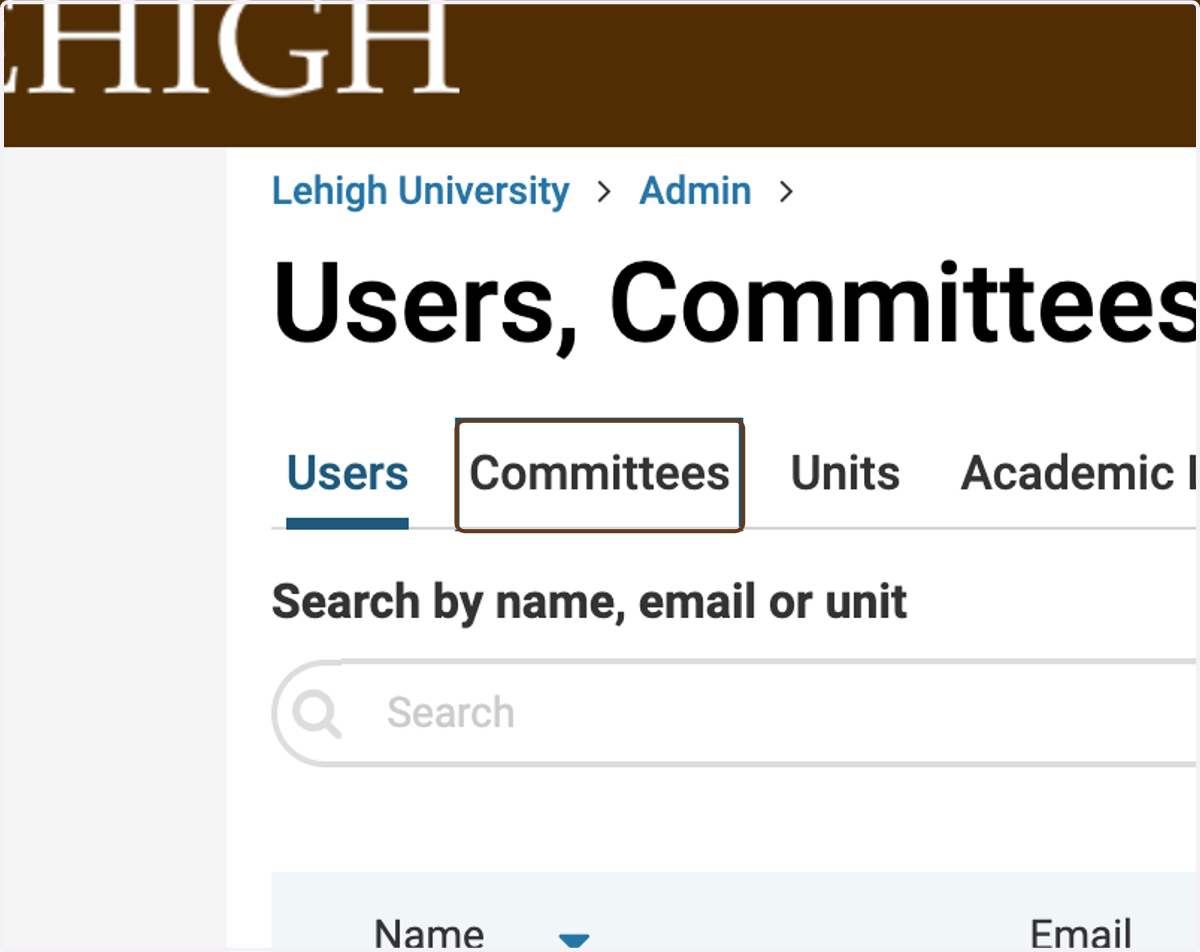
2. Click on Committees
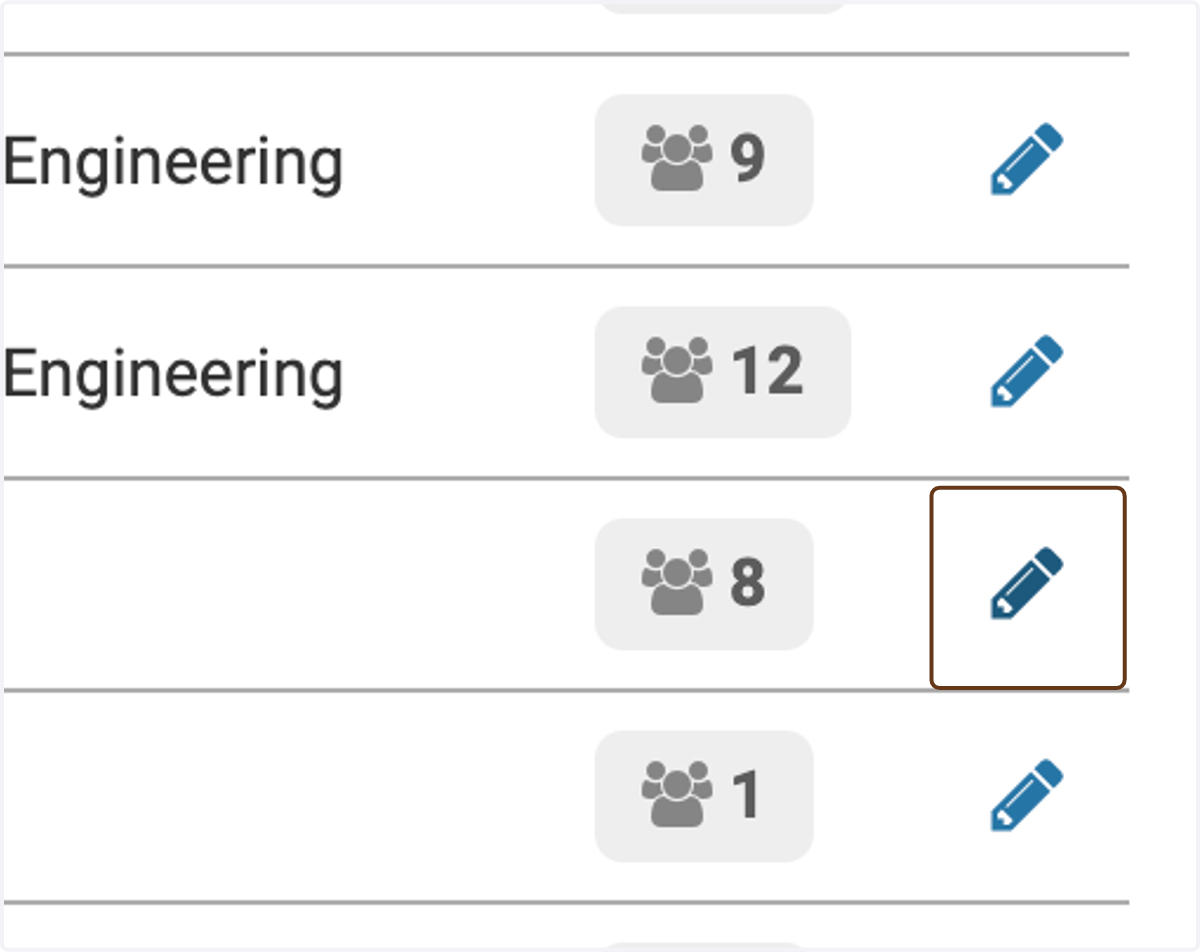
3. Click on the pencil icon next to the committee you want to edit
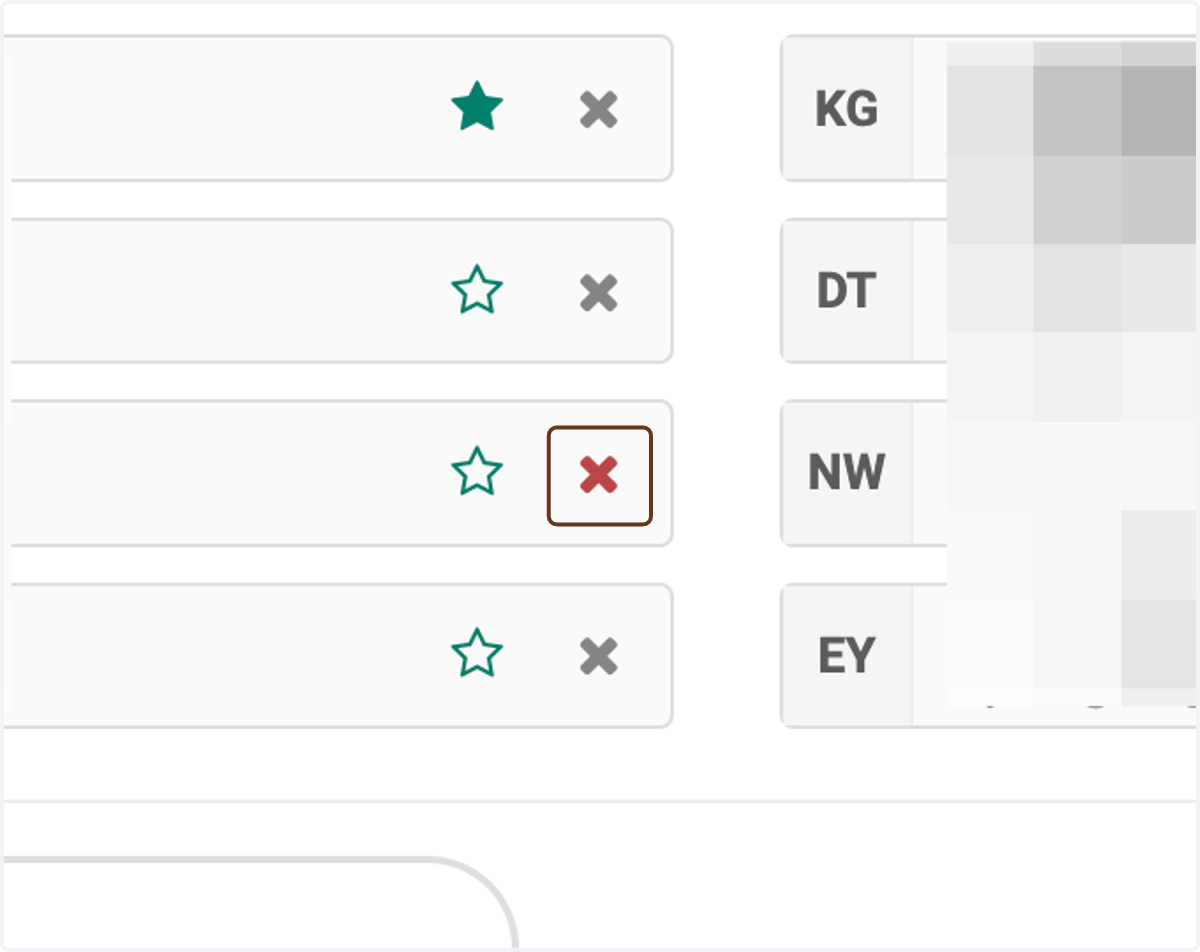
4. To remove someone from the committee, click the x next to their name
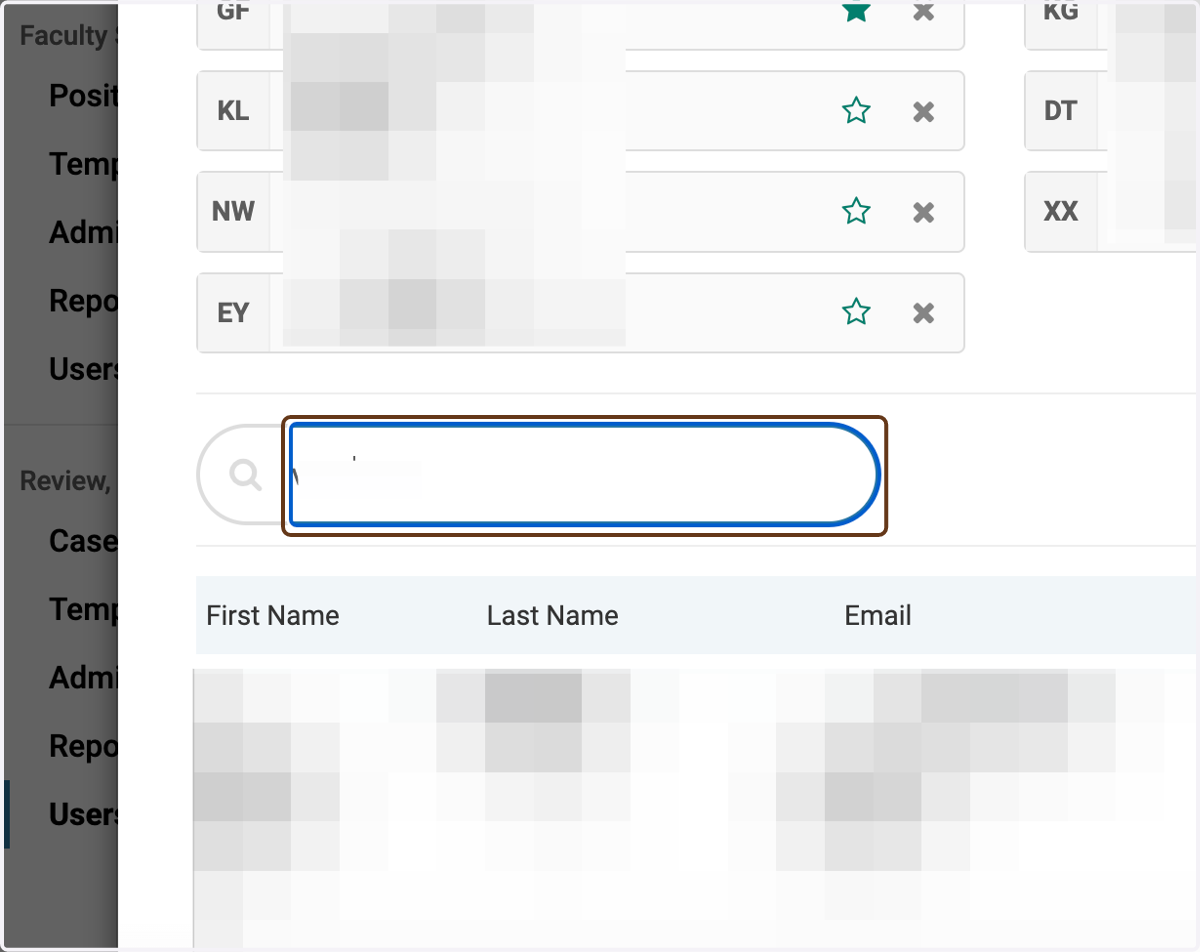
5. To add someone to the committee, search for their name
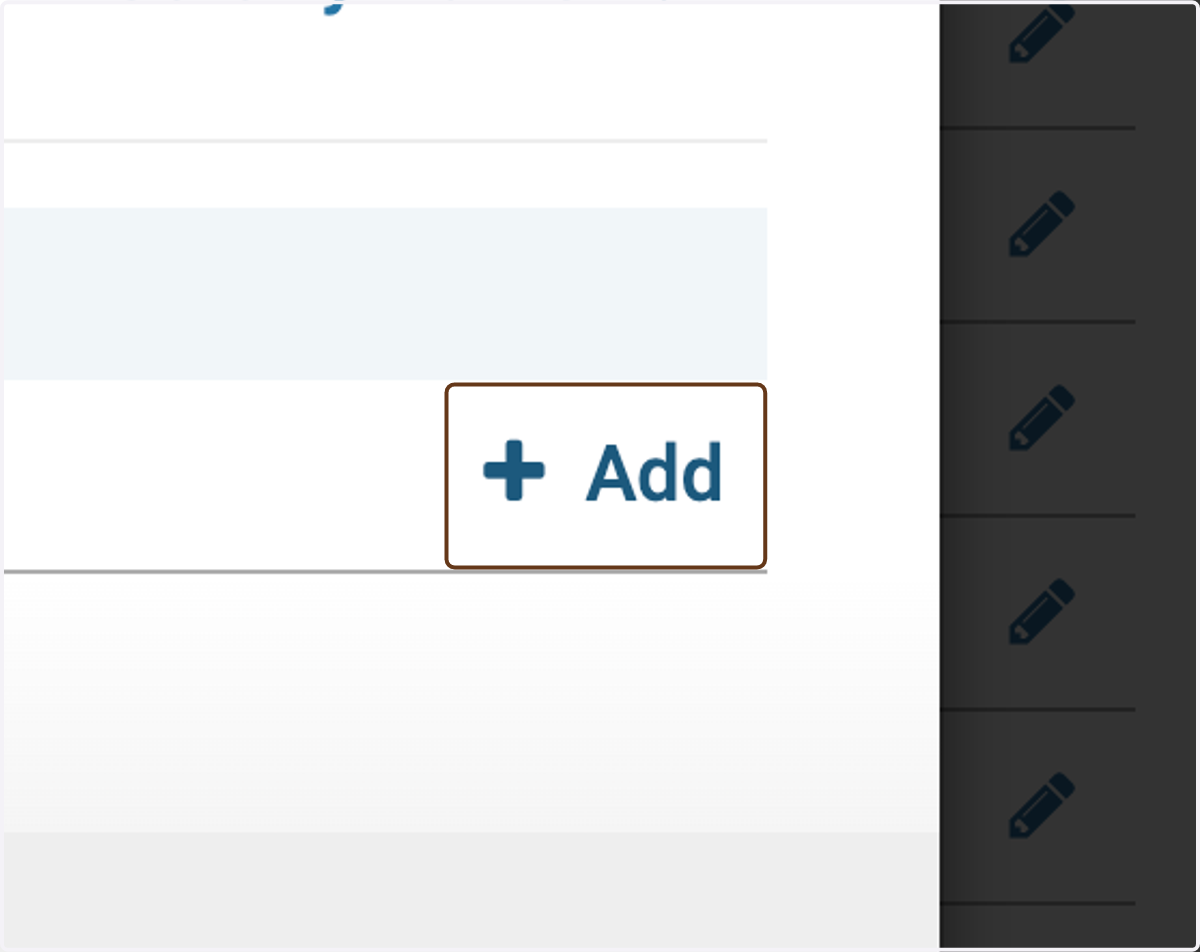
6. Click on Add
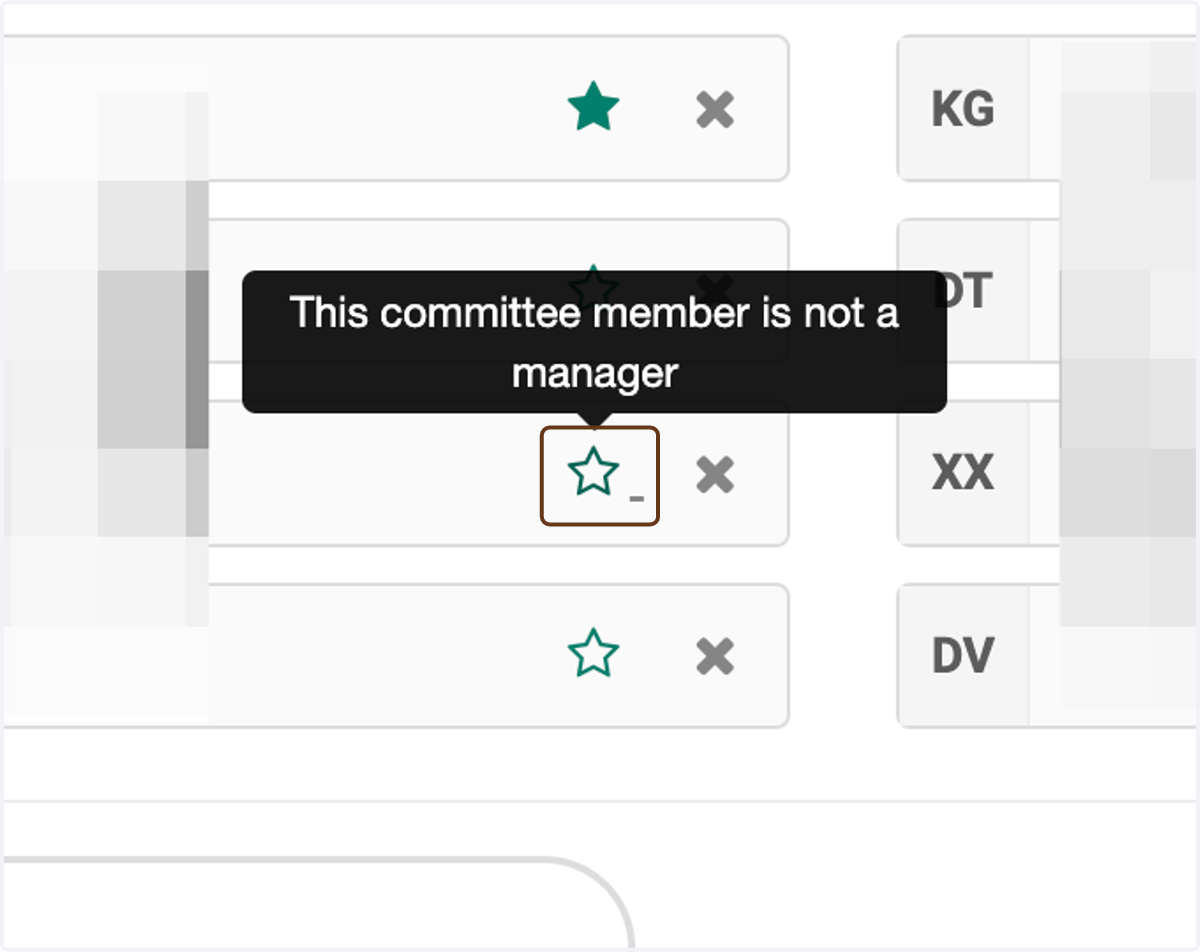
7. Toggle the green star next to a name to toggle whether they are a Committee Manager
A Committee Manager has certain privileges within Interfolio that committee members do not have. The main one in this case is the ability to move the case forward to the next step (or backward to the previous one).
8. Close the window when you are finished making edits
(You do not need to click Update unless you have changed the committee's name or unit.)