How To Connect a CRM
Log Into Your Portal
motivatedleads.com and click Sign In
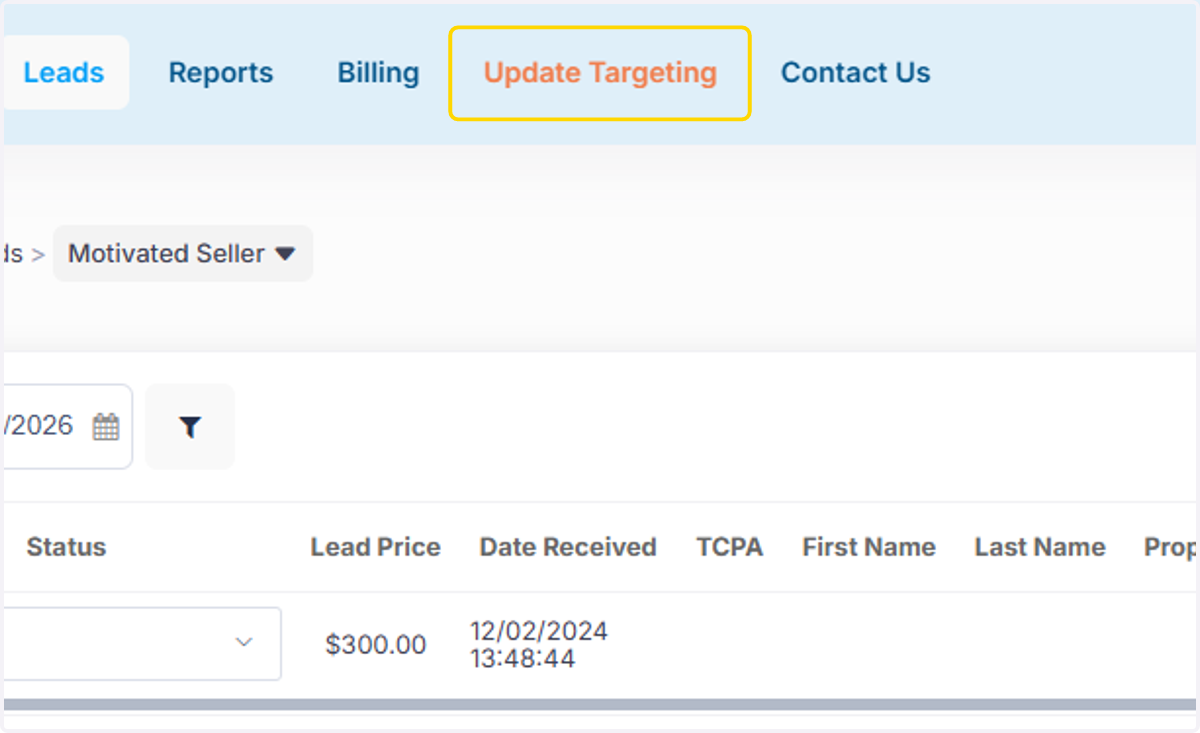
1. Click on Update Targeting
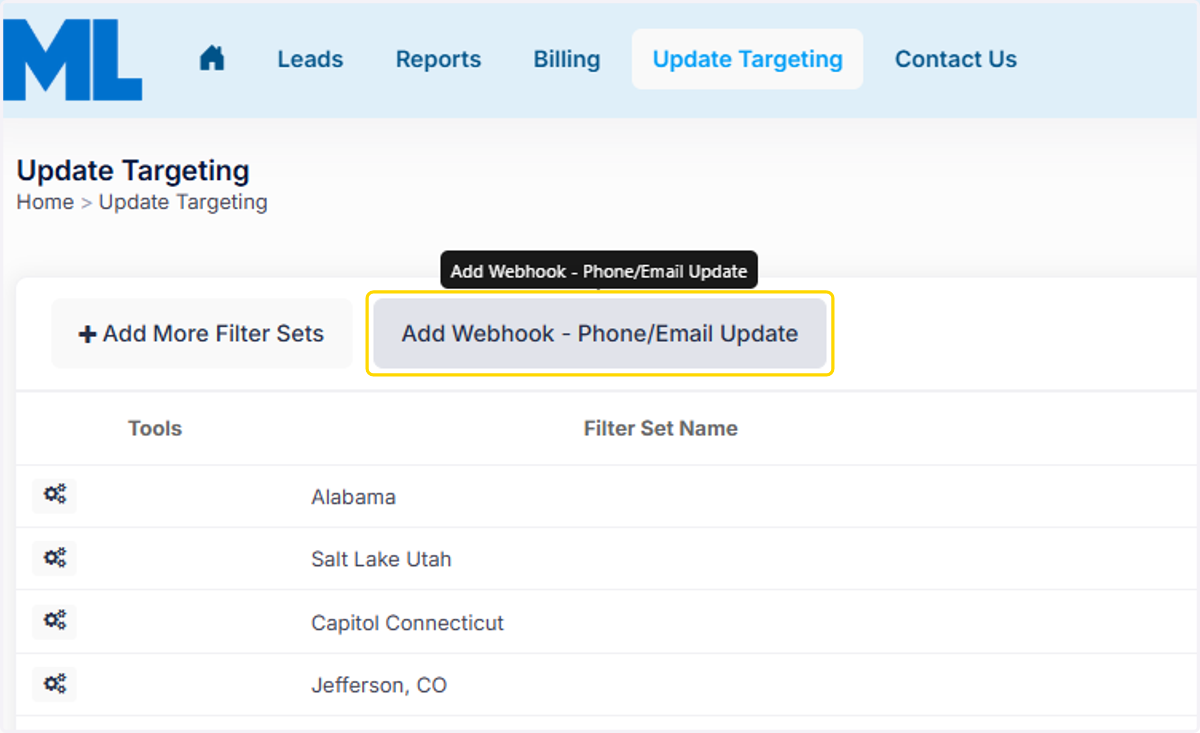
2. Click Add Webhook- Phone/ Email Update
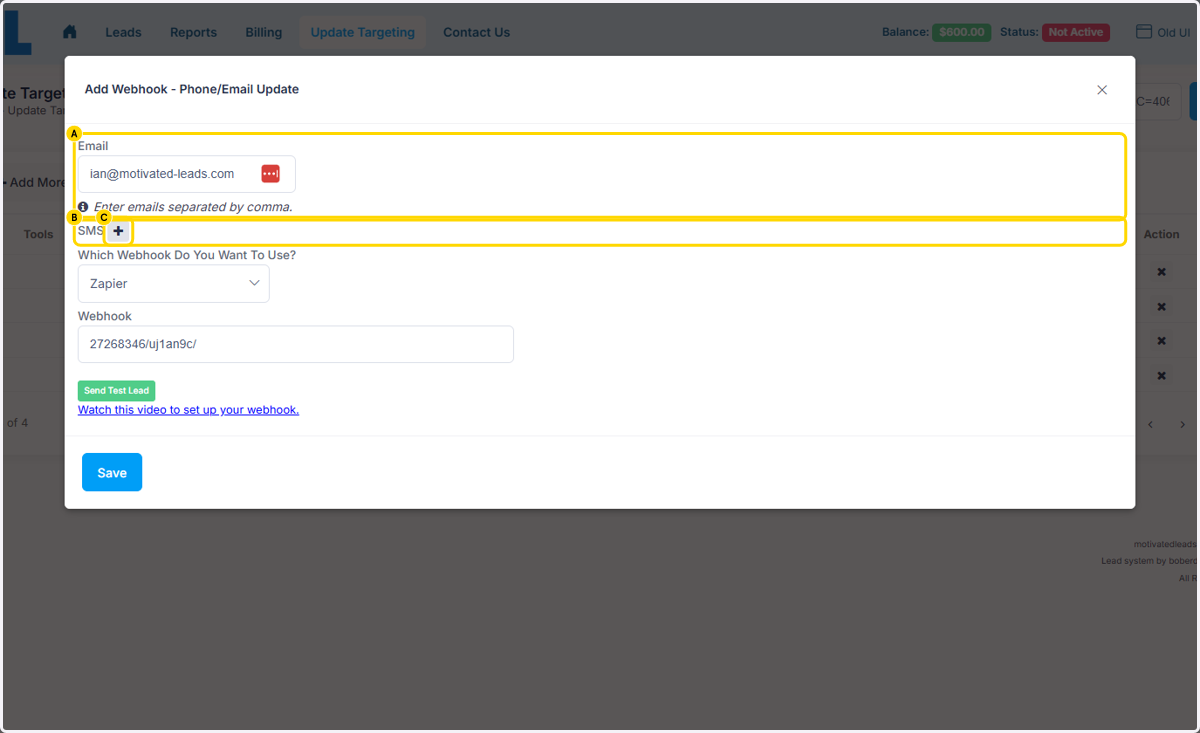
3. A. You can add emails for lead email notifications- separate different emails by using a comma (,) without spaces
3. B. Add phone numbers for text message notifications here
3. C. Click on SMS
4. Add the phone number
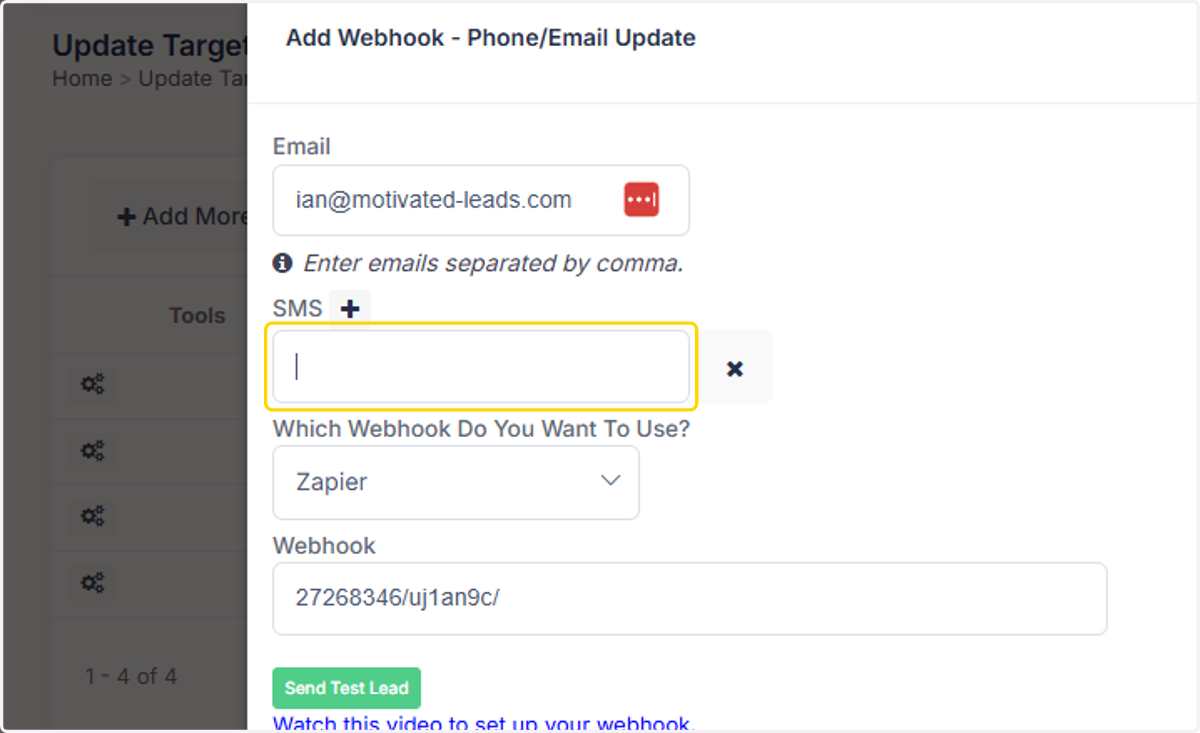
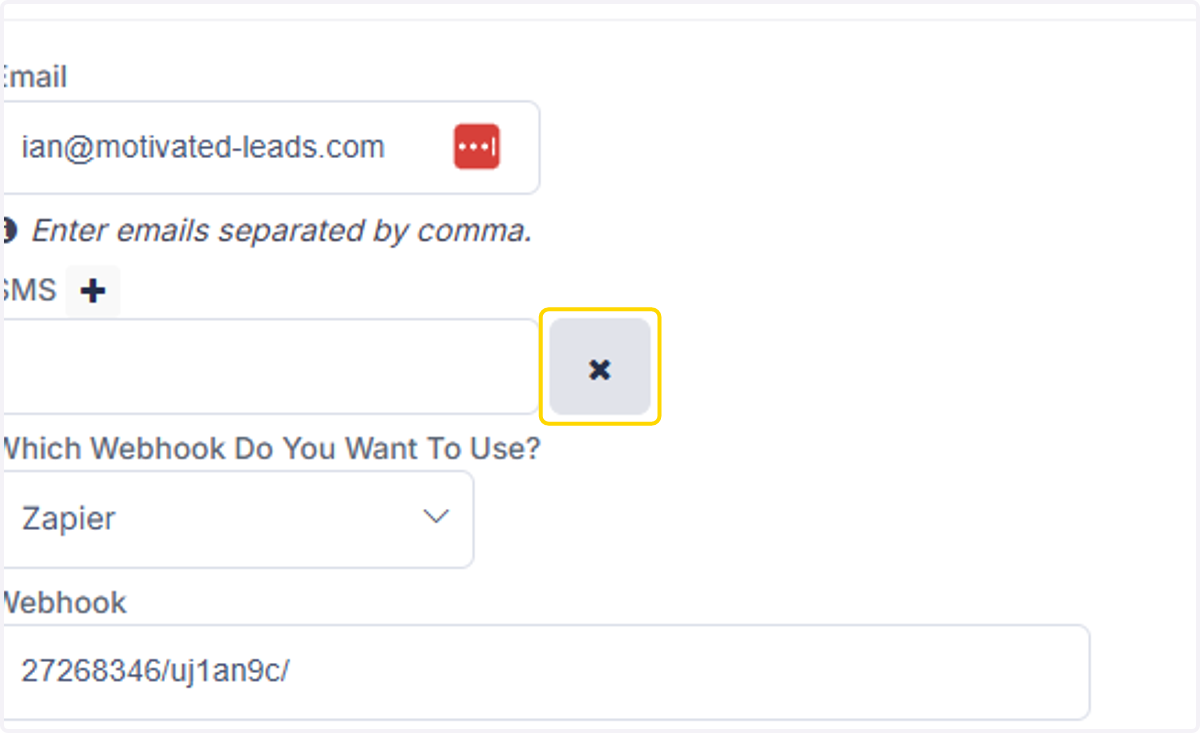
5. You can delete phone numbers for text notifications by clicking the X
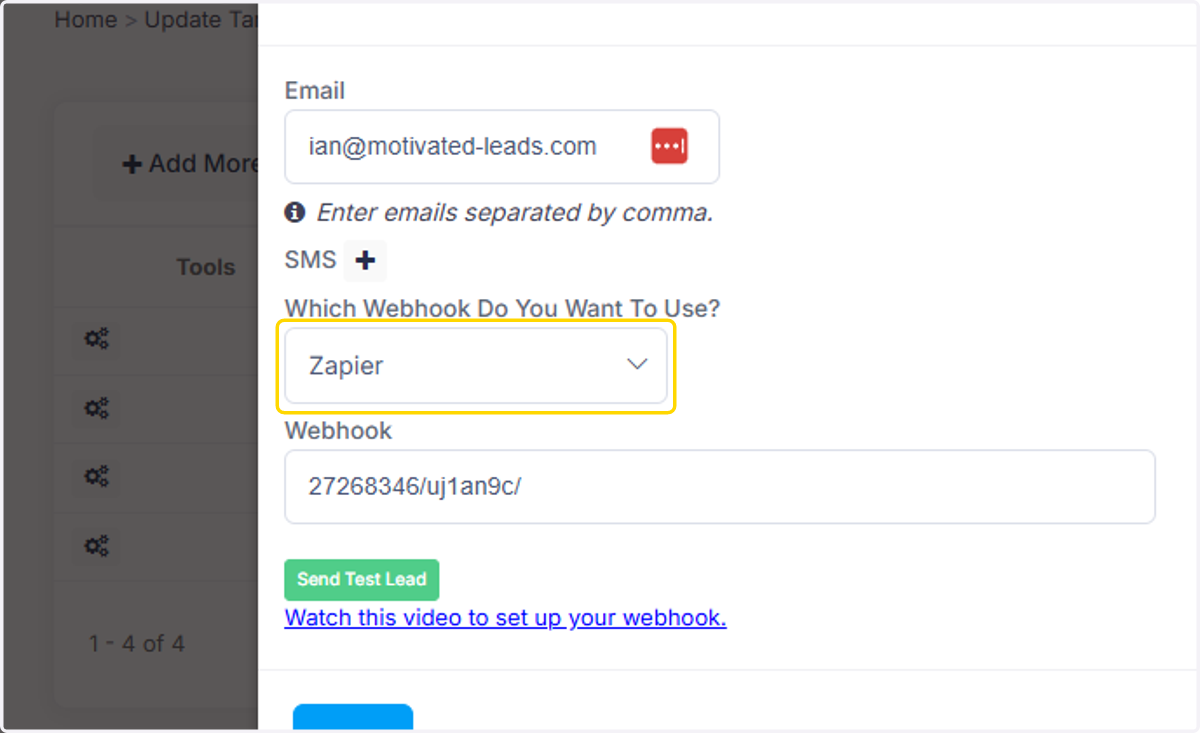
6. You can also connect your CRMs here. We support GHL webhooks/ API and Location Keys, Podio webhooks, but would need a Zapier webhook for any other CRM connection.
For a Zapier webhook, you will need the Pro Zapier account.
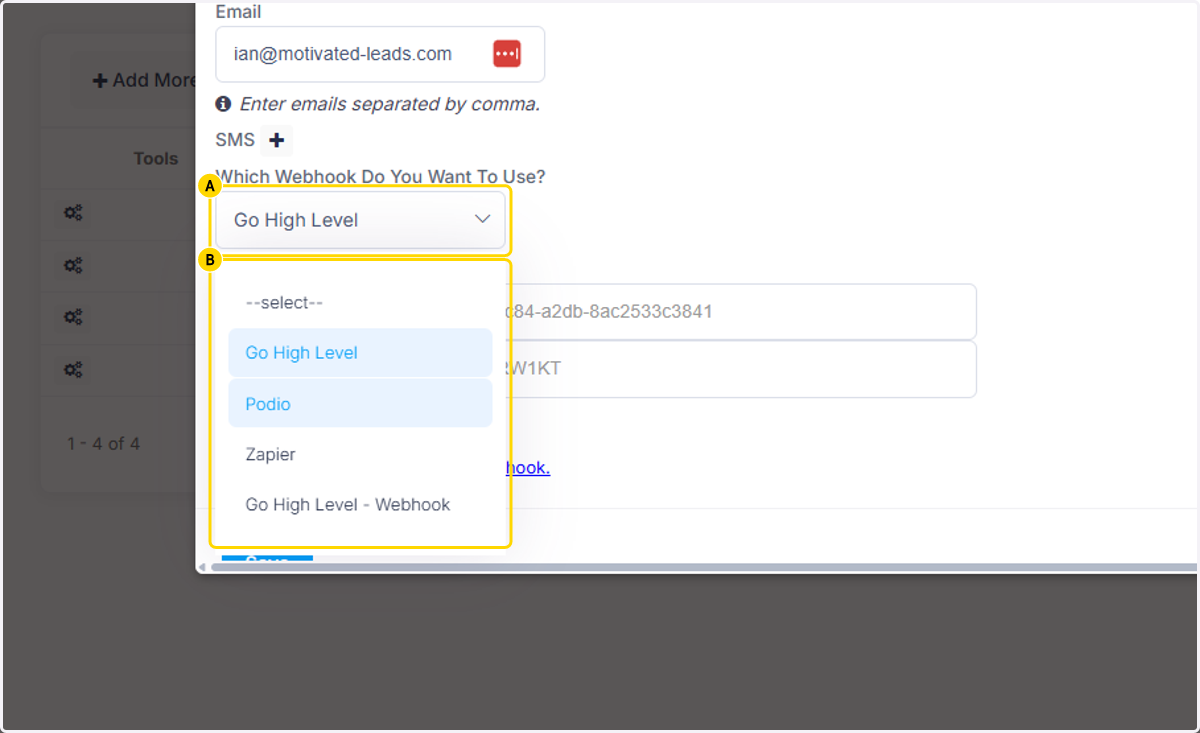
7. A. Click on Go High Level
7. B. Select Go High Level
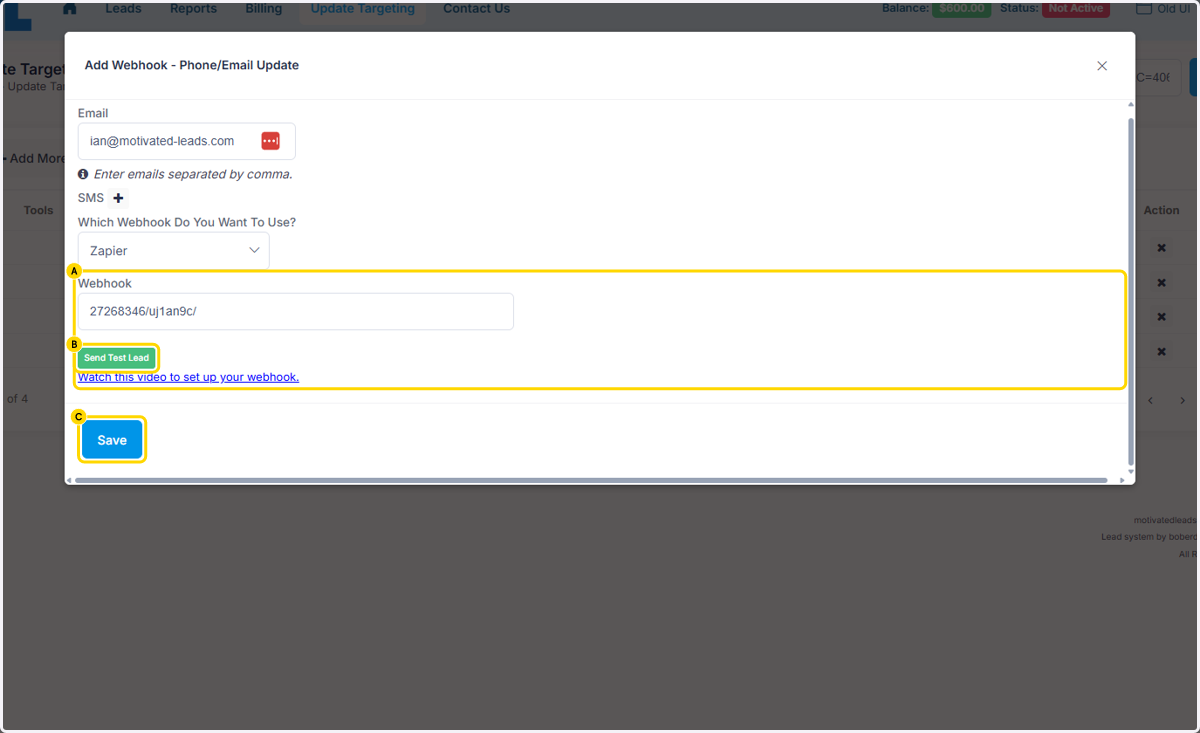
8. A. Once you have put in the CRM or Zapier webhook URL,
8. B. Click on Send Test Lead to send a test lead to your CRM.
8. C. Once you have received the test lead into your CRM, Click on Save
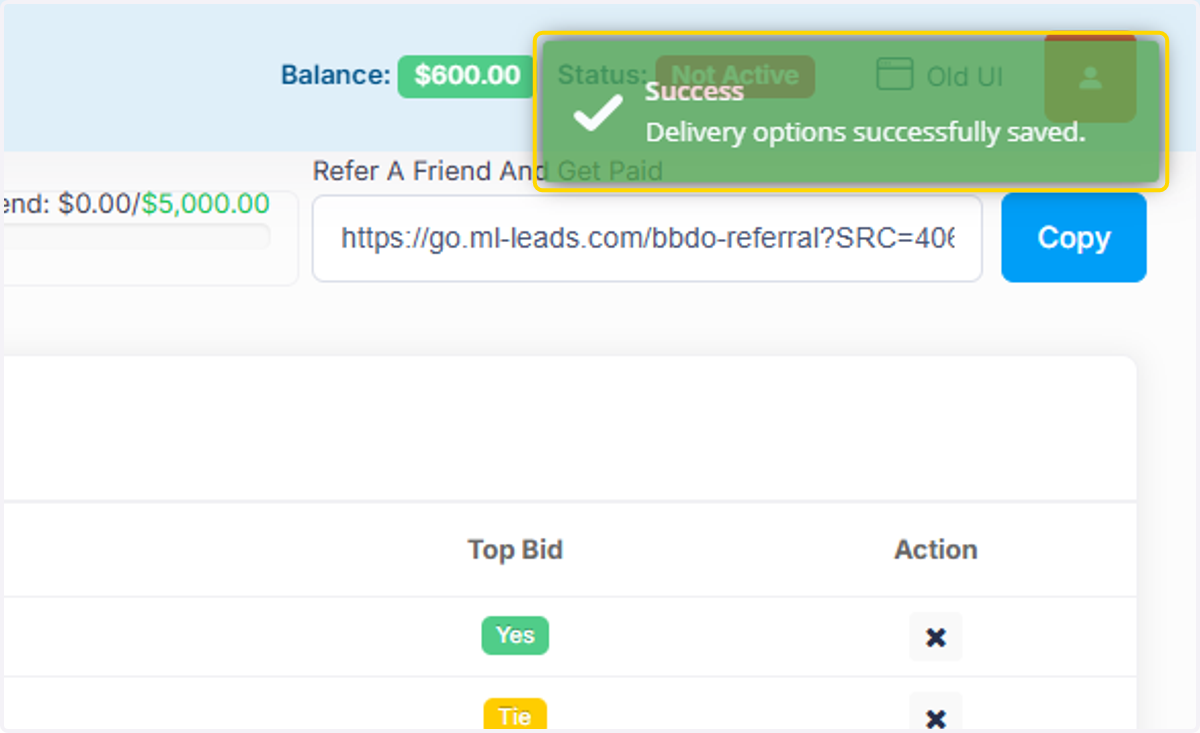
9. This notification shows your notifications for leads were saved successfully.