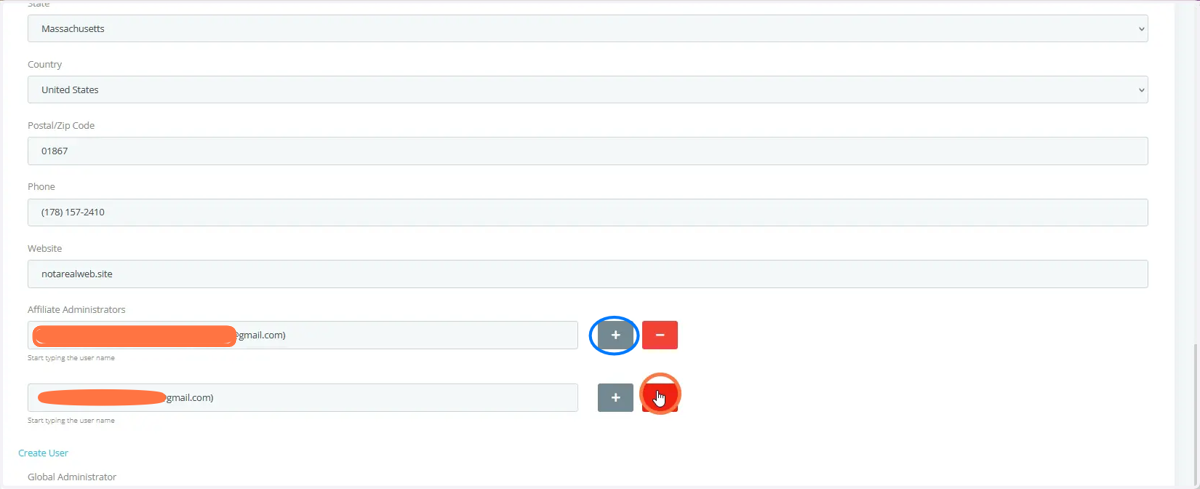
Affiliate Tabs: Add/Edit Service Areas, See list of Programs in Service Area (Pg.12) and Add/Remove Affiliate Admins (Pg.15)
*Go to Pg. 8 to Deselect Service Areas. If you wish to add a new Affiliate Admin with no account, start by going to Add Account to create the new account. Then go to pg. 15.
firefox
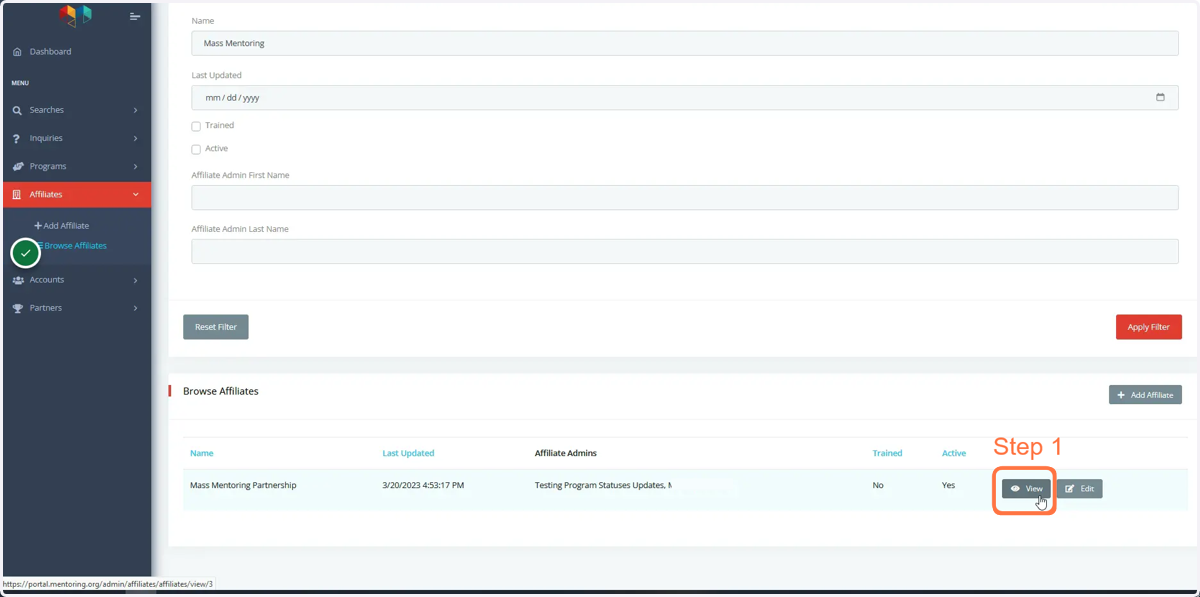
1. To edit your Affiliate's Service Areas, start by clicking the View button to access the service area tab. There you will be able to add and/or remove service areas you provide support to for programs.
Your Affiliate's service area is how programs will be associated with your Affiliate region/state.
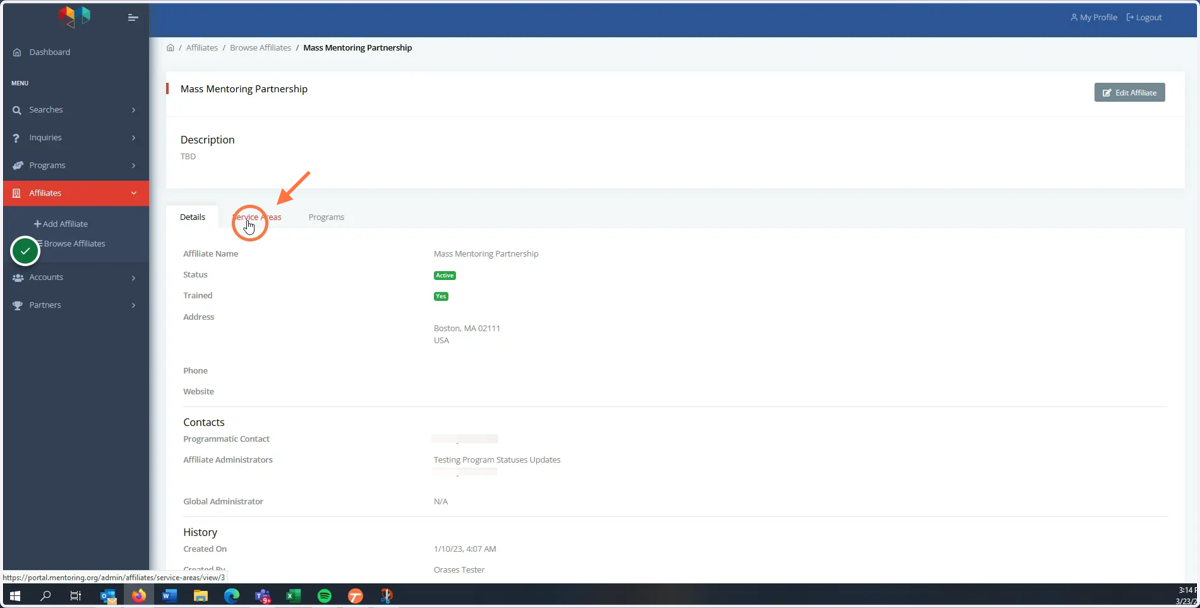
2. Click the Service Areas tab next to Details.
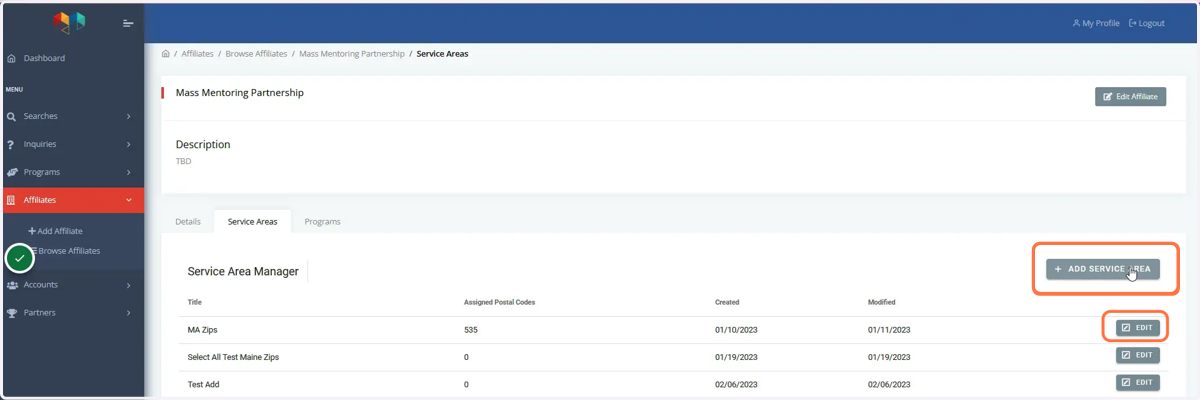
3. Click the Add Service Area button to add a new service area. If you wish to edit an existing service area, click Edit by that specific area in the Service Area Manage.
4. Title the service area and click Add.
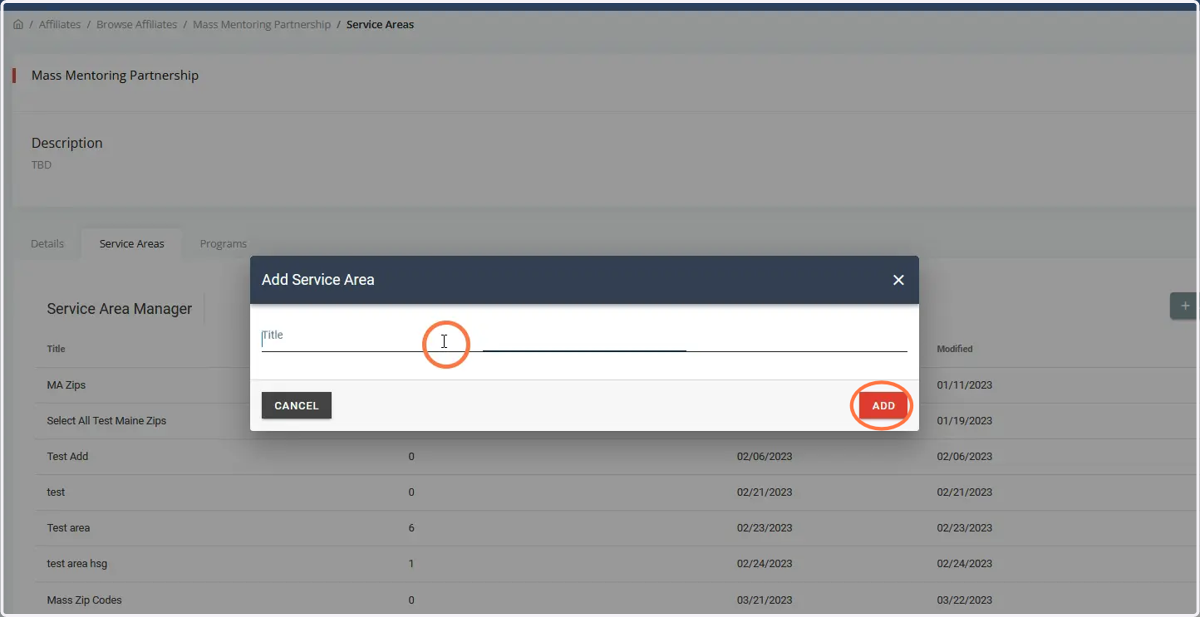
5. Start by choosing the state your Affiliate supports.
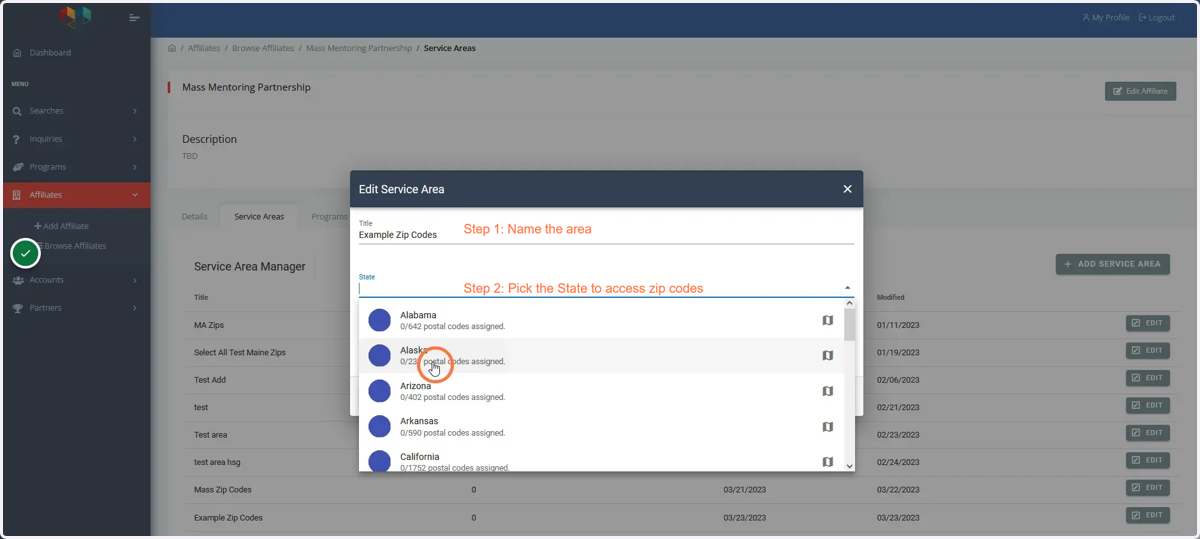
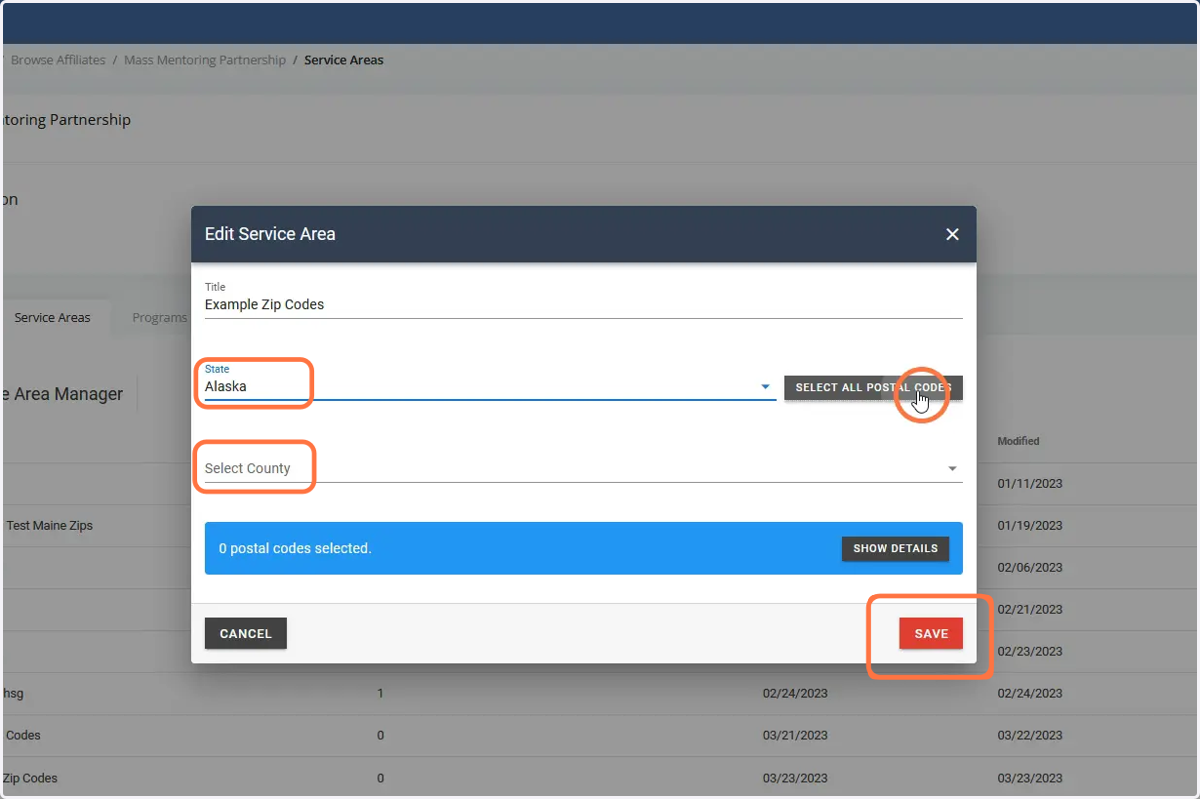
6. If you wish to add all zip codes in a state, simply choose the desired state and click Select All Postal Codes, then click Save. You can also select a specific county or multiple counties to review/add their zip codes.
Click on Show Details to see all selected zip codes by county or state.
7. The Details section shows: the total #of postal codes selected, County Name and the # of postal codes selected by county.
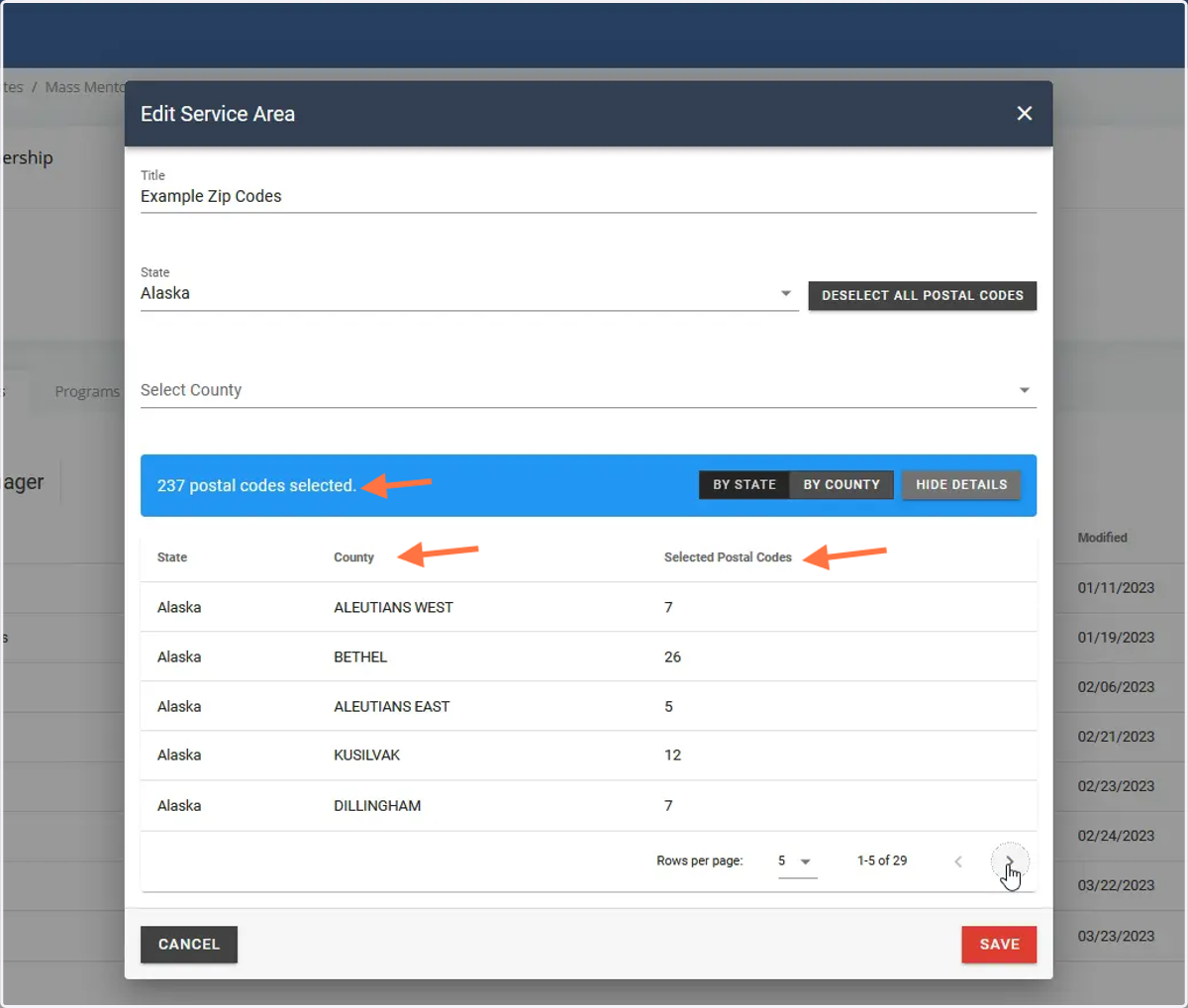
8. To deselect ALL zip codes, click the Deselect All Postal Codes button by the desired state and click Save.
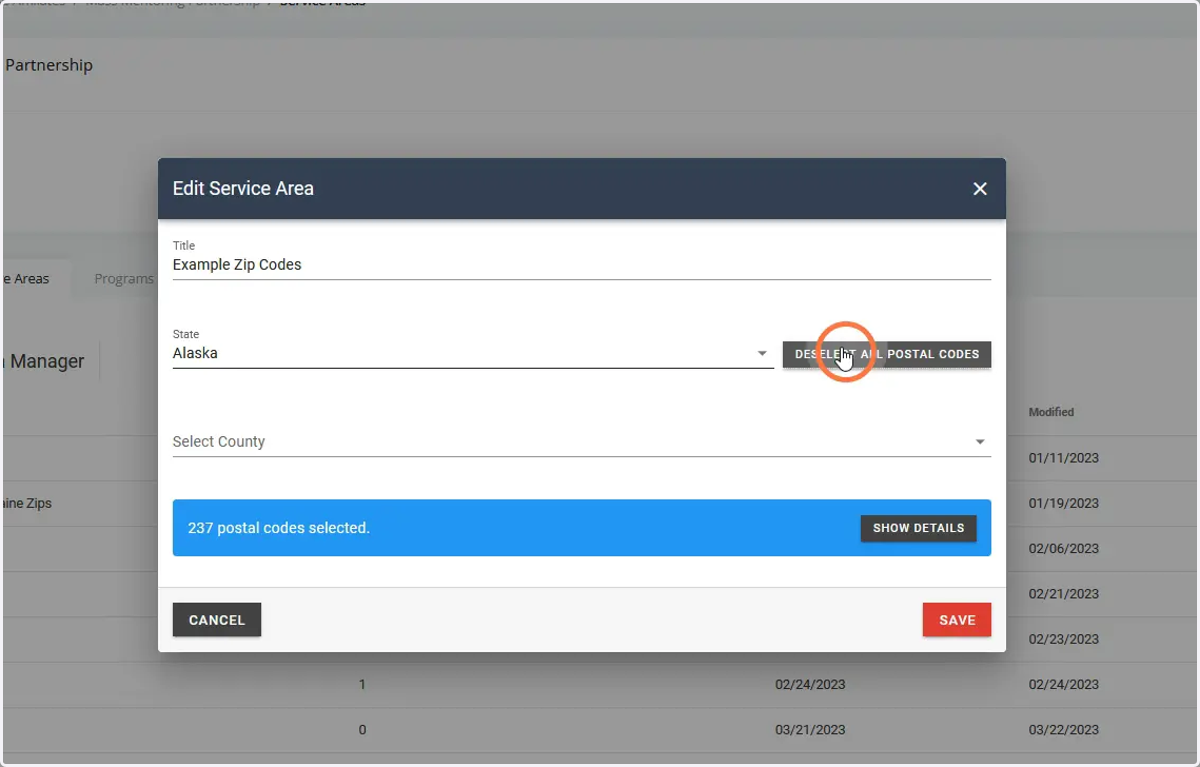
9. To Add or Deselect specific counties or individual towns, choose the desired State then County to bring up a list of counties. Click the desired County to view a list of town names and zip codes.
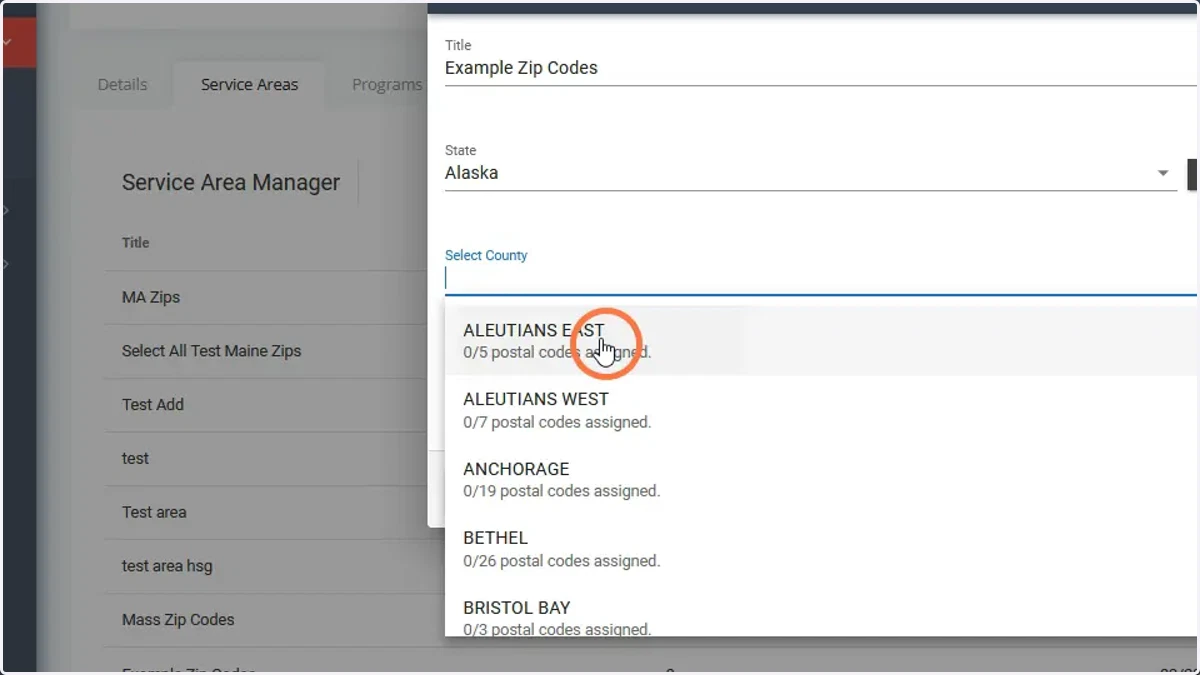
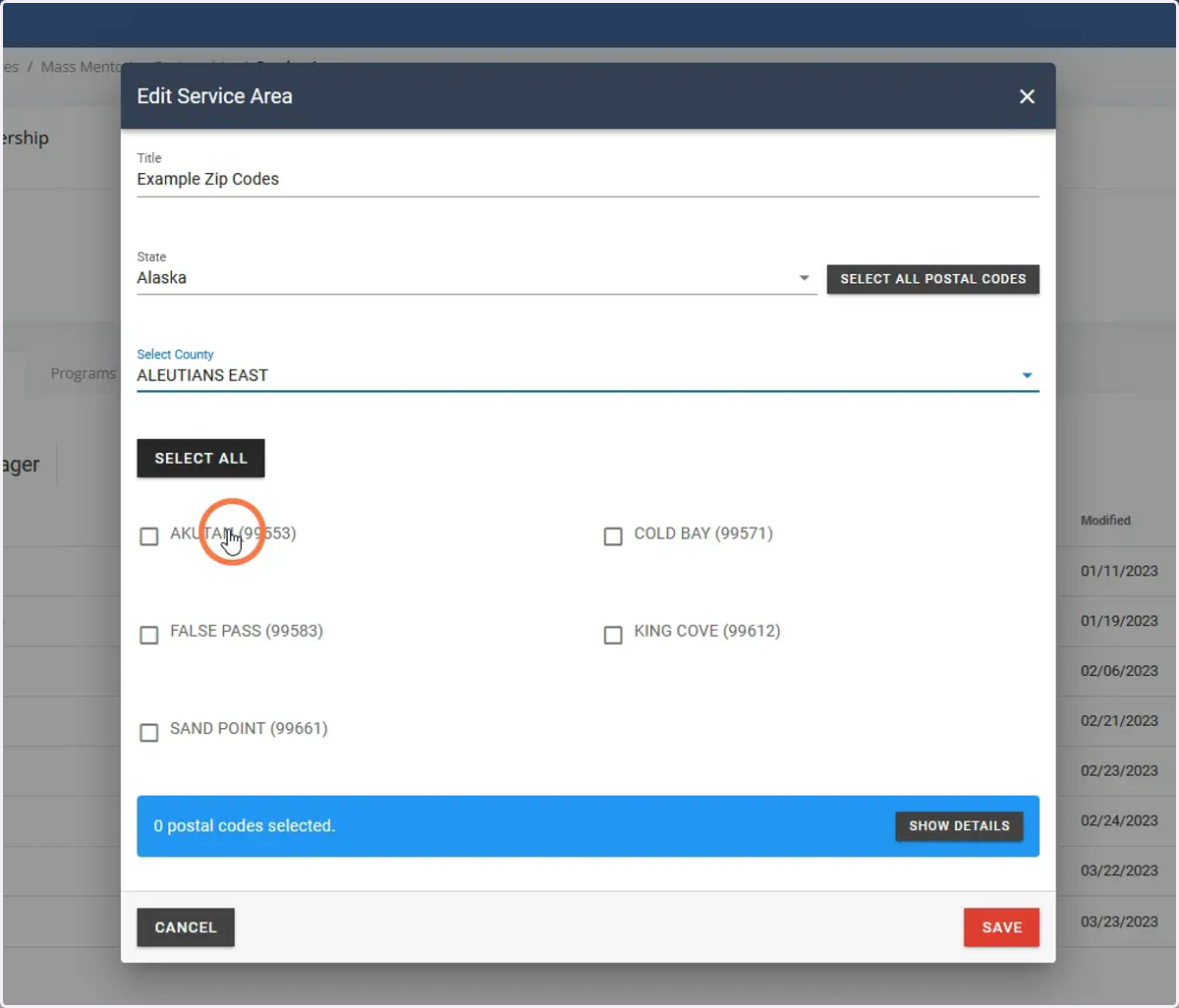
10. Click the on desired towns/zip codes to add to your service areas. Here you can choose Select All to add all county zip codes. Click Save.
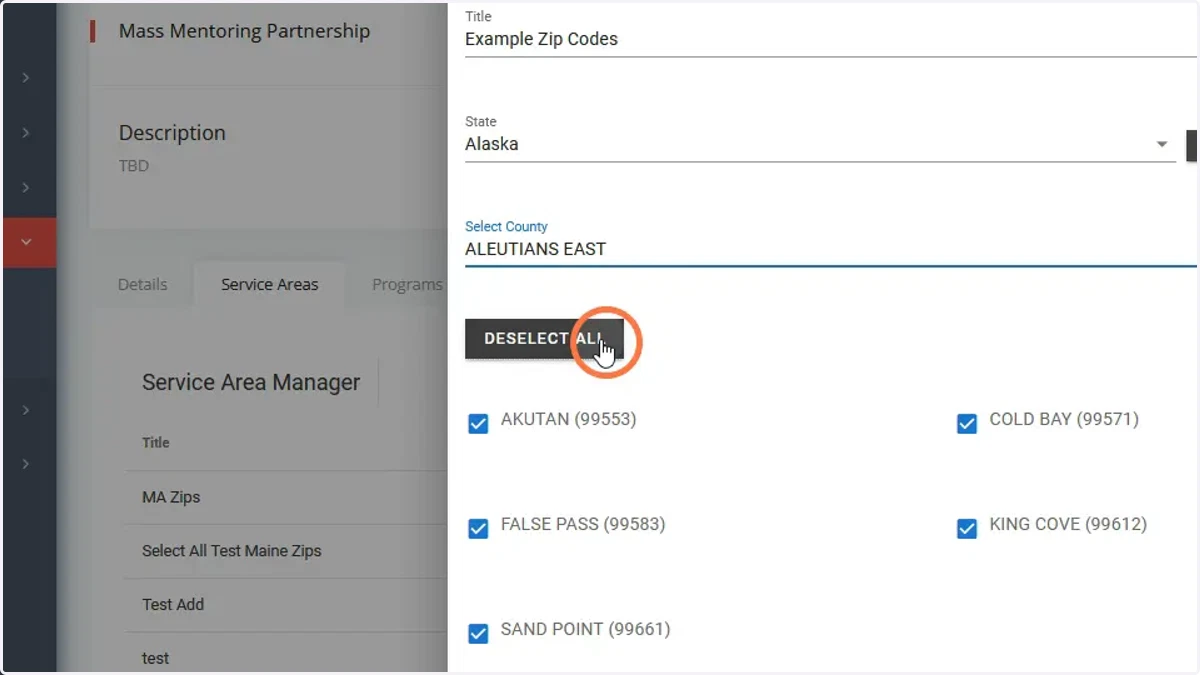
11. You can also Deselect All to remove all county's zip codes from your service areas or deselect specific towns/zip codes. Click Save.
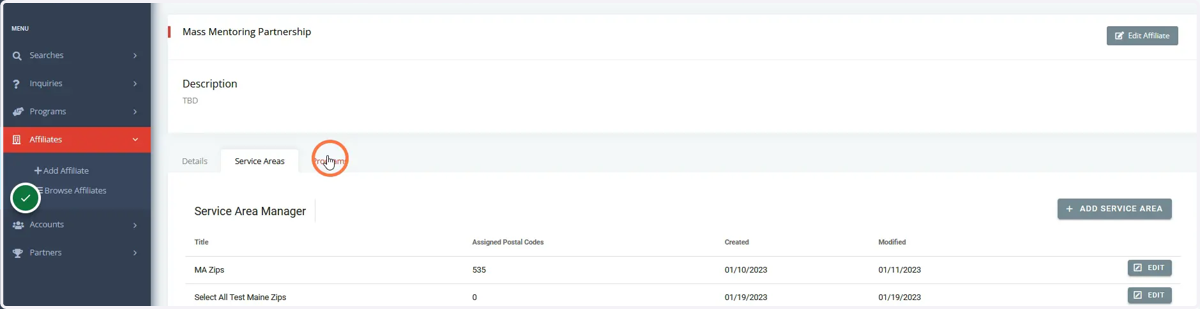
12. To see a list of Programs tied to your service areas, click the Programs tab on your Affiliate page.
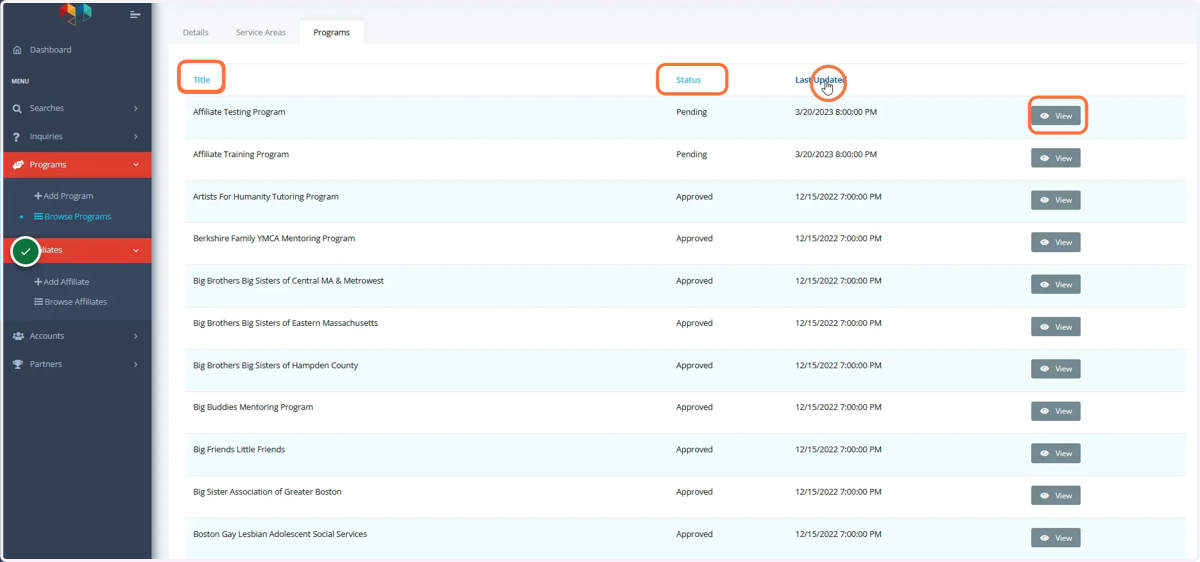
13. The Programs tab lists your programs by Title, Status, and the last time it was Updated. Click on the list label in blue to reverse the order. You can also click View by that program to go to its details page.
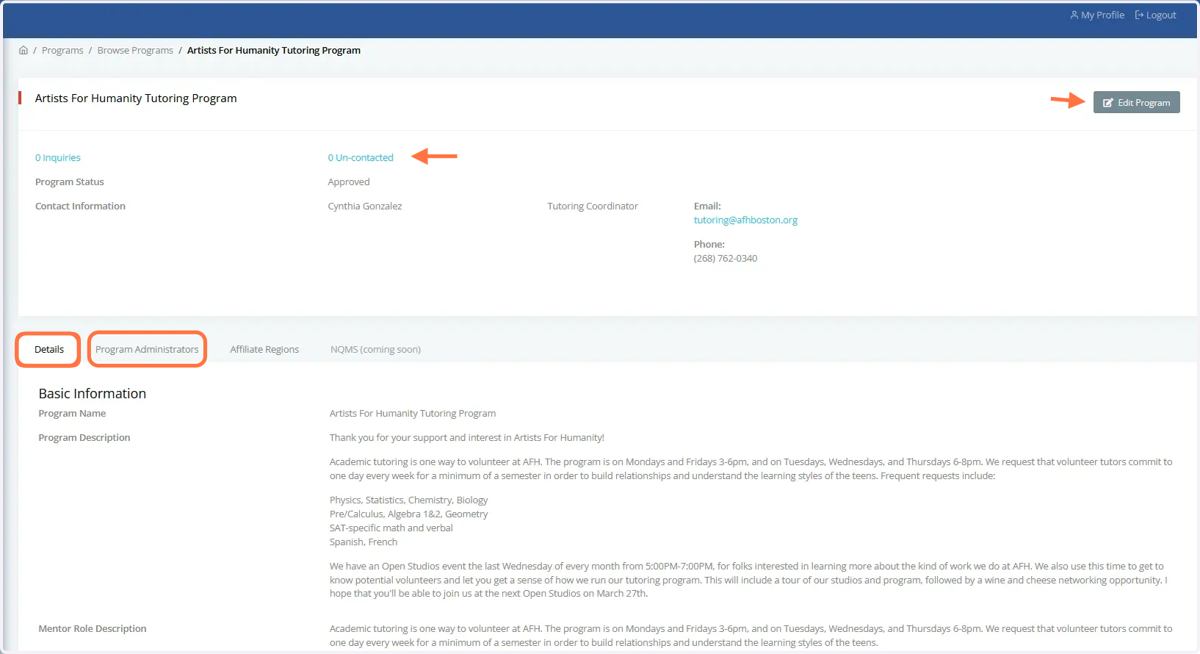
14. Viewing a Program lets you see its #of Inquiries, # of Uncontacted, its Details, and Program Admin tab. You can also click the Browse Programs tab on the left hand navigation to see all of the programs tied to your Affiliate area.
You can also edit the program by clicking Edit Program here.
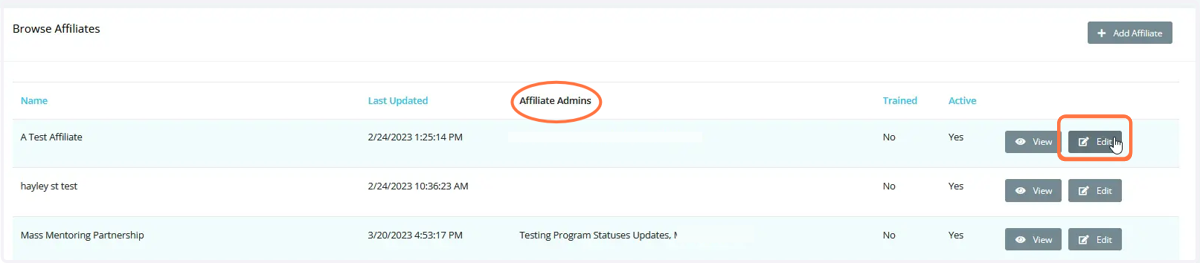
15. The Browse Affiliates page shows the Affiliate Admins tied to the Affiliate. To add/remove an Affiliate Admin account, start by clicking the Edit button by your Affiliate.
16. To add an Affiliate Admin account, click the plus (+) button and type their name and/or email address. To Remove an Affiliate Admin, simply click the minus (-) button and click save.
You can only add an Existing Affiliate Admin account here. To Create an account, go to the Accounts tab and click Add Account. Then return to this page.