Using the Gift Block for End-of-Year Donor Summaries
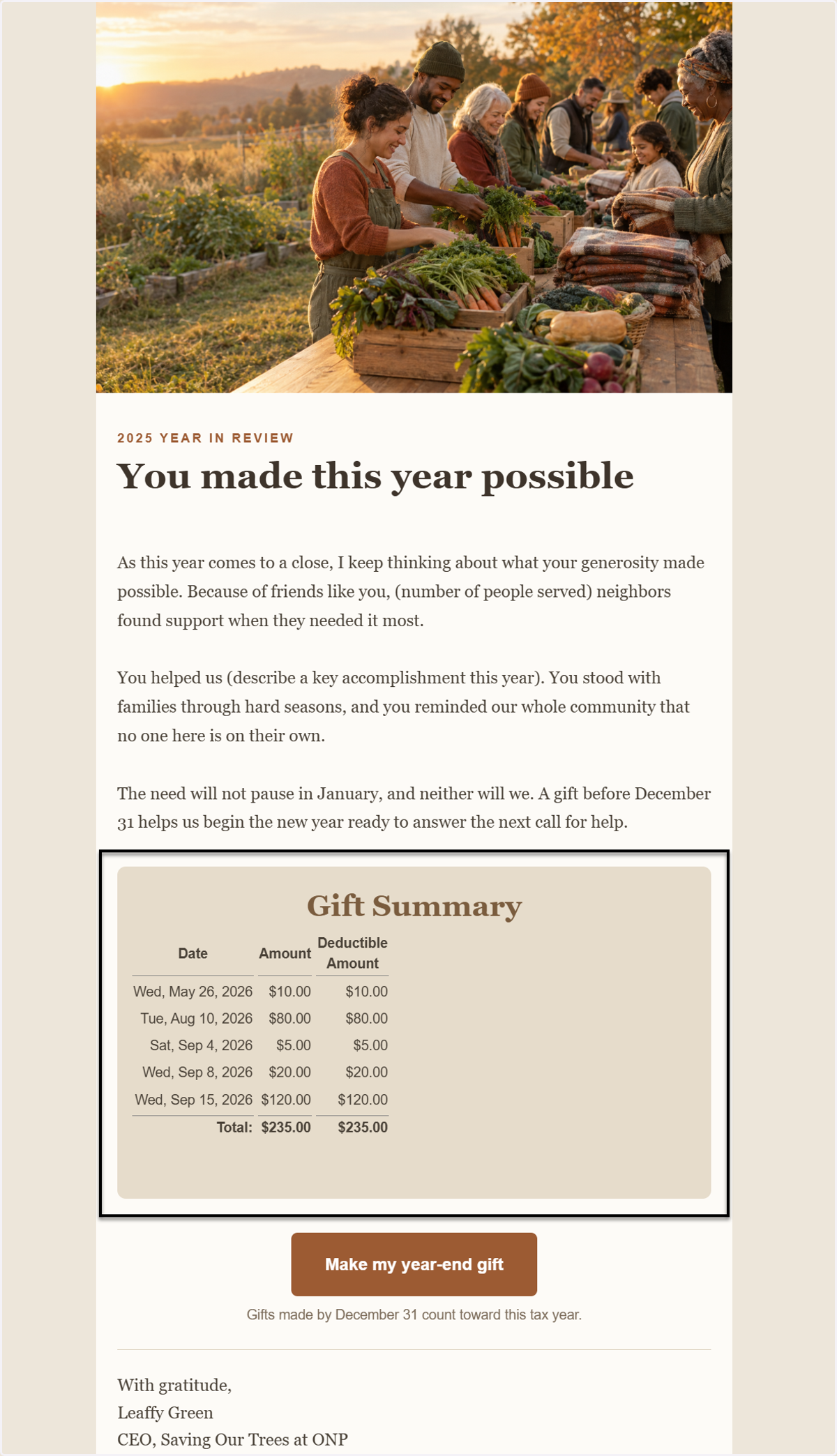
One of the most effective ways to simplify end-of-year tax receipting and donor stewardship in PowerMail is using the Gift Block replacement variable ([gift_block]).
Unlike standard single-value replacement variables (such as [fname] or [totalgift]), the Gift Block automatically generates a clean, itemized list of a donor's contributions over a specific timeframe—making it the ideal tool for year-end giving statements.
The first step before sending your EOY Tax Summary PowerMail to donors is having a contact record selection.
1. Whether you create a contact record selection from a search query, prompt dBot to give you a selection or from a specific publication or selecting records from your dashboard, you want to make sure you have a group of contact records selected.
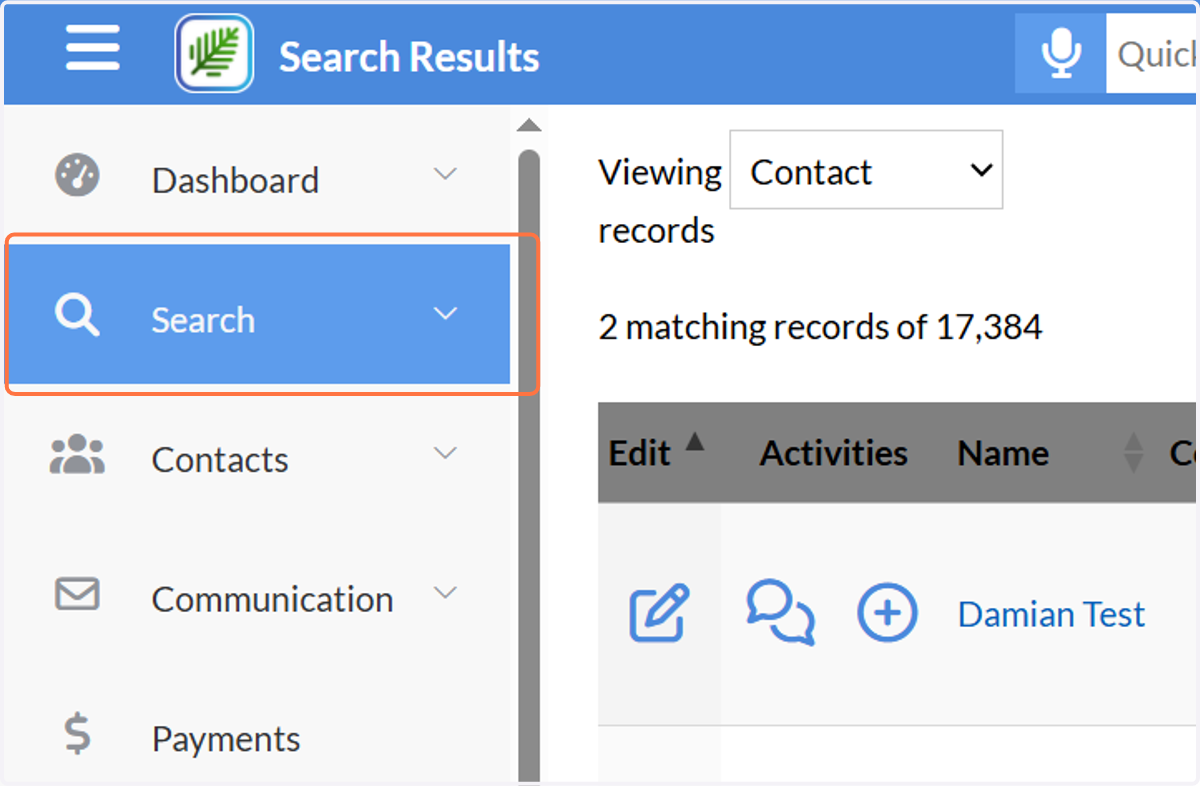
2. Click on Communication
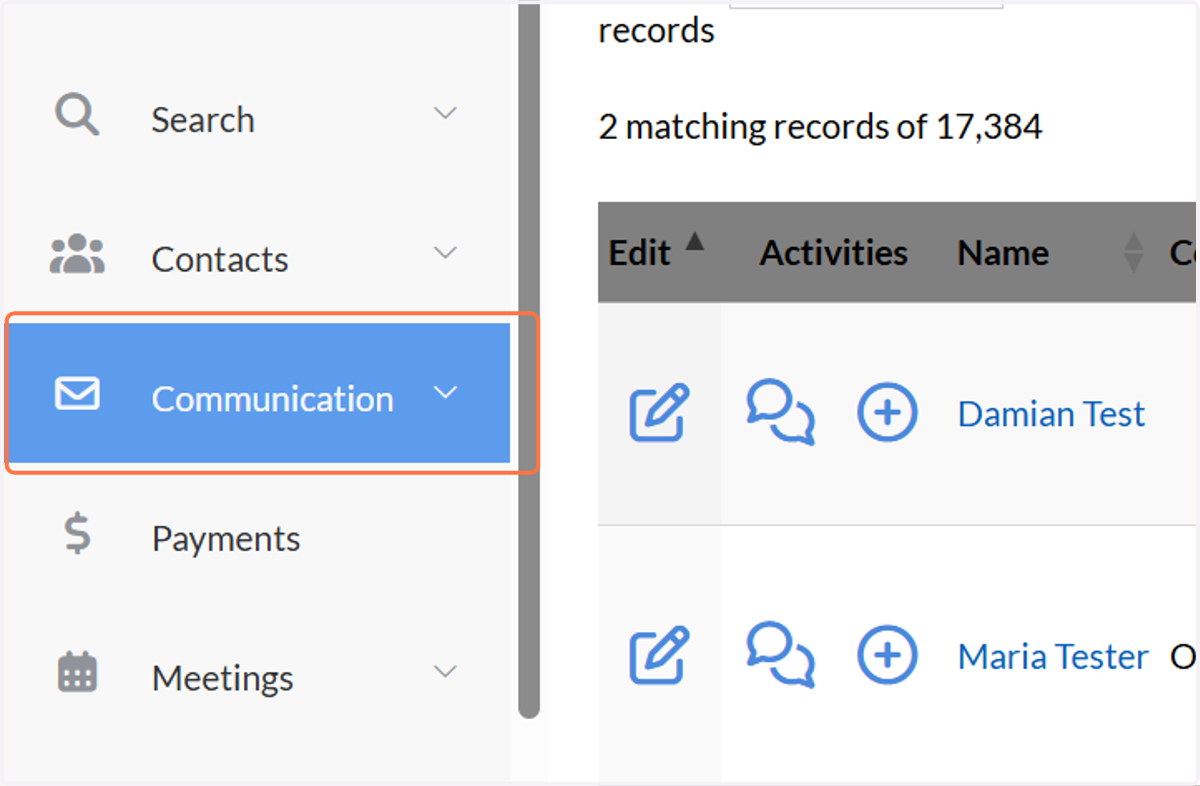
3. Click on PowerMail
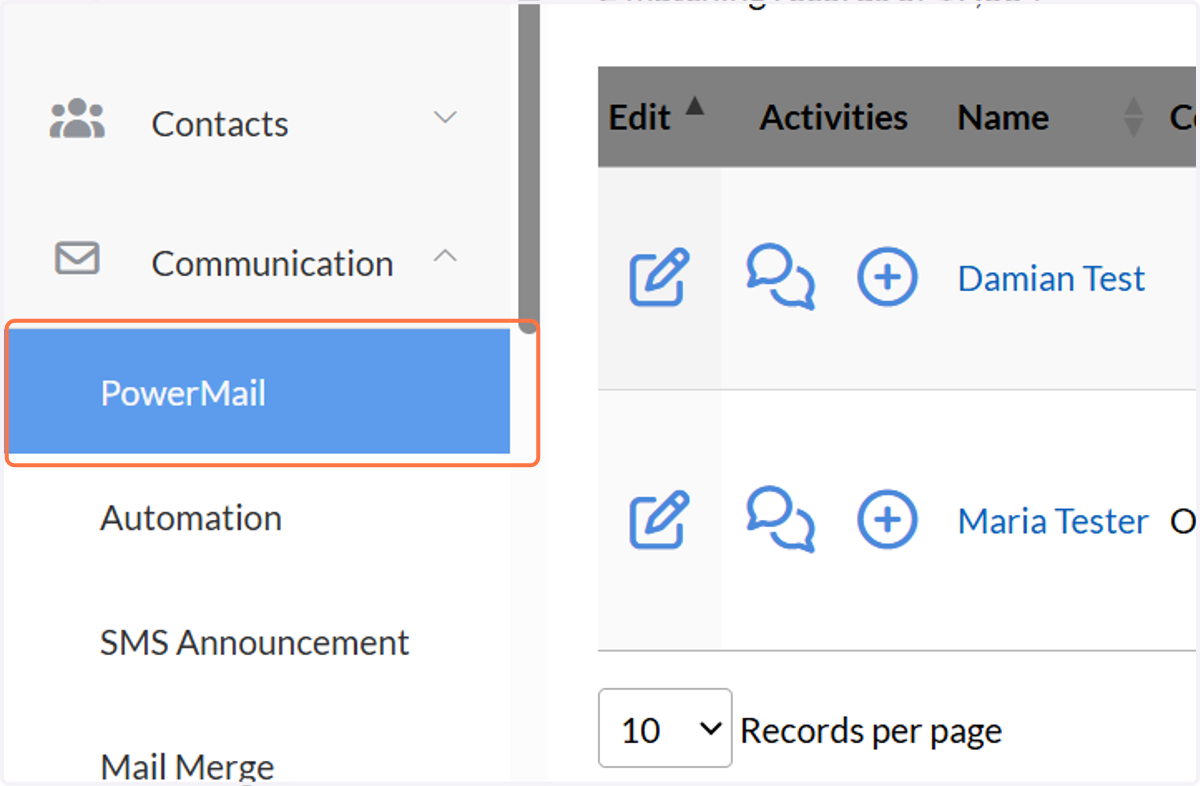
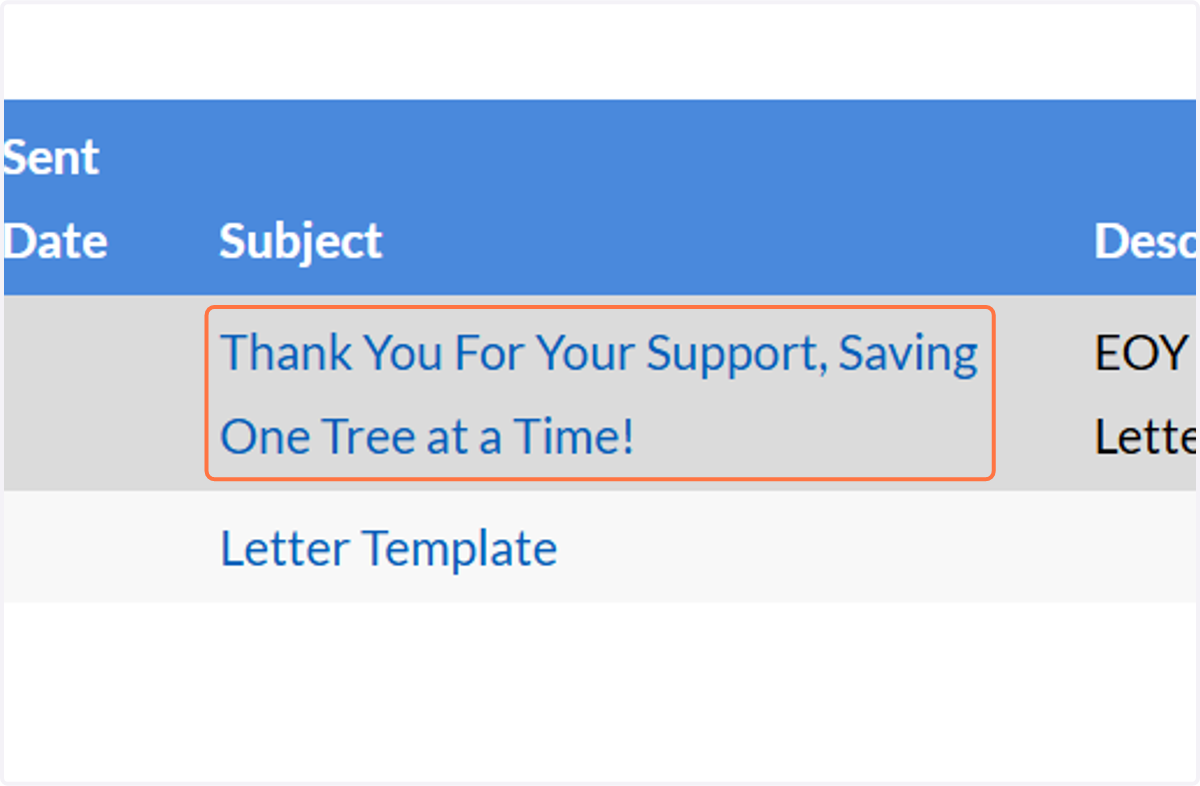
4. If you don't have a PowerMail Mail Merge template created you will want to create one. I've created mine so I will click on Thank You For Your Support, Saving One Tree at a Time!
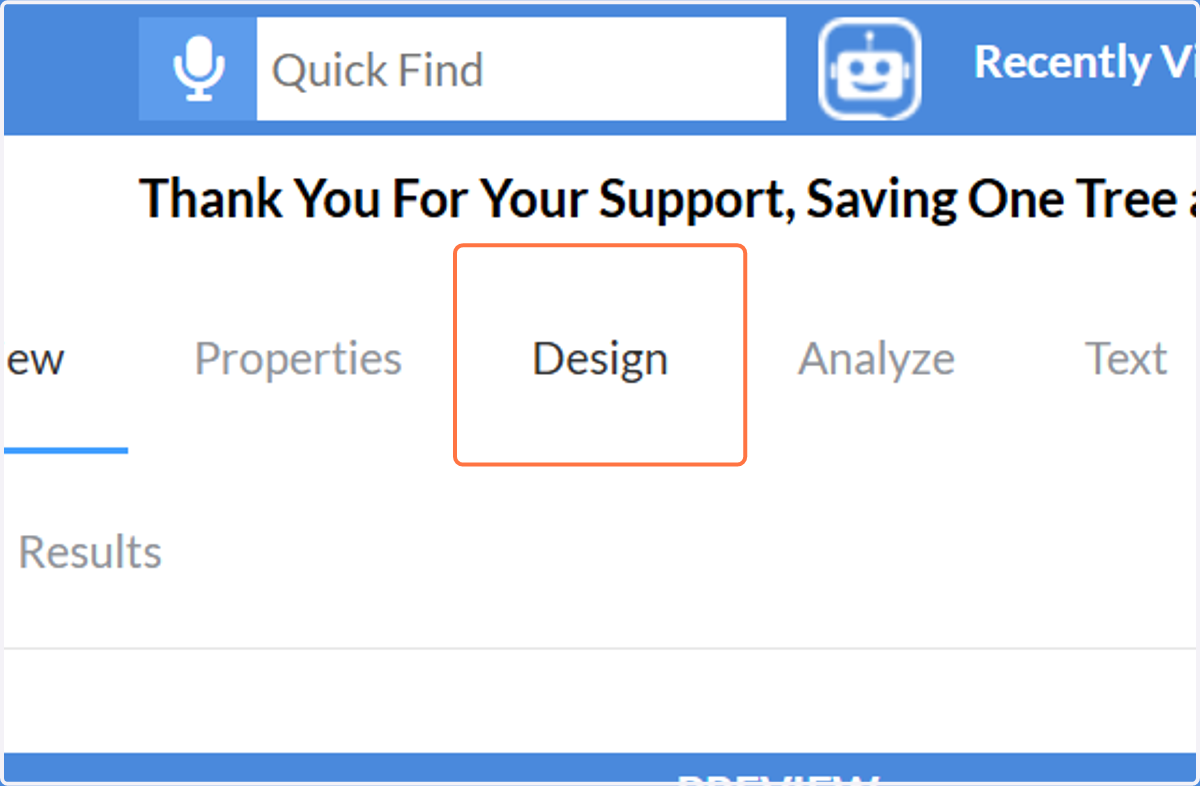
5. Click on Design
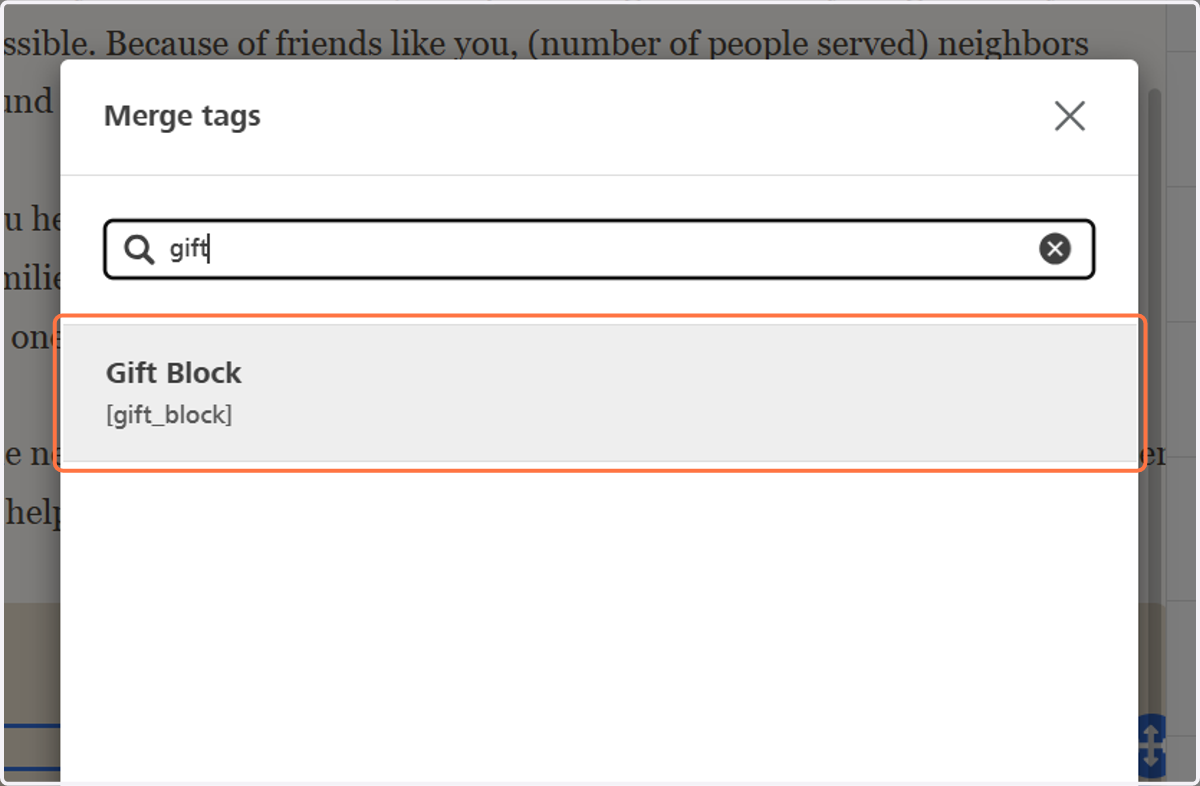
6. In the area of of where you would like your gift summary block included click on Merge tags from the ribbon or you can also manually type in [gift_block]

7. Click on Gift Block…
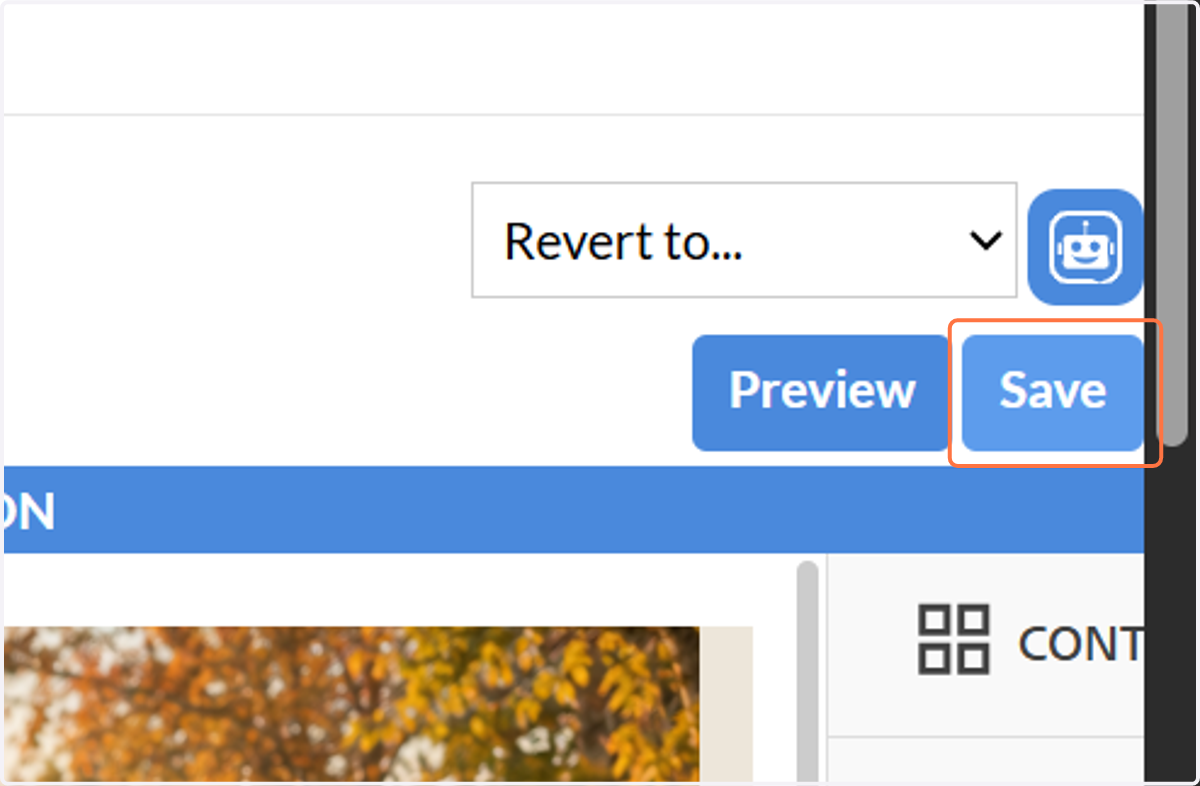
8. Click on Save
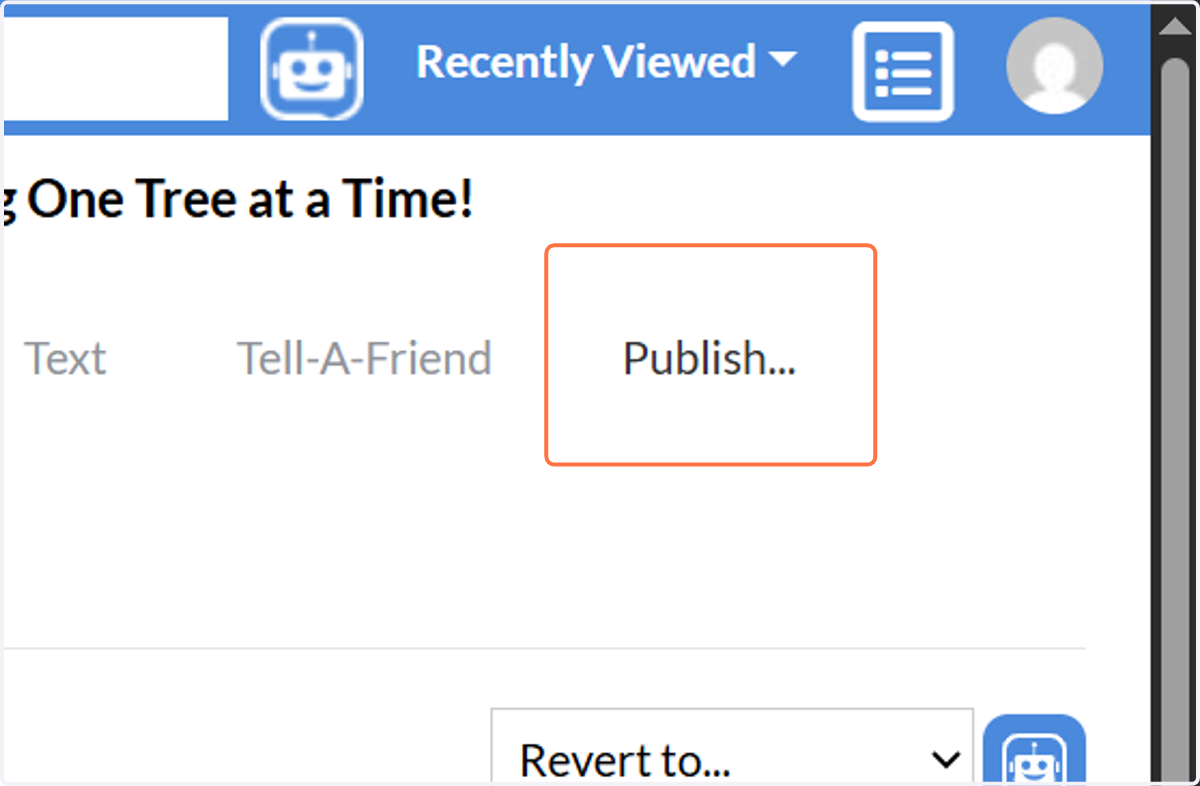
9. Click on Publish...
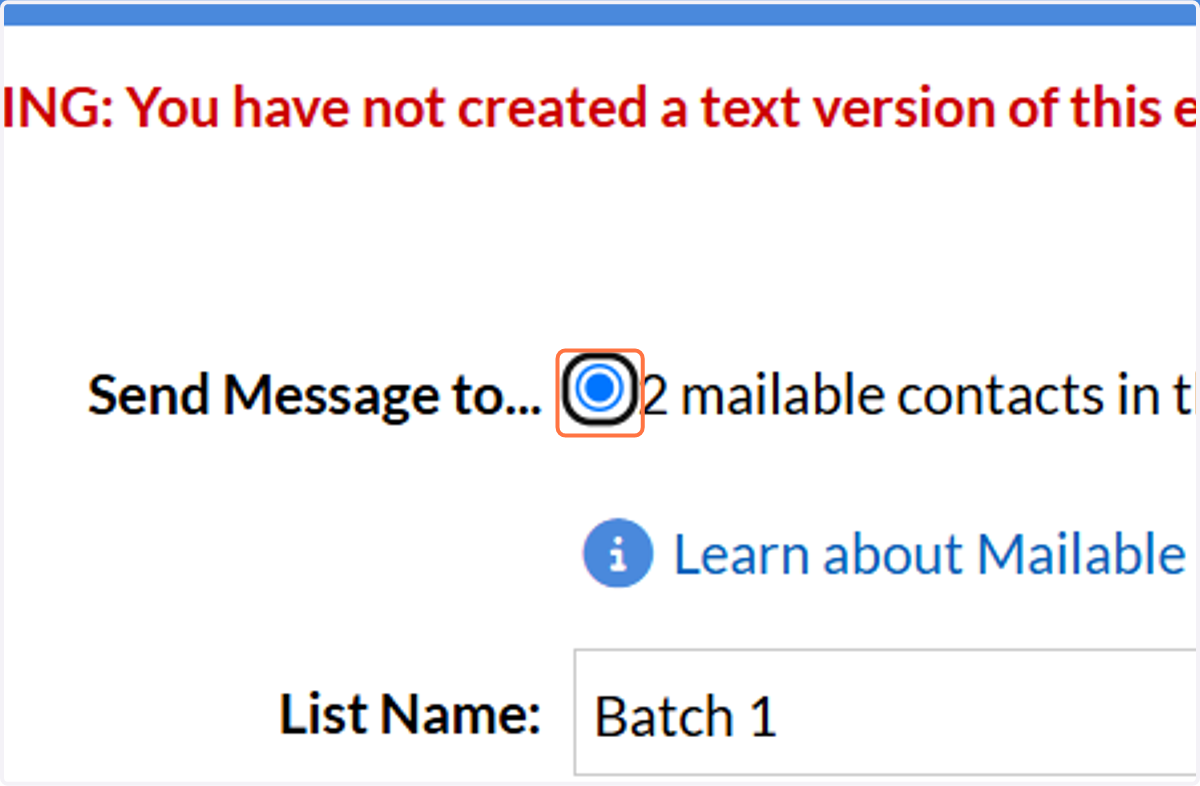
10. Select recipients
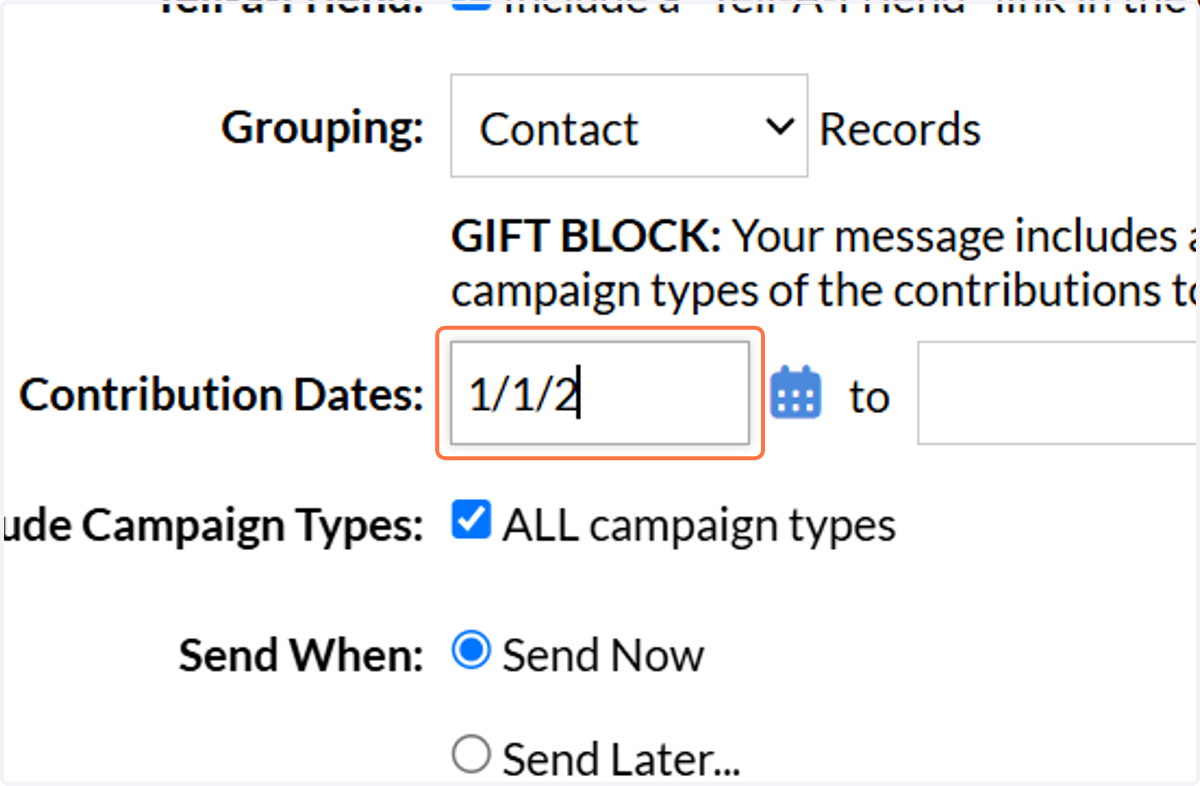
11. Type in your contribution start date "1/1/2026"
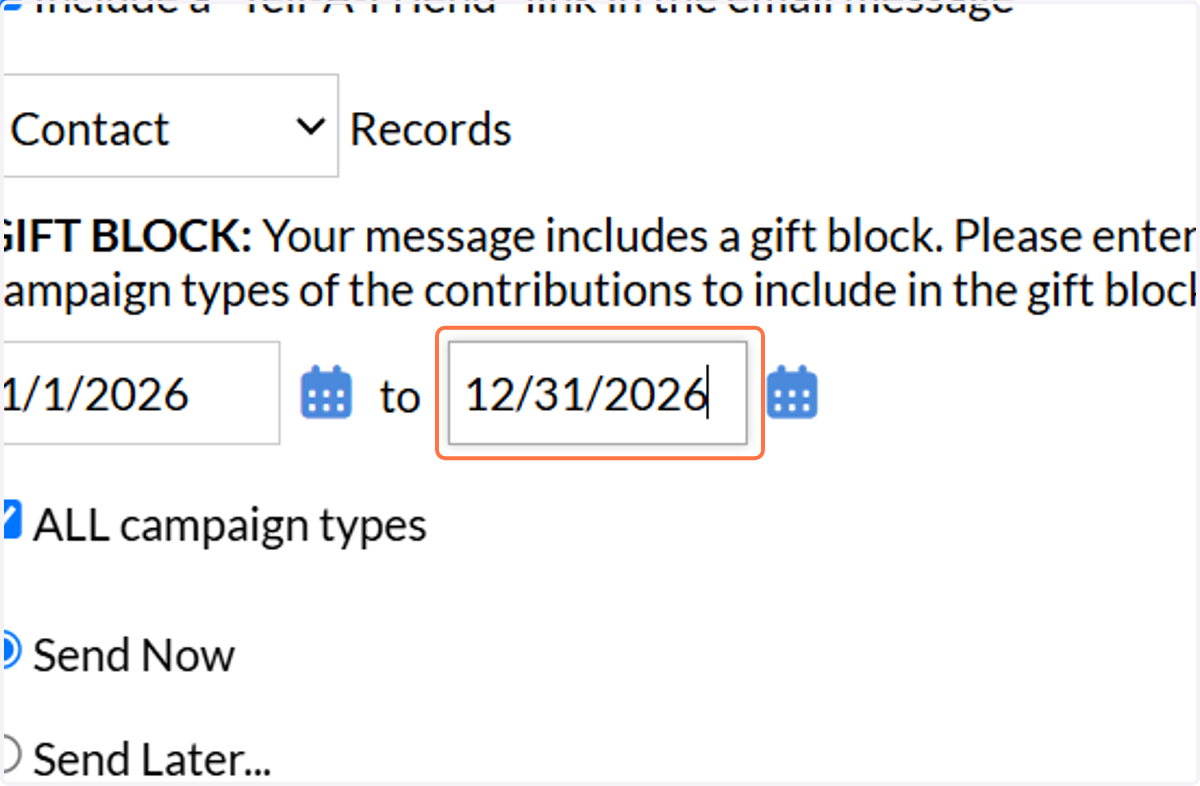
12. Type in your contribution end date "12/31/2026"
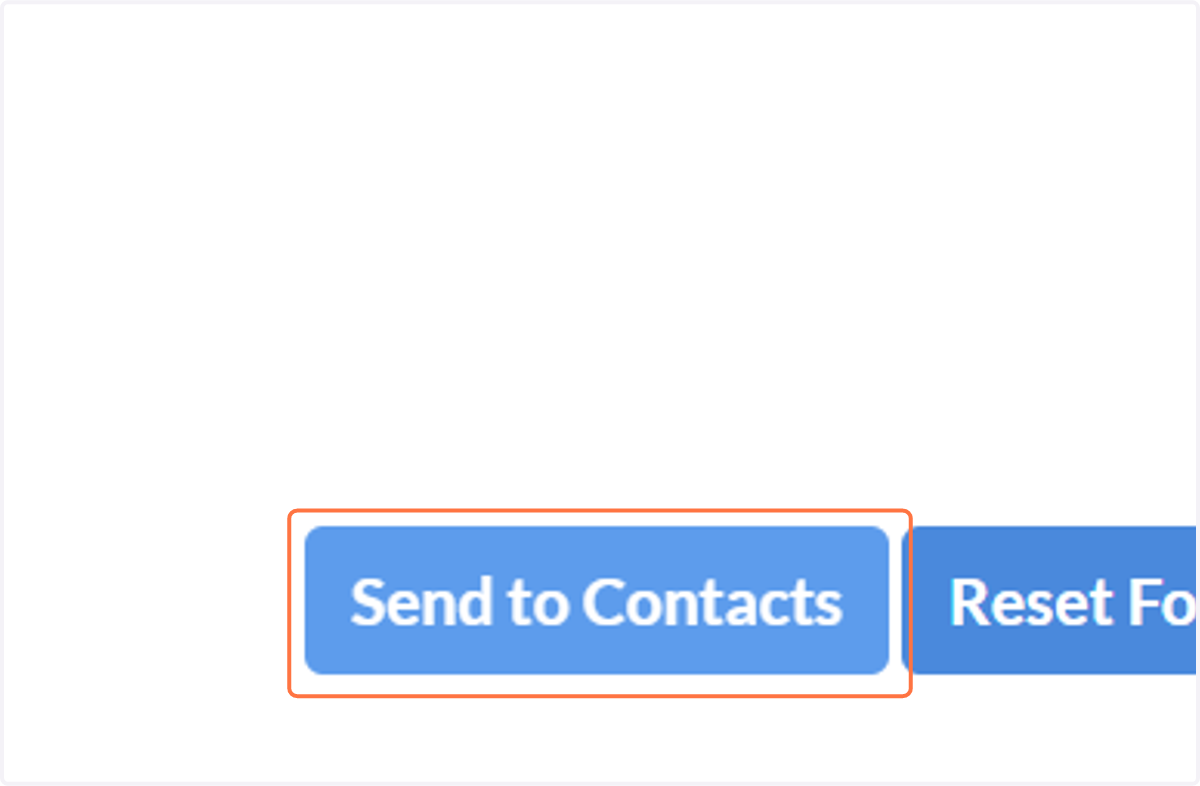
13. Click on Send to Contacts
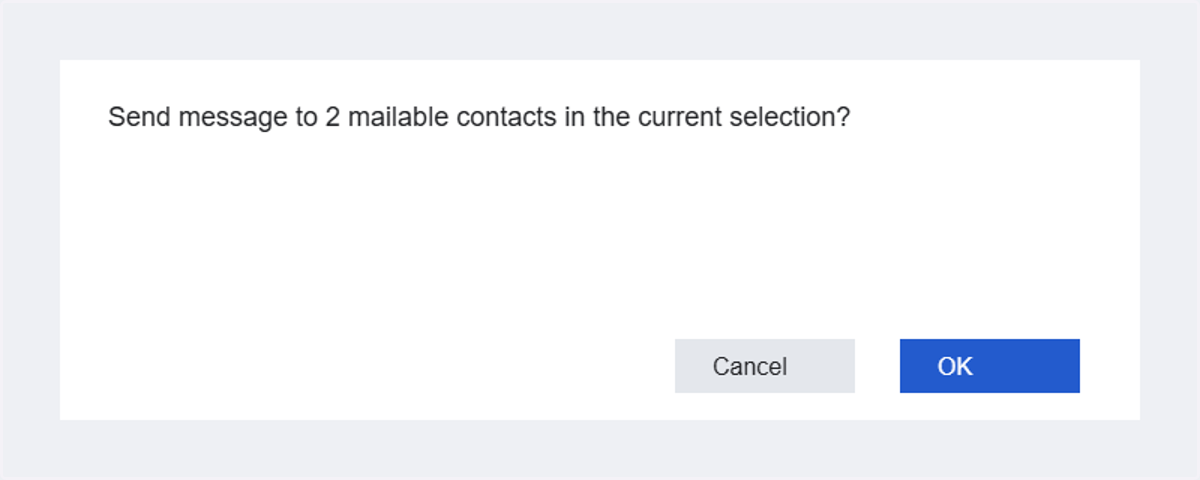
14. Click "OK" on "Send message to 2 mailable contacts in the current selection?"
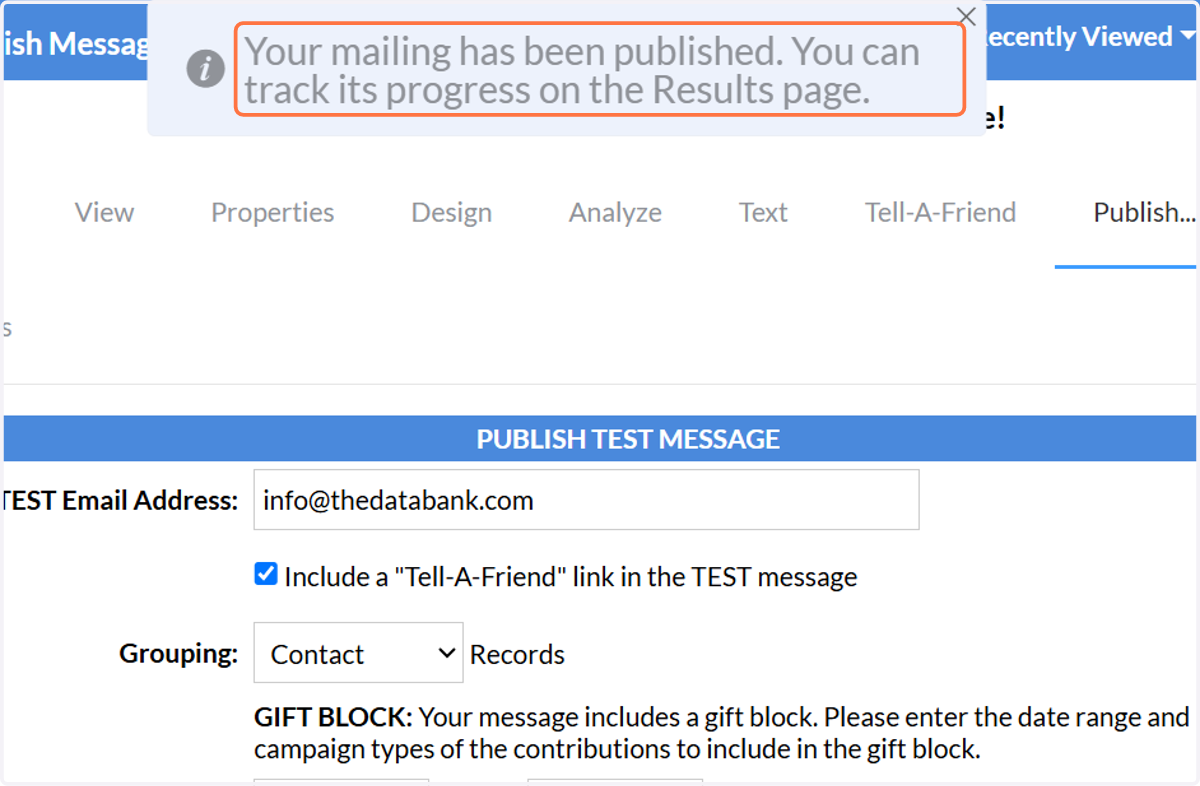
15. Your mailing has been published. You can track its progress on the Results page.
16. Preview of EOY Mail Merge PowerMail using gift_block merge tag.