[EN] No reference - Reviewing a document in Word with the ENSPACE plugin
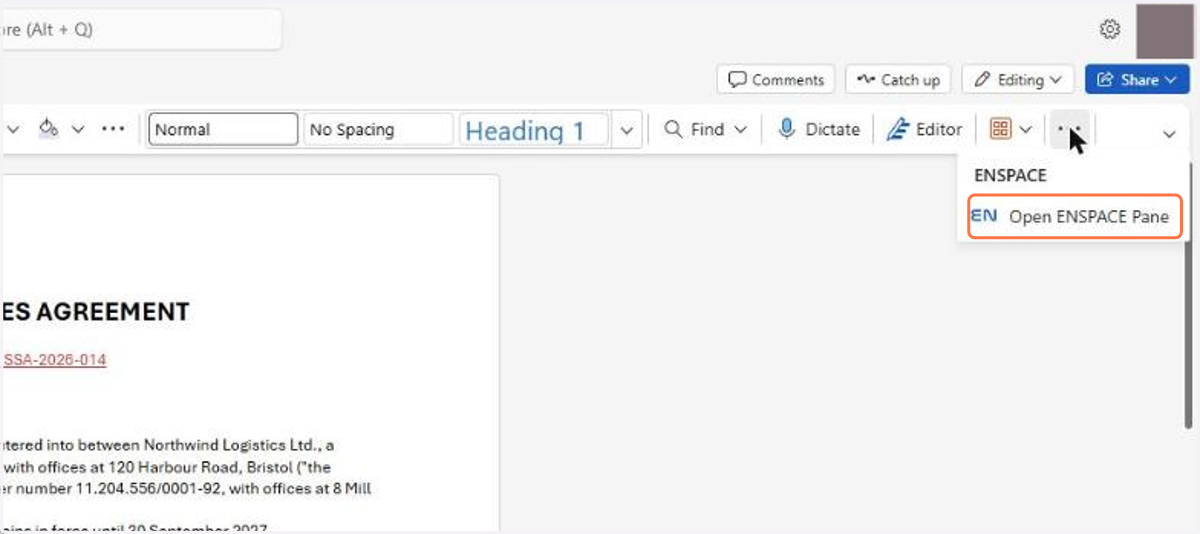
1. In Word, with the document open, click the three dots at the end of the Home ribbon and, in the ENSPACE group, click Open ENSPACE Pane
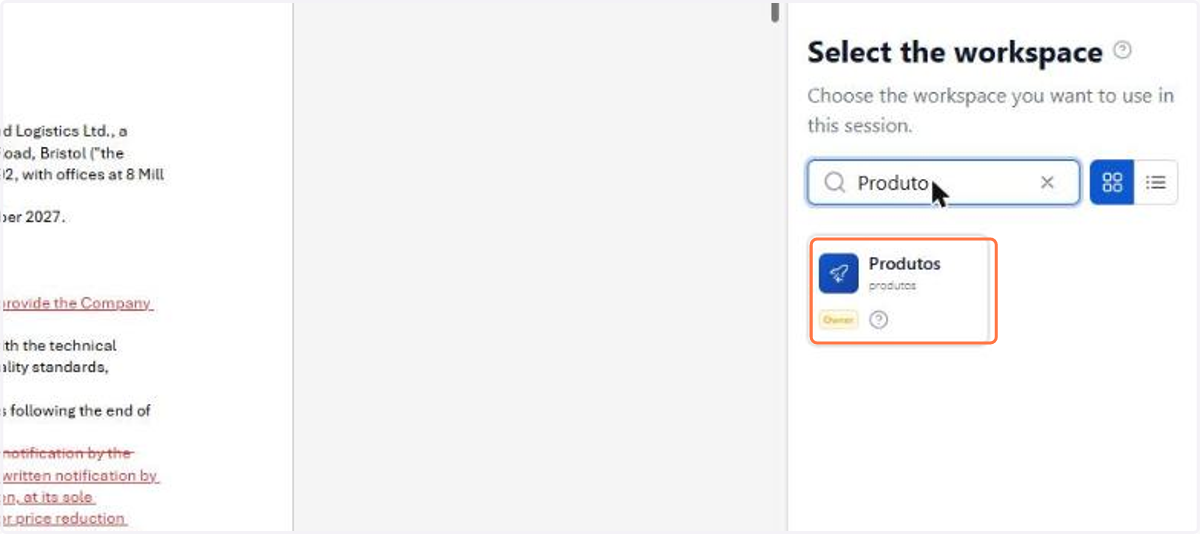
2. In Select the workspace, use the search and click the workspace you are going to work in. The plugin shows only the workspaces you have access to, and the choice applies to this session
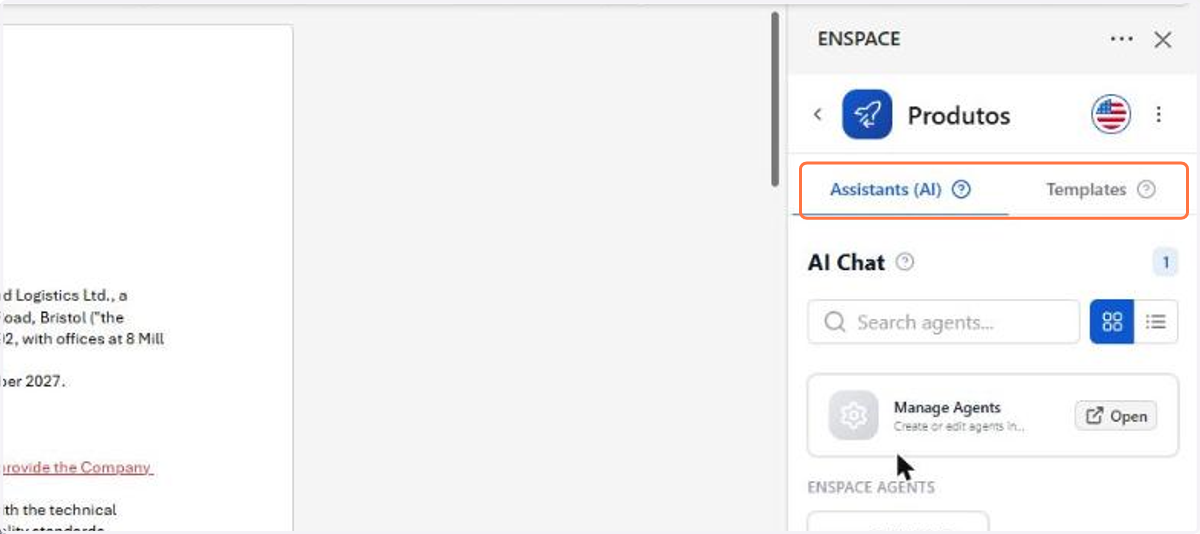
3. The Assistants (AI) tab gathers the workspace's AI agents, and the Templates tab, the document templates
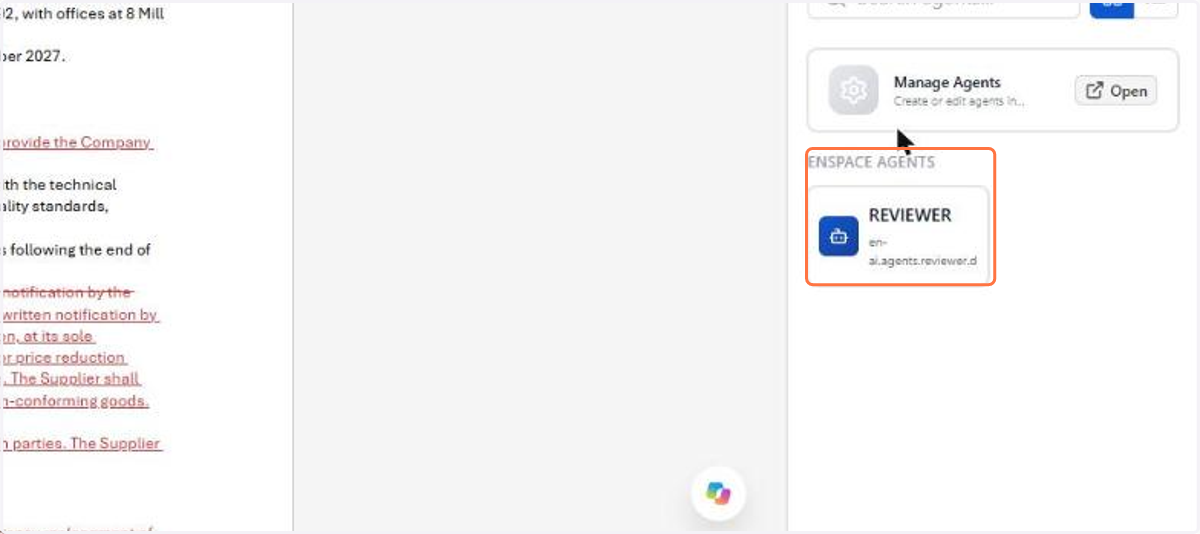
4. ENSPACE AGENTS holds the native agents, and the ones you created in the workspace appear in the same list. Click the agent that will review the document
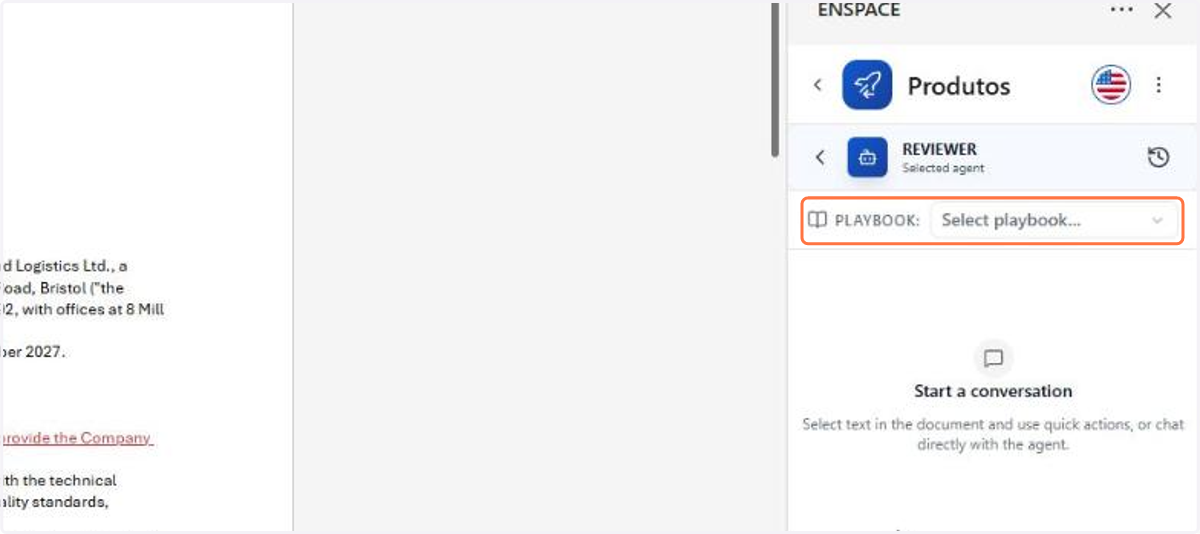
5. In PLAYBOOK, choose the set of review criteria. Without a playbook, the agent applies only its own rules
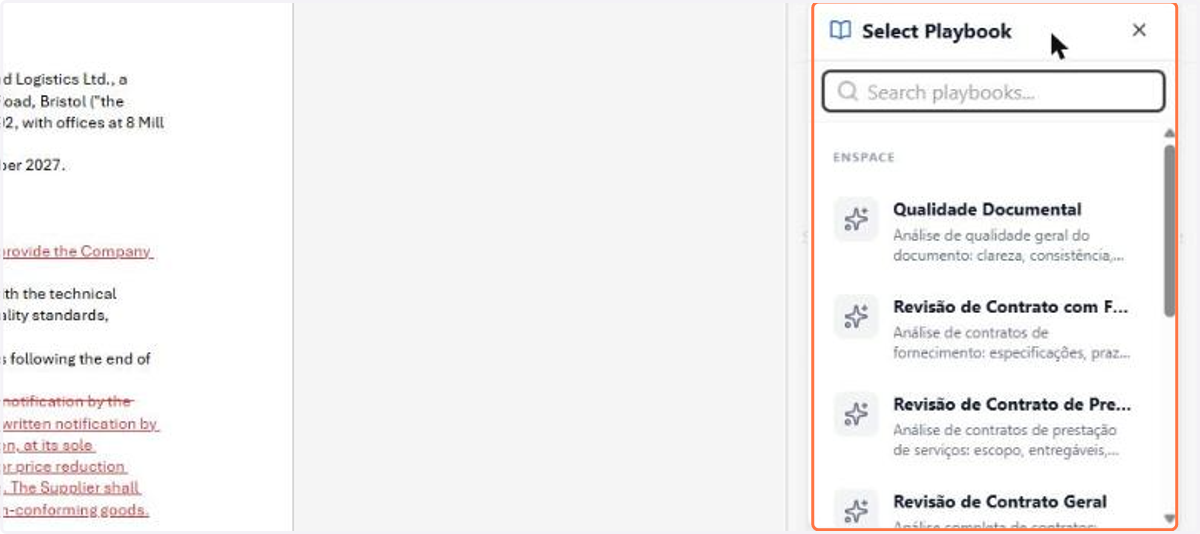
6. The native playbooks cover document quality, contracts, NDA, privacy policy and terms of use. Click the one that matches your document
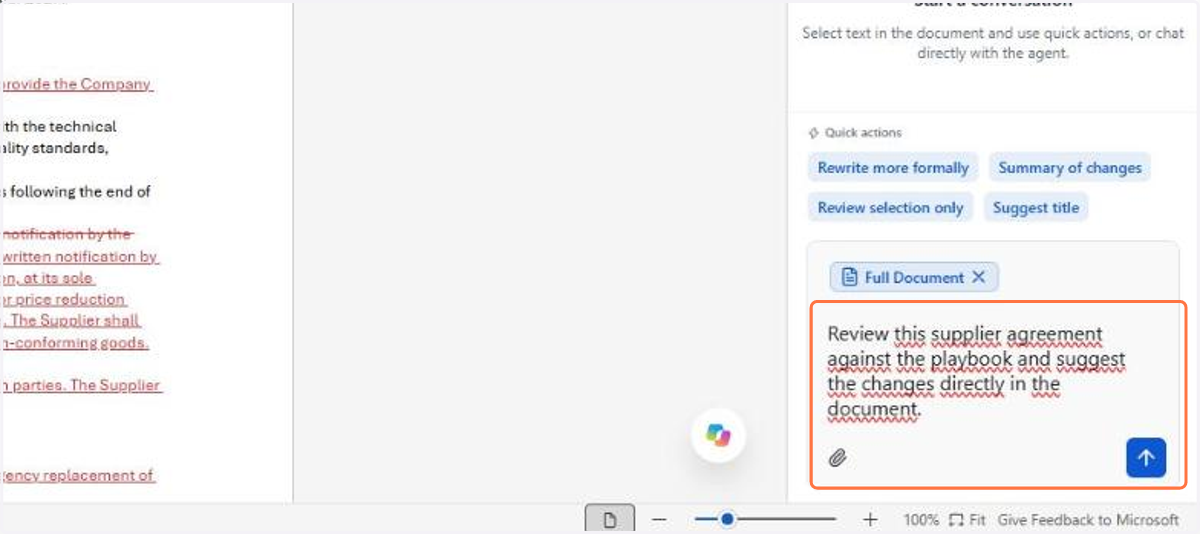
7. The Full Document chip indicates that the agent will read the whole document. When you select a passage, the panel offers Add to Chat, and the quick action Review selection only limits the review to what is marked
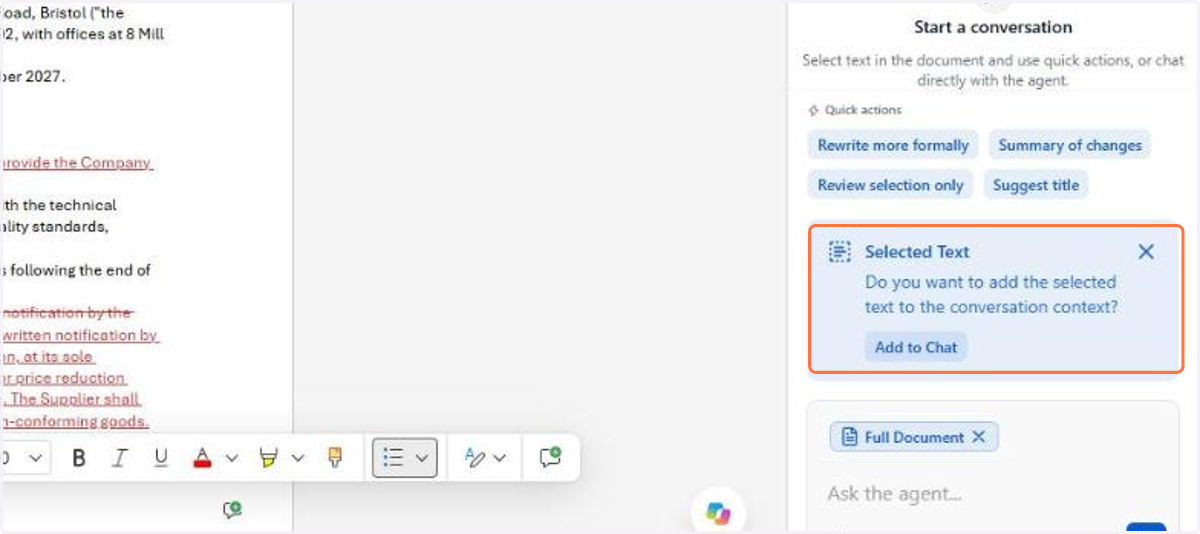
8. The quick actions bring ready-made instructions, and the Full Document chip shows what will be sent to the agent. Write your instruction and click send
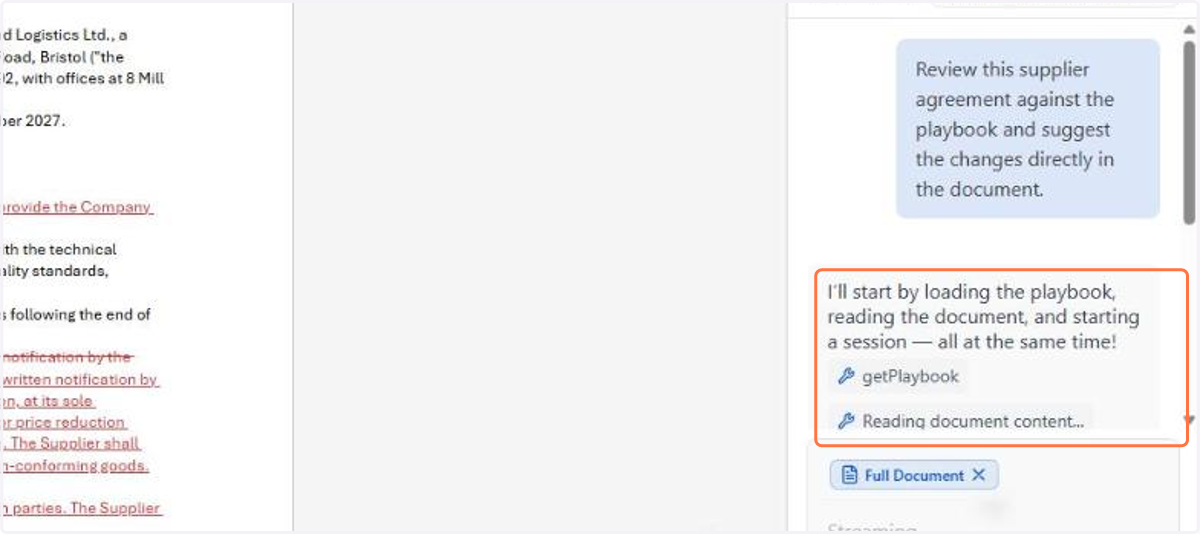
9. The chat follows the run while the agent reads the playbook and the document
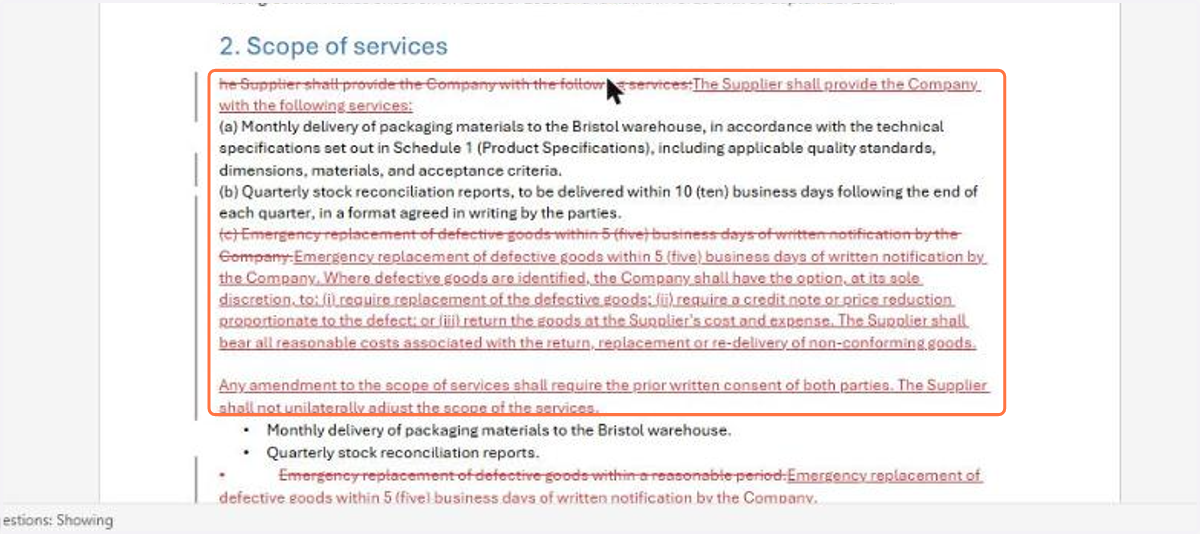
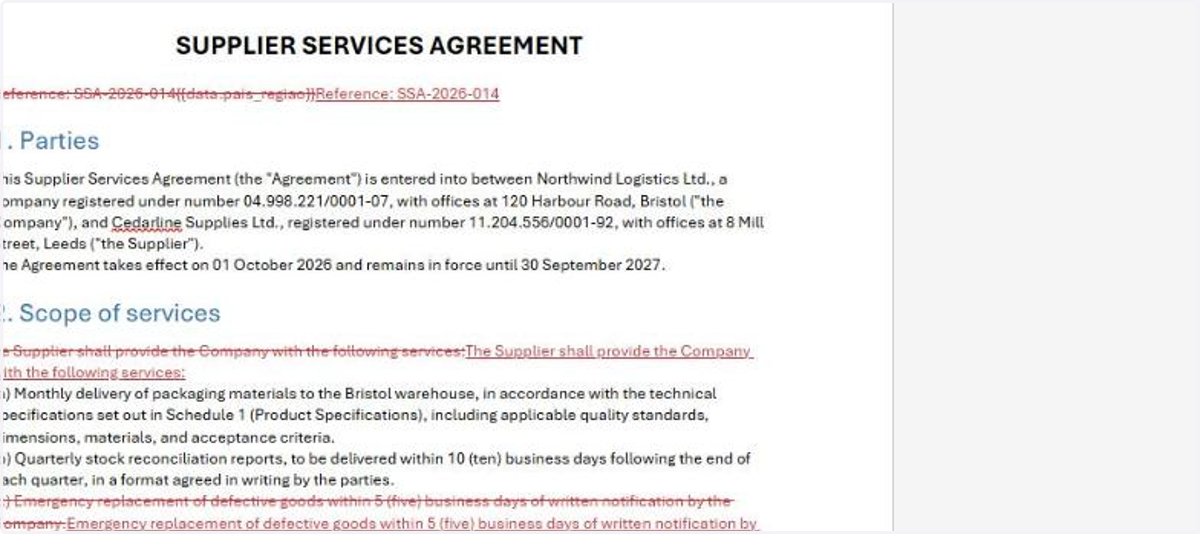
10. When it finishes, Word opens the Review tab and the suggestions arrive as tracked changes: the replaced text is struck through and the new text underlined
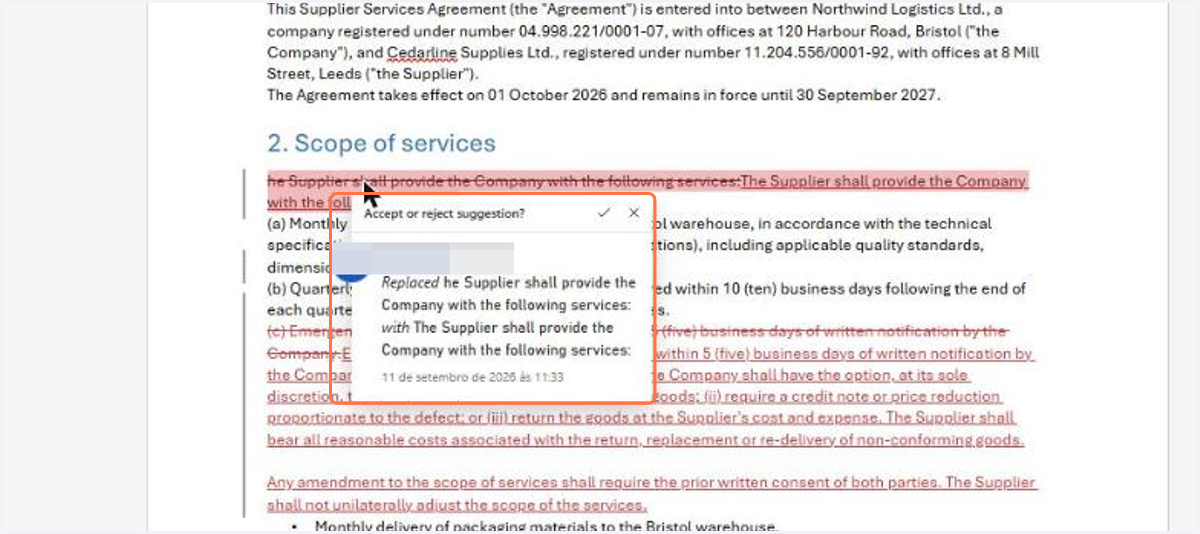
11. Click a suggested passage and Word opens the Accept or reject suggestion? card, with the text that was replaced, the new text and the accept and reject buttons right there
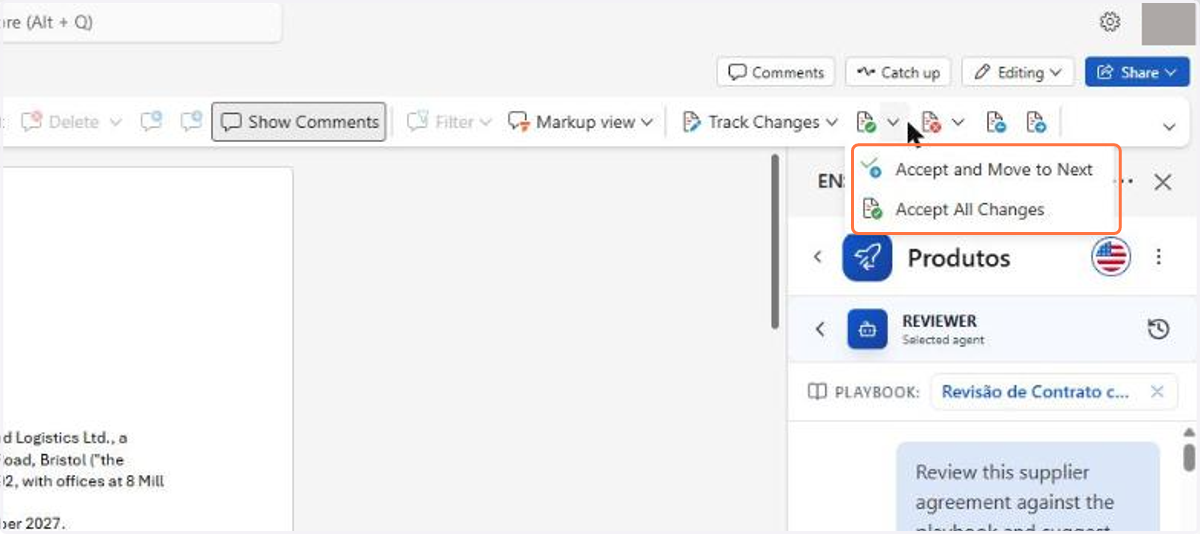
12. On the Review tab, the Accept button brings Accept and Move to Next, to decide suggestion by suggestion, and Accept All Changes. Next to it are Reject and the arrows that walk through the suggestions
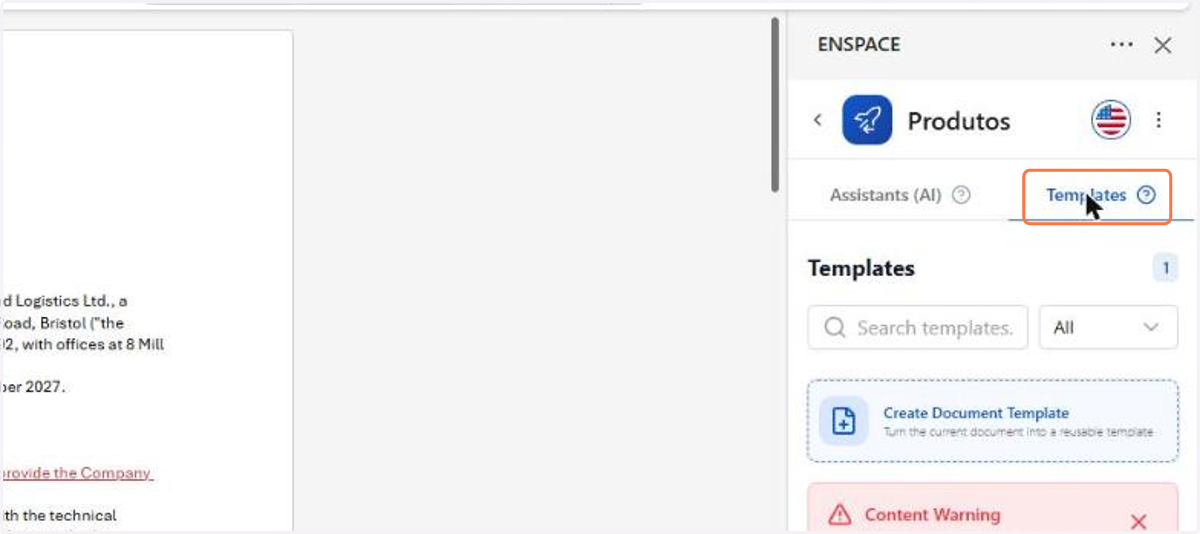
13. The Templates tab gathers the document templates published in the workspace, with search and filter by category. The Content Warning at the top warns that applying a template replaces the whole document
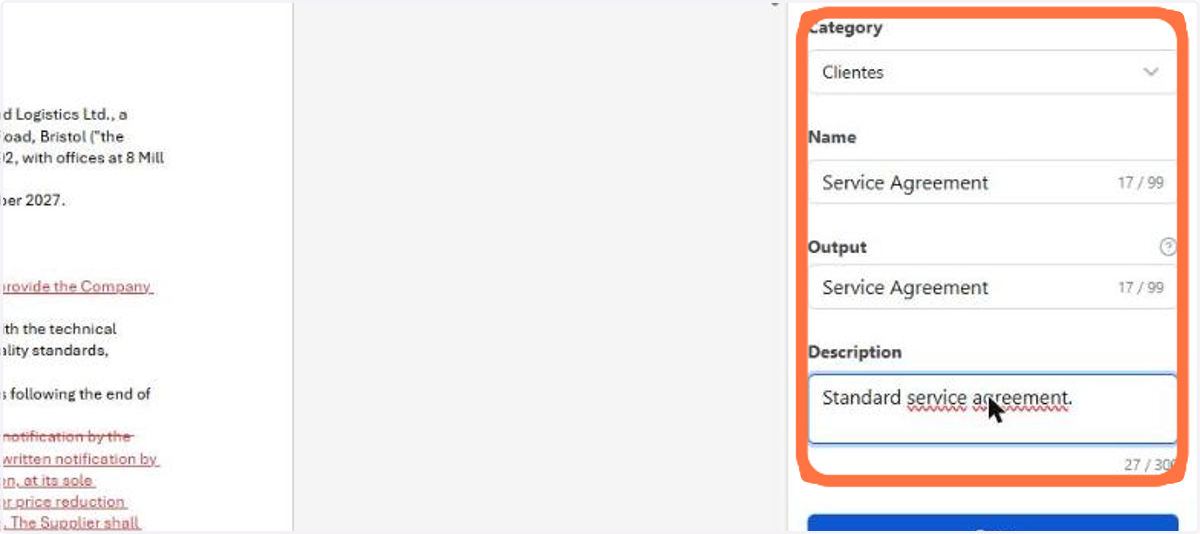
14. In Create Document Template, fill in the Category the template belongs to, the Name it appears under in the list, the Output, which is the name of the generated file, and an optional Description
15. The template enters the list with the category, the number of variables and the date of the last update. Save recorded only this data: the document content has not been sent yet
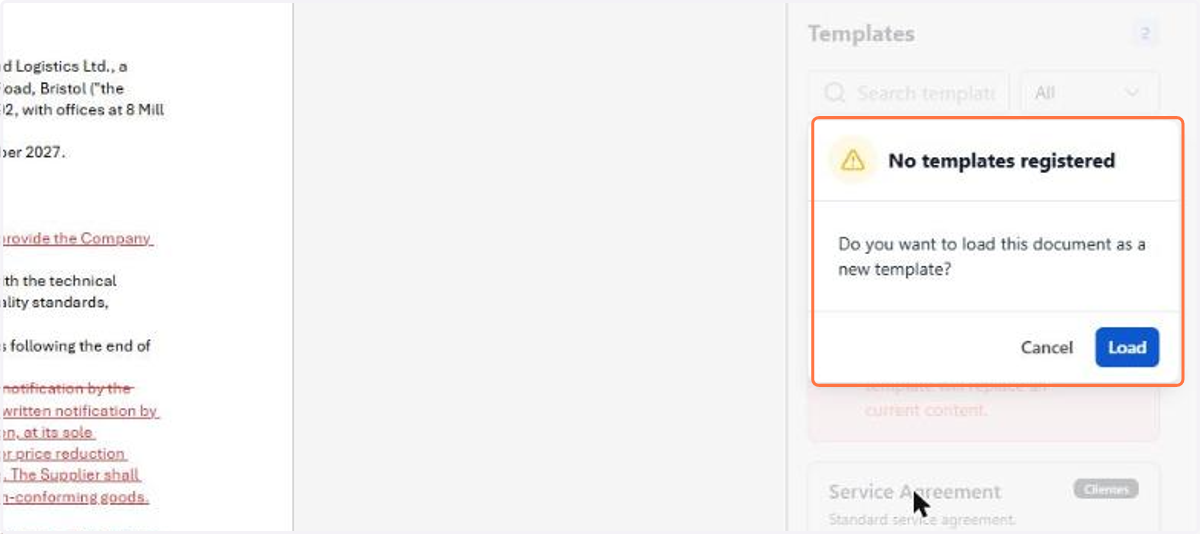
16. Click the template you have just created and confirm in Load: this is the step that sends the current document as the body of the template
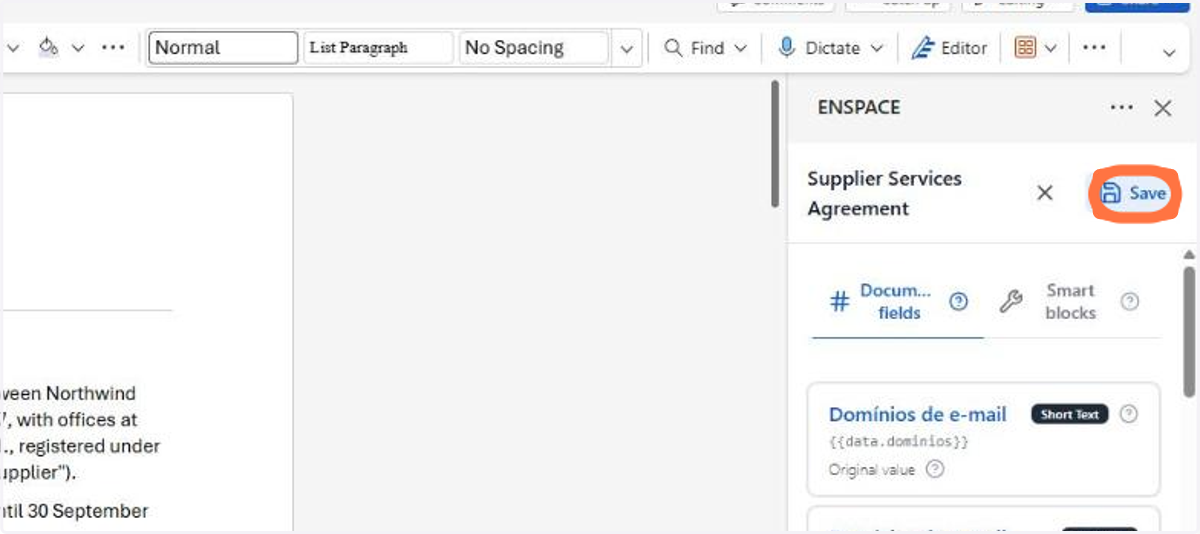
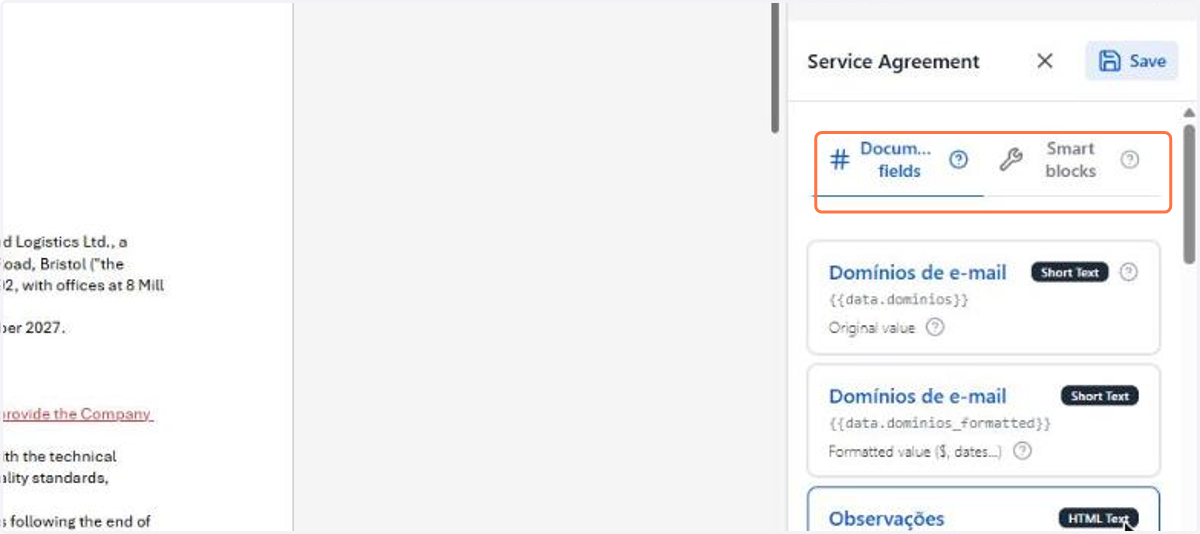
17. The template editor opens with two tabs: Document fields, for the variables, and Smart blocks, for the conditions and repetitions
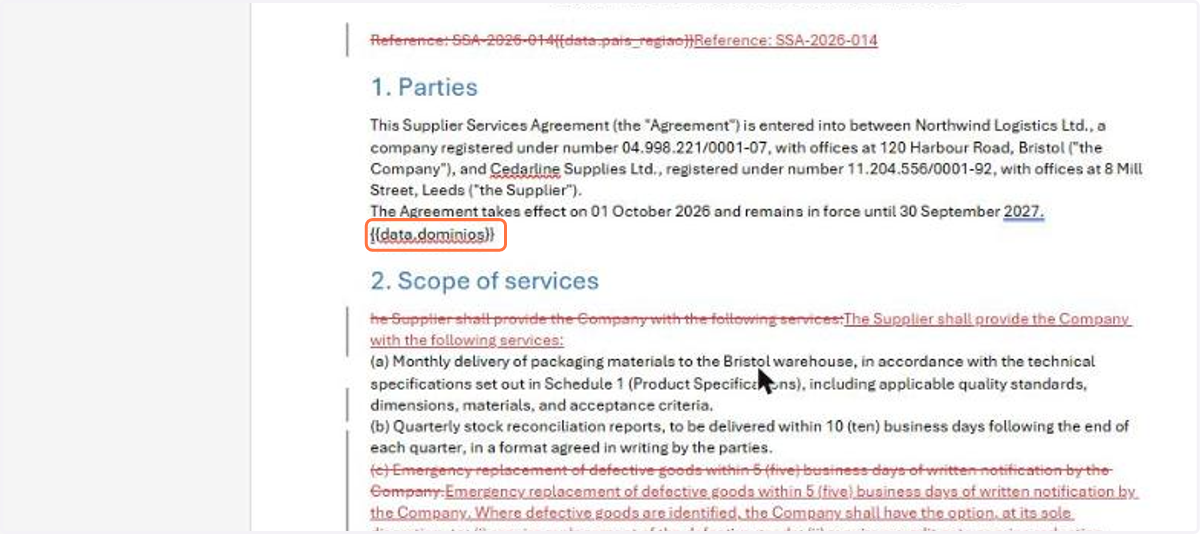
18. In Document fields, each form field becomes a card with the type and the variable. Place the cursor in Word where the value should appear and click the field to insert it
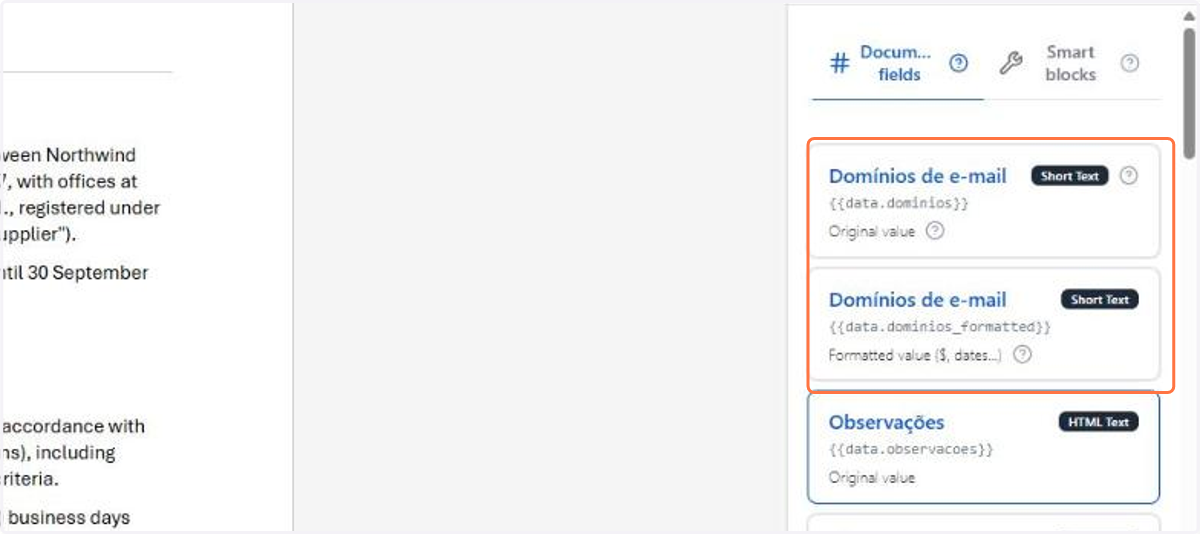
19. Each field appears twice in the list: the original value and the formatted version, which applies the currency and date masks
20. In Smart blocks, Show only if... builds a condition: choose the Field to check, the Condition and the Expected value. The option Is the value text? decides whether the comparison uses quotes or a number
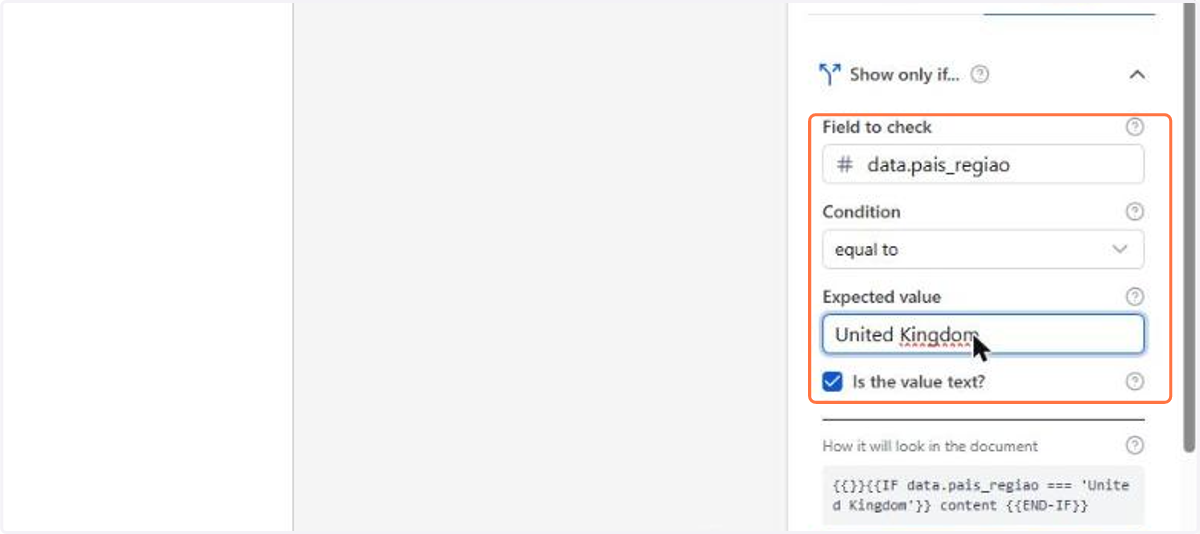
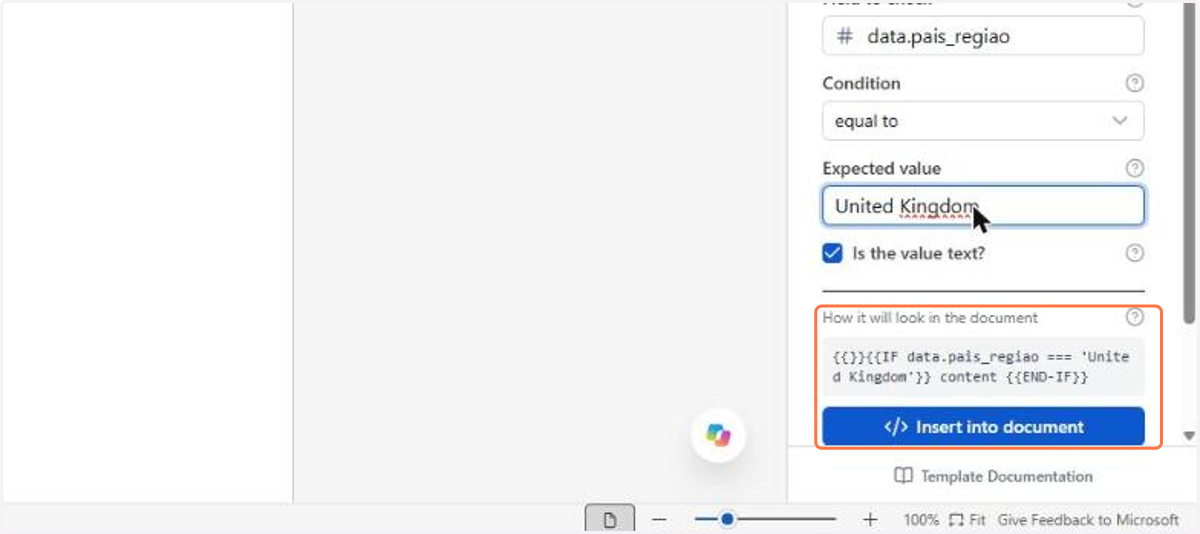
21. The How it will look in the document box shows the structure that will be generated. Click Insert into document to place it at the cursor position
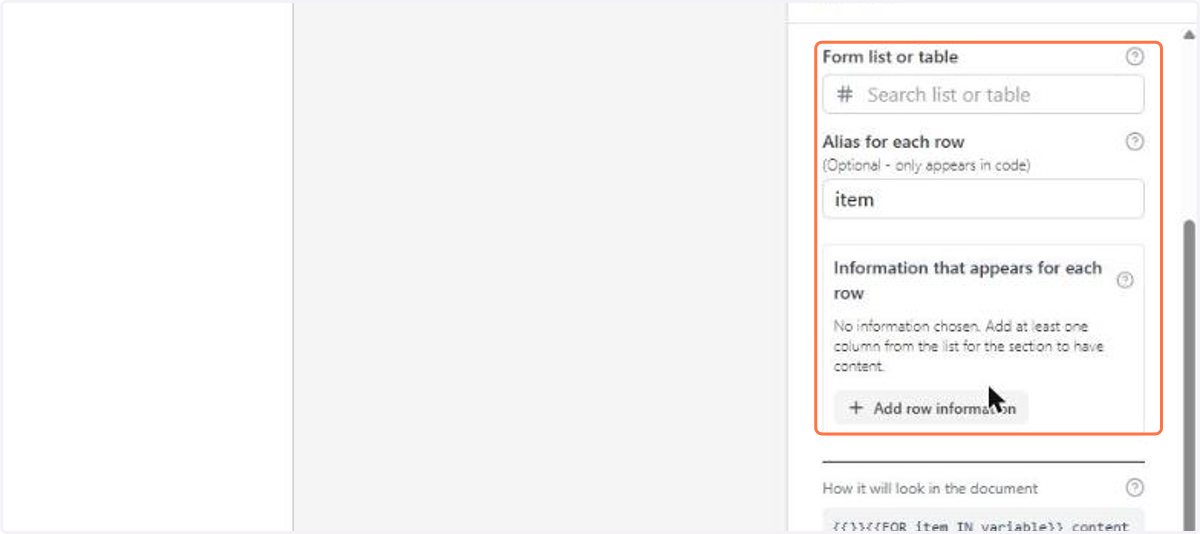
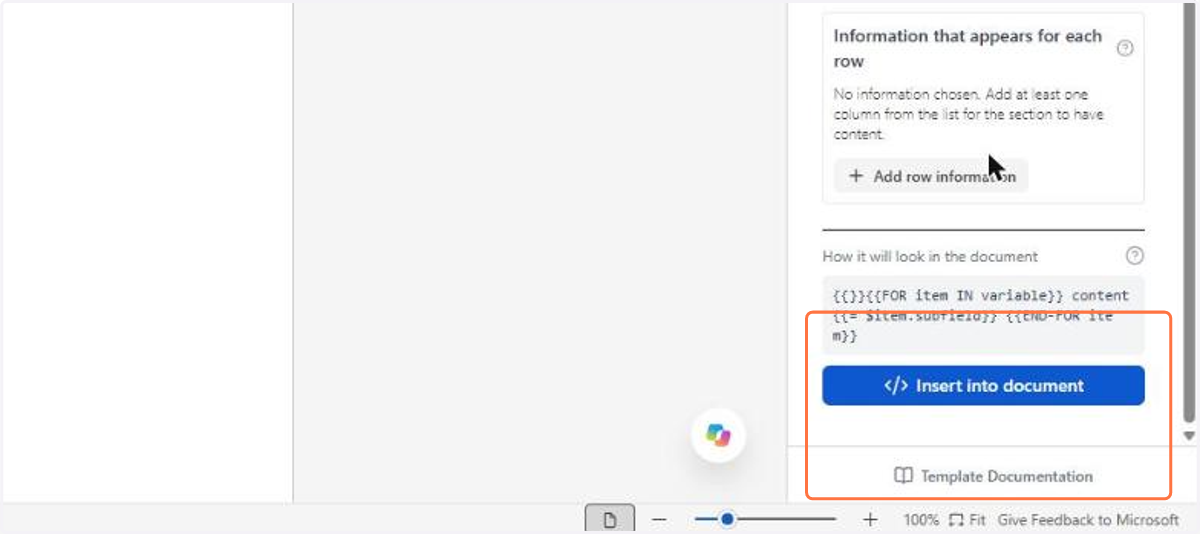
22. Repeat a section walks through a list or table in the form: choose the Form list or table, give each row an Alias and use Add row information to choose what appears in each repetition
23. When you are done, click Save to record the template with the variables and the blocks inserted
24. To use a template, open a blank document and click the template you want

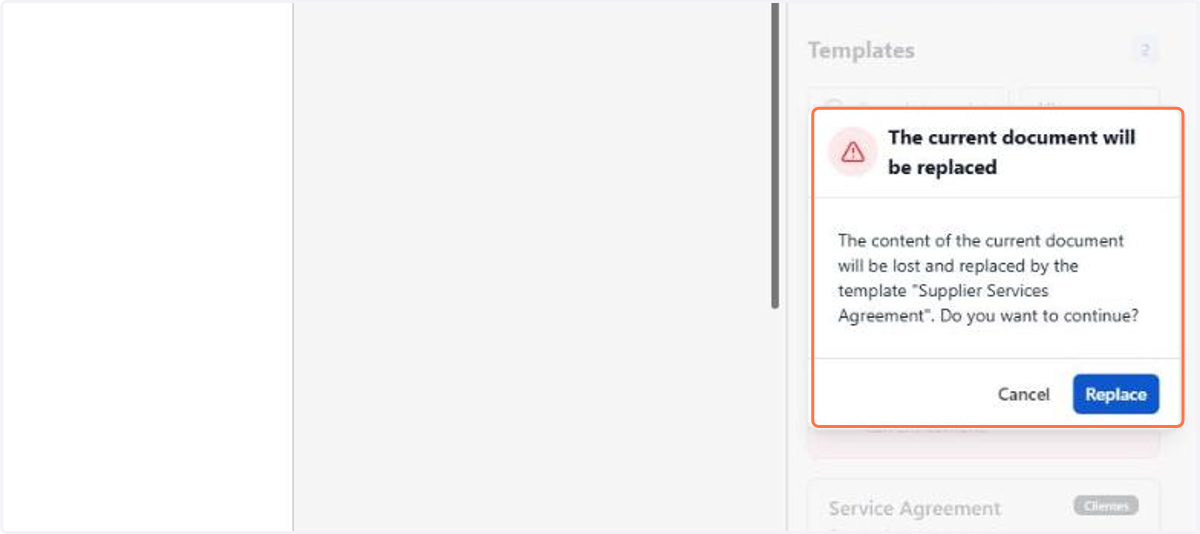
25. The plugin warns that the content of the current document will be lost and replaced by the chosen template. Confirm in Replace
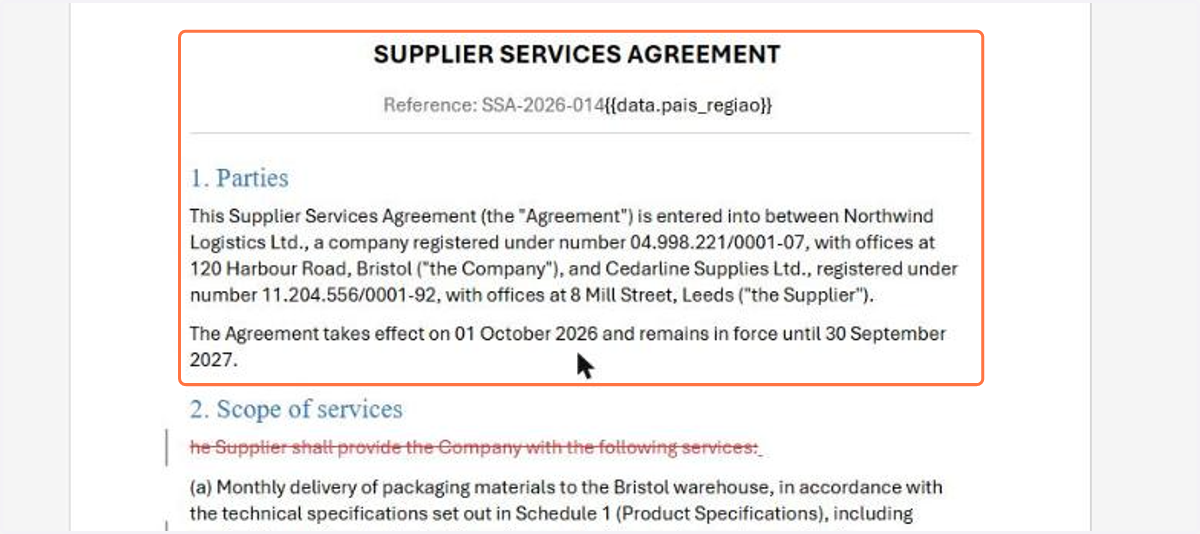
26. The template body enters the document, with the variables still as markers, and the template editor opens alongside
27. This is also how you edit an existing template: adjust the text and the variables in the document and click Save to record the new version