Create RentCafe CRM Quote Sheet
1. Create Quote Sheet: Click on Documents

2. Click on New Quote Sheet

3. Enter Terms for Primary Resident
Physical Move In Date: Date Resident physically moves in and will require care.
Financial Rate End Date: Date the lease term ends (the last day of the month the following year)
Proposal Expires On: Date the lease must be signed by (typically 2-4 weeks from today)
Primary Payer: Individual who will receive the bill

4. Enter Terms for Co-Occupant
Co-Occupant Physical Move In Date: Date Resident physically moves in and will require care.
Co-Occupant Financial Rate End Date: Date the lease term ends (the last day of the month the following year - this must be the same date as the primary resident's financial rate end date)
Co-Occupant Primary Payer: Individual who will receive the bill (this is usually the same as the Primary Resident Payer)
Then click Save & Next.

5. Primary Resident Charges
Accommodation: The rate will pull based off of the unit selected. The start date should be the Financial Start date.
Level of Care (AL,WS,EC only): Select the appropriate service package. If a preliminary assessment has been completed, select the Apply Recommendation button to automatically select the correct service package. Start date should stay the Physical Move-In Date.
Second Resident: This can be ignored for the Primary Resident
Incontinence Care: Select the care agreed upon with the resident. Start date should be Physical Move-In Date
Any Addition Charge, one time or recurring will be added on this tab relating to the Primary Resident
Then click into the the second resident profile, if there is one. Otherwise, hit Save & Next.

6. Co-Occupant Charges
Accommodation: This will still need to be added, but is a 0 dollar charge
Level of Care (AL,WS,EC only): Select the appropriate service package. If a preliminary assessment has been completed, select the Apply Recommendation button to automatically select the correct service package. Start date should stay the Physical Move-In Date.
Second Resident: Add the charge based off the level of care. Date should be the Physical Move-In Date
Incontinence Care: Select the care agreed upon with the resident. Start date should be Physical Move-In Date
Any Addition Charge, one time or recurring will be added on this tab related to the Second Resident
Then click Save & Next.

7. Concessions
Add any concessions for the first resident by hitting the "Add Concession"

8. Add Concession
Concessions can be added on both Primary or Secondary Residents. Please make sure the concession is on the appropriate resident before adding.
Charge Code: Choose the appropriate charge code related to the concession
Recurring Charge: Ignore this section
Concession Rate Type: Monthly or One Time. We do not use Daily
Concession Amount: This is entered as a positive number, not a negative
Payer: This should default to the payer used in the terms section
Start Date: All monthly concessions should start on the first day of the next full month to avoid proration.
End Date: This will only populate for monthly concessions, and the end date should be the end of the month.
Click Save.
Then Click Save & Next.

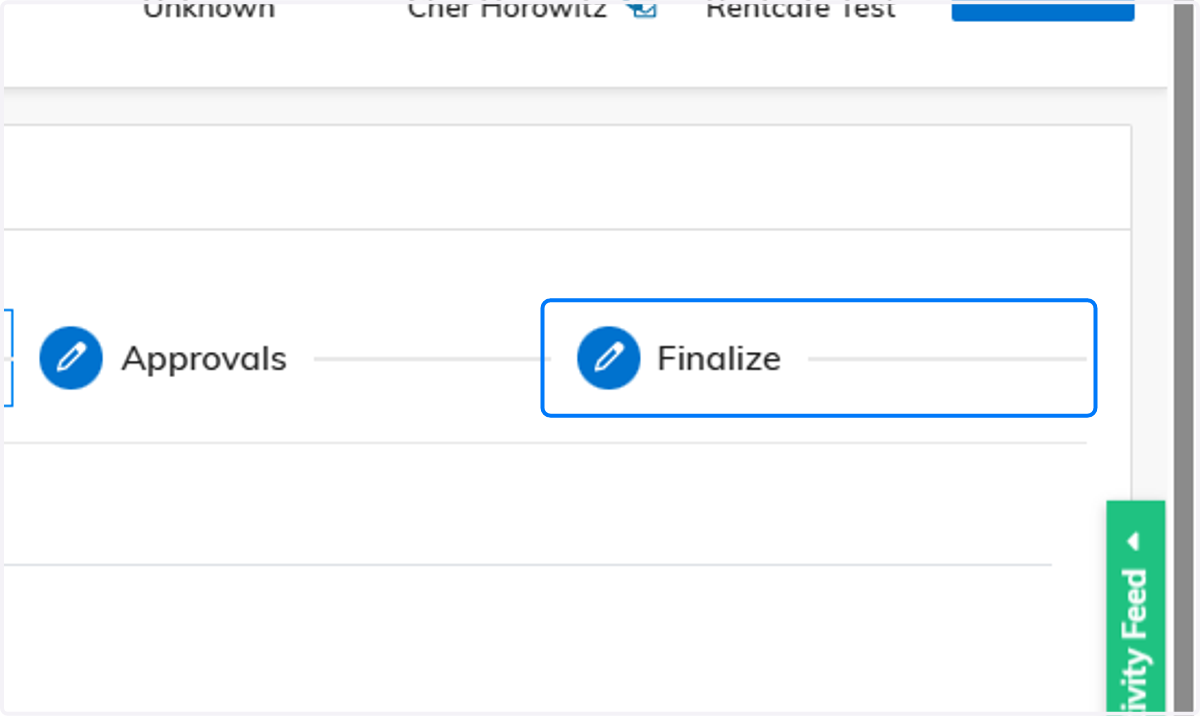
9. Click on Finalize
We do not use the Approvals Tab*
10. Review the Finalized Quote Sheet
Review all of the dates, amounts, and payers on the quote sheet. If anything needs to be changed, revisit the step necessary to make the changes. Alert your BOD or ED that the Quote sheet is ready when done.
