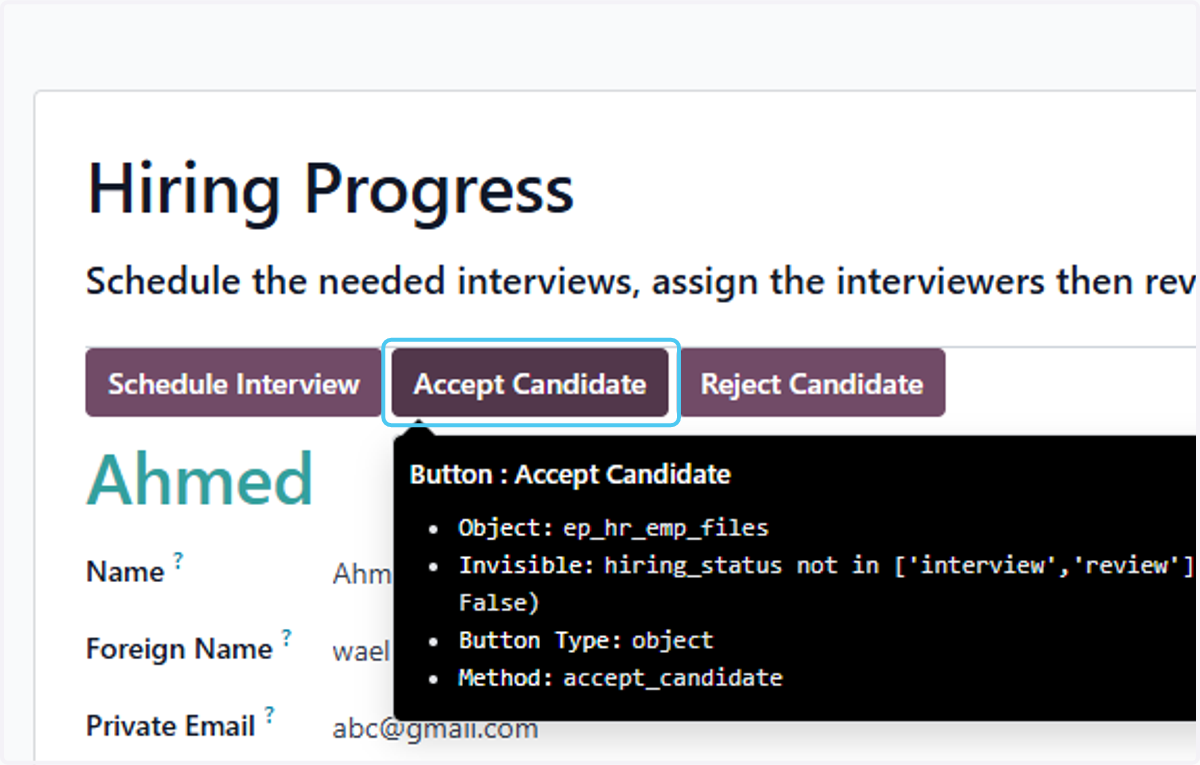
How to Manage Hiring Process / Interview Scheduling in Odoo- iLines HR

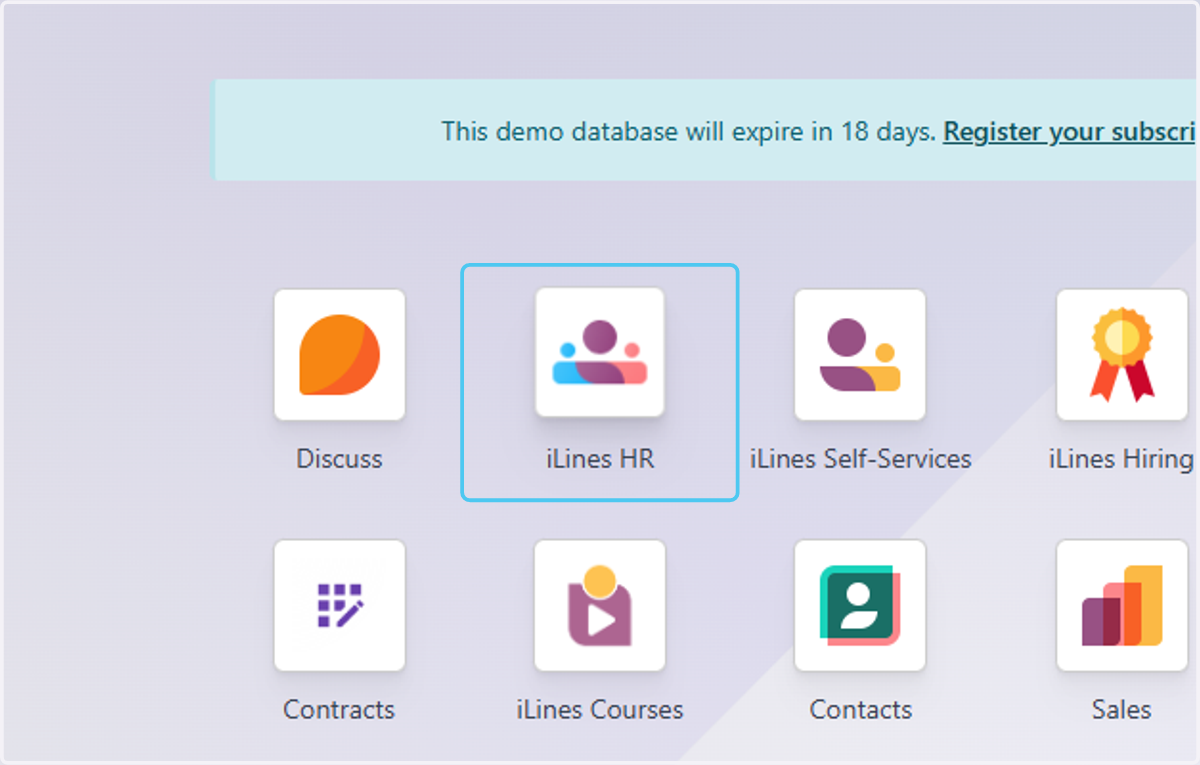
  1. 1. Click on iLines HR

    Click on iLines HR
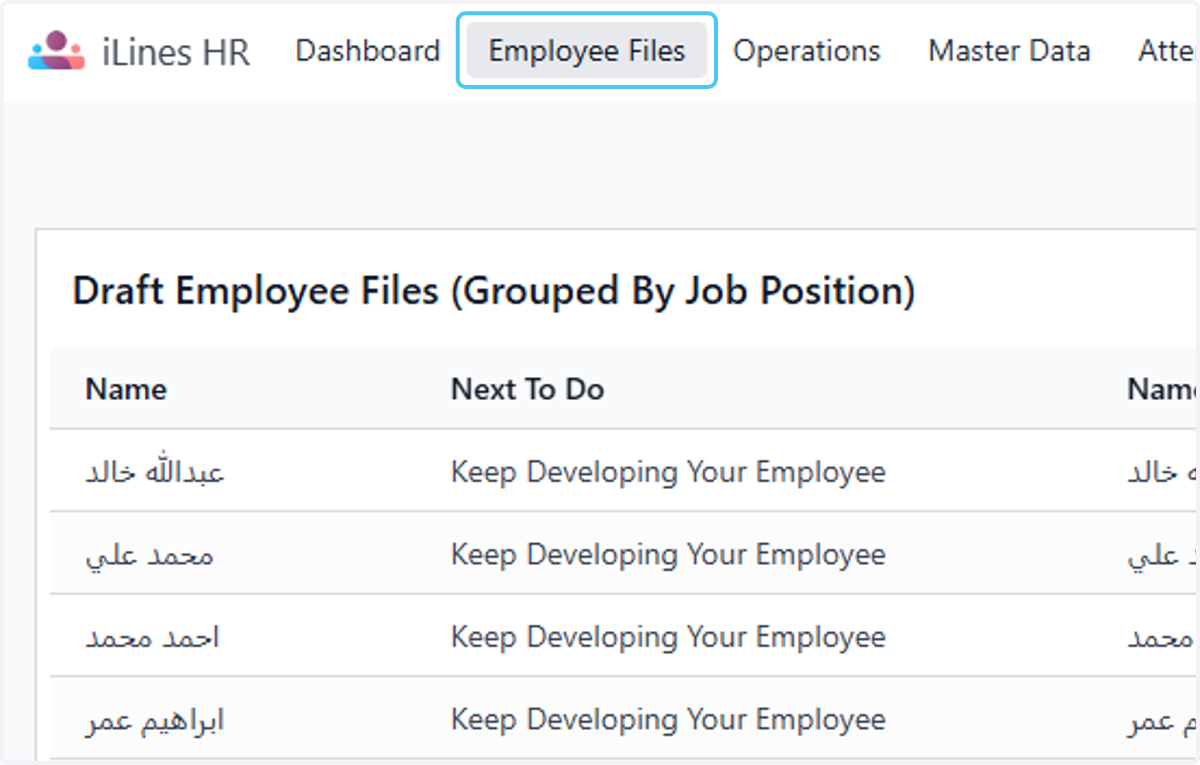
  2. 2. Click on Employee Files

    Click on Employee Files
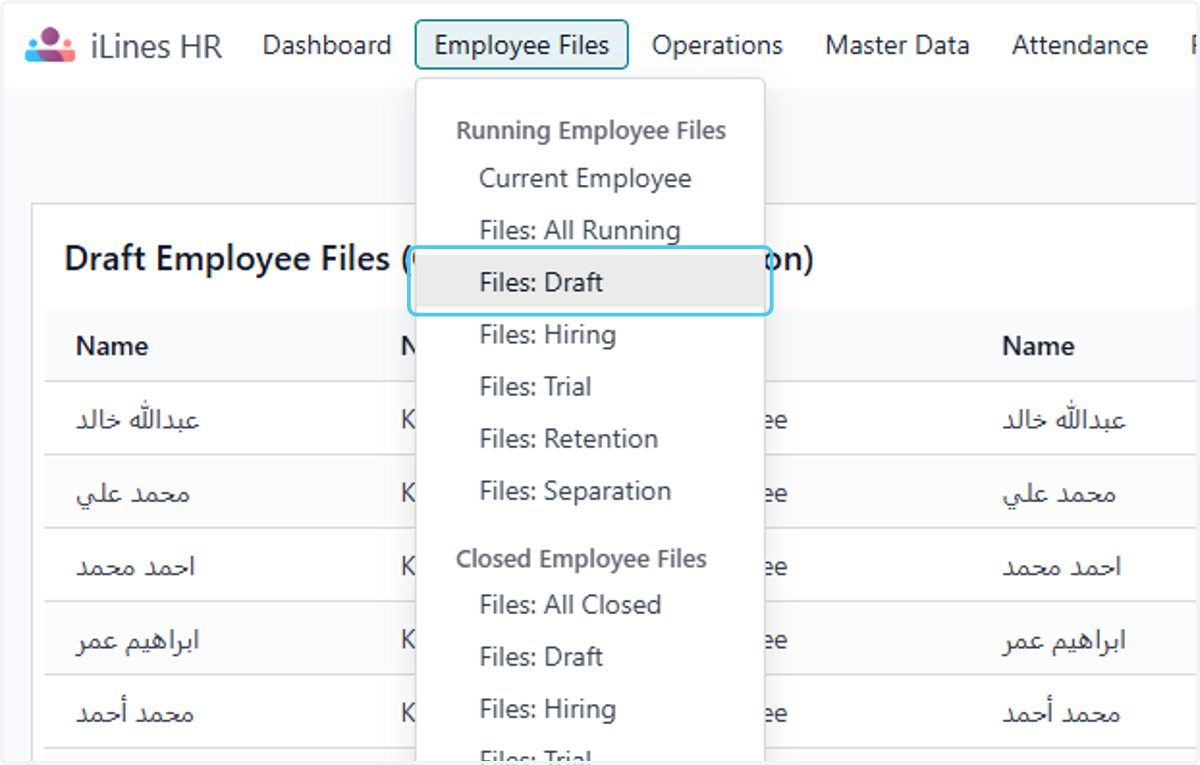
  3. 3. Click on Files: Draft

    Click on Files: Draft
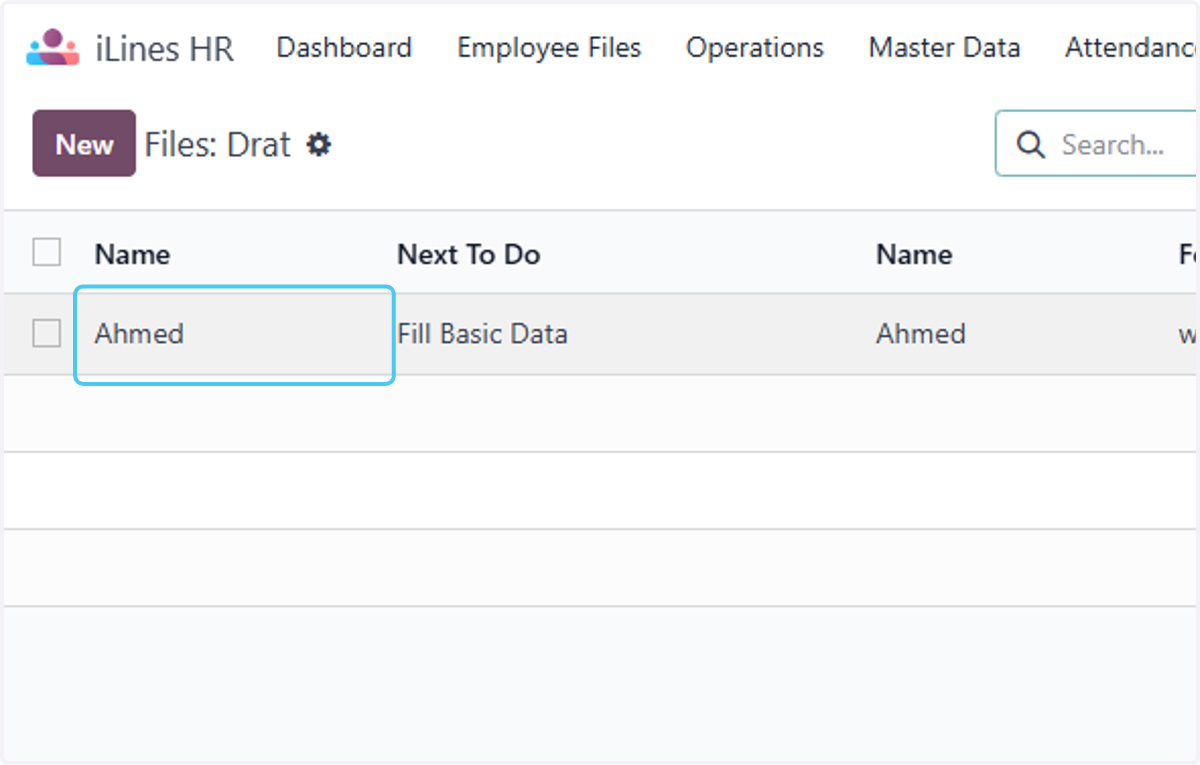
  4. 4. Click on Ahmed

    Click on Ahmed
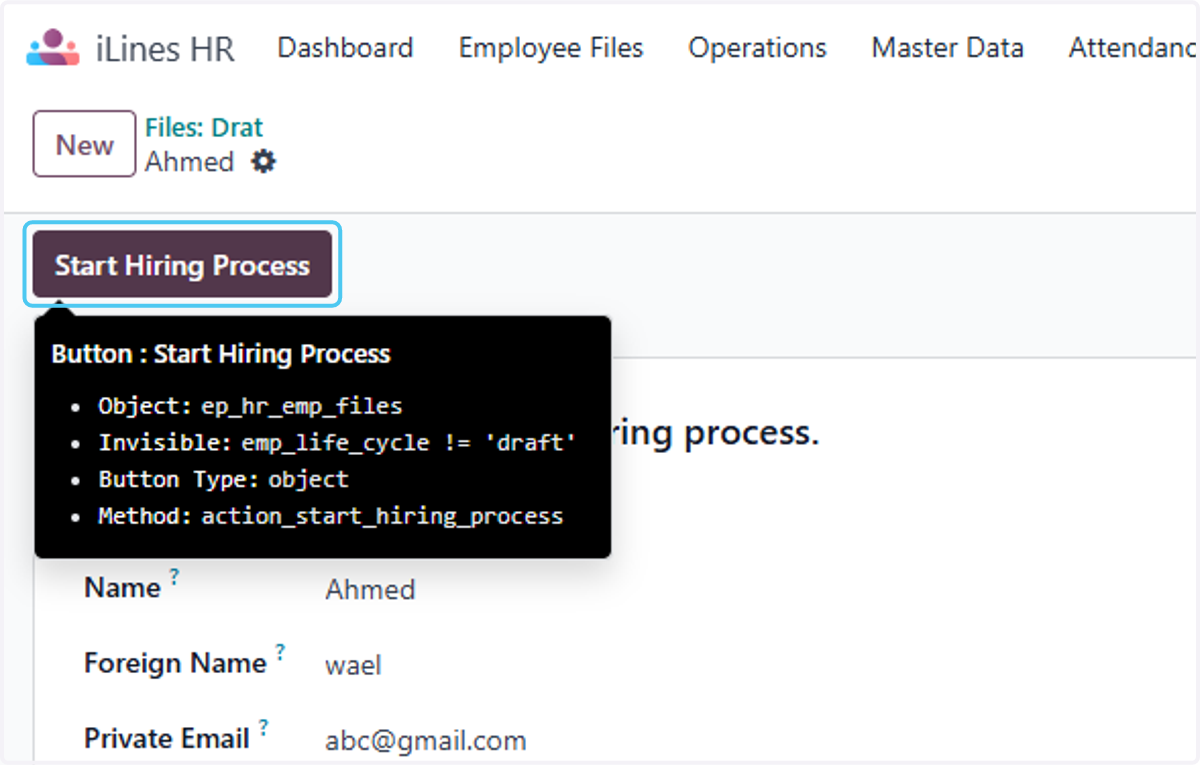
  5. 5. Click on Start Hiring Process

    Click on Start Hiring Process
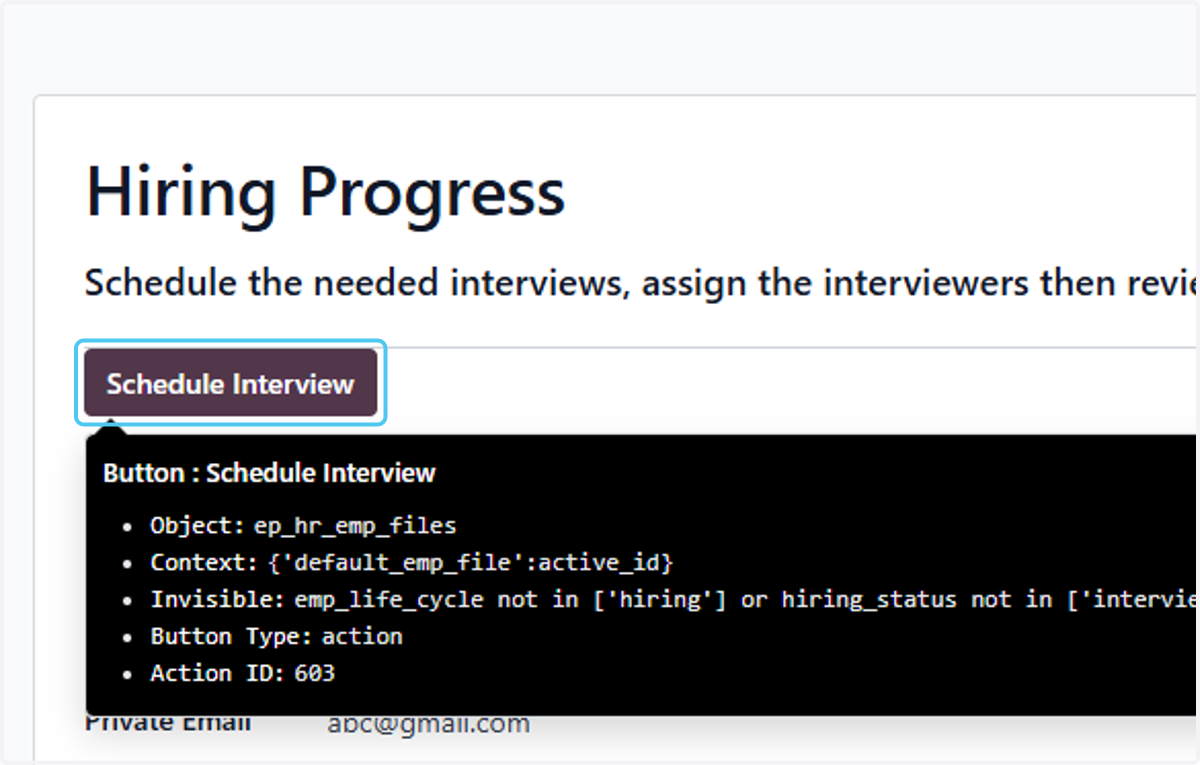
  6. 6. Click on Schedule Interview

    Click on Schedule Interview
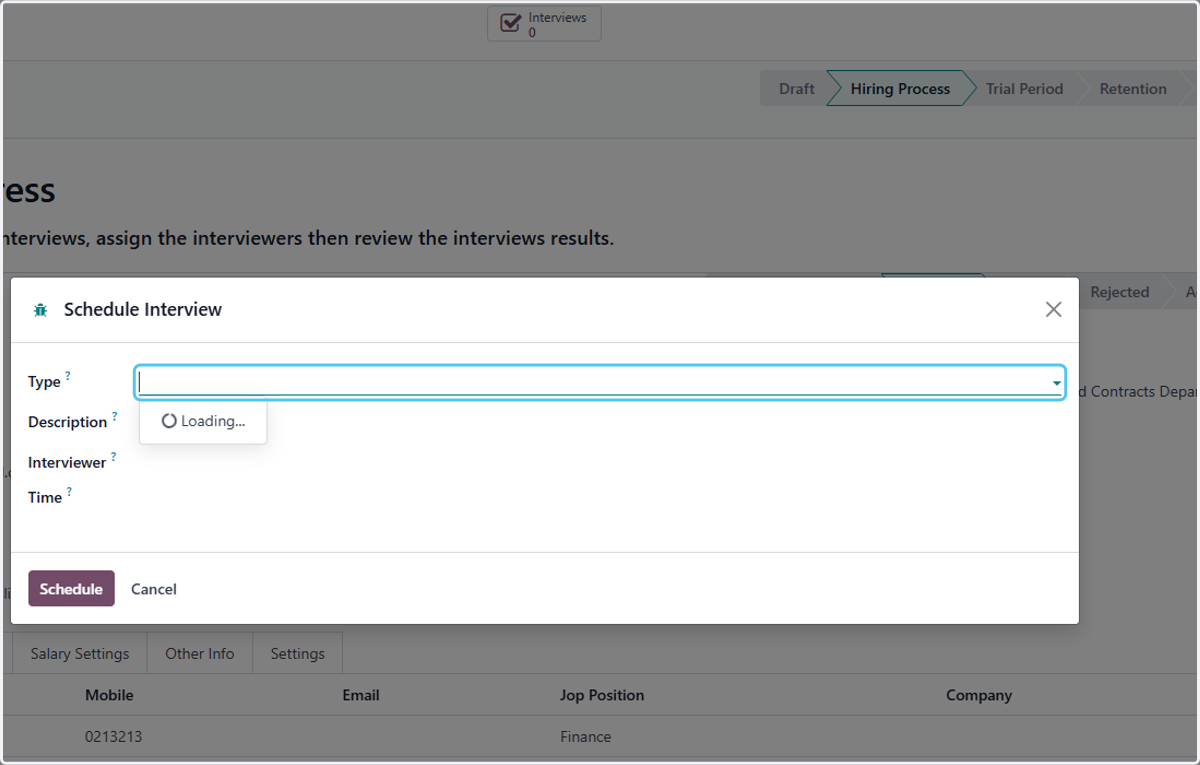
  7. 7. Click on Type?

    Click on Type?
  8. 8. Click on مقابلة المدير المباشر -Direct Manager Interview
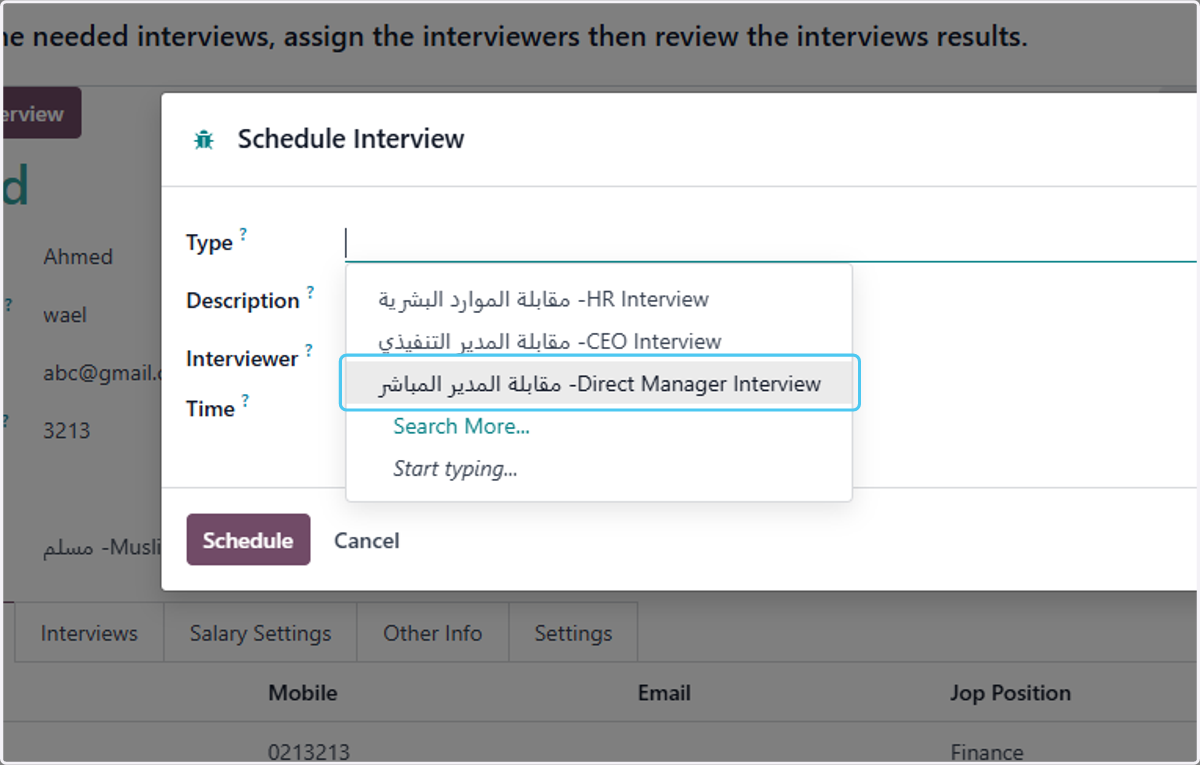
    Click on مقابلة المدير المباشر -Direct Manager Interview
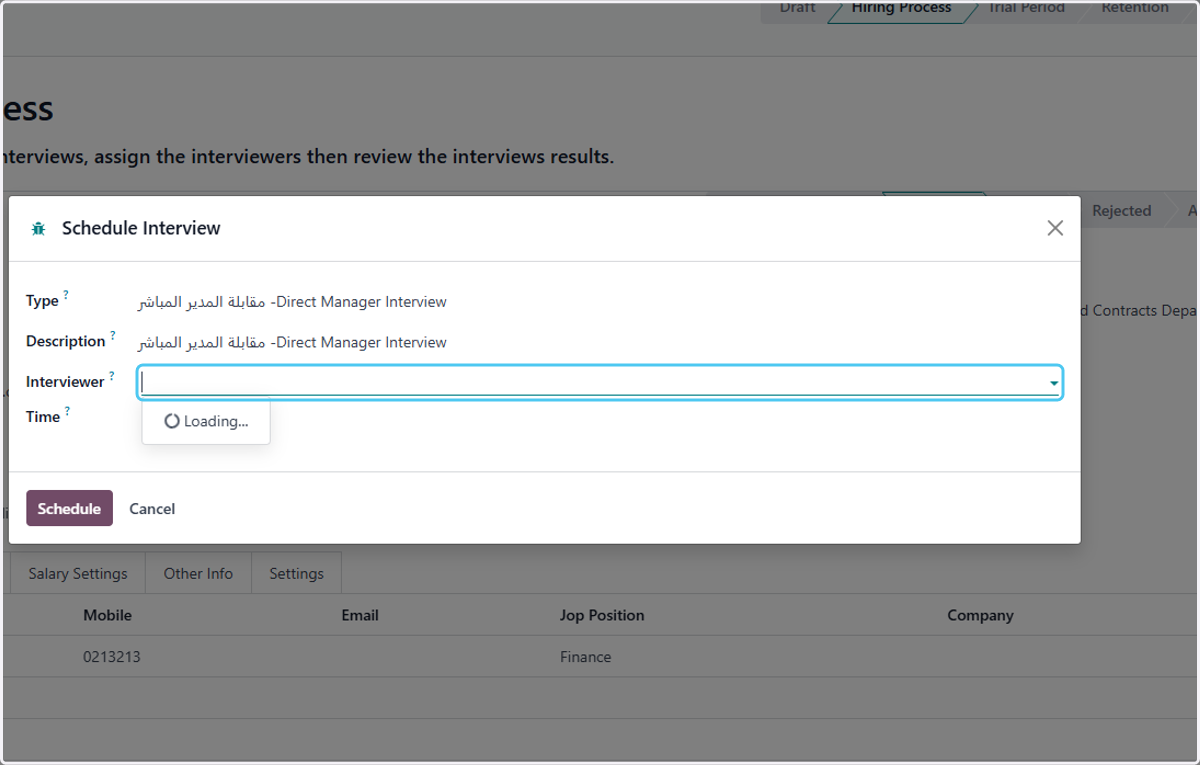
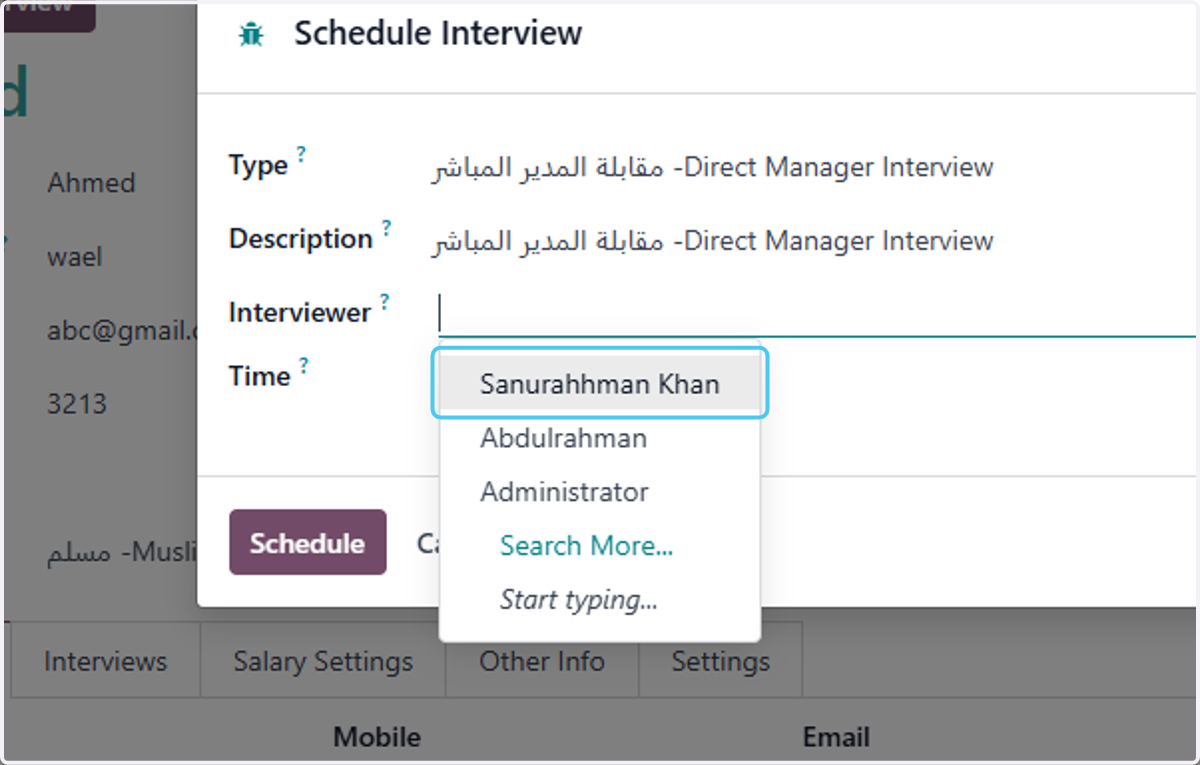
  9. 9. Click on Interviewer?

    Click on Interviewer?
  10. 10. Click on Sanurahhman Khan

    Click on Sanurahhman Khan
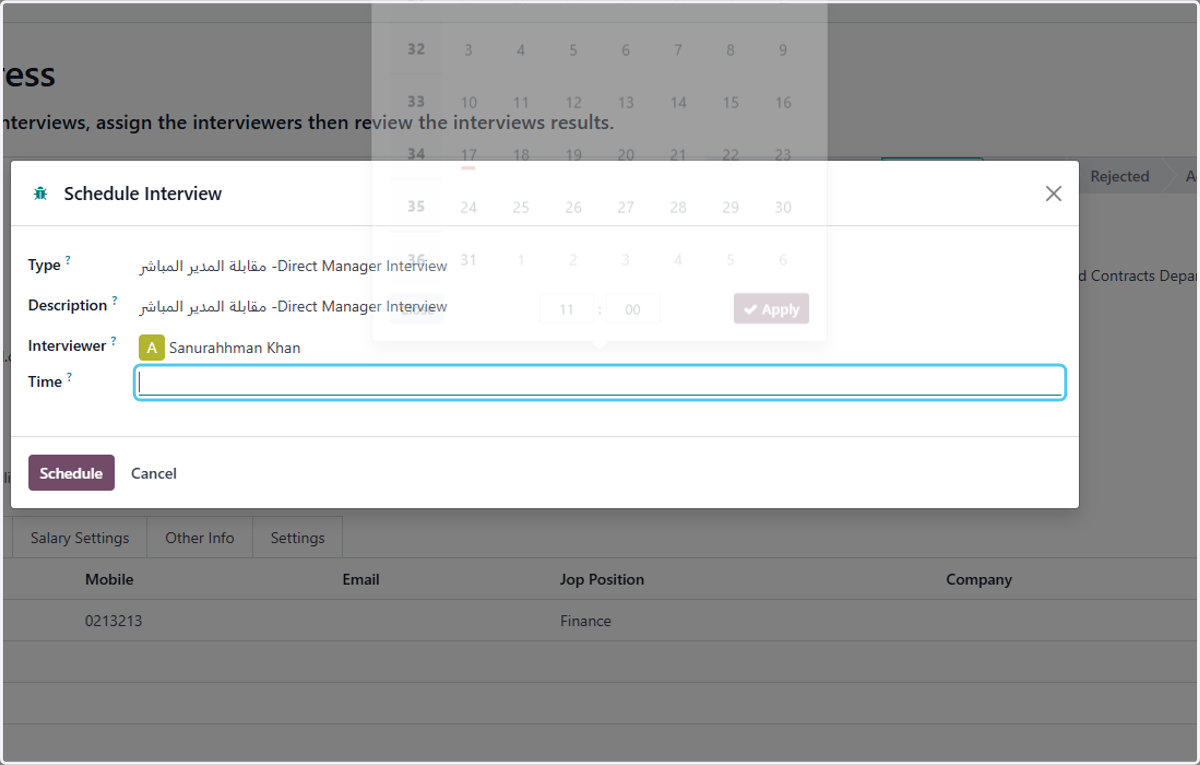
  11. 11. Click on Time?

    Click on Time?
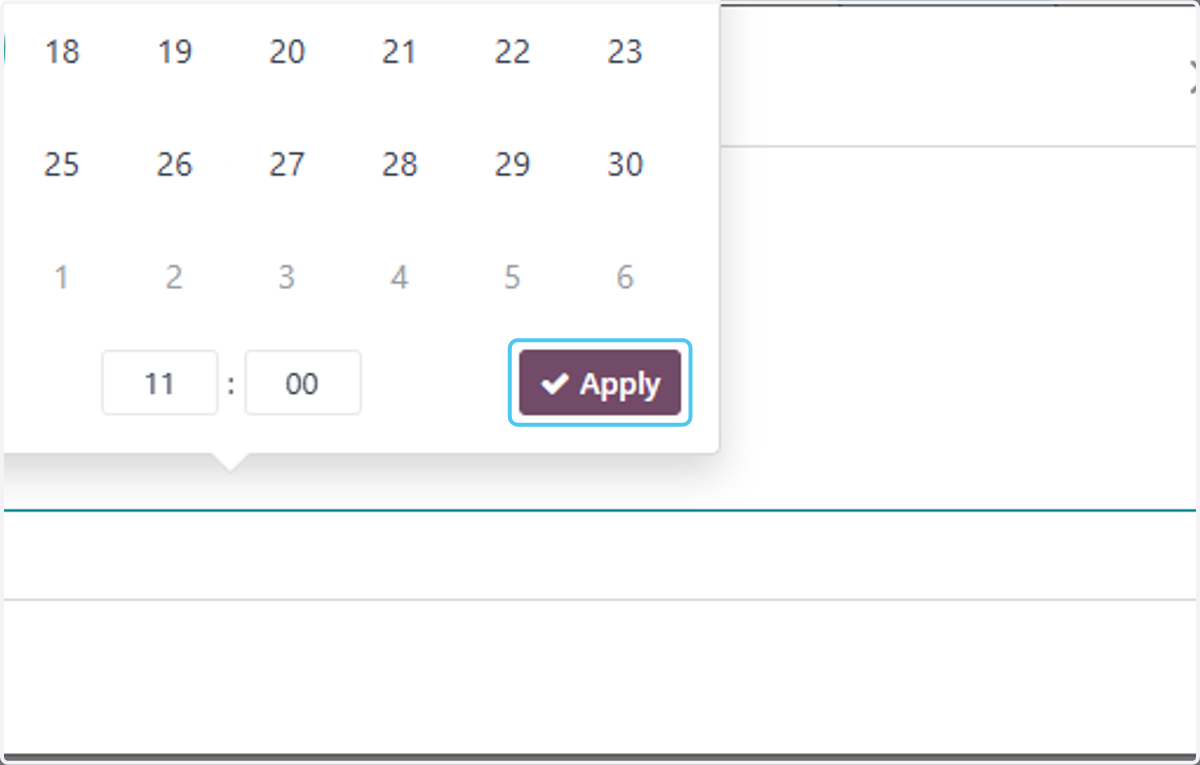
  12. 12. Click on Apply

    Click on Apply
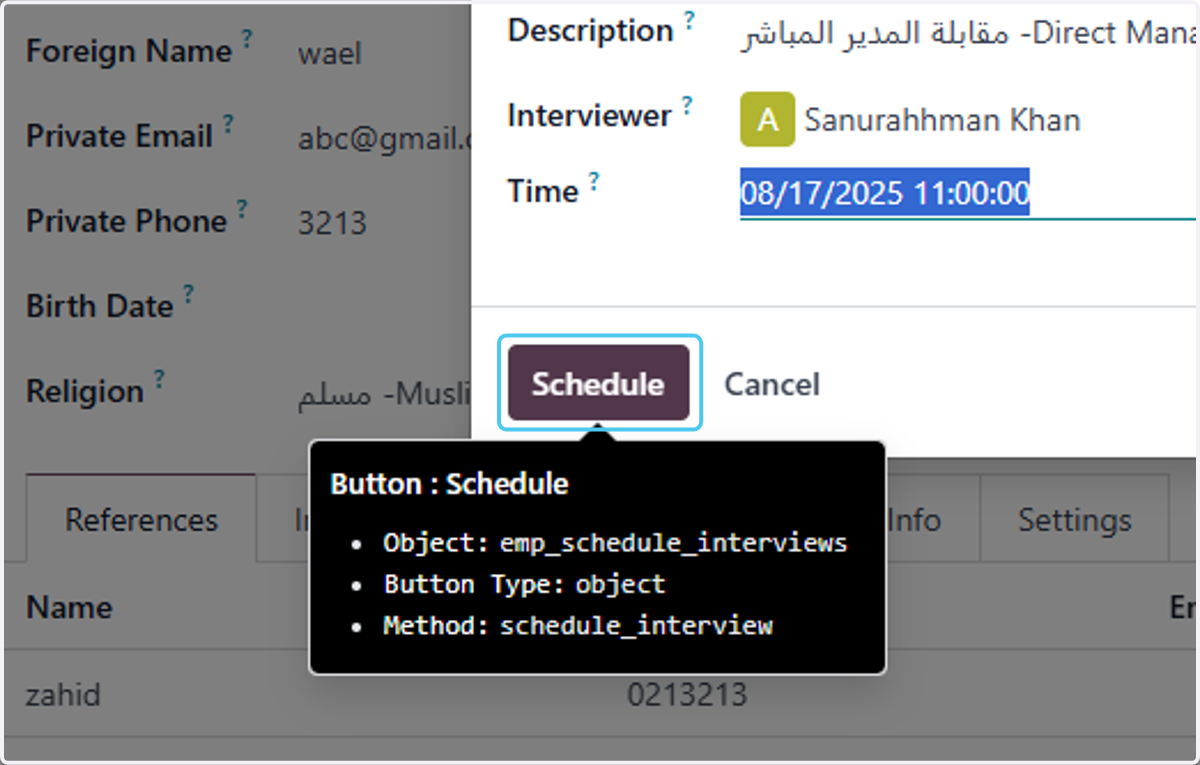
  13. 13. Click on Schedule

    Click on Schedule
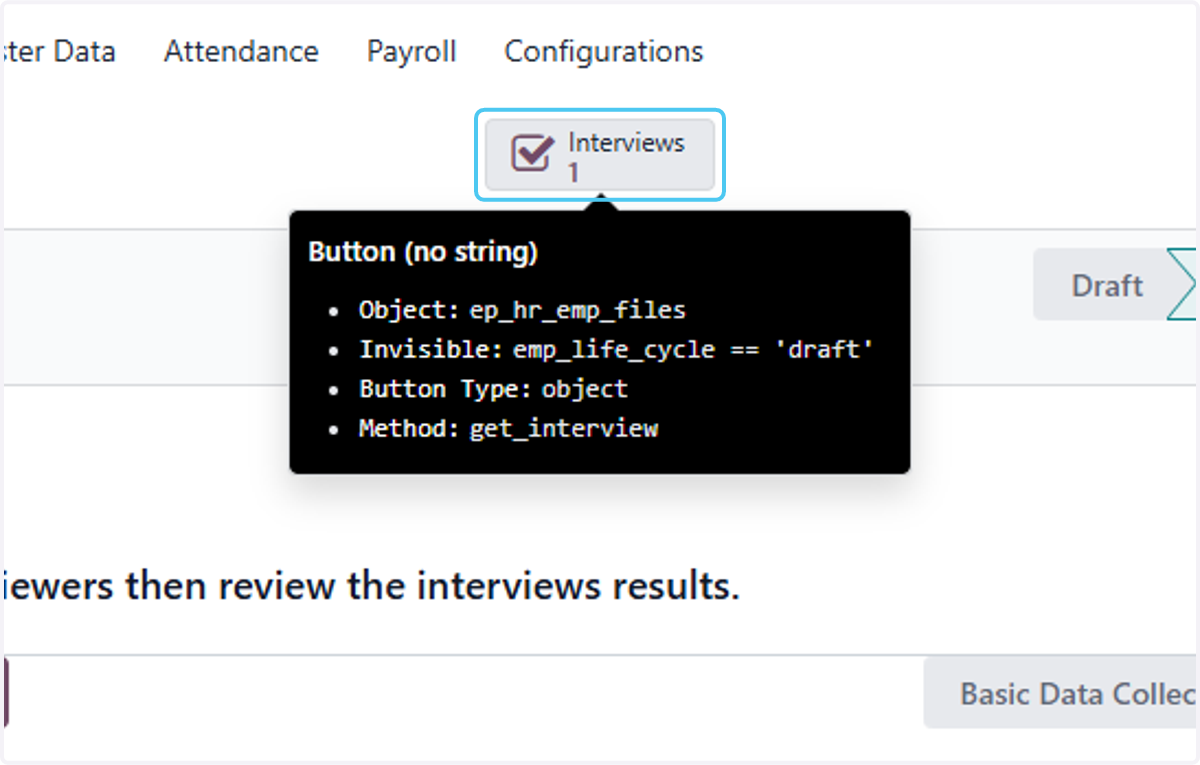
  14. 14. Click on Interviews

    Click on Interviews
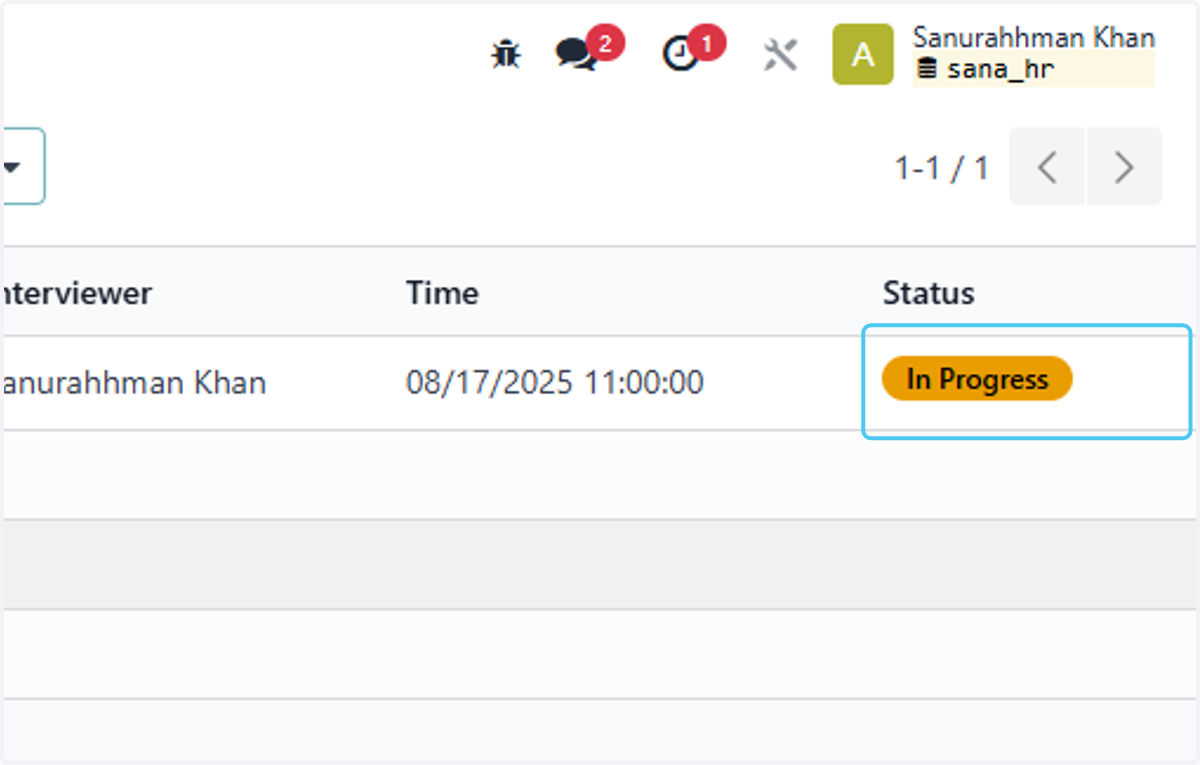
  15. 15. Drag highlighted element

    Drag highlighted element
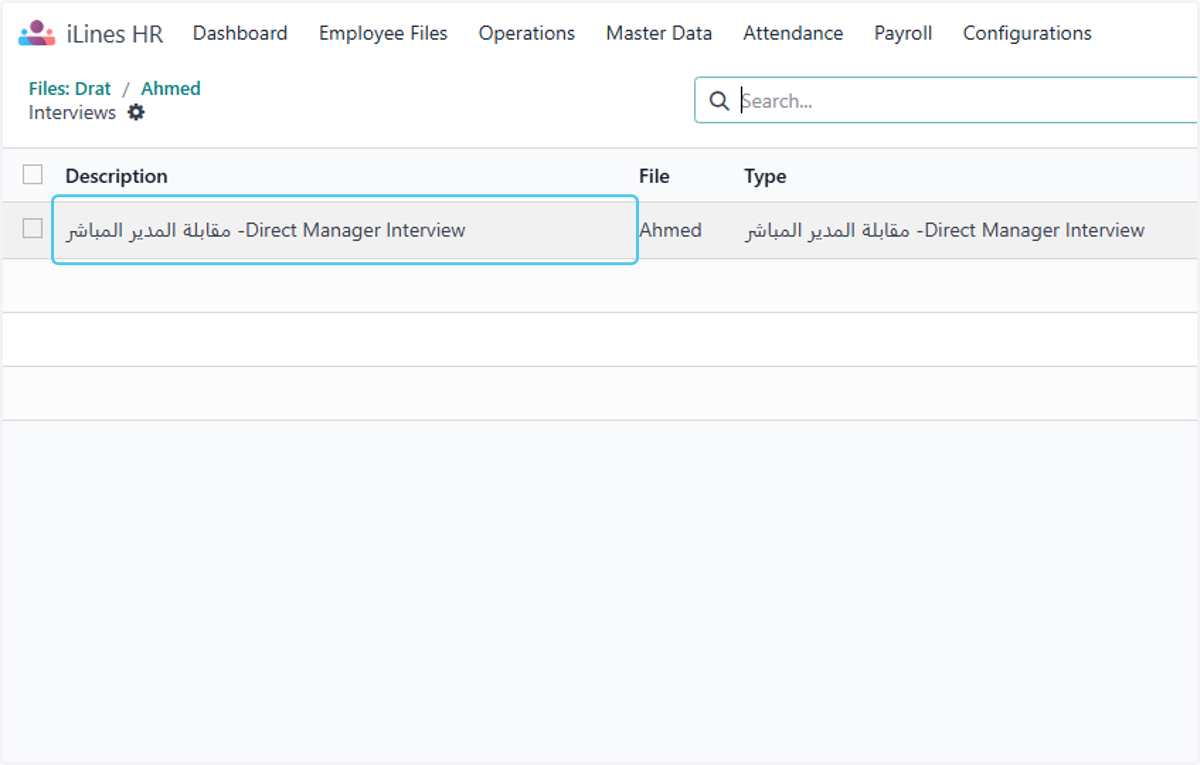
  16. 16. Click on مقابلة المدير المباشر -Direct Manager Interview

    Click on مقابلة المدير المباشر -Direct Manager Interview
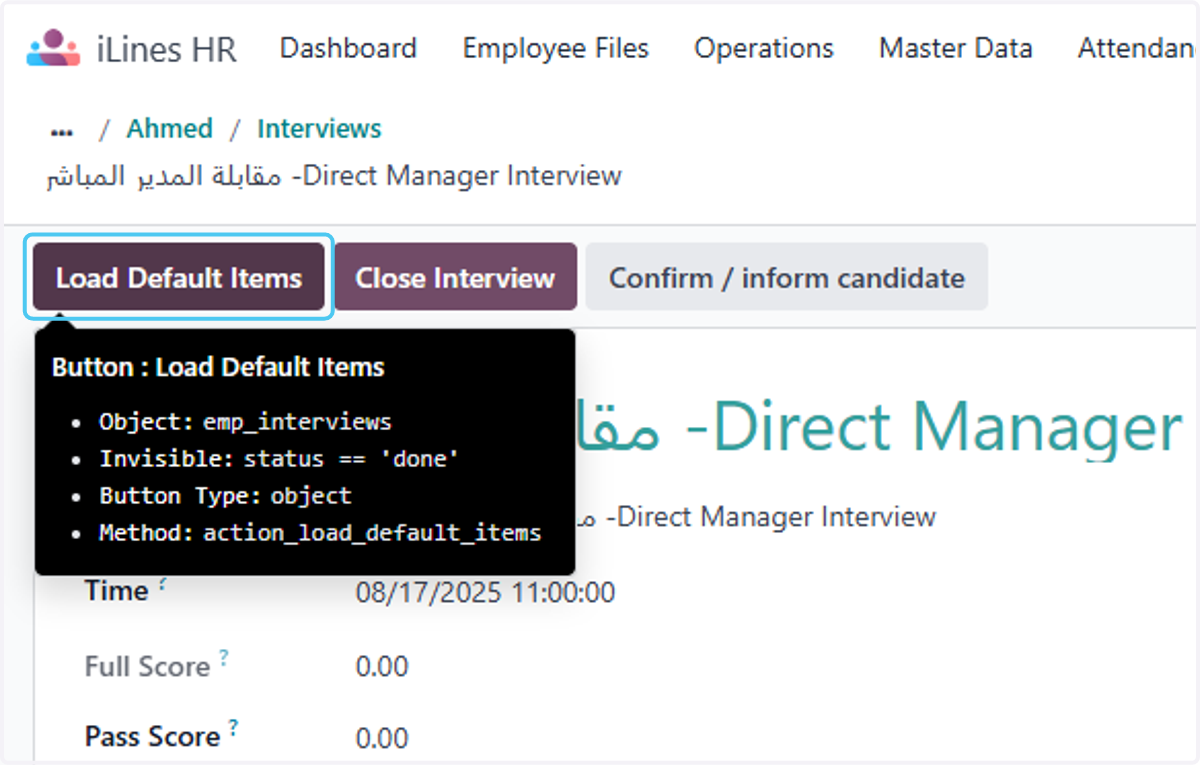
  17. 17. Click on Load Default Items

    Click on Load Default Items
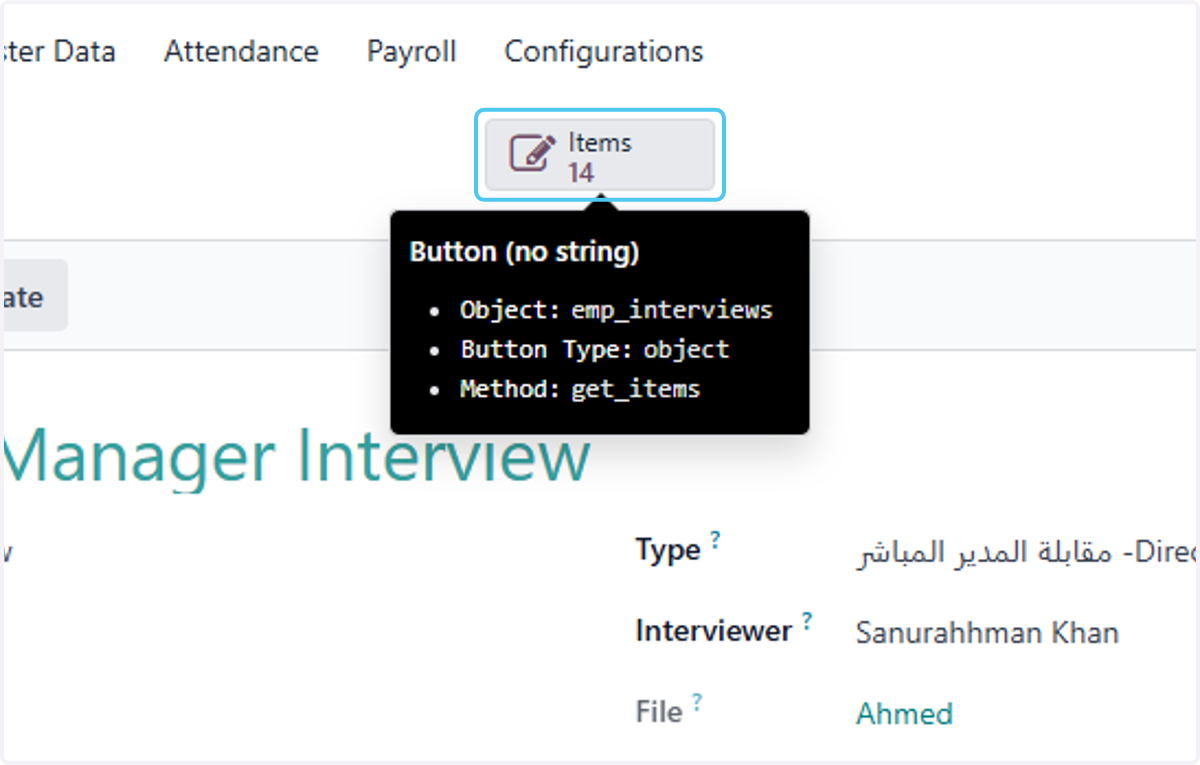
  18. 18. Click on Items

    Click on Items
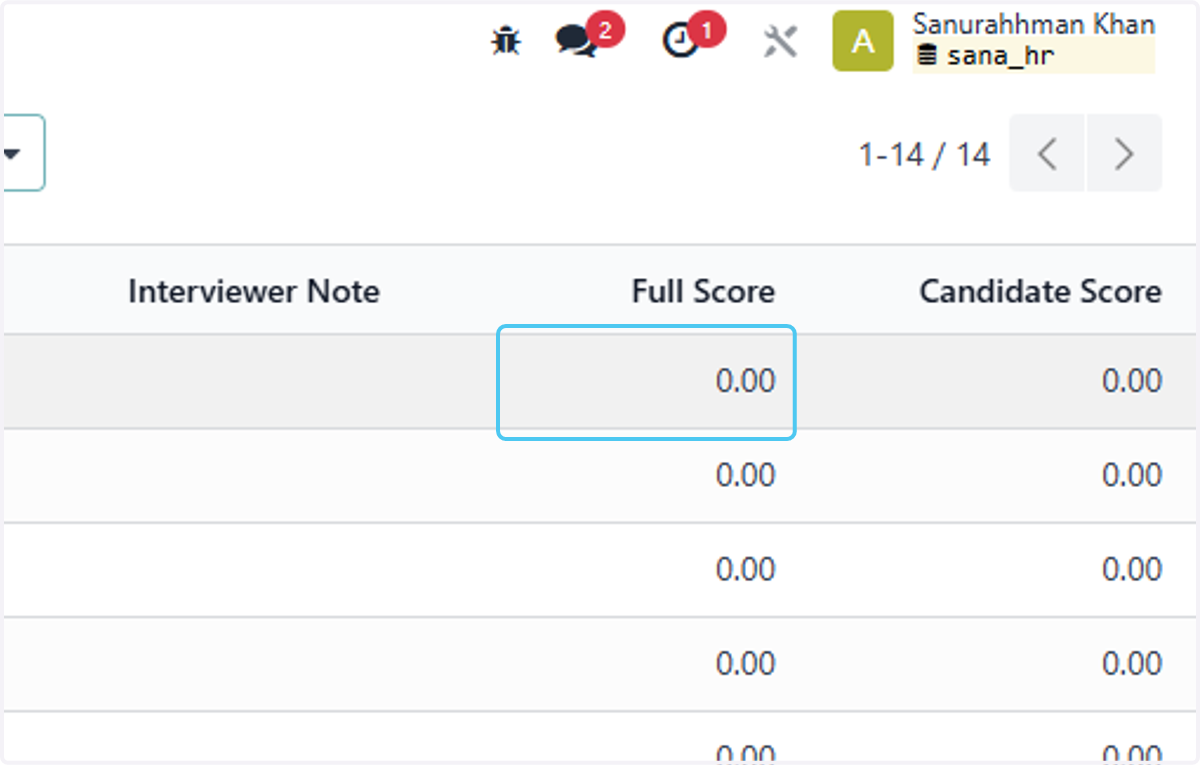
  19. 19. Click on 0.00

    Click on 0.00
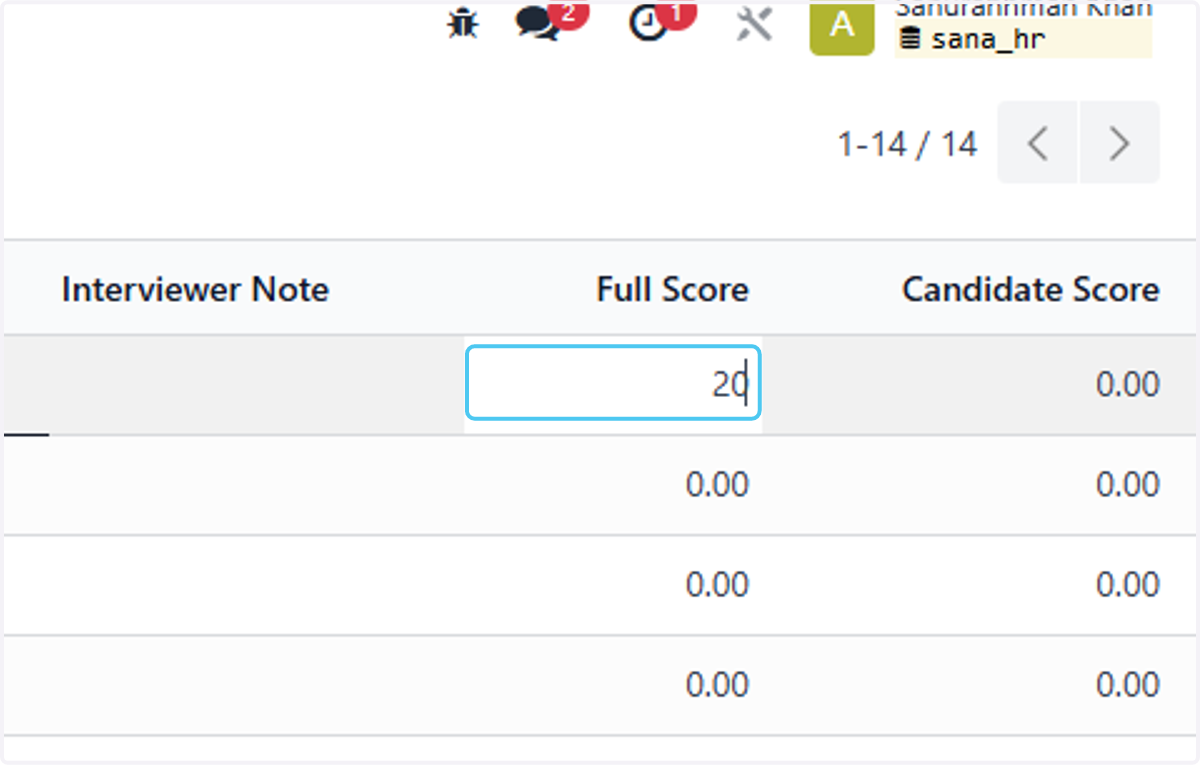
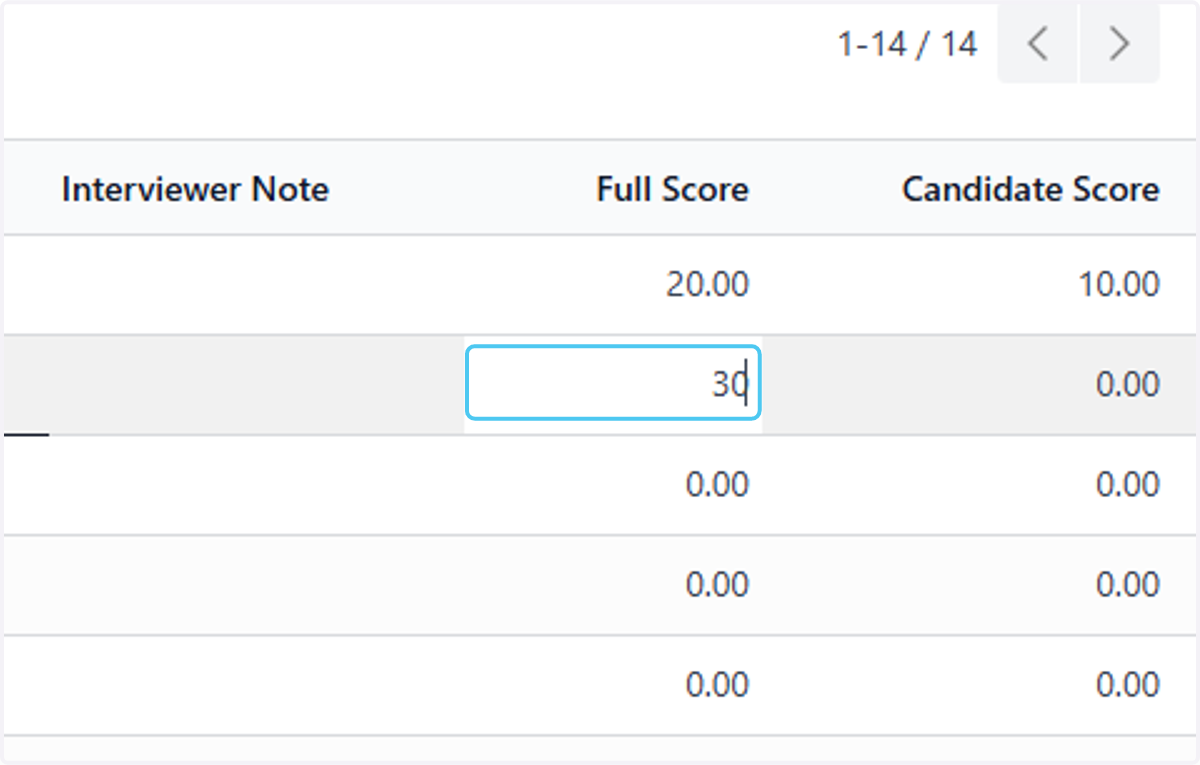
  20. 20. Type "20"

    Type "20"
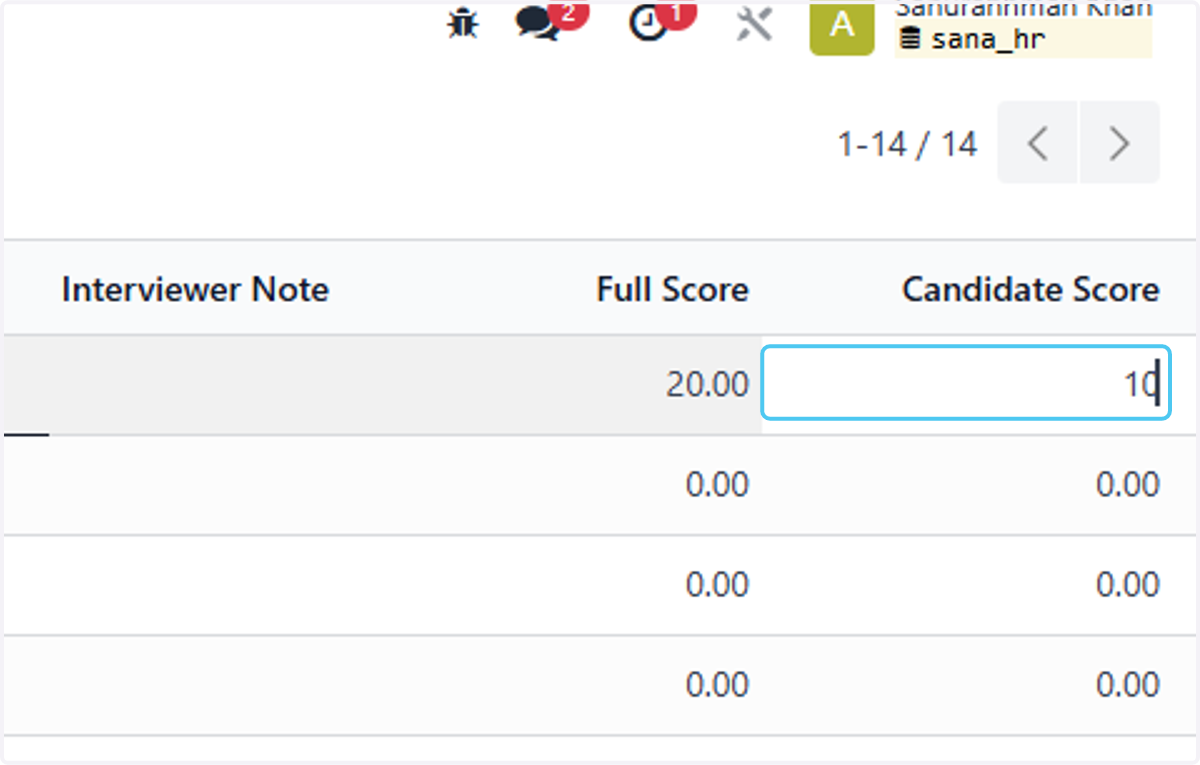
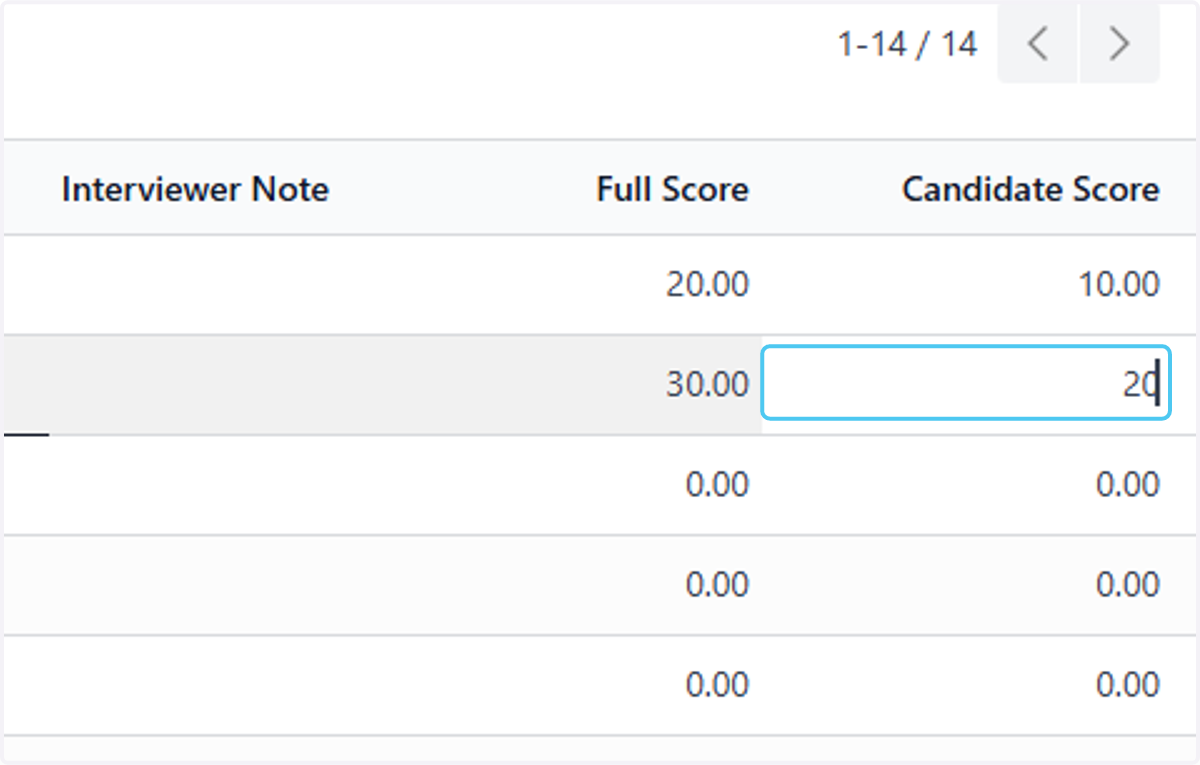
  21. 21. Type "10"

    Type "10"
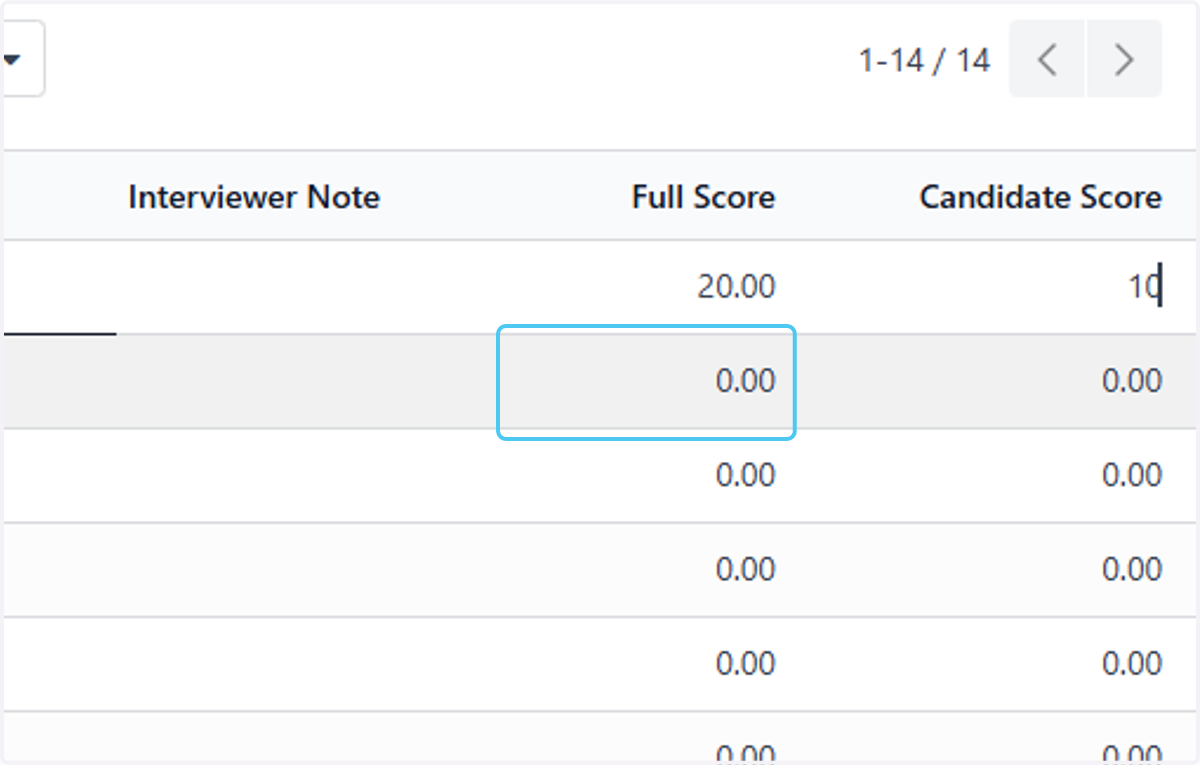
  22. 22. Click on 0.00

    Click on 0.00
  23. 23. Type "30"

    Type "30"
  24. 24. Type "20"

    Type "20"
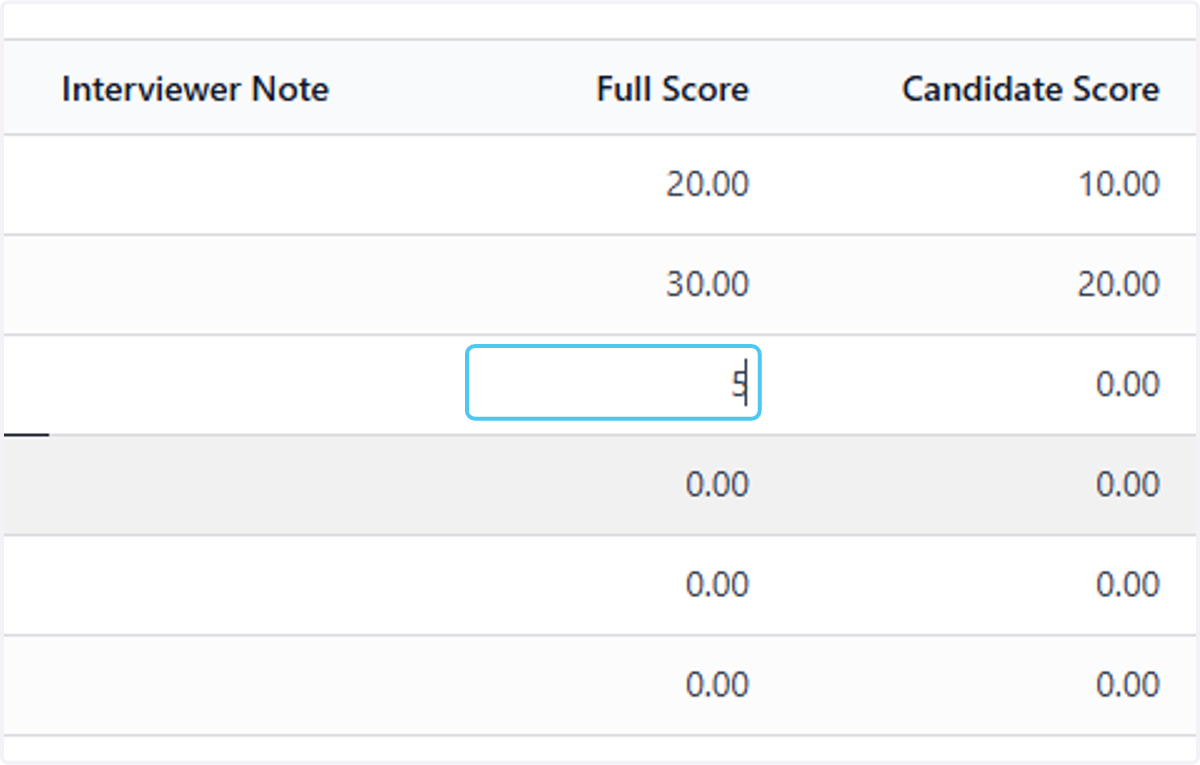
  25. 25. Type "5"

    Type "5"
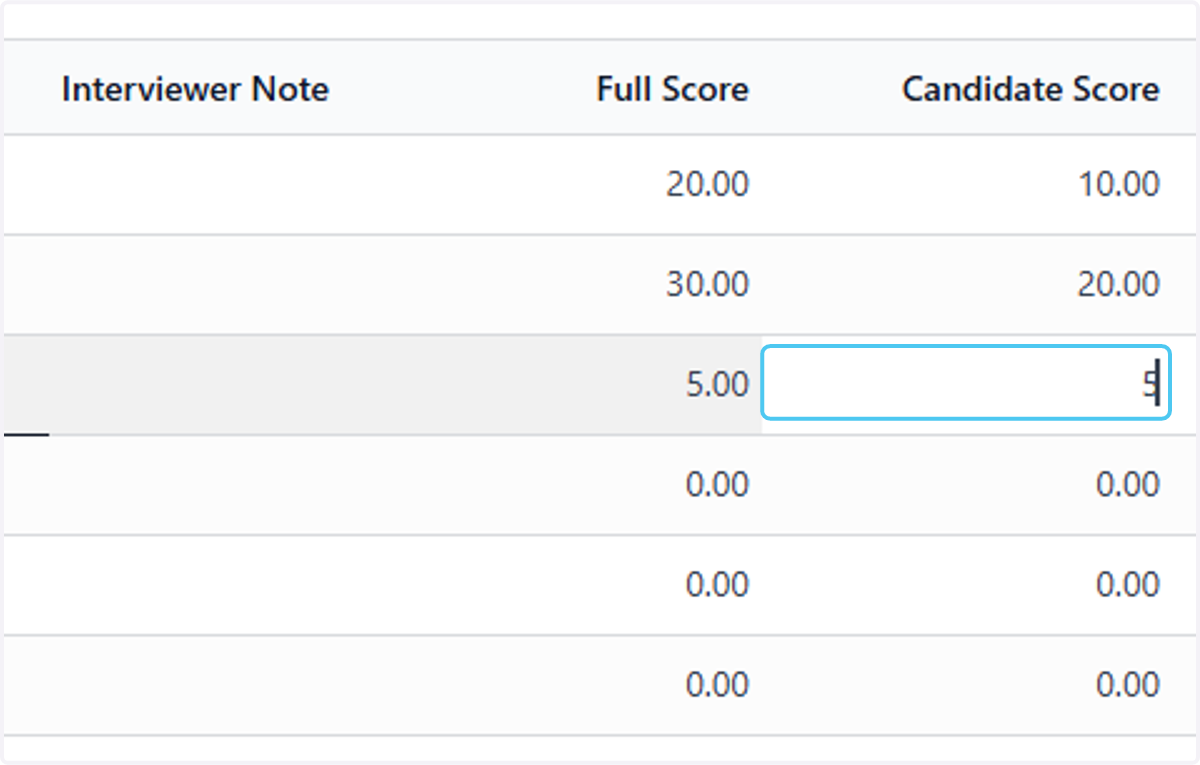
  26. 26. Type "5"

    Type "5"
  27. 27. Enter the Full Score of iinterview item and Candidate Score
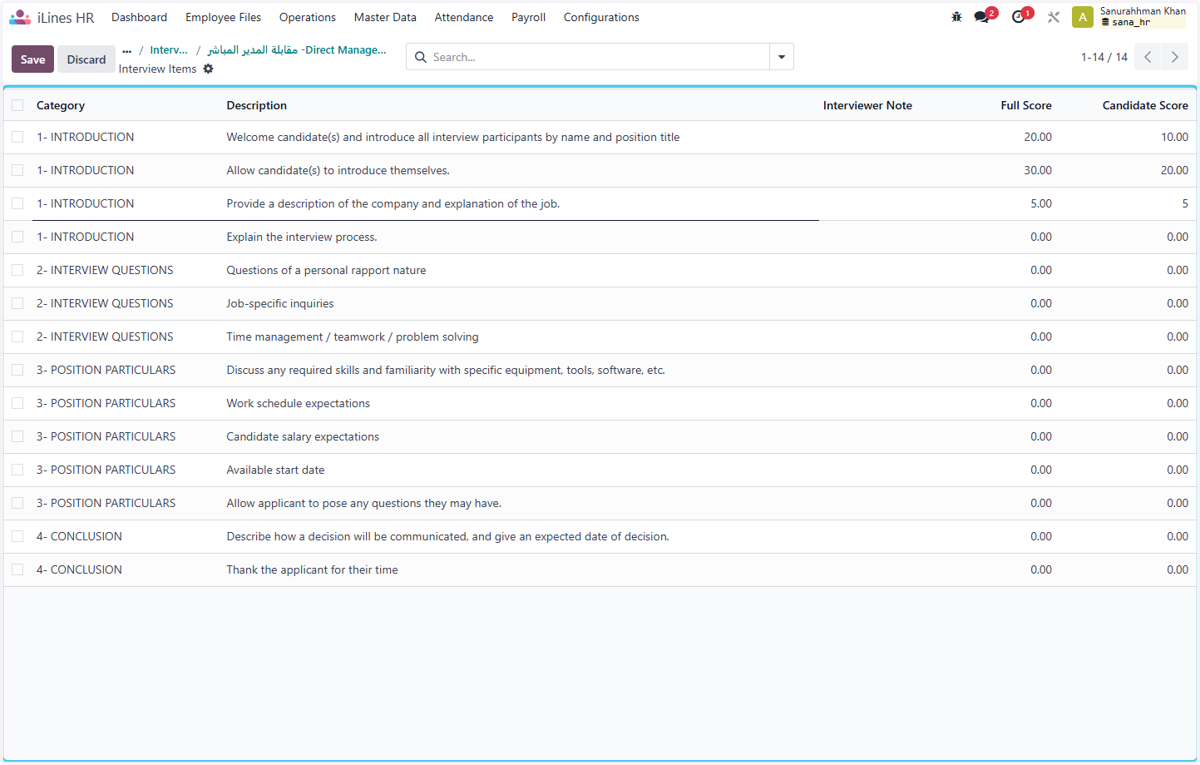
    Enter the Full Score of iinterview item and Candidate Score
  28. 28. Click on مقابلة المدير المباشر -Direct Manager Interview
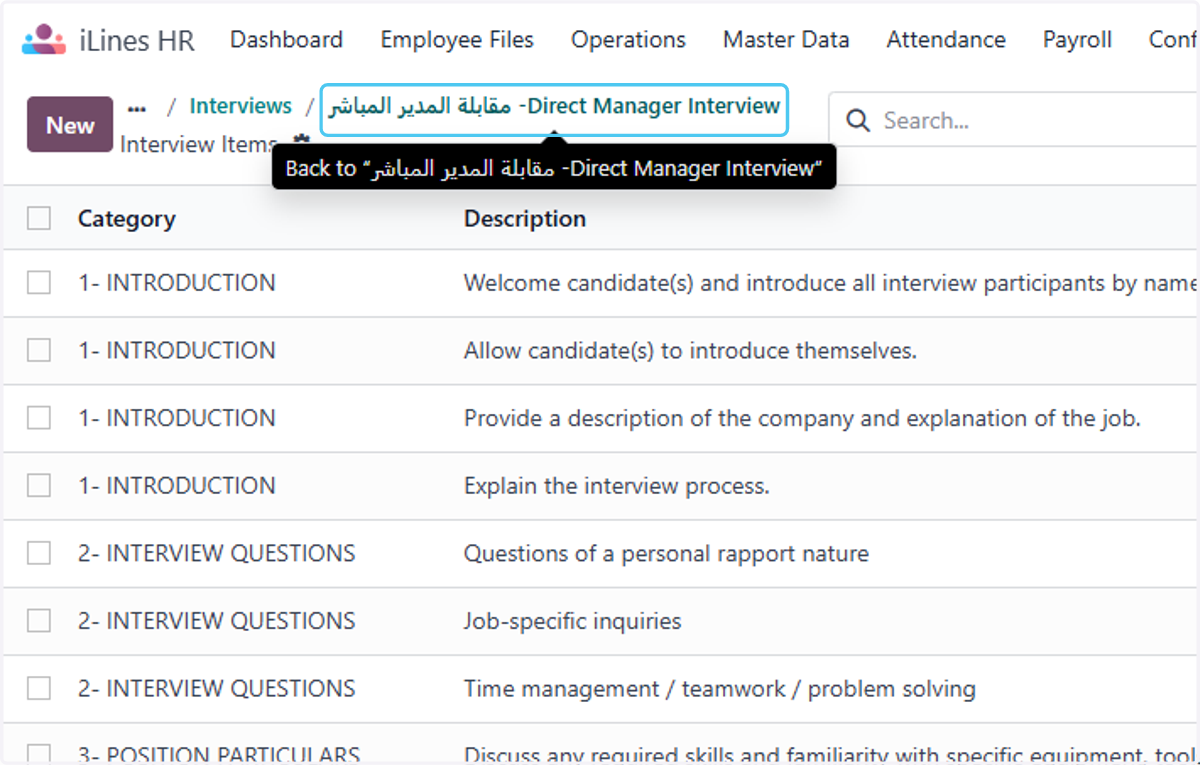
    Click on مقابلة المدير المباشر -Direct Manager Interview
  29. 29. Enter the Pass Score of candidate
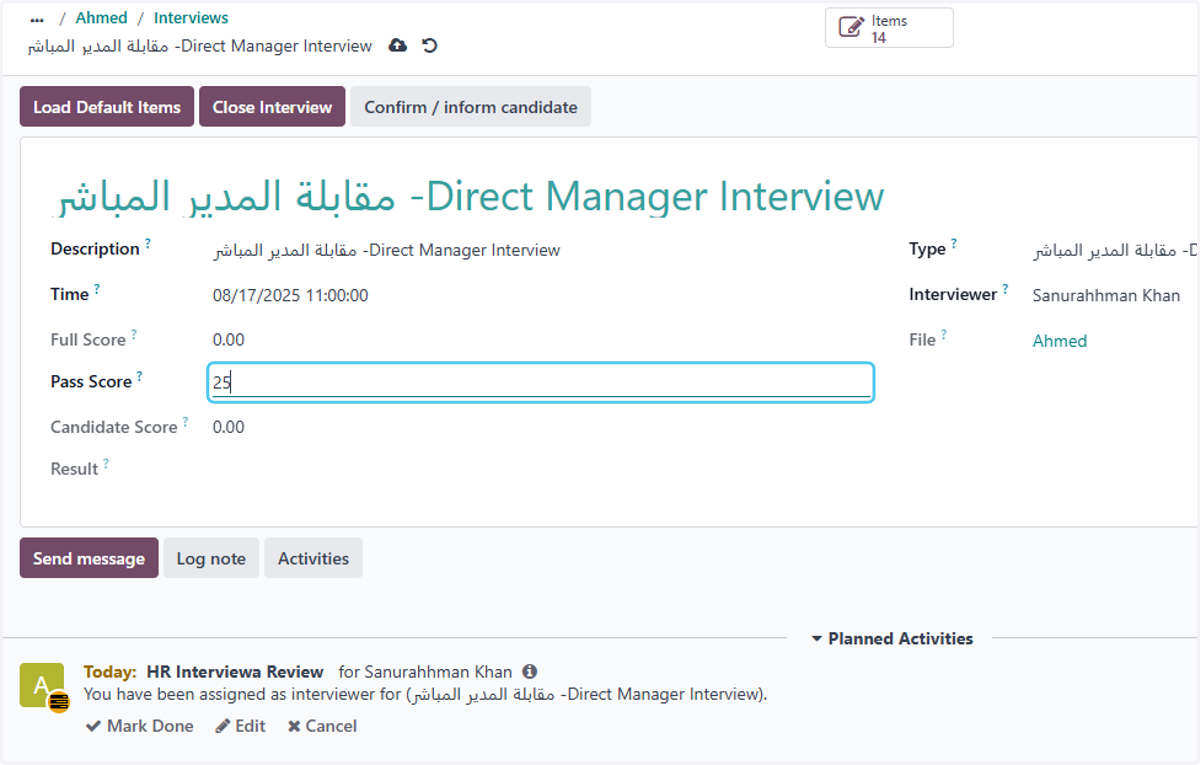
    Enter the Pass Score of candidate
  30. 30. Click on Save manually after entring all the details in form.
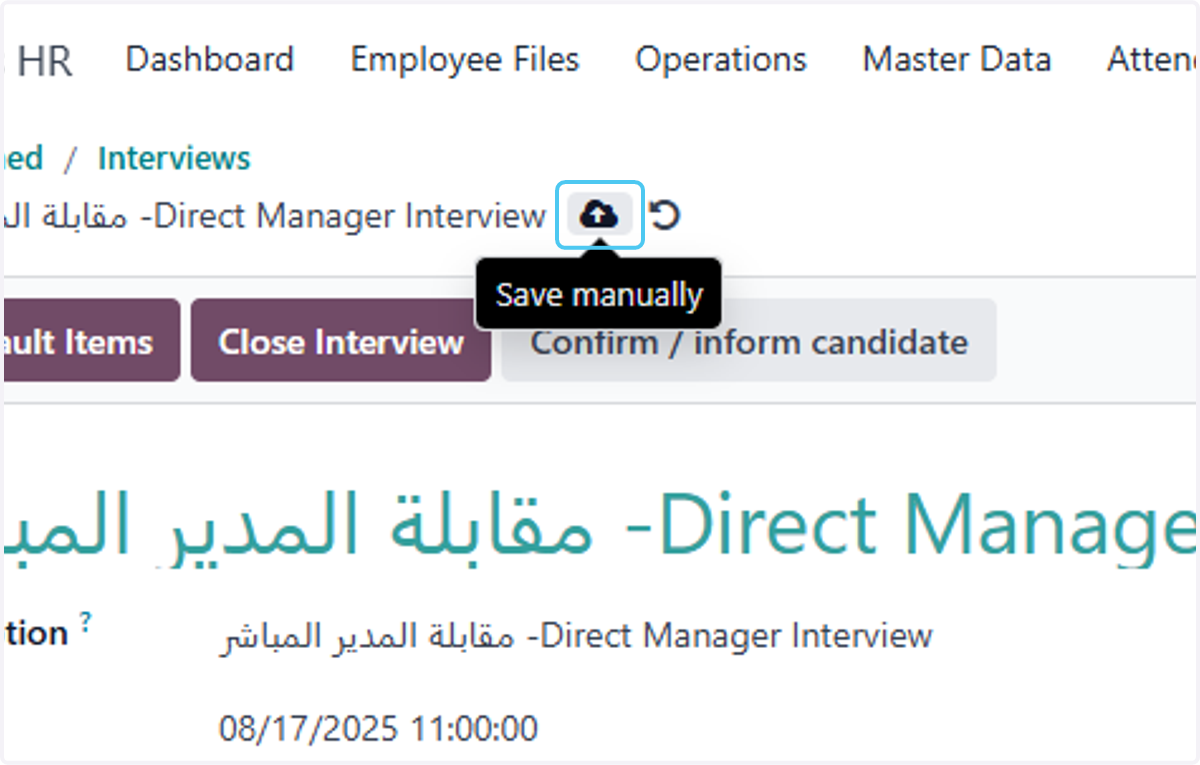
    Click on Save manually after entring all the details in form.
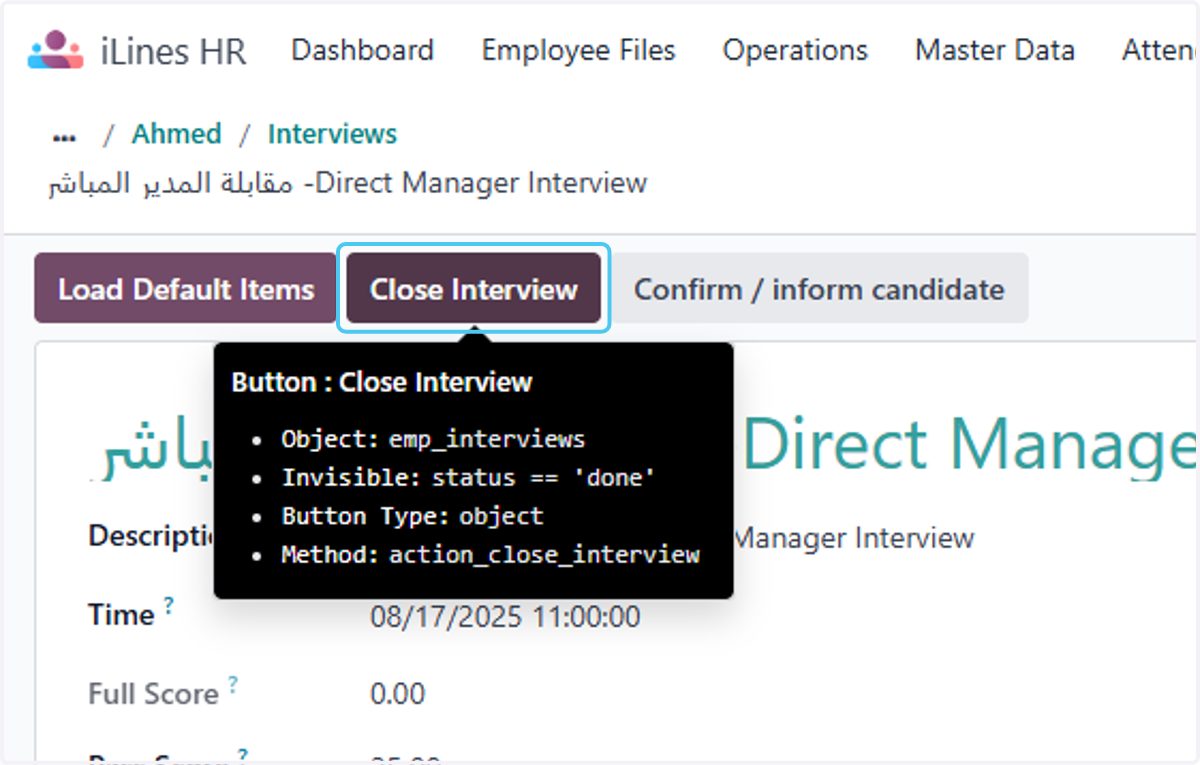
  31. 31. Click on Close Interview

    Click on Close Interview
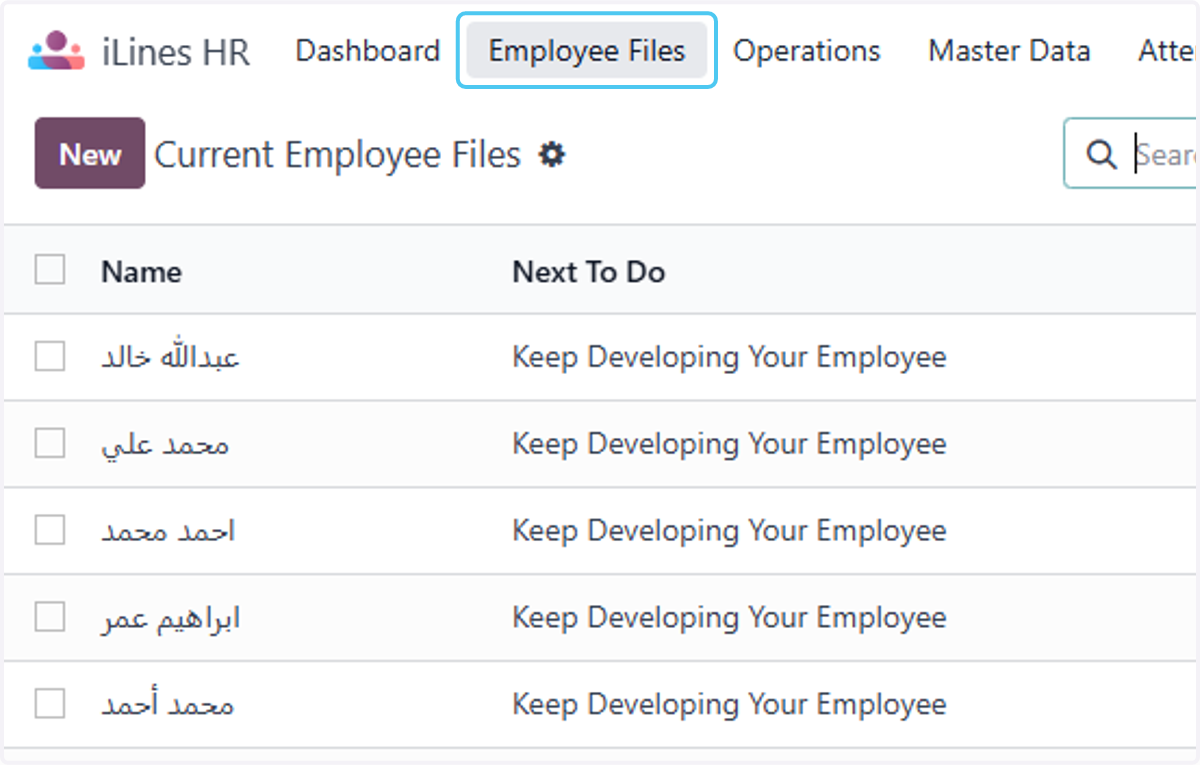
  32. 32. Click on Employee Files

    Click on Employee Files
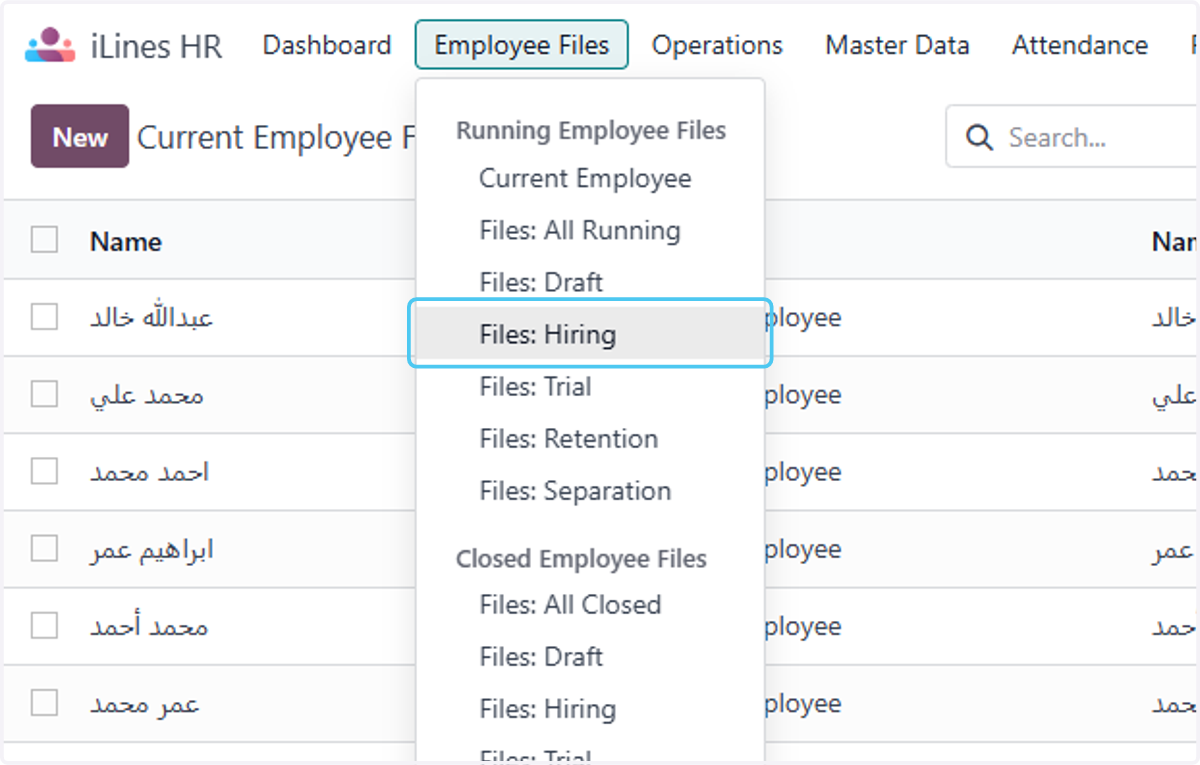
  33. 33. Click on Files: Hiring

    Click on Files: Hiring
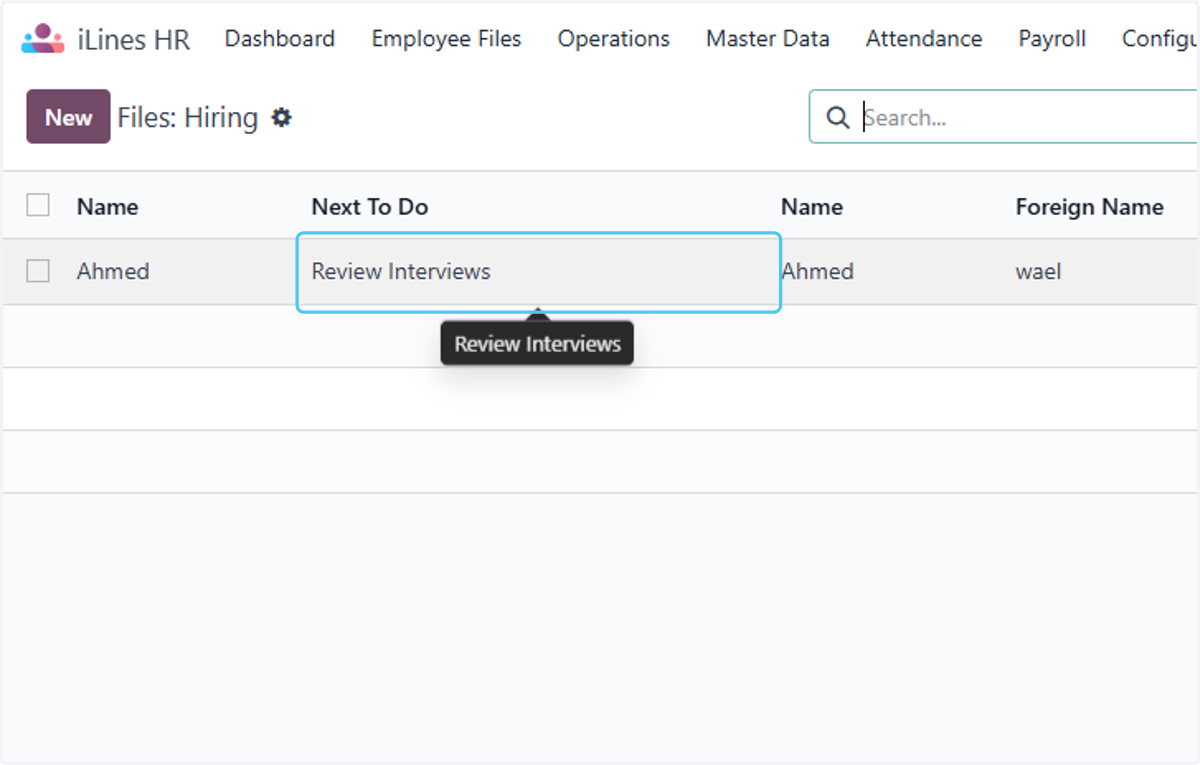
  34. 34. Click on Review Interviews

    Click on Review Interviews
  35. 35. Click on Accept Candidate

    Click on Accept Candidate