[TUTORIAL] People Utility Part 2 - Using the Utility and Component
1. Before we build the directory, make sure your portraits are set up correctly.
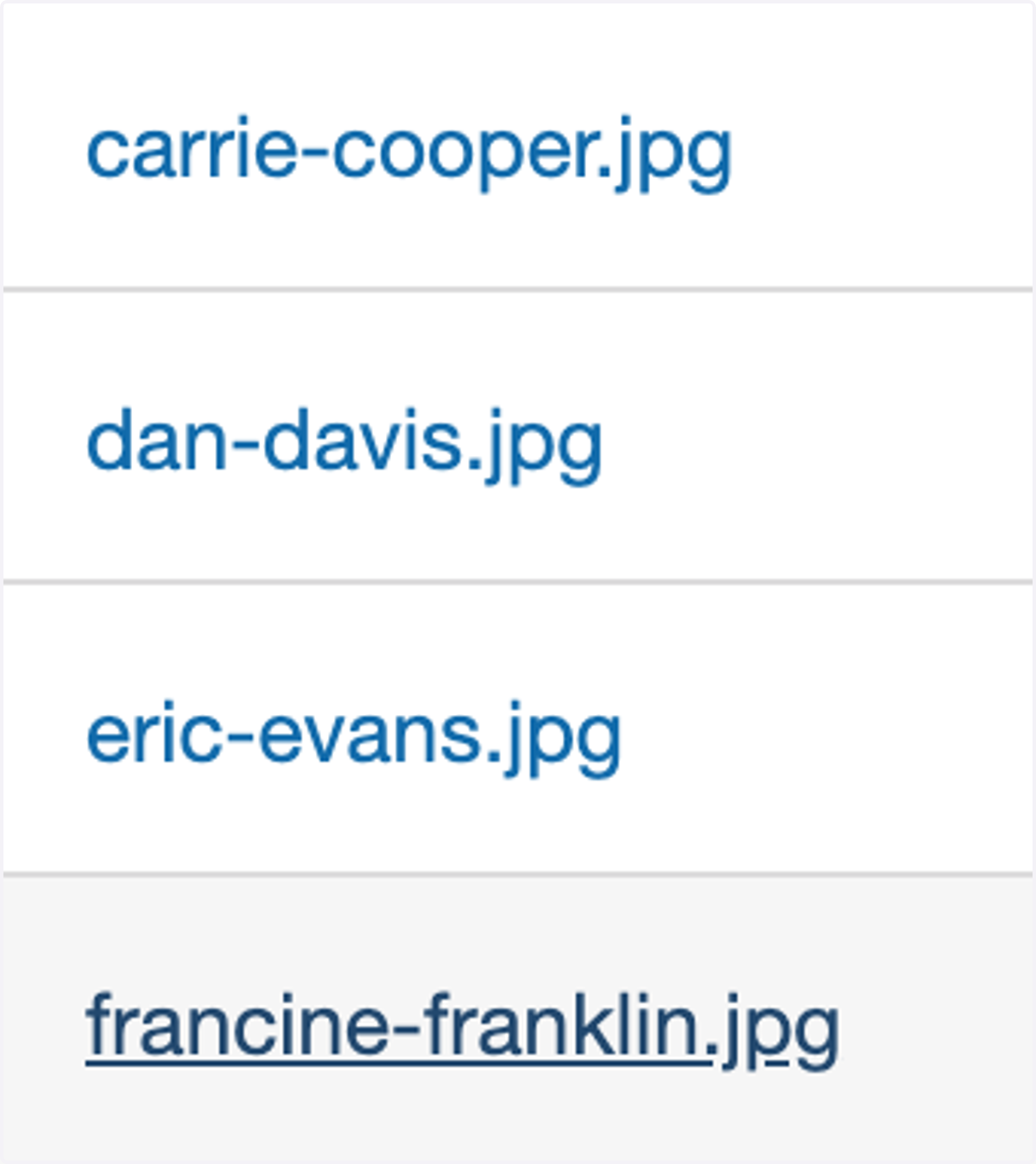
We recommend square images that are at least 500 by 500 pixels for the best results. Use lowercase, hyphenated filenames like firstname-lastname.jpg. If you follow that format, the utility will automatically match images to people. You only need to use the image column in the spreadsheet if you’re overriding the default filename or handling duplicate names.
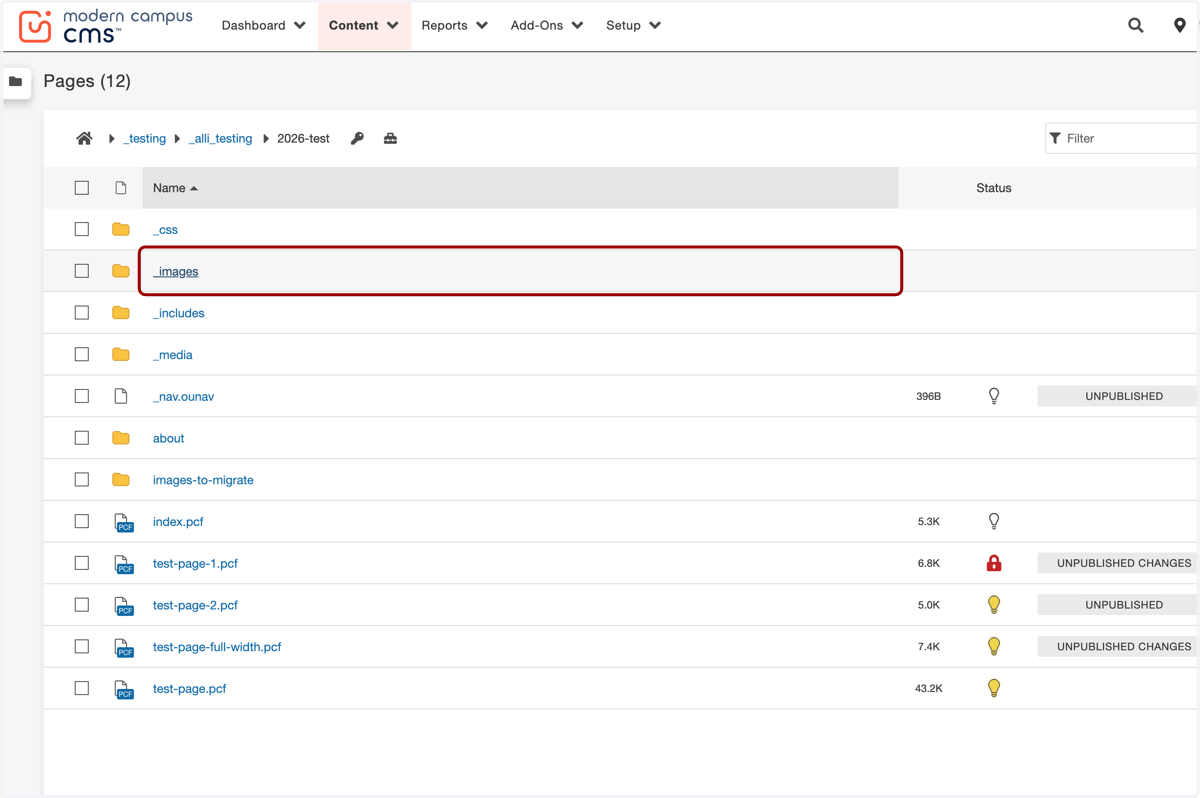
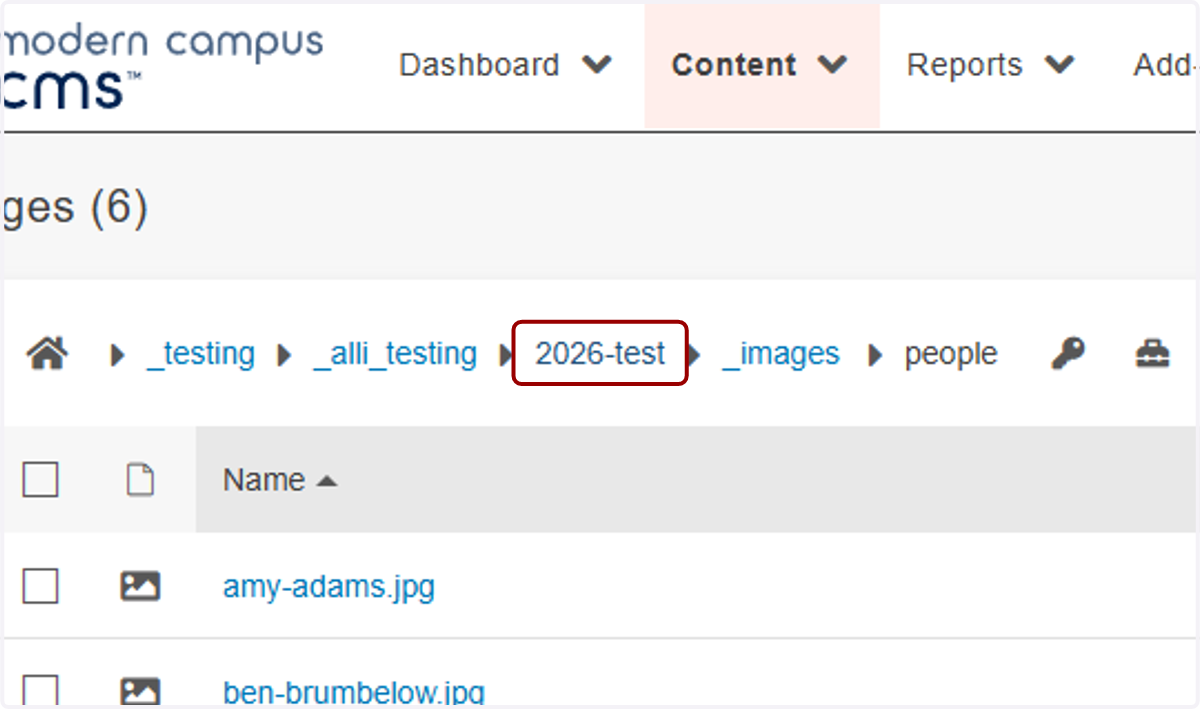
2. To upload your photos, navigate to your site and click on _images.
3. Once you're in your _images folder...
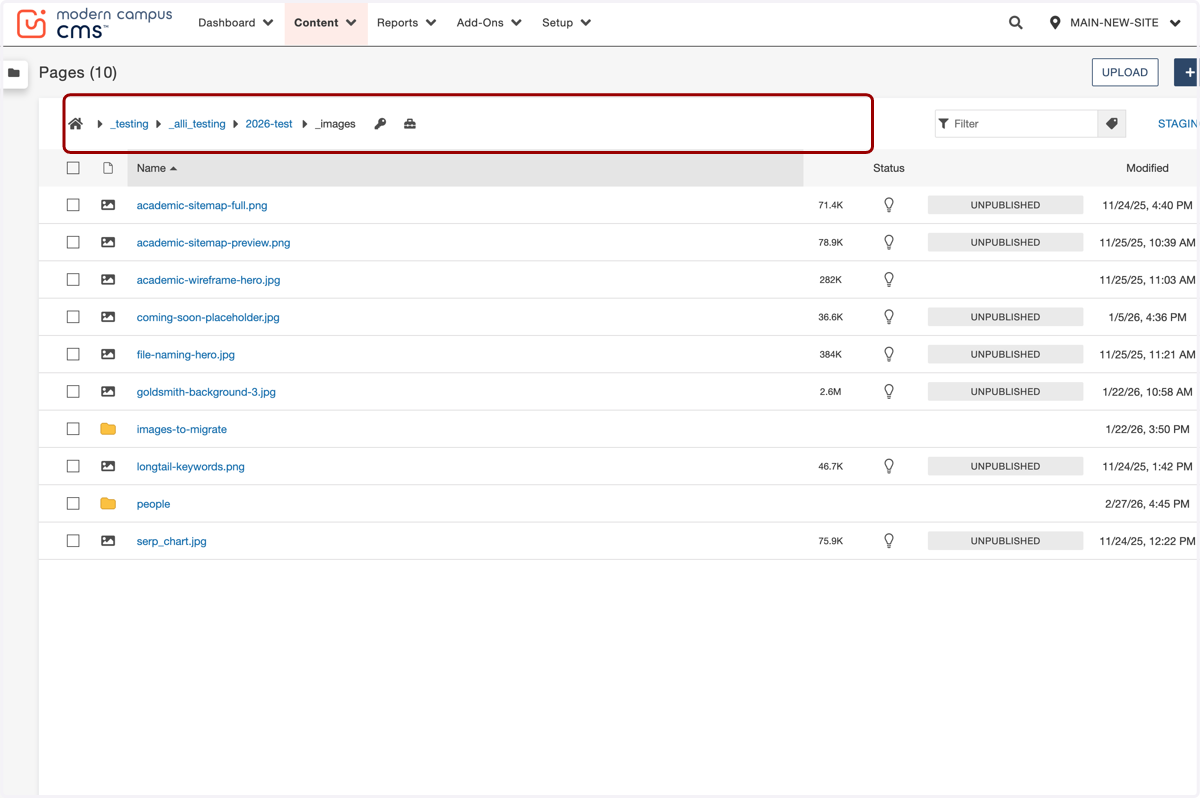
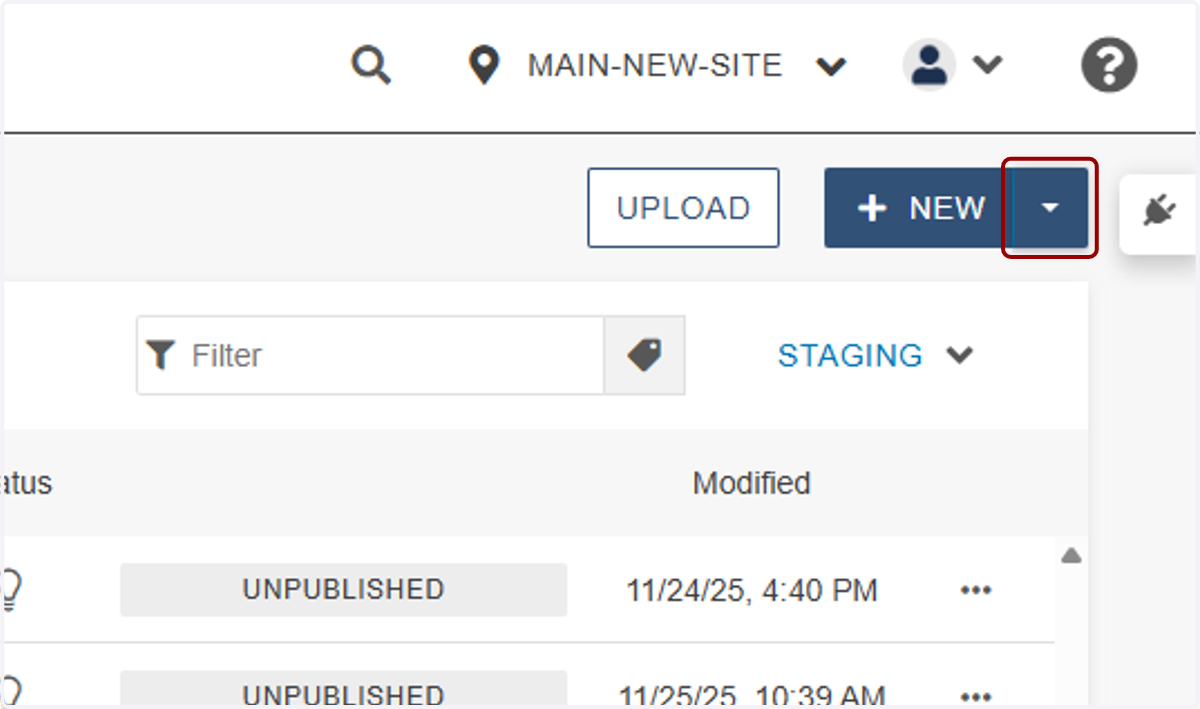
4. ...click the New dropdown in the upper right-hand corner...
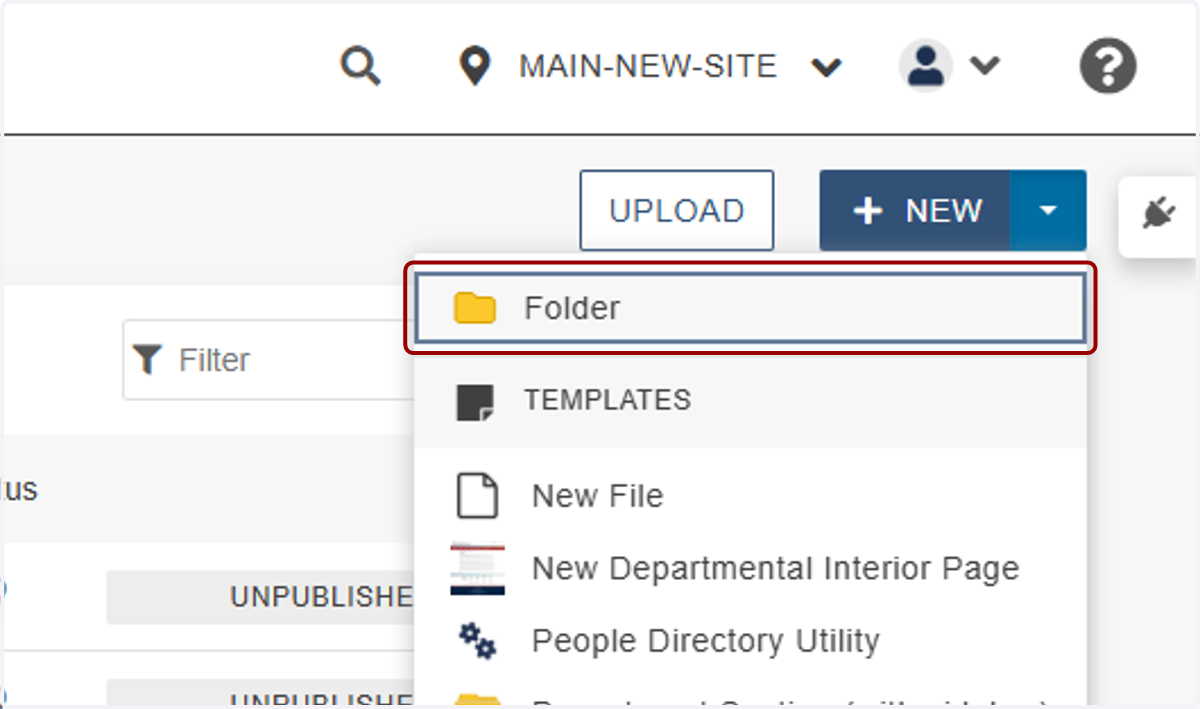
5. ...and click on Folder.
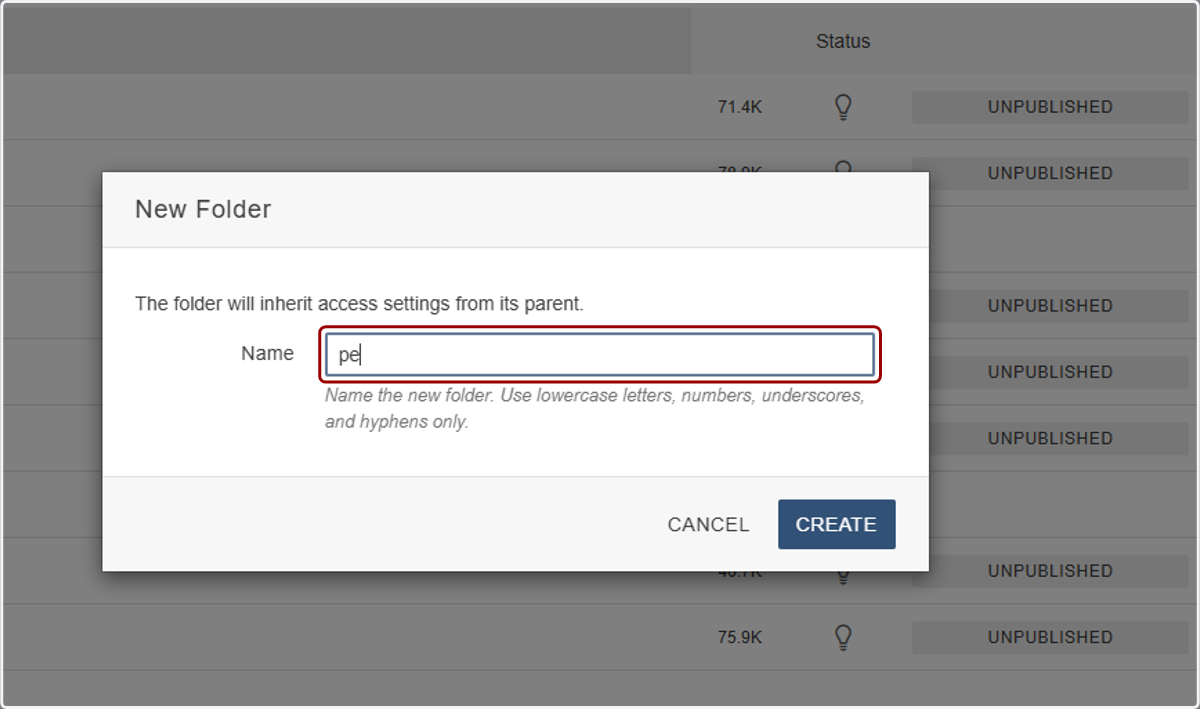
6. Name this folder "people"
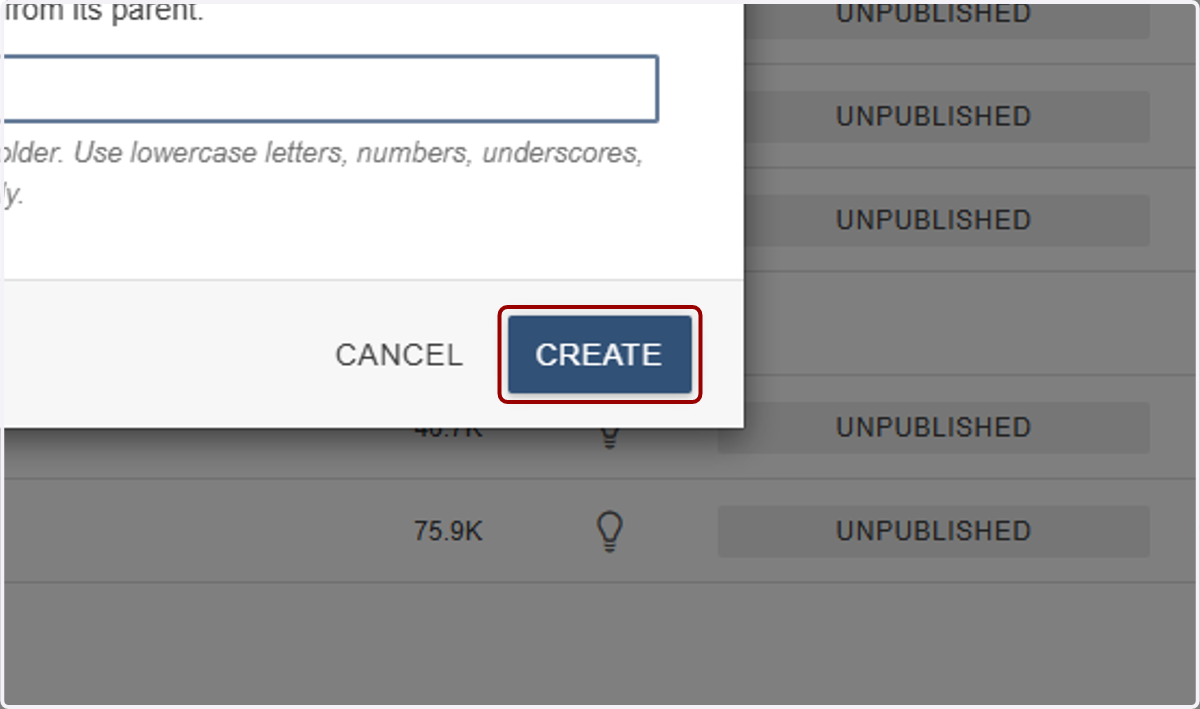
7. And click on CREATE.
8. Once the directory is created, click on it...
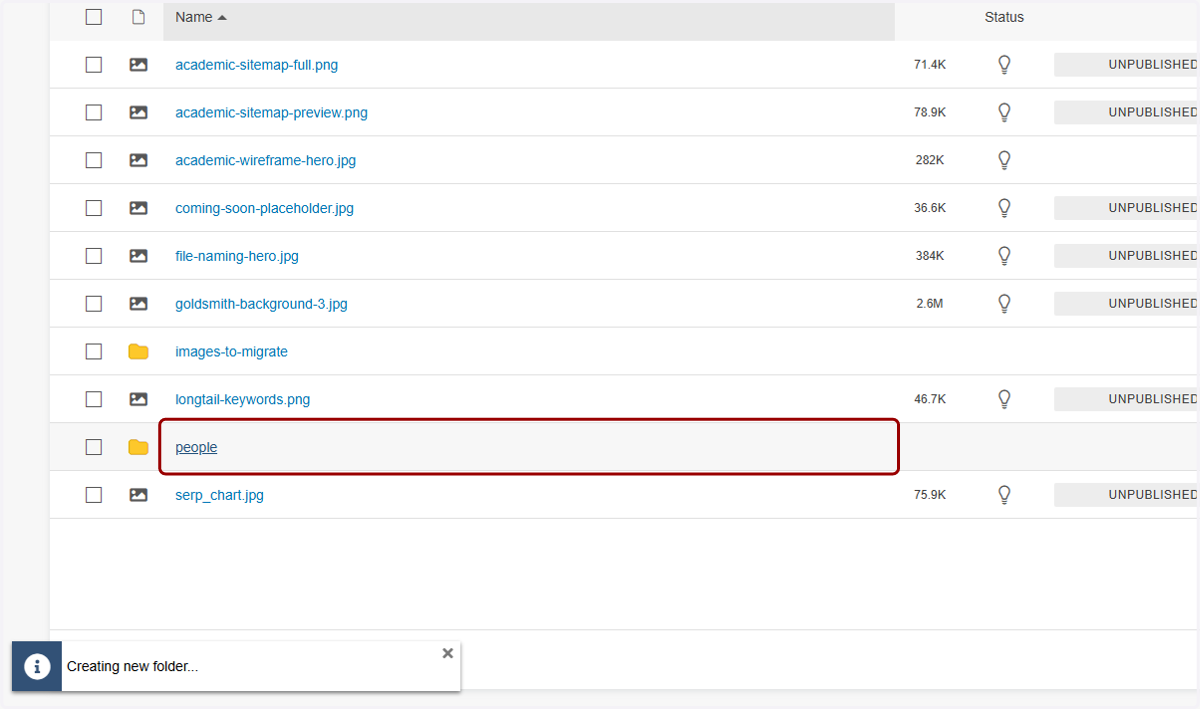
9. ...and then click on UPLOAD.
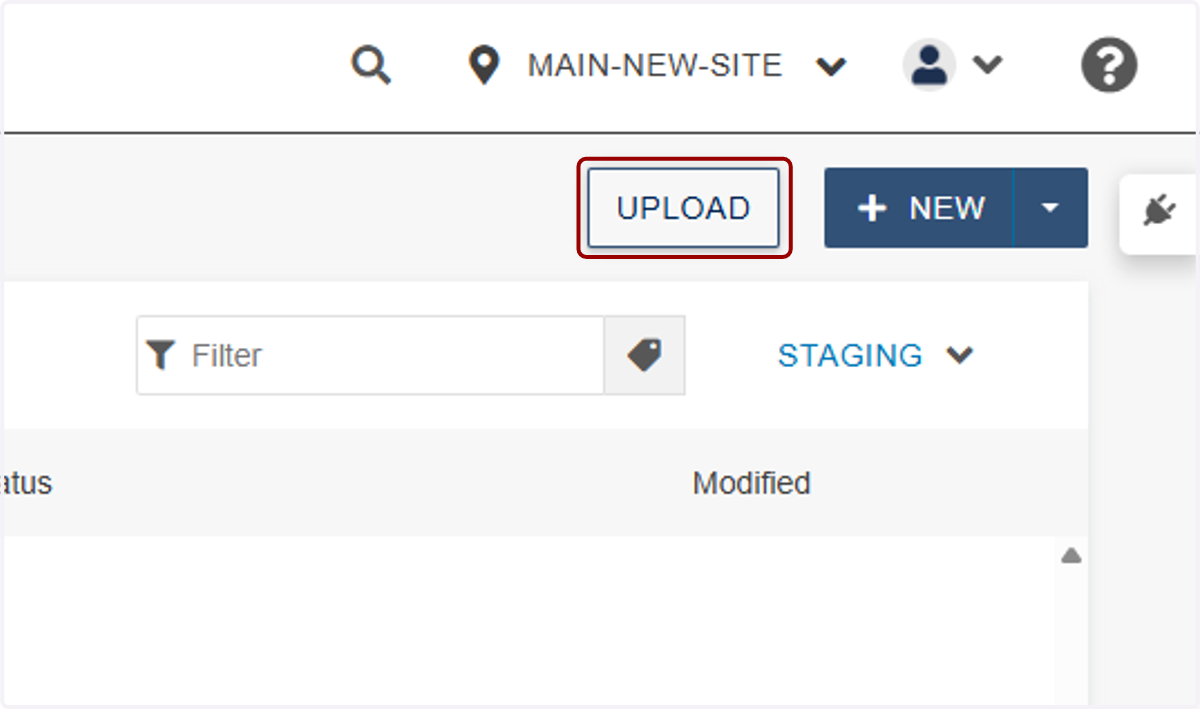
10. Click the +Add button...
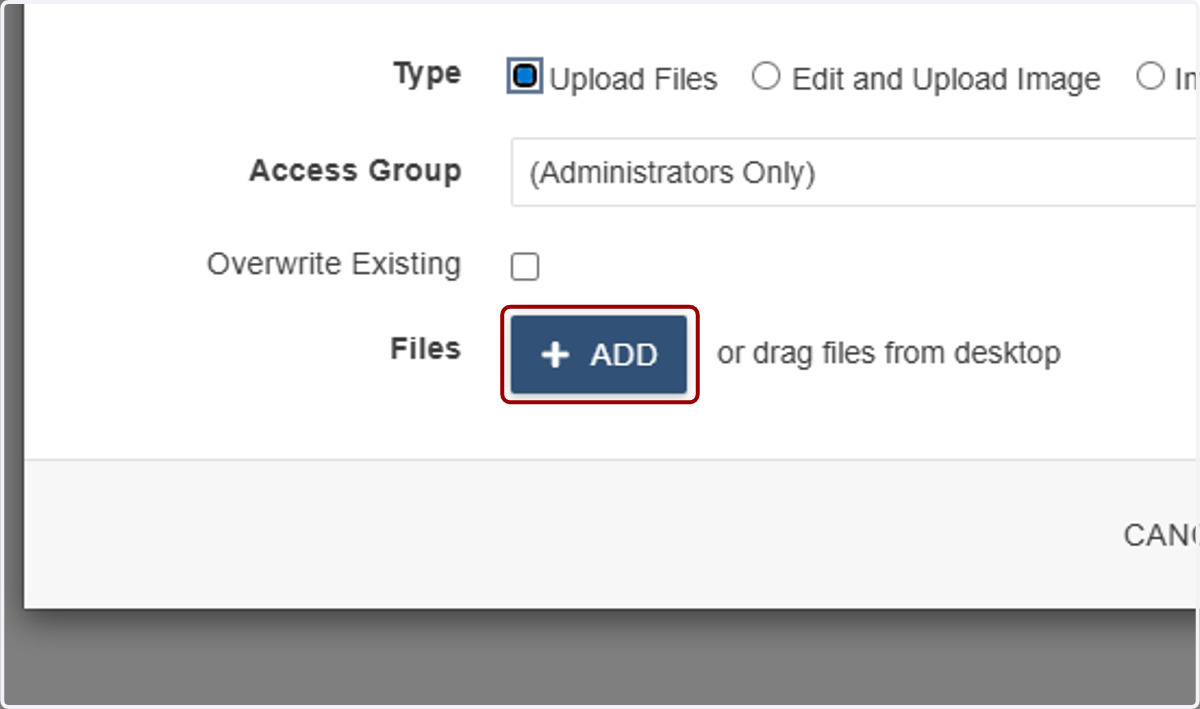
11. ...and add your images.
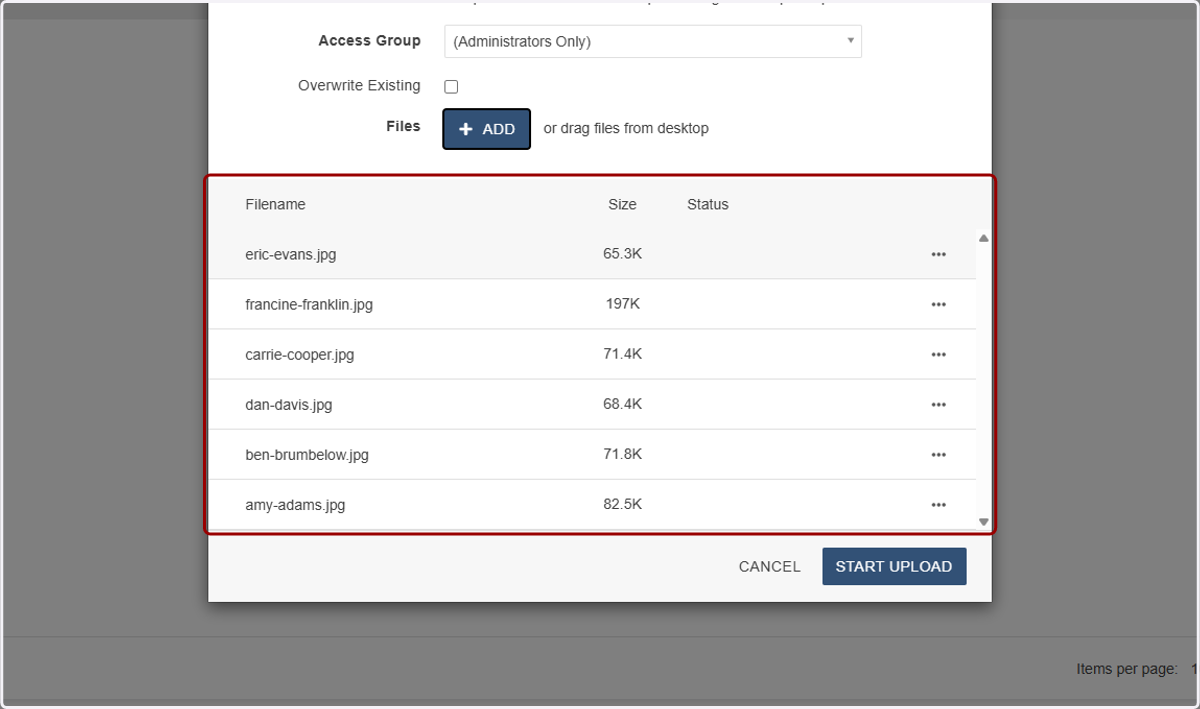
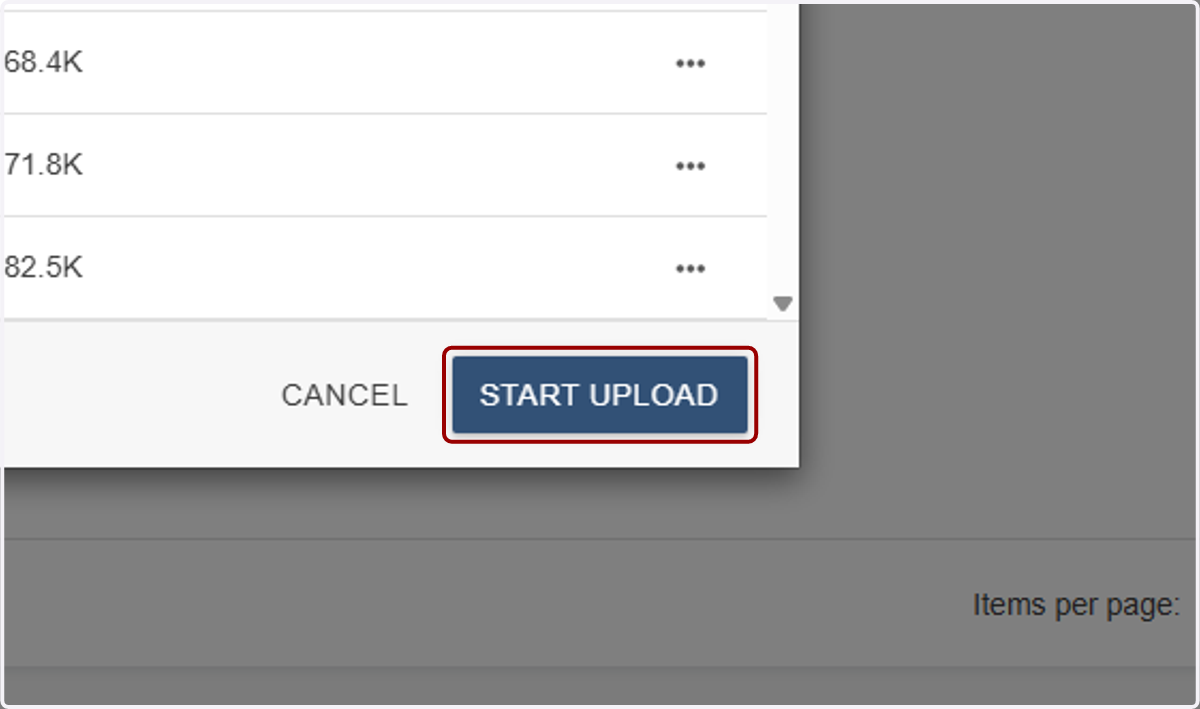
12. Then click START UPLOAD.
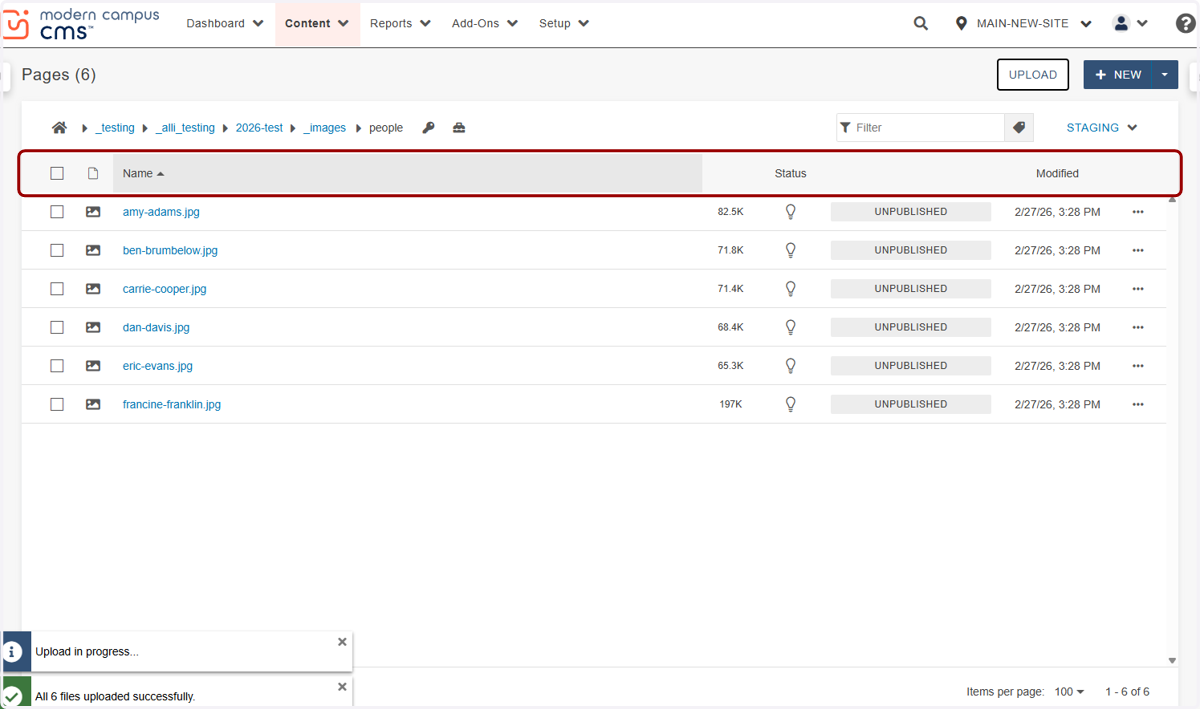
13. You'll see your images in your new people directory.
14. A very important step is to click on your images, then PUBLISH...
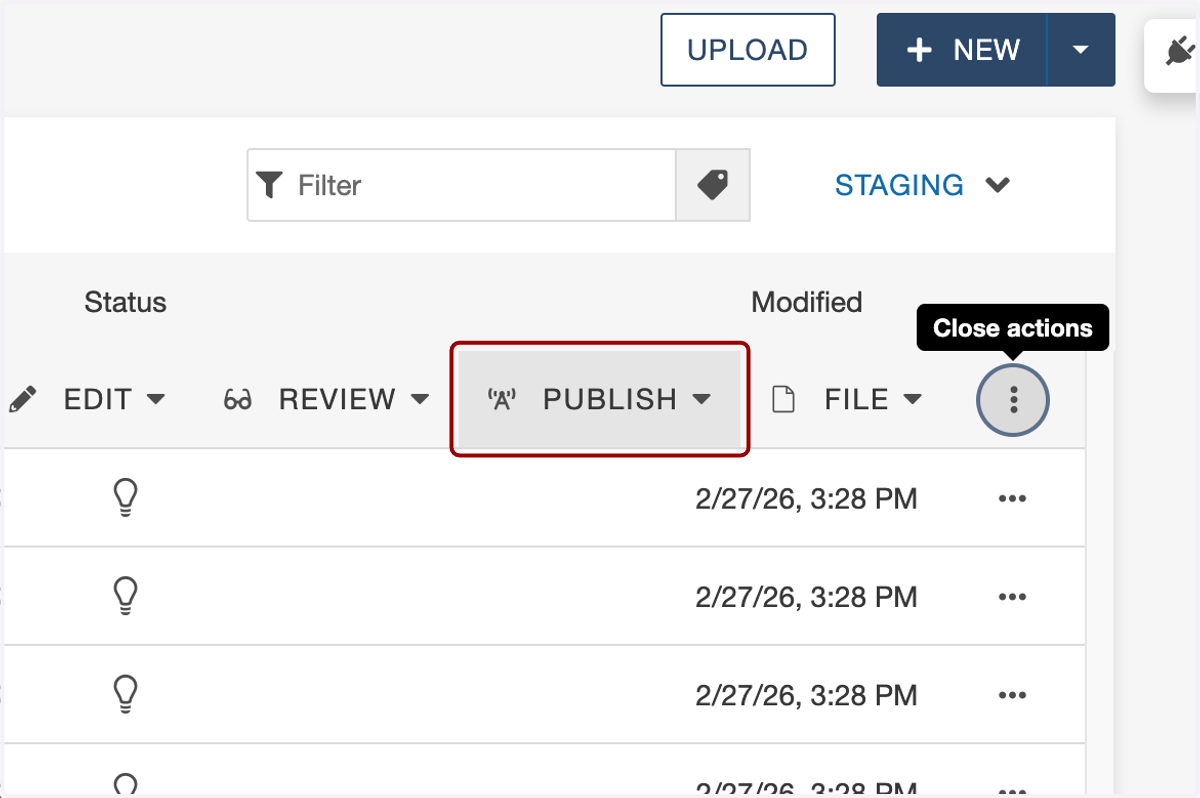
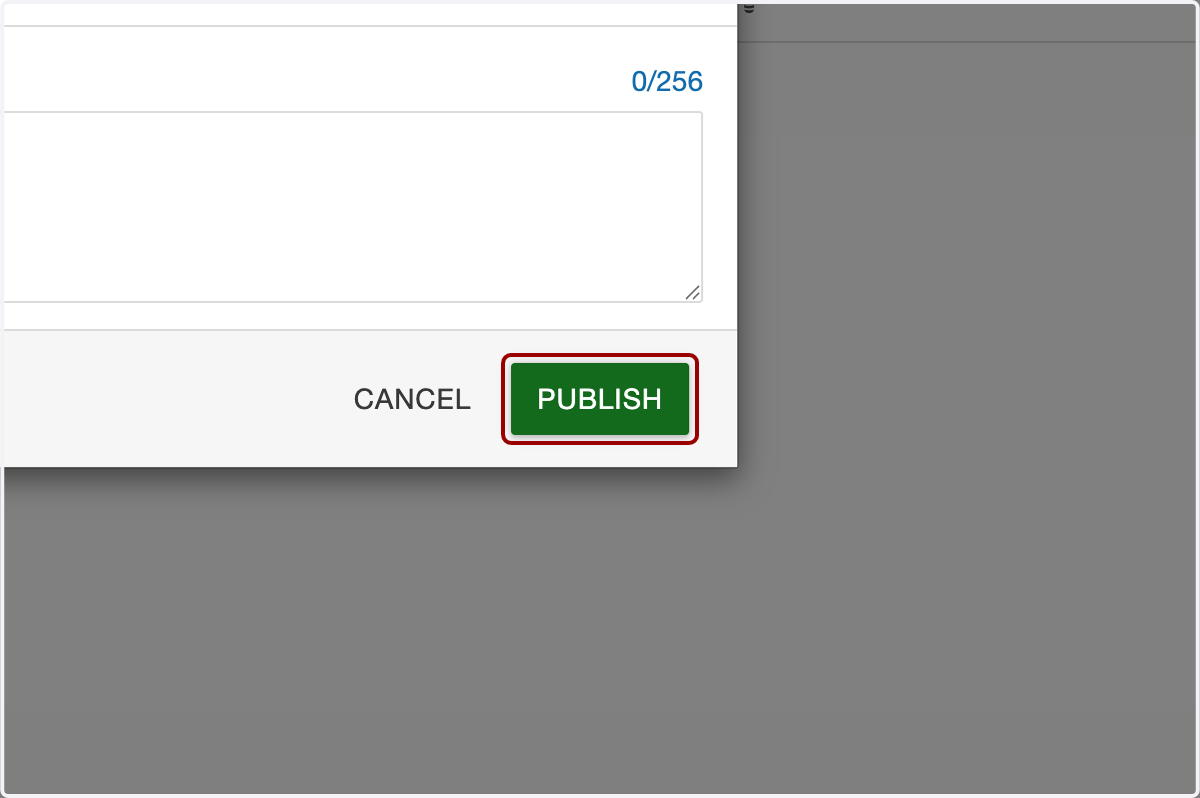
15. ...and publish them so they display when you publish your page.
16. Next, return to your site's main directory...
17. ...click on _includes...
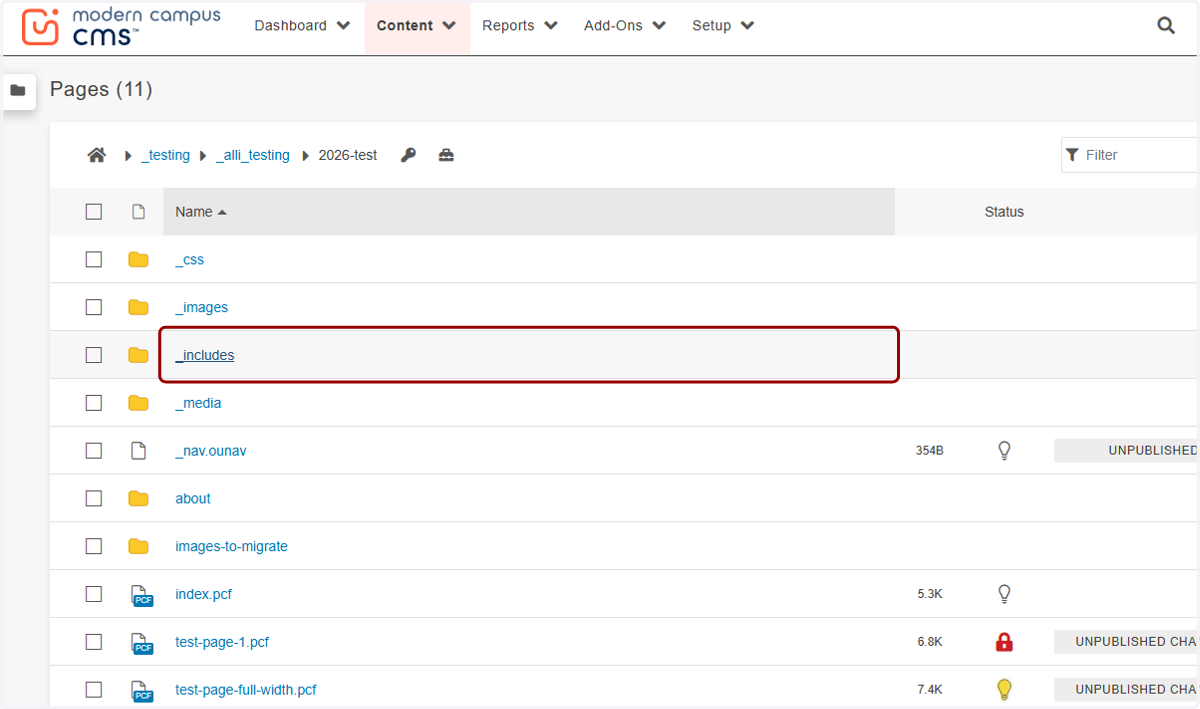
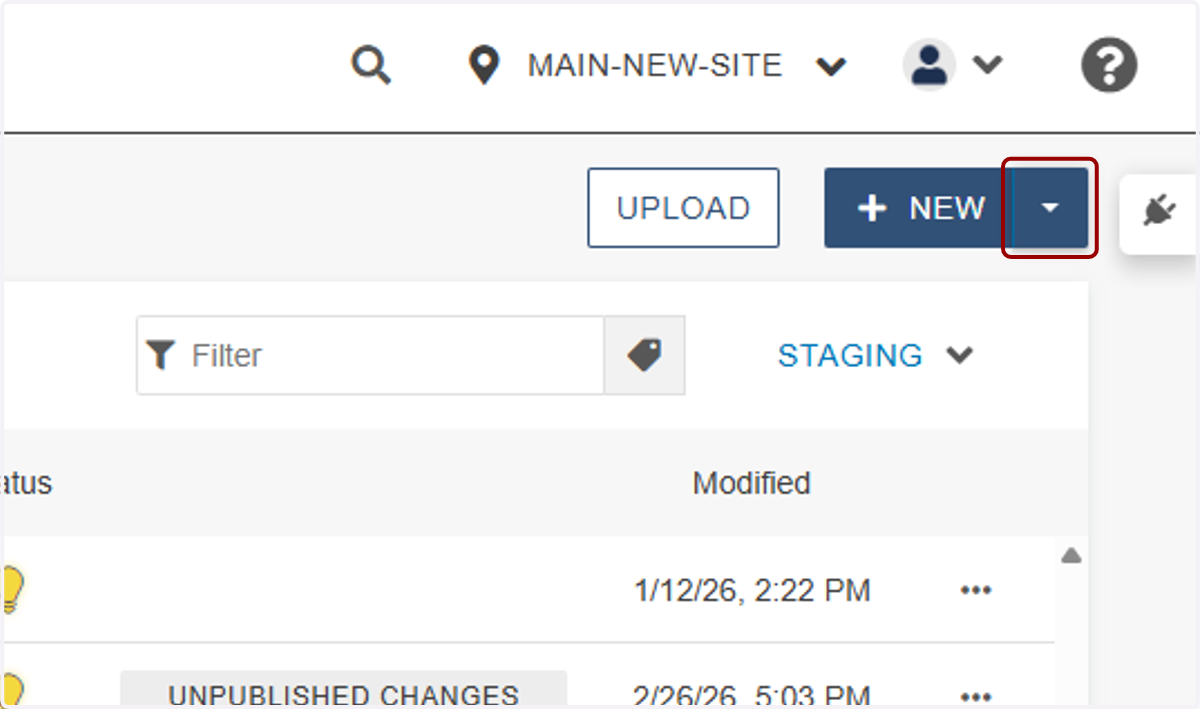
18. ...and once you're in the _includes directory, click on the New dropdown.
19. Select the People Directory Utility.
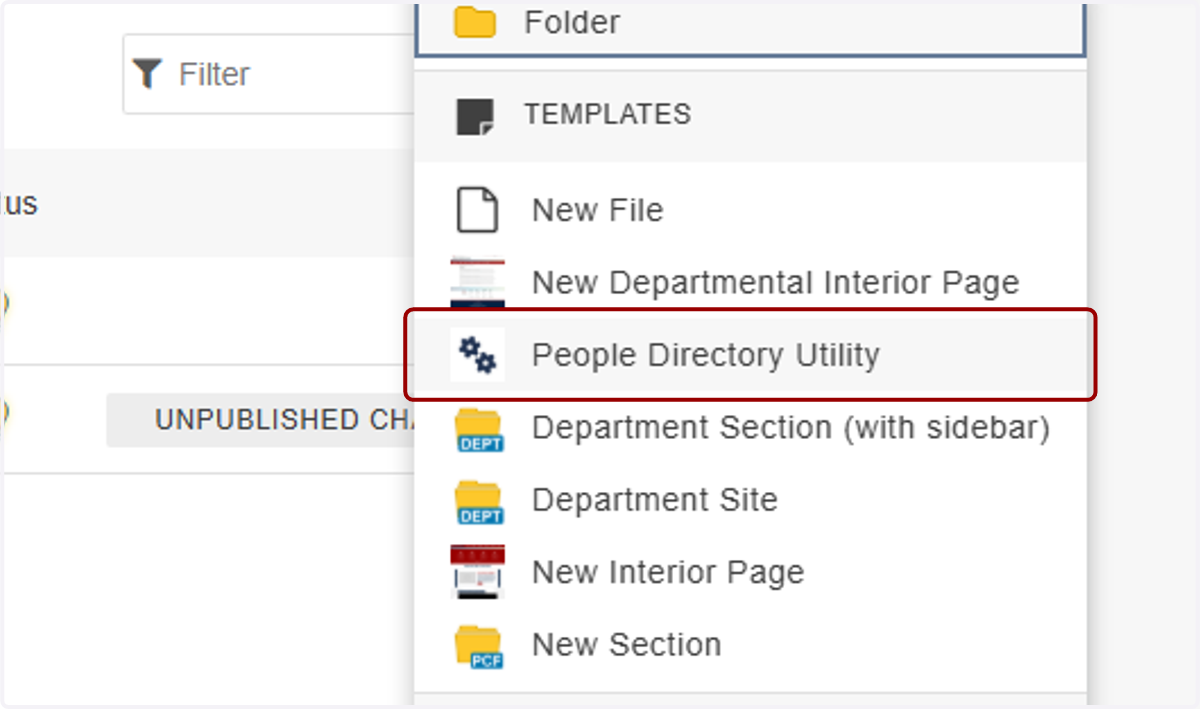
20. A "People Directory Utility" modal will pop up.
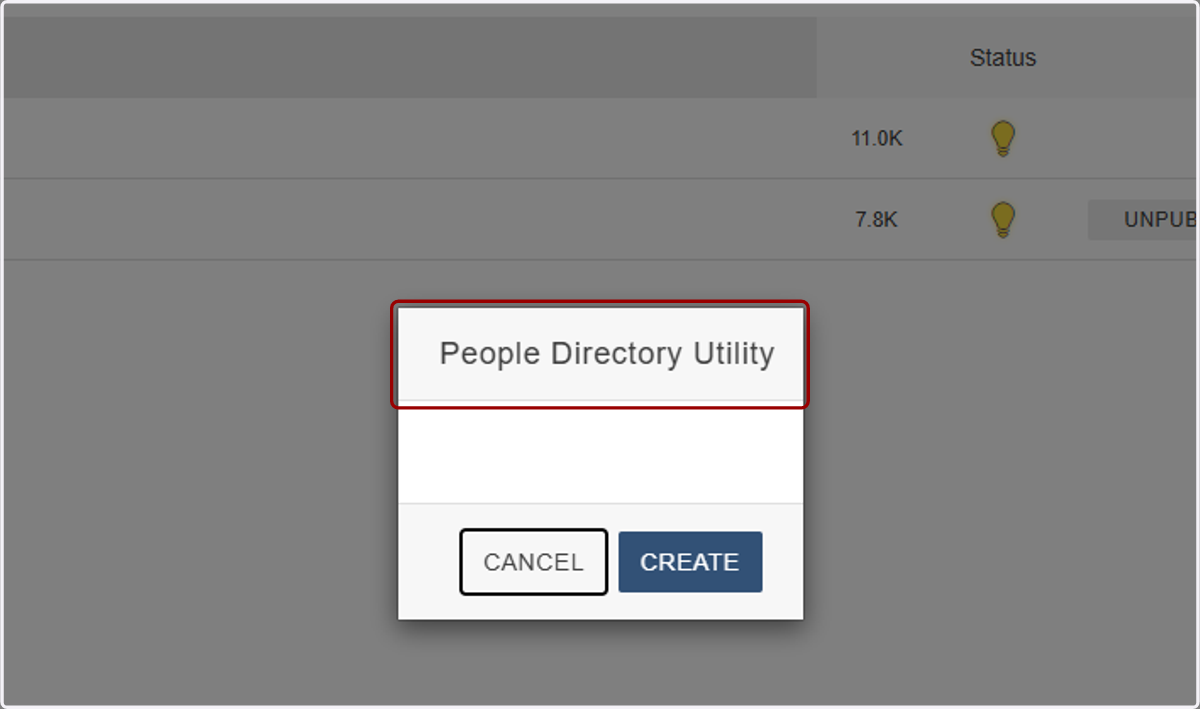
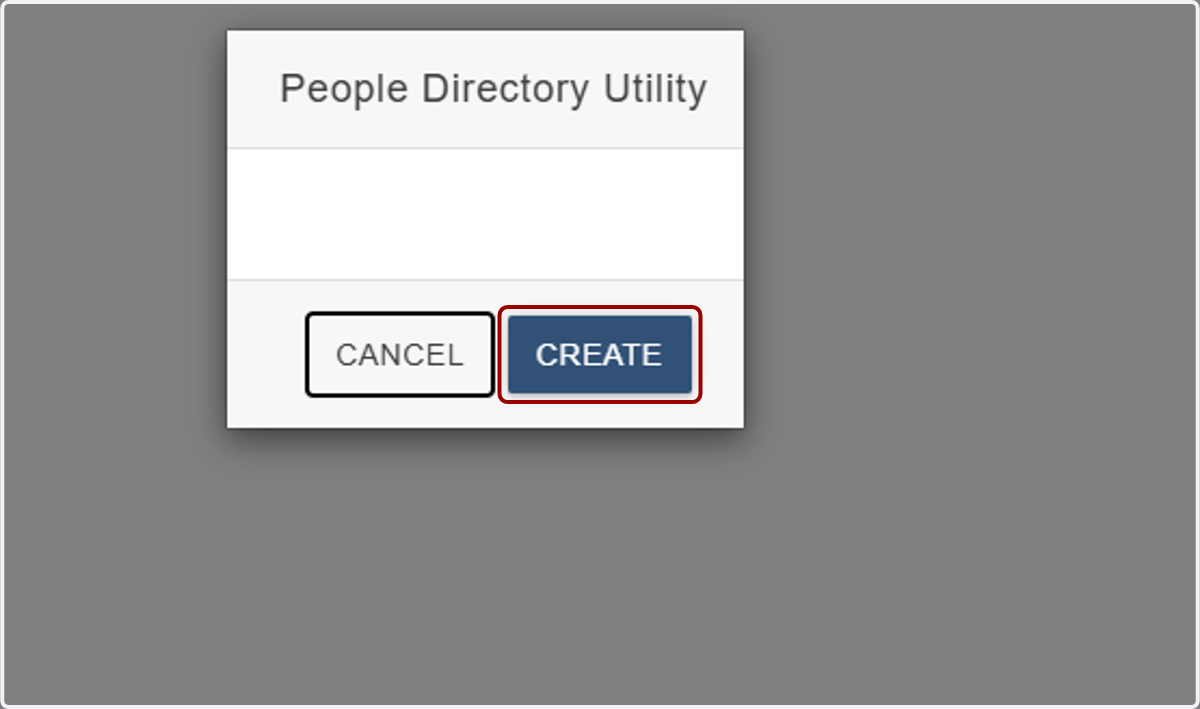
21. Click on CREATE.
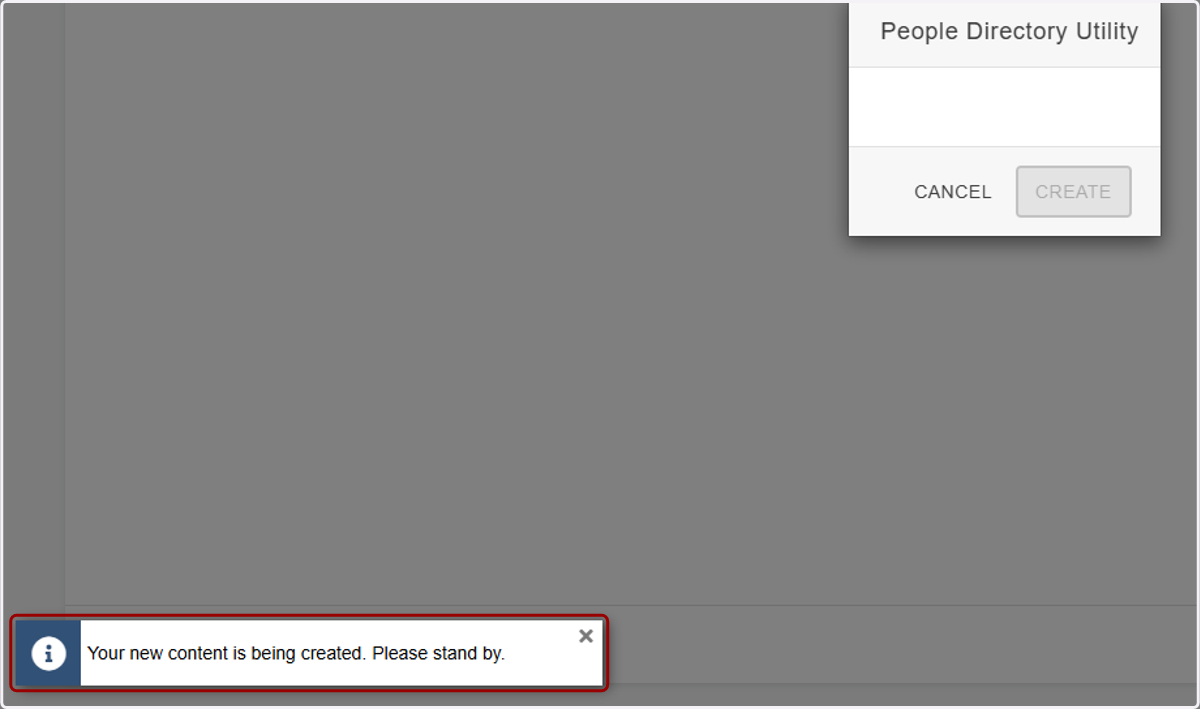
22. Wait for the content to be created...
23. ...and you'll see two new files in your _includes directory: people-directory-build.php,
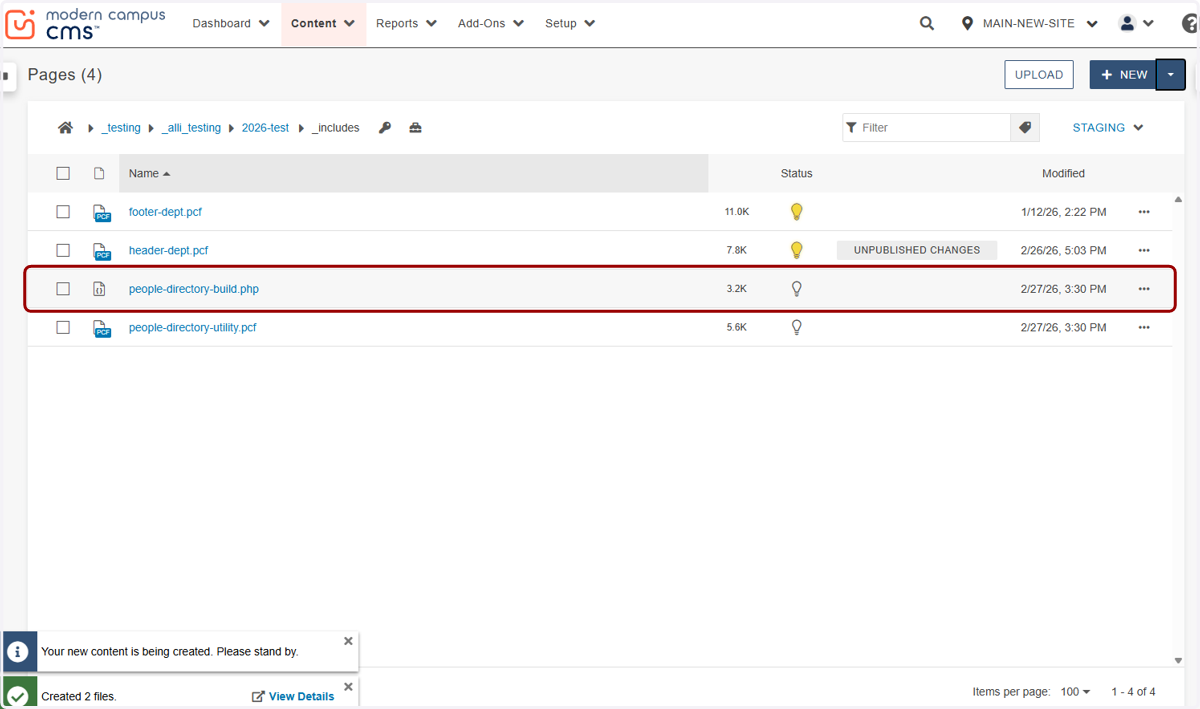
24. and people-directory-utility.pcf.
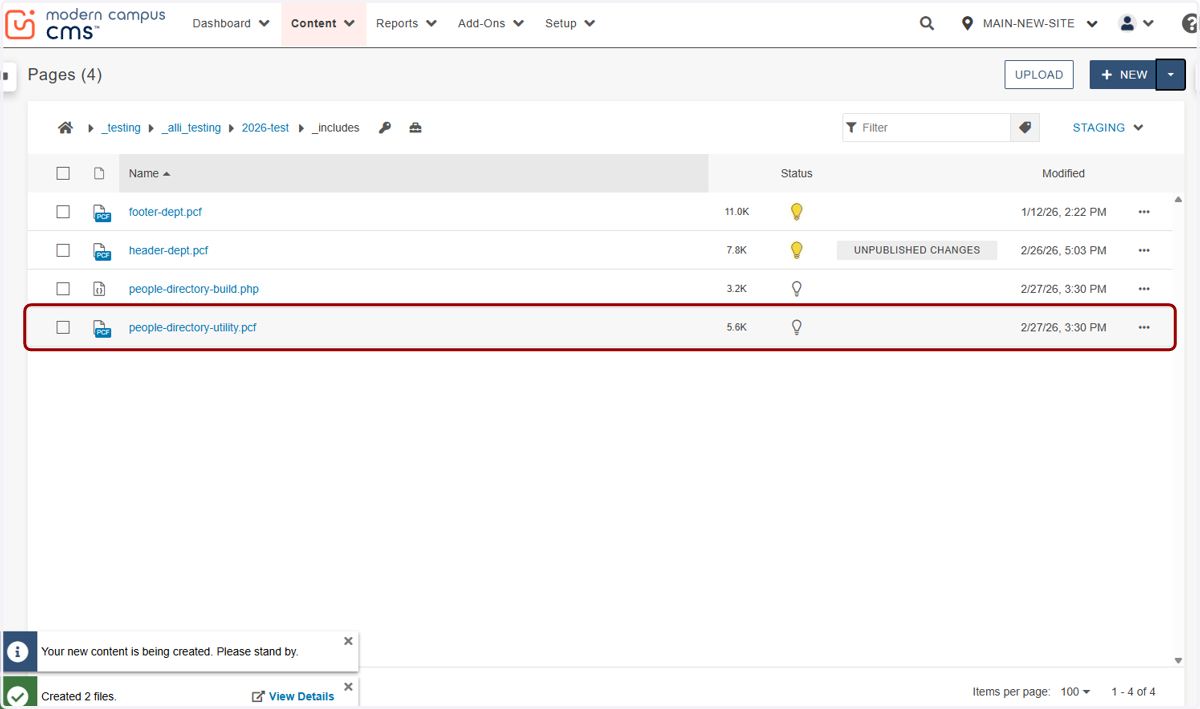
25. Publish both of these files.
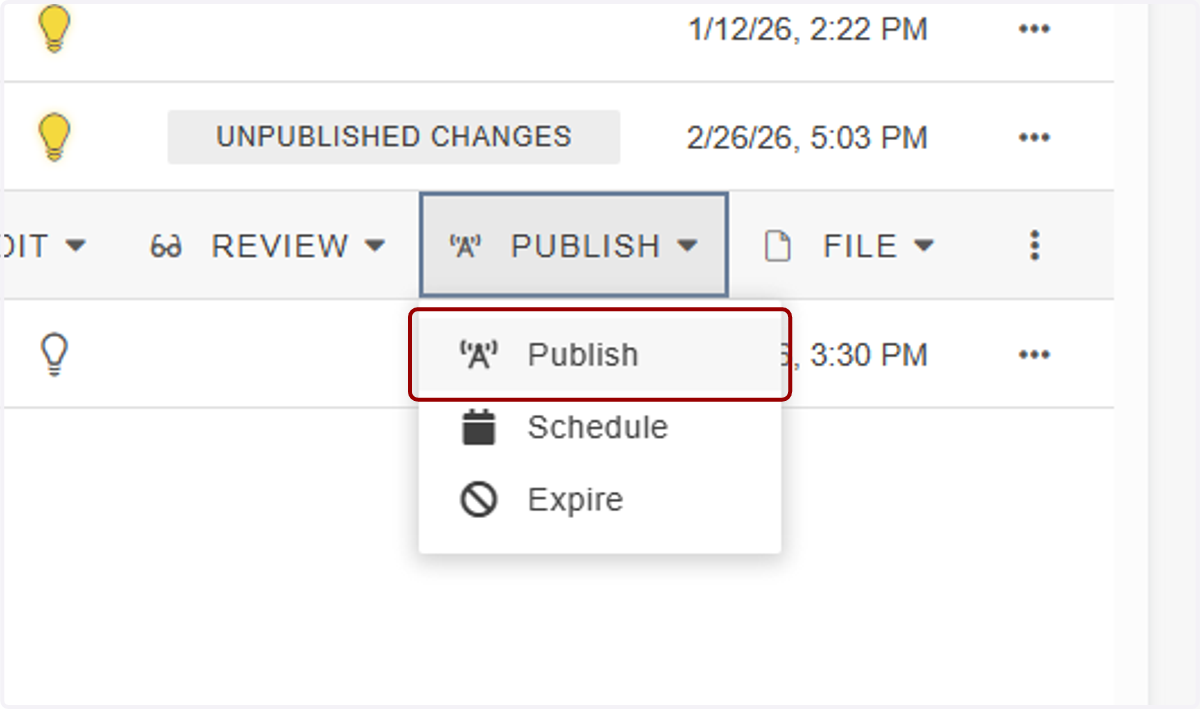
26. While still in the _includes directory, click the Upload button in the upper right-hand corner...
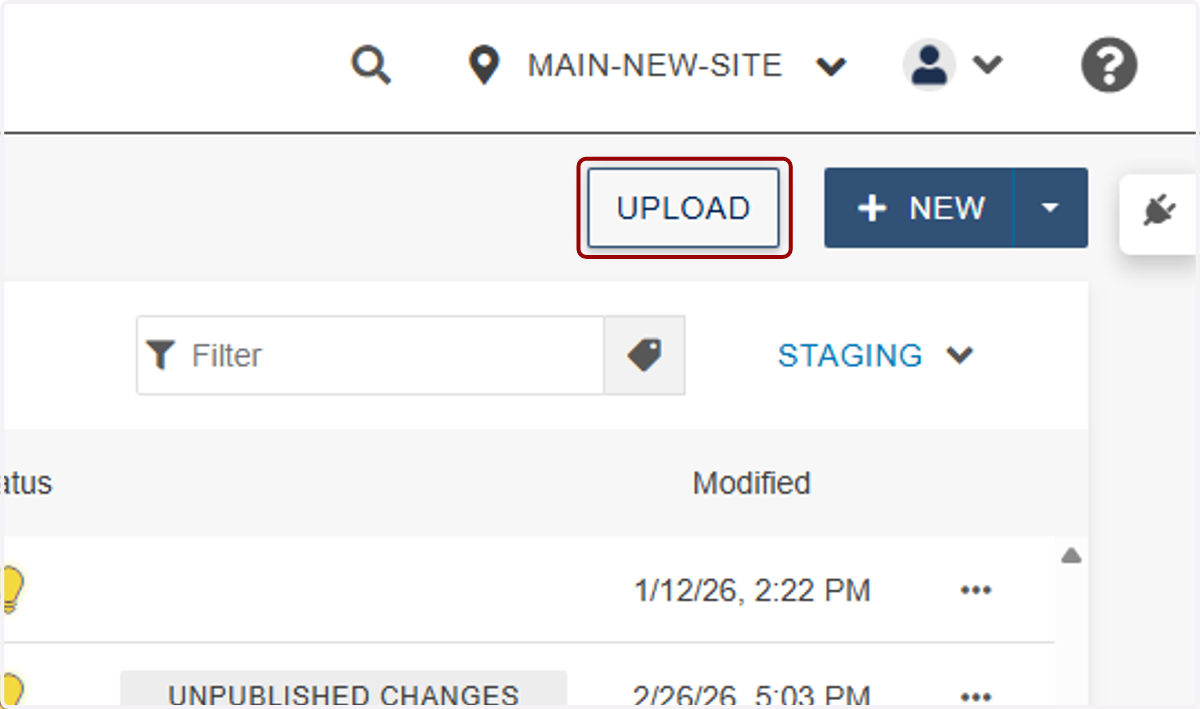
27. ...then the +Add button...
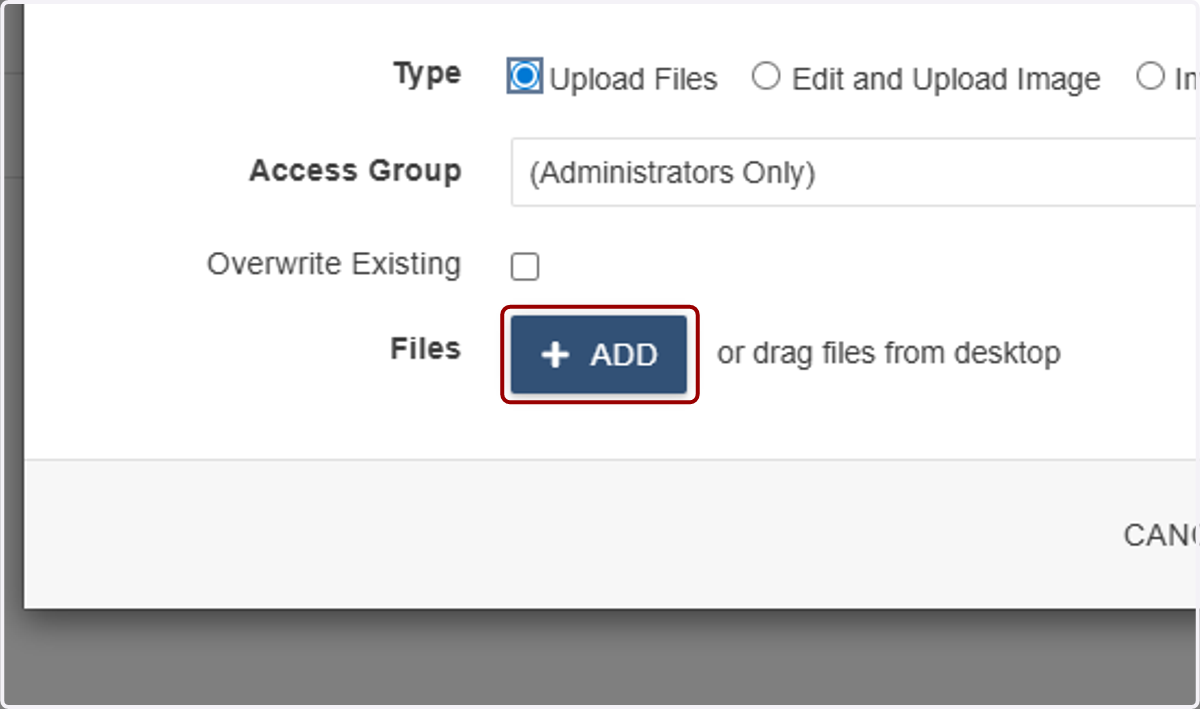
28. ...and upload your people-directory.csv file that you exported in Part 1. It's important (and easiest) that the file is named people-directory.csv, or we will review extra steps later if you need to use a different file name.
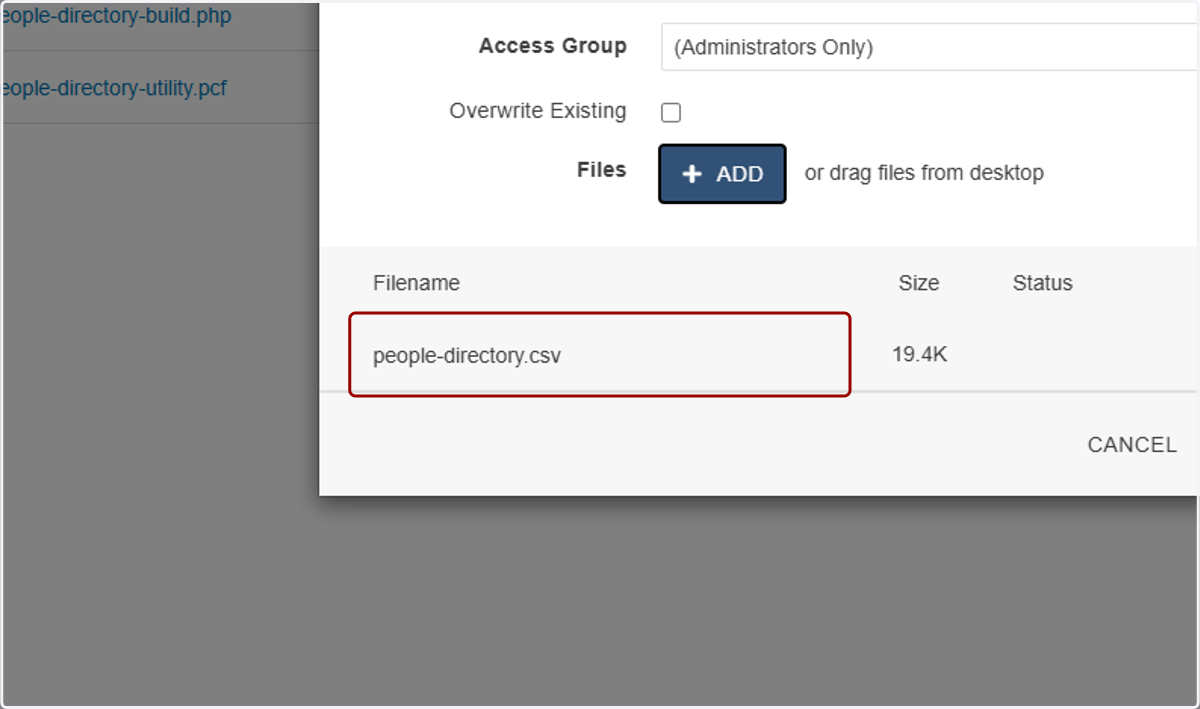
29. Click on START UPLOAD.
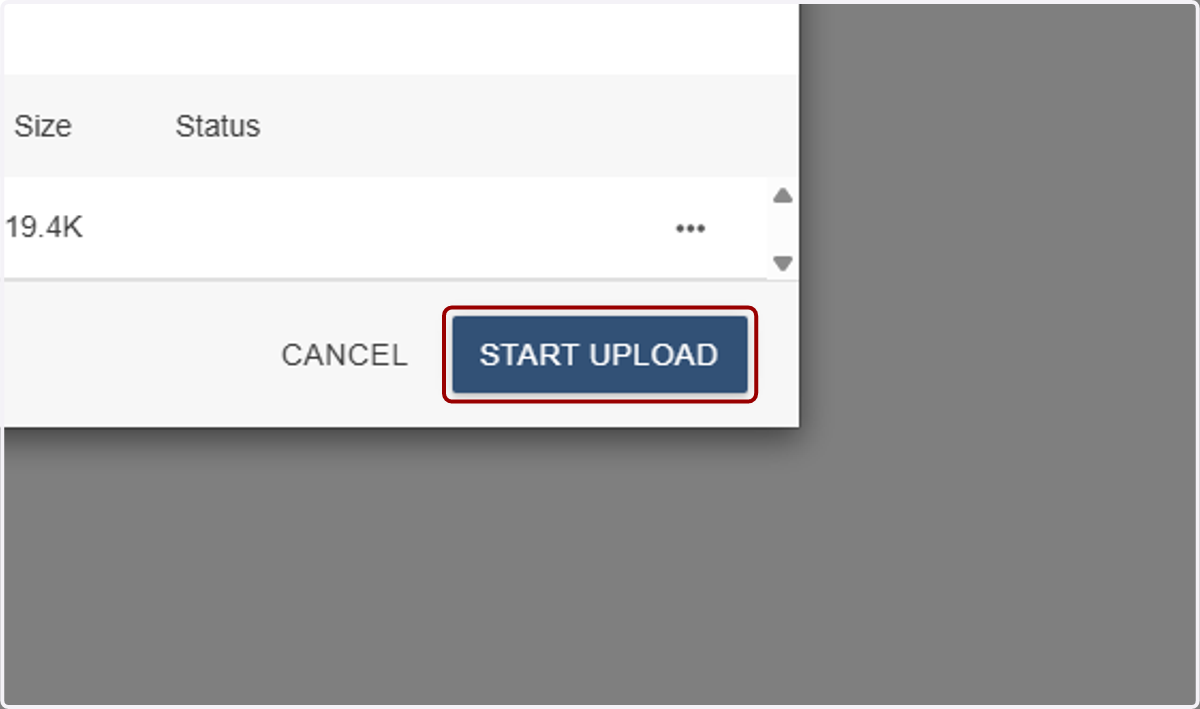
30. After the .csv is uploaded, publish this file as well.
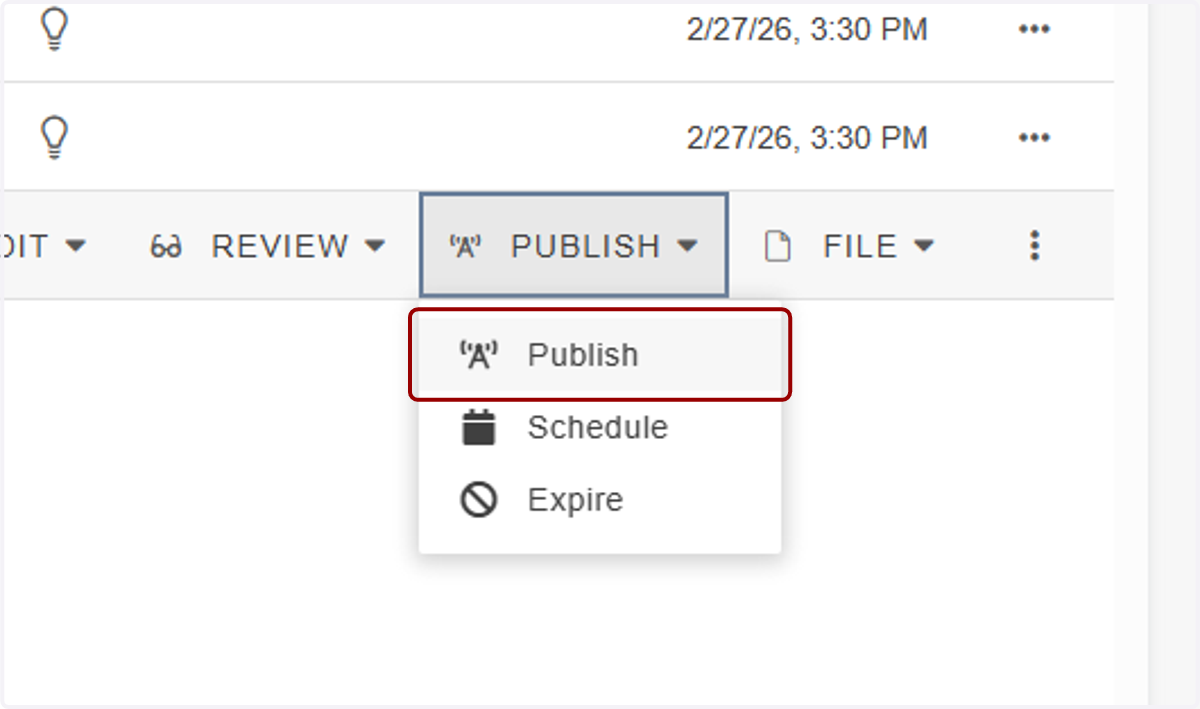
31. Once everything is published, go back to people-directory-utility.pcf, click on File,
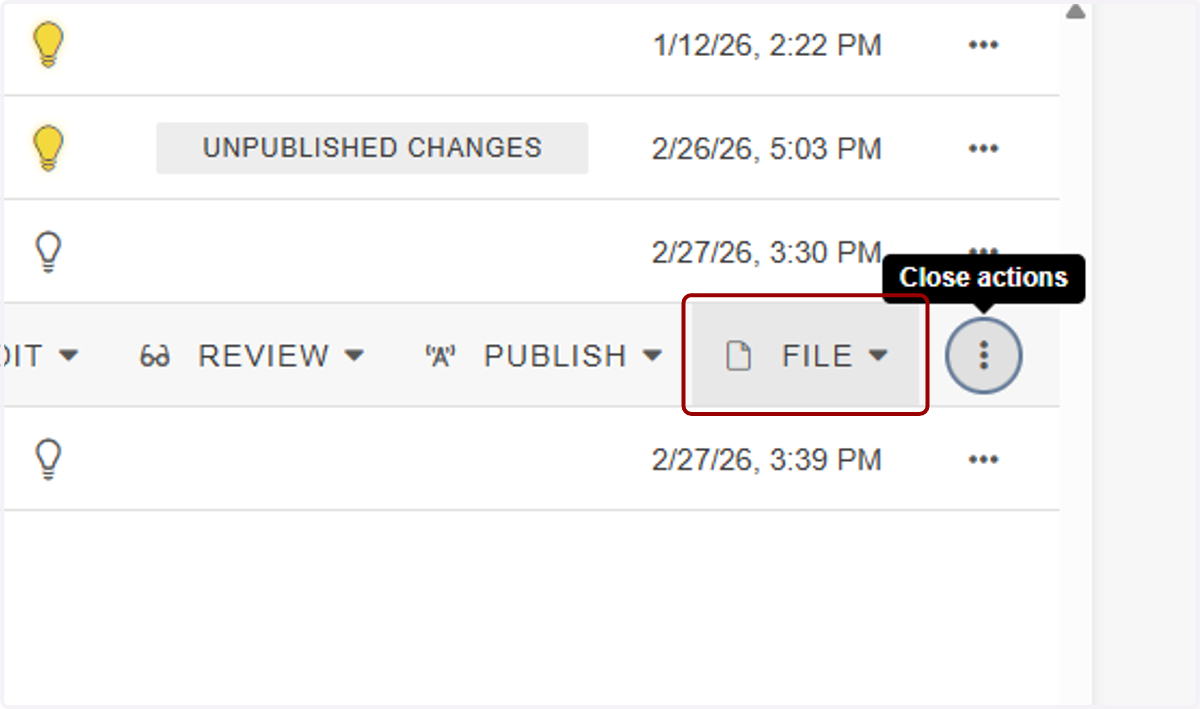
32. ...then View Published Page.
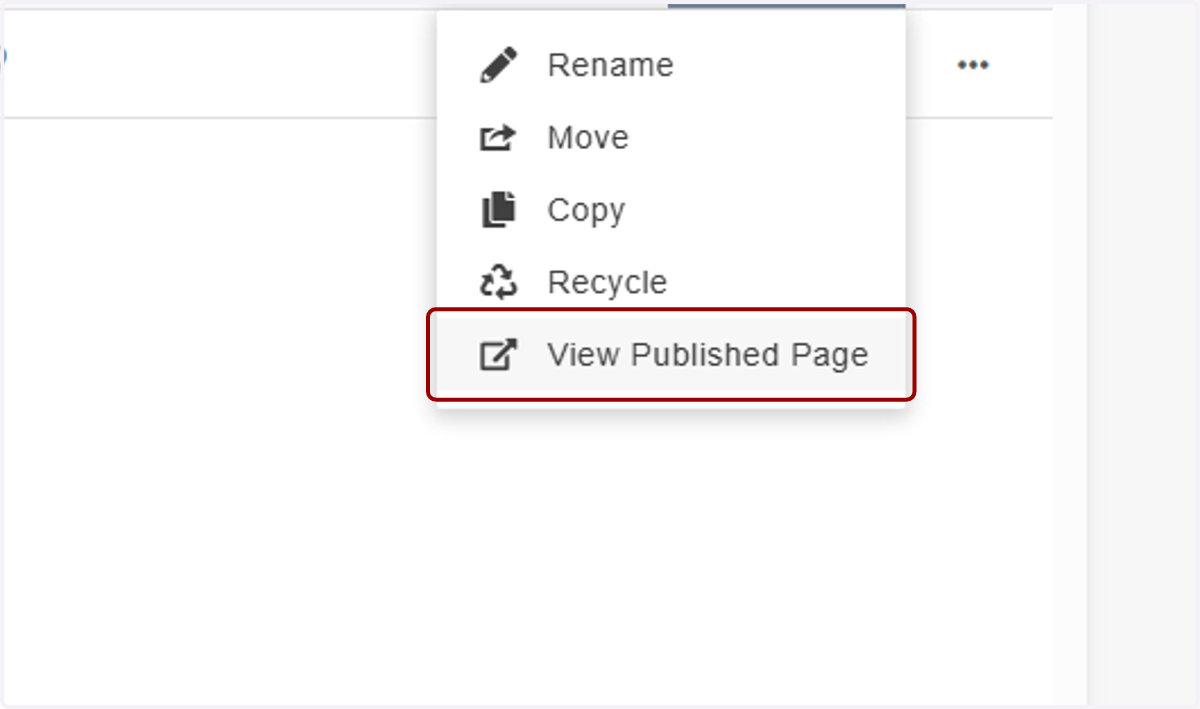
33. It's important that you view the live version of this page, or you will receive an error when we do the next step. You should see a page where you can update your dataset name (if different than "people-directory"). If you kept people-directory, leave this as-is.
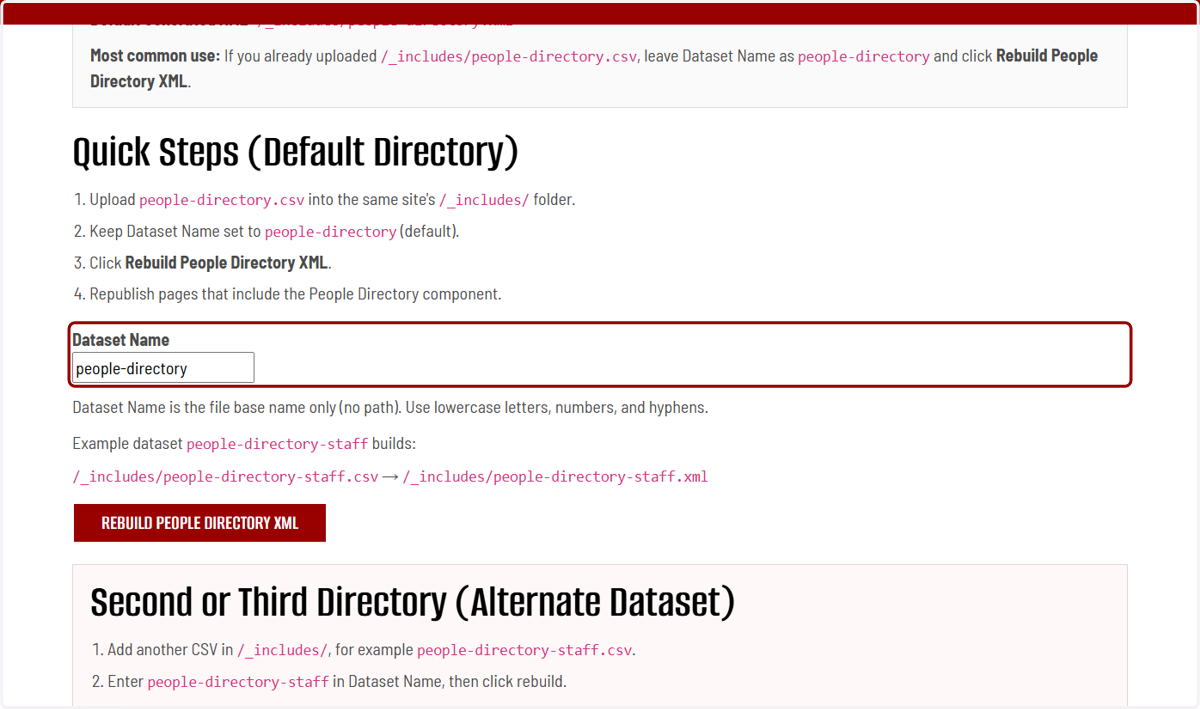
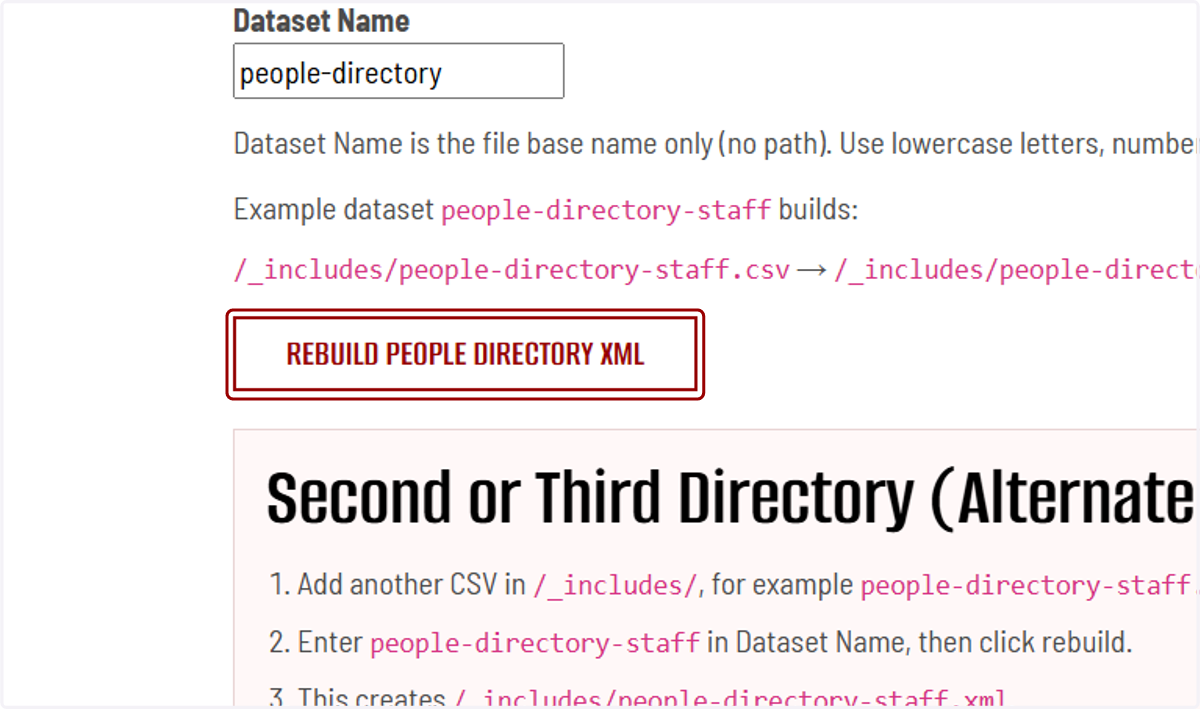
34. Click the REBUILD PEOPLE DIRECTORY XML button.
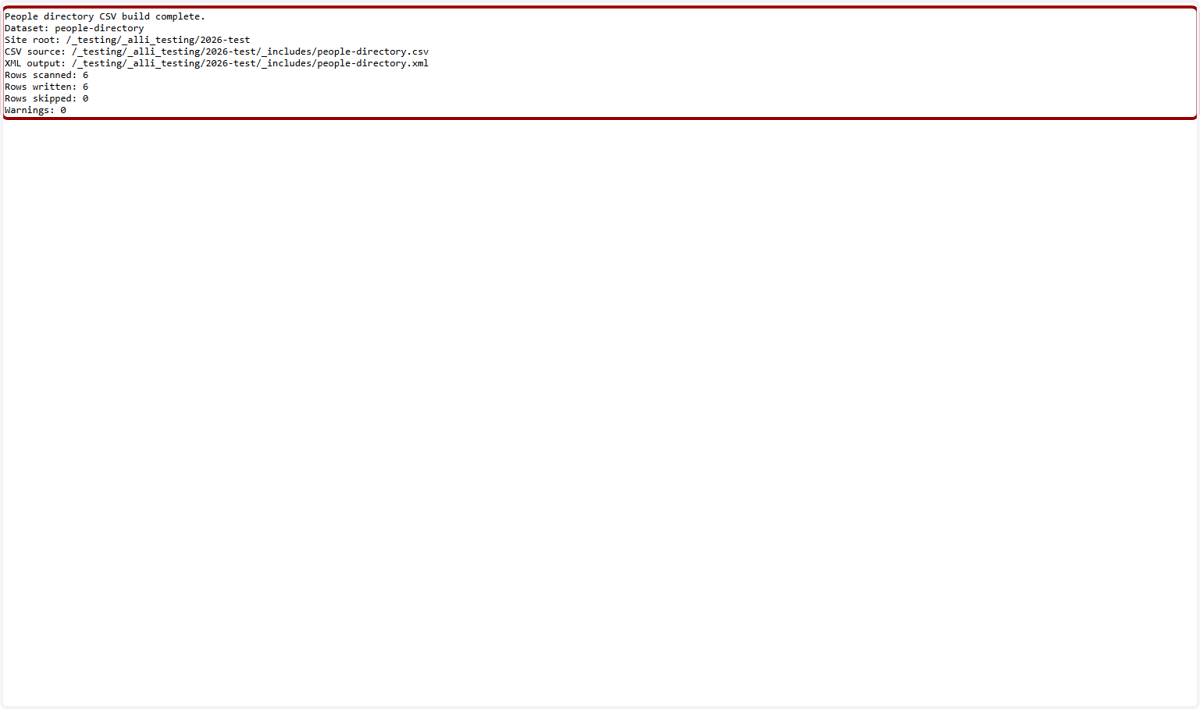
35. The .csv will be processed and the utility will tell you when it's complete.
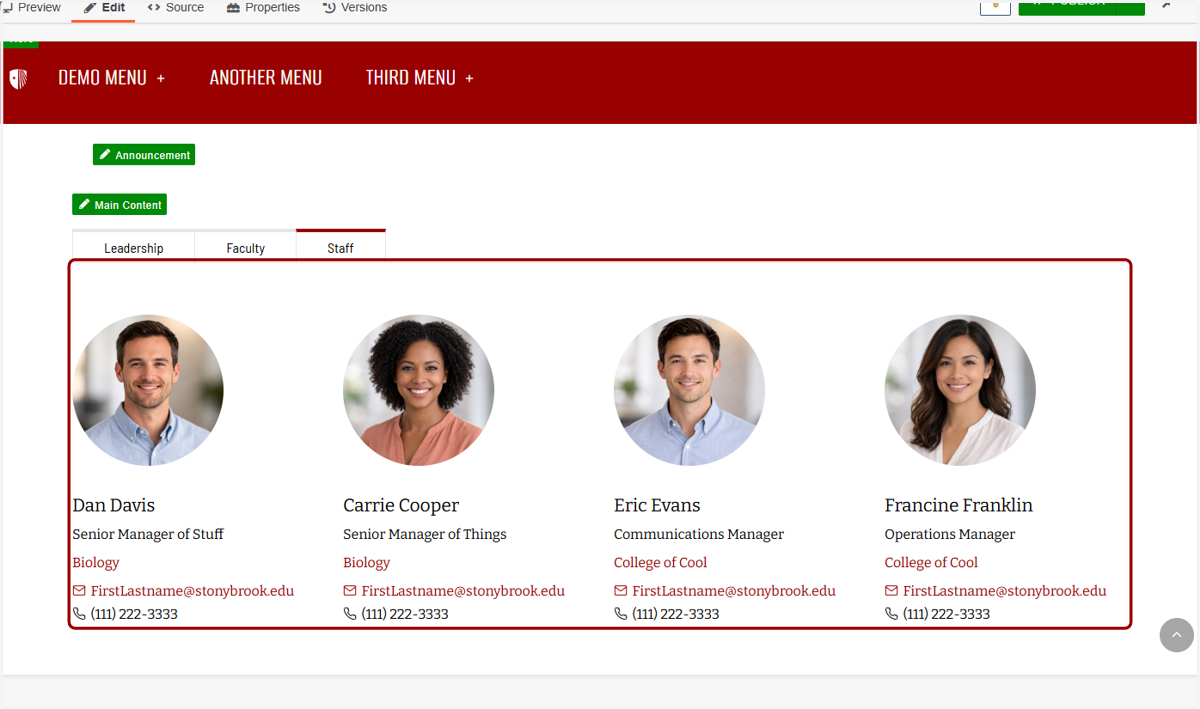
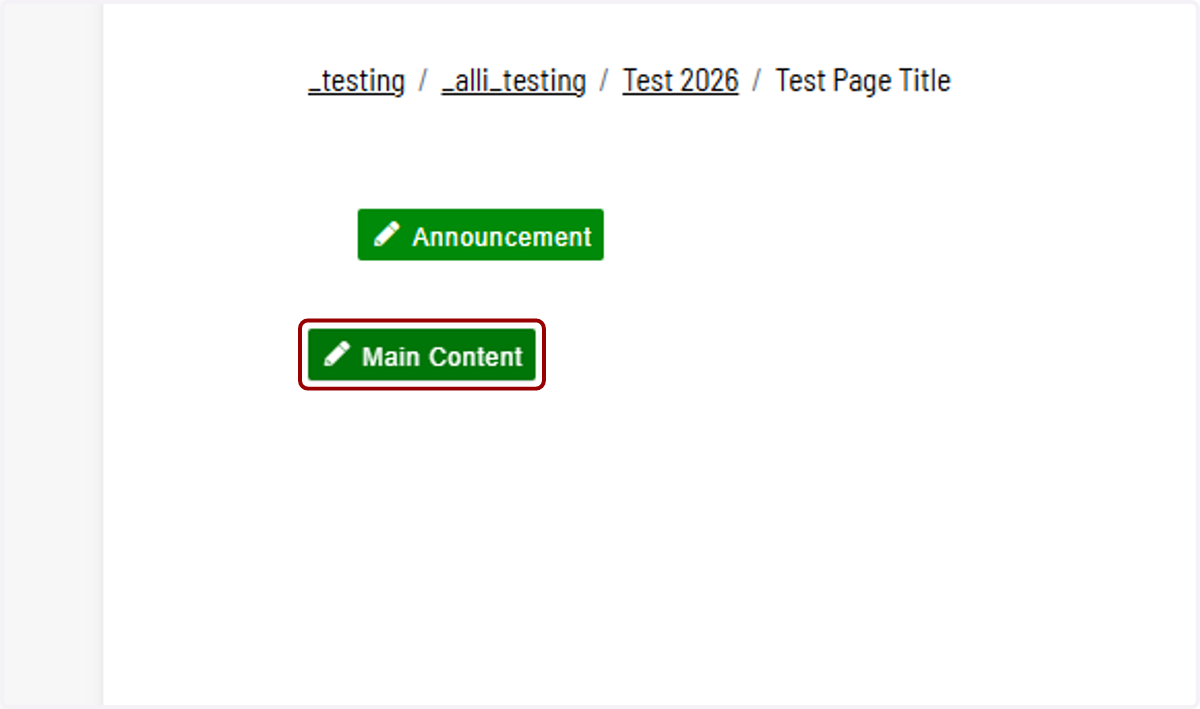
36. Now you can add your directory to your website! Navigate to (or create) a page you would like to place your directory on. I'll click Main Content...
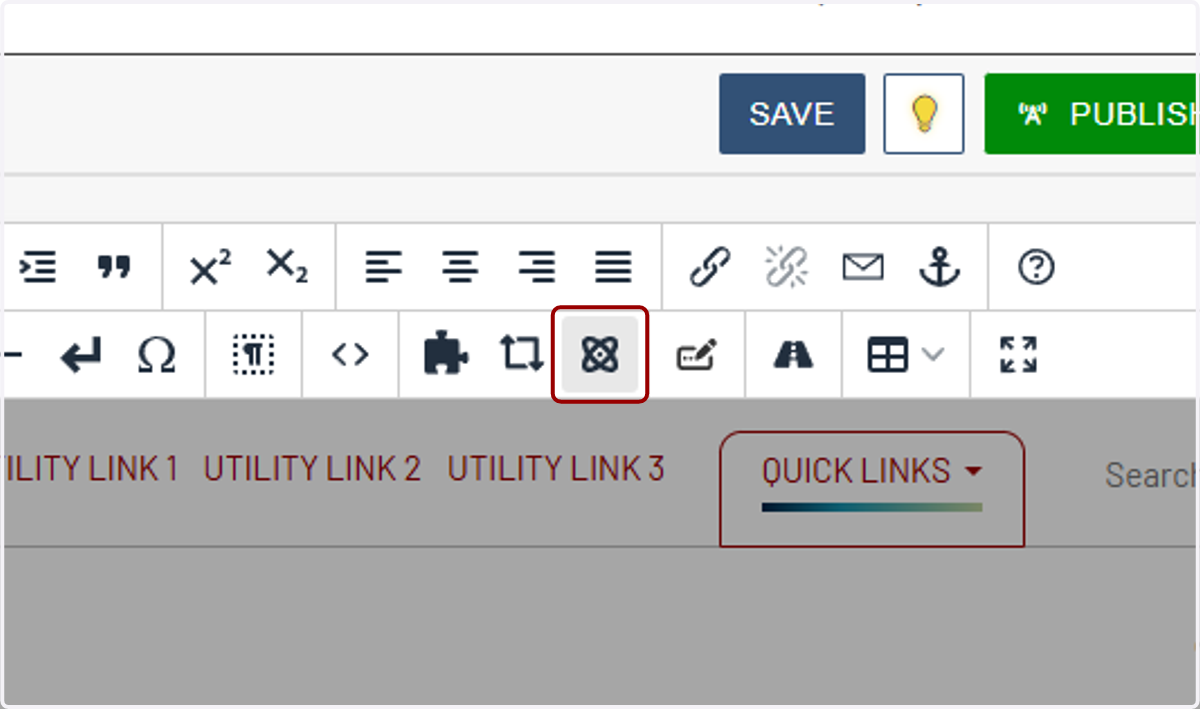
37. ...then the Insert Component icon...
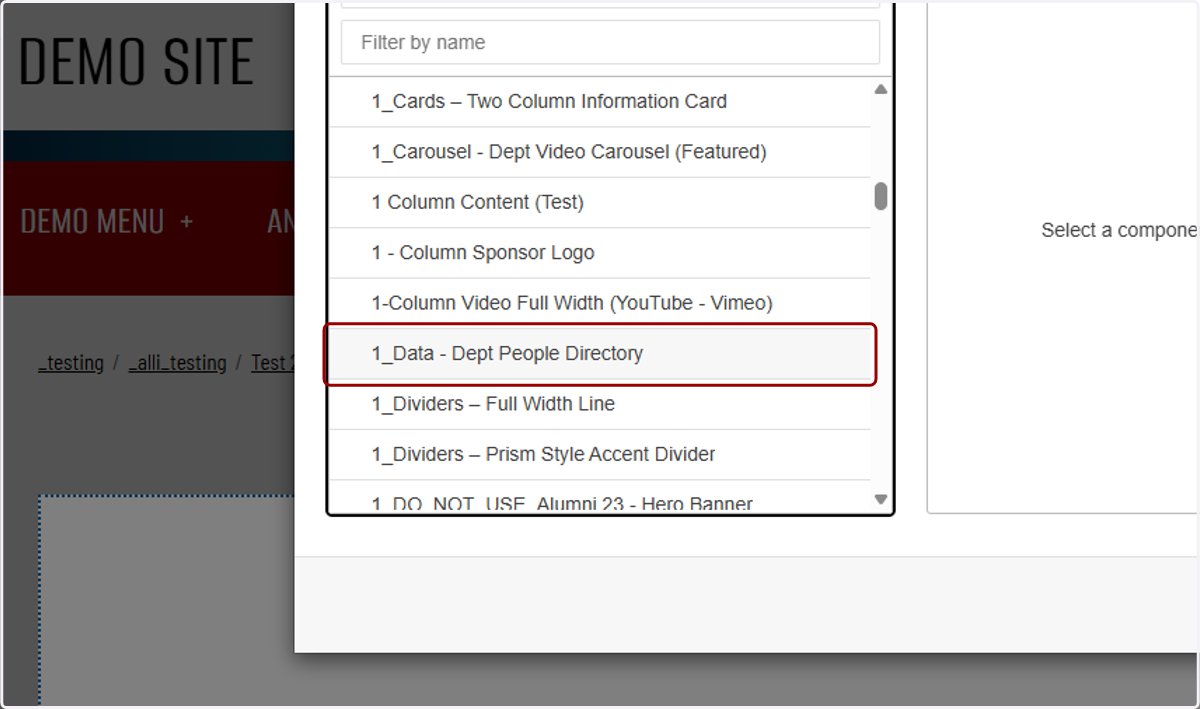
38. ...and click on or navigate to "1_Data - Dept People Directory."
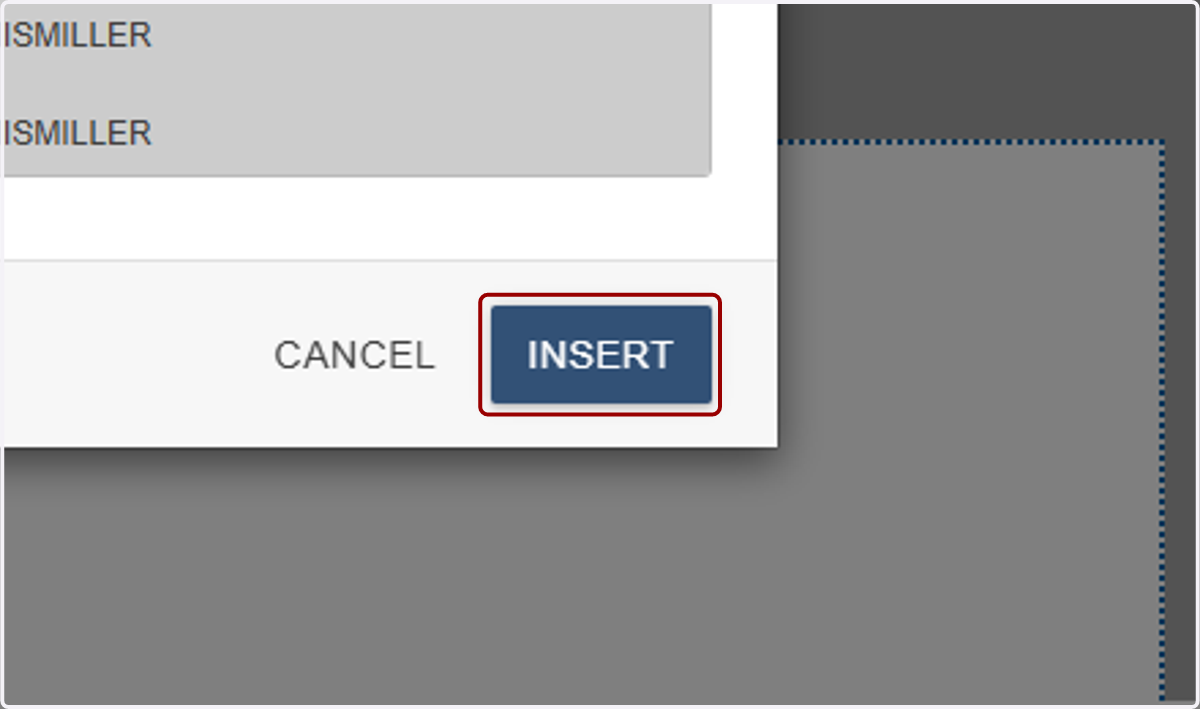
39. I'll click on INSERT...
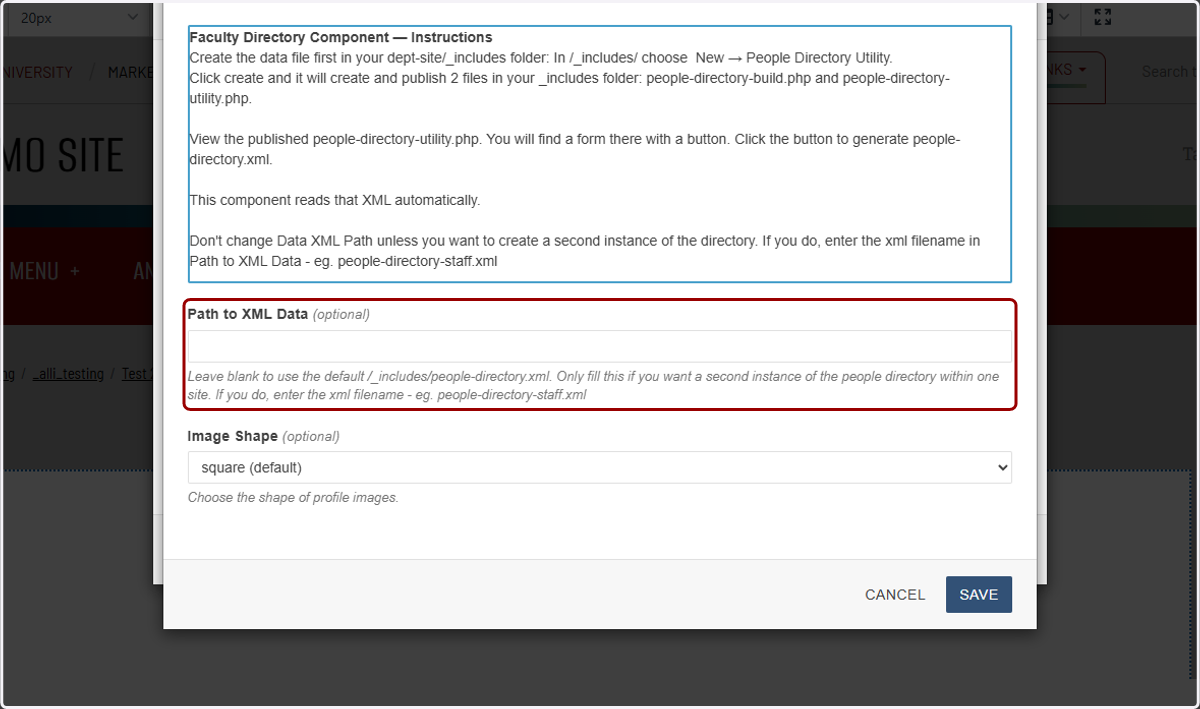
40. ...and there's a pop-up modal with instructions and a "Path to XML data." If you kept your file named people-directory.csv, you can leave this path blank. Otherwise, enter the path to your custom-named XML file here.
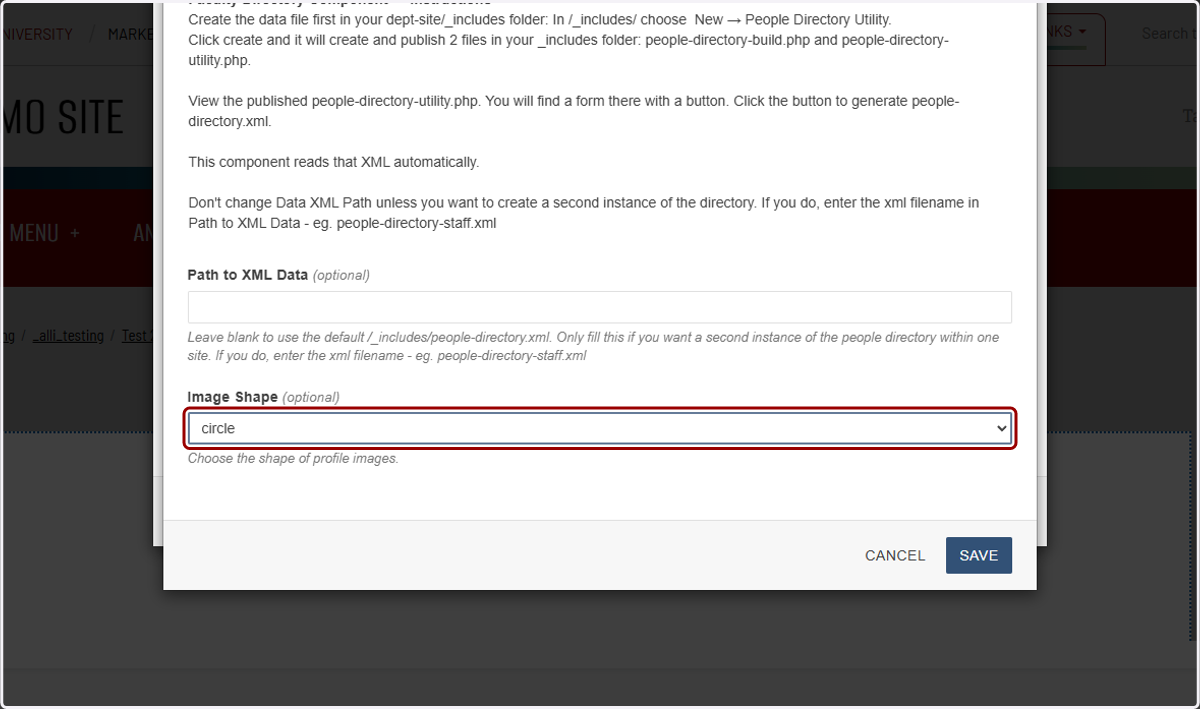
41. You also have your choice of your directory having square or circle-shaped images, which you can select using the "Image Shape" dropdown.
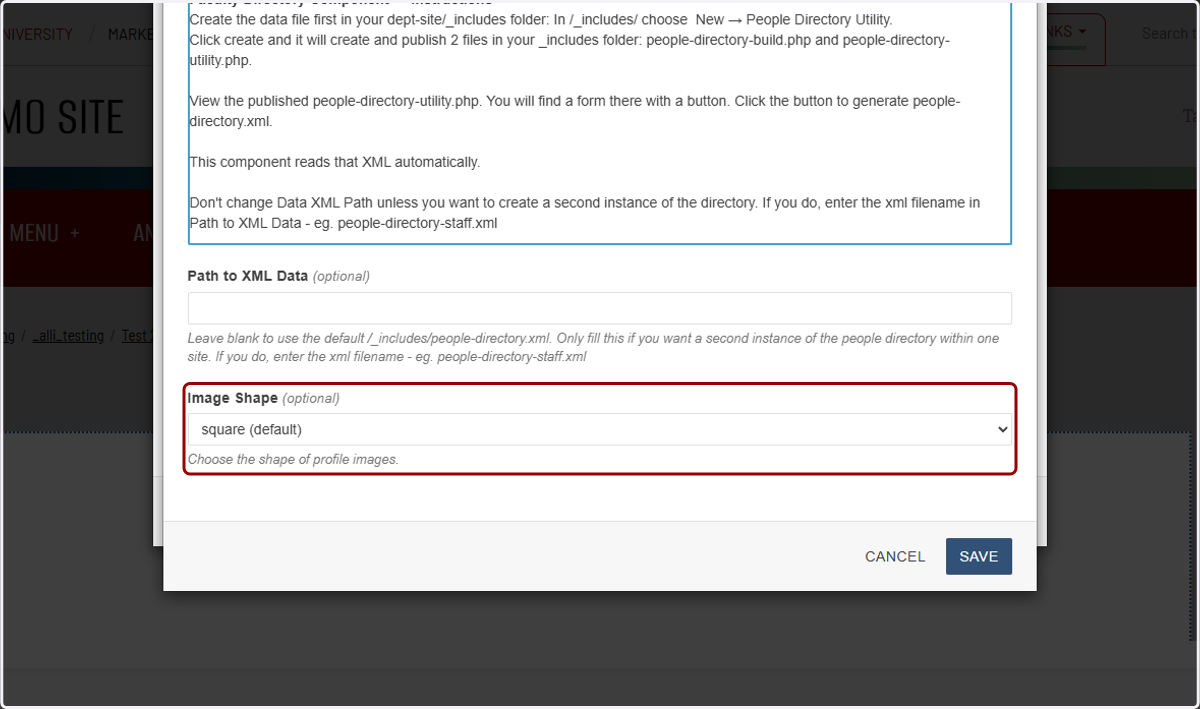
42. I'll choose circle for this demo.
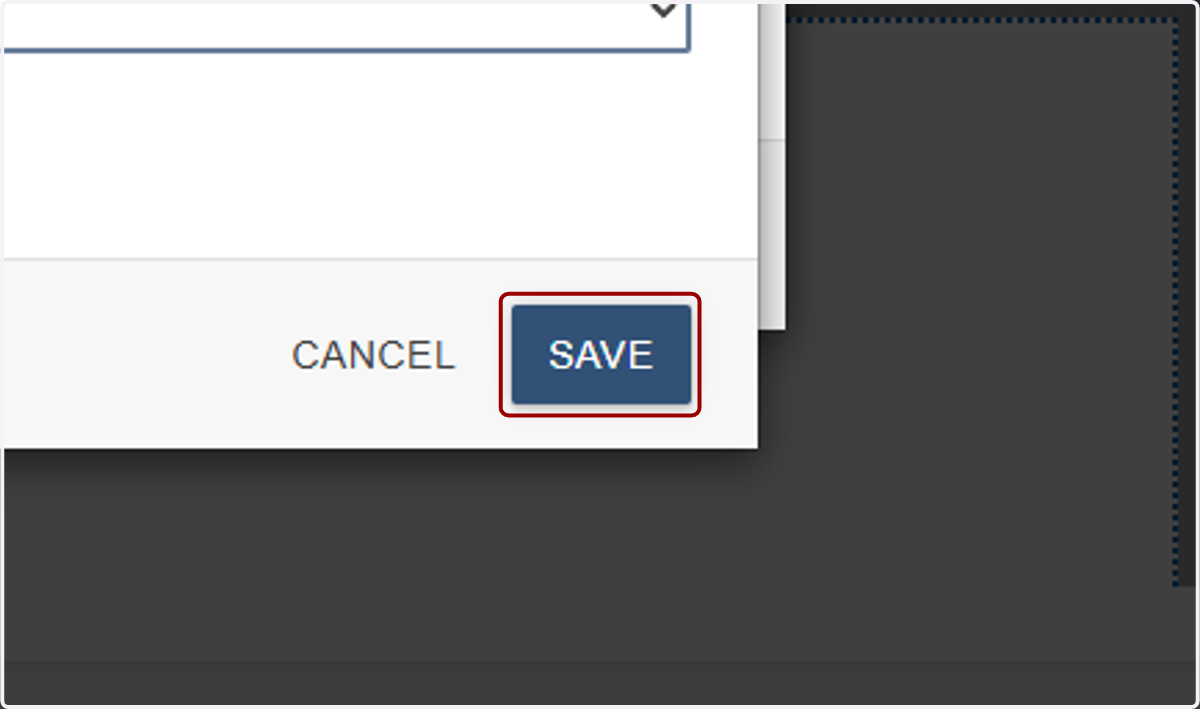
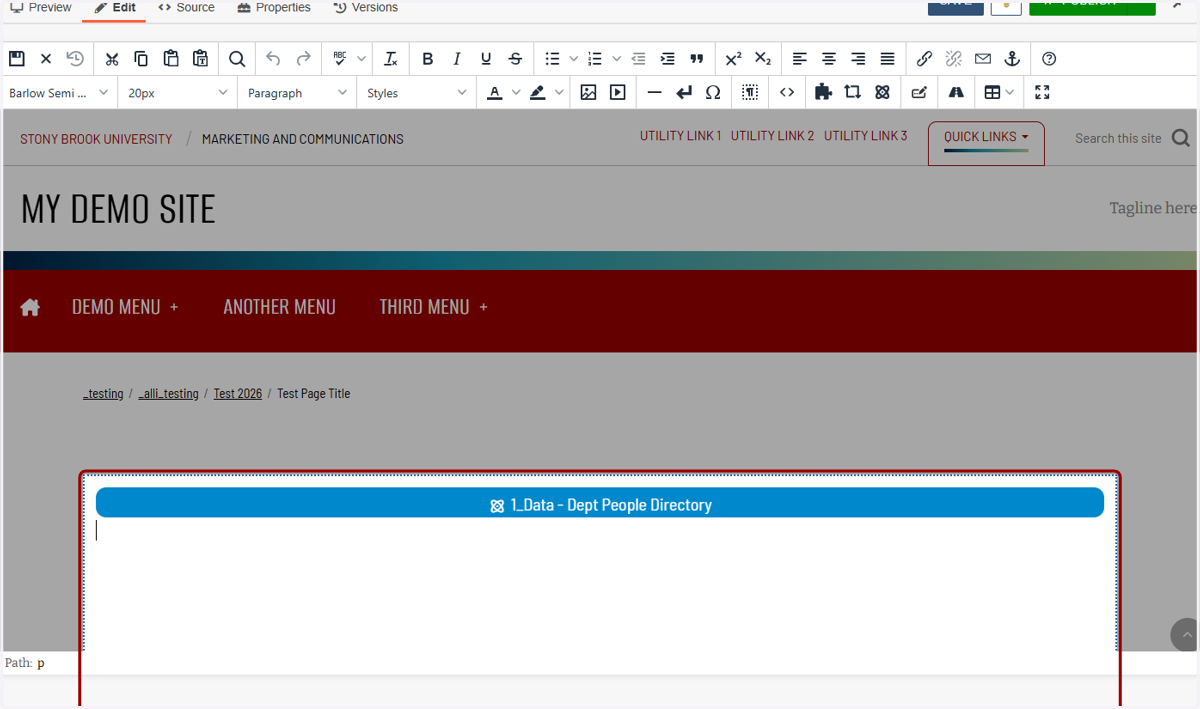
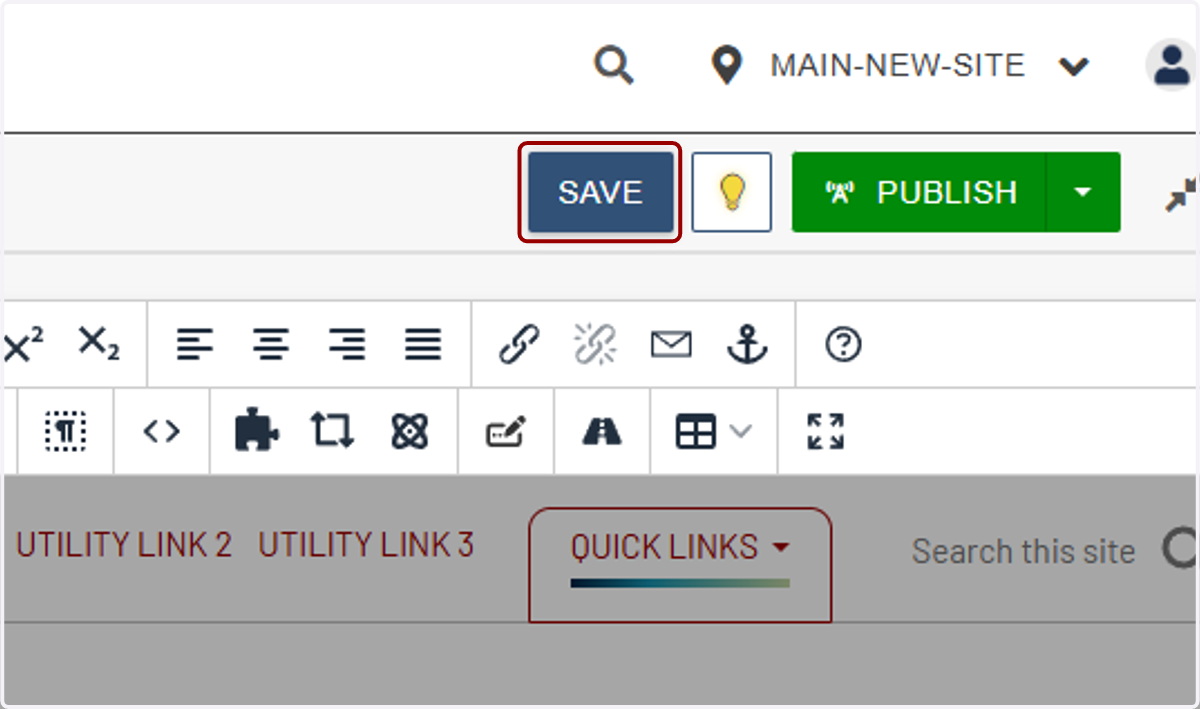
43. Click on SAVE...
44. ...and you'll see the component as a long blue strip.
45. Click on SAVE
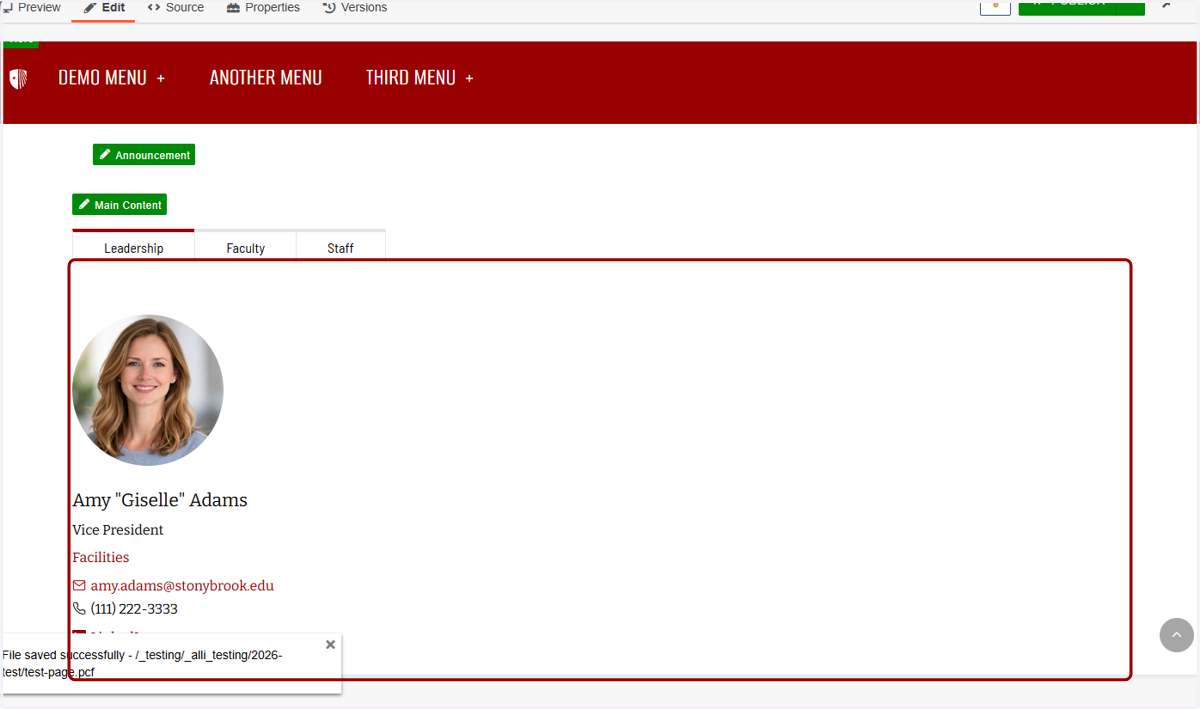
46. ...and you'll see your new directory with Tabs and Groups.
47. Great job!