How to Add/Update Employee and Dependent Records Medical Class in Odoo-iLines HR

Odoo

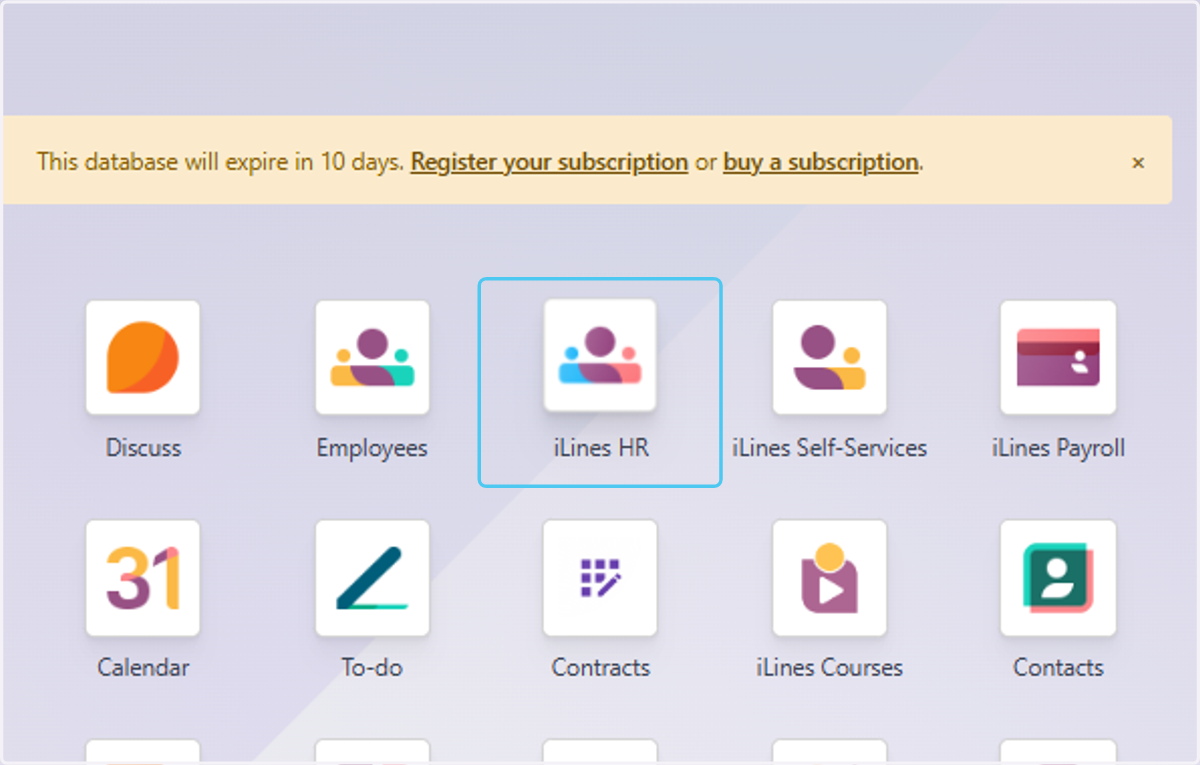
  1. 1. Click on iLines HR

    Click on iLines HR
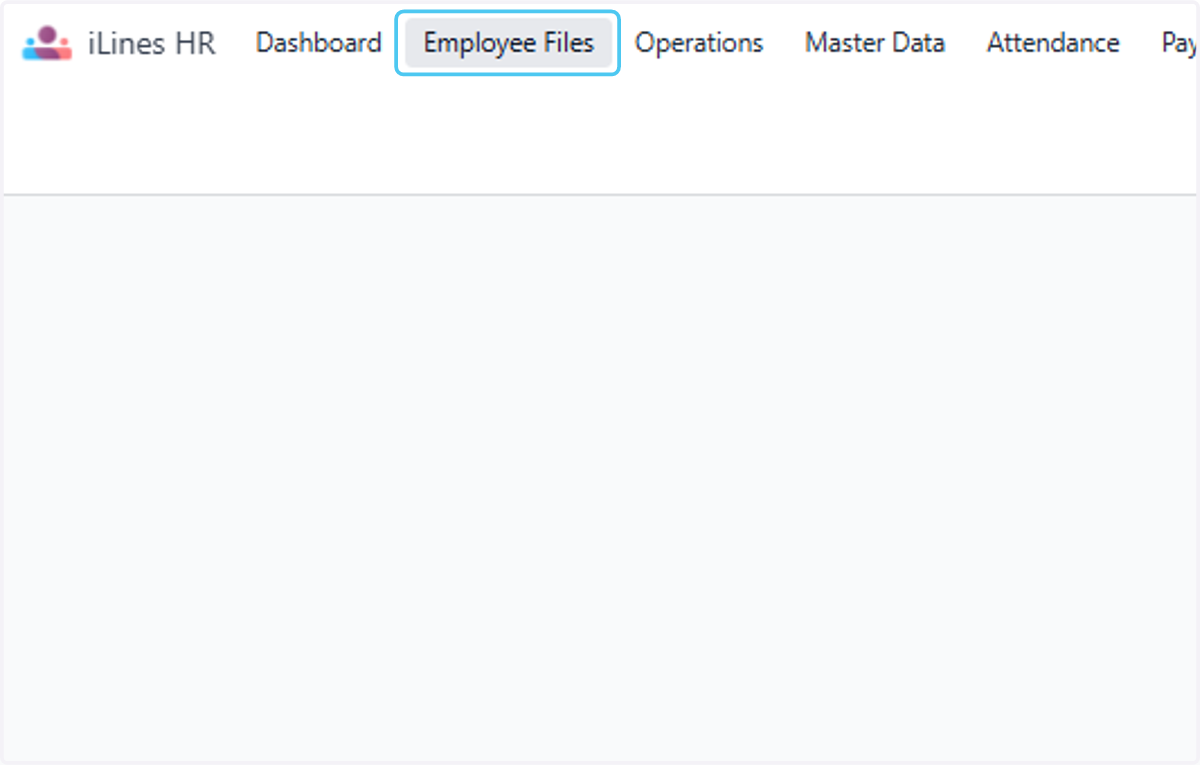
  2. 2. Click on Employee Files

    Click on Employee Files
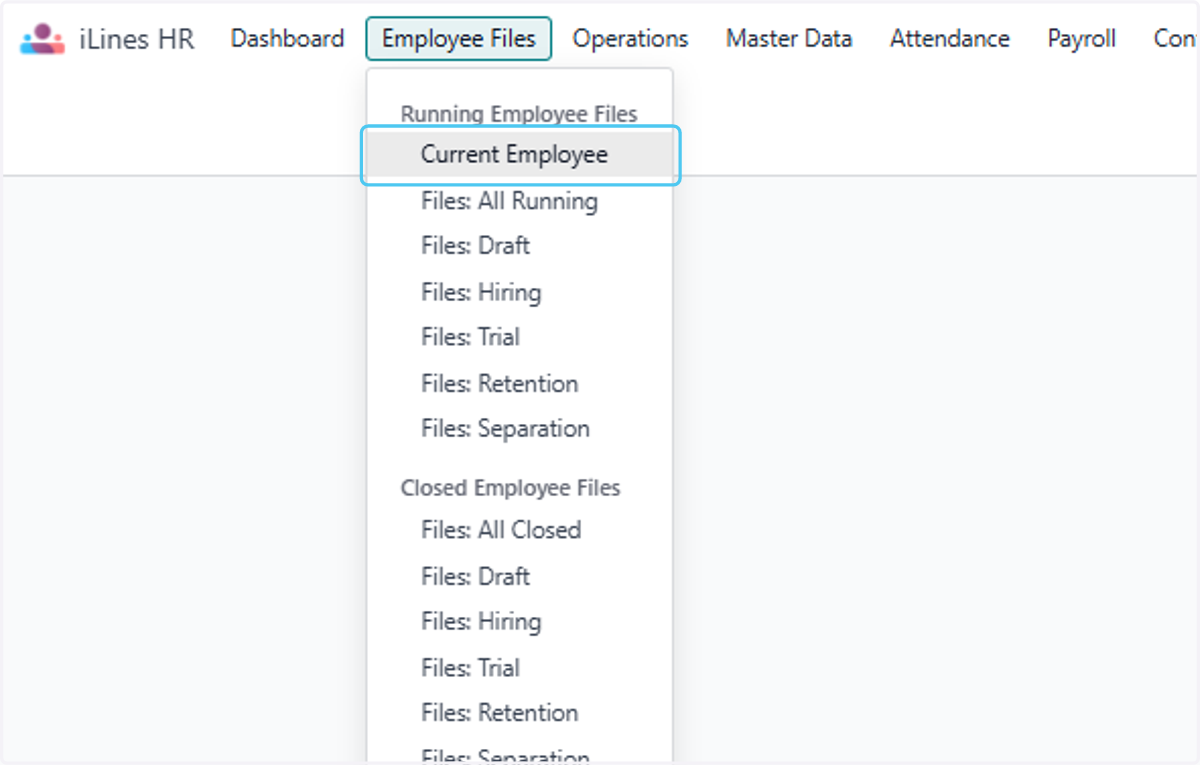
  3. 3. Click on Current Employee

    Click on Current Employee
  4. 4. Click on highlight to check the Medical Classes added to employees
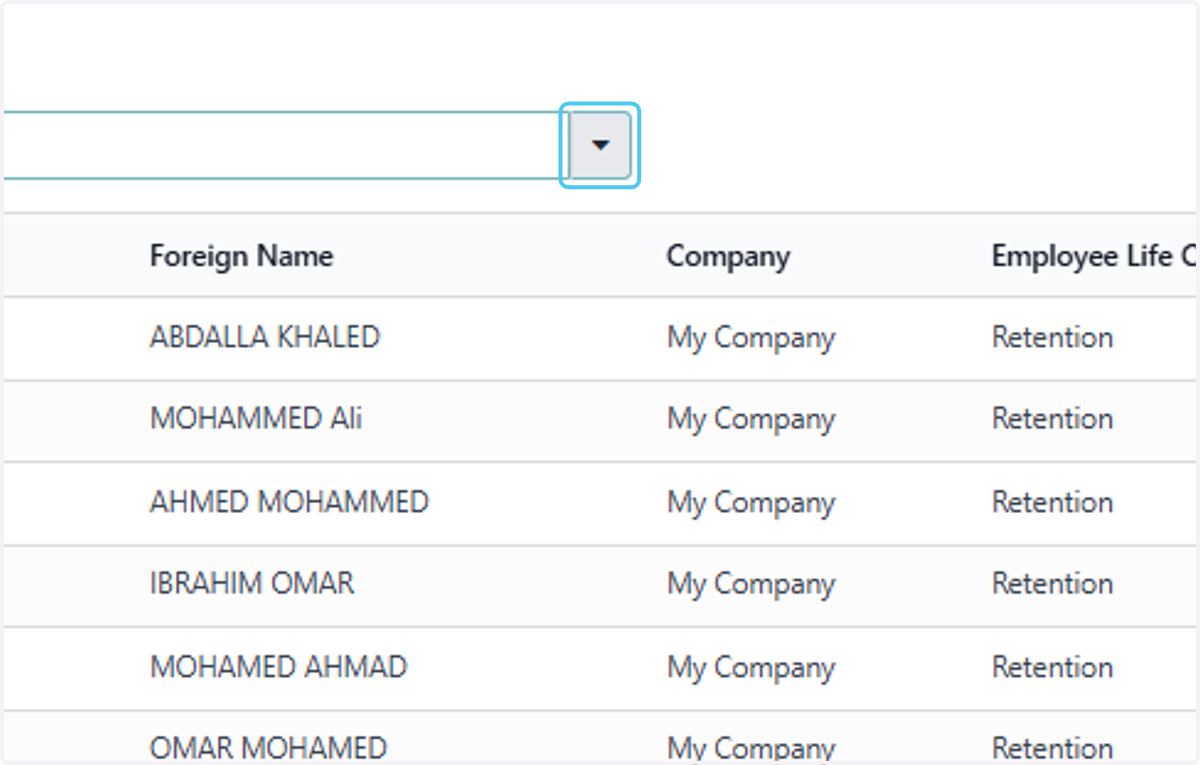
    Click on highlight to check the Medical Classes added to employees
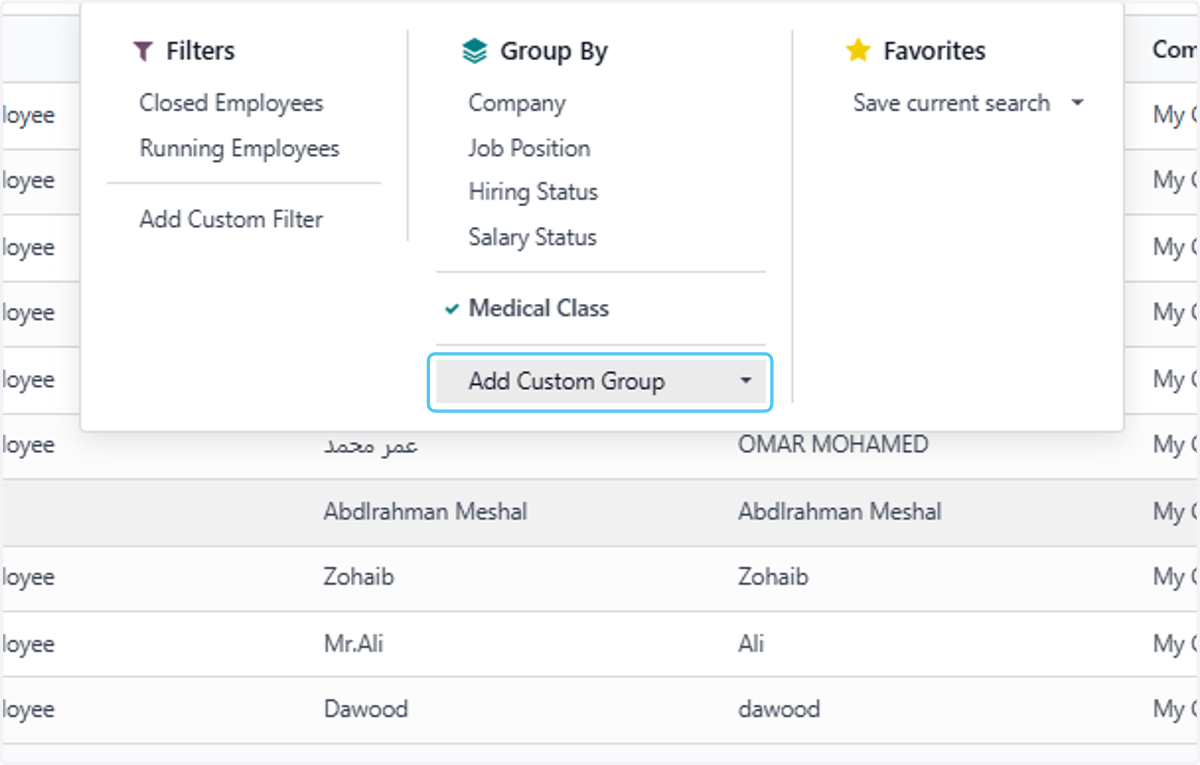
  5. 5. Select Add Custom Group

    Select Add Custom Group
  6. 6. form group by click on Medical Class
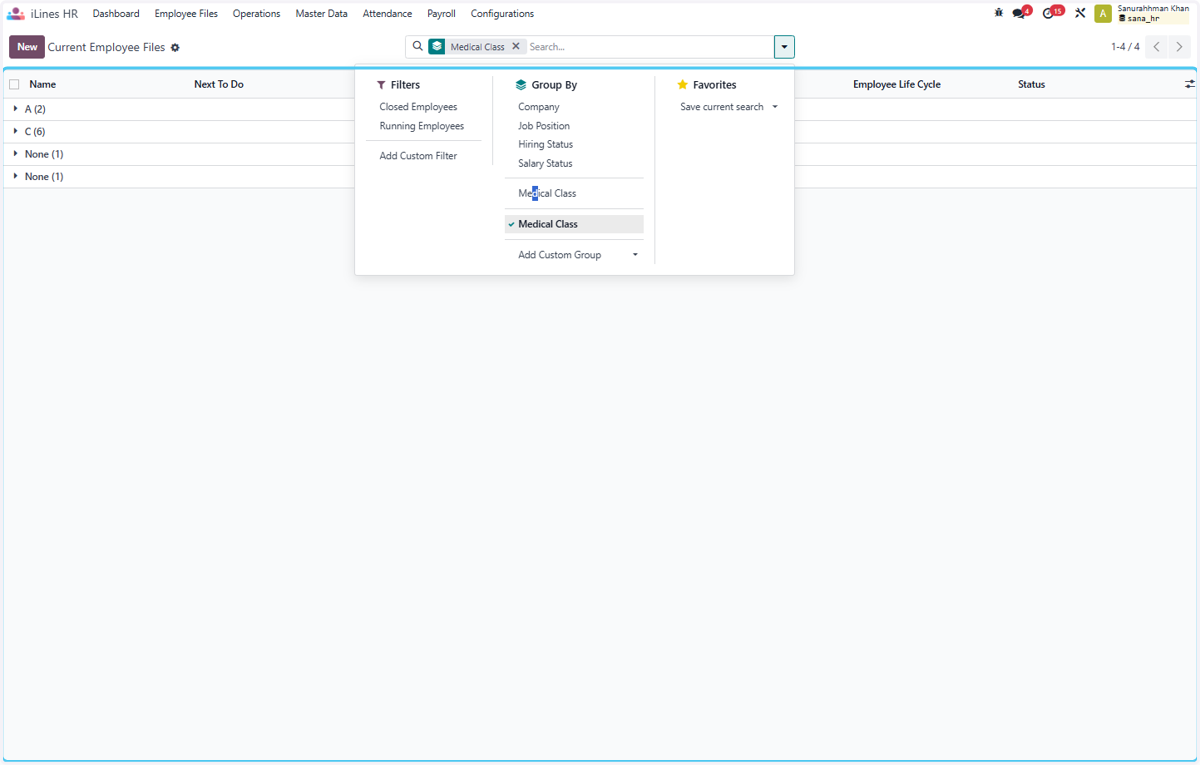
    form group by click on Medical Class
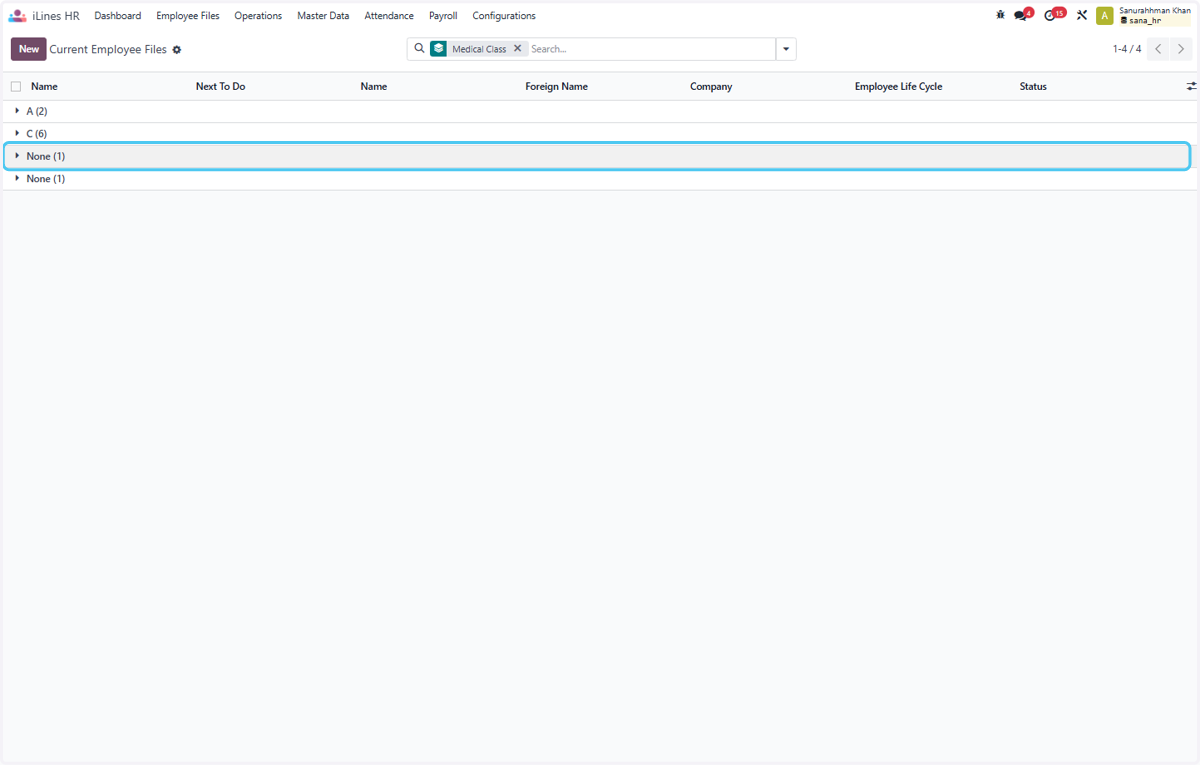
  7. 7. Click on None (1)

    Click on None (1)
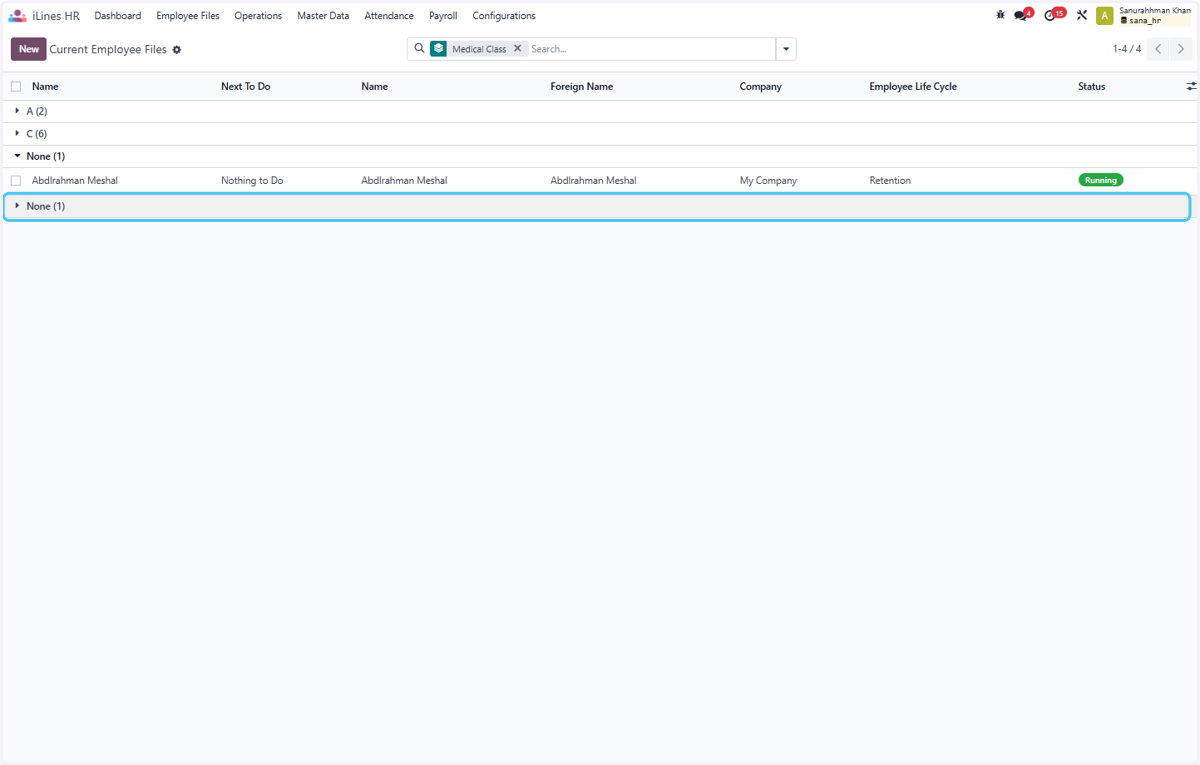
  8. 8. Click on None (1)

    Click on None (1)
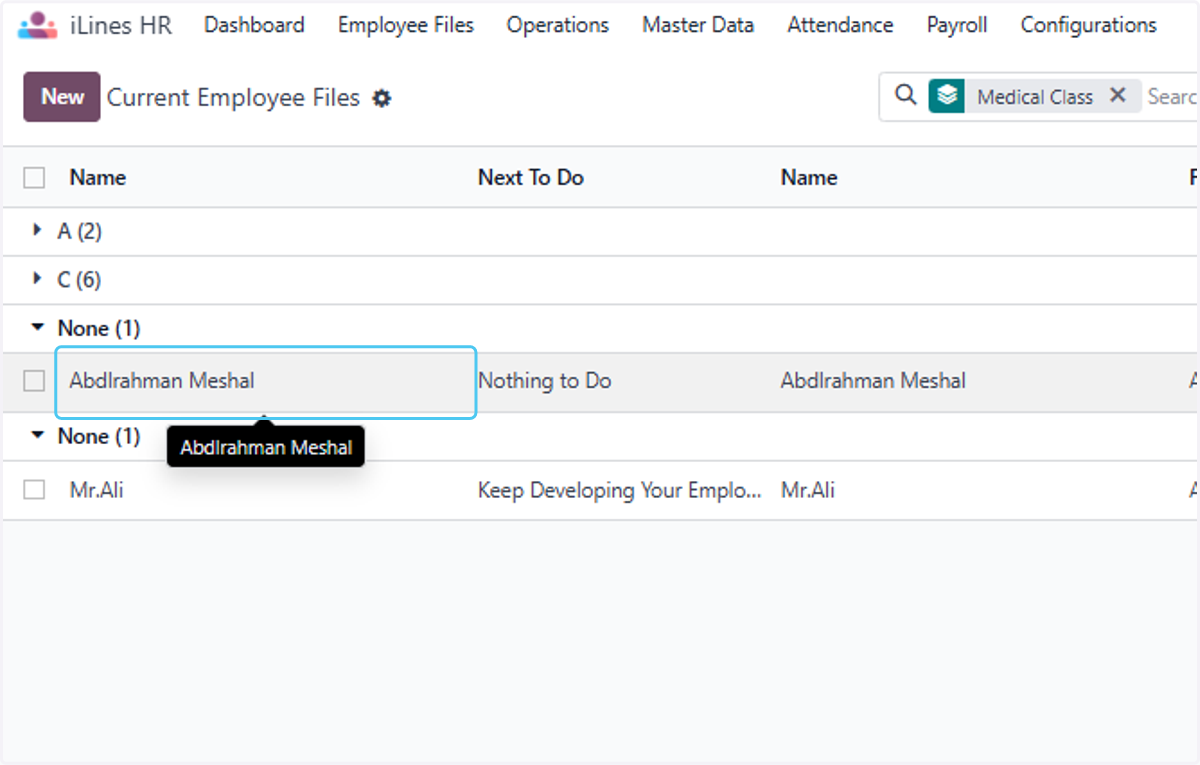
  9. 9. Click on Abdlrahman Meshal

    Click on Abdlrahman Meshal
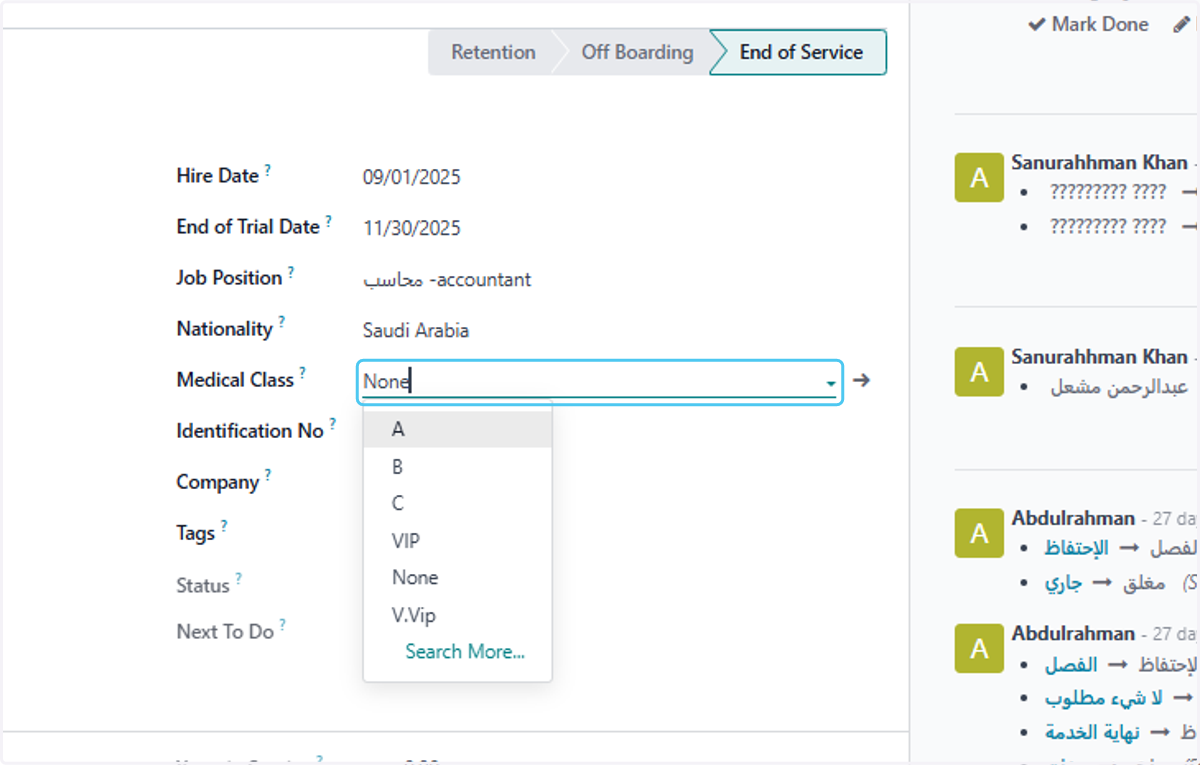
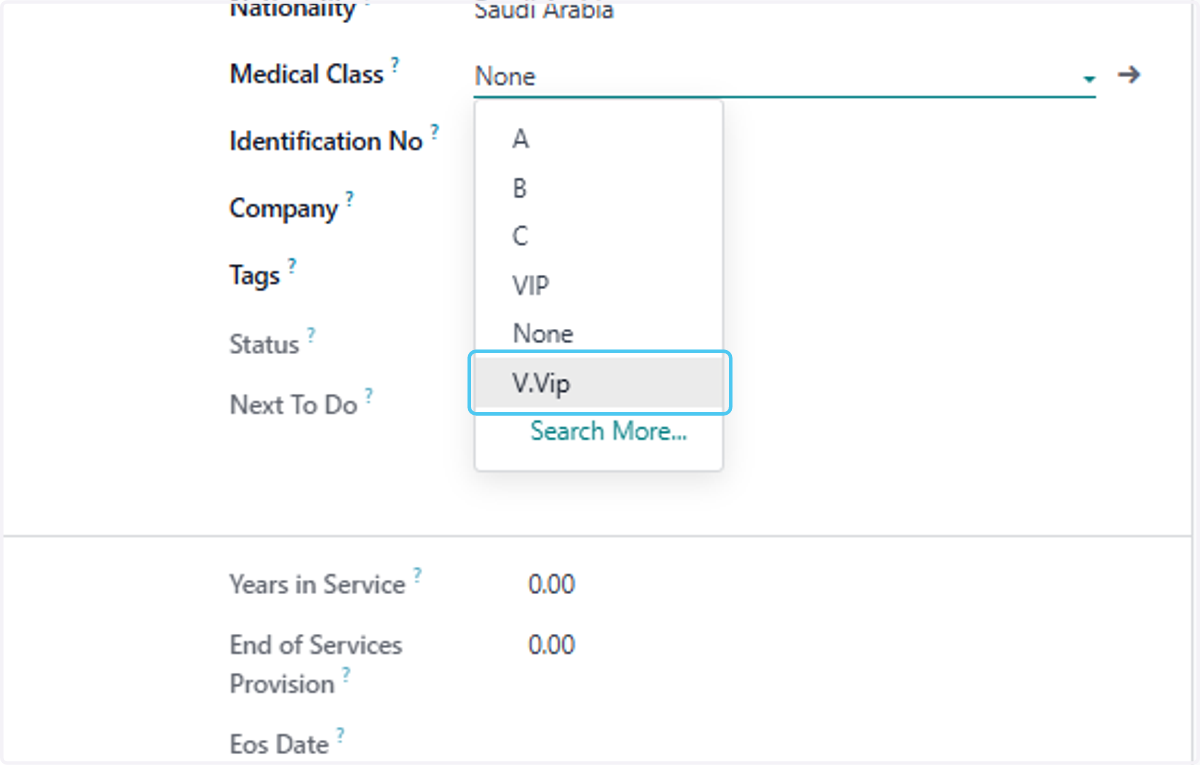
  10. 10. Right click on Medical Class?

    Right click on Medical Class?
  11. 11. Click on V.Vip

    Click on V.Vip
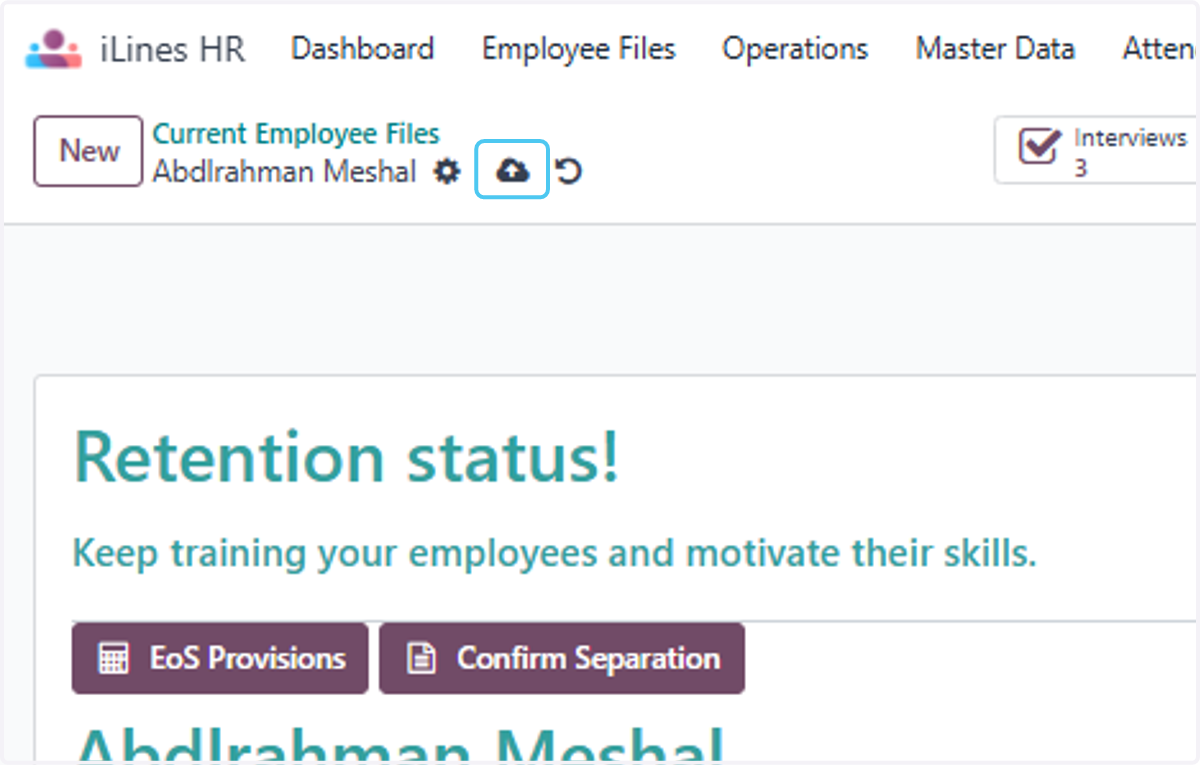
  12. 12. Click on Save manually

    Click on Save manually
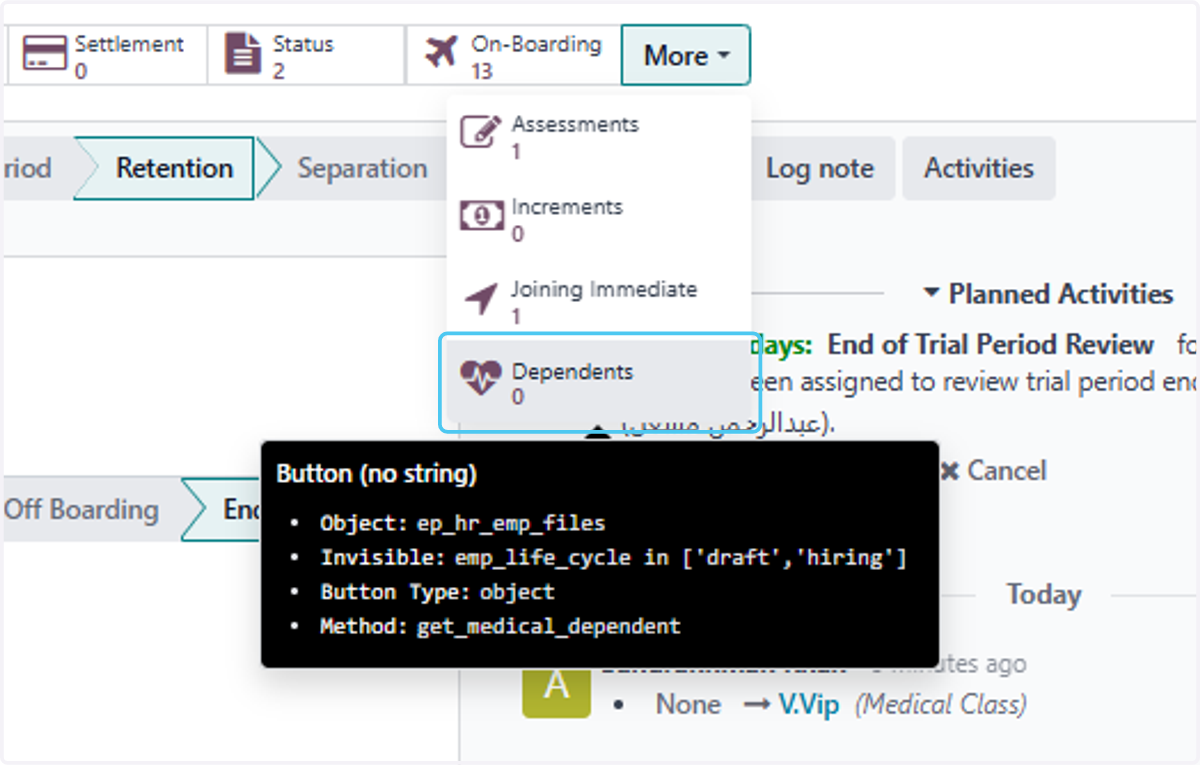
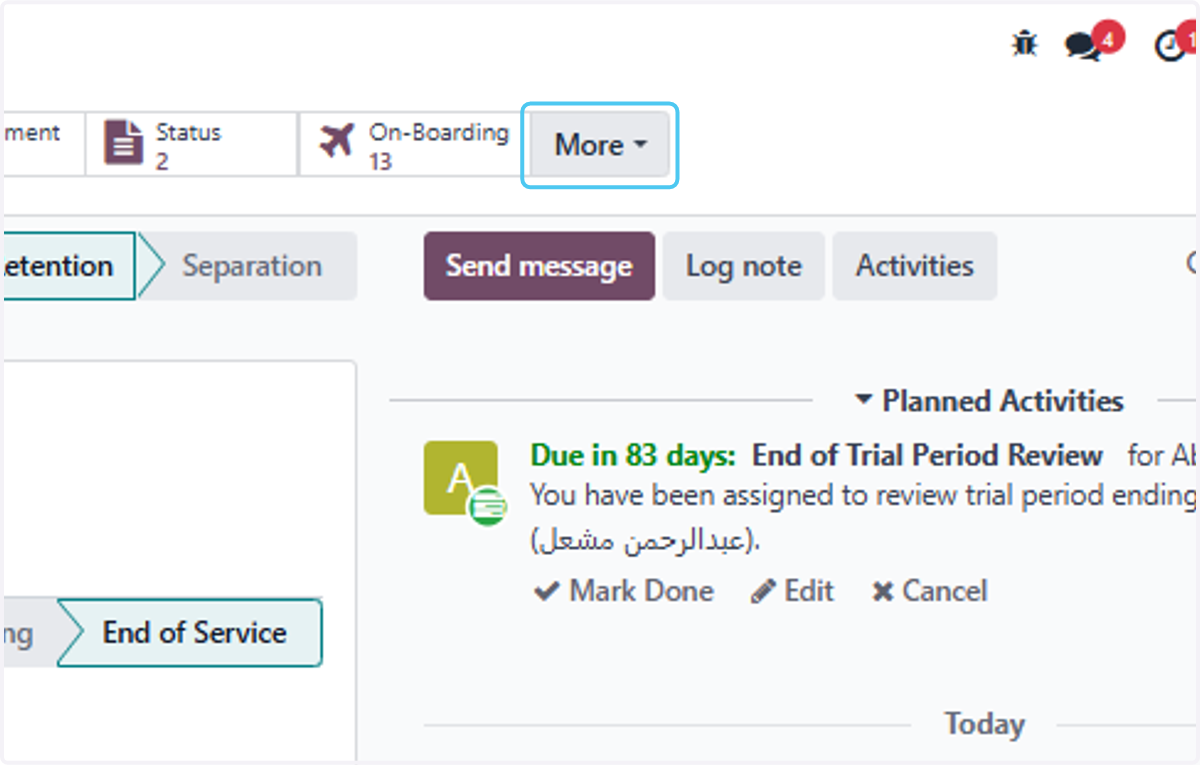
  13. 13. Click on More to Check or Add Dependent of Employees
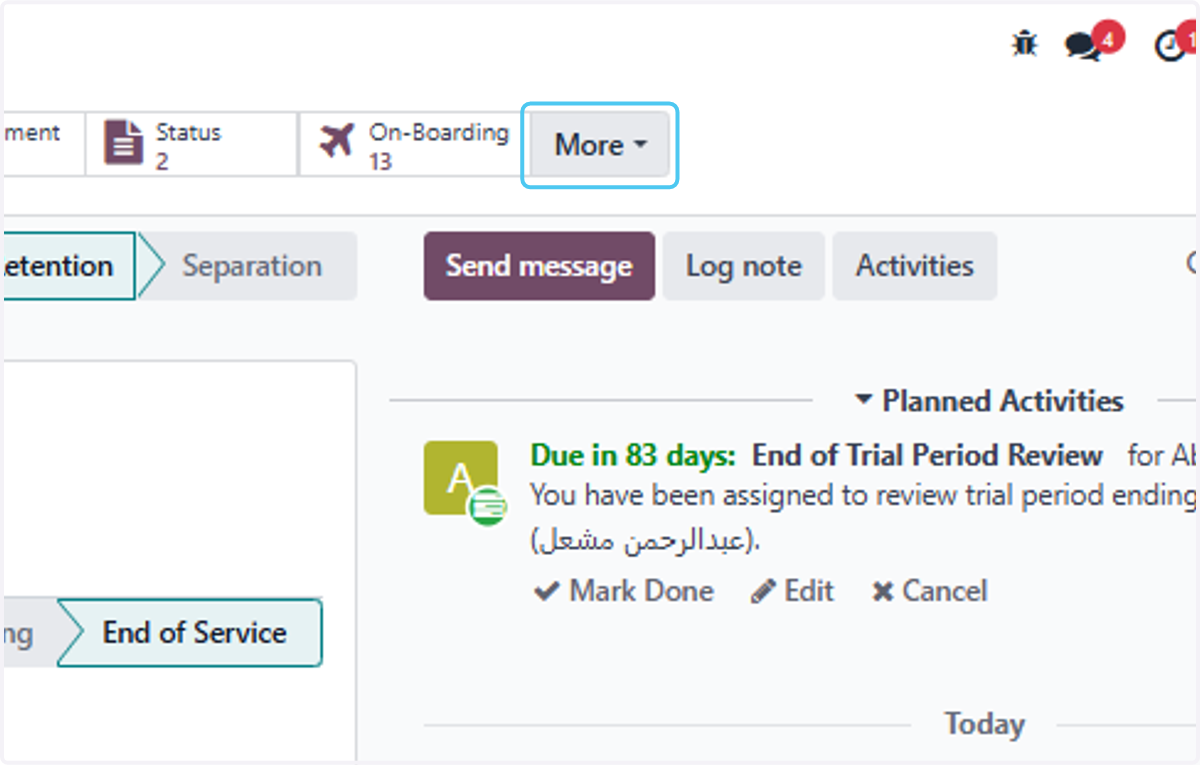
    Click on More to Check or Add Dependent of Employees
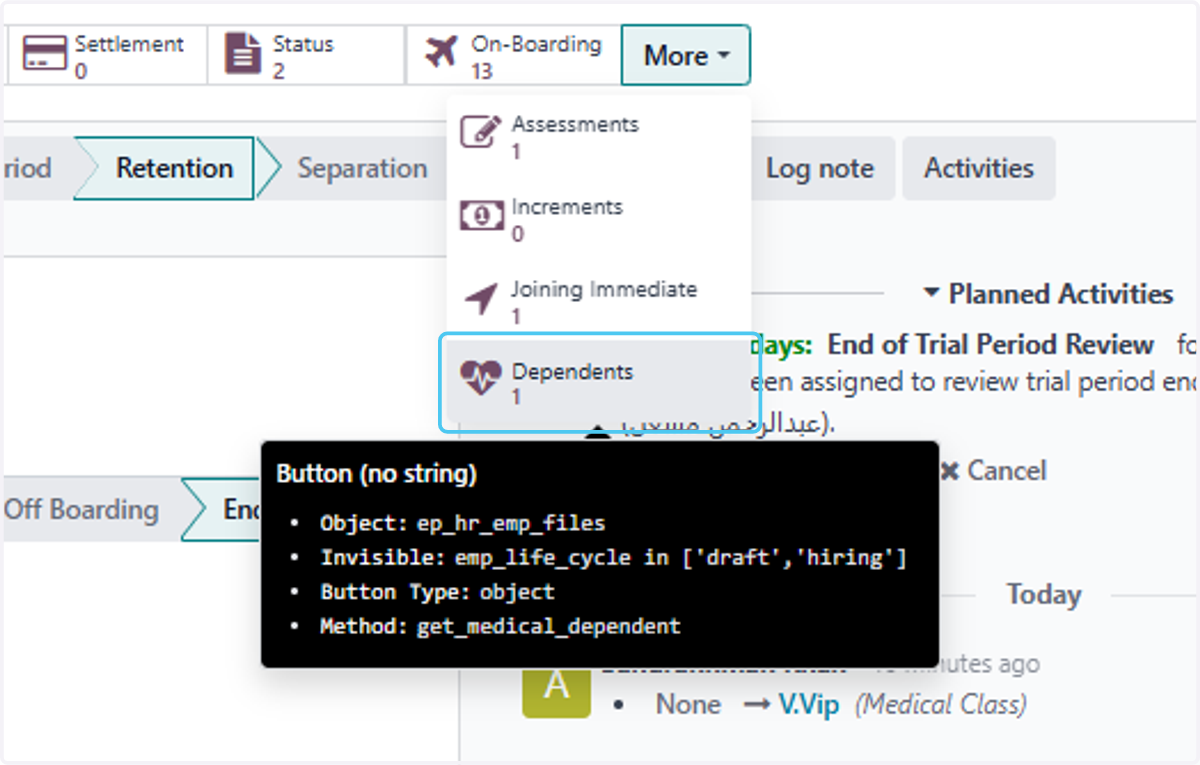
  14. 14. Click on Dependents

    Click on Dependents
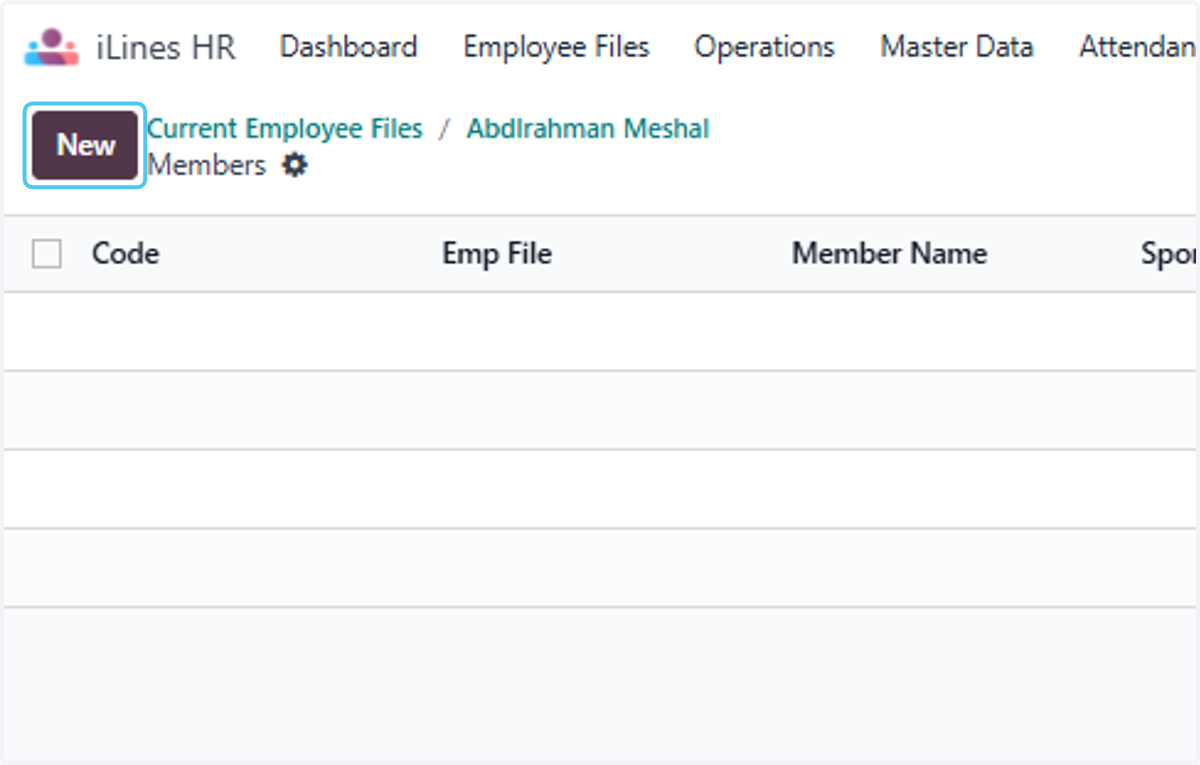
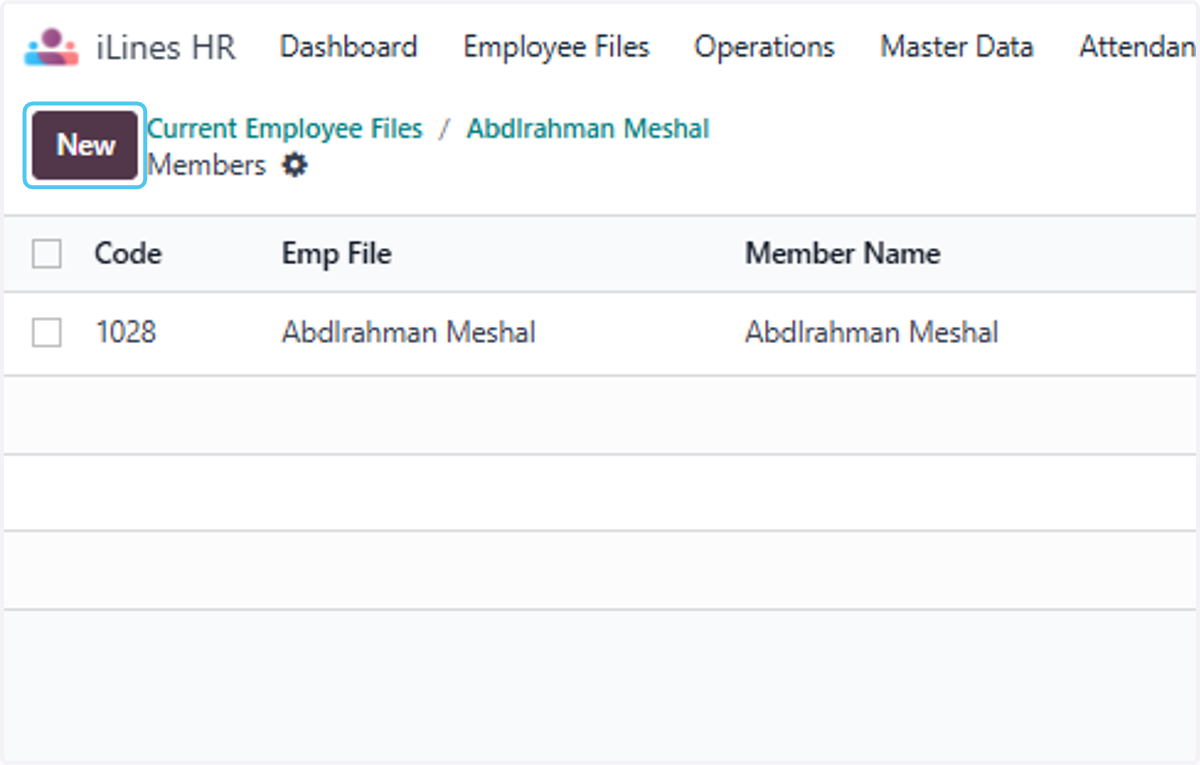
  15. 15. Click on New

    Click on New
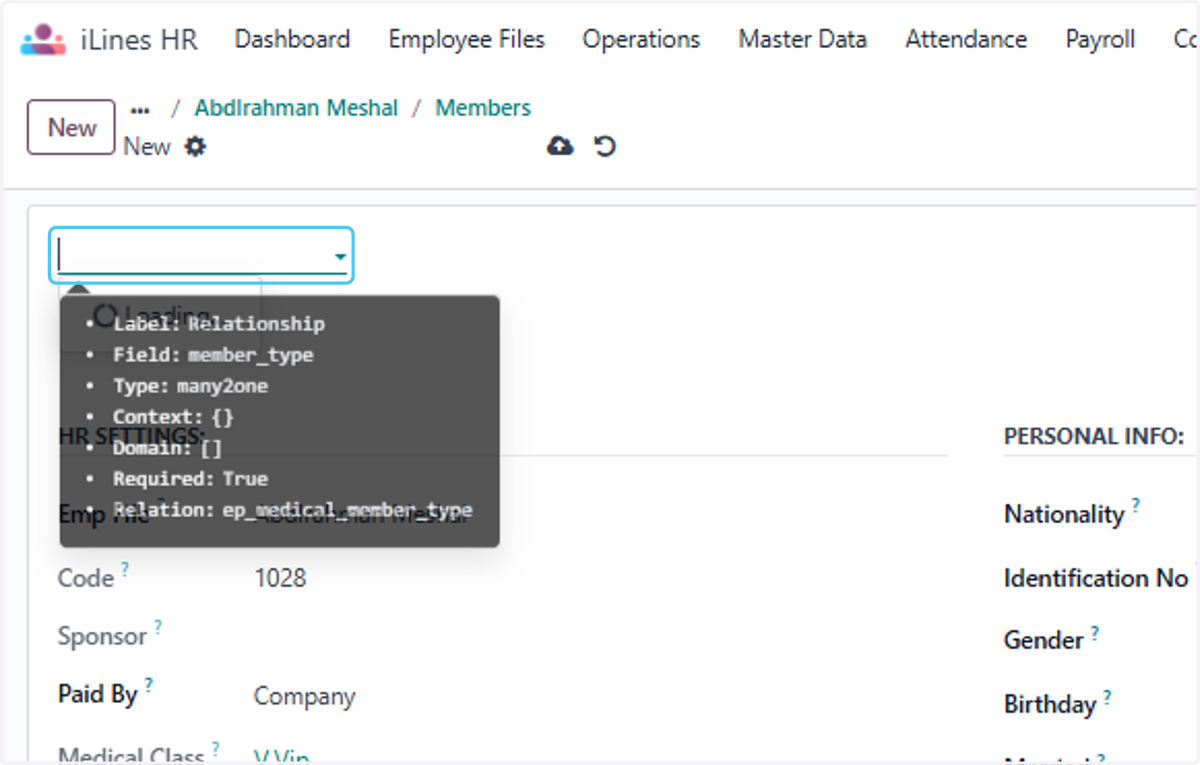
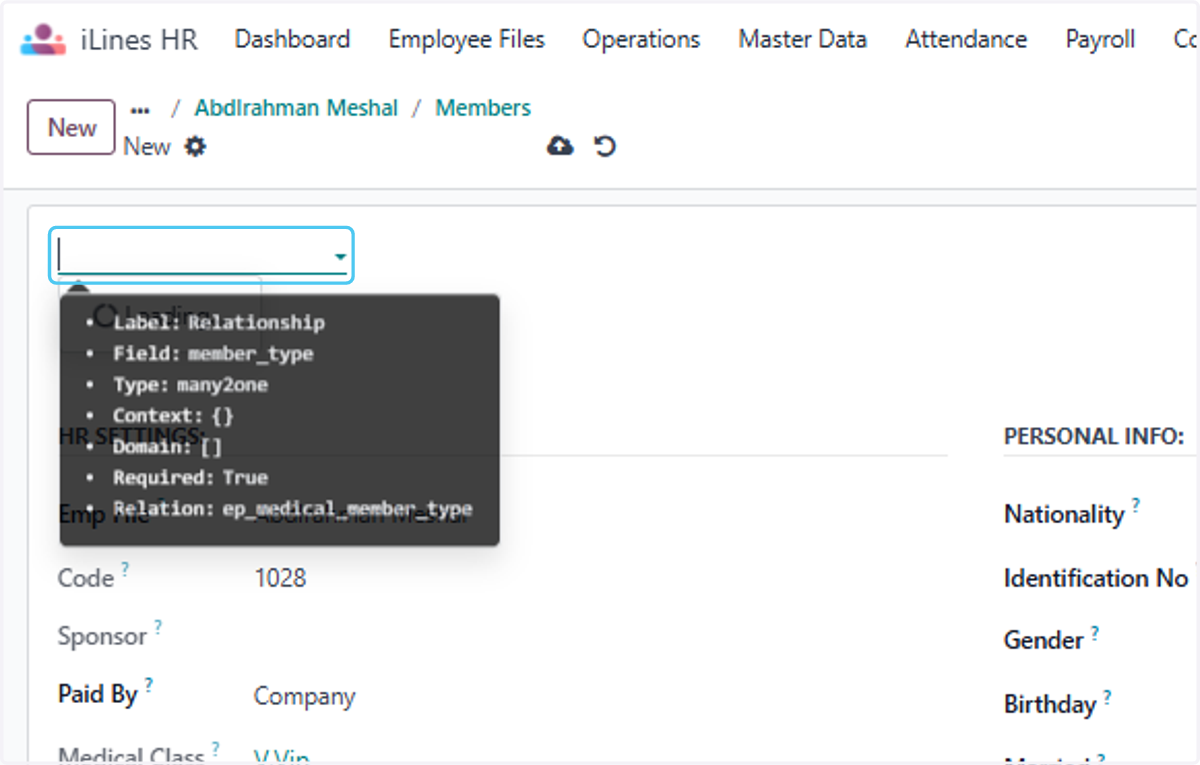
  16. 16. Click on dropdown trigger

    Click on dropdown trigger
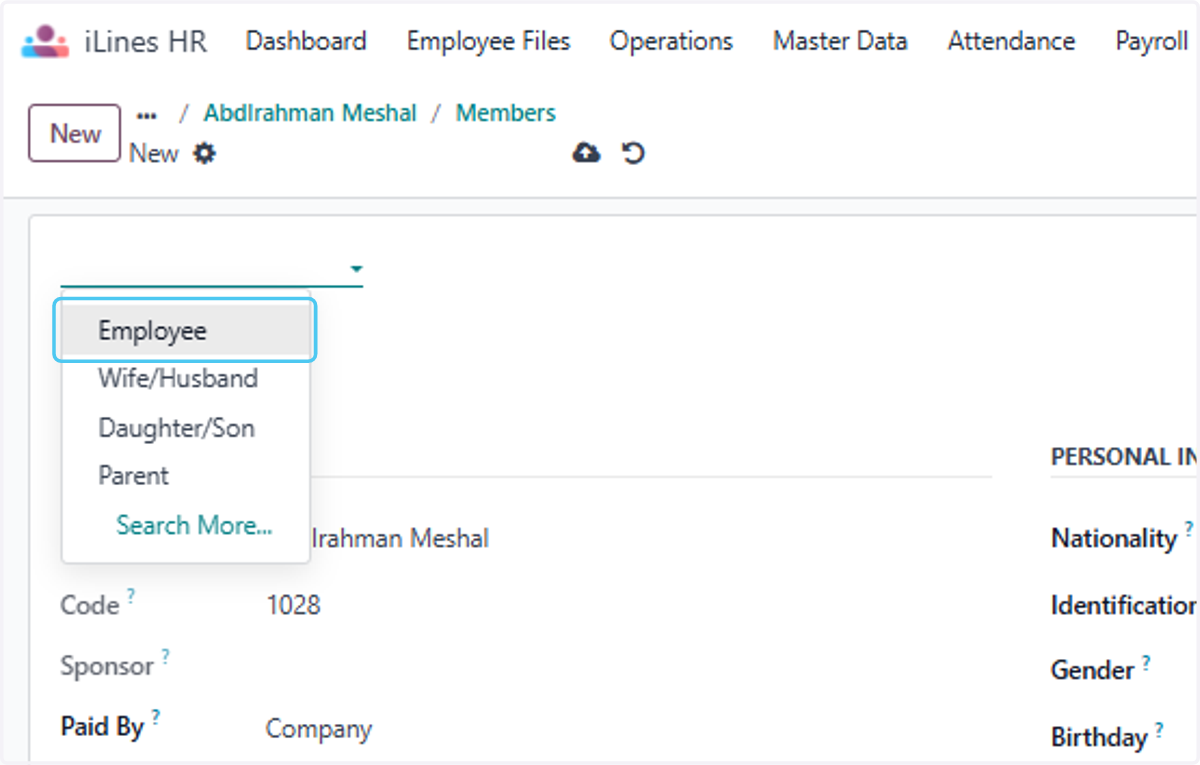
  17. 17. Click on Employee

    Click on Employee
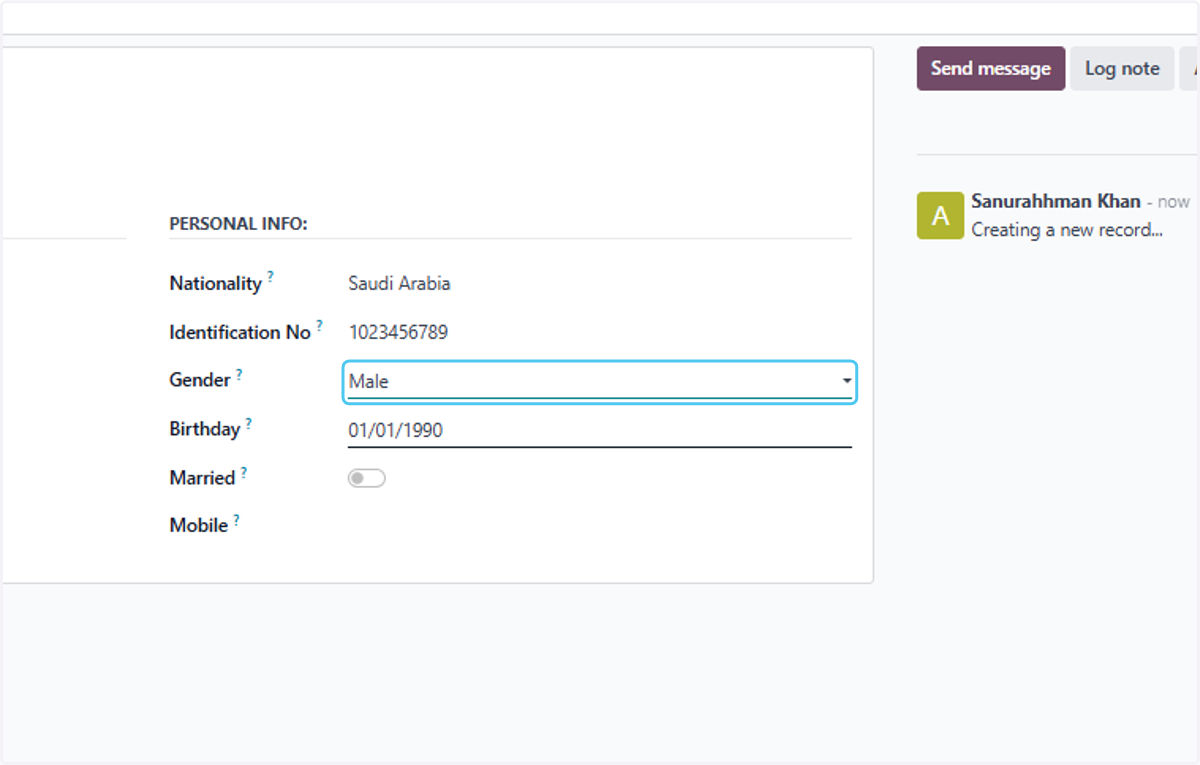
  18. 18. Select Male from Gender?

    Select Male from Gender?
  19. 19. Click on PERSONAL INFO and fill all details
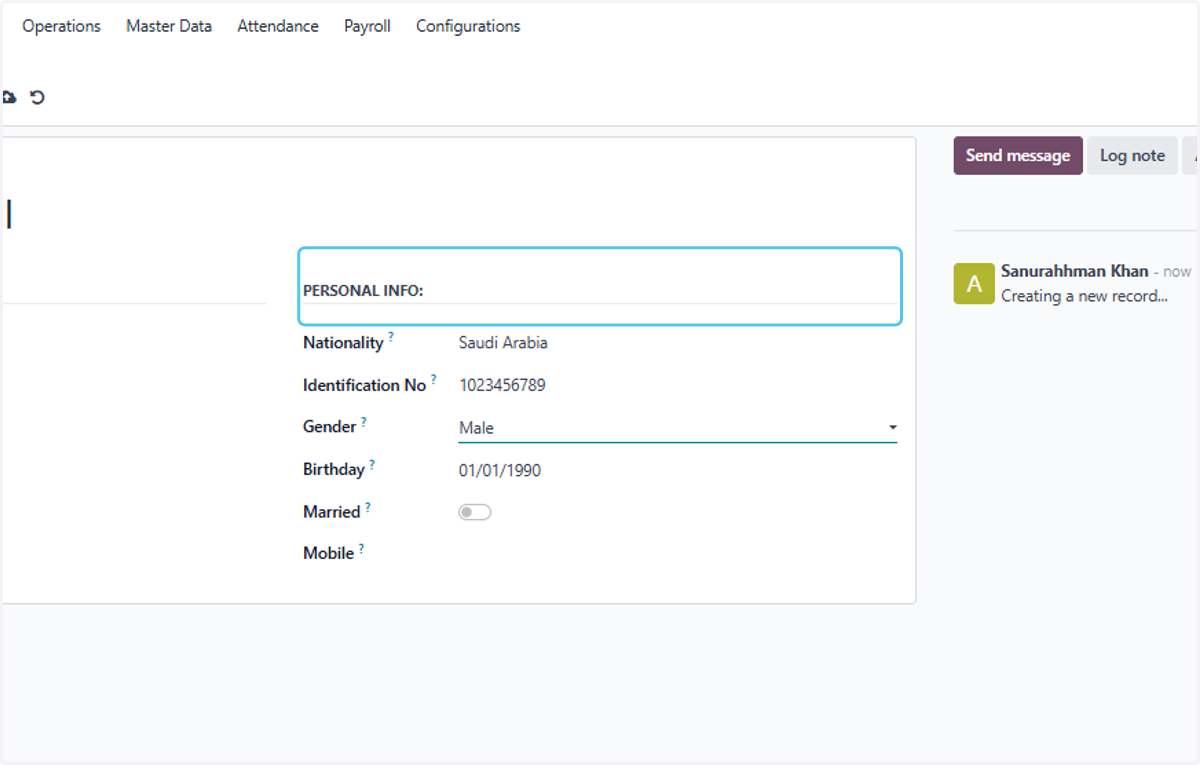
    Click on PERSONAL INFO and fill all details
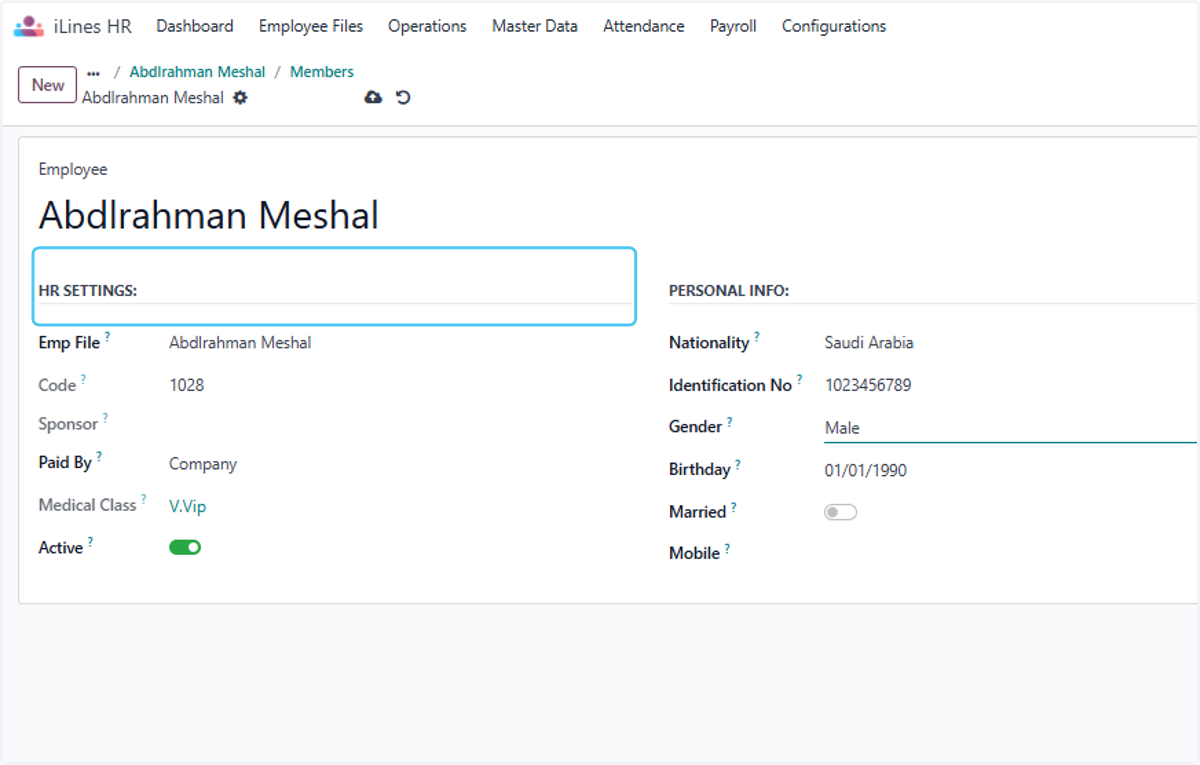
  20. 20. Click on HR SETTINGS

    Click on HR SETTINGS
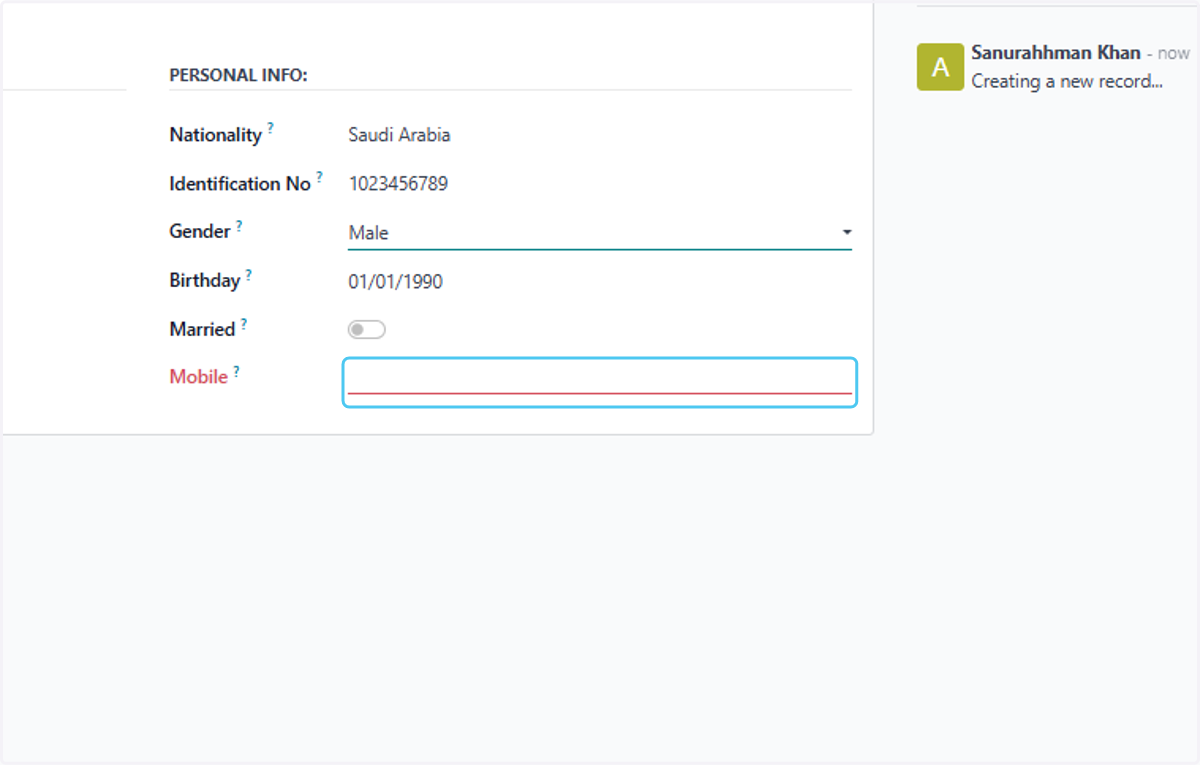
  21. 21. Click on Mobile?

    Click on Mobile?
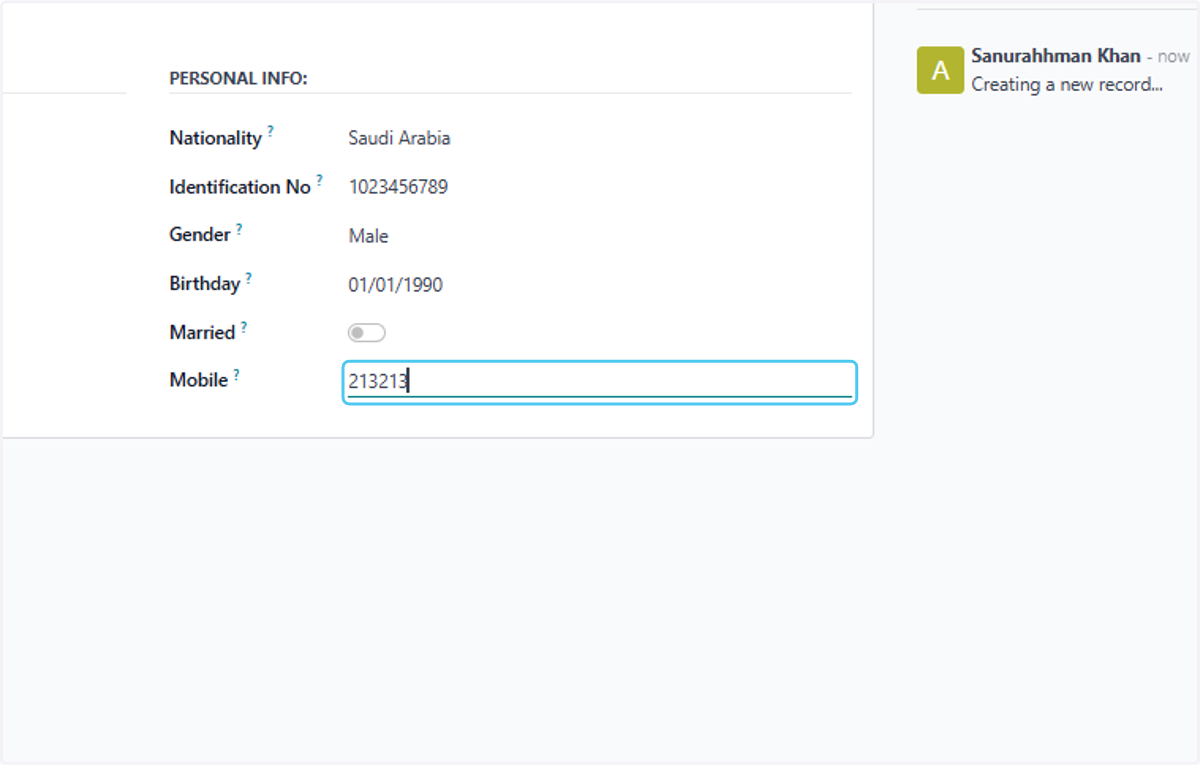
  22. 22. Type "213213"

    Type "213213"
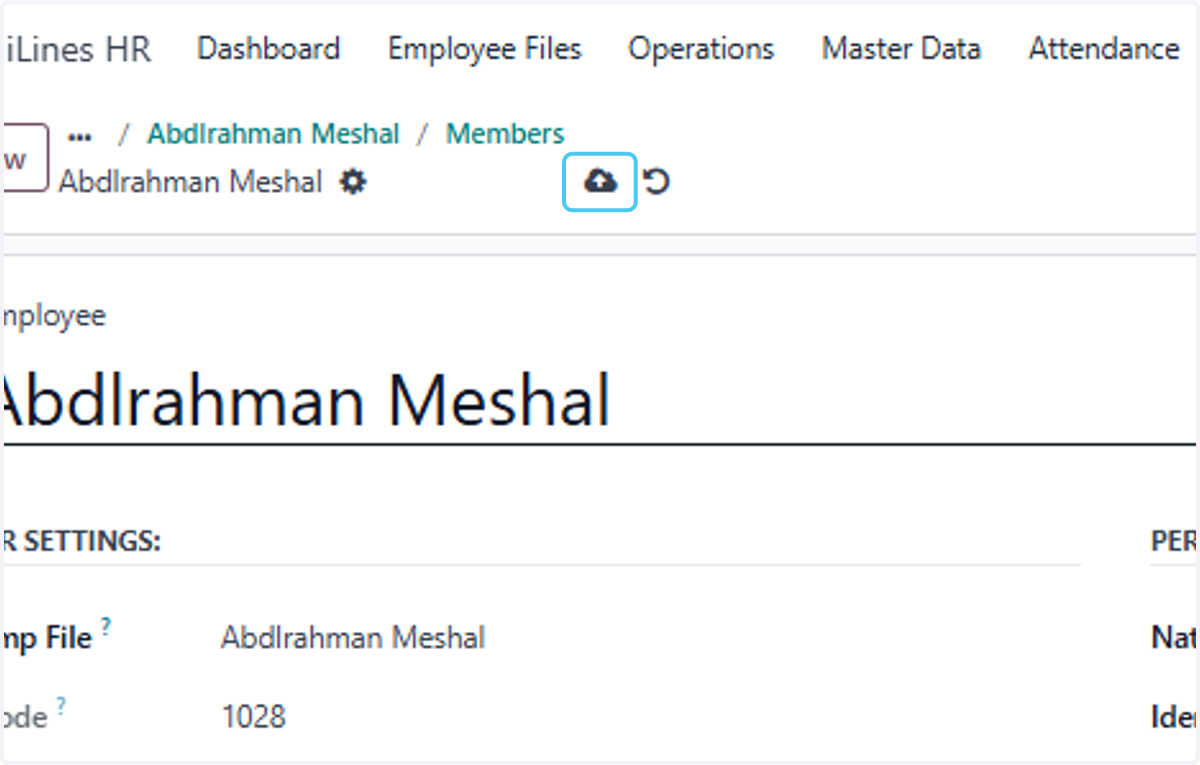
  23. 23. Click on Save manually

    Click on Save manually
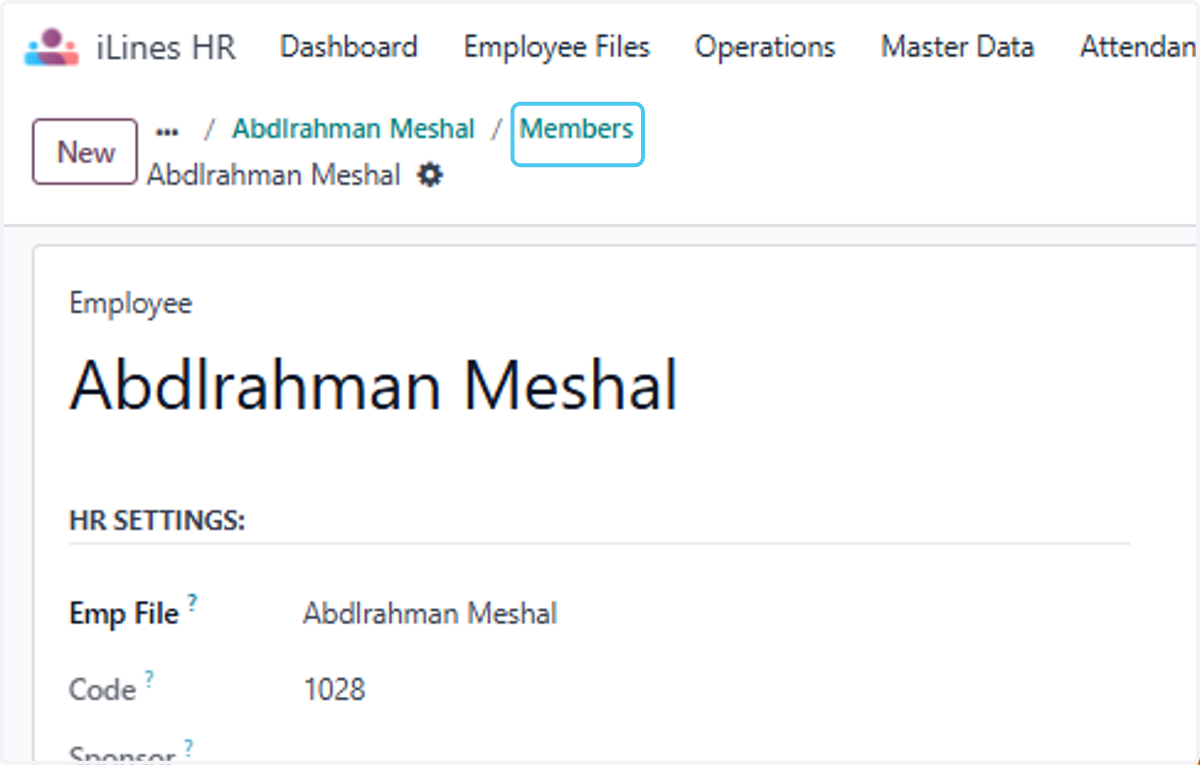
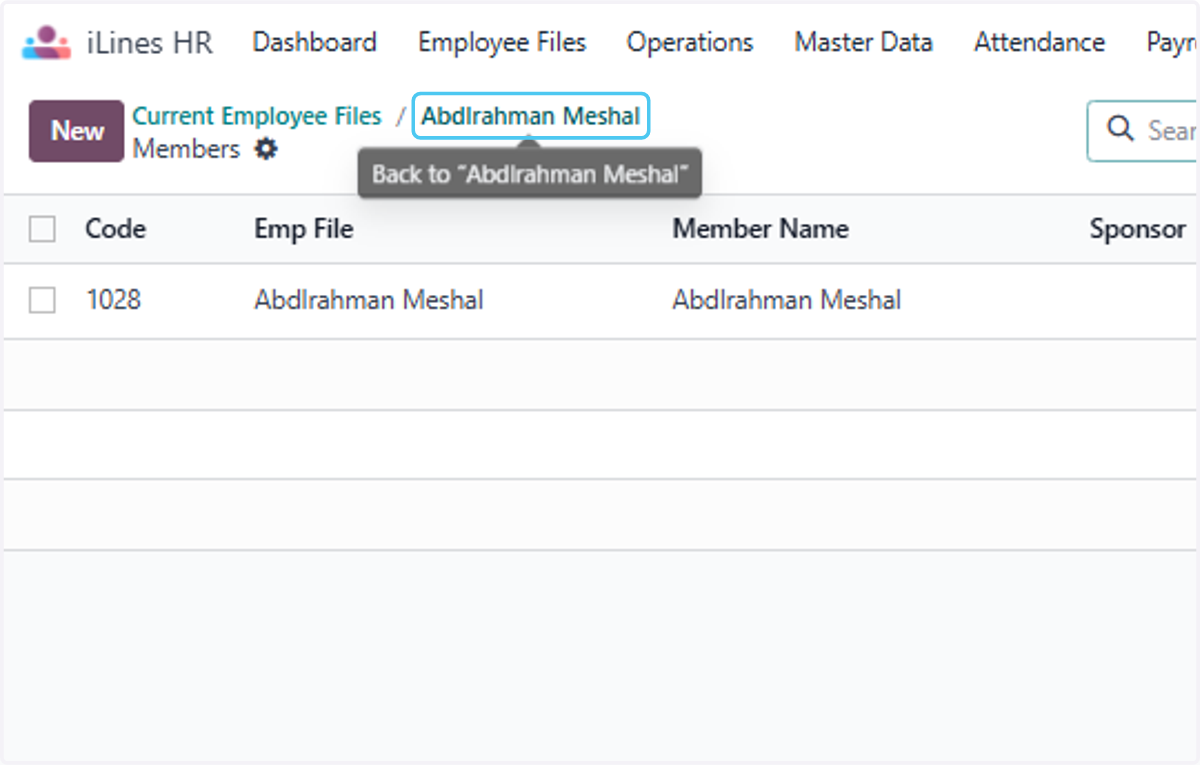
  24. 24. Click on Members

    Click on Members
  25. 25. Click on Abdlrahman Meshal

    Click on Abdlrahman Meshal
  26. 26. Click on More

    Click on More
  27. 27. Click on Dependents

    Click on Dependents
  28. 28. Click on New

    Click on New
  29. 29. Click on dropdown trigger

    Click on dropdown trigger
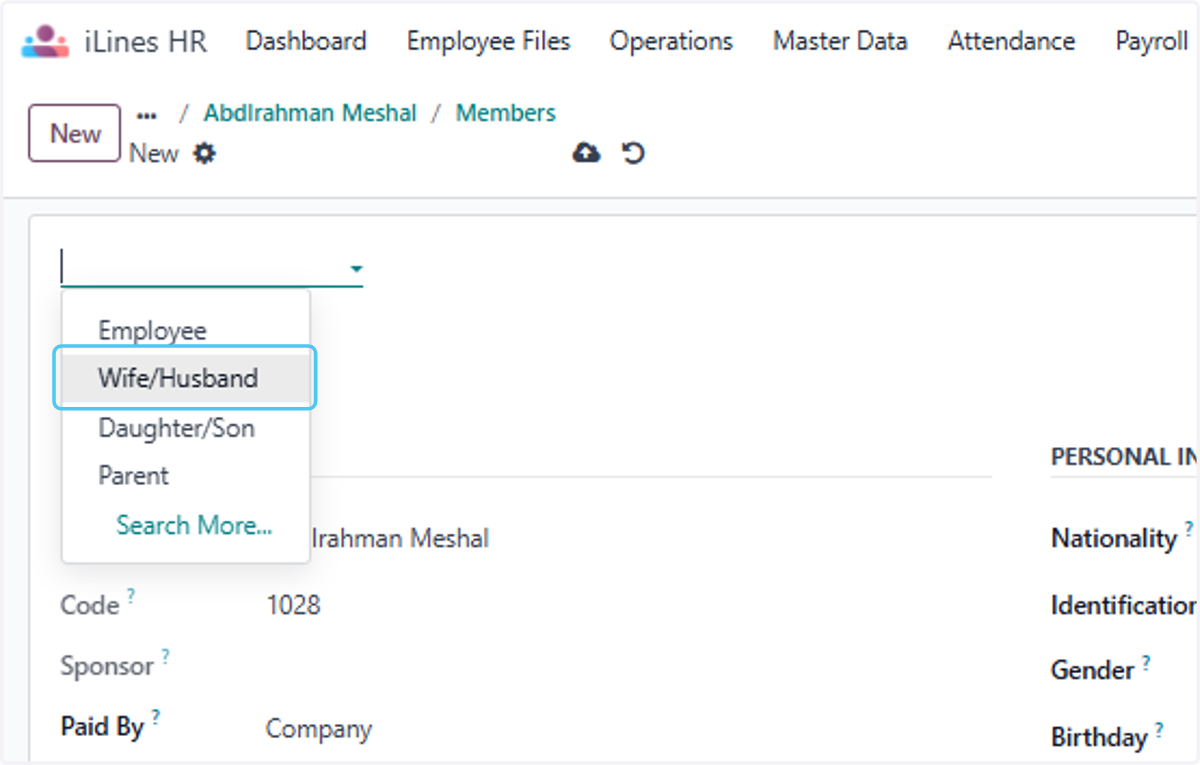
  30. 30. Click on Wife/Husband

    Click on Wife/Husband
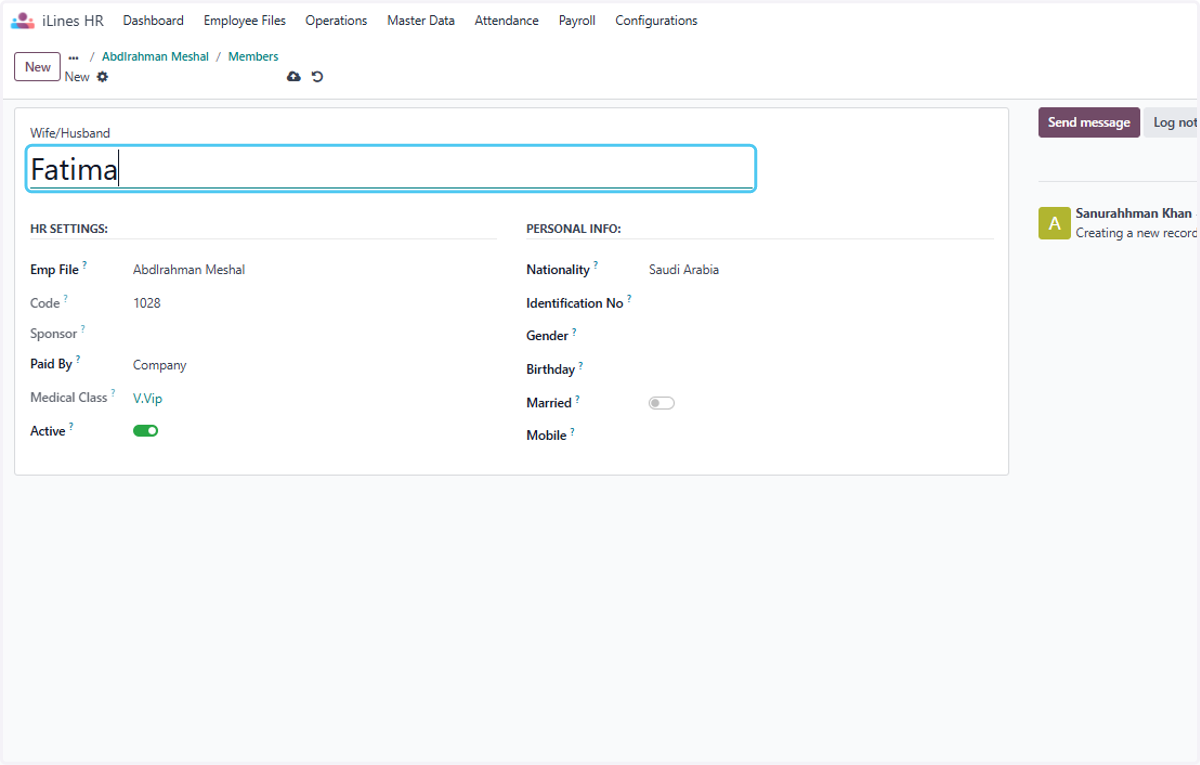
  31. 31. Type "Fatima"

    Type "Fatima"
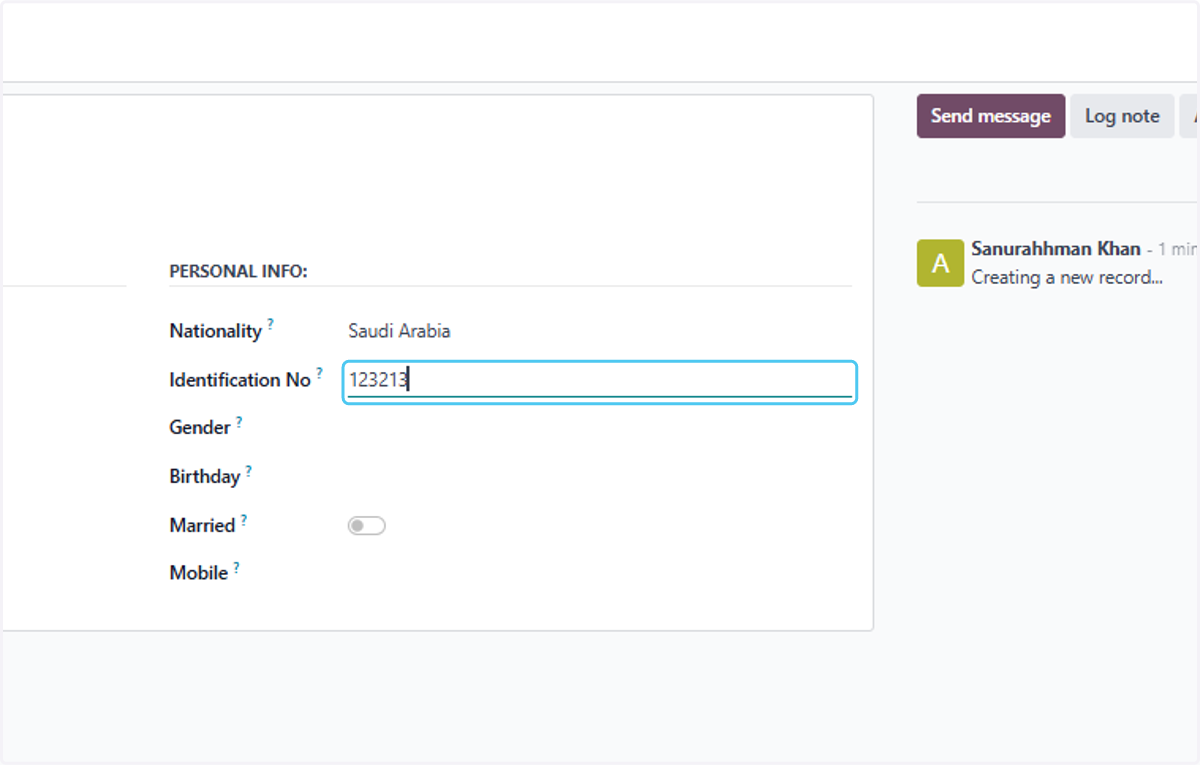
  32. 32. Type "123213"

    Type "123213"
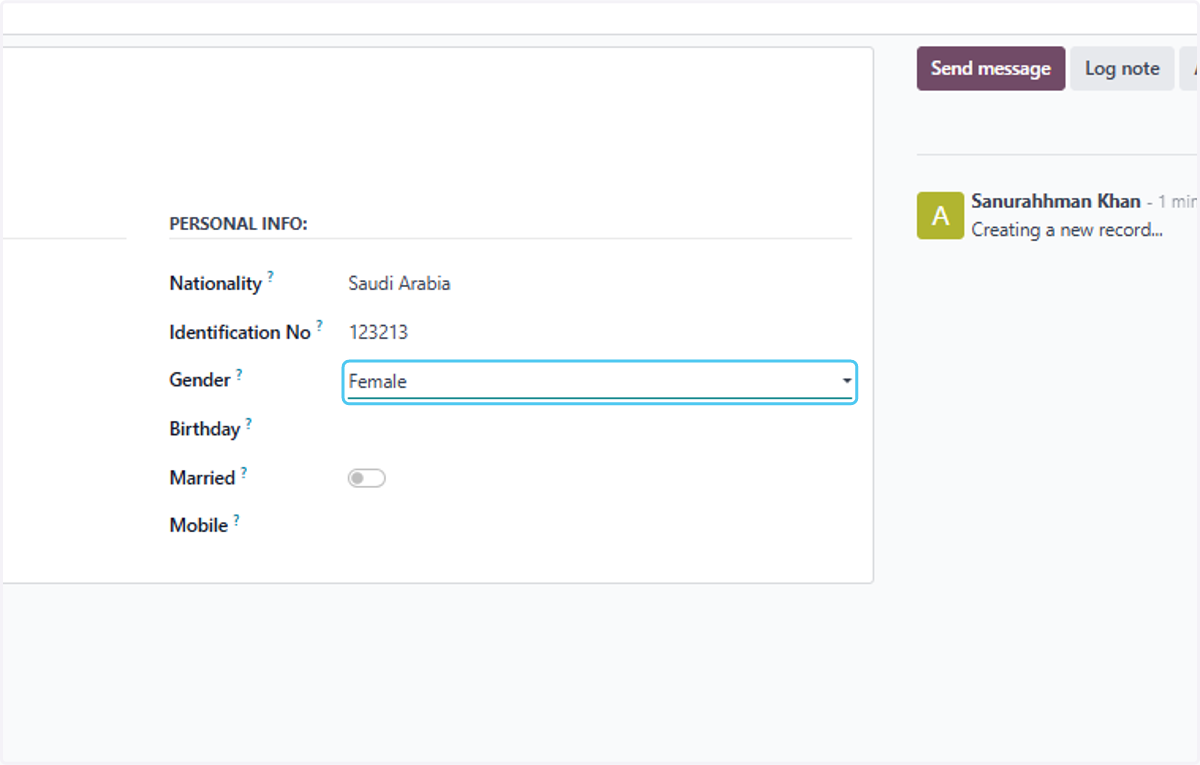
  33. 33. Select Female from Gender?

    Select Female from Gender?
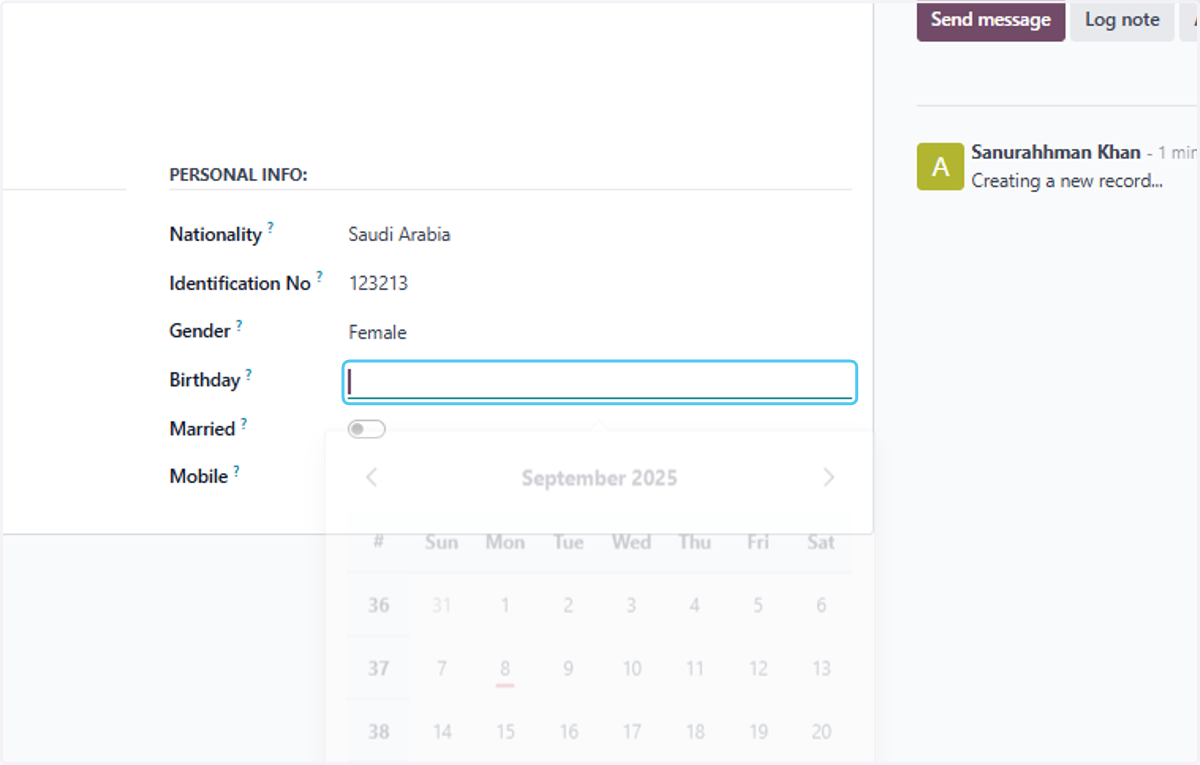
  34. 34. Click on Birthday?

    Click on Birthday?
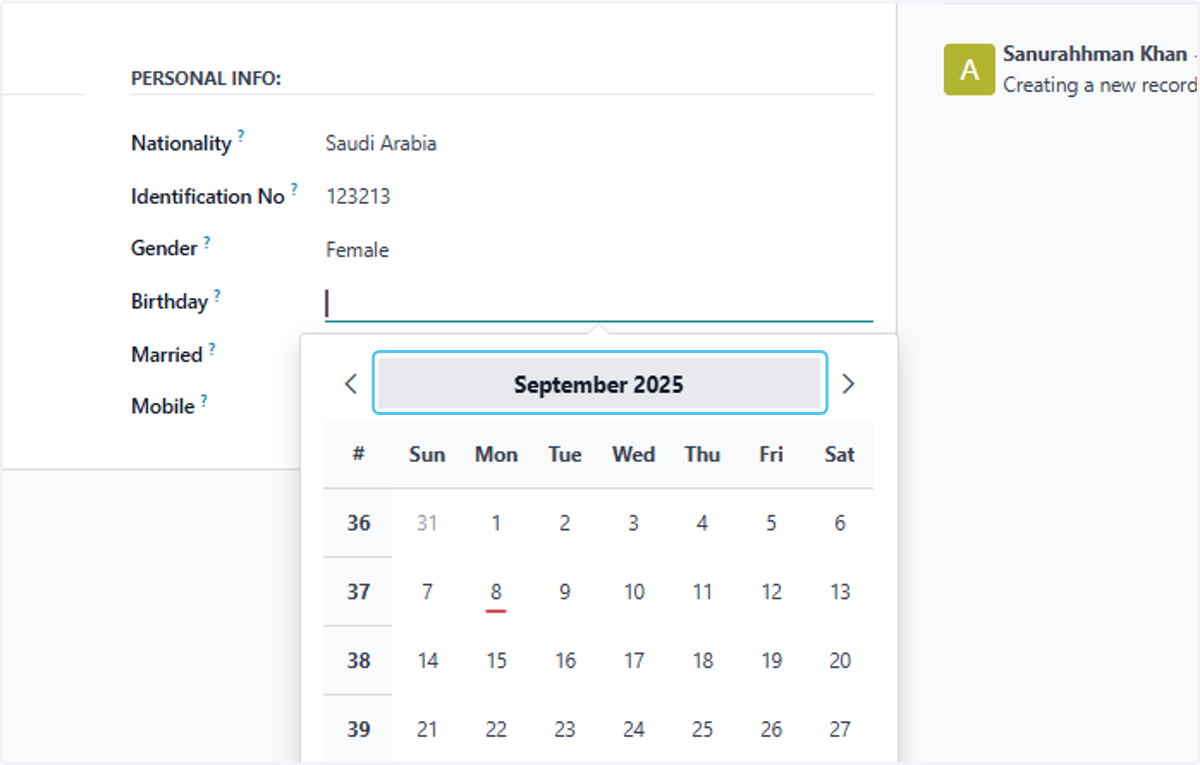
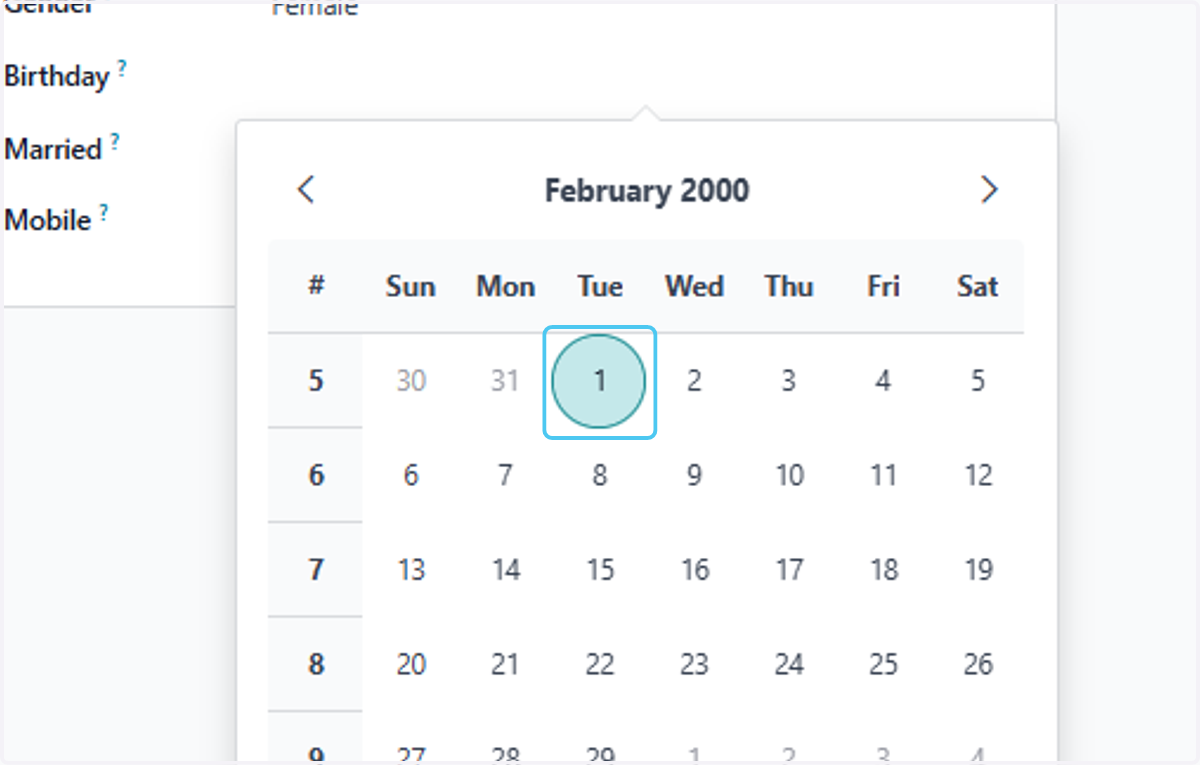
  35. 35. Click on September 2025

    Click on September 2025
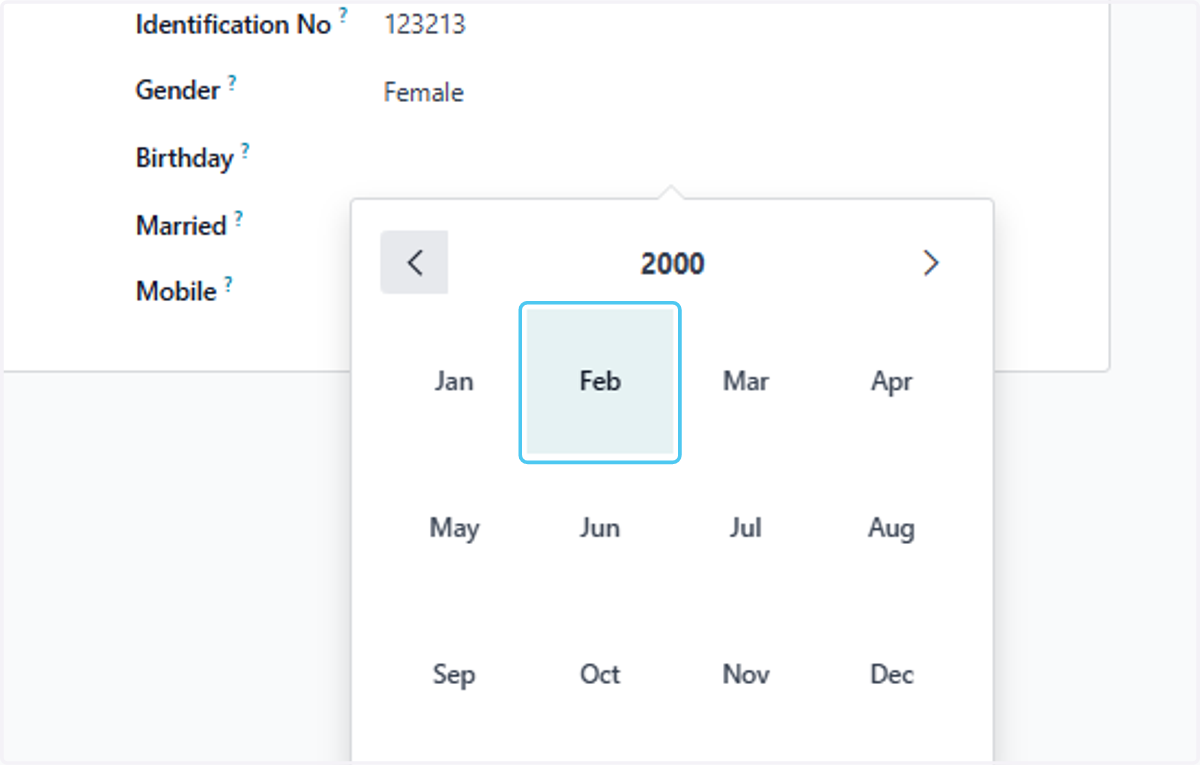
  36. 36. Click on Feb

    Click on Feb
  37. 37. Click on 1

    Click on 1
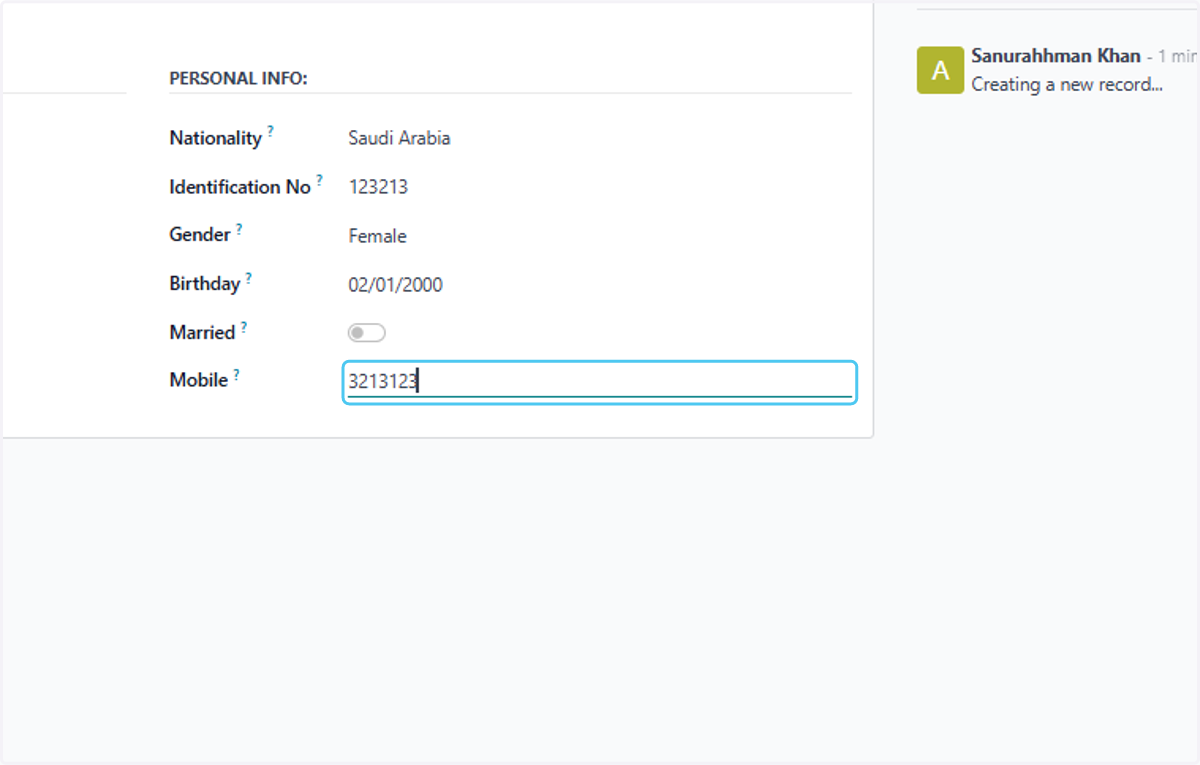
  38. 38. Type "3213123"

    Type "3213123"
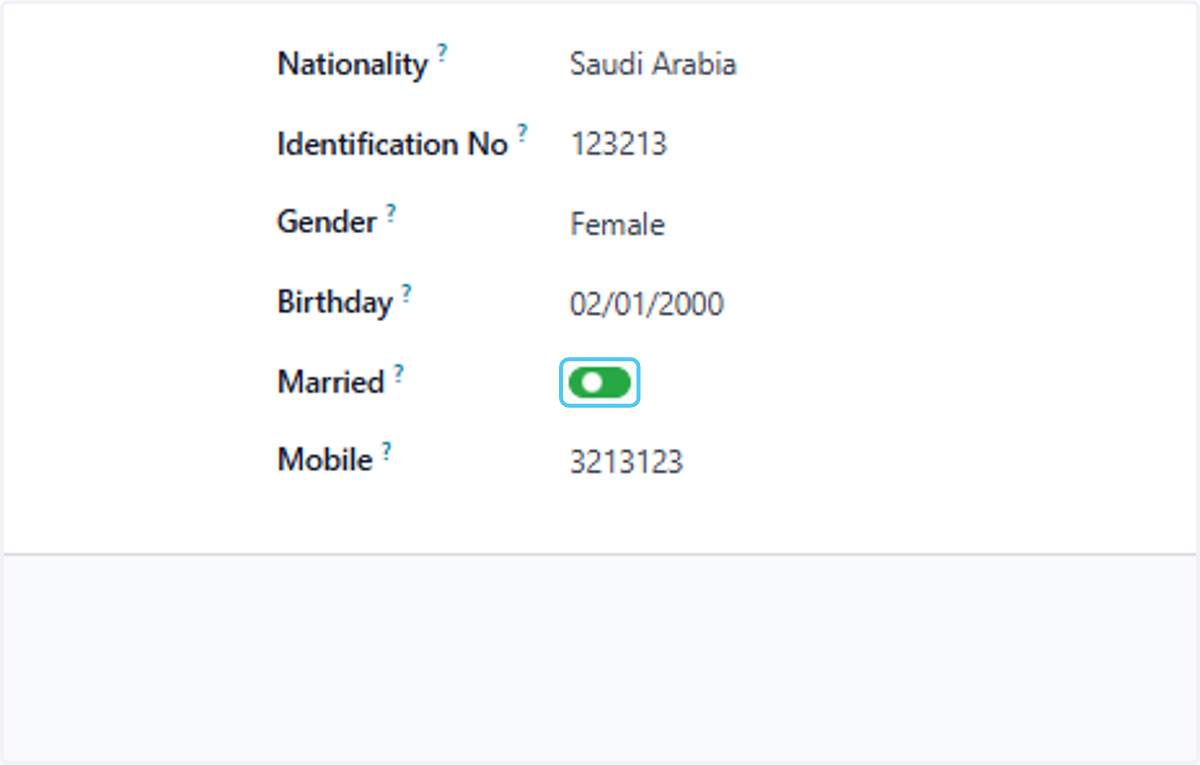
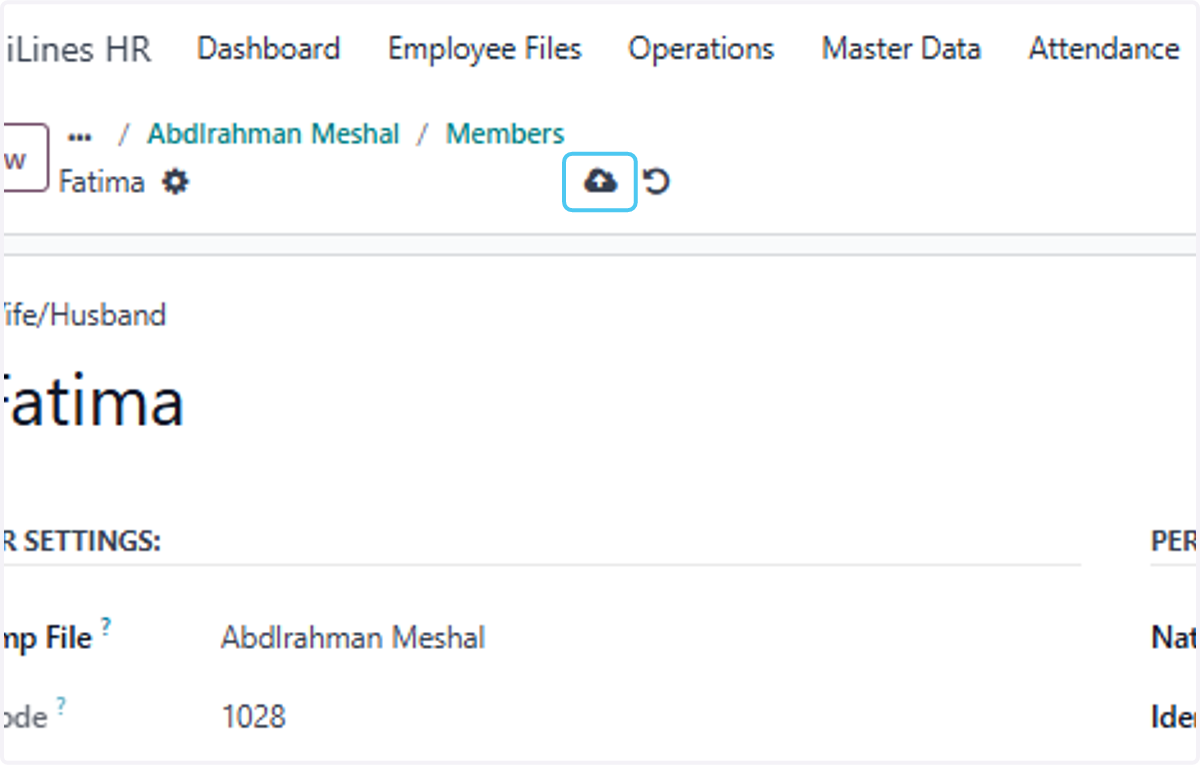
  39. 39. Check Married?

    Check Married?
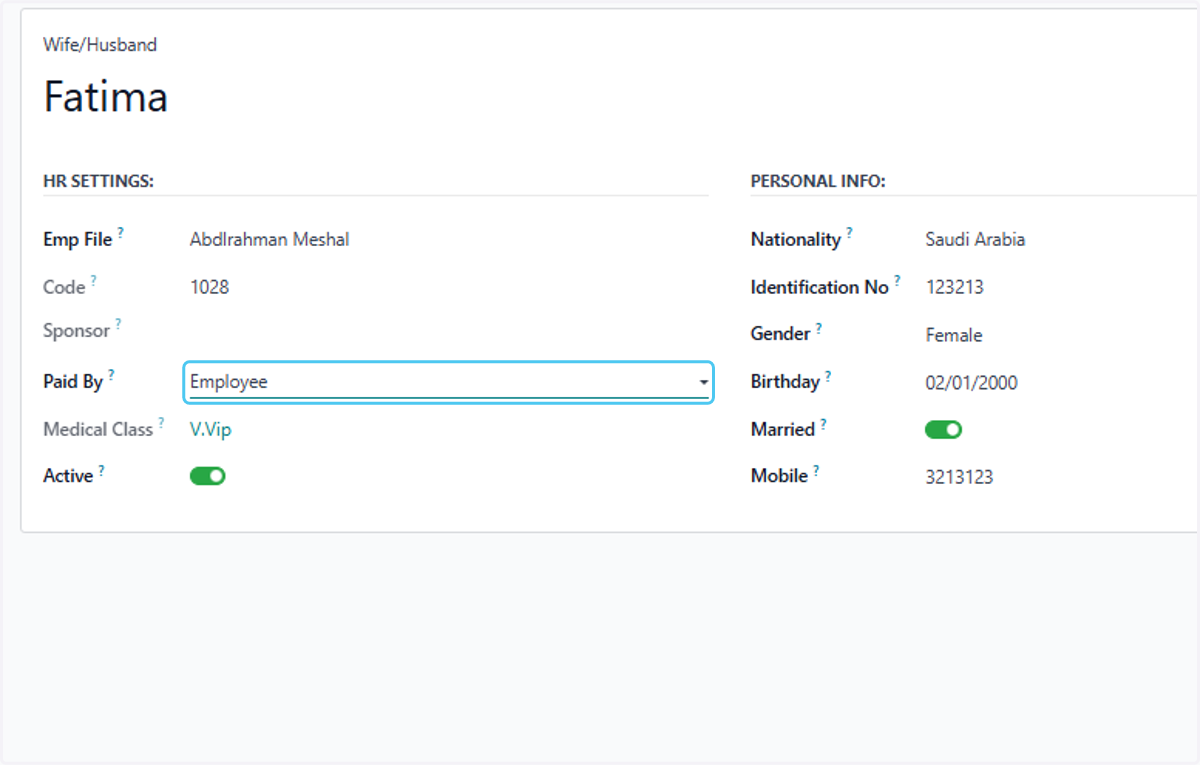
  40. 40. Select Employee from Paid By?

    Select Employee from Paid By?
  41. 41. Click on Save manually

    Click on Save manually
  42. 42. Click on Code… here you can see all the details of the dependents are added
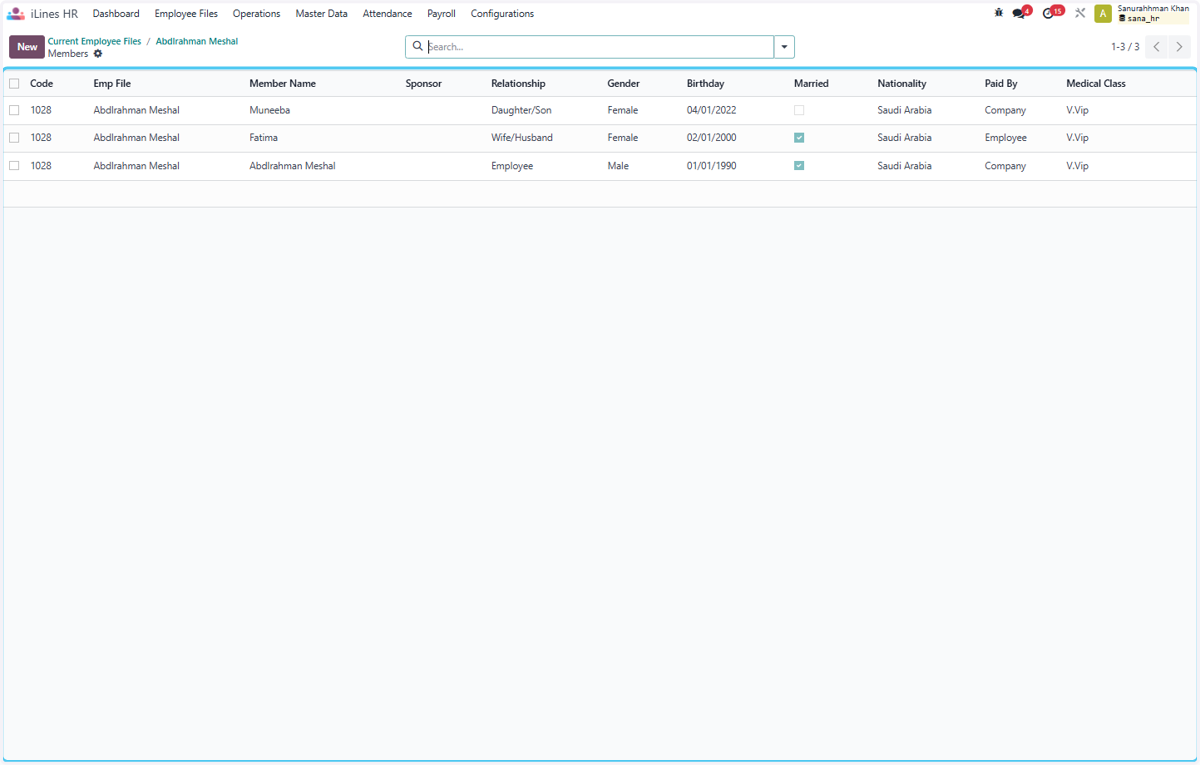
    Click on Code… here you can see all the details of the dependents are added