PAWS - Multiple ways to view Student Schedule
1) Home - PAWS Experience
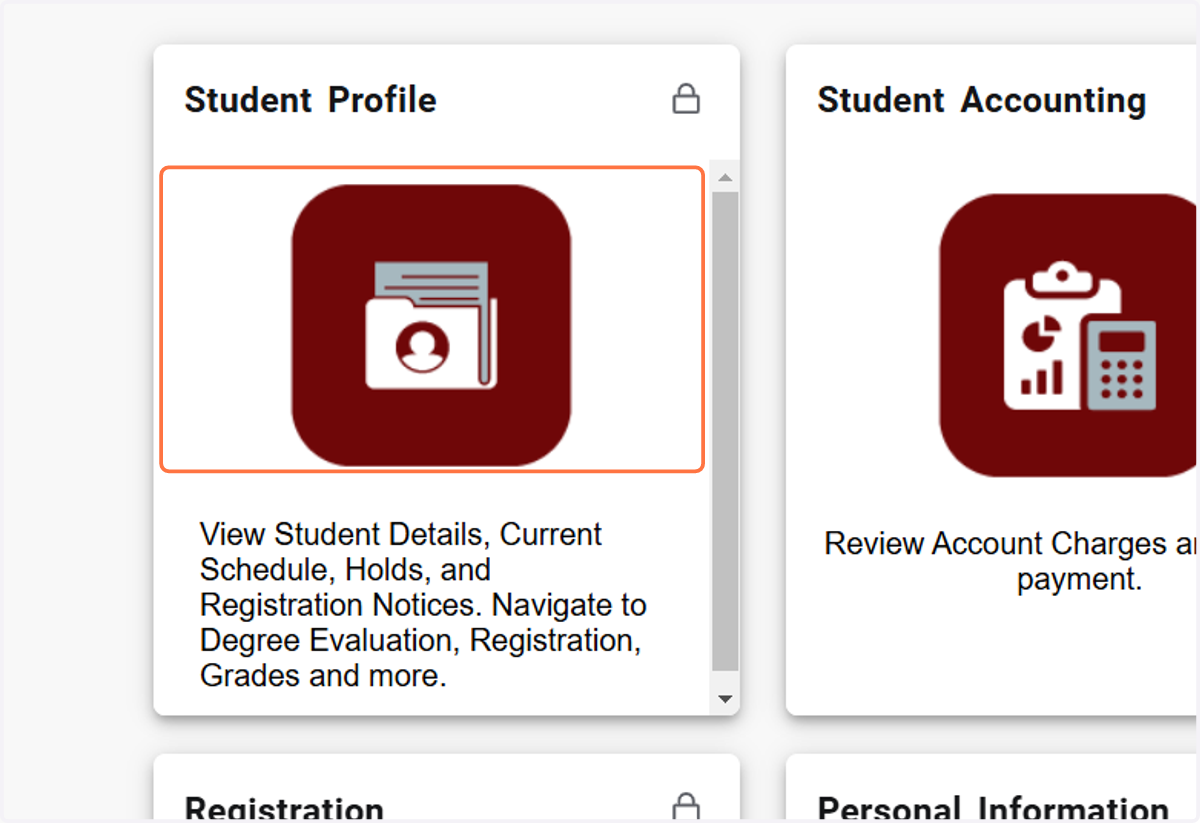
1. Click on Student Profile
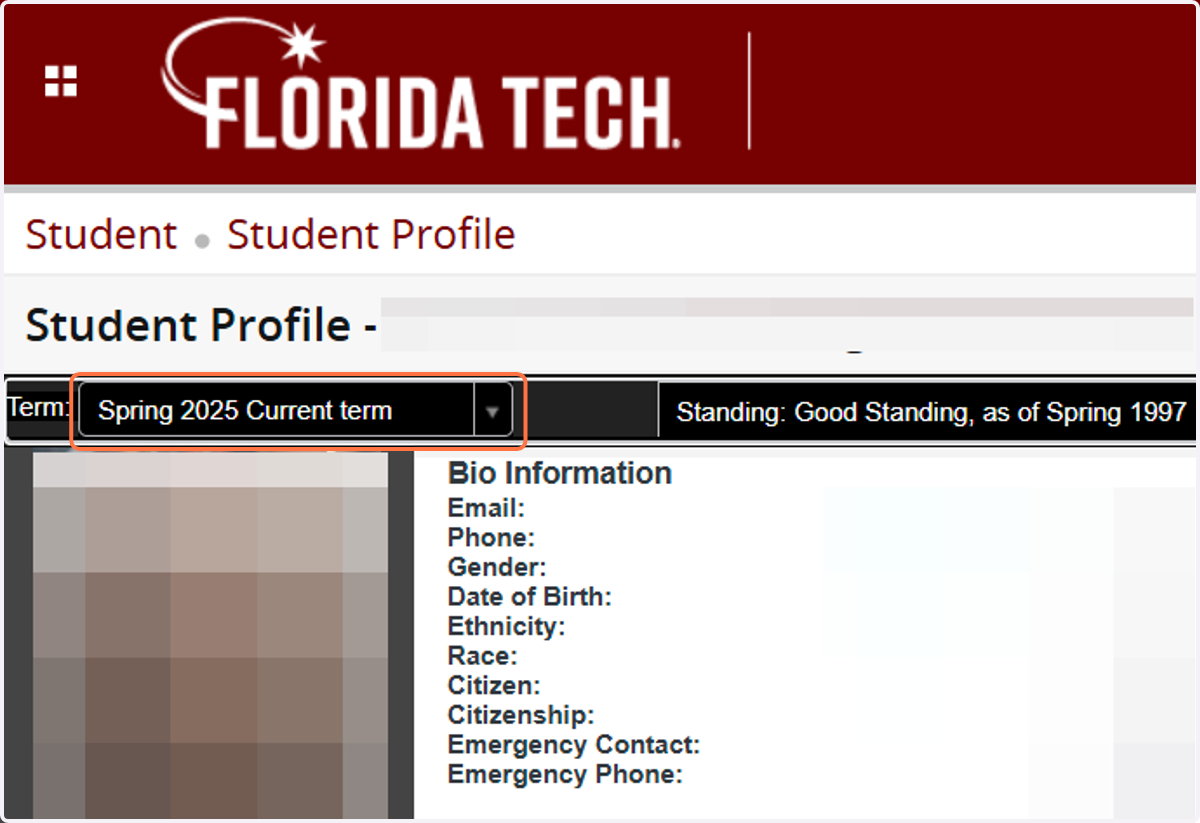
2. Click on Term Drop-Down if a different term is needed
3. Click on appropriate Term
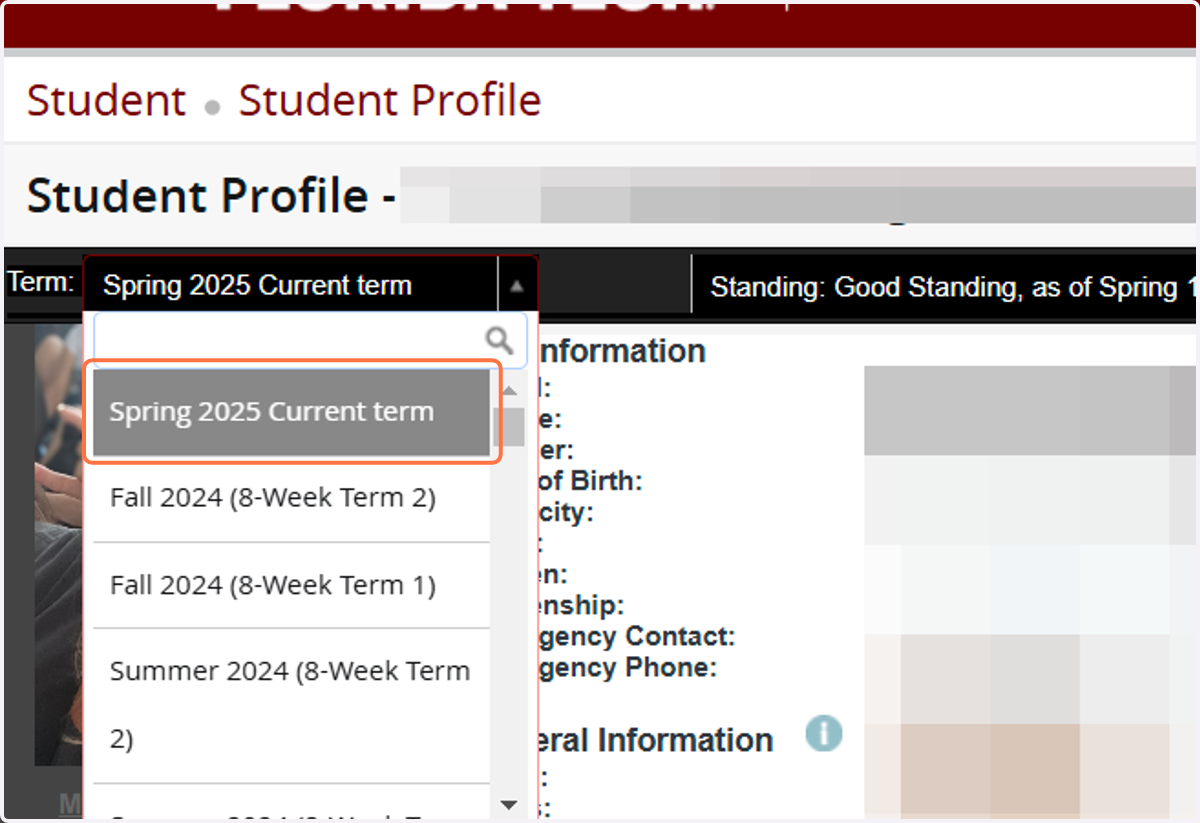
4. Basic Registration Information is shown here
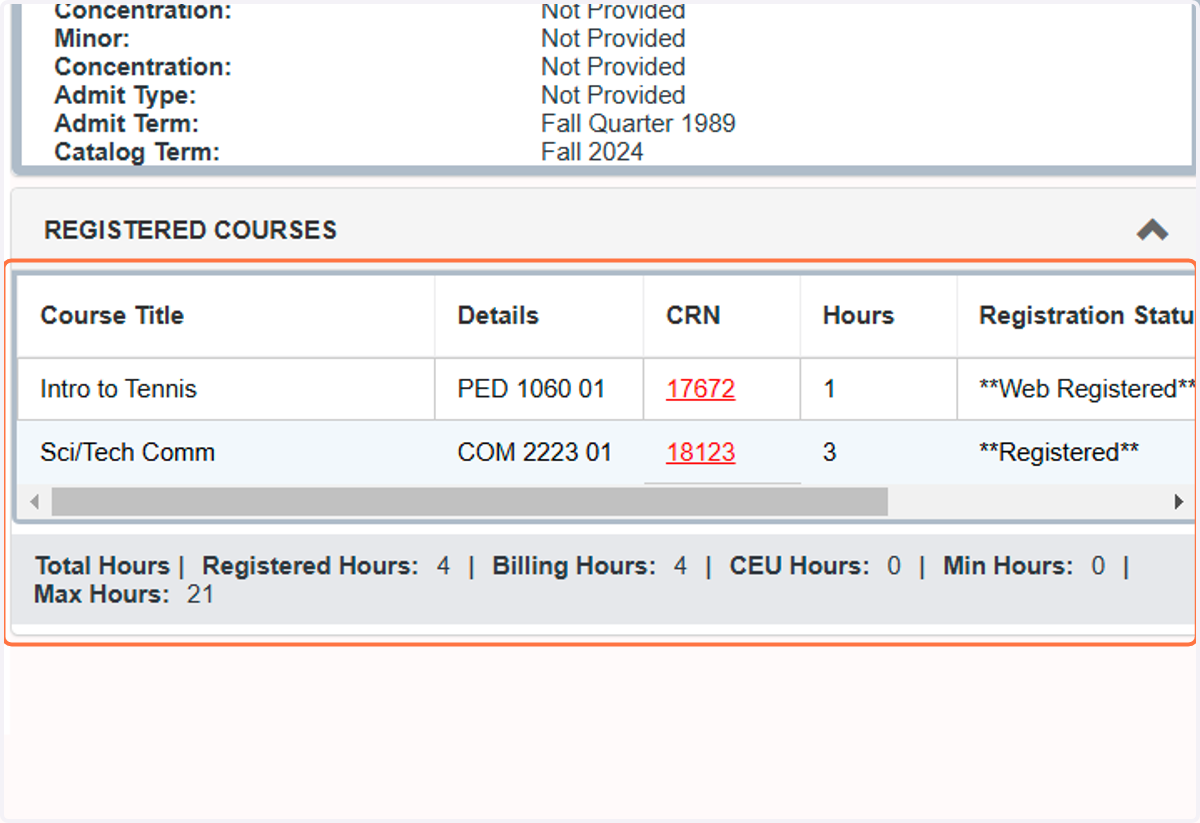
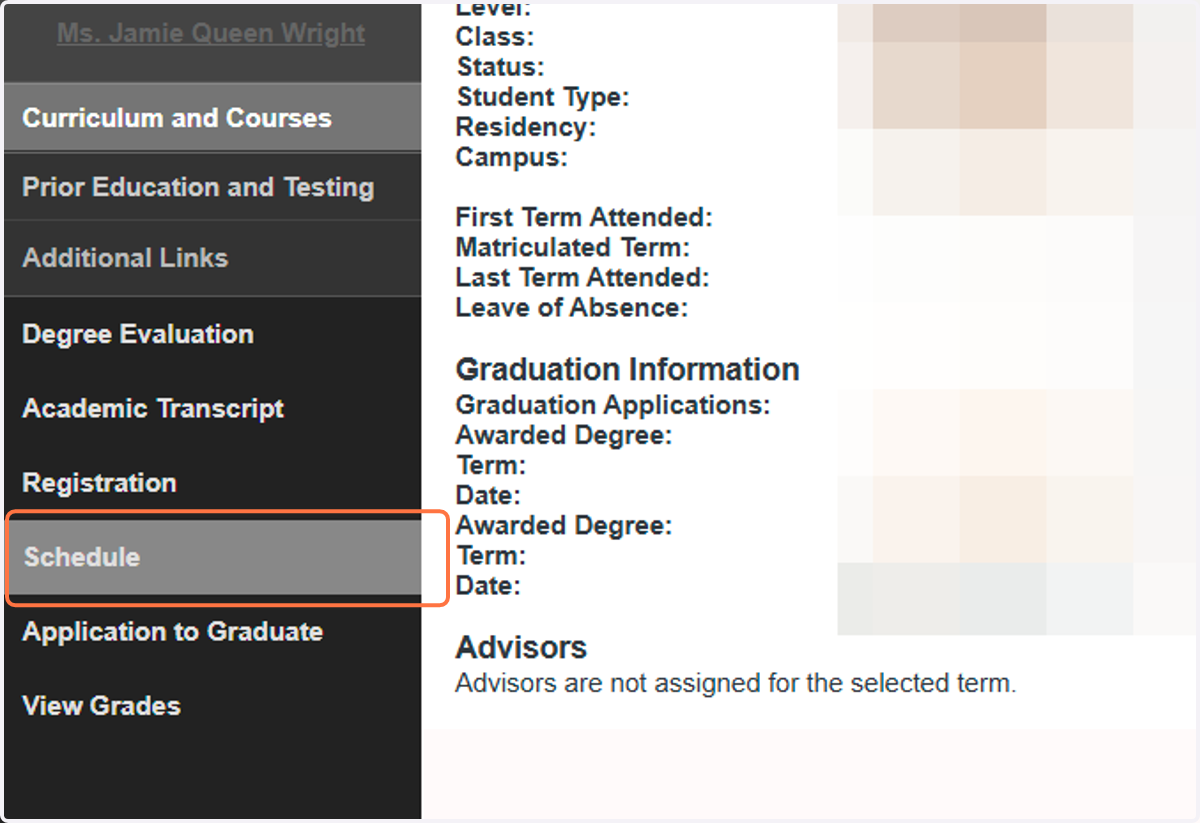
5. 2) For more details and a week at a glance, Click on Schedule
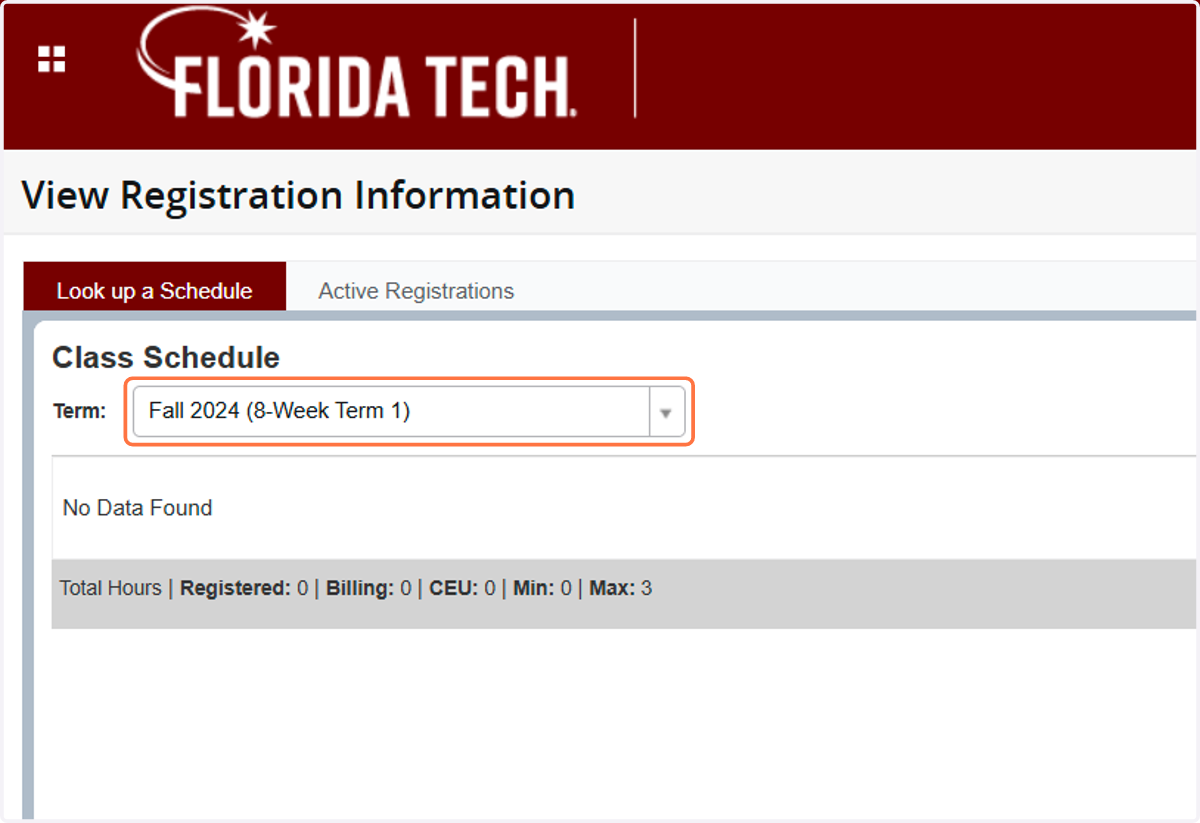
6. Click Term Drop-Down
7. Select appropriate term
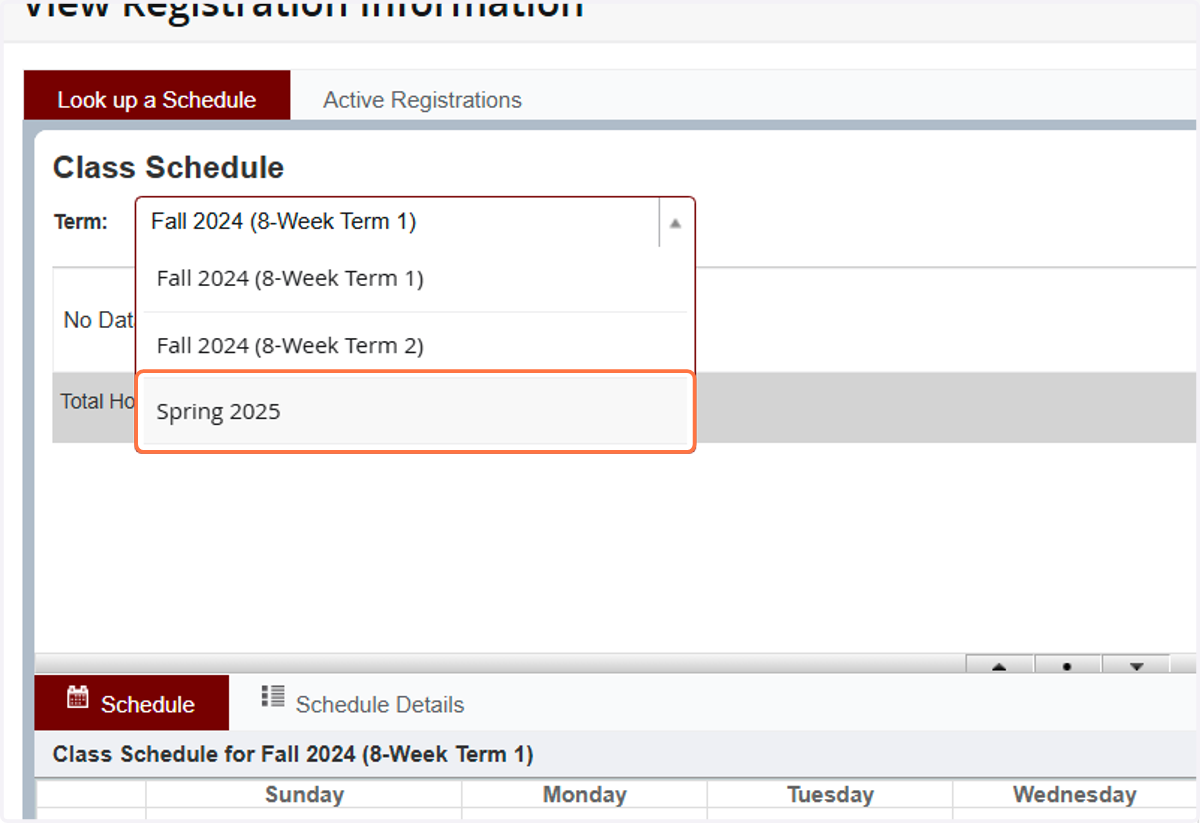
8. View Registration, Scroll down on bottom to see all classes
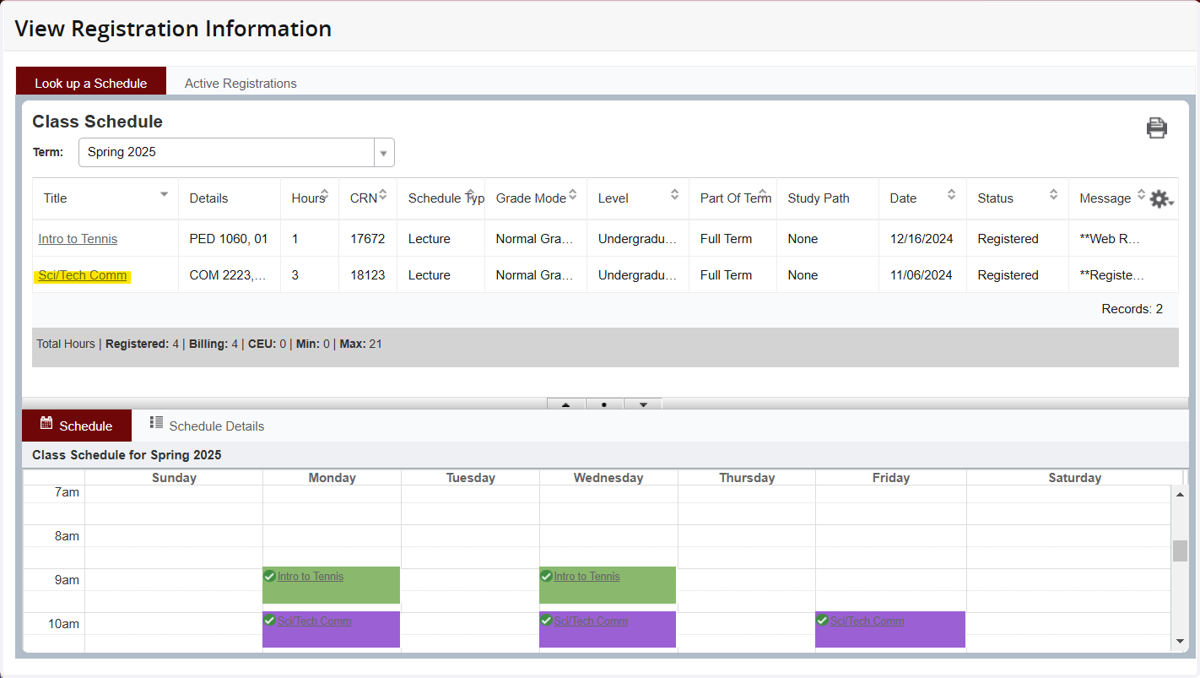
9. 3) You can also find your Schedule when you select Registration from any menu
Home - PAWS Experience
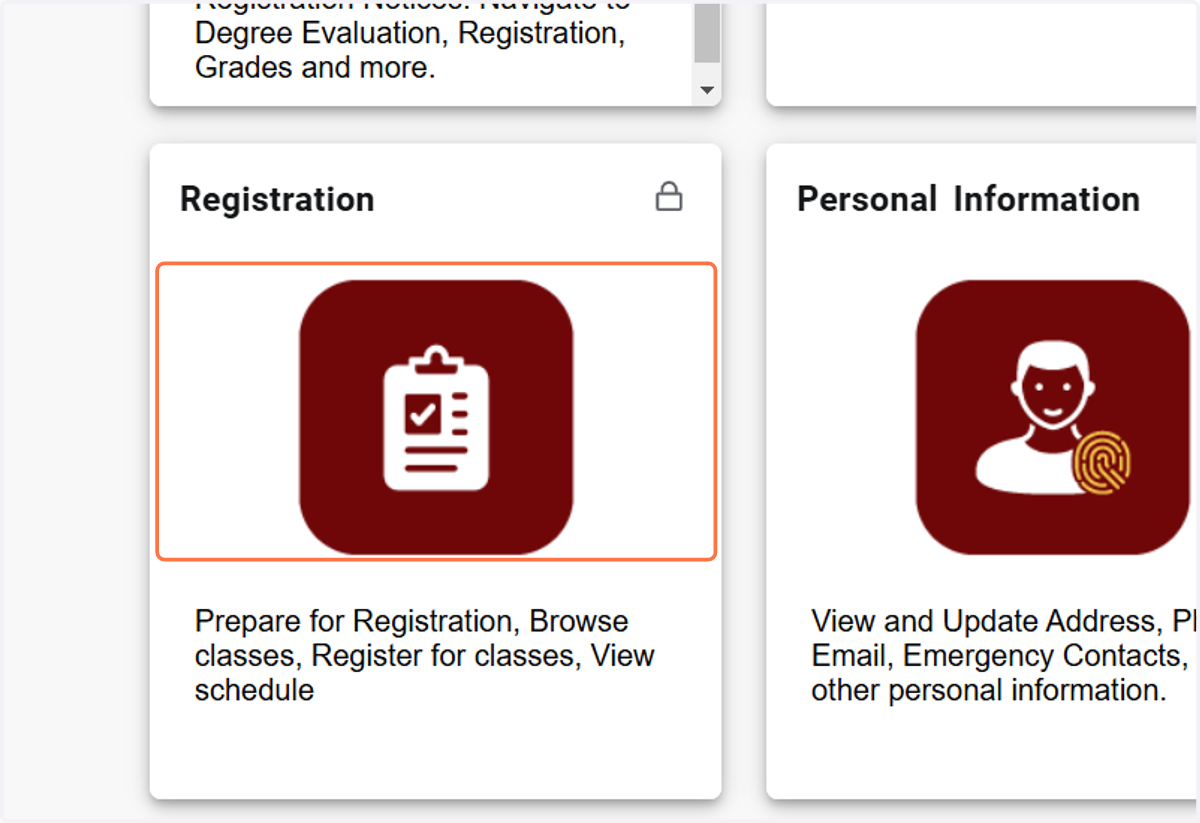
10. Click on Registration
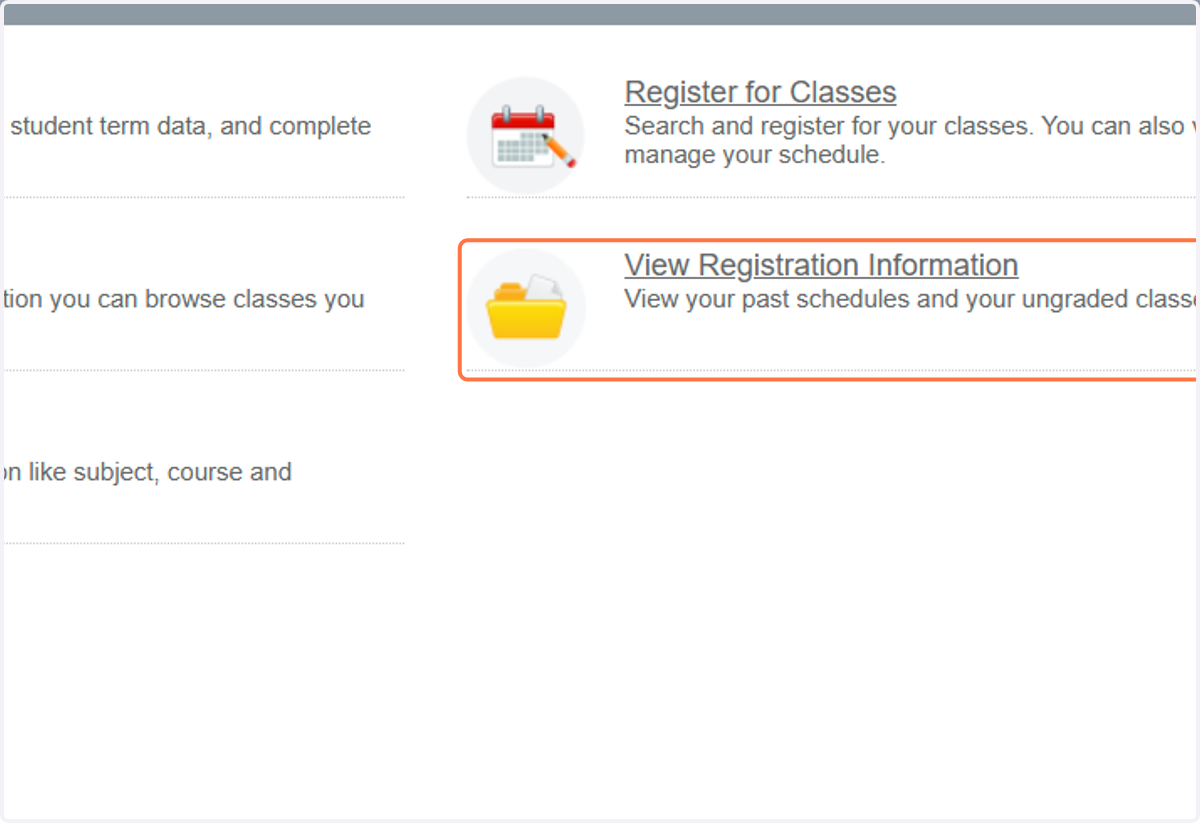
11. Click on View Registration Information…
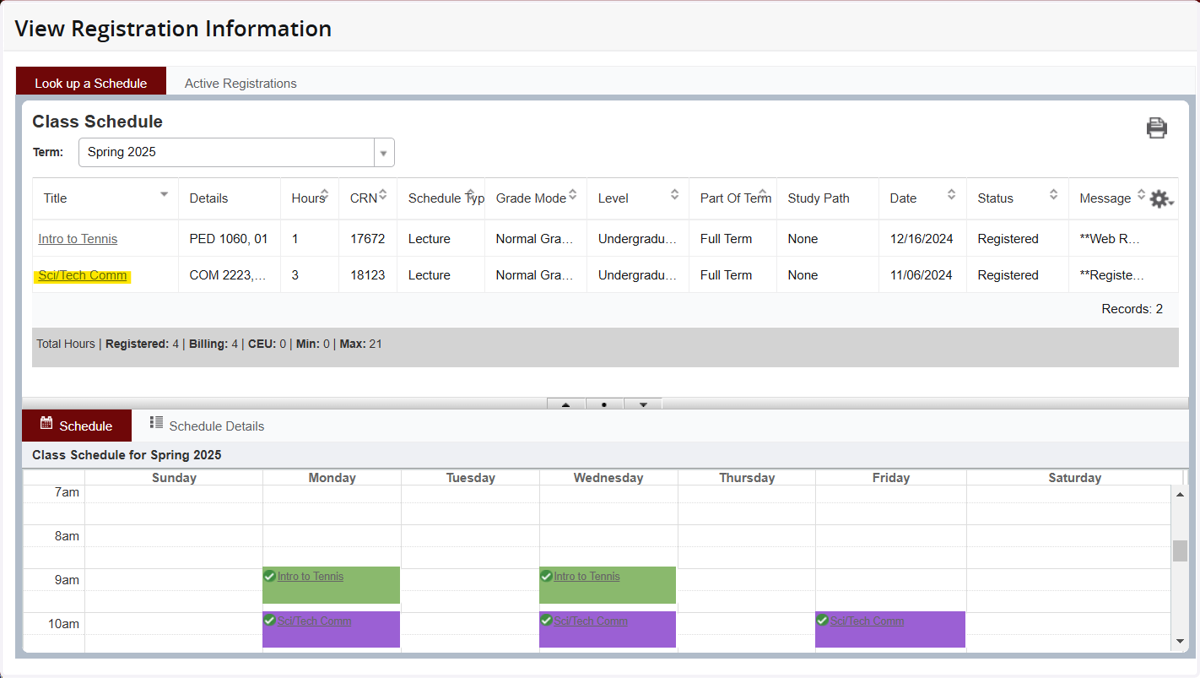
12. View Registration, Scroll down on bottom to see all classes
13. 4) You can also select Student Schedule from the Main Menu
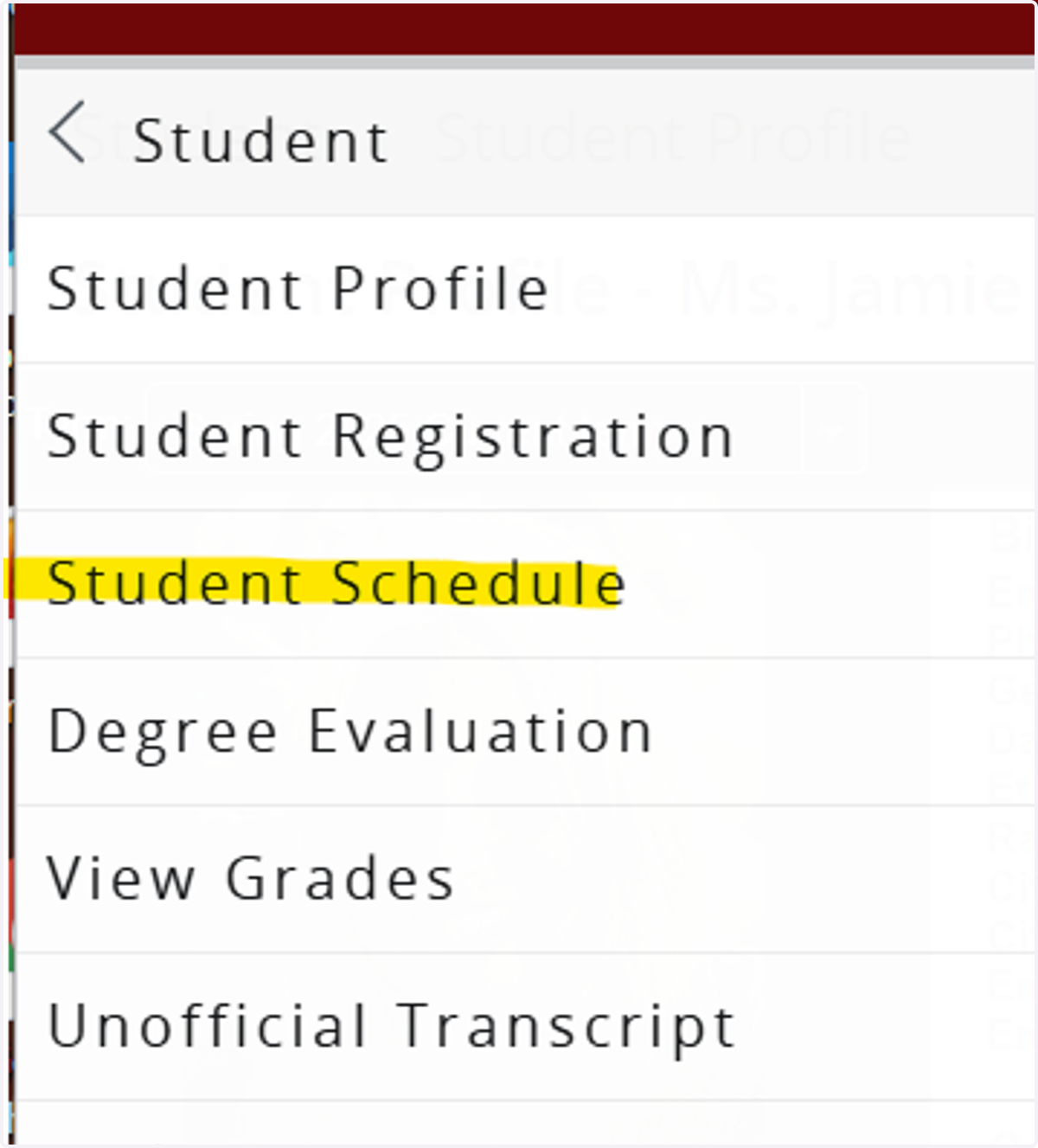
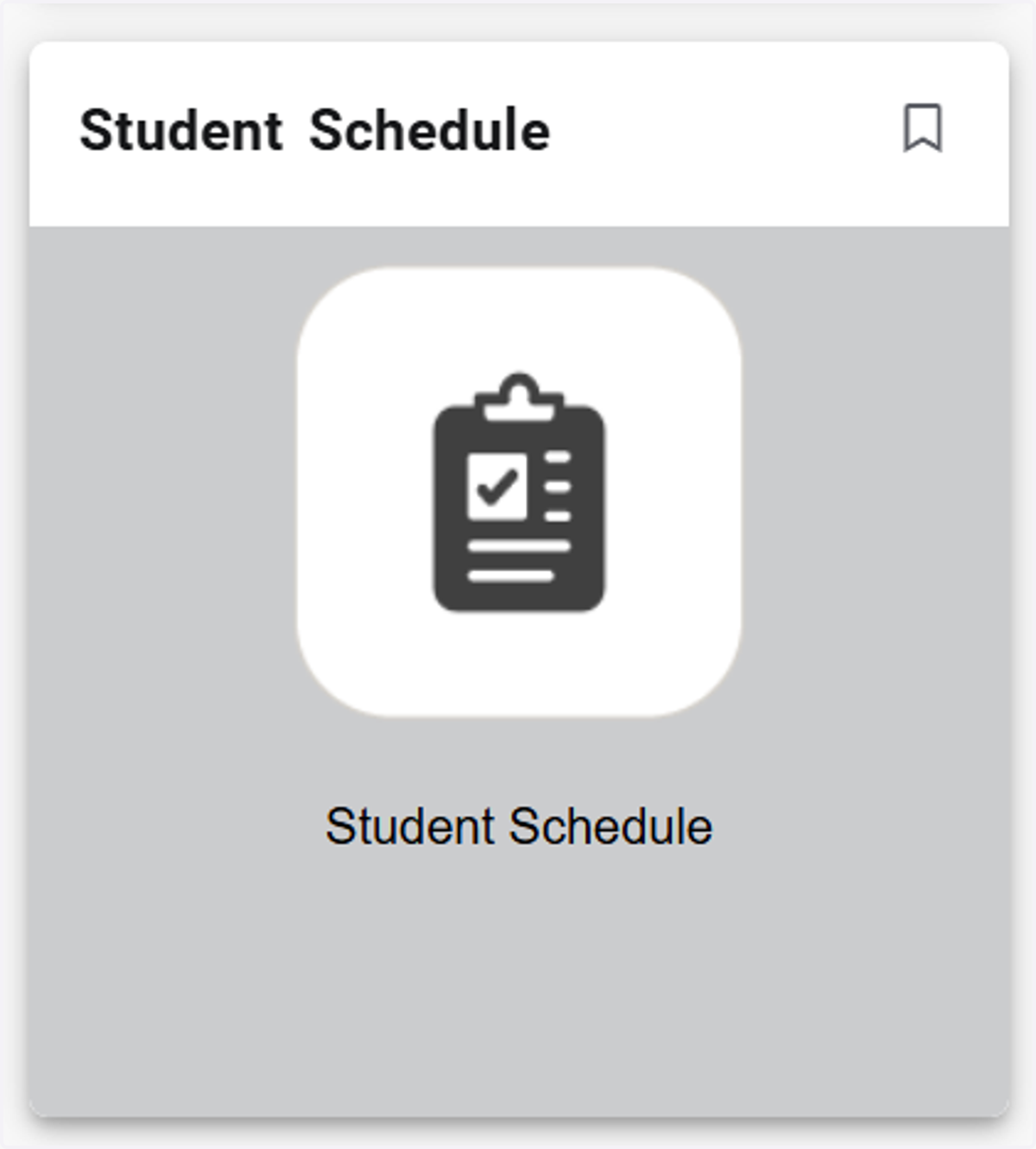
14. 5) Or from the Student Schedule Card on the Home Page
Bookmark this card if you want it to appear on your home page