[TUTORIAL] How to Make a New Site Section
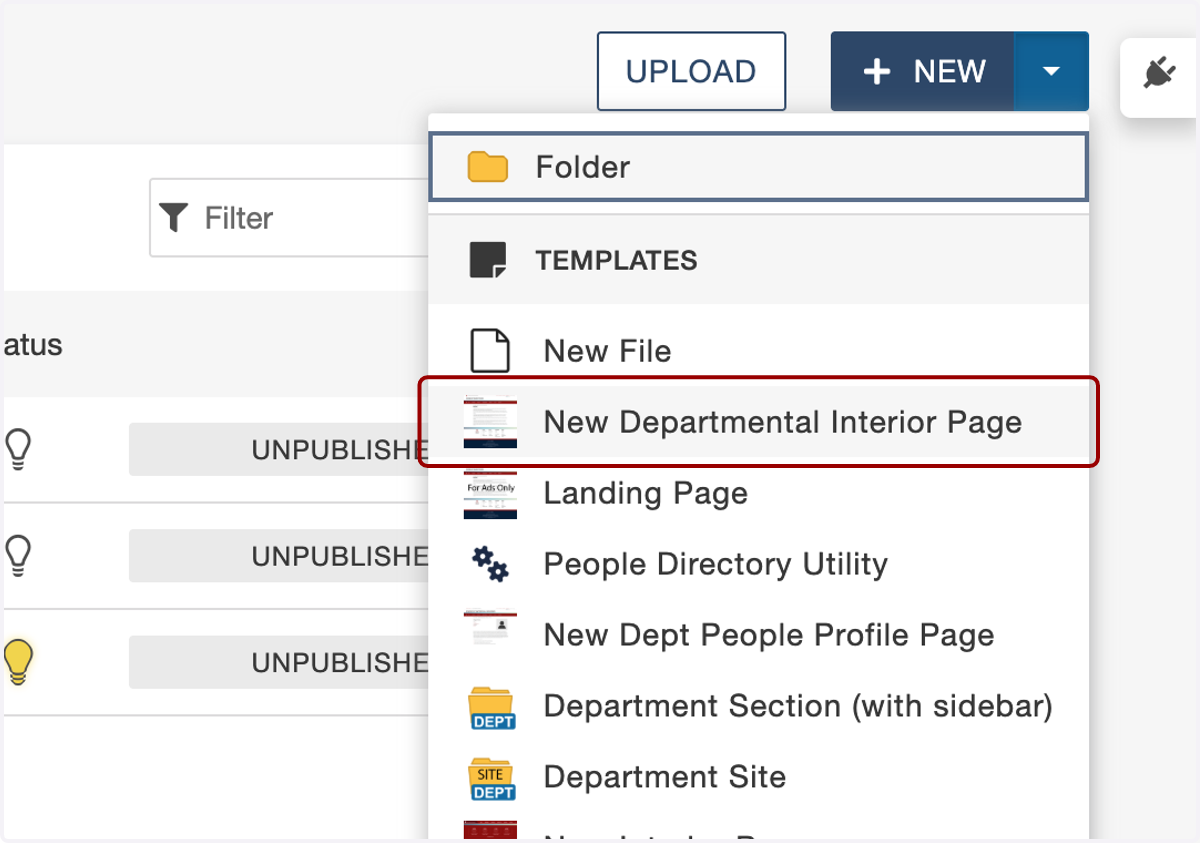
1. Navigate to the root folder to create a new top-level section, or open the section where you want to add a subsection. Click the New dropdown arrow in the upper-right corner...
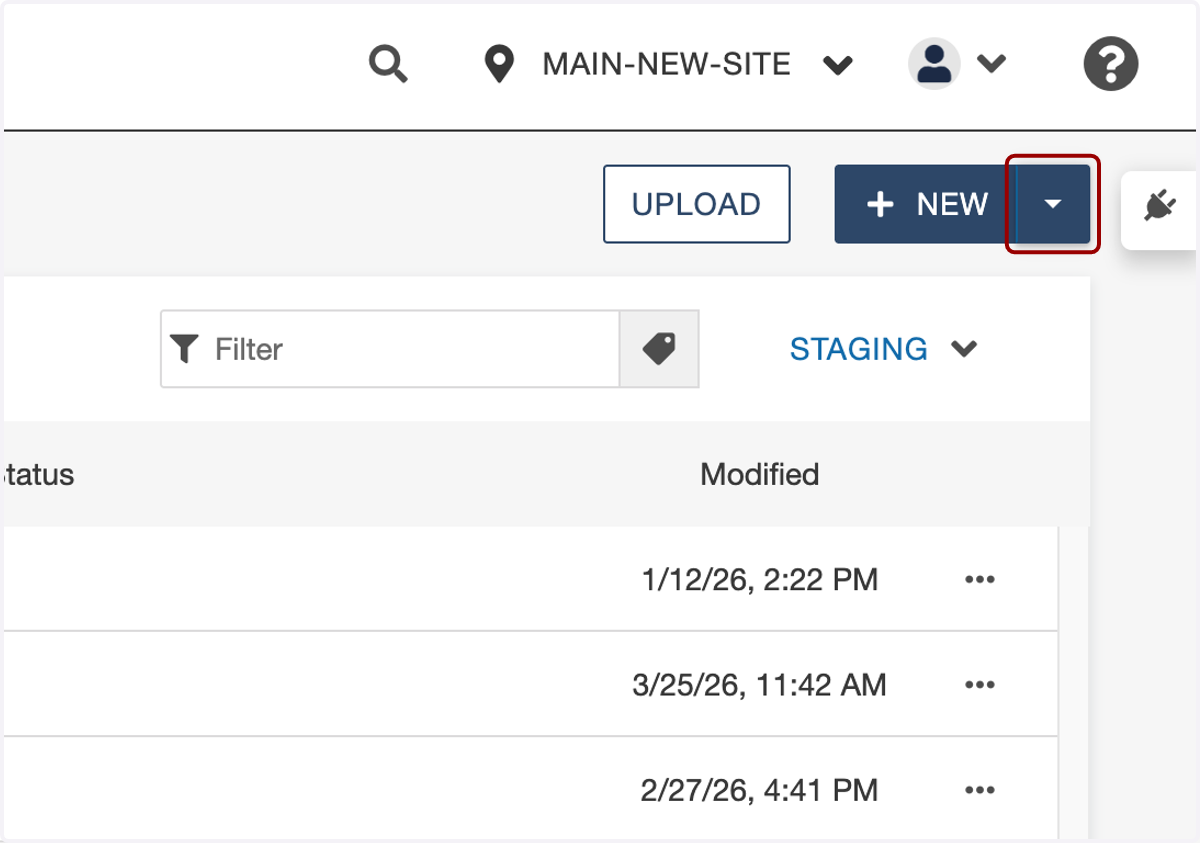
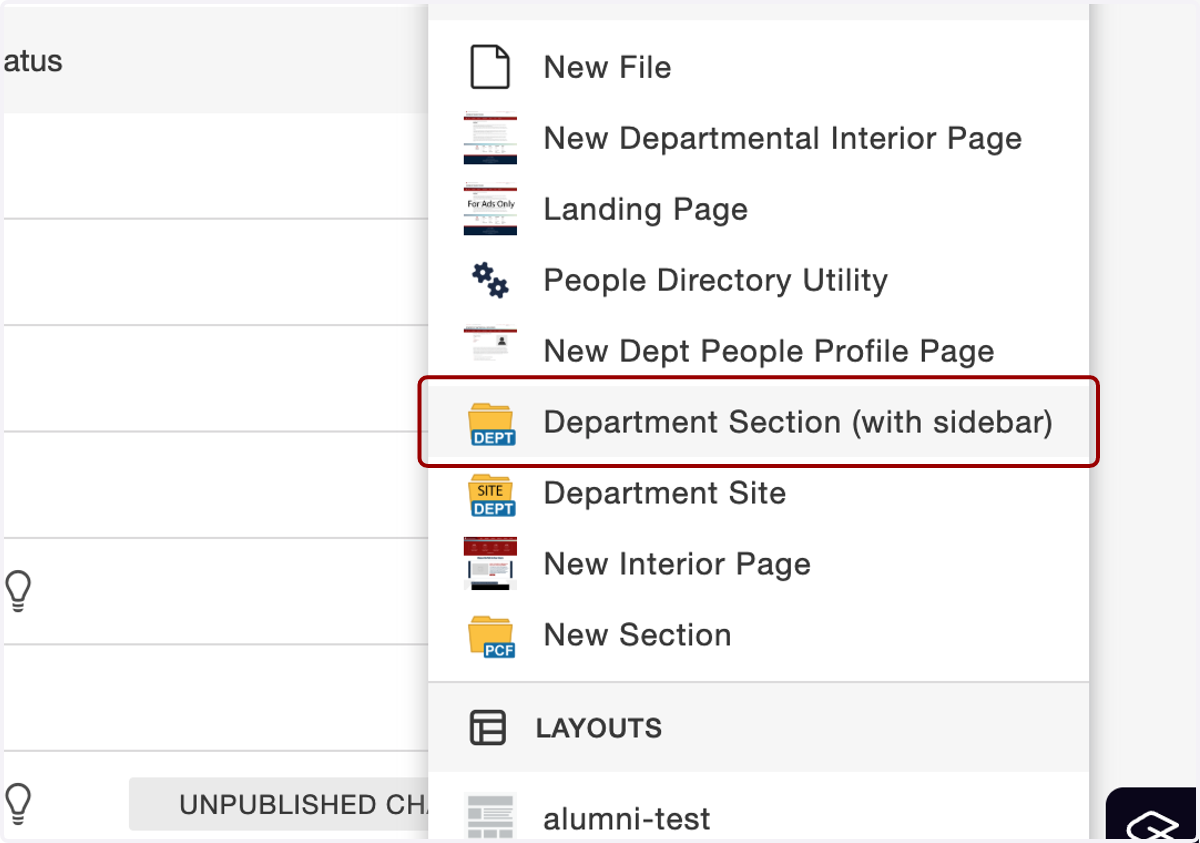
2. ...then click on Department Section (with sidebar).
3. Name the section folder using lowercase letters, numbers, and hyphens, like "academic-resources" or "spring-2026."
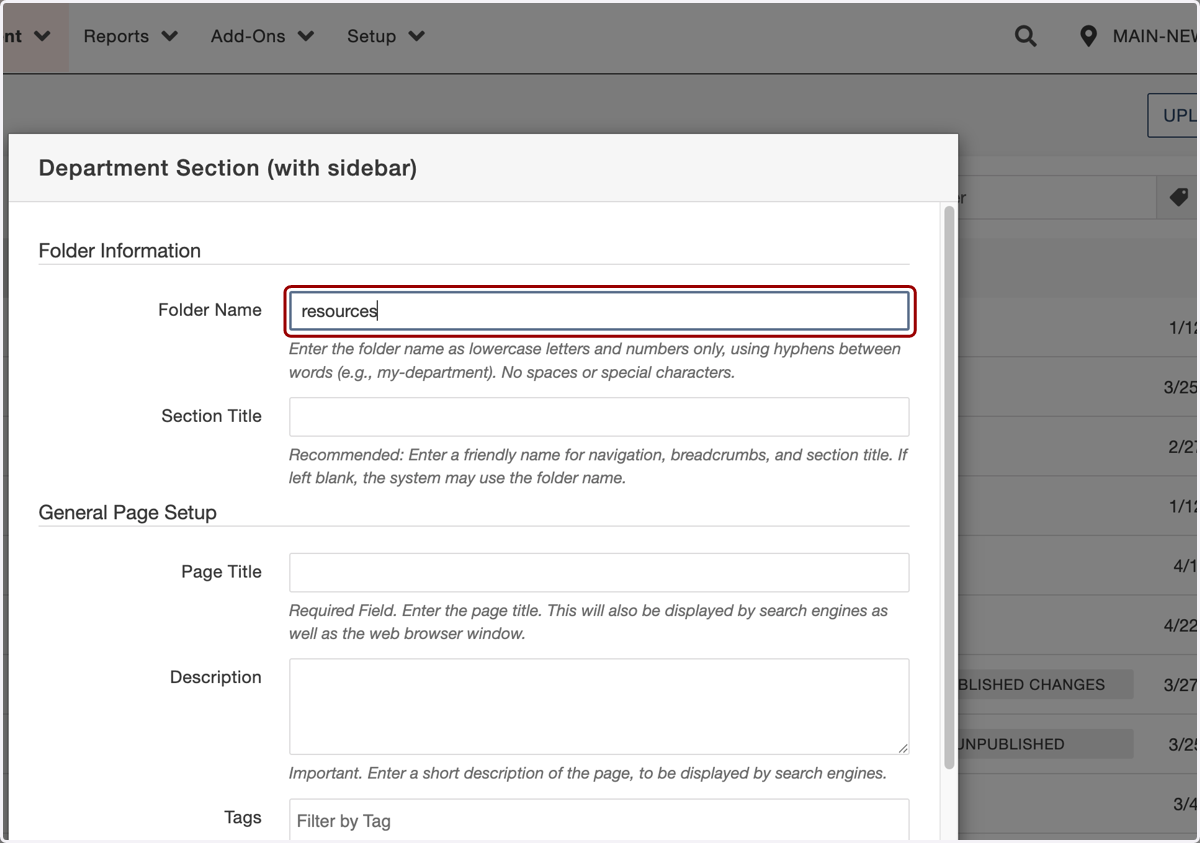
4. The Section Title should be a user-friendly name, as it will be displayed at the top of the sidebar navigation, in breadcrumbs, and in other places.
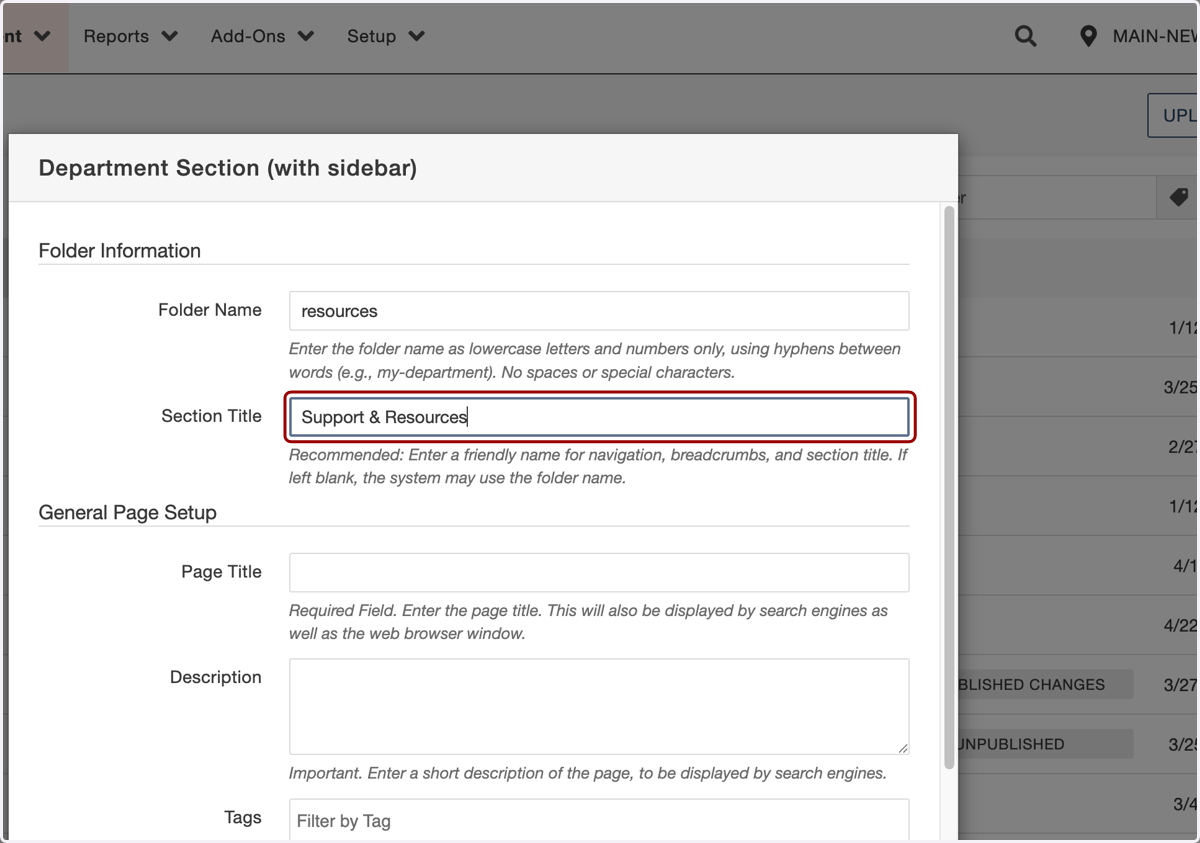
5. In the General Page Setup section, the Page Title will be the title that shows in browser tabs and search engine results for the index page of this new section.
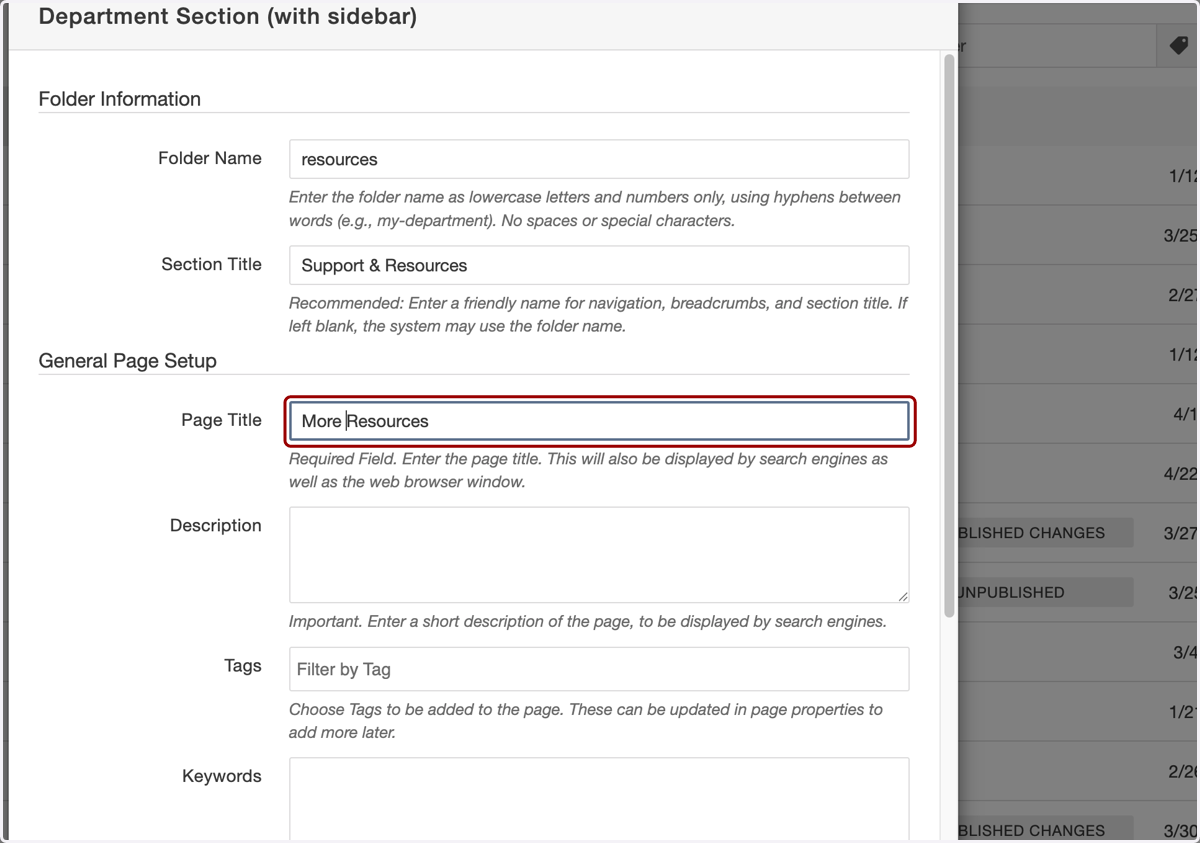
6. The Description will show up in search engines, so you'll want to write a clear, concise summary of the page in 1–2 sentences (about 150–160 characters) that reflects the content and encourages clicks. Include key terms naturally and avoid duplicate descriptions across pages.
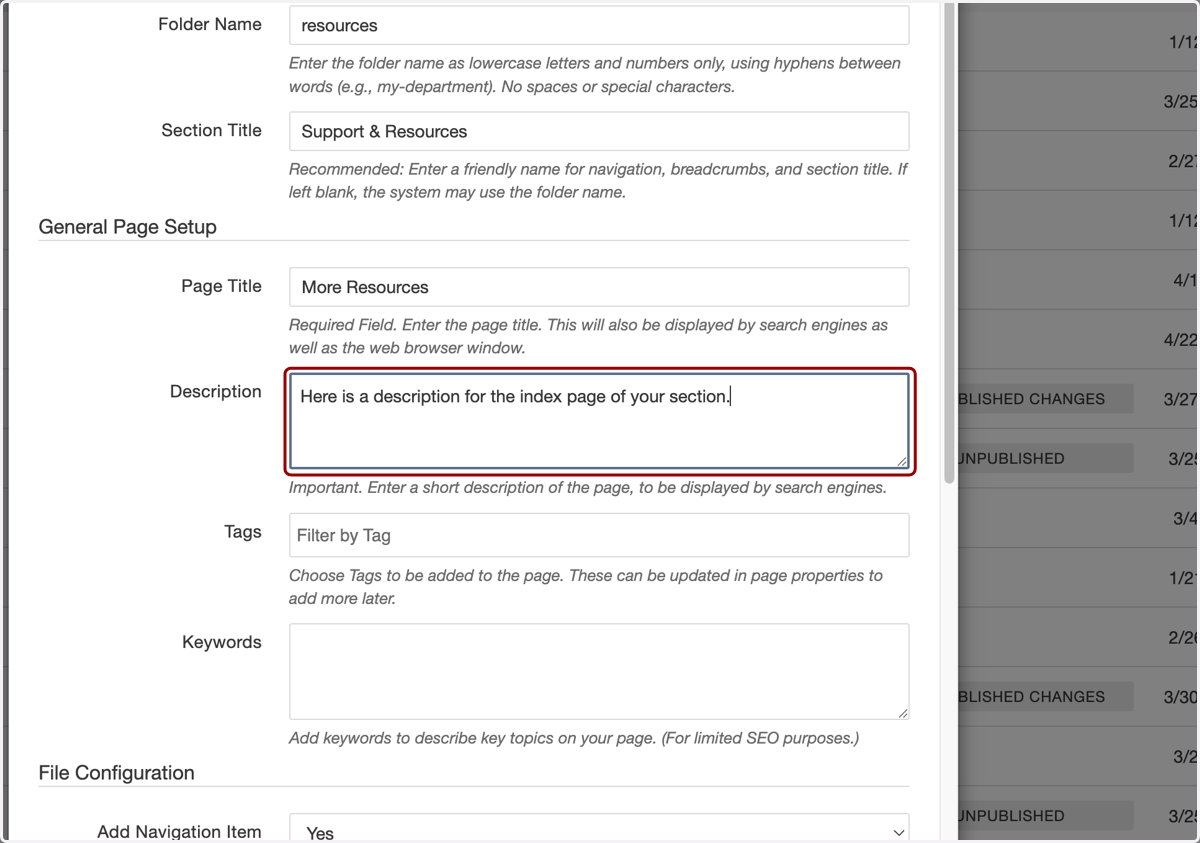
7. You can skip the Tags and Keywords fields. Search engines no longer pay attention to Keyword fields.
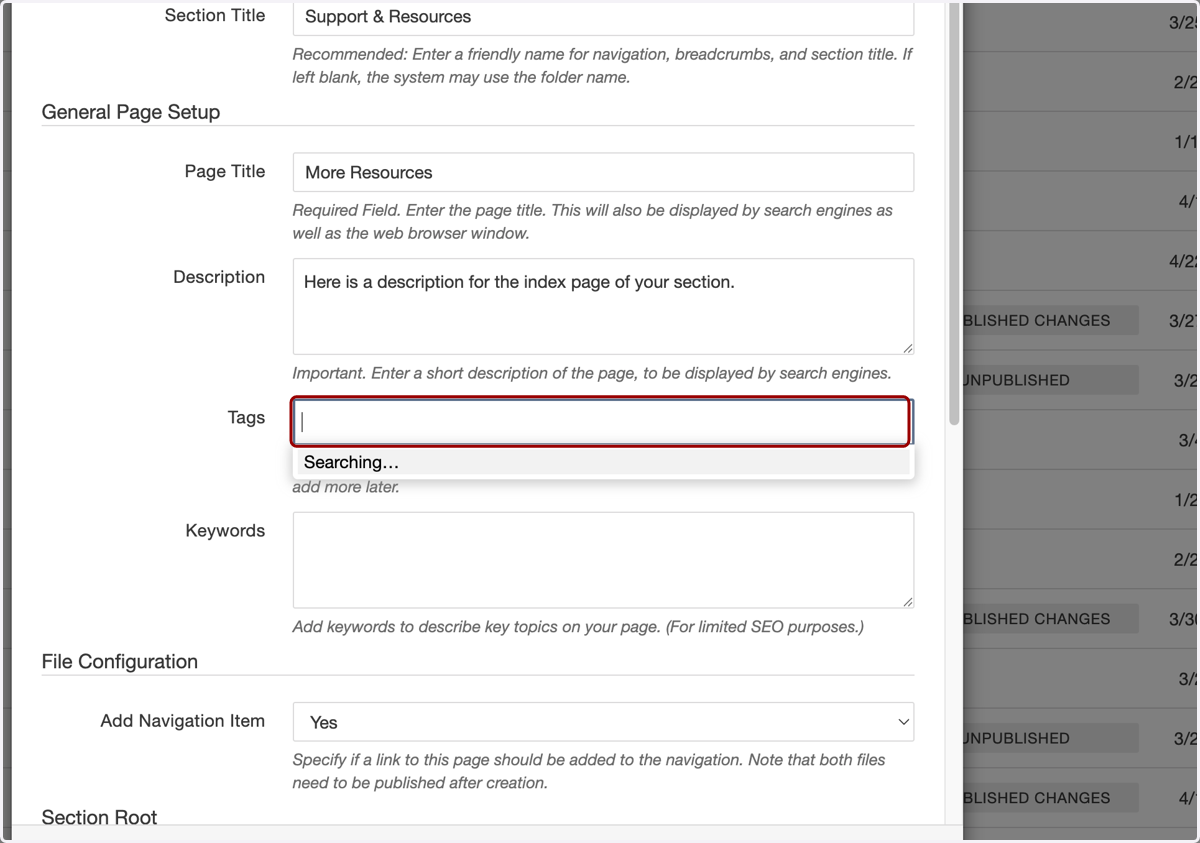
8. In the File Configuration section, you'll see "Add Navigation Item." If you select Yes here, it will be added to Side Navigations for this section automatically, wherever you have Side Navigations enabled.
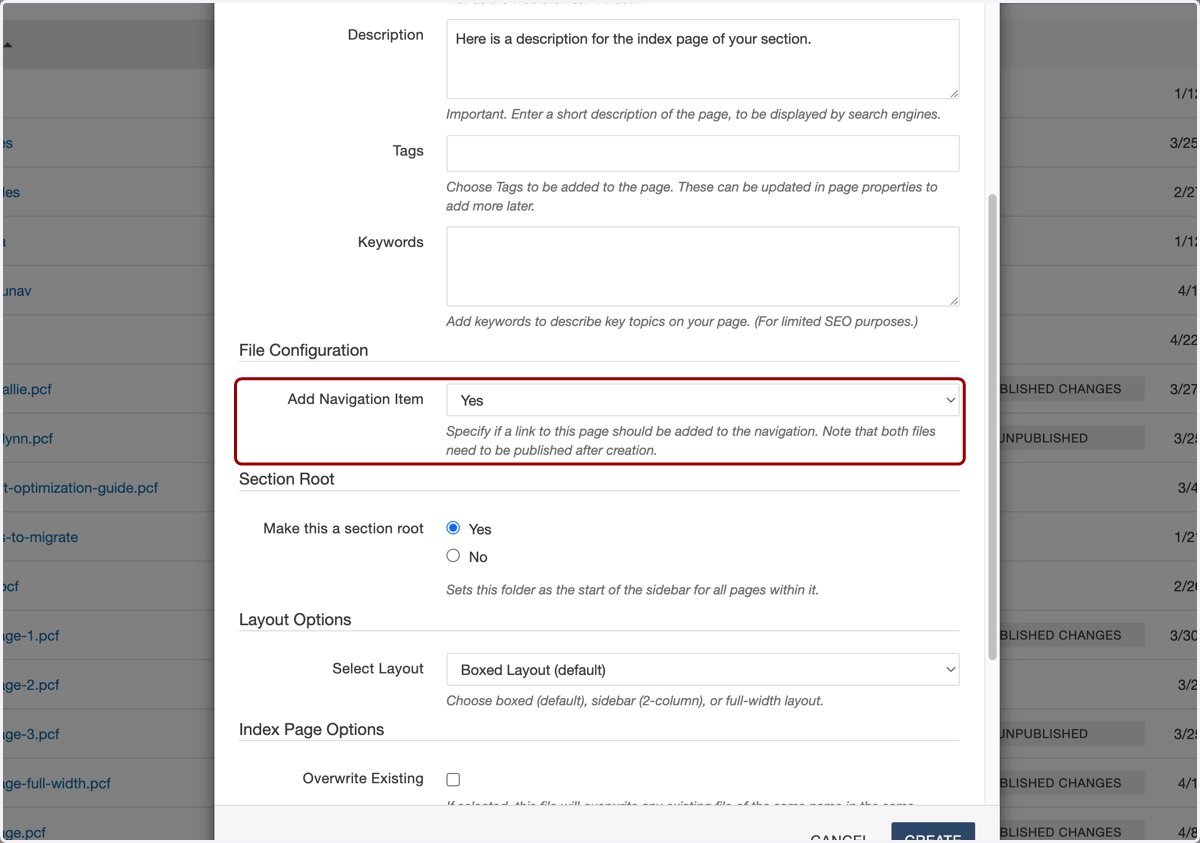
9. Setting a folder as a section root is what starts a sidebar menu. Each top-level item in the sidebar represents either a page or a subfolder, and any nested items reflect the folder structure beneath it.
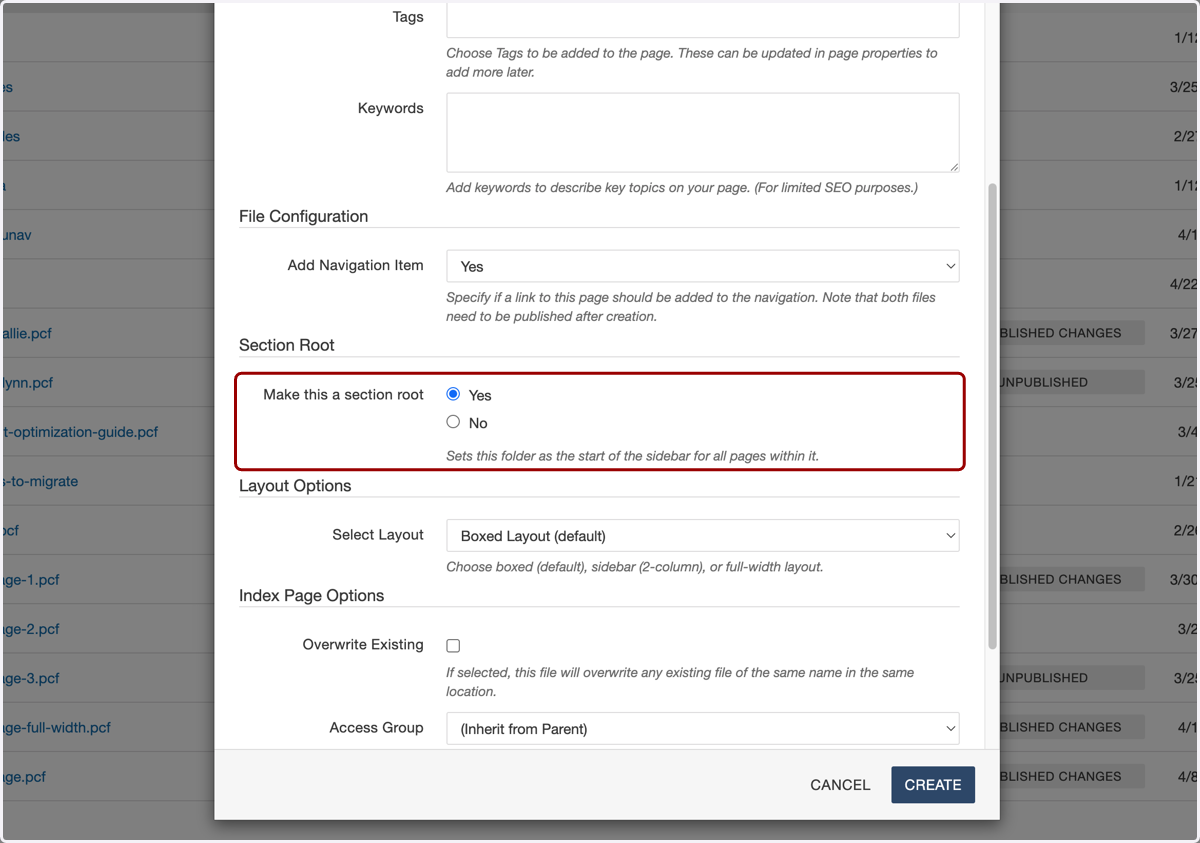
10. You'll find the Sidebar Layout and other choices in the Layout Options section. Under Select Layout, you have your choice of boxed, which is the default and confined to the center of the page, Sidebar Layout, which has the side navigation menu, and Full Width,
which spans the entire width of the user's browser window. See our "Page Layout Options" article on the Web Support help site to learn more about these layout options.
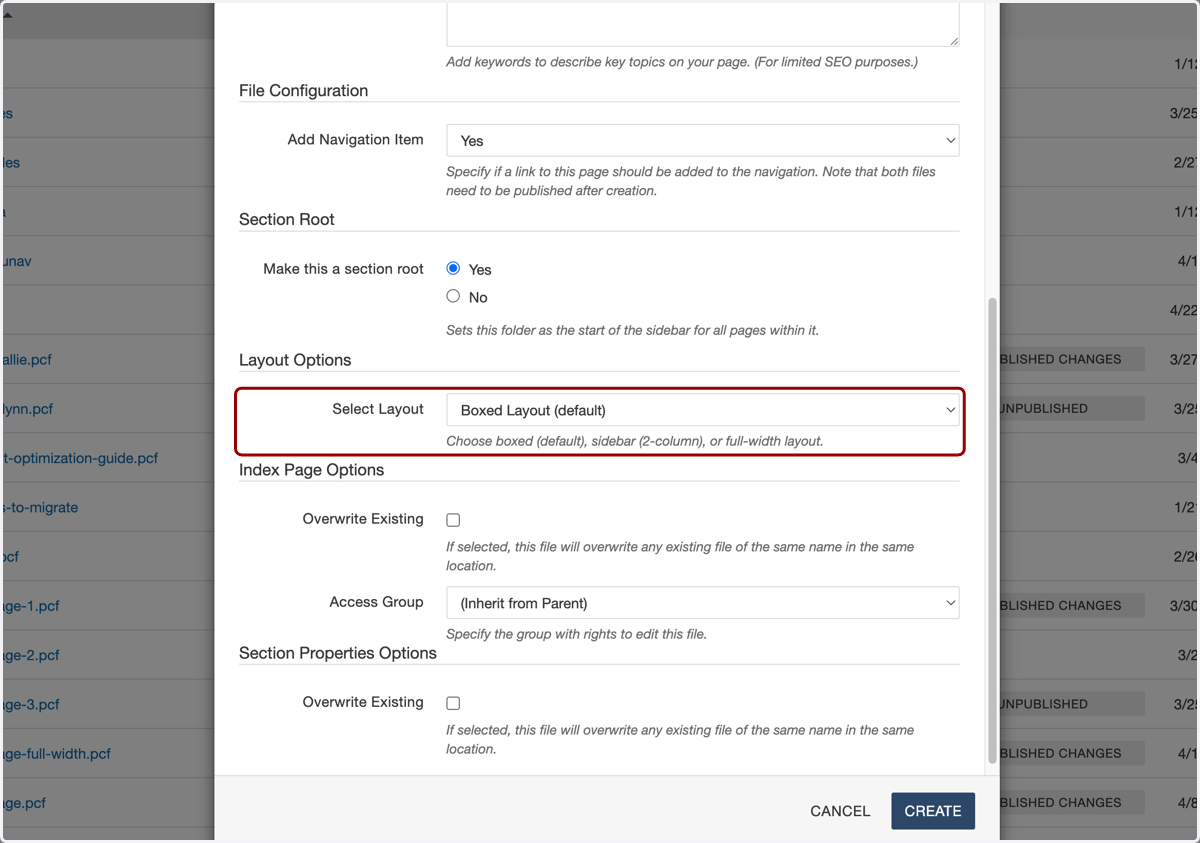
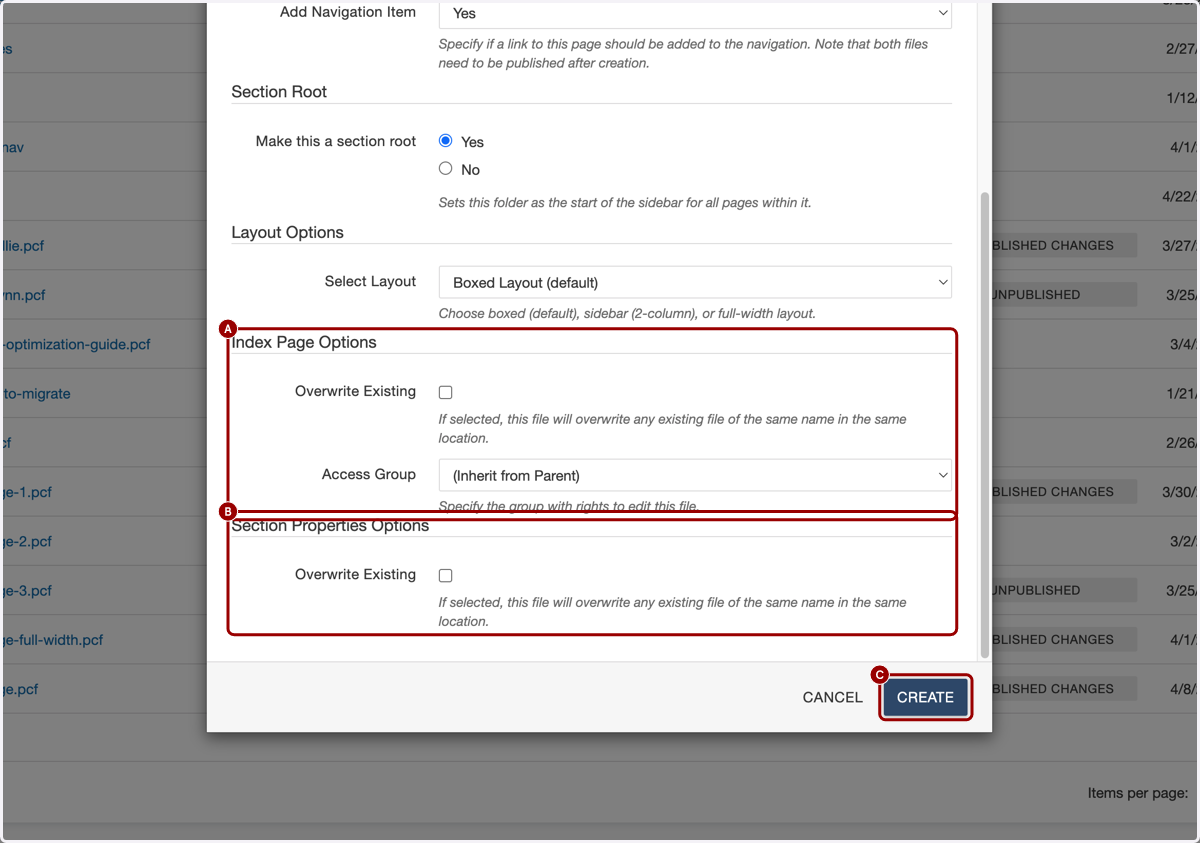
11. A. If this page is replacing another index page, you can check this "Overwrite Existing" checkbox in the "Index Page Options" section. You can leave the Access Group dropdown alone.
11. B. If this section is replacing another section folder with the exact same filename, you can check this "Overwrite Existing" checkbox in the "Section Properties Options" section.
11. C. When finished, click the Create button.
12. The system will generate the section for you, and open up the index page.
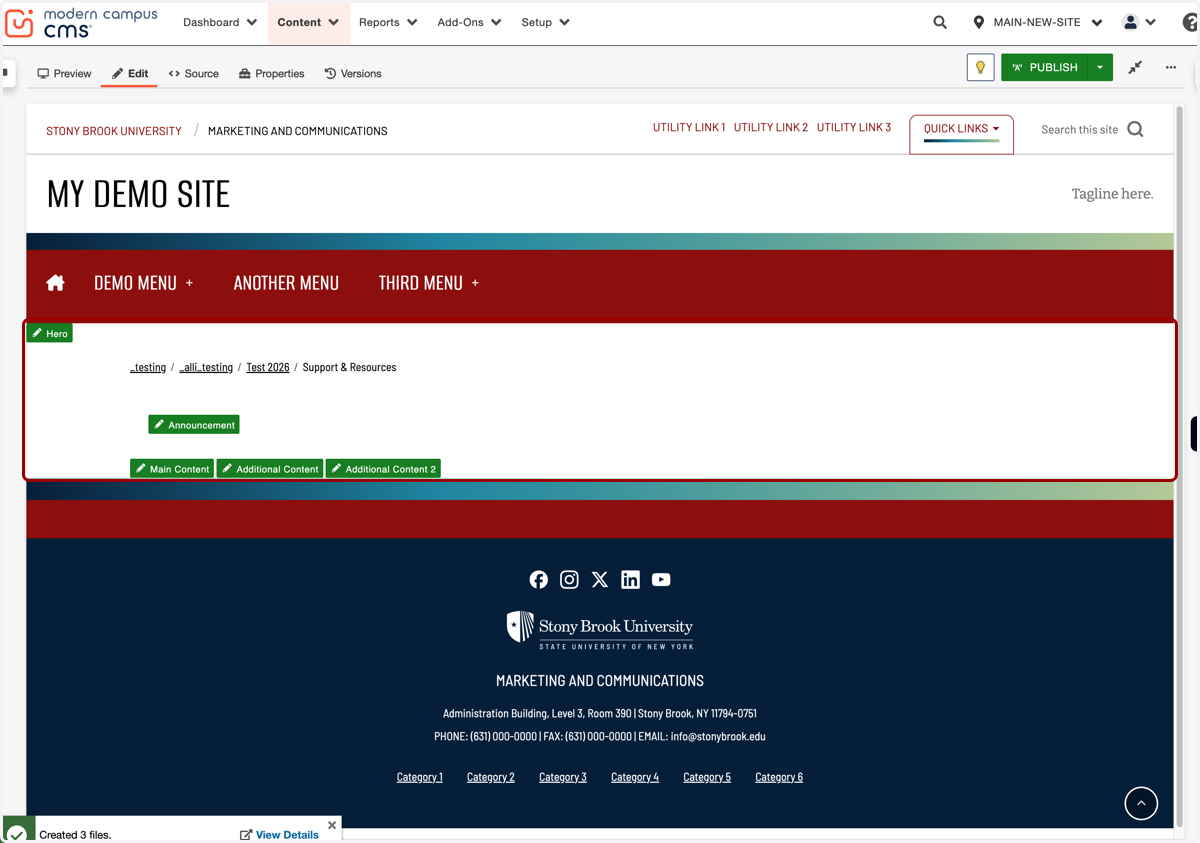
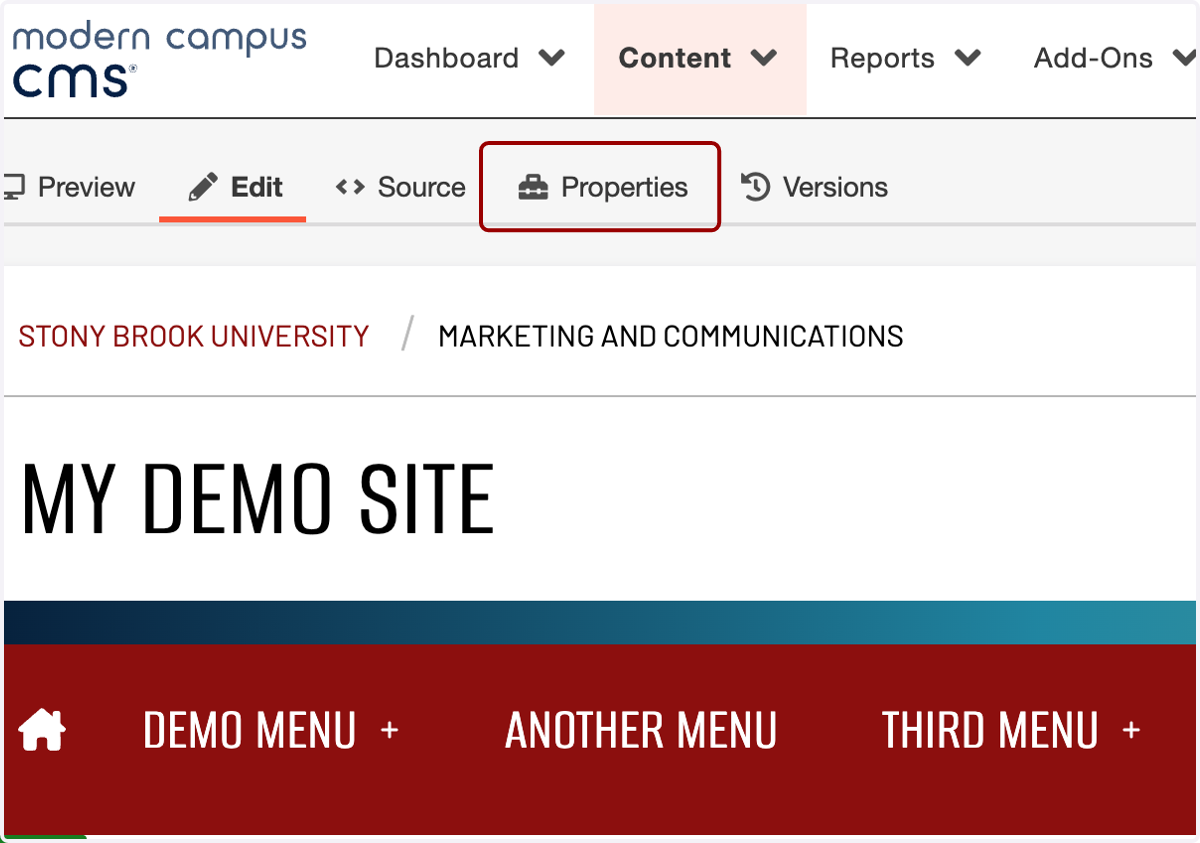
13. You can set the rest of the page's properties in the Properties tab, or begin building the content in the Edit tab.
14. A. If you navigate to Content,
14. B. then Pages...
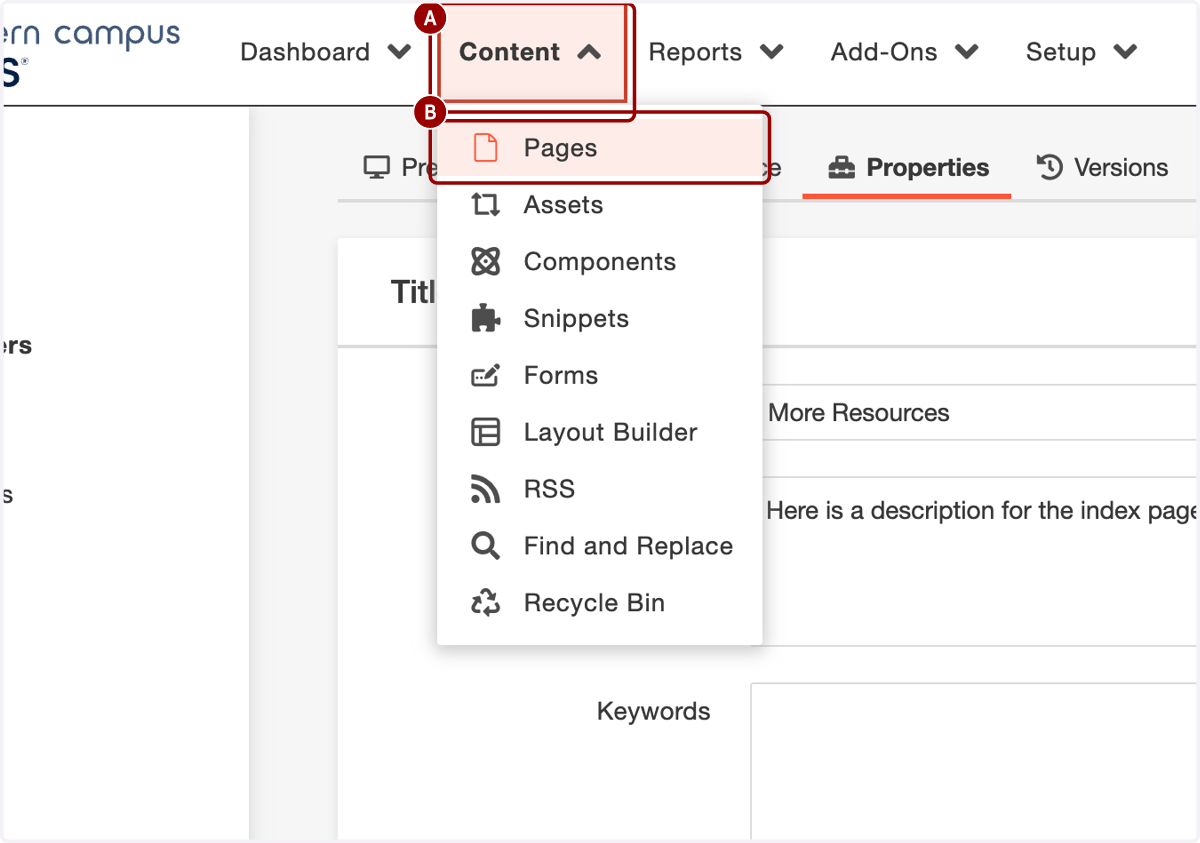
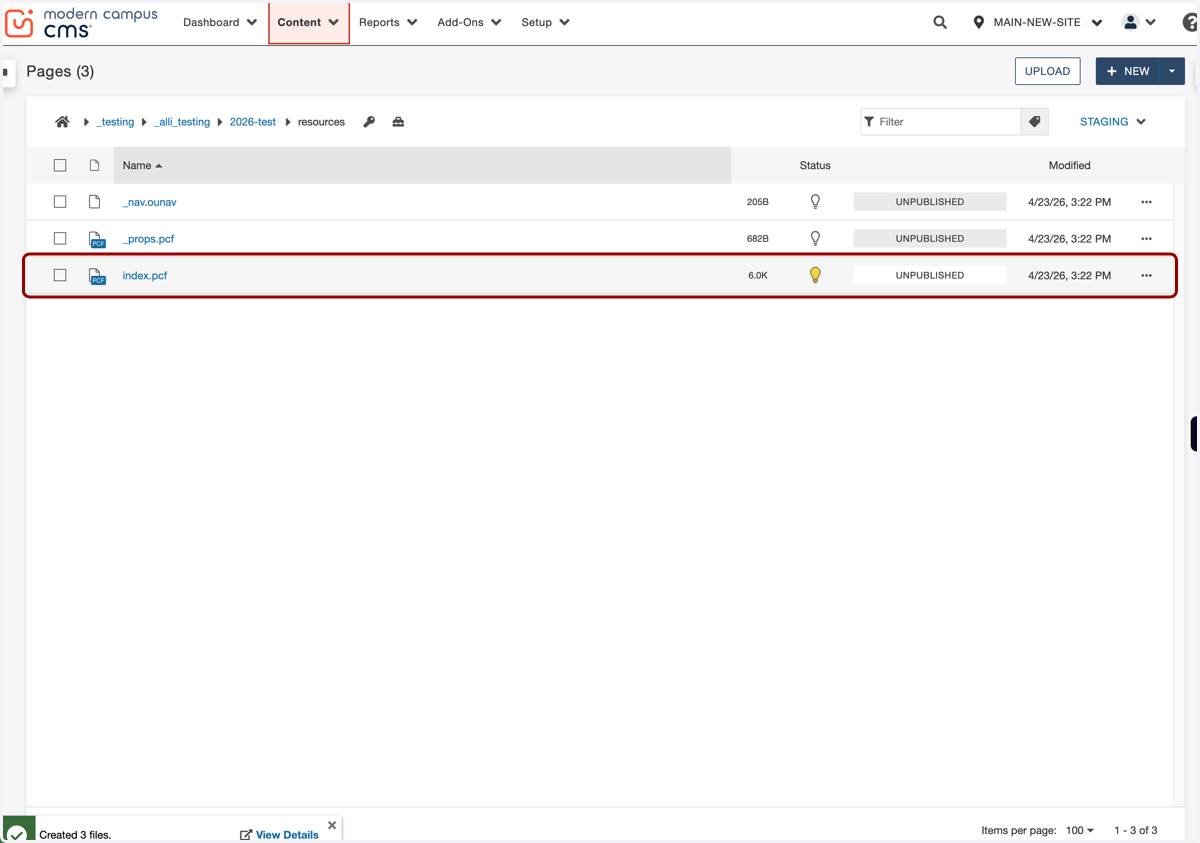
15. ...you will be taken to the section folder you created. Notice there are other files in this folder already.
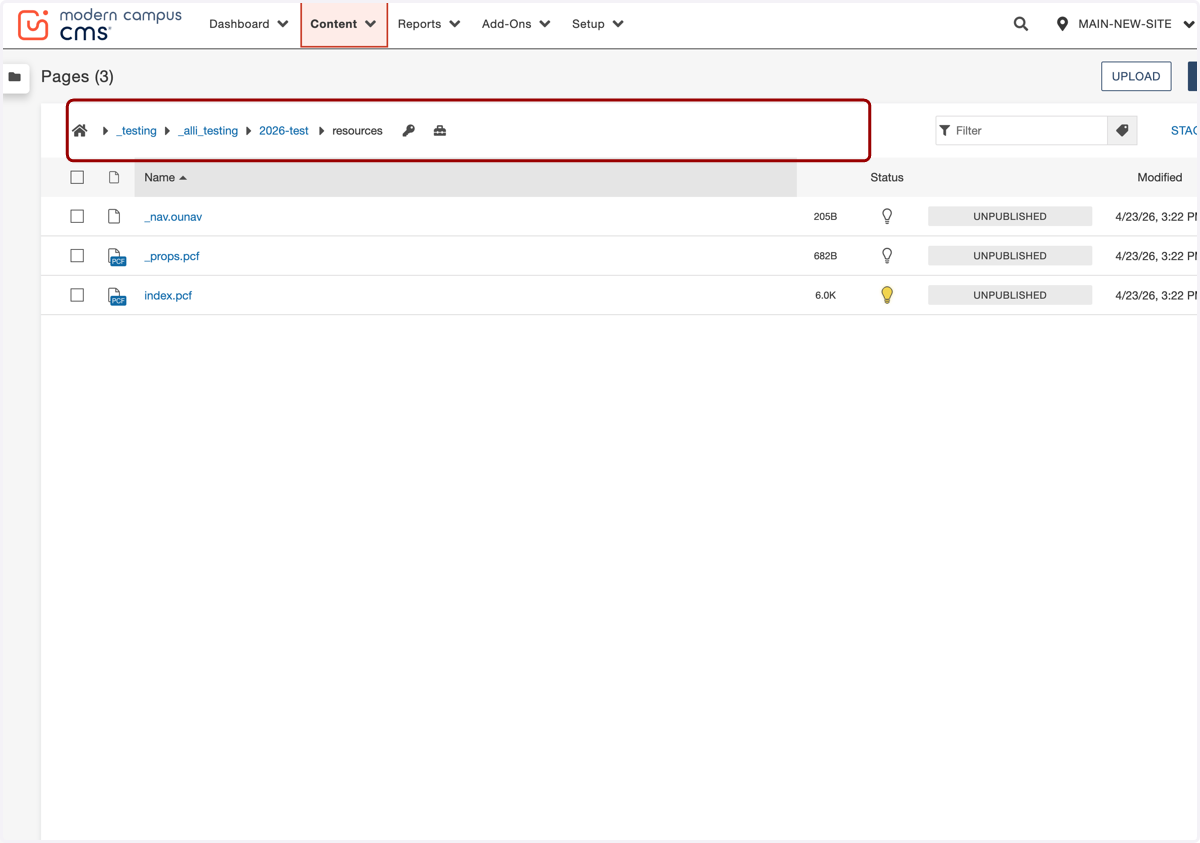
16. _nav.ounav controls the list of links that appear on the left-hand side of sidebar layouts. You're able to reorder or delete items in the navigation in this file.
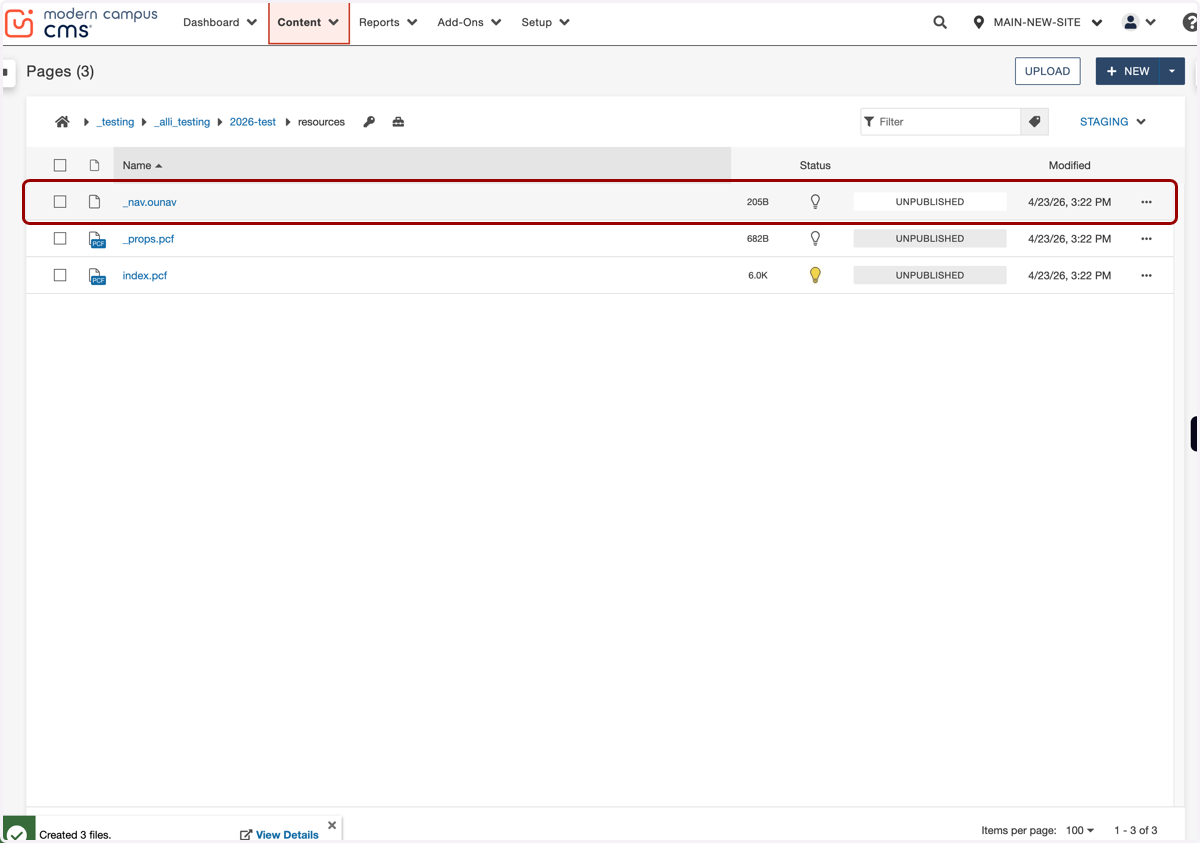
17. In most cases, you'll never need to change the _props.pcf file. It is code only. In certain instances where you want a different level of navigation to show on sidebar, contact the Web Support team for assistance.
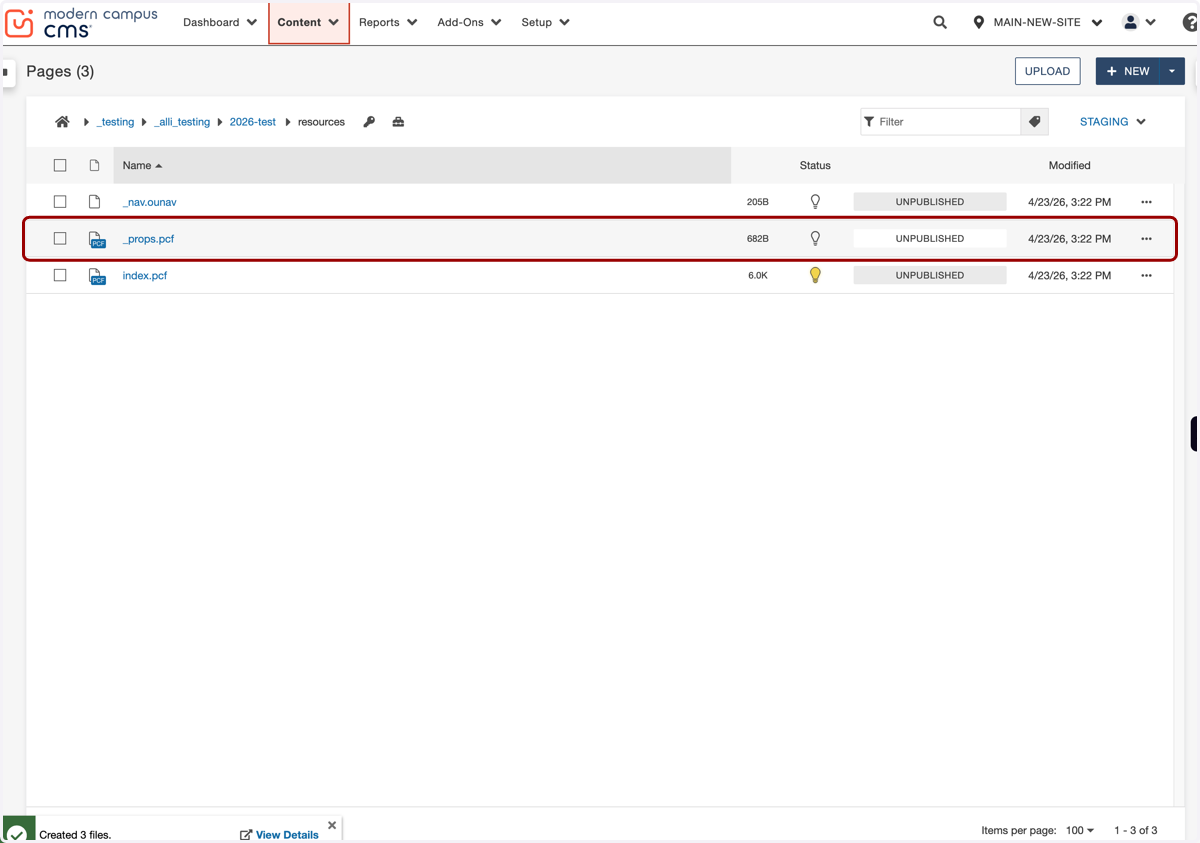
18. This index.pcf file is the one the system first opened when we created the section. This is where you would edit the content on that section's main page.
19. If you want to add another page to this section, click on the New dropdown in the upper right-hand corner,
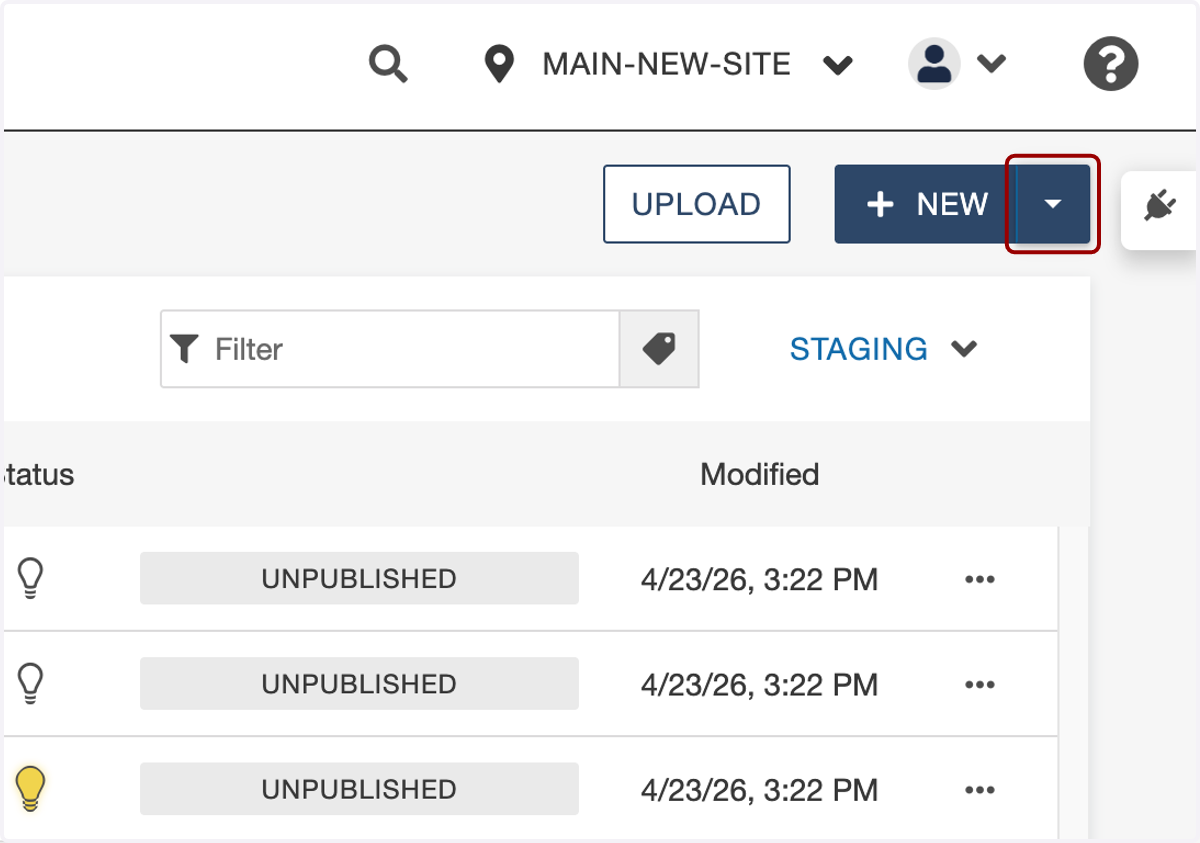
20. then select New Departmental Interior Page. This concludes the new section tutorial. Great job!