3.0 How to create and manage fixed assets
1. Click on Accounting
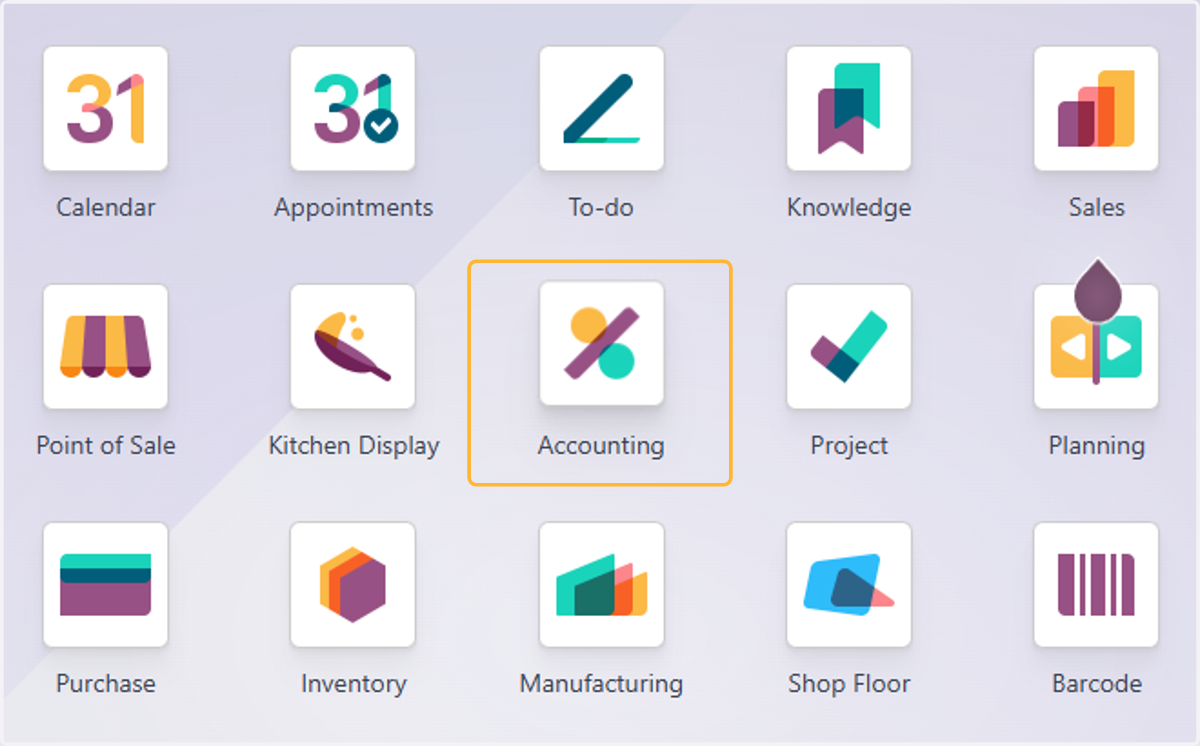
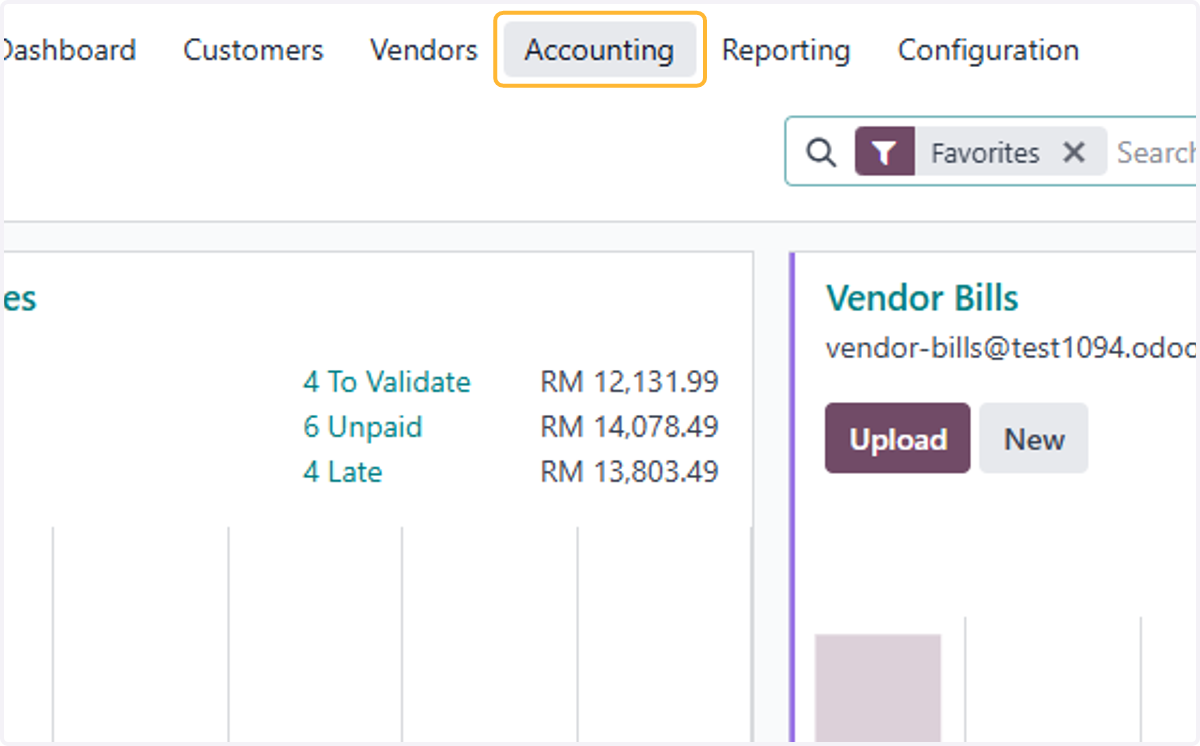
2. Click on Accounting
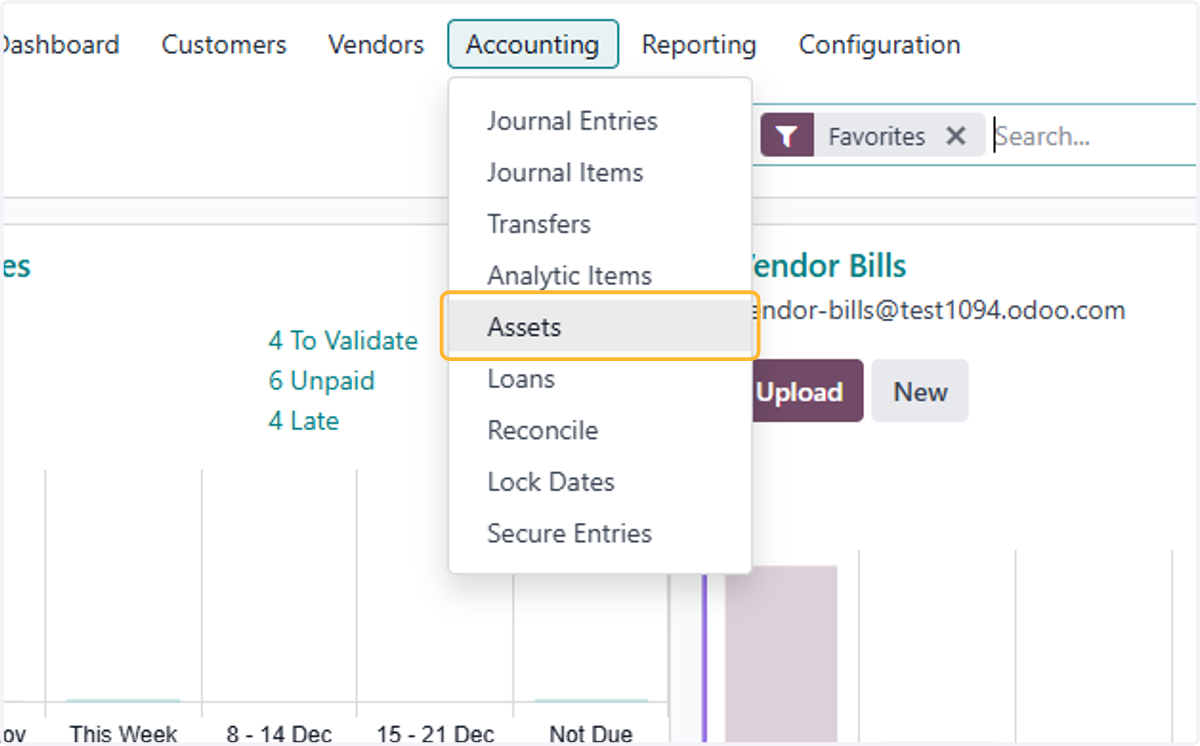
3. Click on Assets
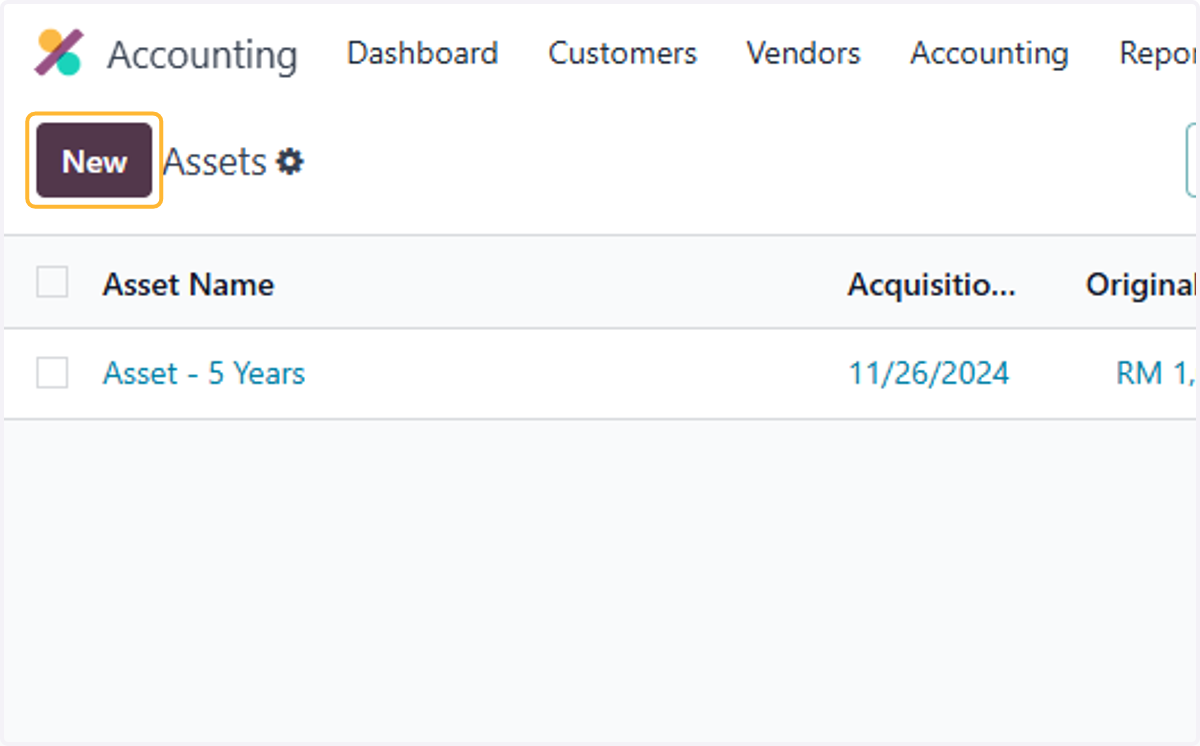
4. Click on New
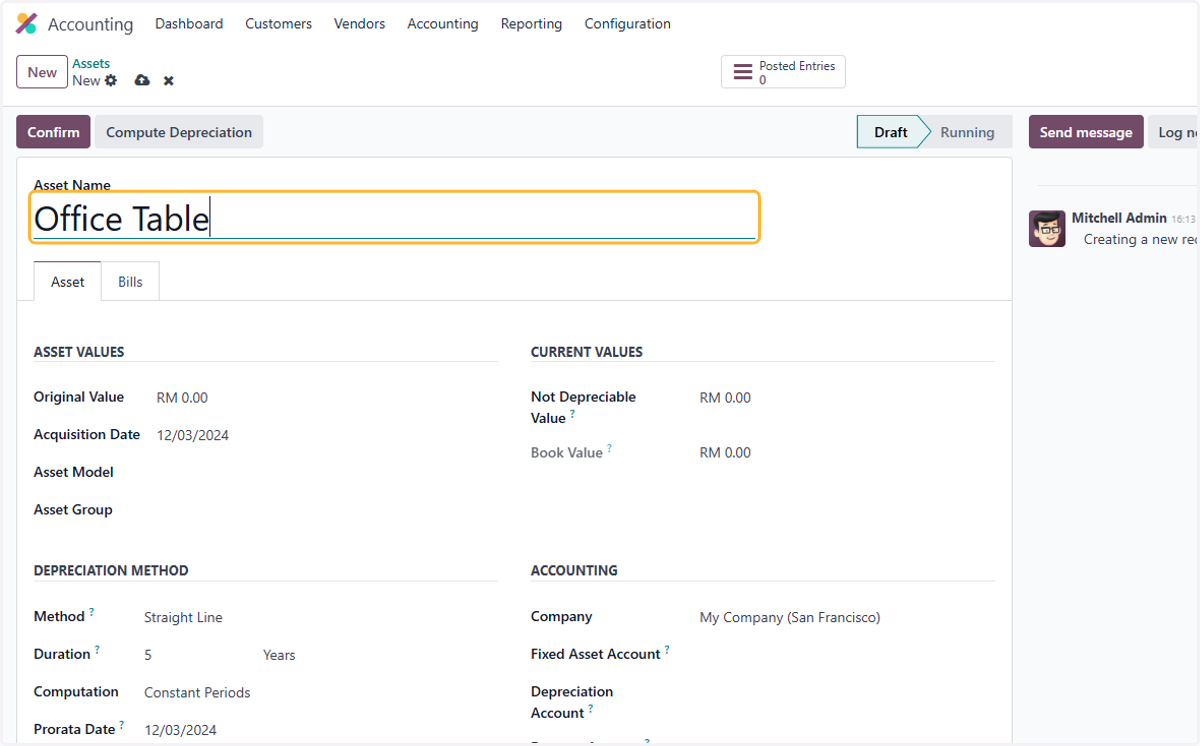
5. Fill in Name
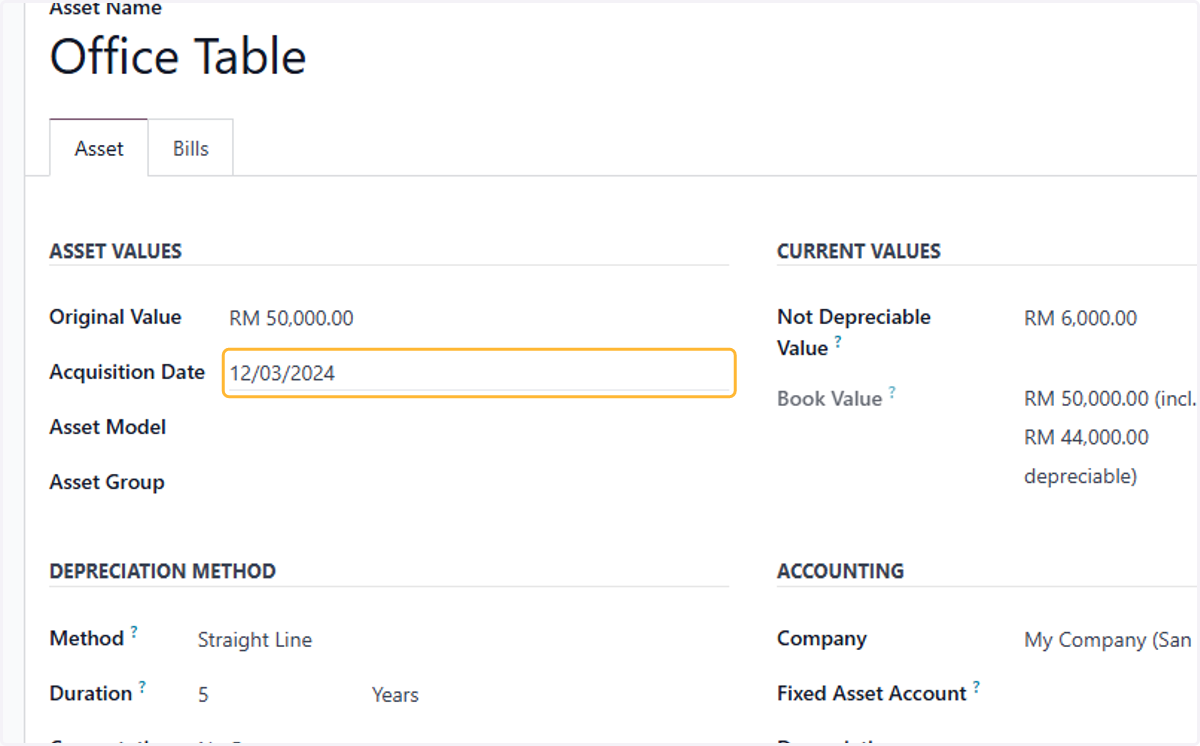
6. Select an Acquisition Date
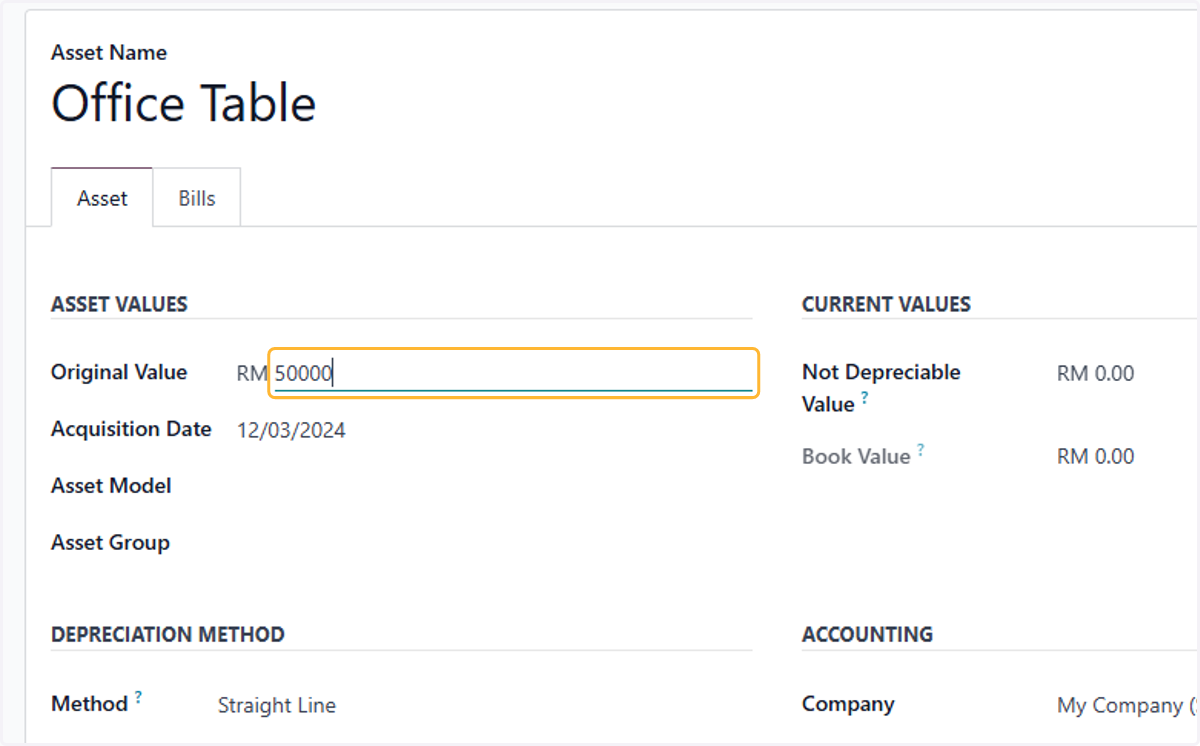
7. Fill in the value of asset
8. Fill in salvagable value
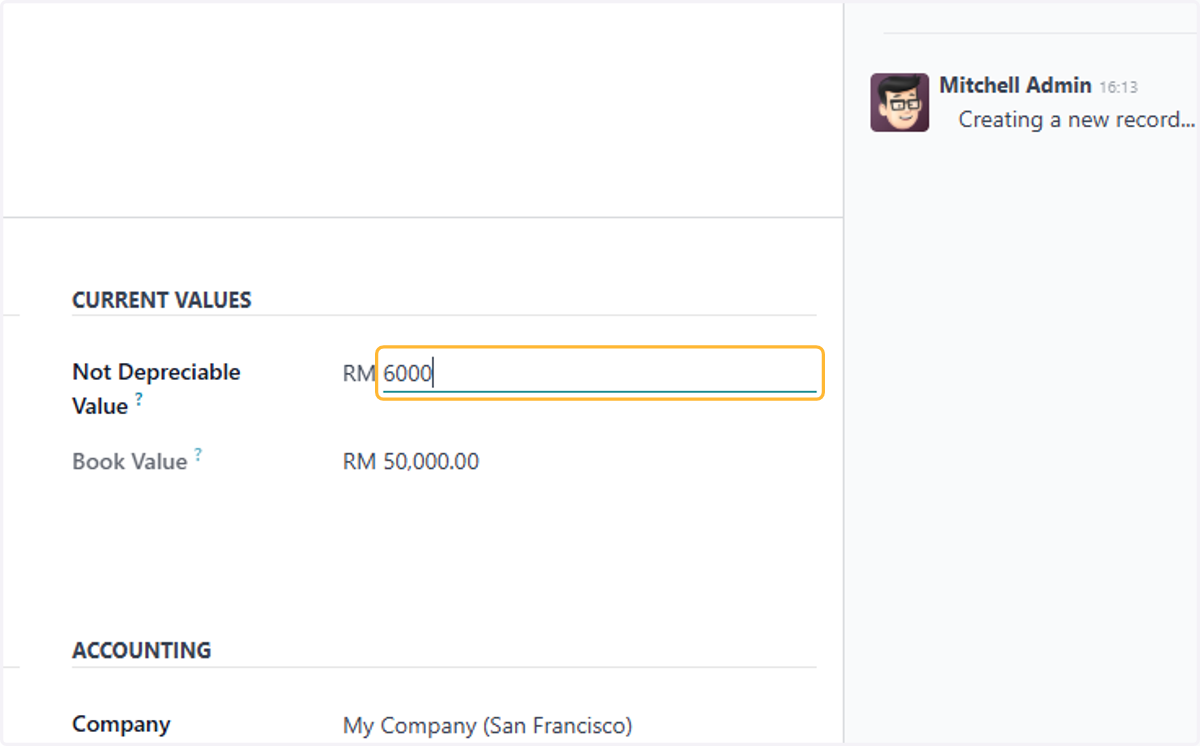
9. Select a Fixed Asset Account
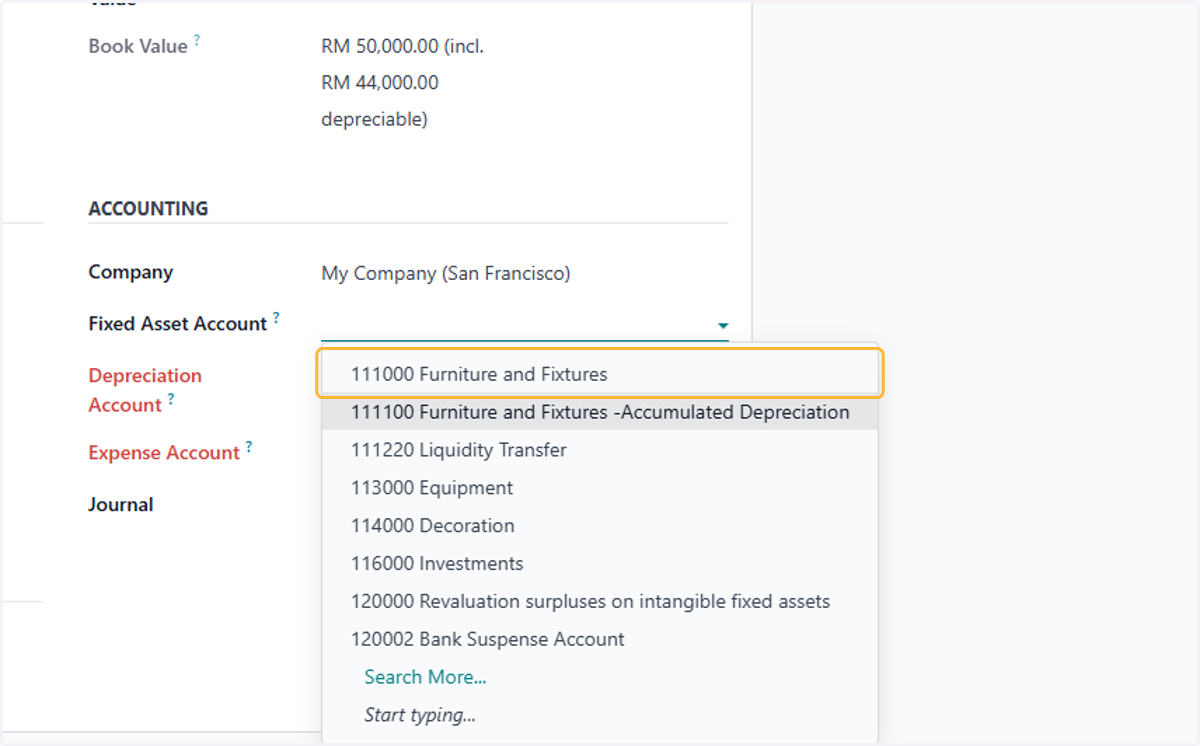
10. Select a Accumulated Depreciation account
By default, will be set to the fixed asset account & be offset
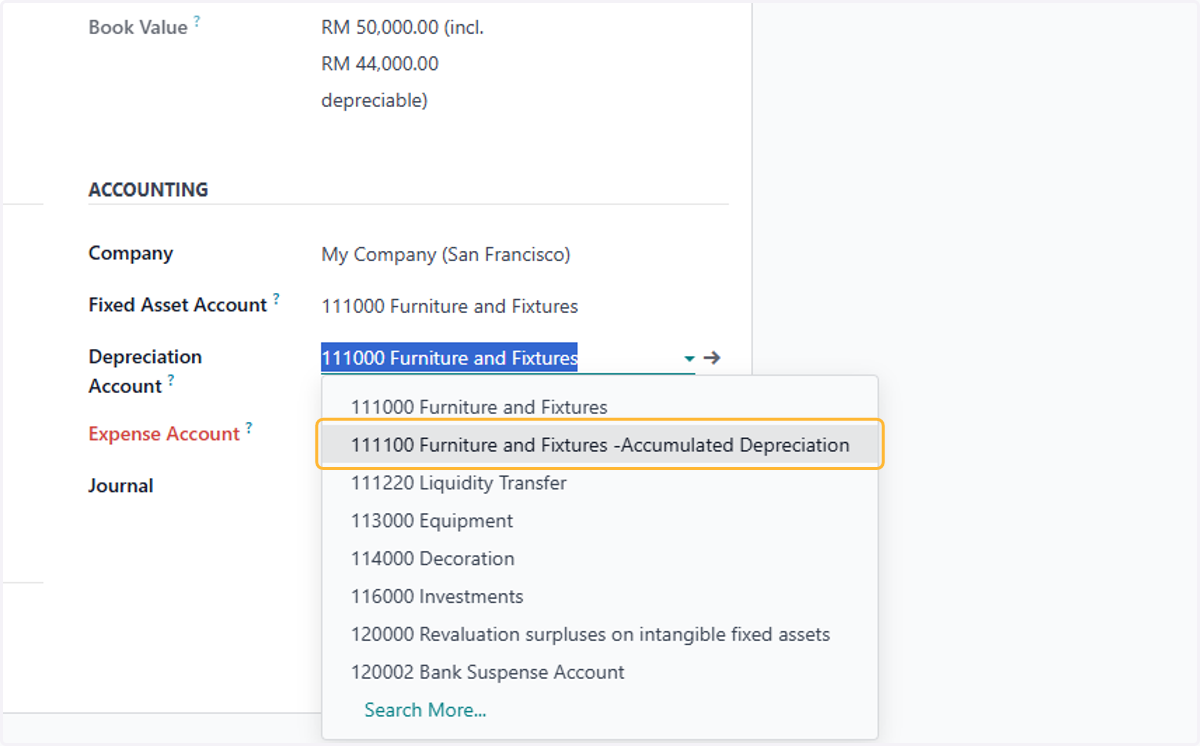
11. Select a Depreciation Expense account
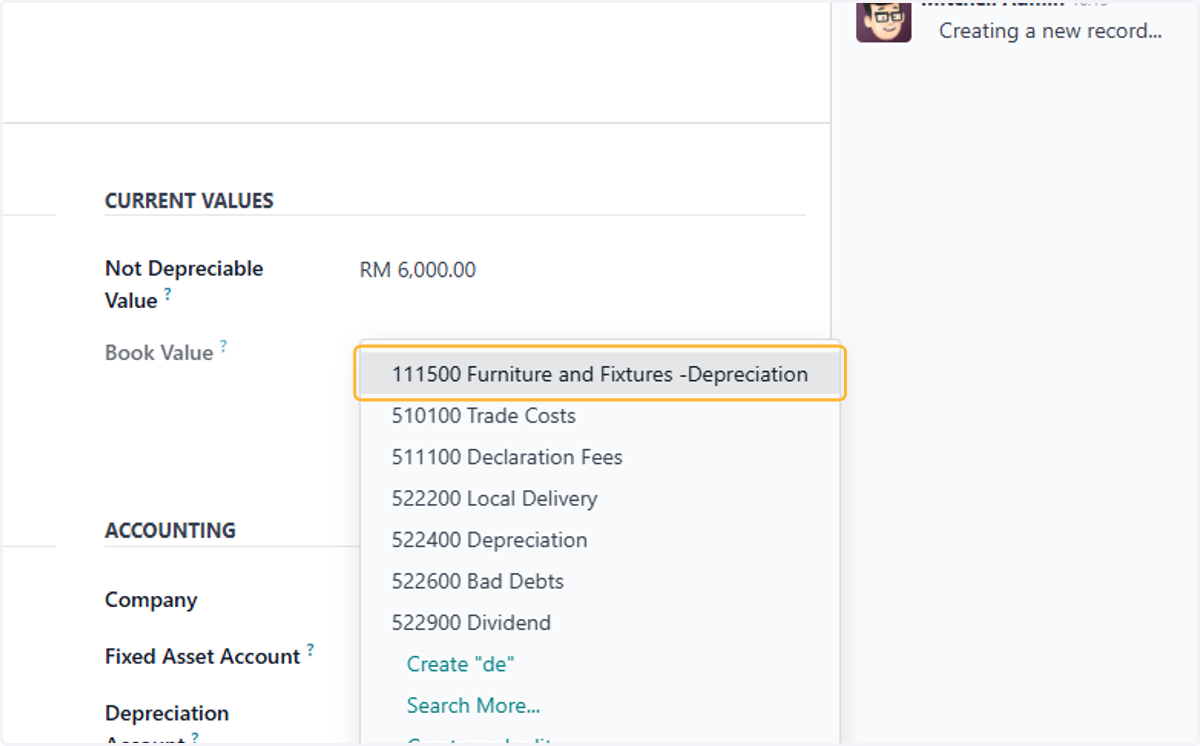
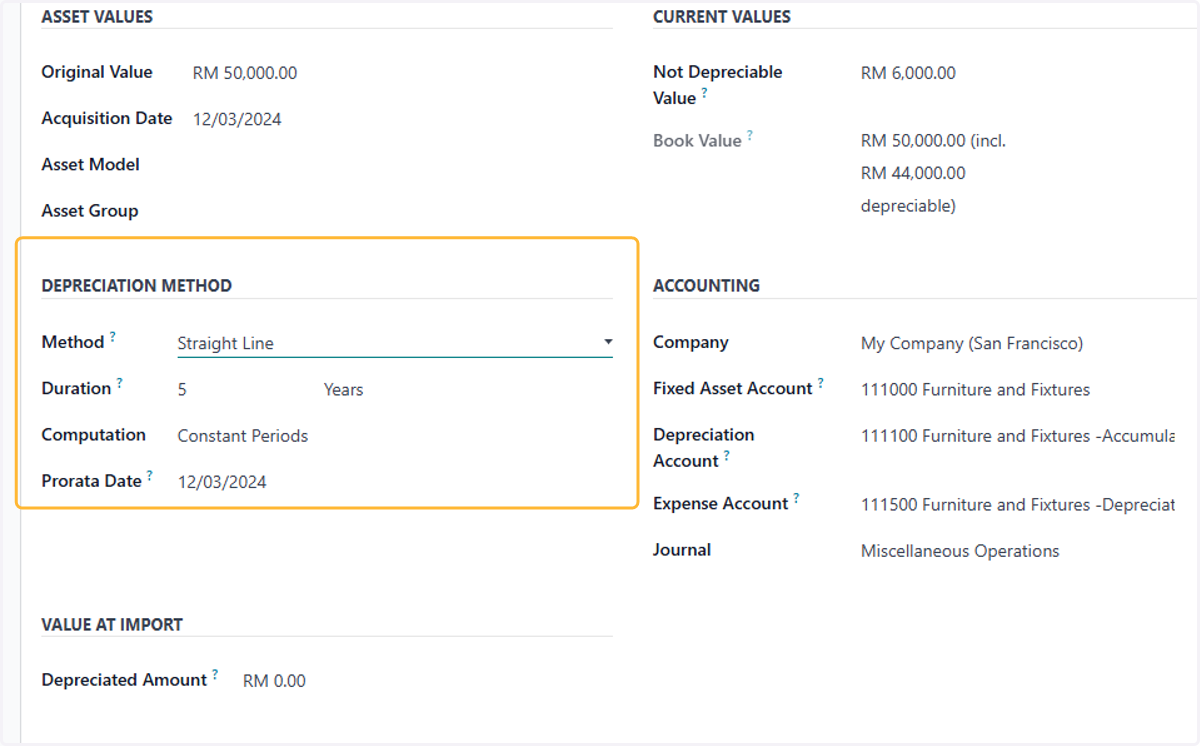
12. Fill in Depreciation method/Policy
There is Straight line, Declining(Reducing Balance), Straight line then Declining(Mix of both)
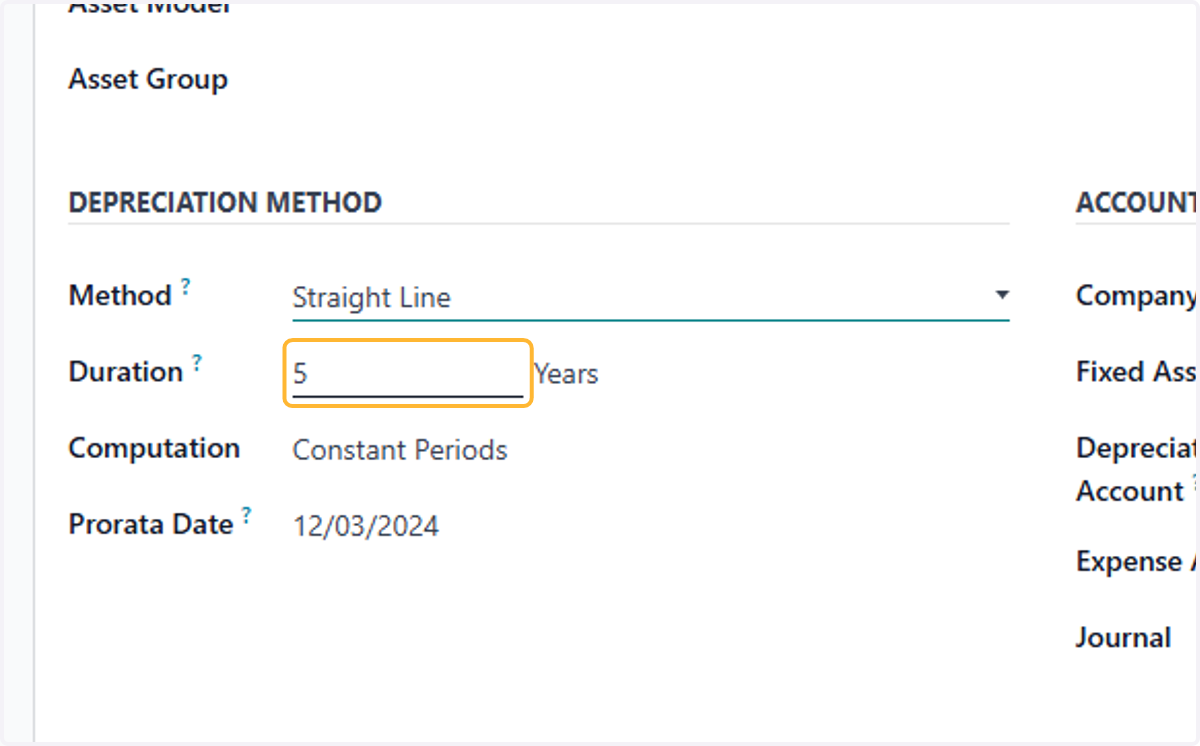
13. Fill in duration of asset life/depreciation
Depreciation can be calculated in Months or Years
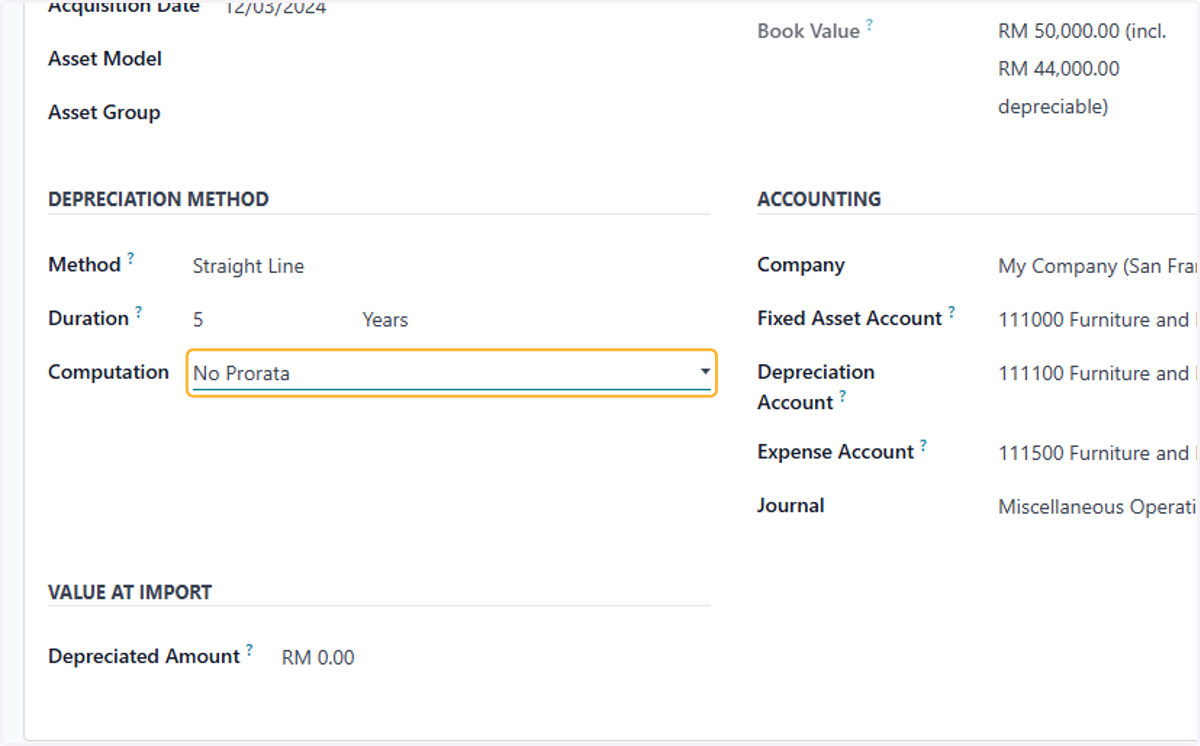
14. Select type of computation
There is No prorata, Constant periods & Based on days per period
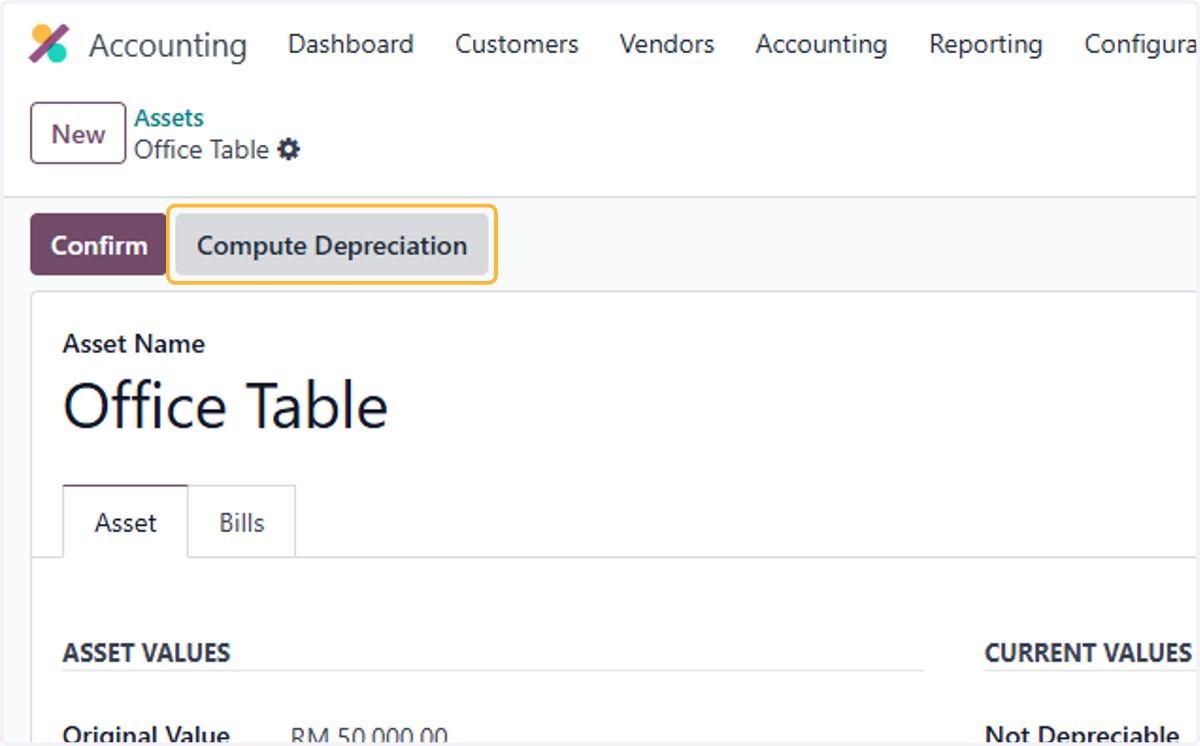
15. Click on Compute Depreciation
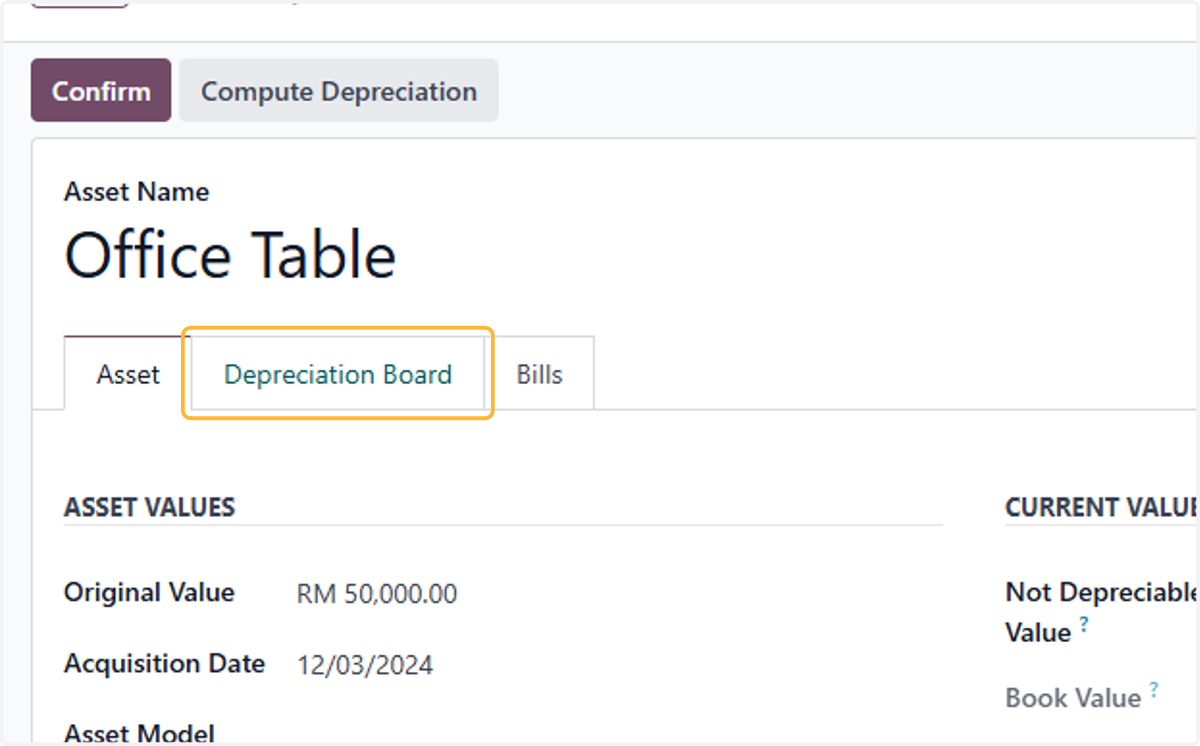
16. Click on Depreciation Board
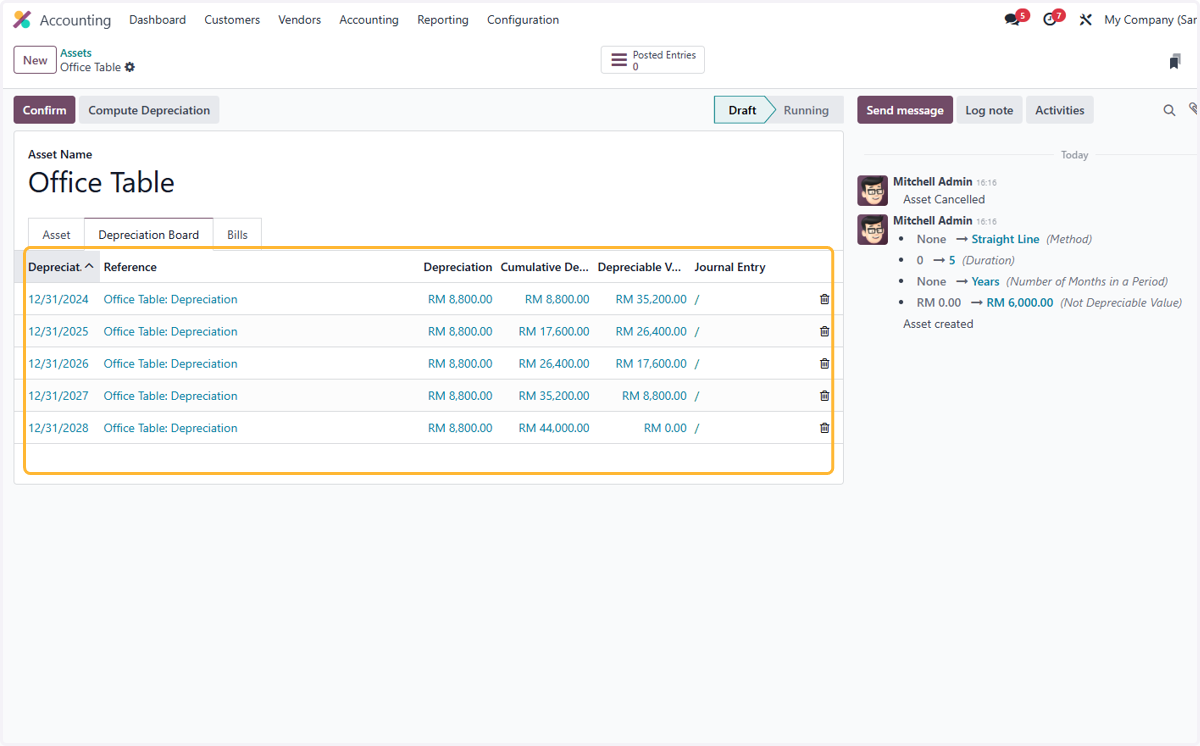
17. List of drafted depreciations entries
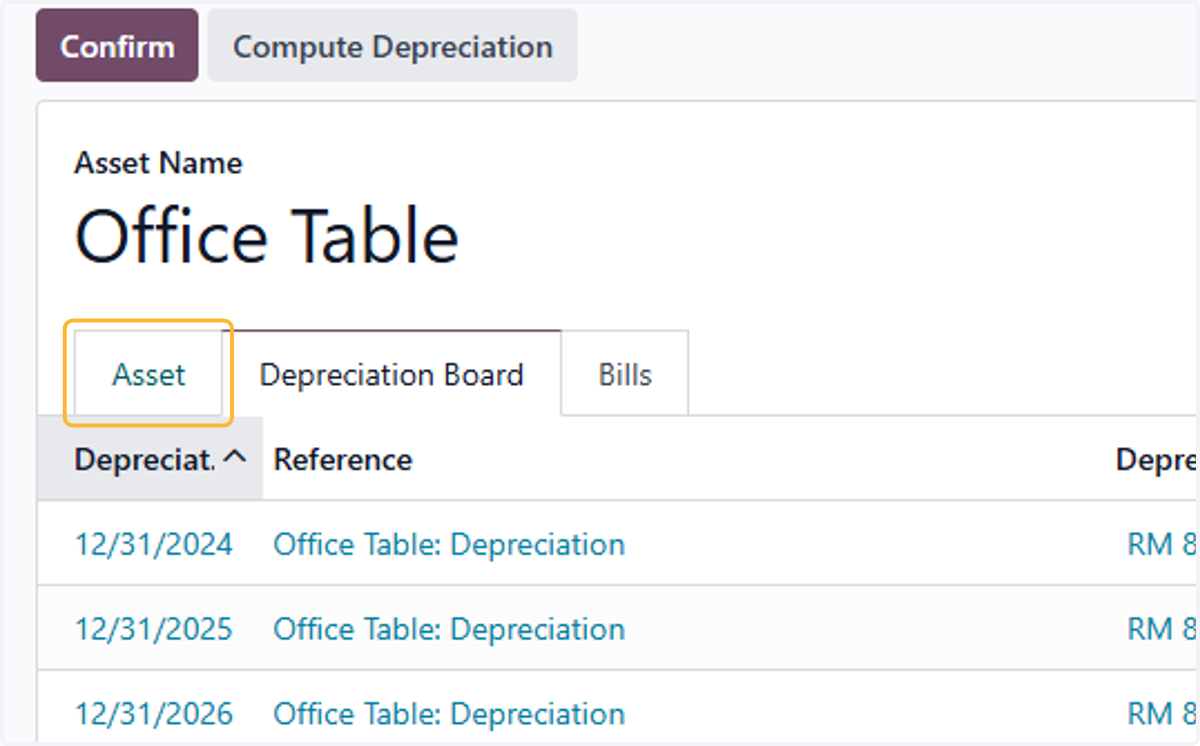
18. Click on Asset
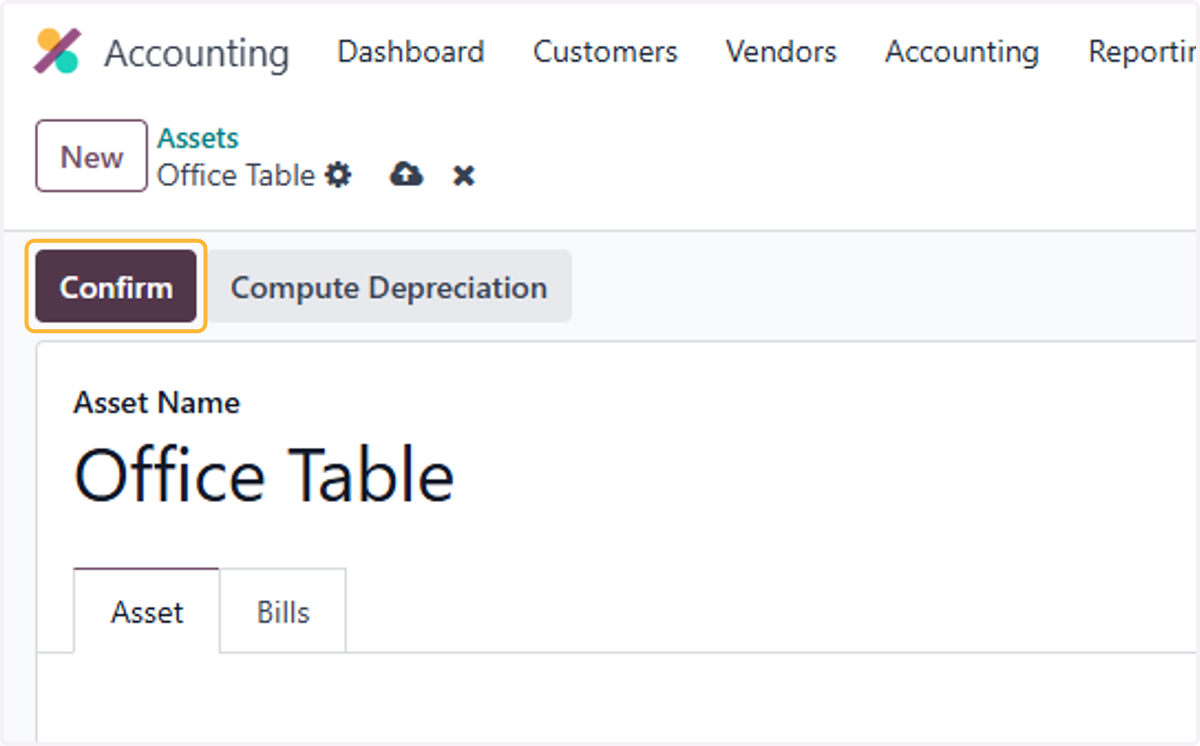
19. Click on Confirm
20. Click on Depreciation Board
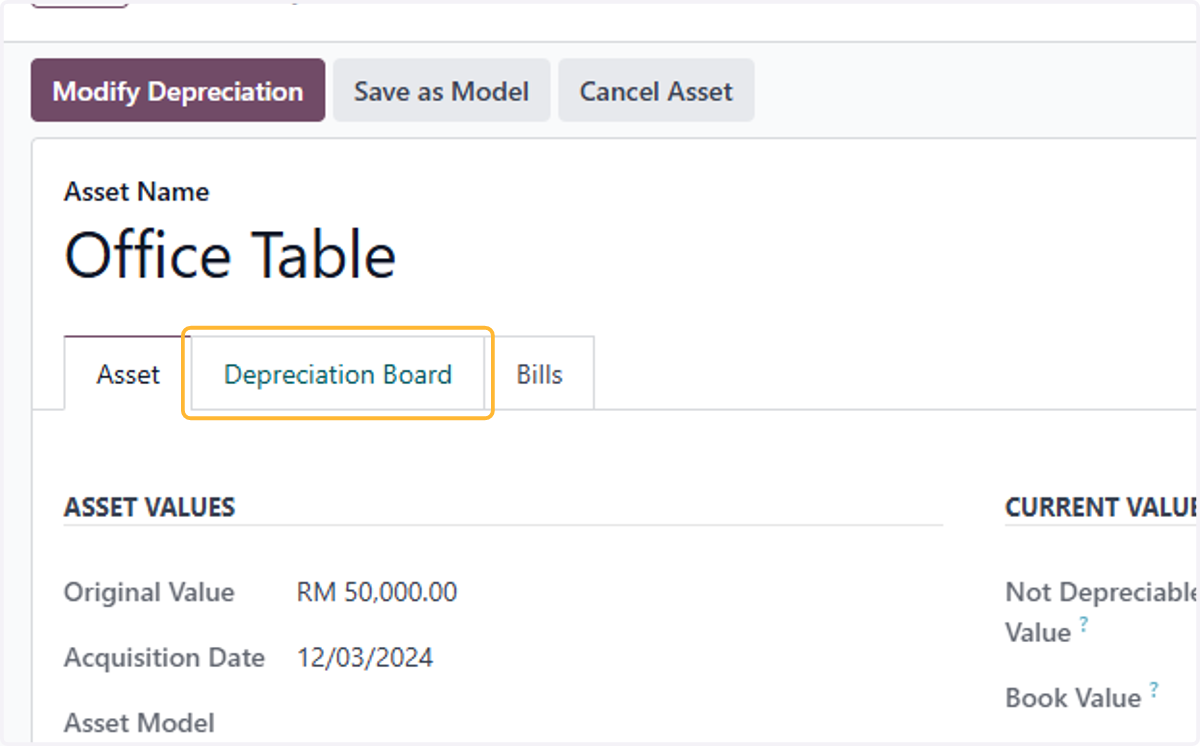
21. List of all depreciation entries will be listed here
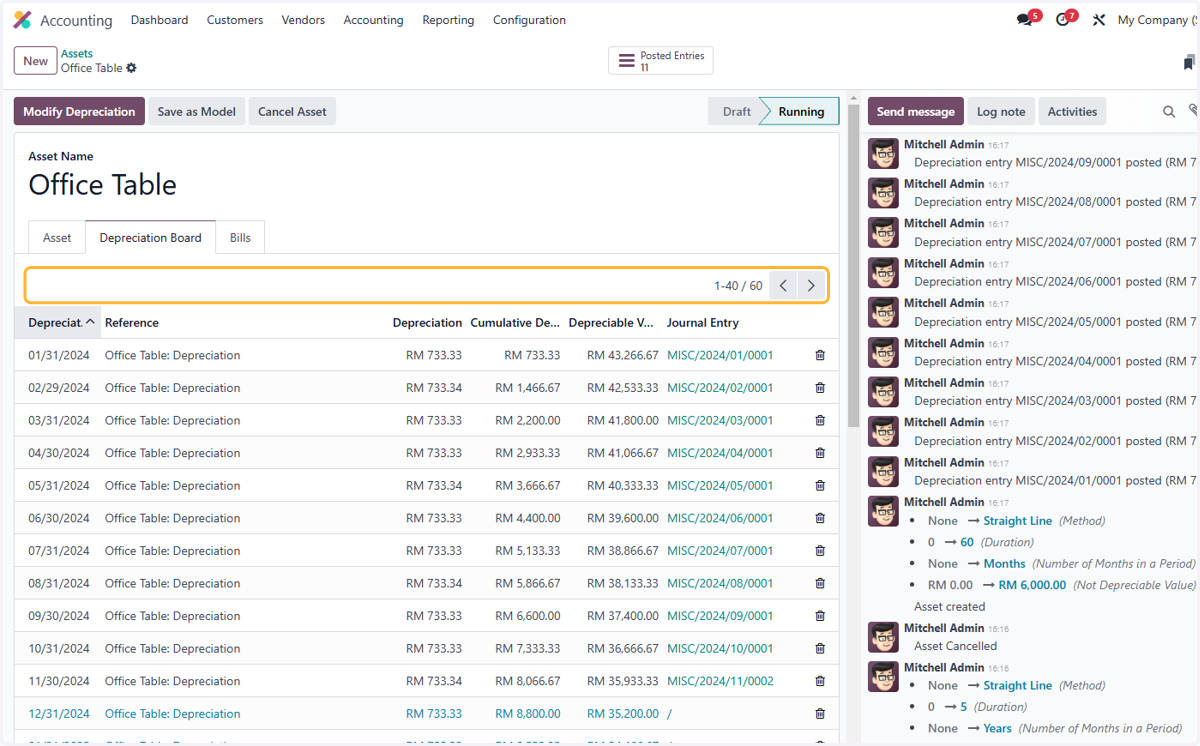
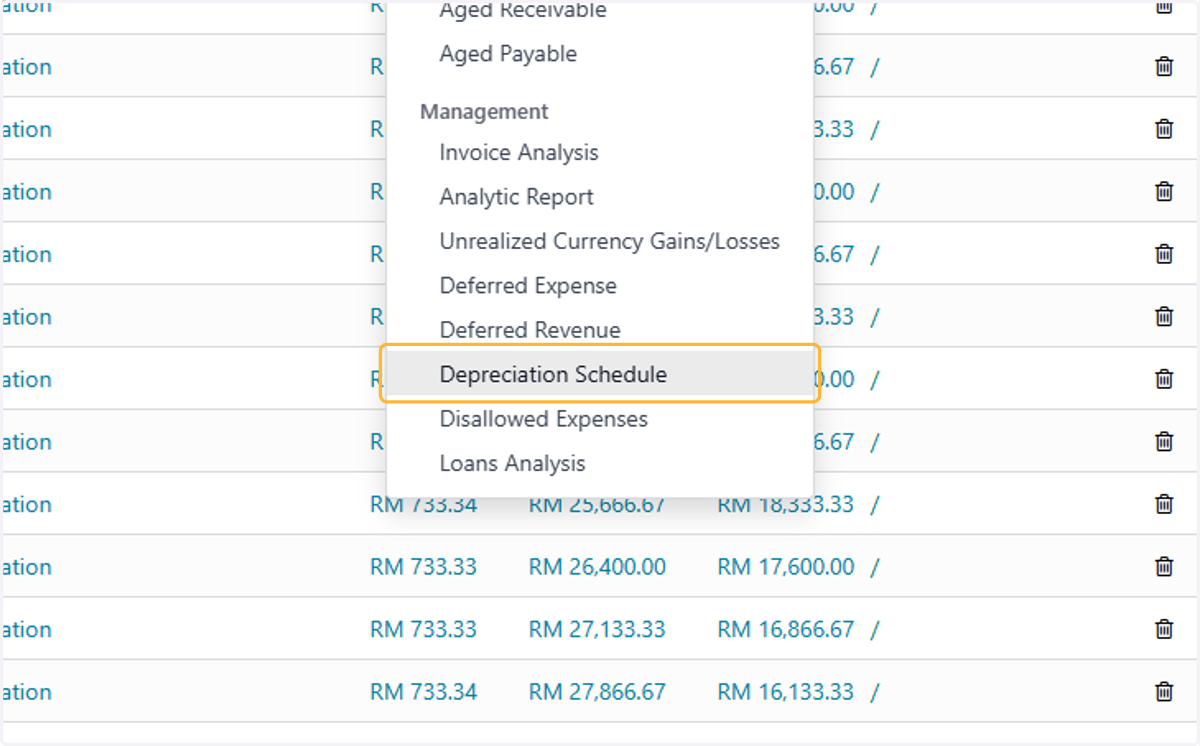
Depreciation Schedule
22. Click on Reporting
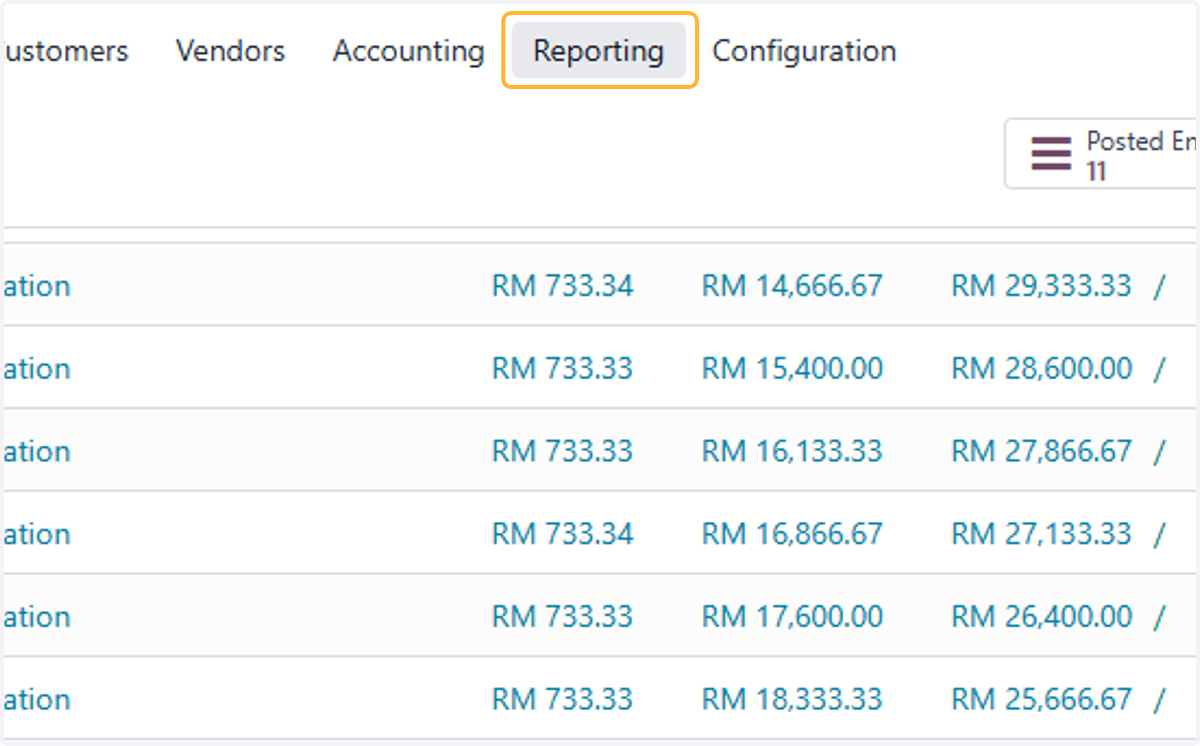
23. Click on Depreciation Schedule