How to Put Components on TUx
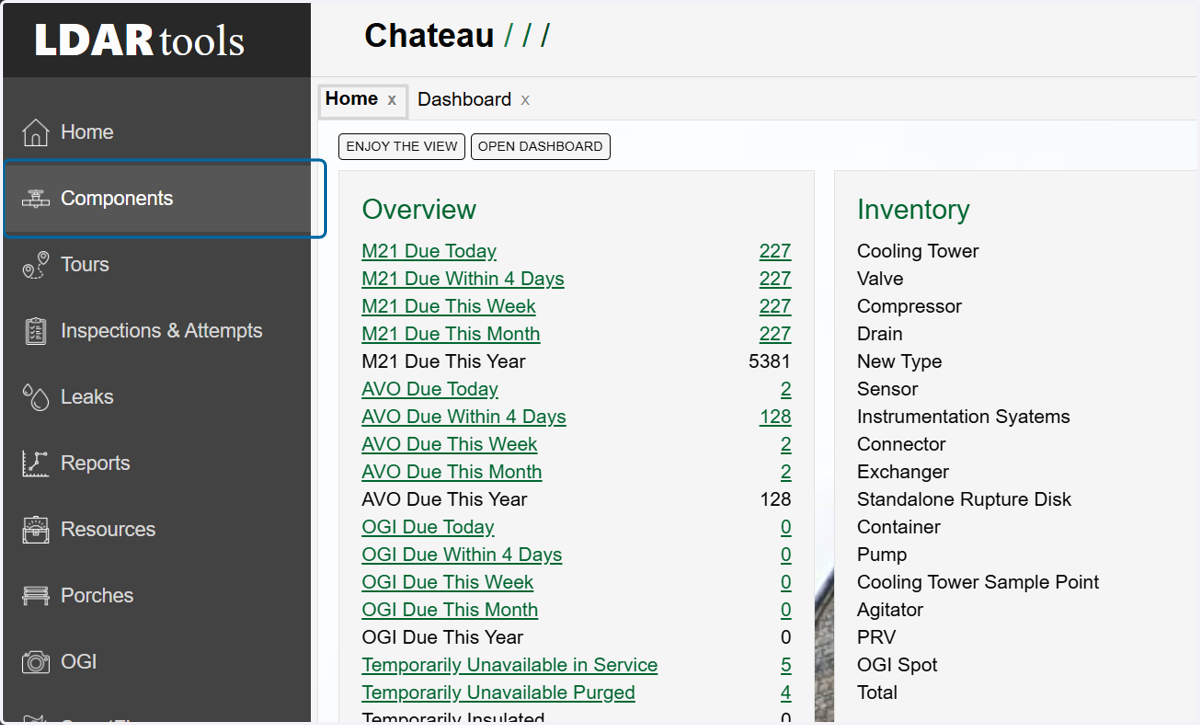
1. Click on Components
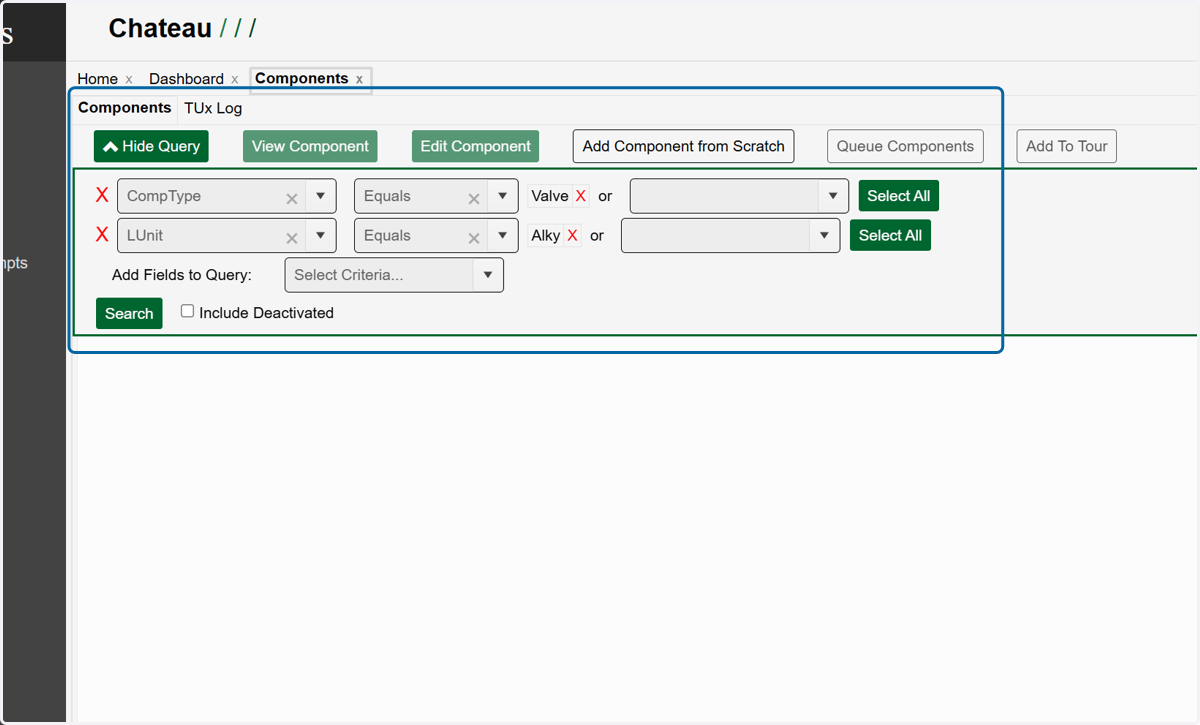
2. Utilize the query builder to find the component(s) you wish to set out of service (TUx).
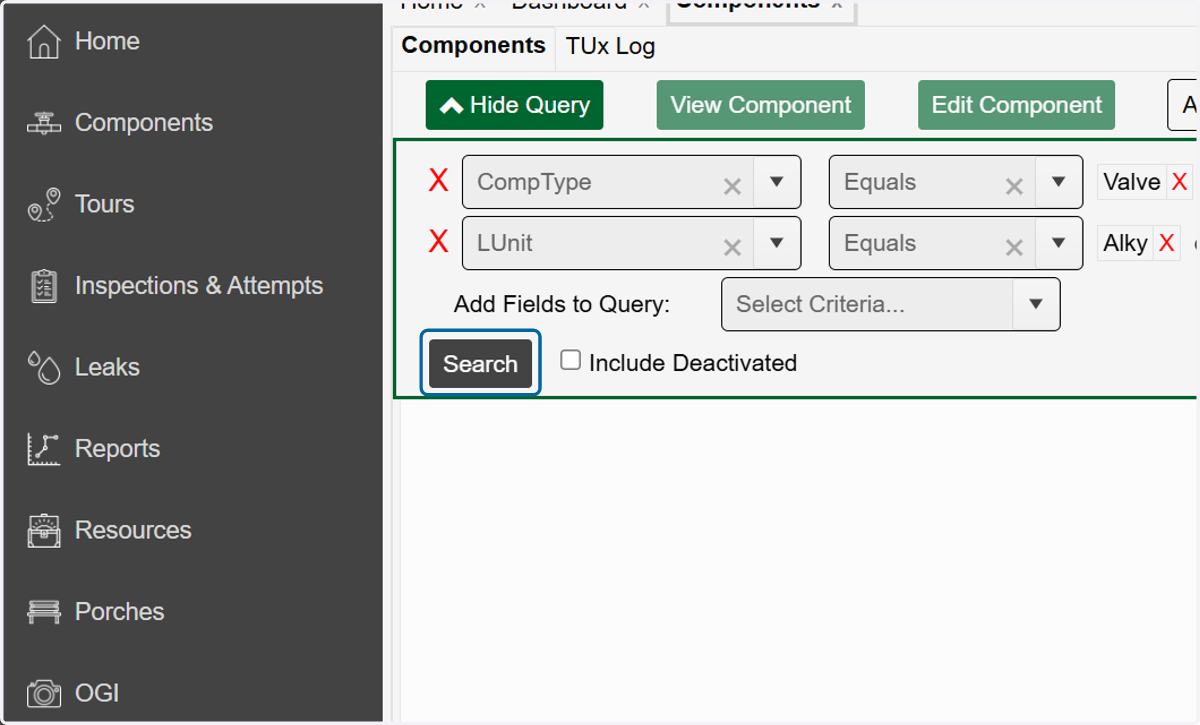
3. Once you have your query built, click on Search.
4. Select the row(s) that match the components you want to set out of service (TUx)
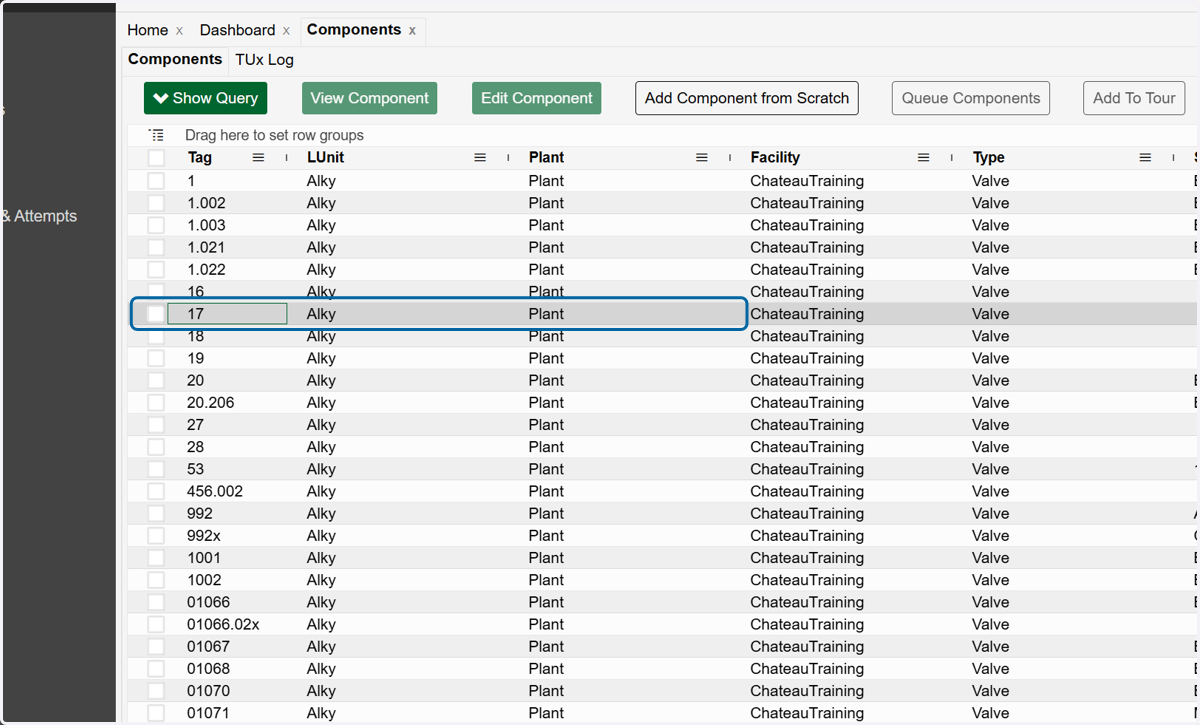
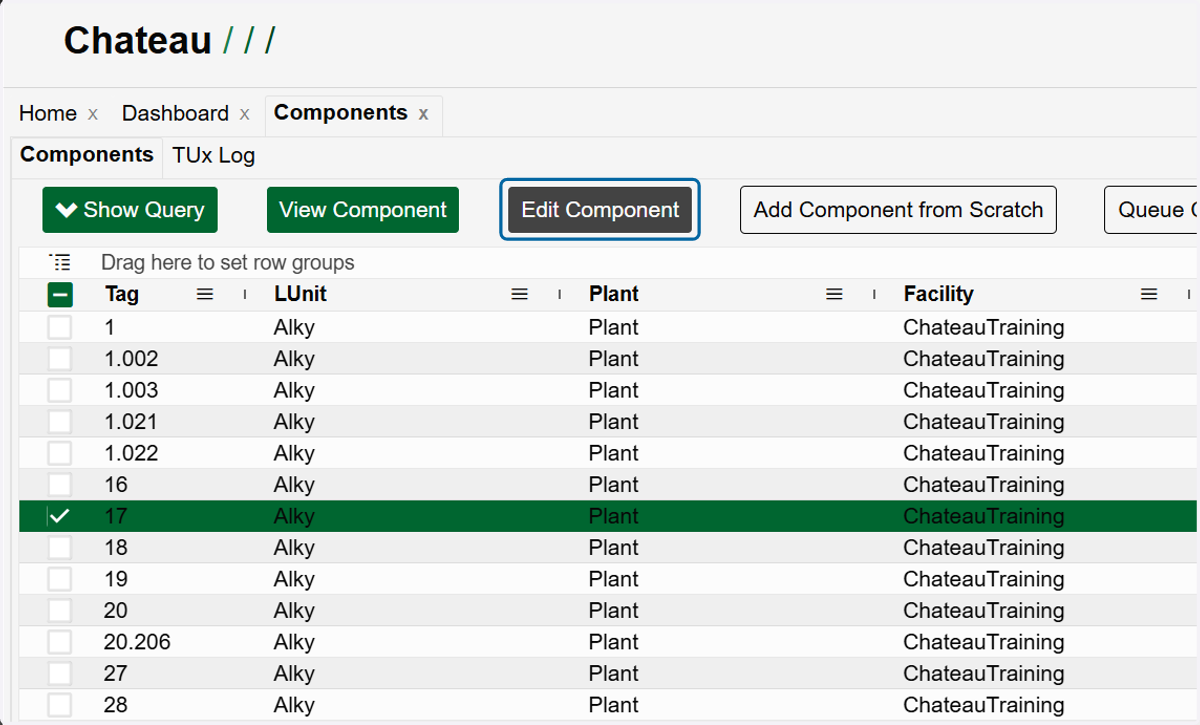
5. Click on Edit Component. If you have selected more than one component, this button will read 'Multi-Edit # Components'.
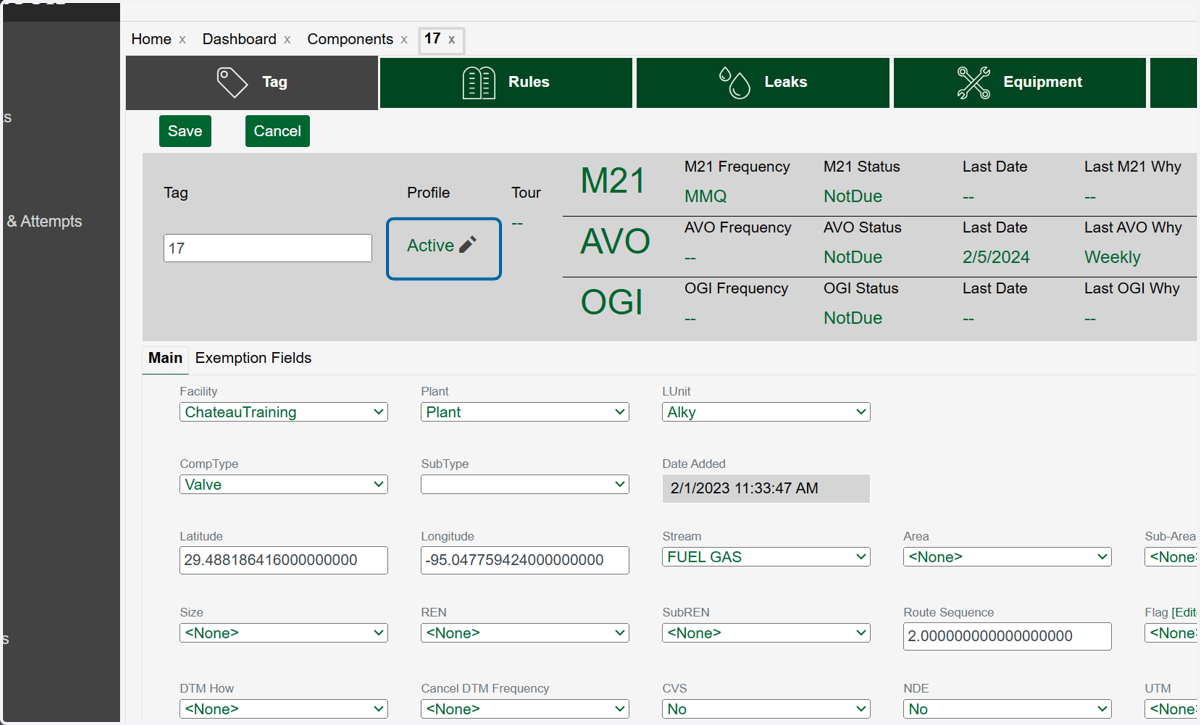
6. Click on the pencil icon next to the Active status in the Profile section.
7. Select the out of service (TUx) type in the Profile dropdown.
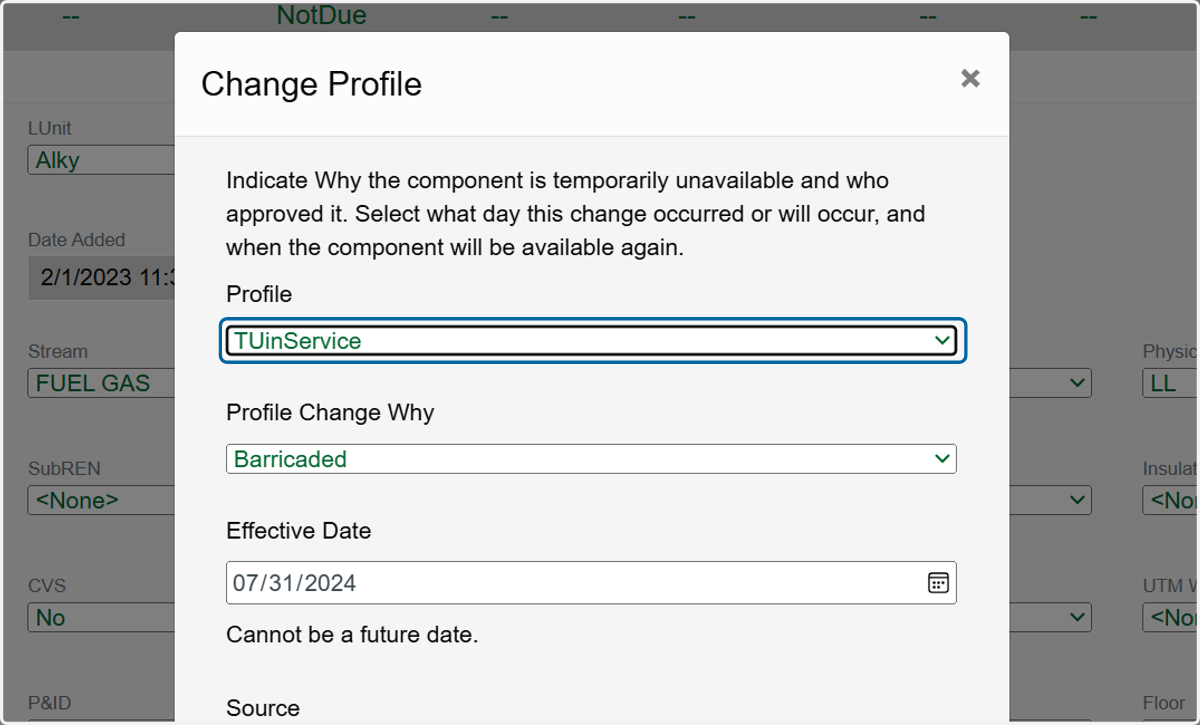
8. Select the reason for going out of service (TUx) in the Profile Change Why dropdown.
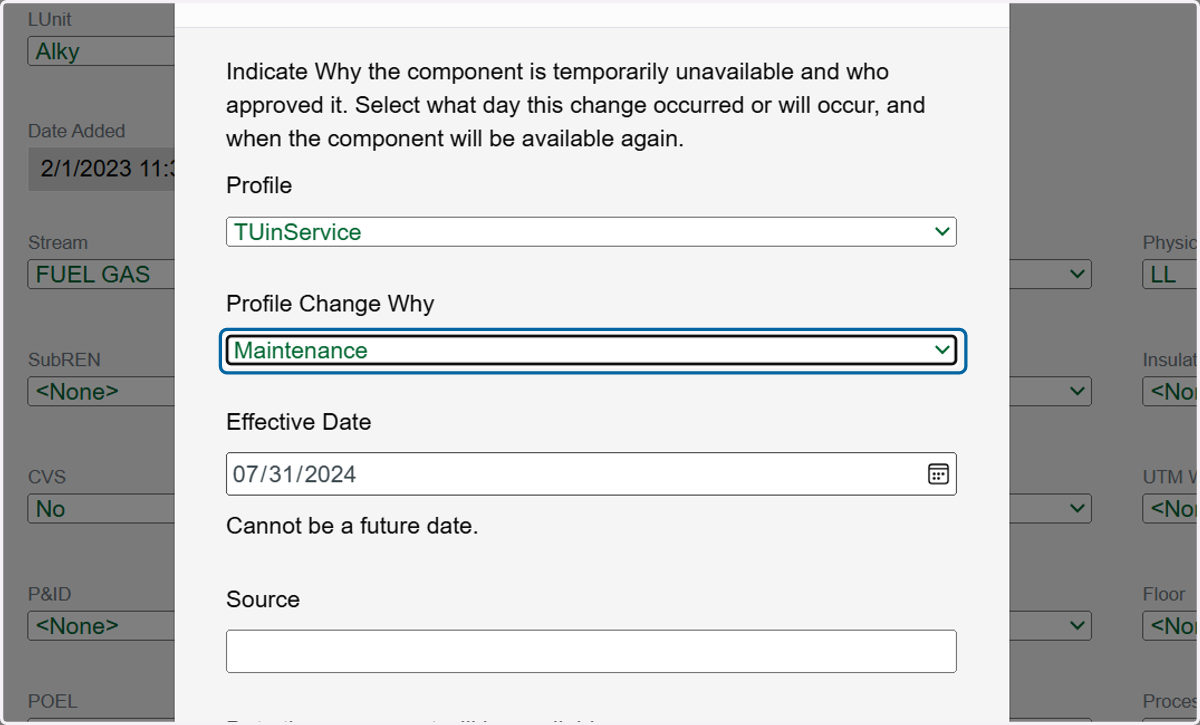
9. Select the date the component(s) went out of service (TUx) in the Effective Date field.
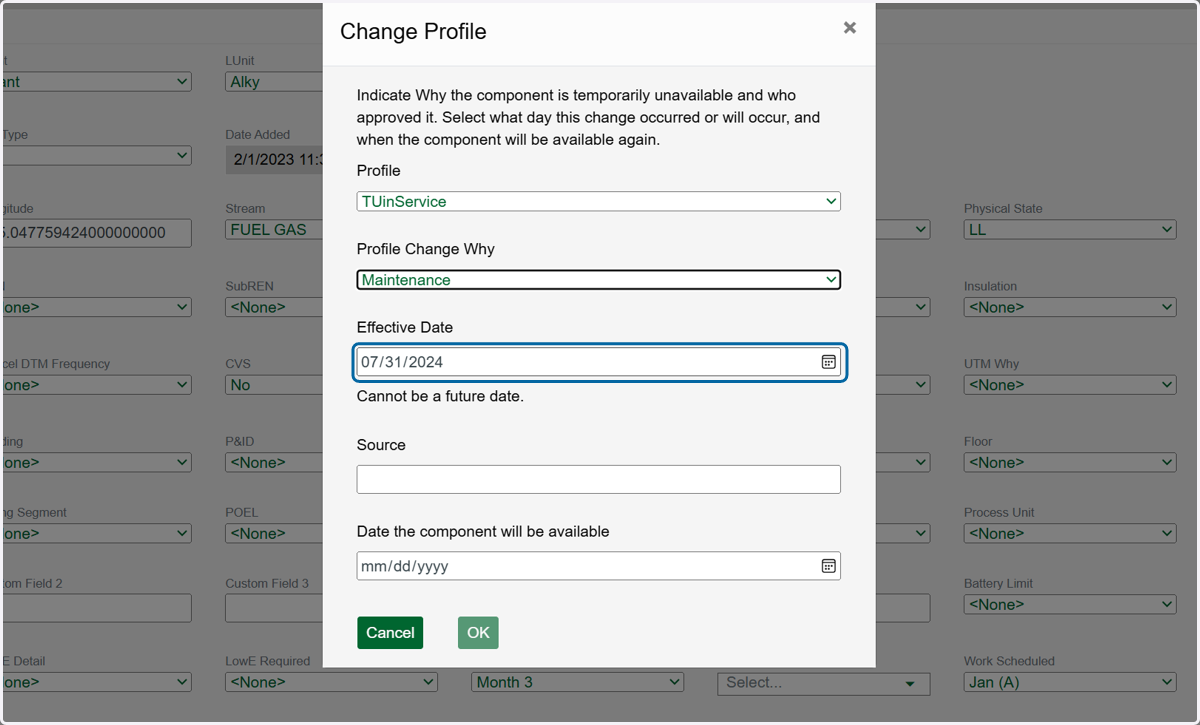
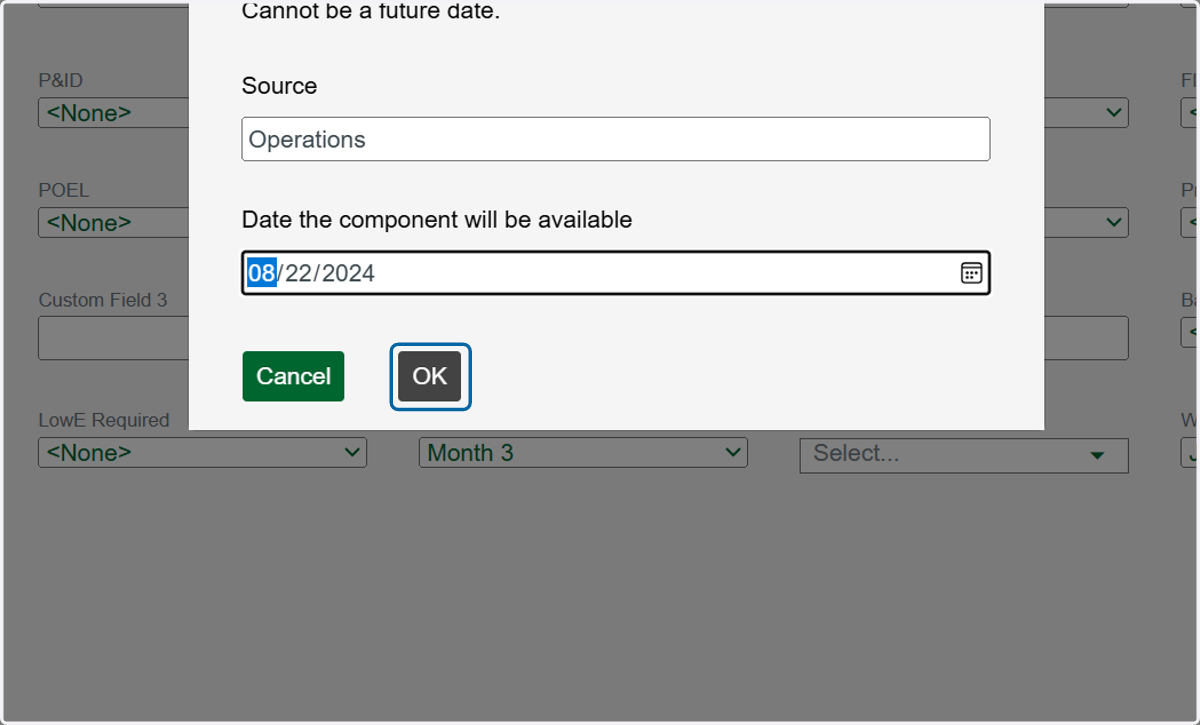
10. Enter the name of the person or organization reporting the component(s) as out of service (TUx) in the Source field.
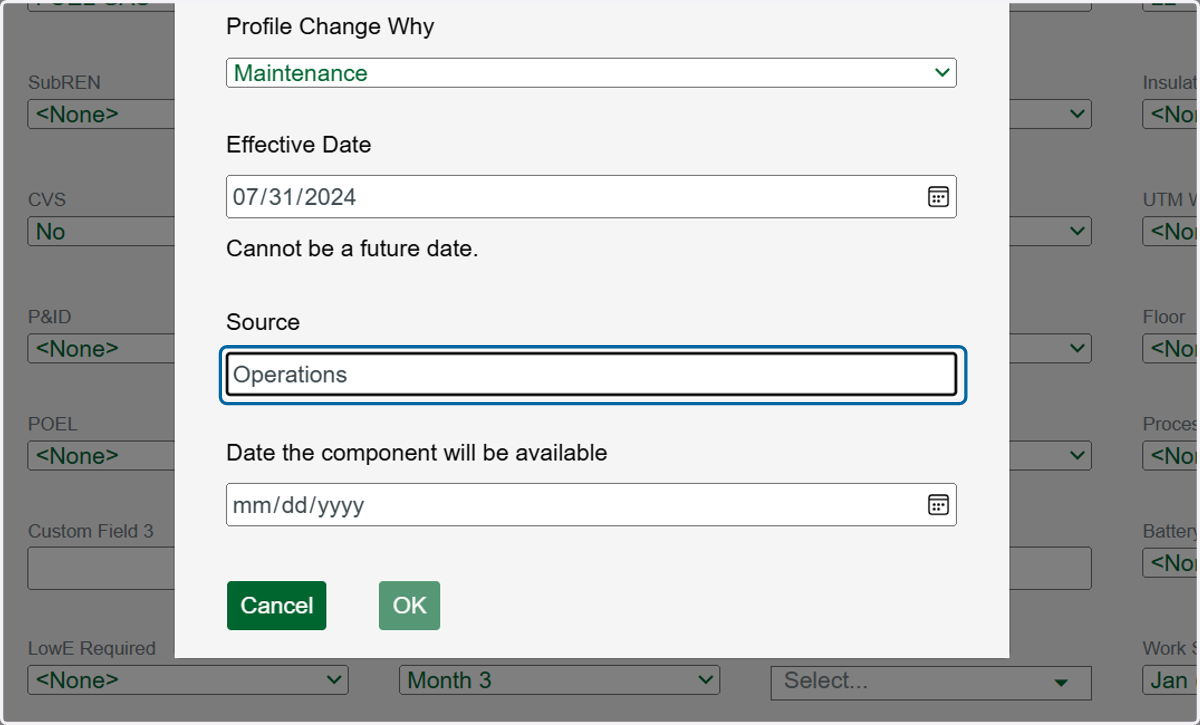
11. The Date the Component will be Available field is an estimated date.
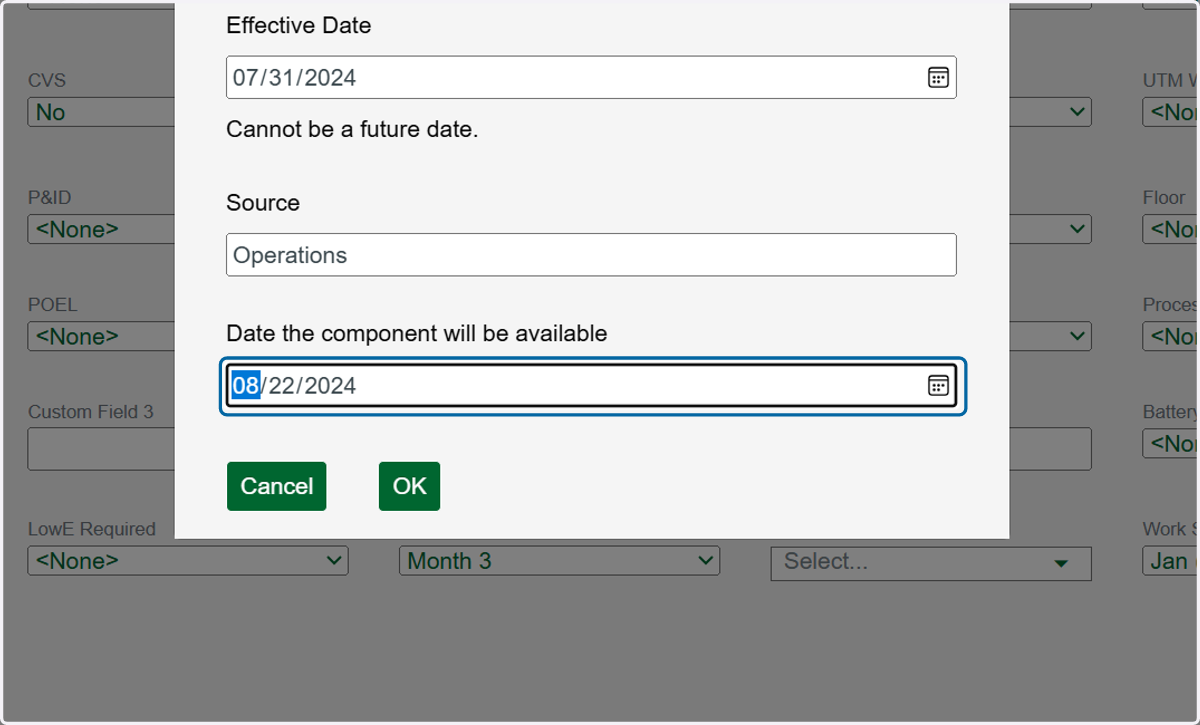
12. Click on OK
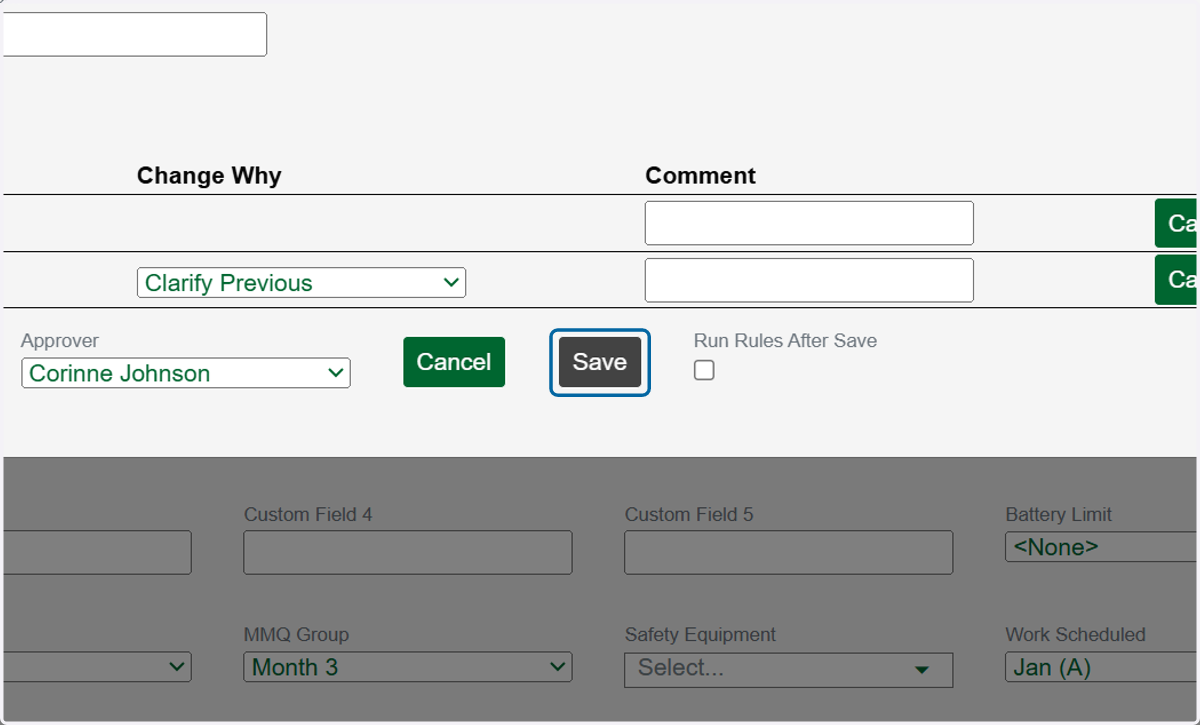
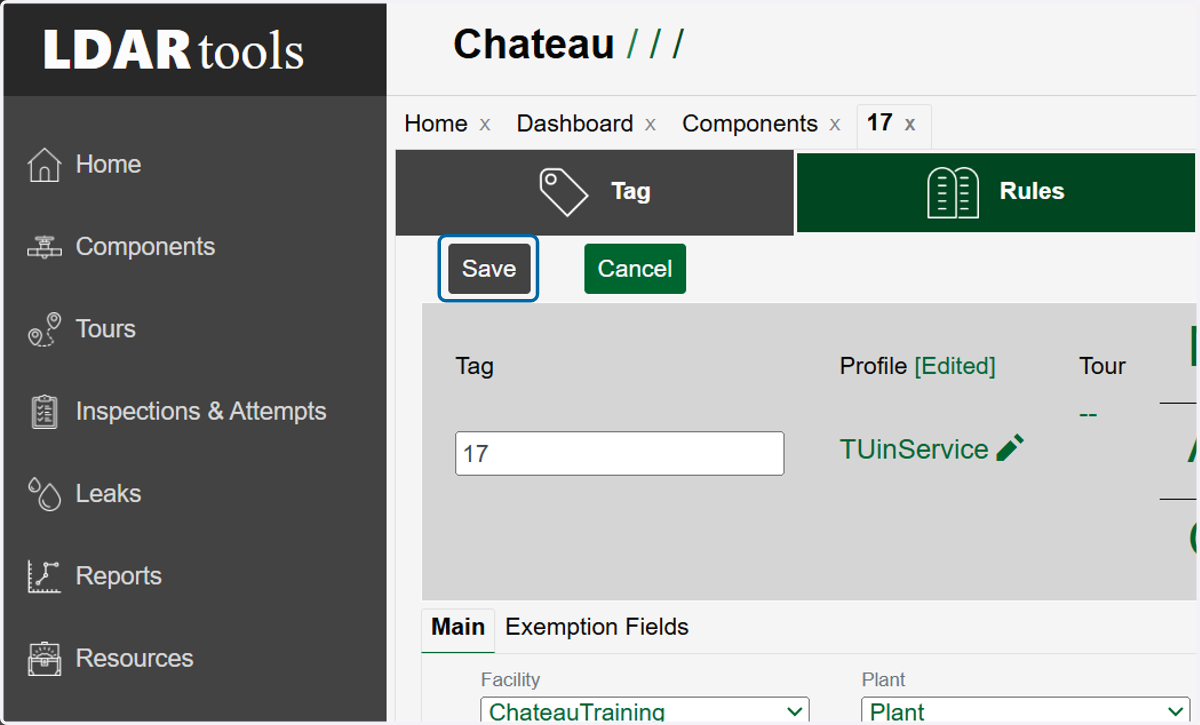
13. Click on Save
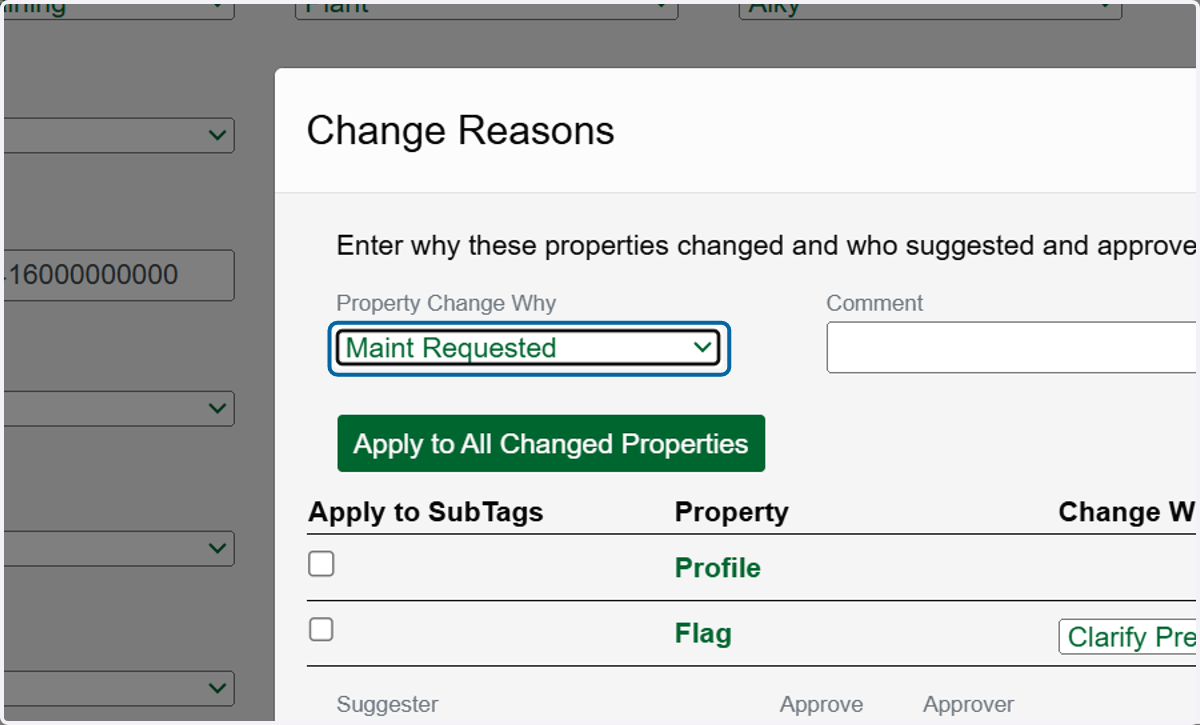
14. Select the reason for the change in the Profile Change Why dropdown.
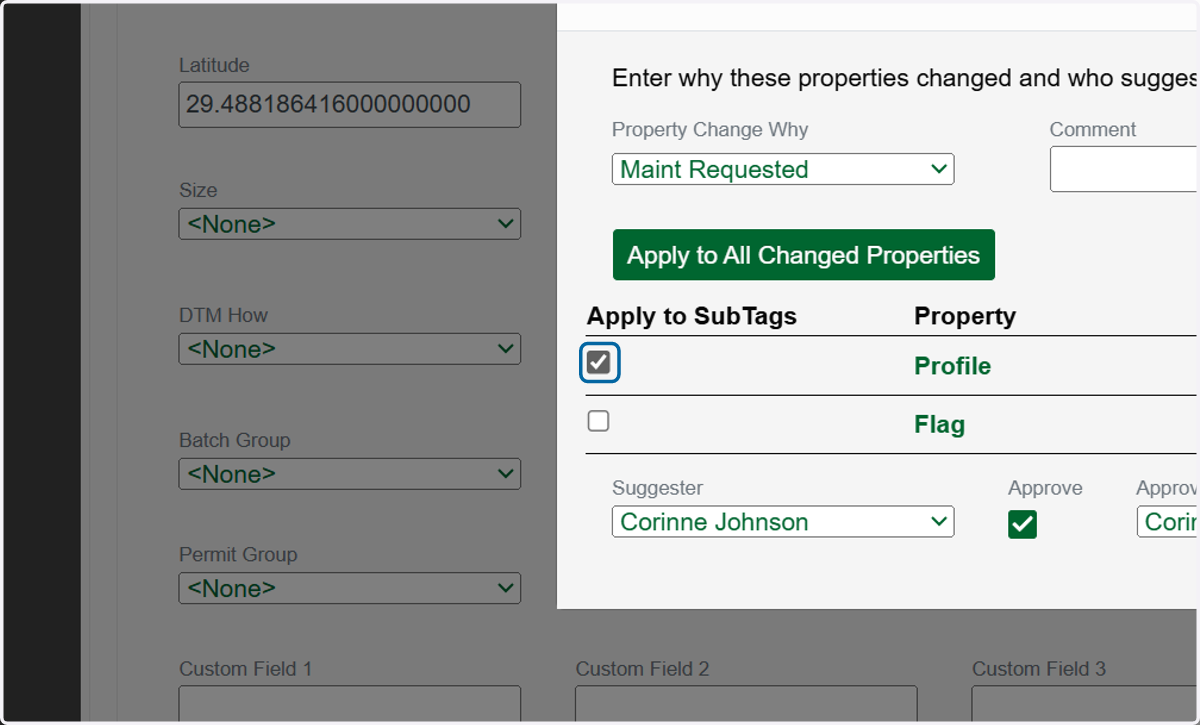
15. If the components are base tags with related subtags, check this box if you also want to apply the TUx profile change to the subtags.
16. Click on Save