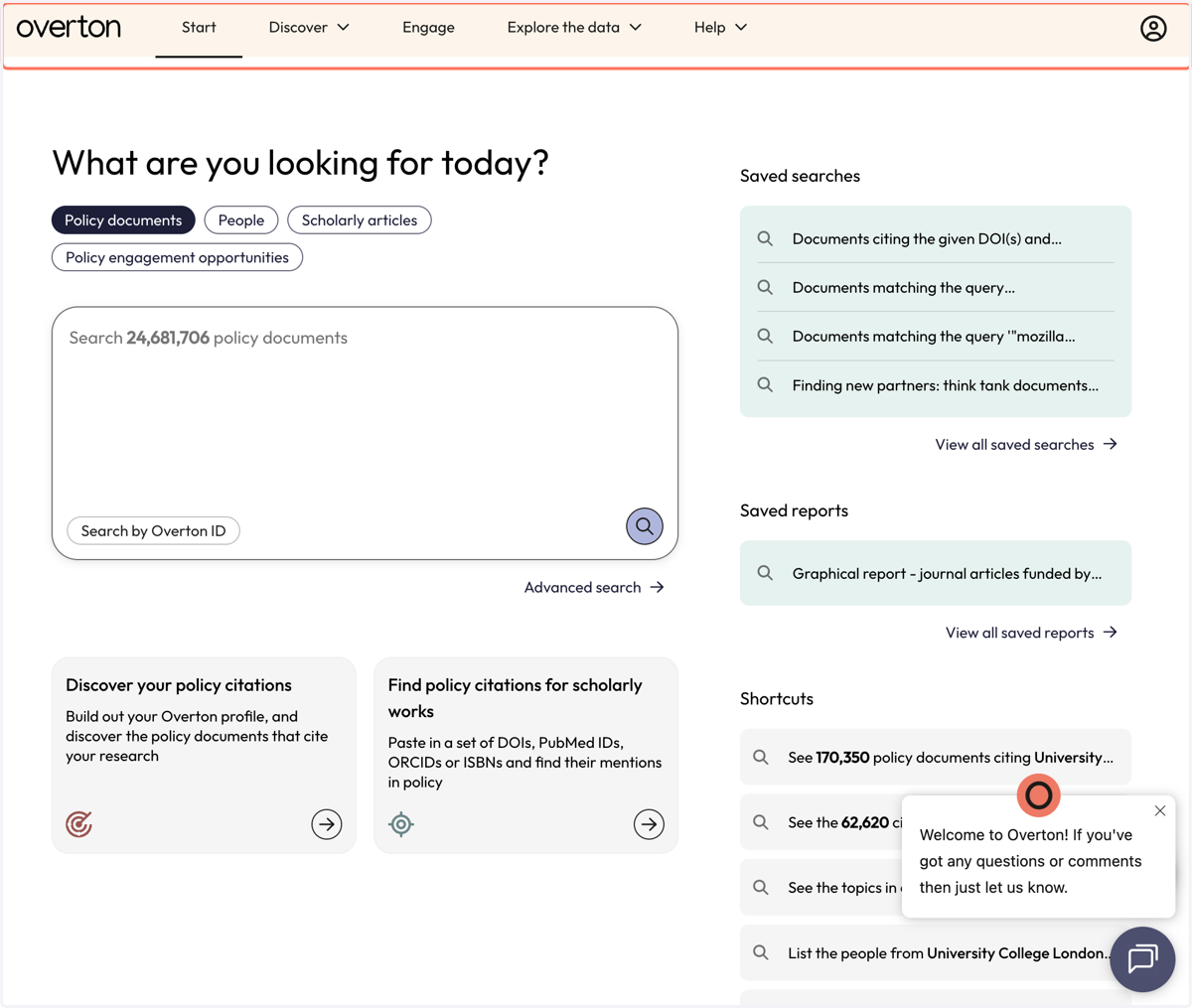
Overton Index's Start Page
Overton
1. The top menu helps you navigate both Overton Index and Overton Engage.
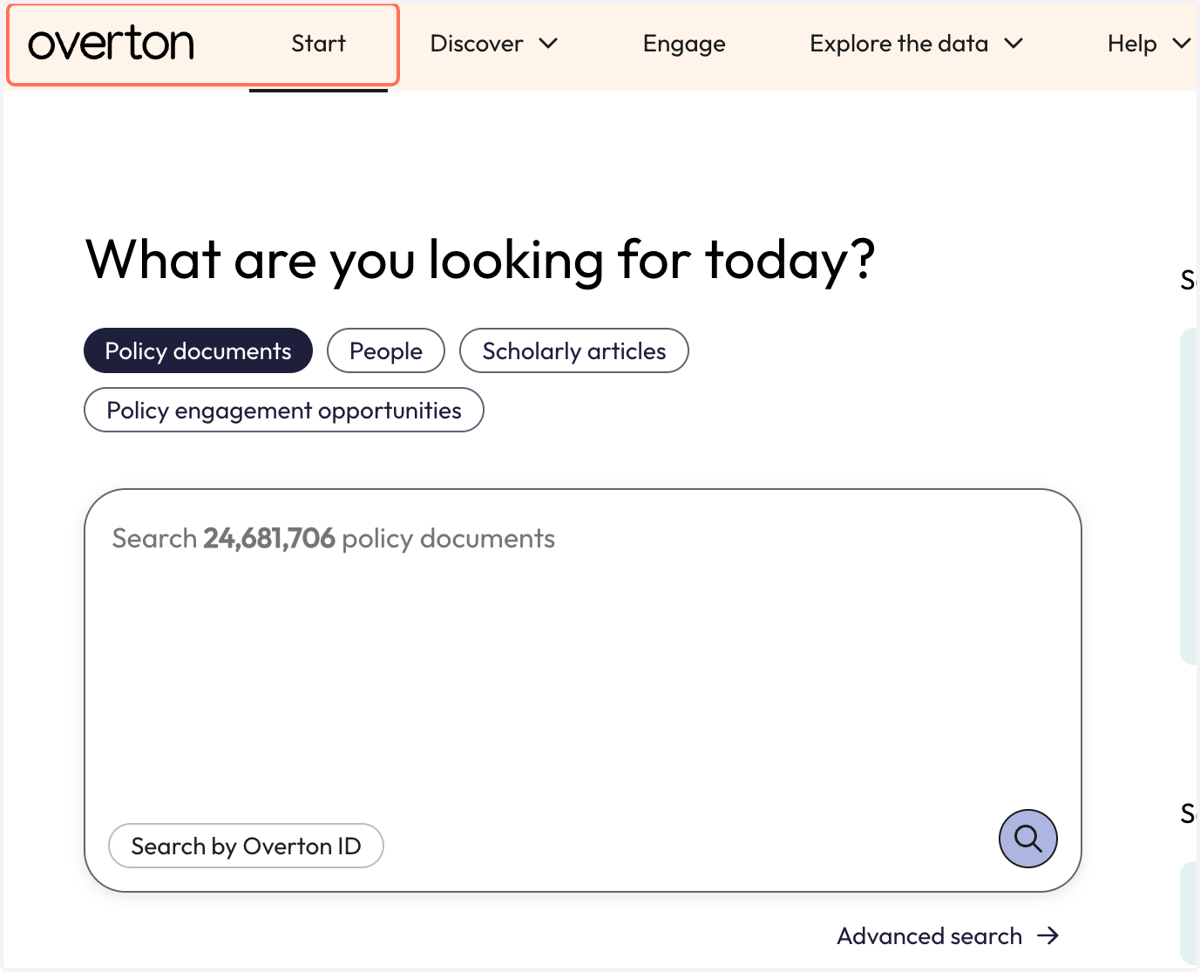
2. Click "overton" or "Start" to return to the Start page anytime.
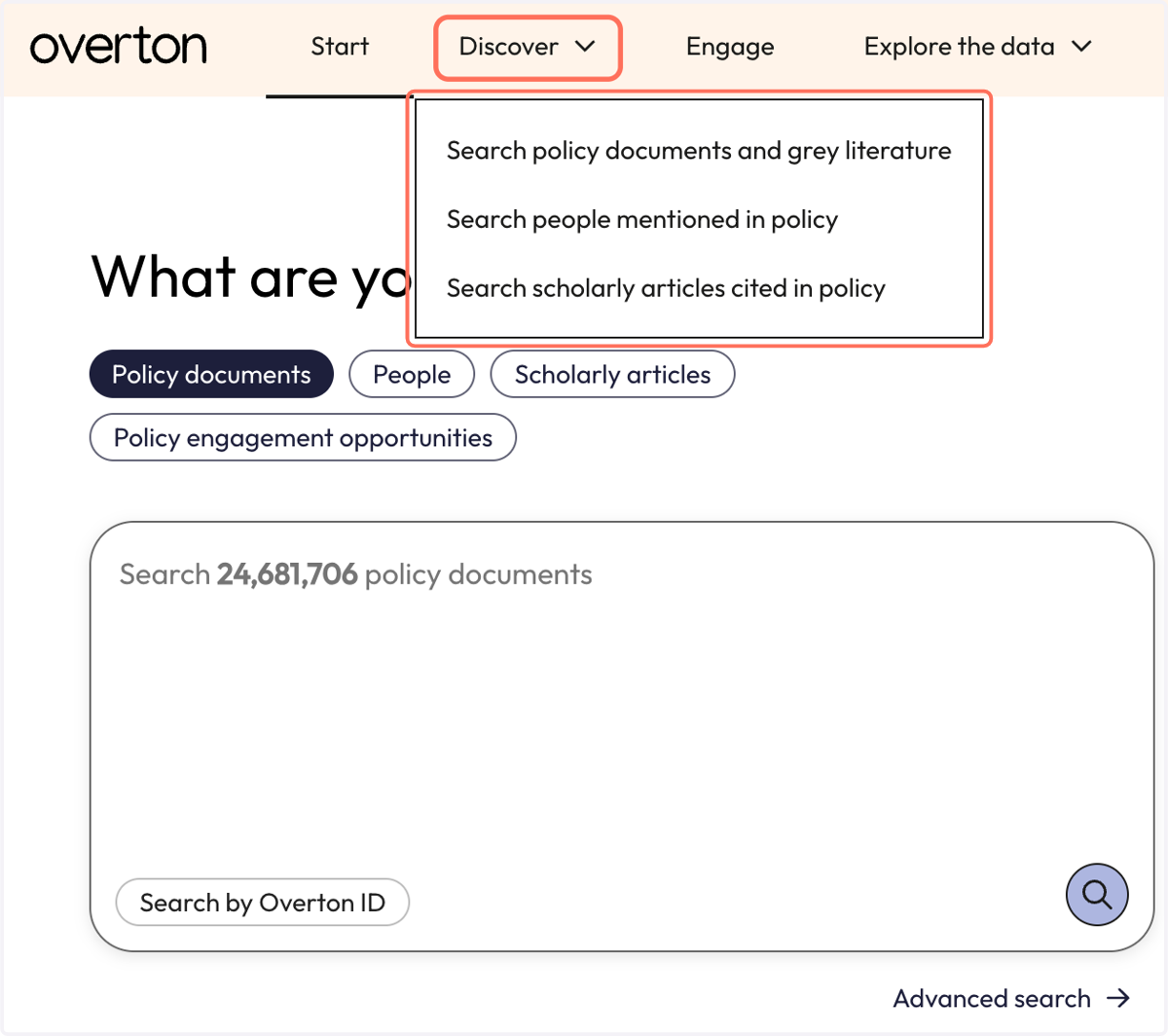
3. Click "Discover" to move between the 3 search modes.
Users can search policy documents, people, or scholarly articles in Overton.
4. Click "Engage" to see policy engagement opportunities.
Engage has free features for all users. Subscribers will have additional features.
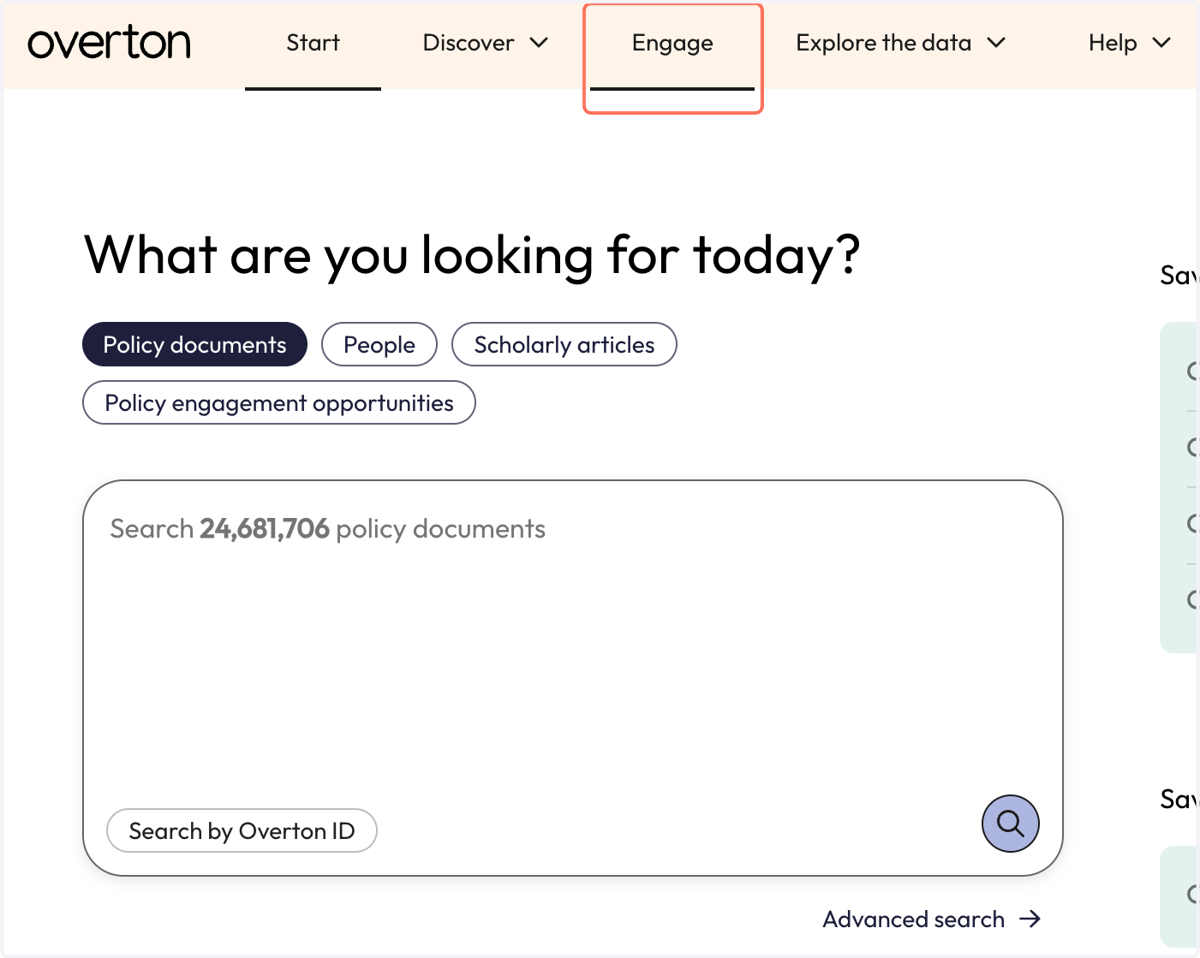
5. Click on "Explore the data" to learn more about Overton's data.
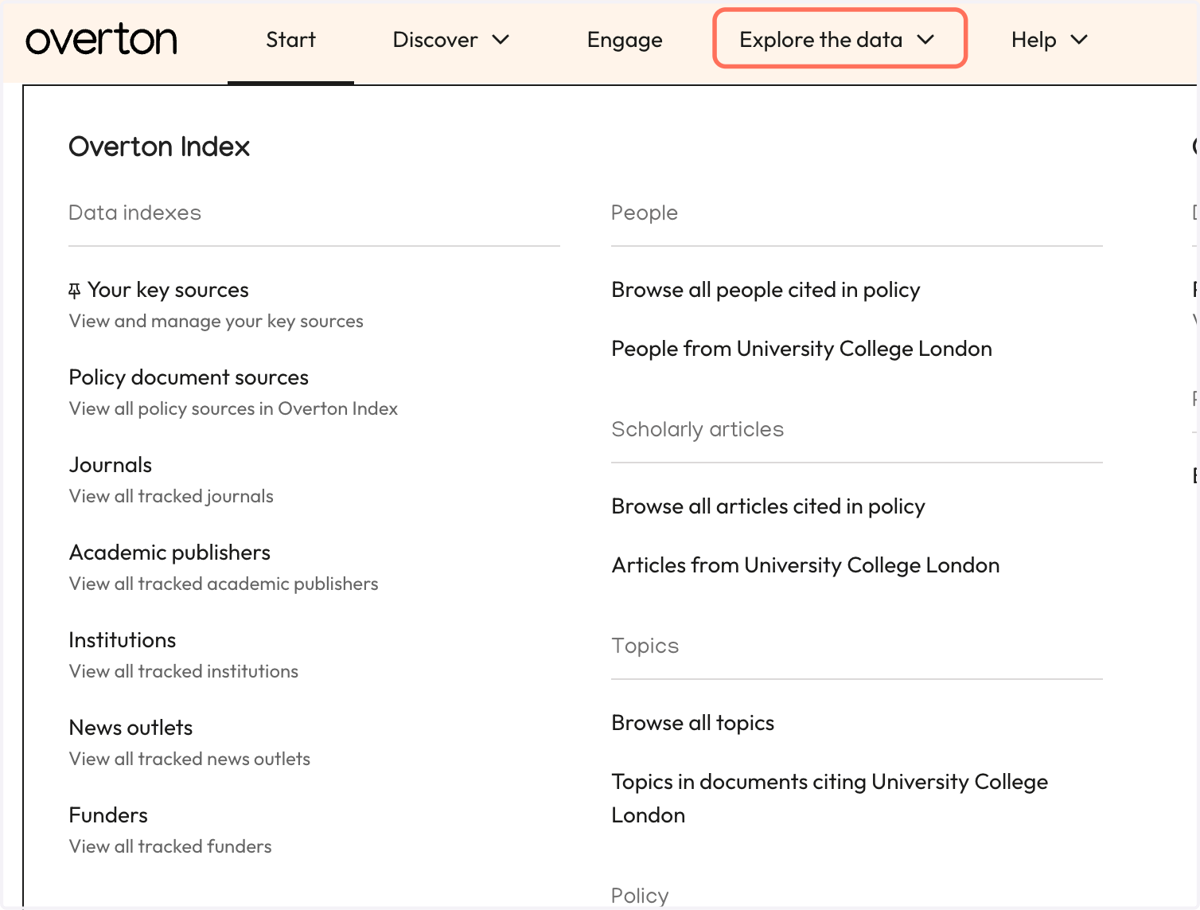
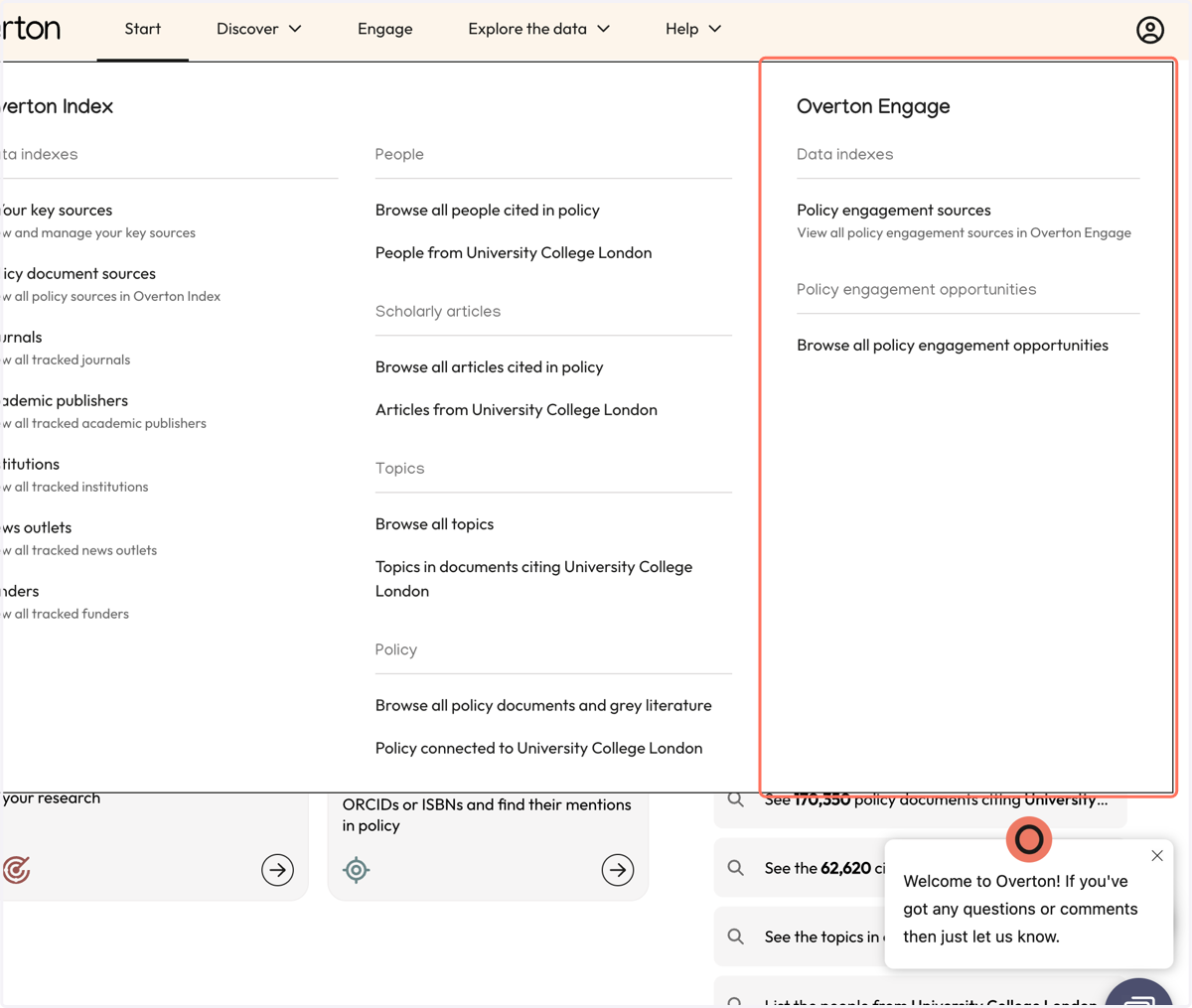
6. "Data indexes" help users find and browse parts of the data.
Save or edit key sources or browse/search policy sources, journals, academic publishers, institutions, news outlets, and funders.
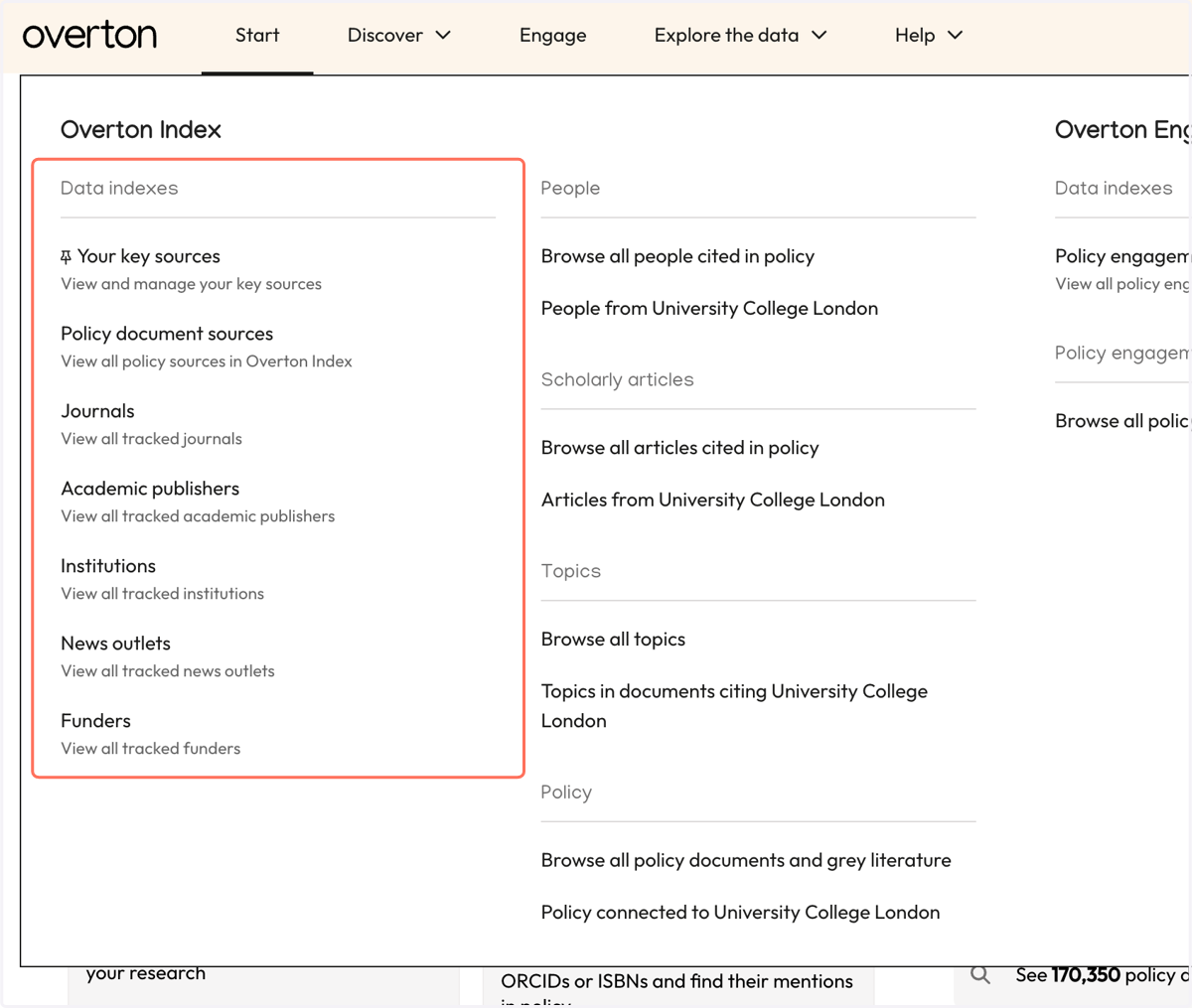
7. Browse all People, Scholarly Articles, Topics, or Policy Documents or those connected to your institution.
The example used here is for University College London, but this is customized for all users.
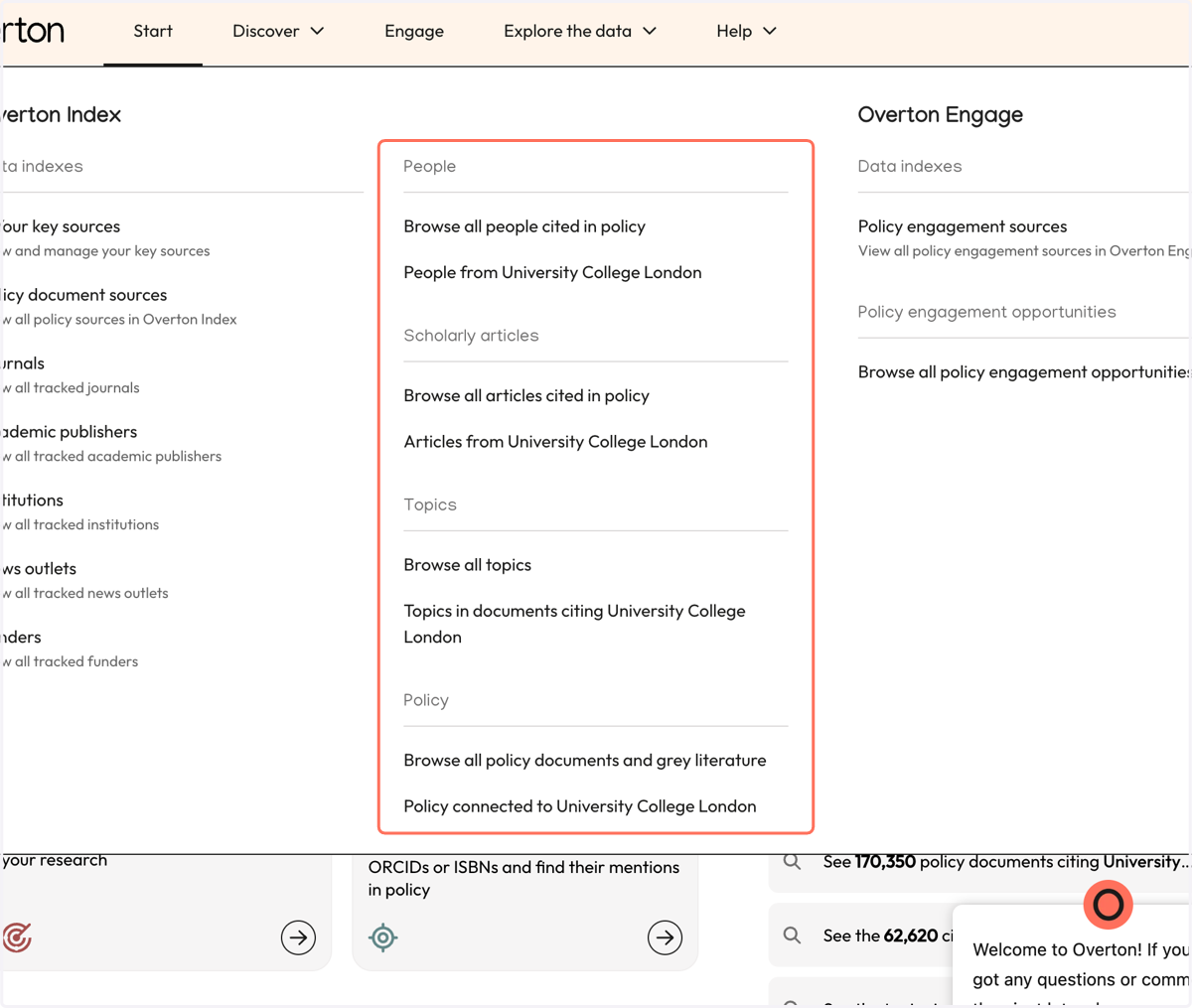
8. Use "Overton Engage" to see Engage sources or browse opportunities.
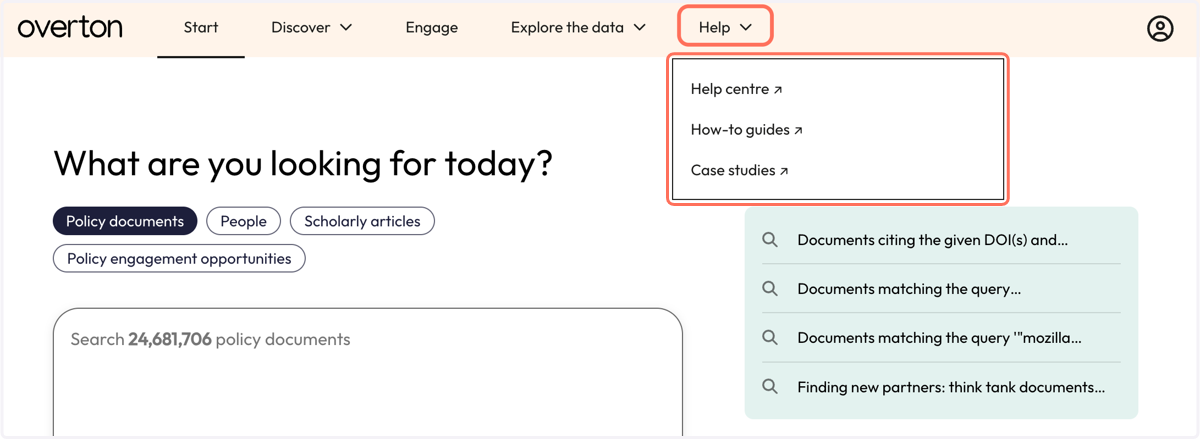
9. Click "Help" to access help material, guides, and case studies.
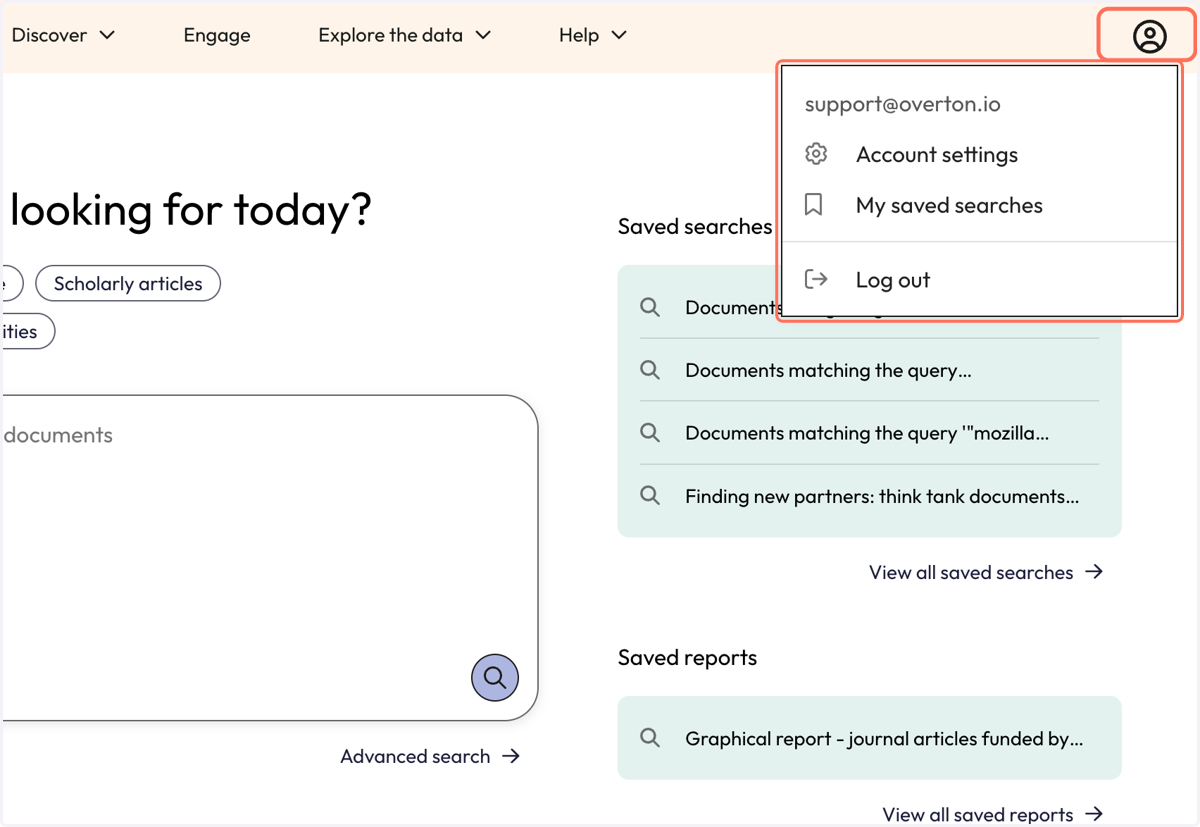
10. Click the person icon to access "Your account."
Here you can edit your Account settings or customize saved searches. You can also add articles to "My Works" to generate customized search features.
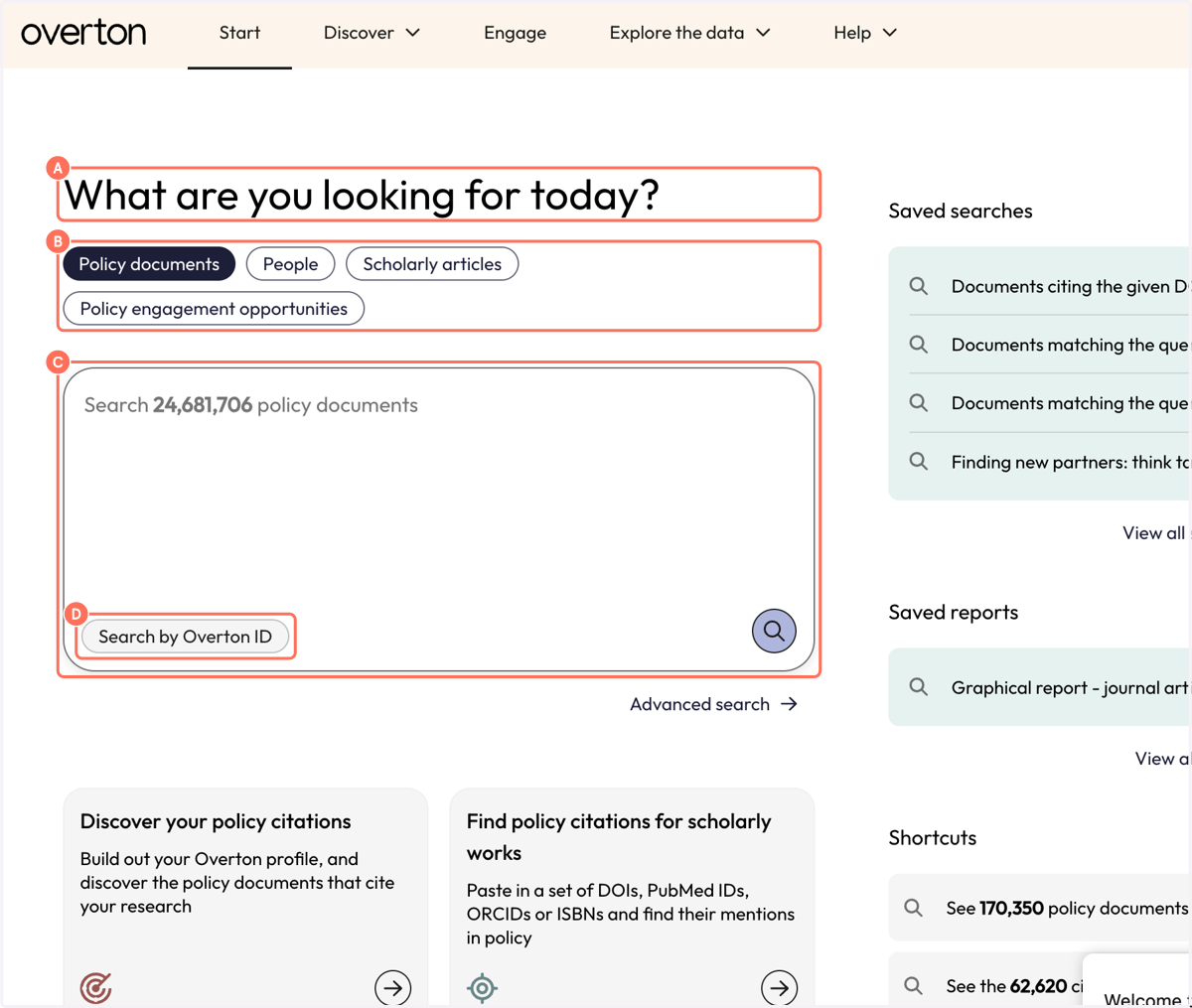
11. A. Overton's main search is under "What are you looking for today?"
11. B. Select which area of Overton you'd like to search.
11. C. Use the search box to enter keywords, names, titles of articles, etc. (depending on your search)
11. D. Use "Search by Overton ID" to search for identifiers assigned to each Overton document.
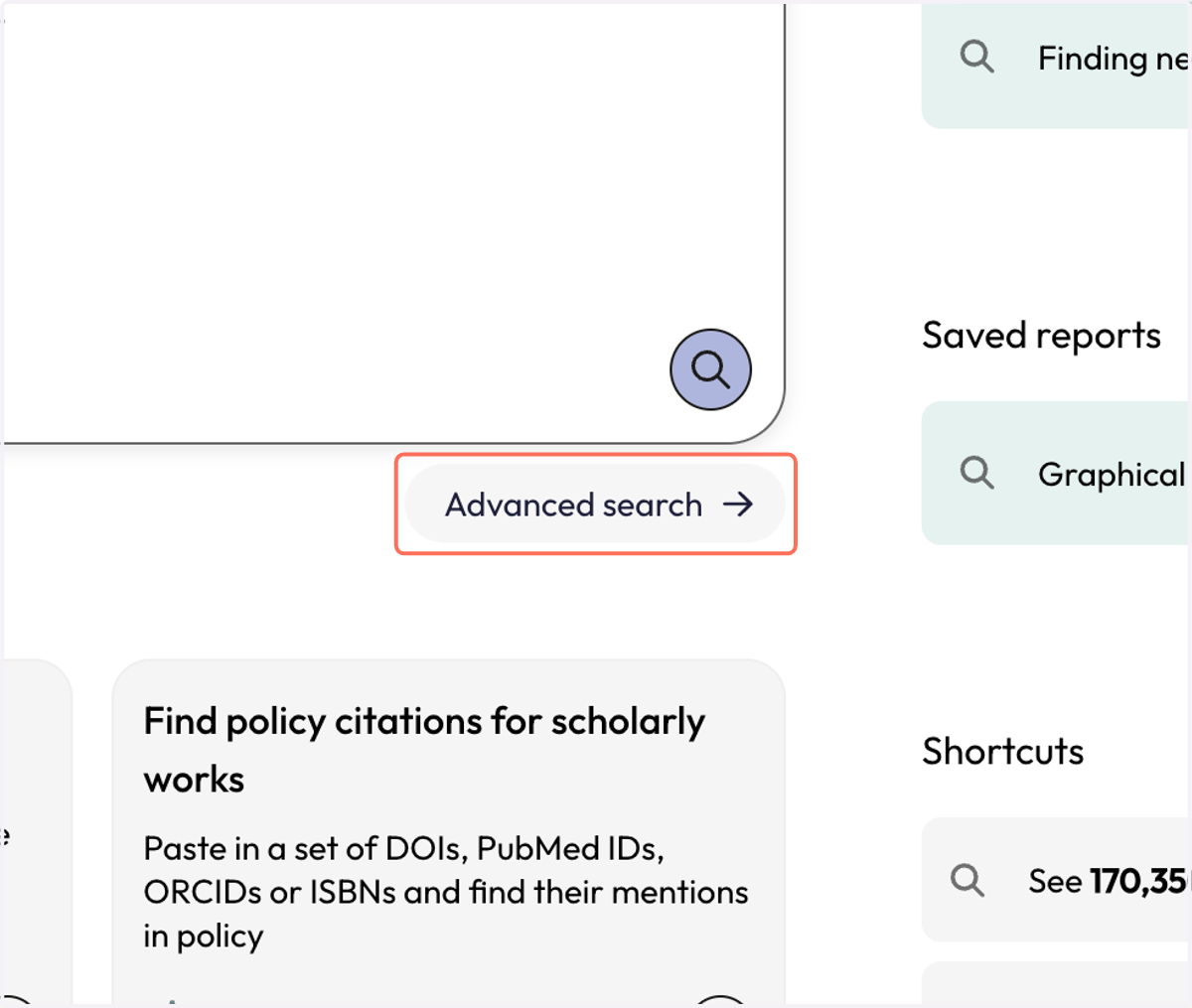
12. Click "Advanced search" to build searches and learn more about how searching works.
13. As you save searches, they'll be added to "Saved searches."
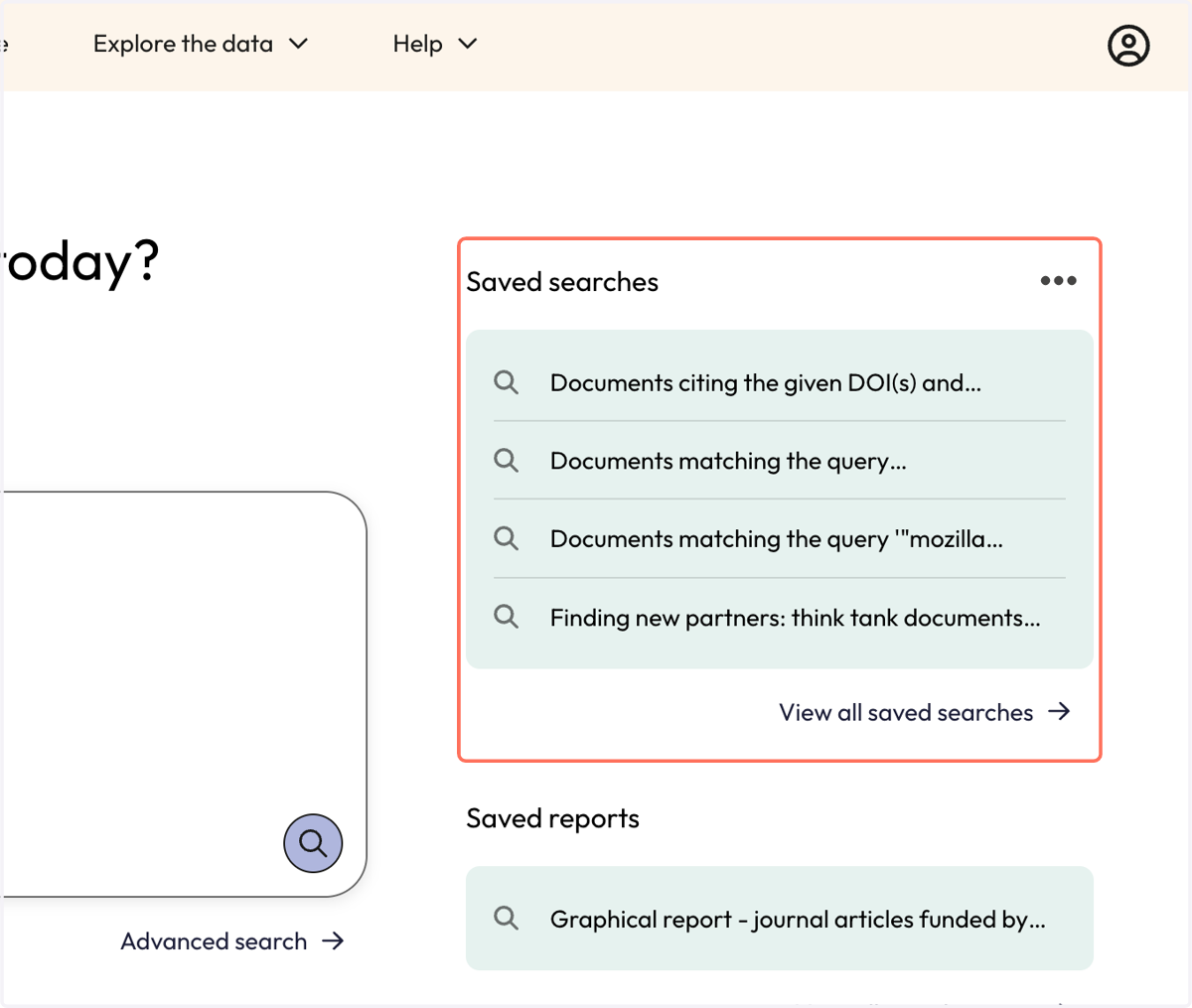
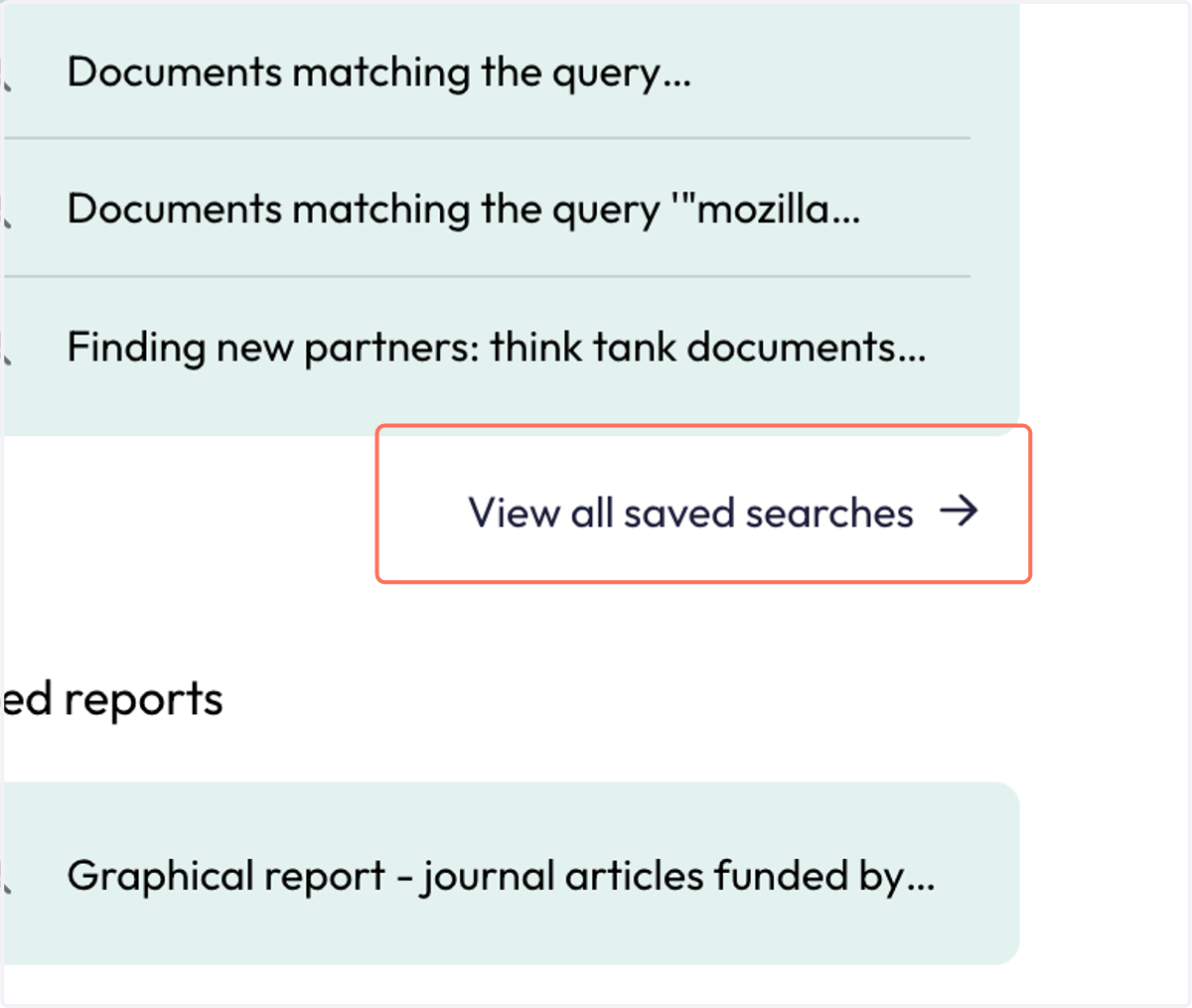
14. Click "View all saved searches" to edit names, reorder, and set up email alerts.
15. "Saved reports" appears once you've saved a report.
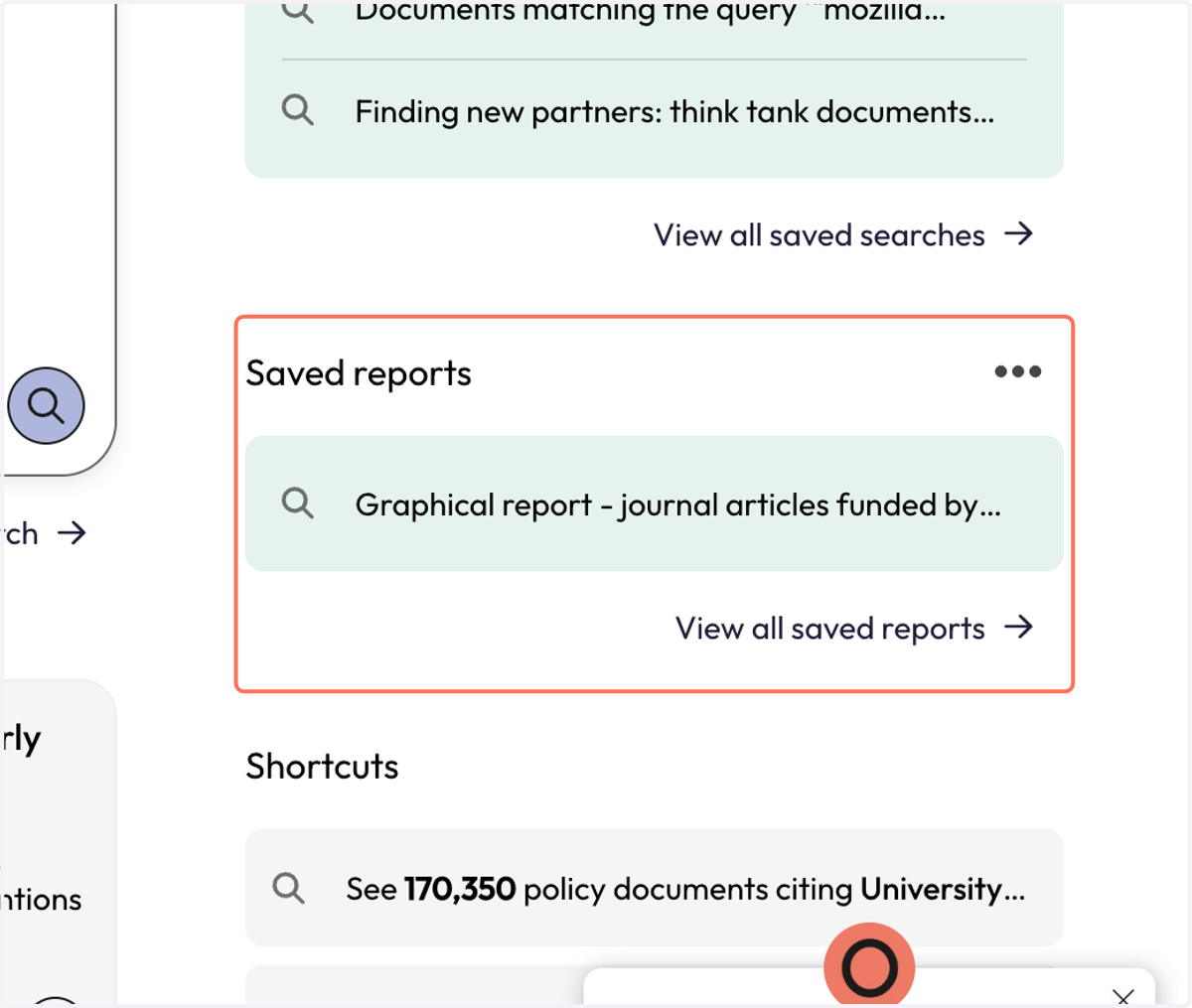
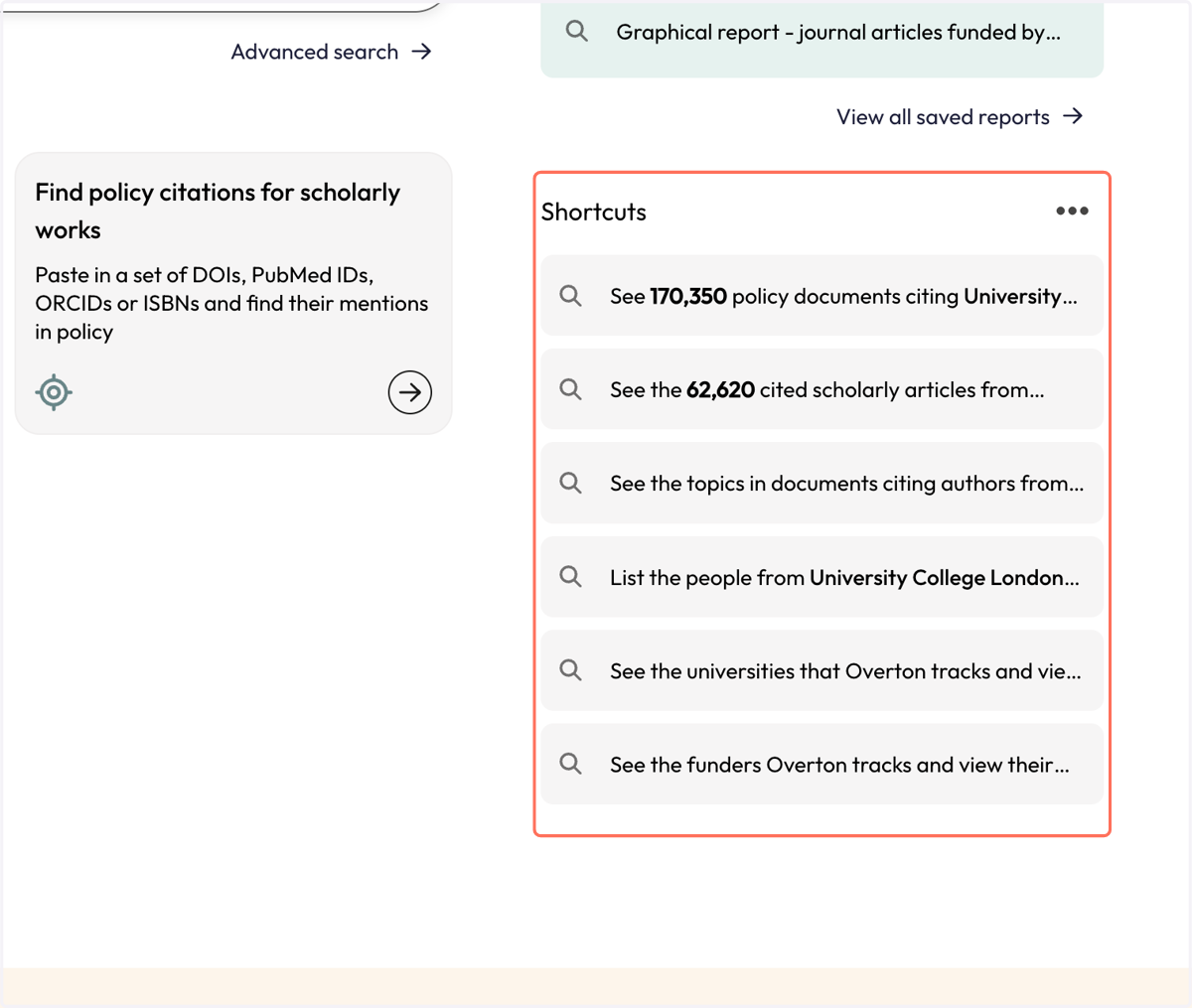
16. "Shortcuts" are customized to your institution and help you quickly find relevant results.
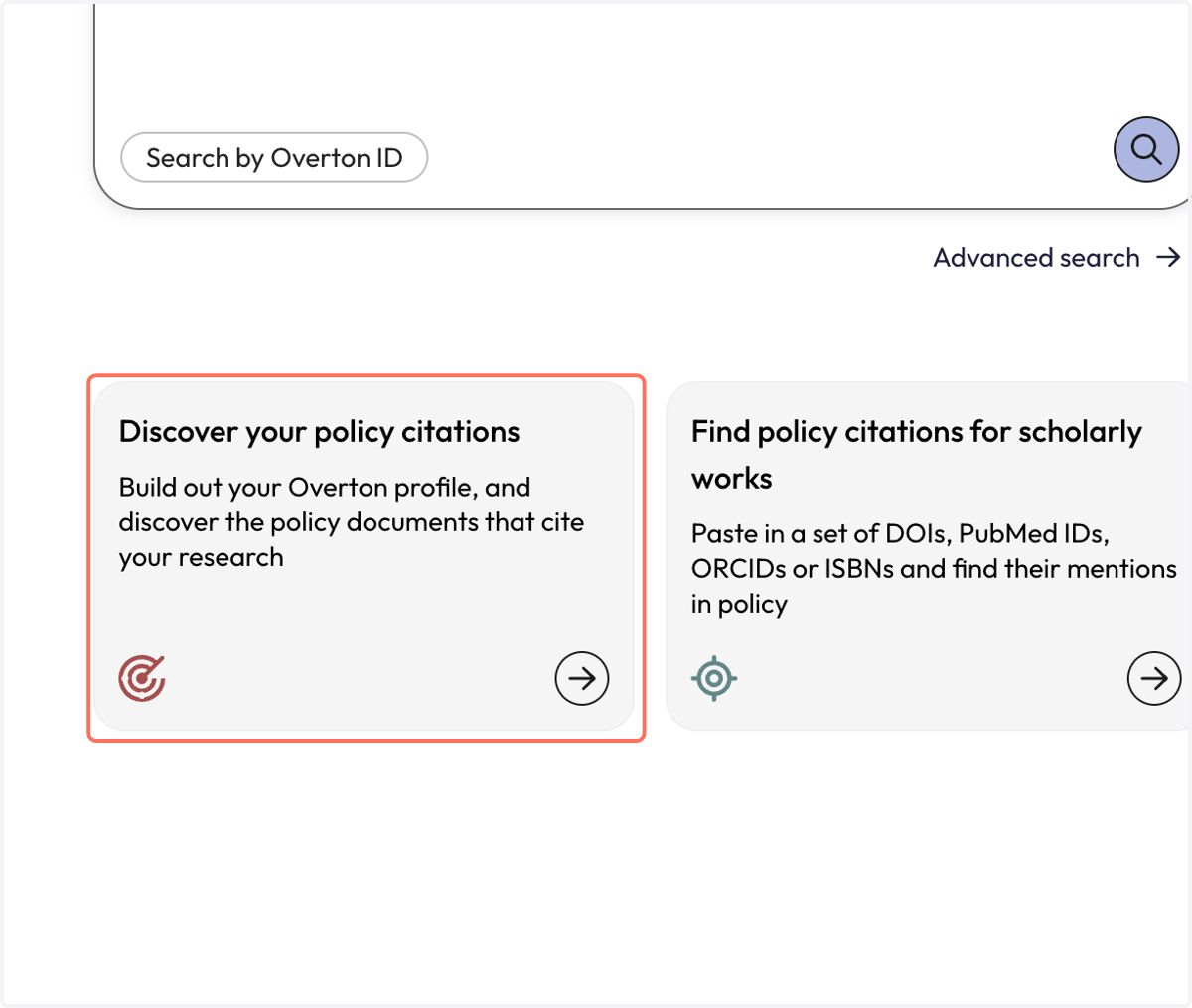
17. Add works to "Your account" to quickly "Discover your policy citations.
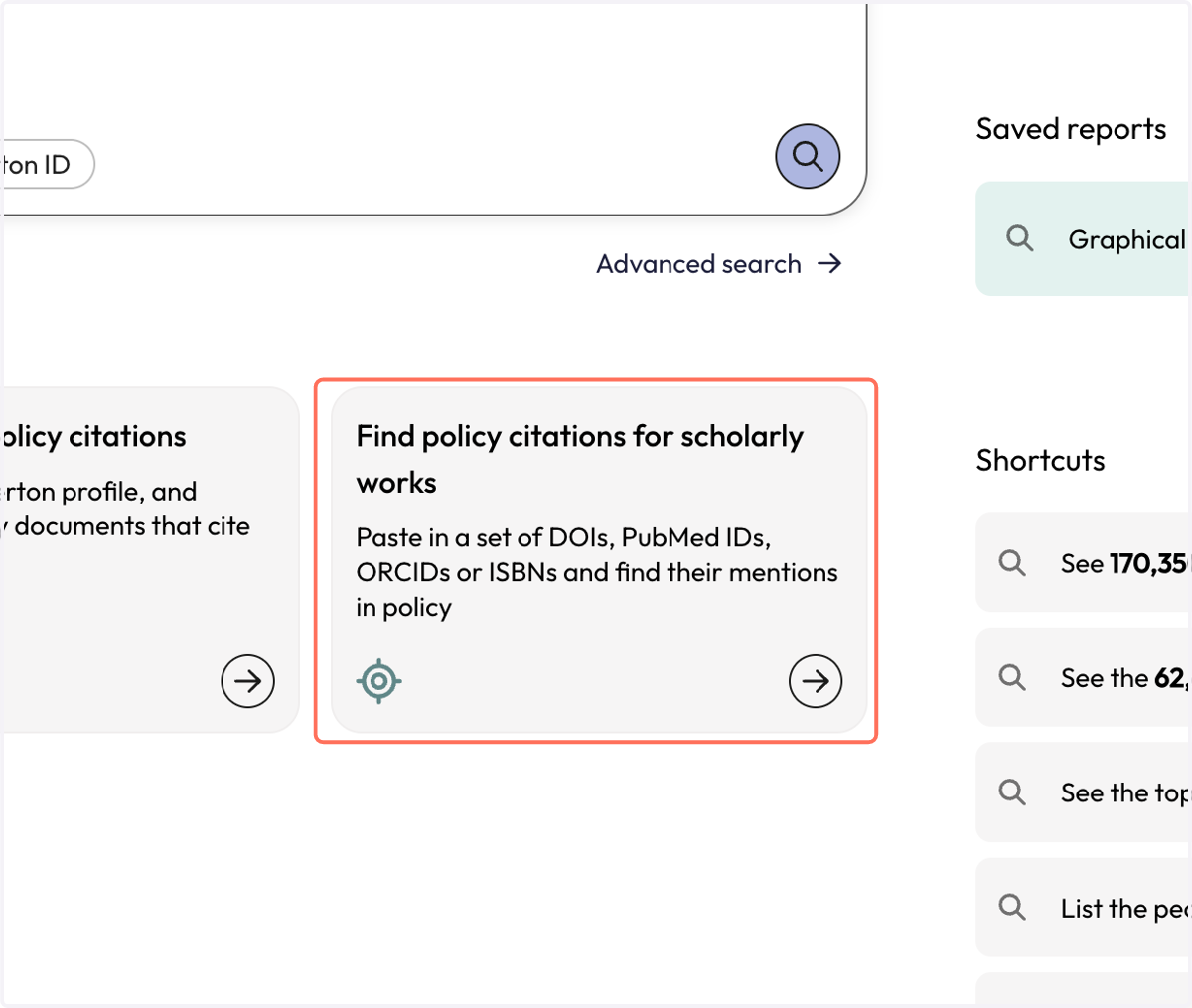
18. Click "Find policy citations for scholarly works" to search for a list of DOIs or other identifiers.
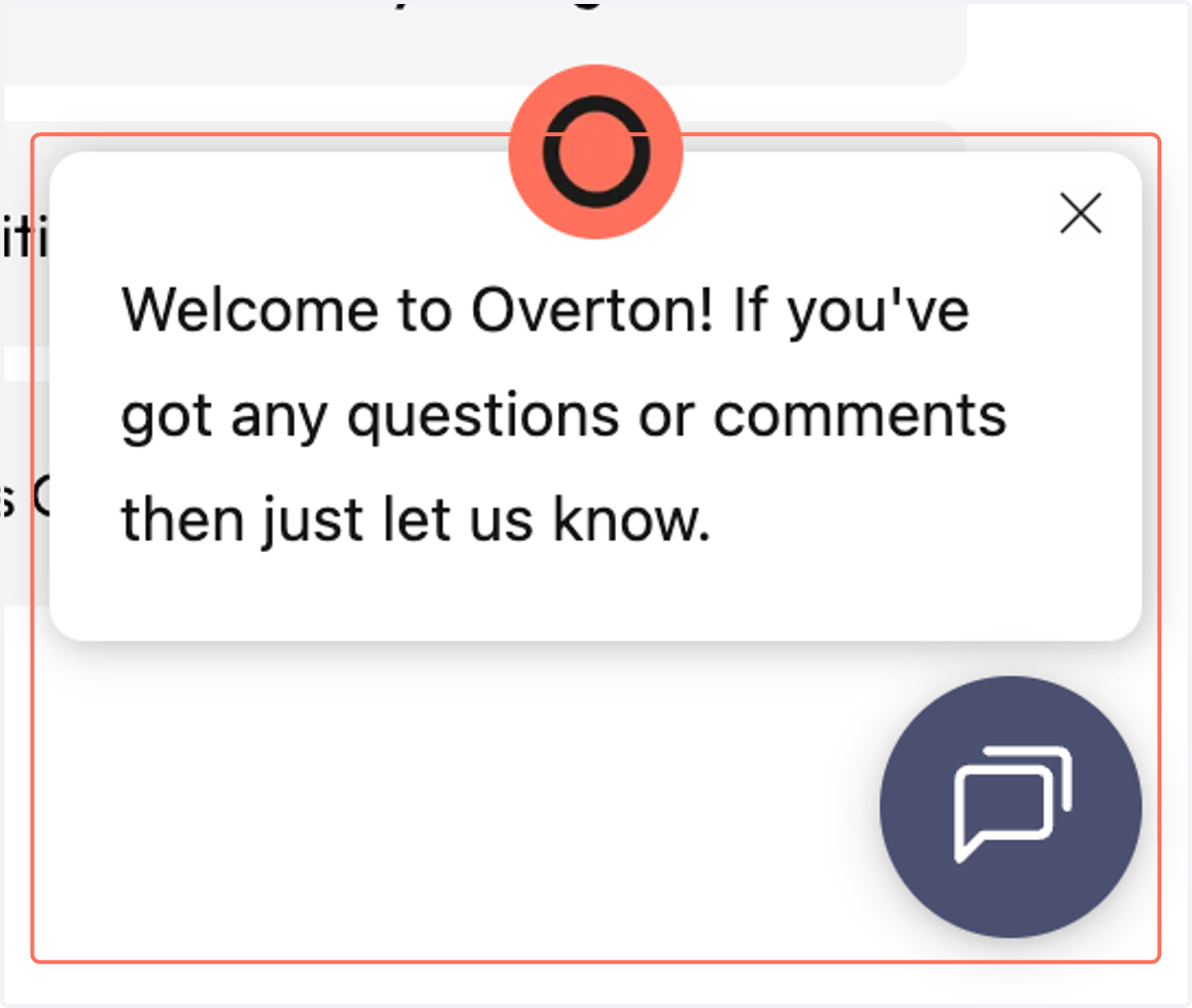
19. Use the chat feature any time to talk directly to someone at Overton!