PAWS- How to Browse Classes

Home - PAWS Experience

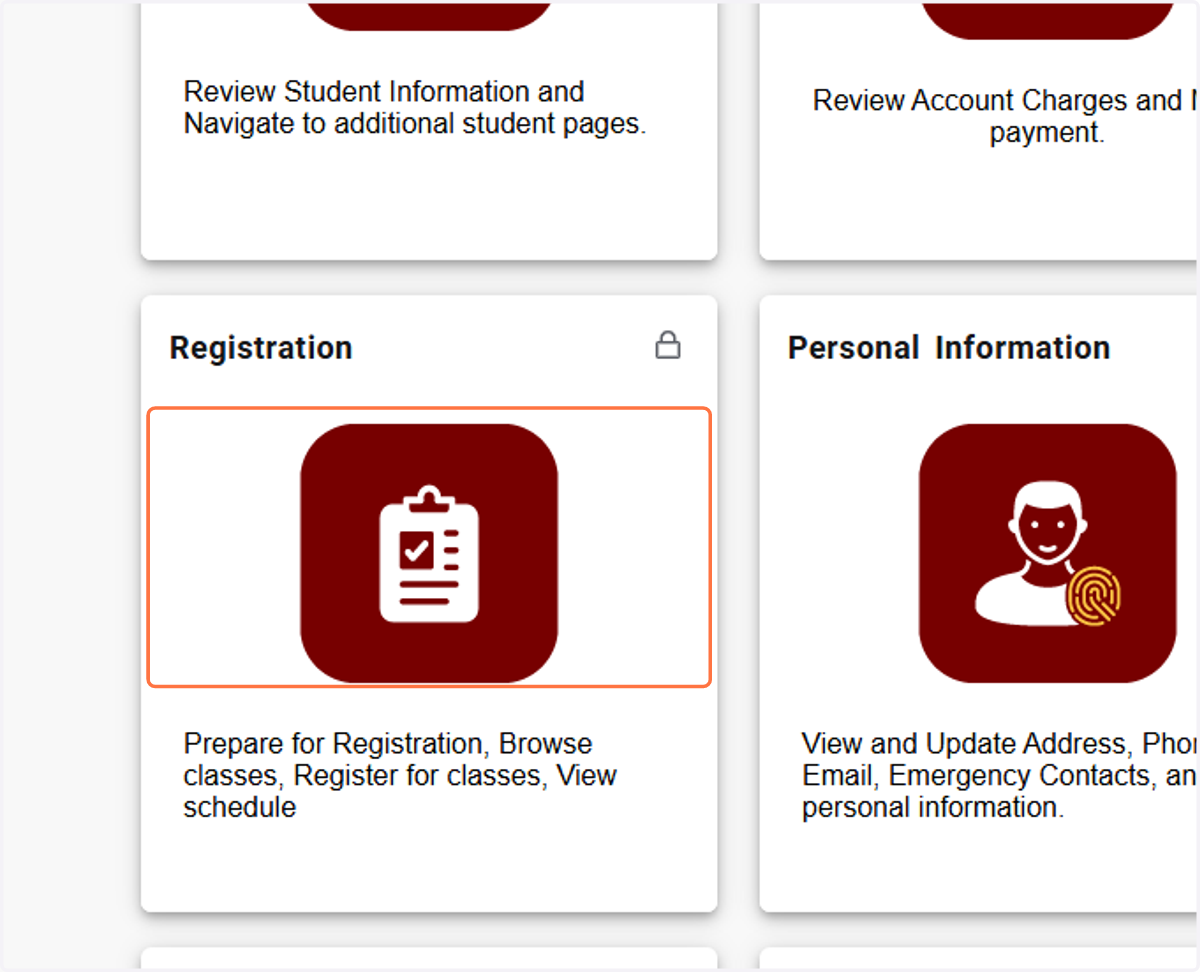
  1. 1. Click on Registration

    Click on Registration

ssb-prod1.fit.edu:8001/StudentRegistrationSsb/

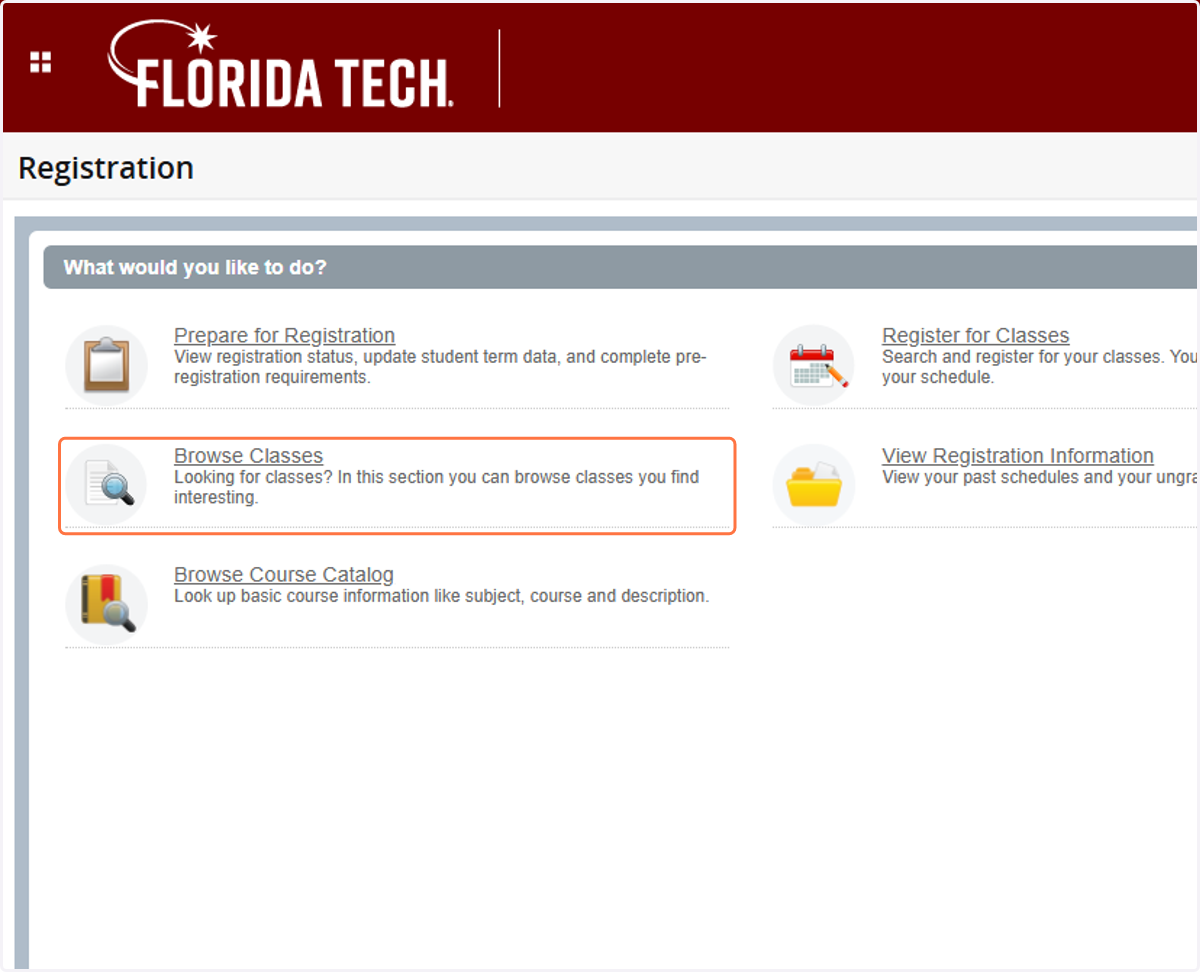
  1. 2. Click on Browse Classes…

    Click on Browse Classes…
  2. 3. Click Drop-down to view available terms
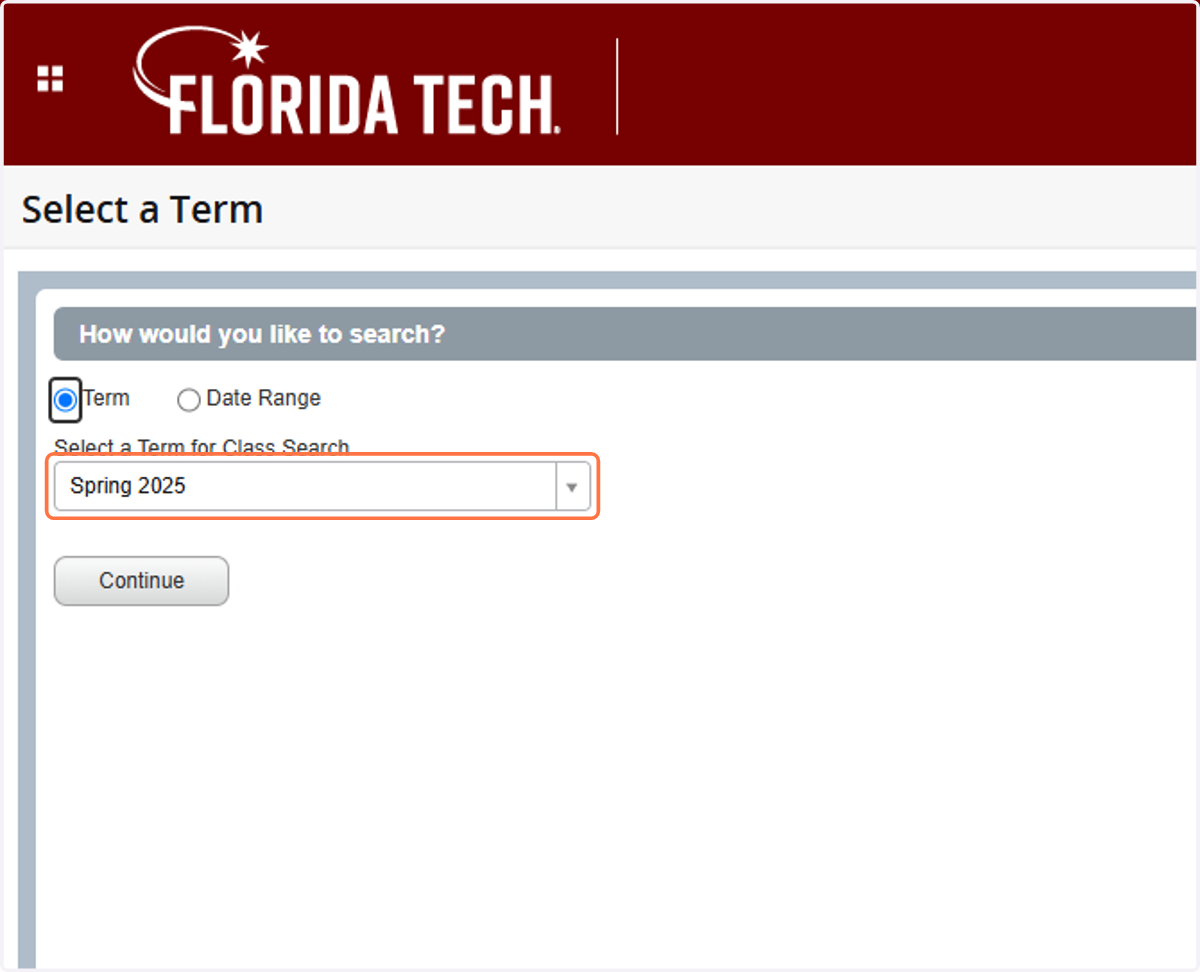
    Click Drop-down to view available terms
  3. 4. Click on the term you want to browse
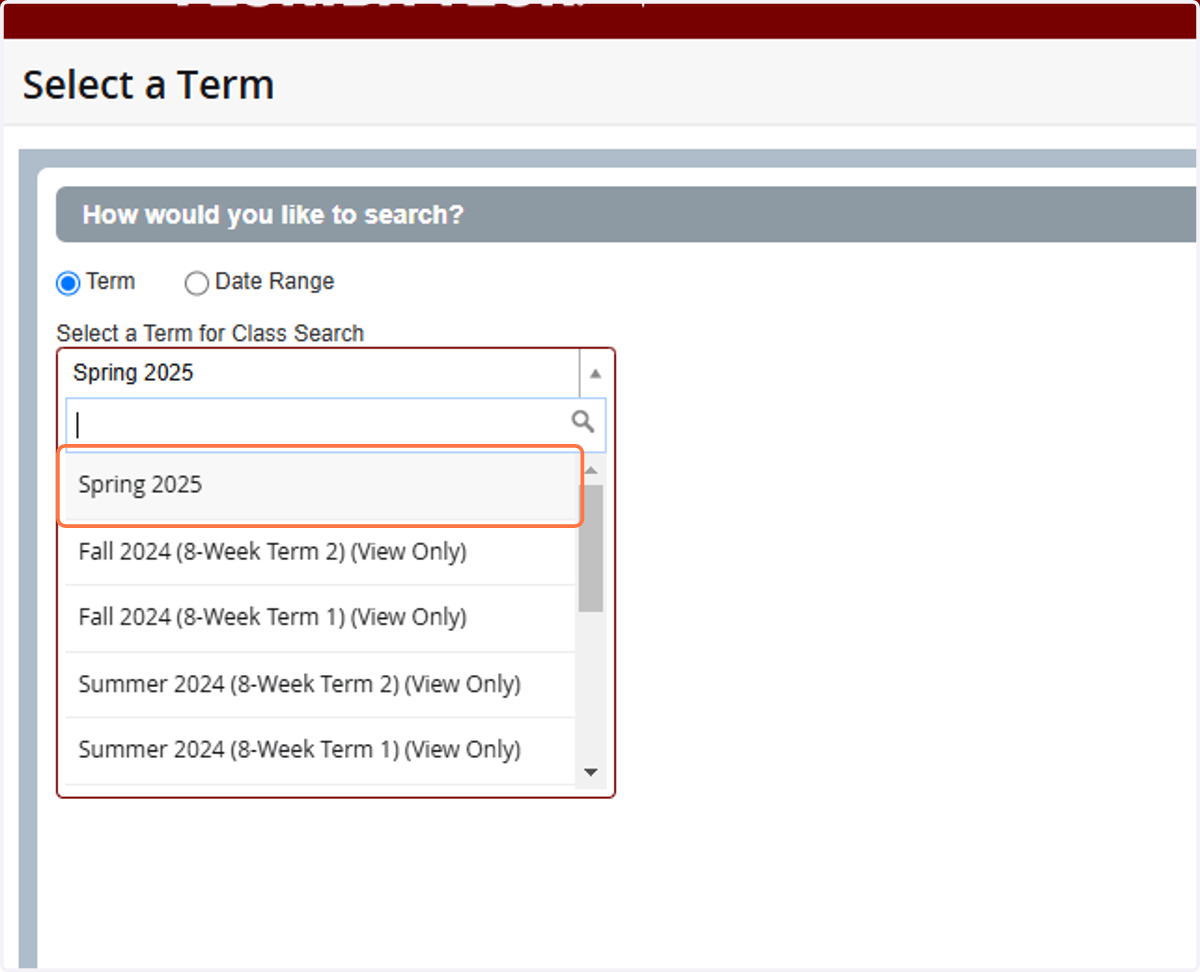
    Click on the term you want to browse
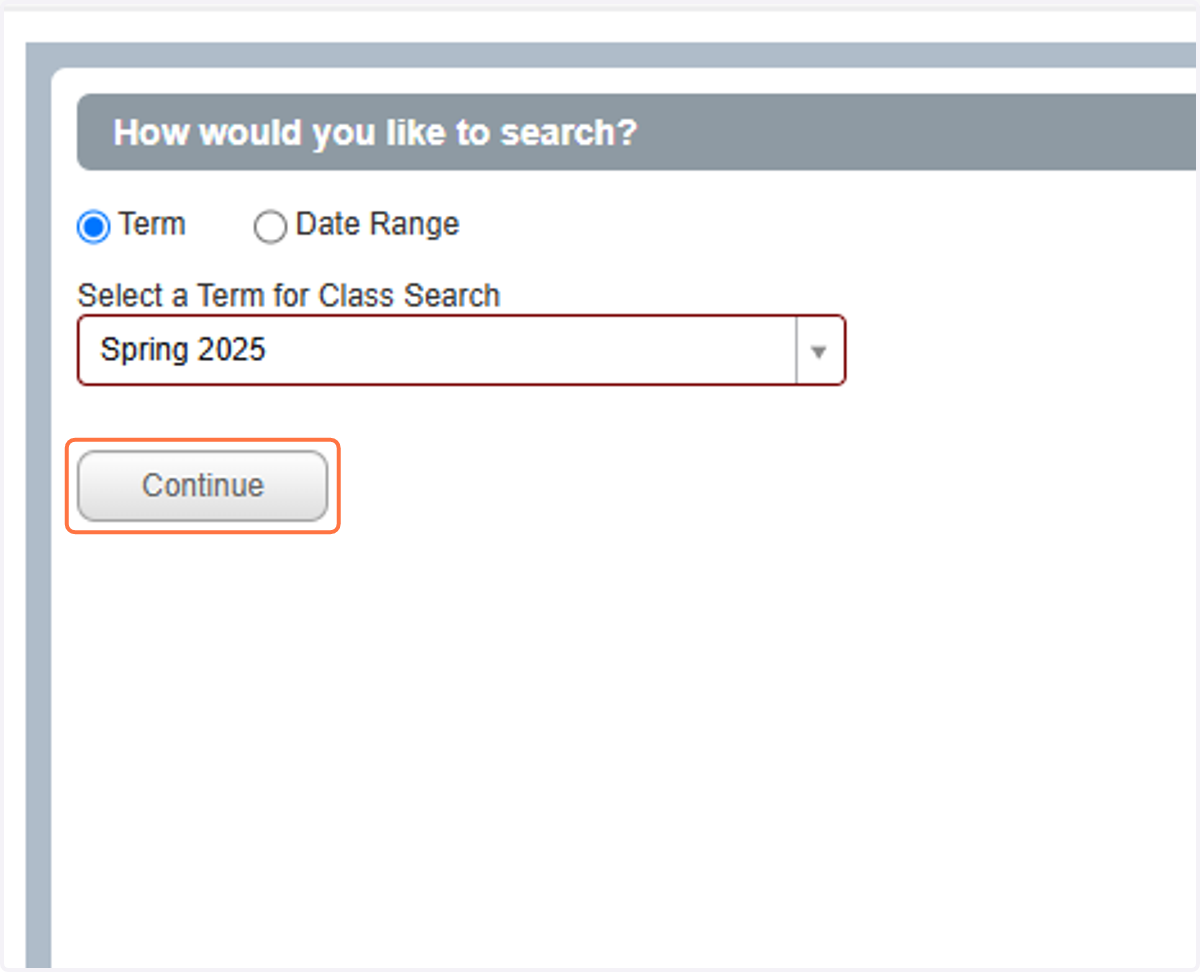
  4. 5. Click on Continue

    Click on Continue
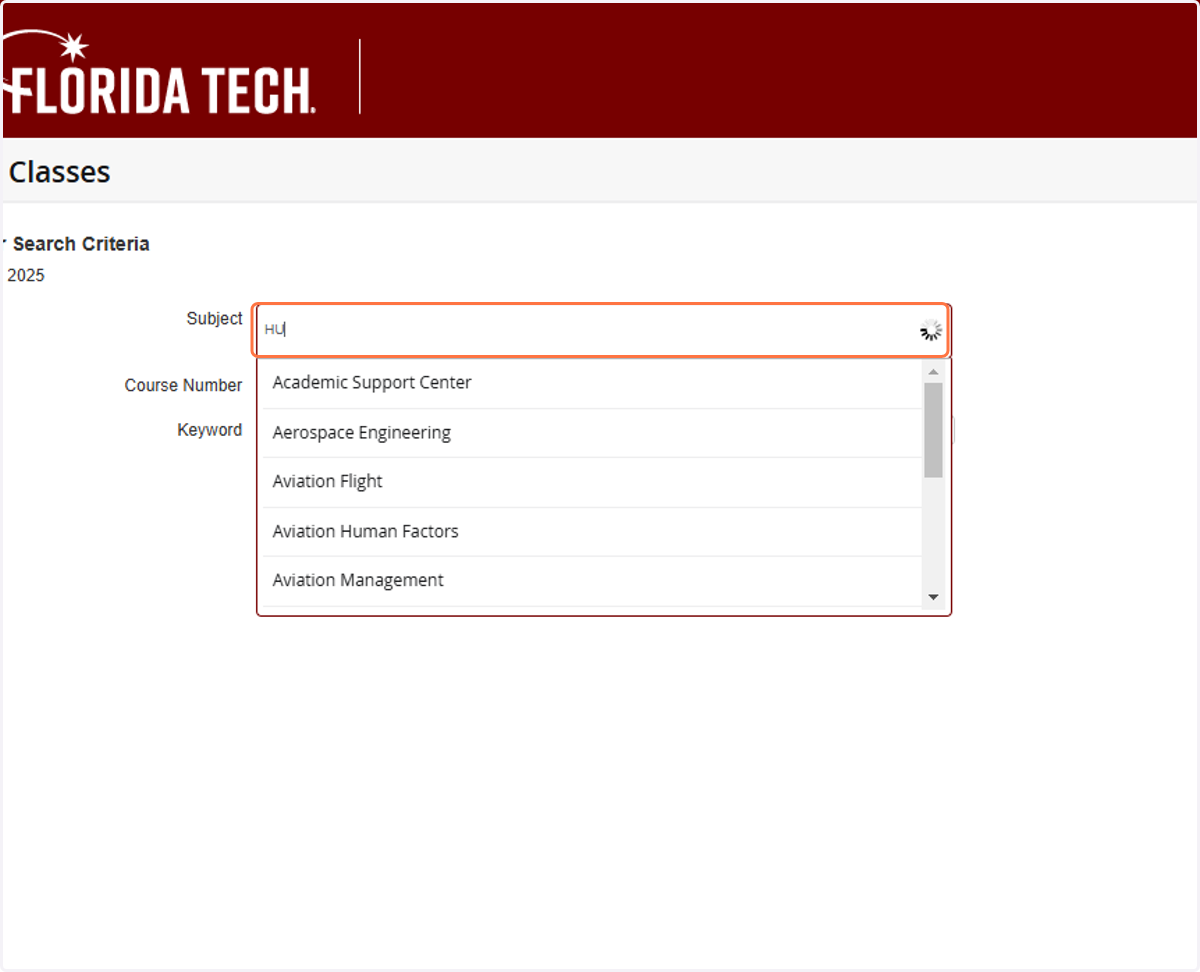
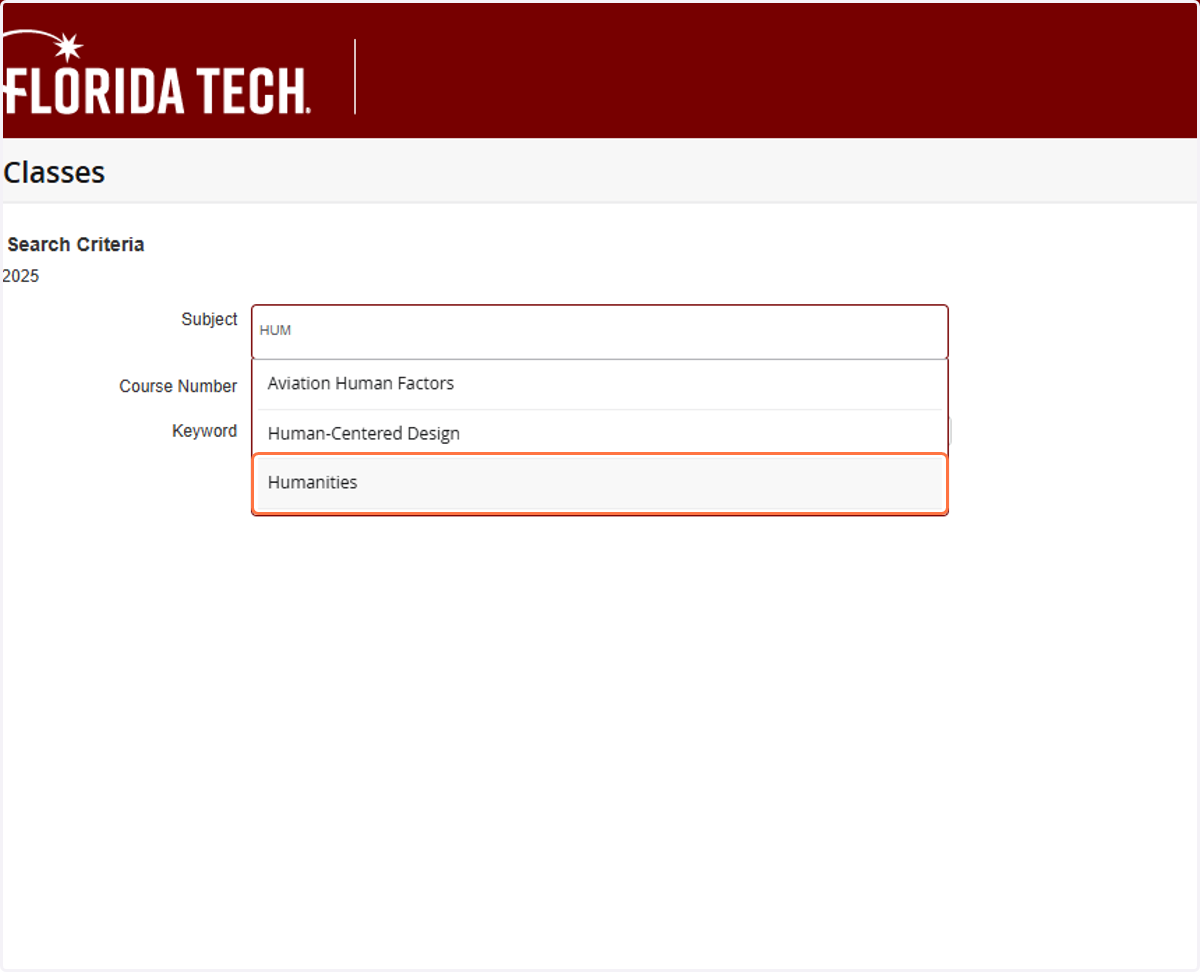
  5. 6. Type Search Criteria

    Type Search Criteria
  6. 7. Select your option

    Select your option
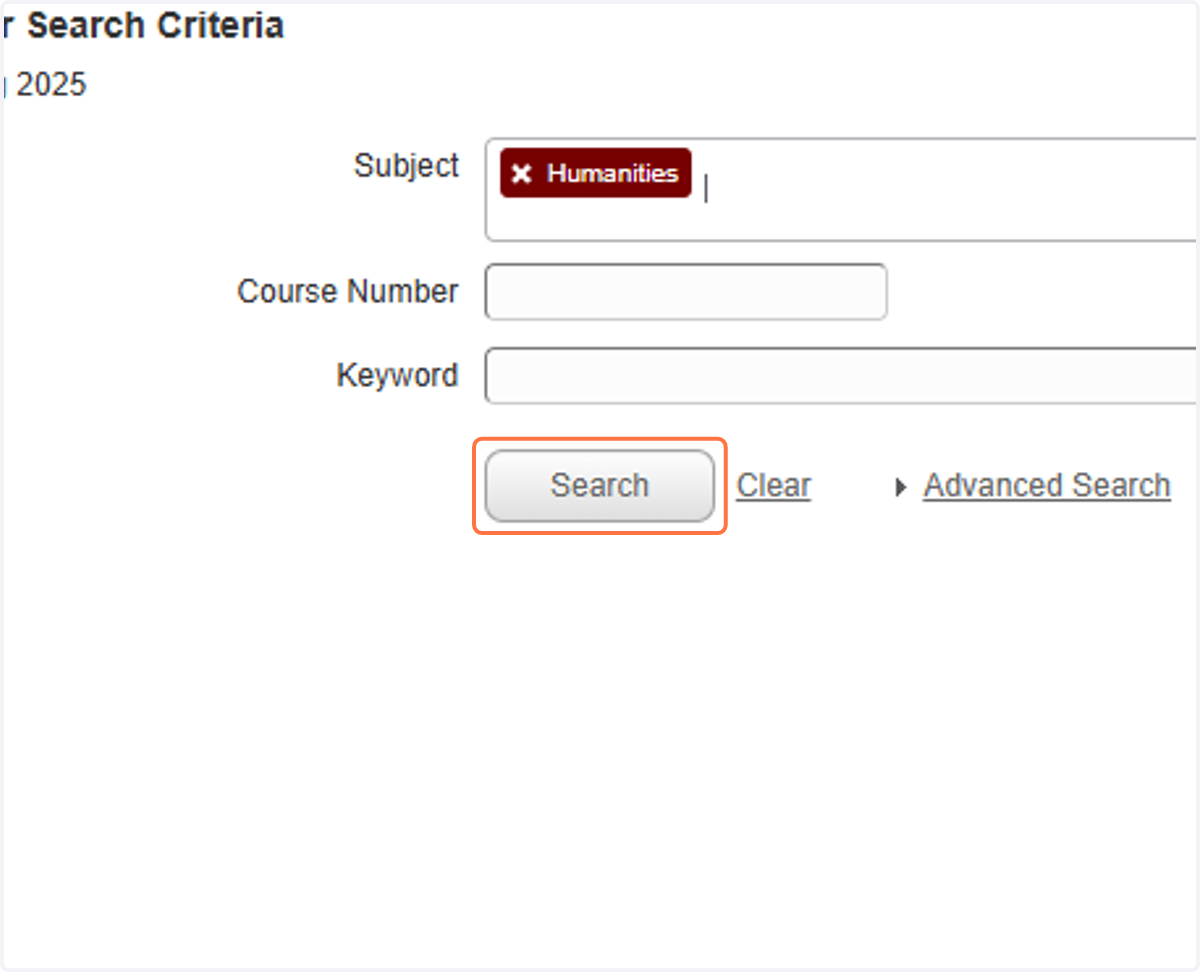
  7. 8. Click on Search

    Click on Search
  8. 9. Review classes that meet your criteria
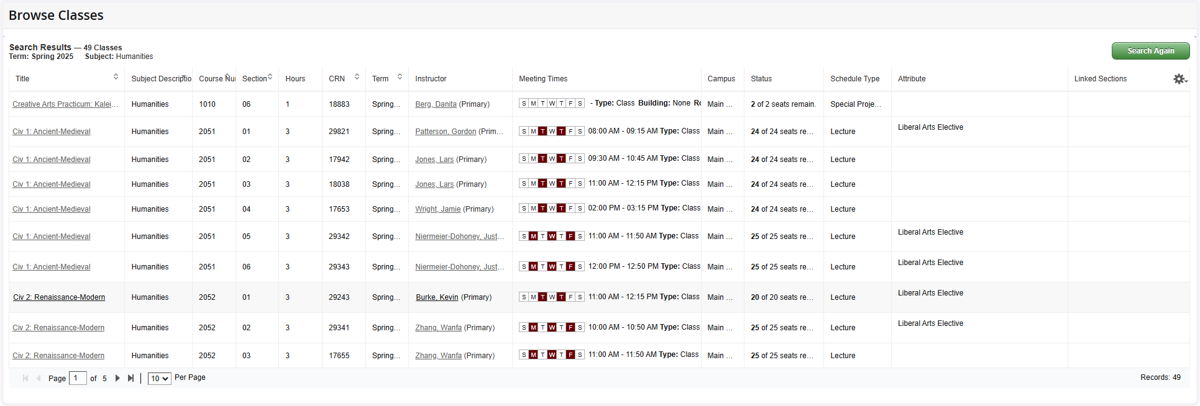
    Review classes that meet your criteria
  9. 10. To customize your Browse Class view, you can select the cogwheel on the upper right and select/deselect items.
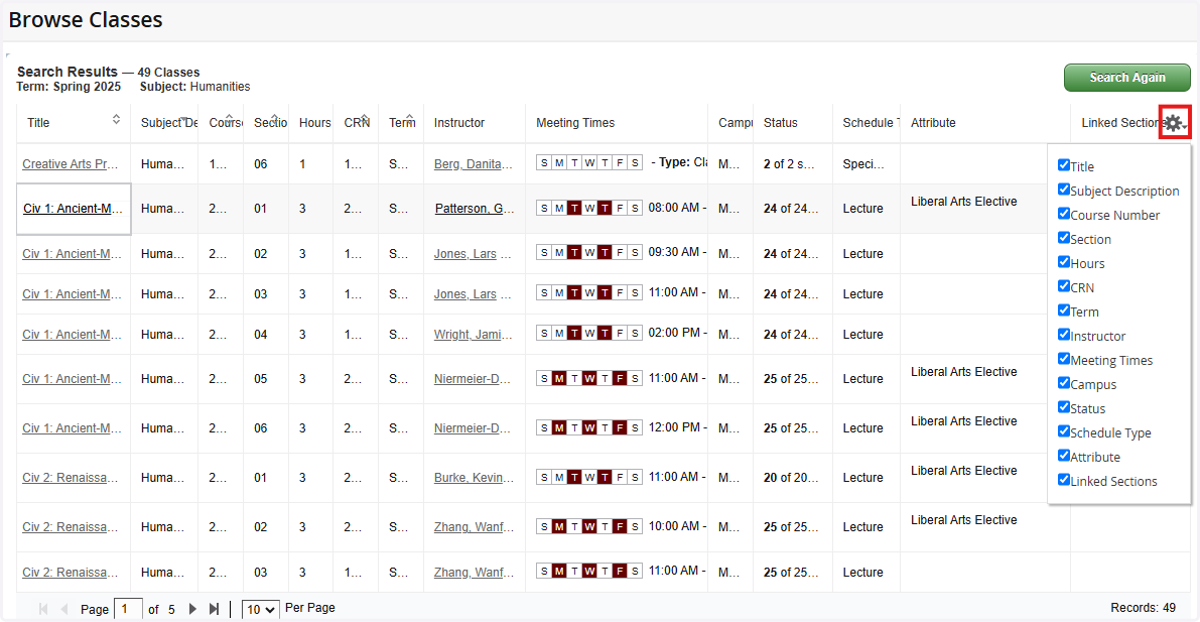
    To customize your Browse Class view, you can select the cogwheel on the upper right and select/deselect items.
  10. 11. To look a further detail, select the Class link
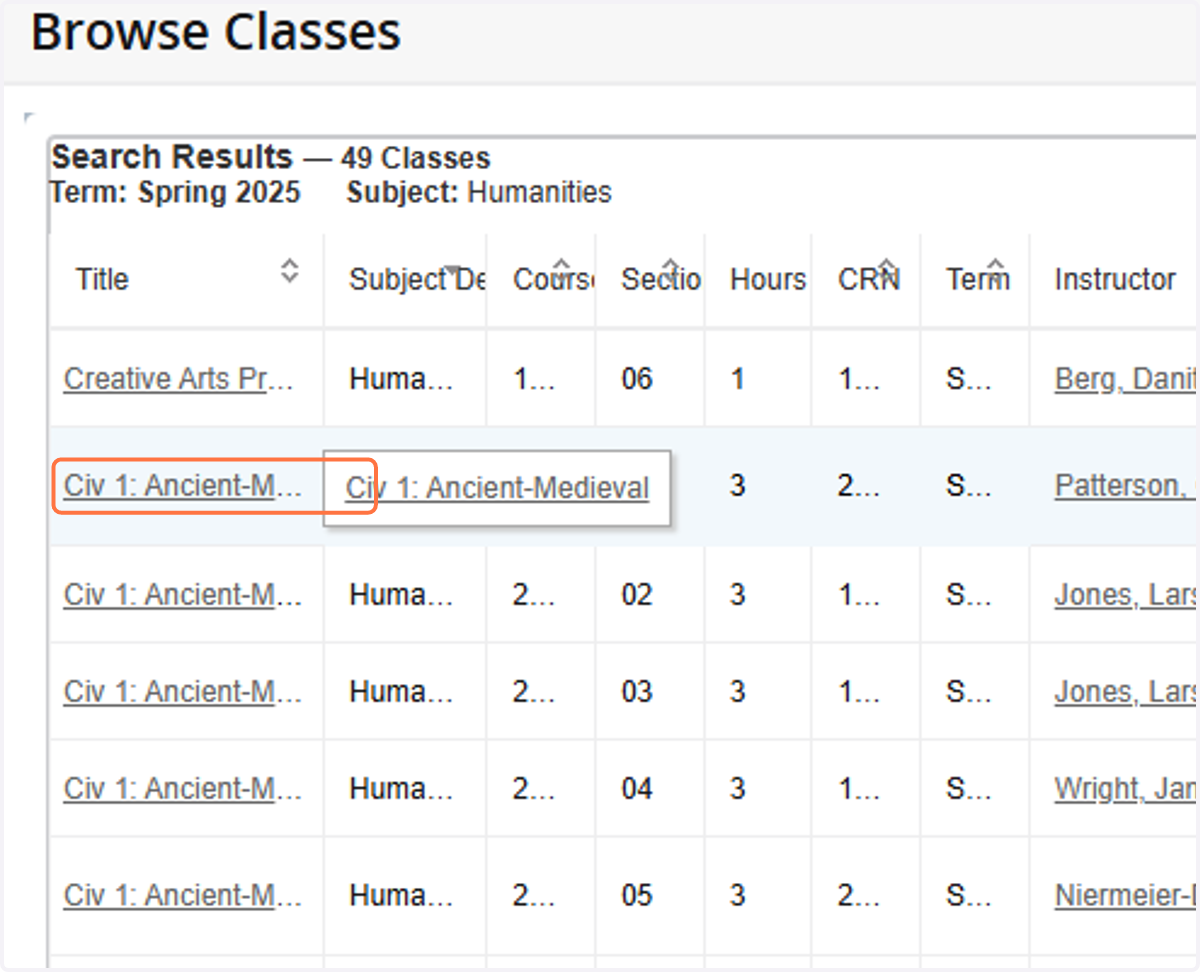
    To look a further detail, select the Class link
  11. 12. Select on each option to view more information.
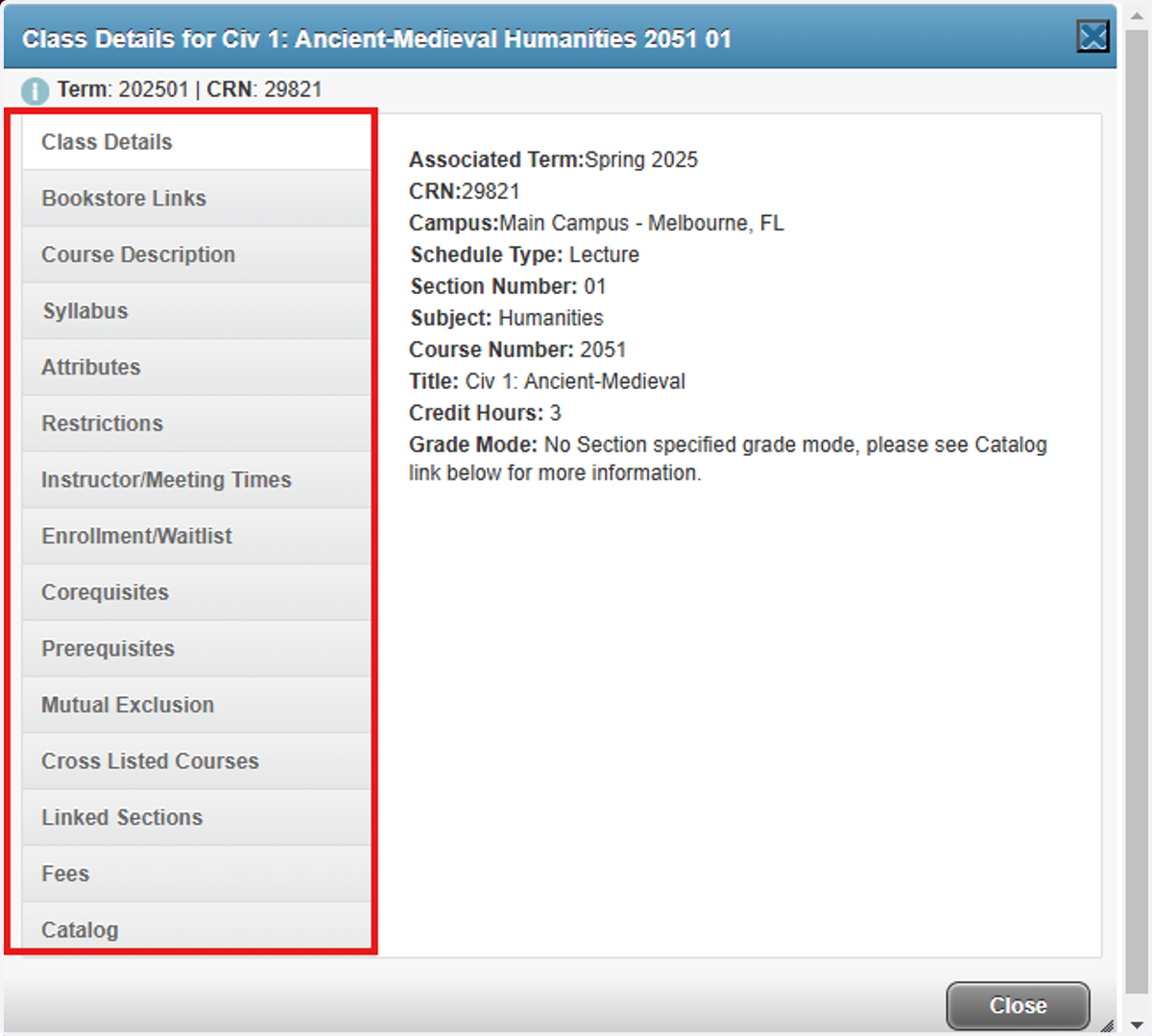
    Select on each option to view more information.
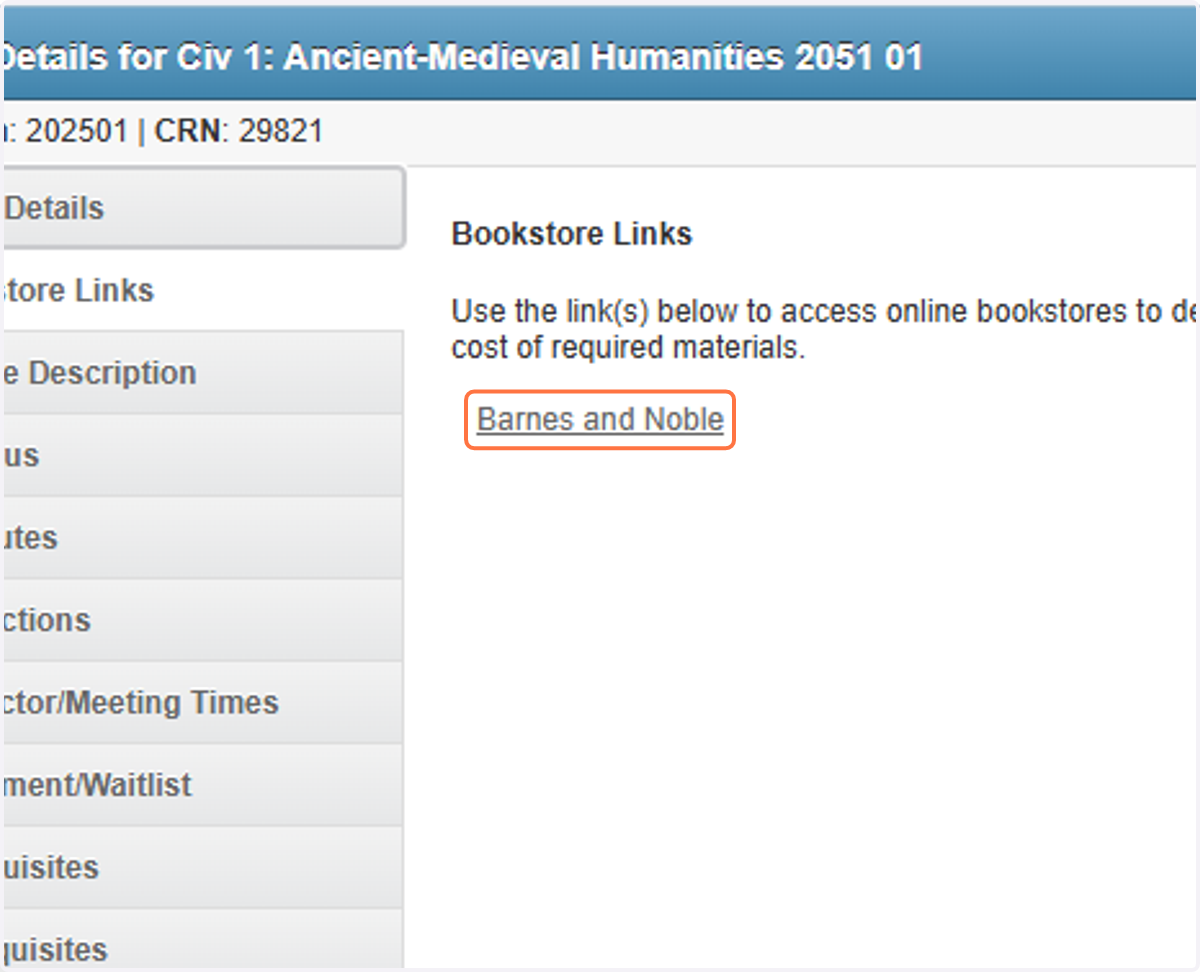
  12. 13. To view the required materials for this class, click on Bookstore Links
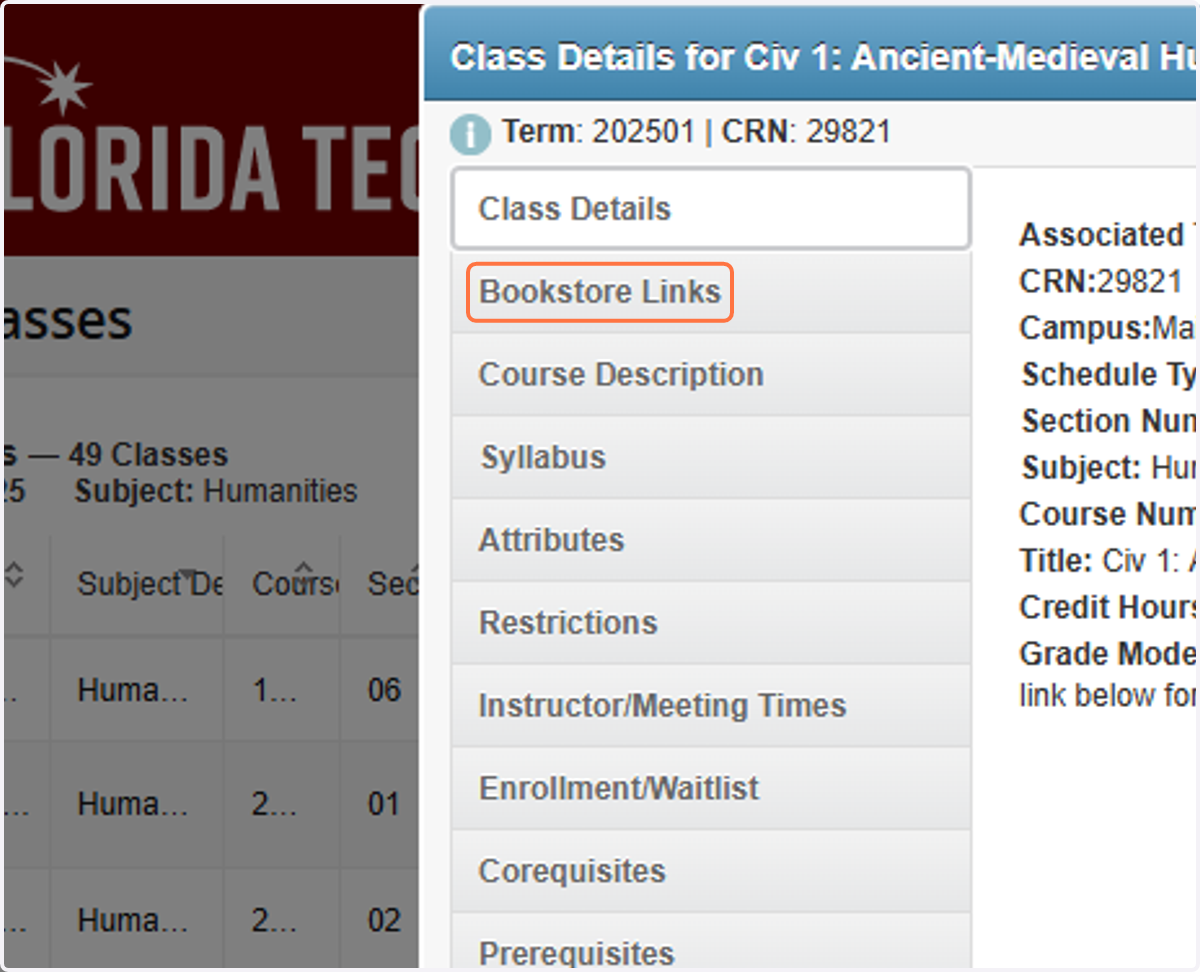
    To view the required materials for this class, click on Bookstore Links
  13. 14. Click on Barnes and Noble

    Click on Barnes and Noble
  14. 15. You will be sent to the Barnes & Noble website where you can view/order books for this class.
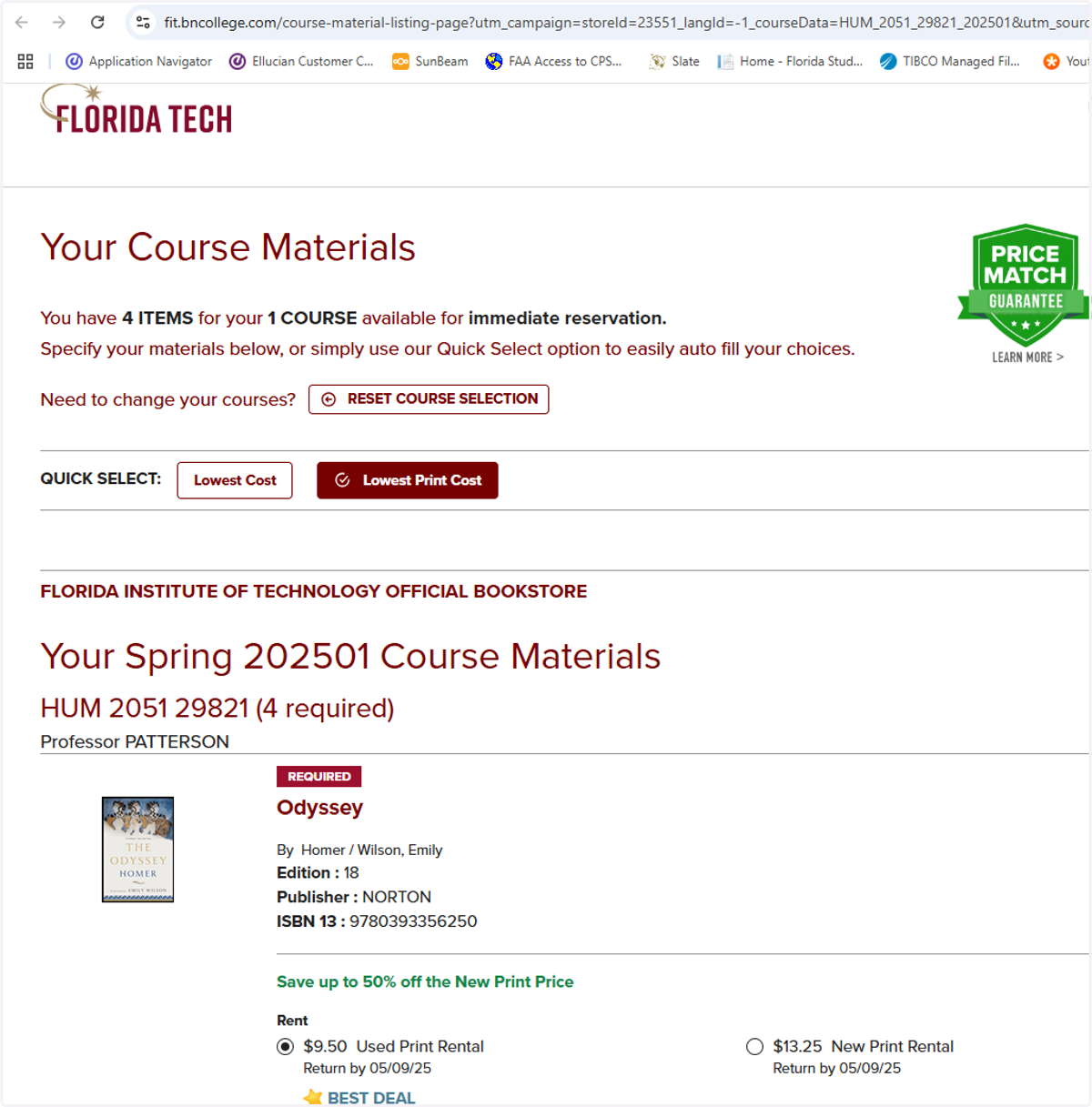
    You will be sent to the Barnes & Noble website where you can view/order books for this class.
  15. 16. To view profile of the instructor, click on the instructor's name
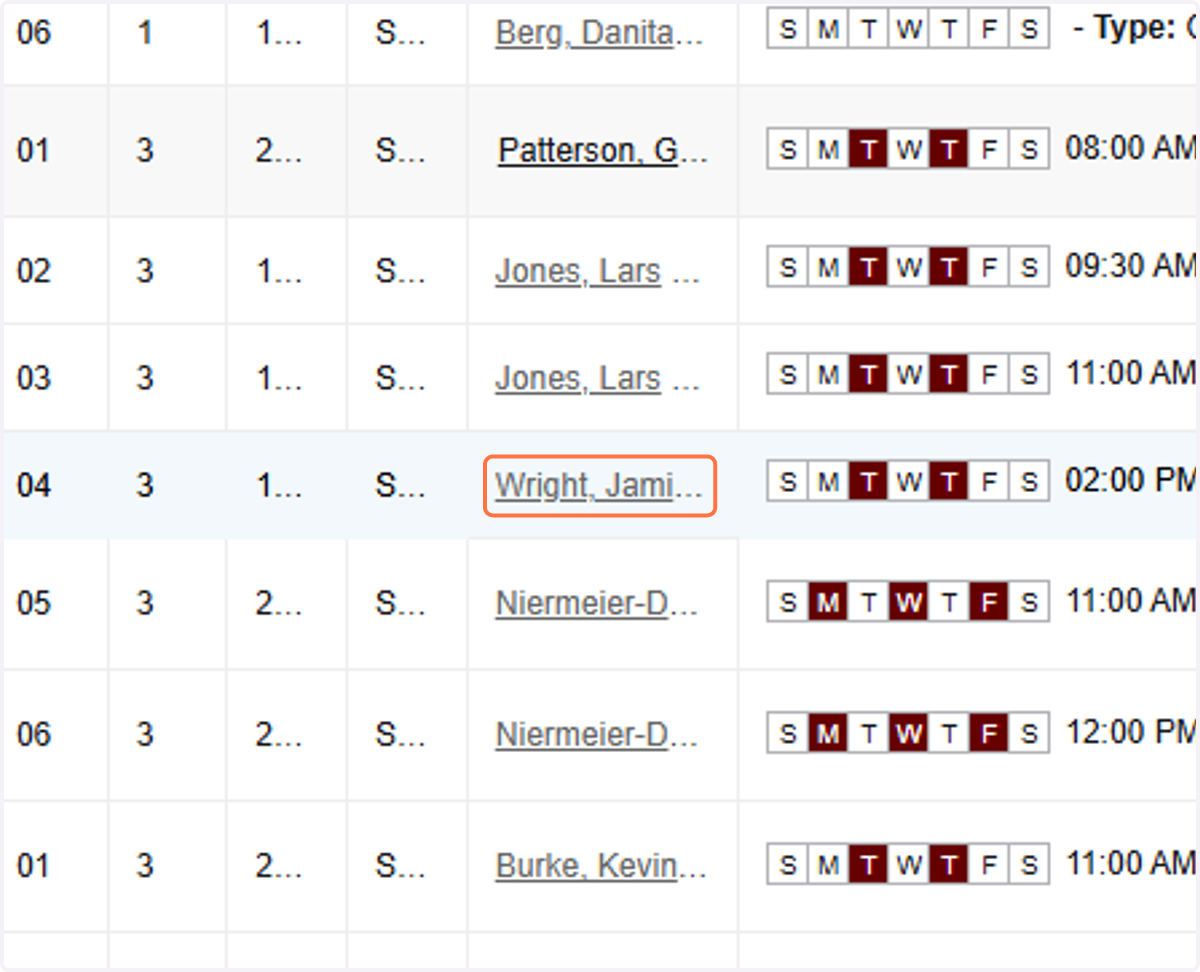
    To view profile of the instructor, click on the instructor's name
  16. 17. View Profile and close pop-up when done
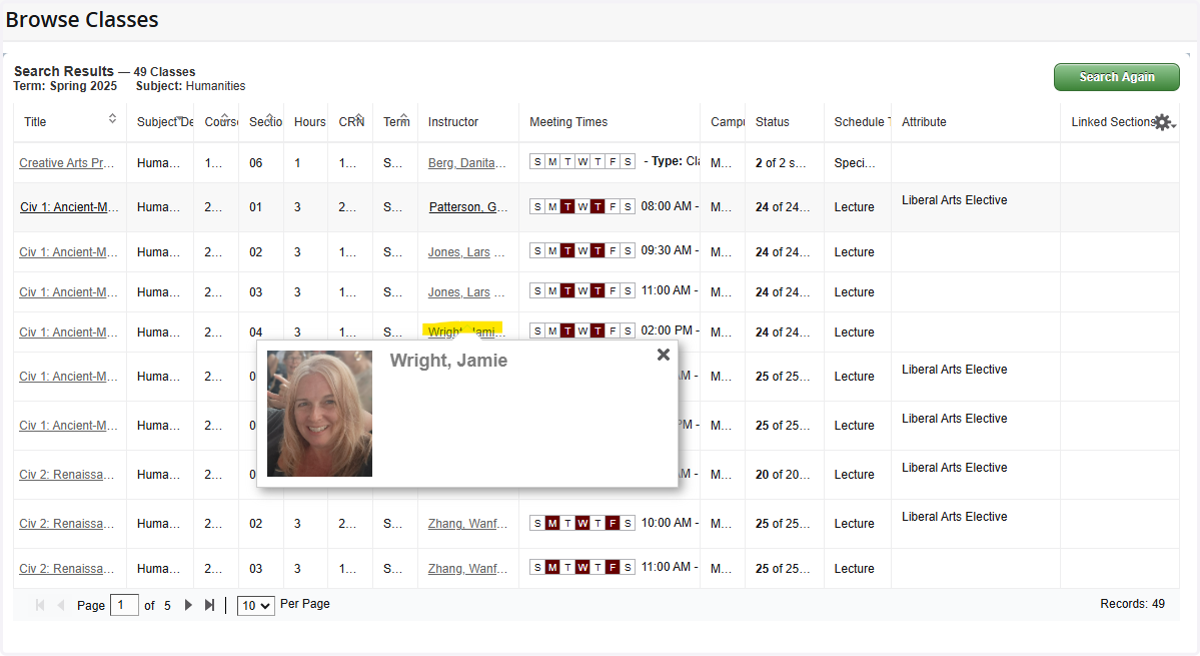
    View Profile and close pop-up when done
  17. 18. Important to make note of the CRN of the class that you want to register for.
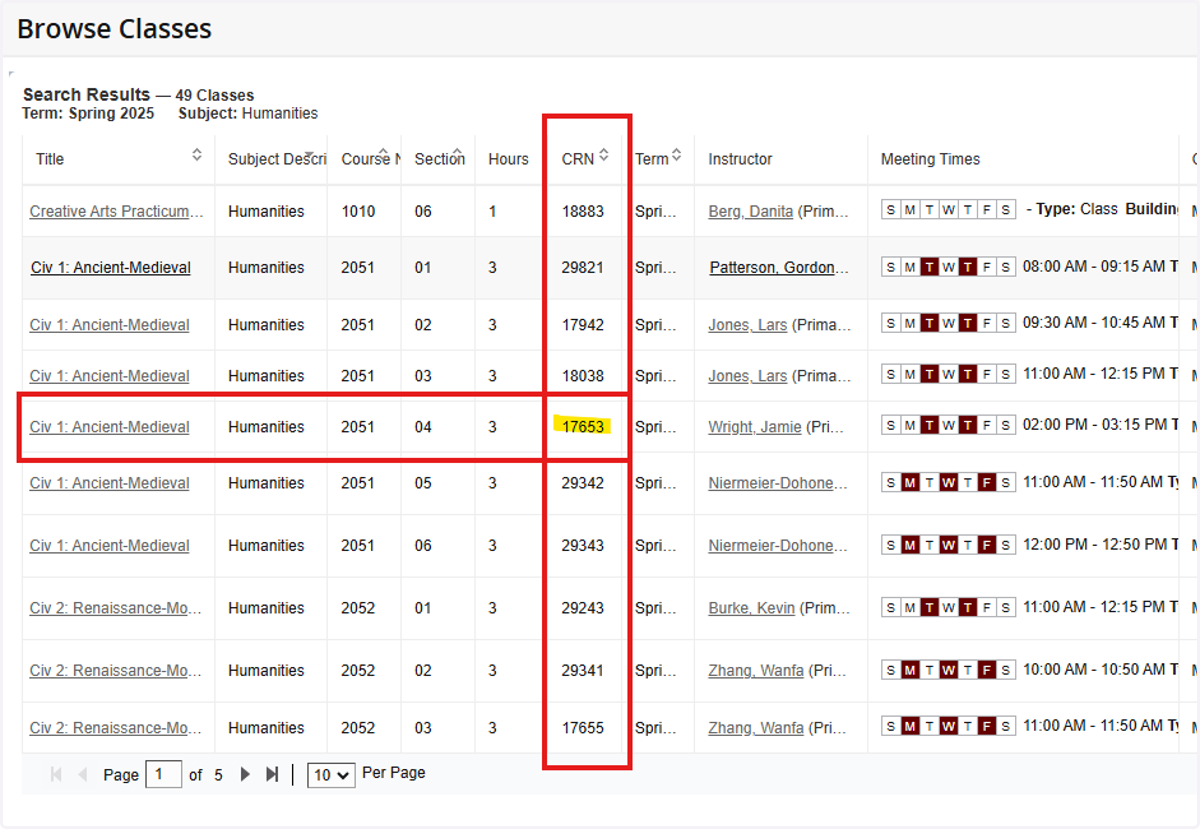
    Important to make note of the CRN of the class that you want to register for.