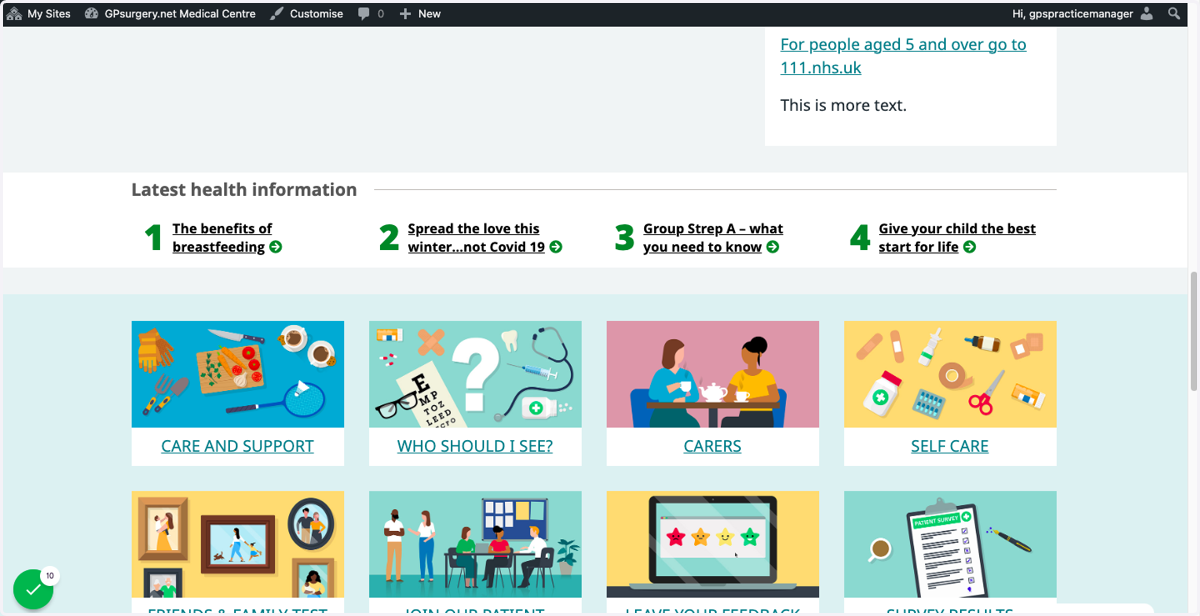
Turn on the public health campaigns banner
This tutorial will show you how to turn on the public health banner on your website. You can move through the tutorial at your own pace using the NEXT button below.
Gpsurgery
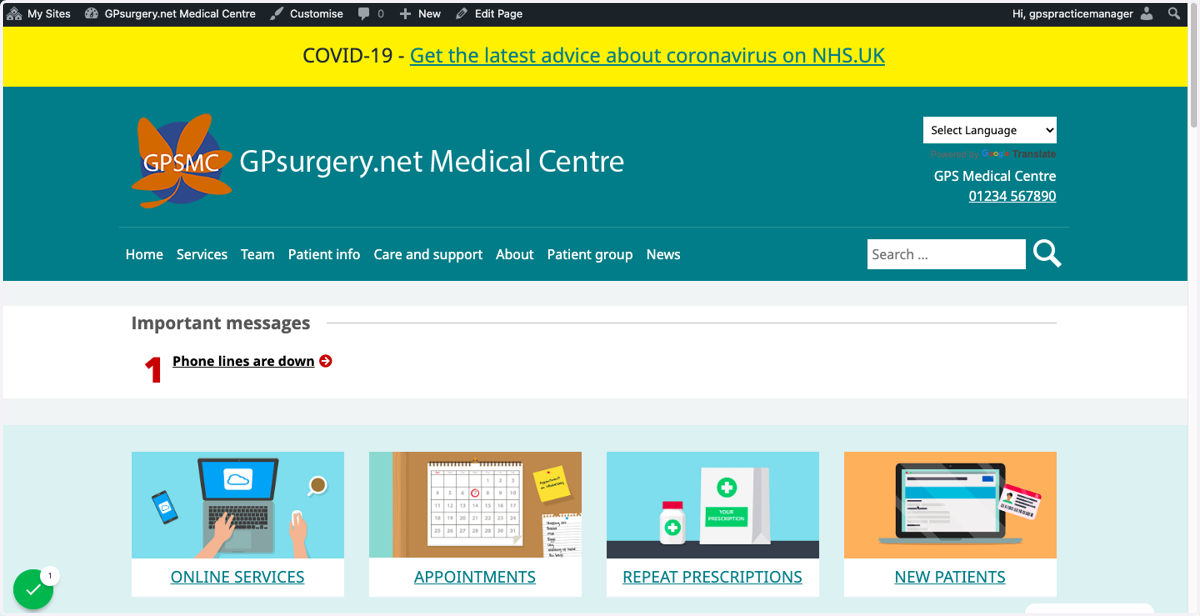
1. Ensure that you are logged into your website. The black admin toolbar should be visible at the top of the screen.
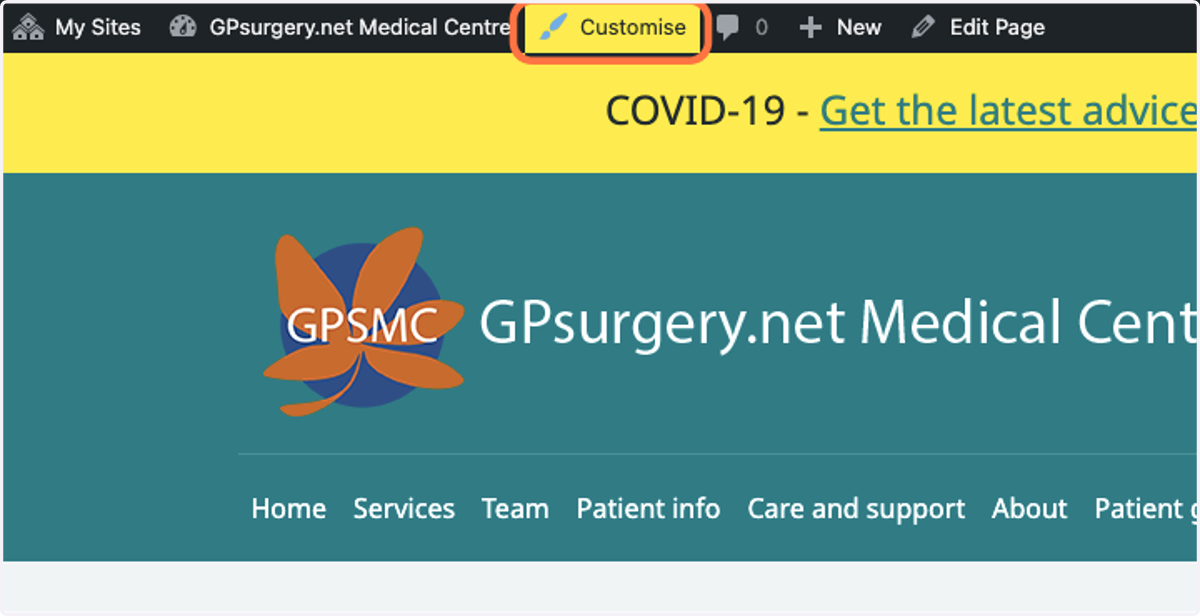
2. Click Customise in the admin toolbar to go to the Customiser.
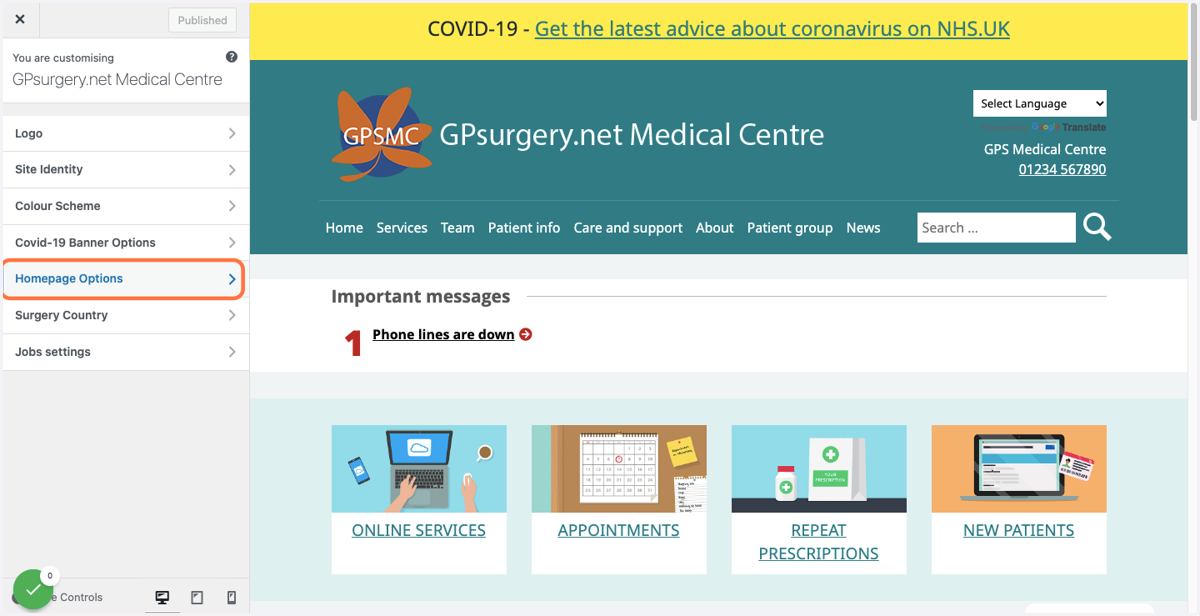
3. Select Homepage Options from the Customiser menu
Gpsurgery
4. From the Latest health information drop-down, you can either select Before main content...
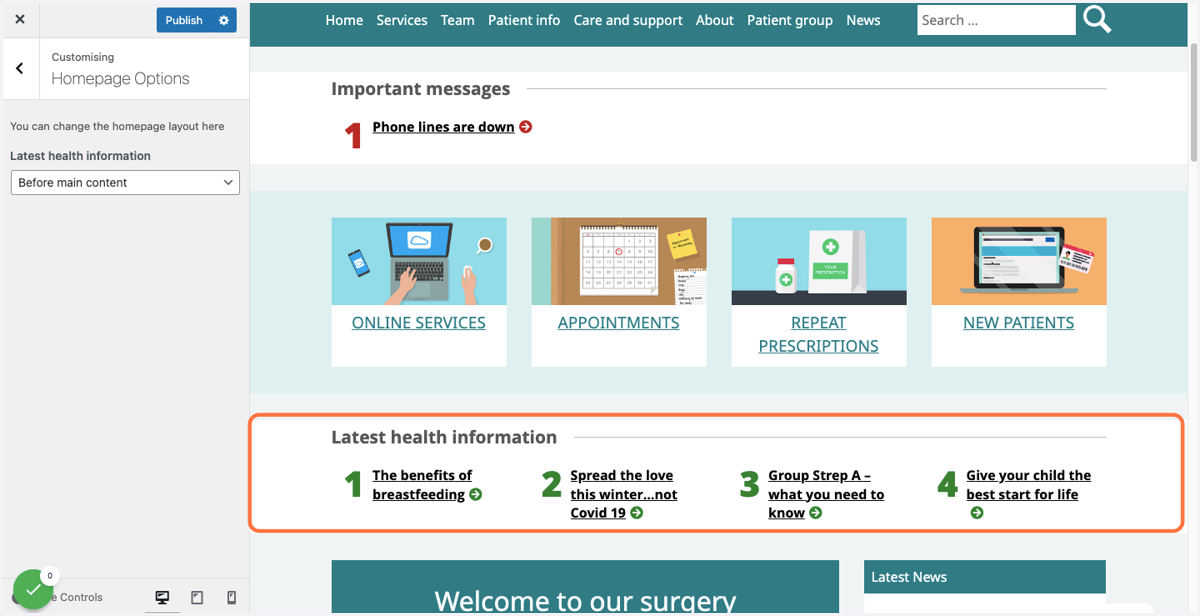
5. ...or After main content to display the banner in different places on the Home page.
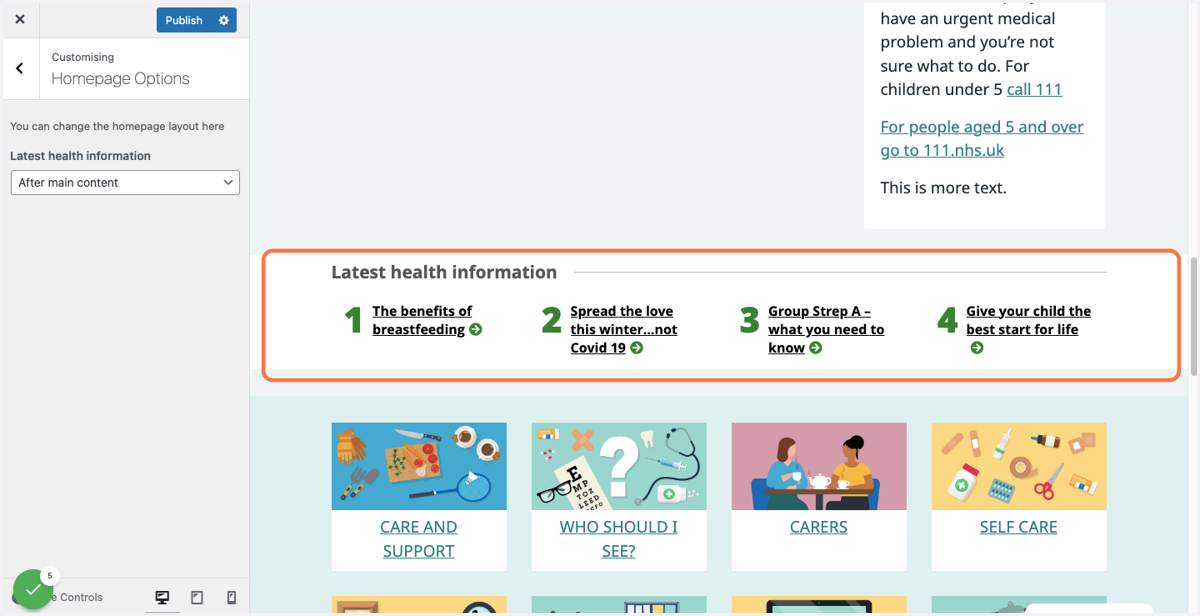
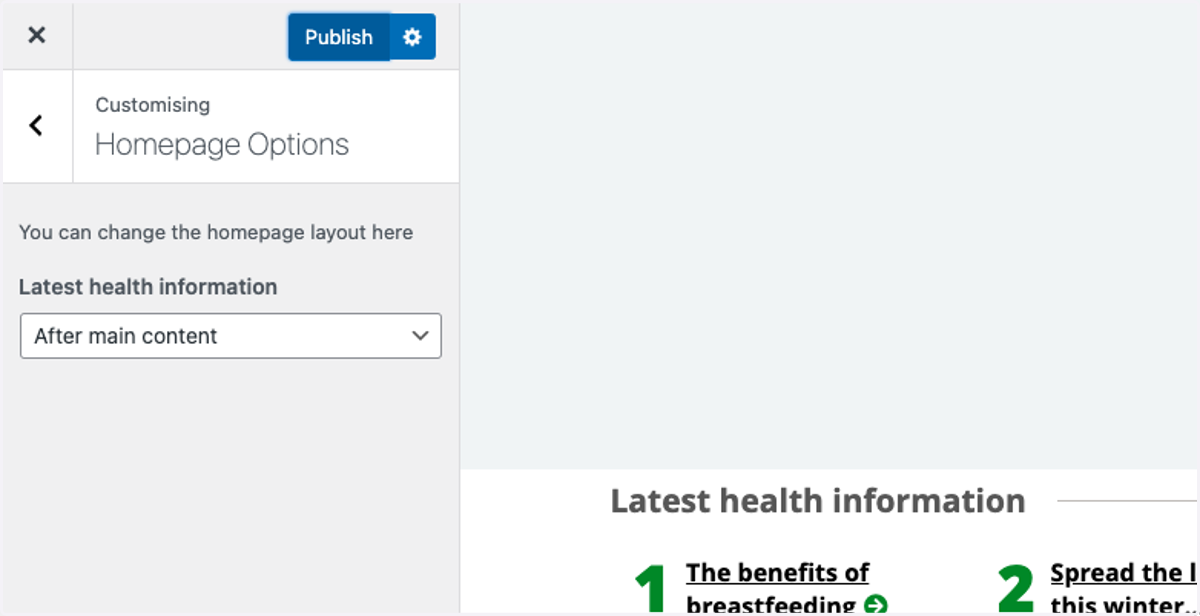
6. Once you have chosen where you would like the banner to display, select the blue Publish button in the Customiser menu to save your changes.
7. Your banner will now display on the Home page and will be updated regularly by the GPsurgery.net team with the latest health campaigns for your country.