Create Awareness Ads
These ads are targeted at people who don't already know you yet. This is where you are aiming for reach and trying to get your music and your artist brand in front of a broad audience in order to find people who might resonate with your music.
Go to adsmanager.facebook.com
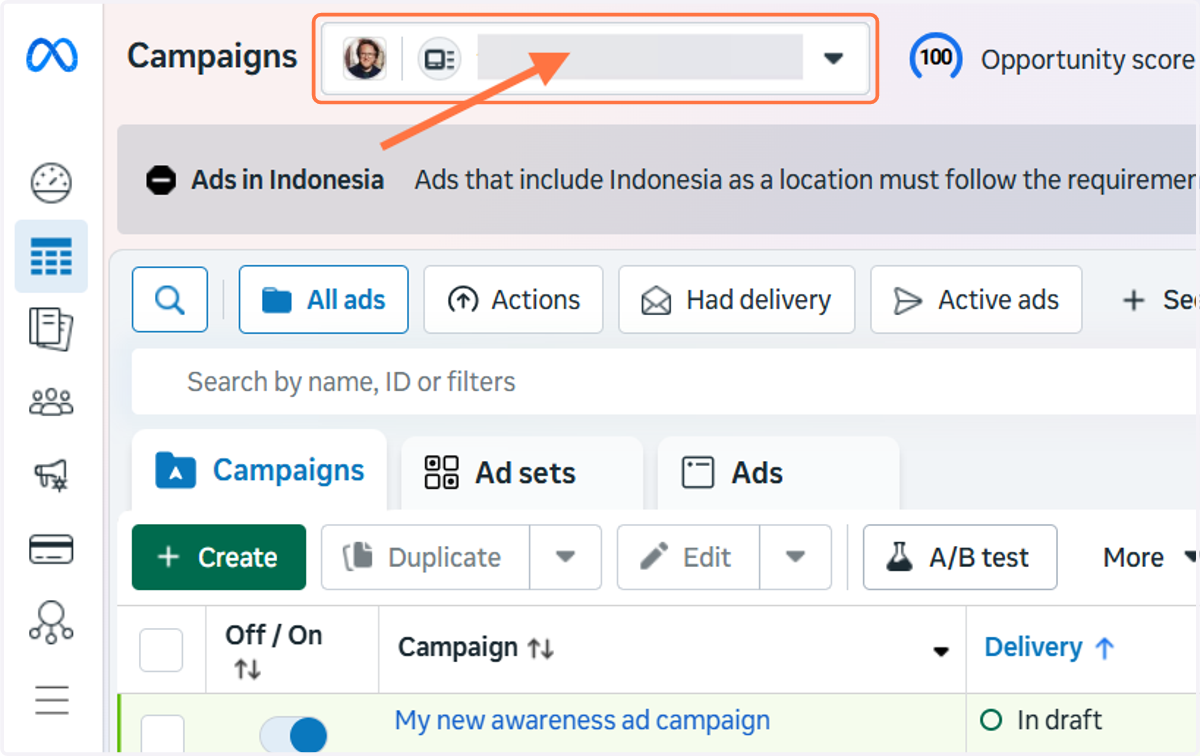
1. Select the ad account you're going to use from the dropdown menu
If you have multiple ad accounts, you will need to type the name of your ad account or search the list for the correct one
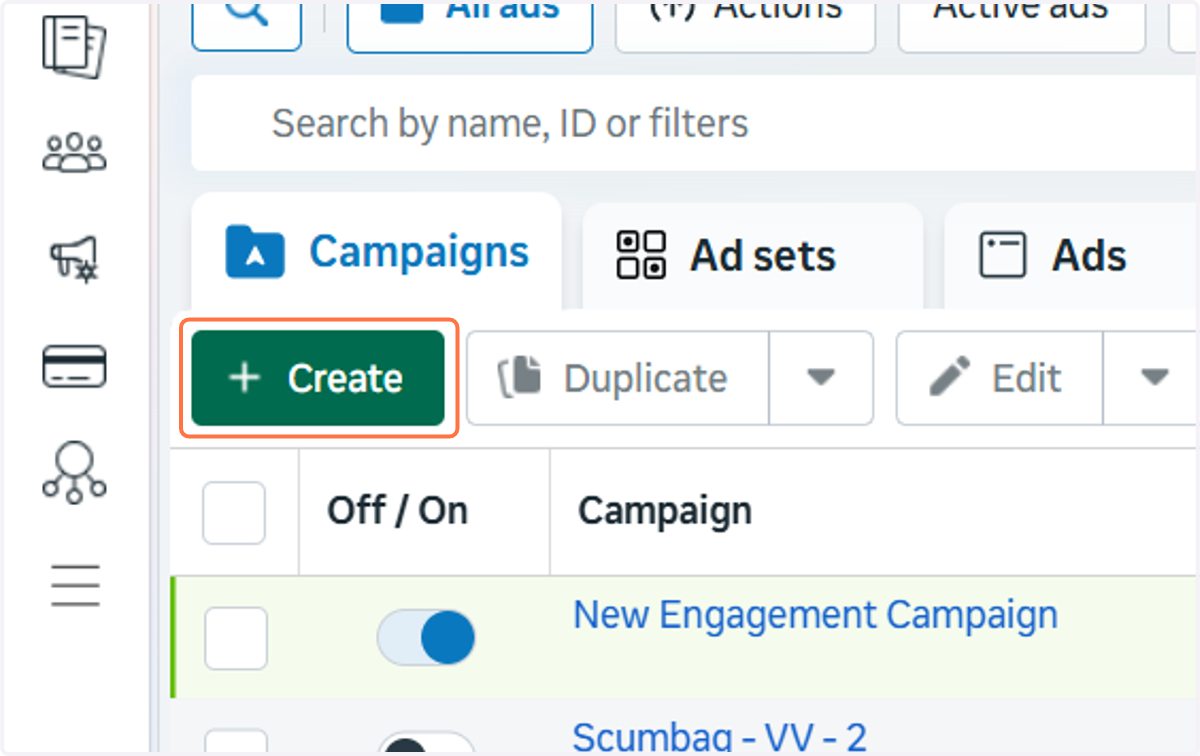
2. Click on Create
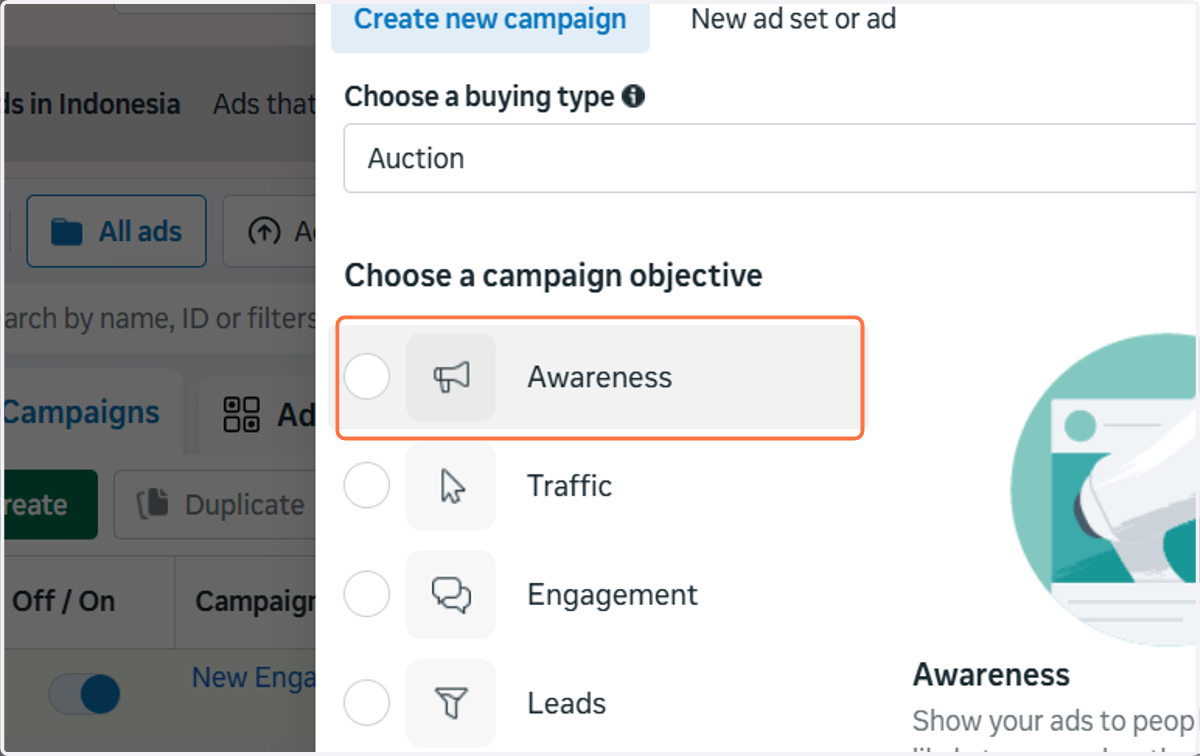
3. Click on Awareness
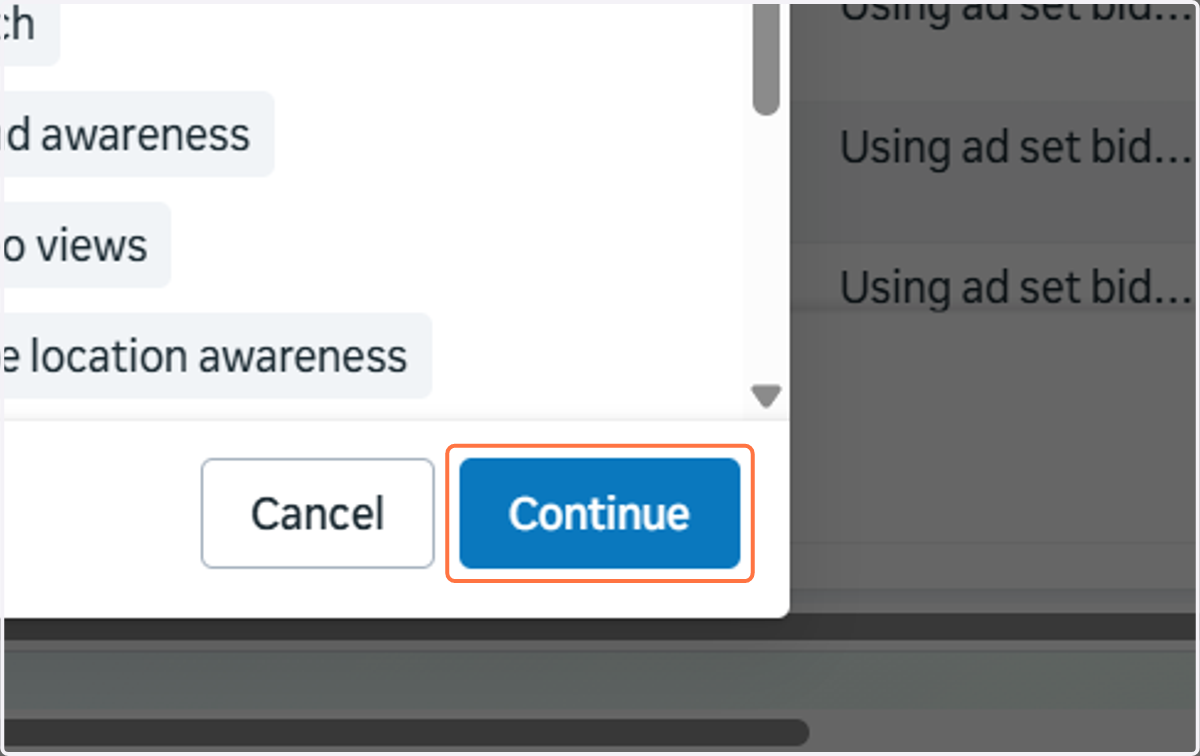
4. Click on Continue
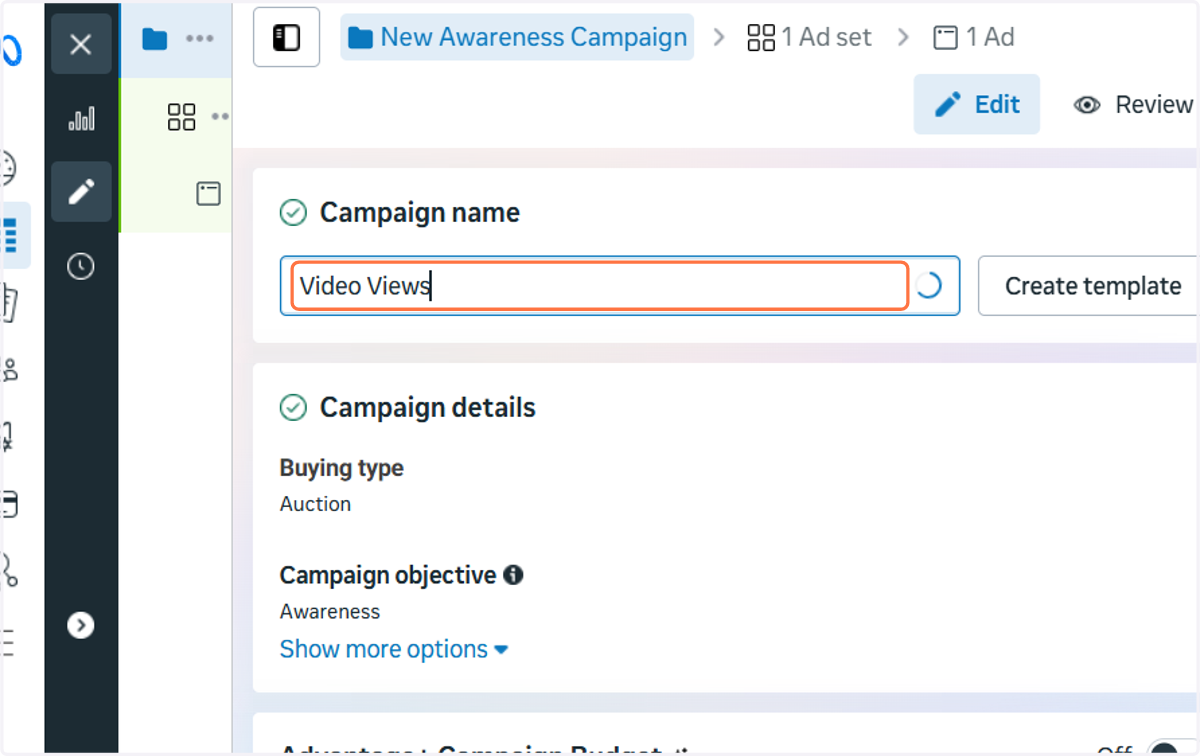
5. Give your campaign a name. Something like "Video Views" will do for this demo
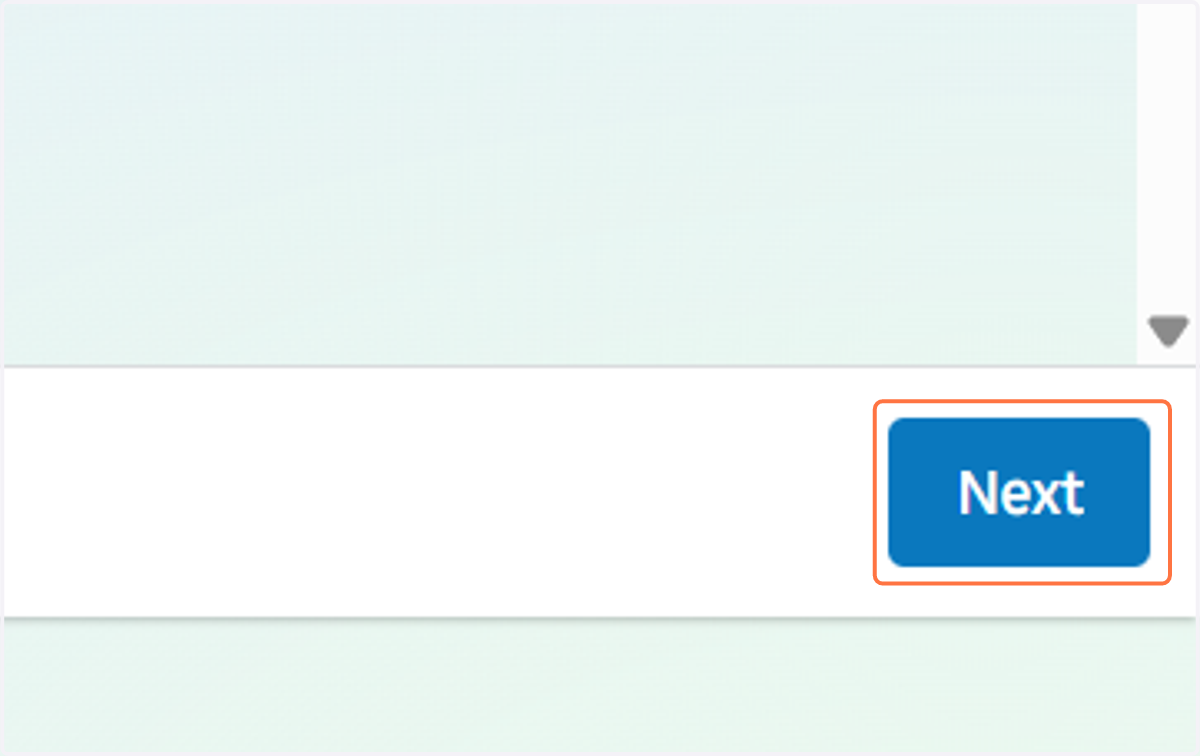
6. Click on Next
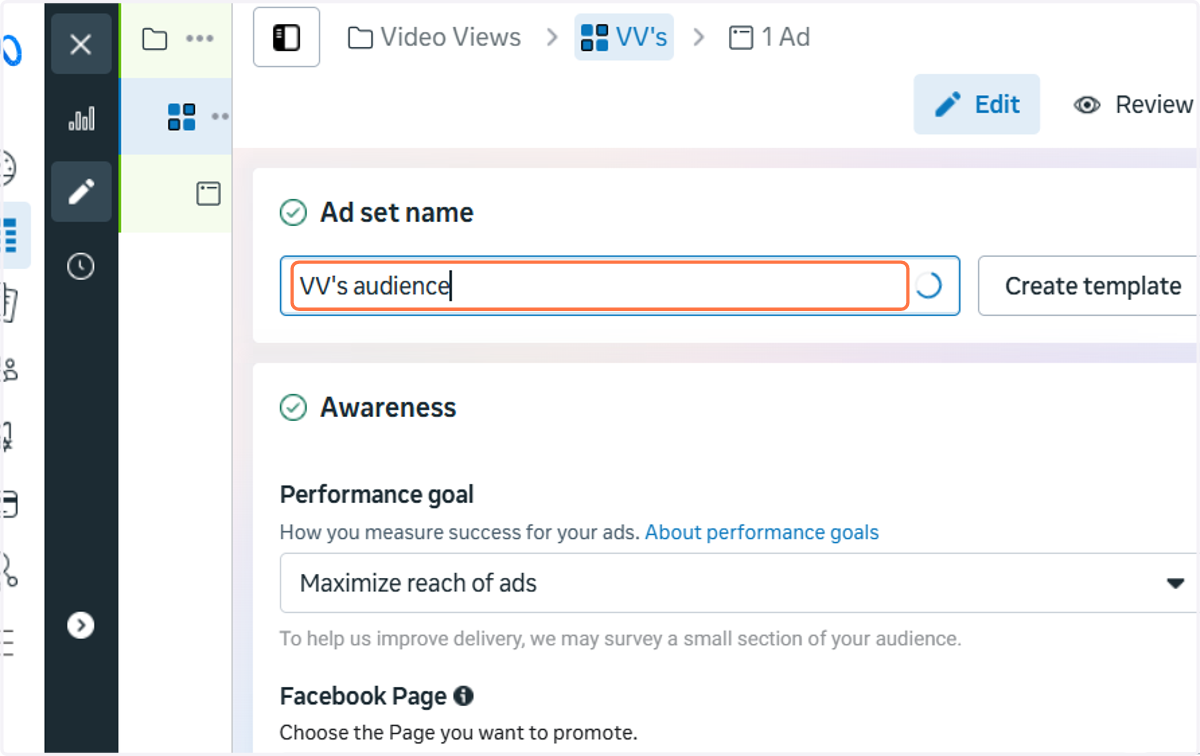
7. Give your Ad Set a name. Something like "VV's audience" will do for this demo
The Ad Set is where you select your target audience, choose the correct Facebook page, set your budget (daily or lifetime), set your start and end dates, and choose the placements you want your ads to show across Instagram, Facebook and other Meta properties.
8. Click to set your performance goal
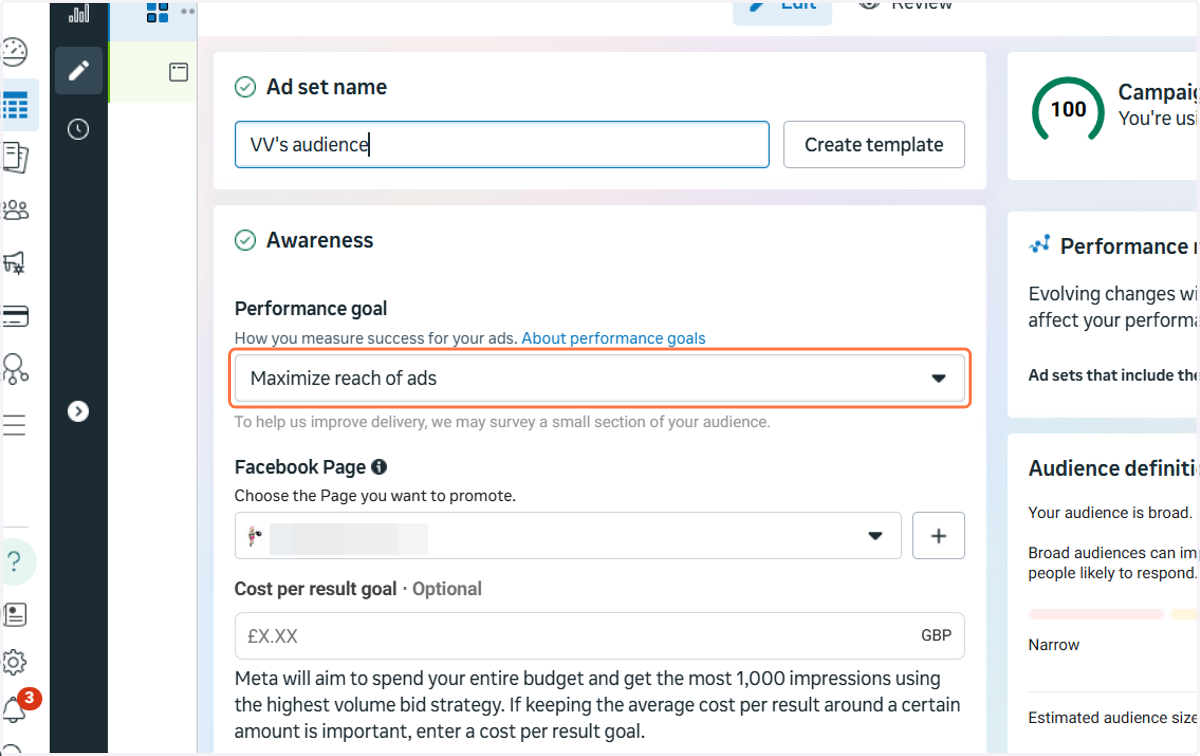
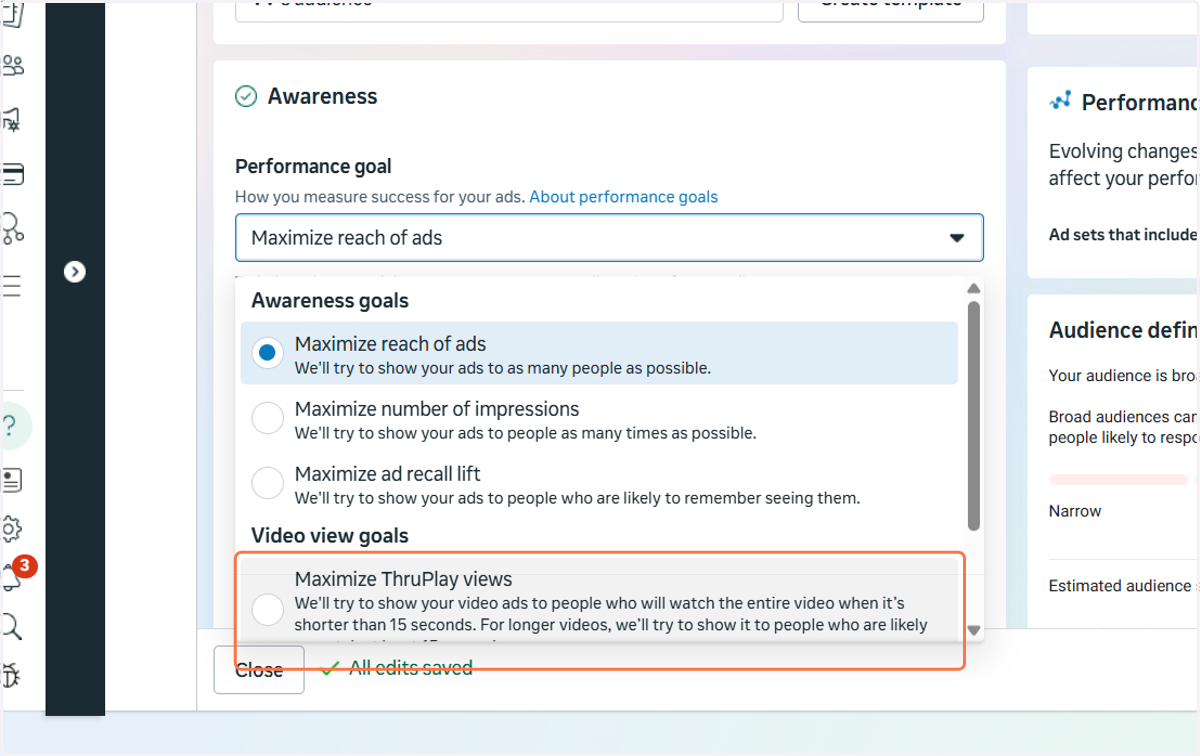
9. Click on Maximize ThruPlay views…
This is the best option for building an audience of people who have watched your videos so that you can retarget them in future campaigns.
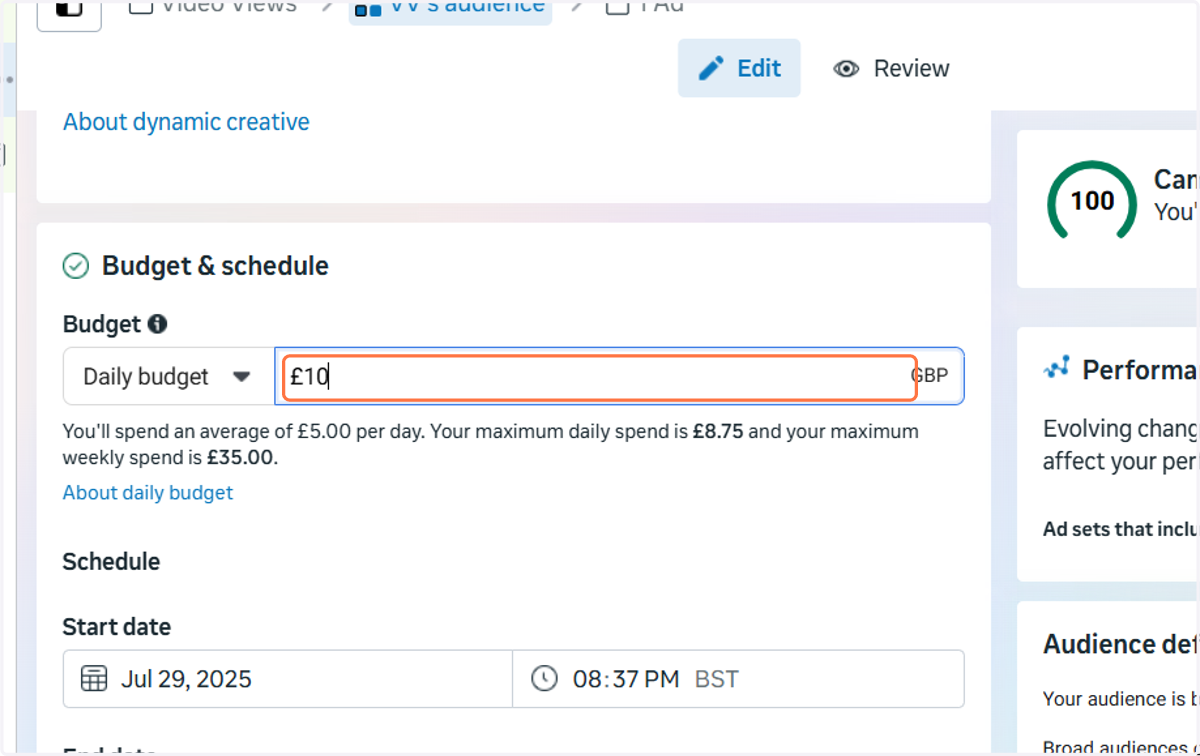
10. Type your daily or lifetime budget
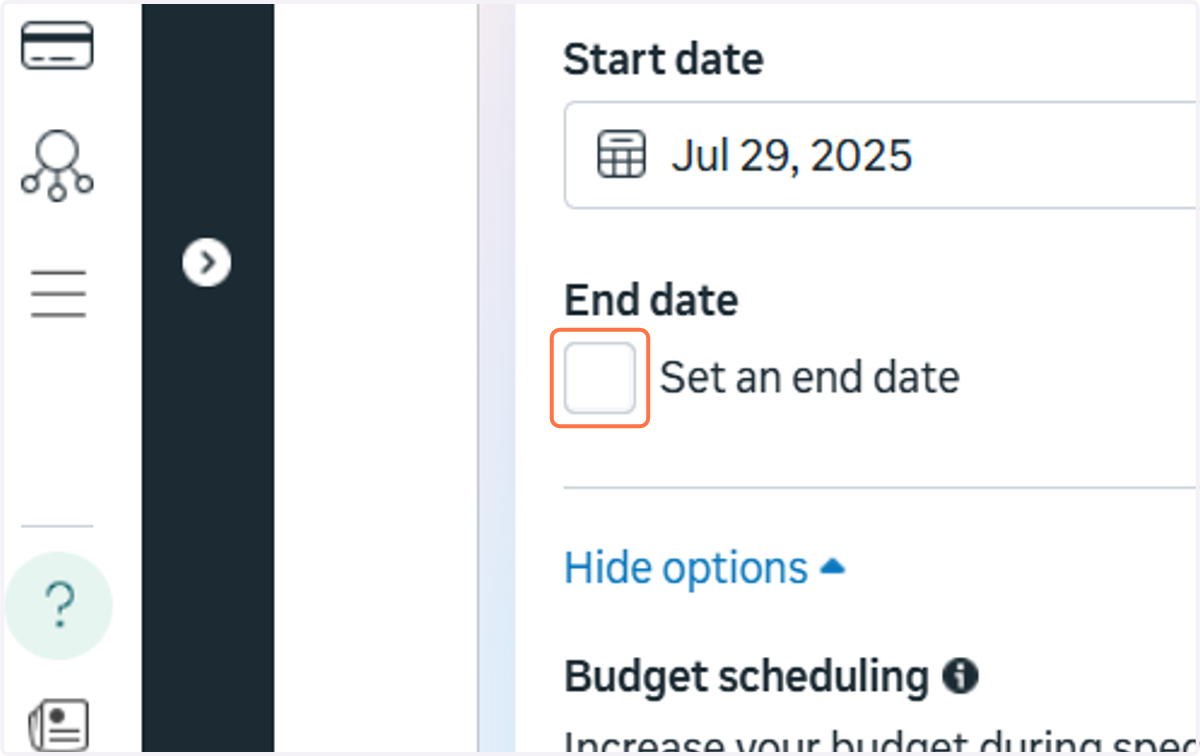
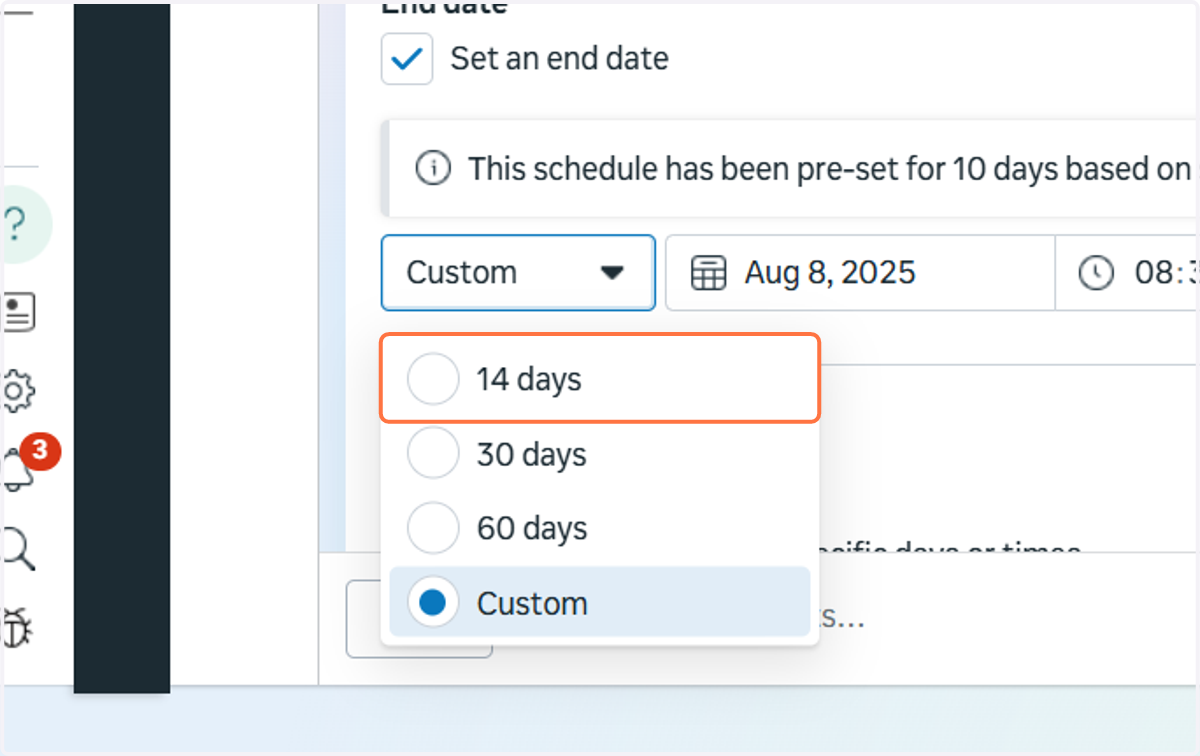
11. Check Set an end date if you don't want the campaign to run indefinitely
12. Choose from the set options or enter your own end date
13. Click on Locations
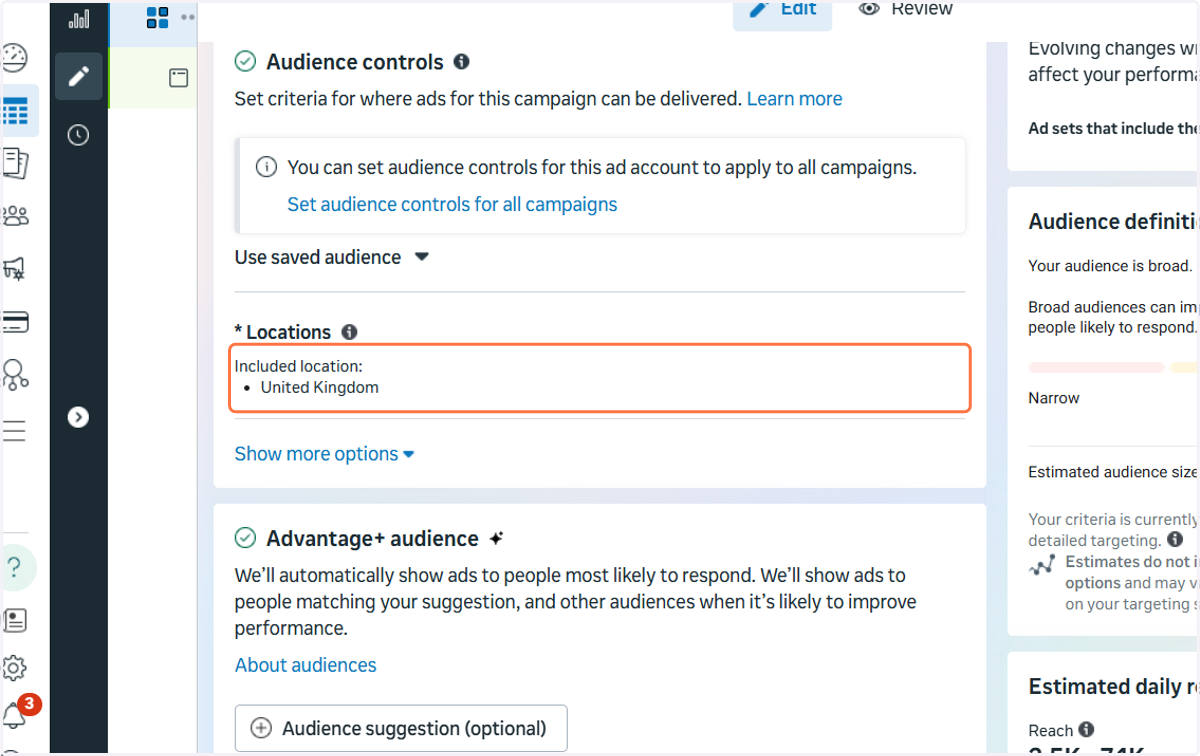
14. Add any locations you want to target
This bit is up to you, but remember that the larger the audience, the better Meta will be able to optimise and the cheaper your results will be.
If, for example, you want to only target people within 10 miles of your home town, it will cost you more to reach them.
My advice here would be to think about what you are planning to do next with the people who watch your video and connect with you and your music. If you plan to run streaming ads to them, then it matters less where they're from. If you have live shows or a tour coming up then you should perhaps consider targeting those locations.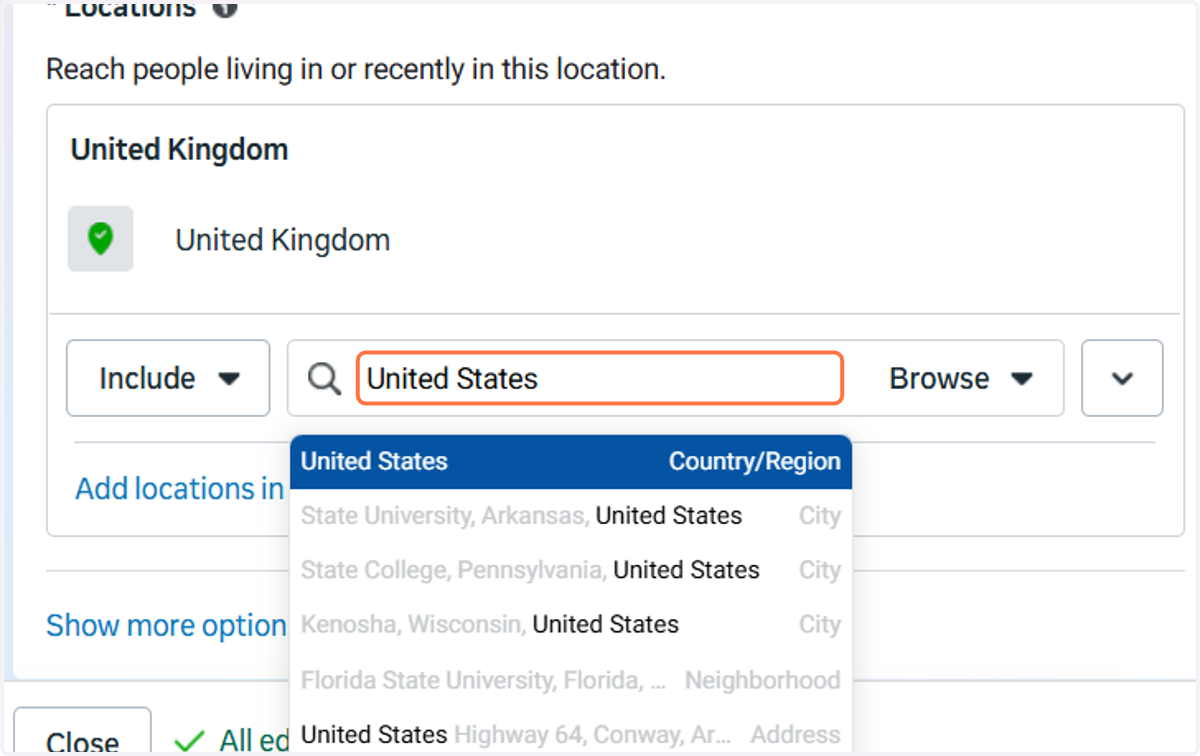
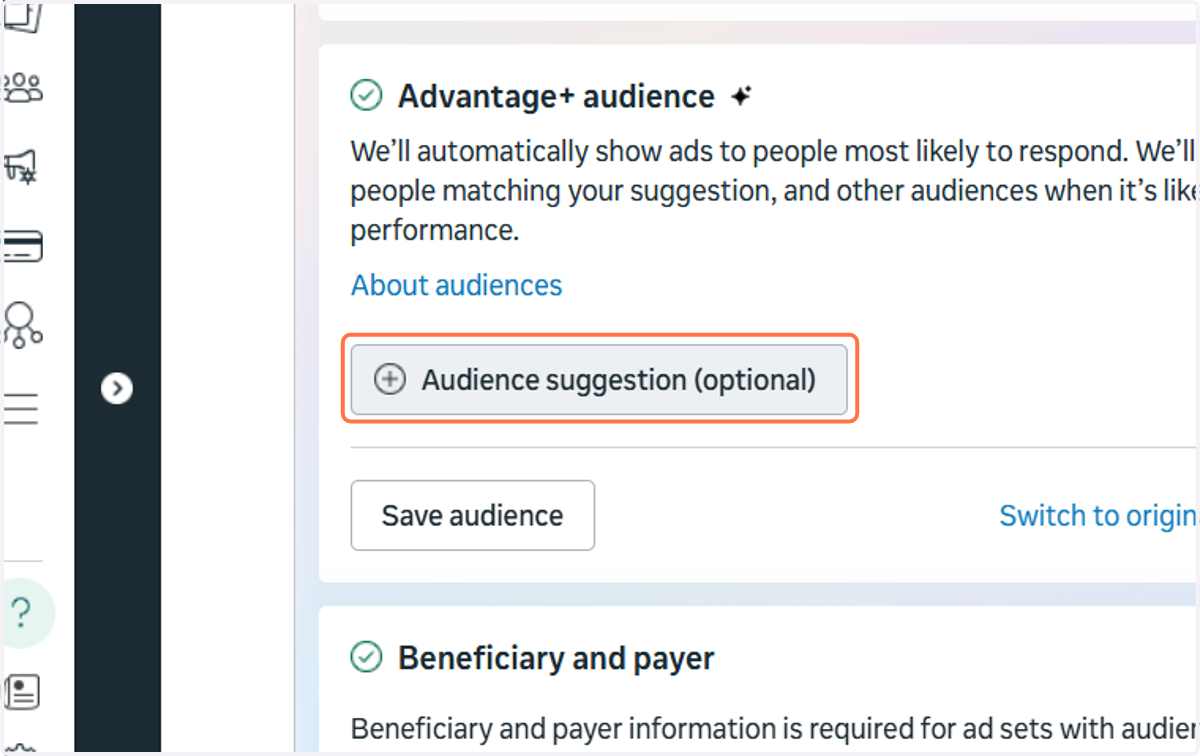
15. Click on Audience suggestion (optional)
You can leave your target audience really open at this point and trust Meta to find the right audience, but if you'd rather retain some degree of control, then you can add suggestions here
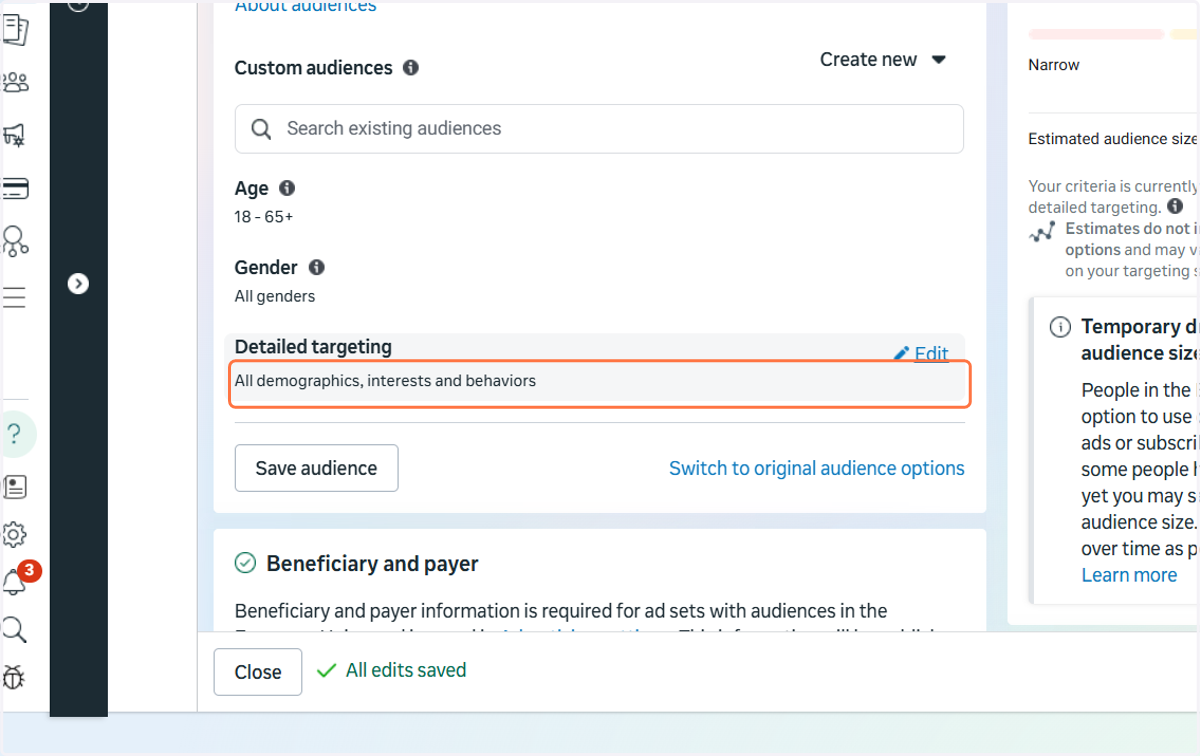
16. Click on Detailed targeting
You could also add 'Custom audiences' here if you've set anything up like Lookalike audiences, but I would always suggest that you test audiences against each other by using multiple Ad Sets to make sure you're not limiting your campaign's potential performance by targeting too tightly
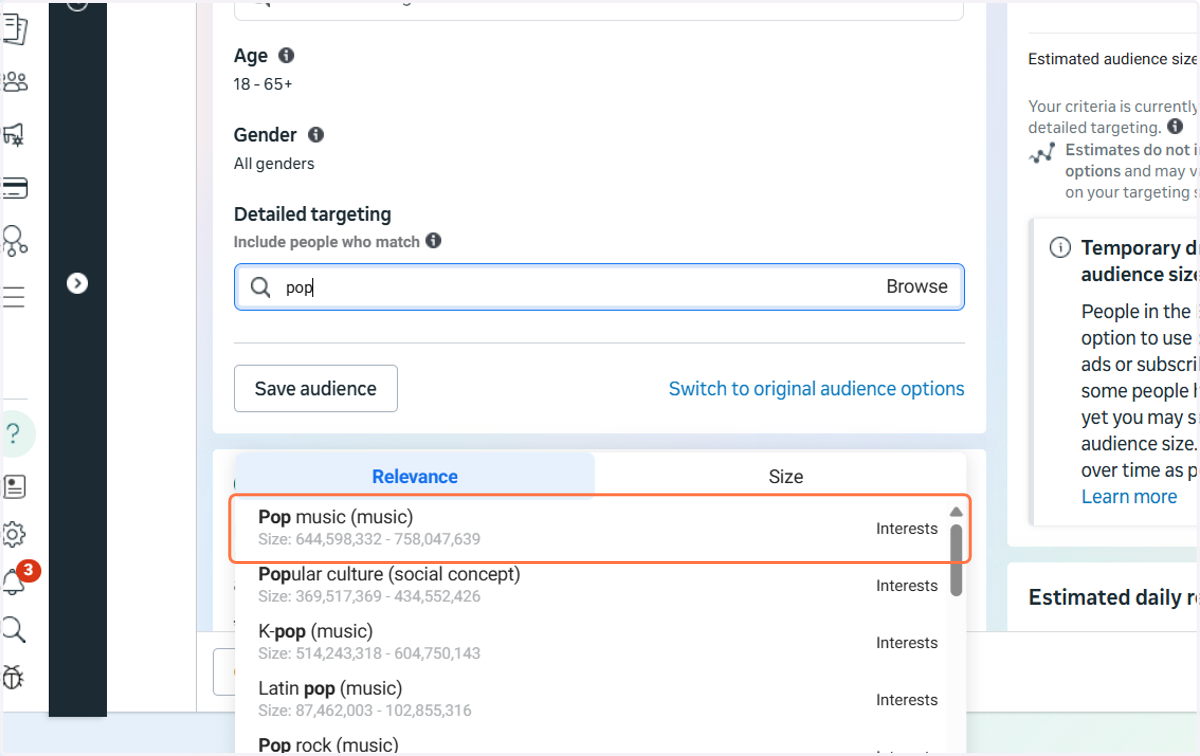
17. Go broad by targeting a genre like 'Pop music'…
... but again, it's about testing here, but how much you can test will be determined by your budget
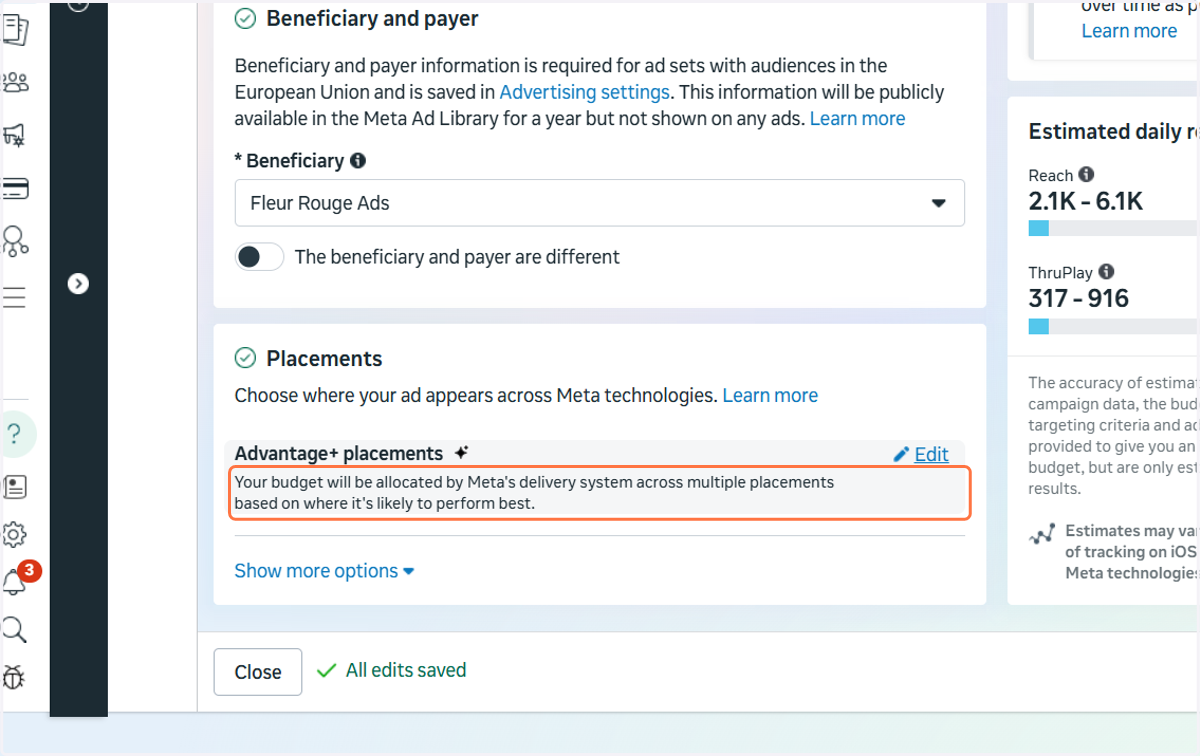
18. Click on Advantage+ placements
You can just let Meta do its thing here but it defaults to showing ads on all placements (feeds, stories, reels) on Facebook, Instagram and Threads, so if you want more control as to where your ads are shown, you can set placements manually here
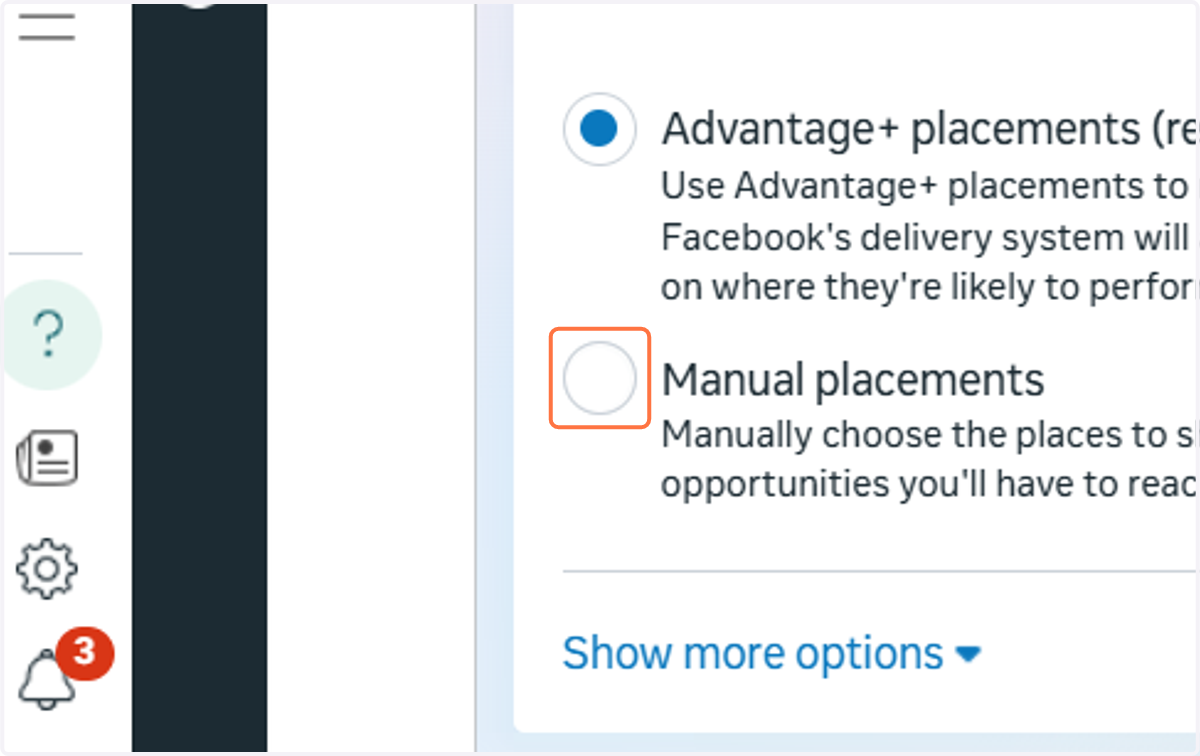
19. Select Manual placements…
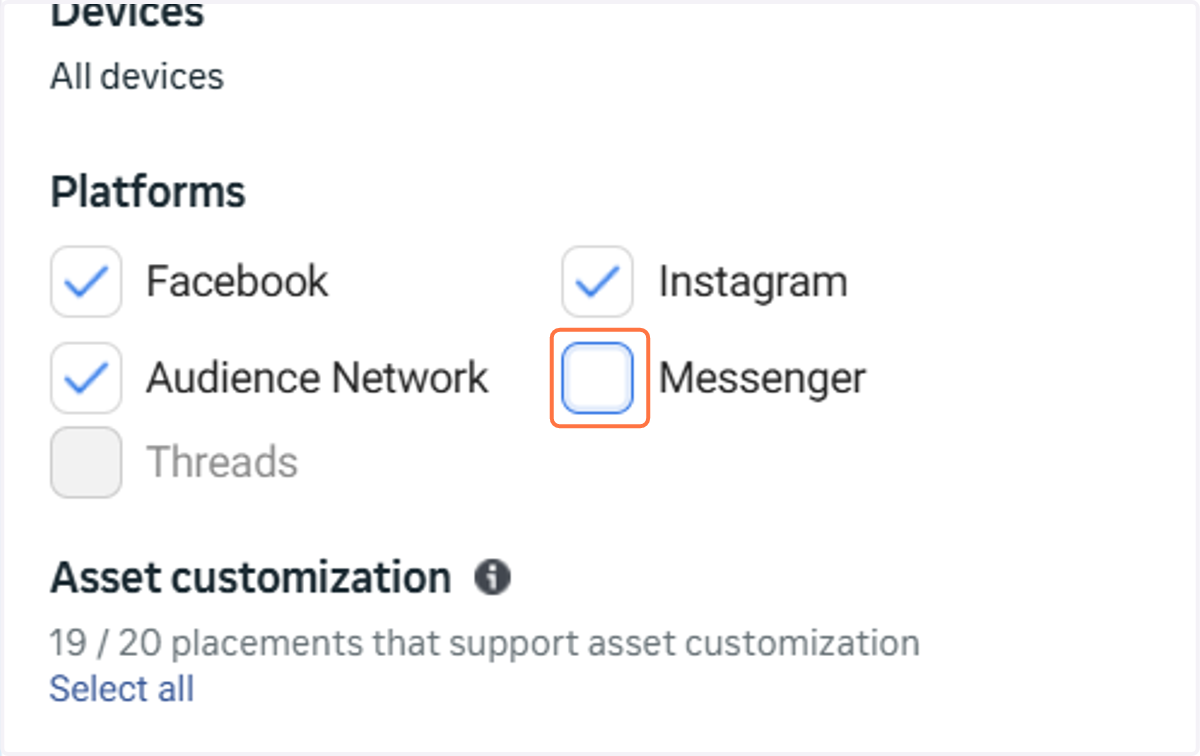
20. I usually only run ads on Feeds, Stories & Reels as that tends to be where you get most engagement and results, so if you choose to do that, uncheck Messenger
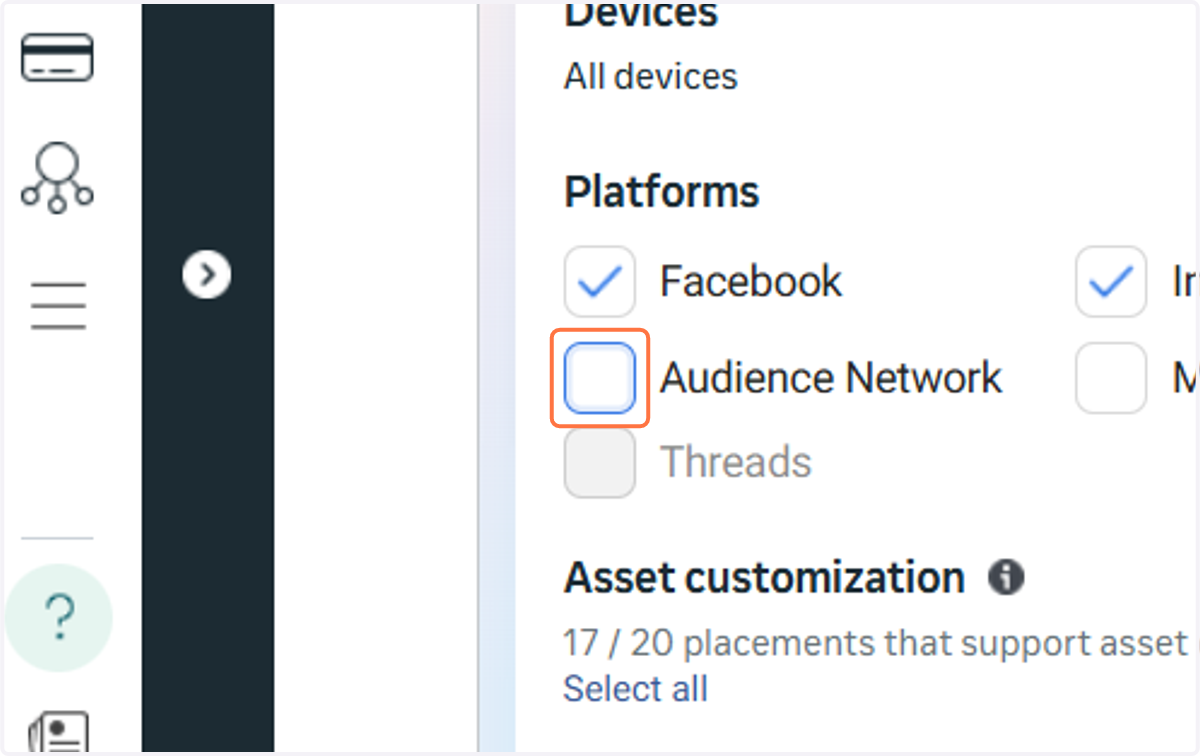
21. Uncheck Audience Network
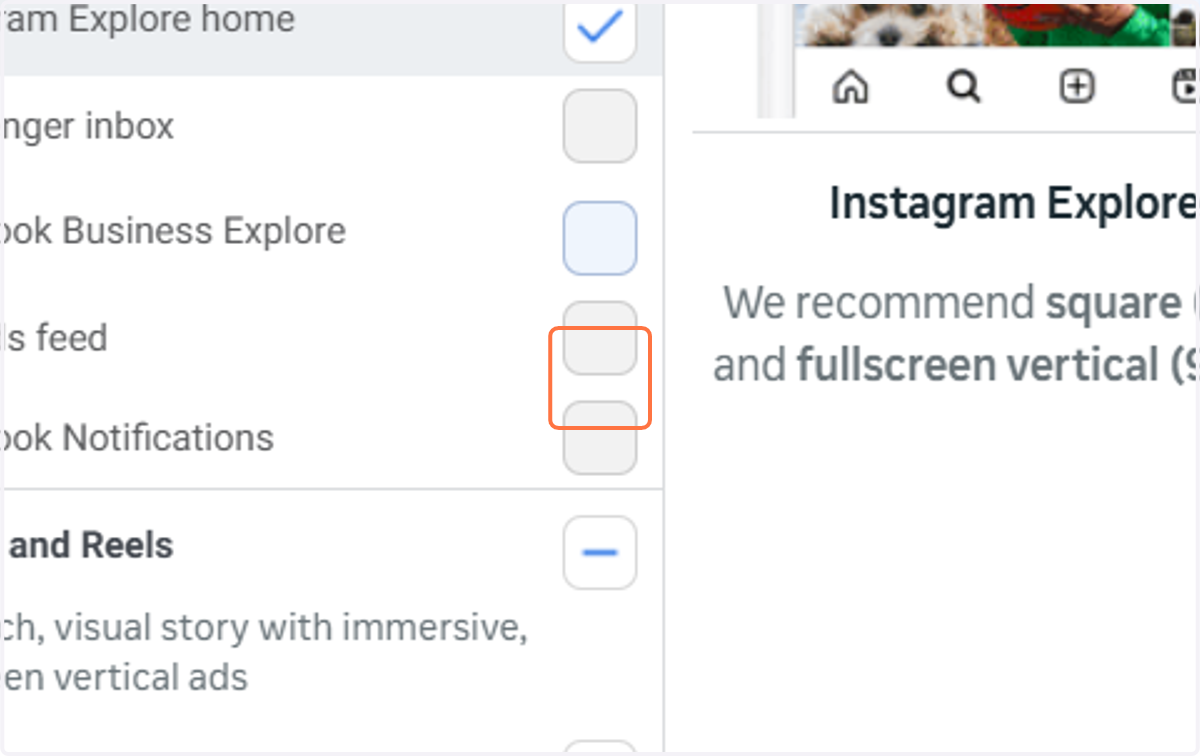
22. Uncheck all placements until you're left with only the ones you want
23. Click on Next
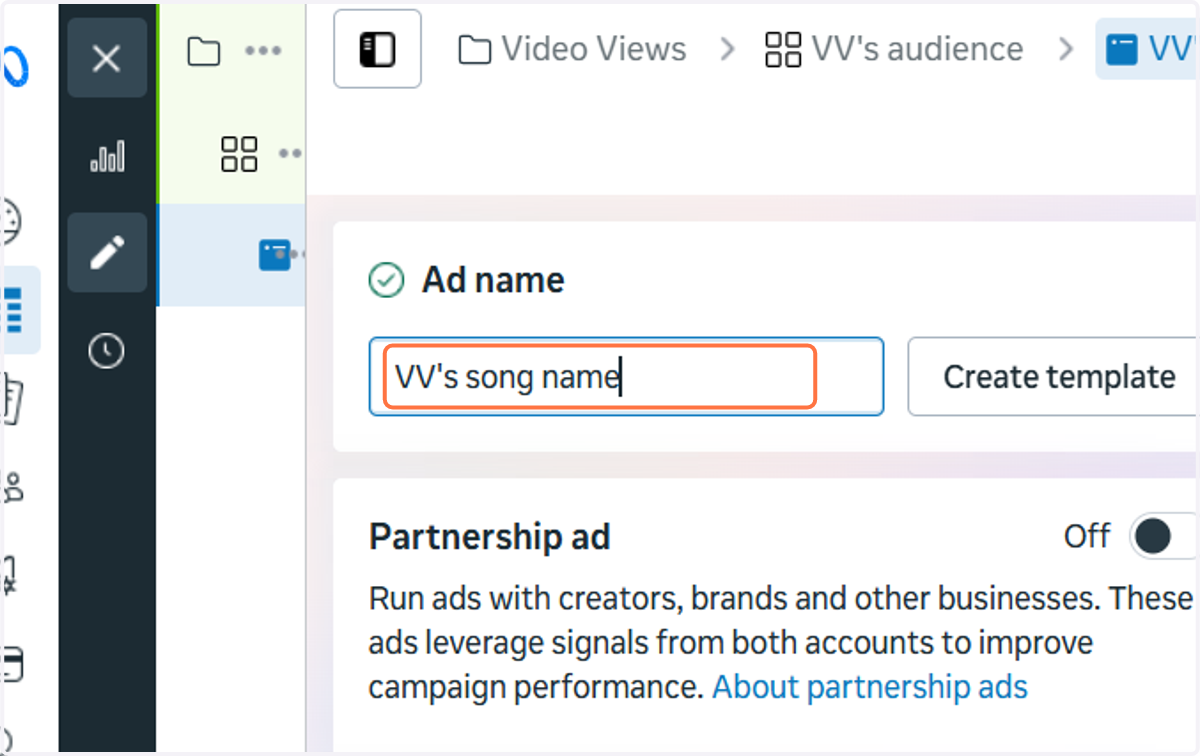
24. Give your advert a name here. I used "VV's song name" for this demo
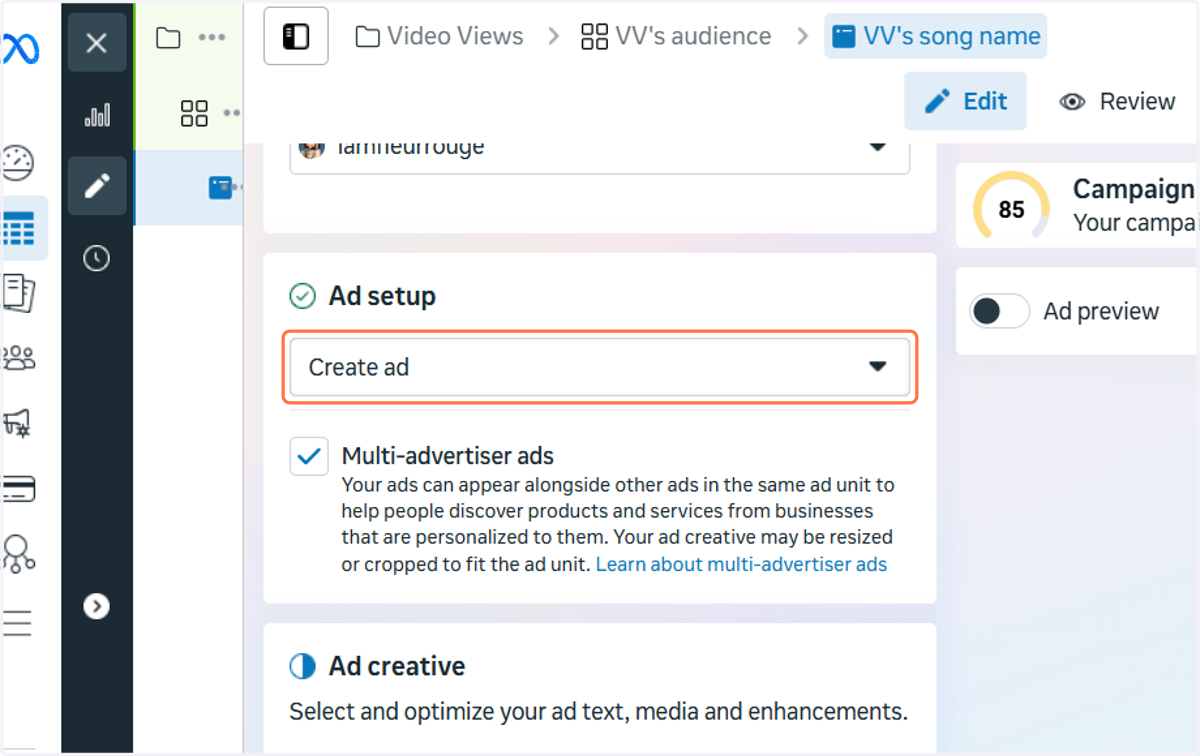
25. Click on the 'Create ad' dropdown menu underneath Ad setup
If you don't want to use an existing post, you can build your advert here instead
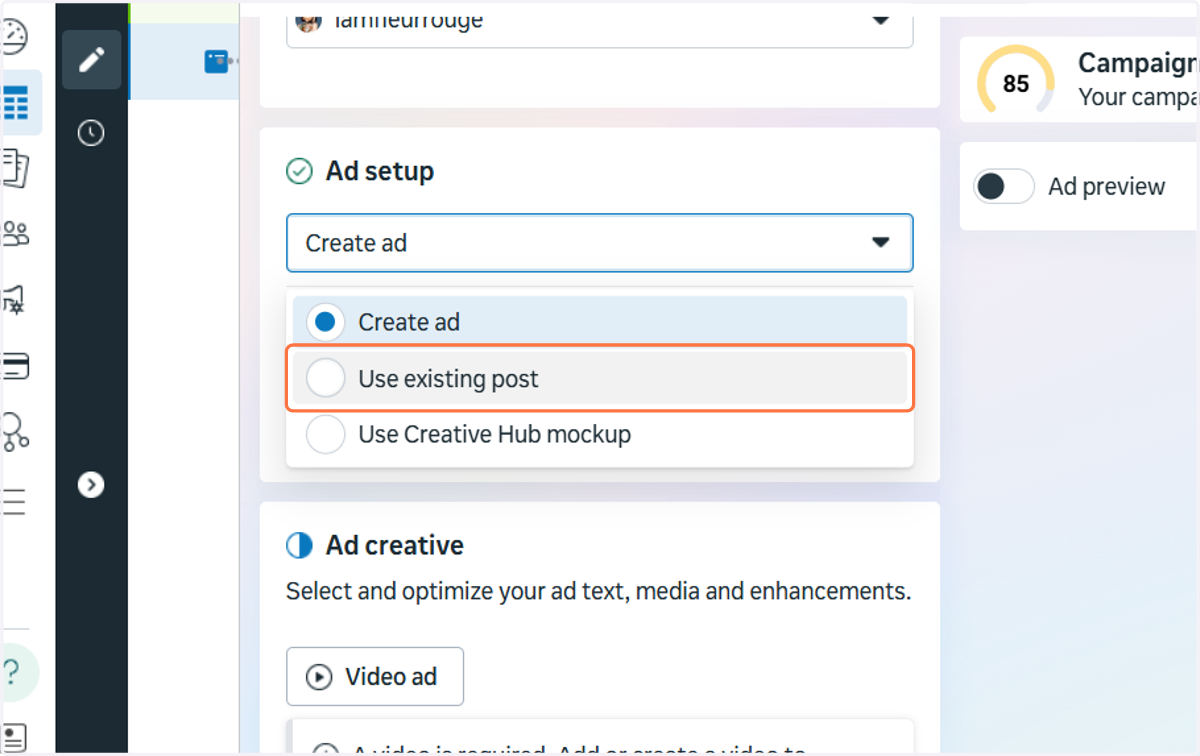
26. Click on Use existing post
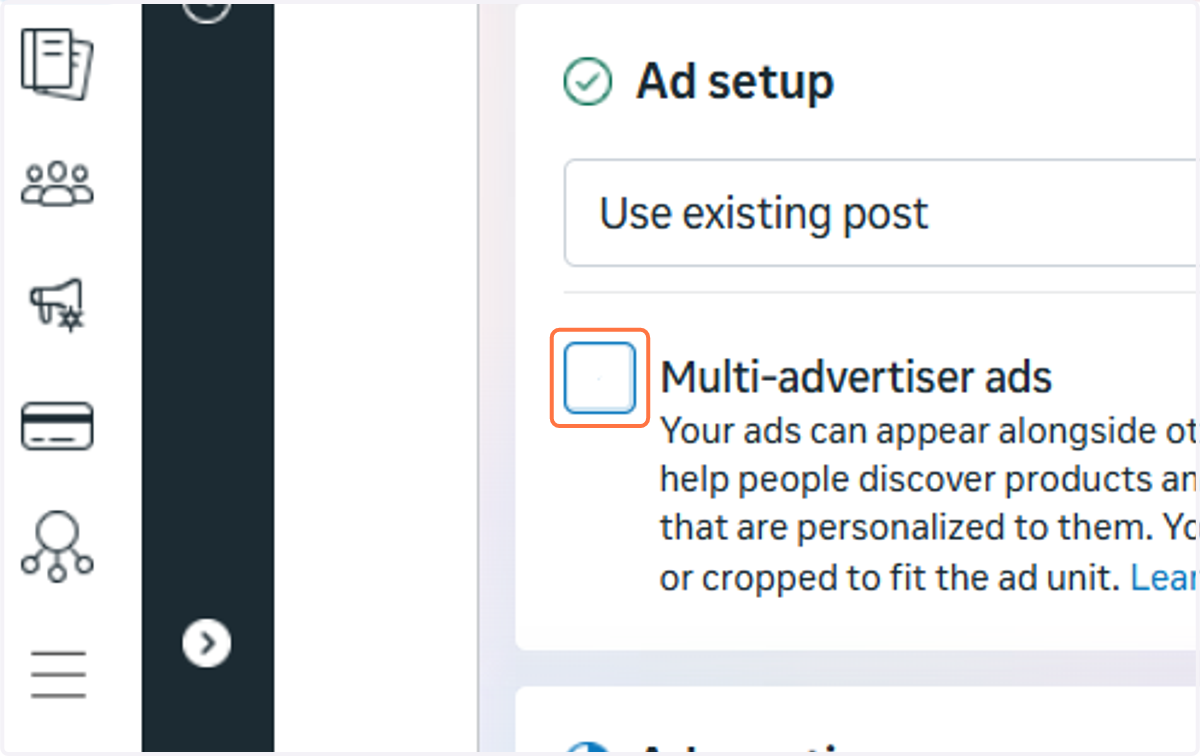
27. Uncheck Multi-advertiser ads…
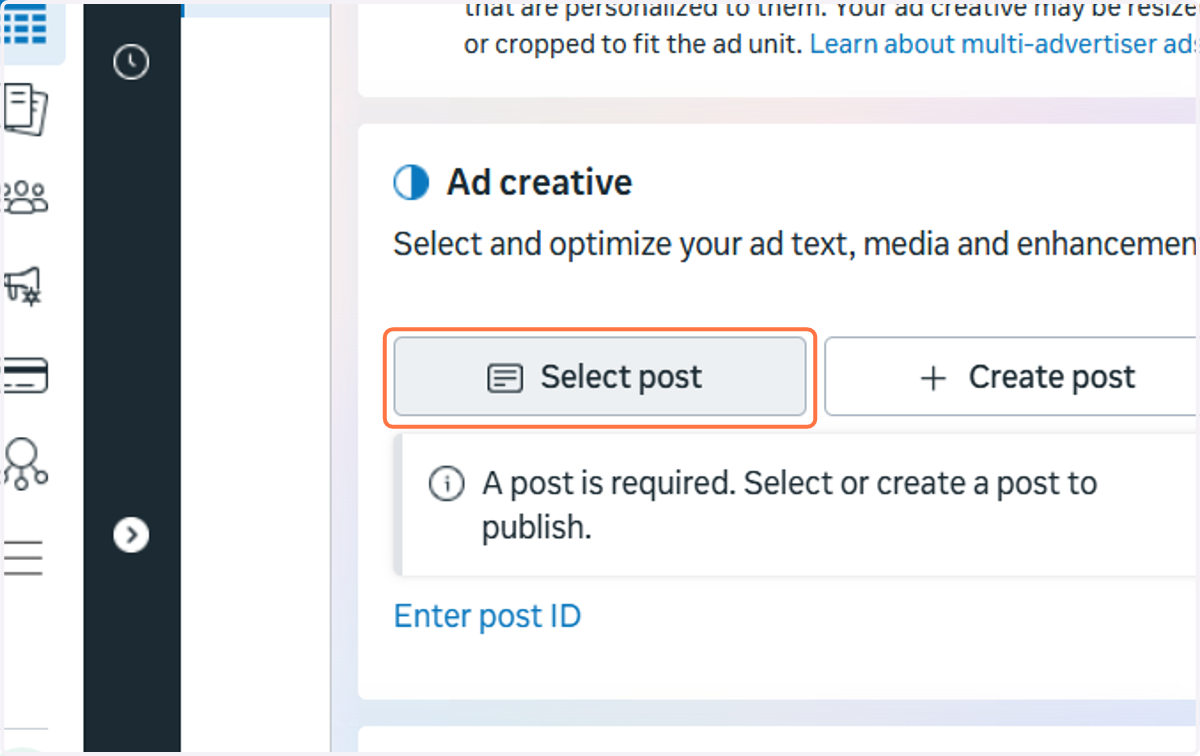
28. Click on Select post
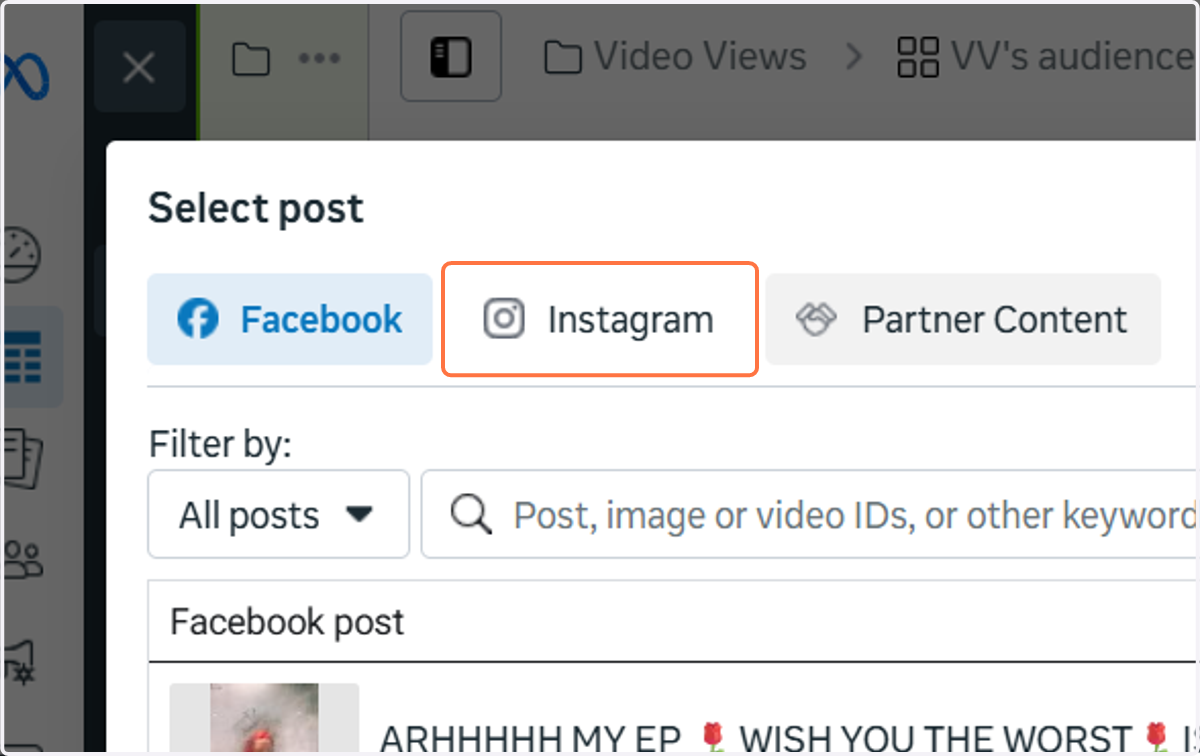
29. Click on Instagram if you want to use an Instagram post as the ad creative
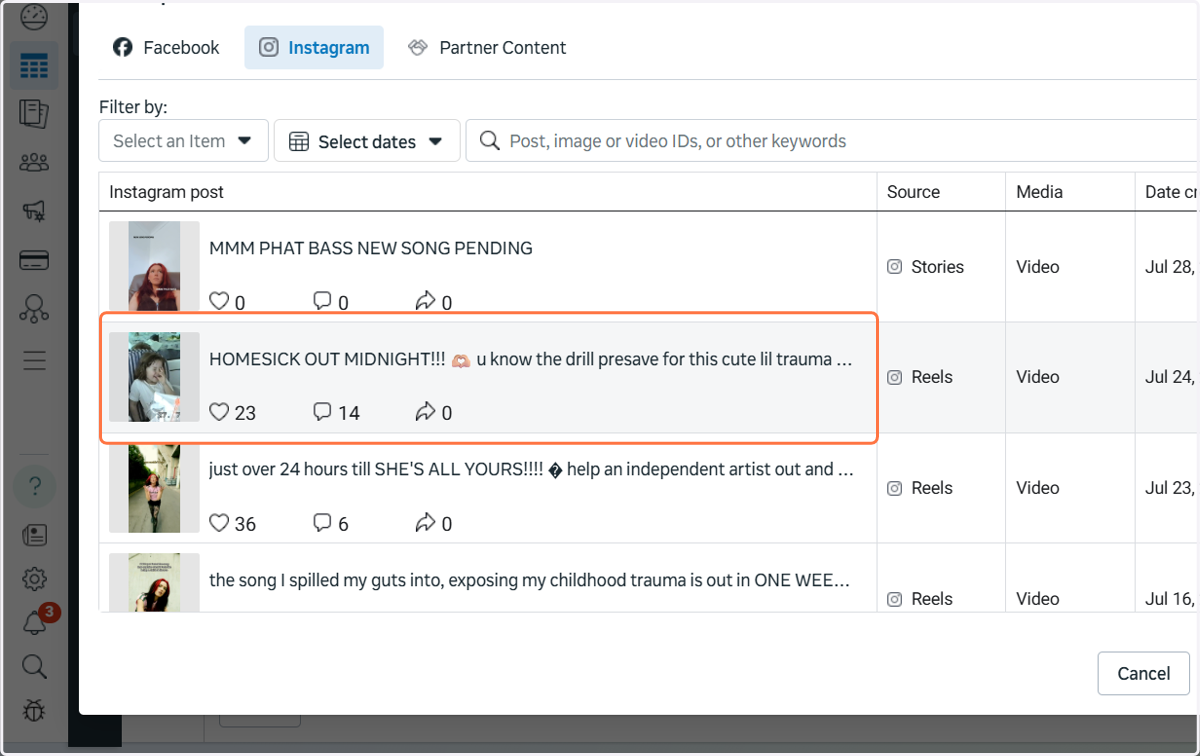
30. Select the post you want to use
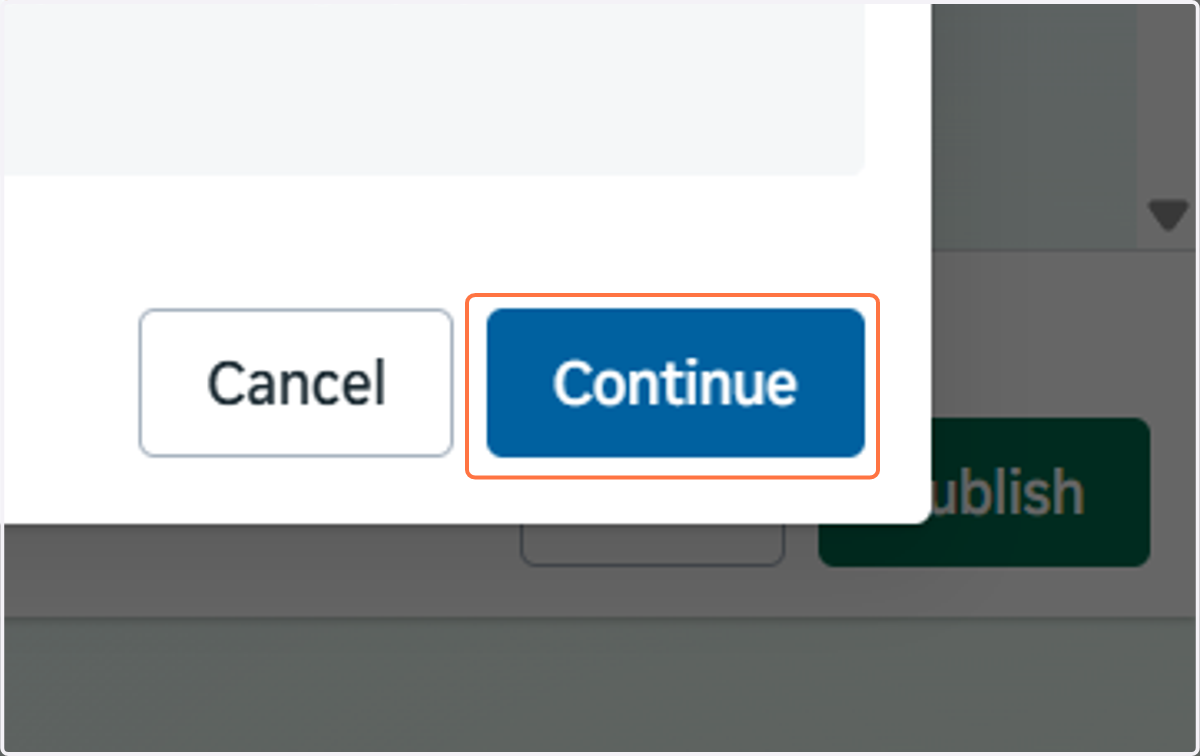
31. Click on Continue
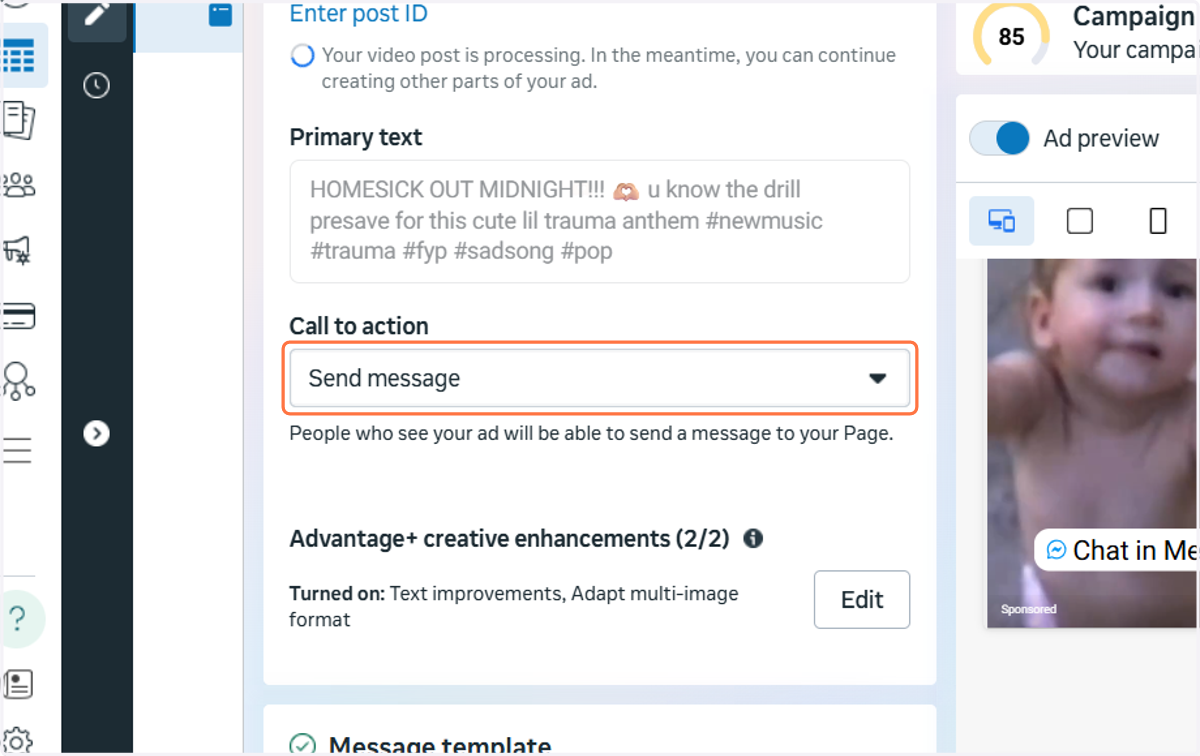
32. Click on the dropdown underneath 'Call to action'
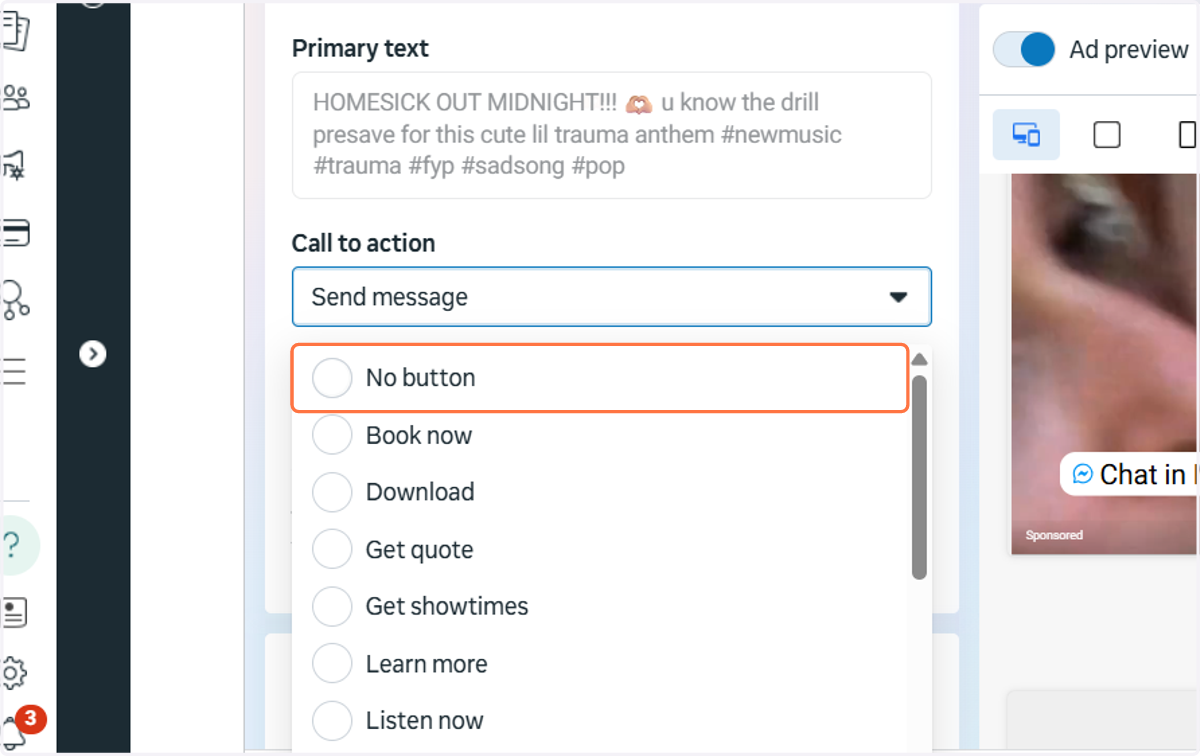
Meta often defaults to 'Send message' here, but with an awareness campaign, you probably want to choose 'No button' as you're not trying to get viewers to do anything beyond watching the video
33. Click on No button
34. Delete anything from the 'Website URL (required)' field
This is another place where Meta sometimes adds some kind of default
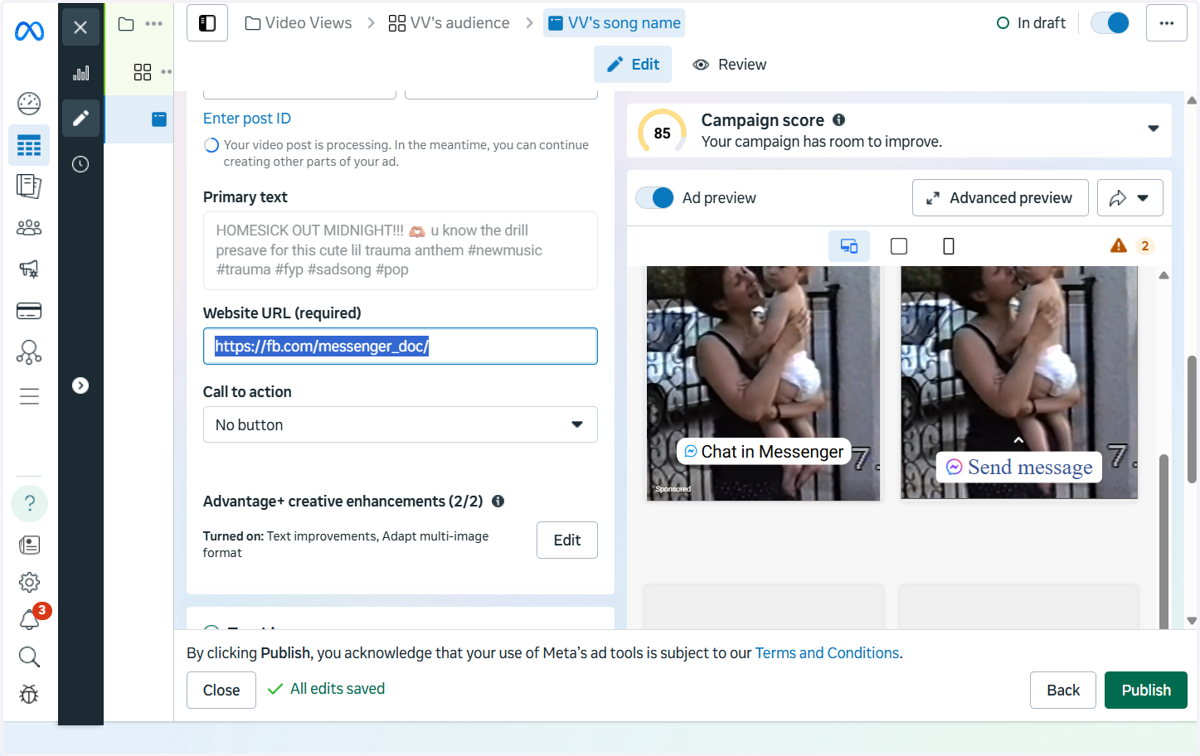
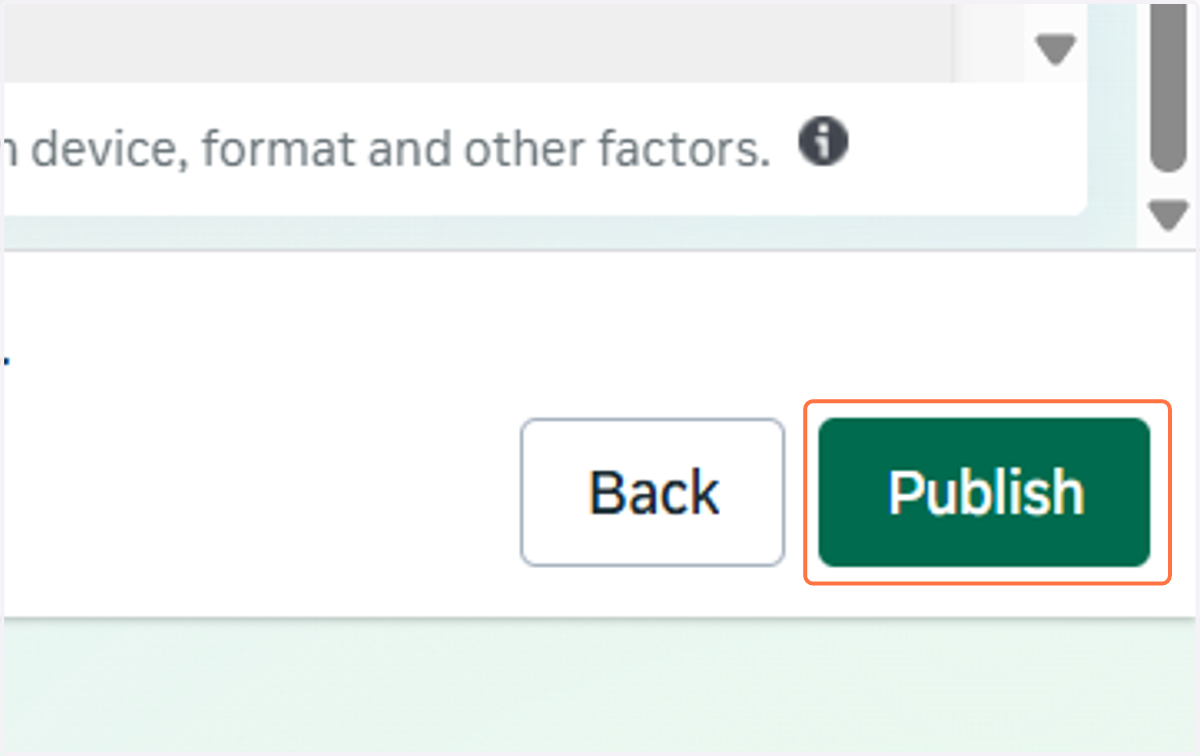
35. Click on Publish
That's it! You're done. You should have an awareness campaign live in a couple of hours once your campaign has passed through Meta's review process.
If you get stuck at any point, please feel free to reach out on WhatsApp here, on email at rich@amplifyr.co.uk, or book a quick call here so we can go through it together.