Create a Seed Component

Chateau

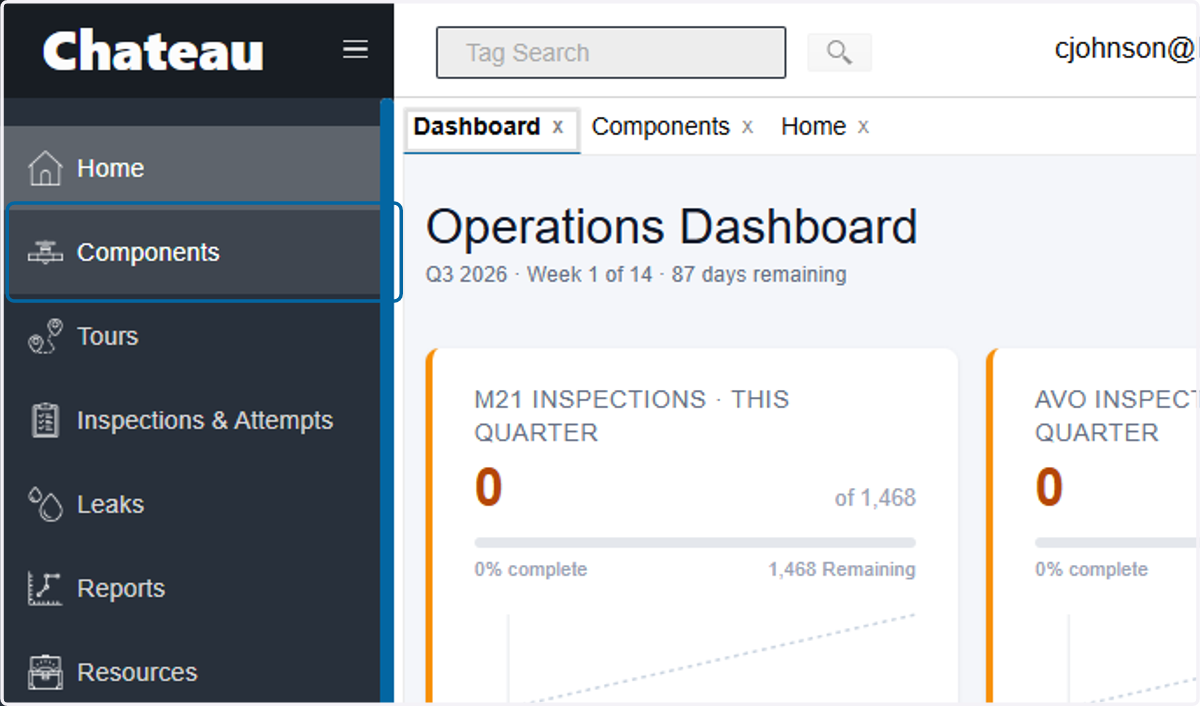
  1. 1. Click on Components

    Click on Components
  2. 2. Click on Add Component from Scratch
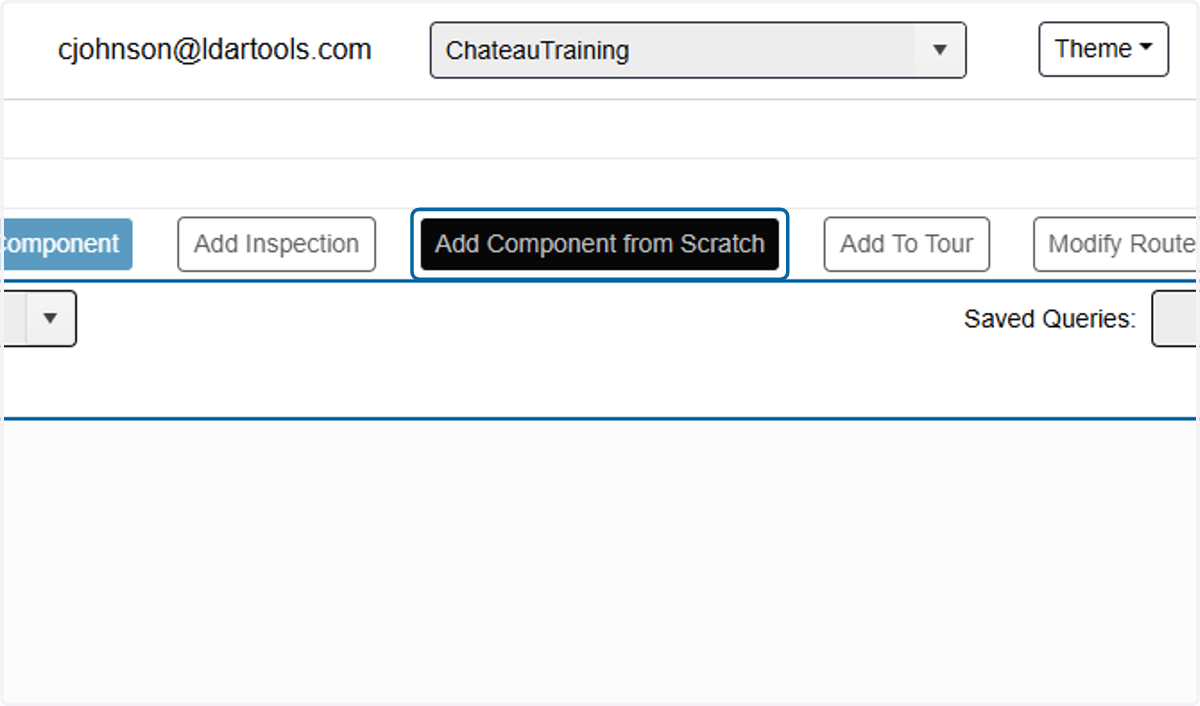
    Click on Add Component from Scratch
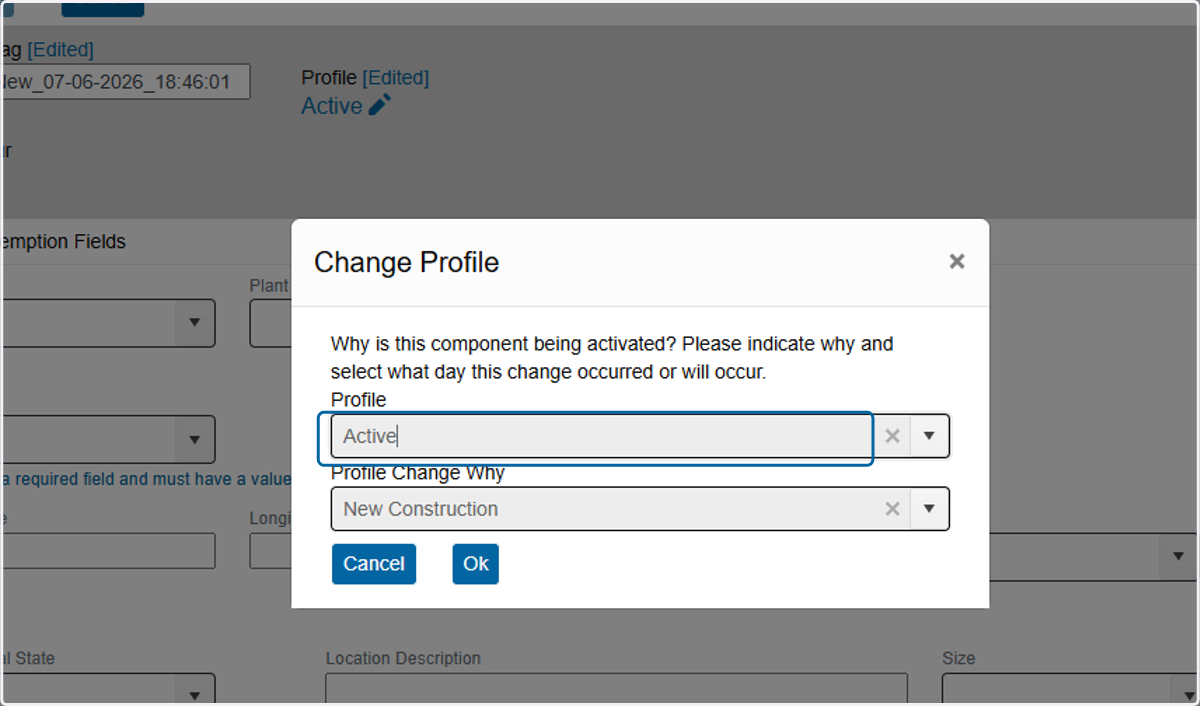
  3. 3. Choose Active as the Profile

    Choose Active as the Profile
  4. 4. Select an option for why you are adding the new components
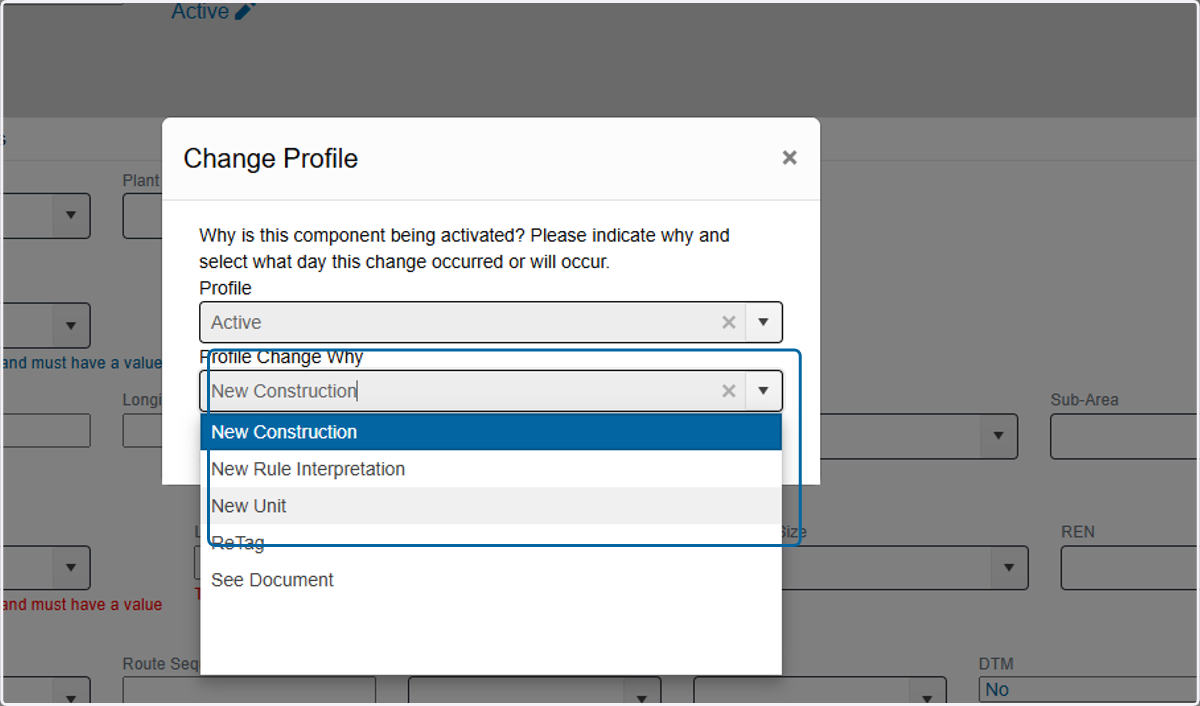
    Select an option for why you are adding the new components
  5. 5. Update the Tag name to anything you want. This is a throwaway tag that will be deleted later.
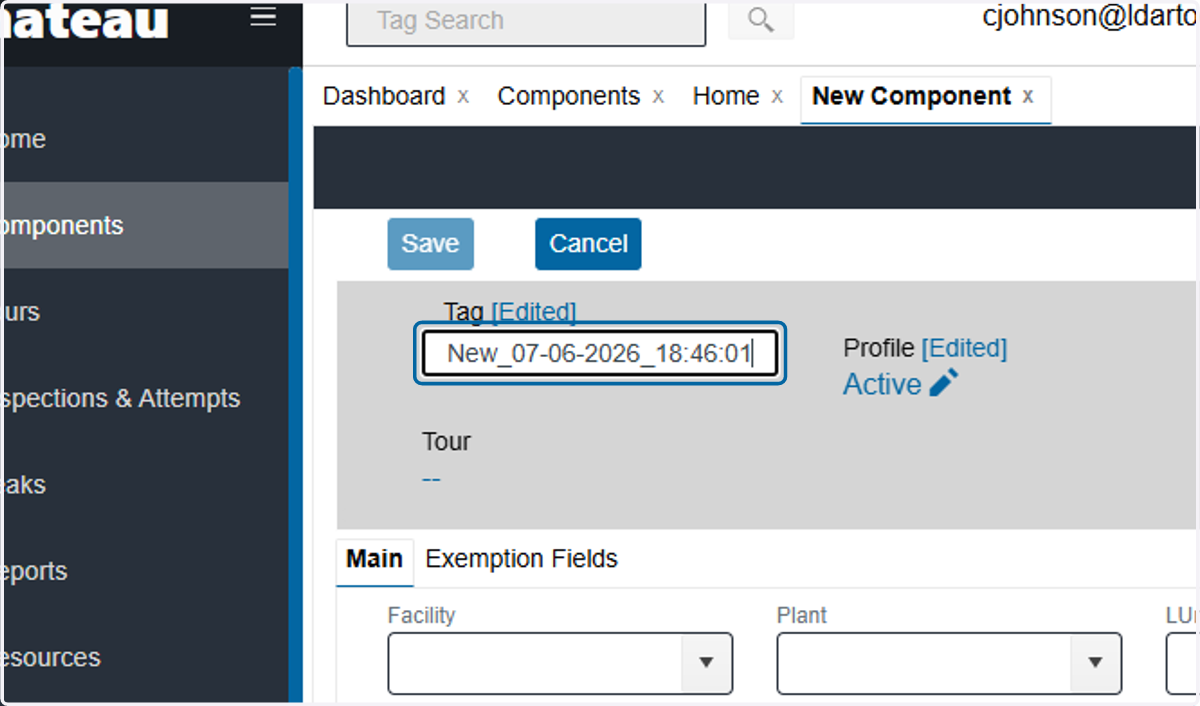
    Update the Tag name to anything you want. This is a throwaway tag that will be deleted later.
    1. 6. A. Fill in required fields plus any others that may help later.

    2. 6. B. Type Tag [Edited]

    3. 6. C. Click on Open

    4. 6. D. Select an option

    A. Fill in required fields plus any others that may help later. B. Type Tag [Edited] C. Click on Open D. Select an option
  6. 7. We recommend choosing the most common options.
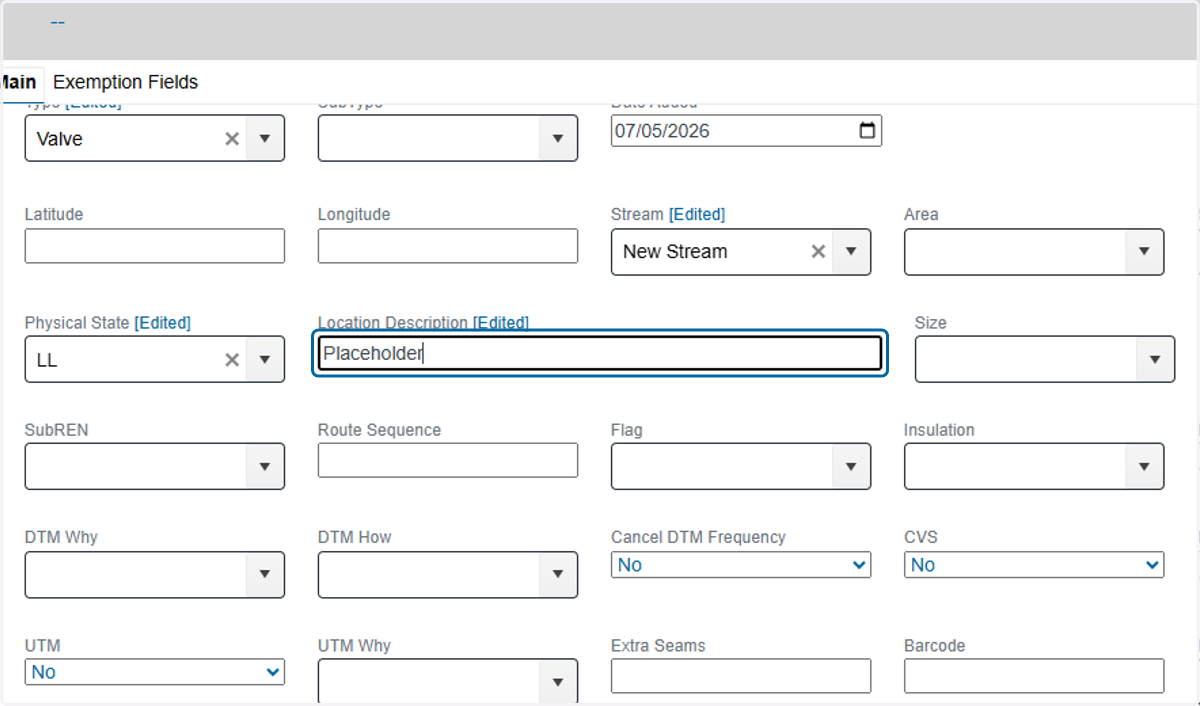
    We recommend choosing the most common options.
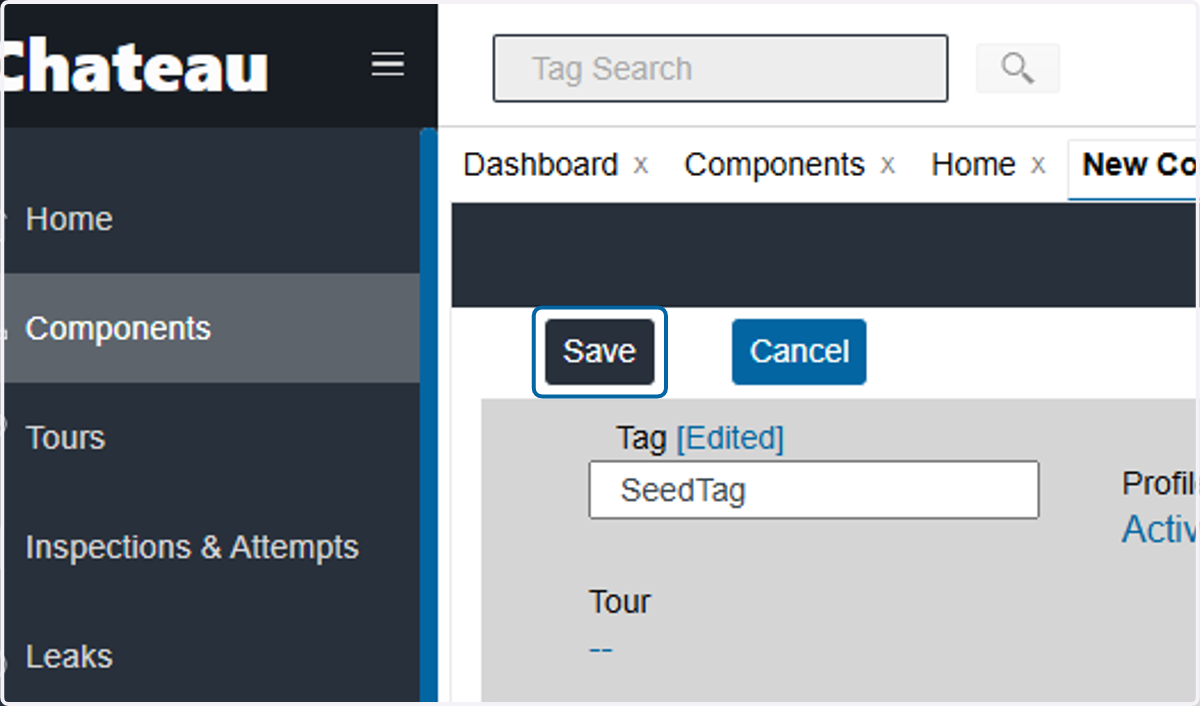
  7. 8. Click on Save when done.

    Click on Save when done.
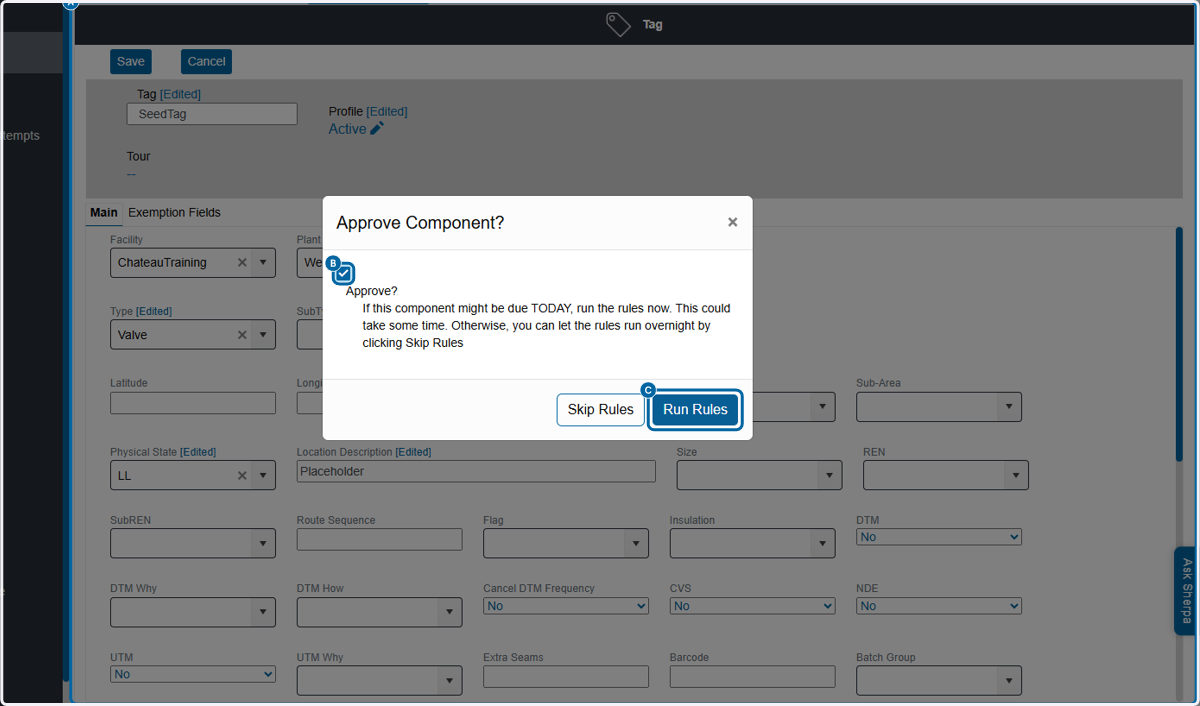
    1. 9. A. Check the box to Approve the component and Run the Rules so it can be placed in a tour right away.

    2. 9. B. Select checkbox

    3. 9. C. Click on Run Rules

    A. Check the box to Approve the component and Run the Rules so it can be placed in a tour right away. B. Select checkbox C. Click on Run Rules
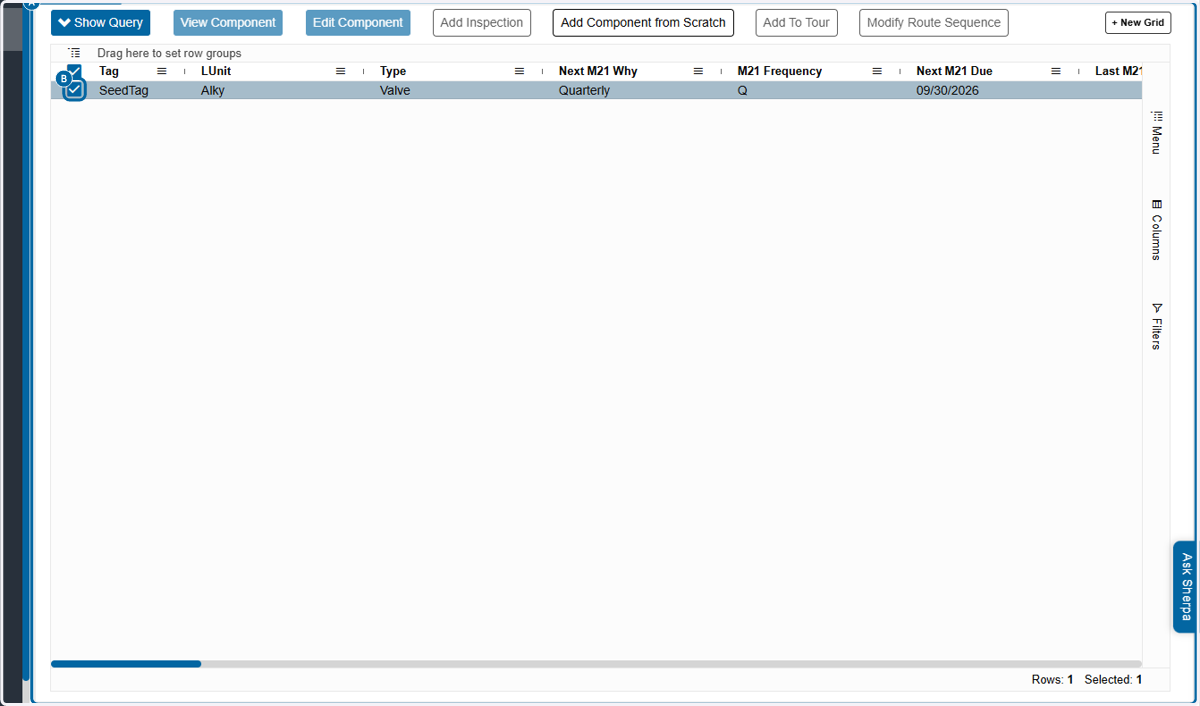
    1. 10. A. Find the component in the Component grid.

    2. 10. B. Select checkbox

    A. Find the component in the Component grid. B. Select checkbox
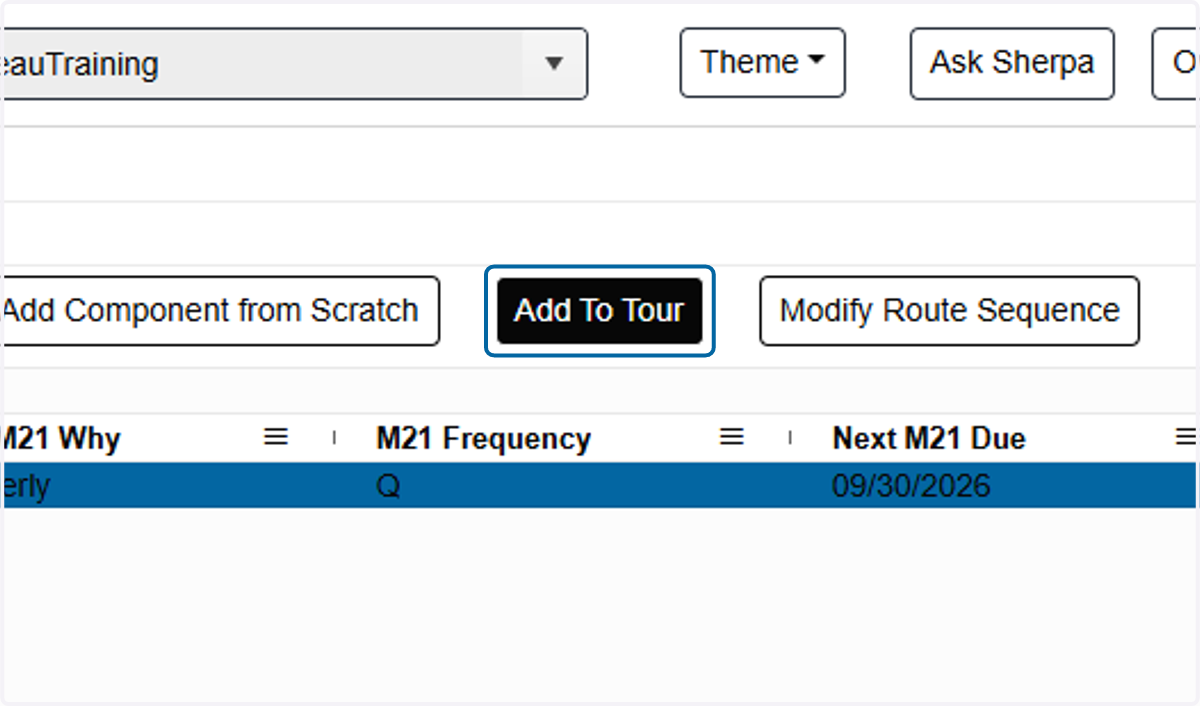
  8. 11. Click on Add To Tour

    Click on Add To Tour
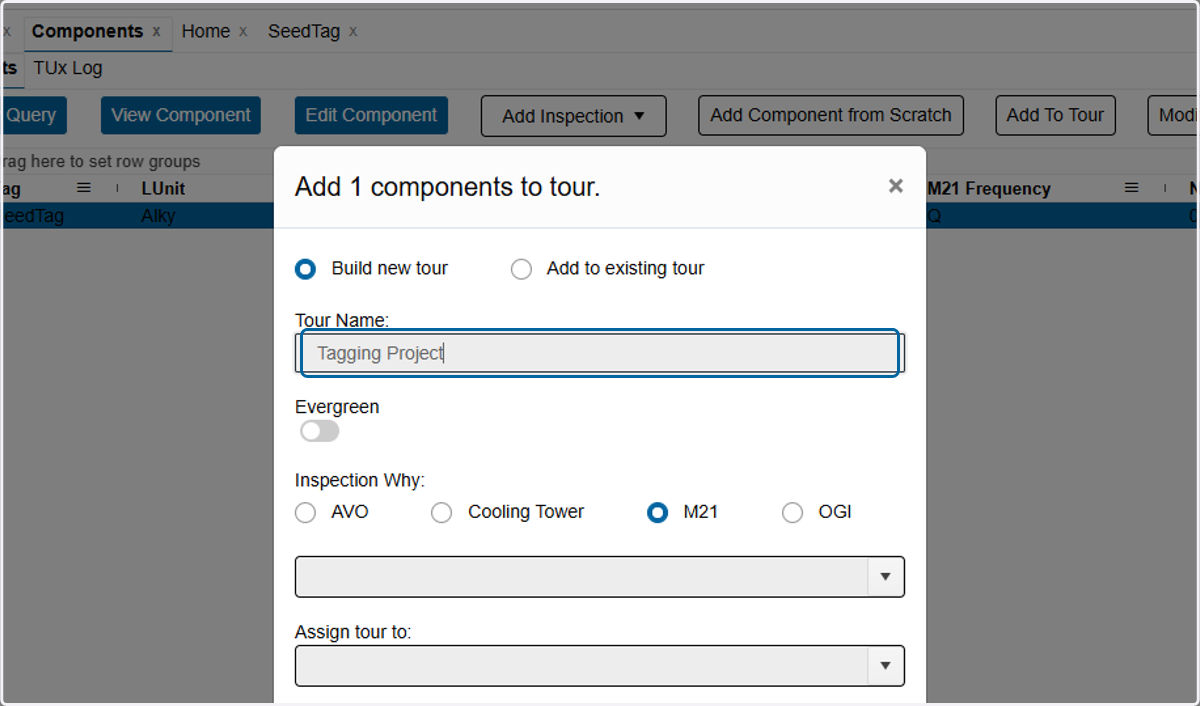
  9. 12. Name the tour

    Name the tour
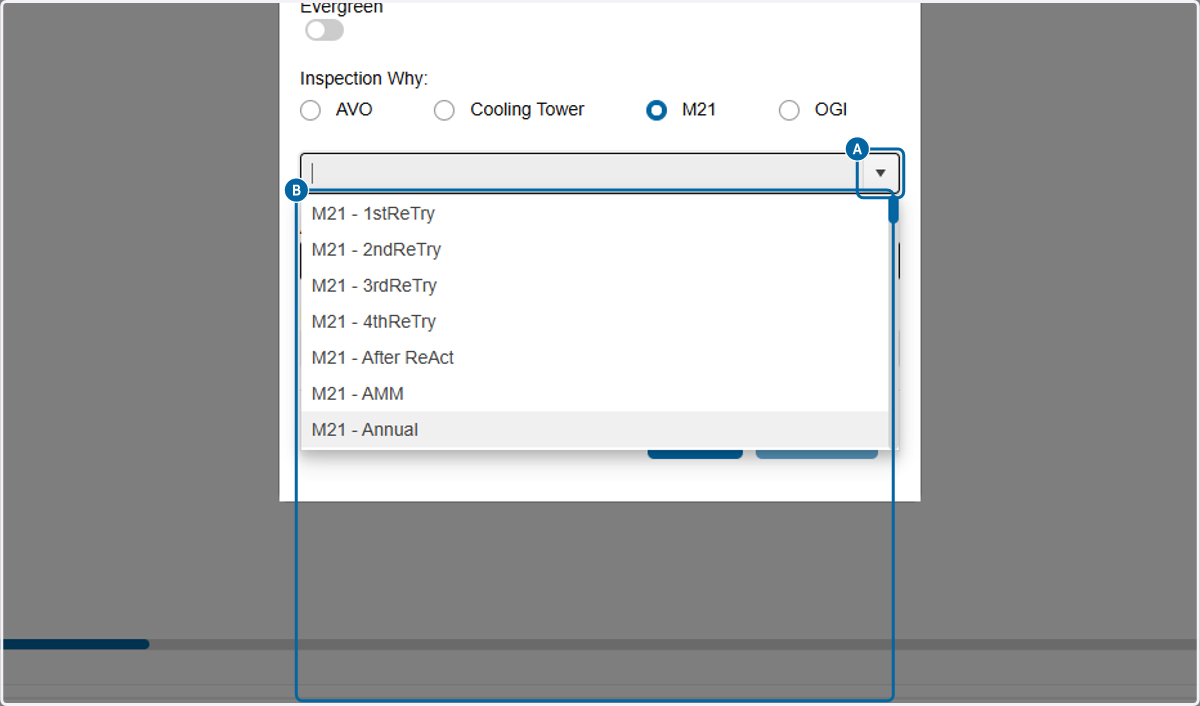
    1. 13. A. Chose any Inspection Why

    2. 13. B. Select an option

    A. Chose any Inspection Why B. Select an option
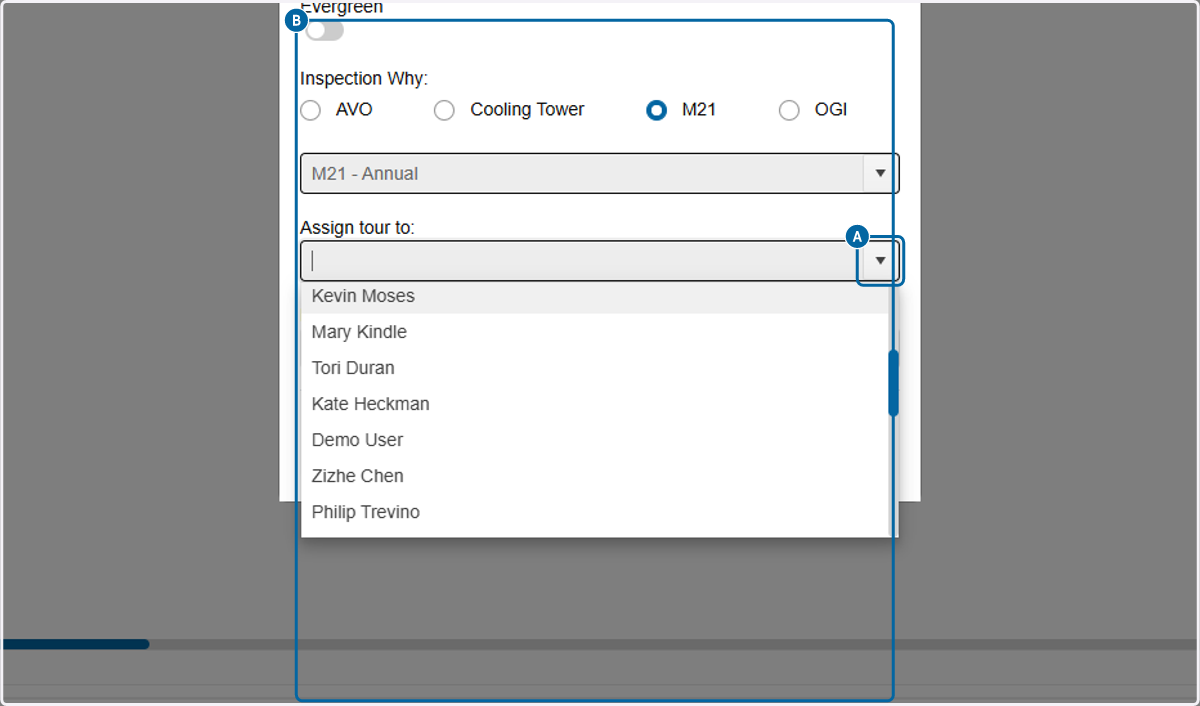
    1. 14. A. Assign the tour to a technician now or later in the Current Tours section.

    2. 14. B. Select an option

    A. Assign the tour to a technician now or later in the Current Tours section. B. Select an option
  10. 15. Choose a due date that is far into the future so the tour does not get removed automatically.
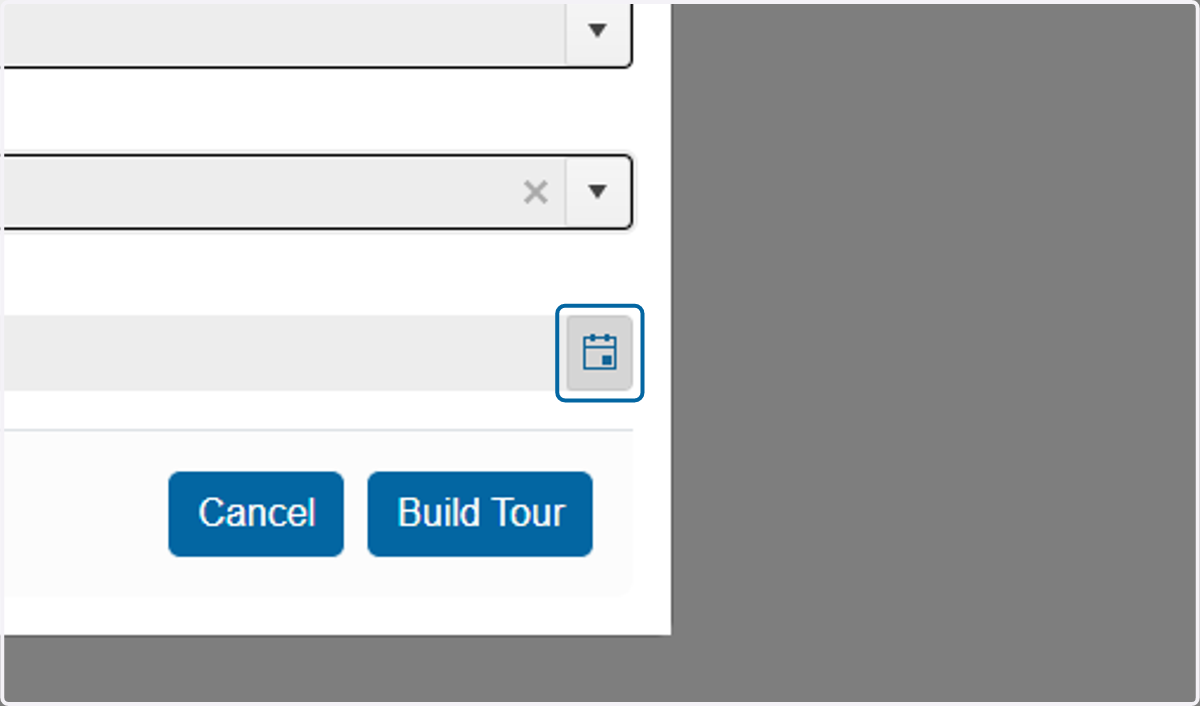
    Choose a due date that is far into the future so the tour does not get removed automatically.
  11. 16. Make sure the tech you want to assign the tour to is registered in Resources / People, and marked as a Suggester and (if preferred) an Approver.
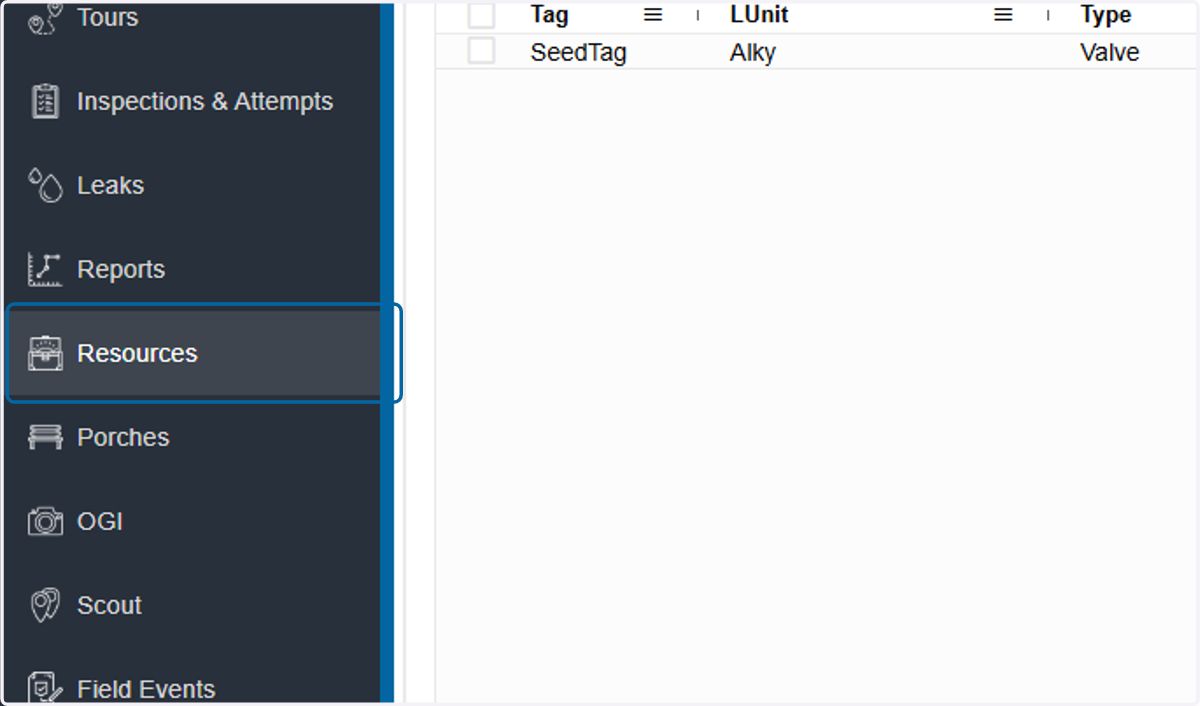
    Make sure the tech you want to assign the tour to is registered in Resources / People, and marked as a Suggester and (if preferred) an Approver.
    1. 17. A. Click on the technician name.

    2. 17. B. A slide out will show on the right side. Check the Roles section for the Suggester role.
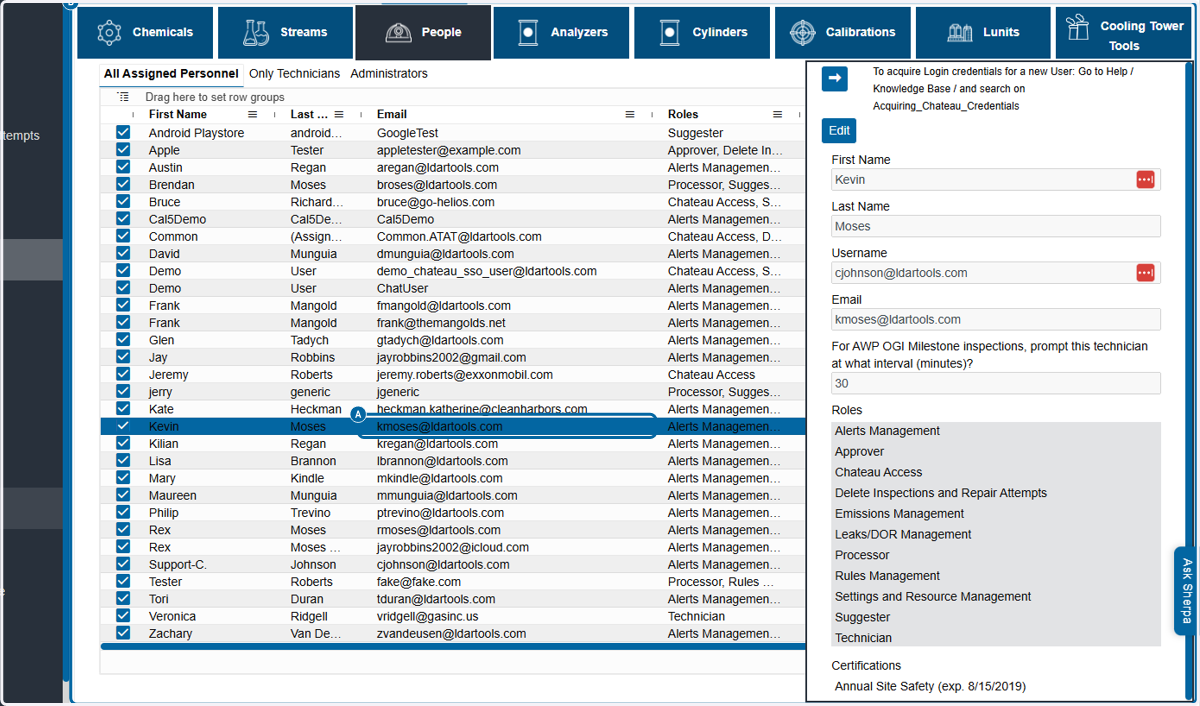
    A. Click on the technician name. B. A slide out will show on the right side. Check the Roles section for the Suggester role.
  12. 18. Go Settings / Chateau Mobile Fields to design which properties you want displayed in Chateau Mobile.
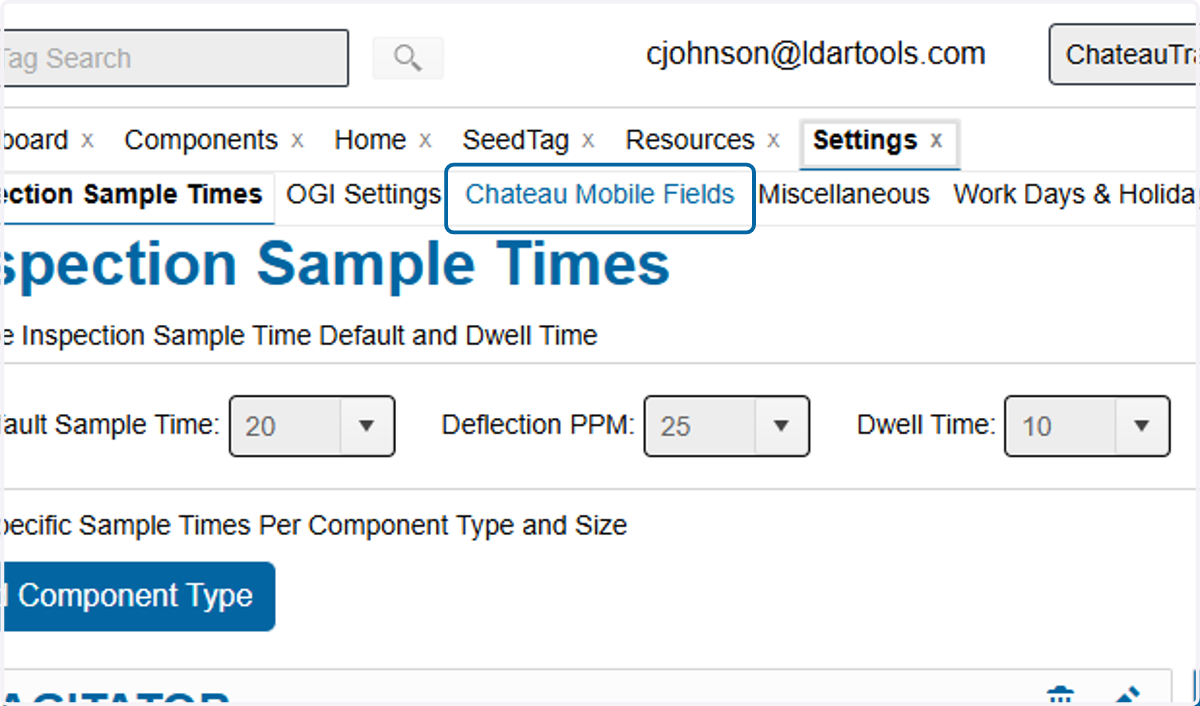
    Go Settings / Chateau Mobile Fields to design which properties you want displayed in Chateau Mobile.