2.2 How to configure cash discount

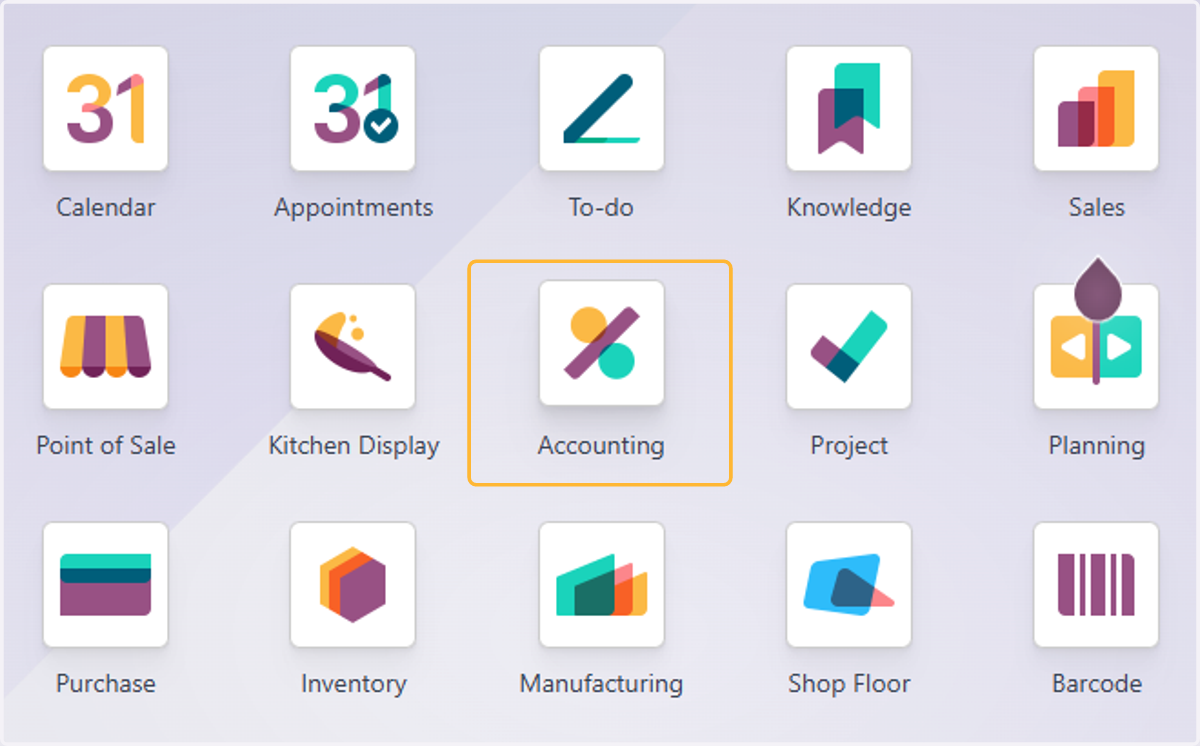
  1. 1. Click on Accounting

    Click on Accounting

Odoo

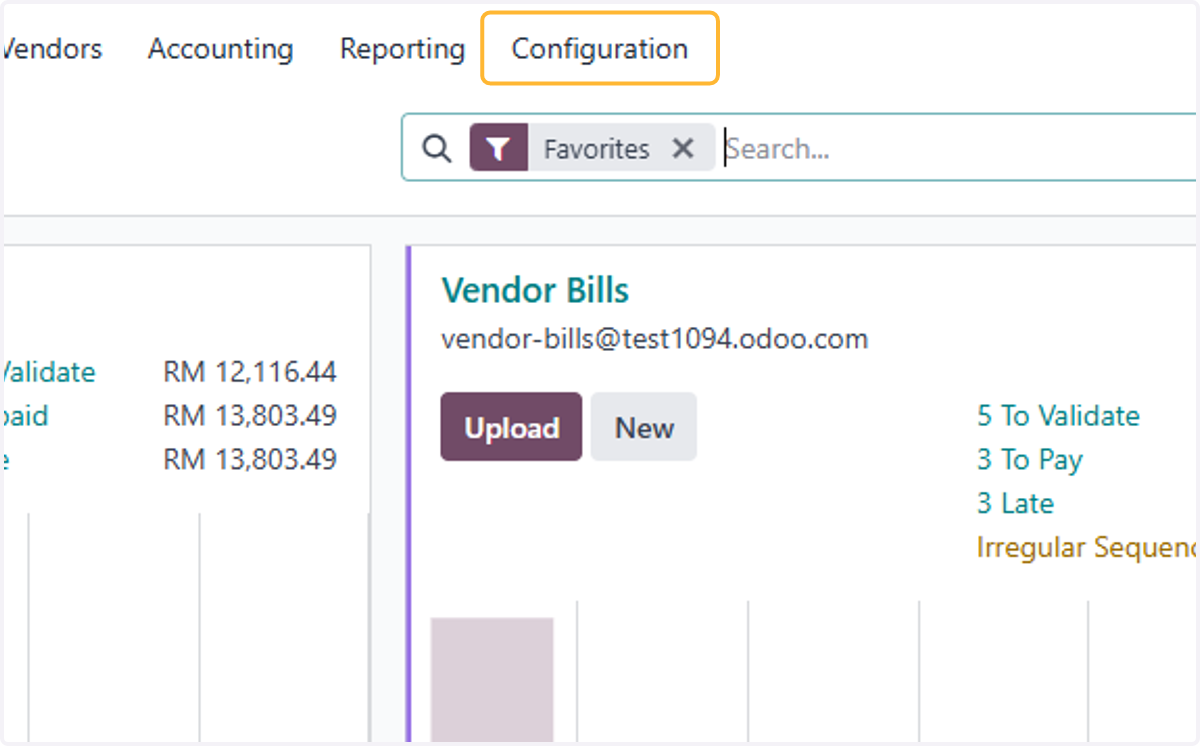
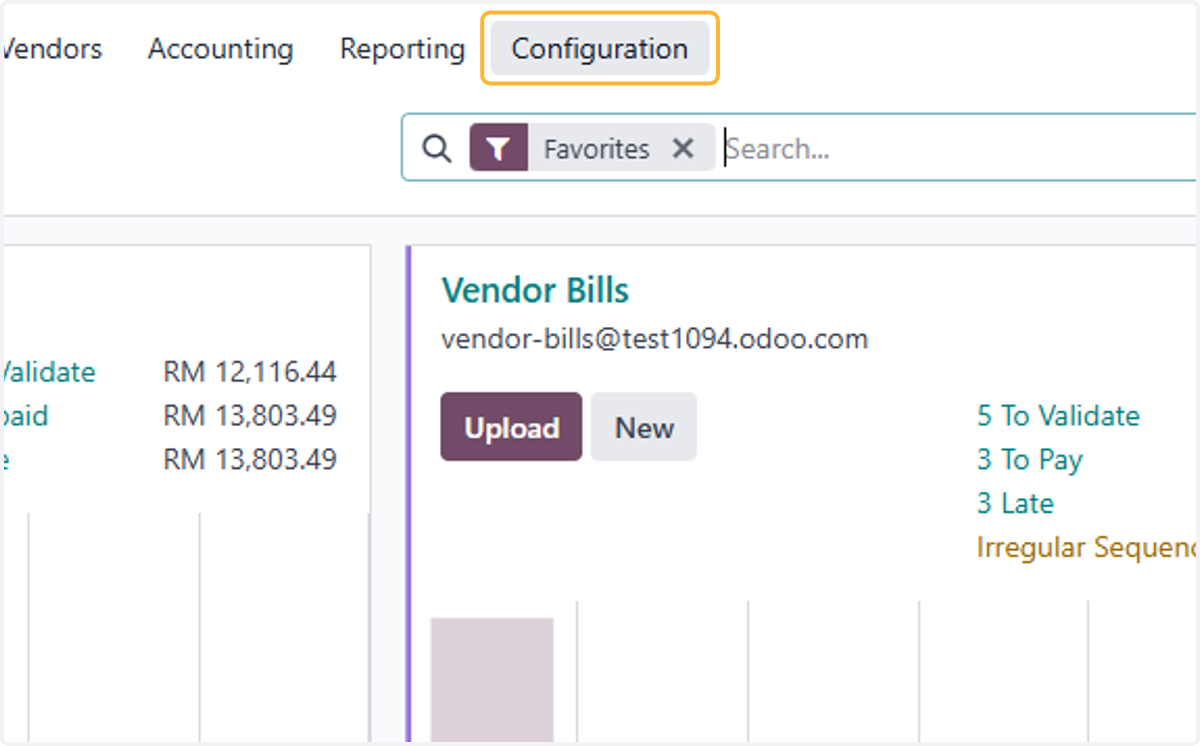
  1. 2. Click on Configuration

    Click on Configuration
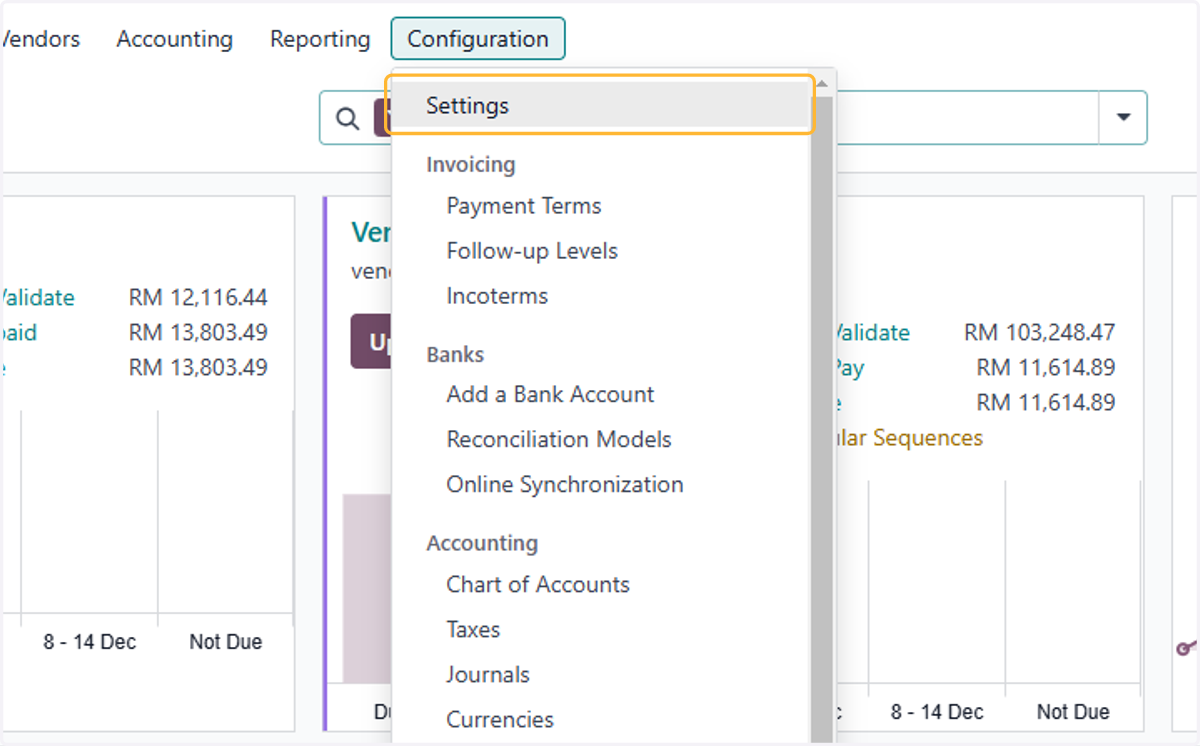
  2. 3. Click on Settings

    Click on Settings
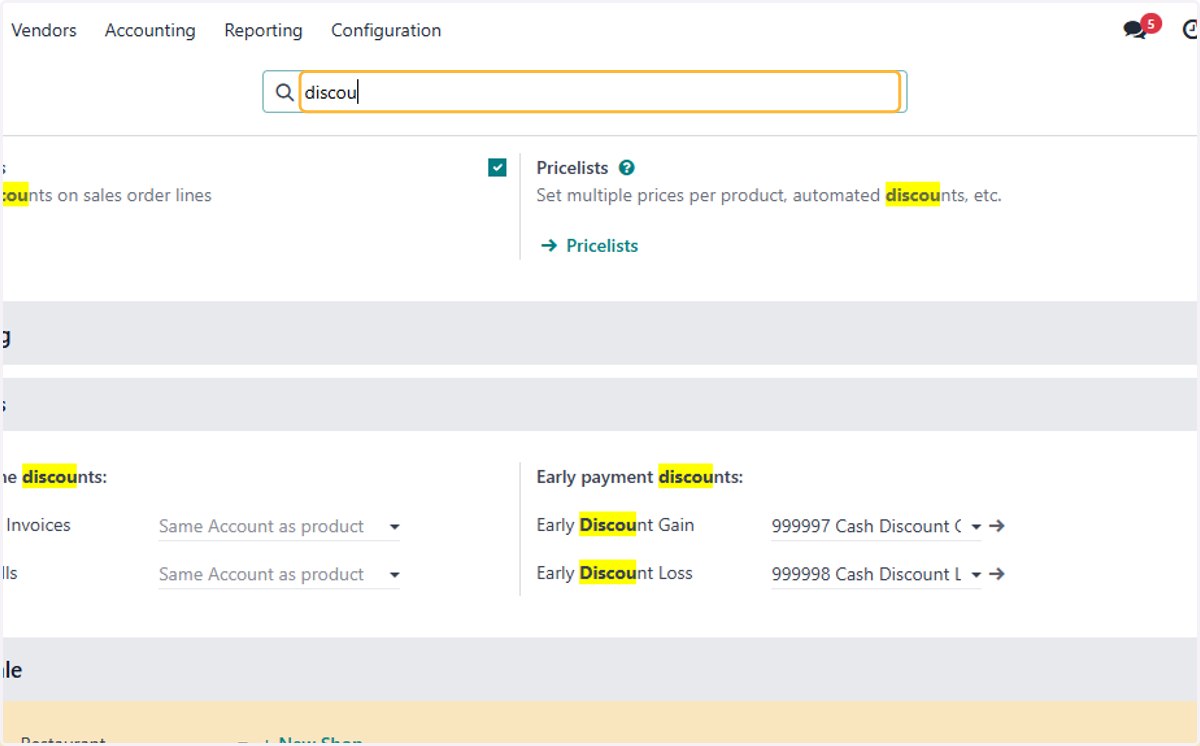
  3. 4. Search "discount"

    Search "discount"
  4. 5. By default, accounts for Cash Discount Gain & Cash Discount Loss is created & set. Amend the accounts if necessary.
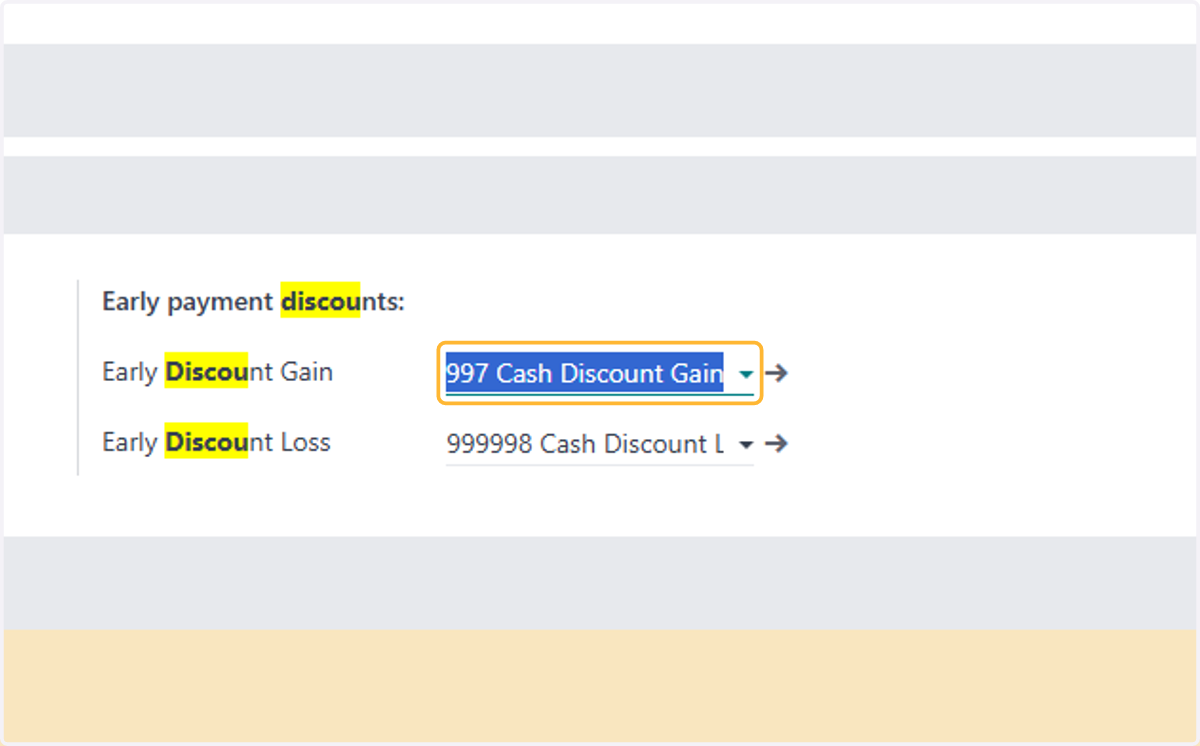
    By default, accounts for Cash Discount Gain & Cash Discount Loss is created & set. Amend the accounts if necessary.
  5. 6. Click on Configuration

    Click on Configuration
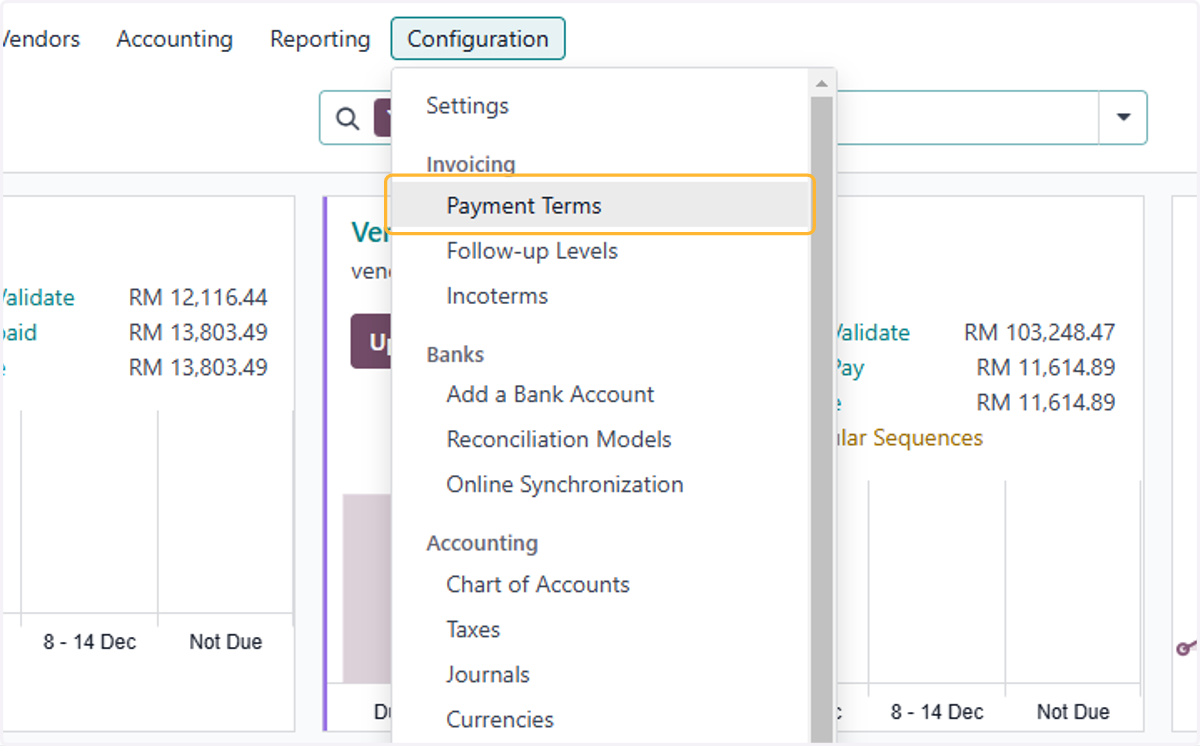
  6. 7. Click on Payment Terms

    Click on Payment Terms
  7. 8. Select relevant Payment terms. For example, select 2/7 Net 30
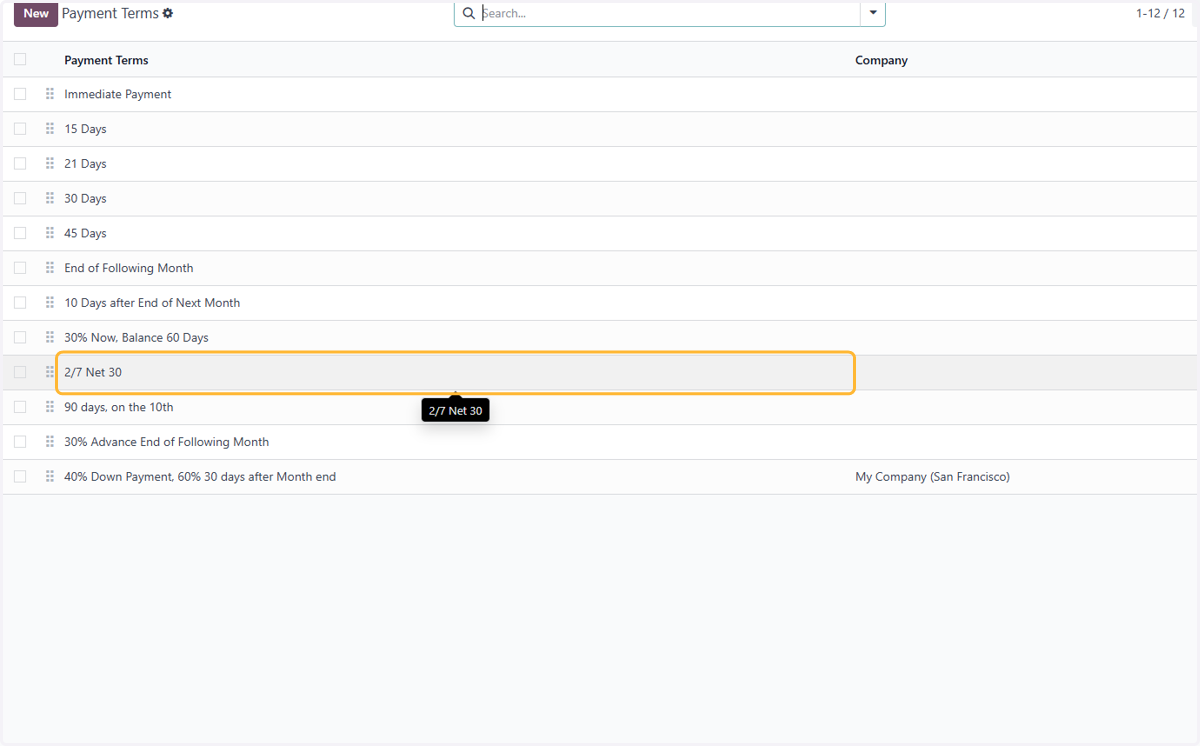
    Select relevant Payment terms. For example, select 2/7 Net 30
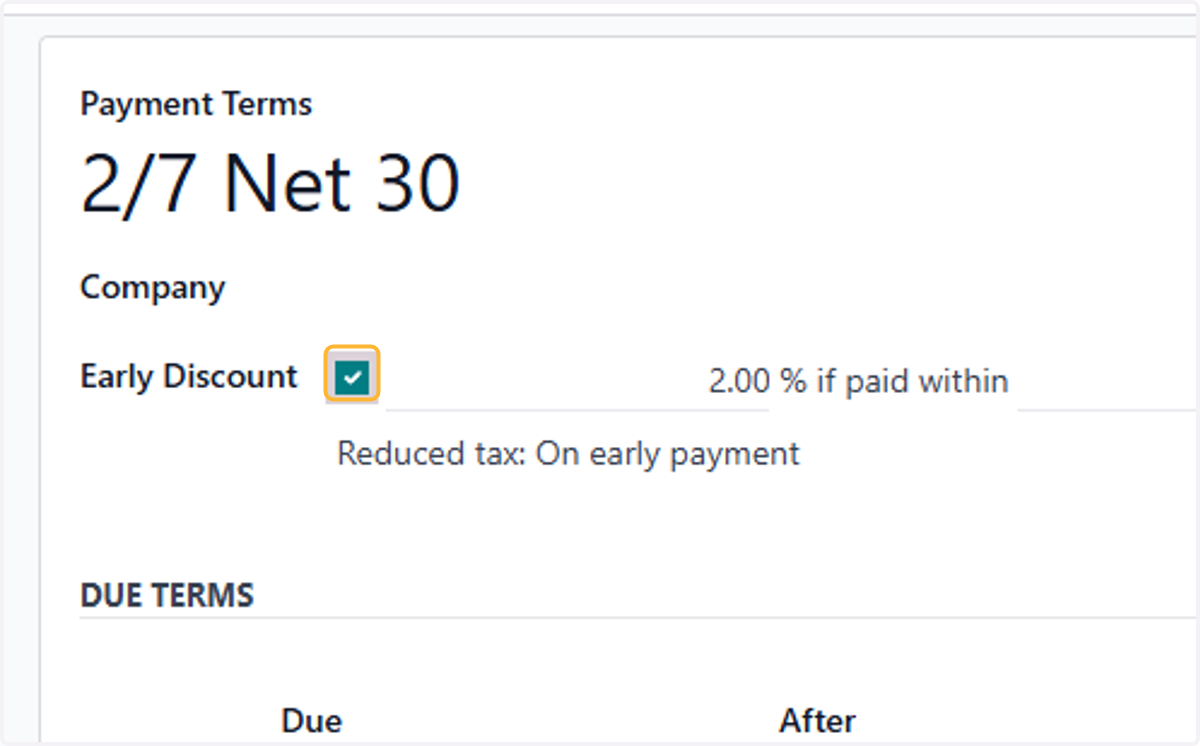
  8. 9. Check Early Discount

    Check Early Discount
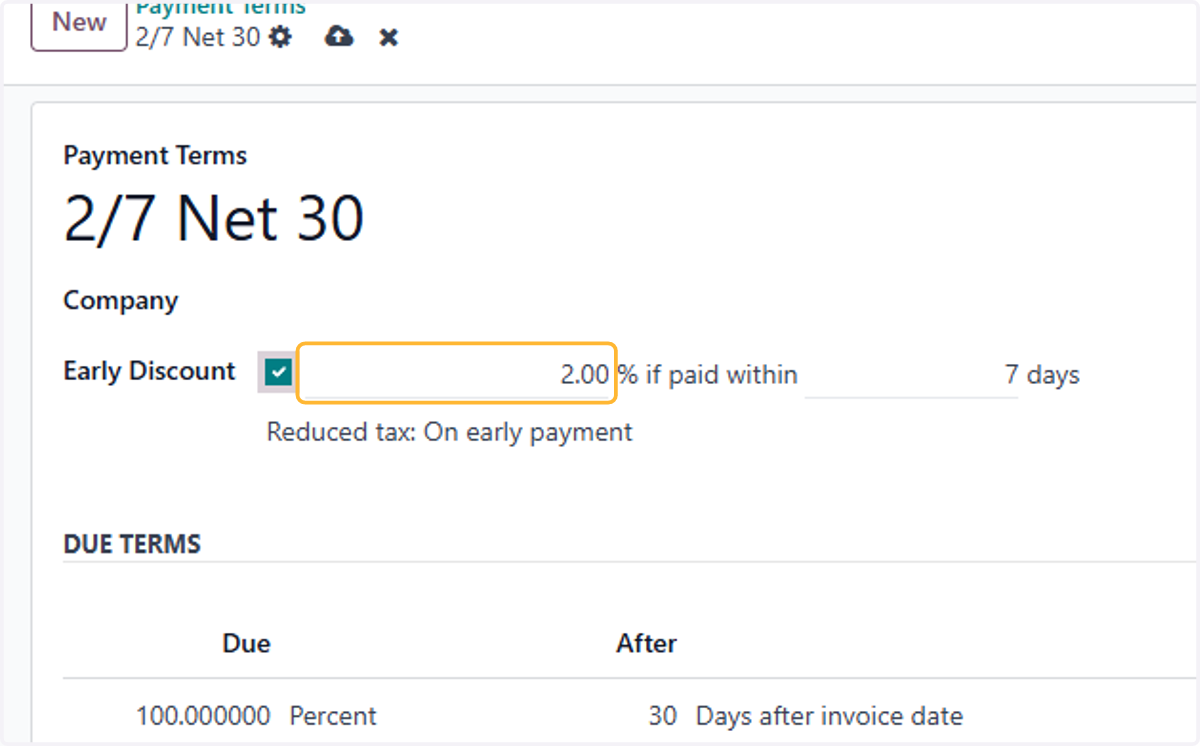
  9. 10. Fill in desired discount percent

    Fill in desired discount percent
  10. 11. Fill in desired days for discount to apply
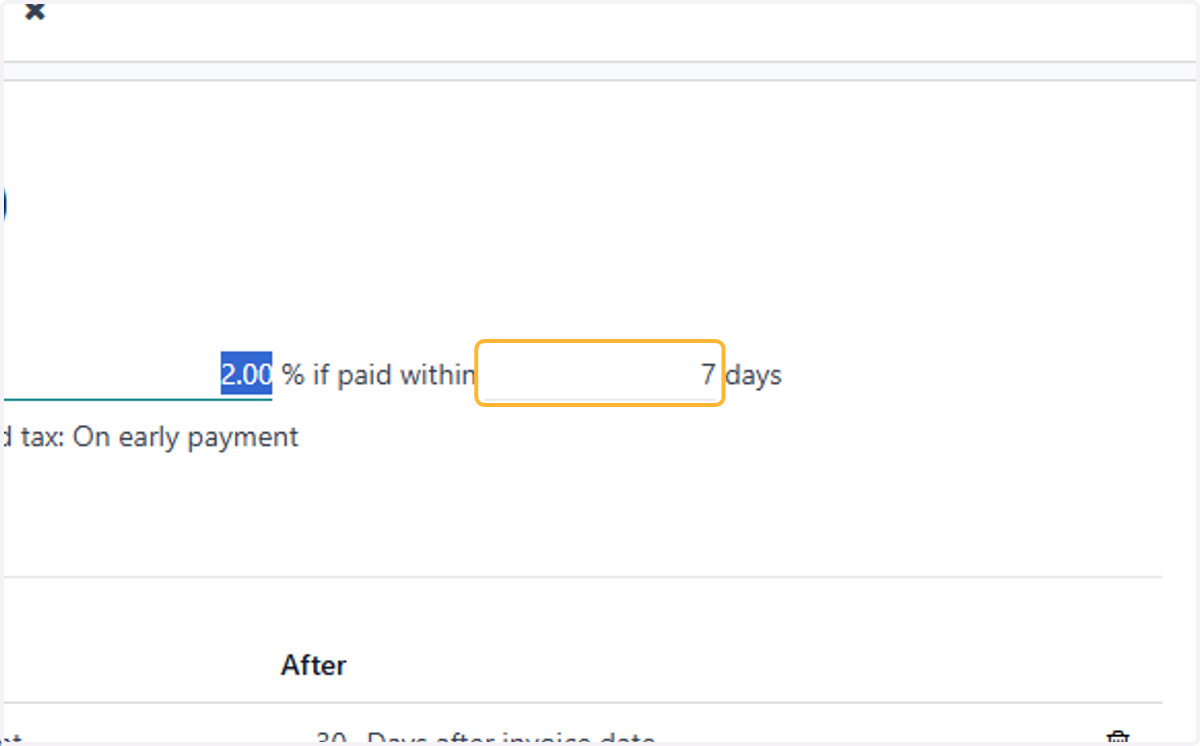
    Fill in desired days for discount to apply
  11. 12. Select "On early payment" for Reduced tax if it applies. Otherwise set to Never
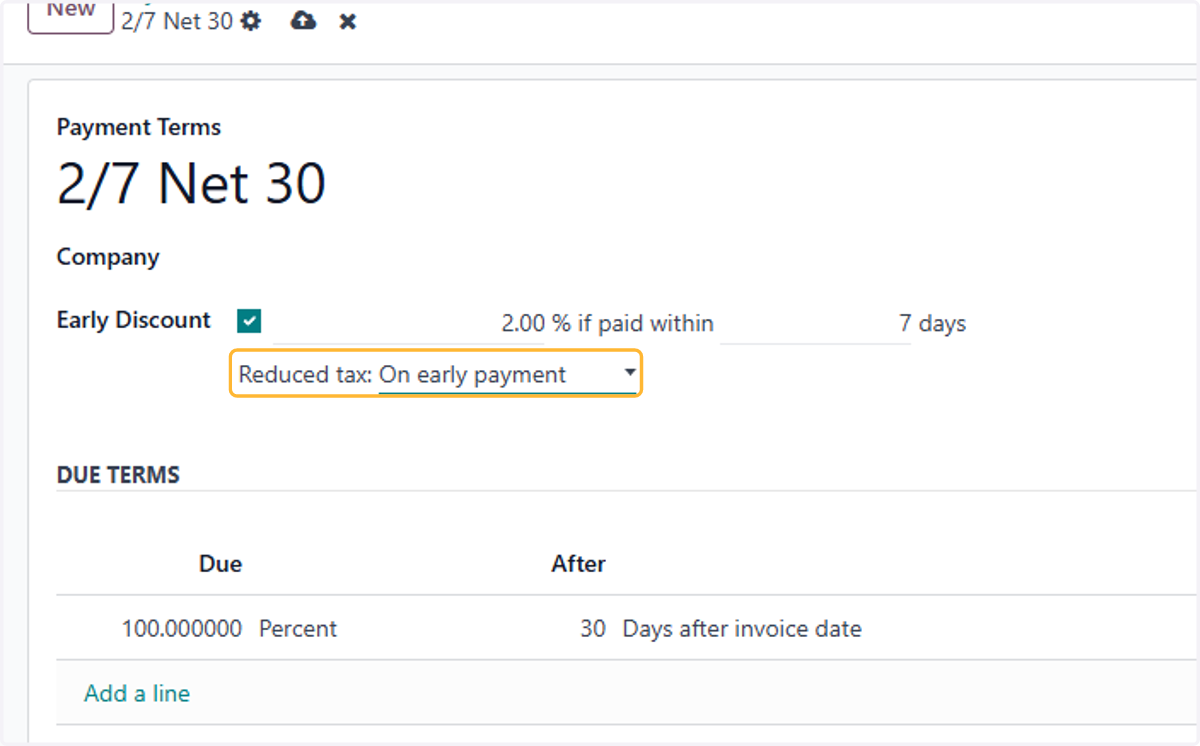
    Select "On early payment" for Reduced tax if it applies. Otherwise set to Never
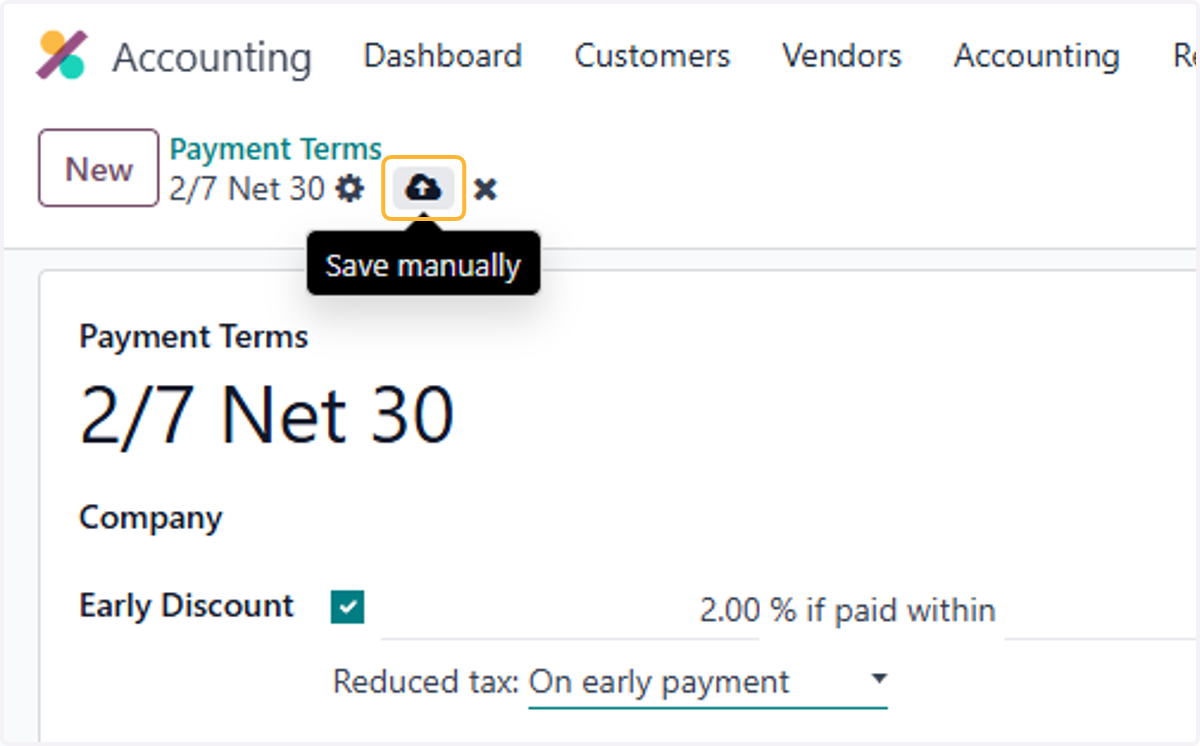
  12. 13. Click on Save manually

    Click on Save manually

Example of Invoice with early discount

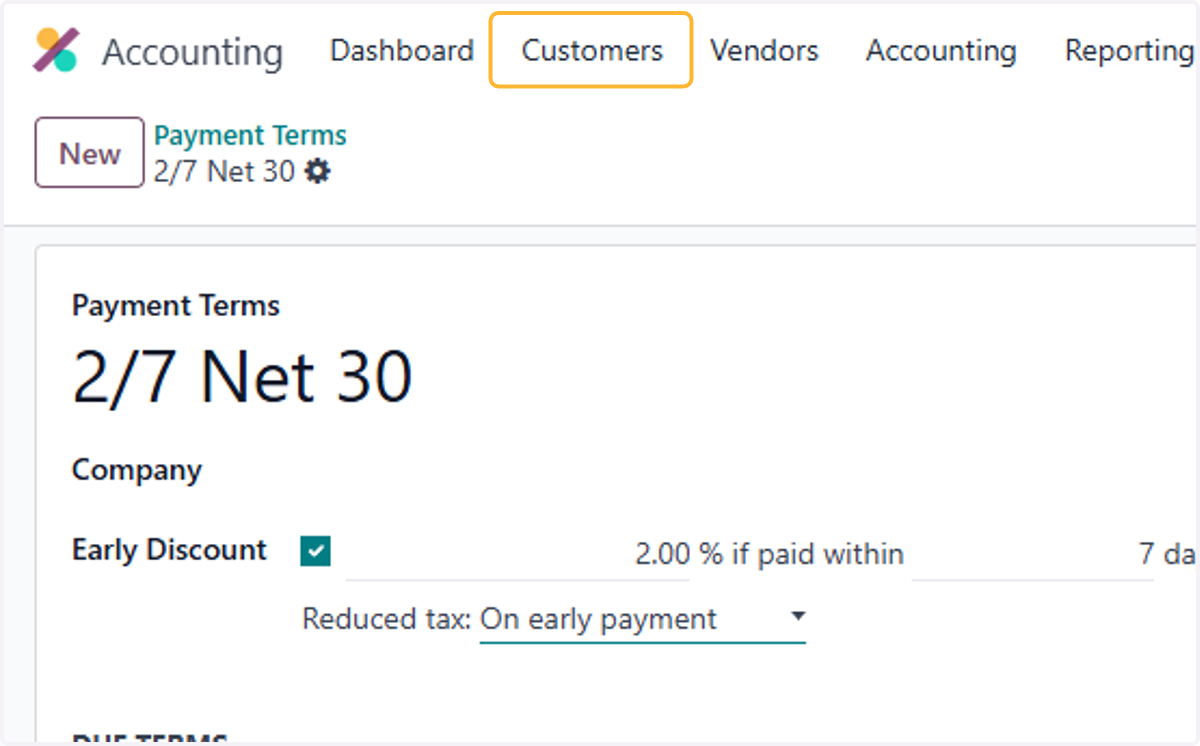
  1. 14. Click on Customers

    Click on Customers
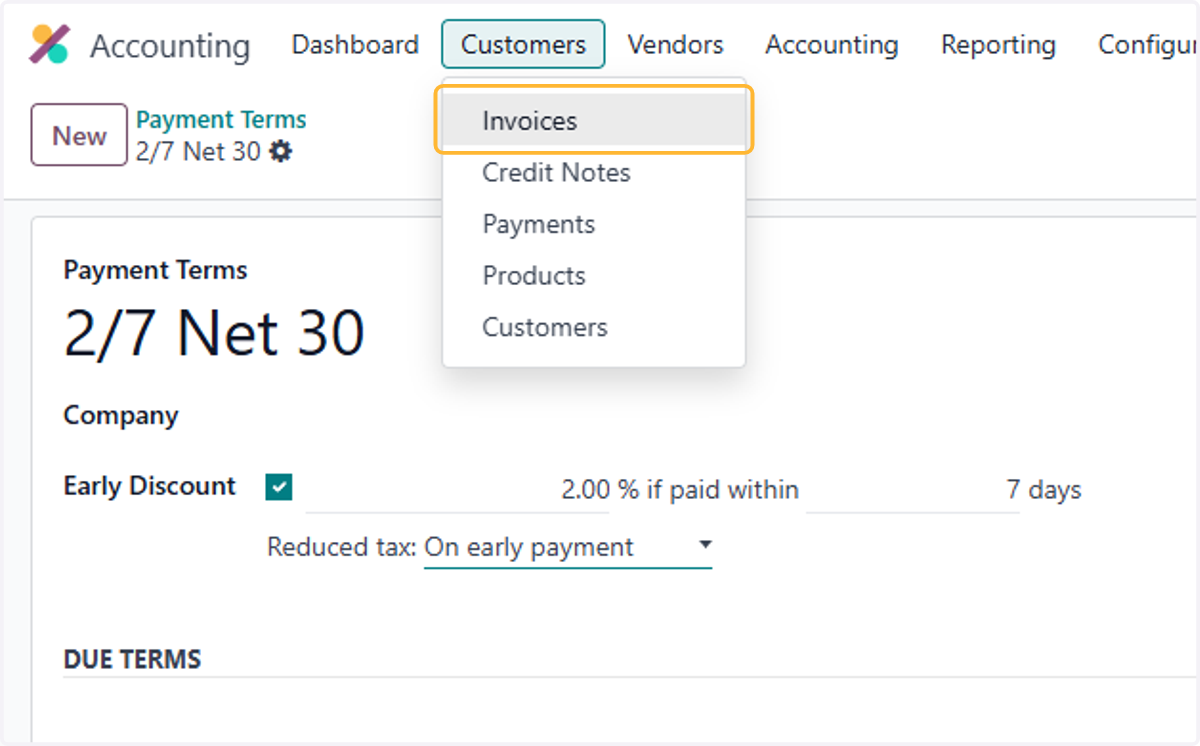
  2. 15. Click on Invoices

    Click on Invoices
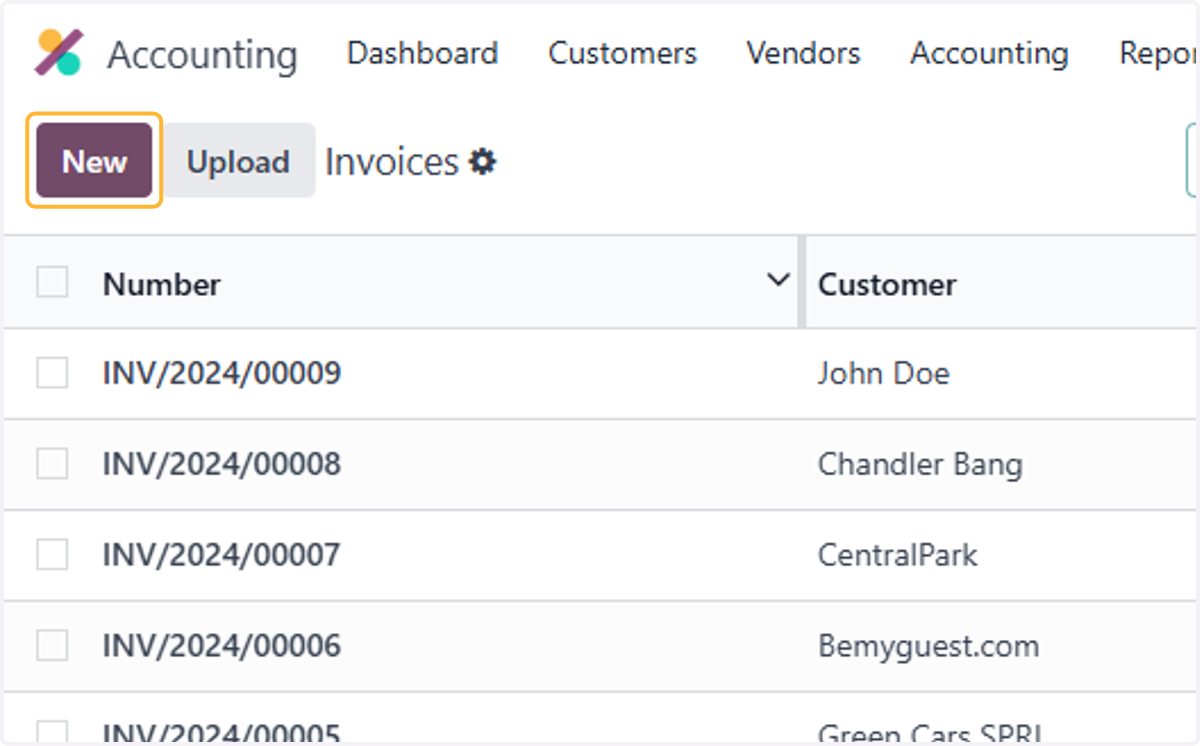
  3. 16. Create a new Invoice

    Create a new Invoice
  4. 17. Select relevant payment terms with cash discount. For example, 2/7 Net 30
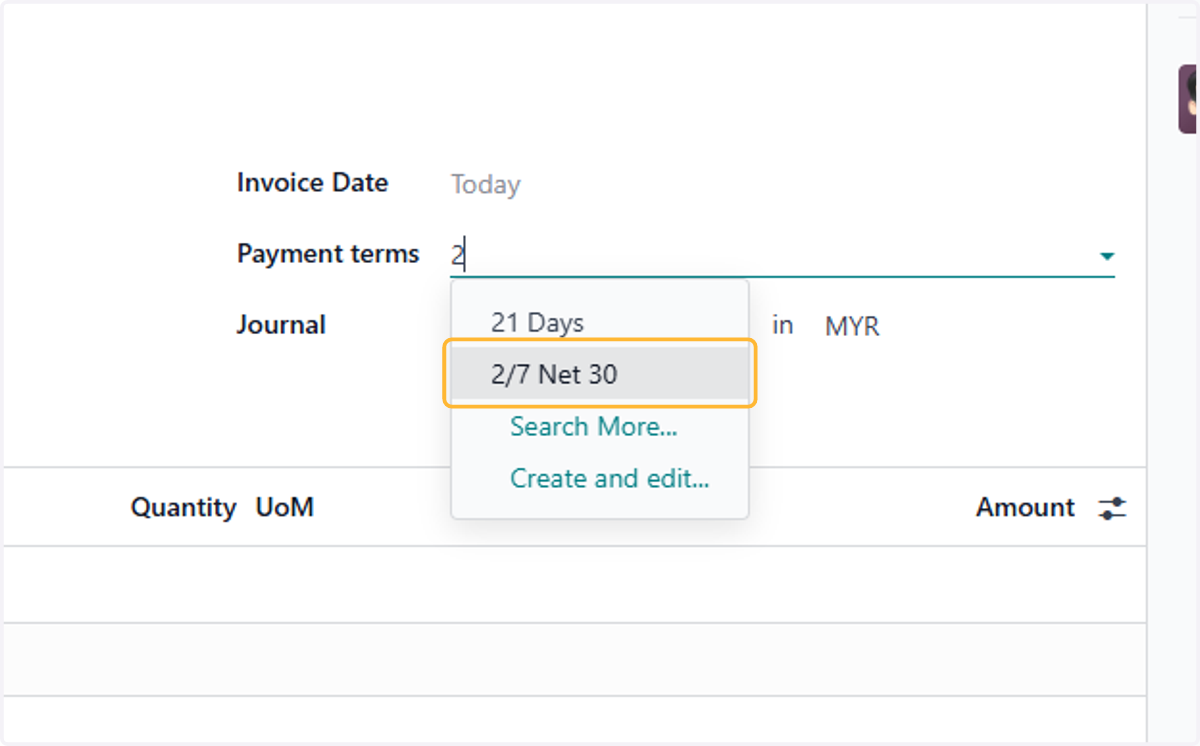
    Select relevant payment terms with cash discount. For example, 2/7 Net 30
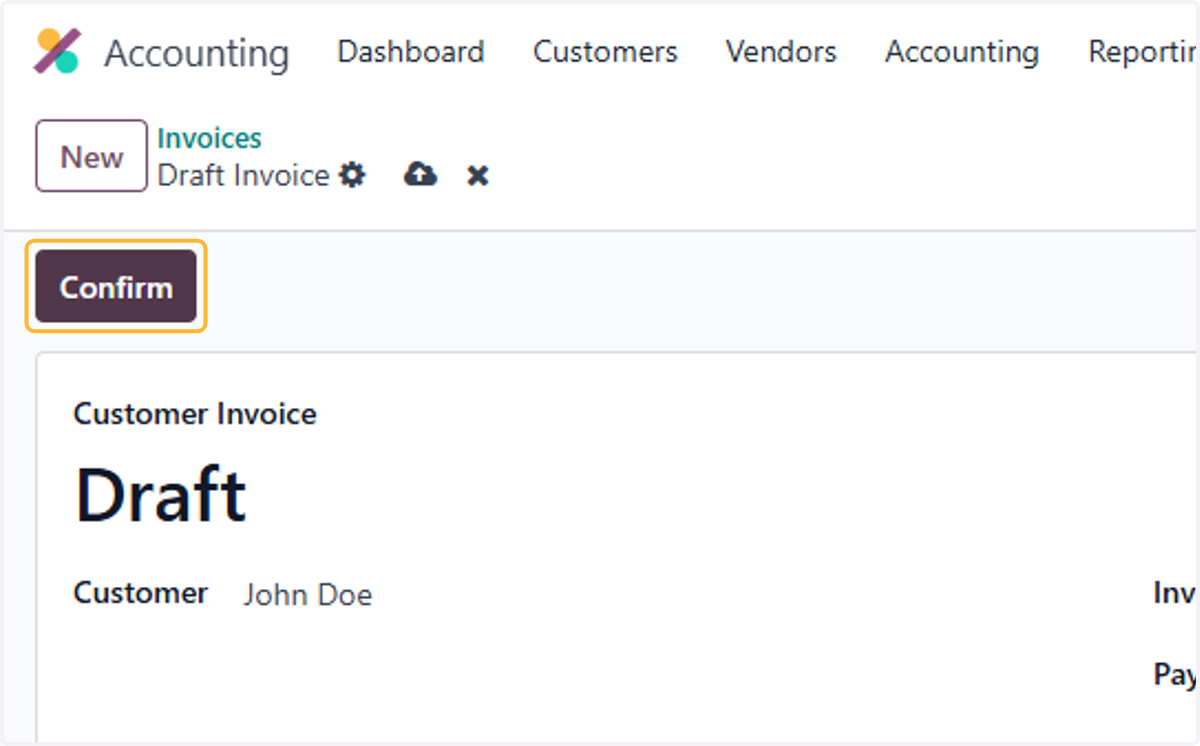
  5. 18. Click on Confirm

    Click on Confirm
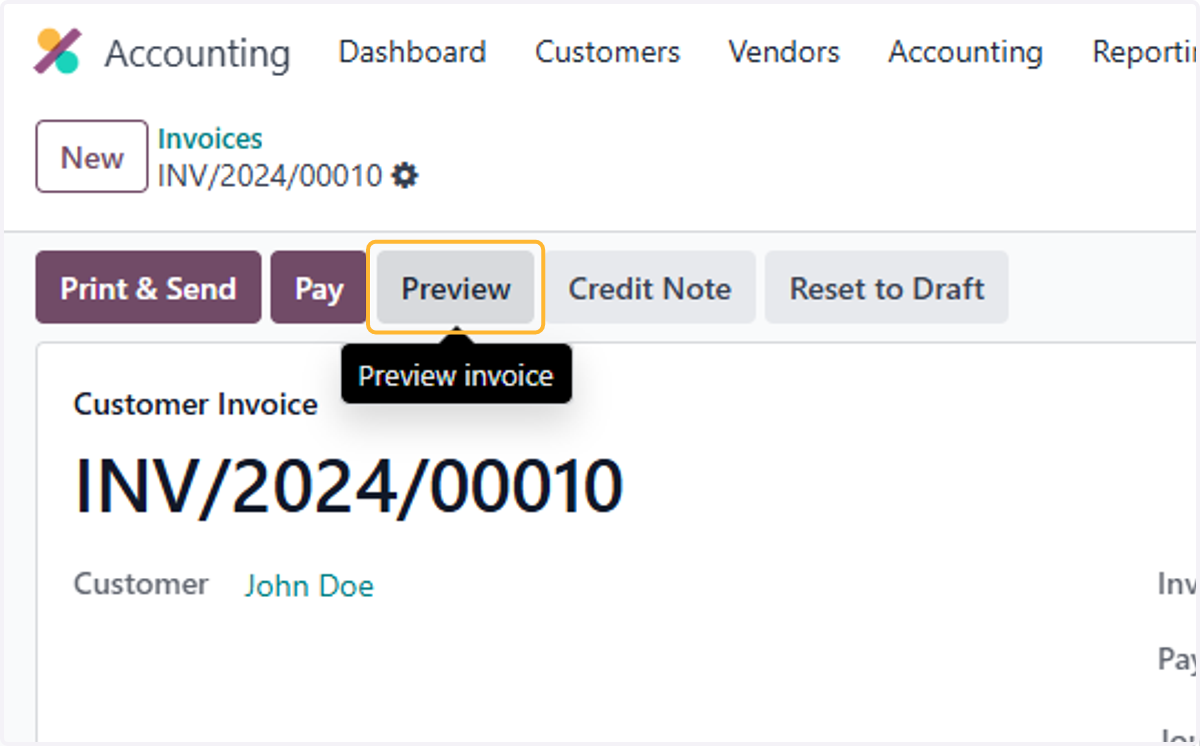
  6. 19. Click on Preview

    Click on Preview
  7. 20. Payment terms: 30 Days, 2% Early Payment Discount under 7 days will be shown in the invoice
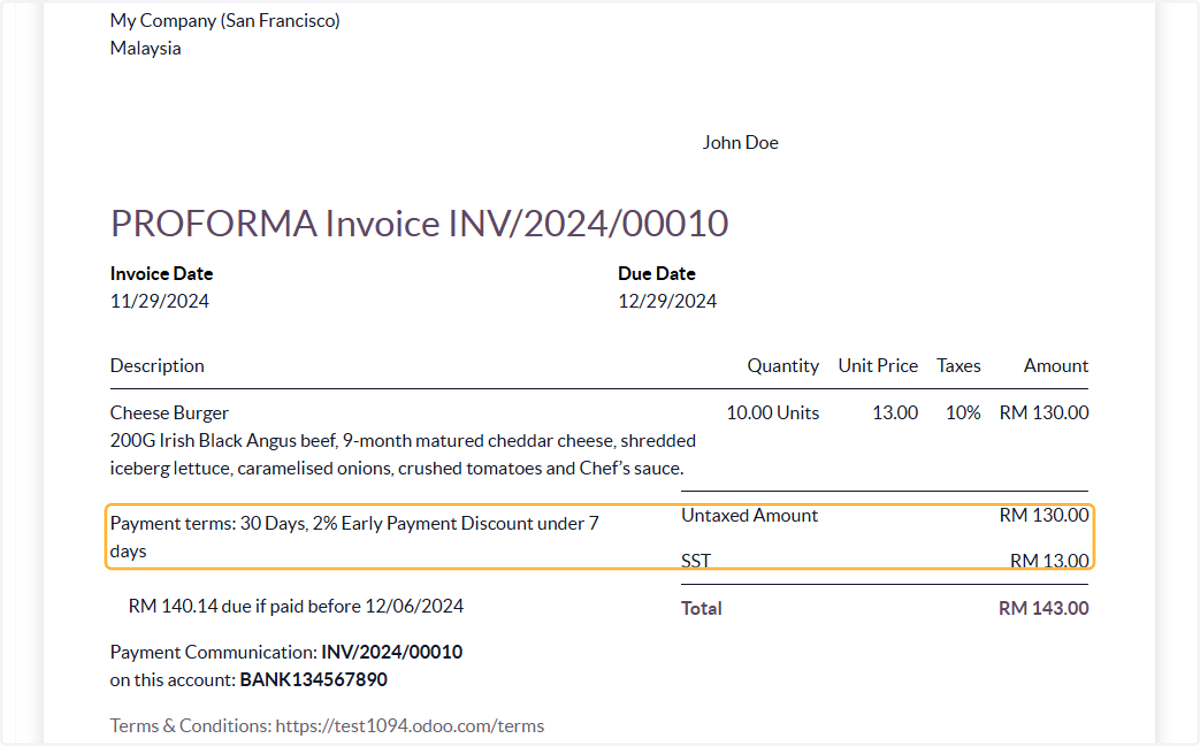
    Payment terms: 30 Days, 2% Early Payment Discount under 7 days will be shown in the invoice
  8. 21. Description of amount due if paid early is included
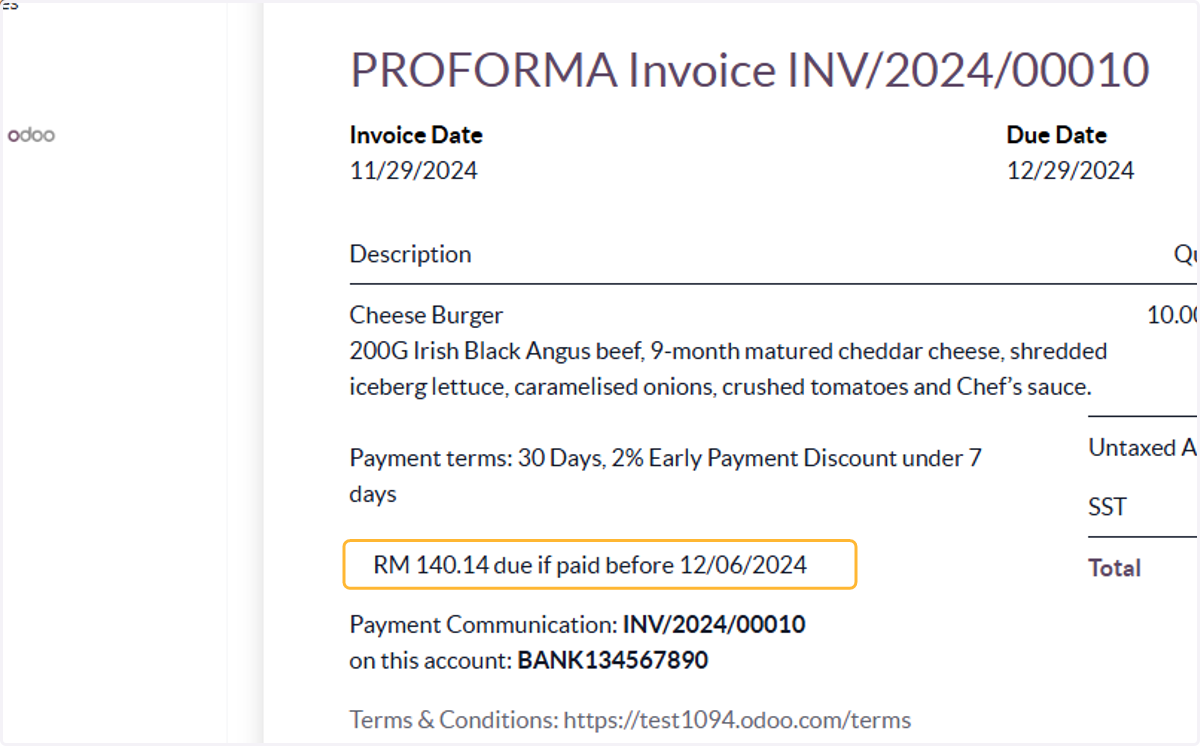
    Description of amount due if paid early is included
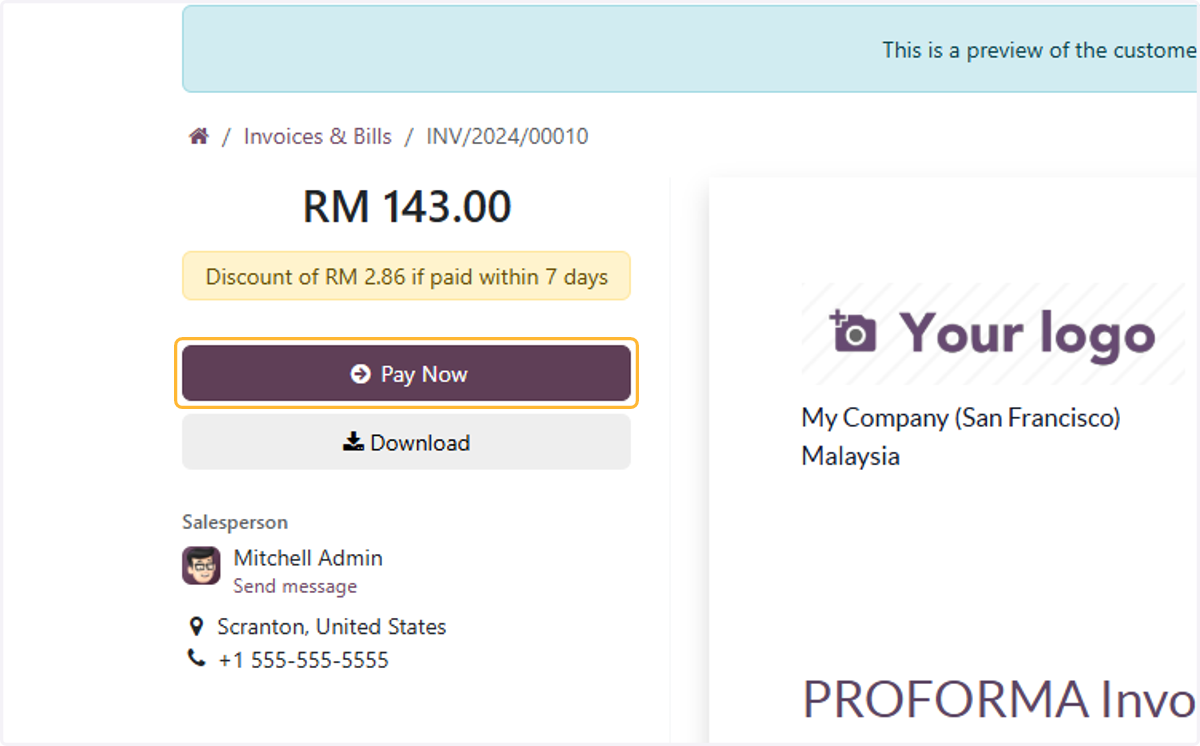
  9. 22. Click on Pay Now

    Click on Pay Now
  10. 23. Amount to be paid is discounted. Select payment method
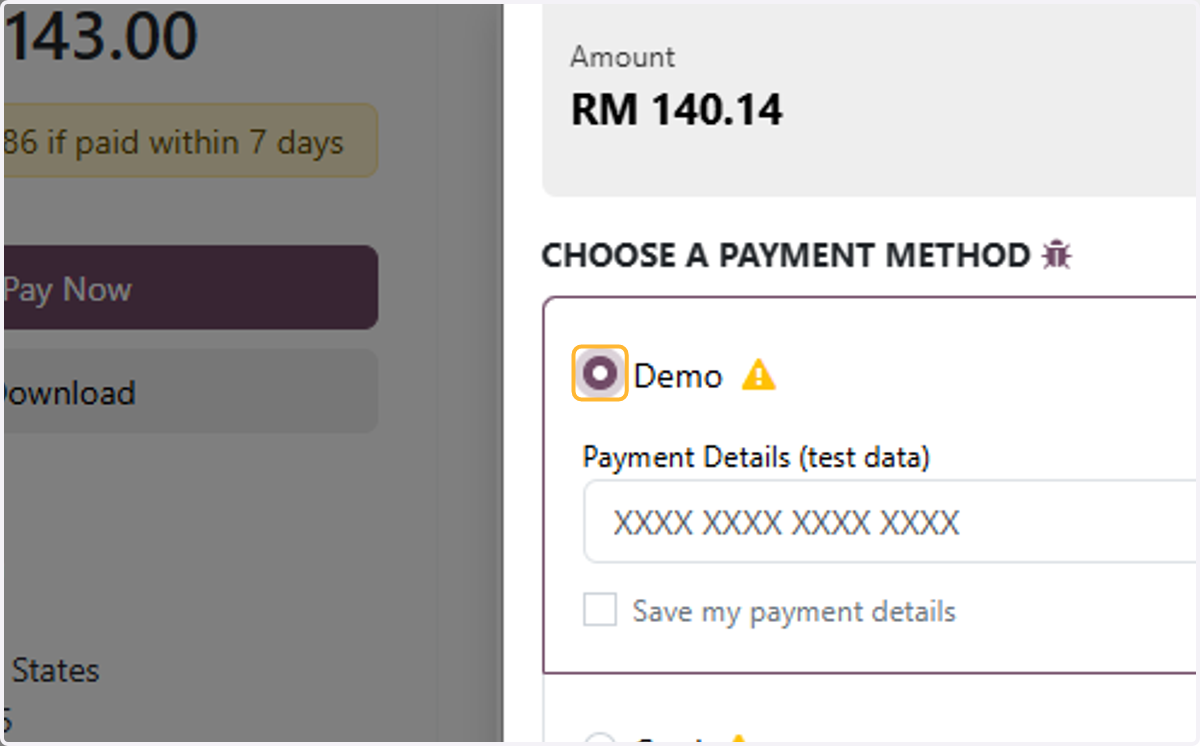
    Amount to be paid is discounted. Select payment method
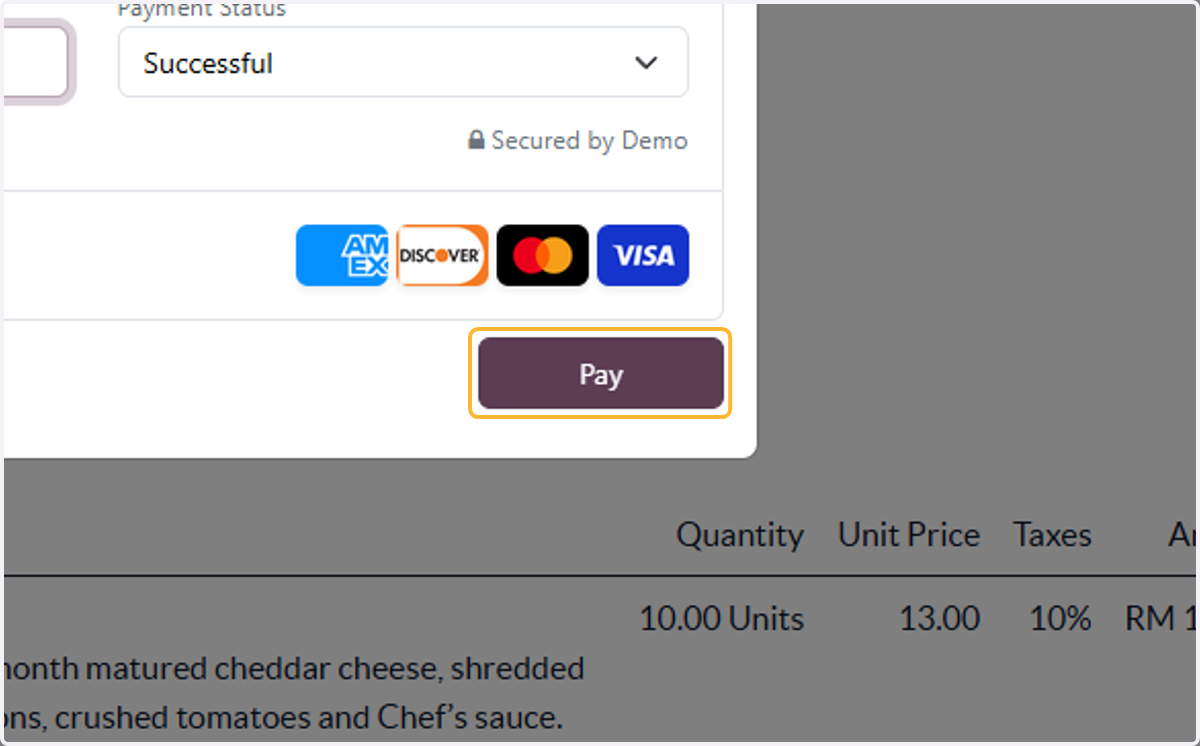
  11. 24. Click on Pay

    Click on Pay
  12. 25. Once paid, go back to the invoice & click on Payments
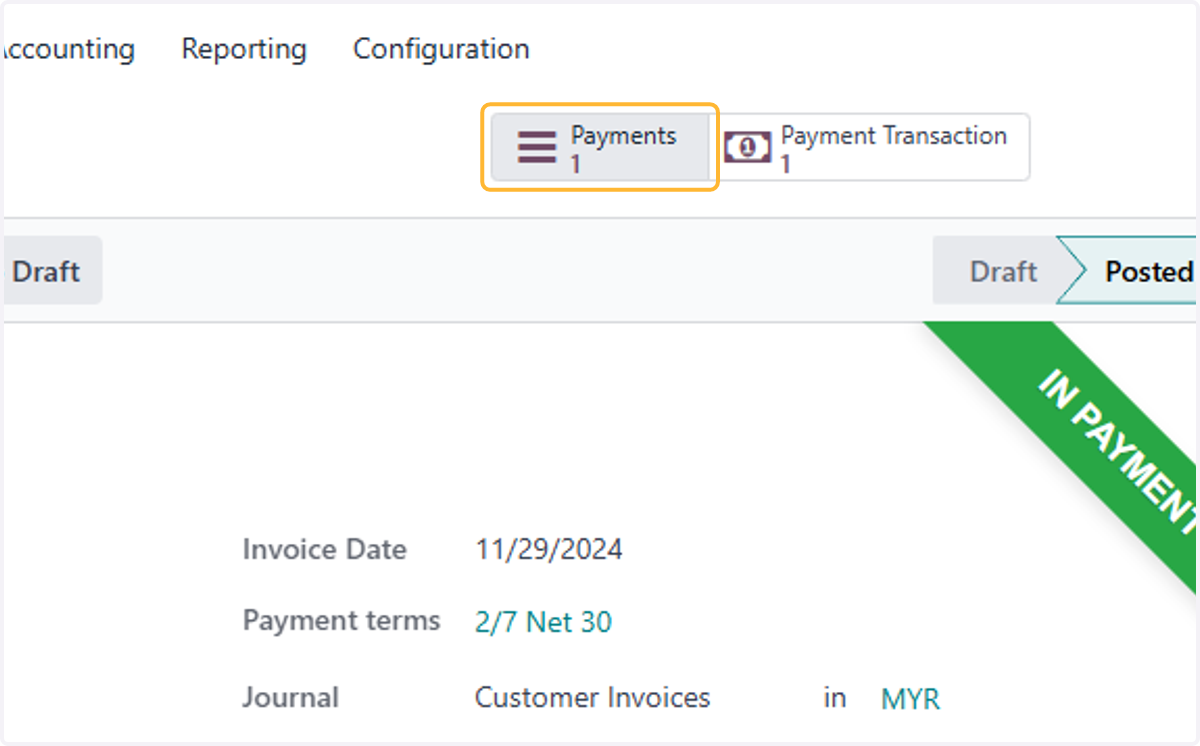
    Once paid, go back to the invoice & click on Payments
  13. 26. Payment recorded is RM 140.14 & to be reconciled at bank
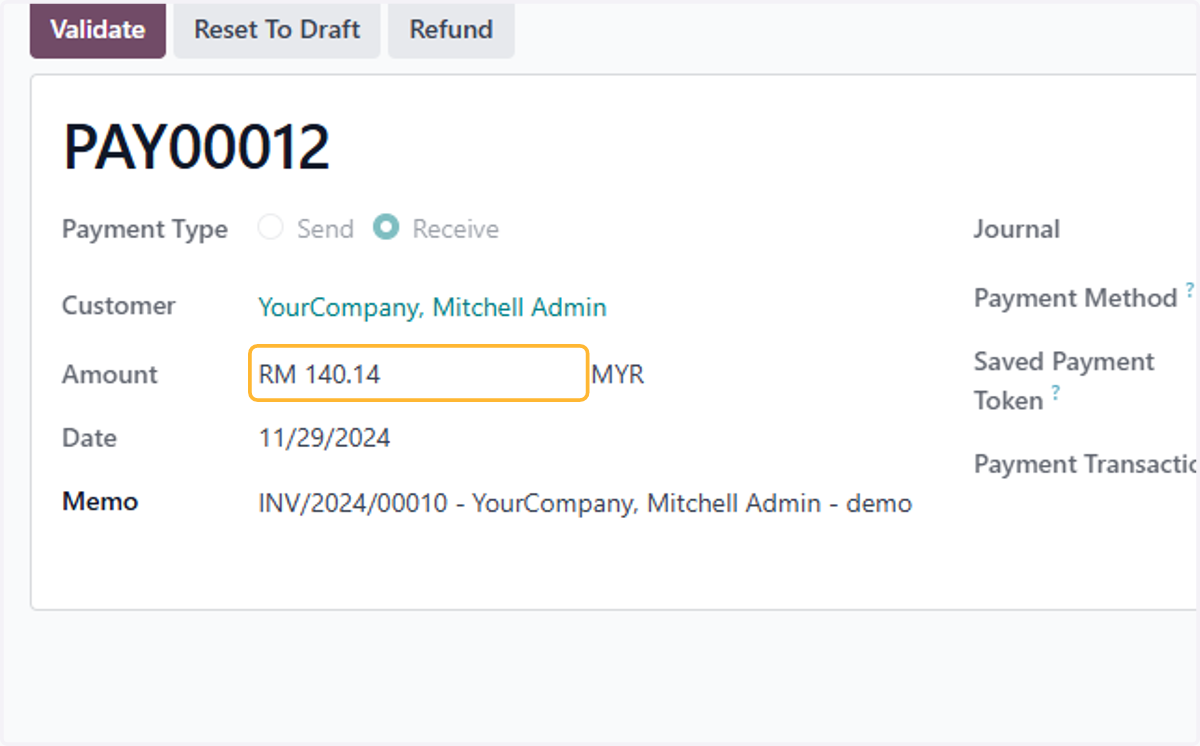
    Payment recorded is RM 140.14 & to be reconciled at bank