Ocerli Employee Master Data - Updating existing records
1. Open your template from its saved location and edit the required fields for each employee by either entering data or using the drop-down menu options provided, a handy guide to each field can be found in the user guides.
2. Save the changes to your file
3. Back in Ocerli, click on organisations
4. Click the view icon next to the organisation that you wish to import your changes to
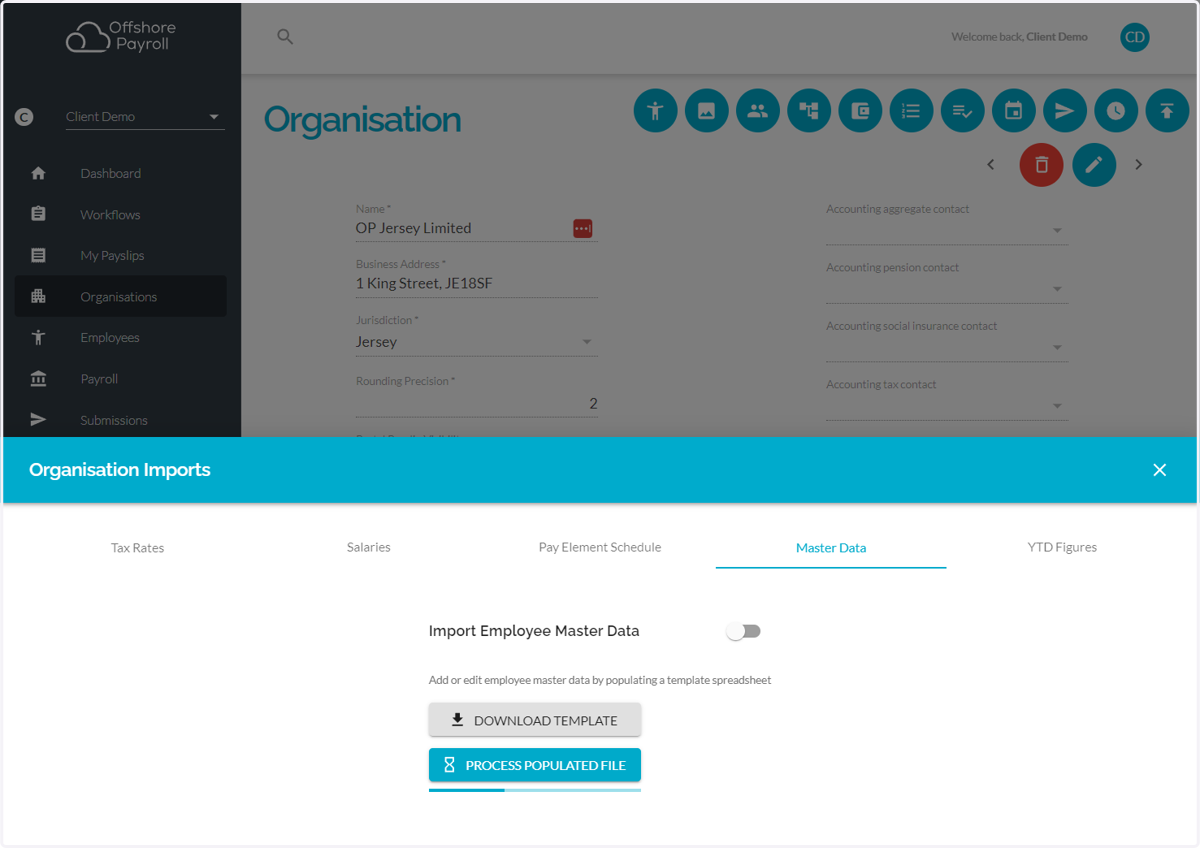
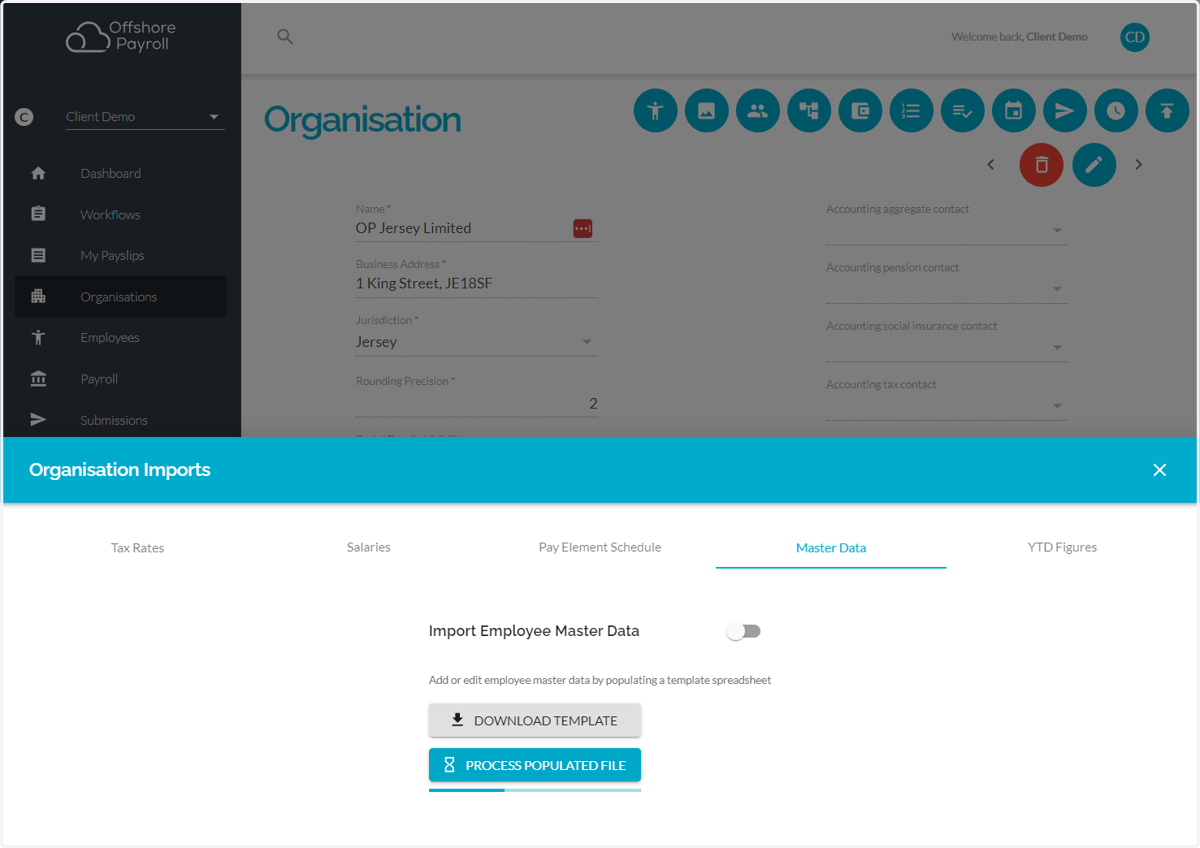
5. Click on Organisation Imports
6. Click on Master Data
7. Click on process populated file then Select a file from the upload menu
8. You will now see a preview of the data that you are about to import, if there are any invalid entries an orange warning symbol will be displayed, if you hover your mouse over this symbol you will see the reason that the data is invalid.
9. You can close this screen and make any required changes to your master data import template.
10. Once you have updated the file, you can once again click process populated file and choose the file from your documents.
11. You should now see no warning signs next to the employee records if the data has been updated correctly. You will now see the number of new records and updated records.
12. Click on APPLY SELECTED ITEMS
13. You have now successfully imported Employee Master Data Import from import file.