New Property – How to Set Seasonal Base Rates in Streamline
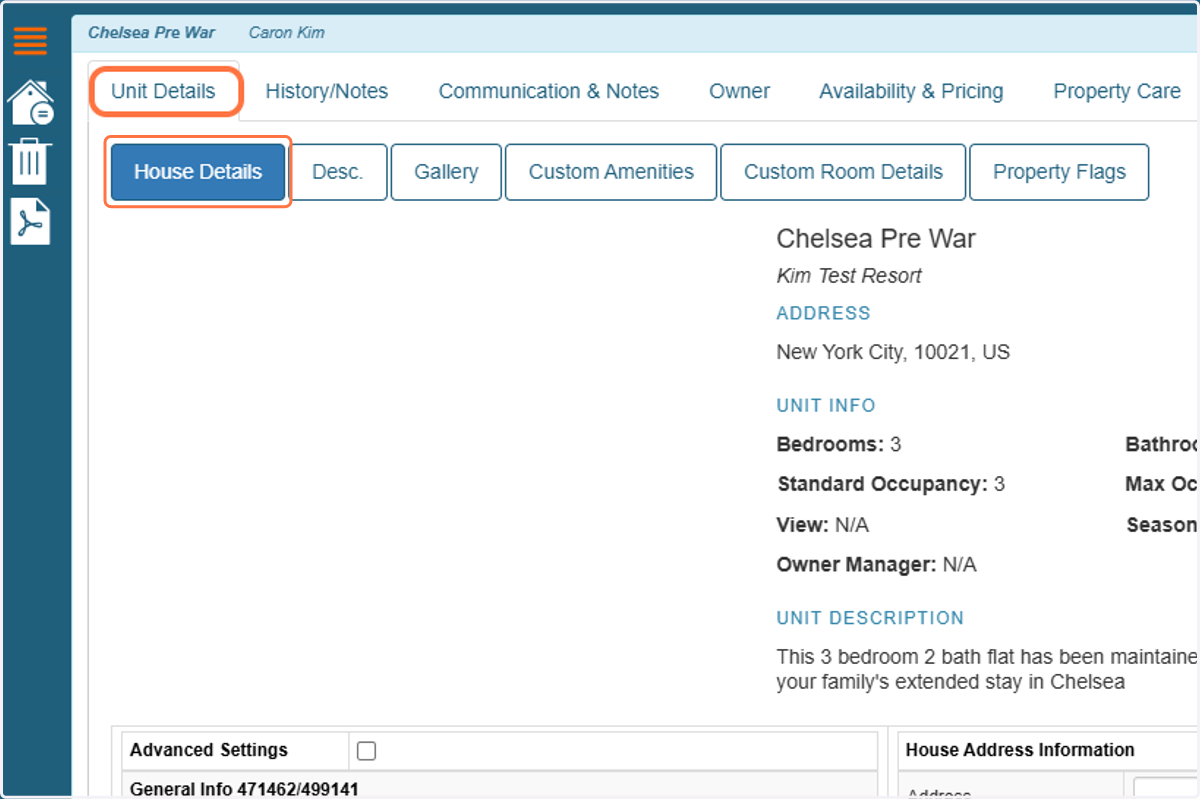
1. To begin, assign the property to the appropriate Season Group. You can do this by navigating to the unit-level settings under Unit Details > House Details.
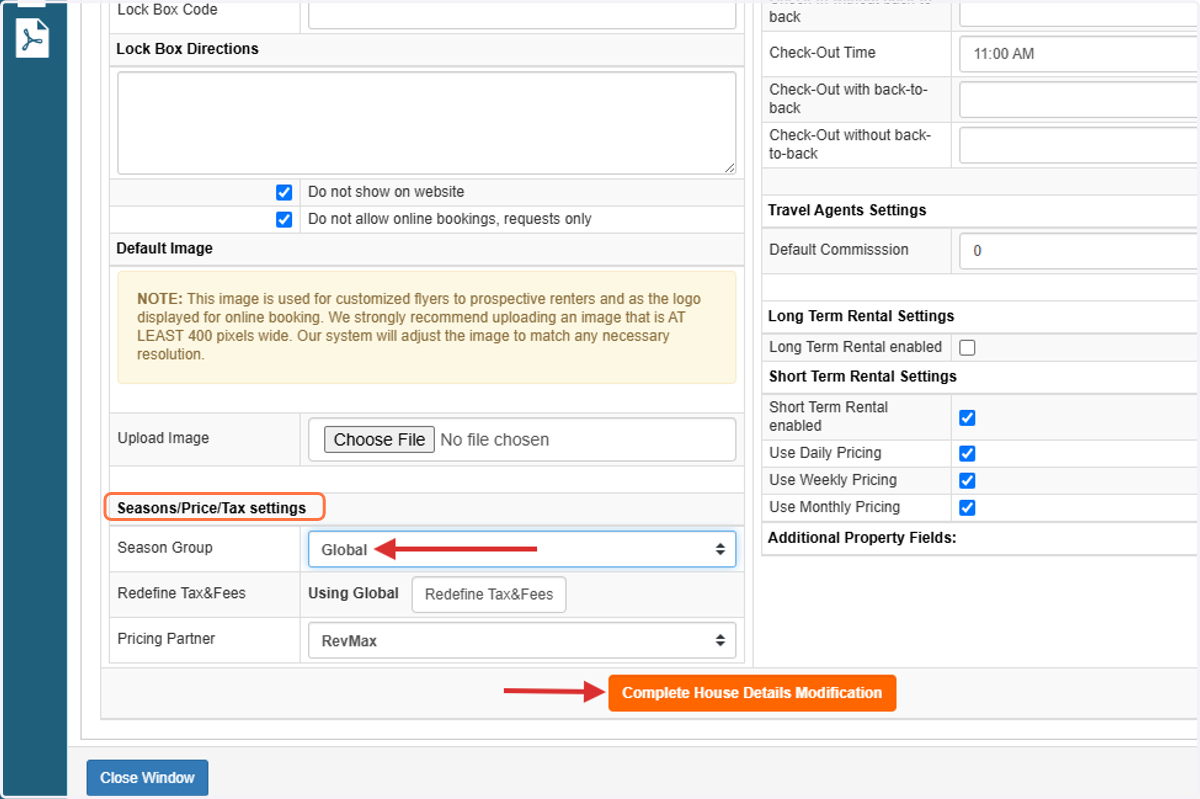
2. Under Seasons/Price/Tax Settings, configure the desired Season Group, and click Complete House Details Modifications to save your changes.
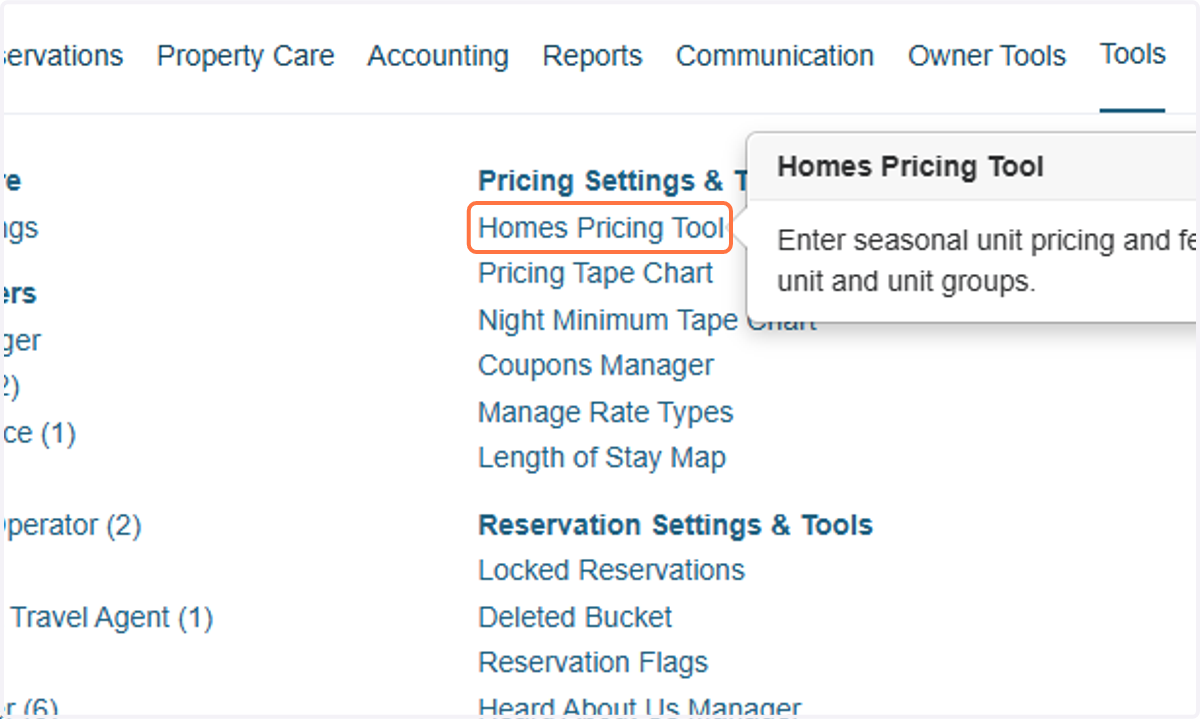
3. After assigning the property to a Season Group, navigate to the Homes Pricing Tool page in Streamline to configure the Seasonal Base Rates.
4. On the Homes Pricing Tool page, select the appropriate Season Group and set the Rate Type to STD to enter your Seasonal Base Rates. Once done, click on the "Create Report" button.
If needed, you can use the additional filters to narrow your selection.
- Filter by Home/Unit to update a specific property
- Pricing Group to apply rates to multiple units within the same pricing group
- Rental Type to target a specific rental category.
- Pricing Logic should be set to Daily Pricing.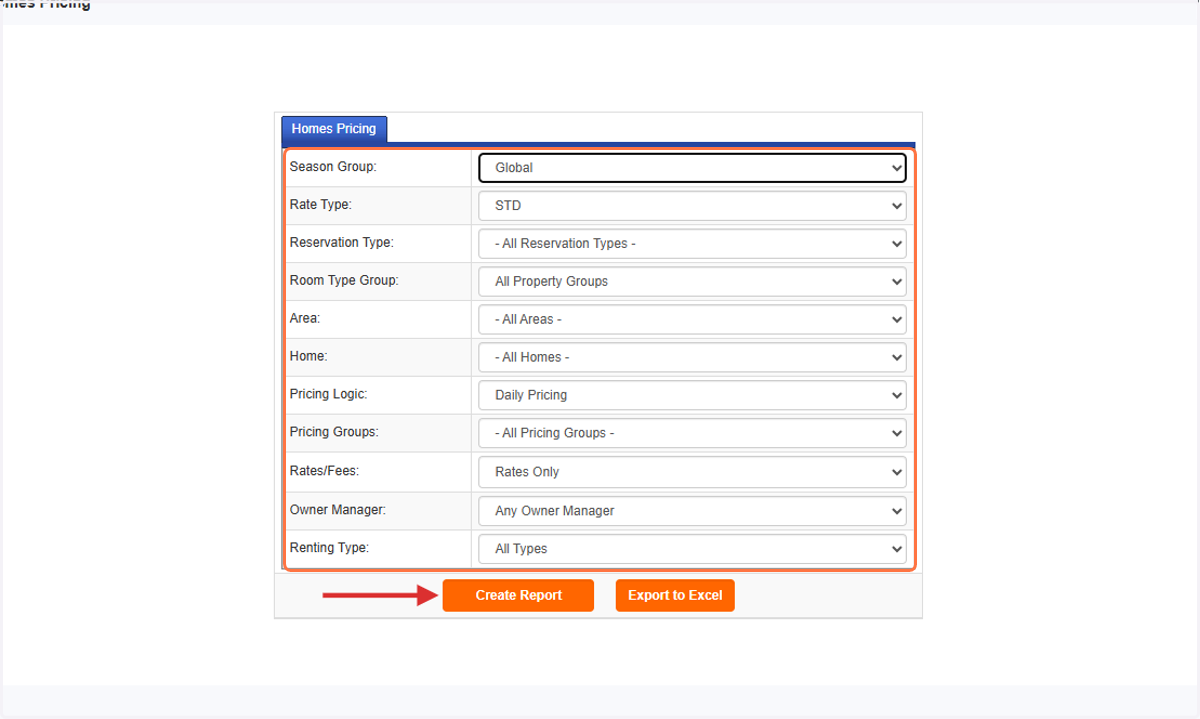
5. From this page, you can set rates for the filtered unit or all units within that season Group.
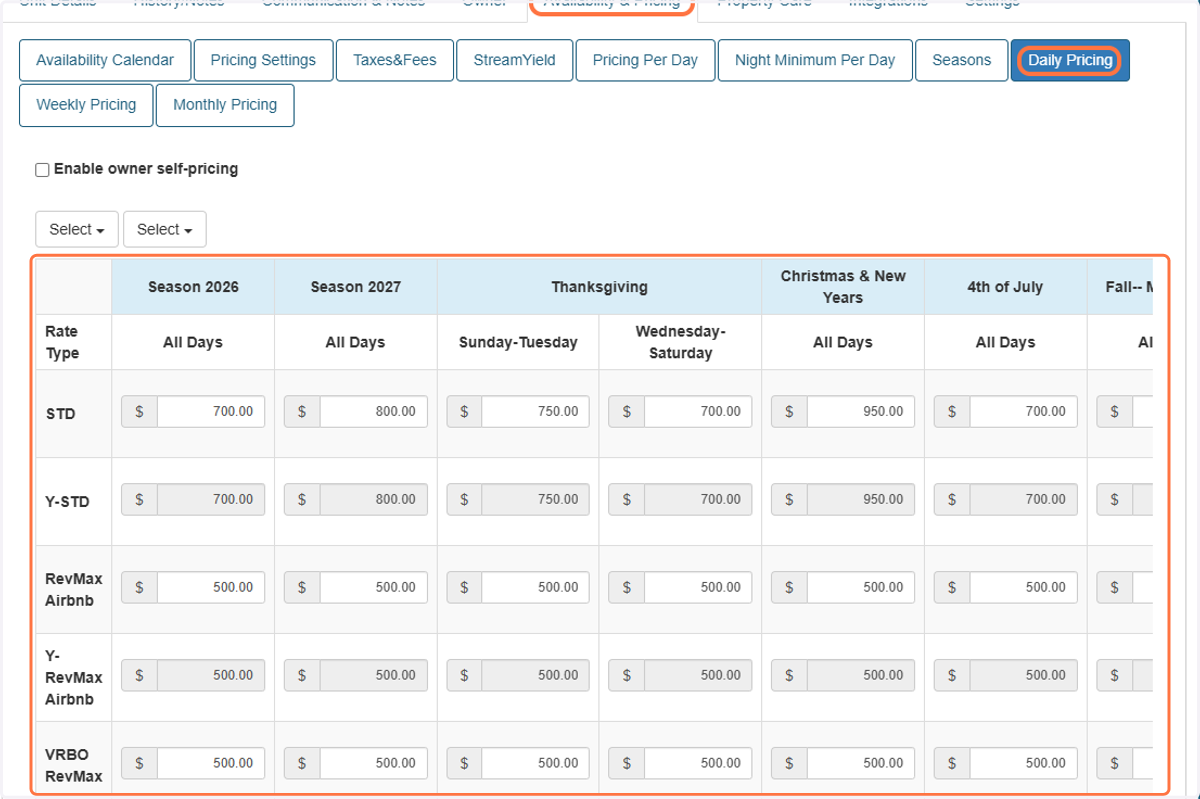
Once your Seasonal Base Rates have been entered, they will appear in the STD field, and the Y-STD value will automatically mirror the same rate.
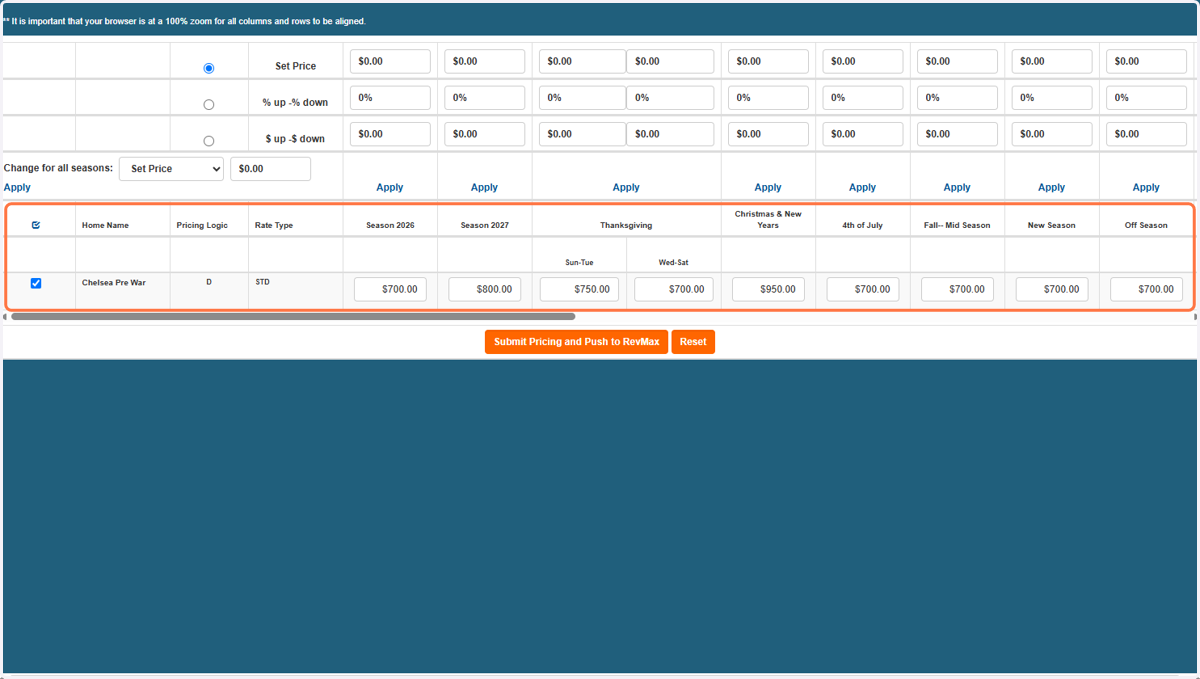
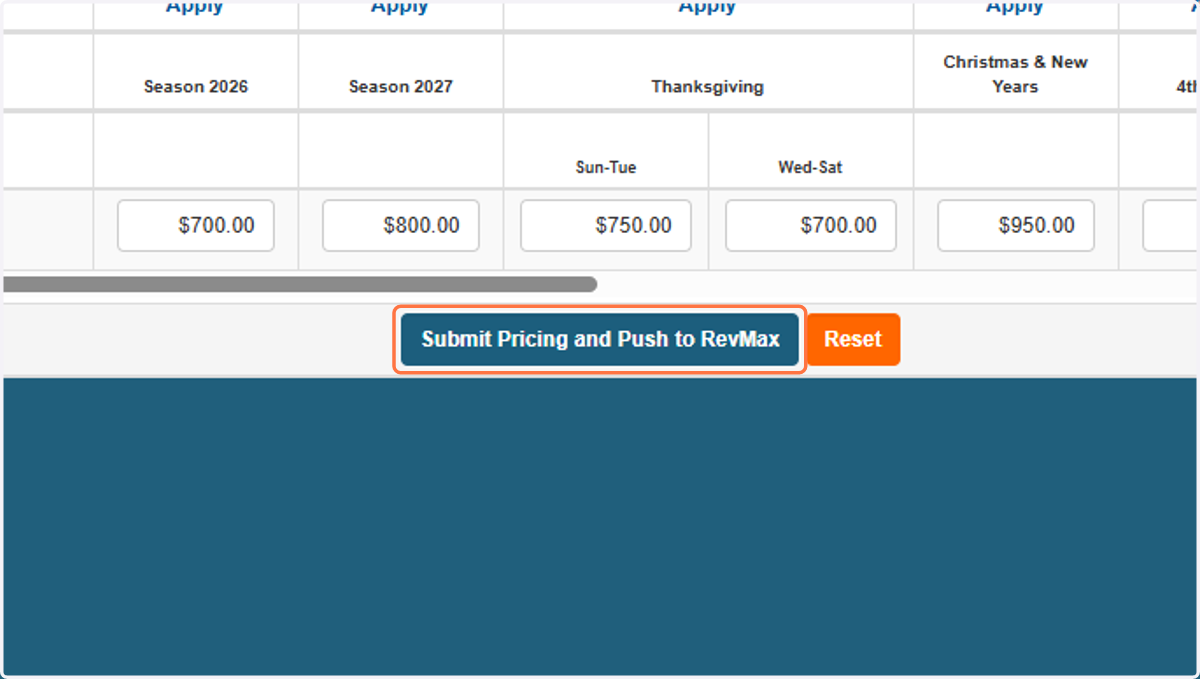
6. When you have finished configuring the rates, click Submit Pricing and Push to RevMax. This will send the updated Seasonal Base Rates to your RevMax account. The changes typically appear in RevMax within approximately five minutes.
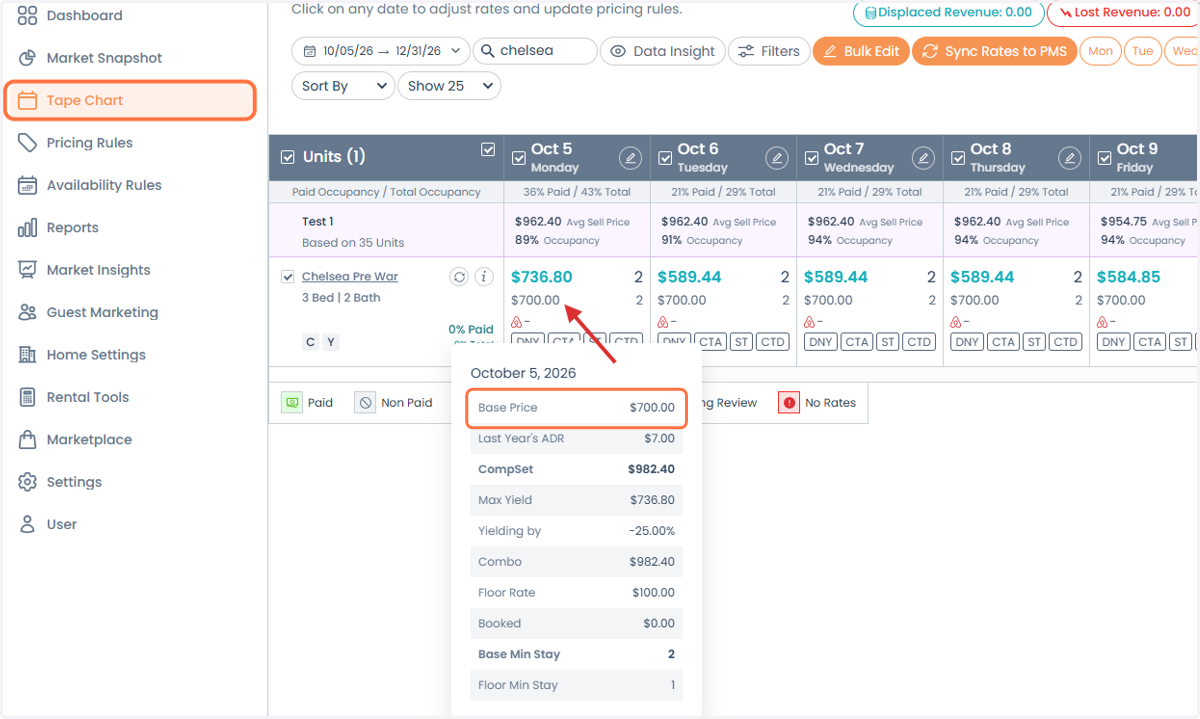
7. After the rates have synced, they will be displayed on the RevMax Tape Chart as the Base (Bottom) Rate. Hovering over the rate will confirm that it is the property's Base Rate.
8. Alternatively, you can configure or update Seasonal Base Rates at the unit level by navigating to Availability & Pricing > Daily Pricing within the property's settings in Streamline.