Overton's Advanced Search: Standard Mode
Learn how to use Overton's advanced search in standard mode.
From the Start page
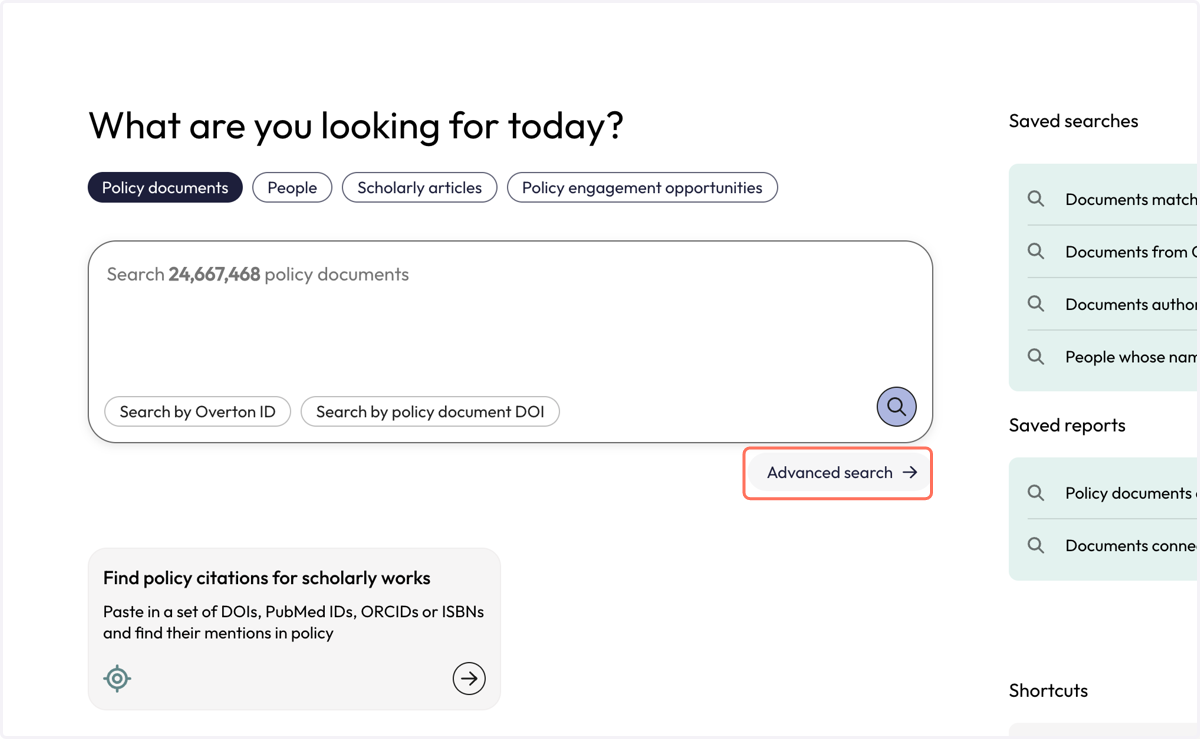
1. Click on 'Advanced search' to open the query builder.
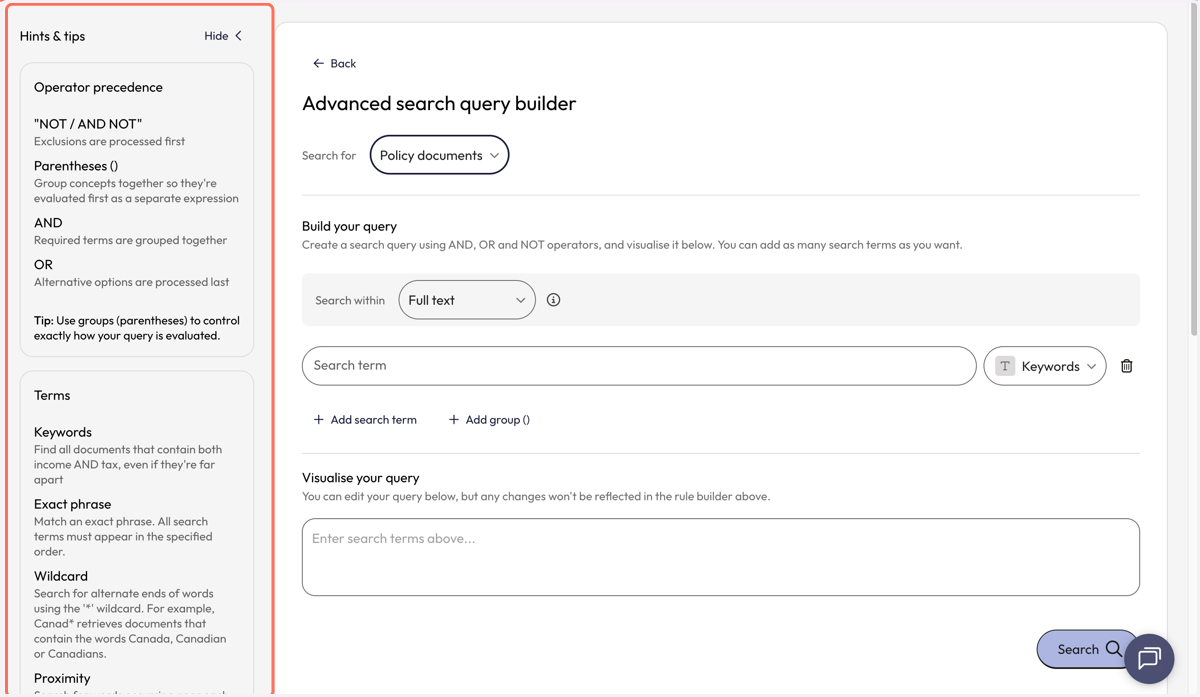
2. Before you start building your query, review 'Hints & tips' on the left side of the page to learn about operators, search strategies and search fields.
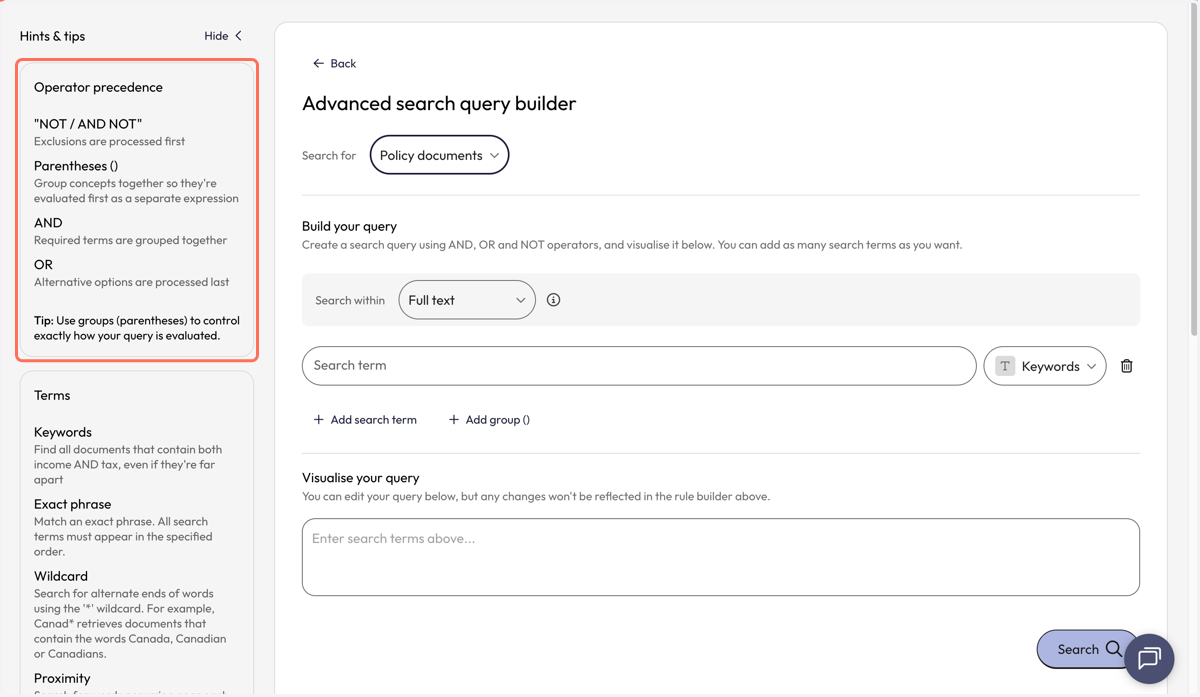
3. 'Operator precedence' describes the order in which operators will be processed within the search query. Operators can be selected as search terms are added to the query.
4. 'Terms’ explains what a selected search strategy in a query does. The search strategy applied to each term can be selected by the dropdown box to the right of the query line.
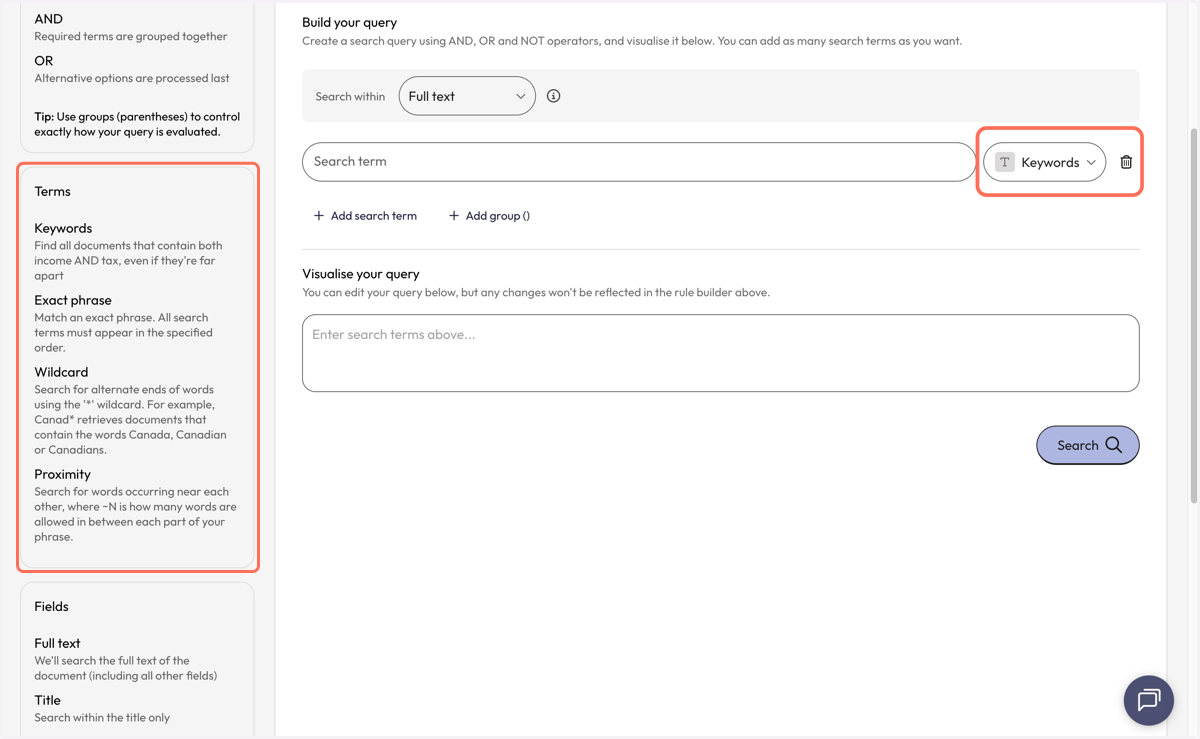
5. 'Fields' explains the different fields that be searched within. Note: Users can only search within one field type per query. Multi-field searching is not yet supported. The search field can be selected from the dropdown box at the top of the query builder (not pictured here).
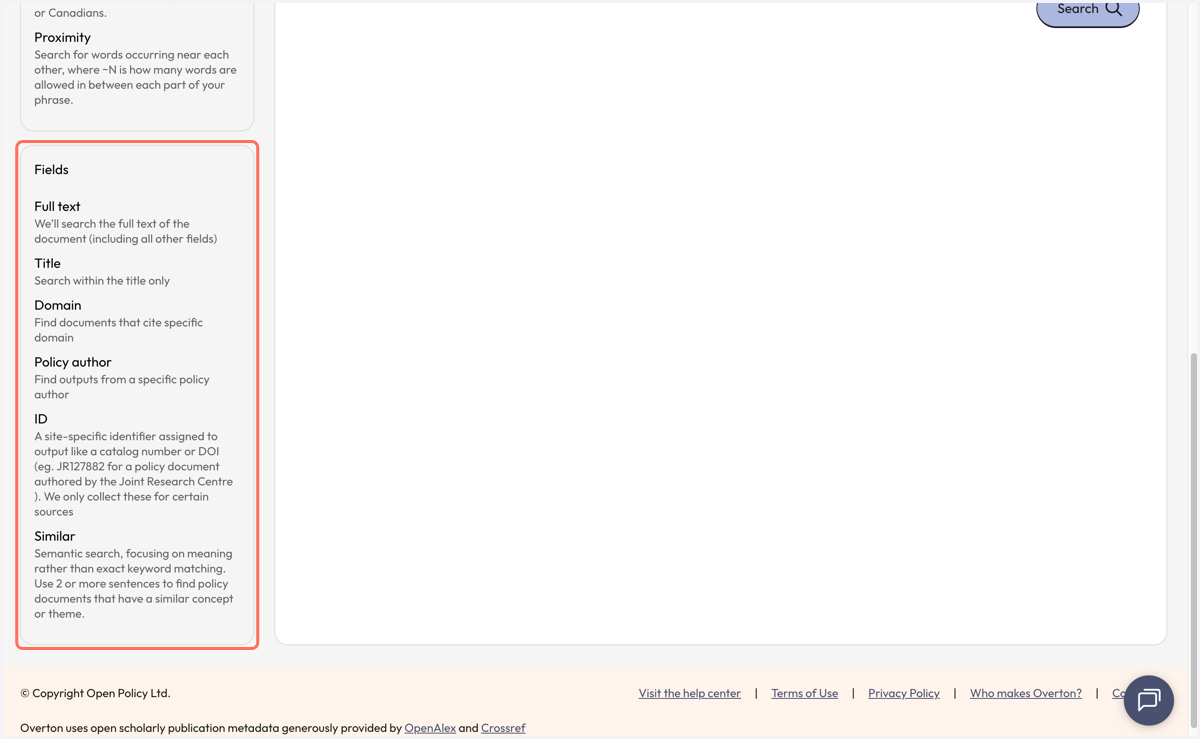
6. Start building your query from the top of the query builder.
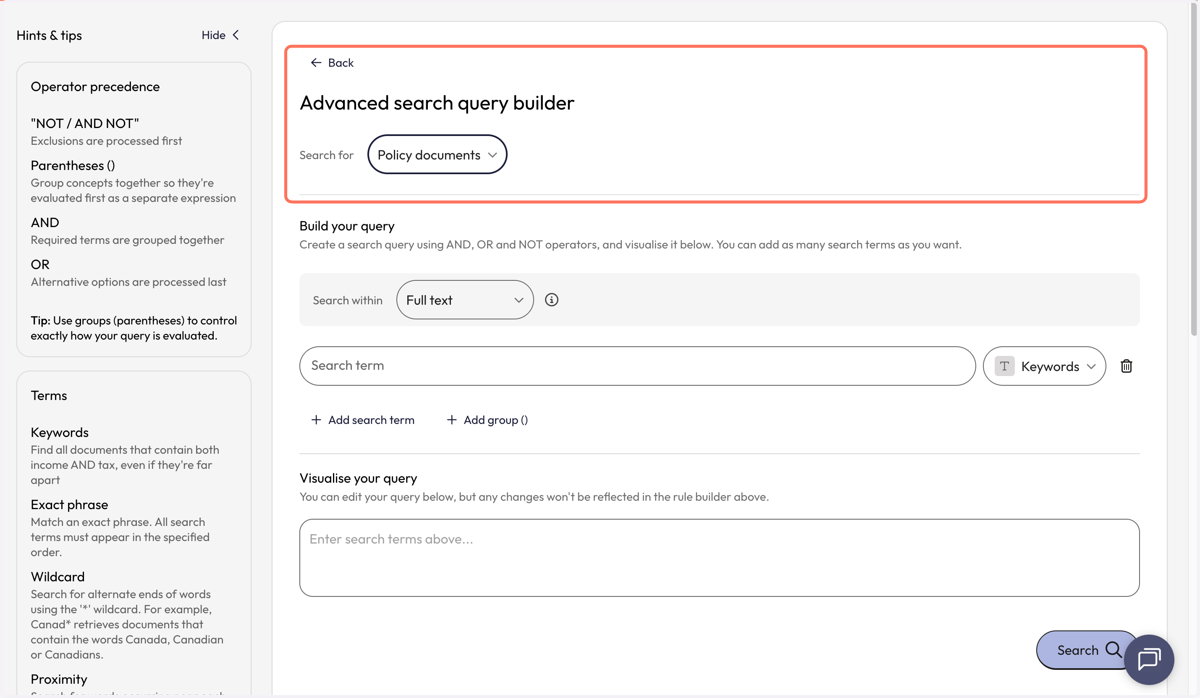
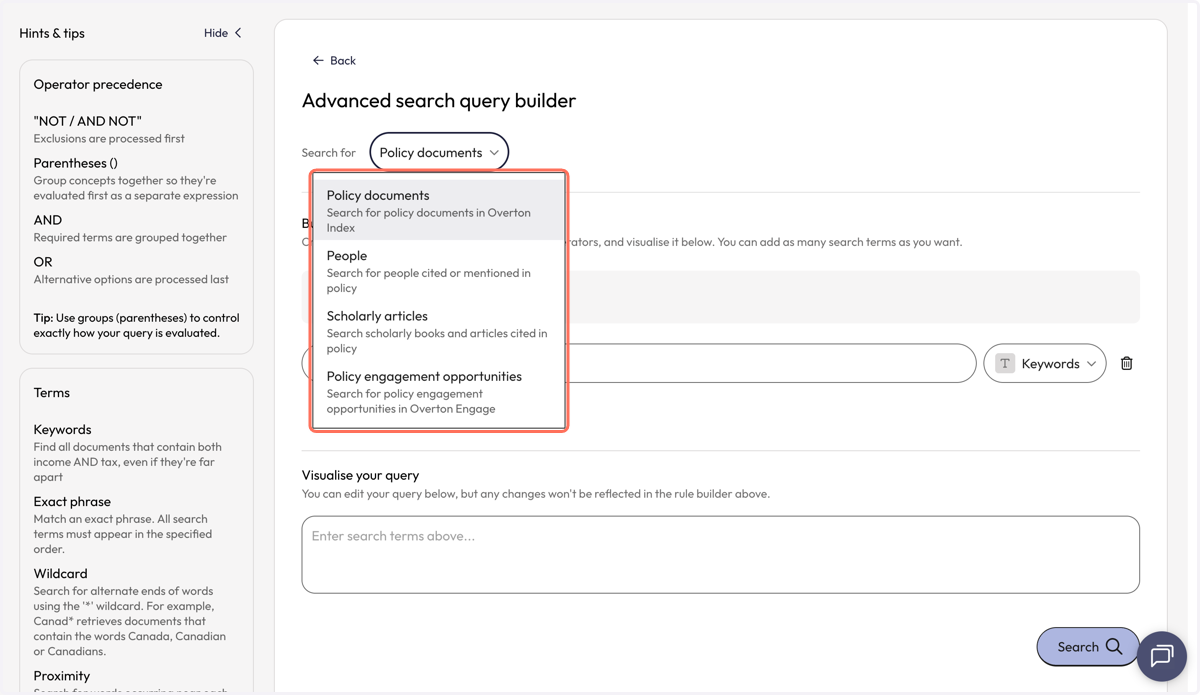
7. Select the type of information you want to search for from the dropdown box. Users can search for policy documents, people, scholarly works cited in policy or policy engagement opportunities (Engage).
8. Next, select the field you would like to search within. Your selection will apply to the entire search query.
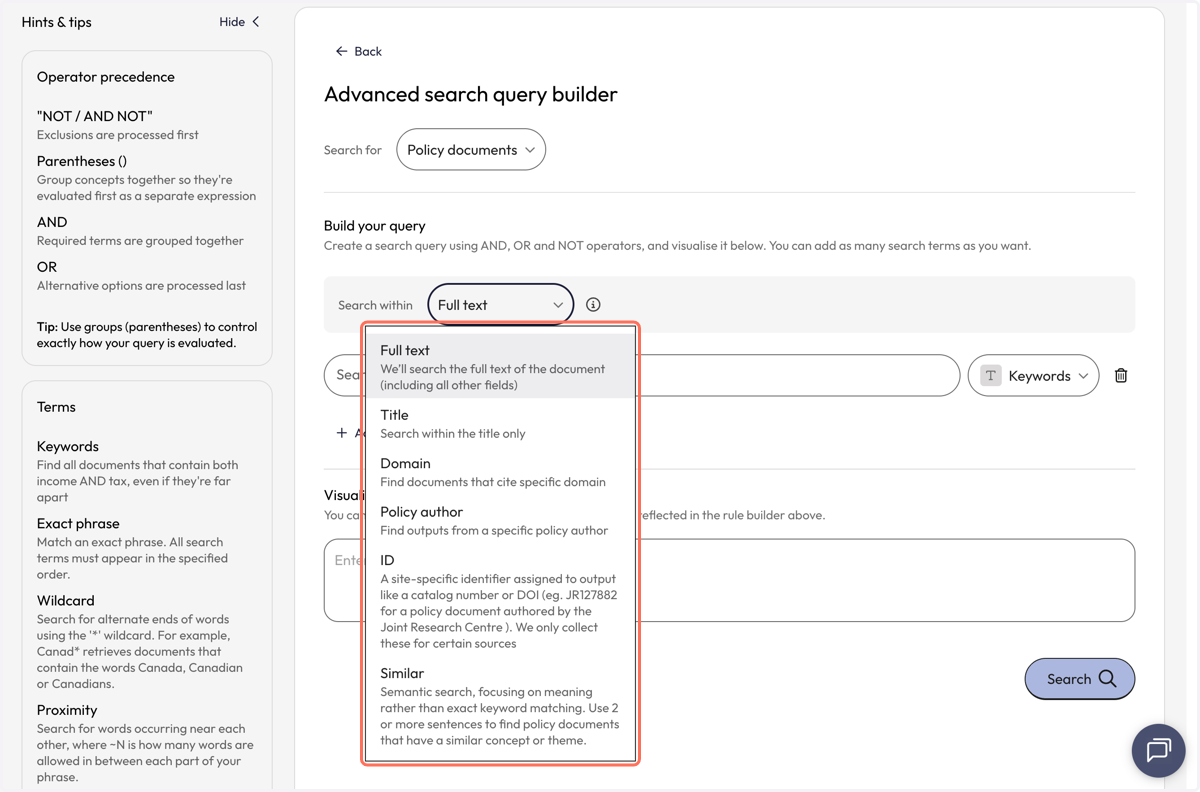
9. Enter your first search term or terms into the 'Search term' line.
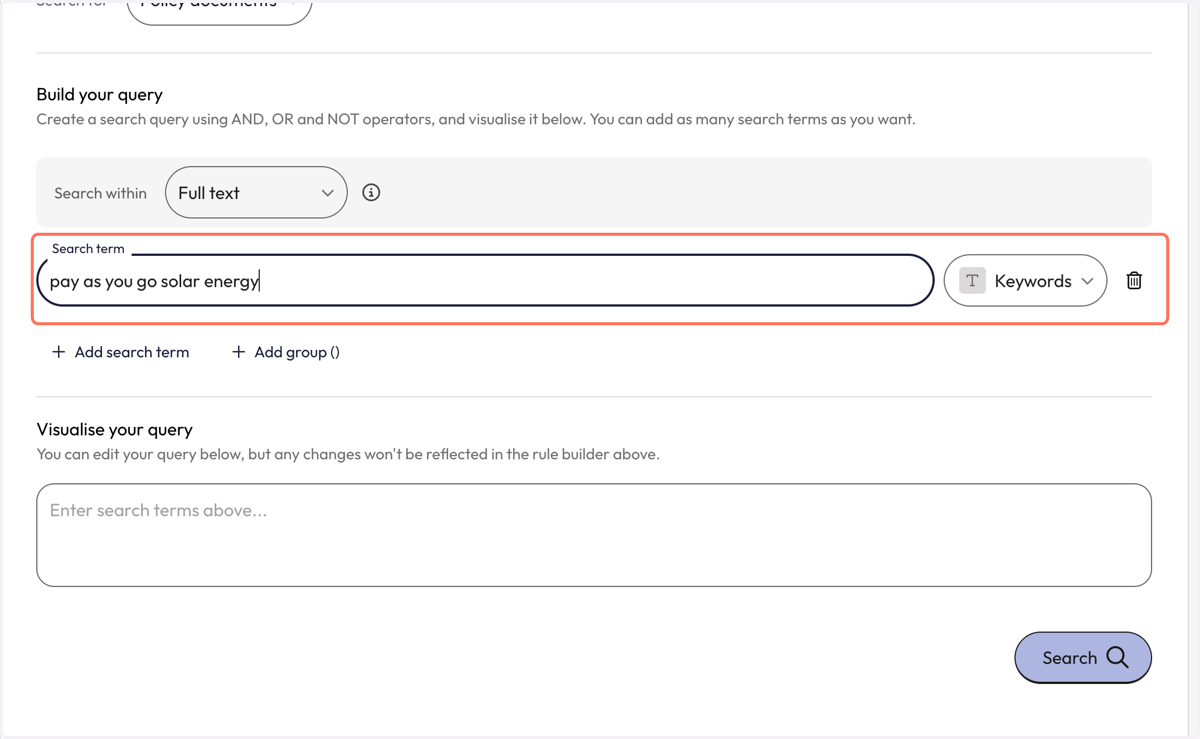
10. Then, open the dropdown to the right of the query line to select the search strategy you want to apply to the search term.
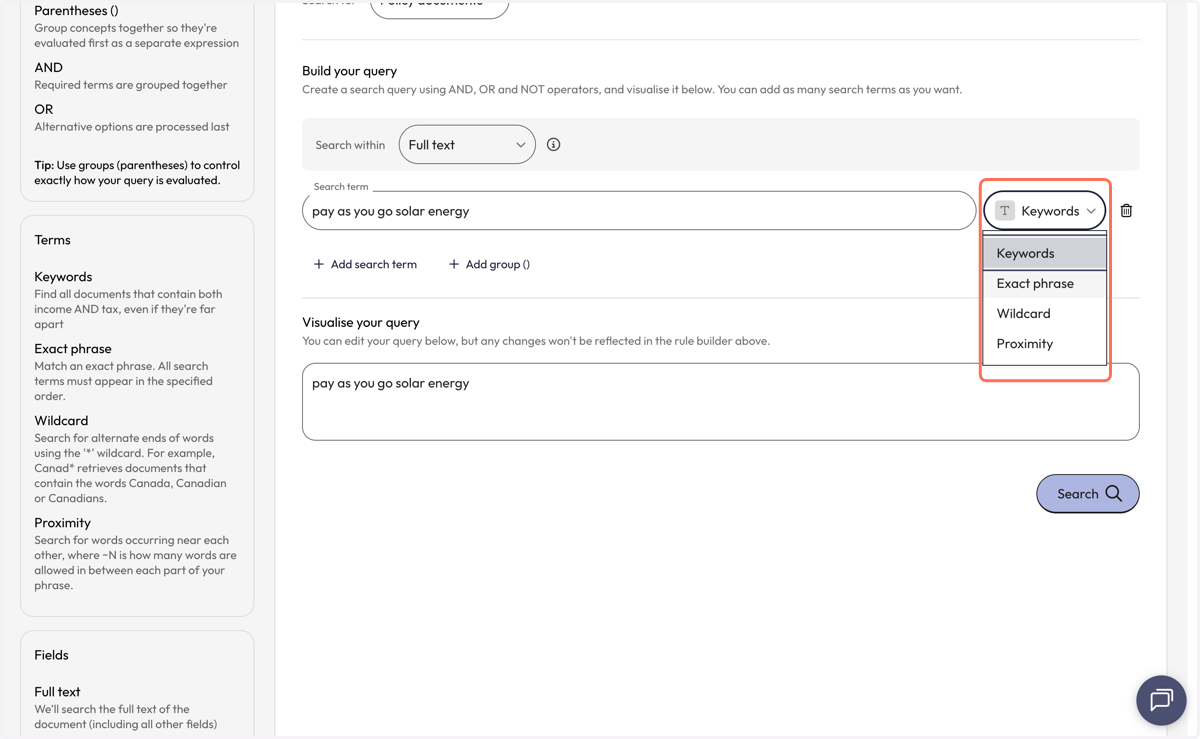
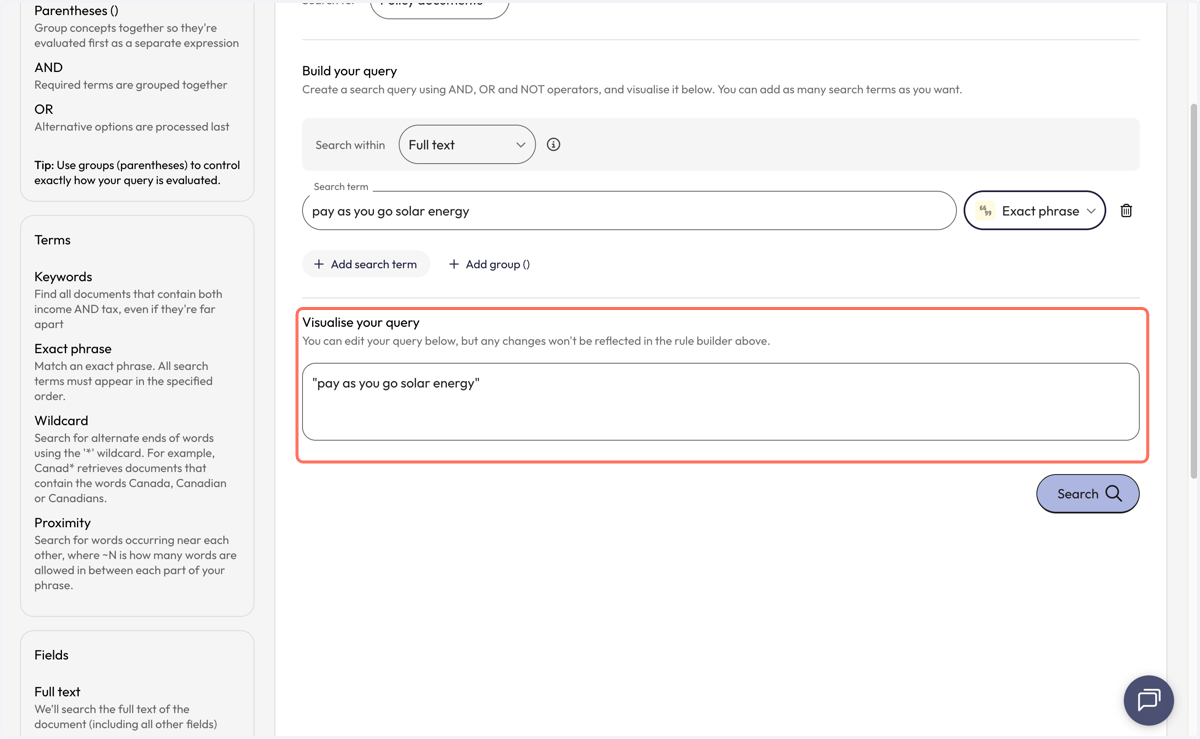
11. Notice that your search query is now being visualised in the box below with the selected search strategy applied.
12. Add another search term by clicking on the 'Add a search term' or 'Add group' button below the query line.
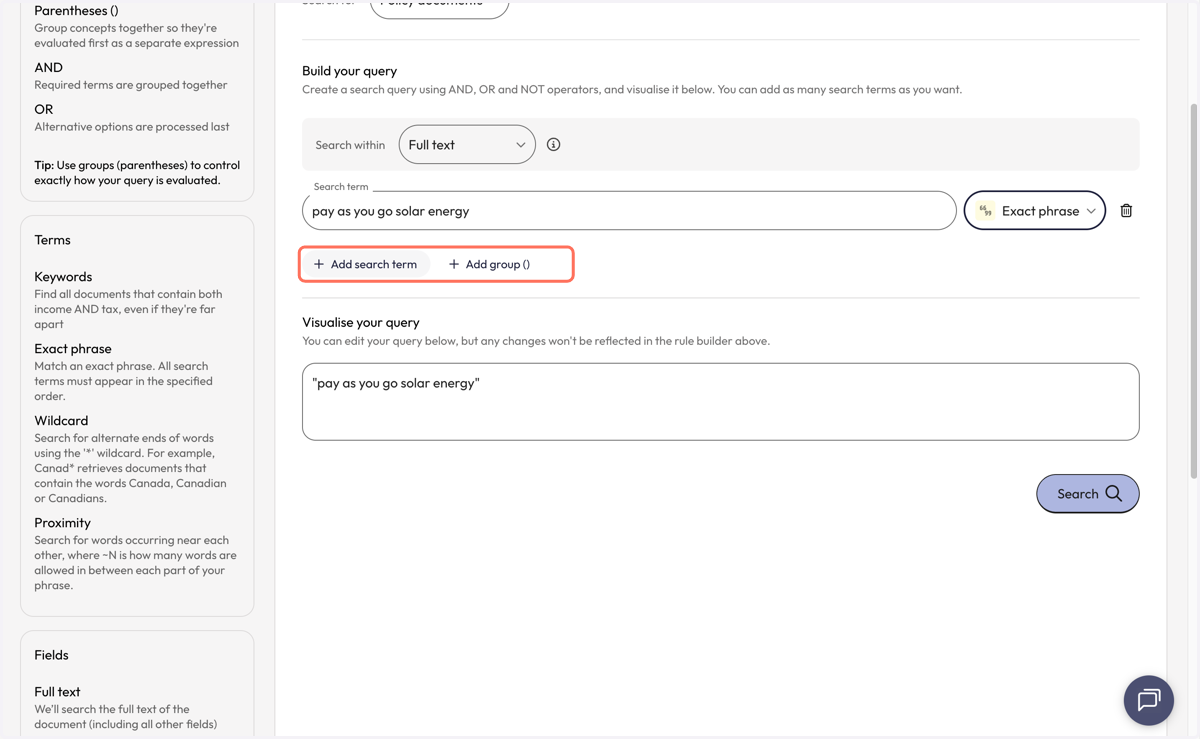
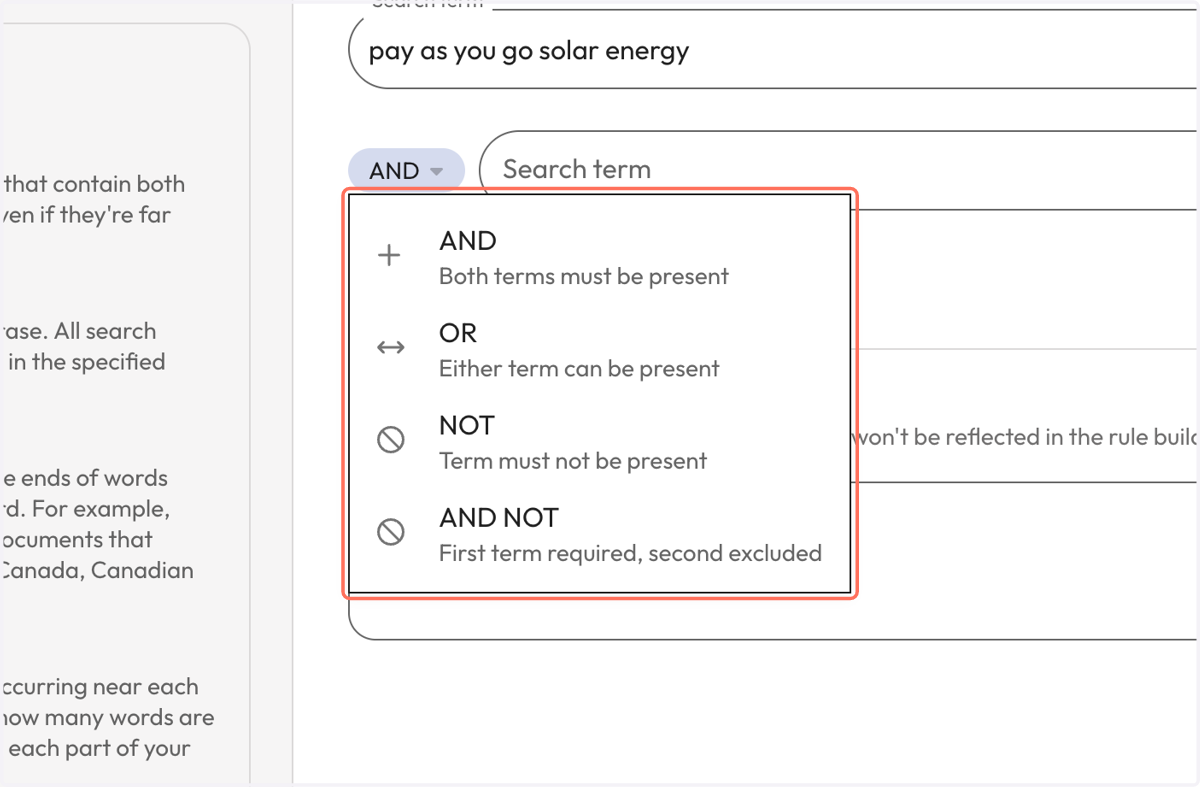
13. A new query line will be added and you will be prompted to select the operator you would like to apply in-between the search terms. Select the preferred operator from the dropdown box to the left of the new query line.
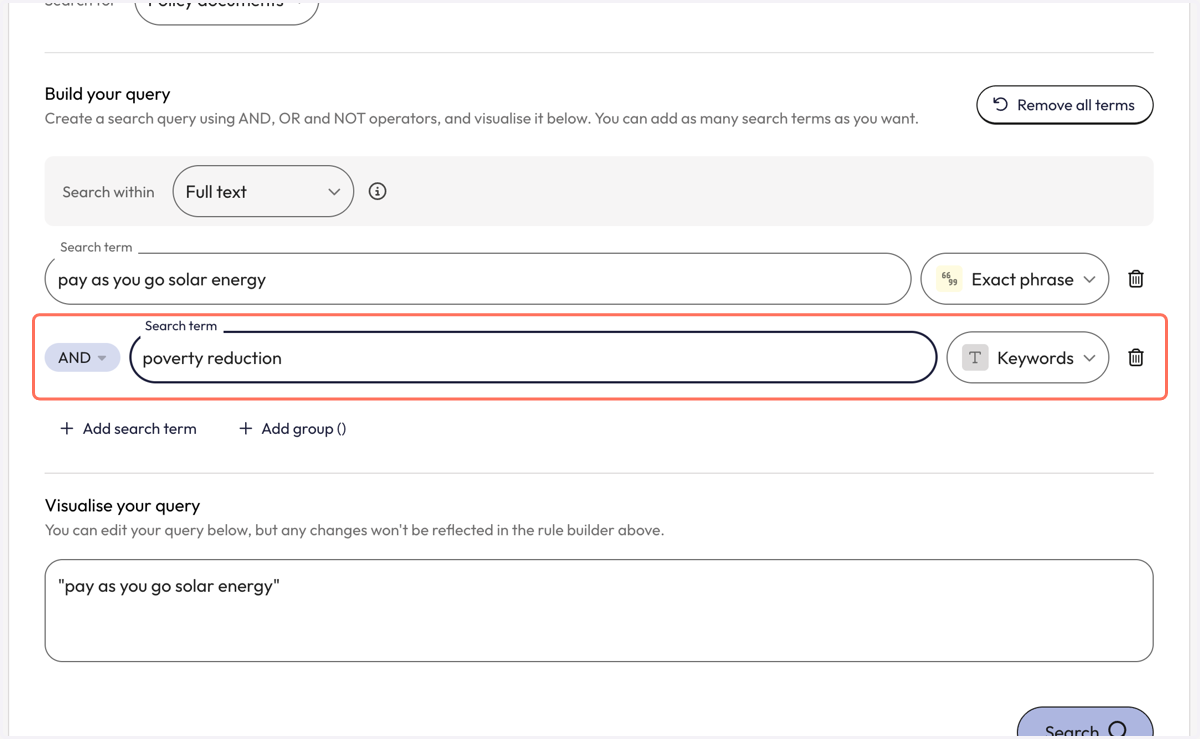
14. Enter your second search term into the query line and select the search strategy you want to apply to it from the dropdown to the right. There are no limits to the number of search terms that can be added.
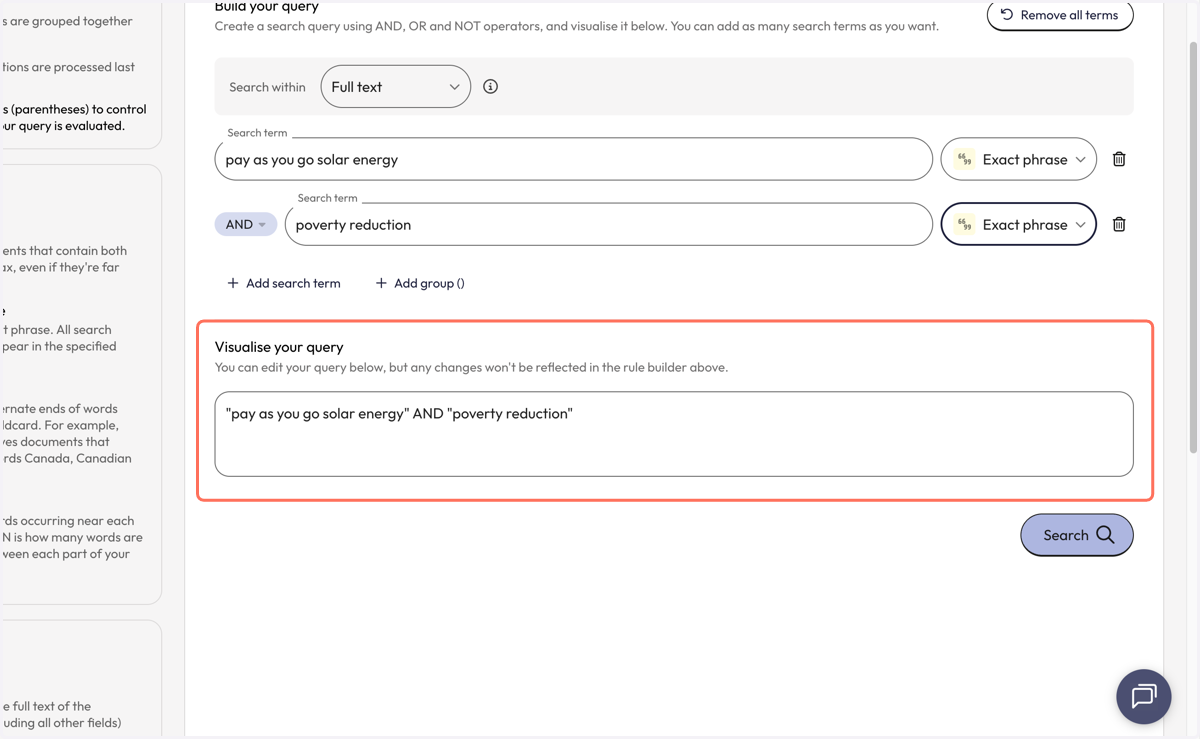
15. Your query visualisation will be updated as you add new search terms.
You can edit the query from the visualisation box but note that if you edit your query from the visualisation box, these changes will not be reflected in the query builder above.
16. Once you are finished building your query, click 'Search' in the bottom right corner.
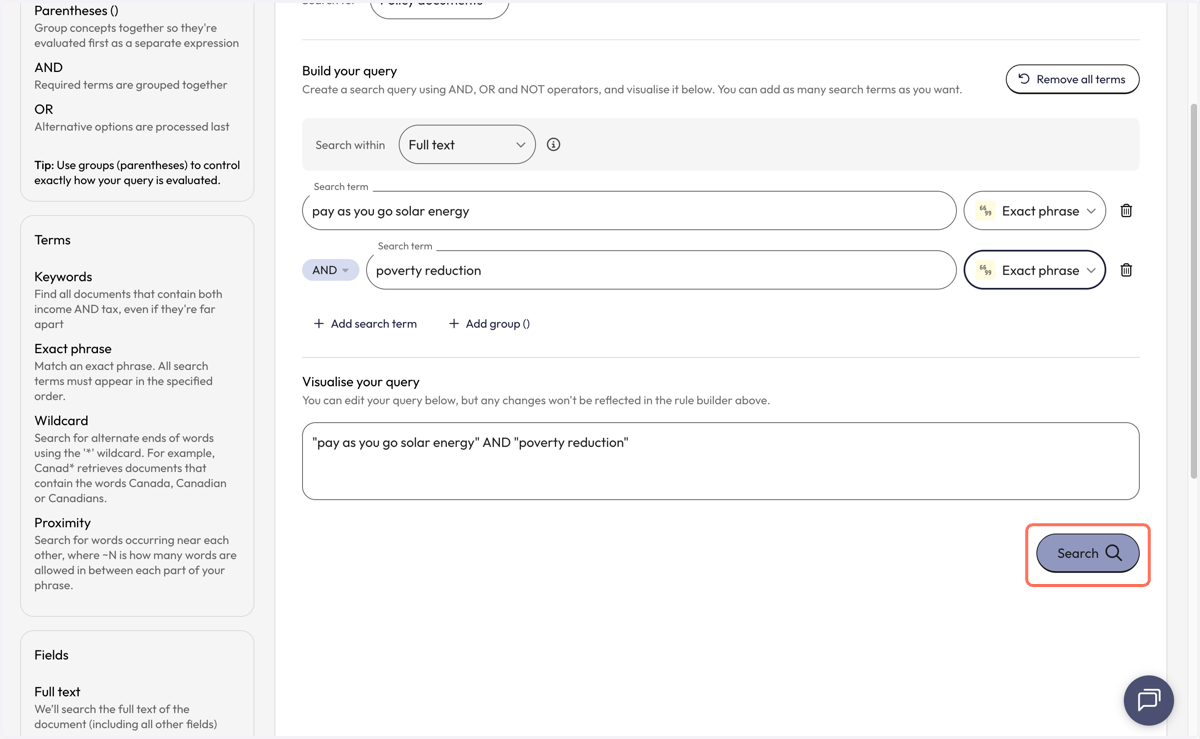
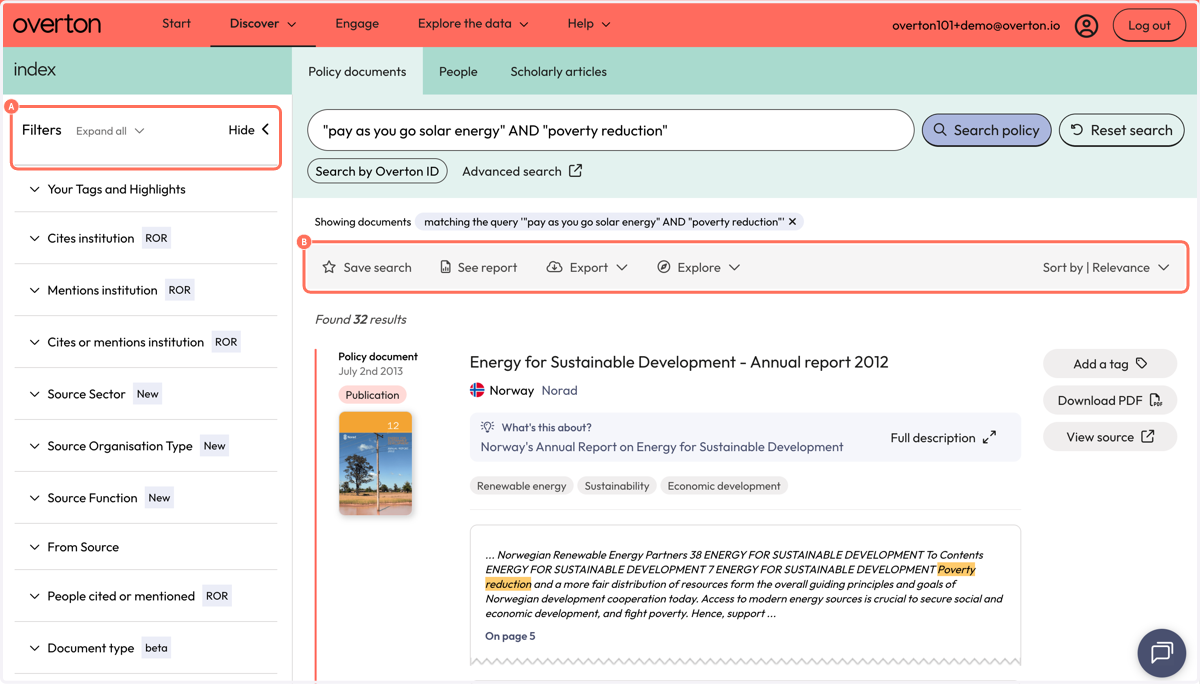
17. Your result will be displayed on the 'Policy Documents' page.
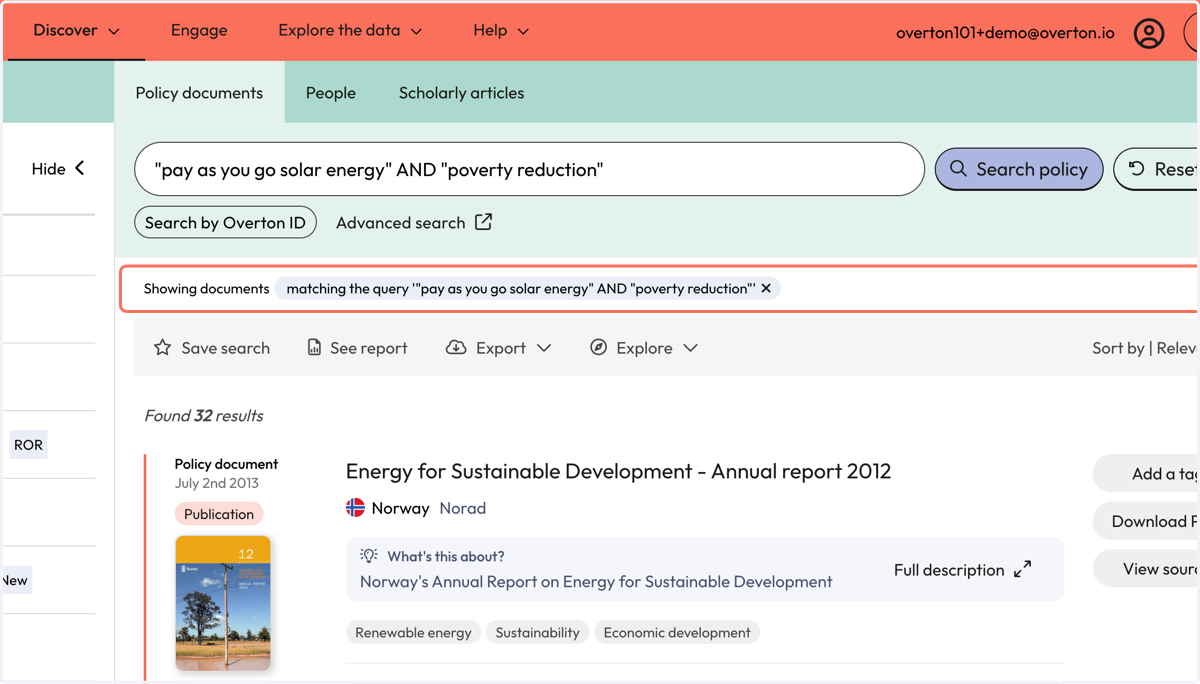
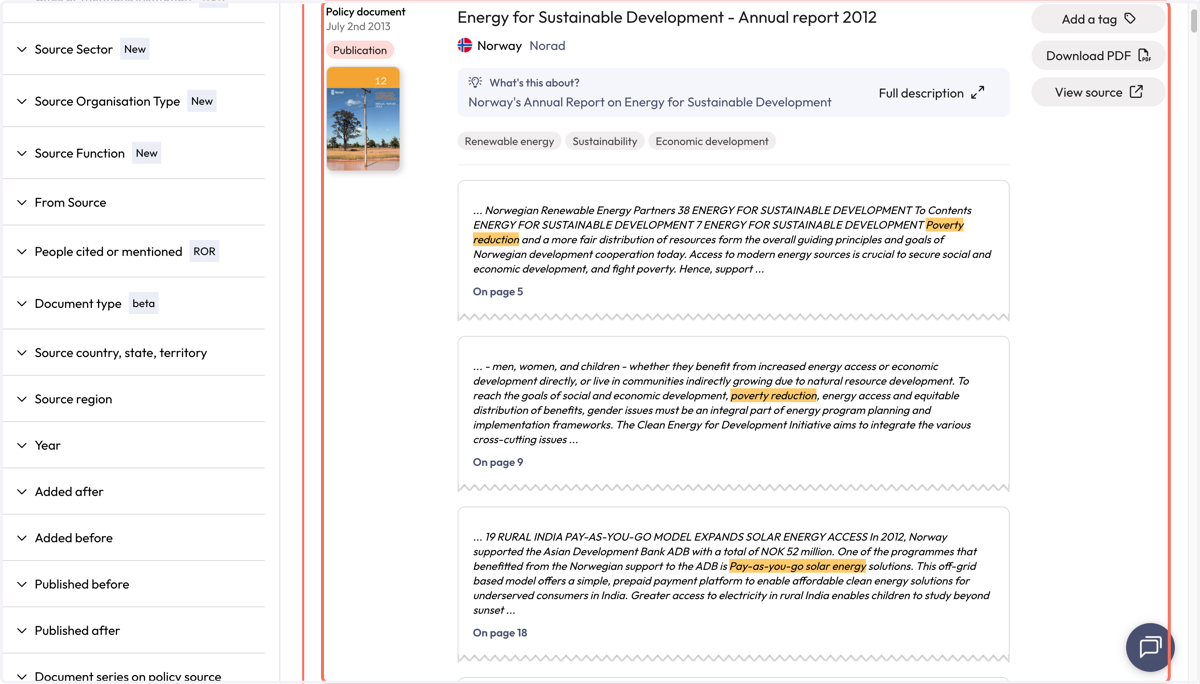
18. Review results for relevancy and accuracy. Search terms will be highlighted in the results.
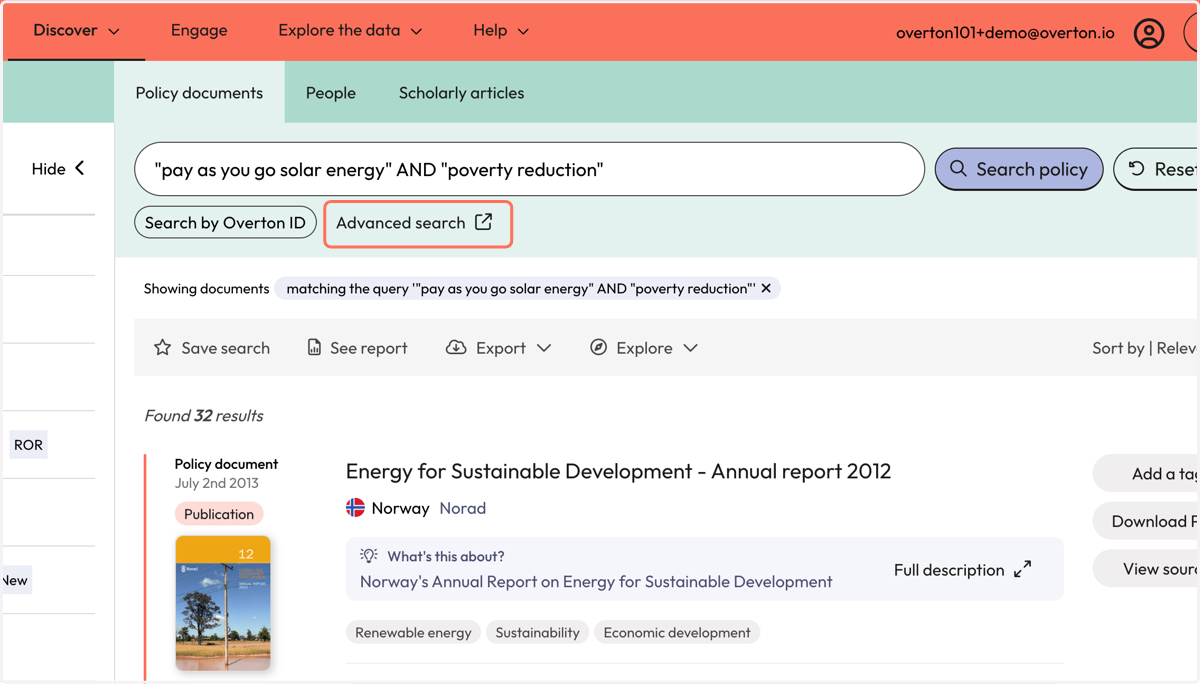
19. At any point, you can return to the query builder to edit further by clicking on 'Advanced search'.
20. A. Use filters to narrow down results.
20. B. Use the grey action bar to save a search, generate a summary report, export or explore further.