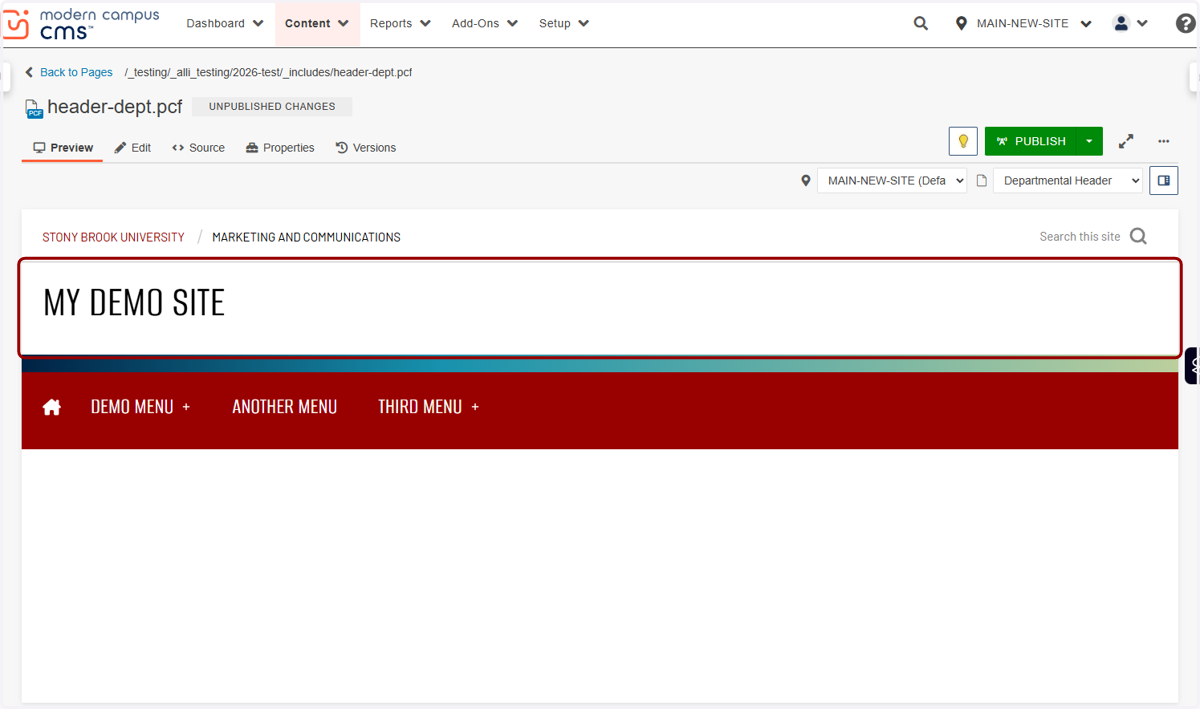
[TUTORIAL] Configuring Header Options
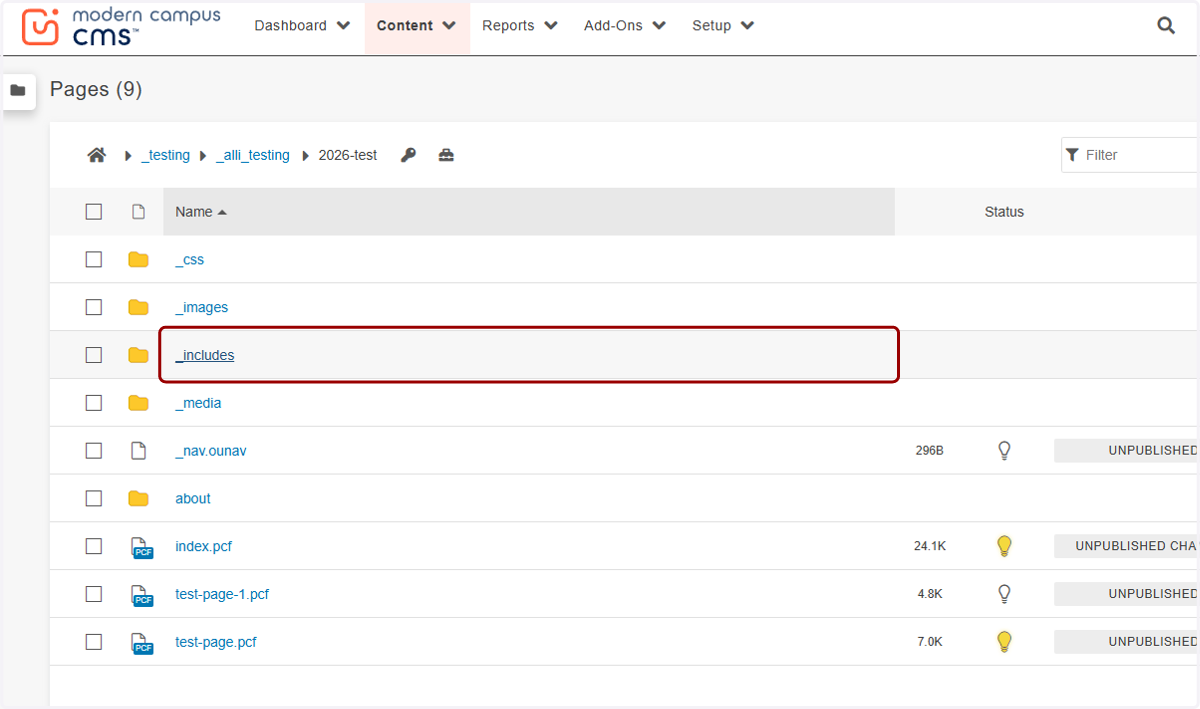
1. To get to your header configuration file, click on the _includes folder found in the root of your website.
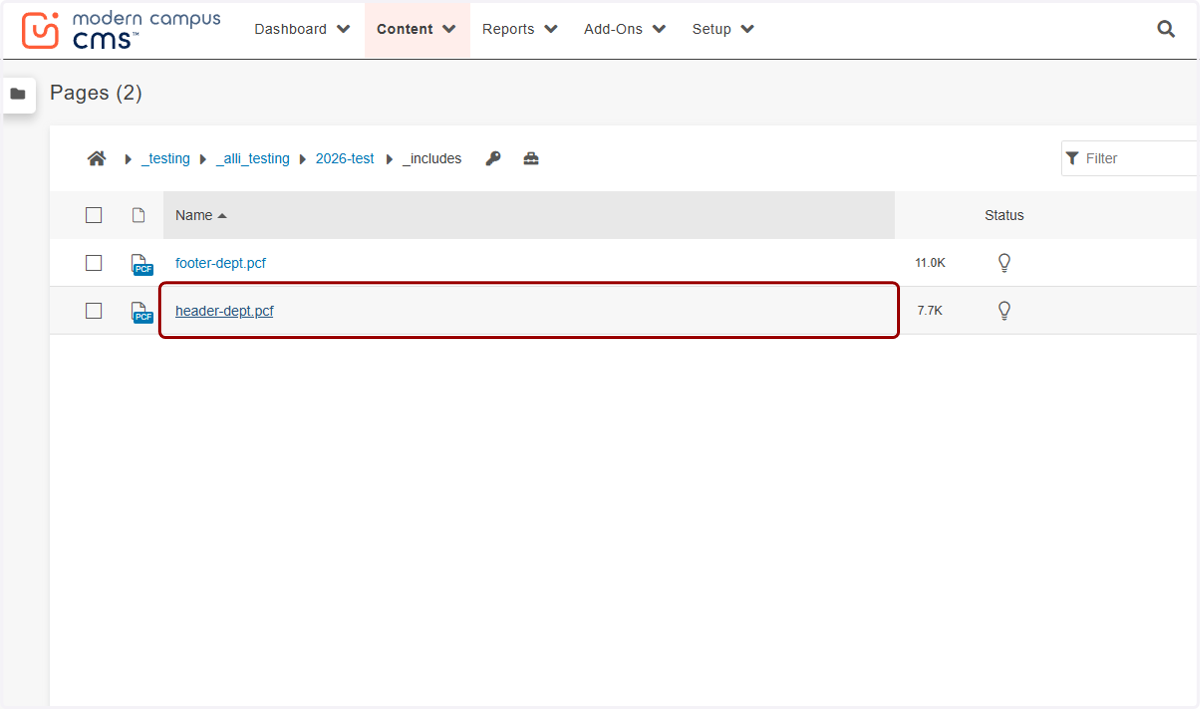
2. Click on header-dept.pcf.
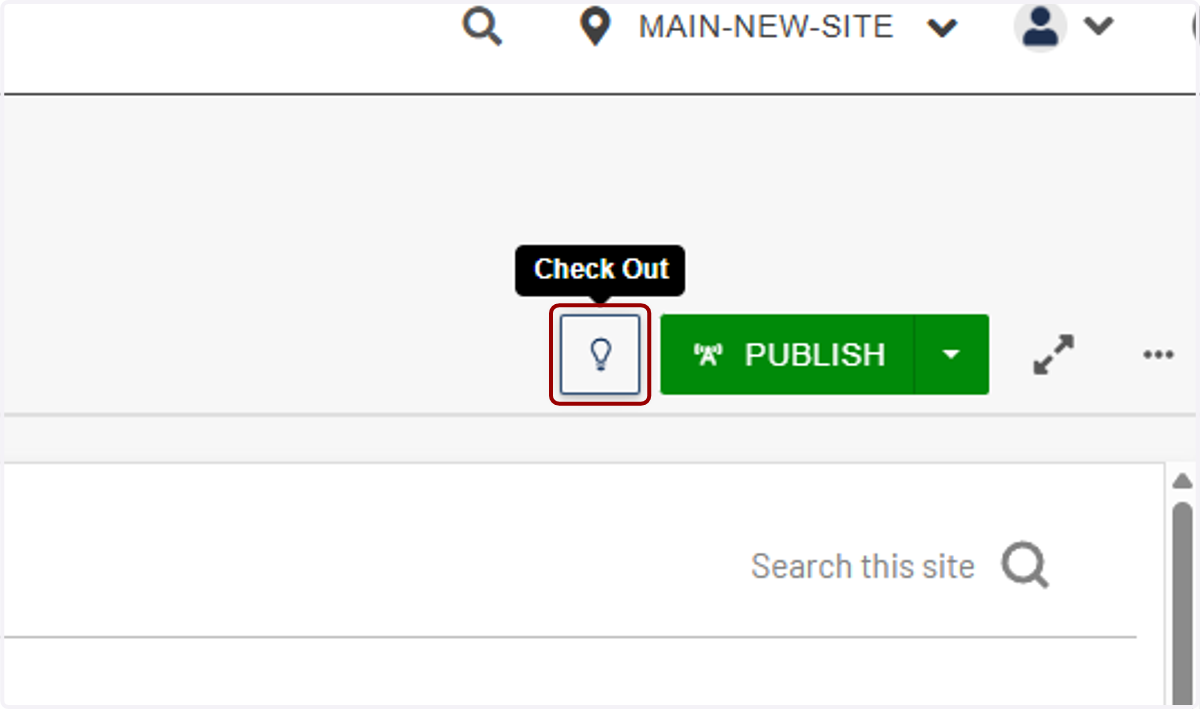
3. Now, you'll click on Check Out. This is an important step to remember, because you will see more page properties to configure when you check out a page. If you do not check out the page, you will not see the options we are about to review.
4. After you check out the page, click on Properties.
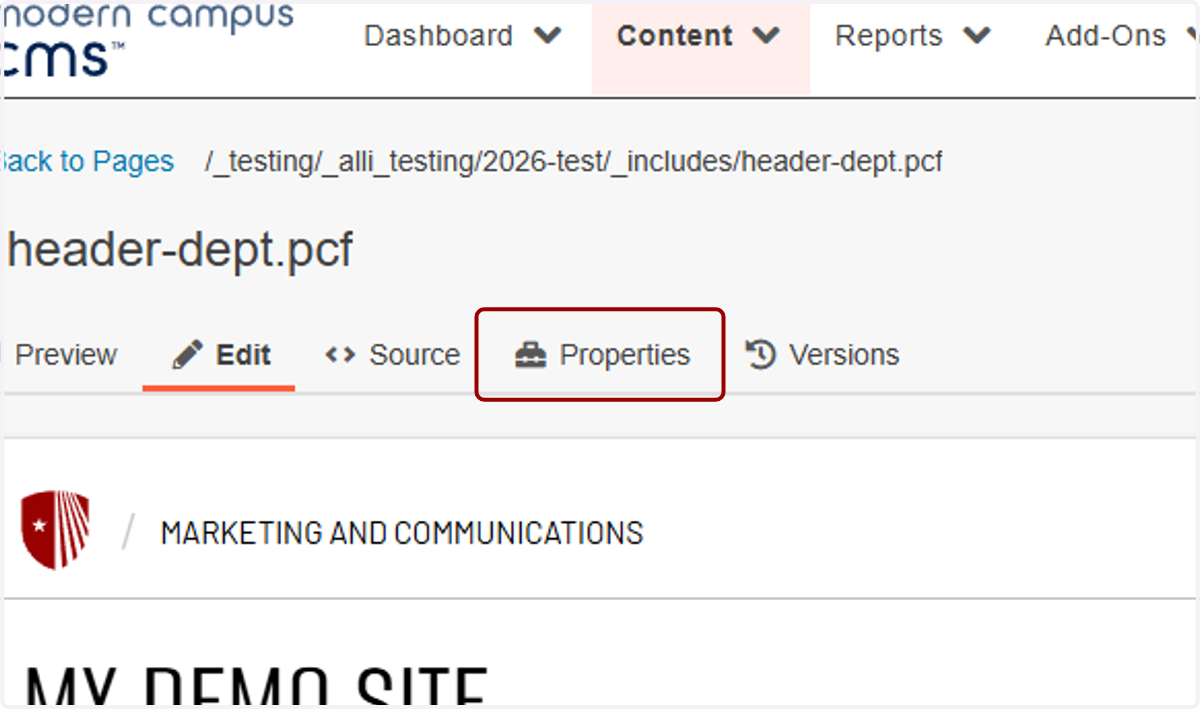
5. The first field you'll see is the Tags field. Tags are internal labels used to organize and surface content behind the scenes. They help power search, reporting, and filtering across the site but are not visible to visitors.
If you want to use these tags, be sure to use consistent, descriptive terms (like your department, topic, or audience) to improve findability. You do not have to use tags, and we will be leaving tags blank for this example.
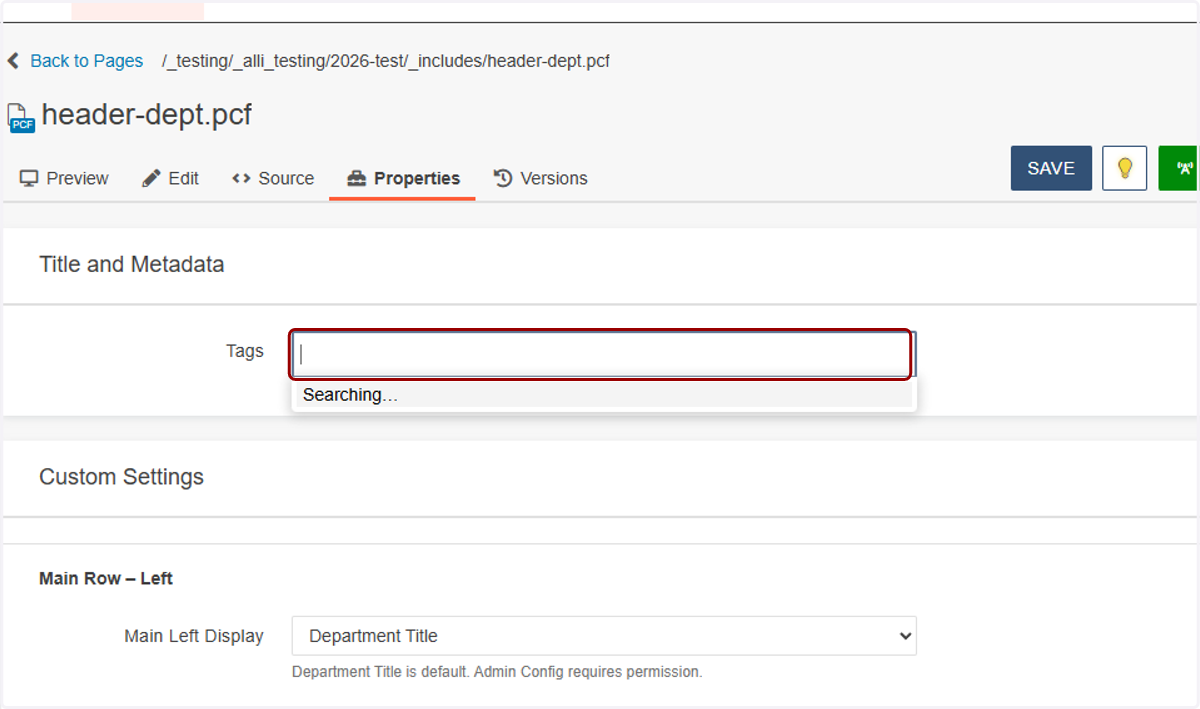
6. Next, we are going to choose how the main header row will look. You'll always leave Main Left Display set to Department Title.
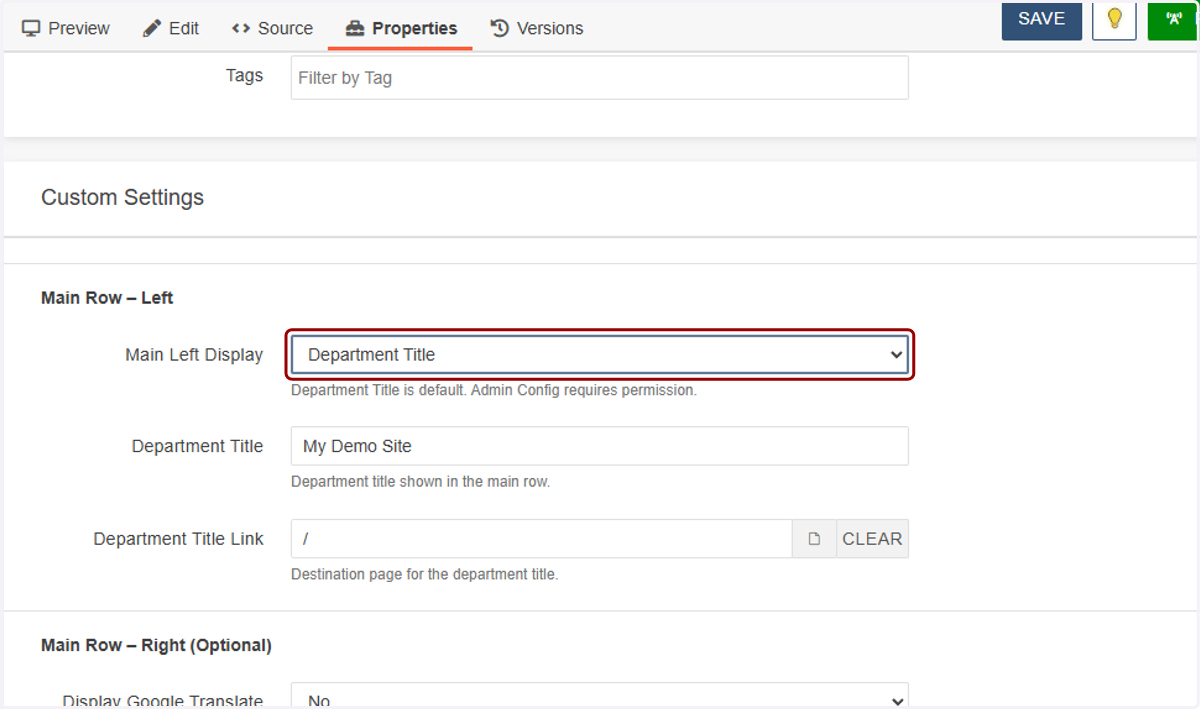
7. You'll enter your unit name in Department Title, like "Division of Student Affairs," "Department of English," or "Marketing and Communications." This is the name that will show in a large font on the left-hand side of the header.
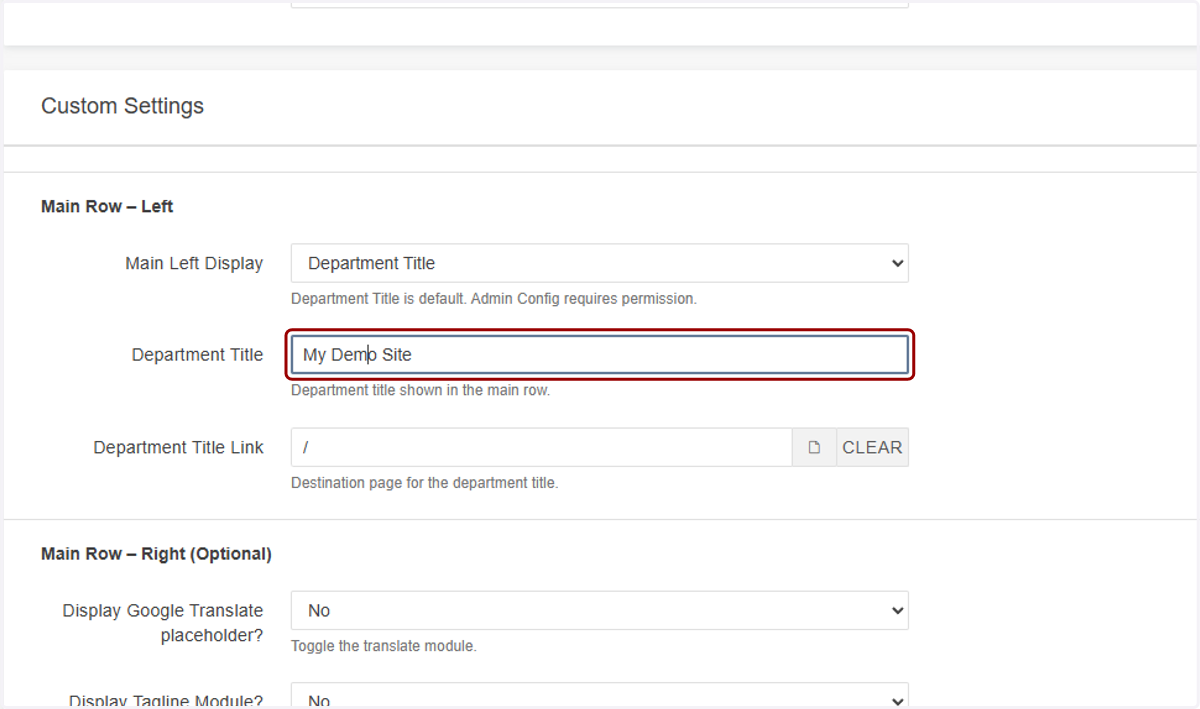
8. The Department Title Link is where the department title we just set up will go to when clicked on. You will most likely link this to the index page of the site you're working on.
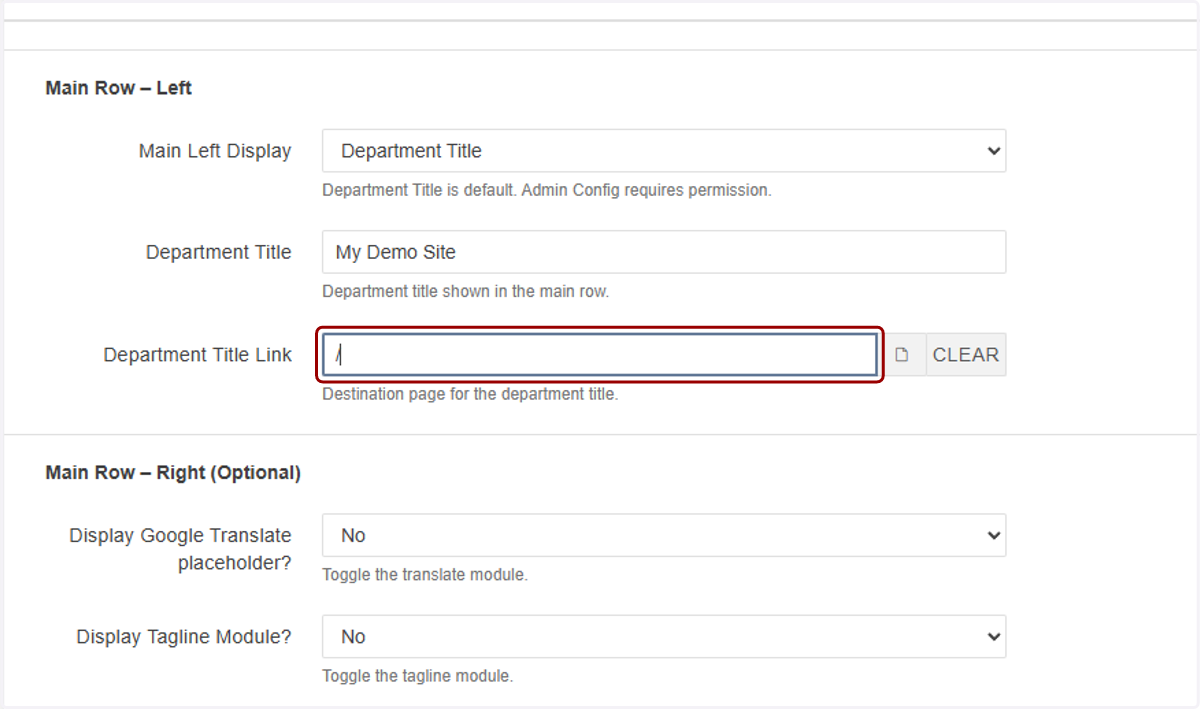
9. To set the link to the index page, click the file chooser...
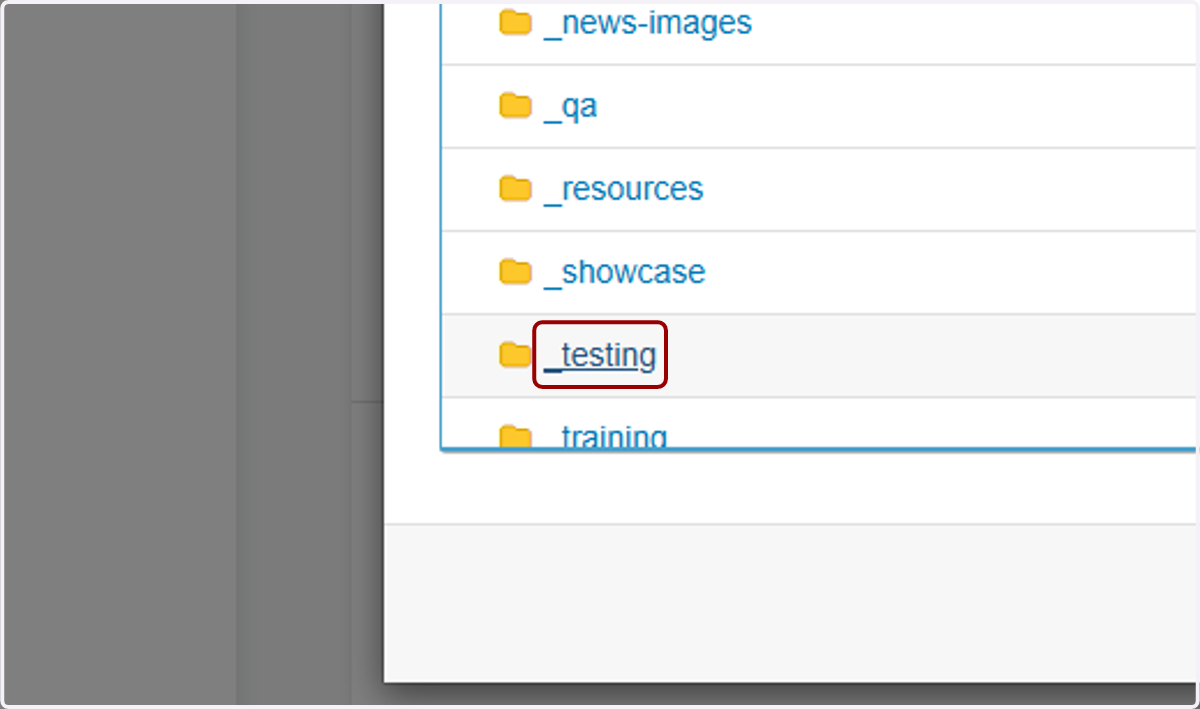
10. ...navigate to your site's folder...
11. ...and select index.pcf.
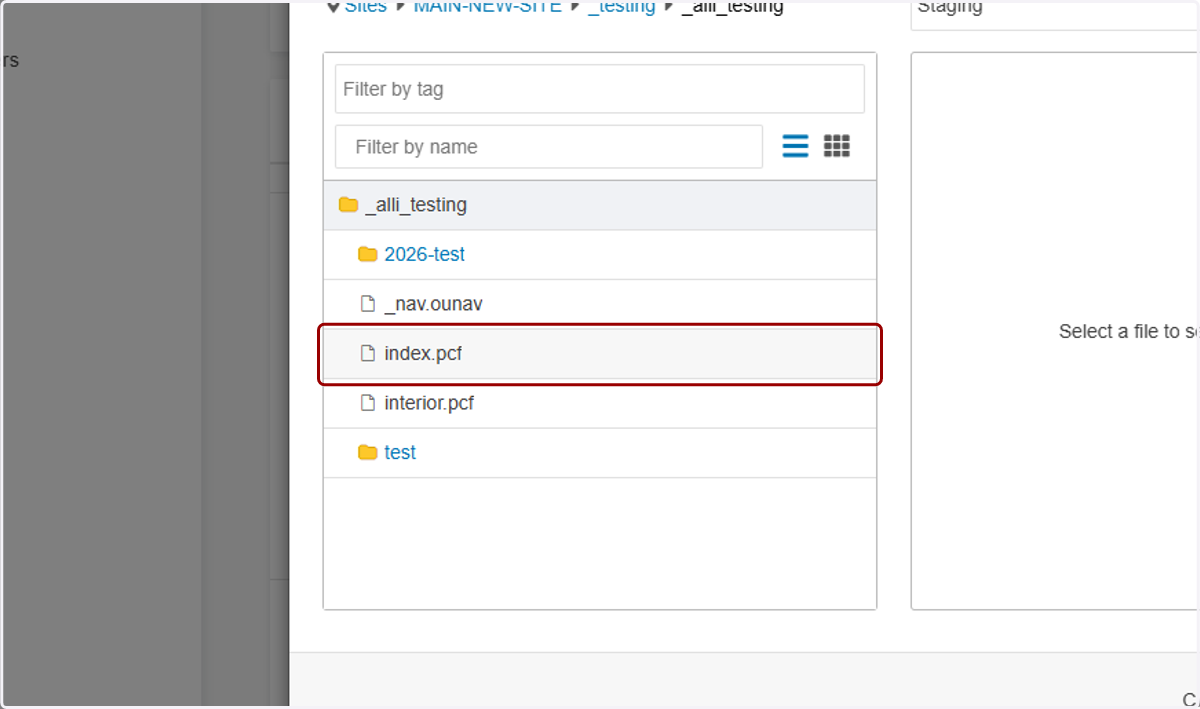
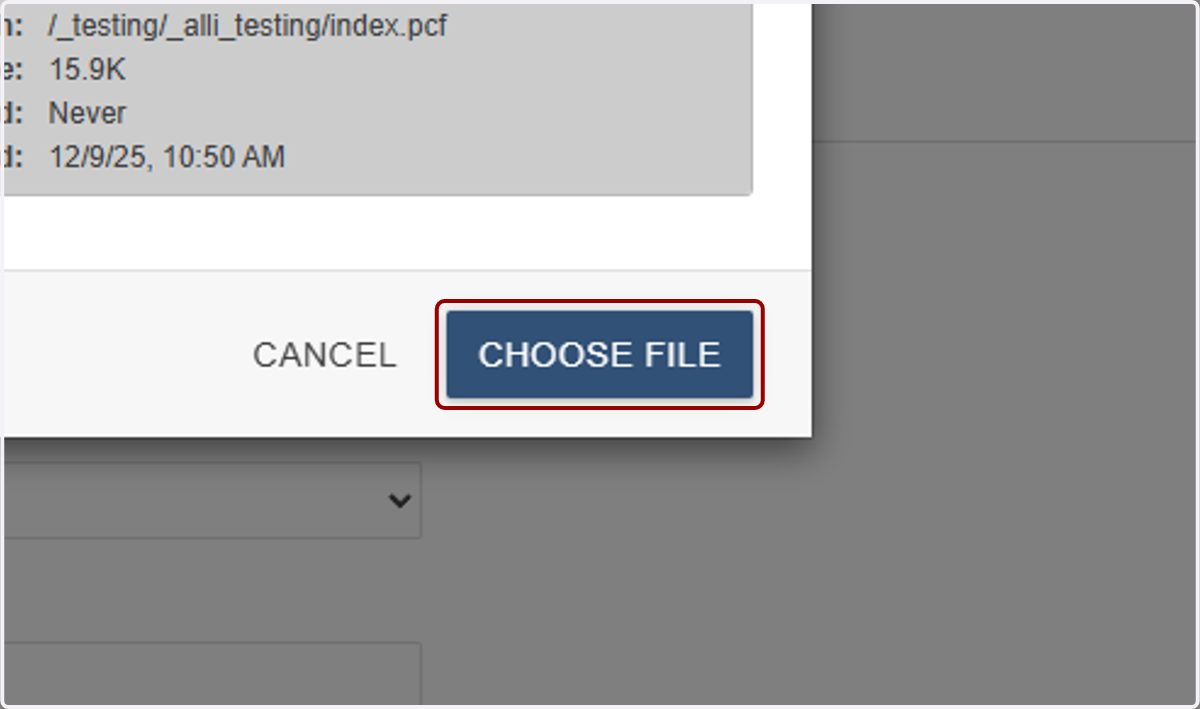
12. Click on CHOOSE FILE, and that will set your department title to link to your site's homepage.
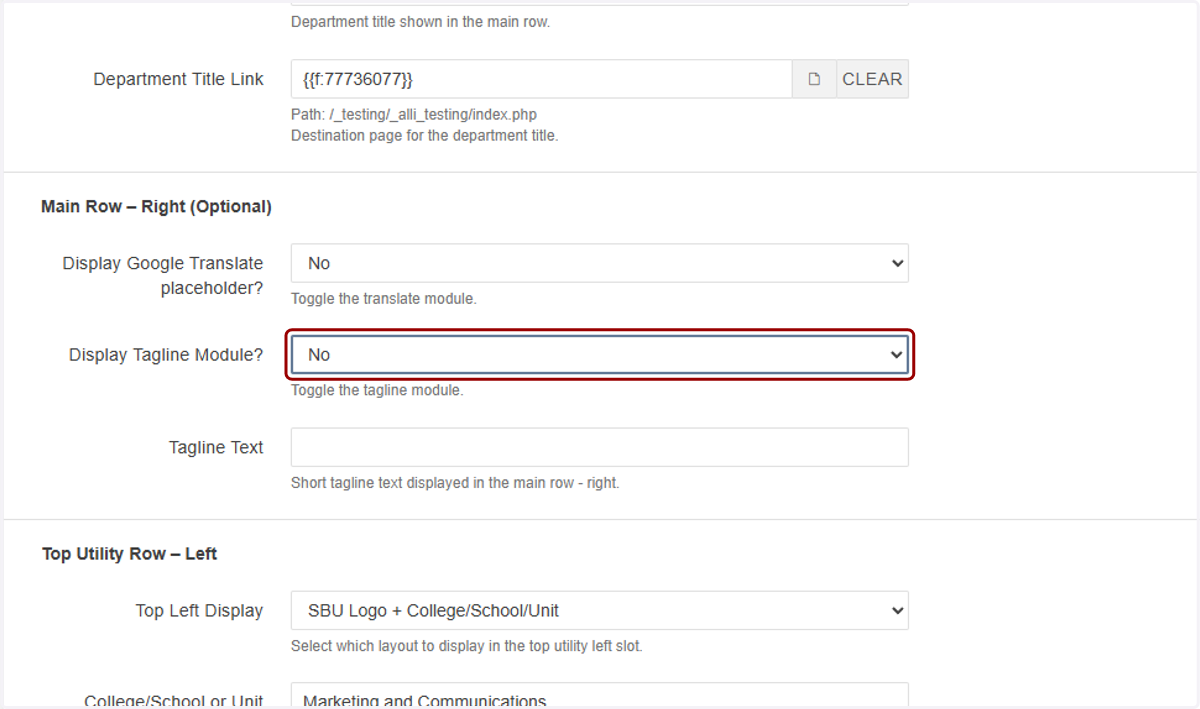
13. Next, you can opt to add a tagline in that right-hand spot. When you select yes...
14. ...and add a tagline, it will show up on the right. Make sure to keep the tagline short if you use this.
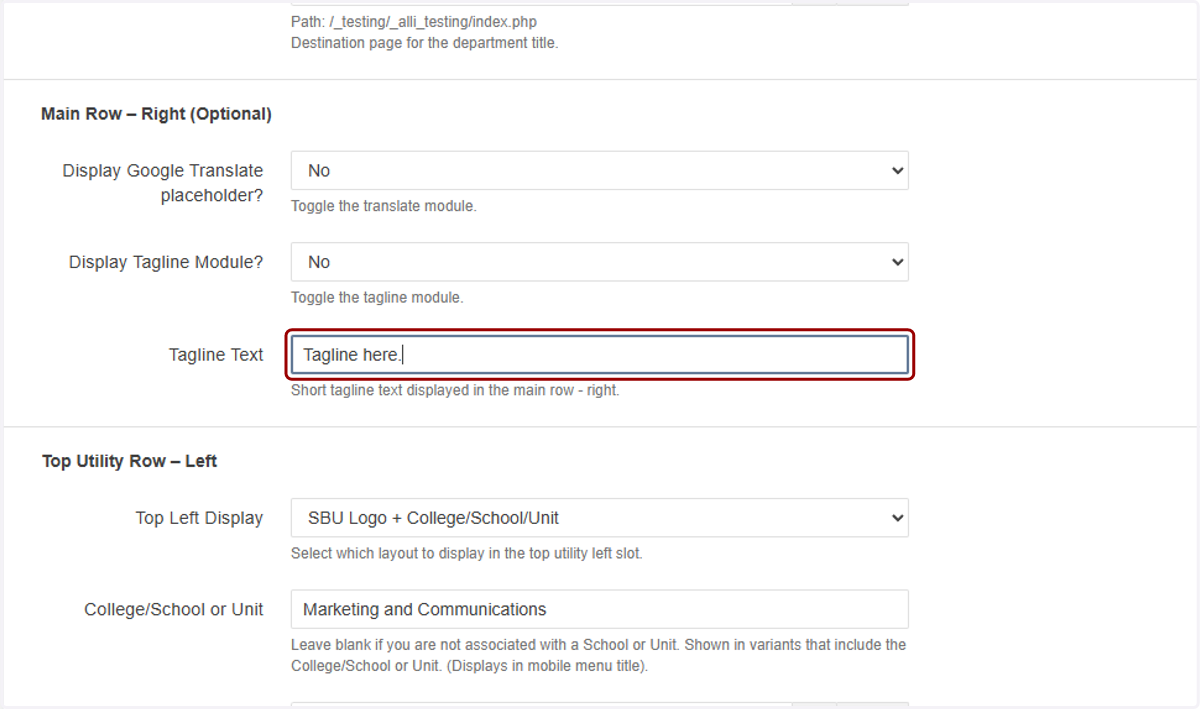
15. Now we will set up the Top Utility Row, which is the white space above the main area we just set up.

16. We'll focus on the left-hand side first. If you select SBU Logo only from Top Left Display...
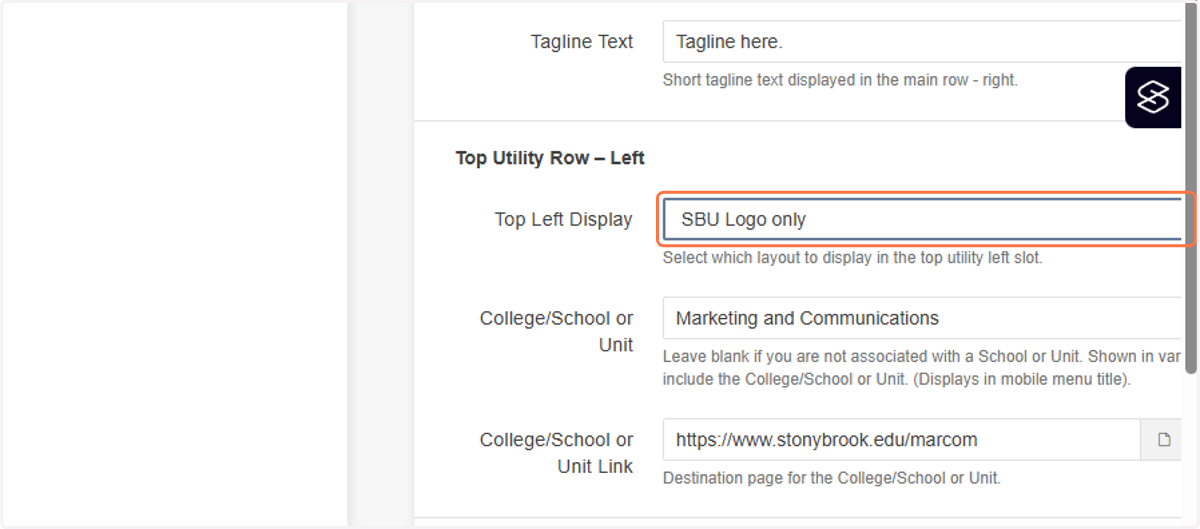
17. ...it will show the SBU shield and link to the SBU homepage.

18. If you select SBU Logo + College/School/Unit...
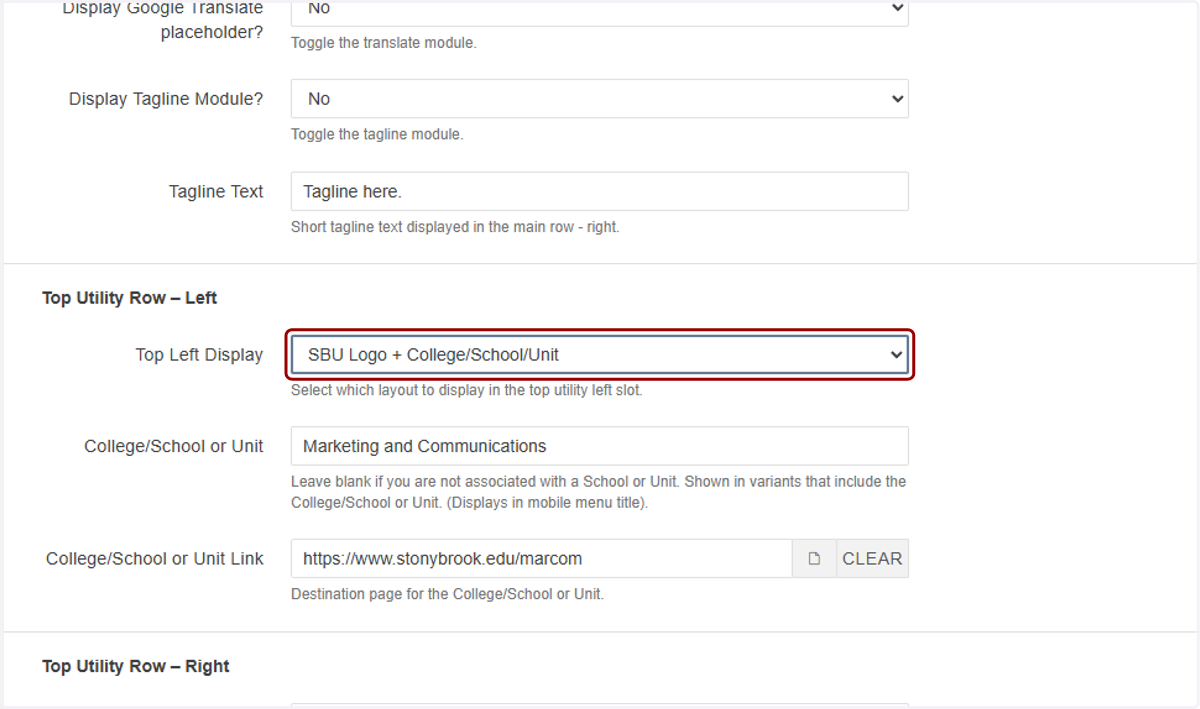
19. ...it will show the shield and the name of your larger college, school, or unit. You can also link this text to that unit's website in the "College/School or Unit Link" field.

20. Selecting "SBU no shield + College/School/Unit"...
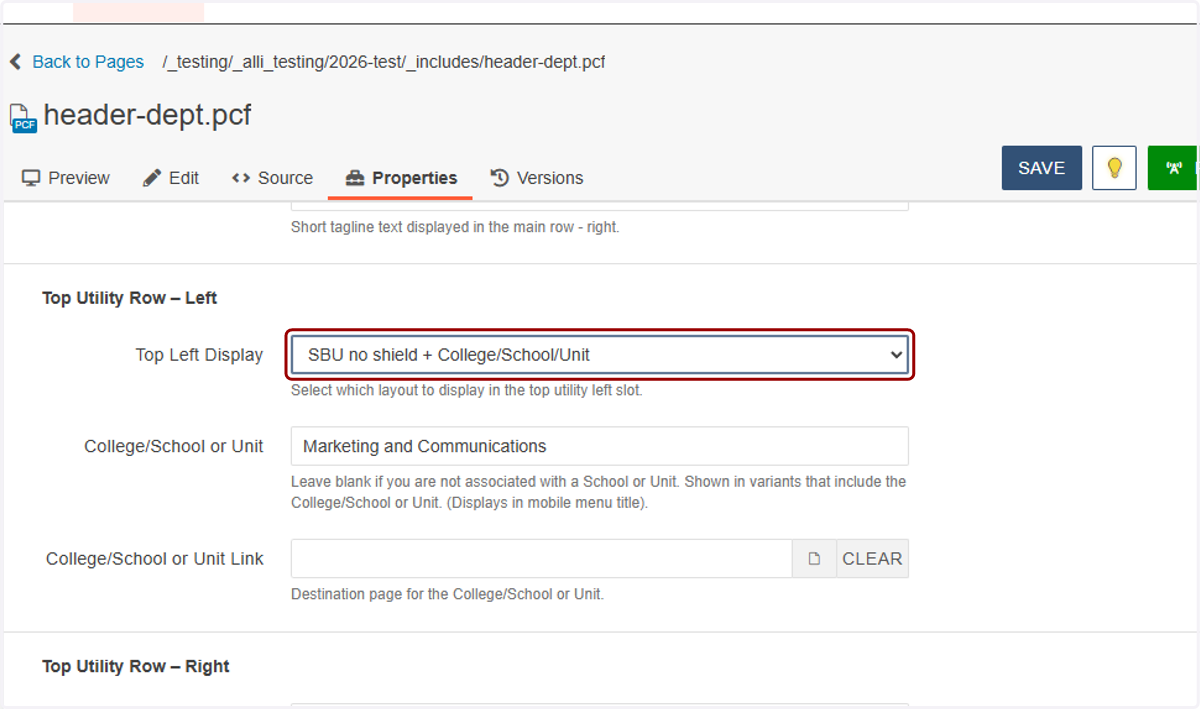
21. ...will remove the shield logo and replace it with "Stony Brook University" in text, followed by your unit's name. Select whichever style you would like.

22. To add the name of your college/school or unit, enter it in this field...
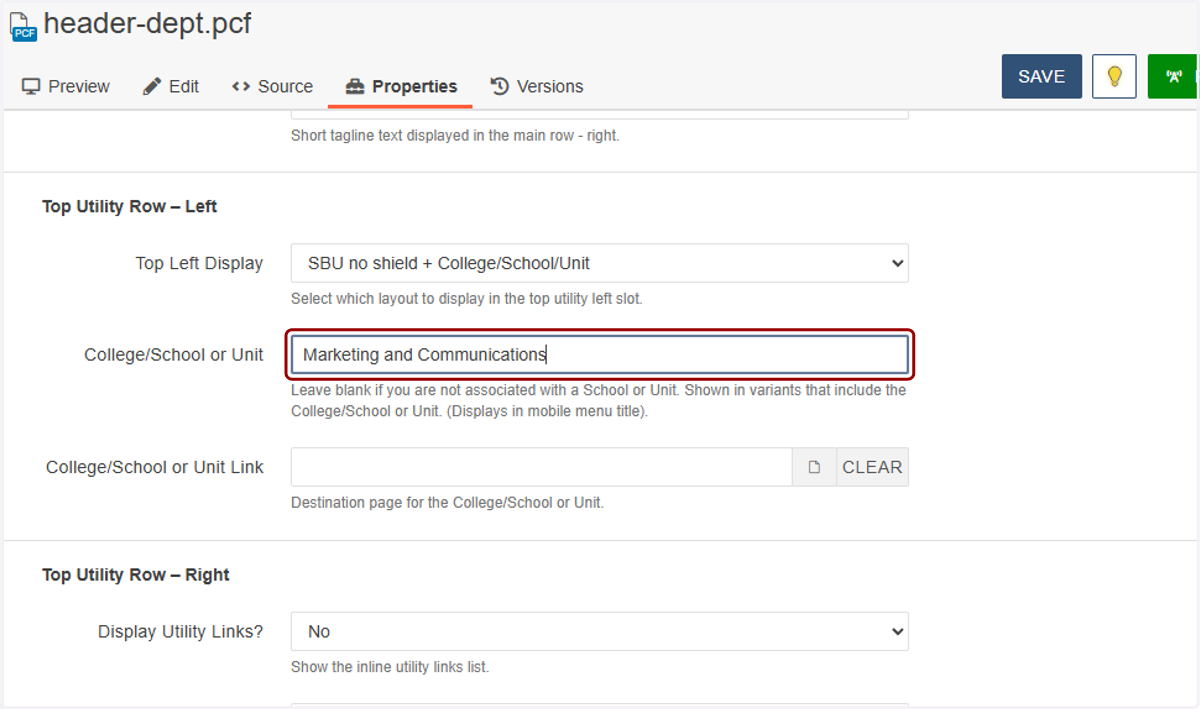
23. ...and enter the link to that unit's website by pasting in the URL or using the file chooser. (The file chooser is the recommended option)
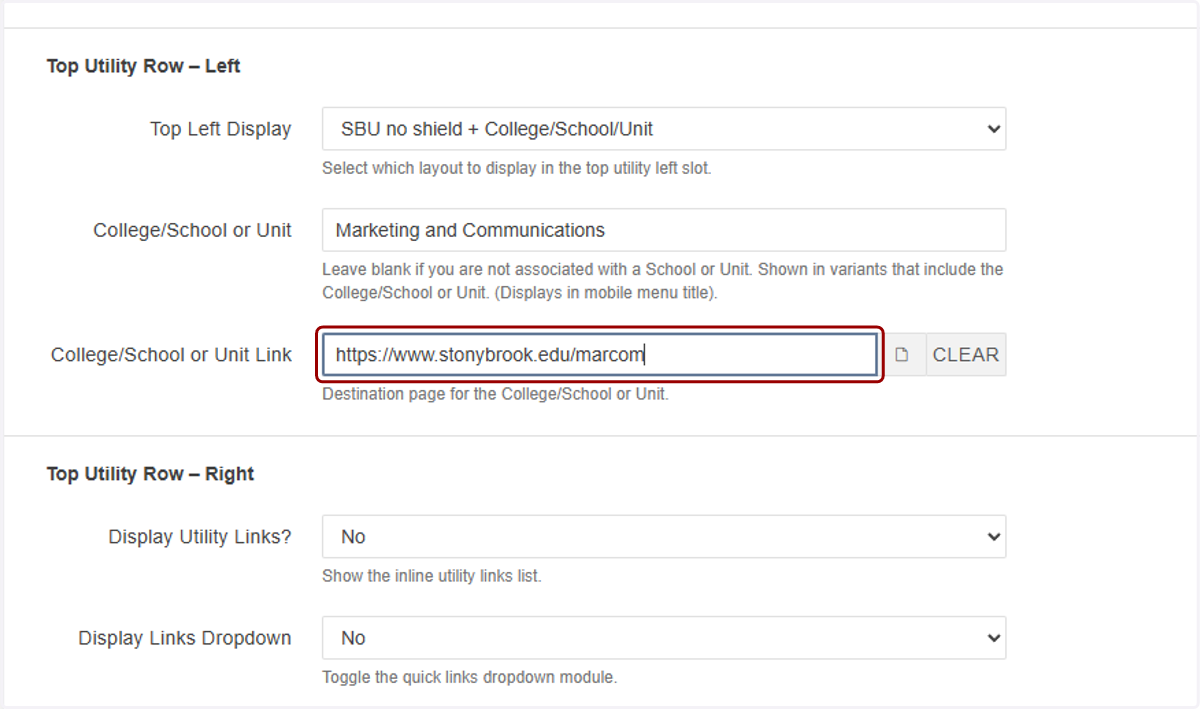
24. Setting Display Utility Links to Yes will allow you to display a few text links on the right-hand side. We explain how to set the anchor text and links for this section in our separate Header Configuration: Navigation Links article.
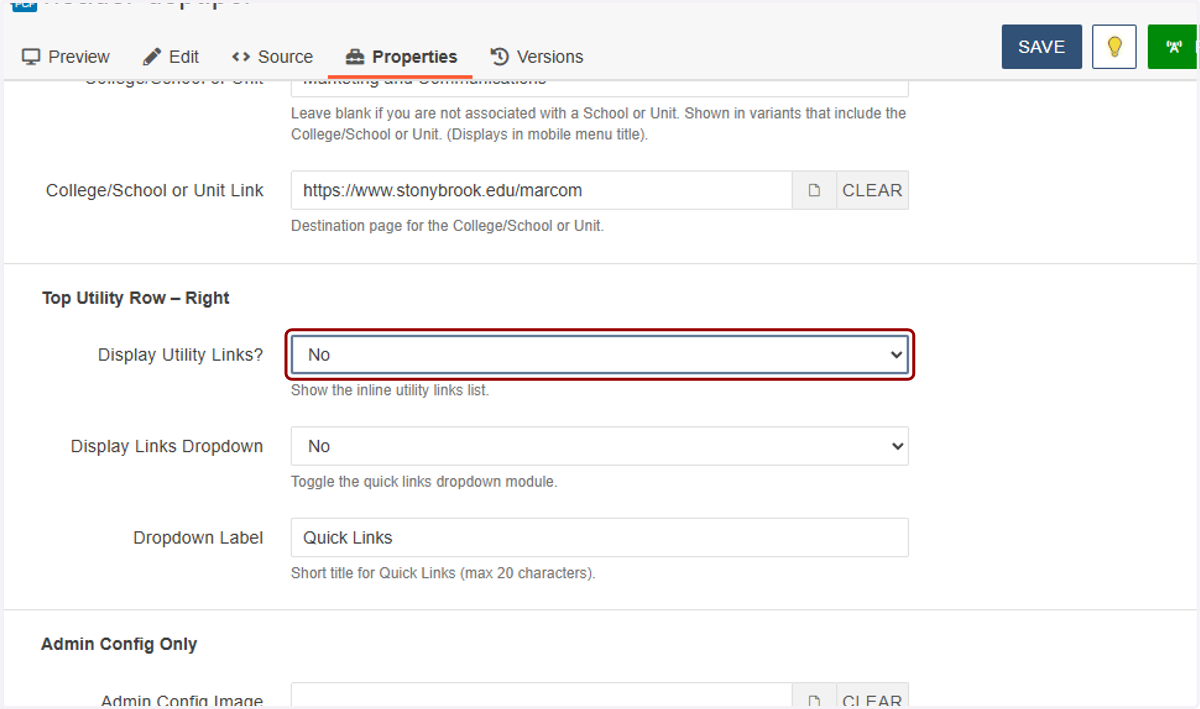
25. This is a preview of what the Utility Links look like.

26. Setting Display Links Dropdown to Yes will give you a dropdown box in that same right corner of the site header.
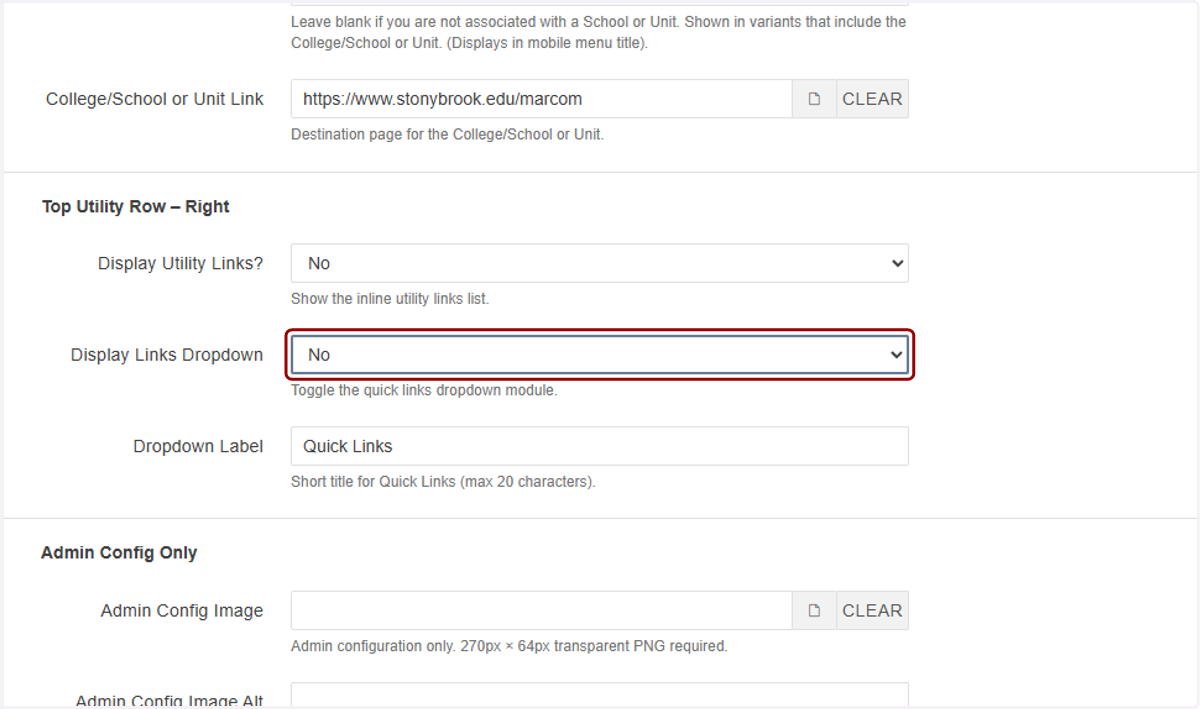
27. Here is a preview of what the Display Links Dropdown looks like.

28. You can change "Quick Links" to another label by using this Dropdown label field. We recommend keeping it as short as possible.
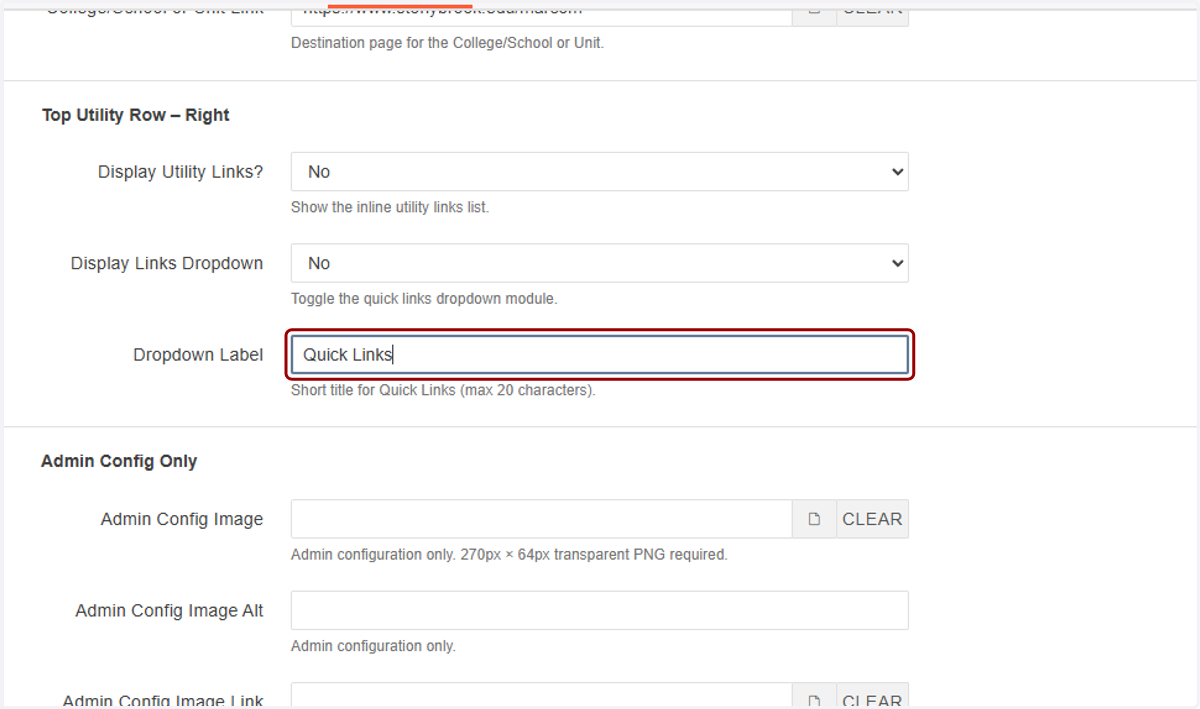
29. You can display Utility Links and a Links Dropdown at the same time, but please be sure to check that this row doesn't get too busy. You'll have an opportunity to set up a full navigation menu of links in the main nav row. See our navigation configuration article for more info.

30. Admin Config is for MARCOM use only, so we will not be reviewing how to set up this section.
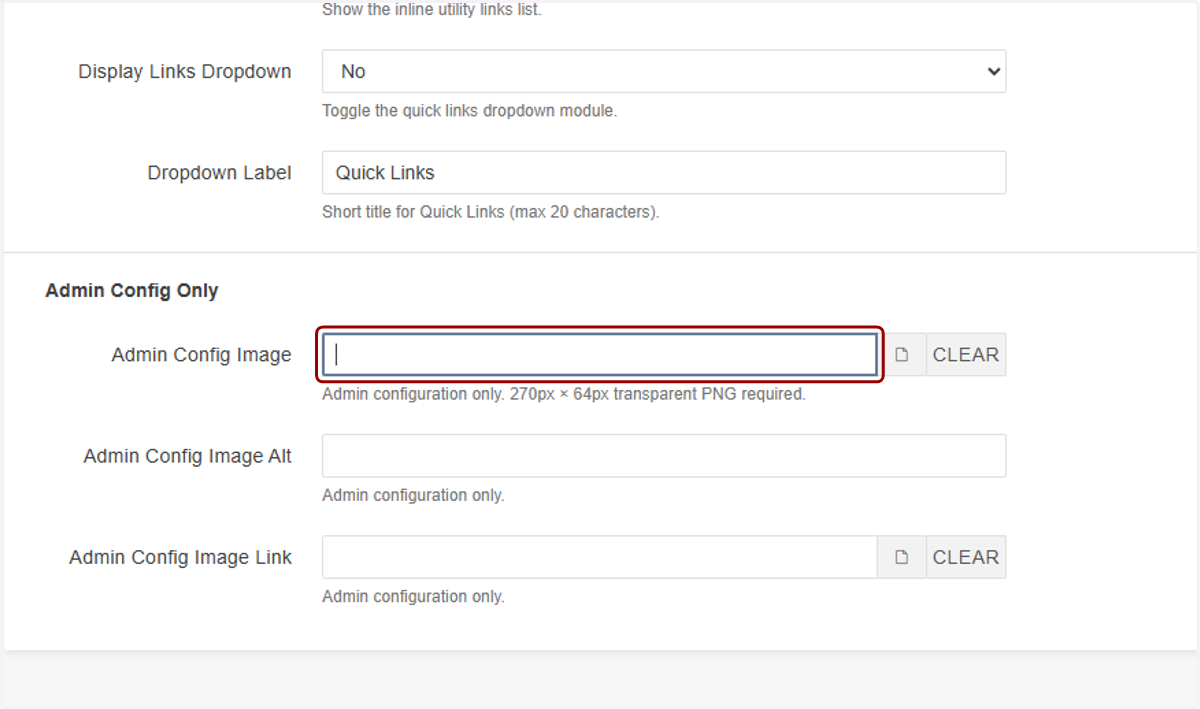
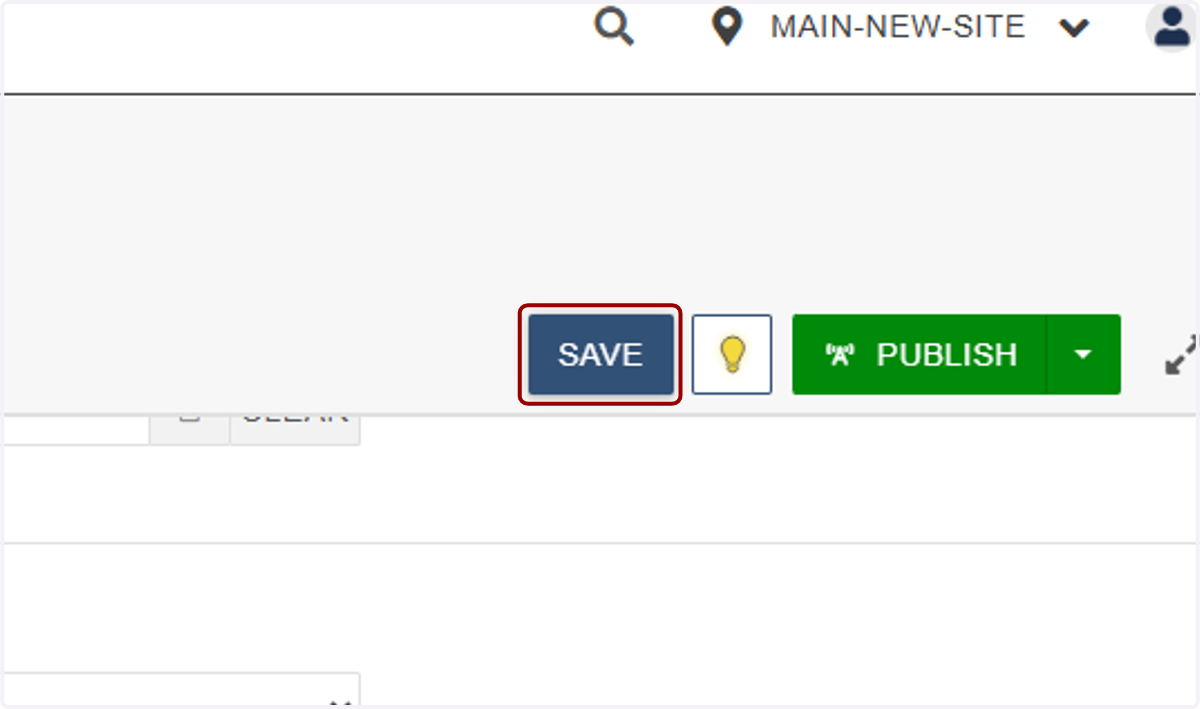
31. When you're done, click on SAVE at the top of the page.
32. You can then preview your work on the Preview tab. Great job!