Usage Rules on Payment and Delivery (Shipping)| BG_060
In this tutorial, we'll discuss the Usage Rules feature.
This little used feature allows you to define scenarios in which access to particular payment methods or delivery methods may be restricted.
For example, if you would like only Guest users to be able to utilise a payment method such as Paypal.
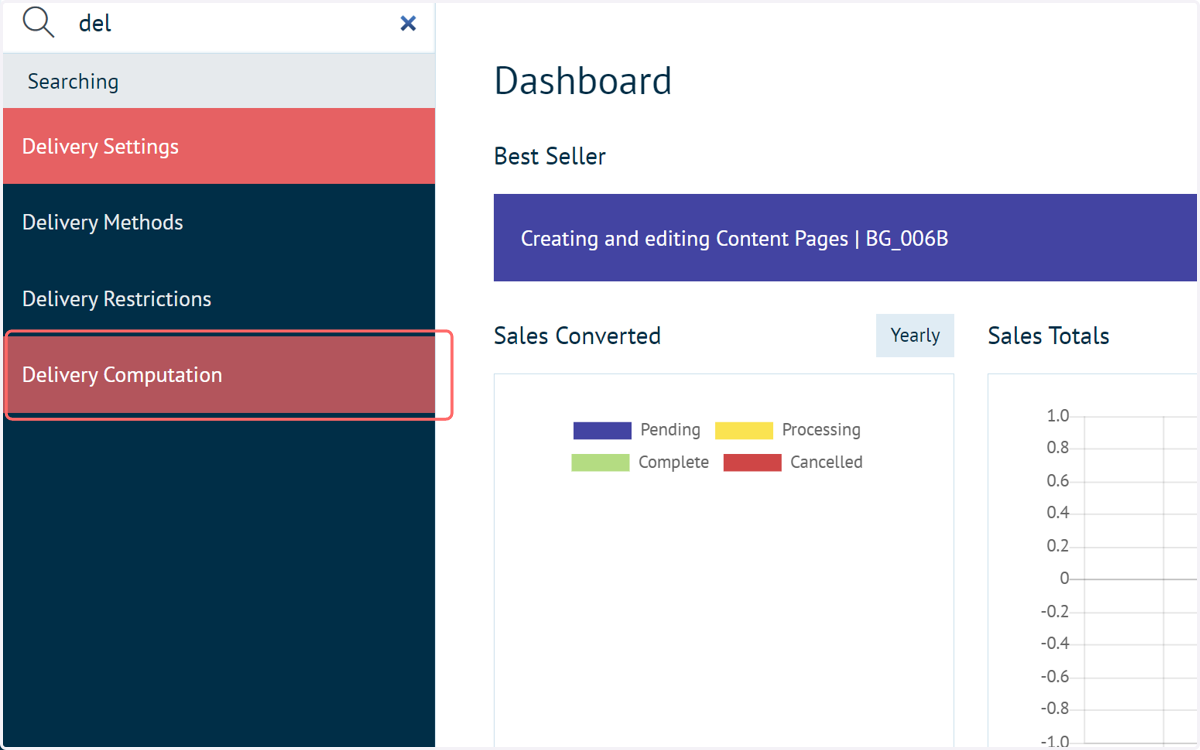
1. Navigate to Delivery Computation
We will use the Delivery Computation area to demonstrate this functionality, however it can be utilised in different areas of Infigo.
For restricting payment methods, navigate to Payment Methods, locate your payment method and click Usage rules.
For restricting delivery methods, navigate to Delivery Computation (or Shipping Computation), locate your delivery method and click Usage rules.
For restricting delivery options (such as a 1-day shipping within your FedEx delivery method), navigate to Delivery Computation, click Usage Rules next to the relevant delivery method. Then go to the Delivery Options tab, where you can define individual usage rules per option.
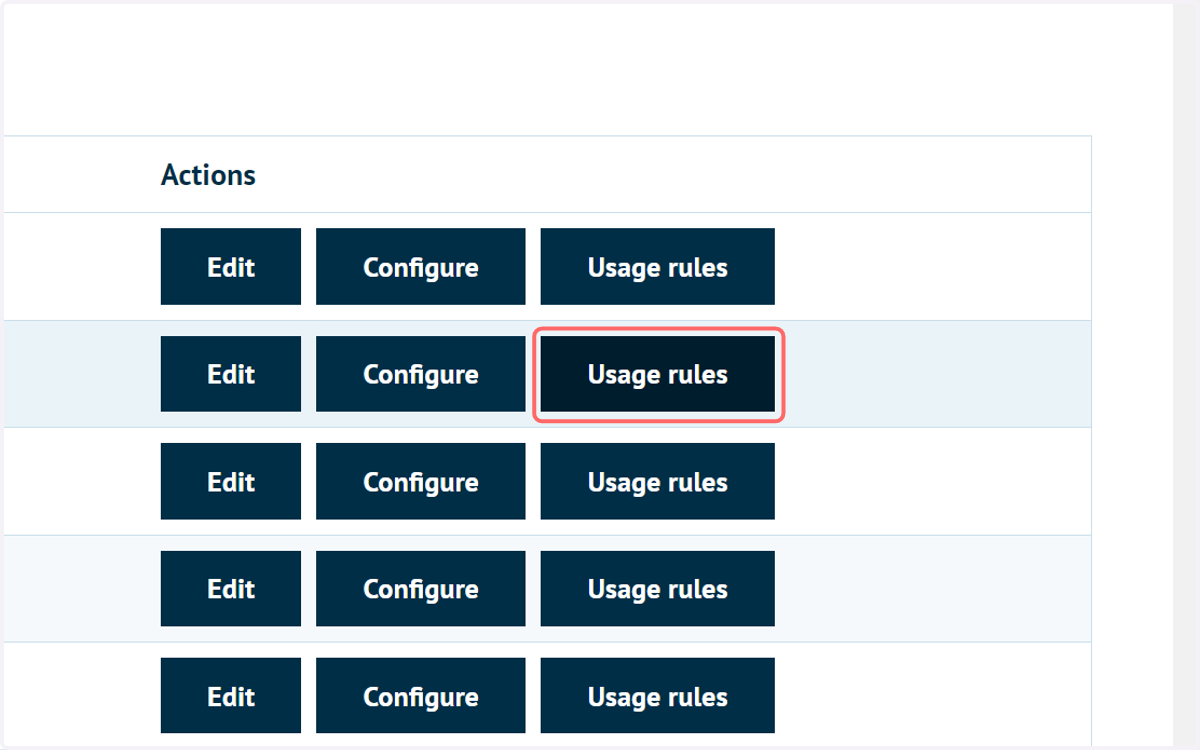
2. Click on Usage rules next to your chosen delivery method
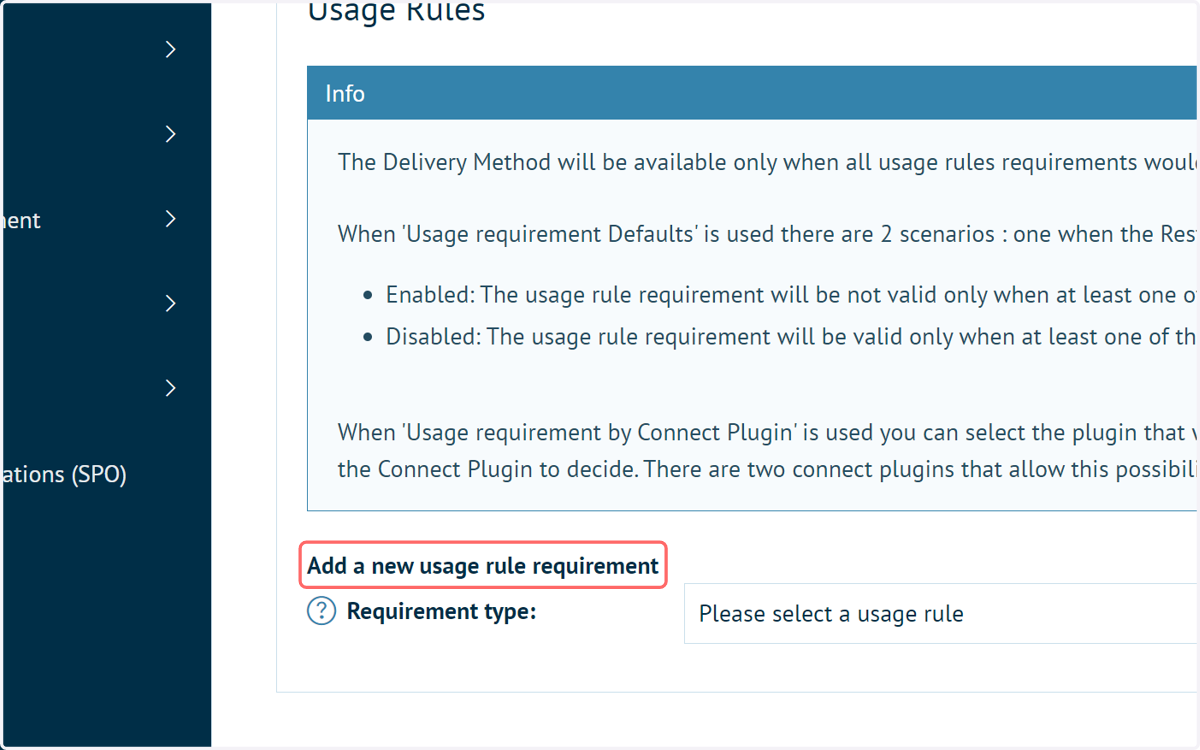
3. Usage Rules section
Towards the bottom of this page you will see a section allowing you to define usage rule requirements.
In addition, there's an Info box to provide some additional context on these capabilities.
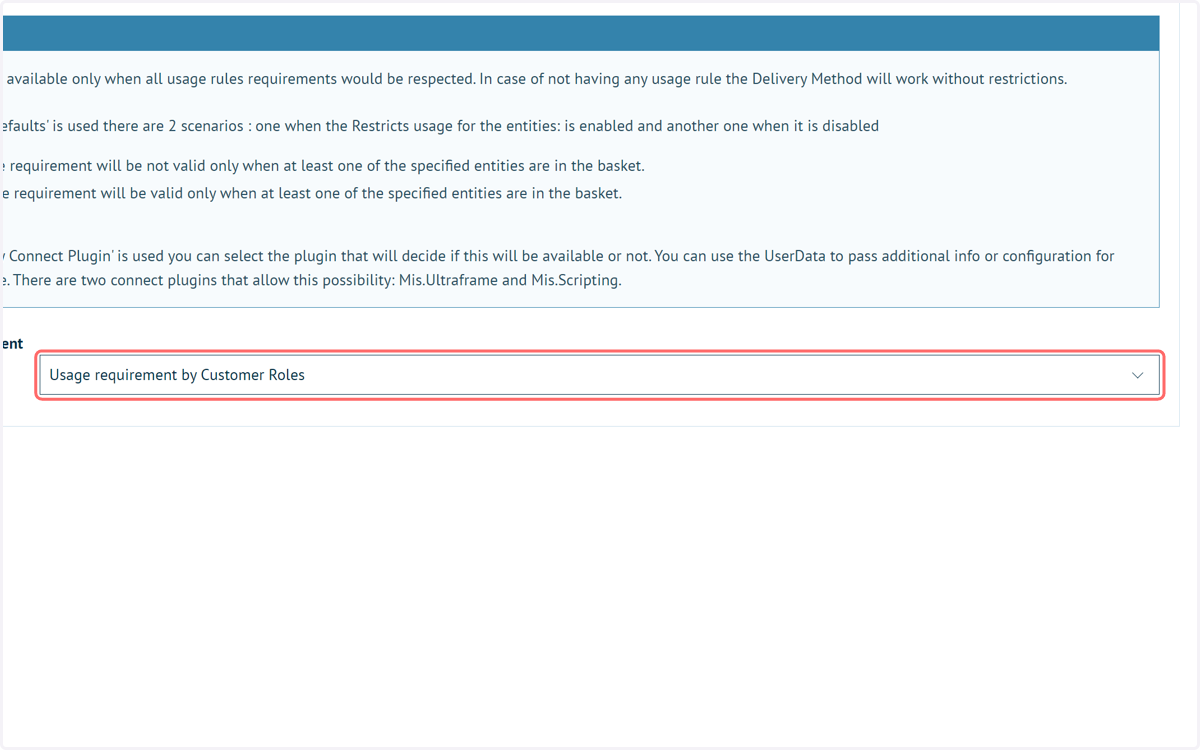
4. Select Usage requirement by Customer Roles
The dropdown allows you to choose a requirement type for your rule. This can be done against:
Customer Roles
Categories
Product Variants (essentially specific products)
Product Groups
Departments
Select Connect plugins
Use these options to create rules where the scenario has to MATCH before a particular payment or delivery method will be shown.
For example, we'll next create a rule where in order to utilise this delivery method, the user placing an order must have the Guest customer role.
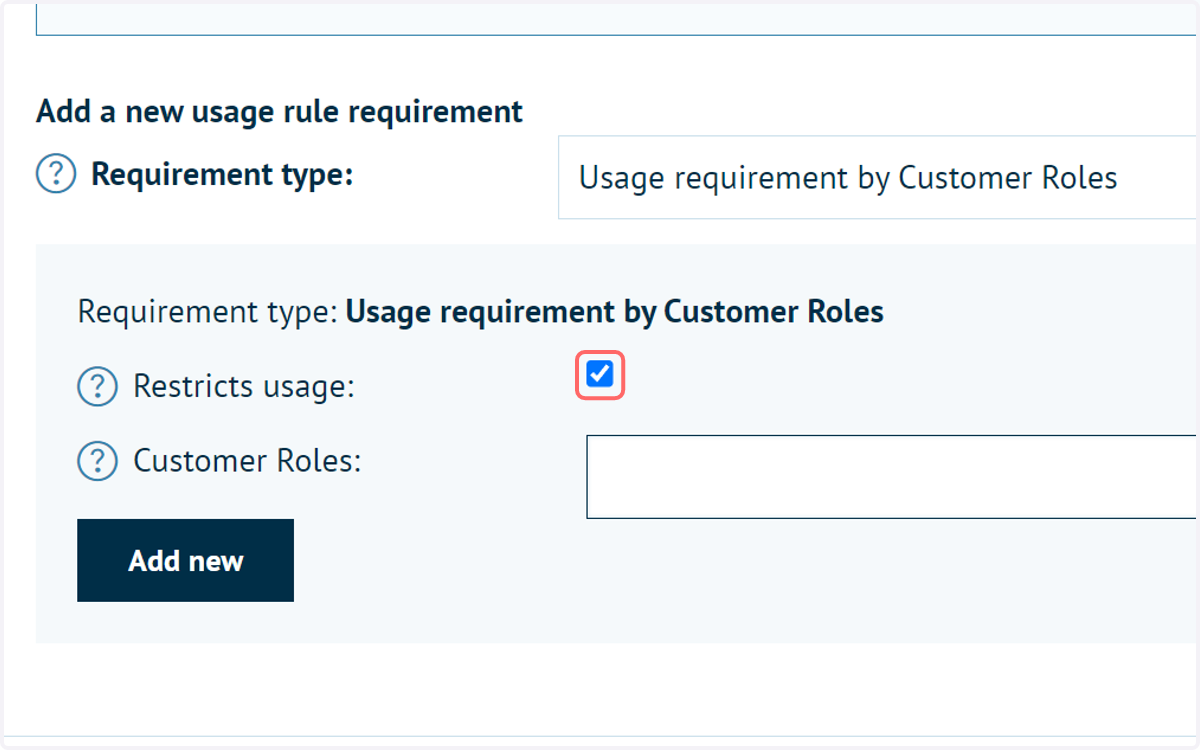
5. Check Restricts usage
Consider this a general on/off switch. If this is checked, usage is restricted to those matching the specified rules.
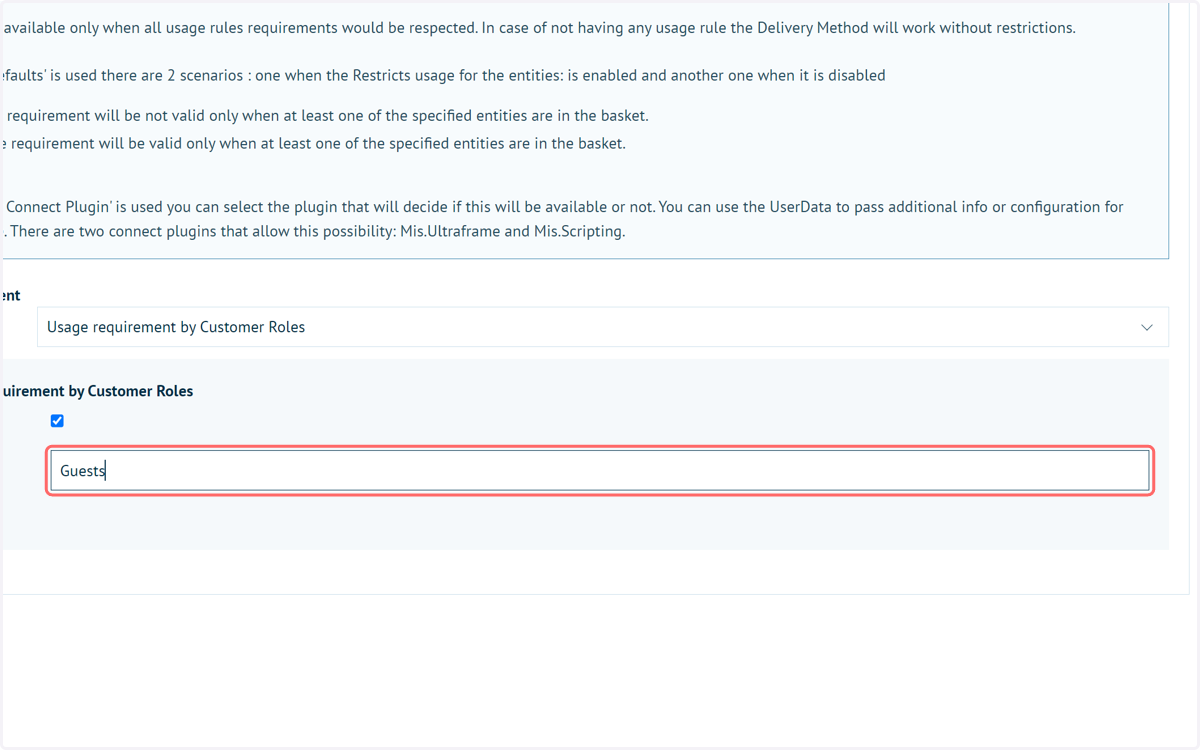
6. Type "Guests"
In our example, we're looking to type the name of defined Customer Roles.
The required input will differ based on the rule you're trying to make. For example, creating a rule against a Category will require the input of the Category ID.
Check the tool tips (?) next to the fields when creating your rules to see the format of input they expect.
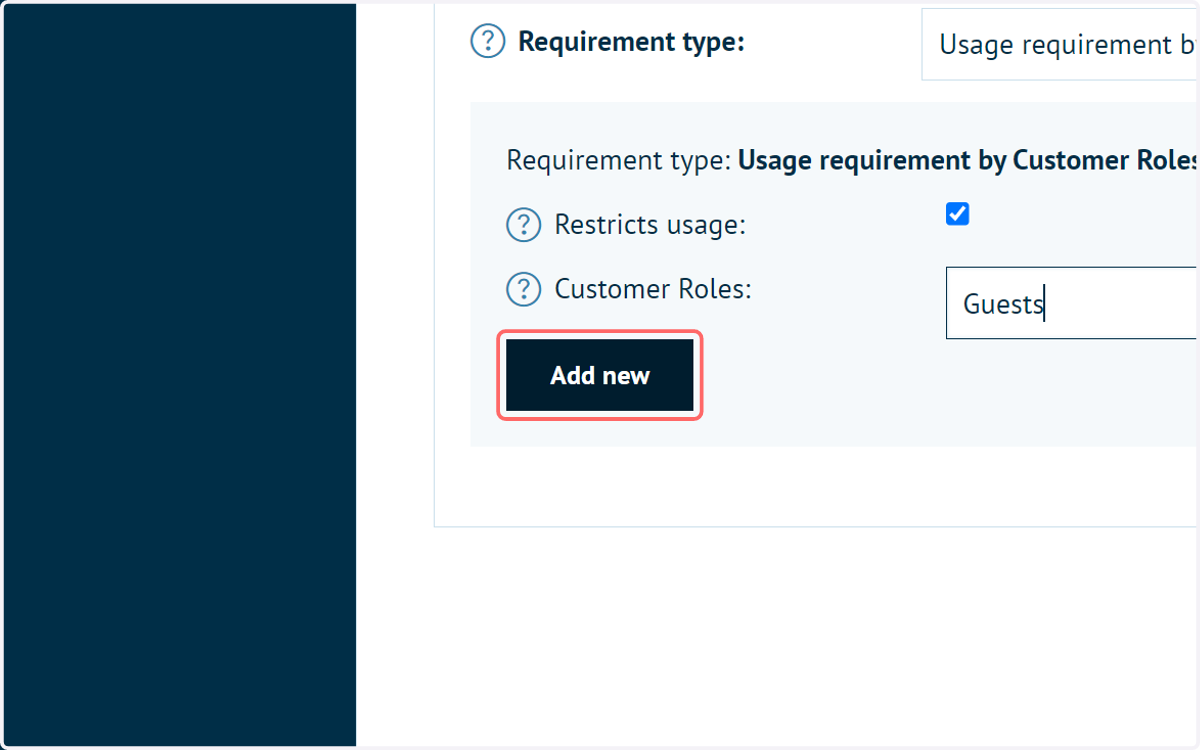
7. Click on Add new
This will confirm the addition of the rule.
Multiple rules can be defined for a single payment method, delivery method or delivery option (if required).
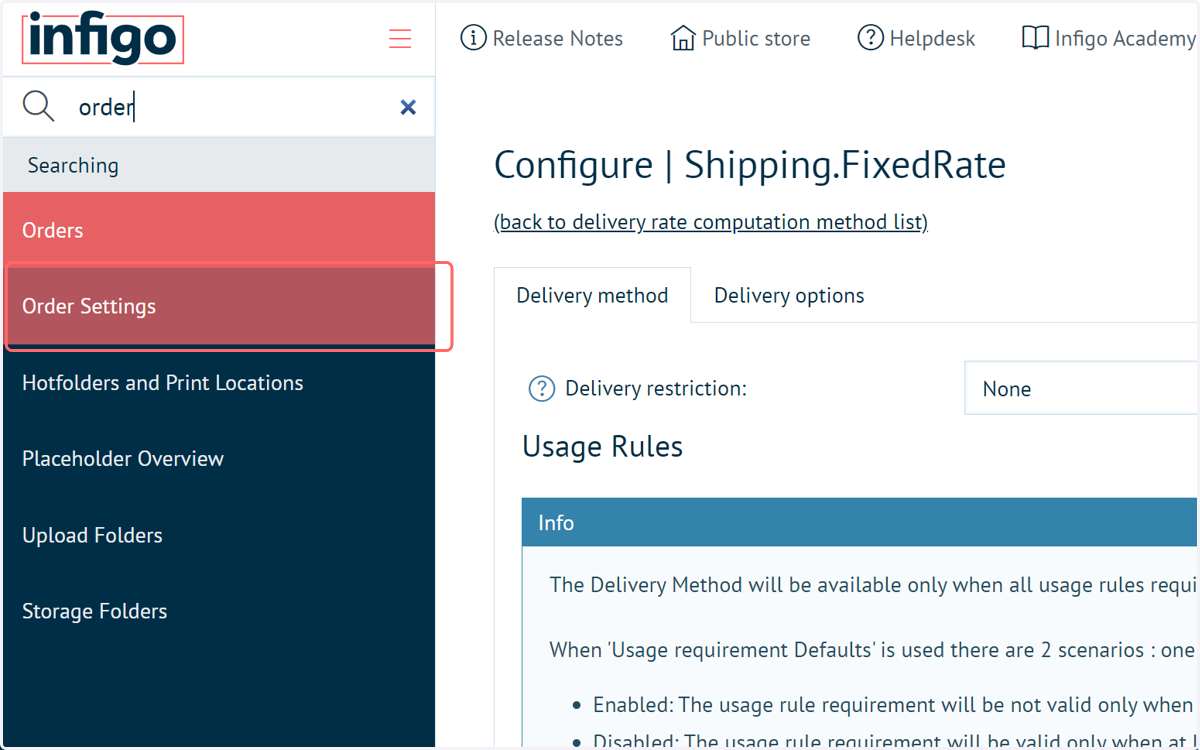
Infigo provides the ability to choose whether ALL of these rules need to be met in order for the method to be used, or just one of them. This is found within your Order Settings.
8. Click on Order Settings
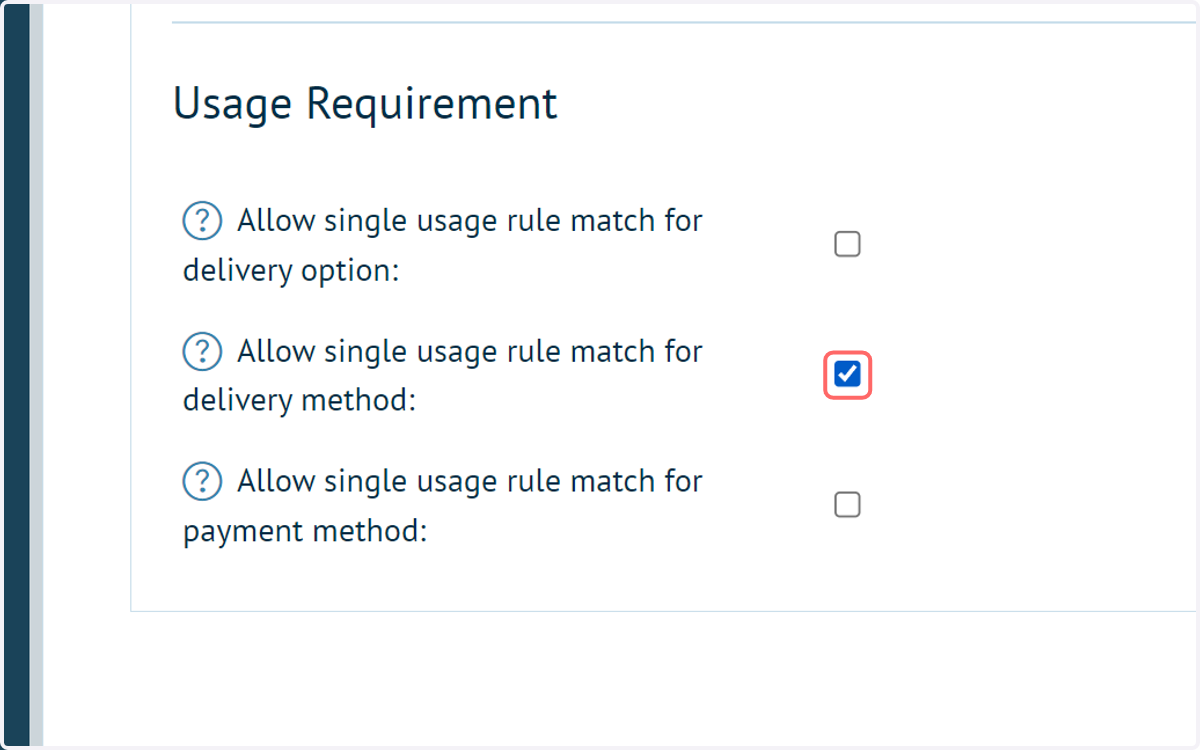
9. Scroll to Usage Requirement
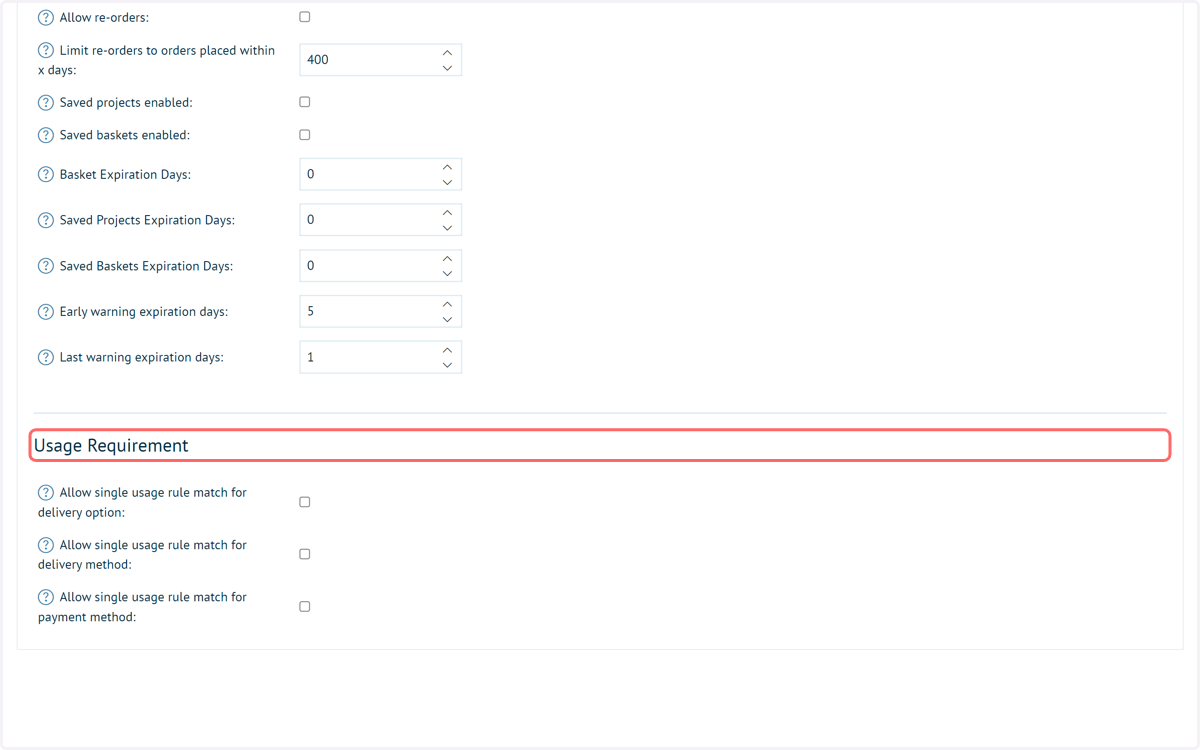
10. Select single or all rule match requirements
Split into three areas covering delivery options, delivery methods and payment methods. These are global controls which govern all rules specified in each of these three areas.
If these settings are not checked (False) then all rules are required to match a scenario before it can be used. If these settings are checked (True) then only one usage rule needs to match.
Click Save to confirm these options.