Webassessor Item Bank Creation
Item Bank Creation
1. If you are not already, log into your Webassessor administrator account. *If you are unsure if you have an account, please reach out to your Kryterion CSM.
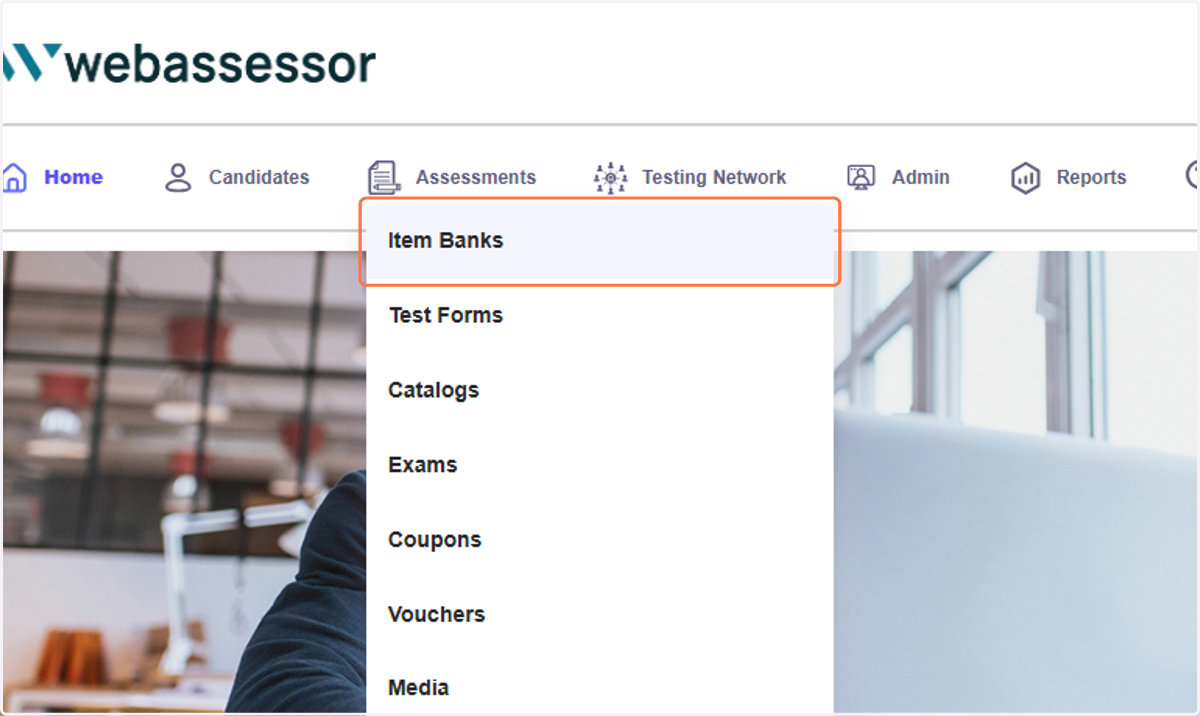
2. Click on 'Item Banks'
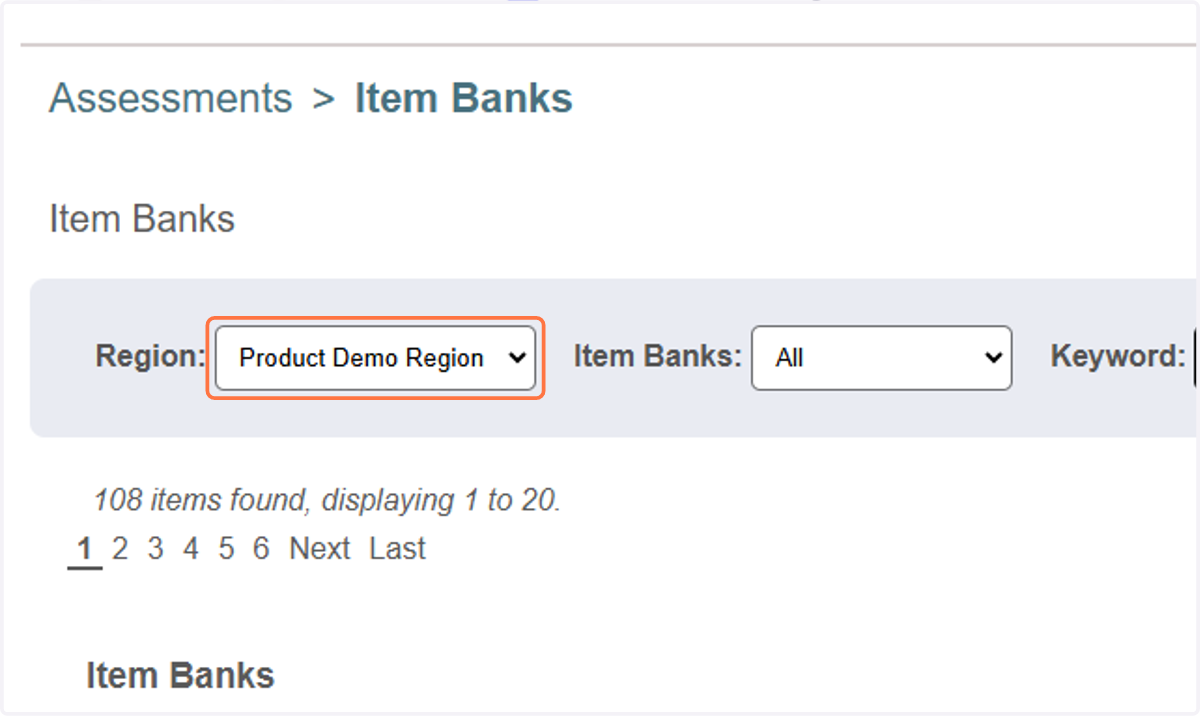
3. Select the region that you would like to create the item bank/items in, if applicable.
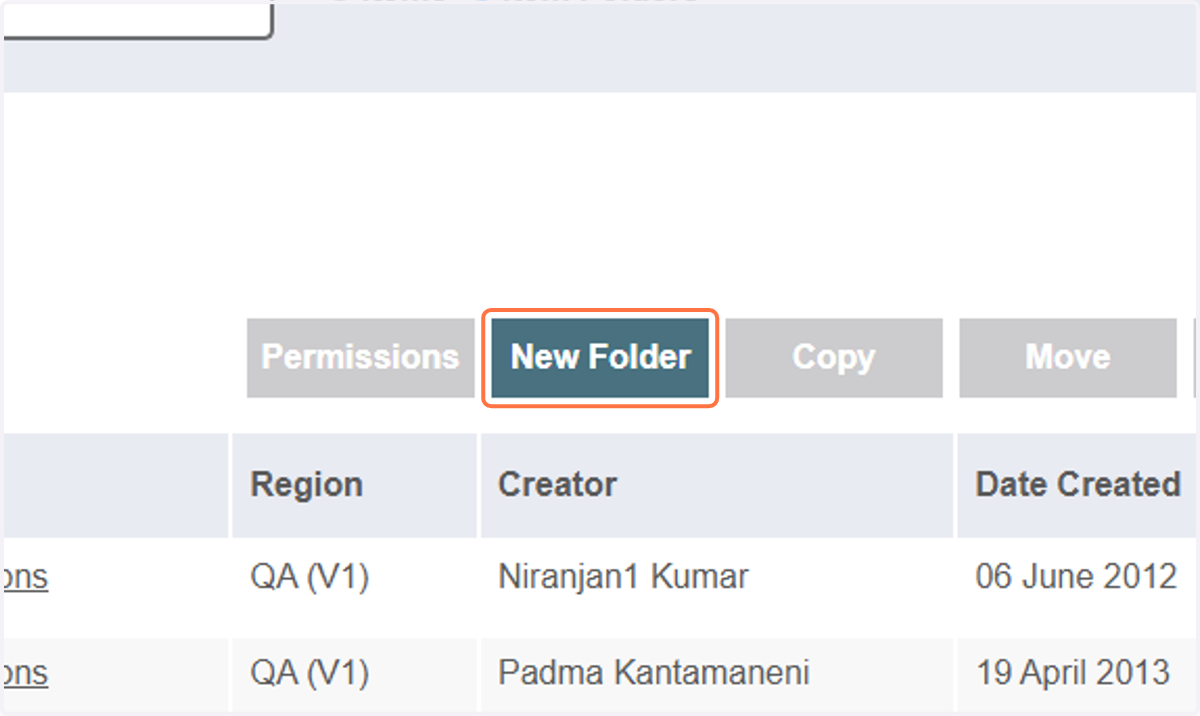
4. Click on 'New Folder'
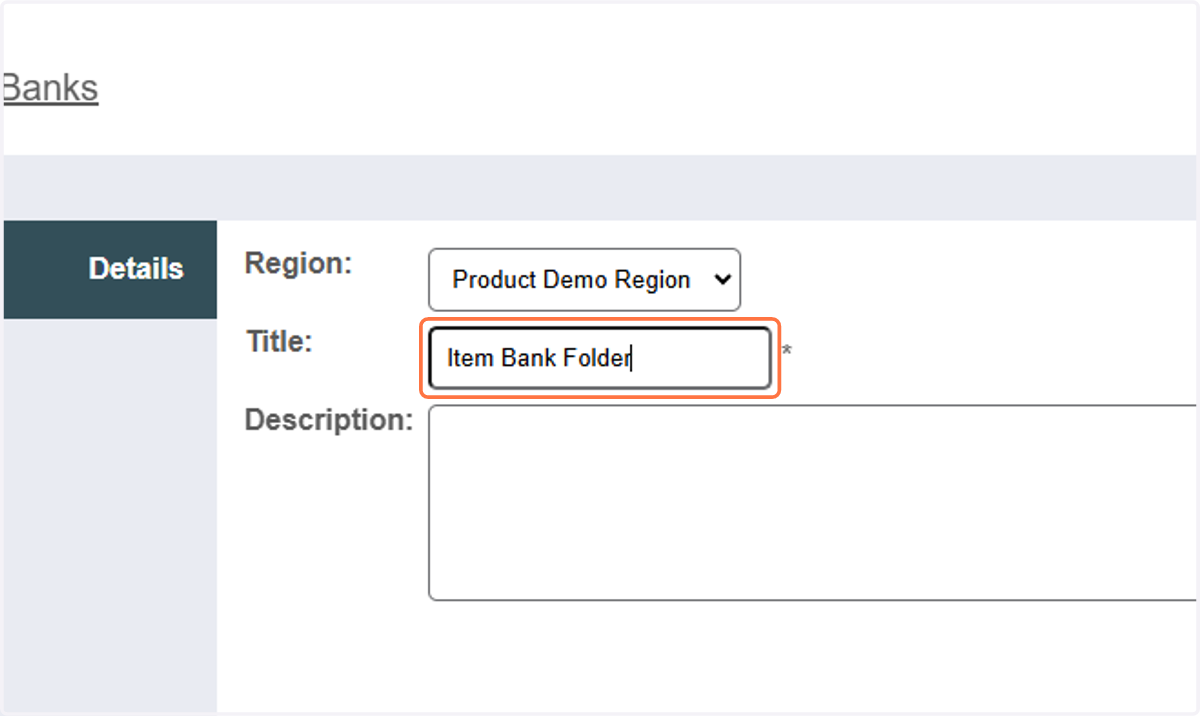
5. In the 'Title' field, enter the name of the folder.
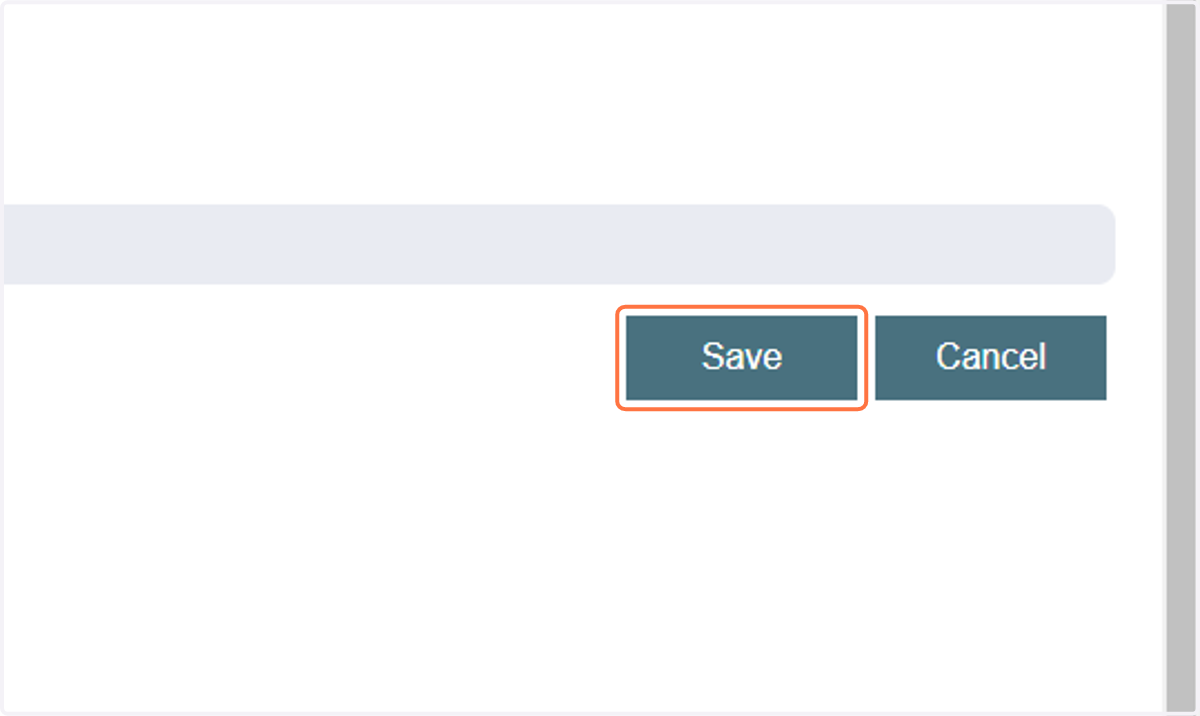
6. Click on Save
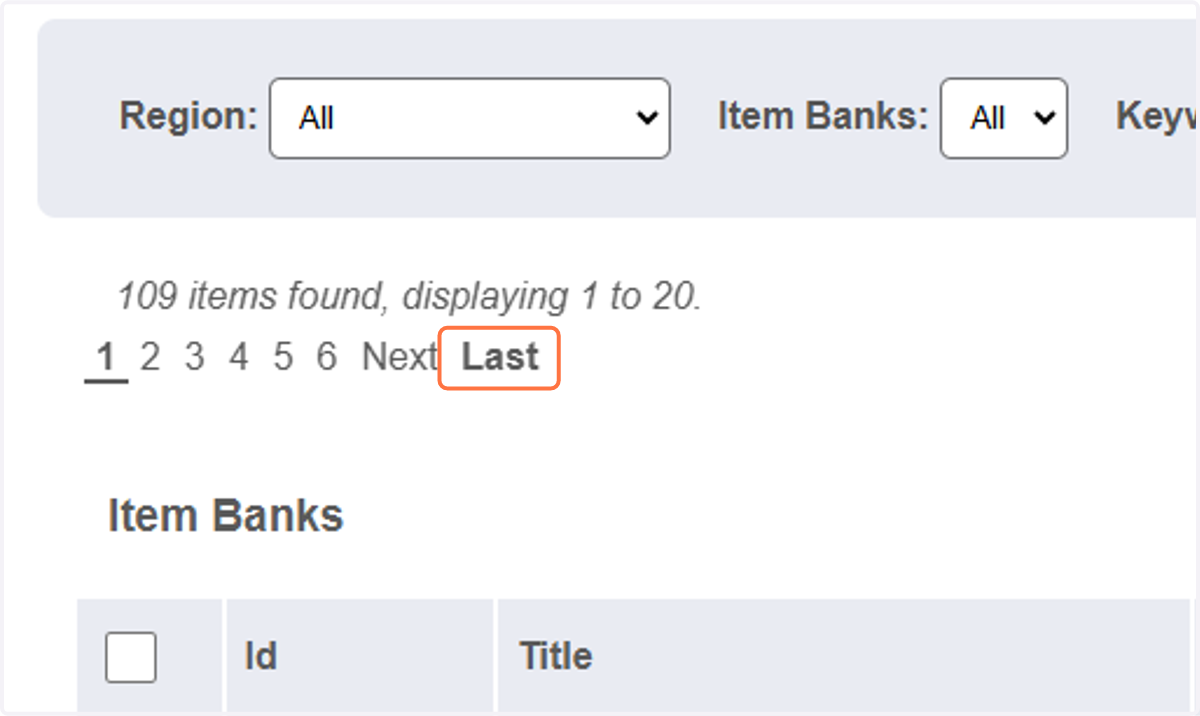
7. Optional step: To create nested folders within your main folder, search for the folder by using the navigation pages or by searching for the name of the folder in the 'Keyword' field at the top of the page.
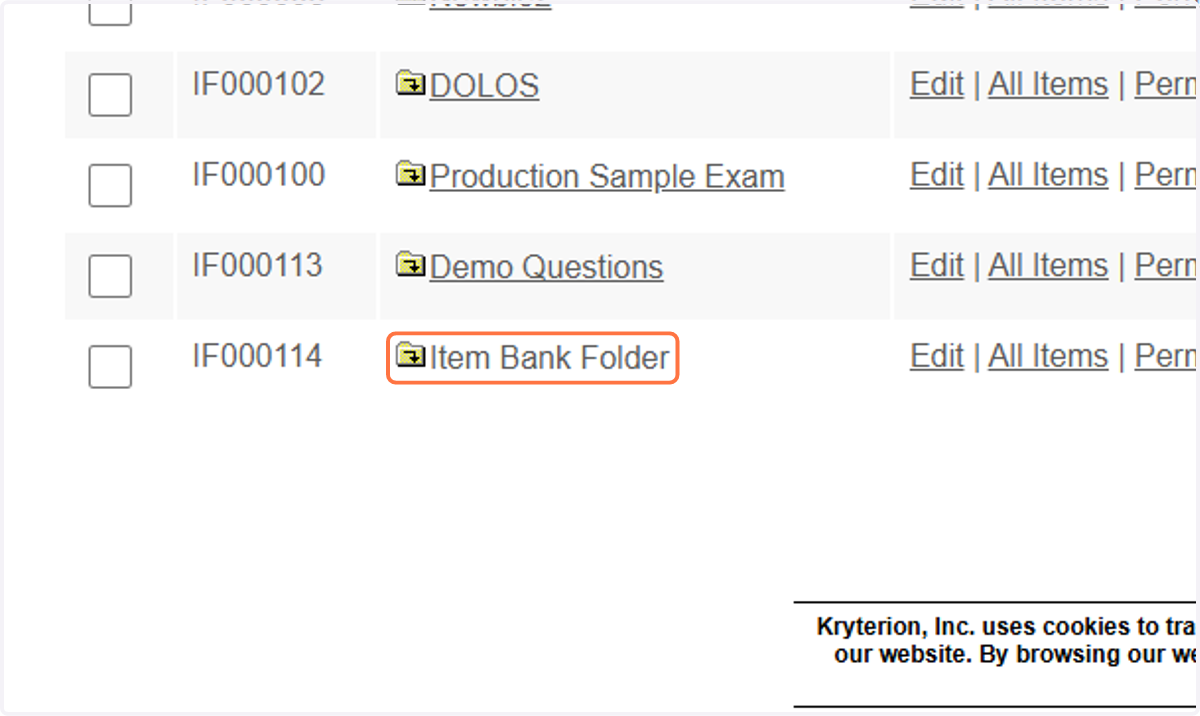
8. Click on the item folder name.
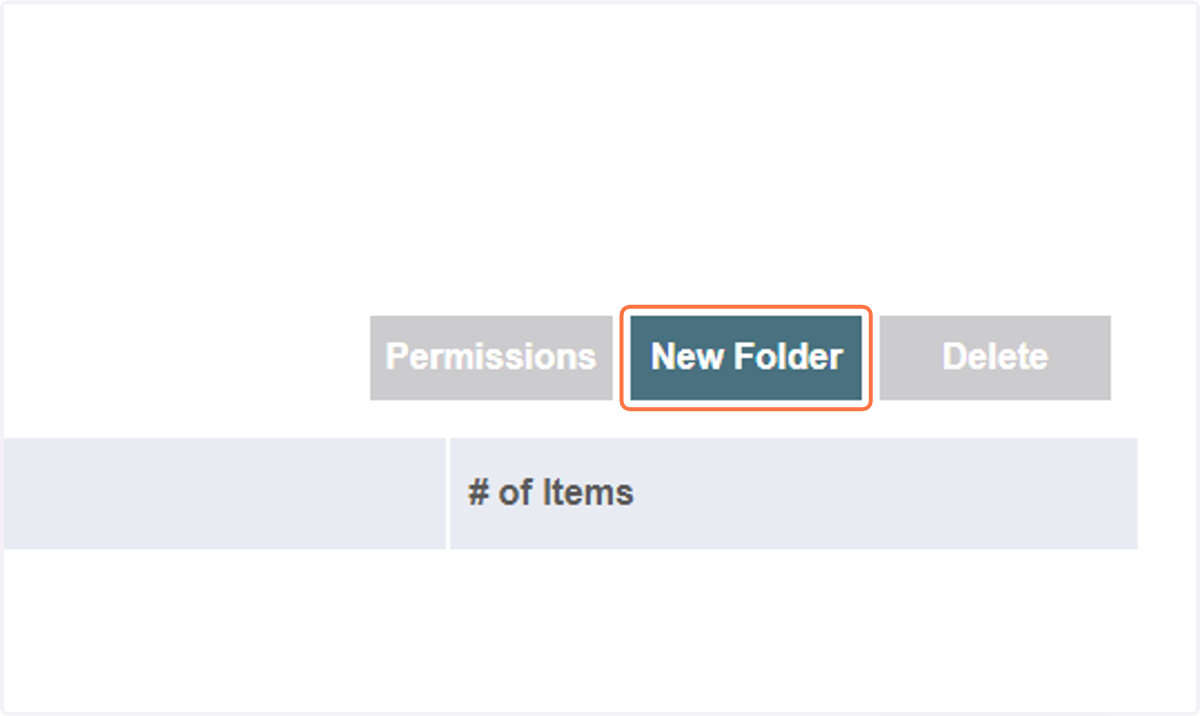
9. Click on 'New Folder'
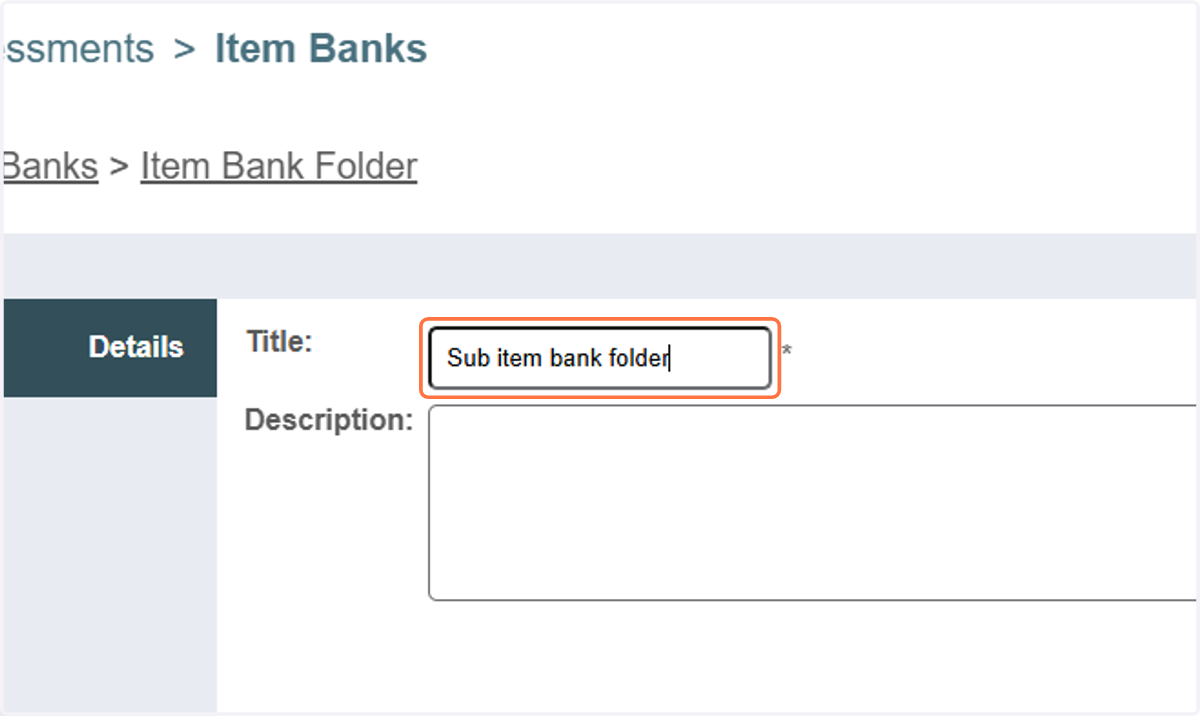
10. In the 'Title' field, enter the name of the folder.
11. Click on Save