Review and Manage Events Using the HTML Report
Reviewing QC results can become time-consuming, especially when you have many events and/or they are from a wide variety of types, severities, etc.
In this guide, we will show you how you can effectively use the HTML report for review of the QC results and how to manage events:
Review the event list, with information to TCs, a description of the problem, access to thumbnails and waveforms, and direct access to the timeline view.
Sort events by type, severity, thresholds, TC range, etc
Remove events
Add comments to the events
Add eyeball events
Download events as CSV
After the review and customization of your events, you will then be able to regenerate the PDF report showing all modifications done to your events.
QScan Users
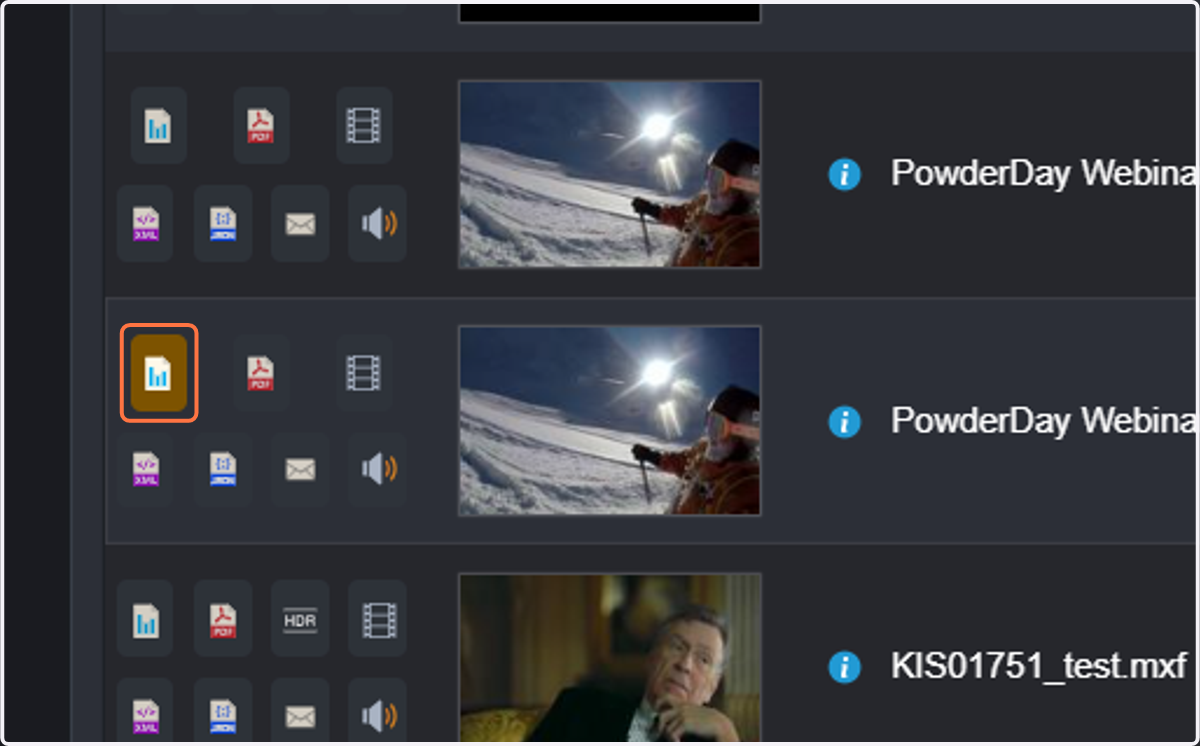
1. Click on report HTML / edit events
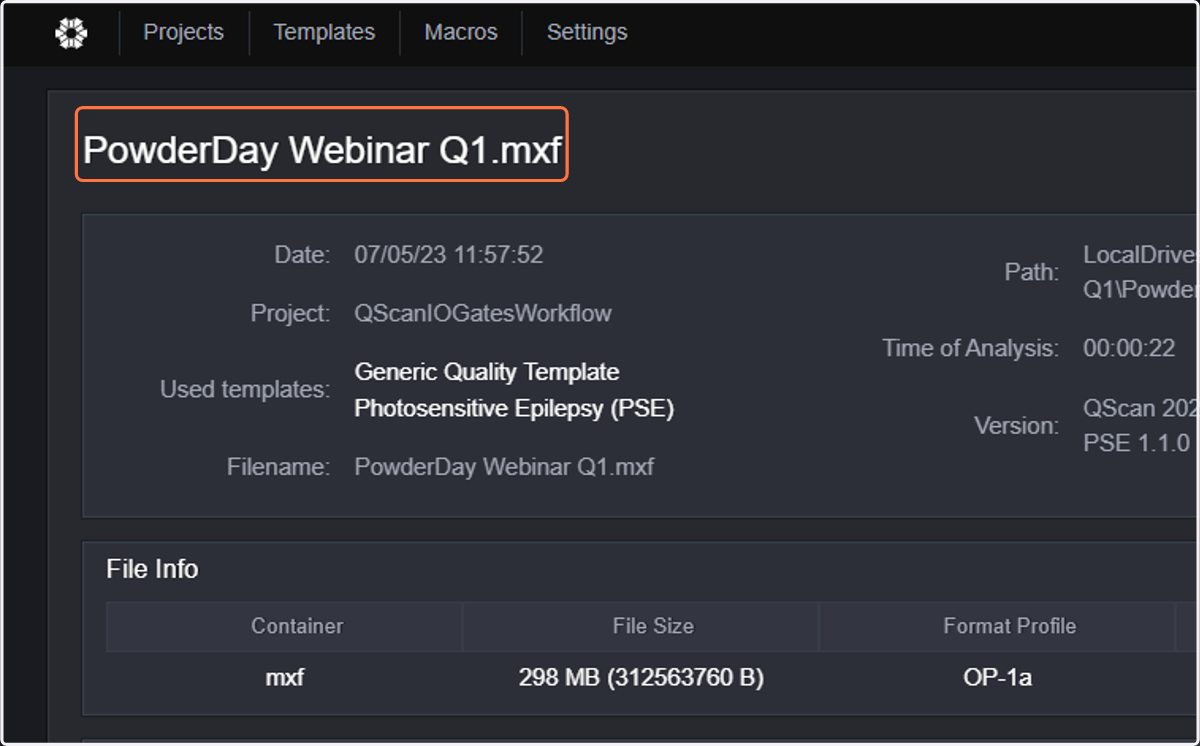
2. The HTML report will open, showing an overview of the QC job at the top: date, project, templates used in the project, filename, path, time invested in the analysis, and version information.
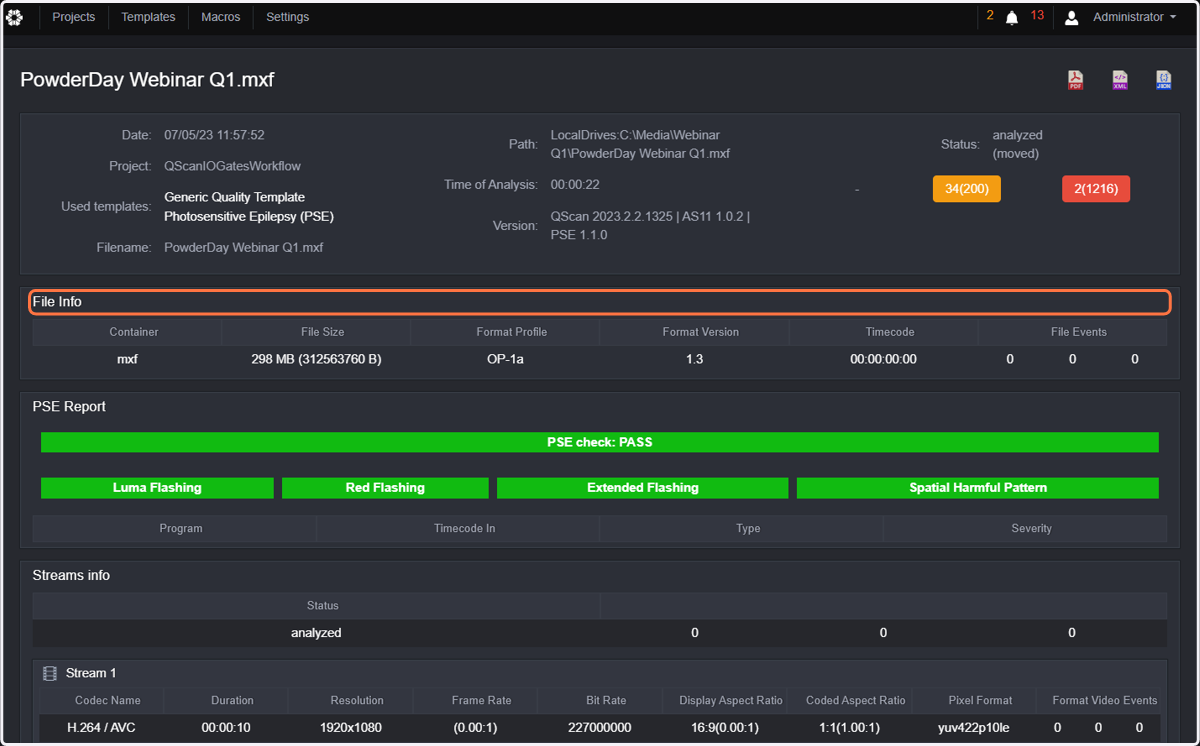
3. File info will show technical information (containers, size, start TC, etc) and events at file level
4. The PSE section will show a summary of the PSE results and list TCs and reason for the PSE event (light flash, red flashing, spatial patterns, extended flashing)
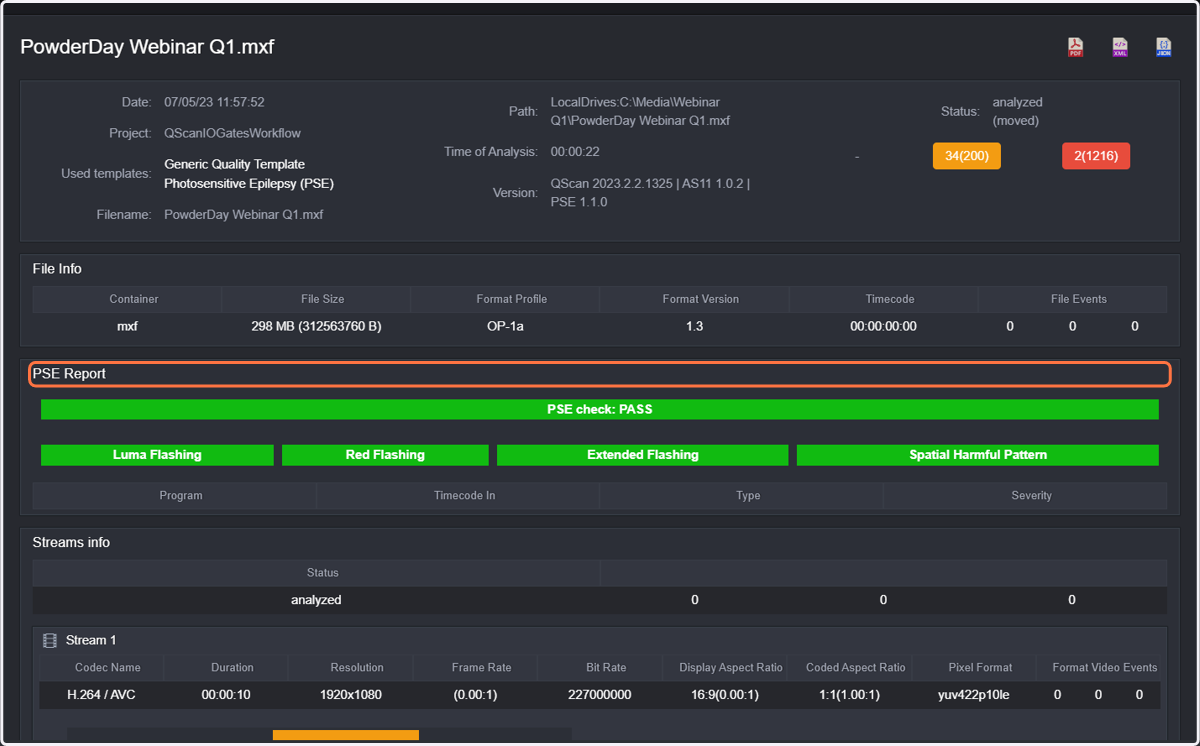
5. The streams information will display some parameter information and events for the different video or audio streams
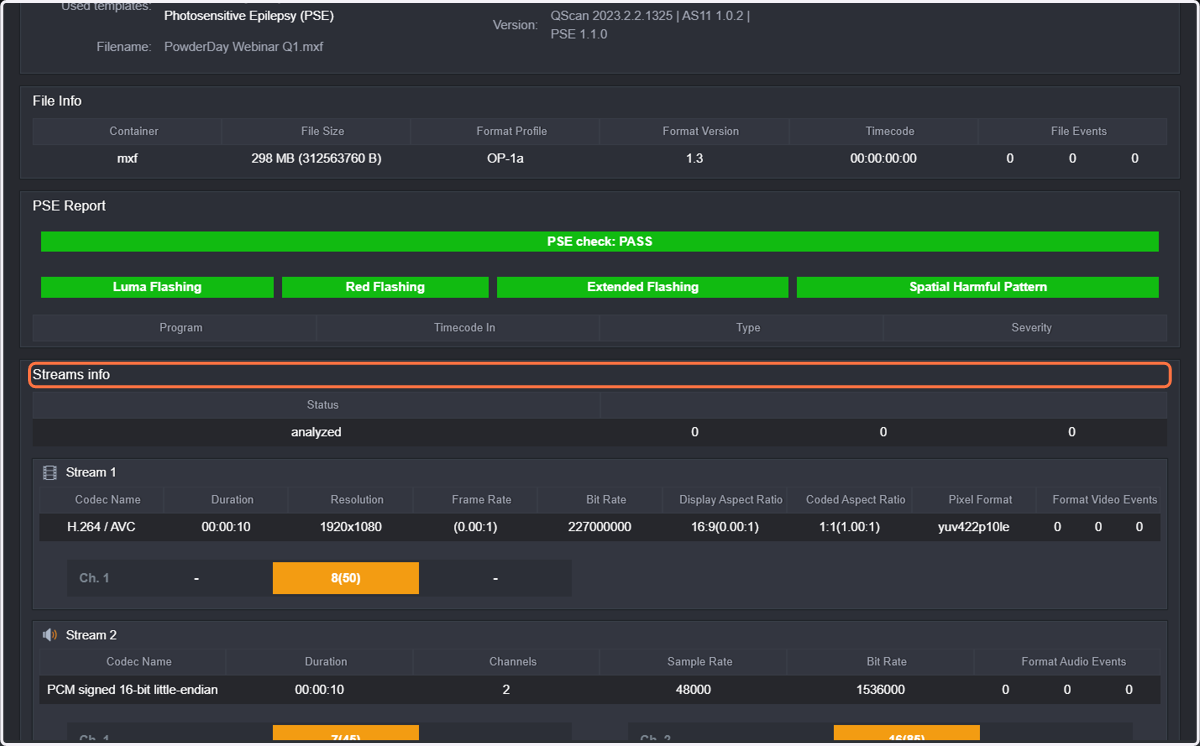
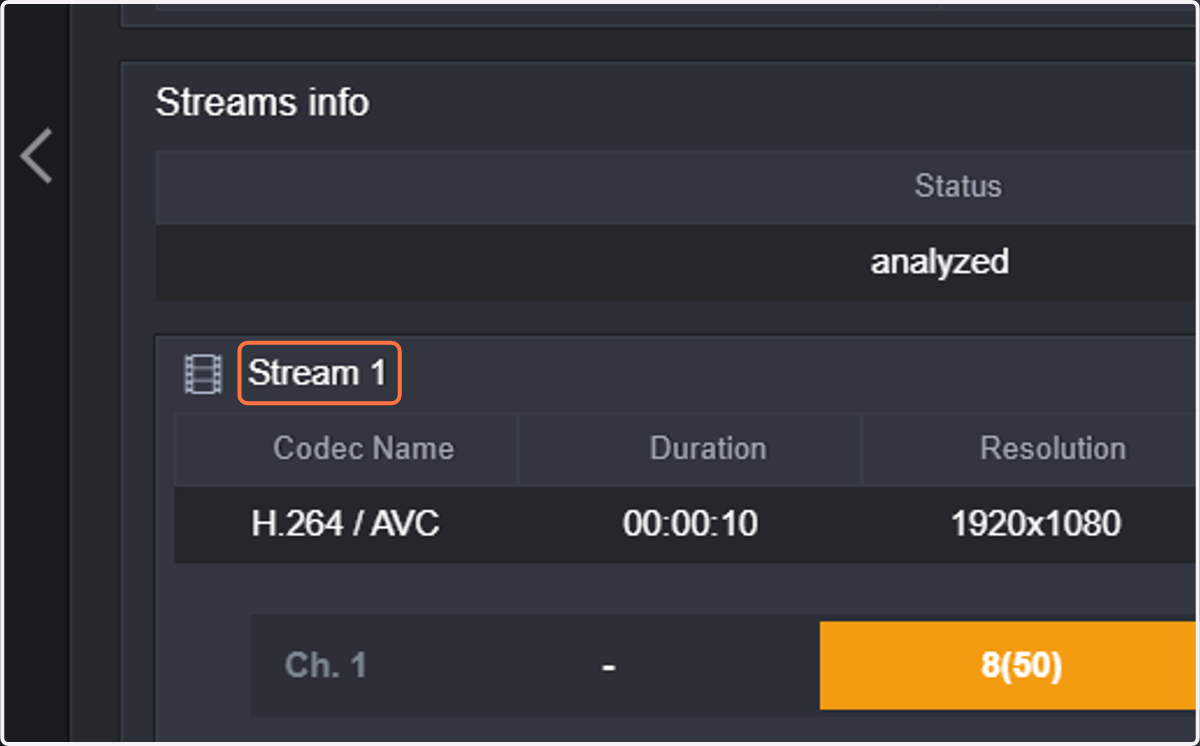
6. Stream 1 will always display format information for video, and format check events for the video stream
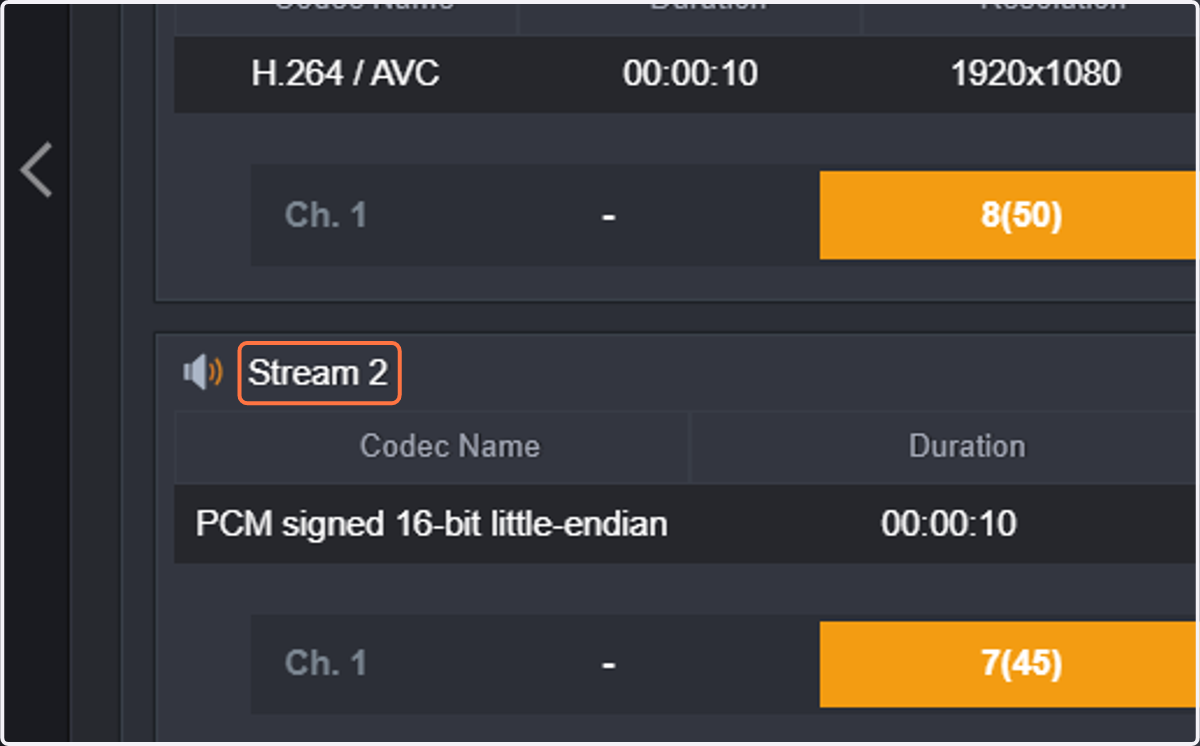
7. The following streams will display format information about the audio streams and audio format check events if any
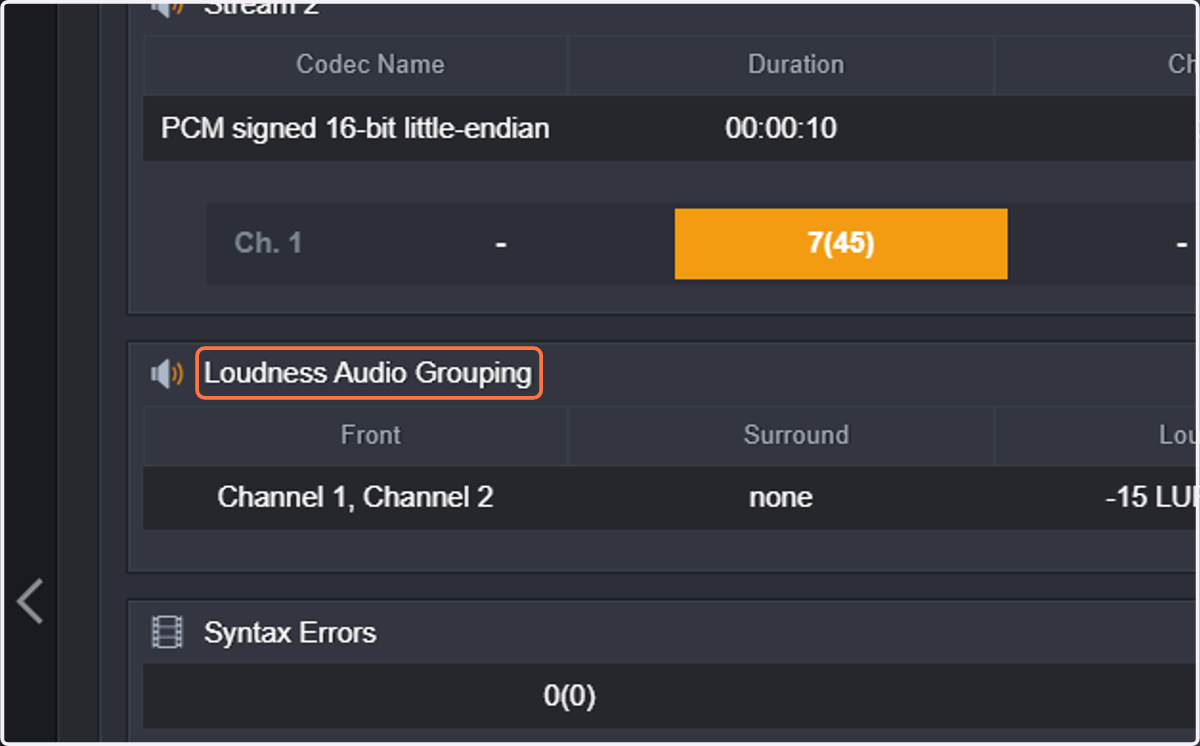
8. Loudness Audio Grouping provides information about the configured audio groups for loudness measurements, along with measurements for Loudness I, Loudness LRA and Max True Peak
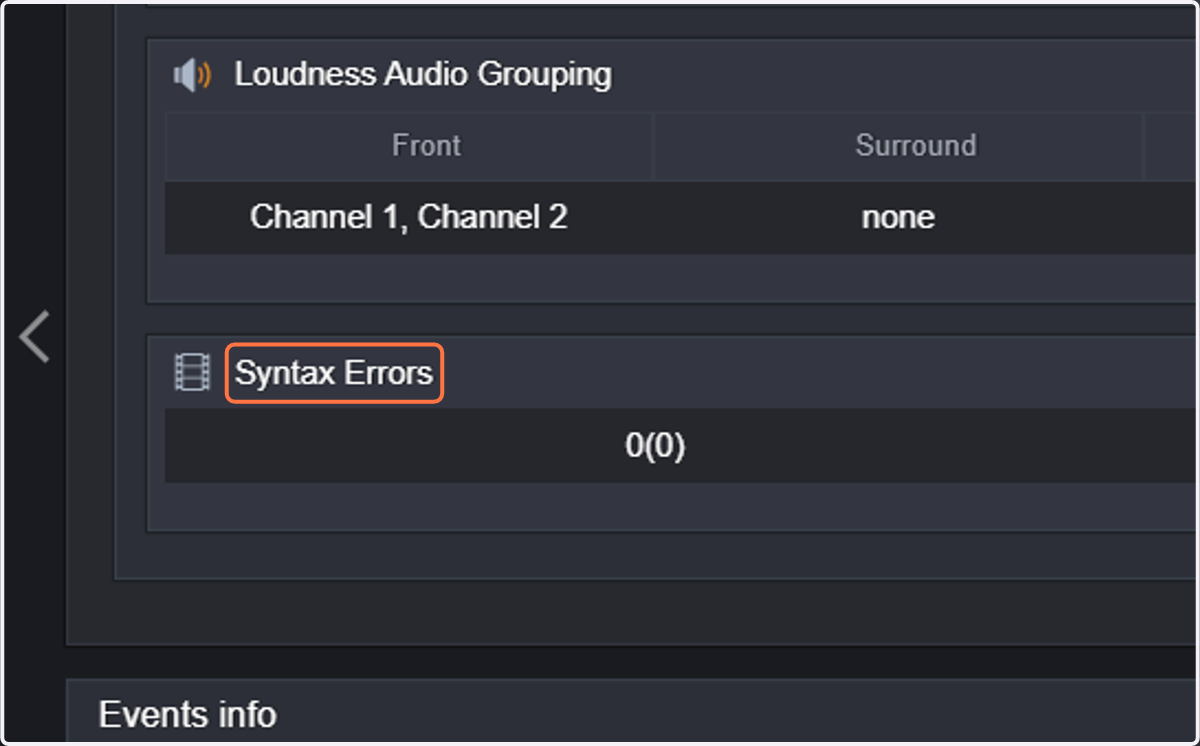
9. Syntax Errors will show any events related to stream syntax errors, which are usually related to file corruption errors
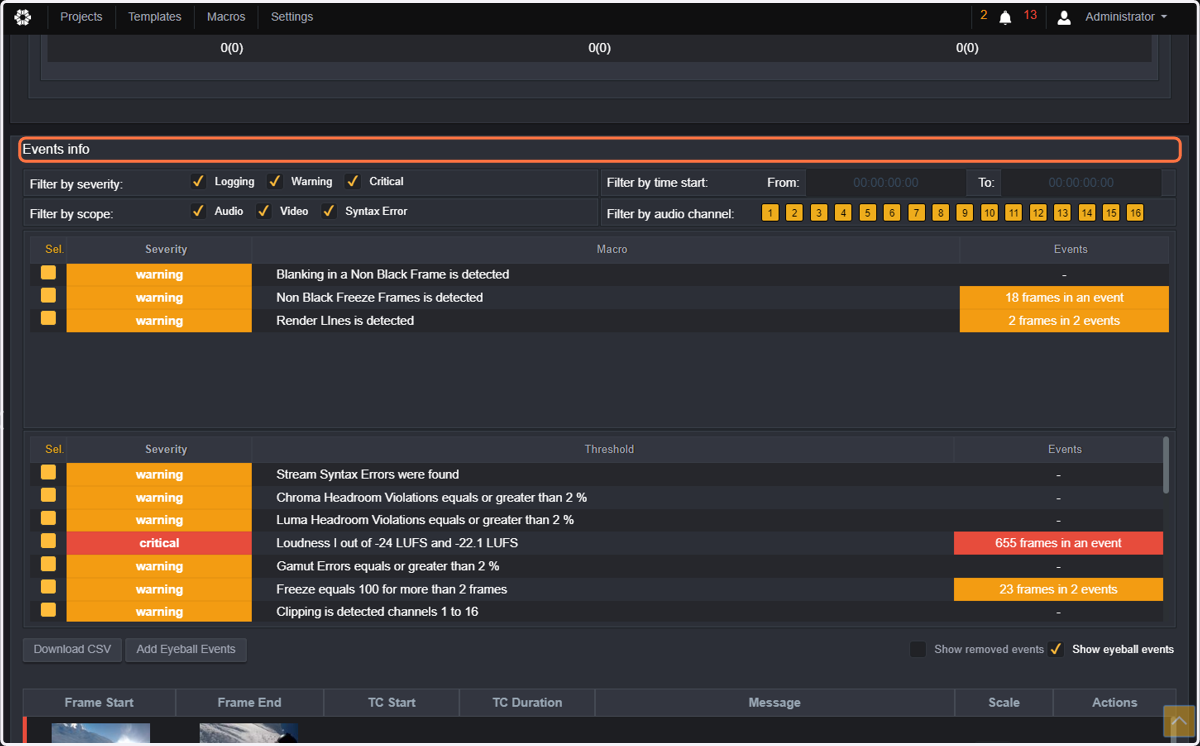
10. In the events Info, is where you will be able to sort events using a variety of criteria
11. Scroll down, and you will see the complete list of events. Showing the start TC of the event, the duration, the description (message) and the scale. You can also see the thumbnails for the start frame of the event and the end frame of the event.
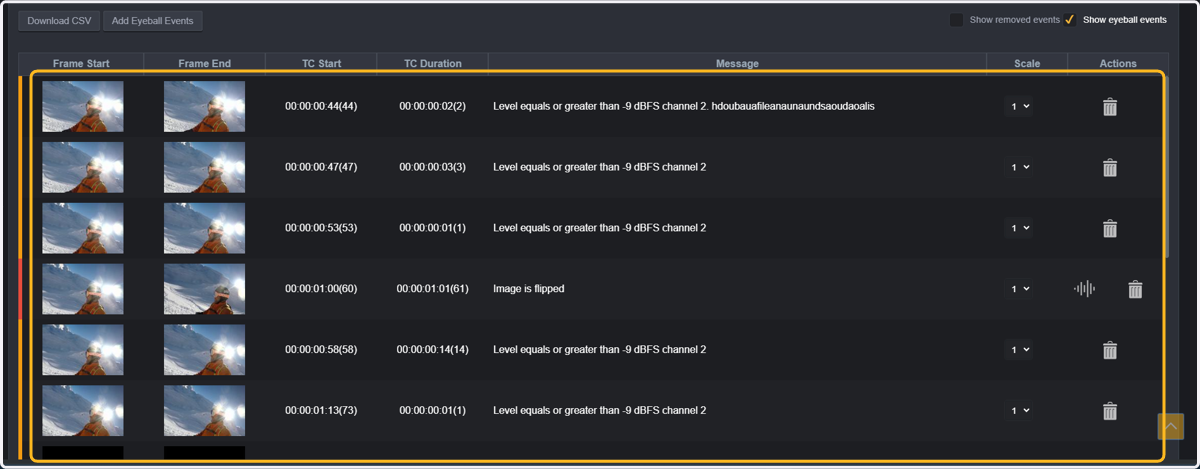
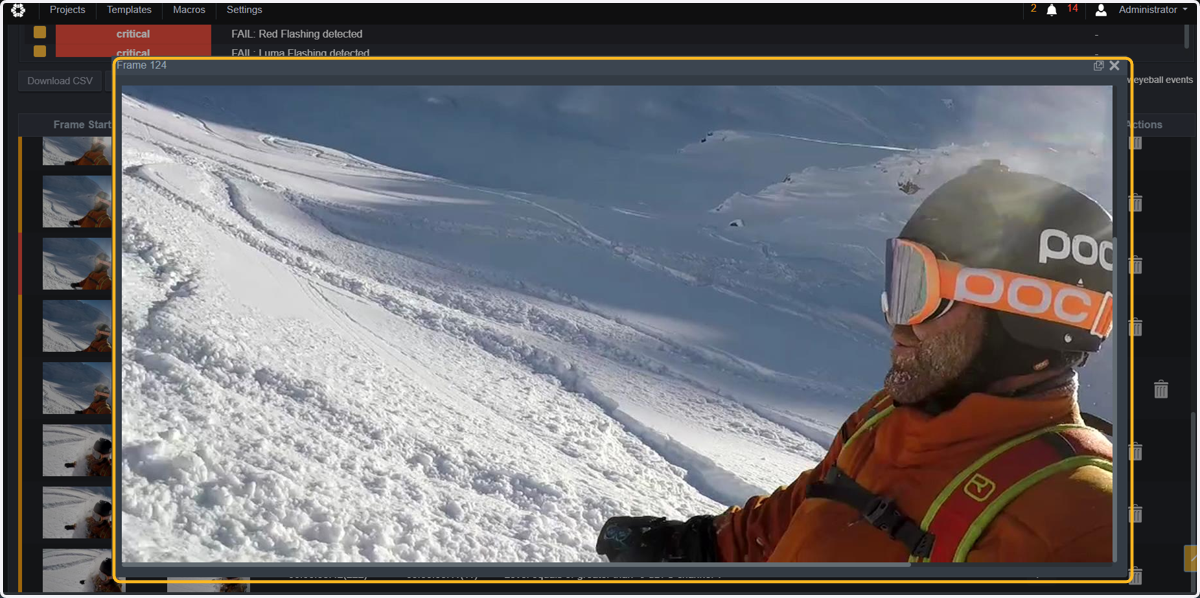
12. For each of the events, you can click on the thumbnail, and you will see the full-size frame
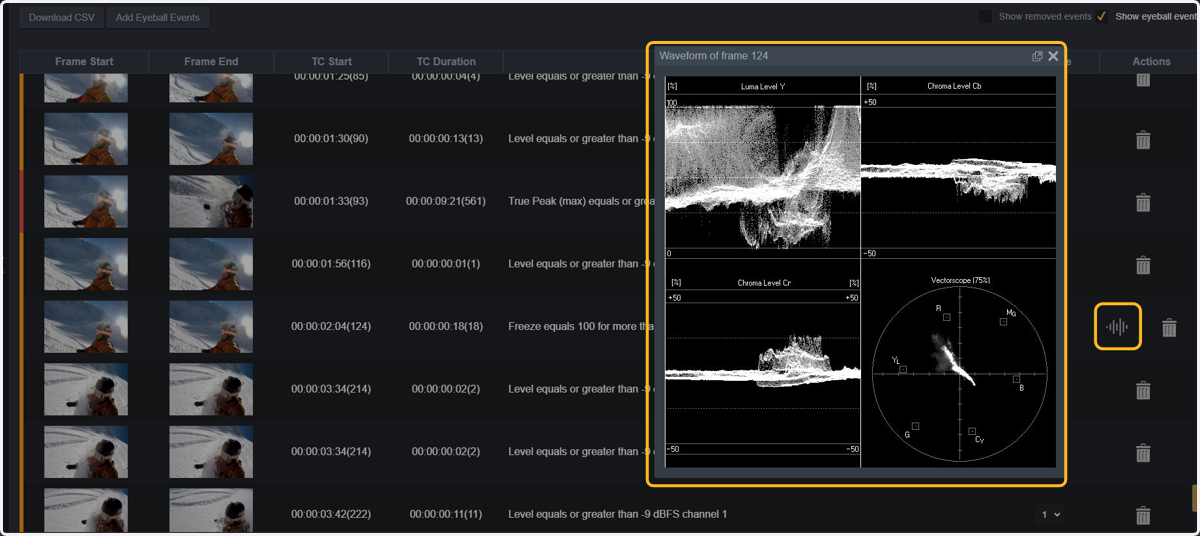
13. If you click on the waveform icon, you can also see the waveform for that particular frame
14. QScan allows sorting events with the purpose of ease of the reviewing process. Let's start by sorting by severity level. So uncheck logging and warning
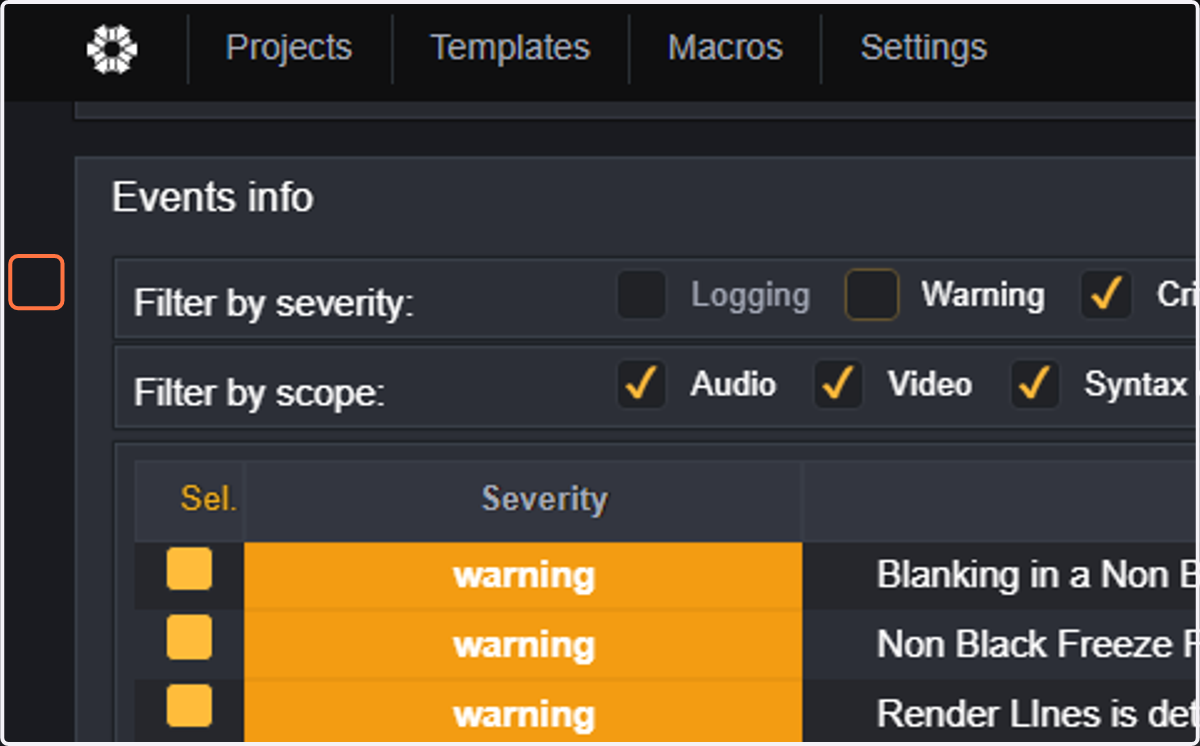
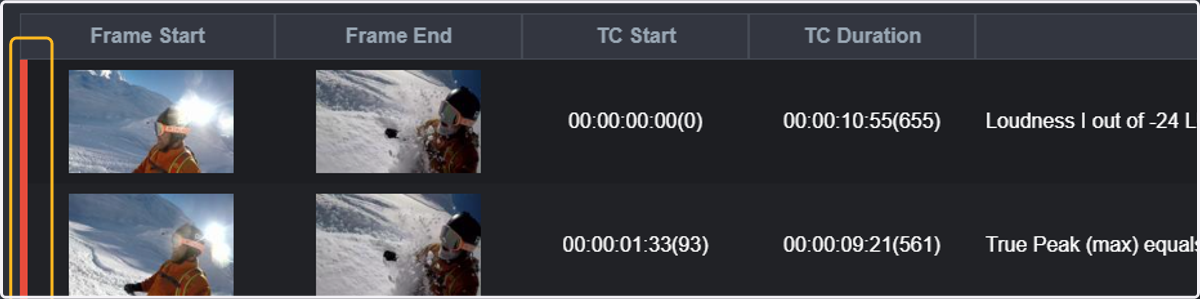
15. Only critical events will be displayed in the event list
16. Next, we will sort events by scope (video, audio, or syntax errors). So now uncheck video
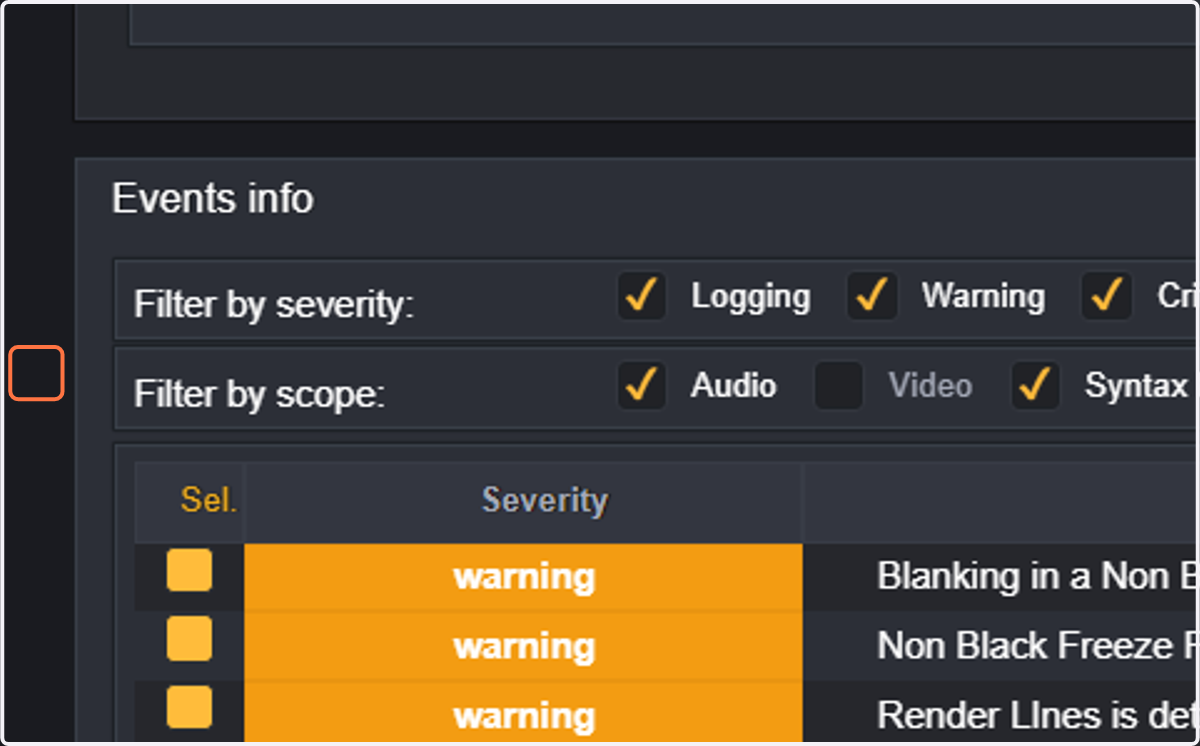
17. Only audio events are displayed in the event list
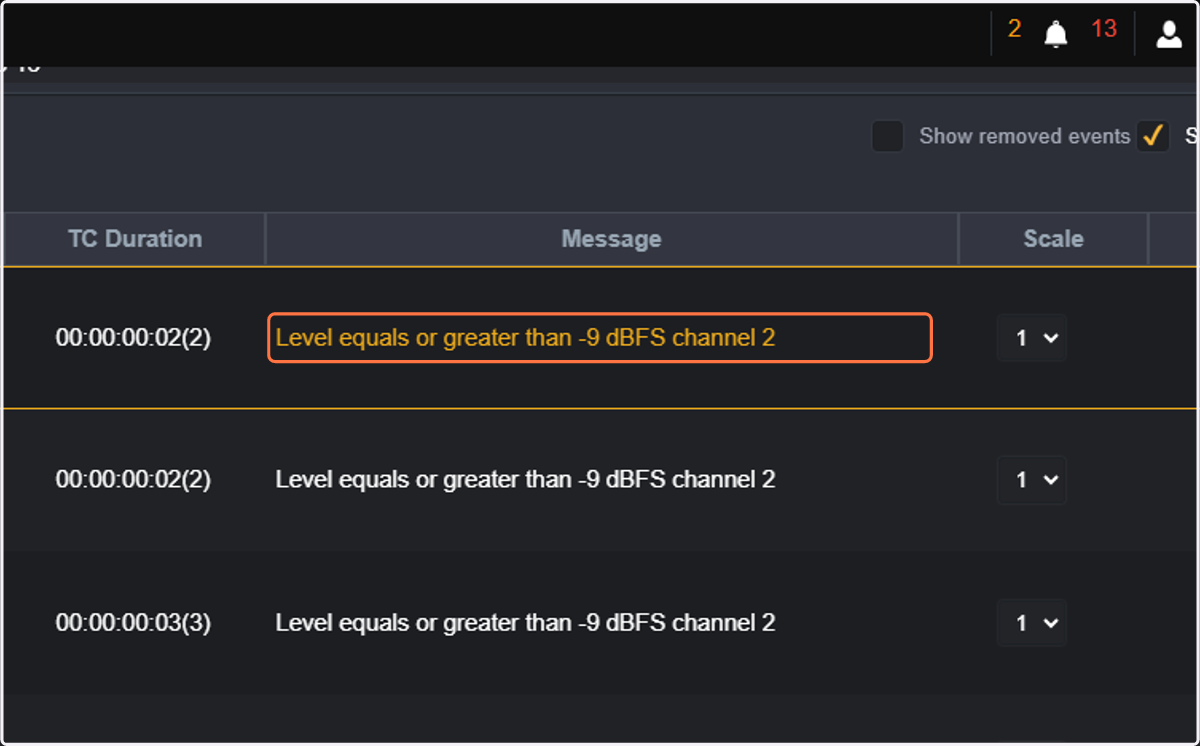
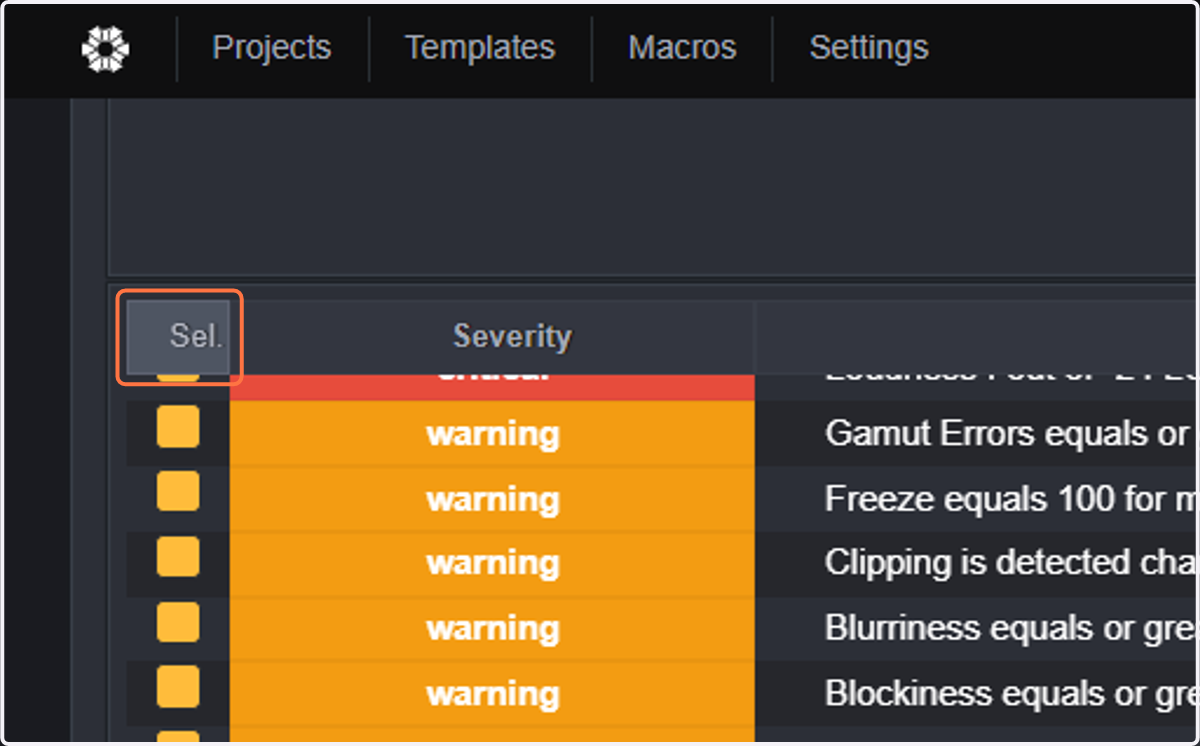
18. To make things even easier, we can also sort events by threshold. So, uncheck all macro thresholds by clicking on Sel
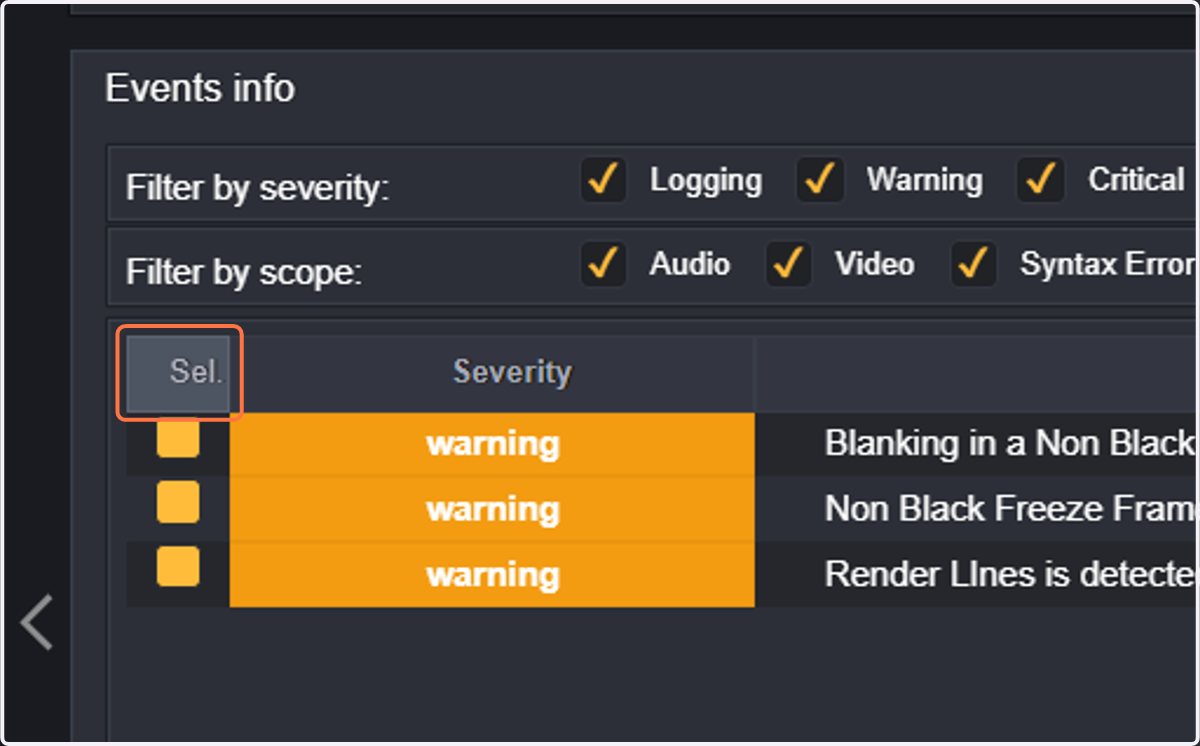
19. Uncheck all parameter thresholds by clicking on Sel
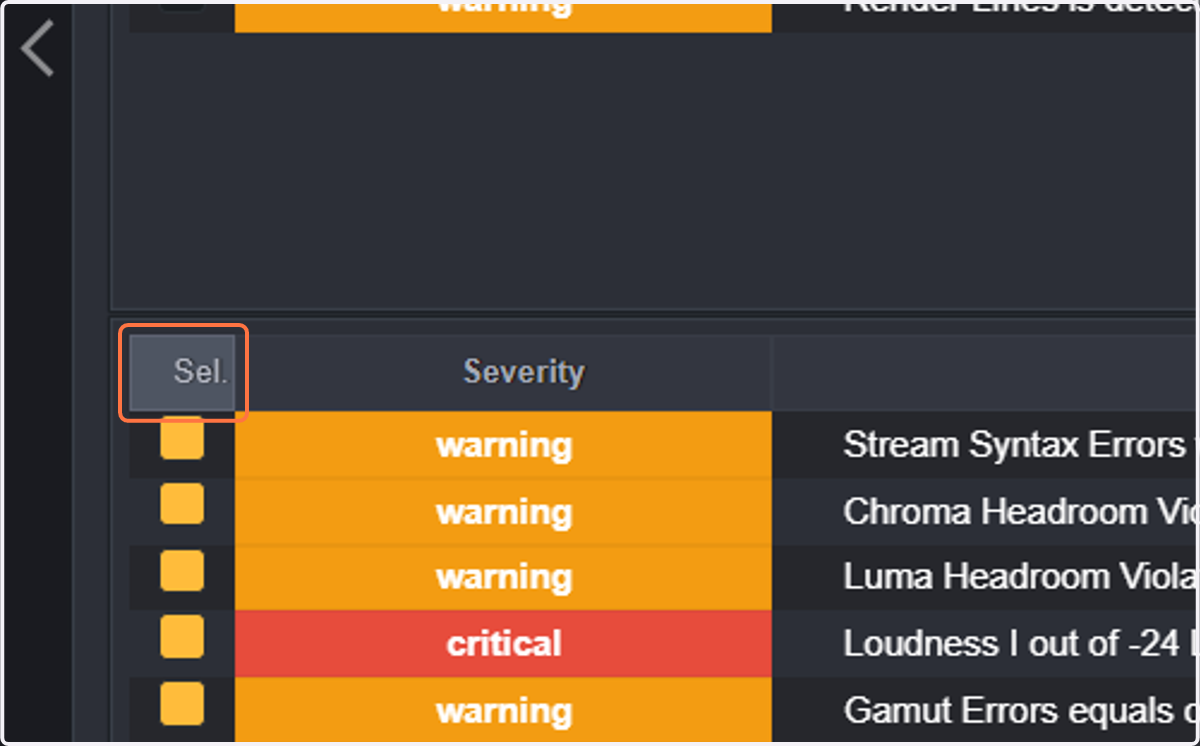
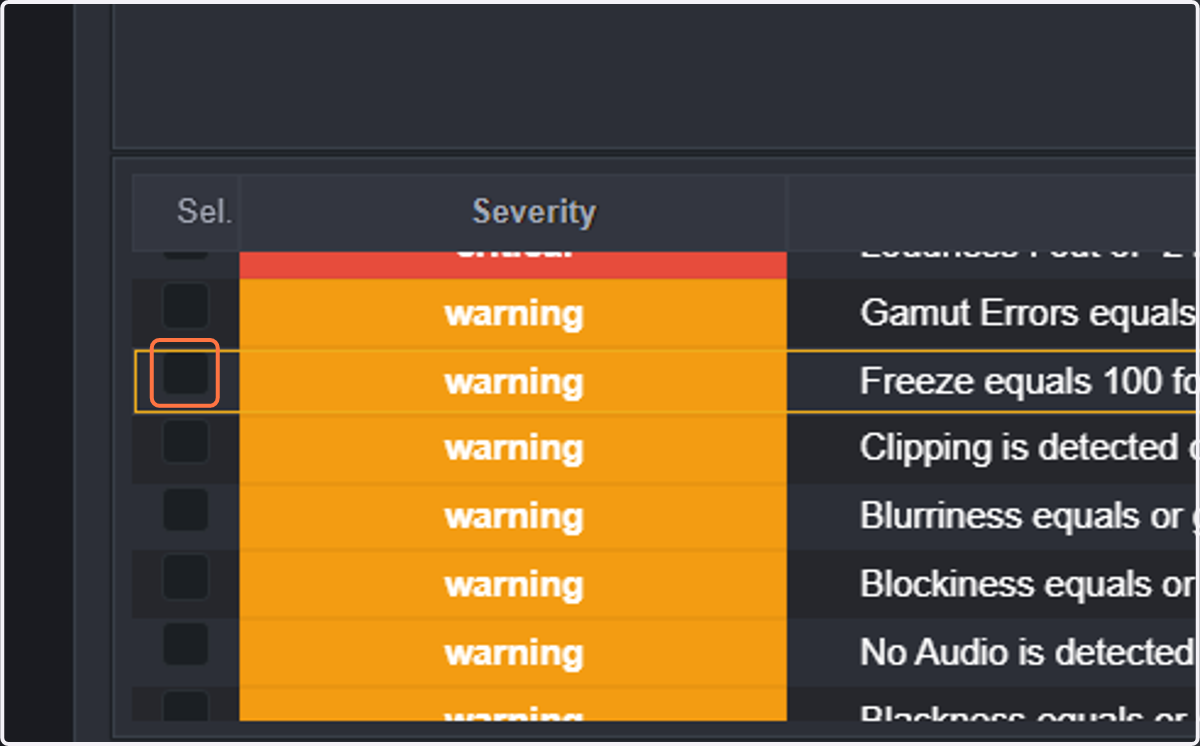
20. Now click on the selected threshold. In this case, we selected the Freeze threshold
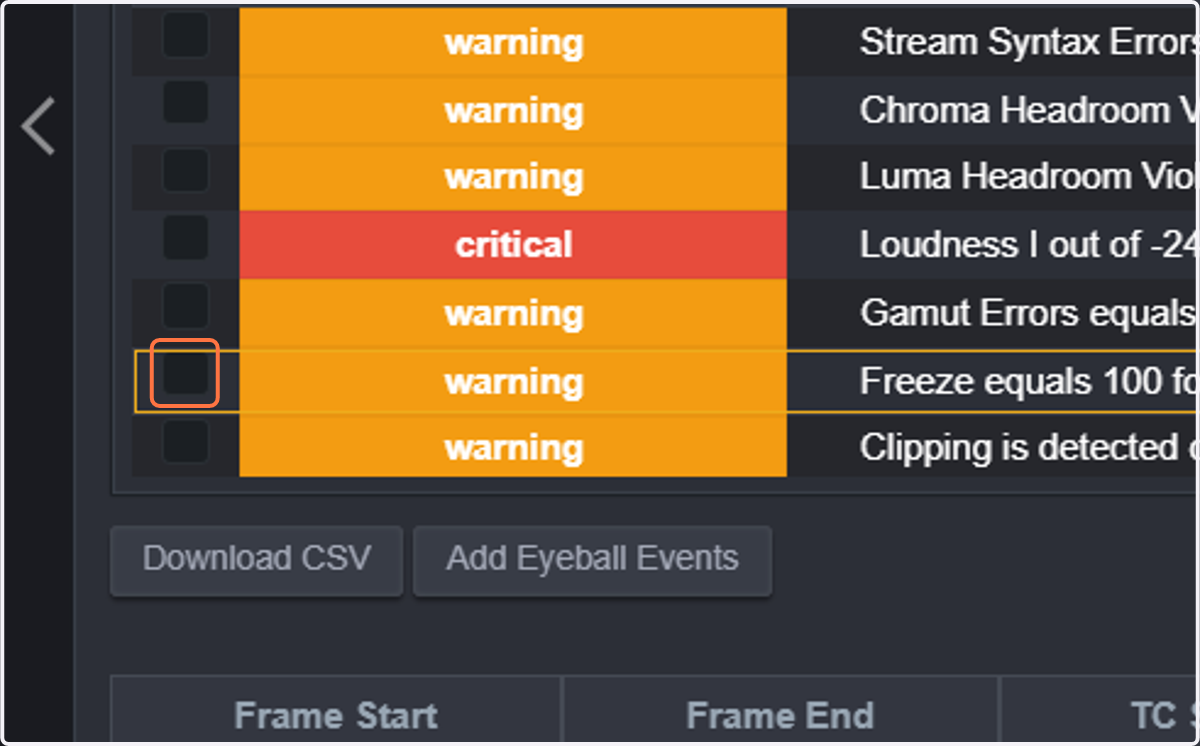
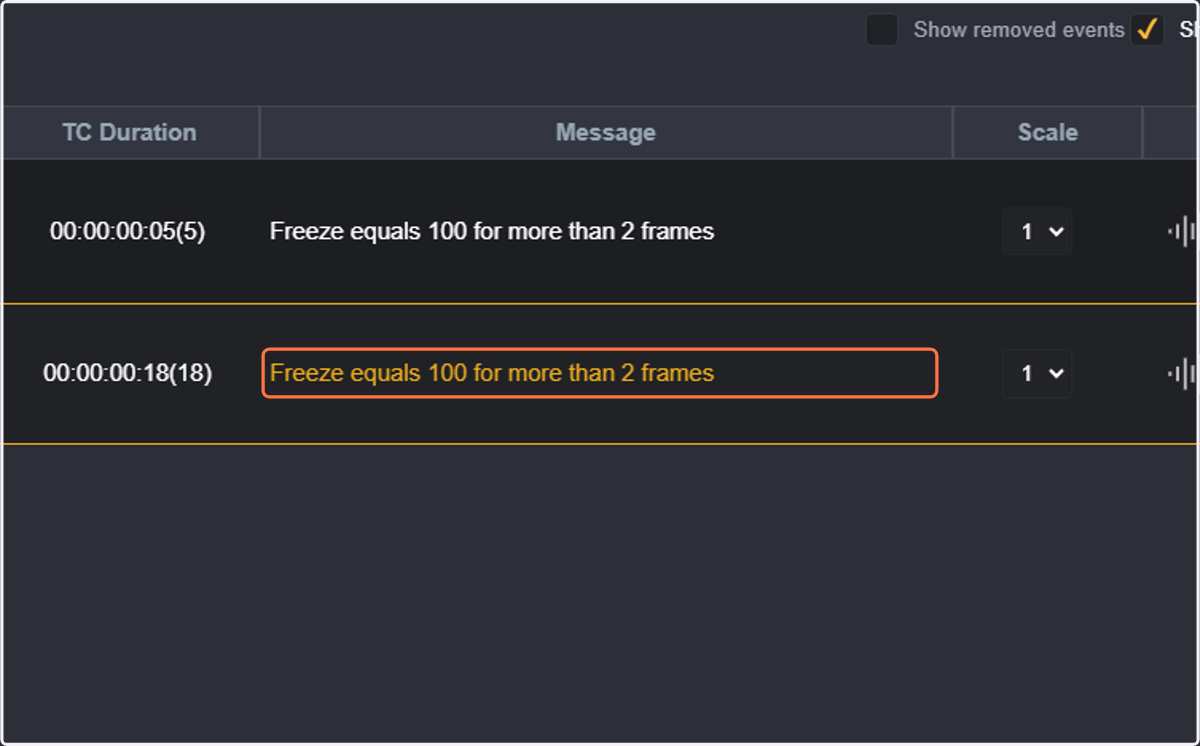
21. Only freeze events are displayed in the event list
22. You can add as many thresholds as you want to display in the event list. We will click on Blurriness
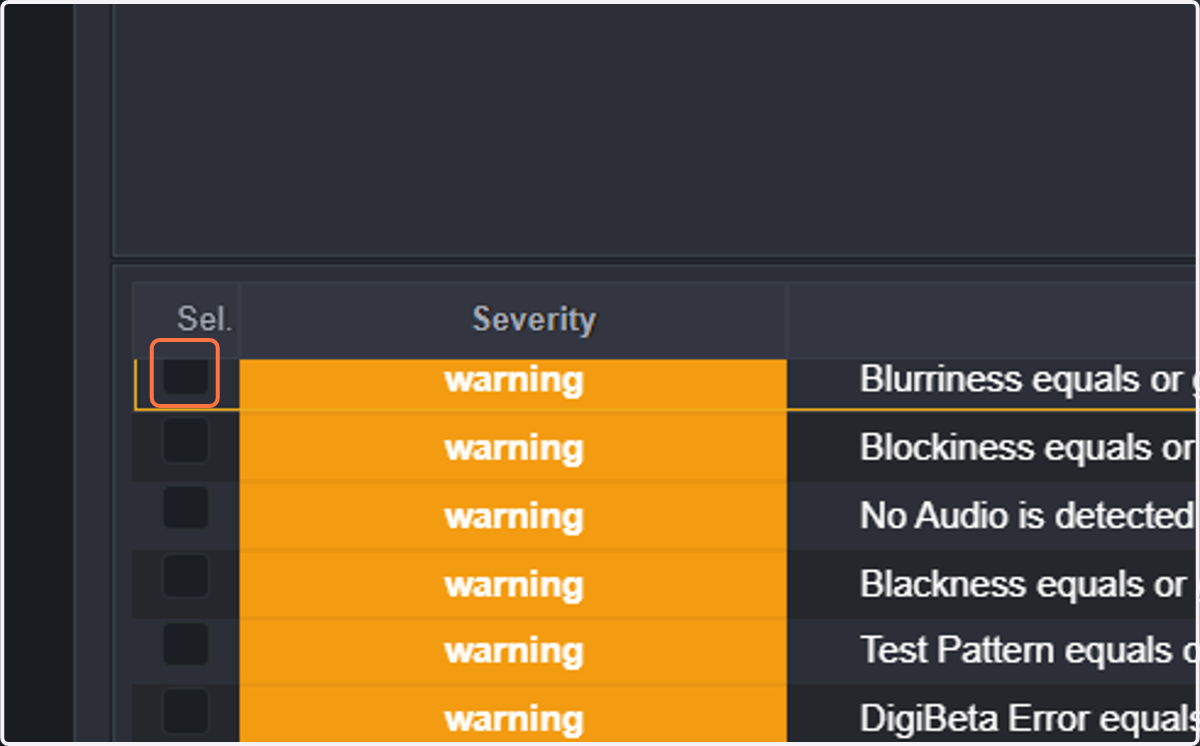
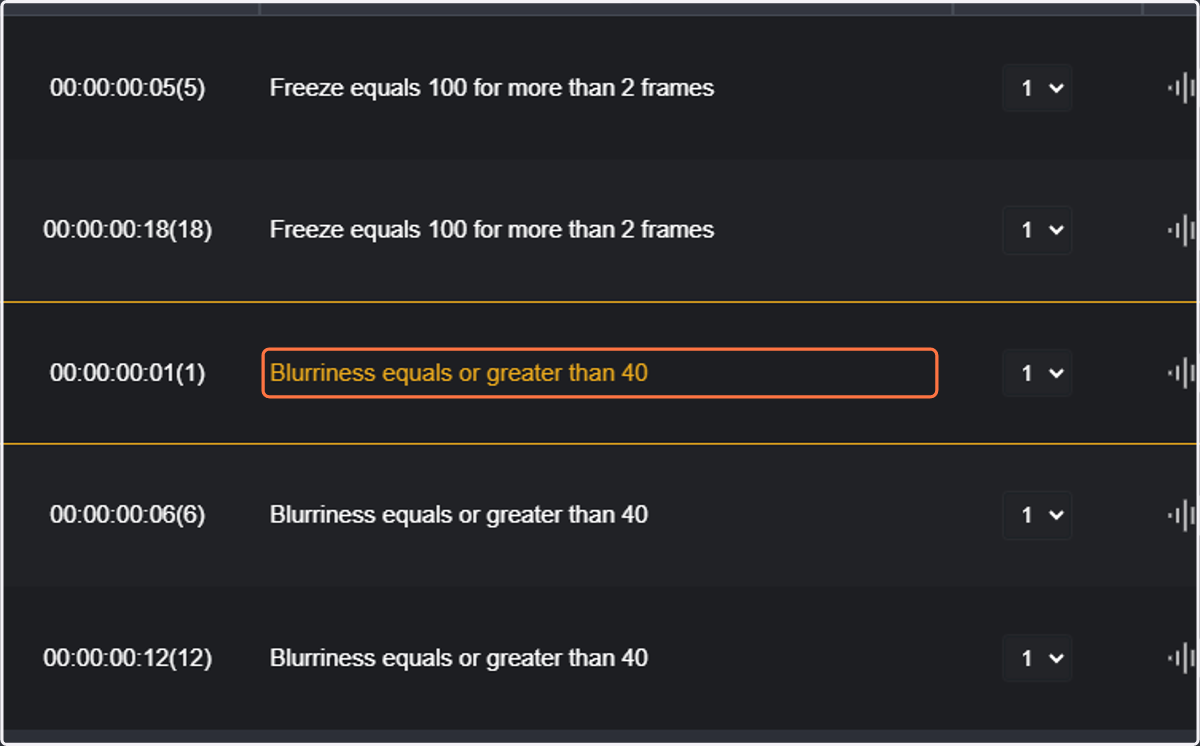
23. Both freeze and blurriness events are displayed
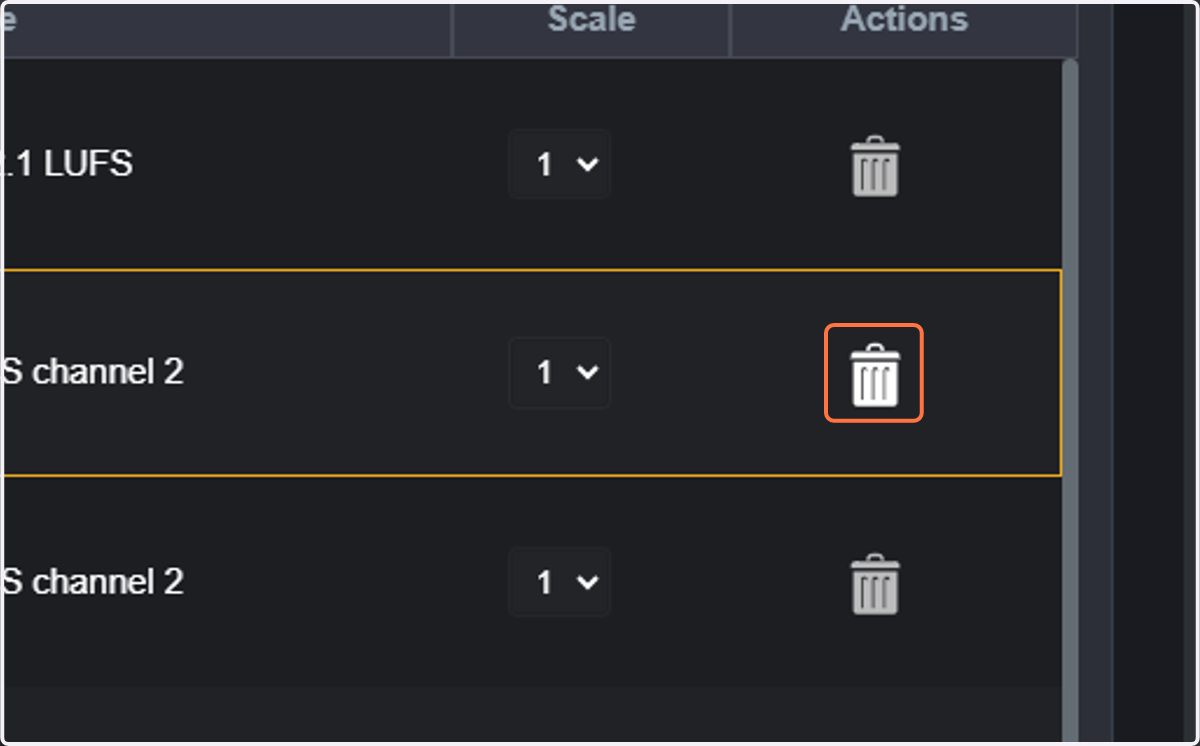
24. Sometimes, you might want to remove some events from the list (either because they are known and accepted problems, because it is a false positive, etc). So, click on the trash bin icon next to the event.
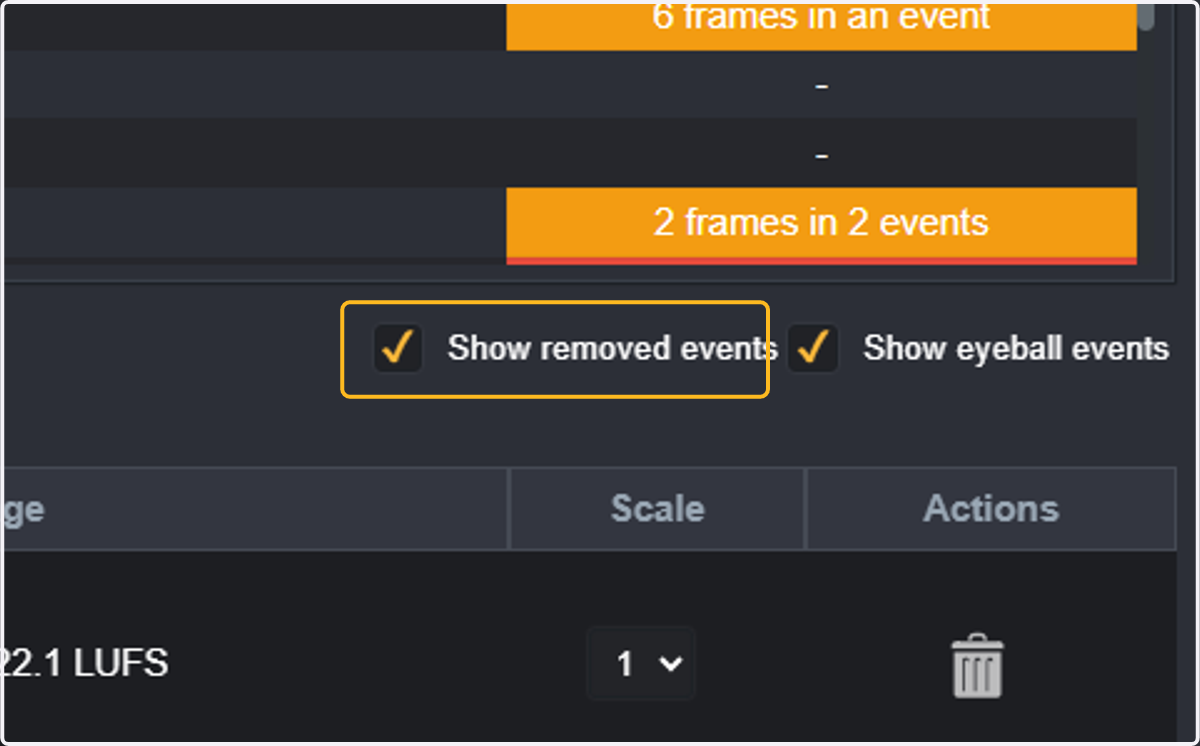
25. If you removed something by mistake, you can restore the event. So, click on Show Removed Events
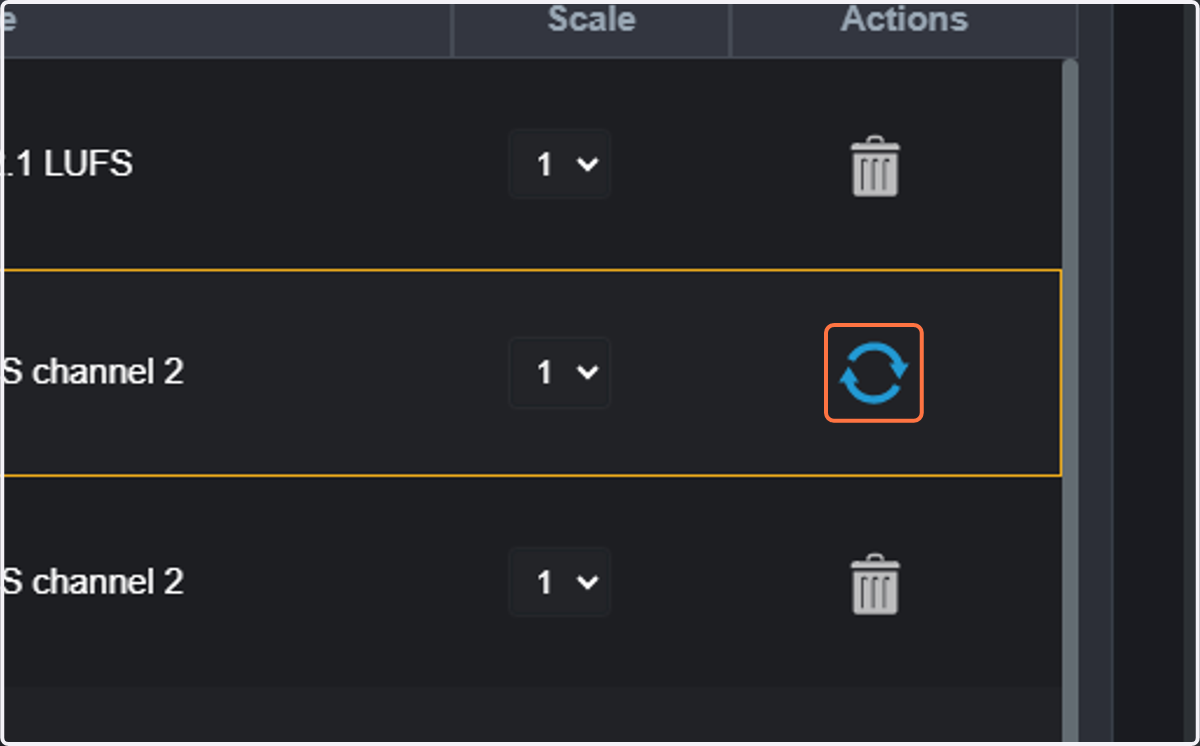
26. Click on the Restore icon. Your event will display again in the list
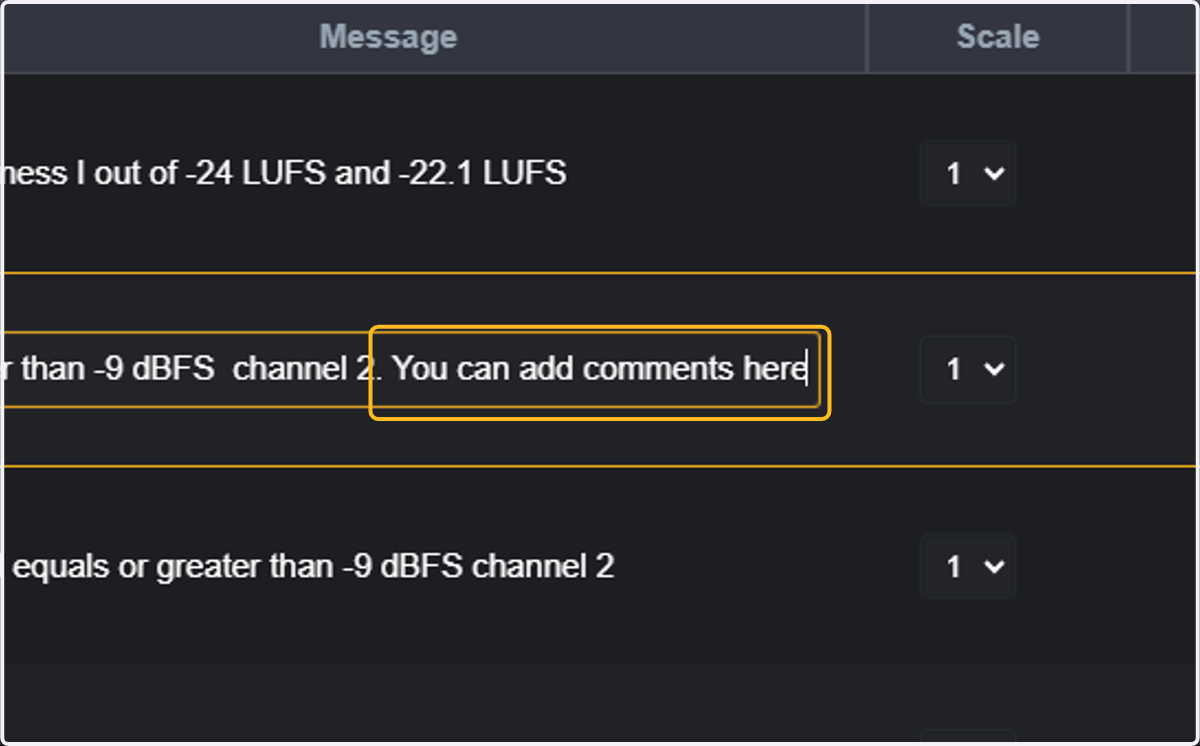
27. You can add comments here to any of the events that will later be displayed in the PDF report. Just type your comments in the "message" field of the event.
28. The displayed list of events can also be downloaded as CSV. So unselect all thresholds
29. Click only in the threshold that you want to list in the CSV. In this case, we choose freeze again
30. Click on Download CSV
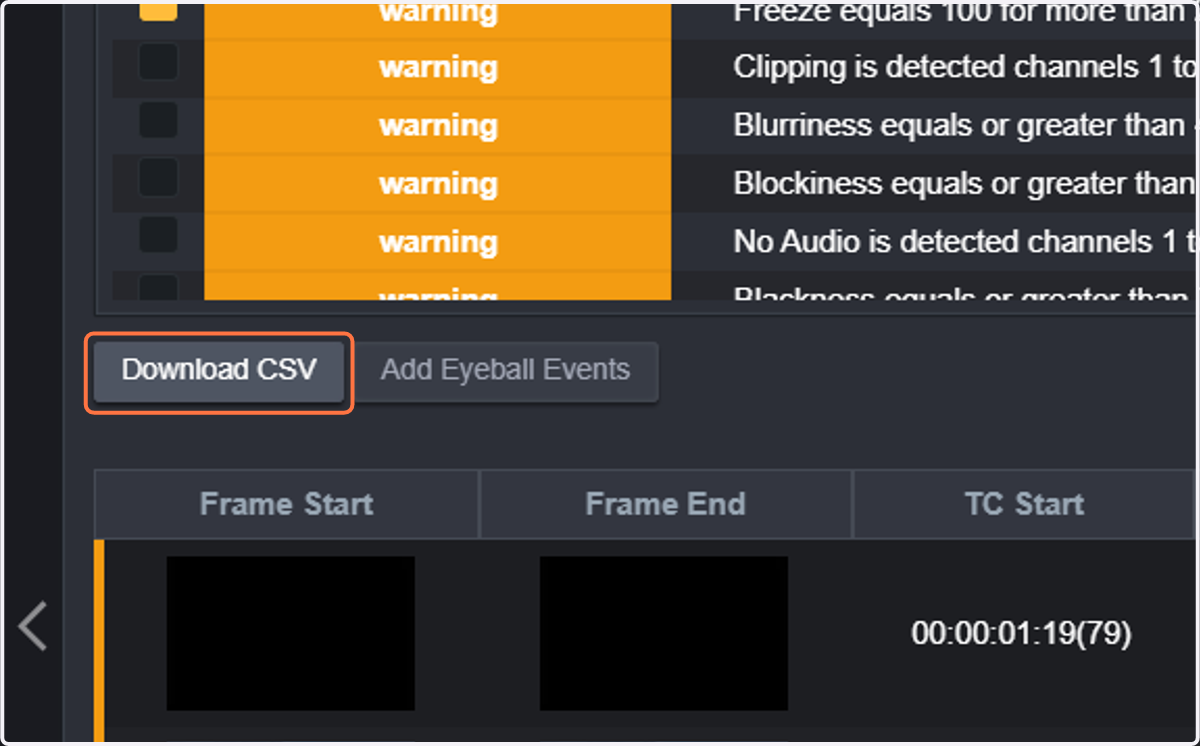
31. A CSV file listing all the displayed events will be downloaded. This CSV file can now be used for your own purposes.

32. Another interesting option in QScan is the ability to add Eyeball events. So, click on Add Eyeball Events
Eyeball events are commonly used and required while delivering QC reports. So, in the event that an operator detected any, they can be inserted in the QScan report so they are displayed in a common report with AQC events.
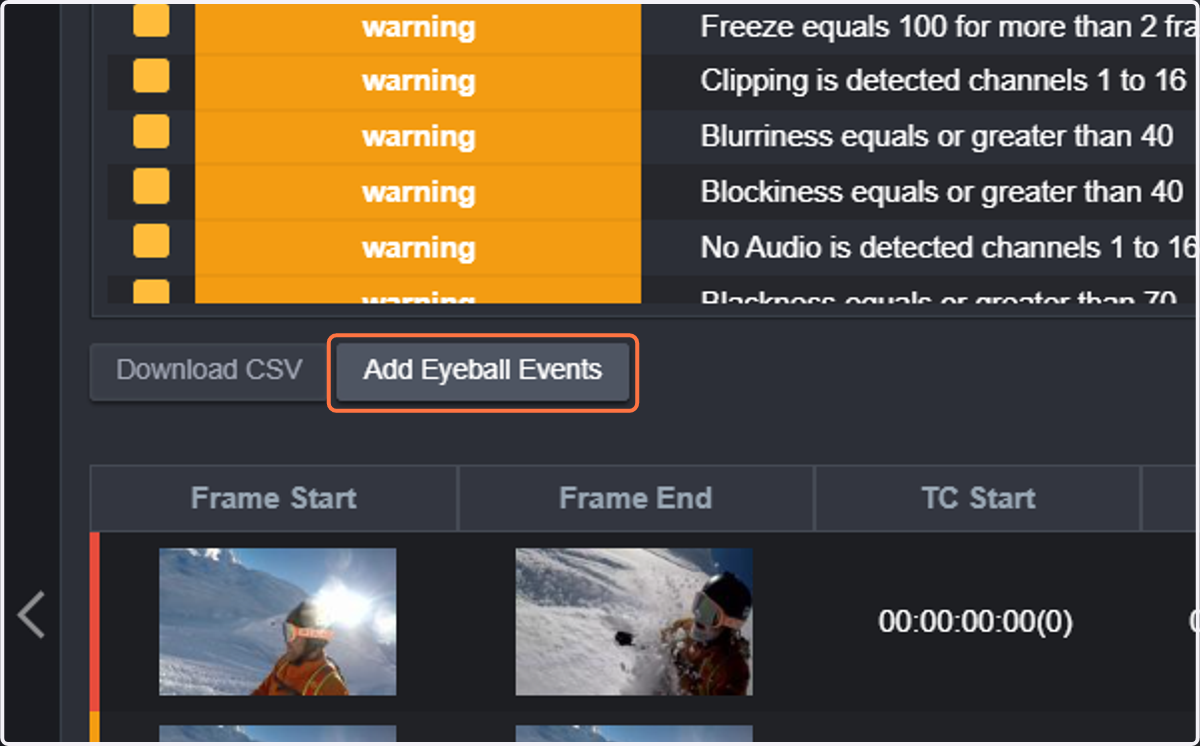
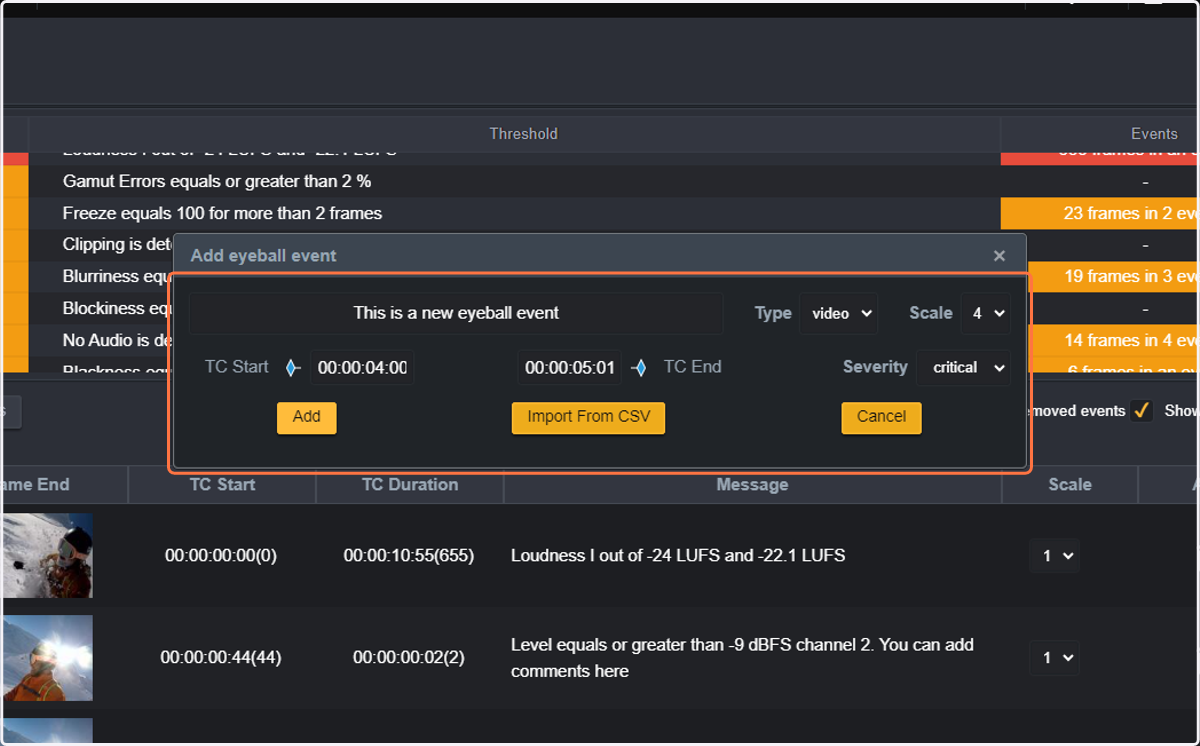
33. A window will open where you can configure the Eyeball Events of your choice
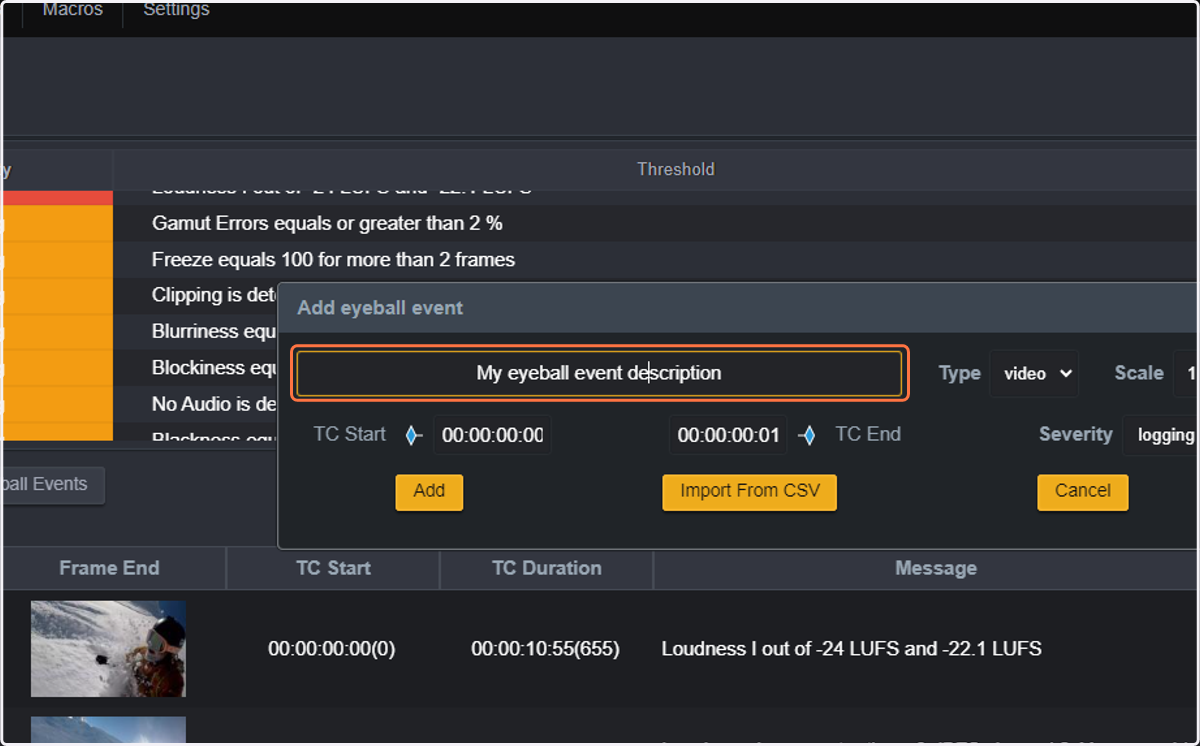
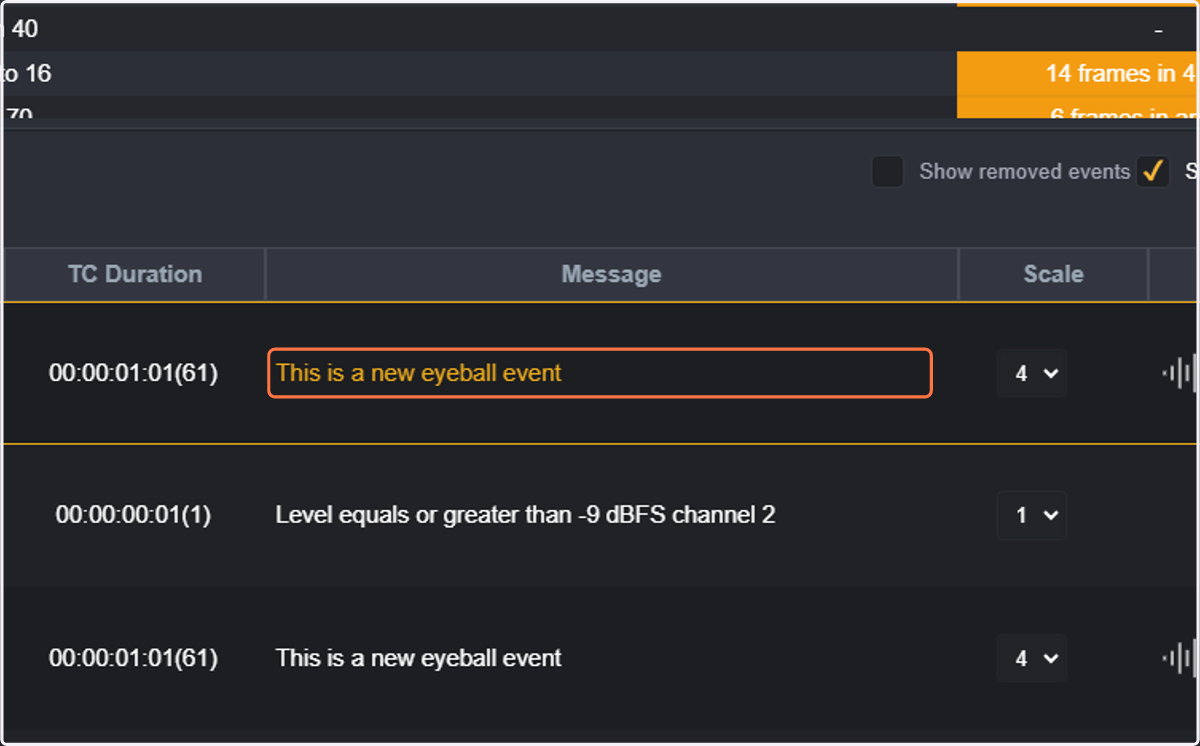
34. You can add any description (message) for the Eyeball Event. Just type "This is a new eyeball event"
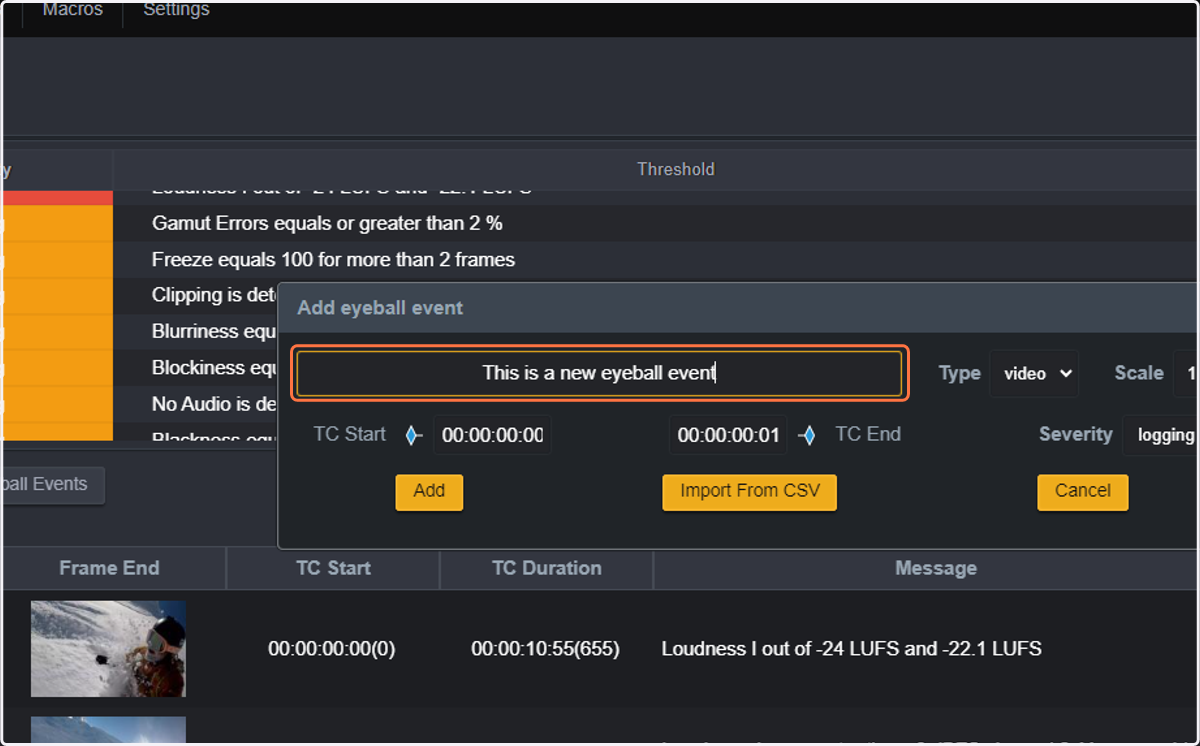
35. You can enter the Start TC of the event manually. We will now Type "00:00:04:00"
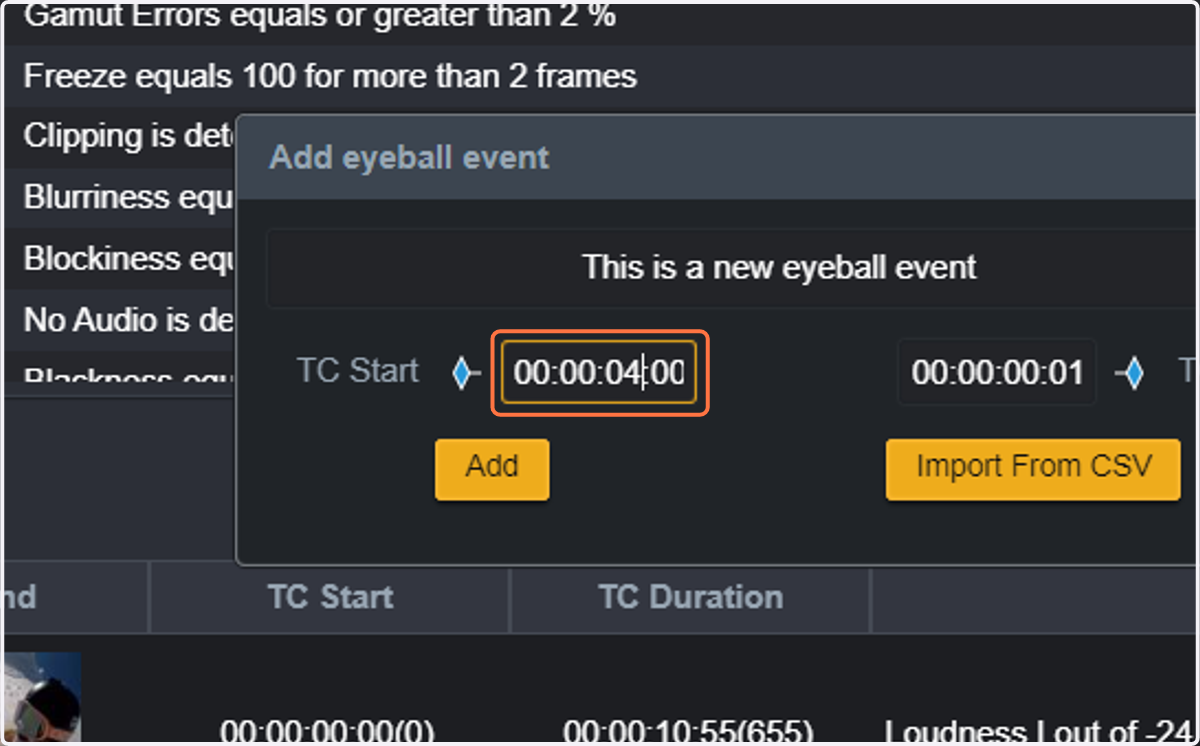
36. You can also add the End TC for the Eyeball Event. Type "00:00:05:01". NOTE that the TCs need to be in valid TC range of the file.
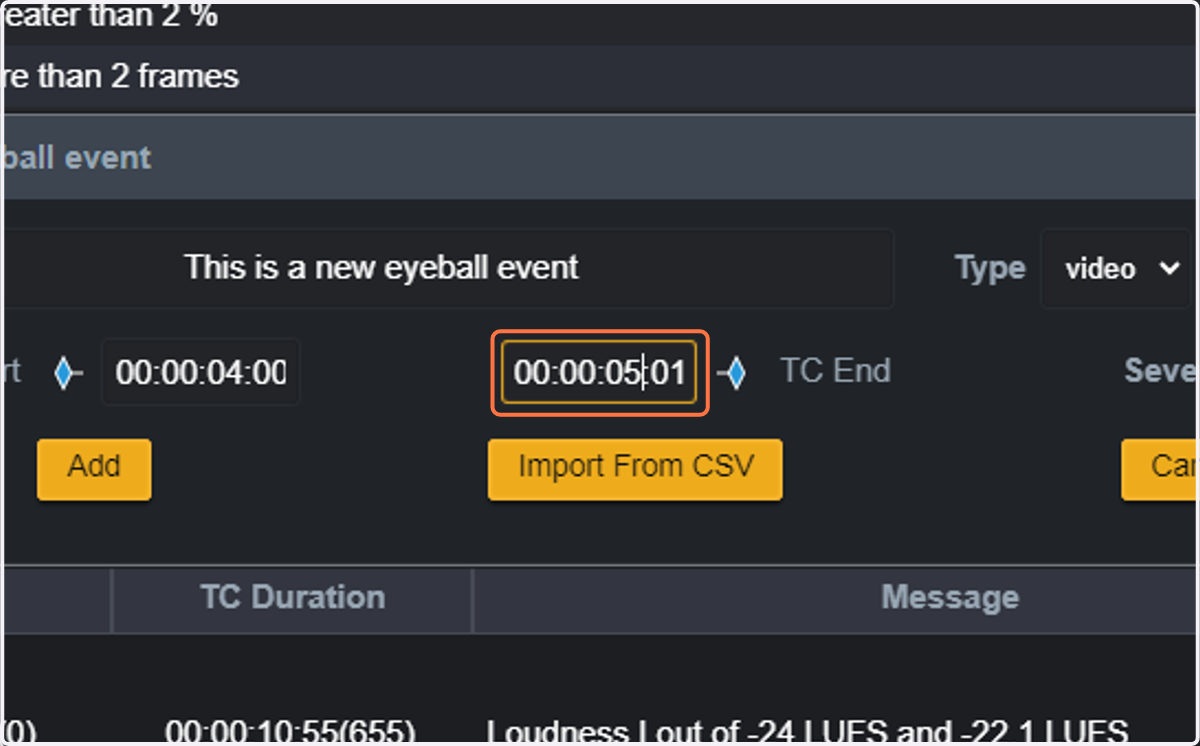
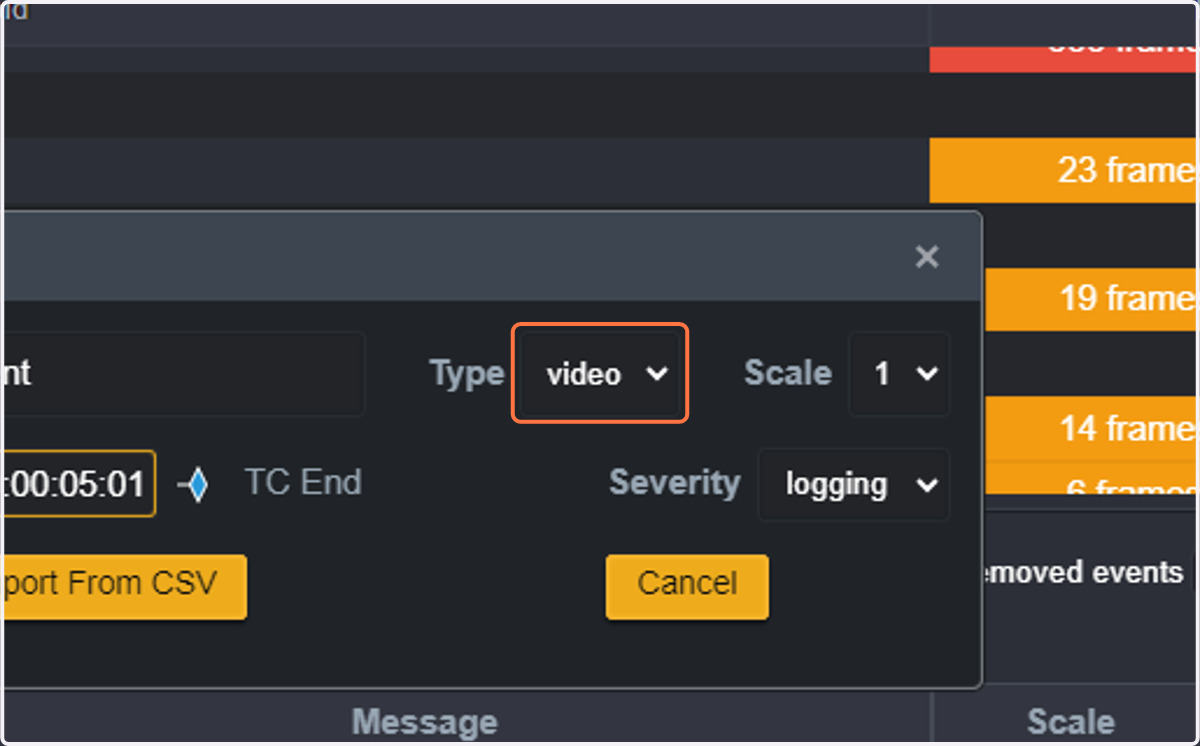
37. You can select whether it is a video eyeball event or an audio eyeball event by selecting from the dropdown list next to Type
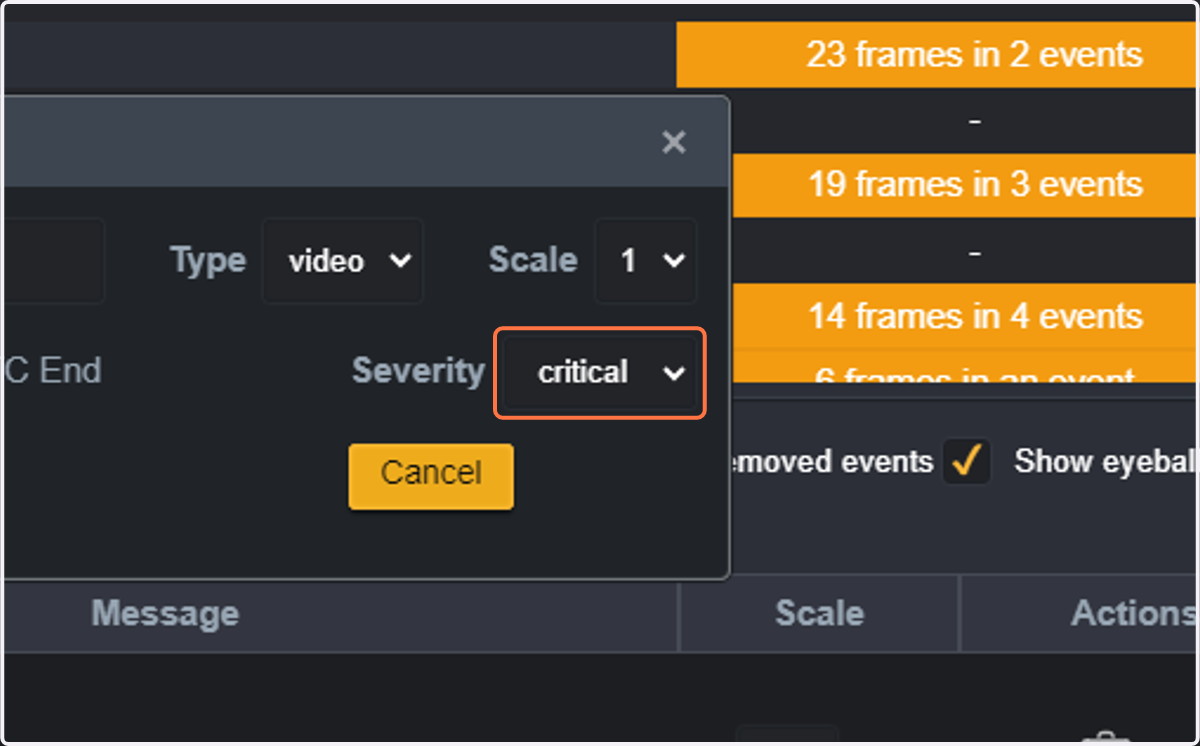
38. Select the severity level that the Eyeball Event will have. We will Select critical
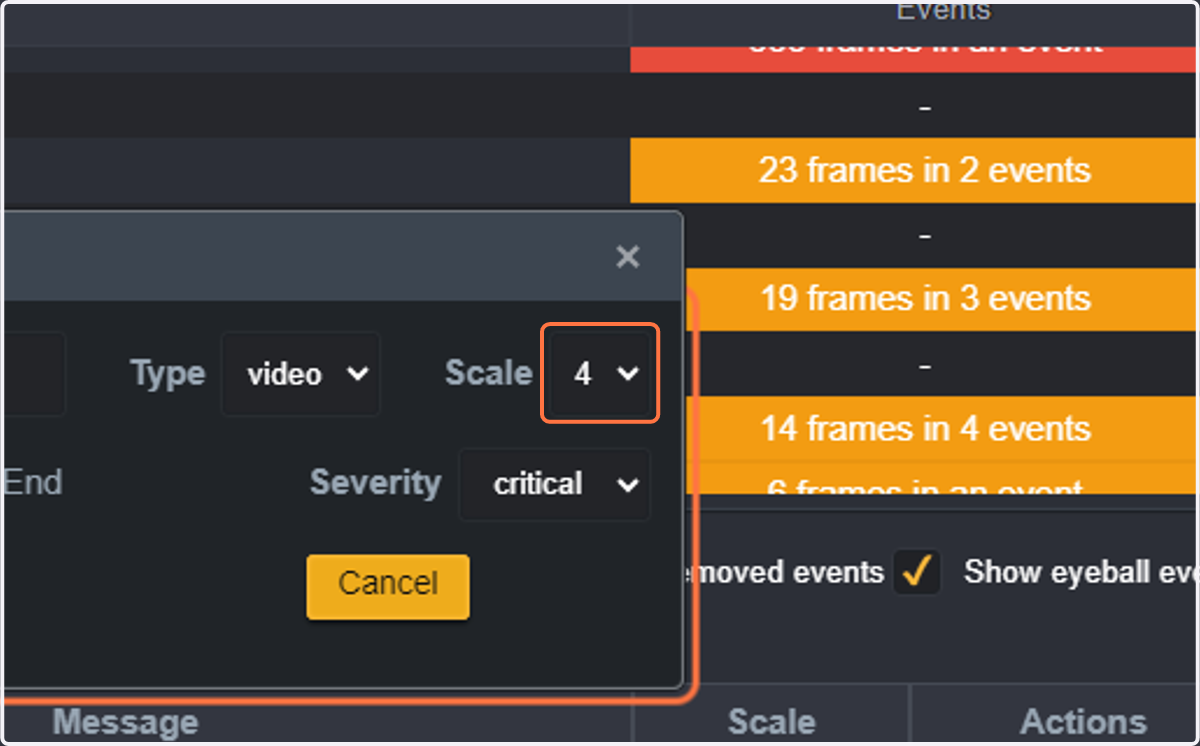
39. Scale is a customizable severity level you can use for your own purposes. We will Select 4
40. If you click on Add, the Eyeball event will be inserted into the list of events
41. You can then see the Eyeball event in the list of events. The thumbnail will also be created, and the waveform will be available in case it is a video event.
42. After doing these modifications, you can now regenerate the PDF report by clicking on Download report as PDF