How to Resend a Text, Email, or Voice Message
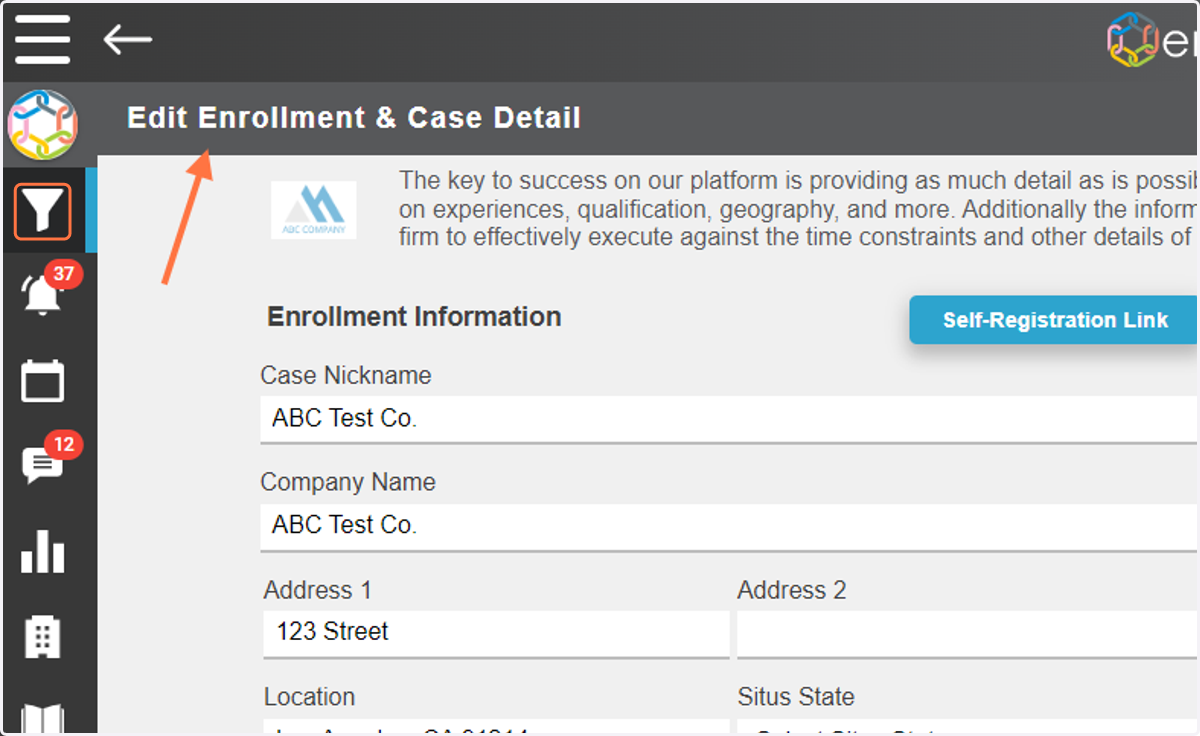
1. To resend a communication first navigate to the 'Edit Enrollment & Case Detail' page.
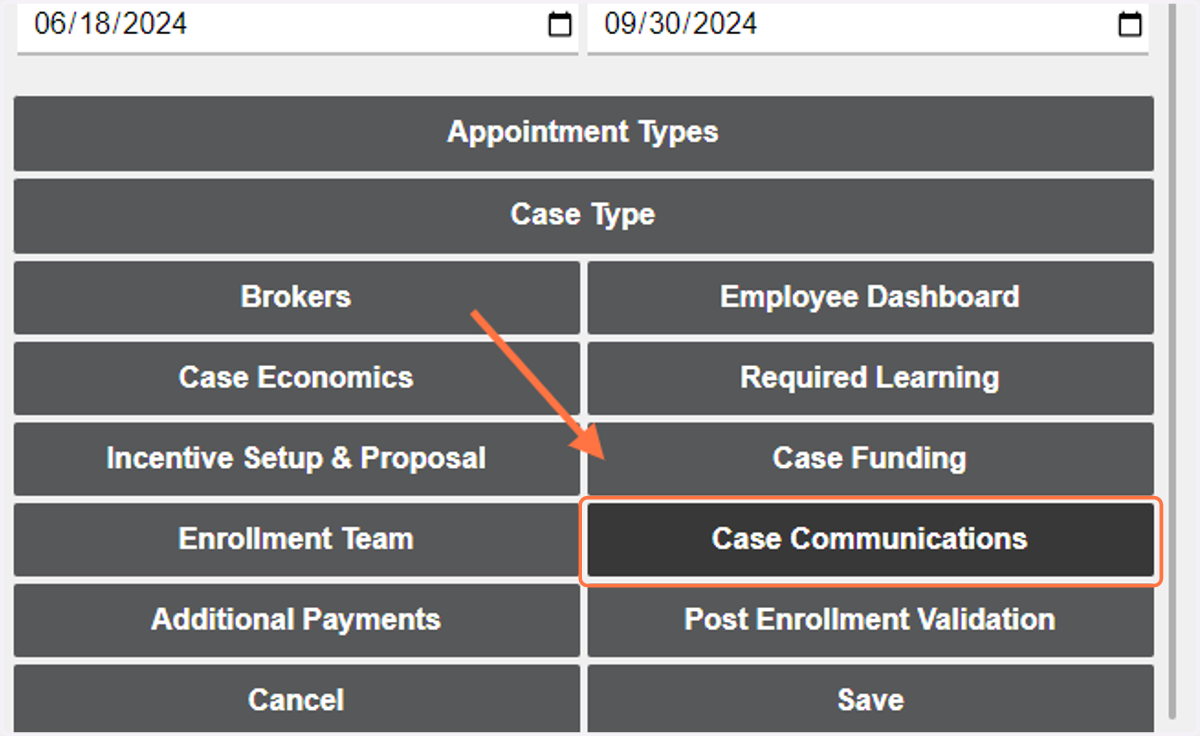
2. Click on 'Case Communications'
3. Find the communication you would like to Resend
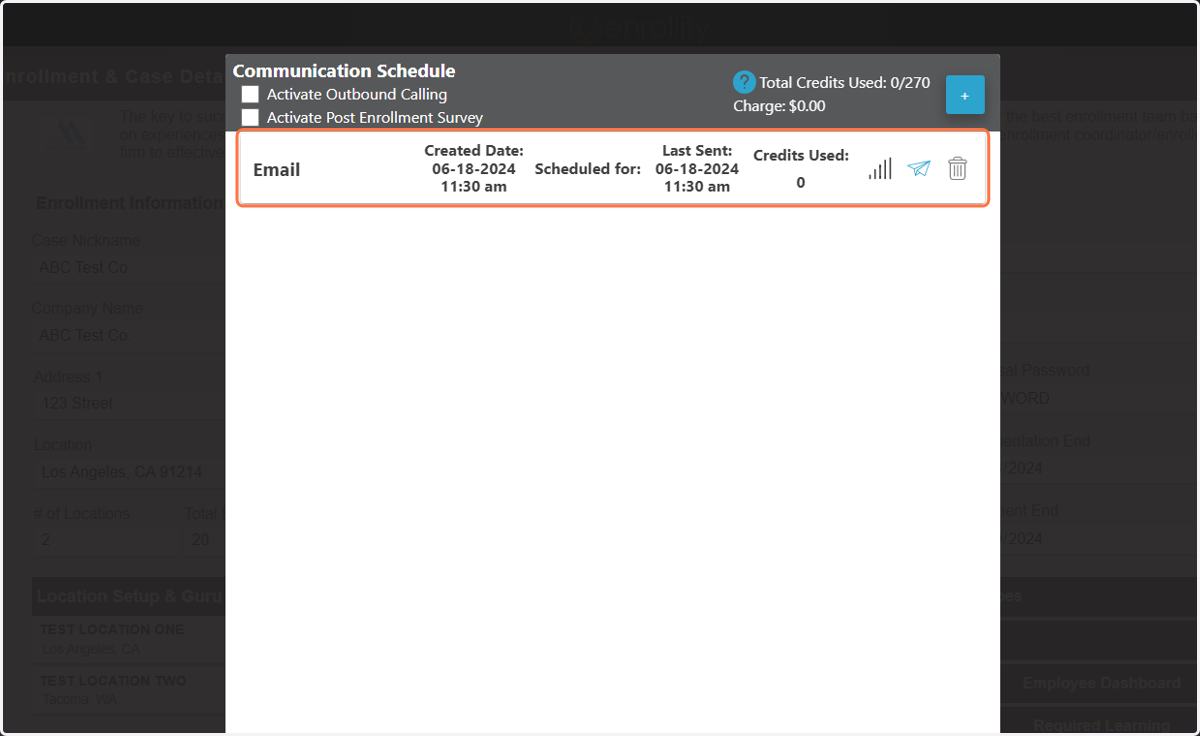
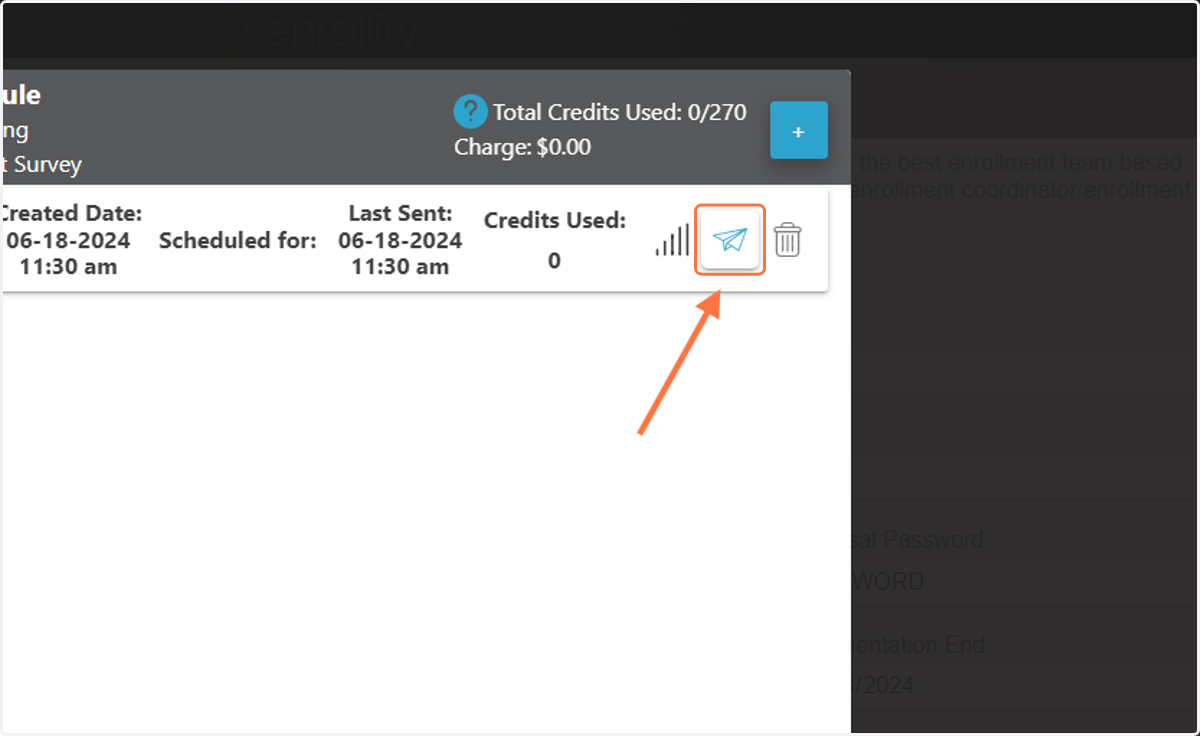
4. If you would like to resend this communication to only the employees that did not receive it the first time it was sent, simply click the paper airplane icon
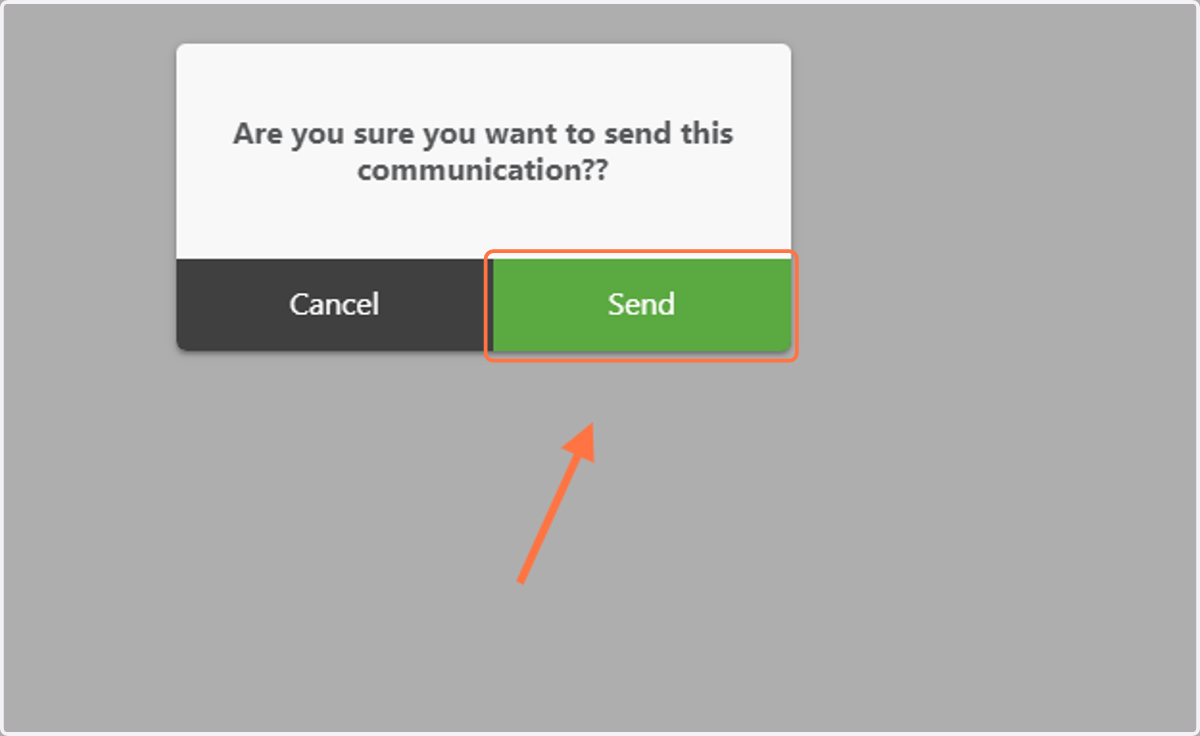
5. Then click, 'Send'. This communication will now be resent to any employee on the census that did not receive it the first time it was sent.
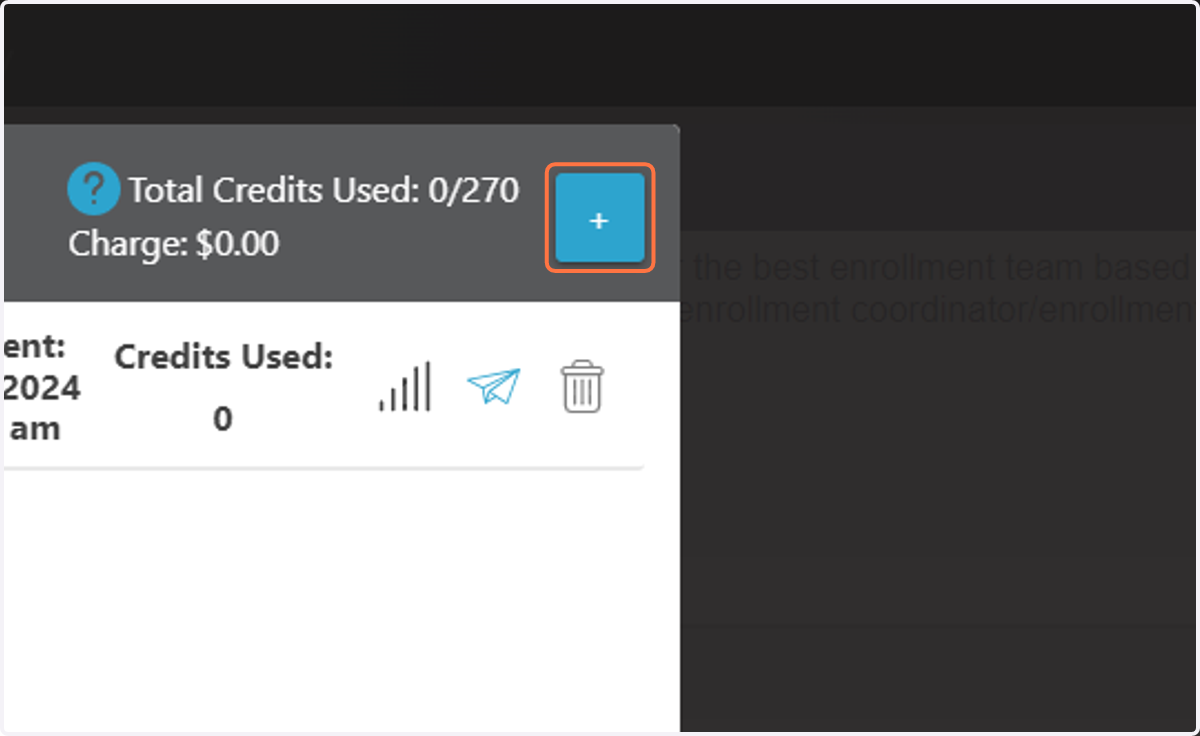
6. If you would like to resend a communication to the entire employee census again, simply create a new communication with the '+' sign and create a communication with the same language.
Then send as you normally would either by scheduling a send time or using the paper airplane icon.