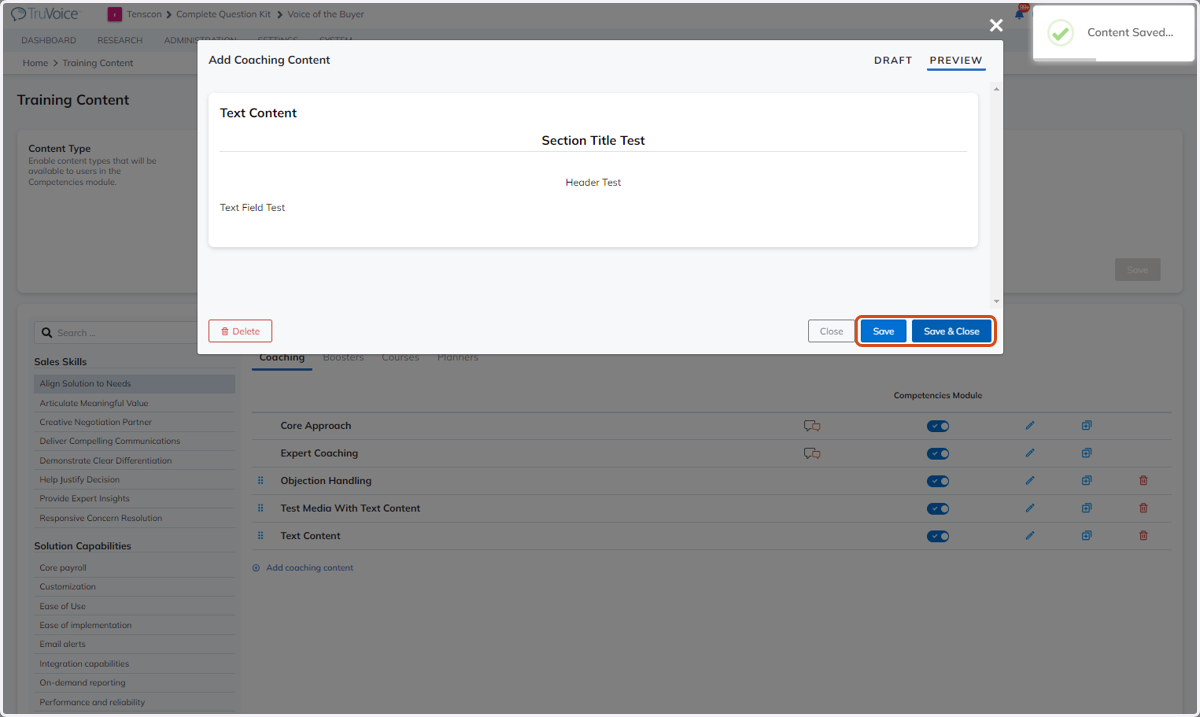
Creating Text Content
Creating Text Content
The "Text" section will provide you with the a text field to add in any custom text content.
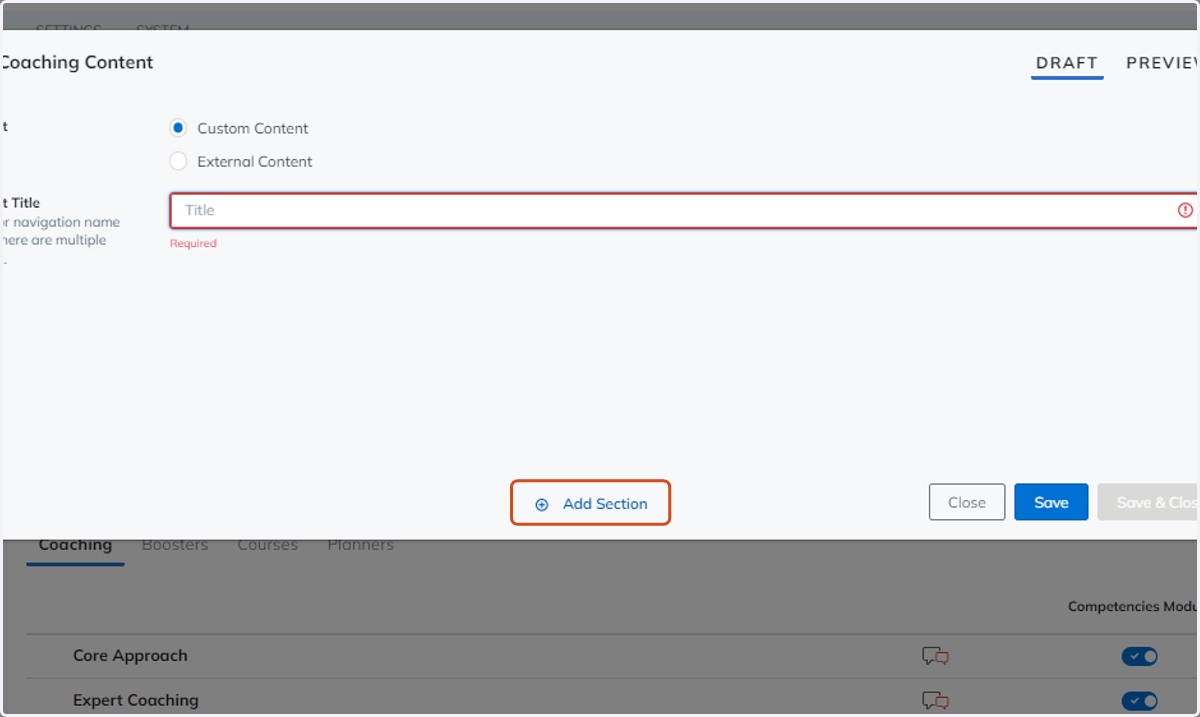
1. Click on Add Section
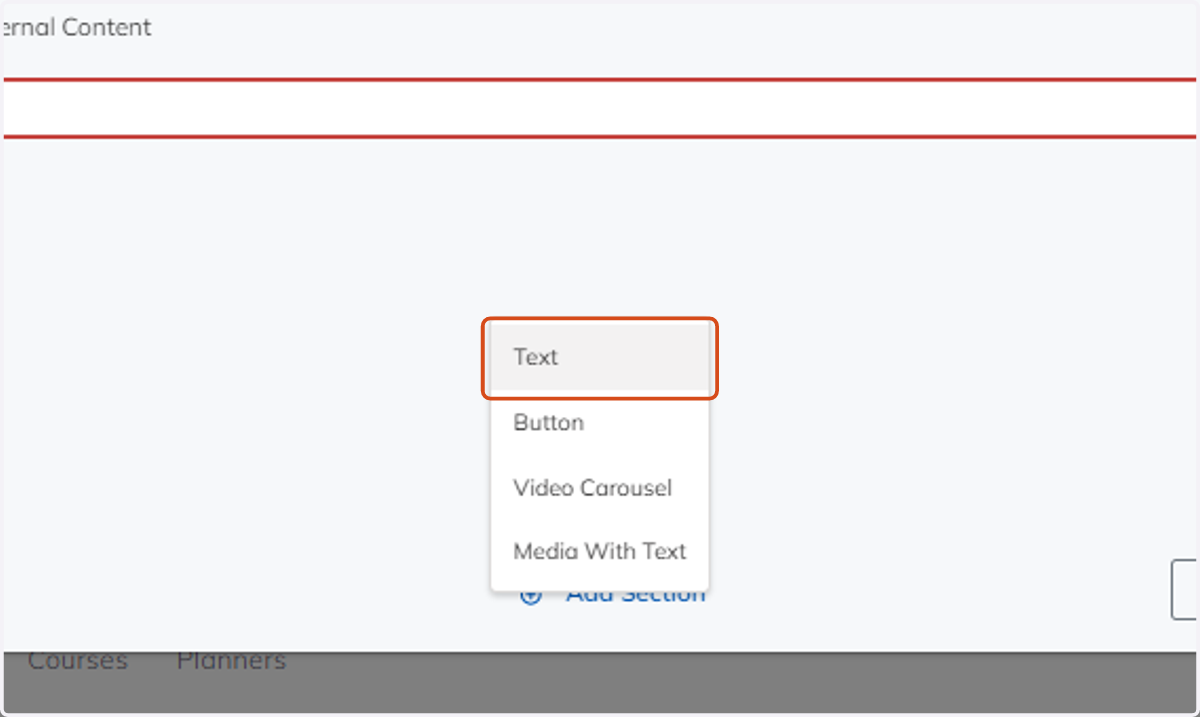
2. Click on Text
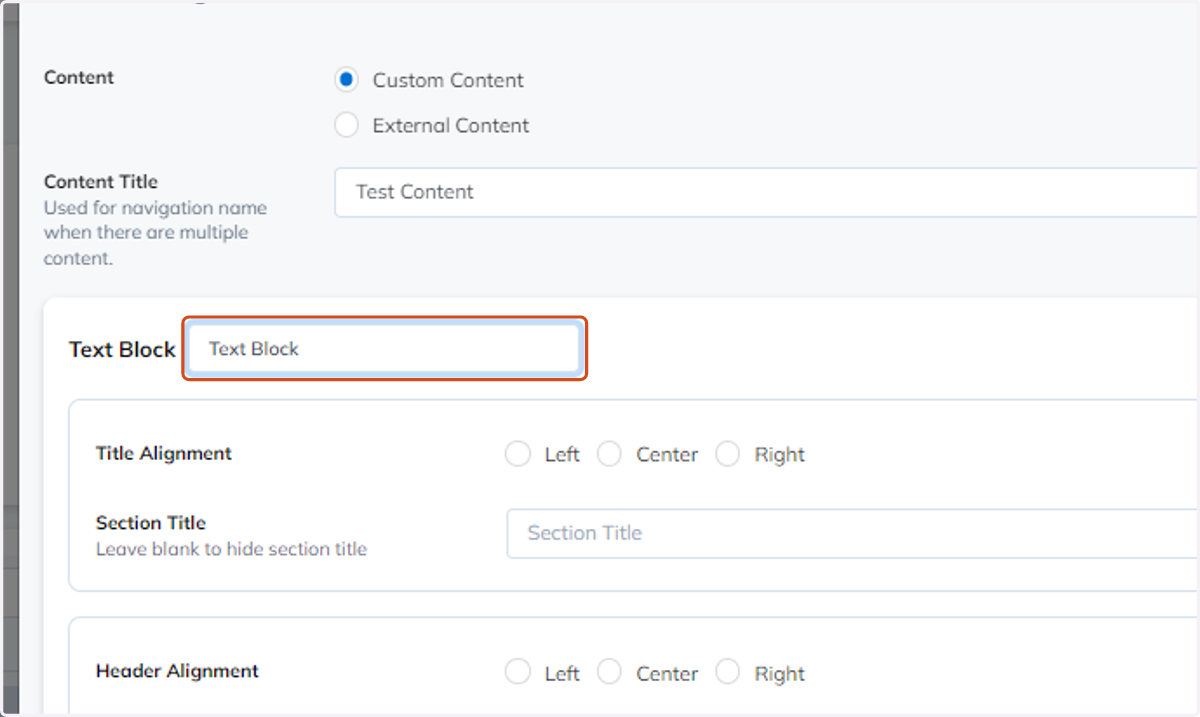
3. Enter in a Text Block description
This help identify the the unique text block when there are several other sections.
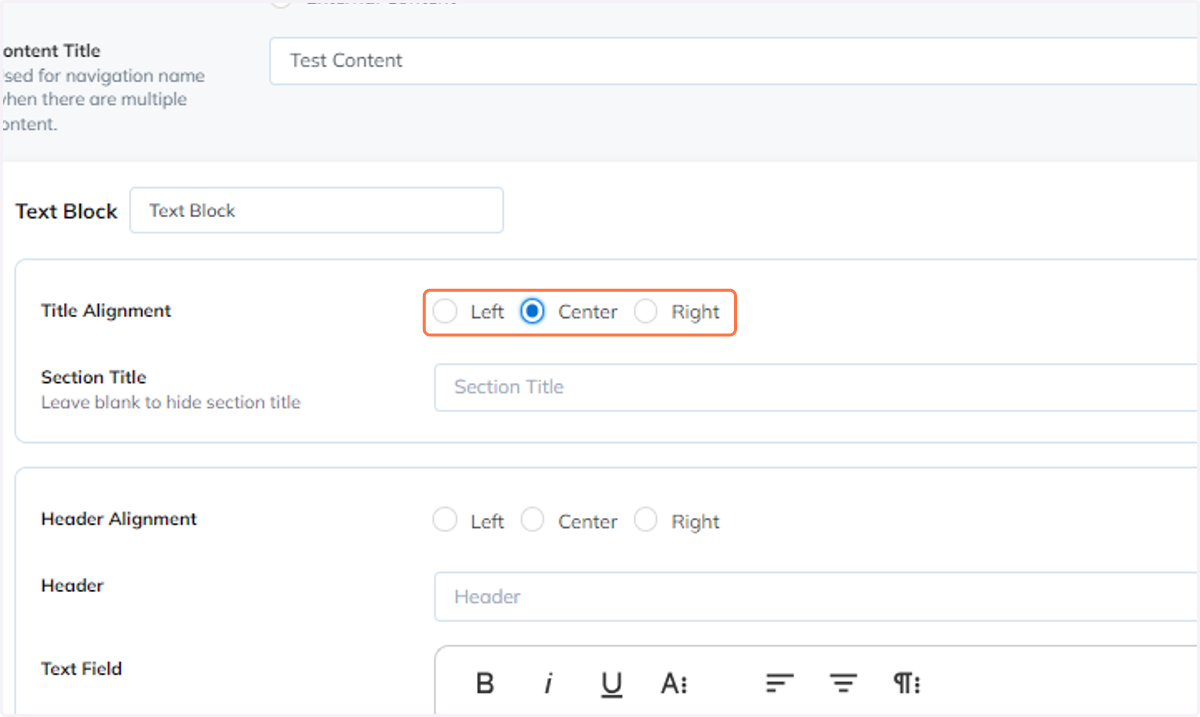
4. Select the Title Alignment
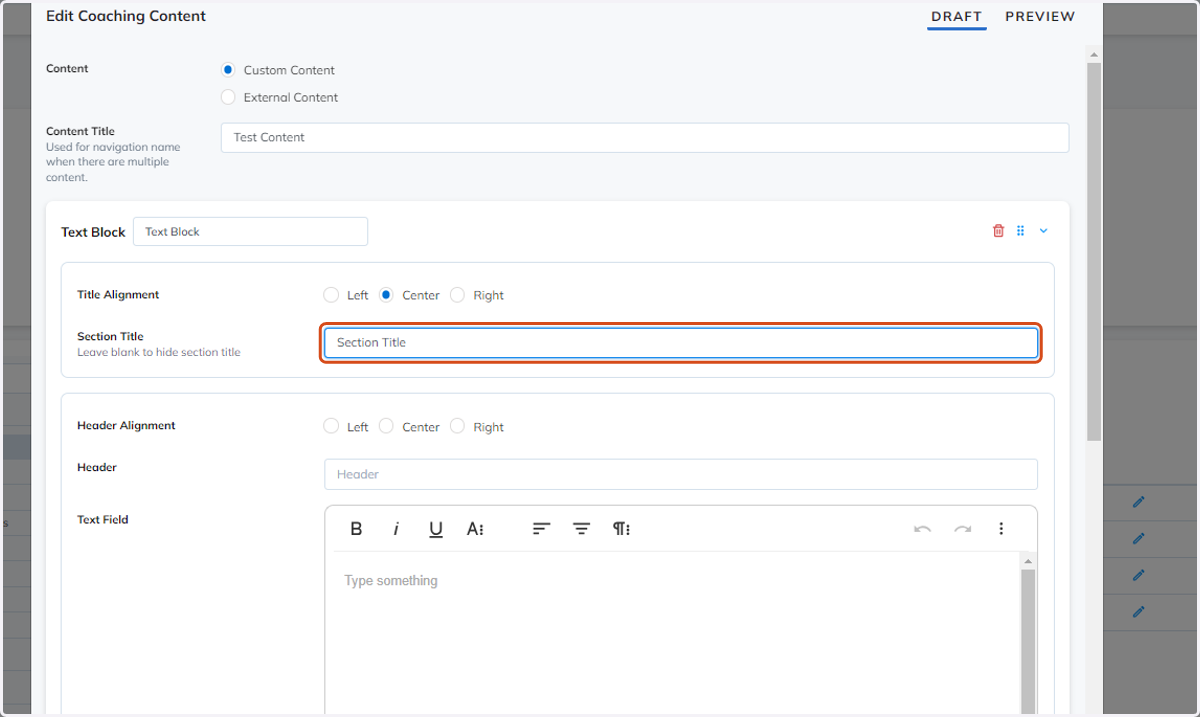
5. Add a Section Title
You have the option to add a section title or leave the field blank to hide the section title.
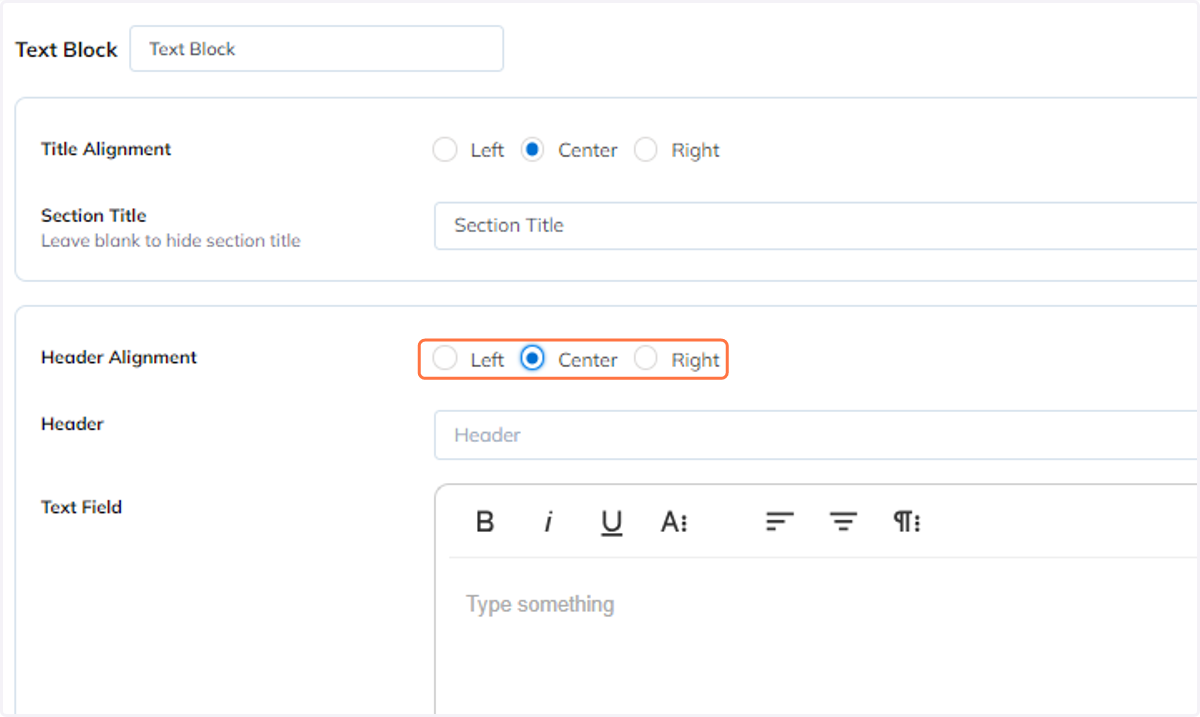
6. Select the Header Alignment
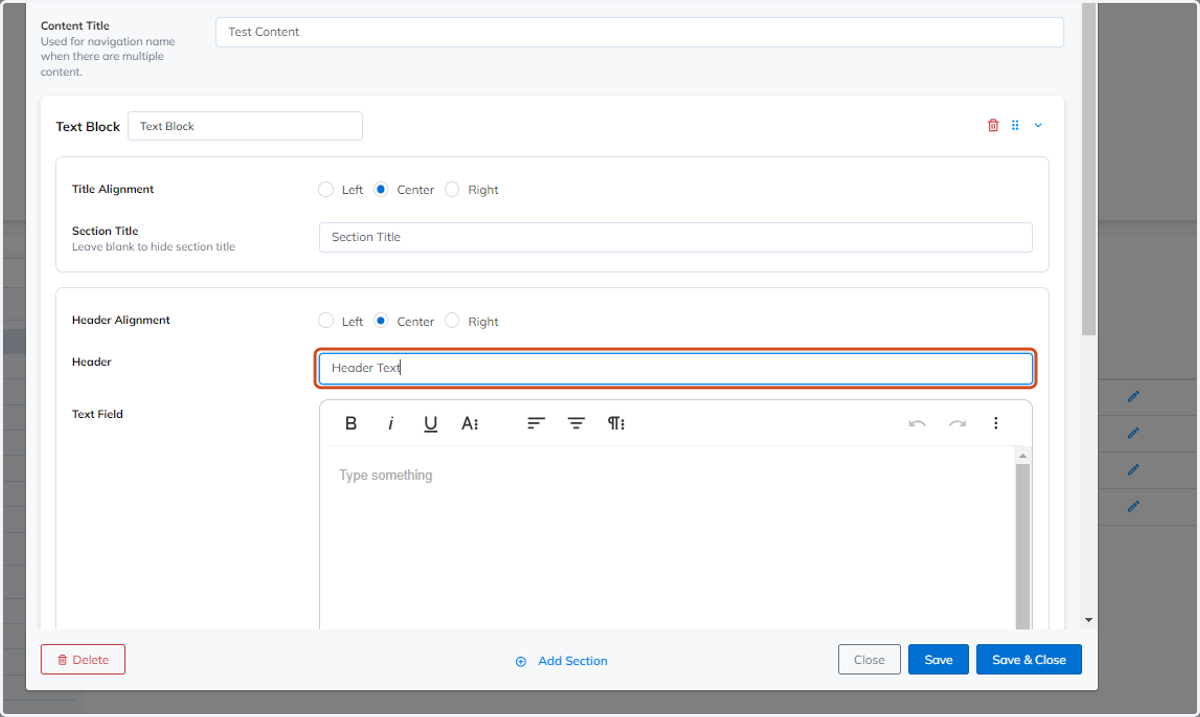
7. Add a Header
You have the option to add a header or leave the field blank.
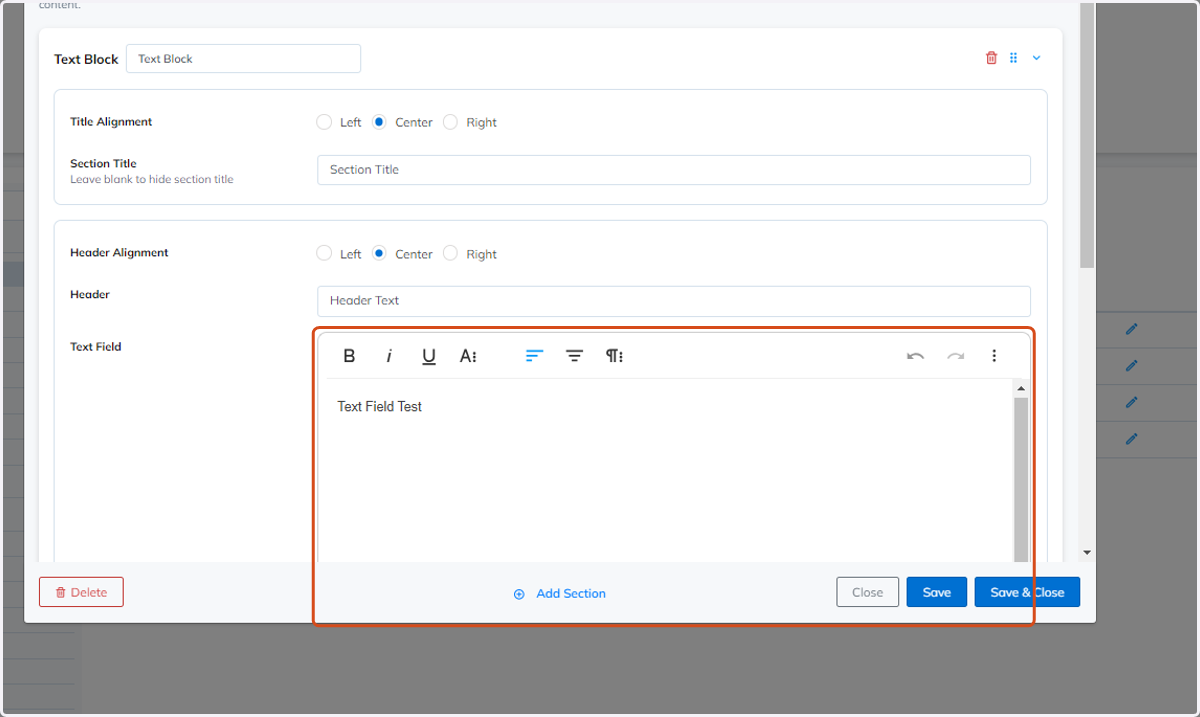
8. Fill in the Text Field
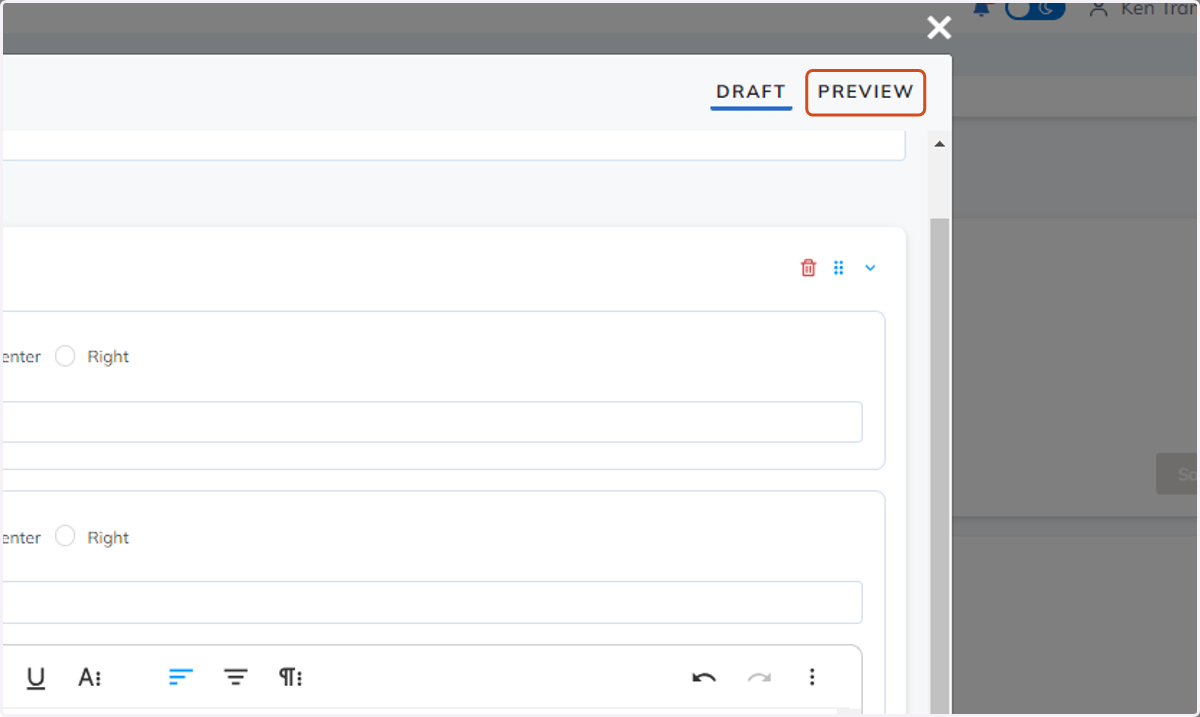
9. Click on PREVIEW to review the new content
This allows you to preview the content and make adjustments necessary before saving.
10. Save options
Save button: This saves the work in progress and allows the user to continue adding additional sections or further edits.
Save & Close button: This will save the content created and close the modal.