Creating an Event
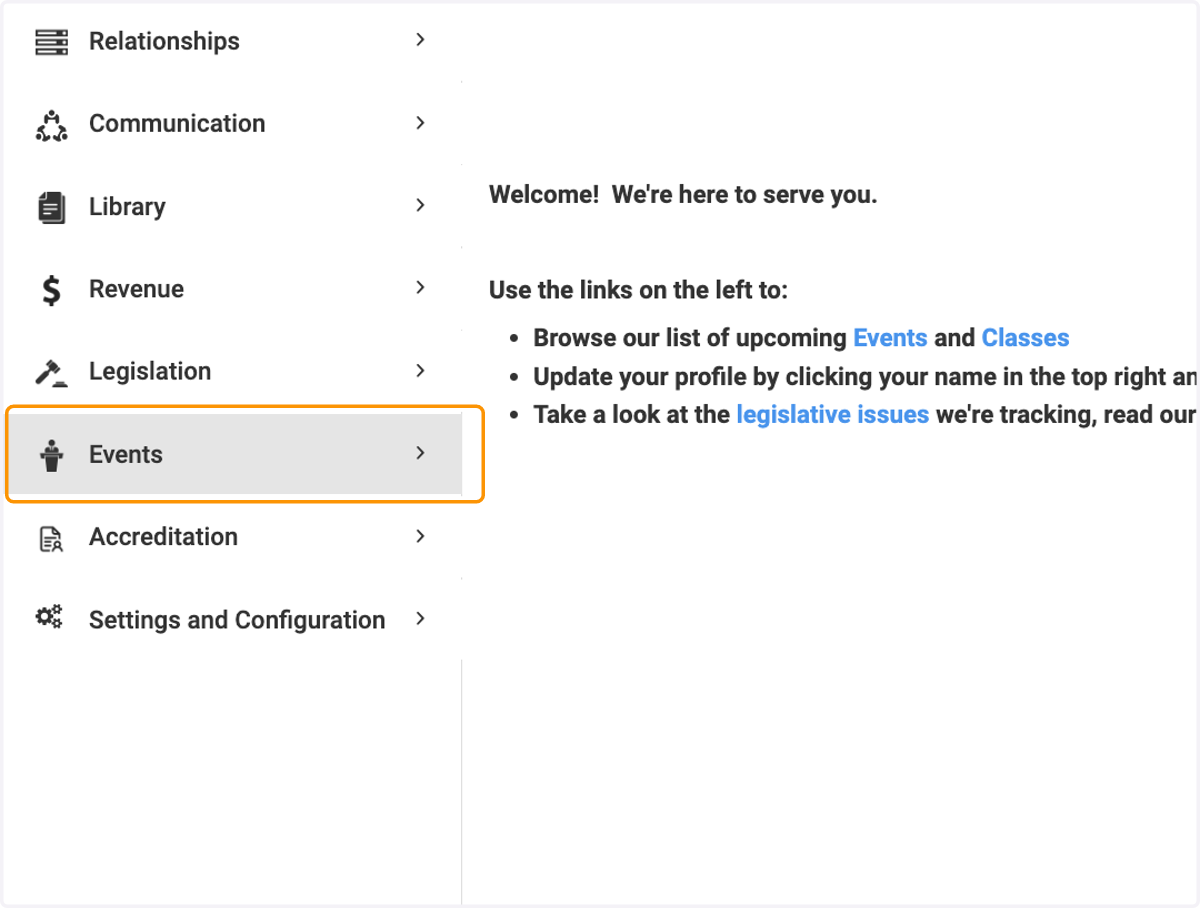
1. Click on Events
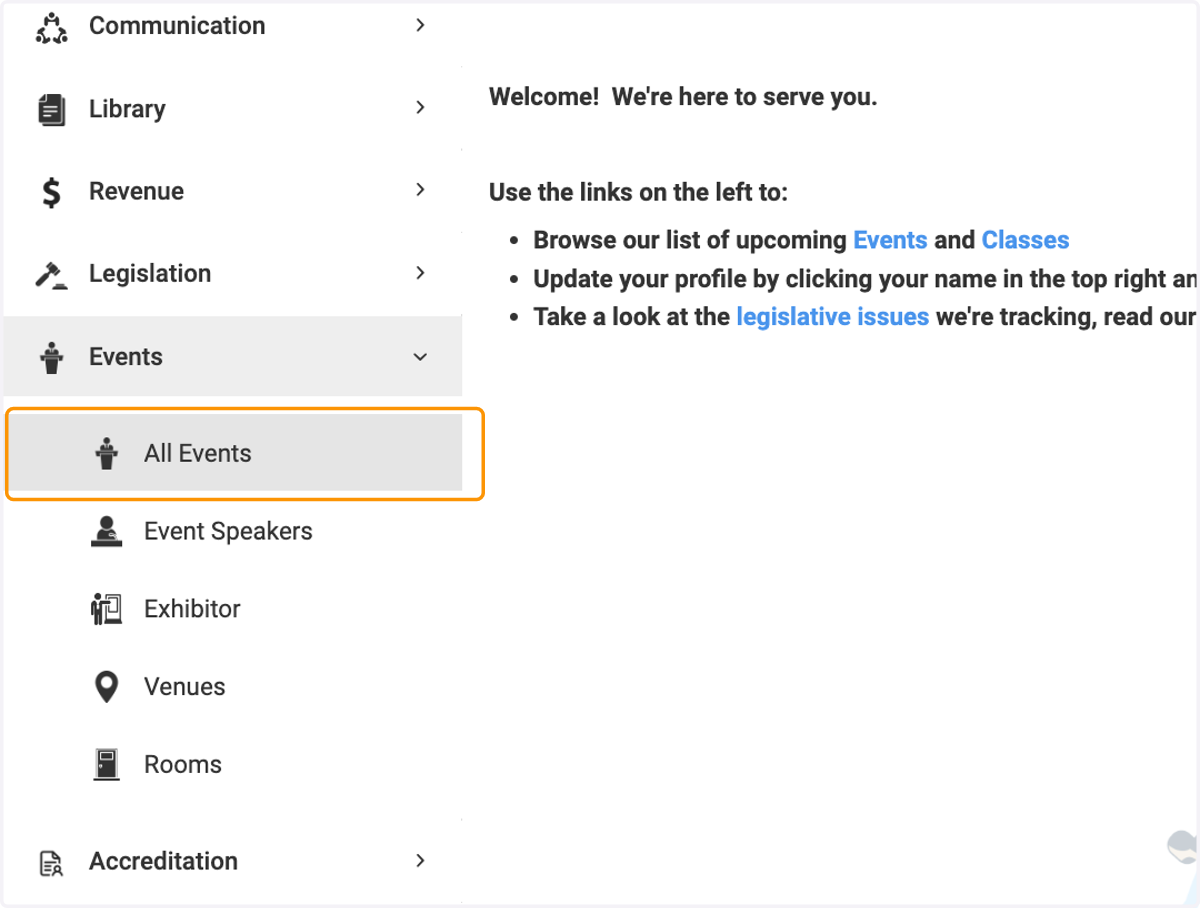
2. Click on All Events
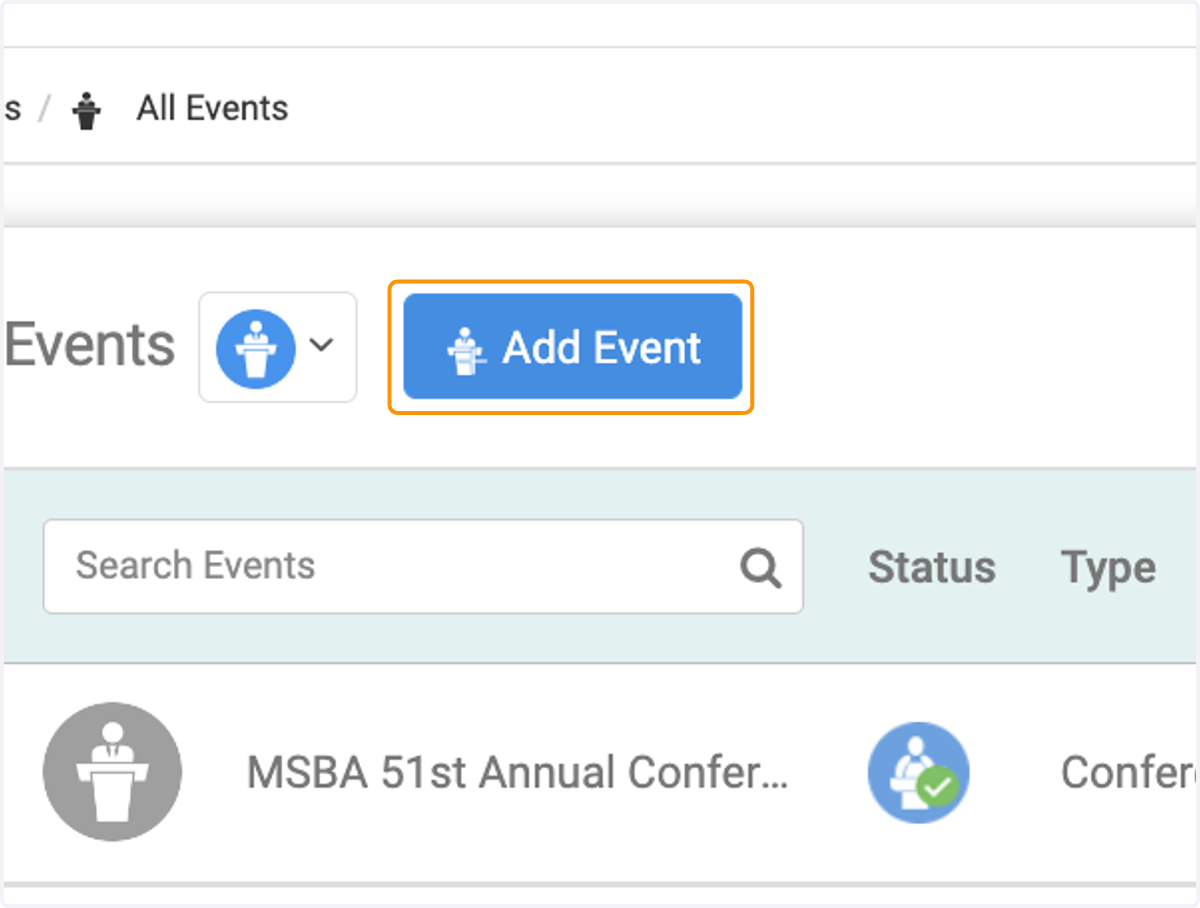
3. Click on Add Event
4. Type the name of your event
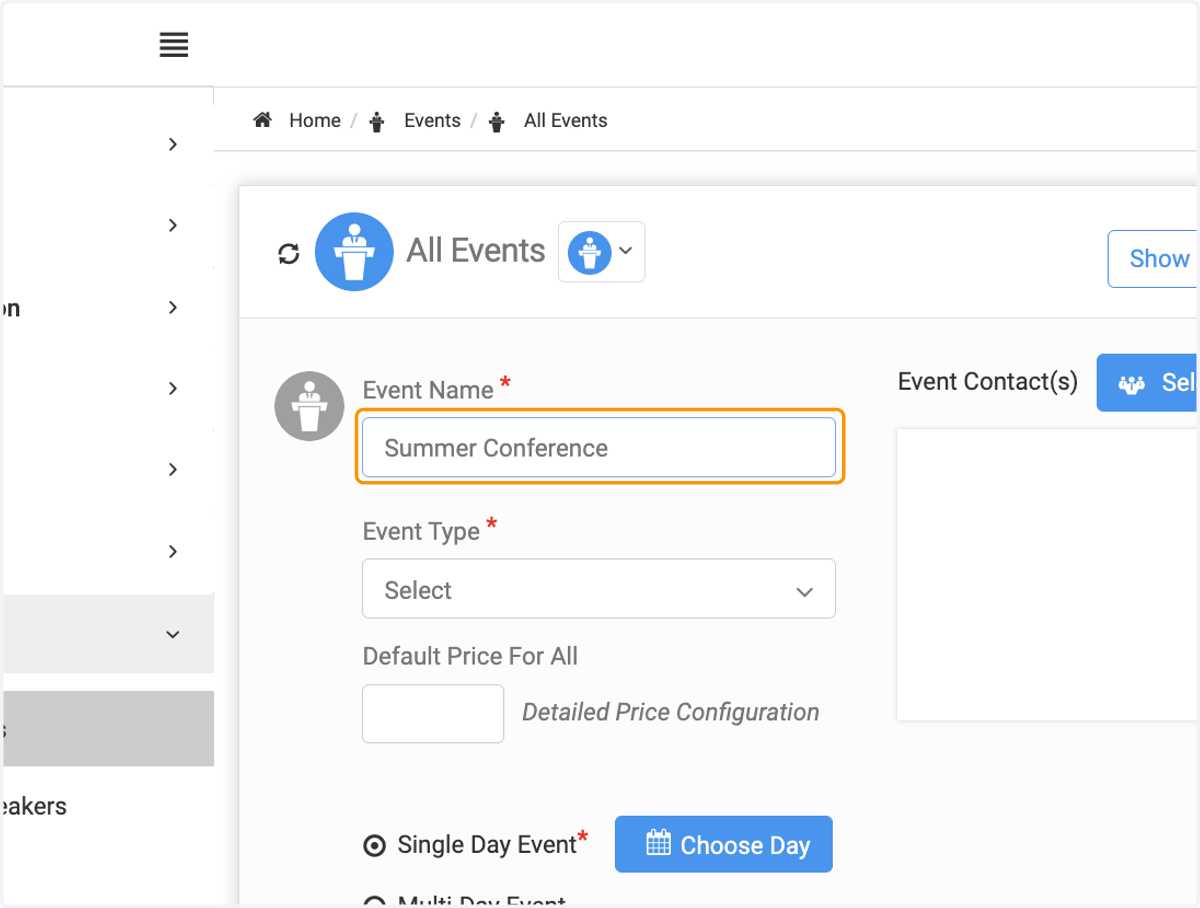
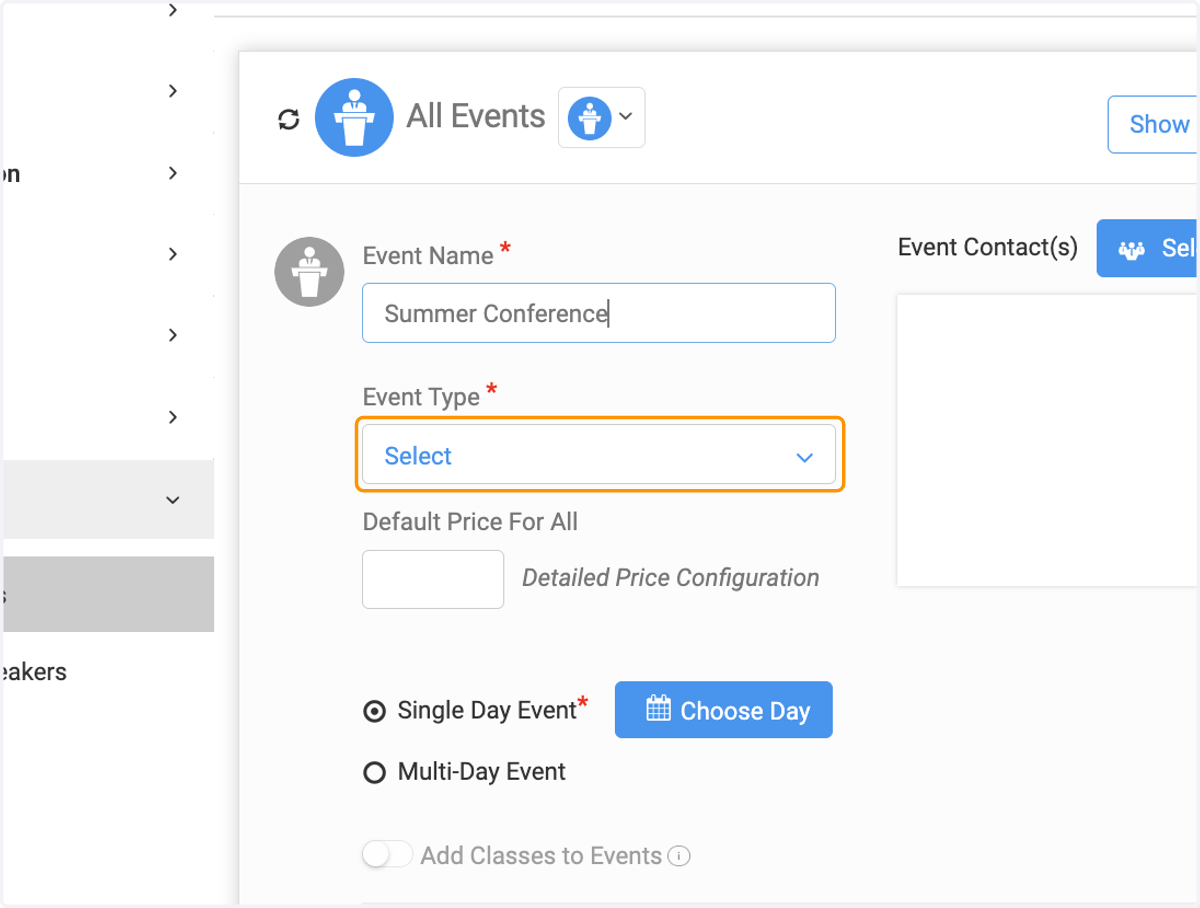
5. Click on dropdown arrow to select your event type
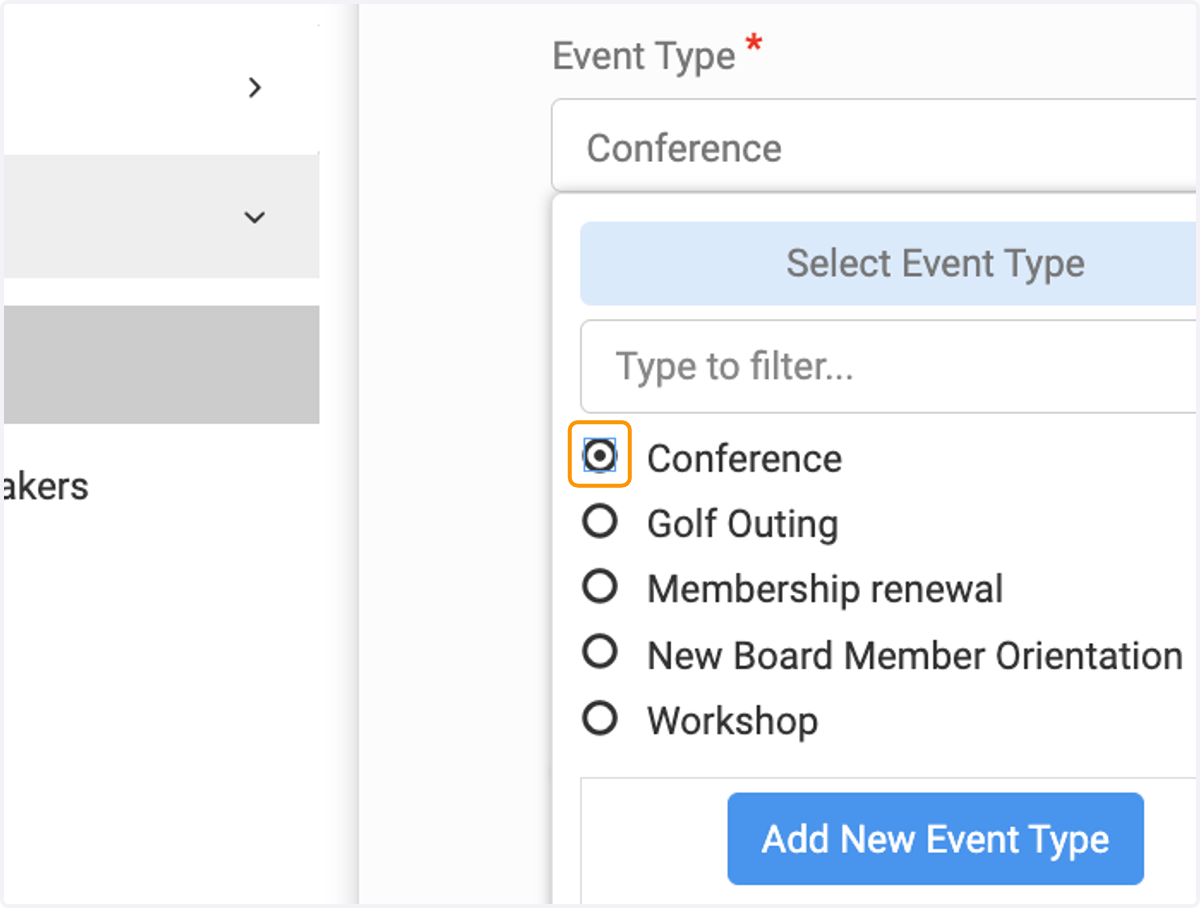
6. Select your event type from the list or add a new type
7. Click on Single Day or Multi-Day Event
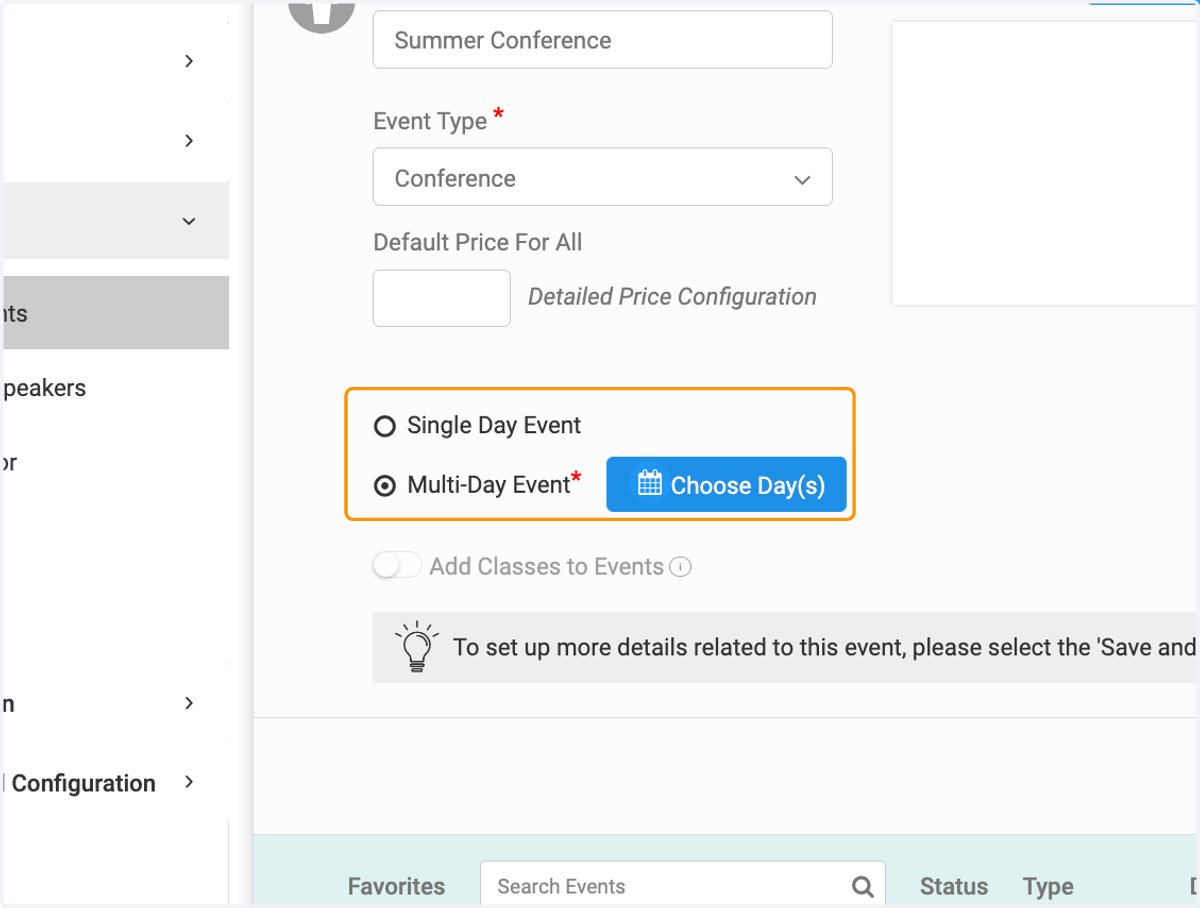
8. For Multi-Day, add your dates and times
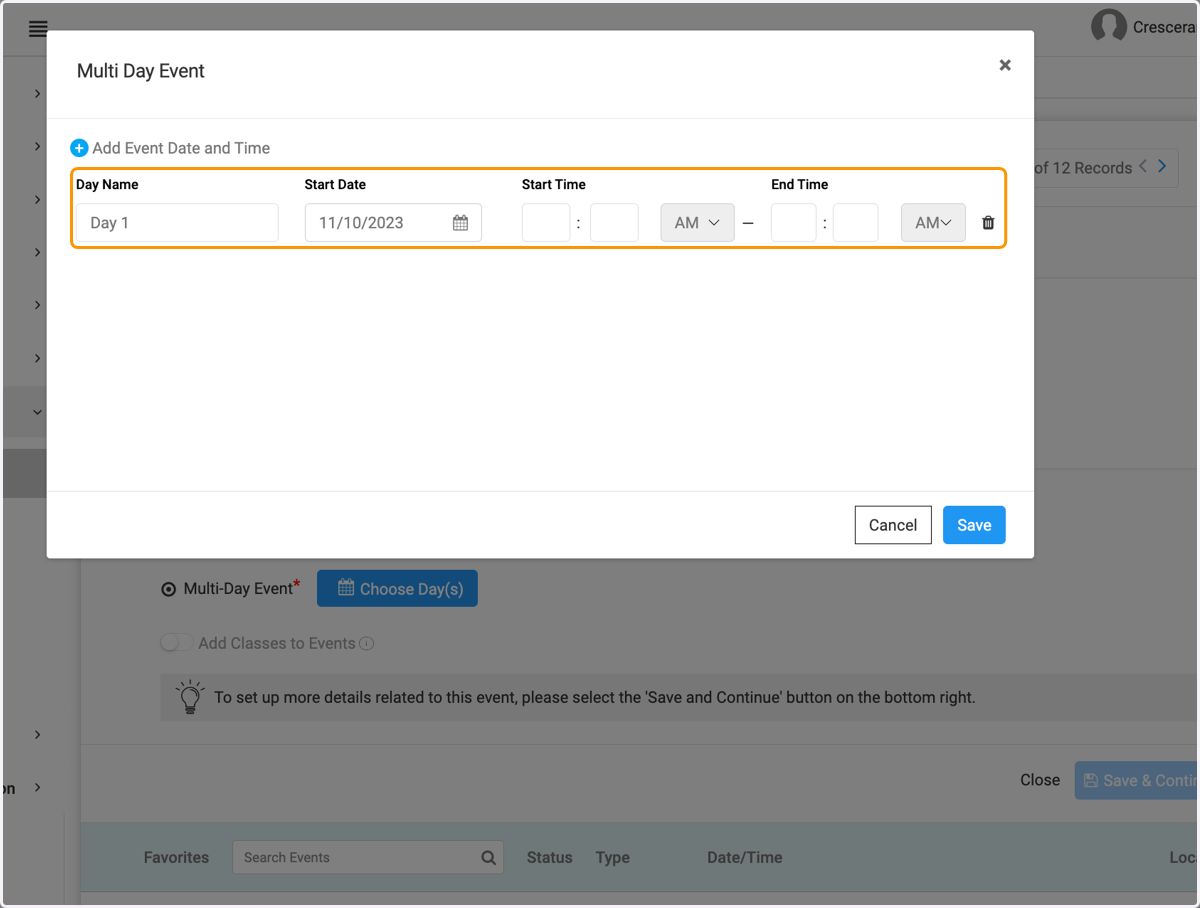
9. Click on Add Event Date and Time to add additional dates/times
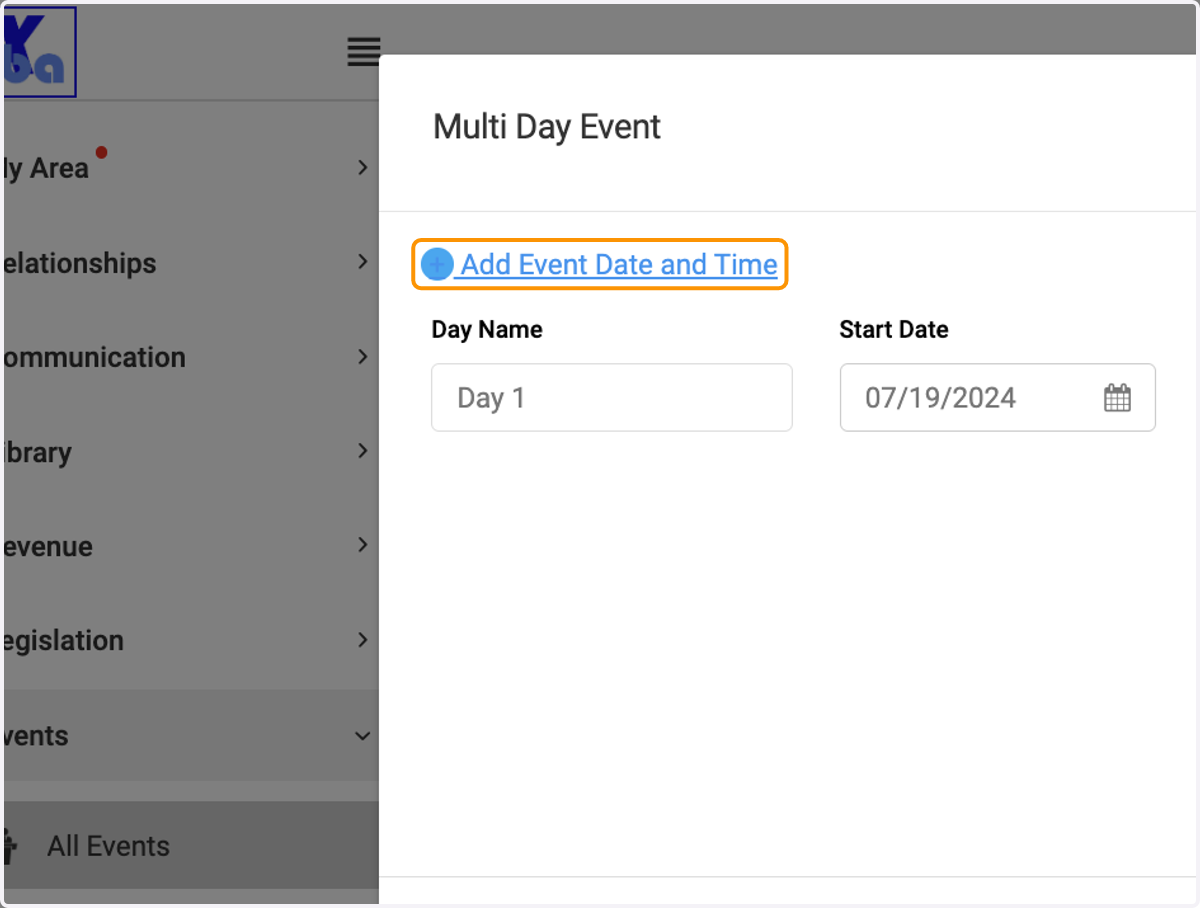
10. Type "Day 2"
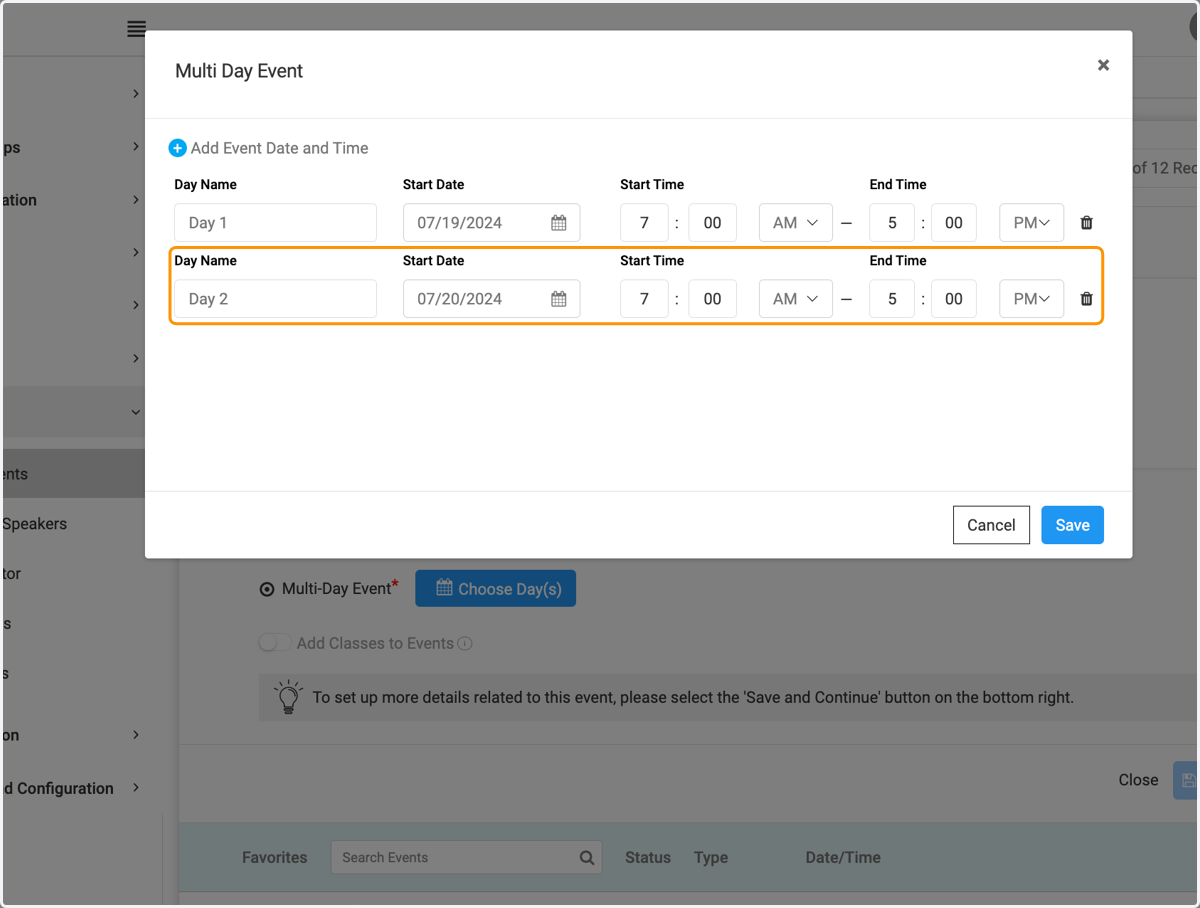
11. Click on Save when finished adding your dates
12. Click on Select Event Contacts to add a contact for your registrants to reach out to with questions.
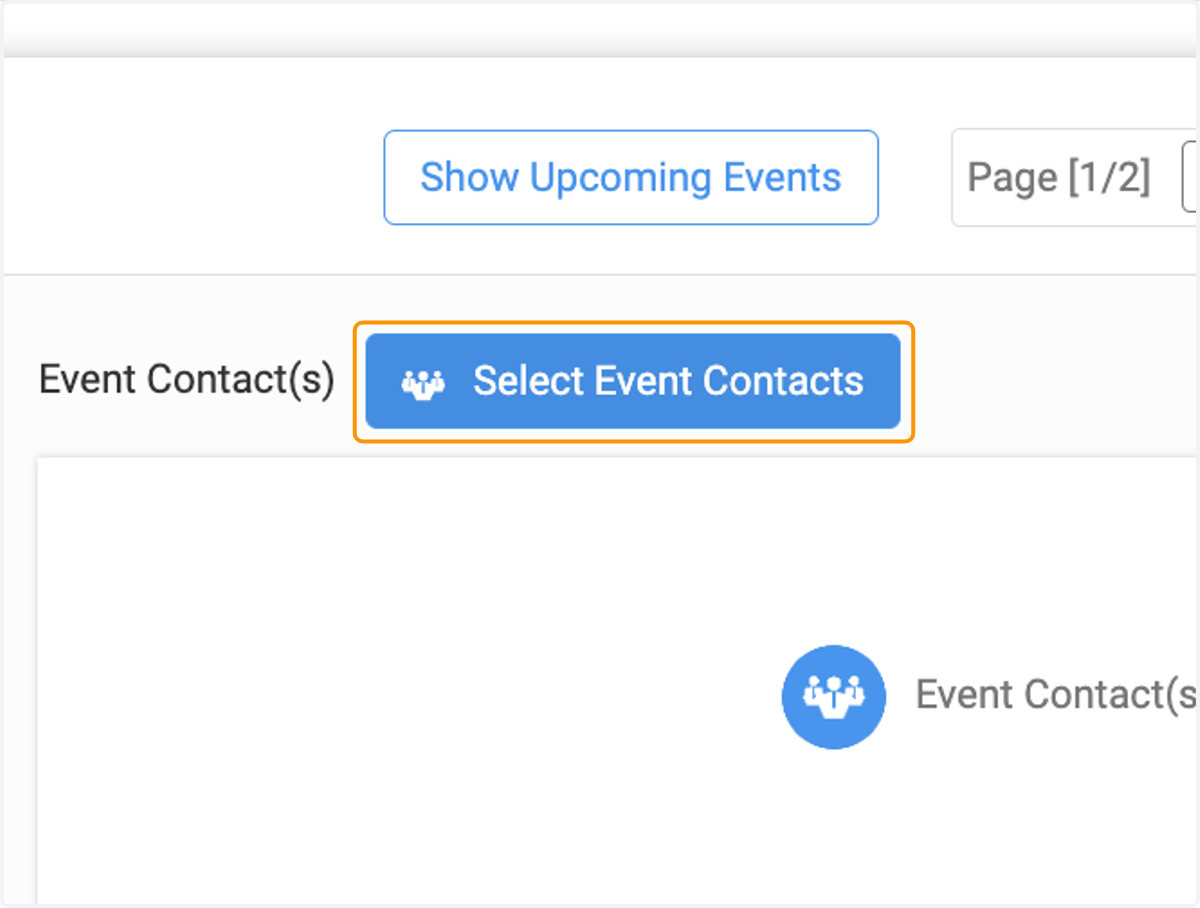
13. Select your event contact from the dropdown
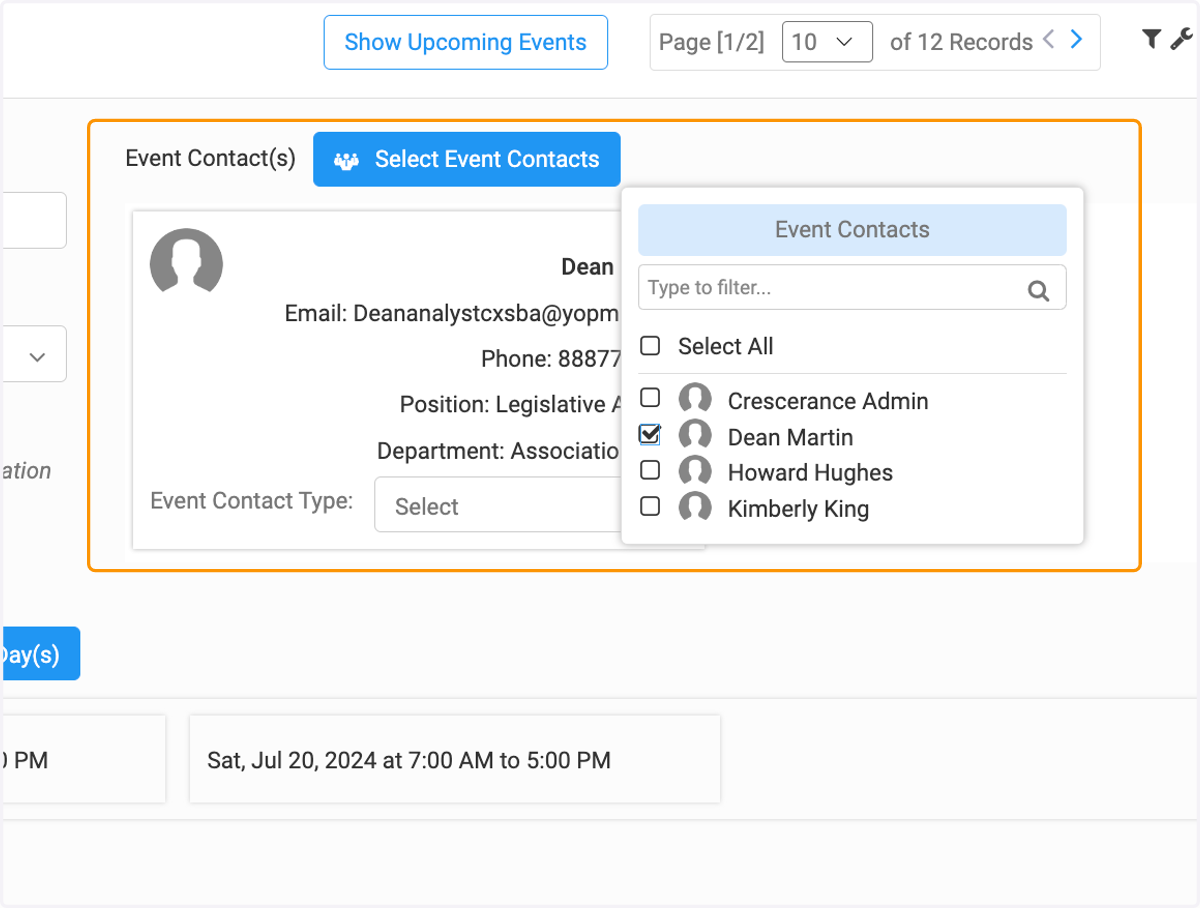
14. Click on Save
15. Click on Save & Continue when you are finished with your initial event set up
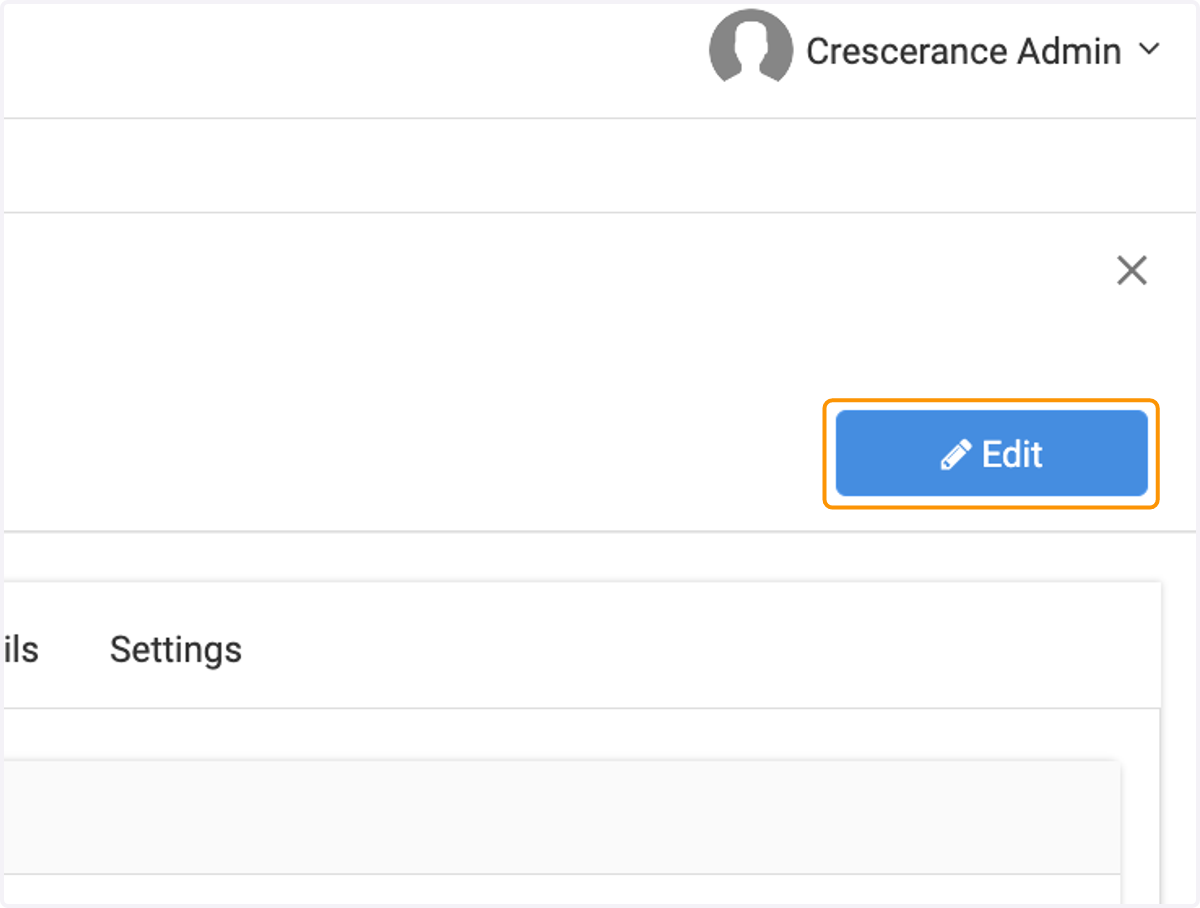
16. Click on Edit to continue setting up your event
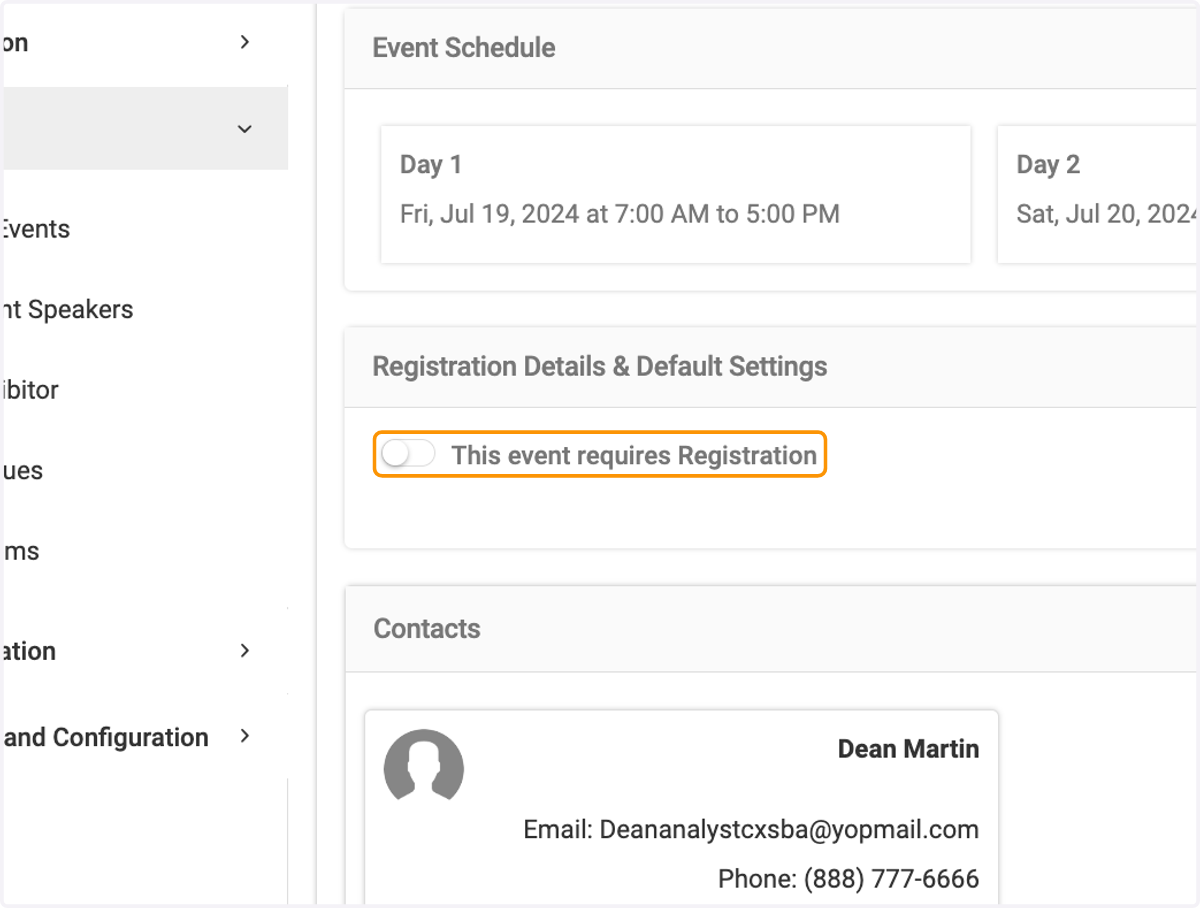
17. Click on This event requires Registration to set up the registration process
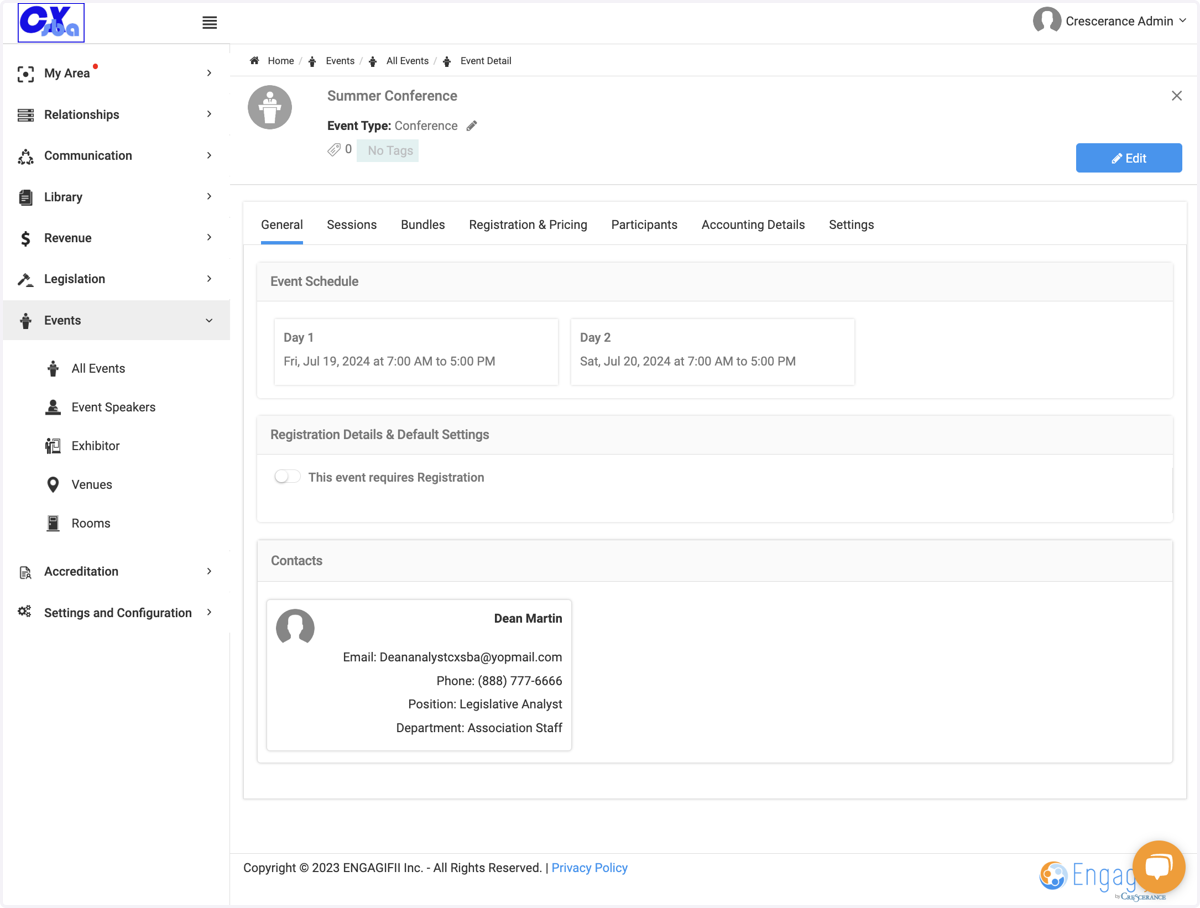
18. Drag highlighted element
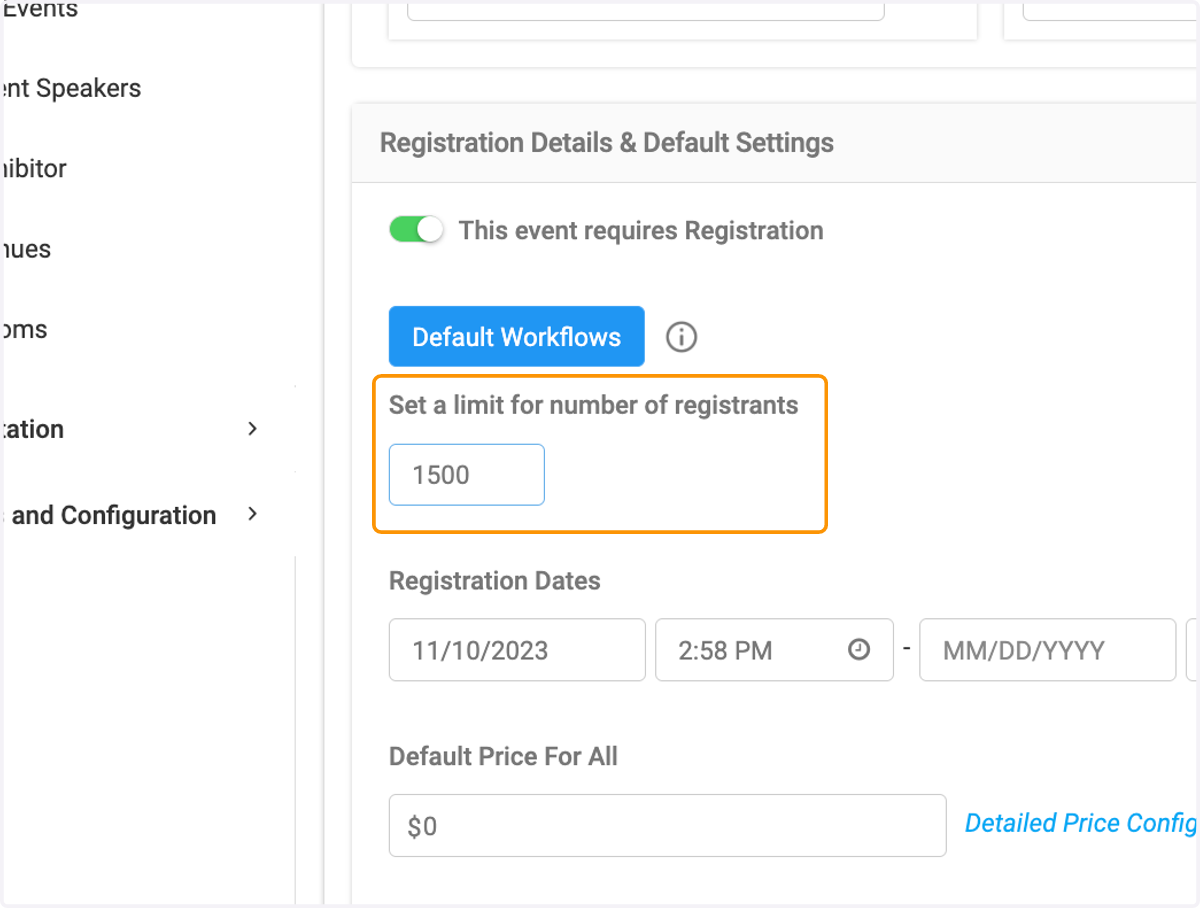
19. If you have a registration limit enter it here. This may be dependent on your venue or room settings
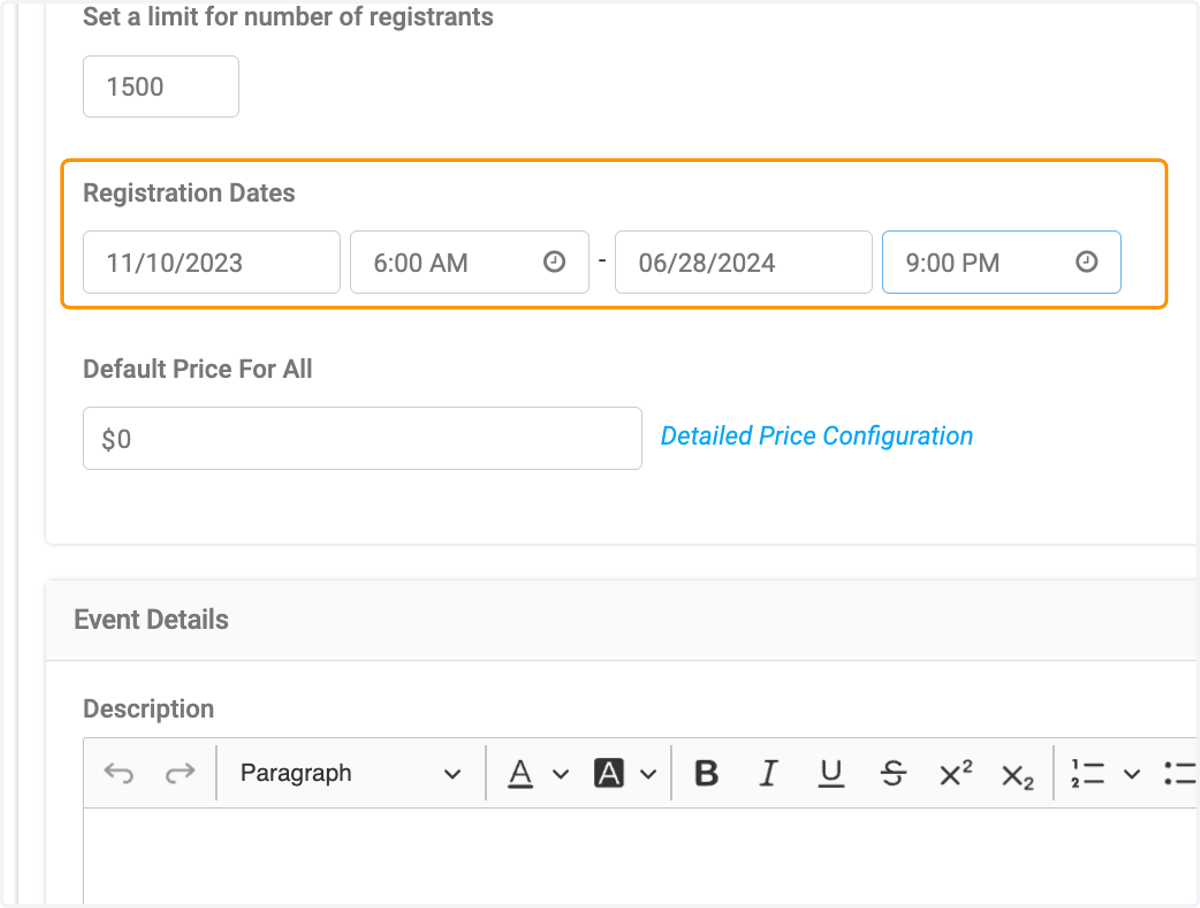
20. Enter registration dates and times
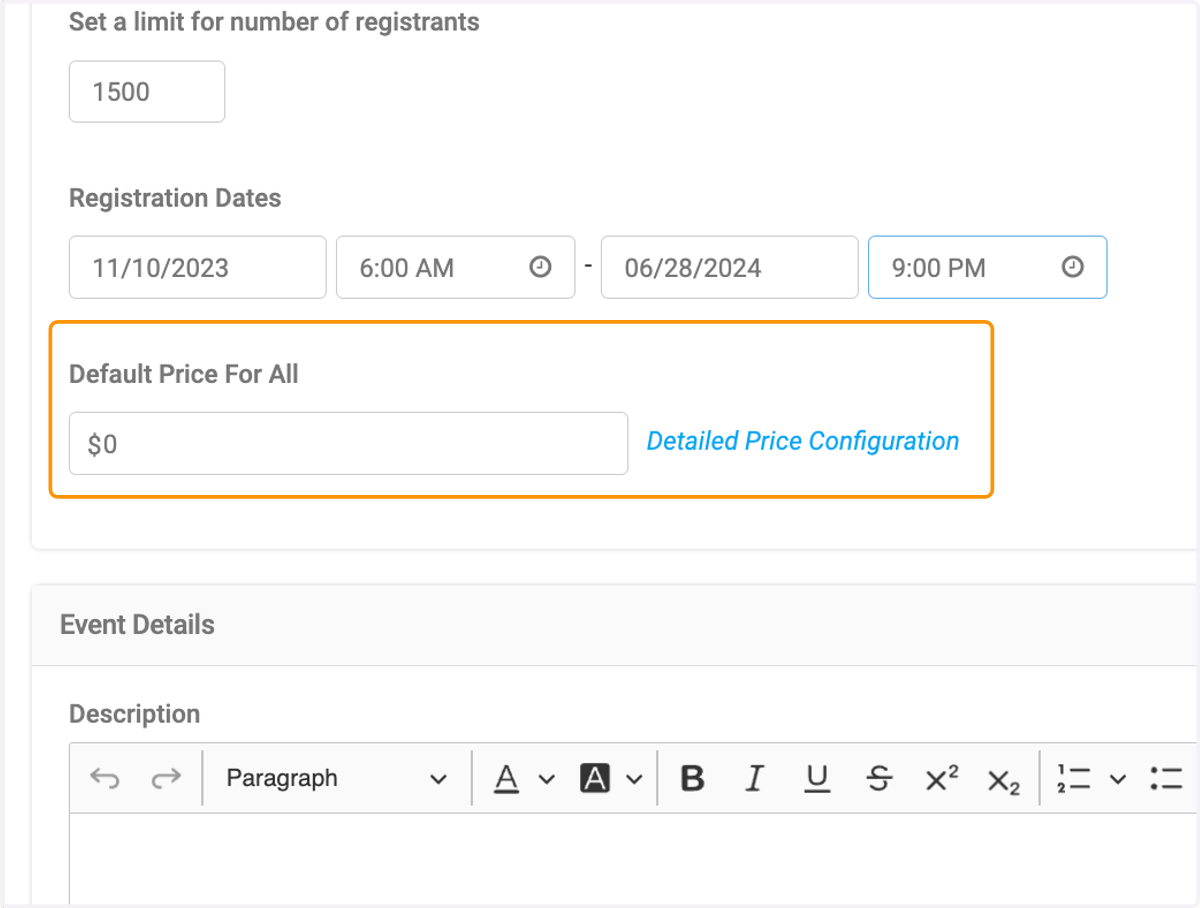
21. Enter a default price or leave blank to set pricing rules
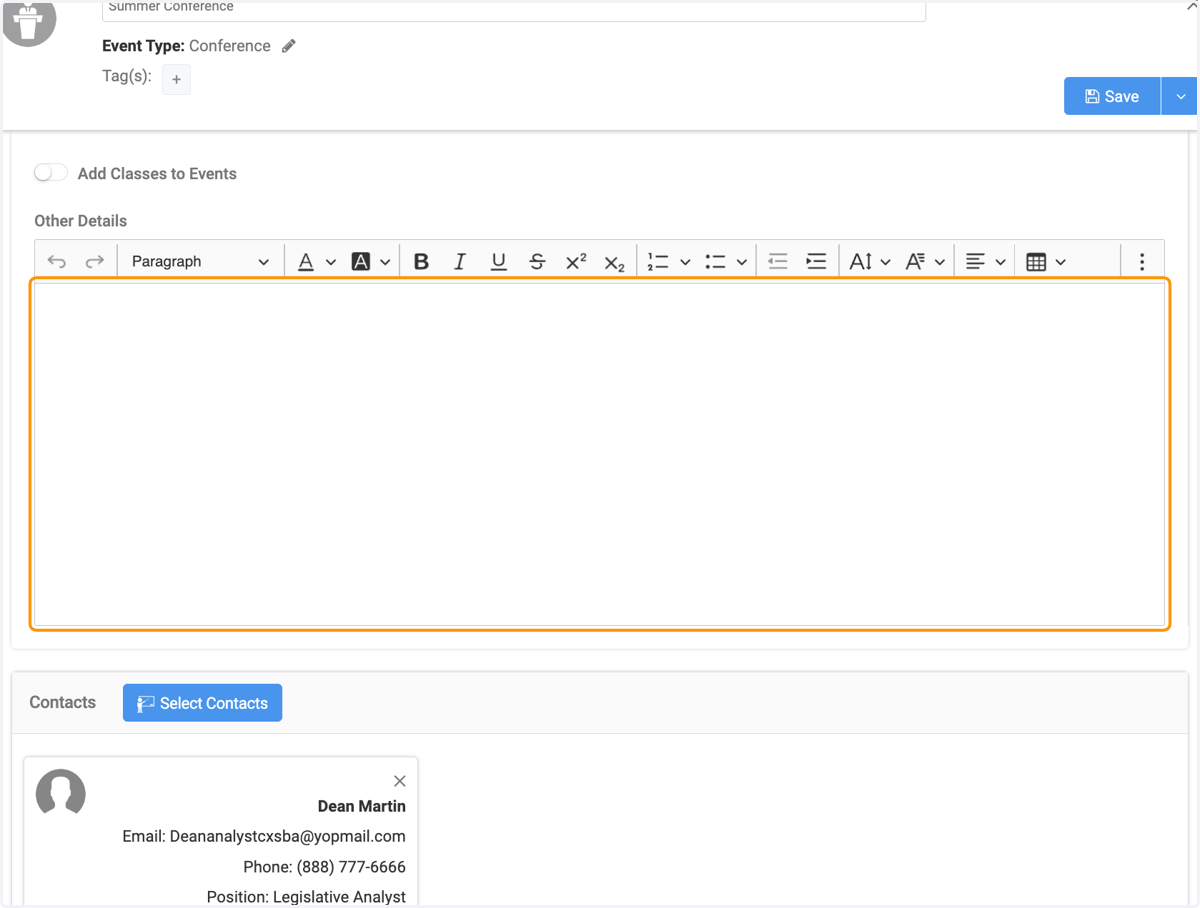
22. Type your event description in the text box
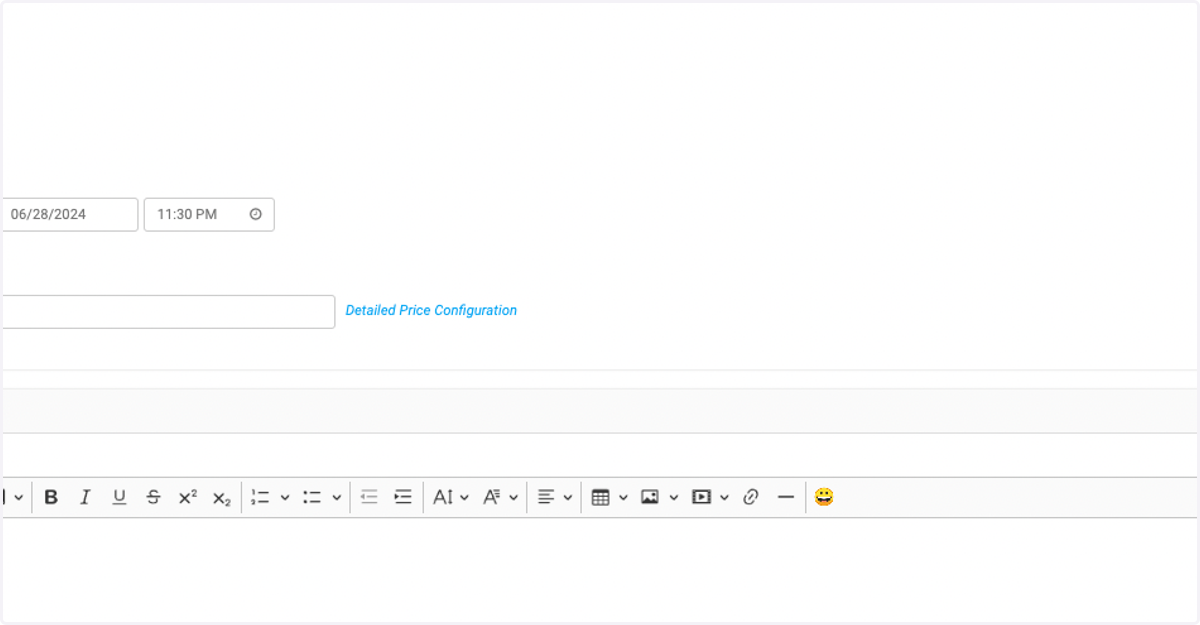
23. Upload an agenda for your event
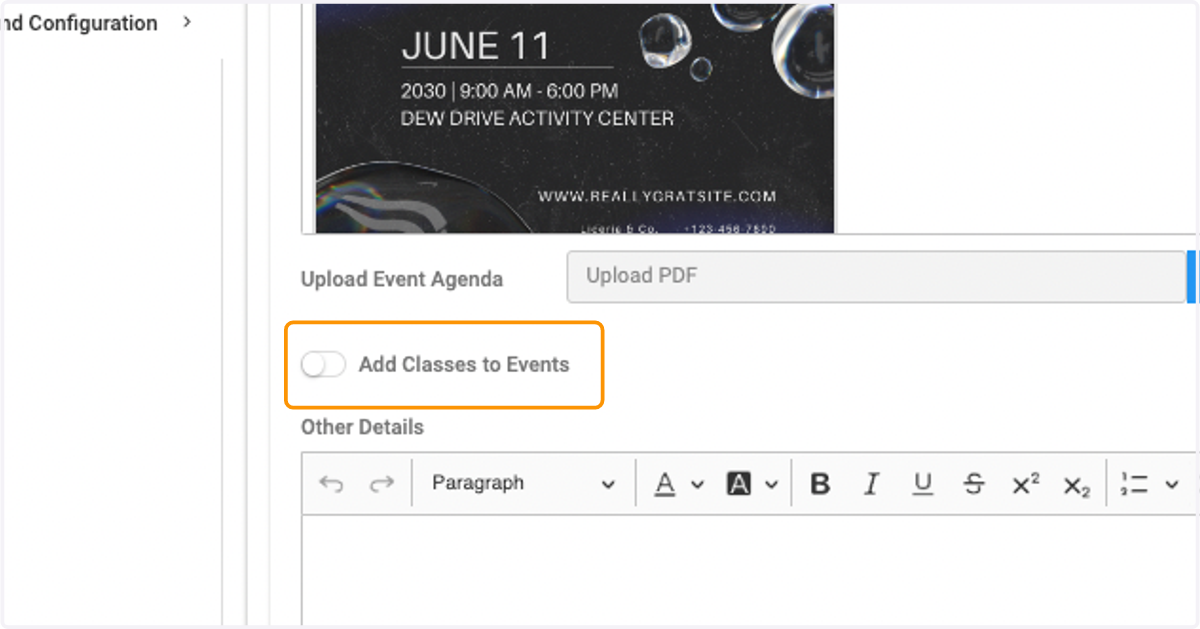
24. Toggle on Add Classes to Events if you need to tie-in credit earning classes
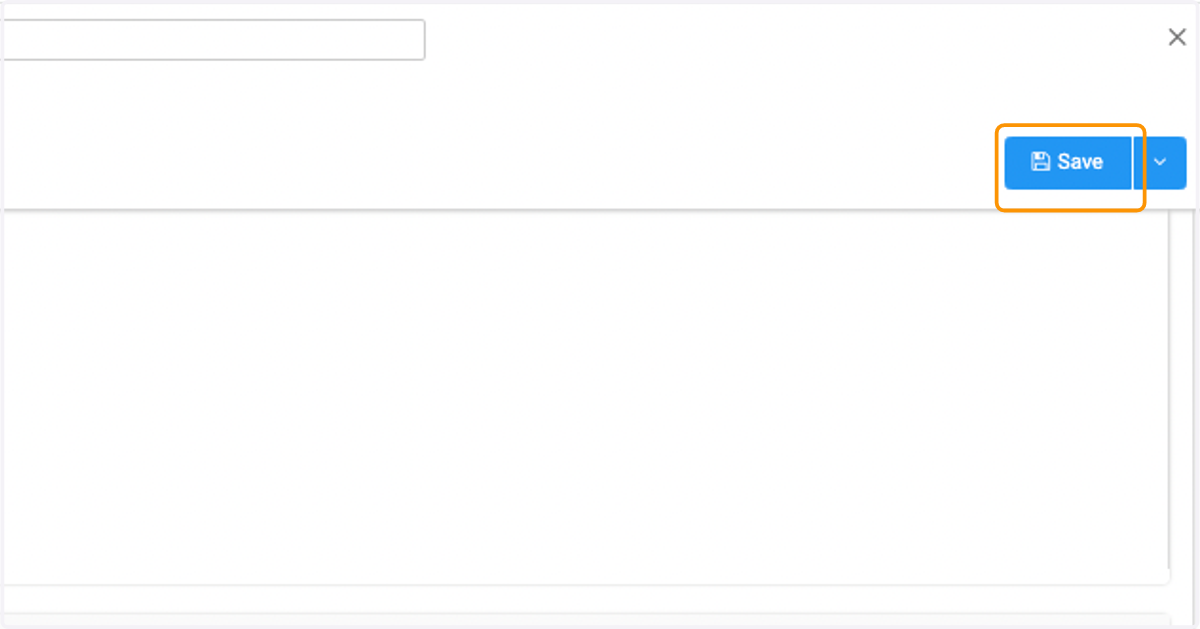
25. Once you have the event set to your liking, click on Save