Running a Heat Map for Individuals across different Companies
🚀 Launch Client Sense
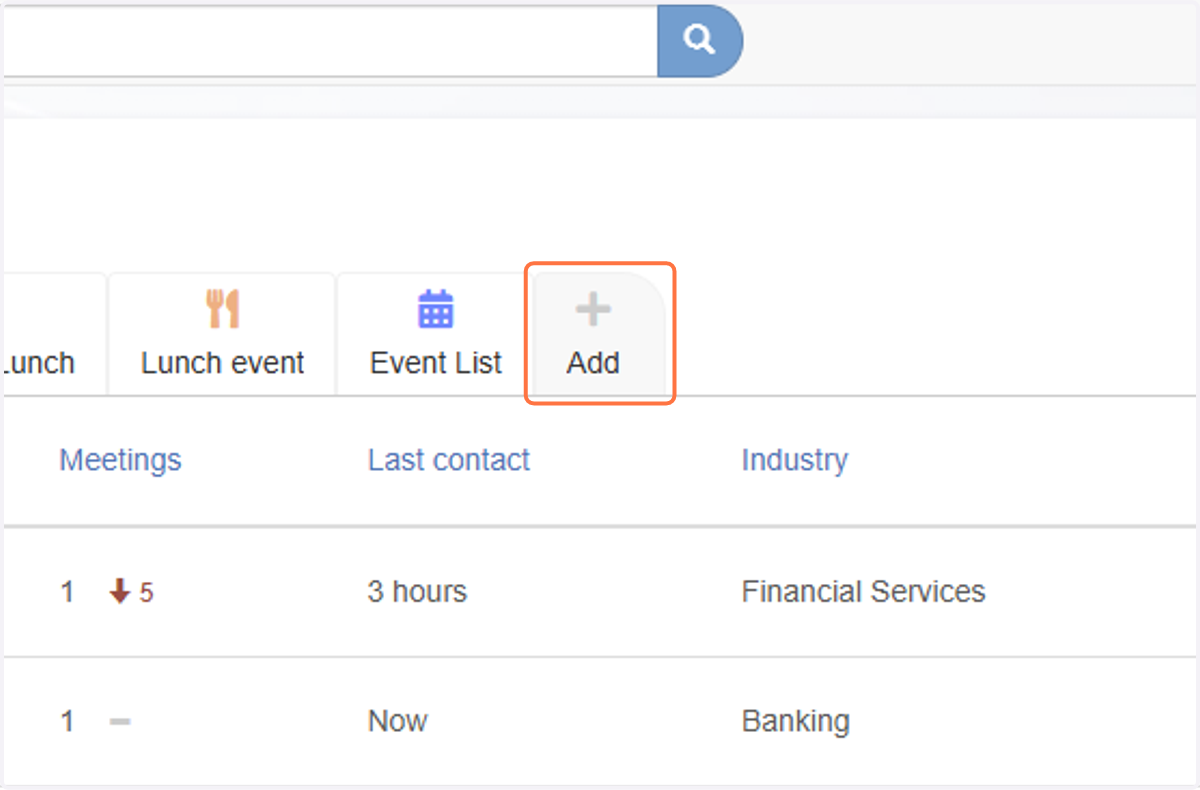
1. Click on Add
This will create a list we can use to store these Individuals and then trigger the Heat Map
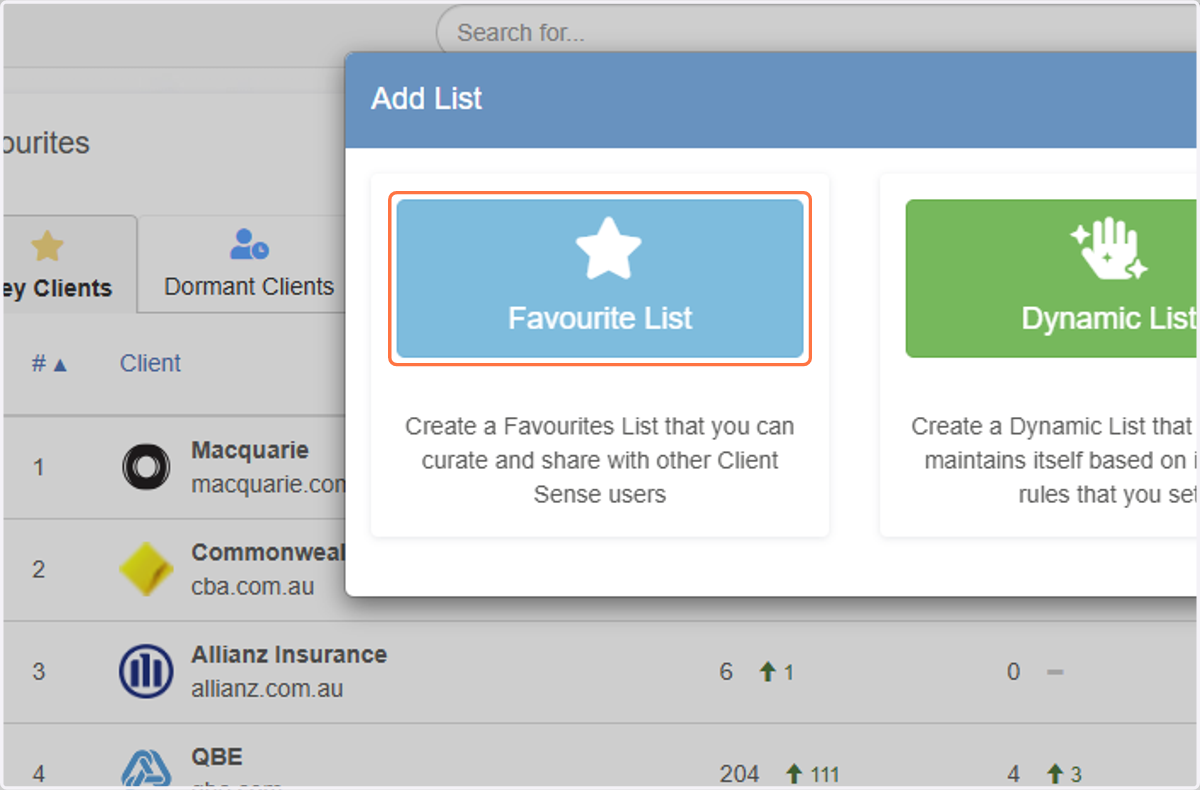
2. Click on Favourite List
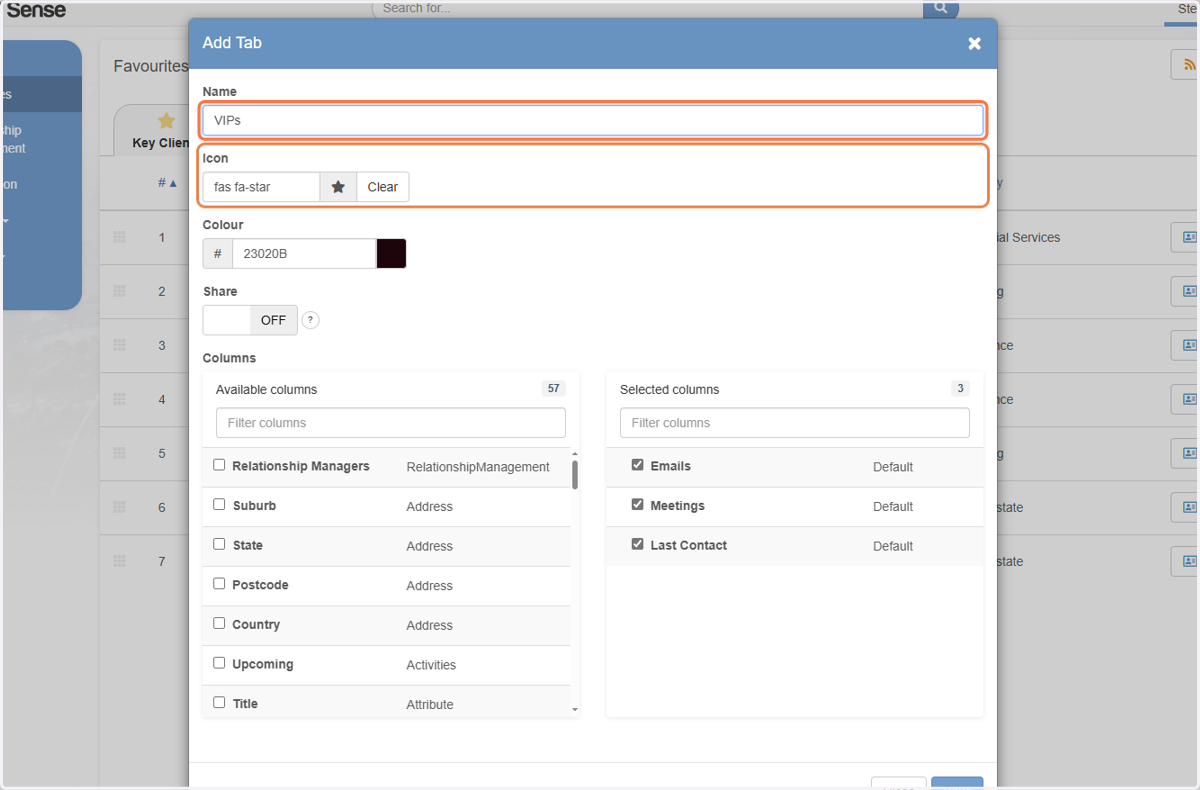
3. Type "VIPs"
In this exmaple we will call the list 'VIPs'.
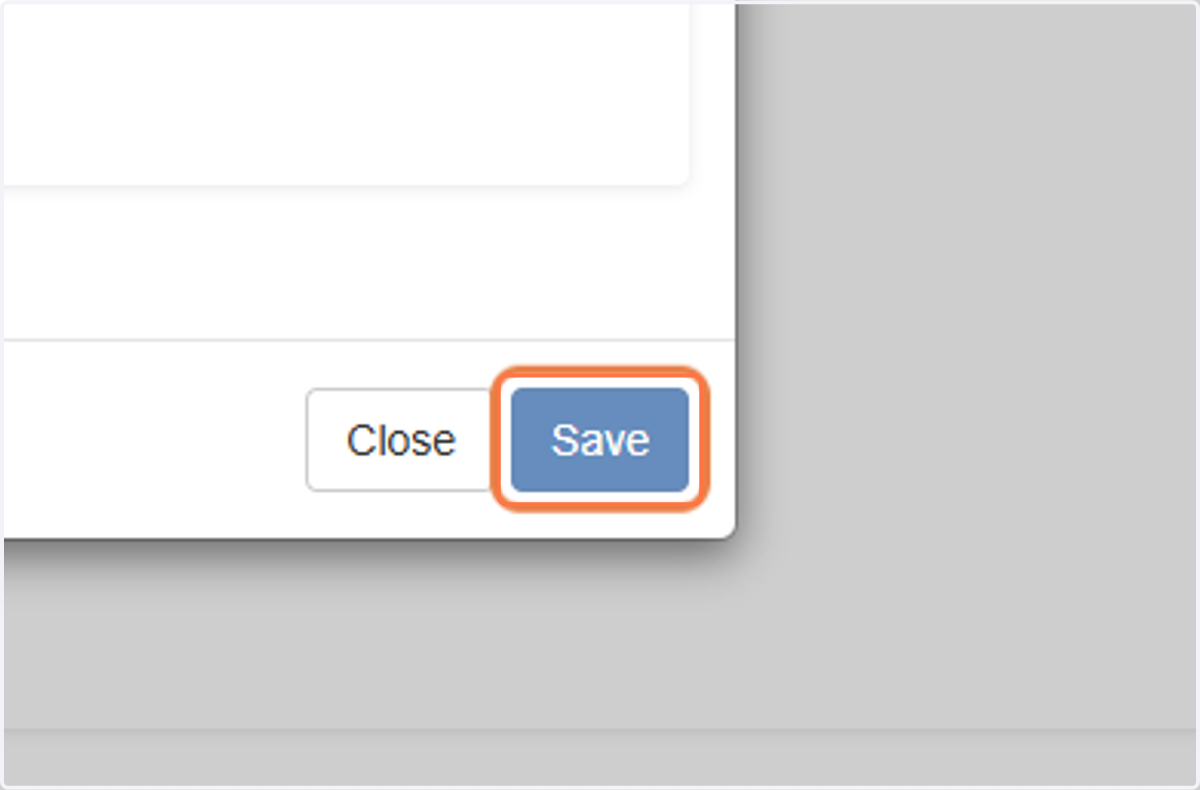
4. Click on Save
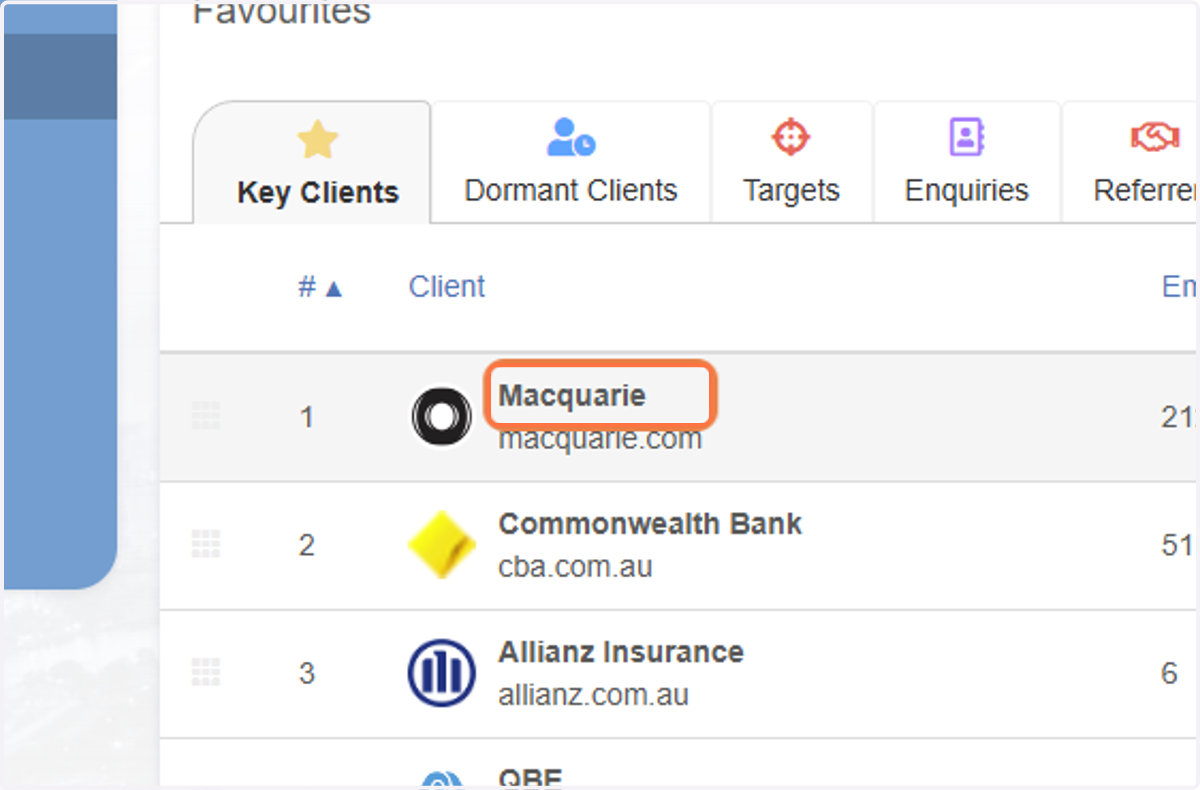
5. Start finding the people you would like to add
In this case there are people from Macquarie that we know we want to add
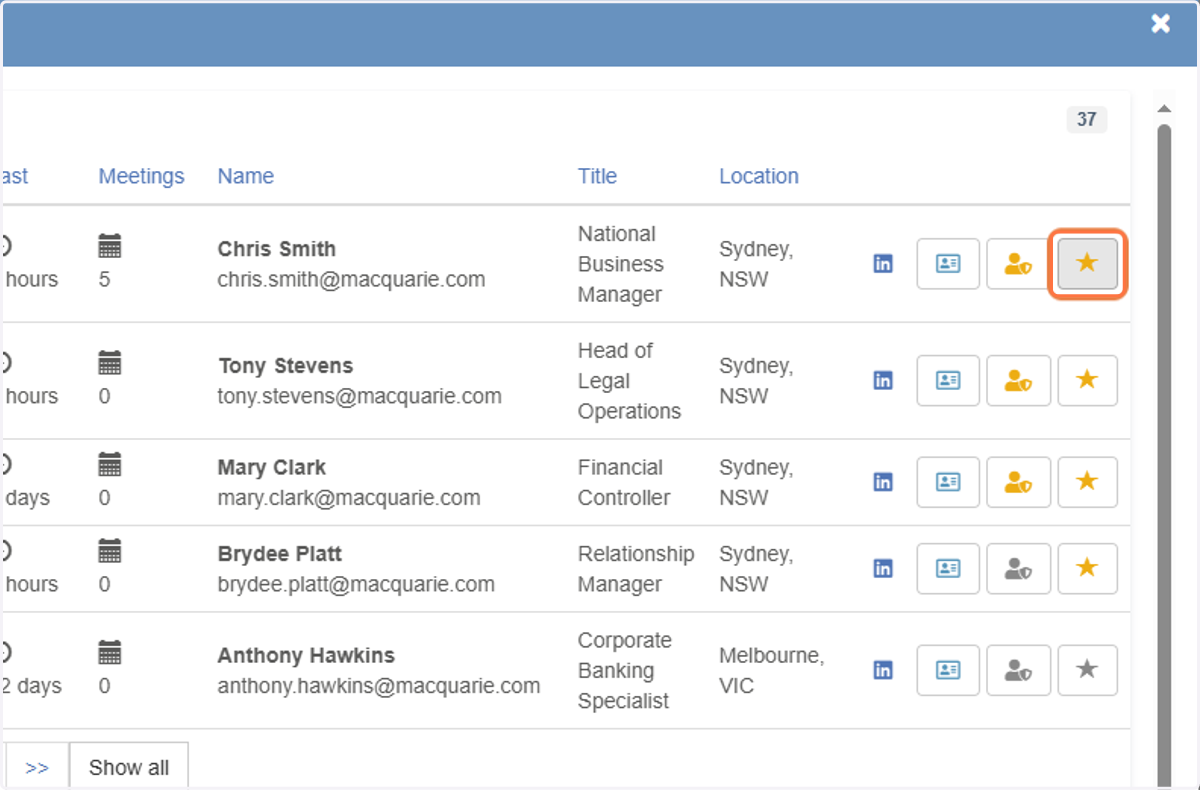
6. Click on Add to favourites
For each VIP you would like to add, click the start button shown
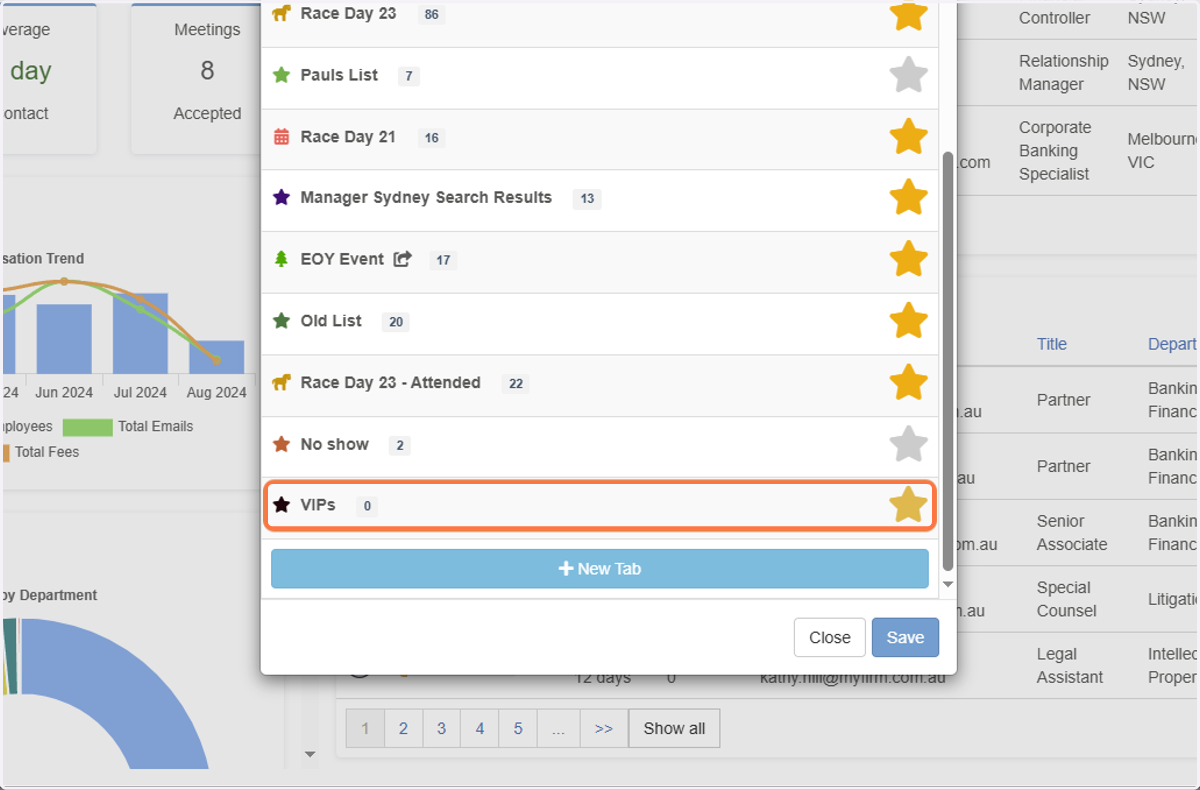
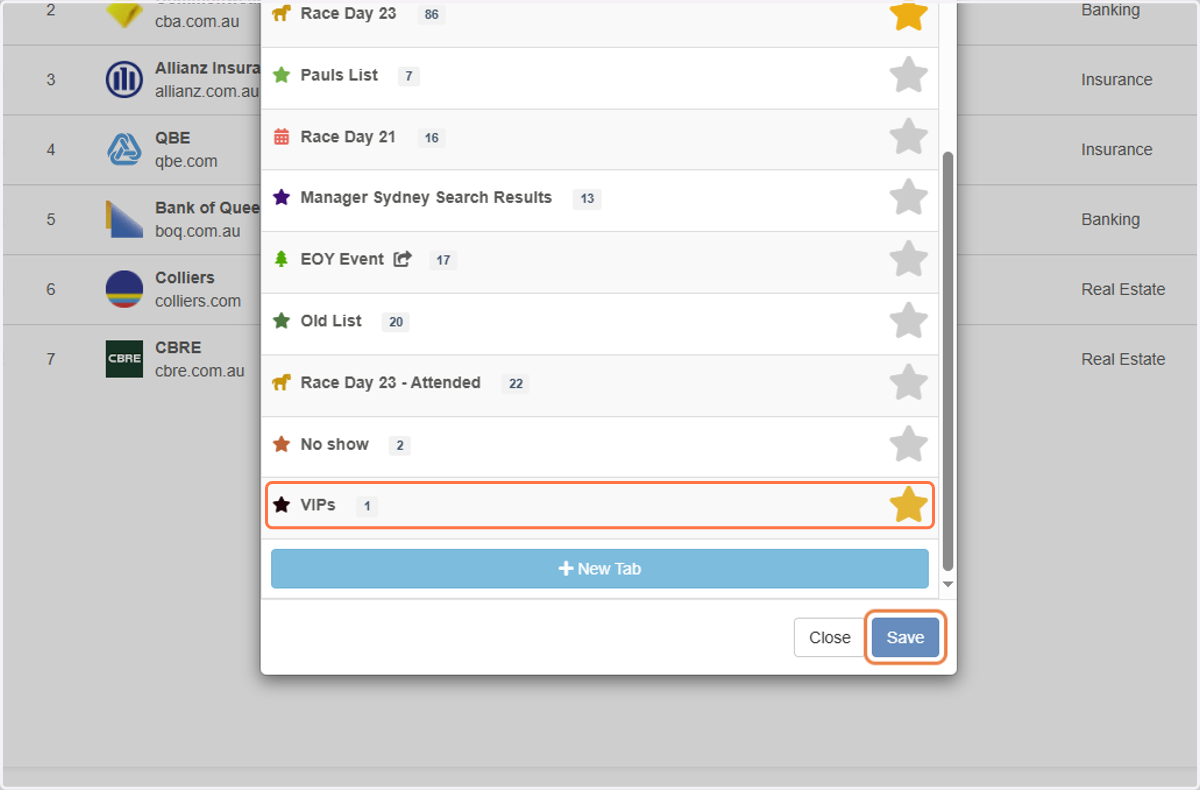
7. Click VIPs
Here we select the list we added earlier
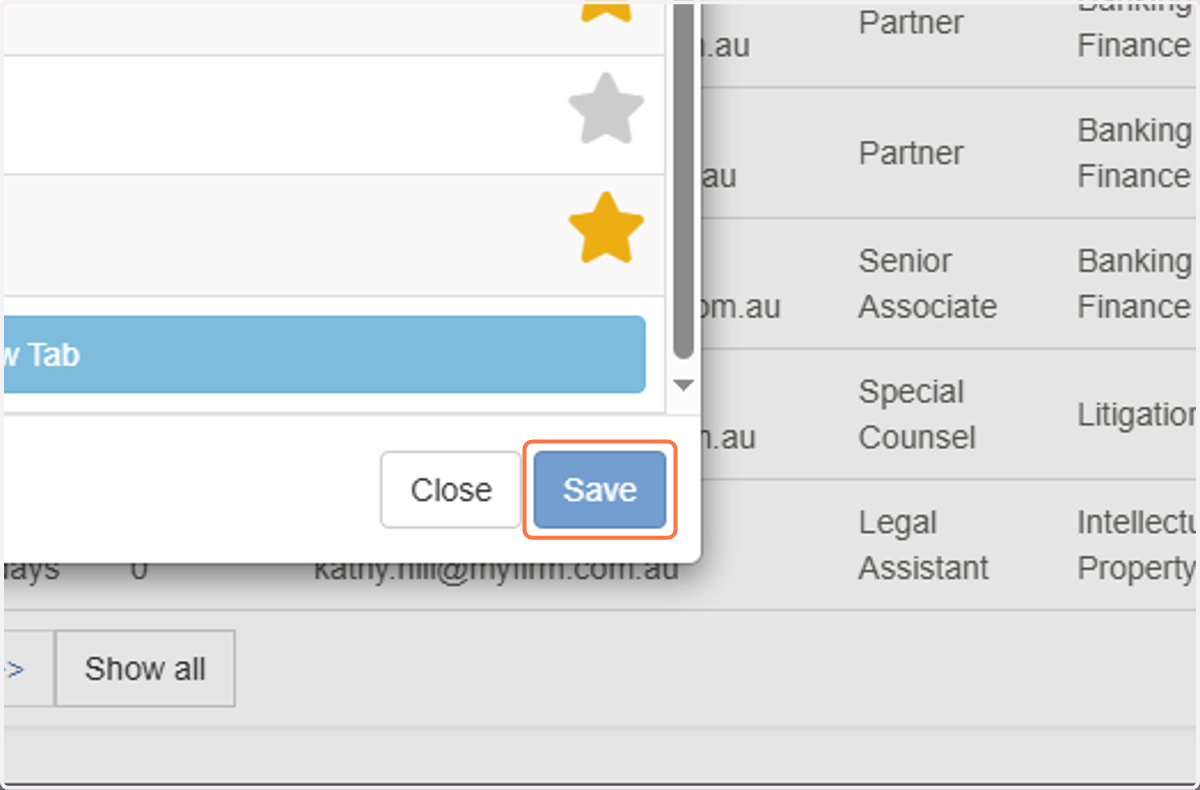
8. Click on Save
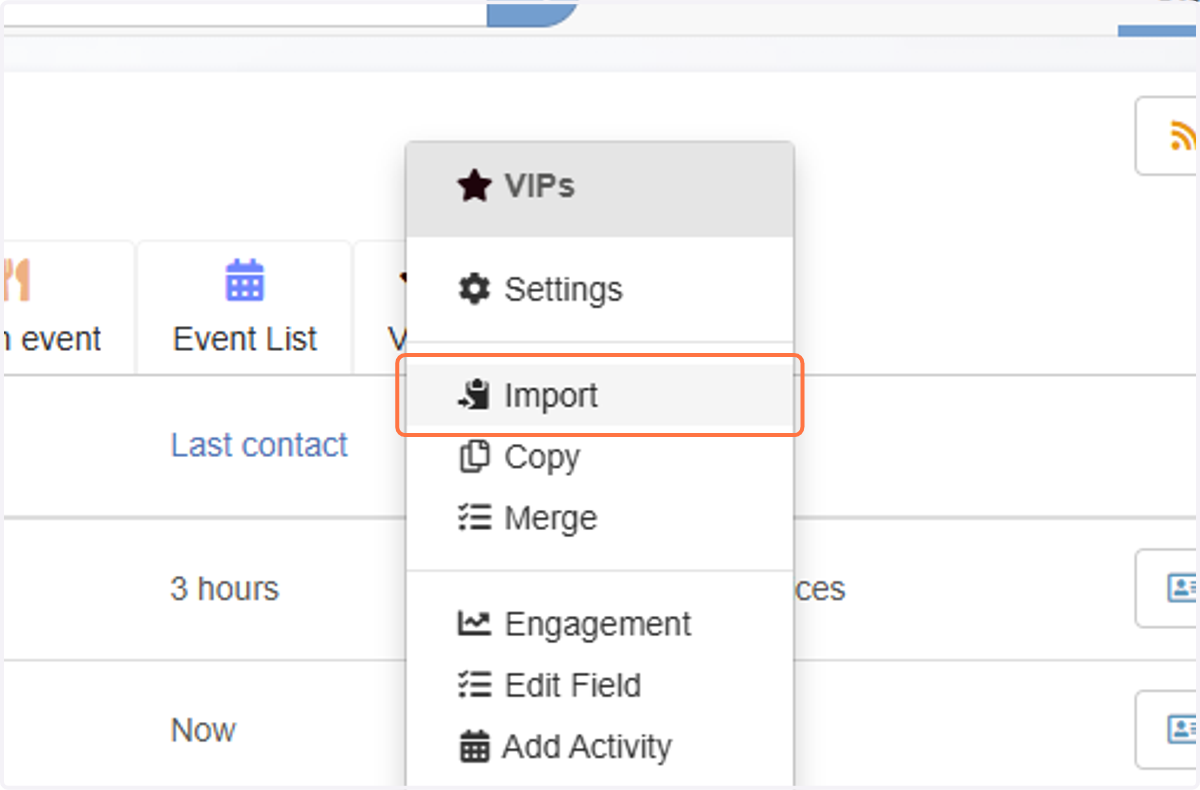
9. Rick-click VIPs to Import a List
Optionally, you can also import a list of names directly if you have an existing list of email addresses. This can remove the need for unnecessary searching or duplicate effort.
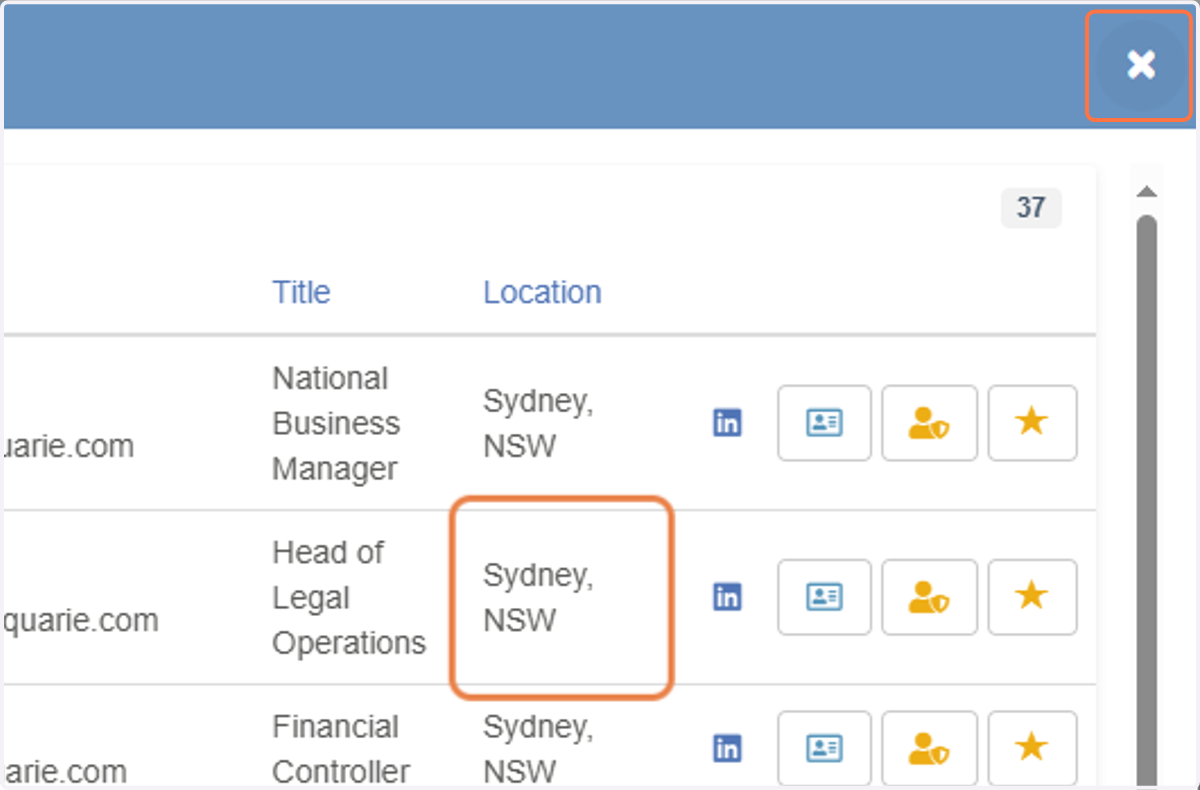
10. Click on X
Close the Conpany 360° View screen by clicking X
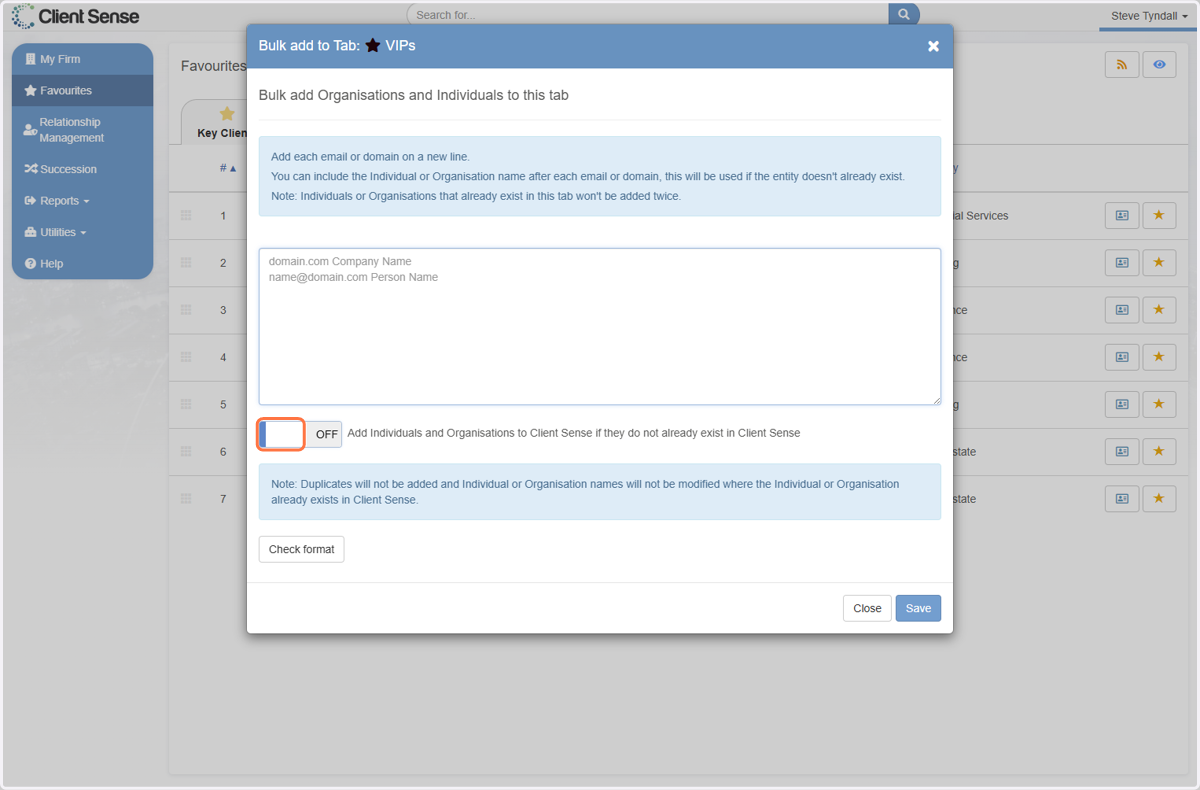
11. Importing a list
This allows you to bring Individuals into your list in bulk. You can also choose to bring them into Client Sense even if there has been no prior communication by using this toggle option.
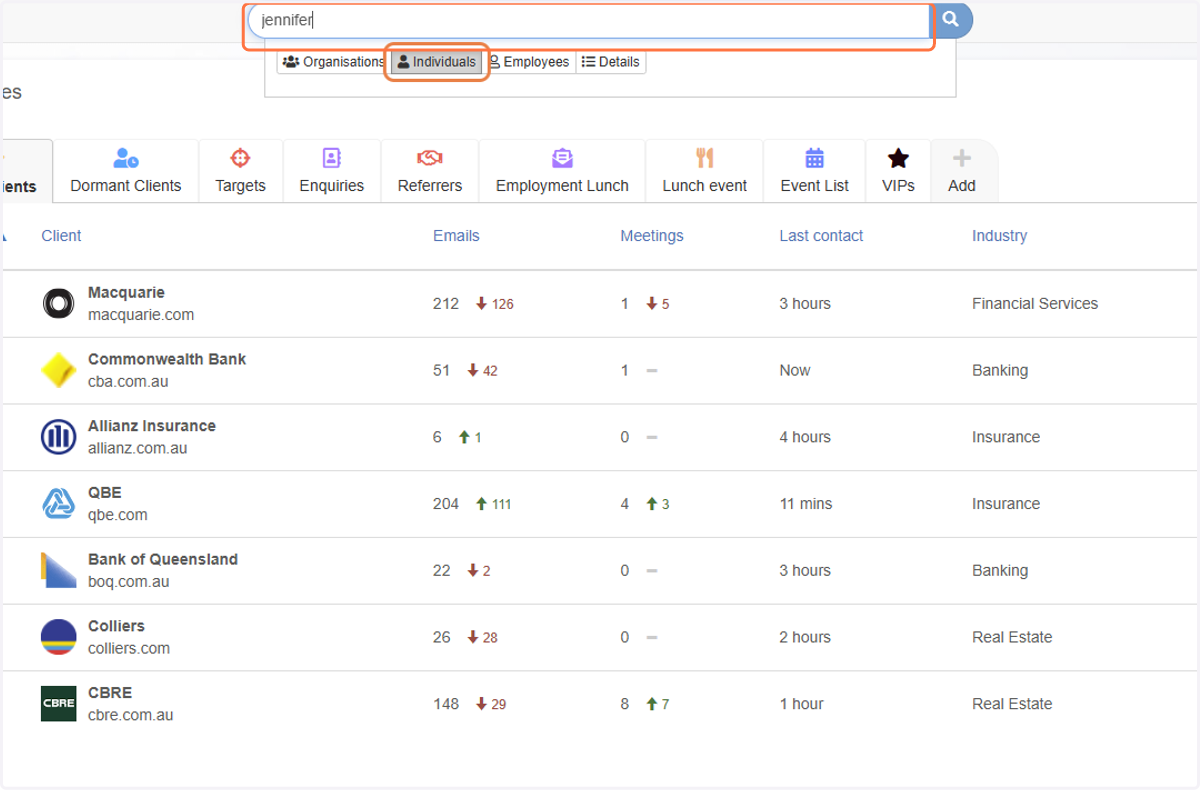
12. Search for Individuals
If you know the name of the Individuals you would like to add, you can search for them in the search bar by first selecting 'Individuals'
13. Click on Save
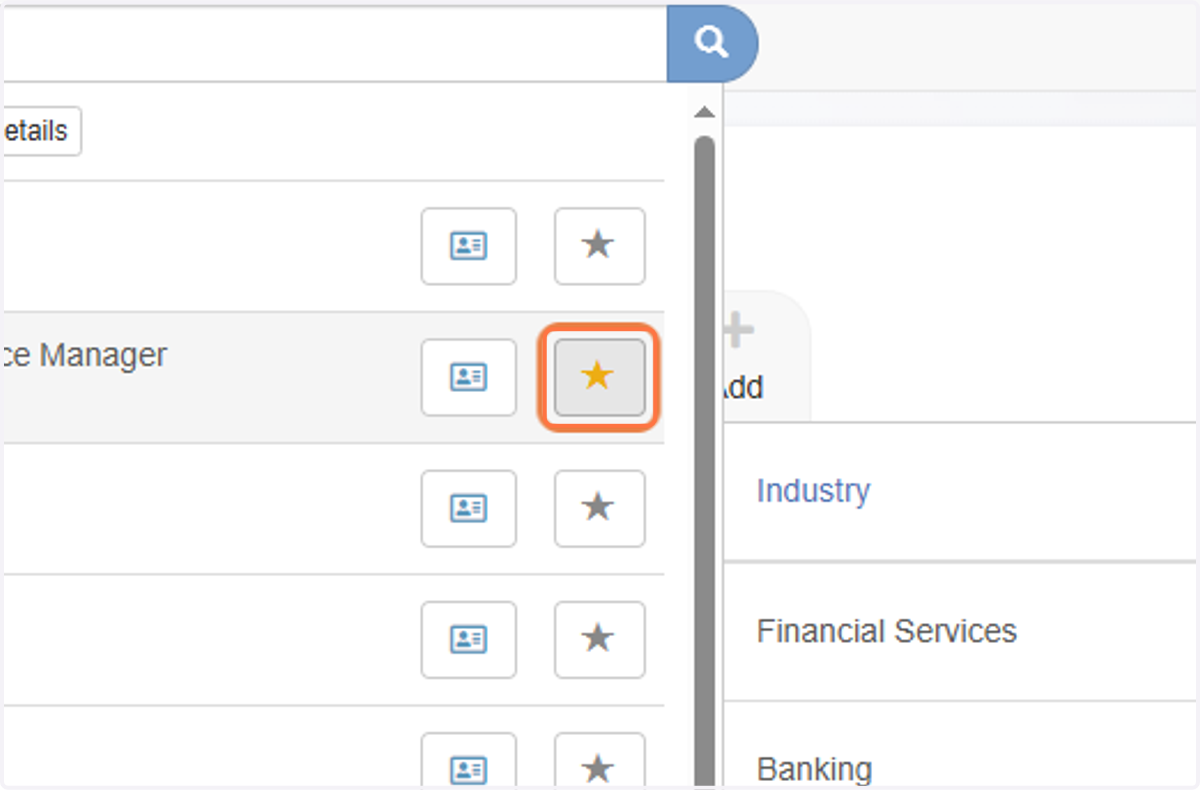
14. Click on the Favourite button
Directly from the Search results, you can click on the star button
15. Again select the VIPs list
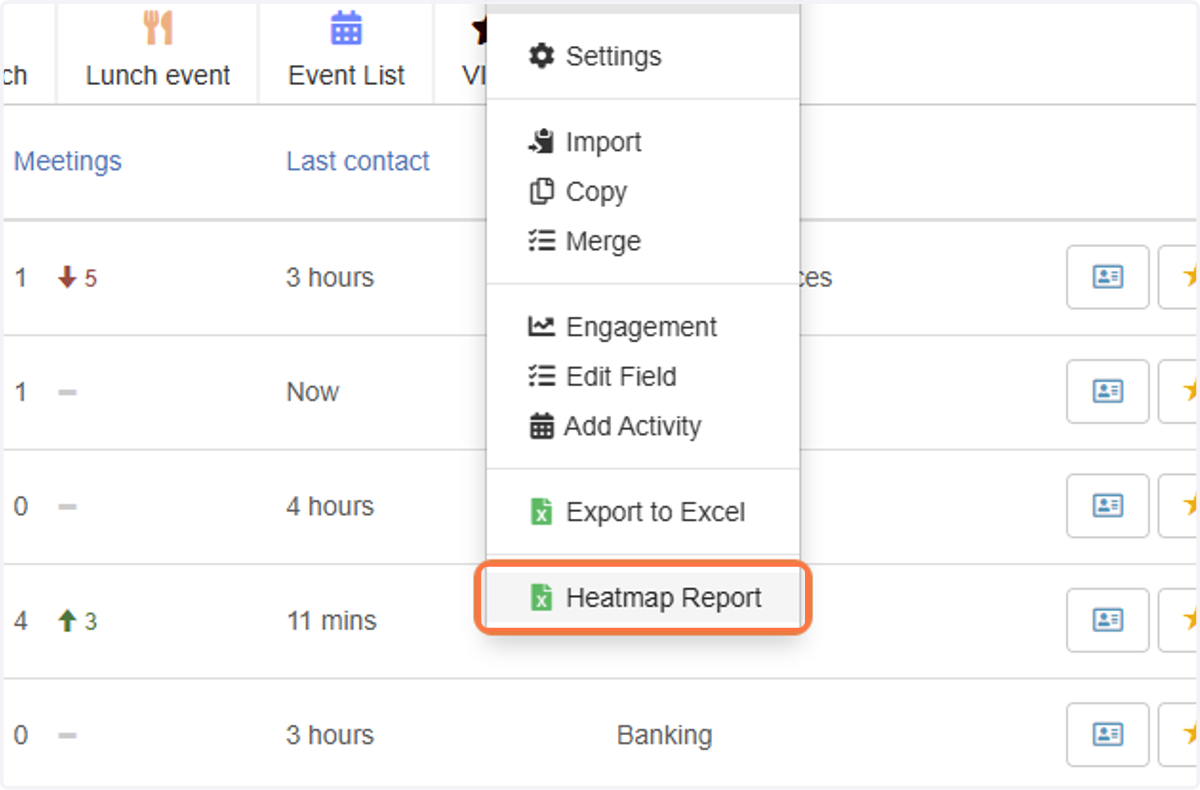
16. Generate the Heatmap Report
Right-click on the VIP's favourite list and choose Heatmap Report
17. Click on Export
Note: you can add or remove from this list in the future before running another Heatmap report.