Adding a Unit to the LOS Map (If Applicable)
1. Navigate to Pricing Rules
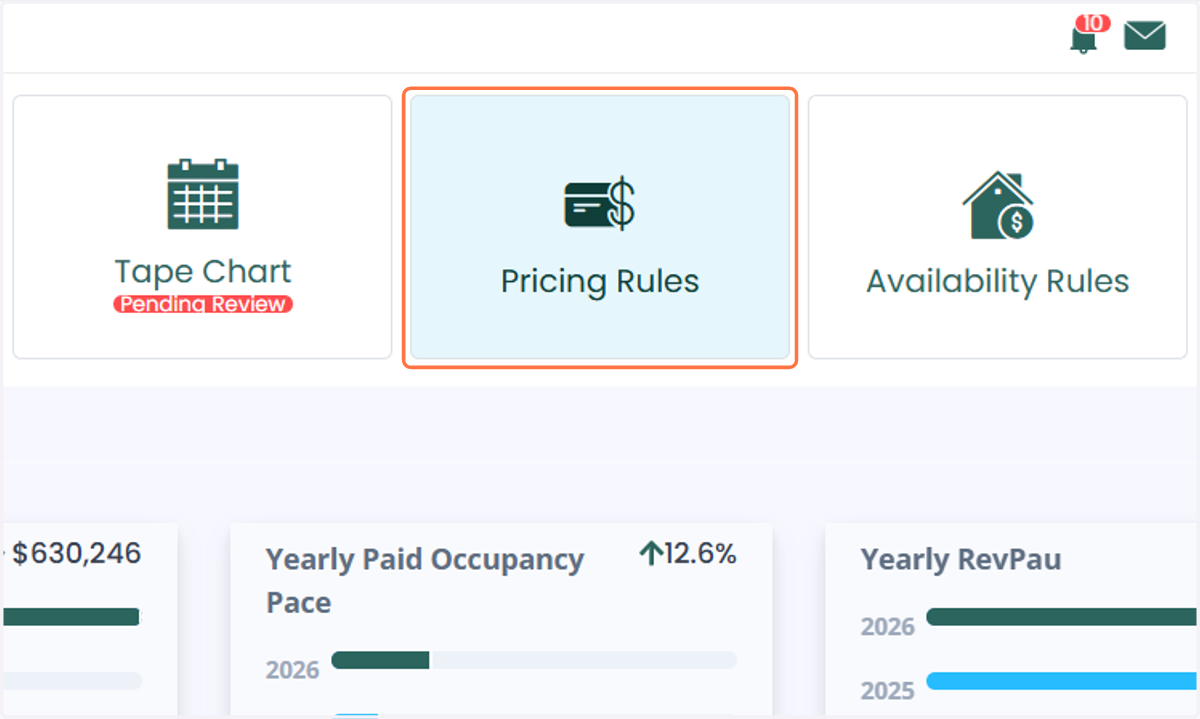
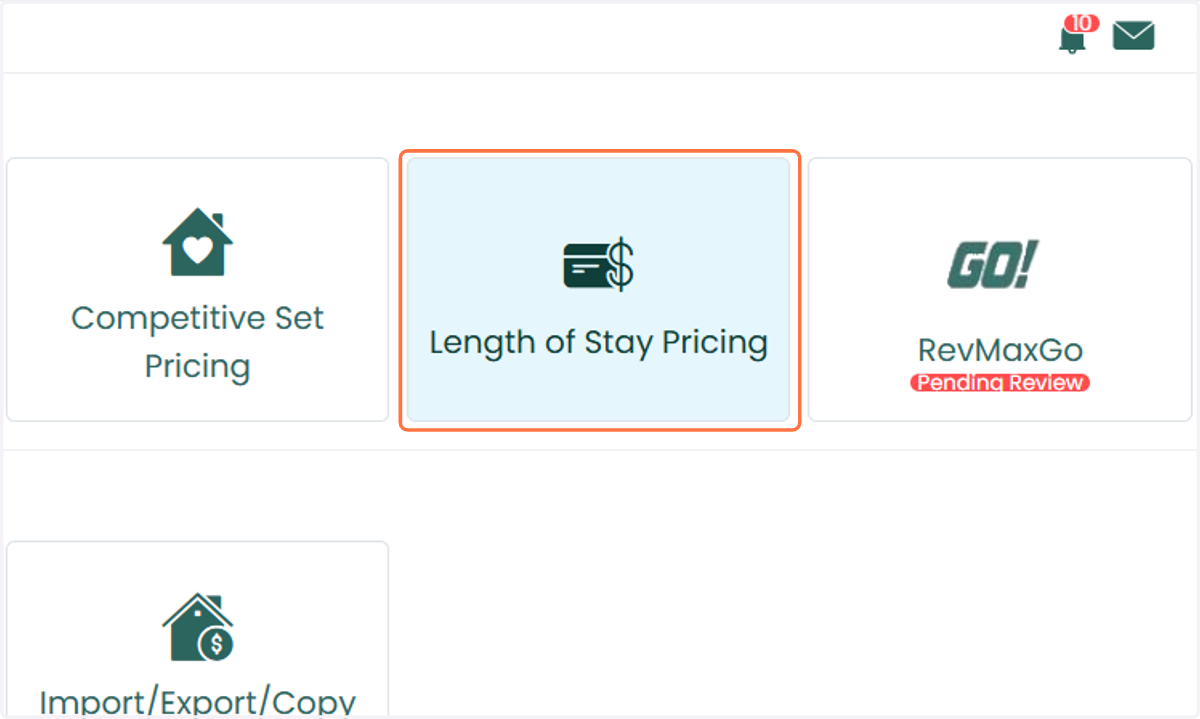
2. Click on Length of Stay Pricing to access the LOS Maps page.
3. Select the Appropriate LOS Map. Review the available maps and determine which one the unit should be assigned to.
Important Note: Ensure the selected LOS Map is active. Only one LOS Map can be assigned per unit.
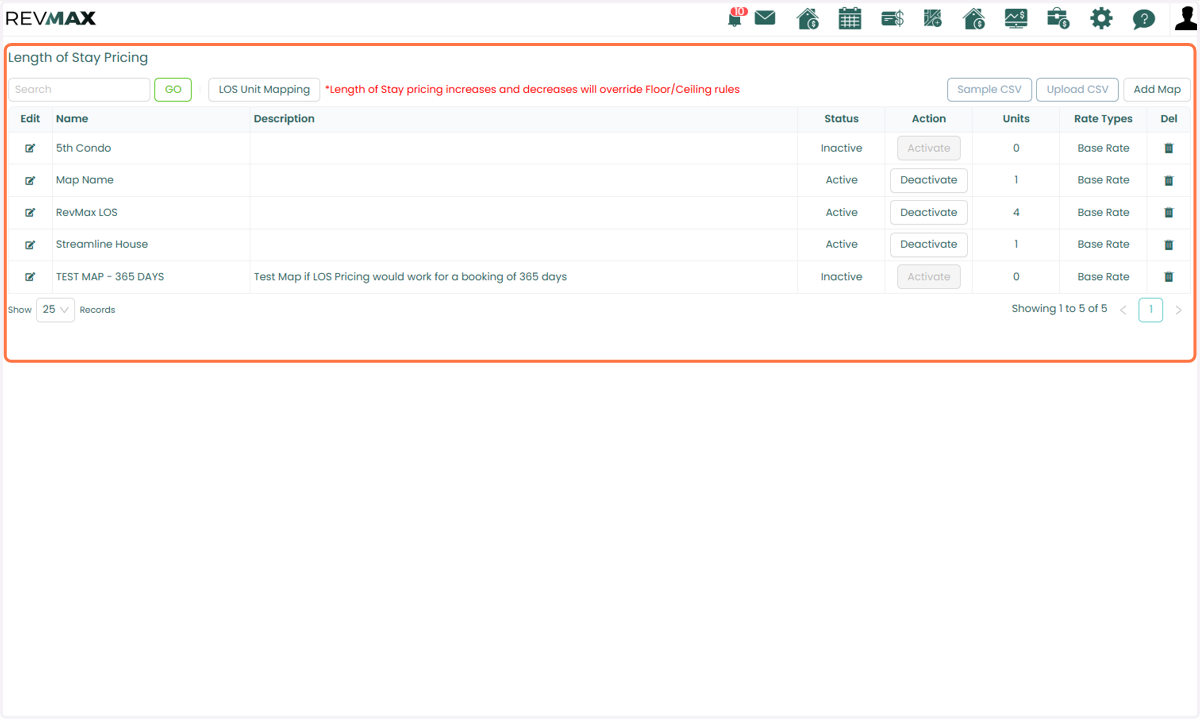
4. Click the Edit icon for your selected map, then navigate to the Units tab.
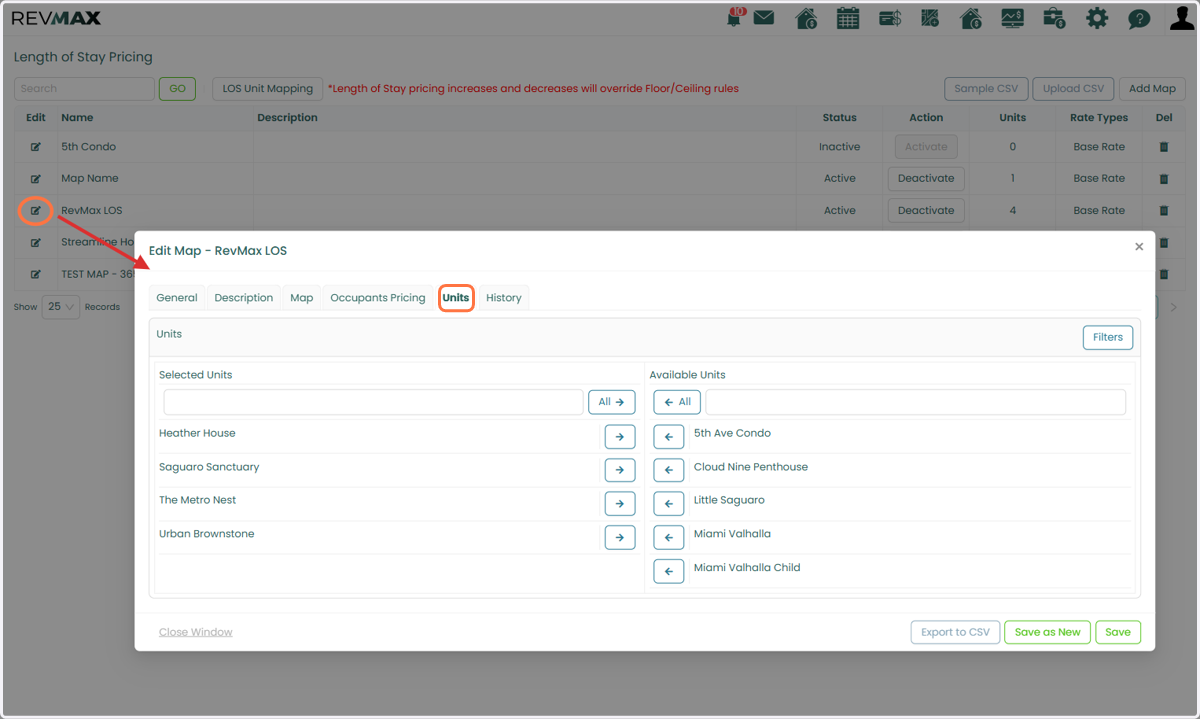
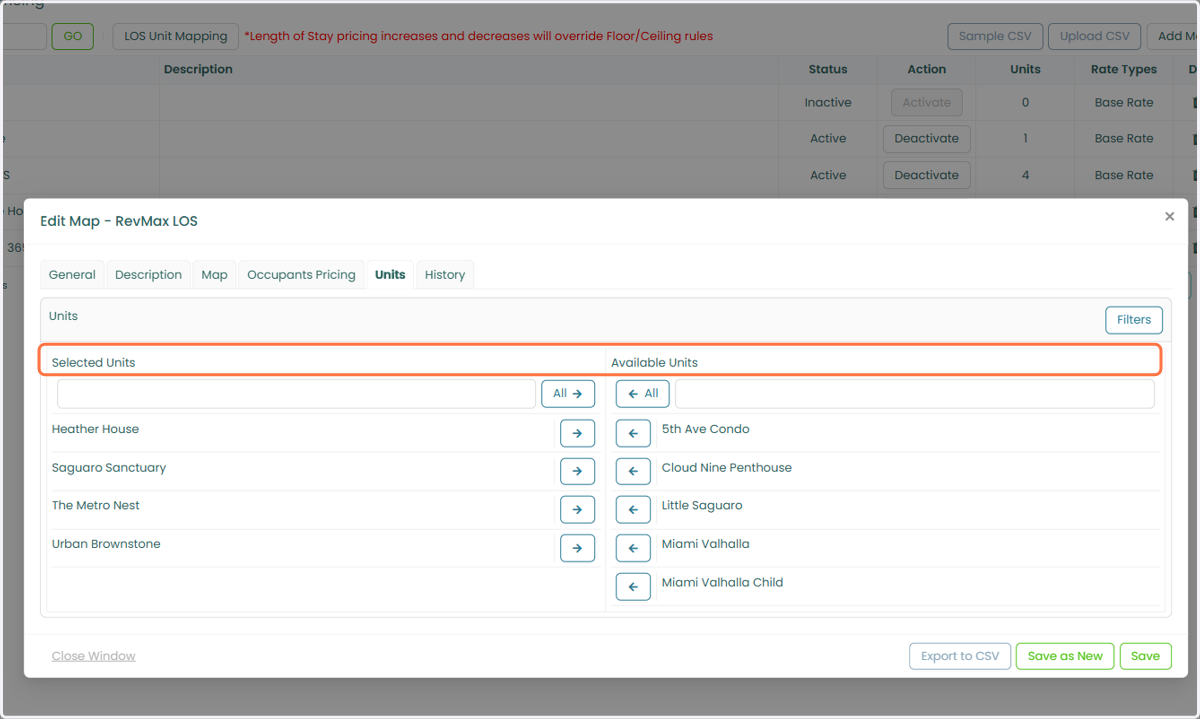
5. On the Units tab, select the unit(s) you want to apply LOS pricing to.
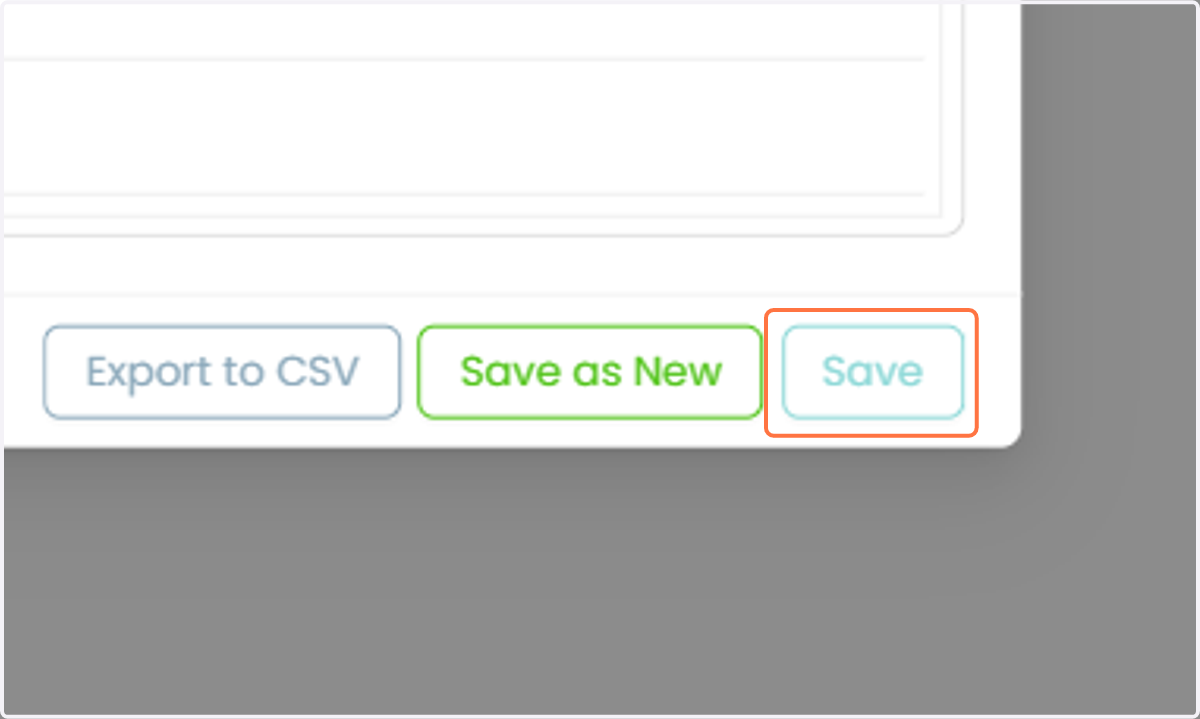
6. Click Save to apply your updates.
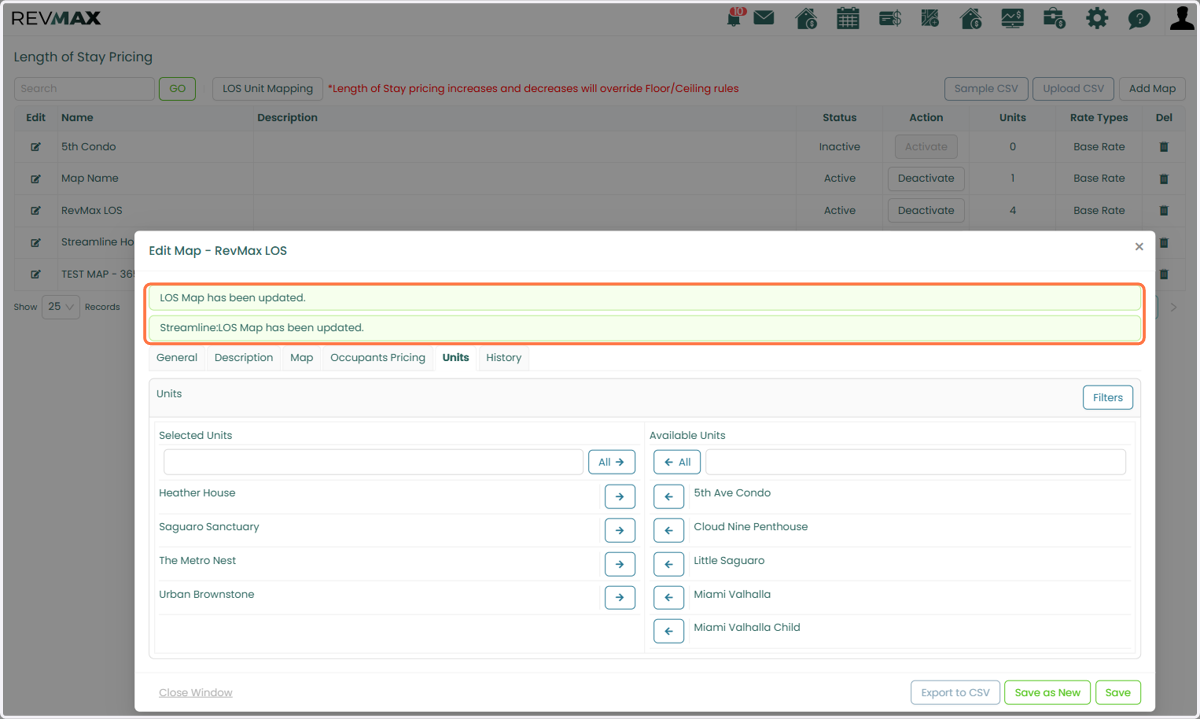
7. A confirmation message will appear indicating that the LOS Map has been updated.
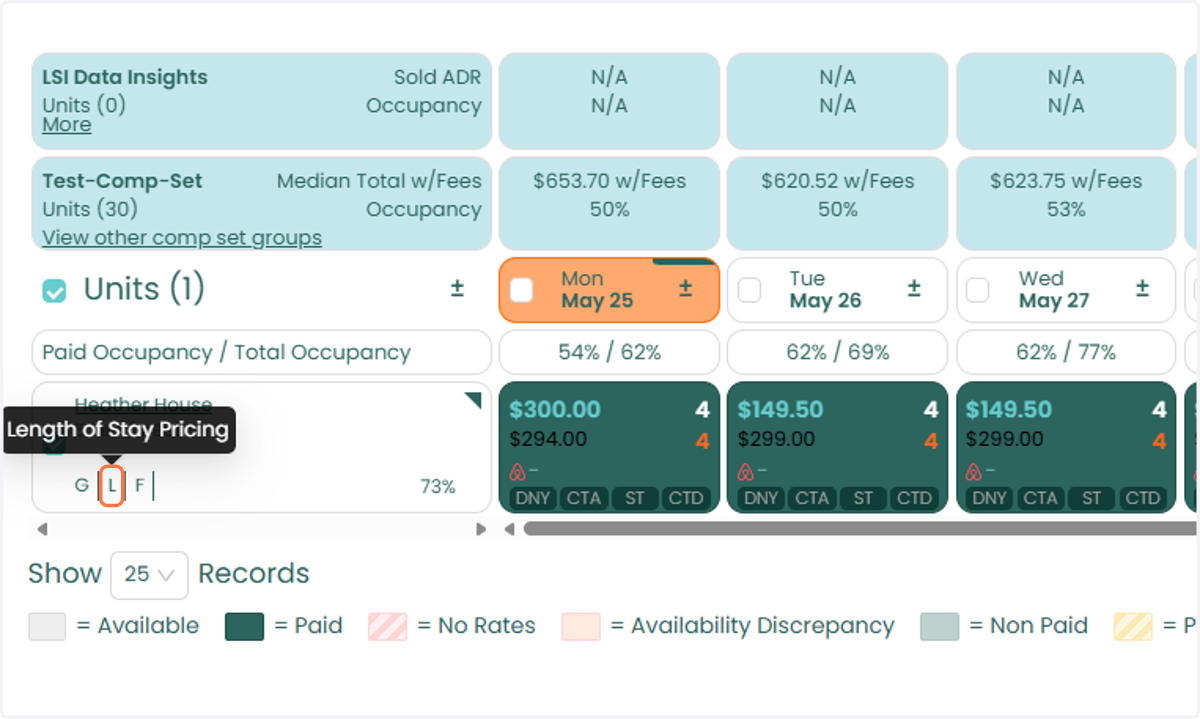
8. Go to the Tape Chart and filter for the specific unit. LOS pricing is indicated by the letter “L” displayed under the unit name.
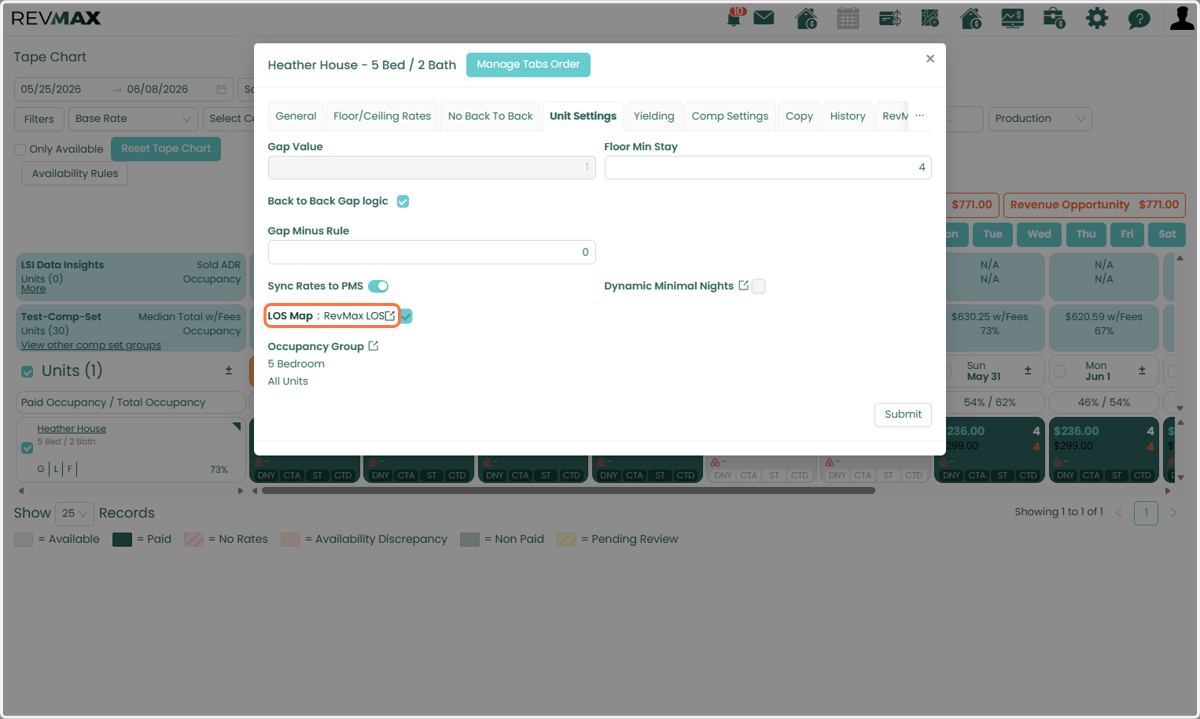
9. You can also view which LOS Map is assigned to the unit within the unit’s settings.
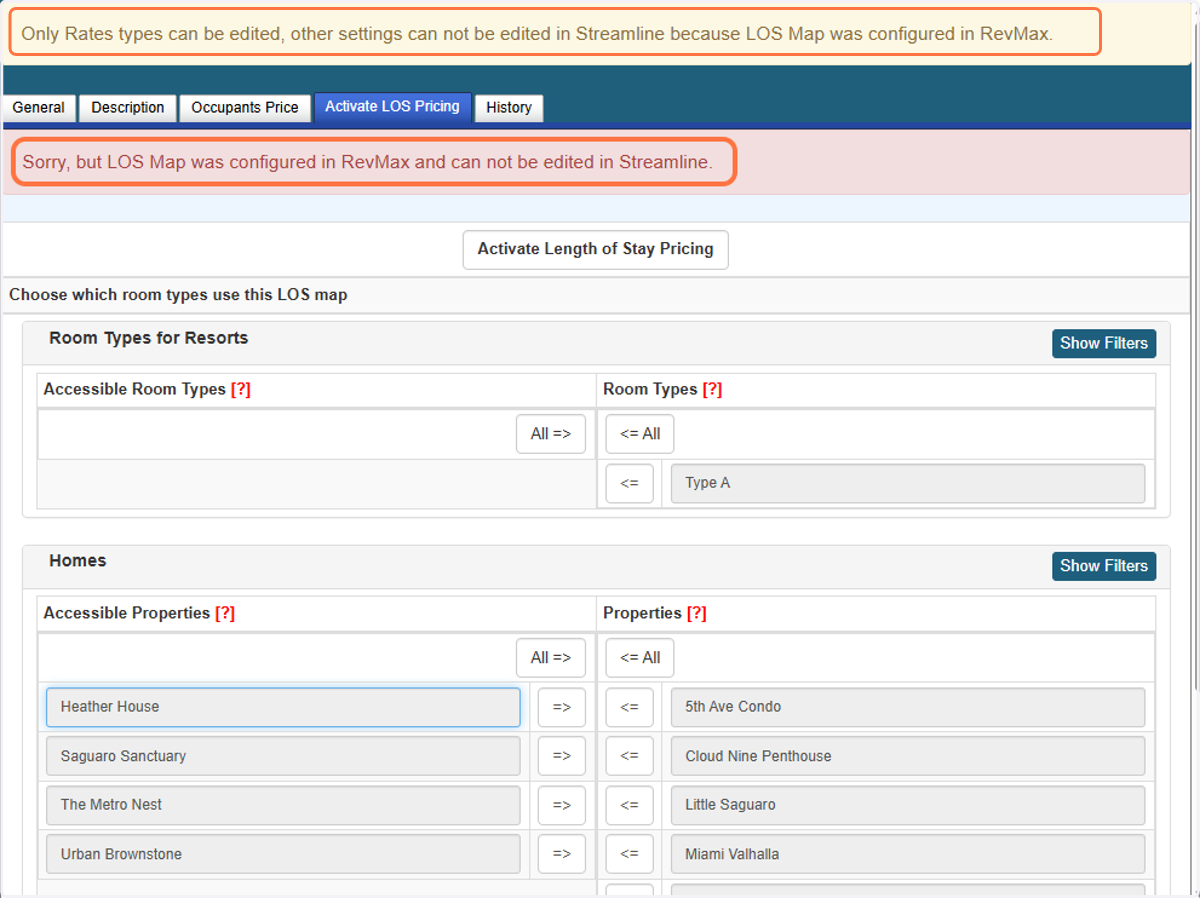
10. To confirm the changes in Streamline, navigate to the Length of Stay Map page.
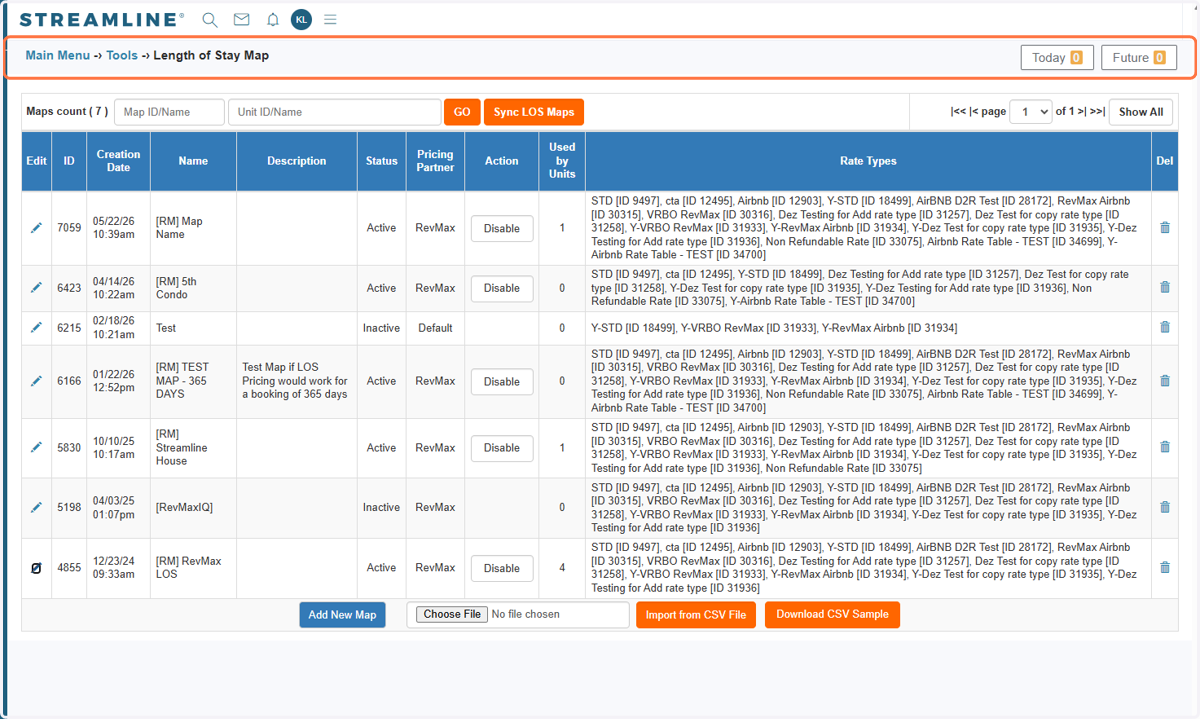
11. Filter or select the map you have updated. Click on the edit icon to open LOS Map settings.
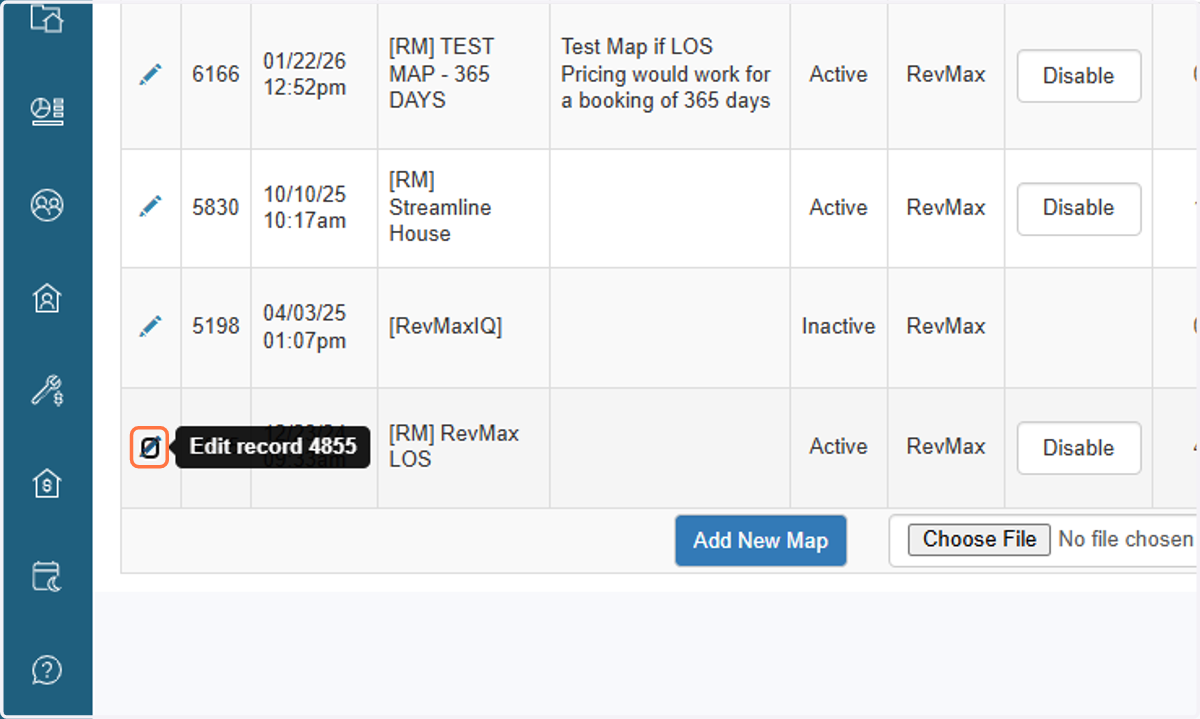
12. Verify that the unit is now assigned to the selected map.
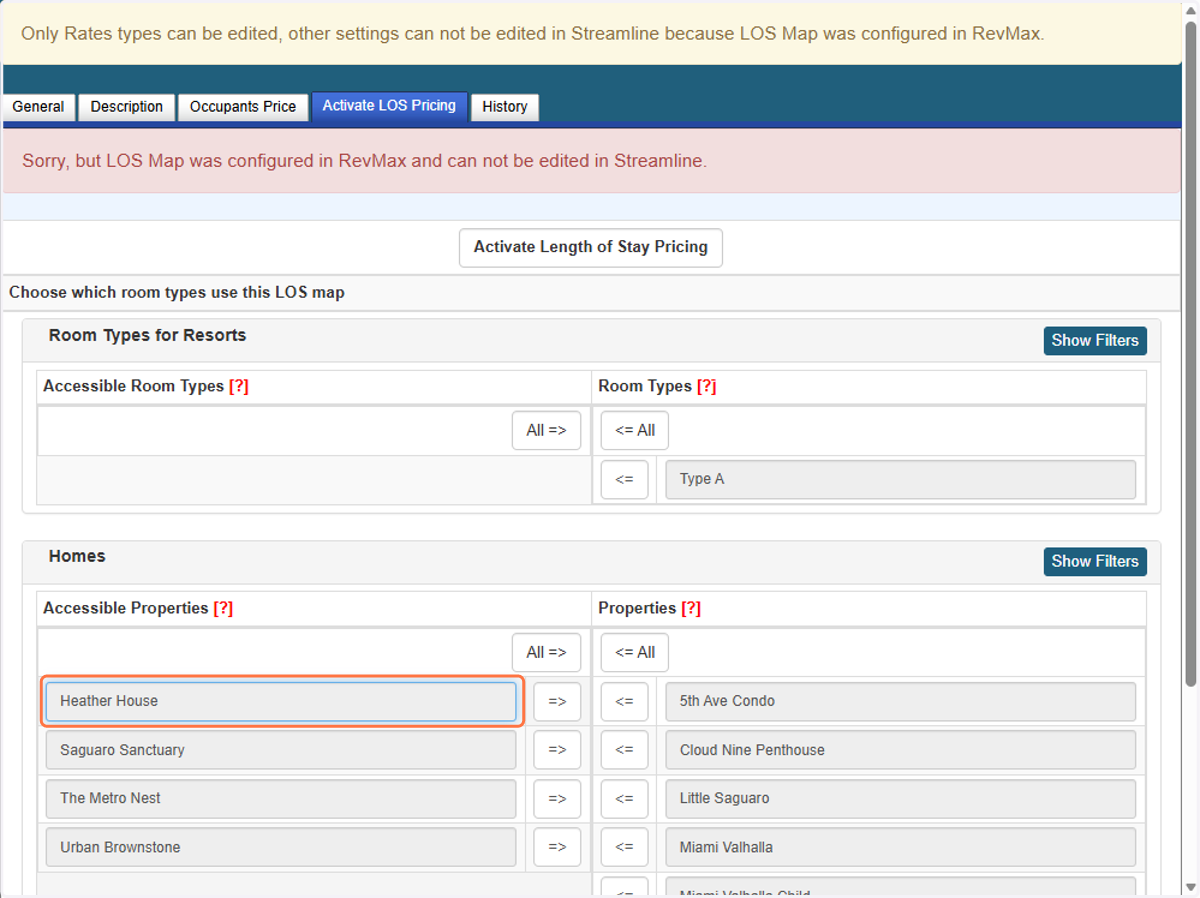
13. Only Rate Types can be configured within Streamline. All other configurations, including LOS maps and unit assignments, must be managed in the RevMax system