Set a link to open in a new tab
This tutorial will show you how to make a text link open in a new tab when clicked. You can move through the tutorial at your own pace using the NEXT button below. Please note that we would not generally recommend setting links to this option as it is not helpful to those using screen readers.
1. Go to GPsurgery.net Medical Centre
2. Click on Important messages…
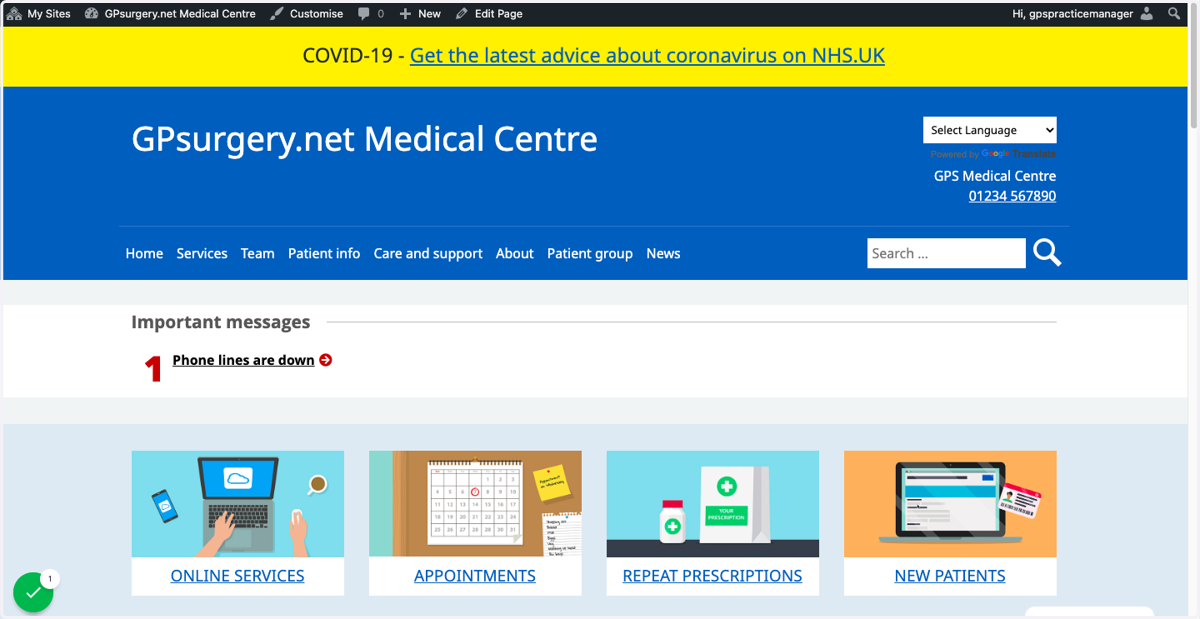
3. Click on Test page…
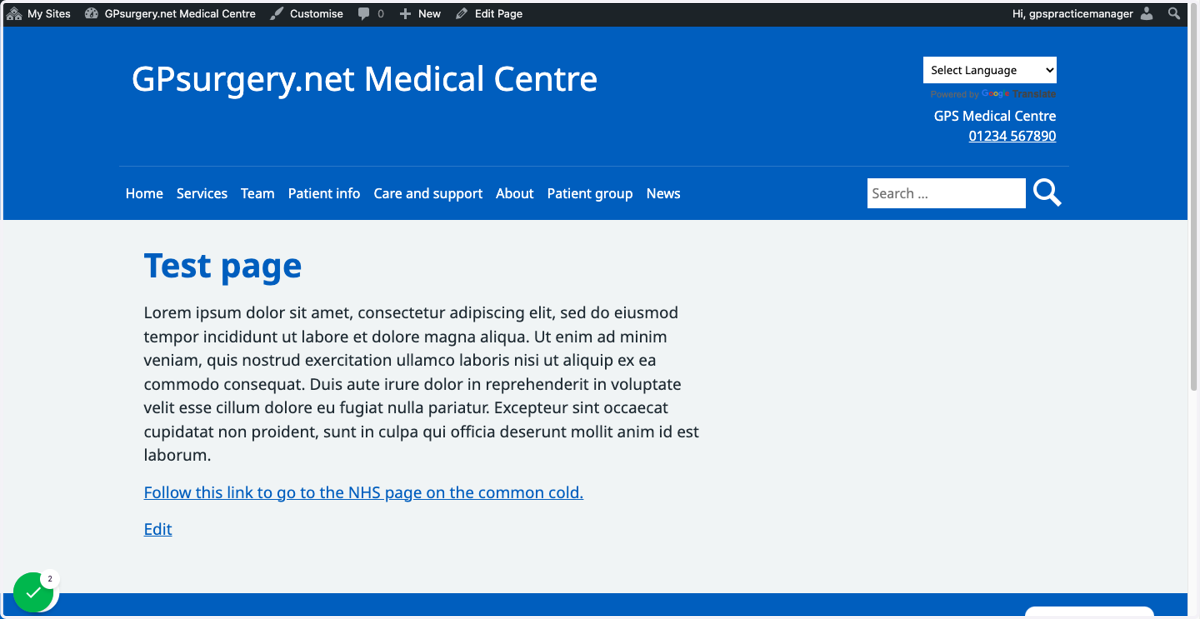
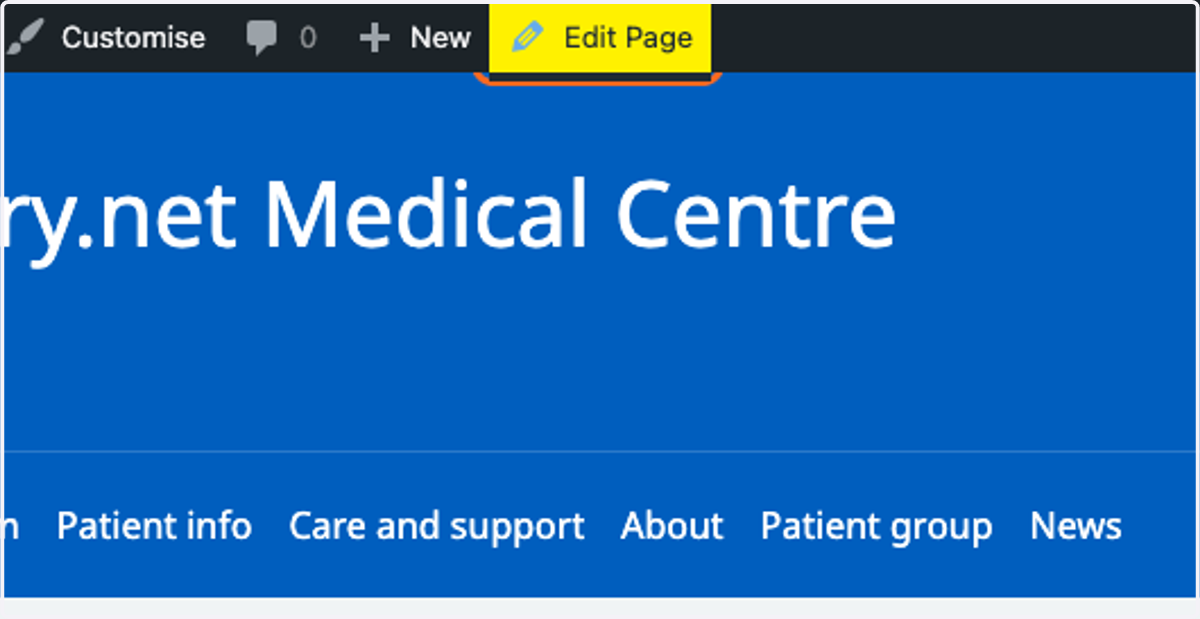
4. Click on Edit Page
5. Click on Lorem ipsum dolor sit amet, consectetur adipiscing elit, sed do eiusmod tempor incididunt ut labore et dolore magna aliqua. Ut enim ad minim veniam, quis nostrud exercitation ullamco laboris nisi ut aliquip ex ea commodo consequat. Duis aute irure dolor in reprehenderit …
6. Click on Lorem ipsum dolor sit amet, consectetur adipiscing elit, sed do eiusmod tempor incididunt ut labore et dolore magna aliqua. Ut enim ad minim veniam, quis nostrud exercitation ullamco laboris nisi ut aliquip ex ea commodo consequat. Duis aute irure dolor in reprehenderit …
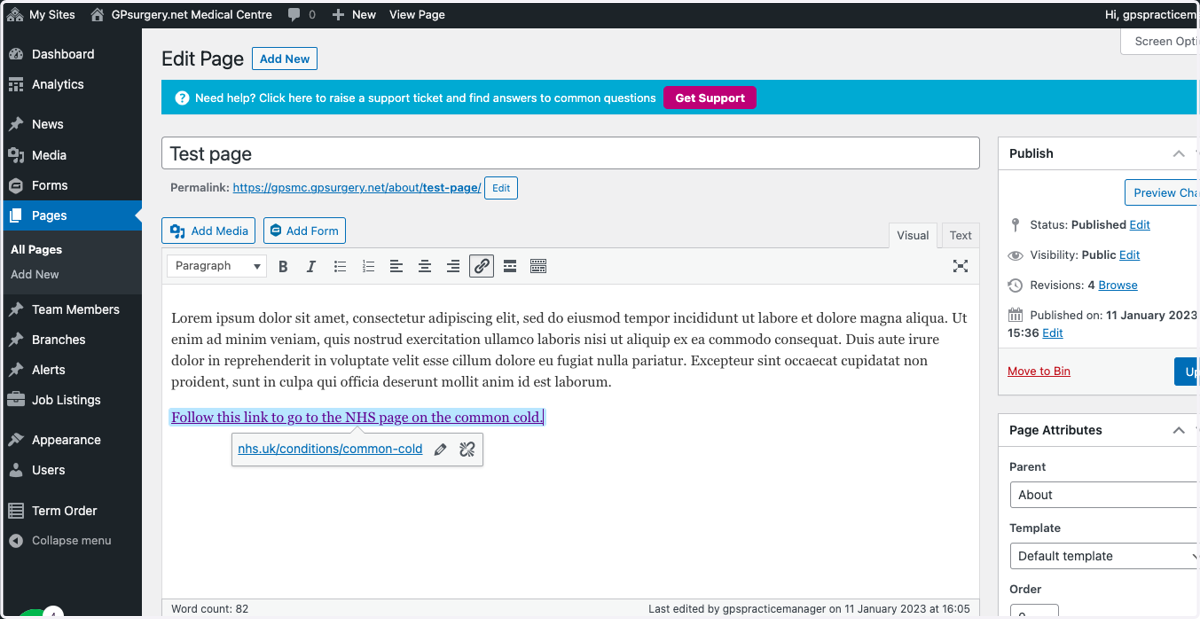
7. Click on Add Media
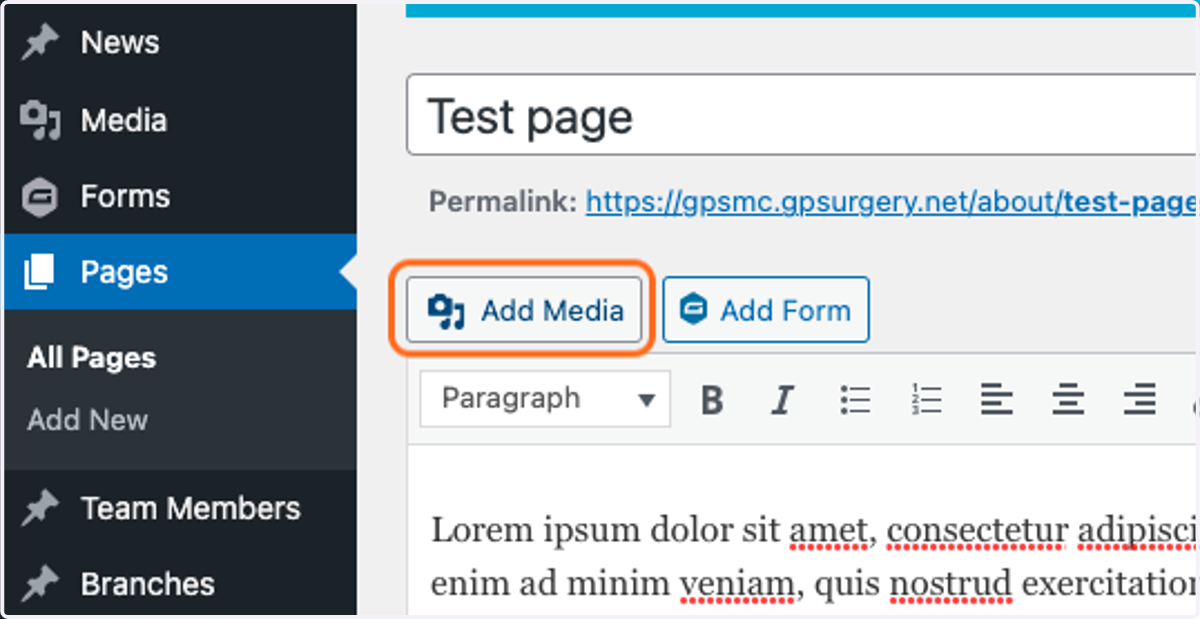
8. Ensure that you are logged into your website. The black admin toolbar should be visible at the top of the screen.
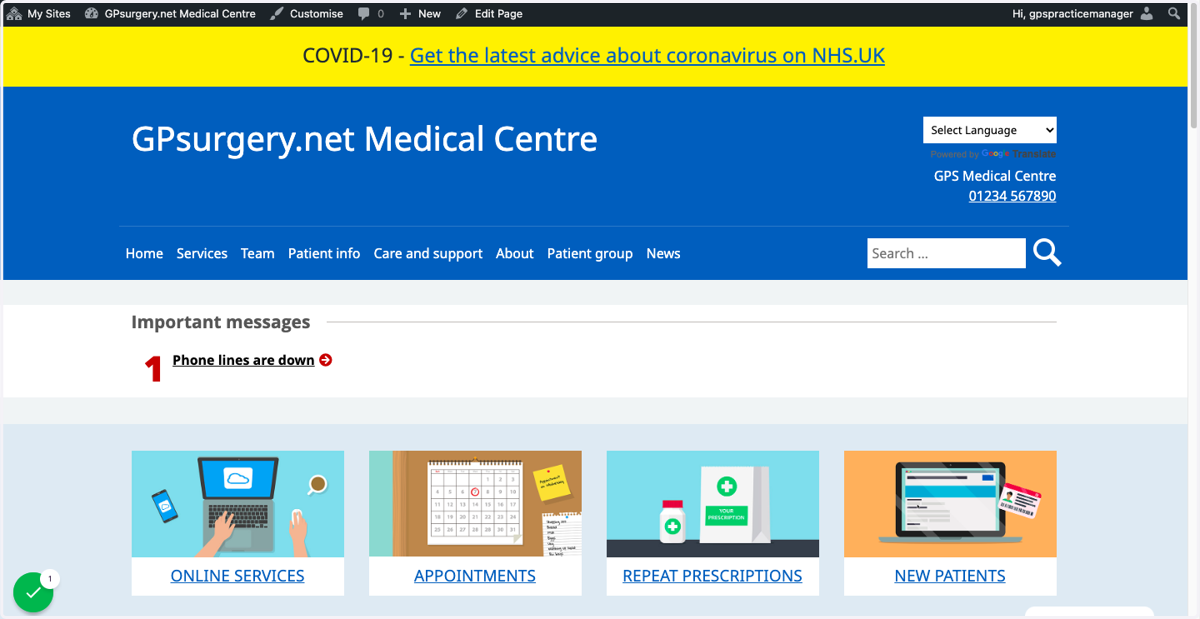
9. Type "Test image"
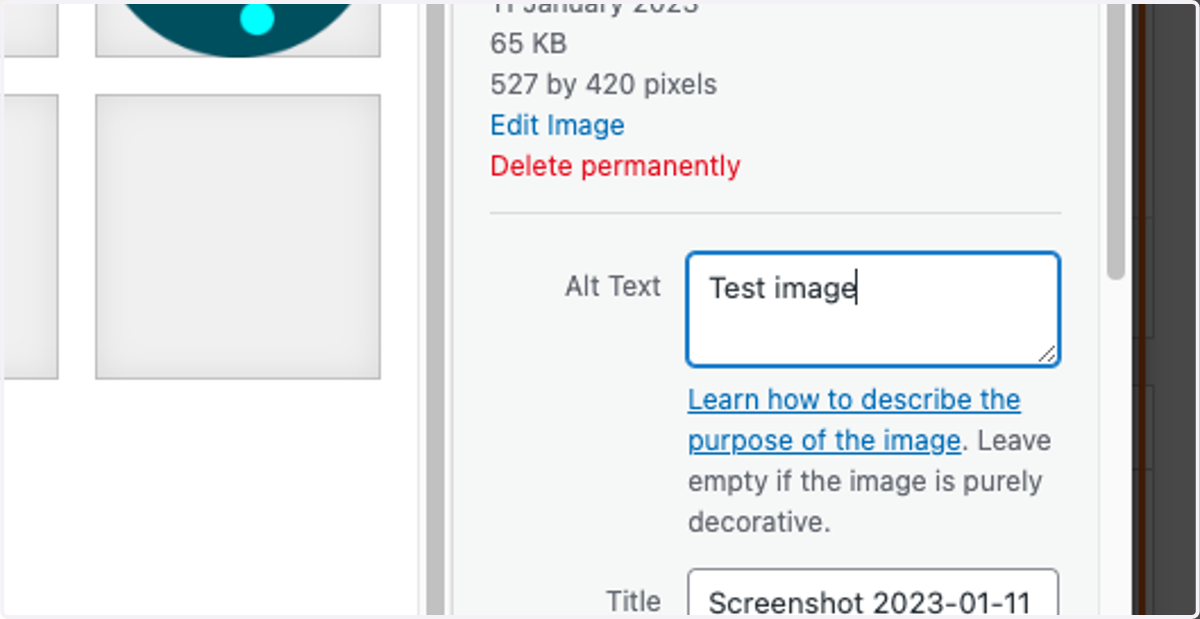
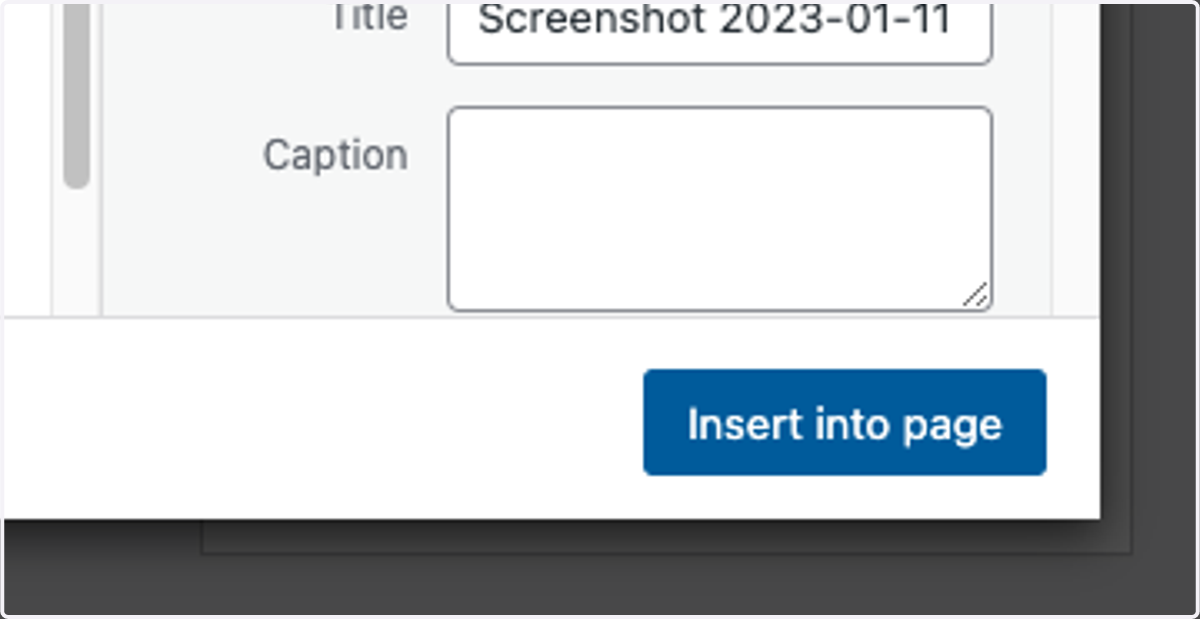
10. Click on Insert into page
11. Click on Test image
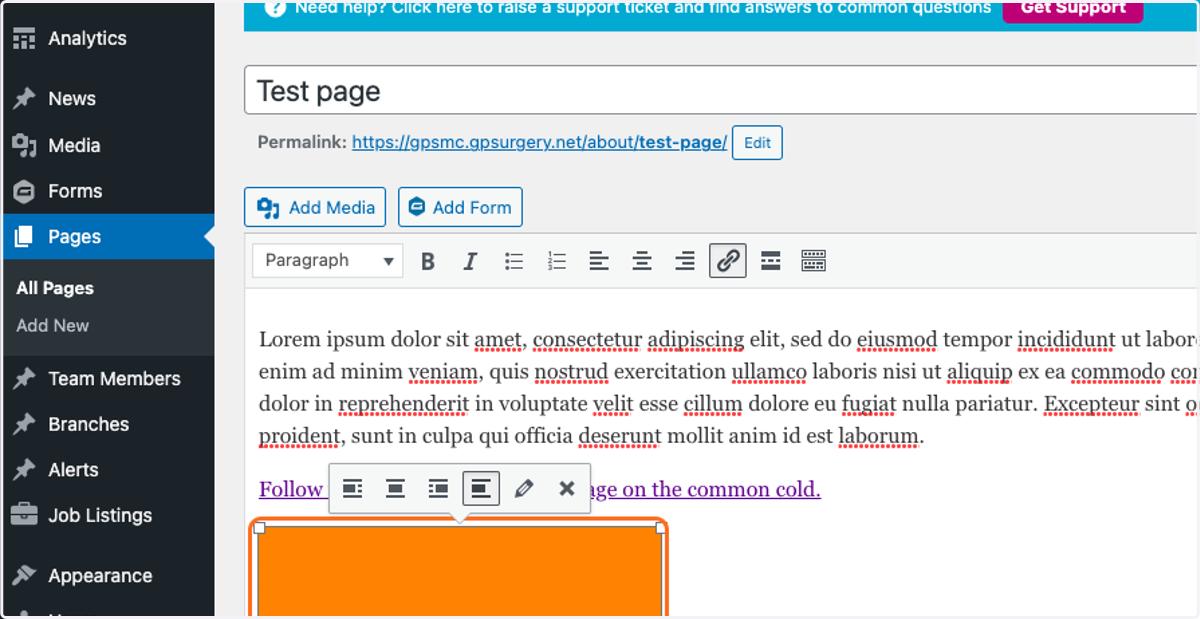
12. Click on Test image
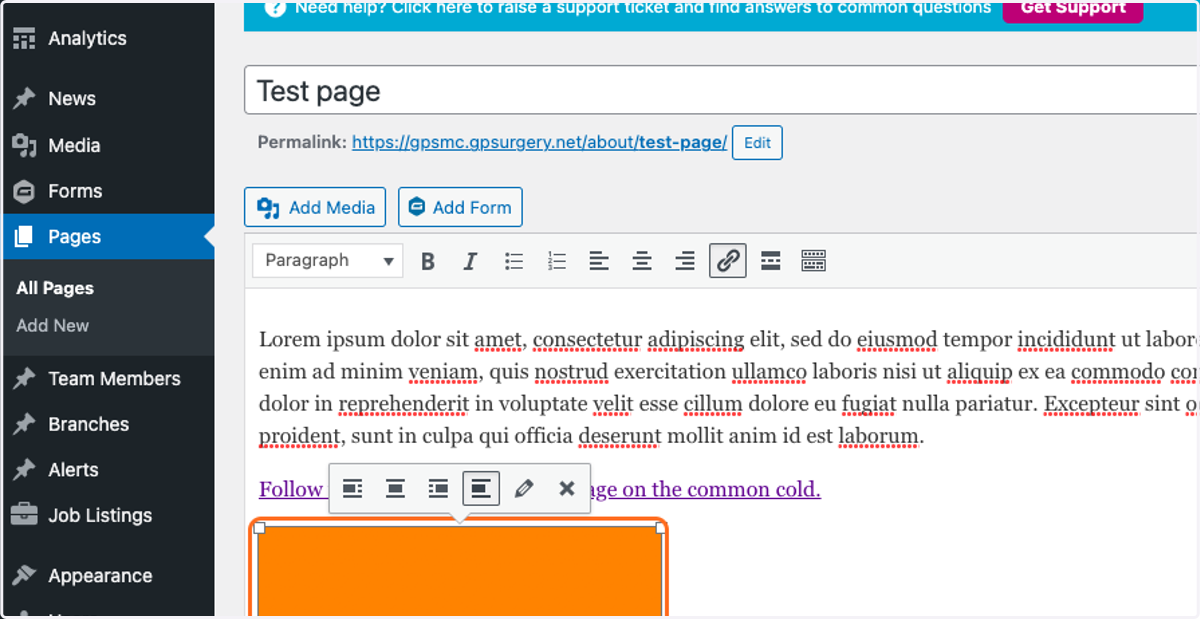
13. Click on presentation
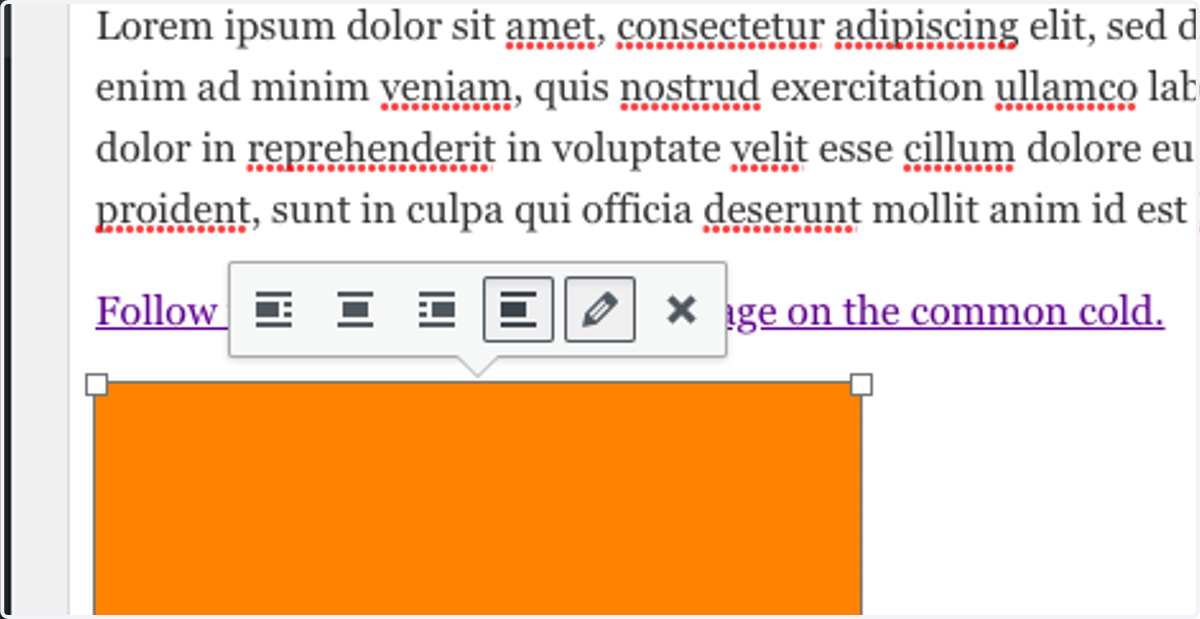
14. Click on Left
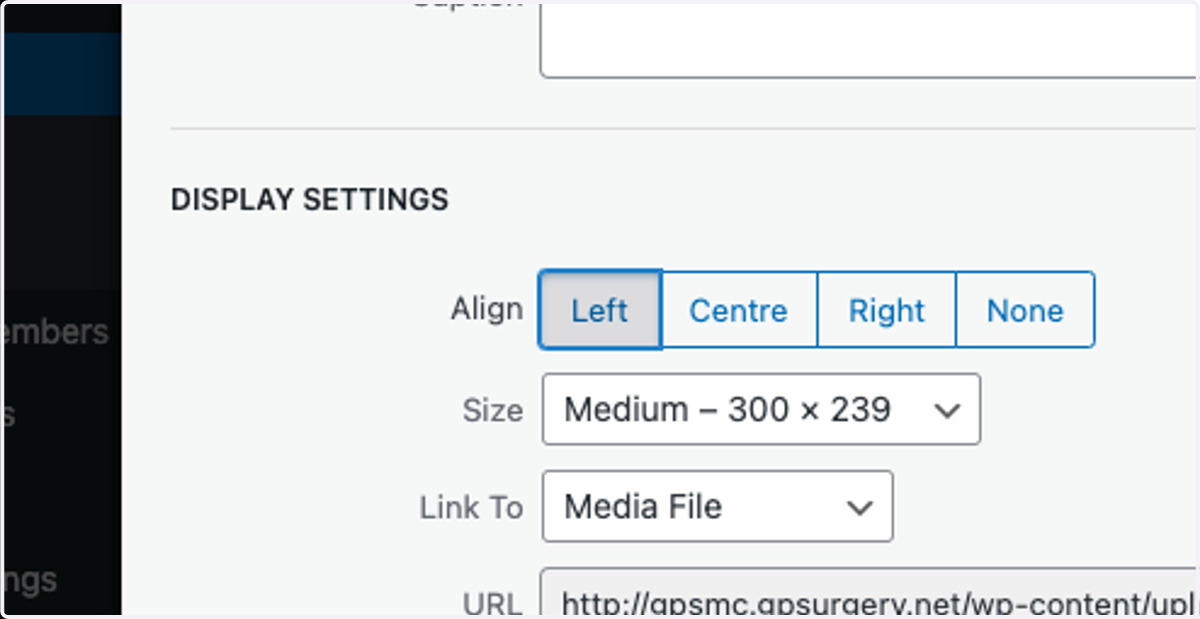
15. Select Full Size – 527 × 420 from Size
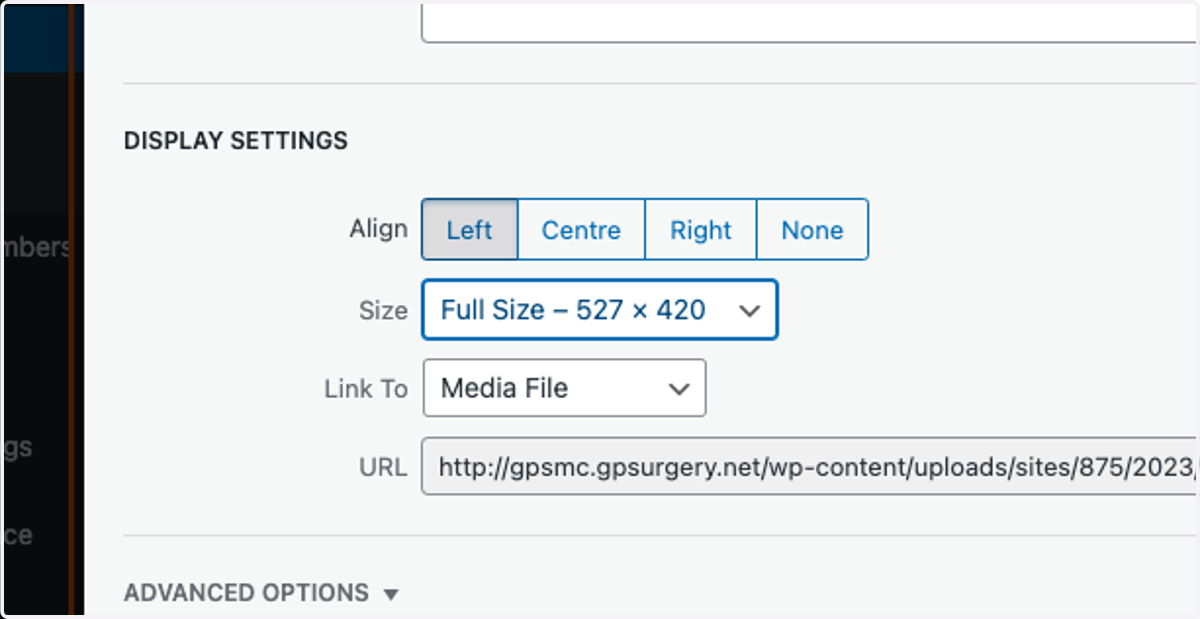
16. Select Custom URL from Link To
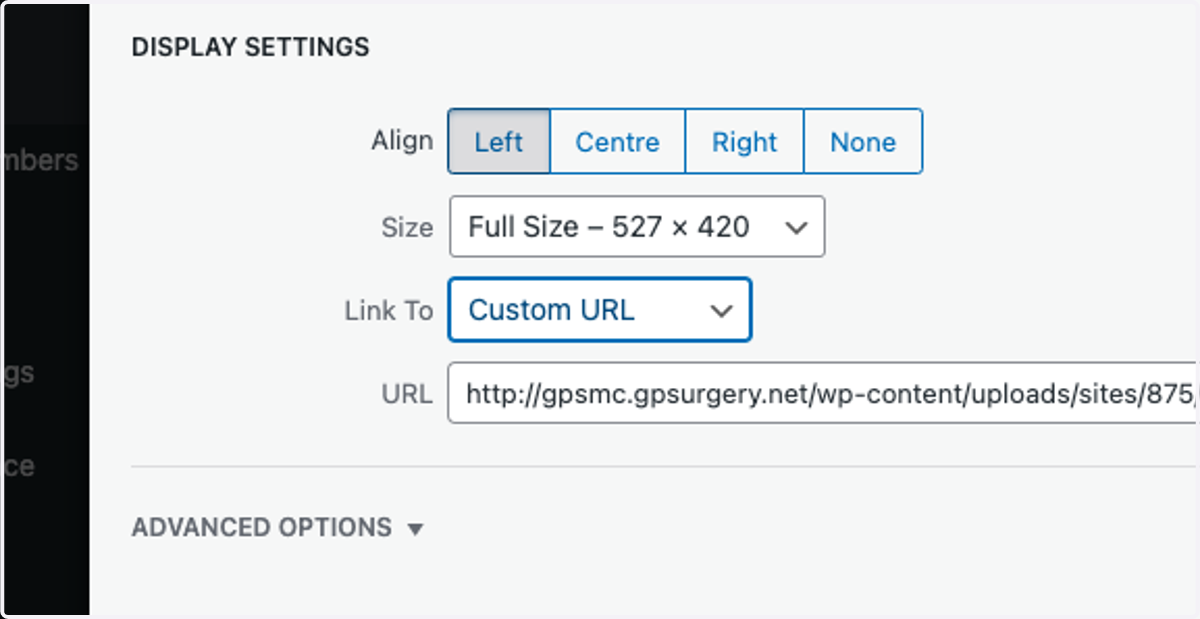
17. Click on URL
18. Paste "https://www.nhs.uk/conditions/common-cold/" into input
19. Click on document
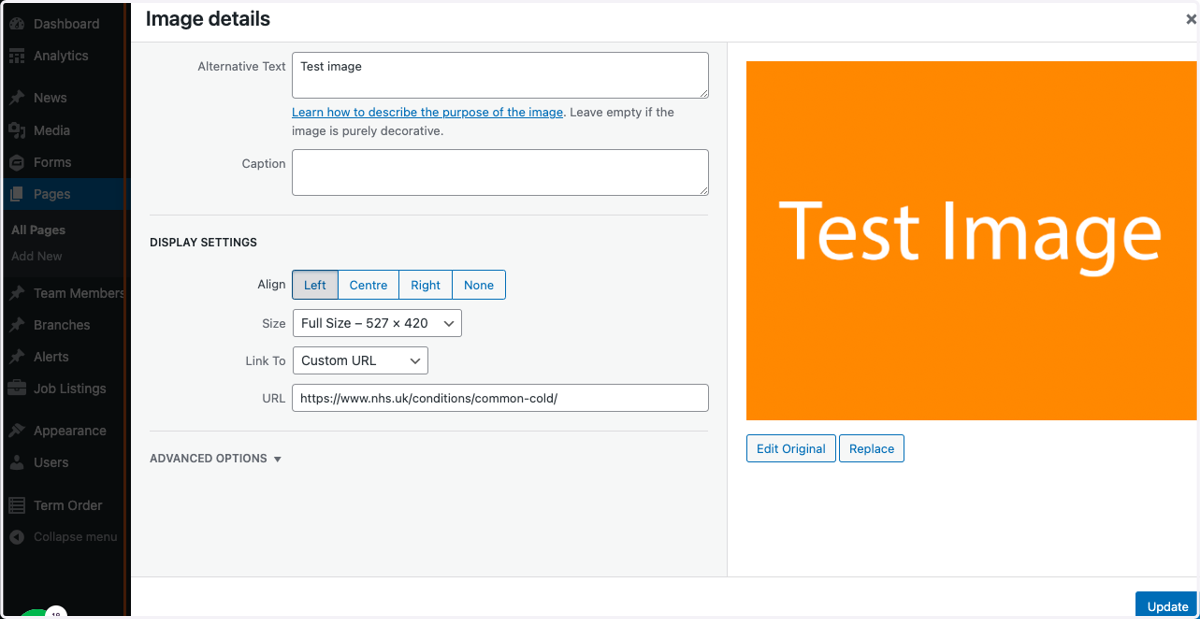
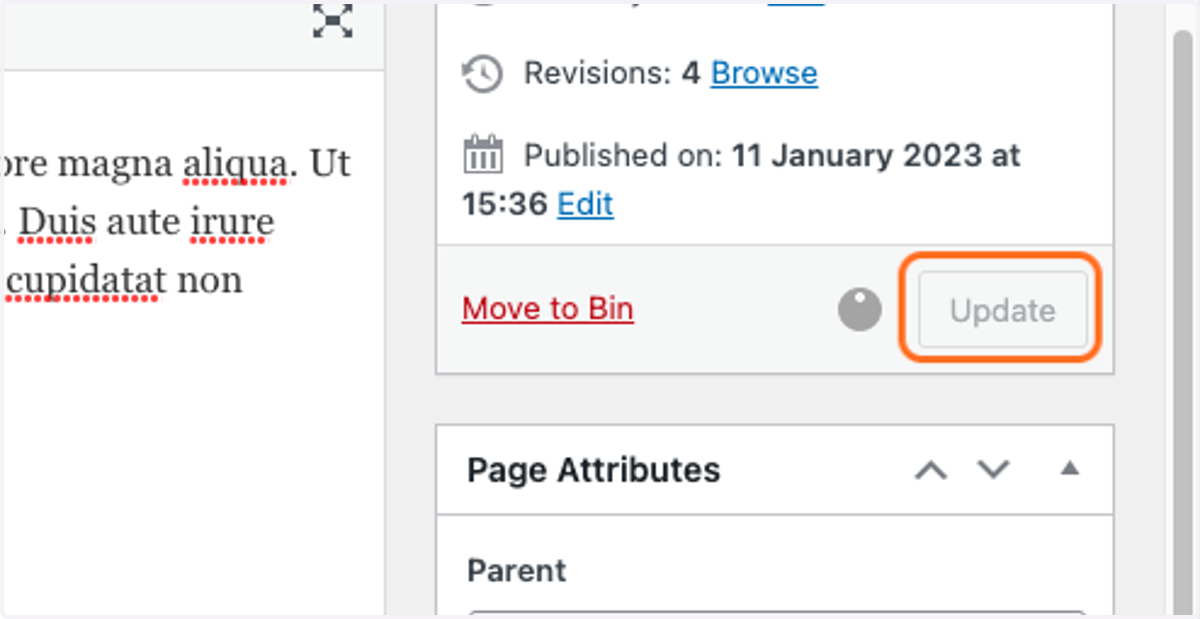
20. Click on Update
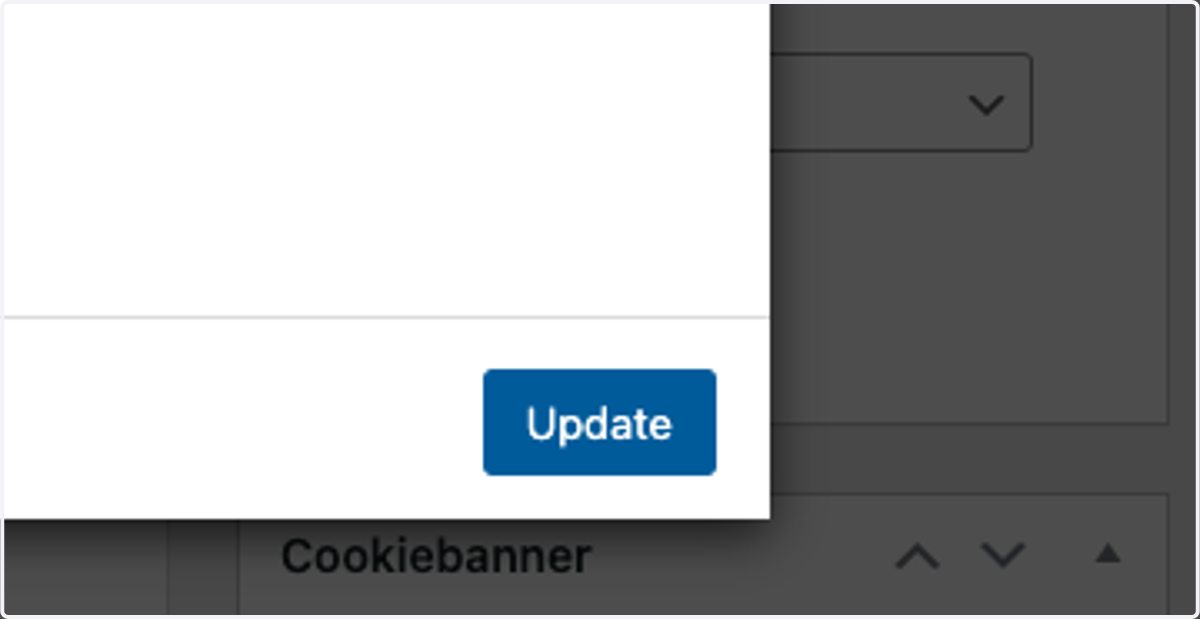
21. Click on save
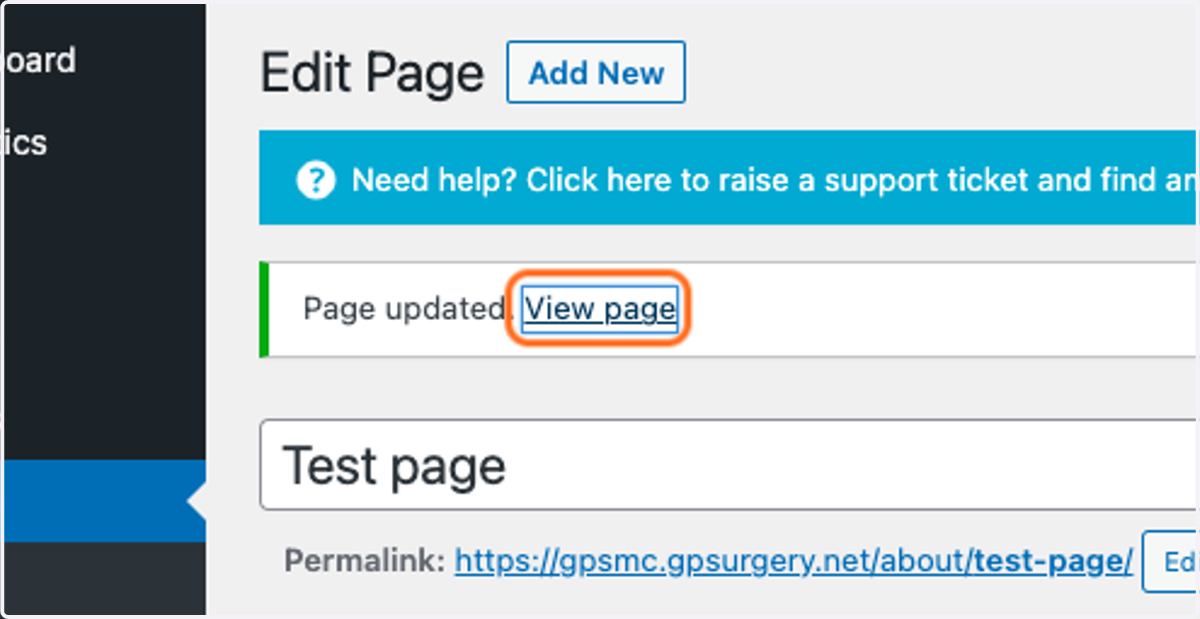
22. Click on View page
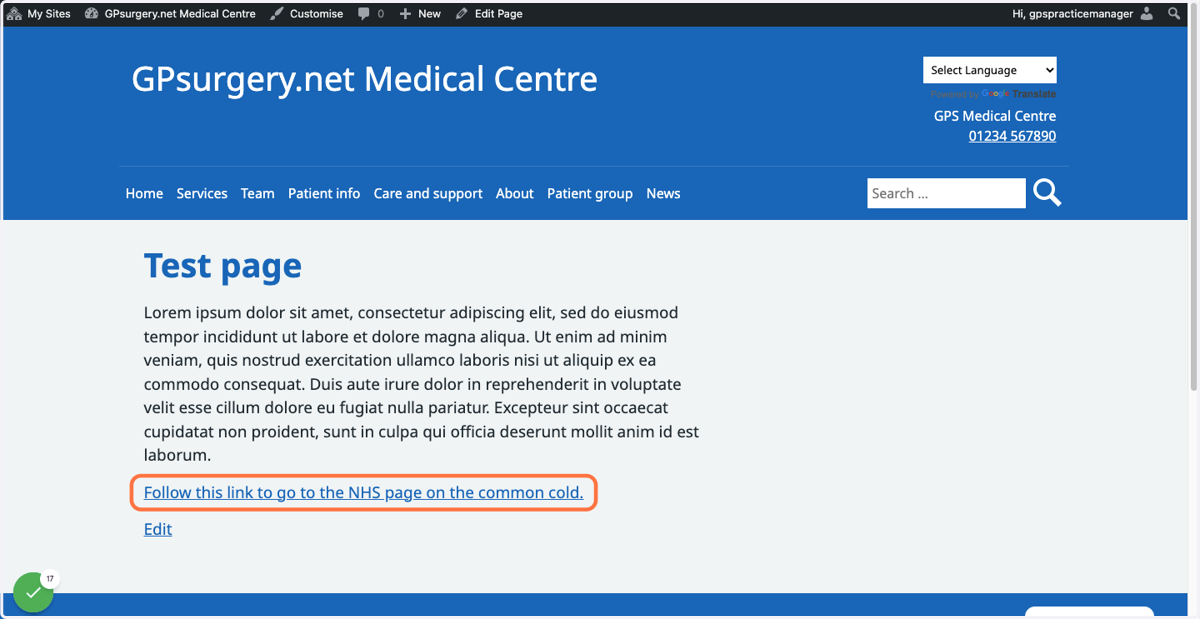
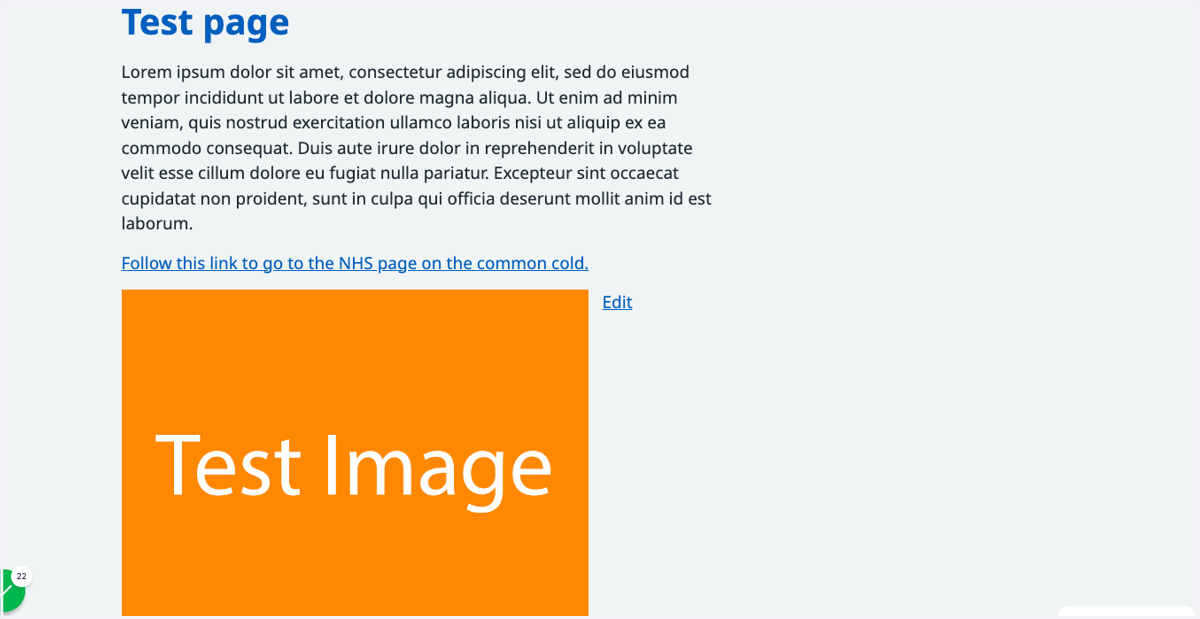
23. Click on Test page…
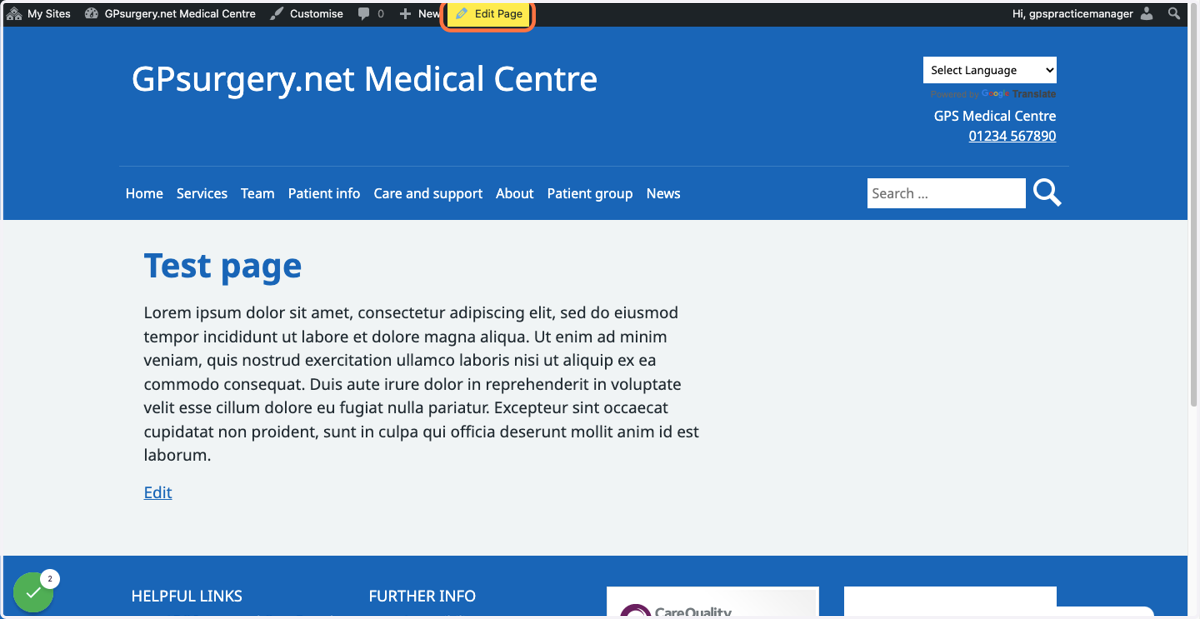
24. Go to the page with the link you would like to edit. Click the Edit Page button in the admin toolbar.
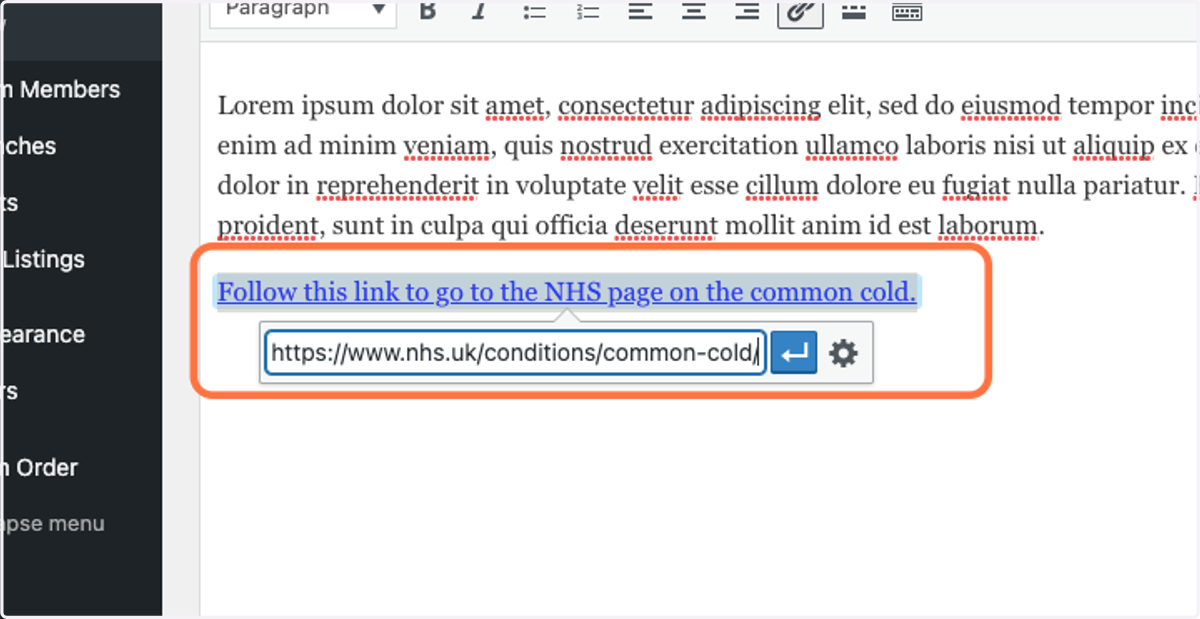
25. Click on the existing link to open up the Add Link box.
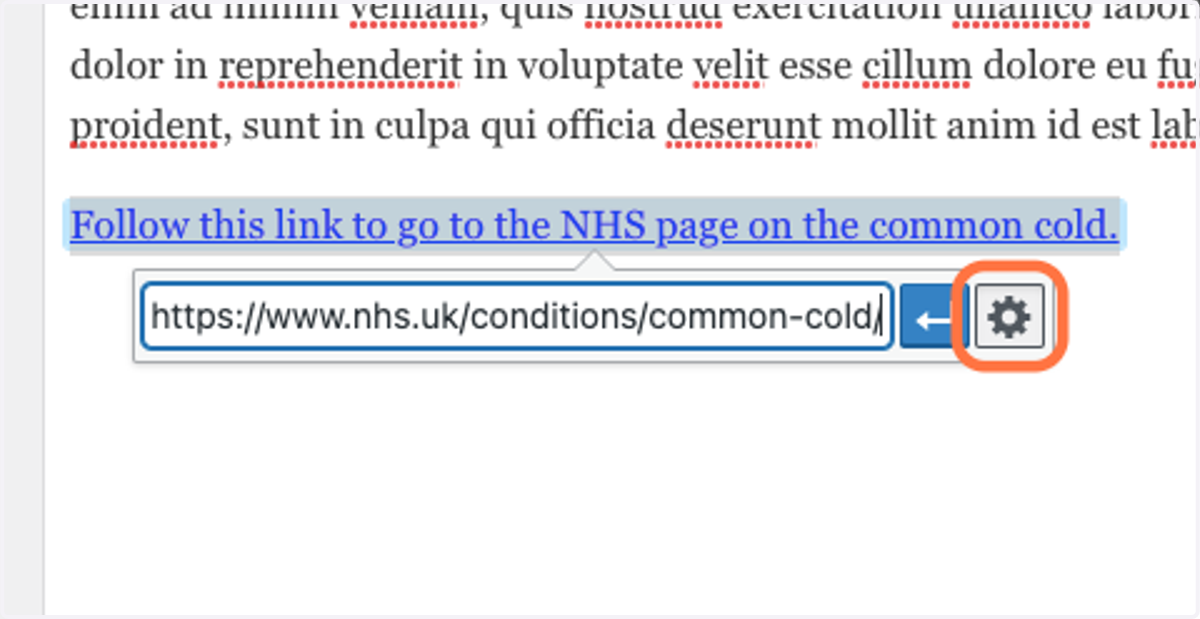
26. At the right-hand side of the Add Link box, click the cog icon to open the Link Editor.
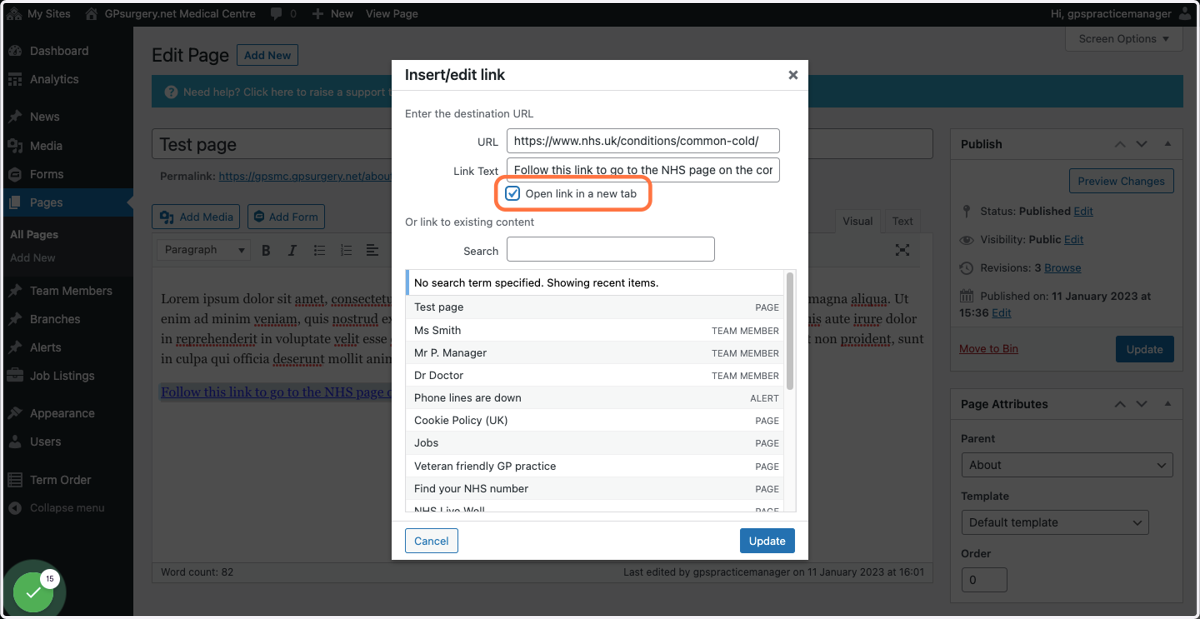
27. In the Link Editor, tick the Open link in a new tab checkbox.
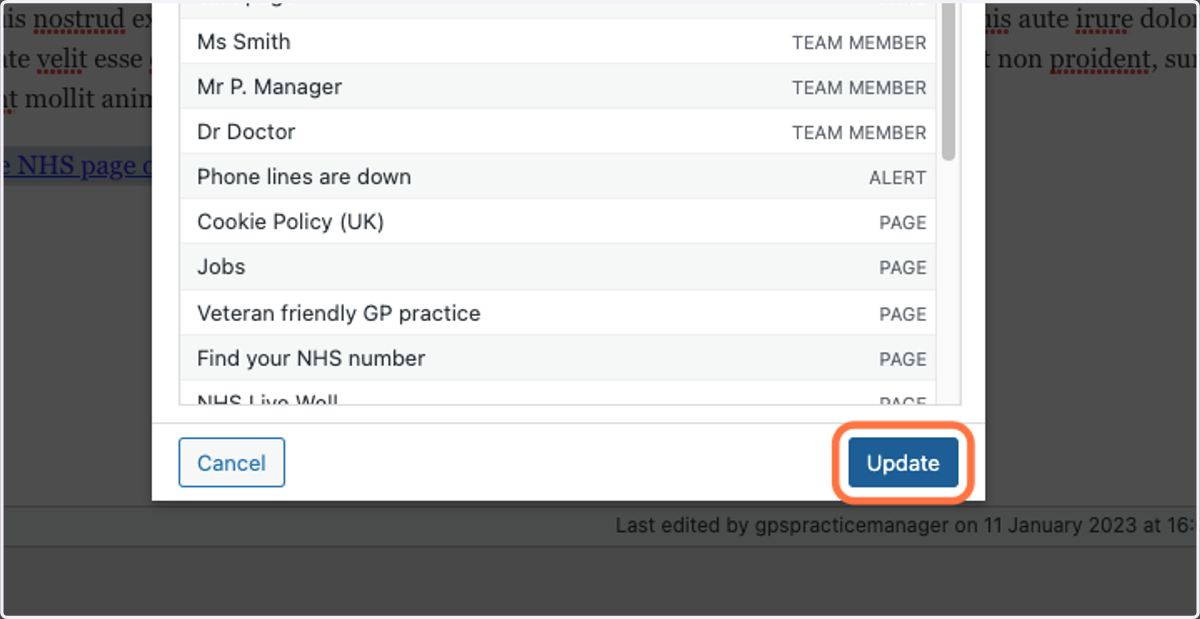
28. Click the blue Update button at the bottom of the Link Editor to save this change to the link.
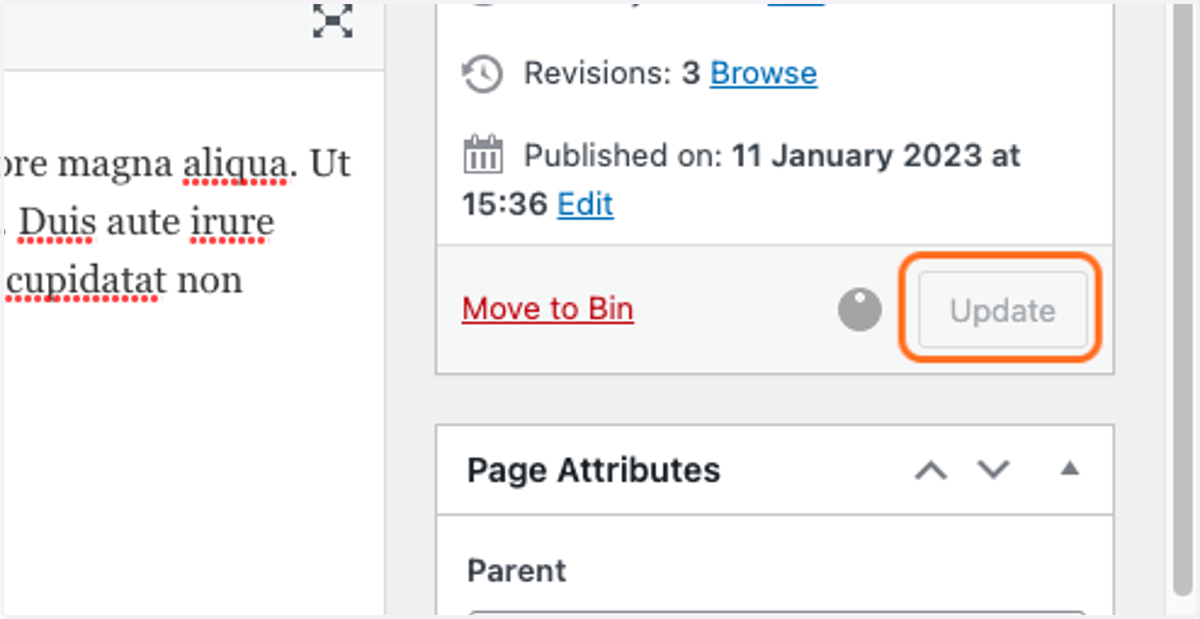
29. Once you have finished making your changes, click the Update button in the Publish box. You must do this, otherwise your changes will not be saved.
30. Your link will now open a new tab when it is clicked, meaning that your patients will be able to keep your site open, as well as the new page that they are going to.