Apply minimum and maximum prices for several non-consecutive days
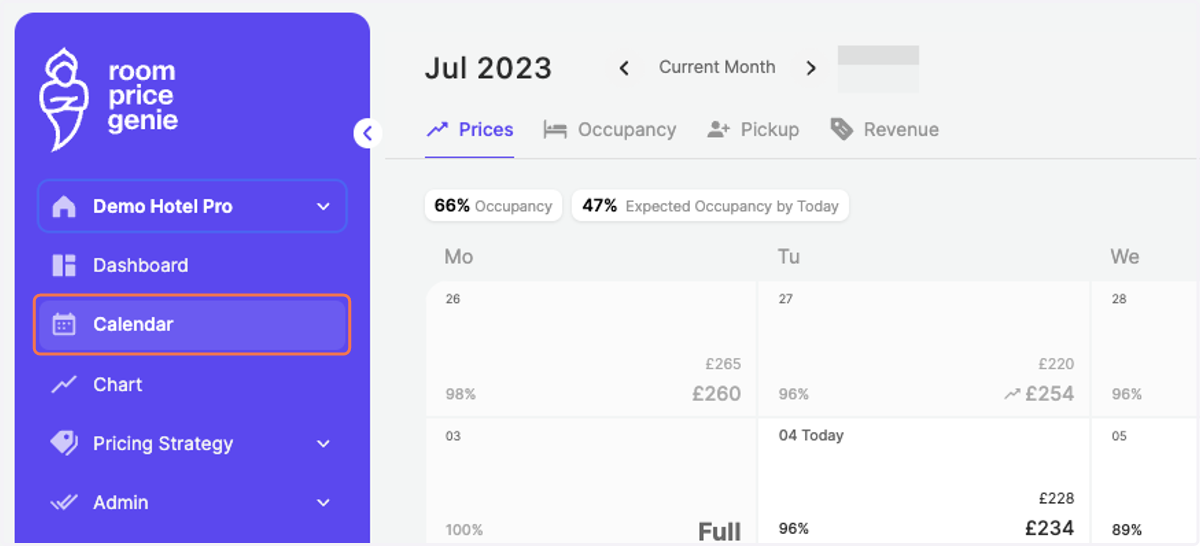
1. Click on "Calendar" in the navigation bar
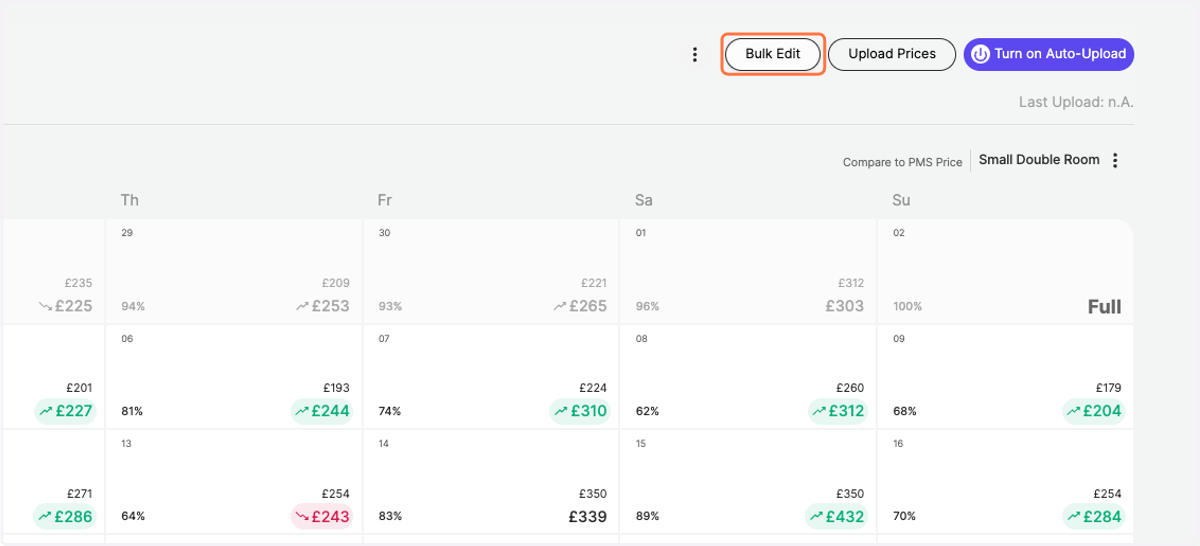
2. Click on "Bulk Edit" in the top right
3. Define a Start Date and End Date for your desired time period
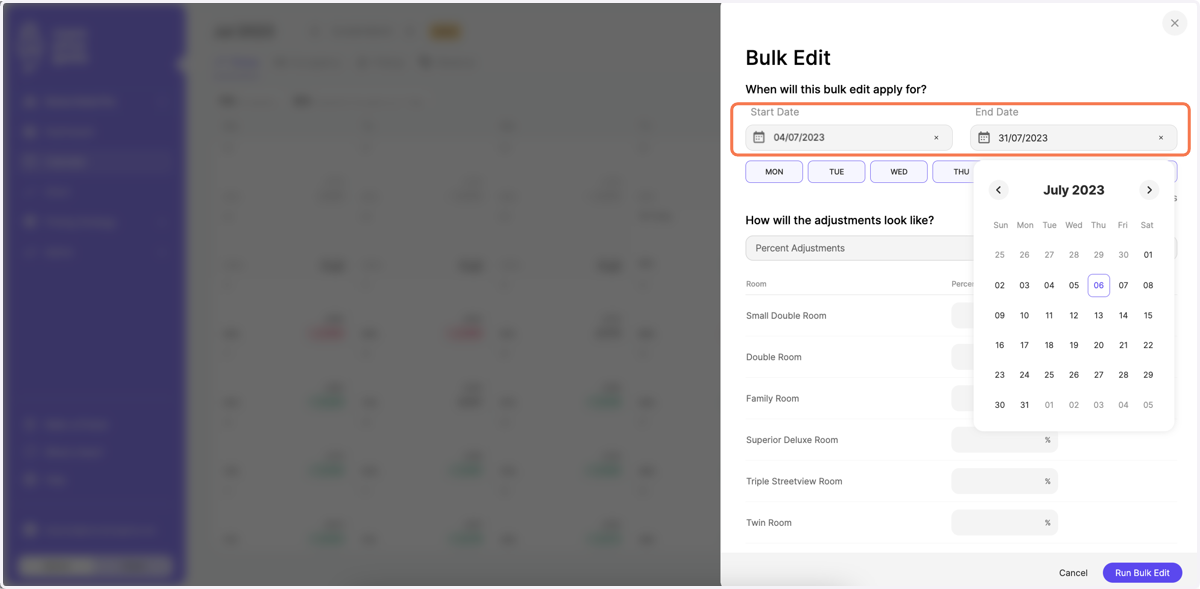
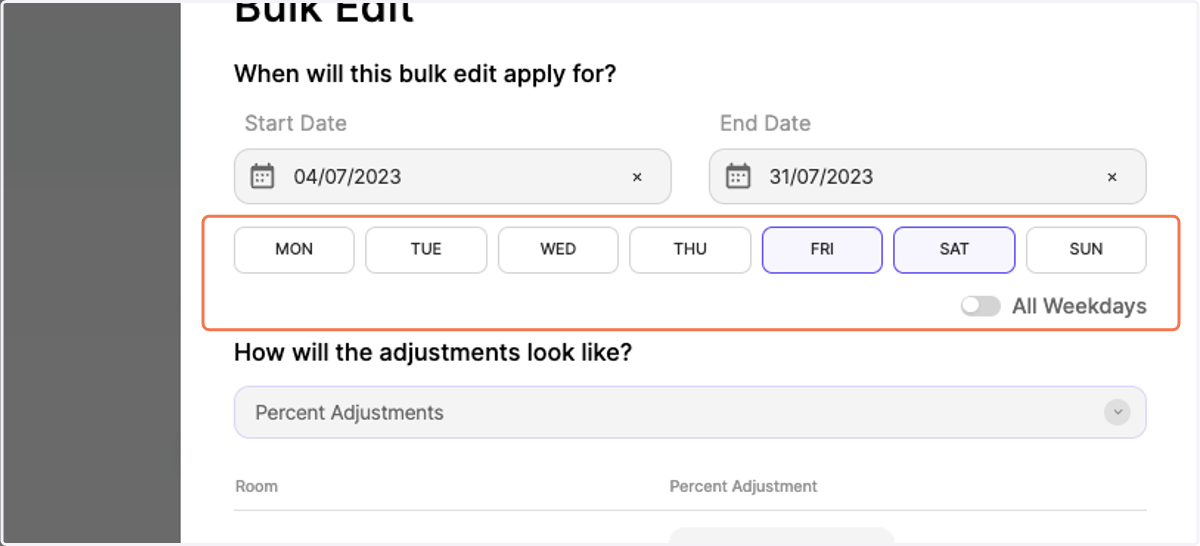
4. Select the specific days of the week you would like to have different boundaries for
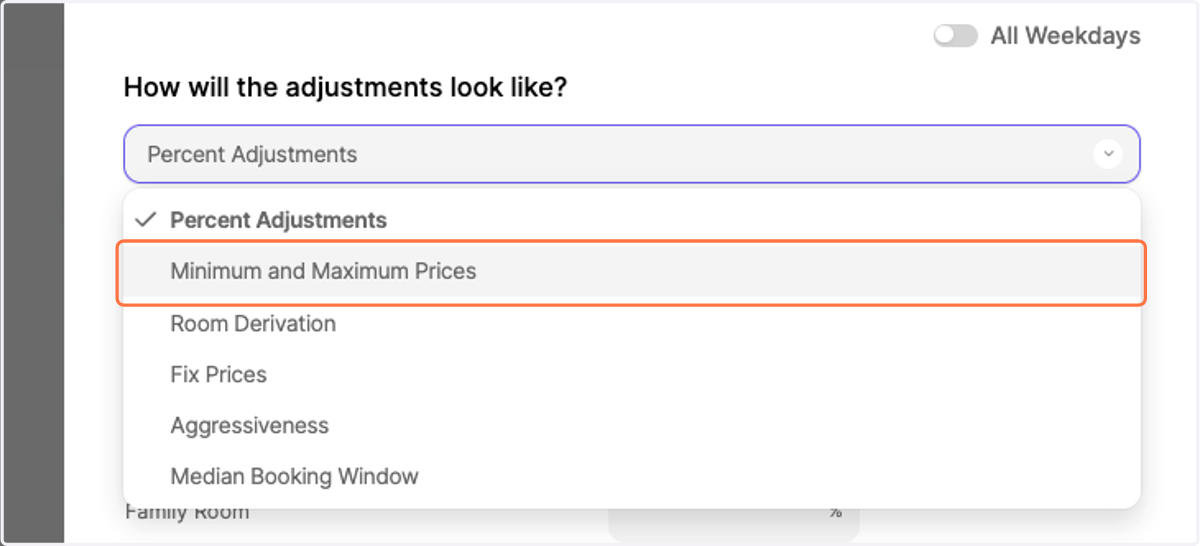
5. Select the adjustment "Minimum and Maximum Prices" from the drop-down
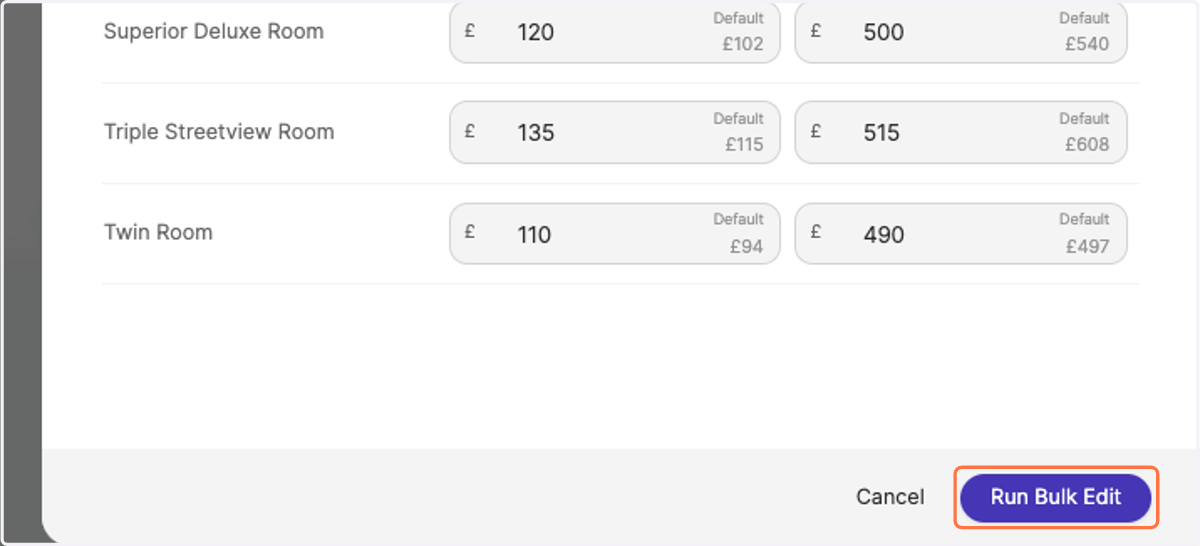
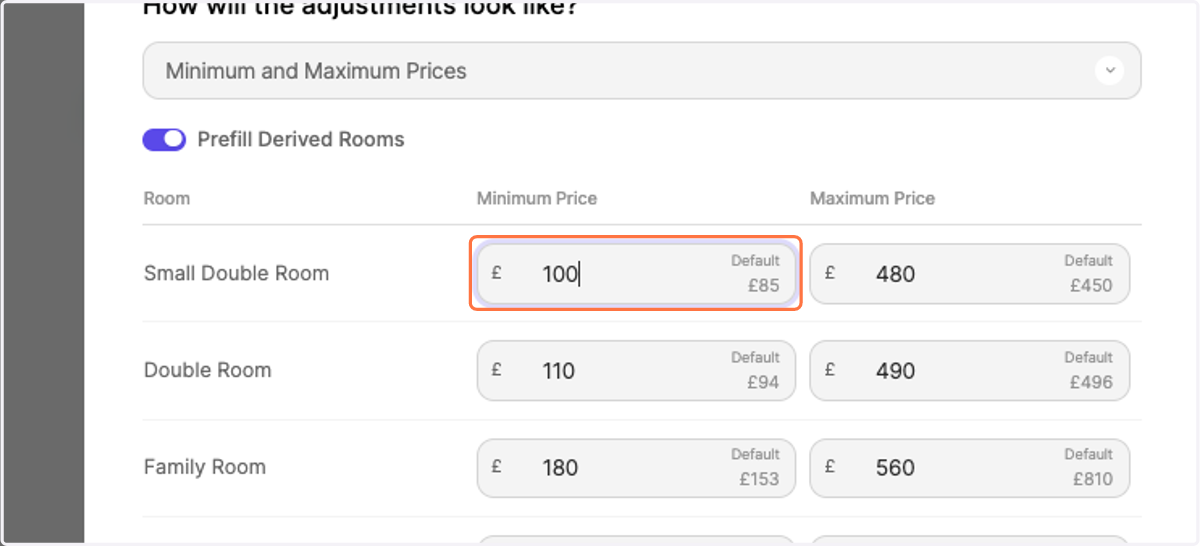
6. In the list, enter the new minimum and maximum prices
Your derived categories will be prefilled automatically based on the derivation rules from your reference category.
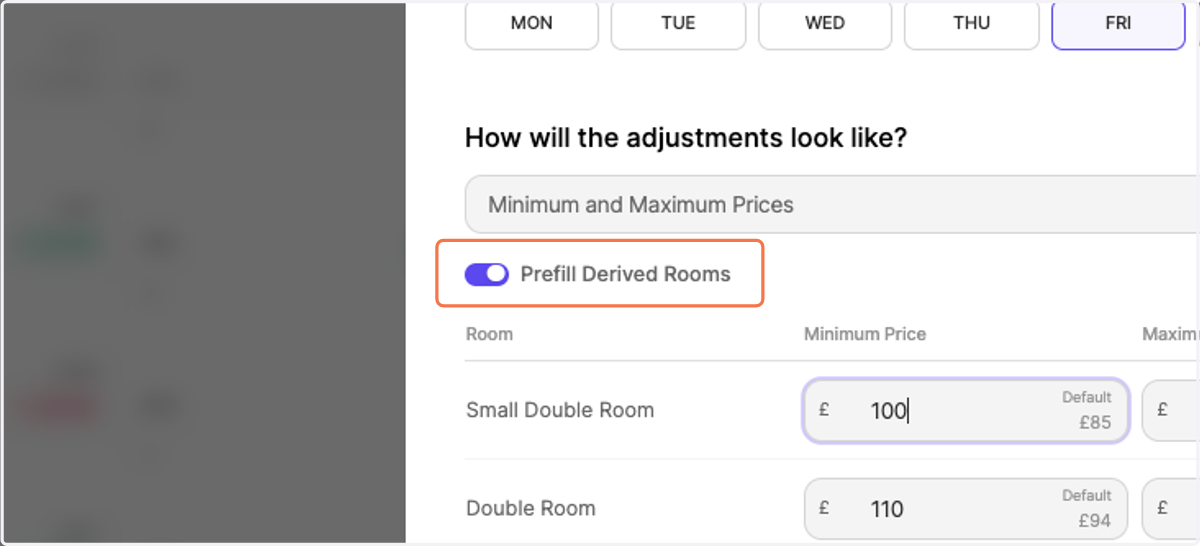
7. Optional: deactivate the slide bar "Prefill Derived Rooms" in order to individually adjust each category
8. Click on "Run Bulk Edit"