How do I set minimum night stays for peak and low periods? - Streamline Users
You have two options for setting night minimums based on the seasons.
OPTION 1: Setting Season-Based Night Minimums in the Season Periods within the Streamline System.
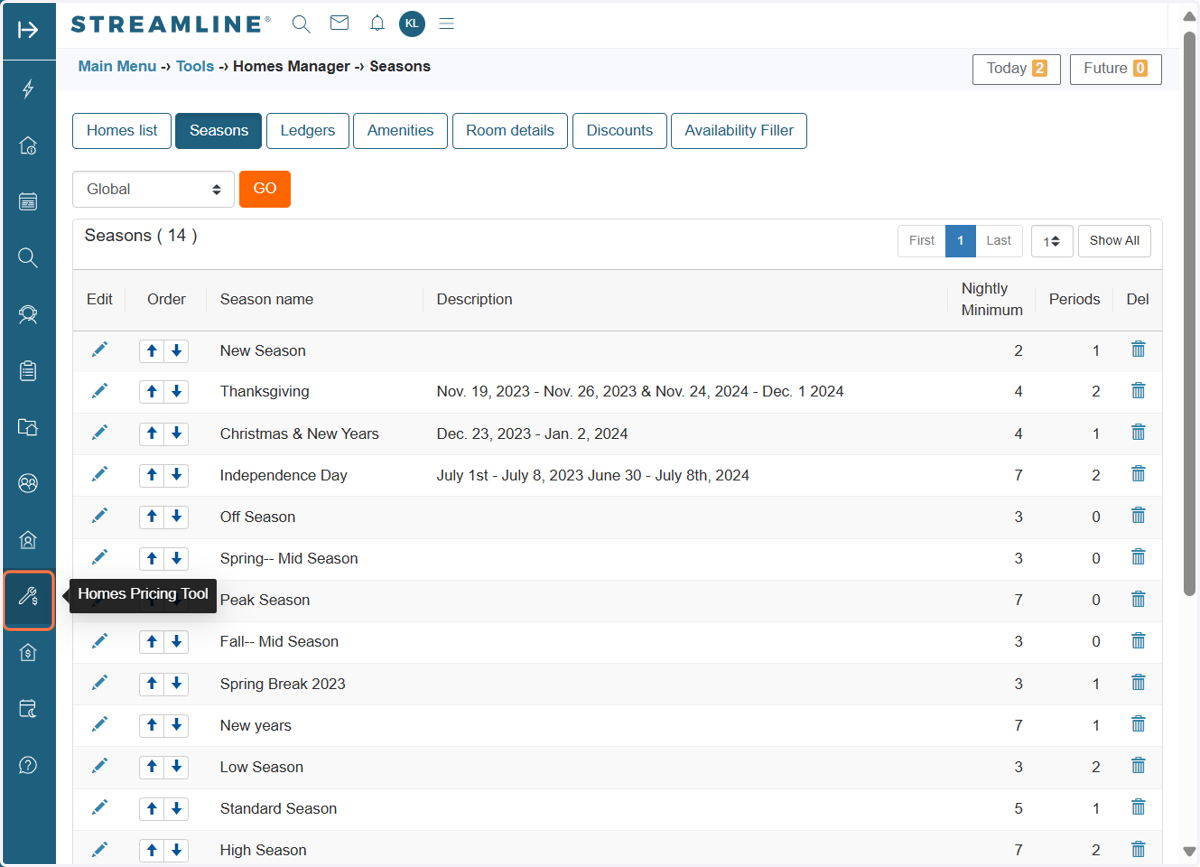
You can set base night minimums through the Season Periods in your Streamline system.
1. First click on the search icon
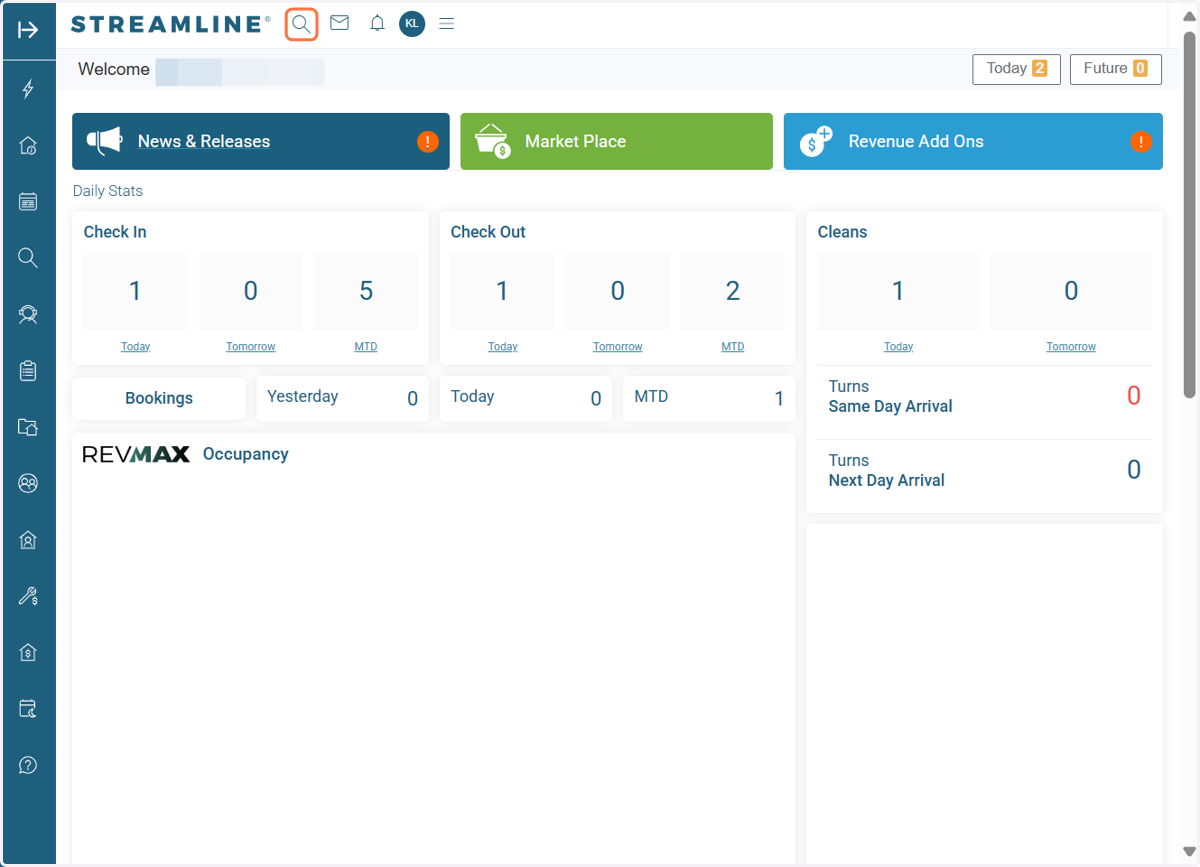
2. Search for Home Seasons
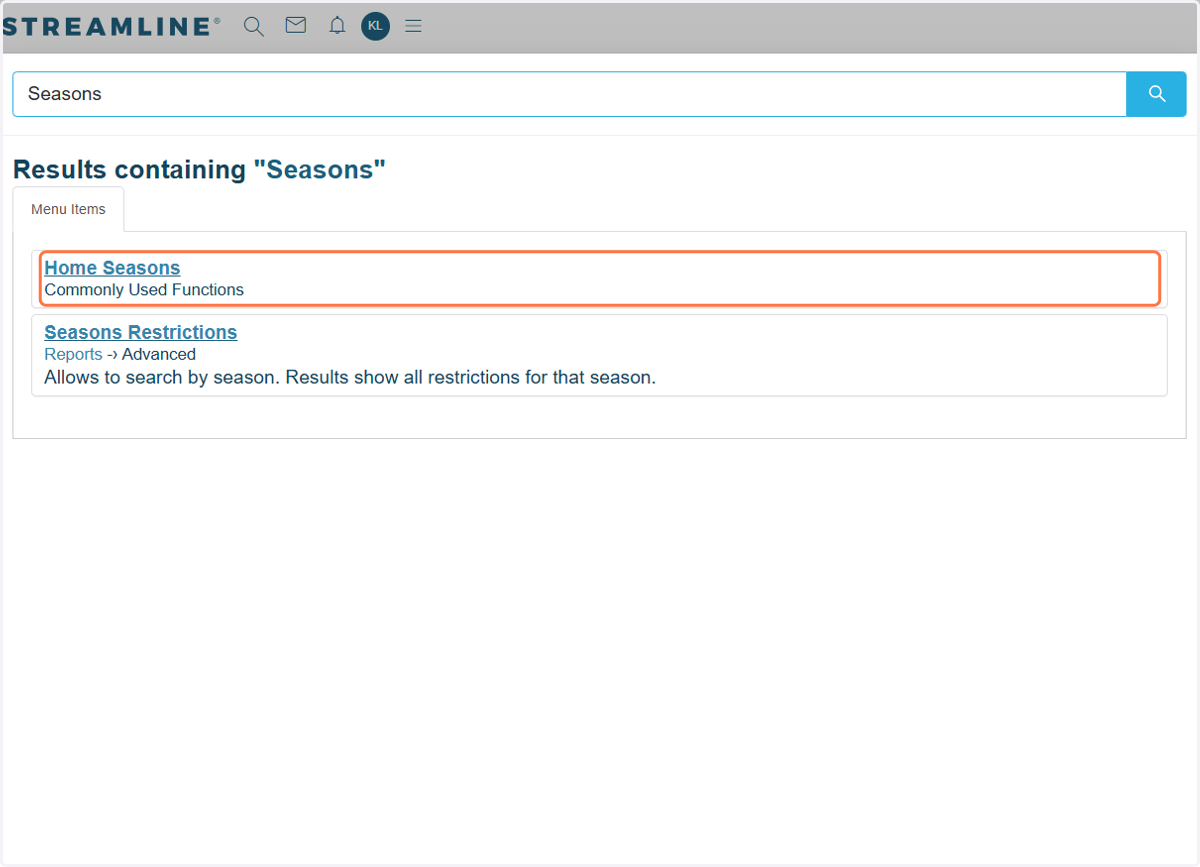
3. On your Home Seasons Page, you can set up the night minimum when creating new season periods. If you want to update the night minimum for an existing season period, click on the edit/pencil icon to access the season period settings.
Important Note: Updating the season-based night minimum in your Season Periods in Streamline will apply to all units that belong to the specific season group. If you prefer to update night minimums for selected units and specific dates, please proceed to OPTION 2.
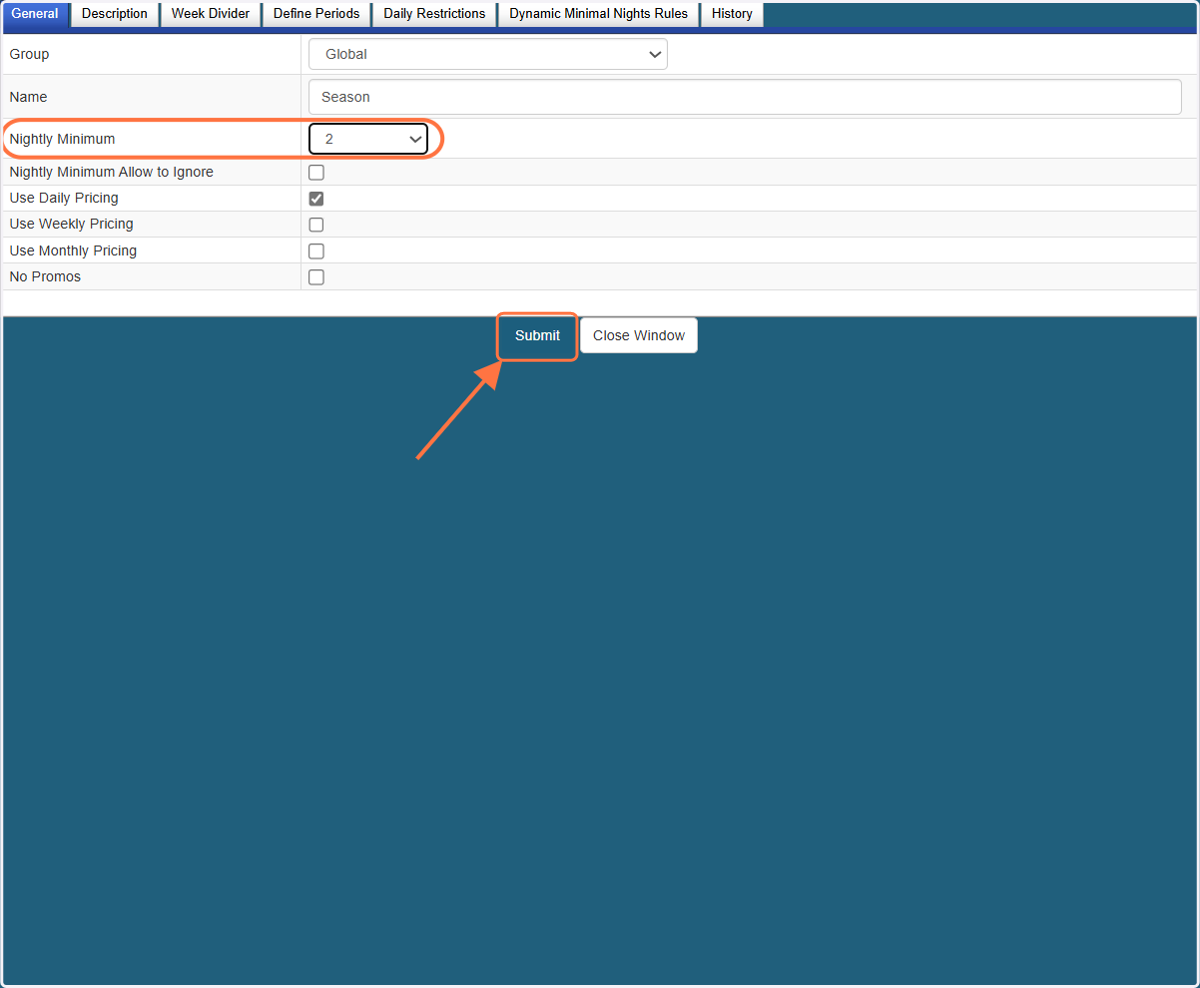
4. After you click the edit/pencil icon, a new window will appear. On the General Tab, you will find the Nightly Minimum section where you can set up the base night minimum for this season period.
Once you have set the night minimum, don't forget to click on "Submit" for the update to apply.
5. To push the night minimum update to your RevMax system, go to your Homes Pricing Tool. You can either search for it or click on the Homes Pricing Tool icon on the left panel of the screen.
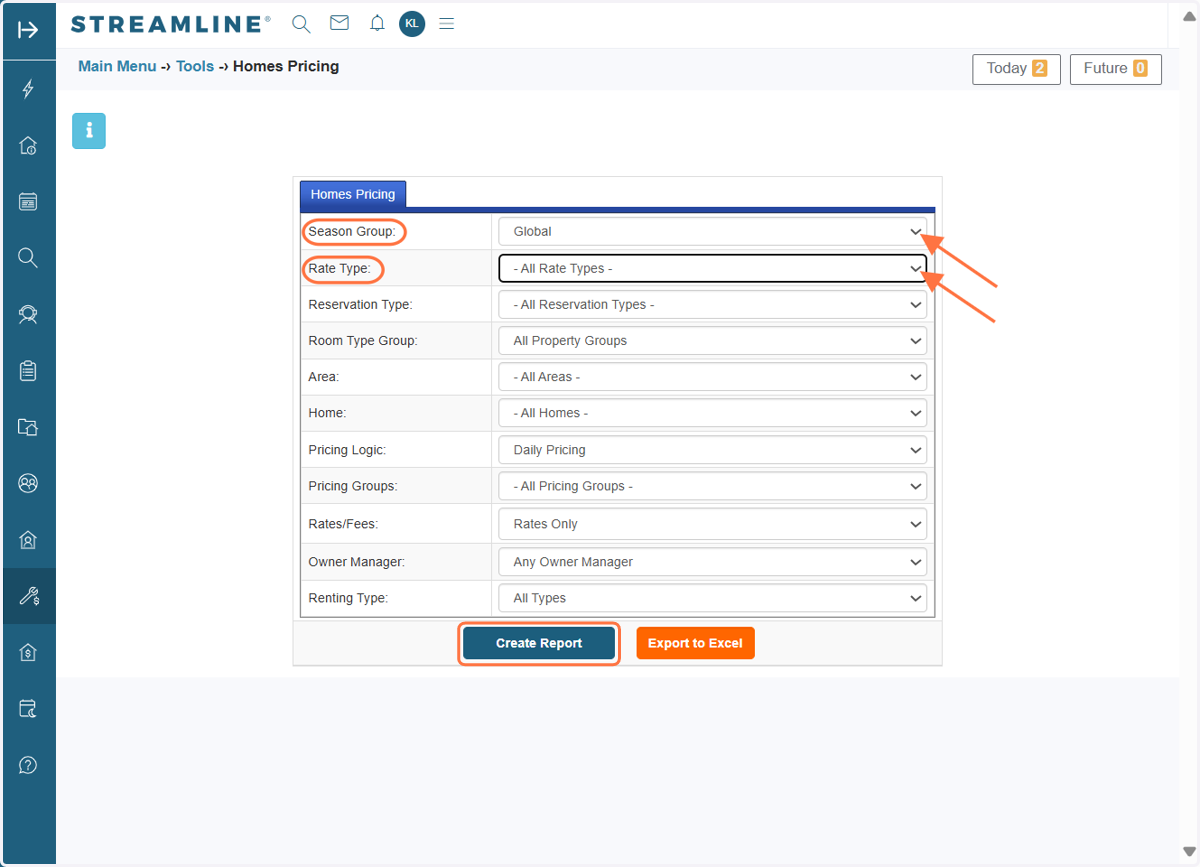
6. In the Homes Pricing Tool, filter the Season Group to which the updated season period belongs. If you have set different rate types, filter by those rate types. If you only have the Y-STD and STD rate types, you can leave this option as "All Rate Types."
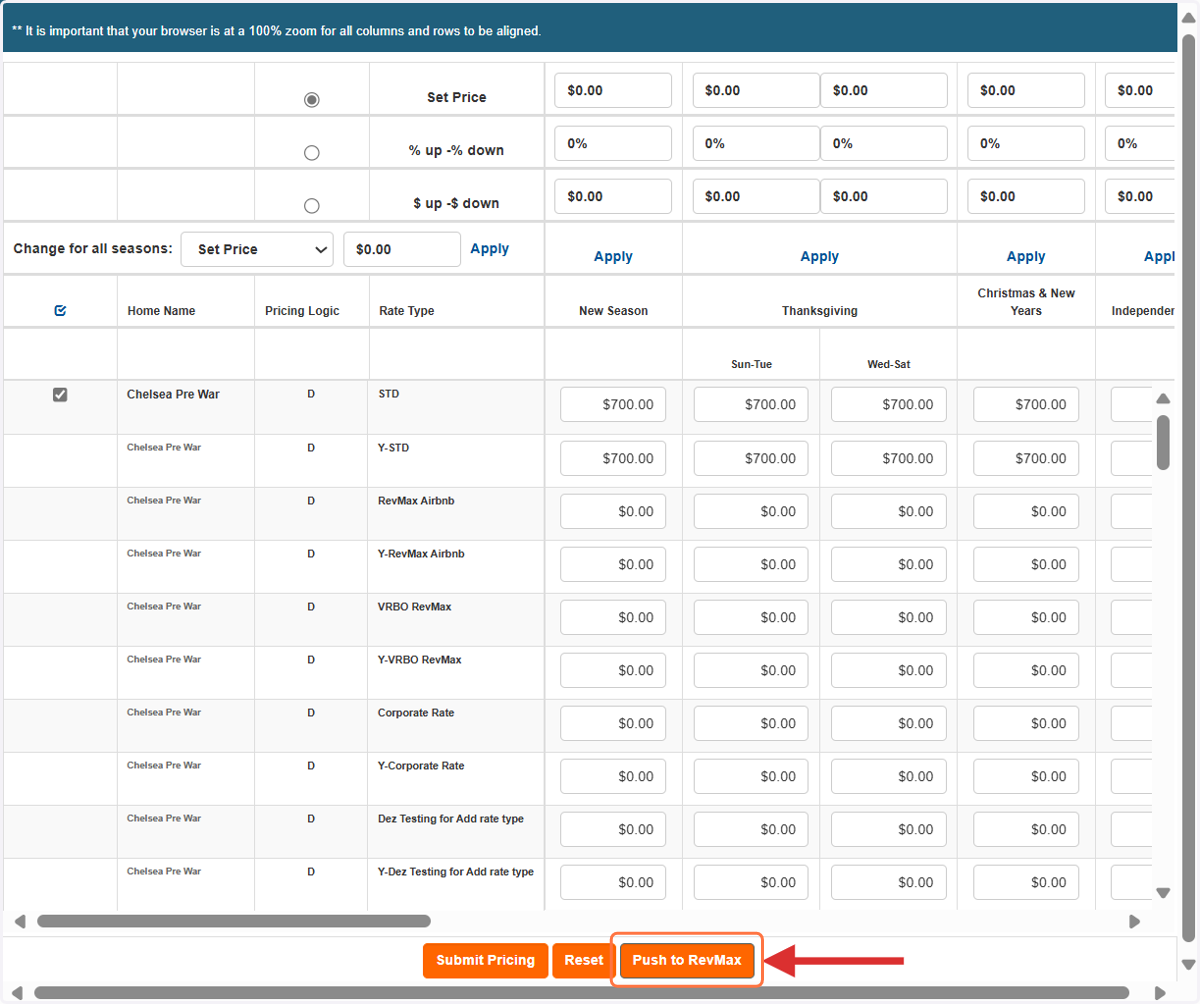
7. In the Homes Pricing Tool window, click the "Push to RevMax" button to push the update to your RevMax system.
Important note: This process should take no more than 5 minutes. Please allow it time to complete. If you experience any lag during this time, feel free to reach out to the RevMax Support Team for assistance.
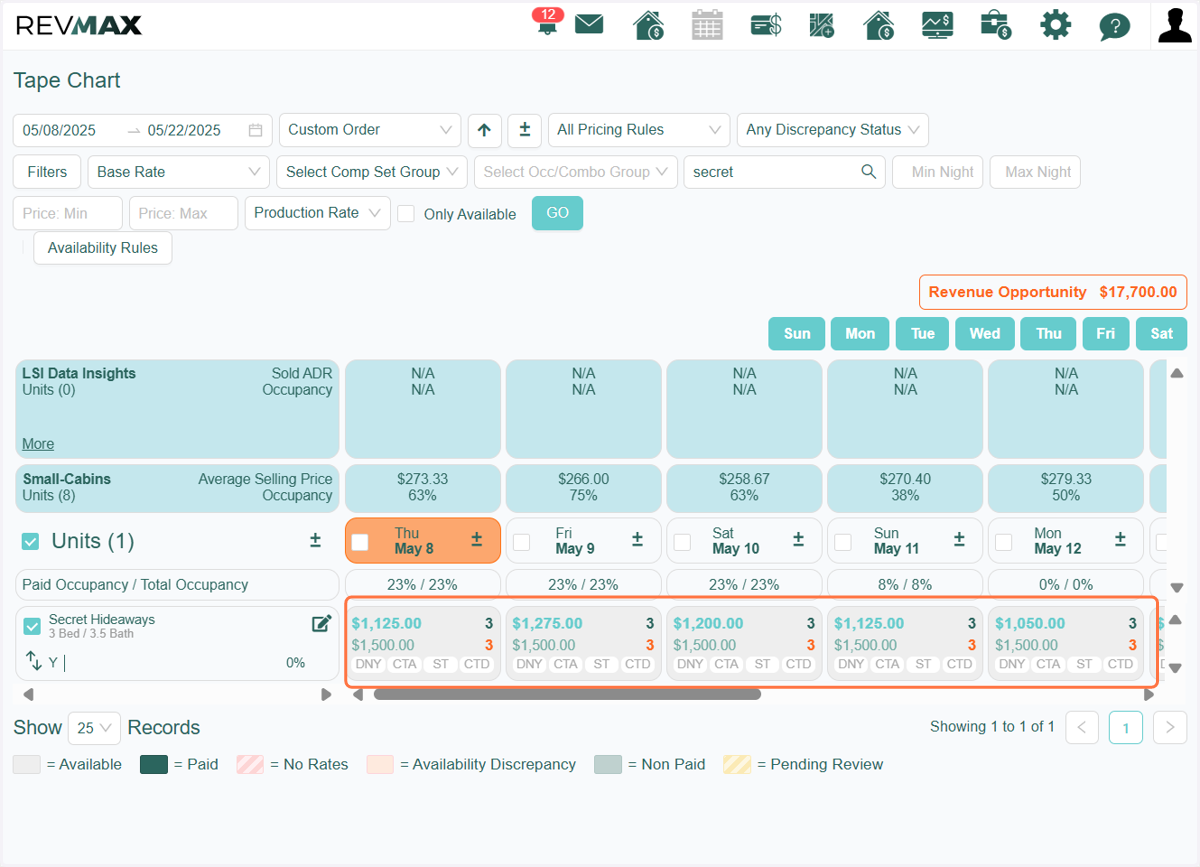
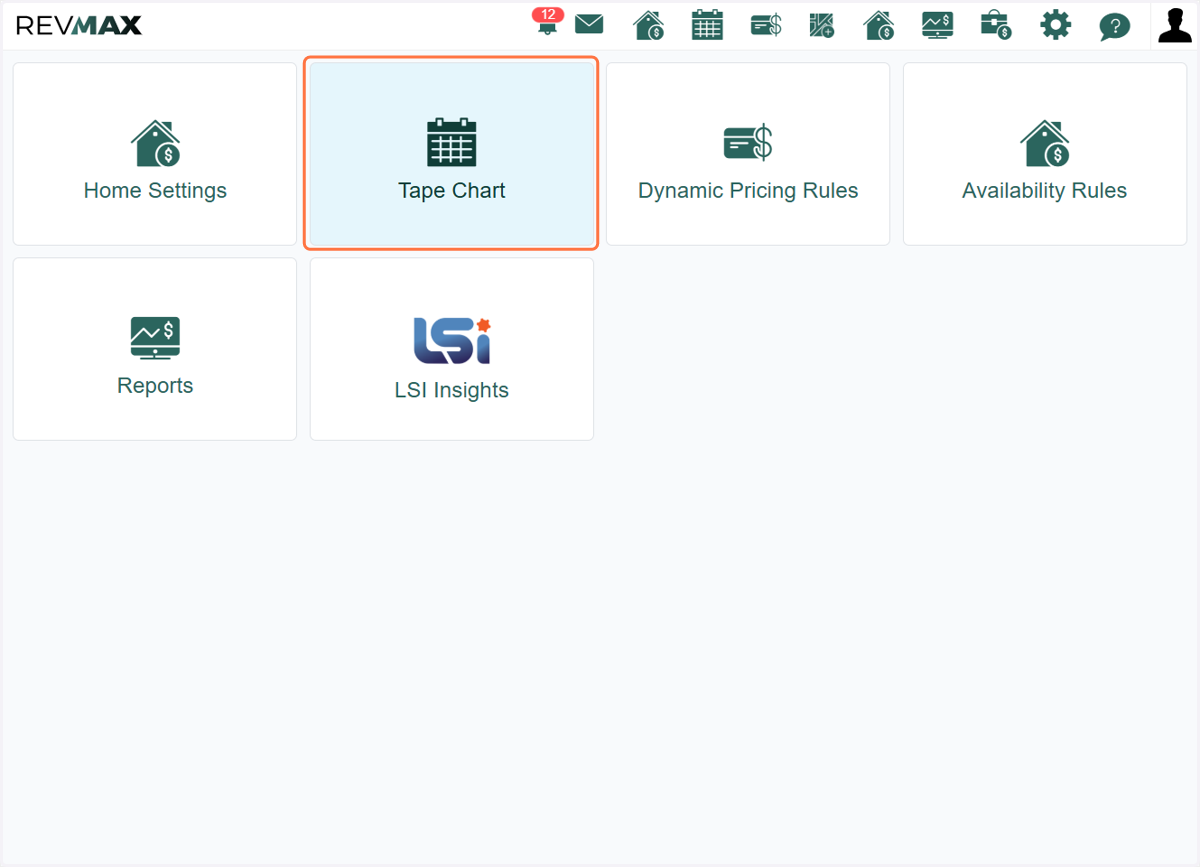
8. To verify if the night minimum update has been reflected in RevMax, navigate to your RevMax system. From the main page, click on Tape Chart icon.
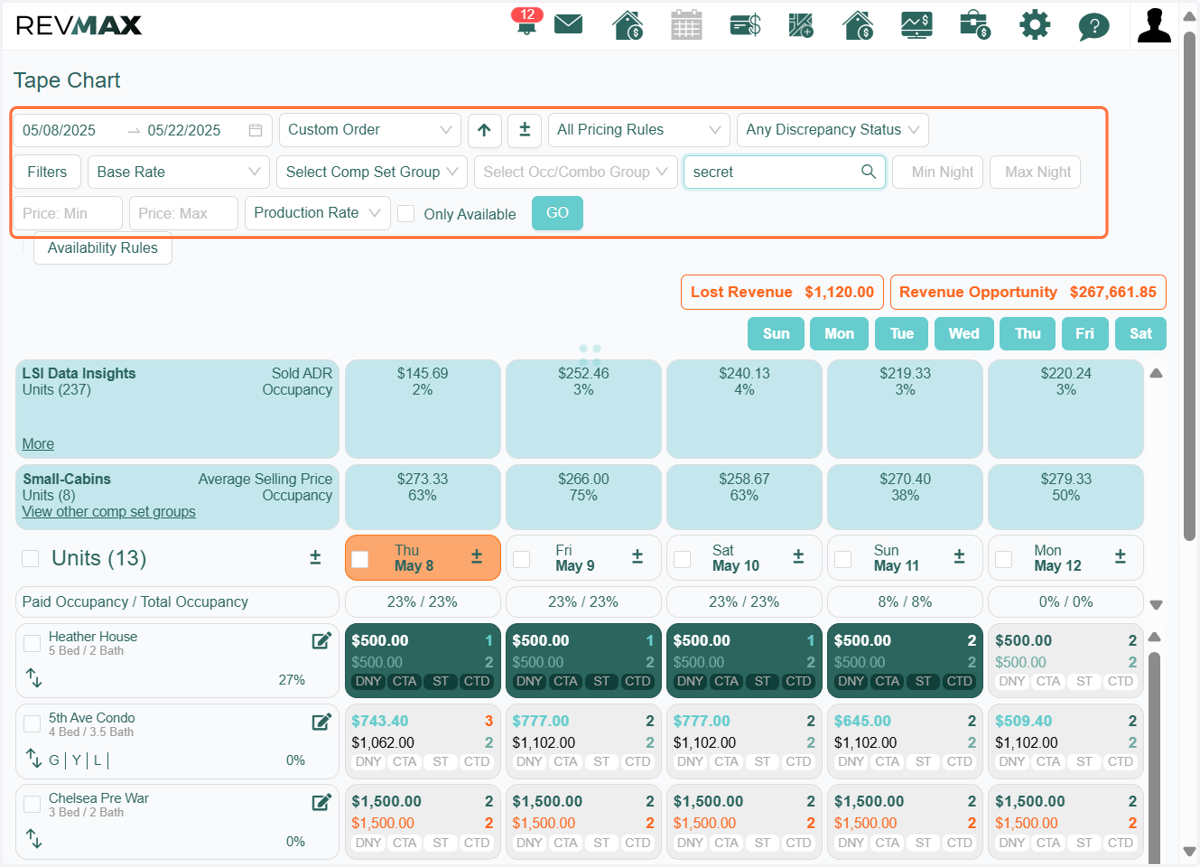
9. Filter the unit and dates for which you updated the season base night minimum.
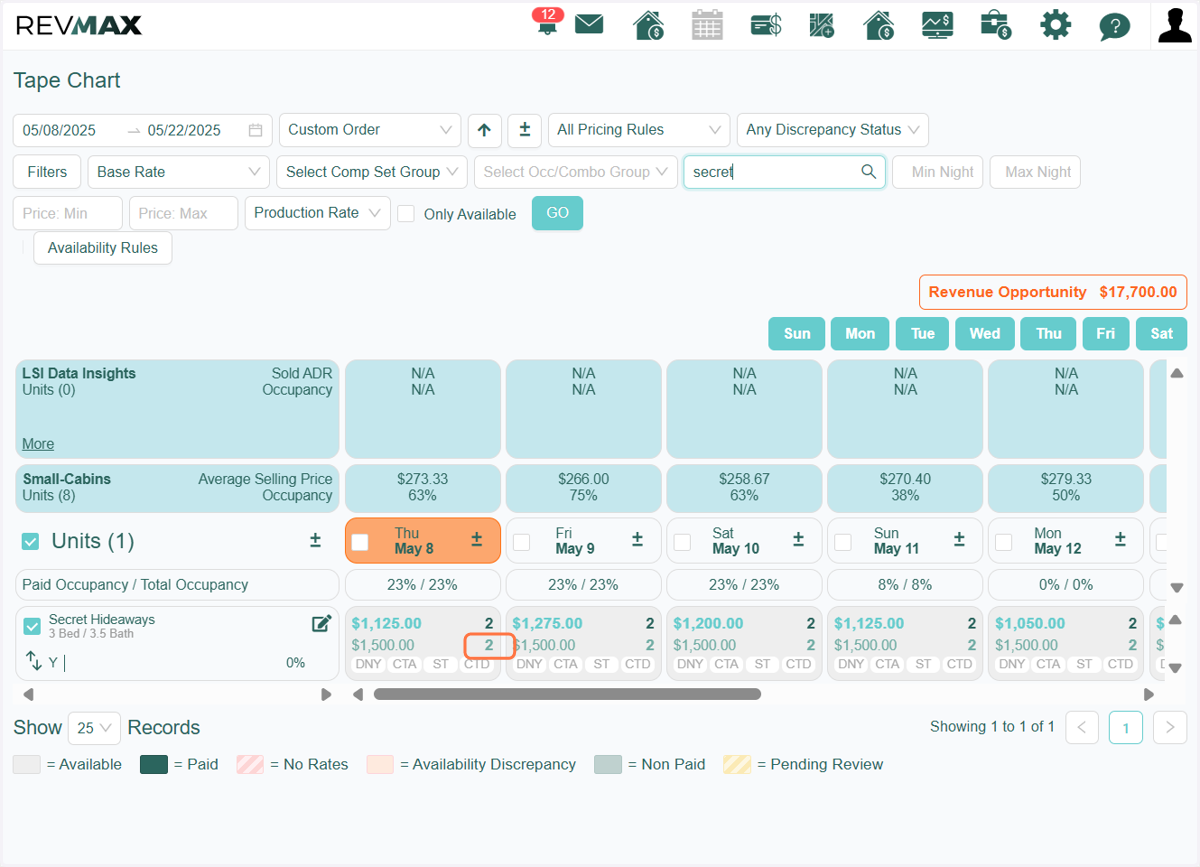
10. You will see the season-based night minimum as the base night minimum in the RevMax Pricing Tape Chart.
OPTION 2: Manual Override in RevMax
If you would like to set a final or base night minimum for a specific unit or a selection of units, you can manually override the night minimums within your RevMax Tape Chart.
11. Navigate to your RevMax Tape Chart and filter for the specific dates and unit/s where you want to update the night minimums.
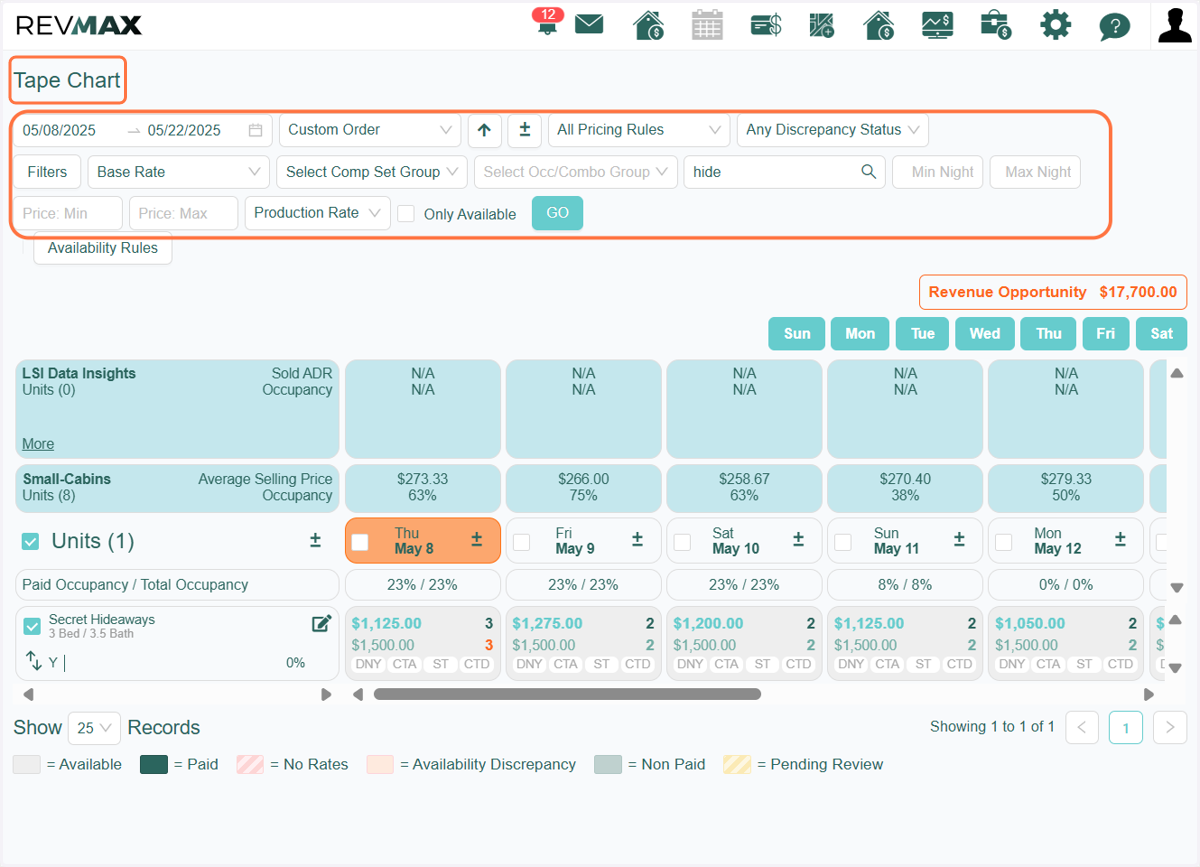
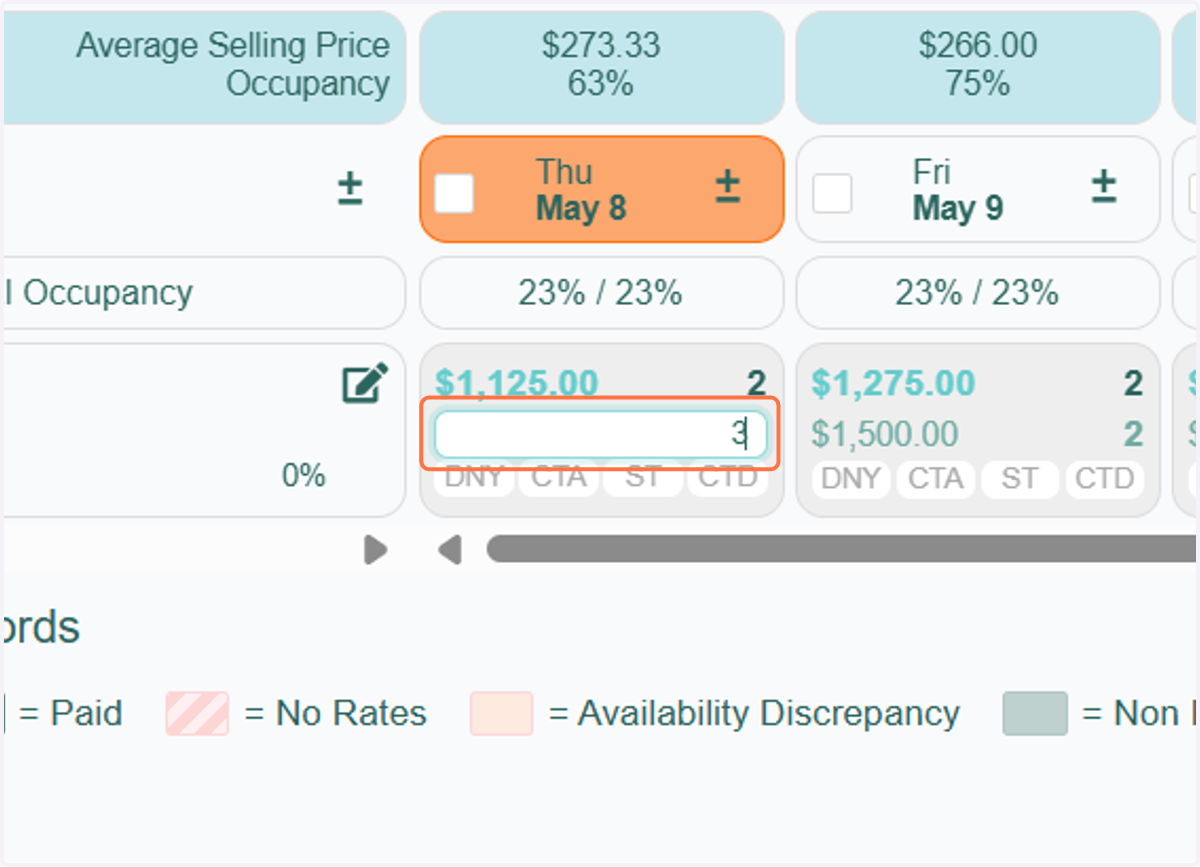
12. You can perform a hard override or adjust either the base night minimum (lower number) or the final night minimum (upper number) directly on the tape chart.
Click on the number and enter the preferred night minimum value you want to apply.
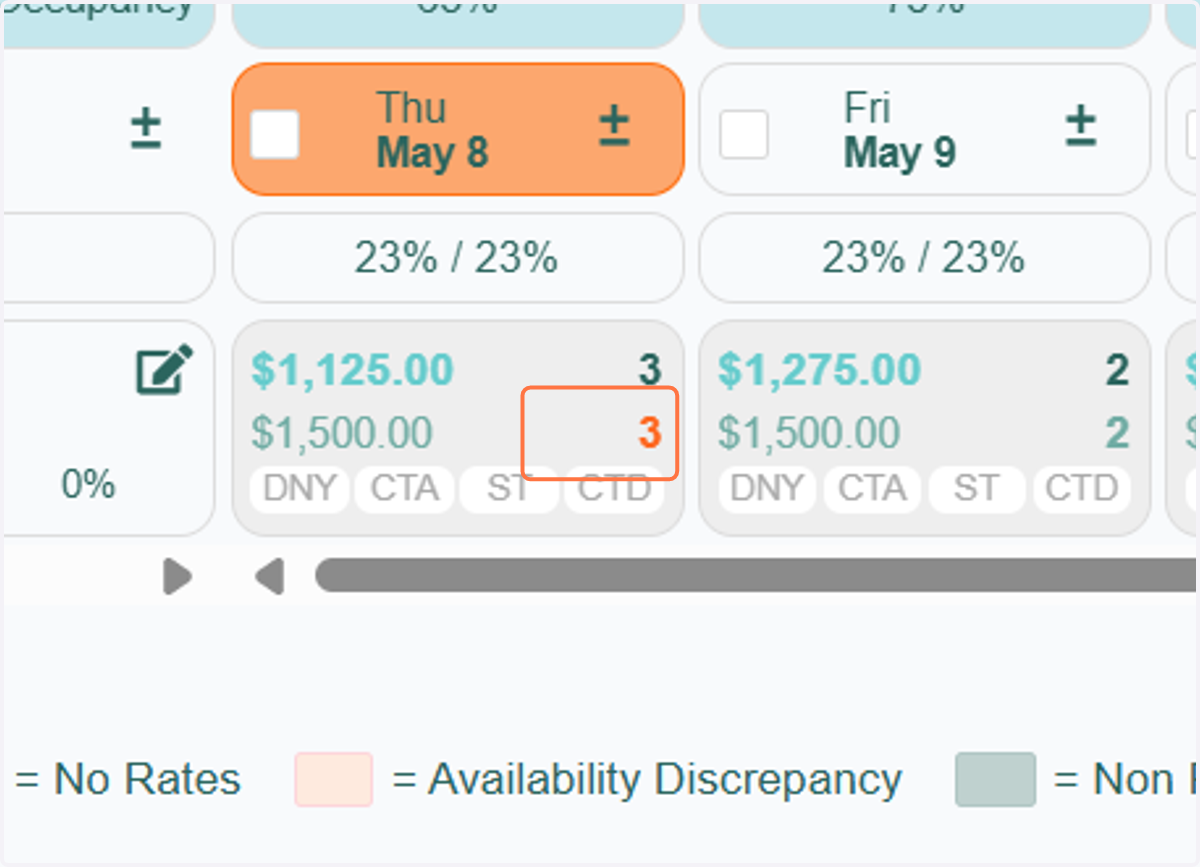
13. You will notice that the font color changes to bright orange, indicating a manual override has been made to the night minimum.
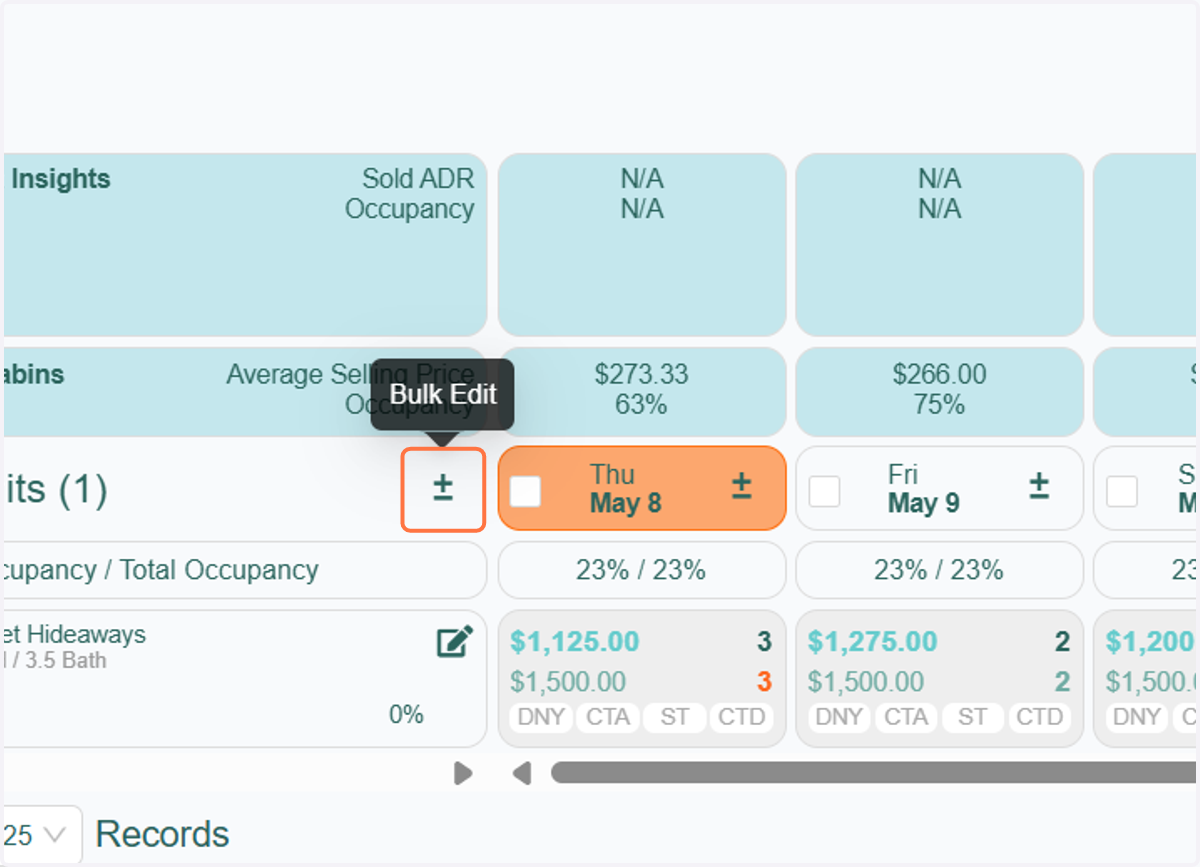
14. You can also perform a bulk update using the Bulk Edit feature. To proceed, first filter the specific dates and units, then click on the Bulk Edit icon.
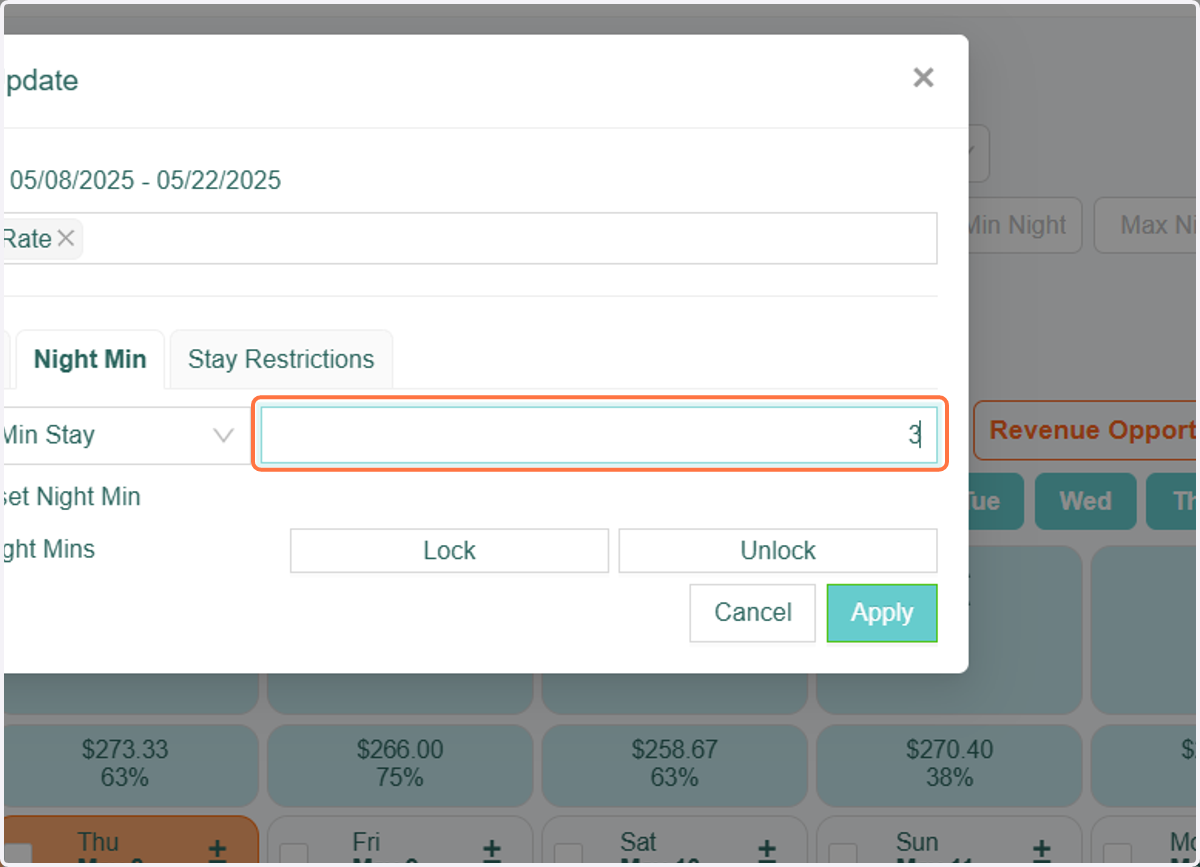
15. Click on the Night Min Tab. From there, you can choose which night minimum you would like to manually override, either the Final Min Stay (upper number) or the Base Min Stay (lower number).
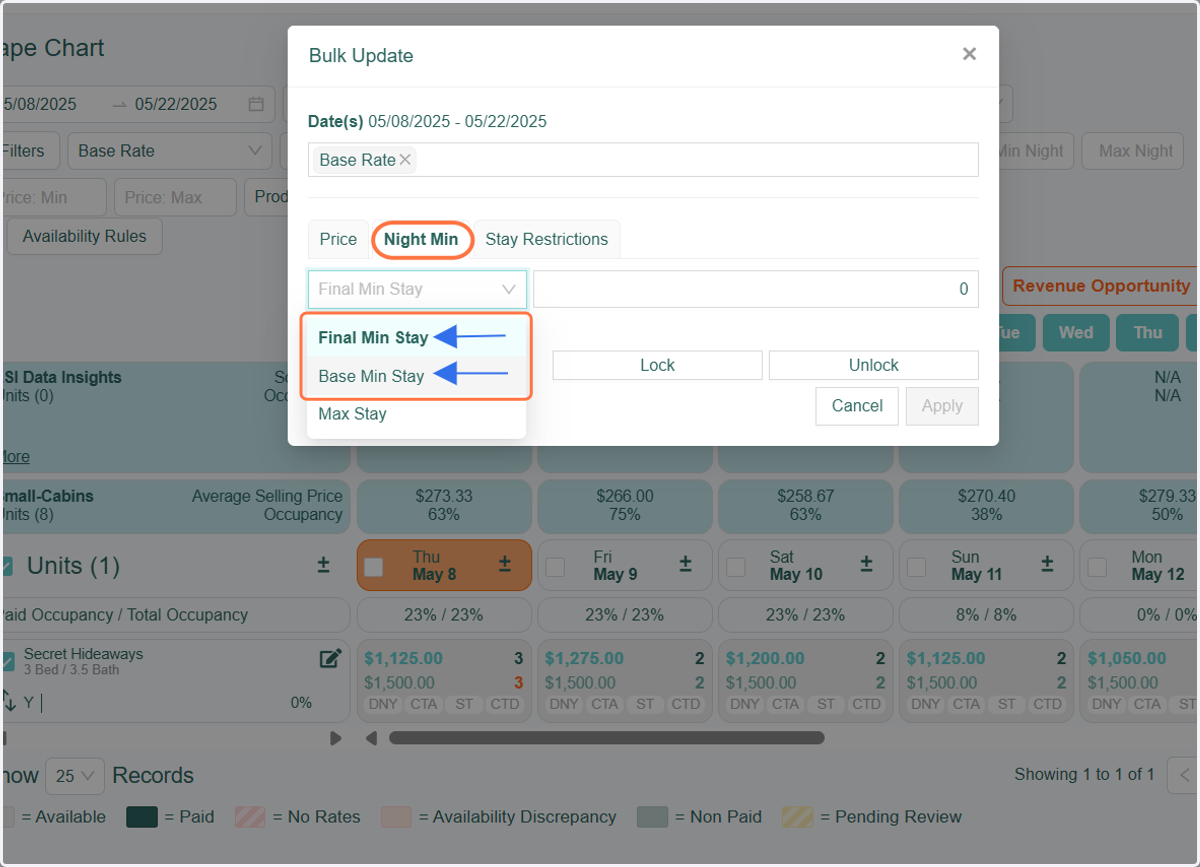
16. Input the preferred night minimum value you want to apply. Once set, click "Apply" to save.
17. The updates will appear in bright orange font, indicating that a manual override has been made to that specific night minimum.