CC_CSS_001_Defining and utilising Custom text colours on your storefront using Content Templates and CSS
In this tutorial, we will learn how to define and utilise the custom text colours feature, available when defining text colour as part of a Content Template.
If you implement custom coding on your site then these changes won't be covered by our Customer Support team
The Support team can tell you where CSS Override is managed, however all custom code and its effects will be the responsibility of the site owner.
If you require support then Infigo's professional services team can make custom CSS changes to your site as a paid service.
microsoft
1. Set your content template elements to use custom text colours
This option can be found on many of the content blocks which contain text.
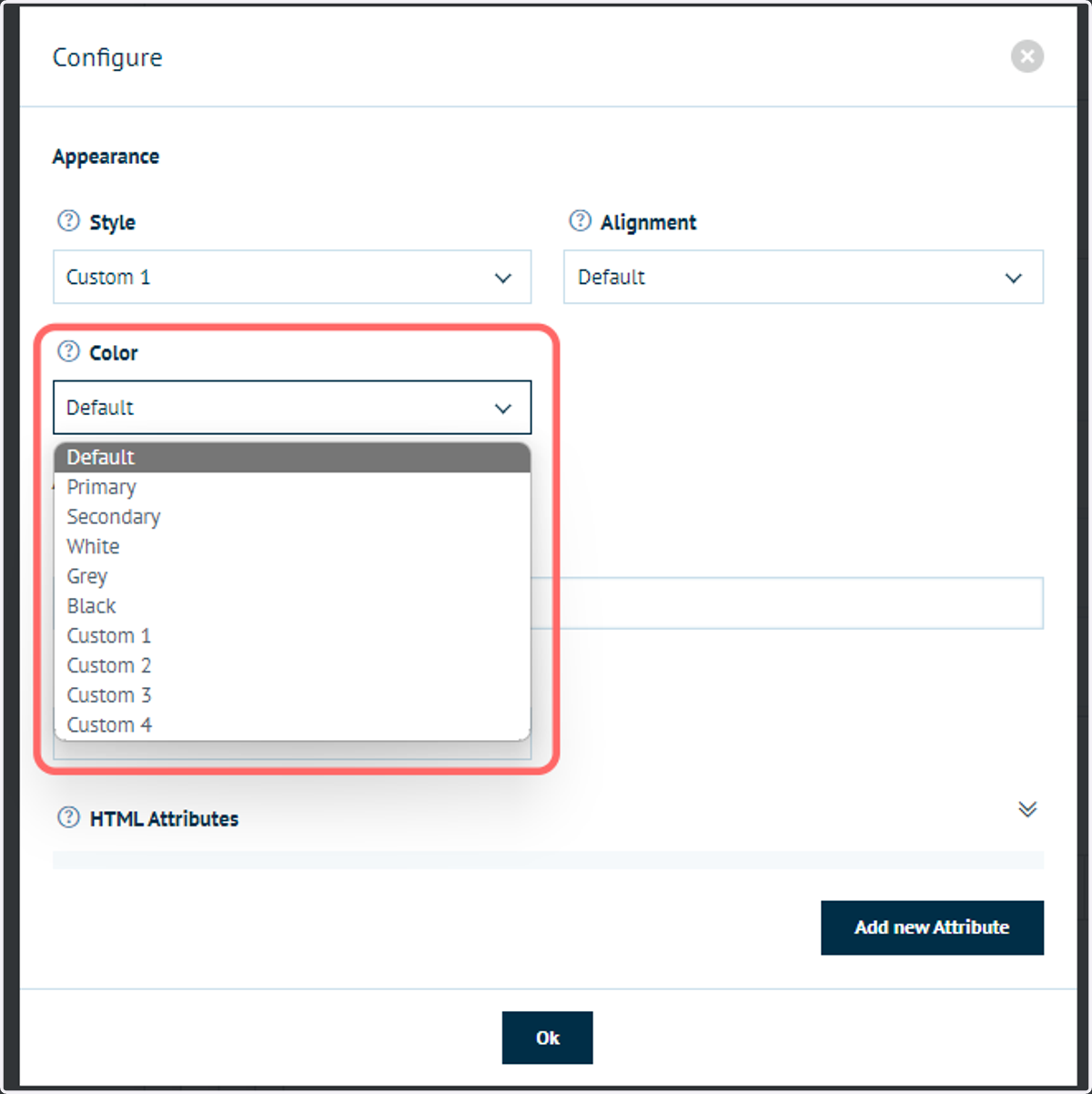
Click the gear icon on these blocks to enter the configuration menu. From there, many will have a "Color" or a "Text Color" dropdown.
In addition to containing a selection of standard colours, plus your primary and secondary color (specified in Appearance Settings), you also have custom 1-4.
These colours are not defined within an Infigo menu, and must be specified via CSS.
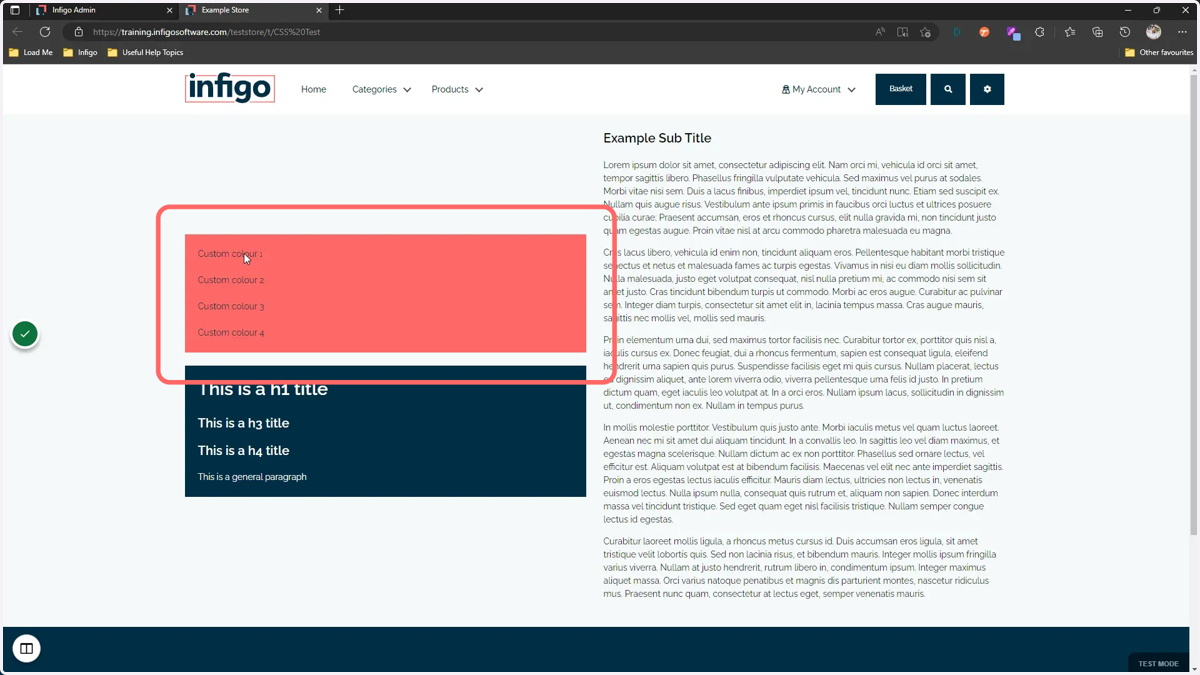
2. In our example, we have 4 separate paragraph blocks, each using one of the different custom colour selections.
If no custom colour is defined, then the colour will revert to its default value, as can be seen here.
3. Locate the code for this element
Right click on the block and click Inspect. This will launch your browsers developer tools.
The wording and workflow may be marginally different depending on your preferred browser.
Hover over the lines of code until the block is highlighted.
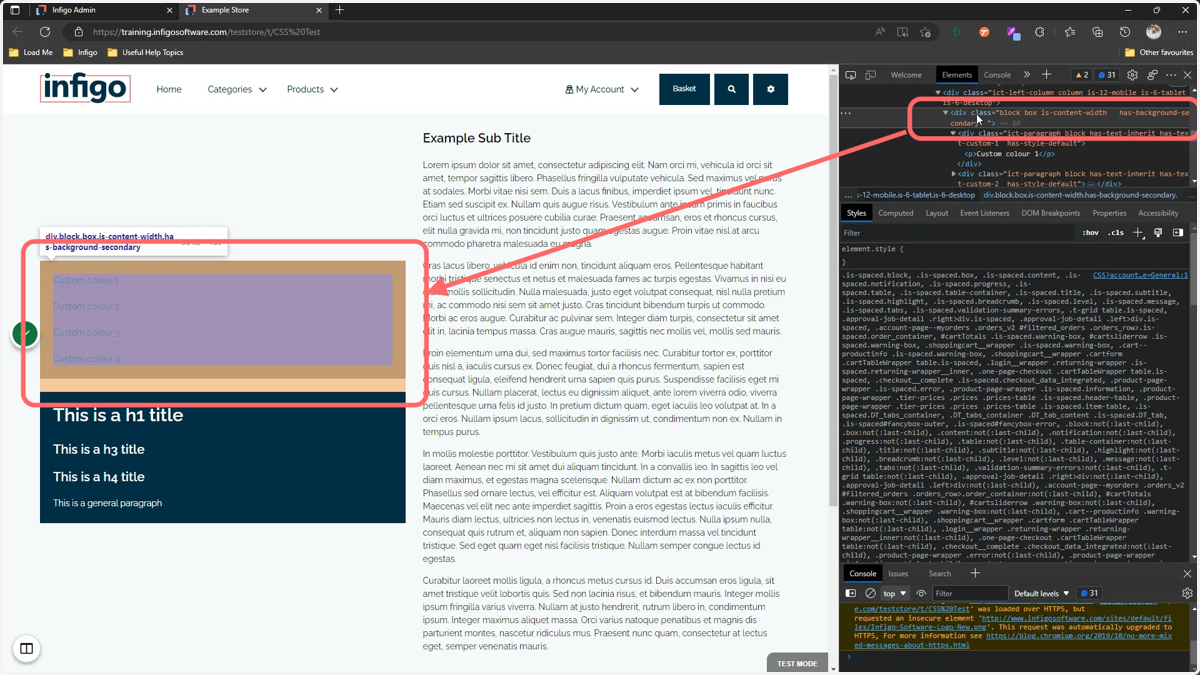
4. Click on the code to show its style rules
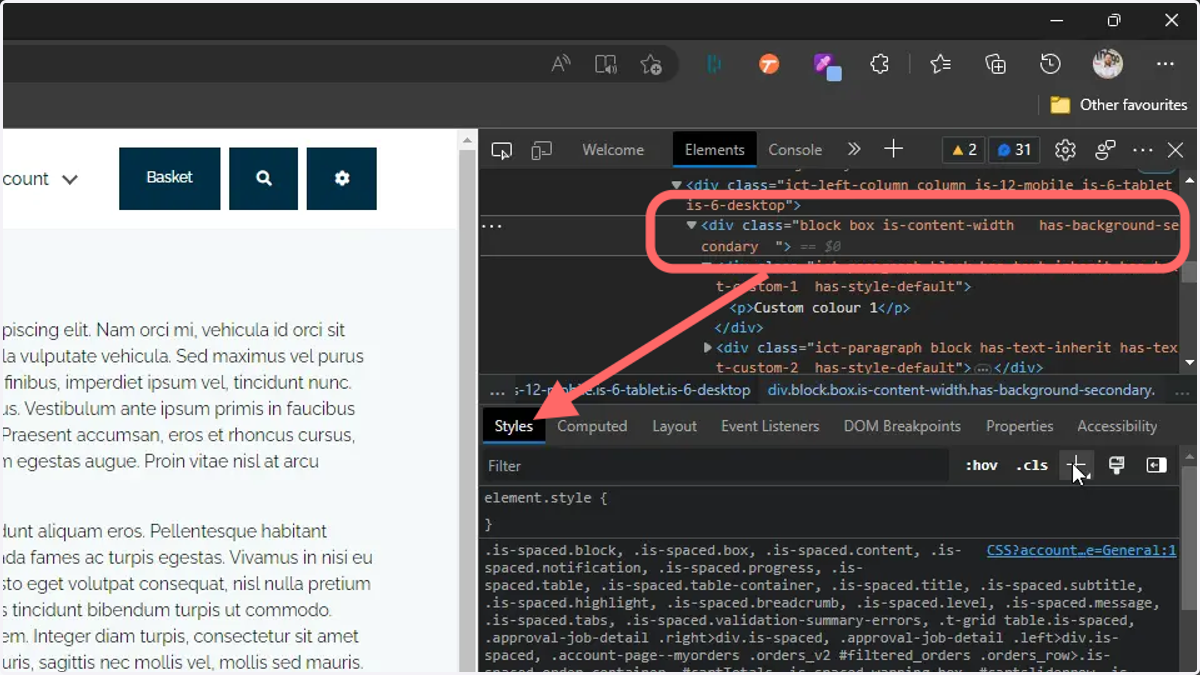
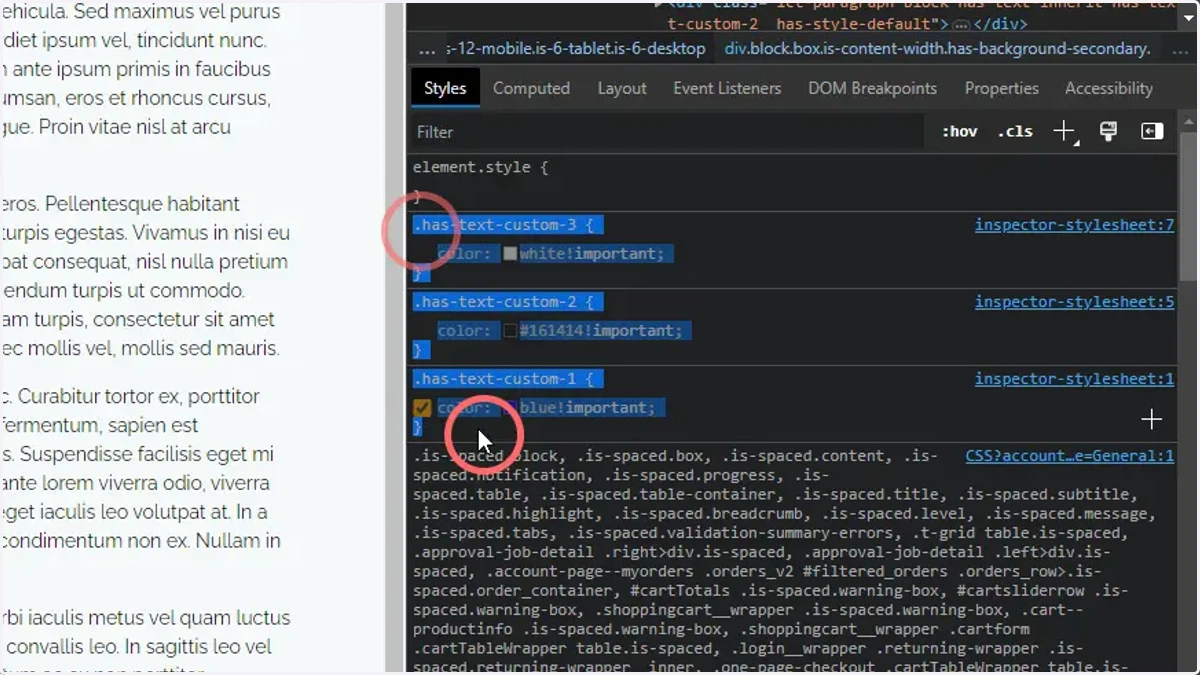
5. Click the '+' icon to add a new style rule and input a custom text color rule
Entering your styling rules here allows you to test their impact on your storefront prior to committing these changes to Infigo.
This is not a necessary step. It is possible to directly write this code in a CSS file and upload it to Infigo admin, seen later.
Use the following style rules for the 4 custom colour options
.has-text-custom-1{}.has-text-custom-2{}.has-text-custom-3{}.has-text-custom-4{}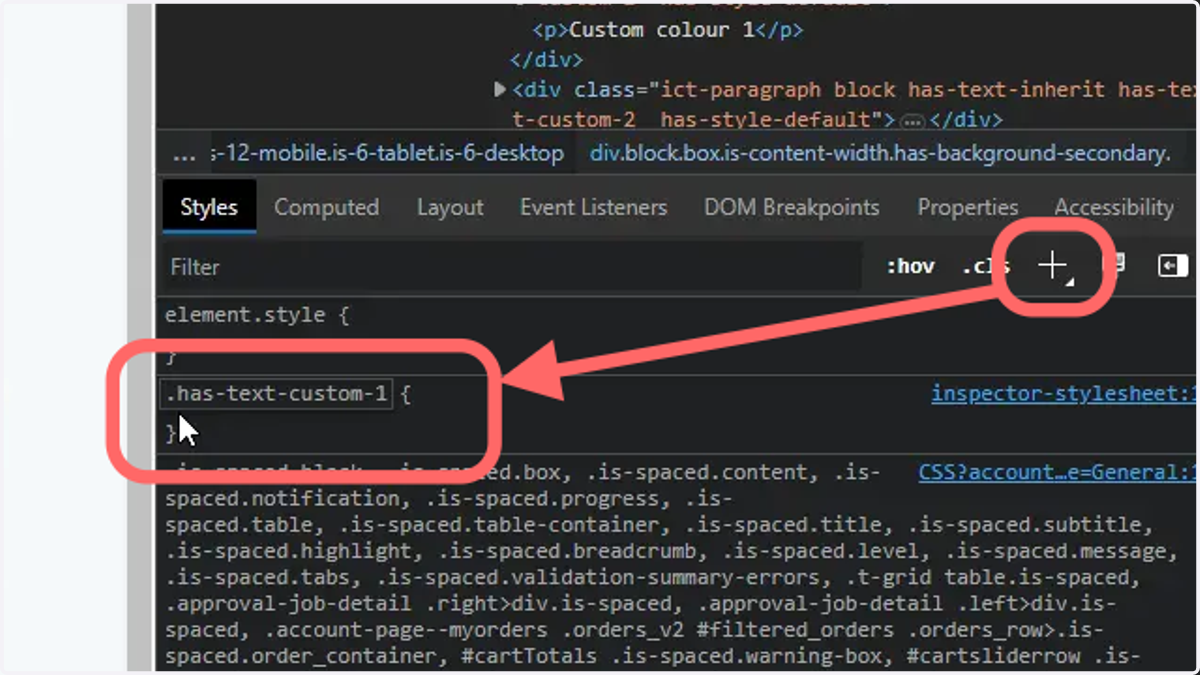
6. Define the colour to use
This can be defined in several ways.
By typing "color" within the style rule, you will often get an auto-fill list showing the available options.
Below are a few examples of how this style rule could be configured.
.has-text-custom-1{color: #161414!important;}.has-text-custom-1{color: blue!important;}The above examples allow input of a generic colour, or a specific hex value.
The '!important' tag ensures this style rule is prioritised above any that would normally supersede it.
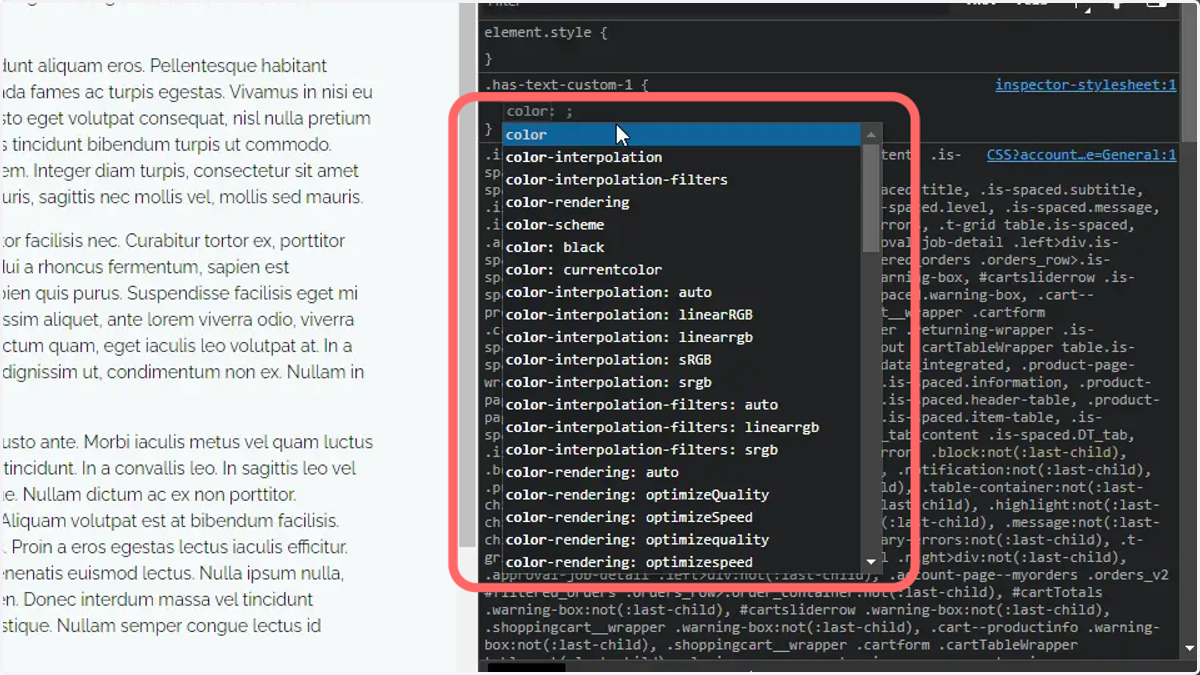
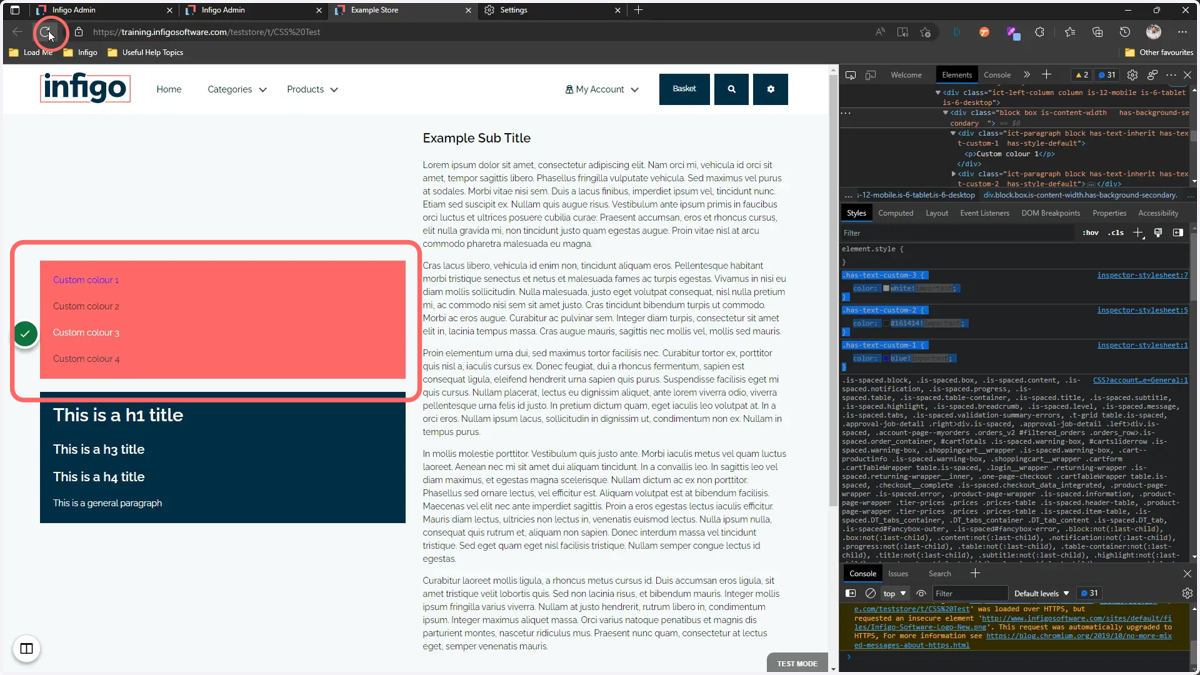
7. Defining custom text colours here will give you instant feedback on the web page
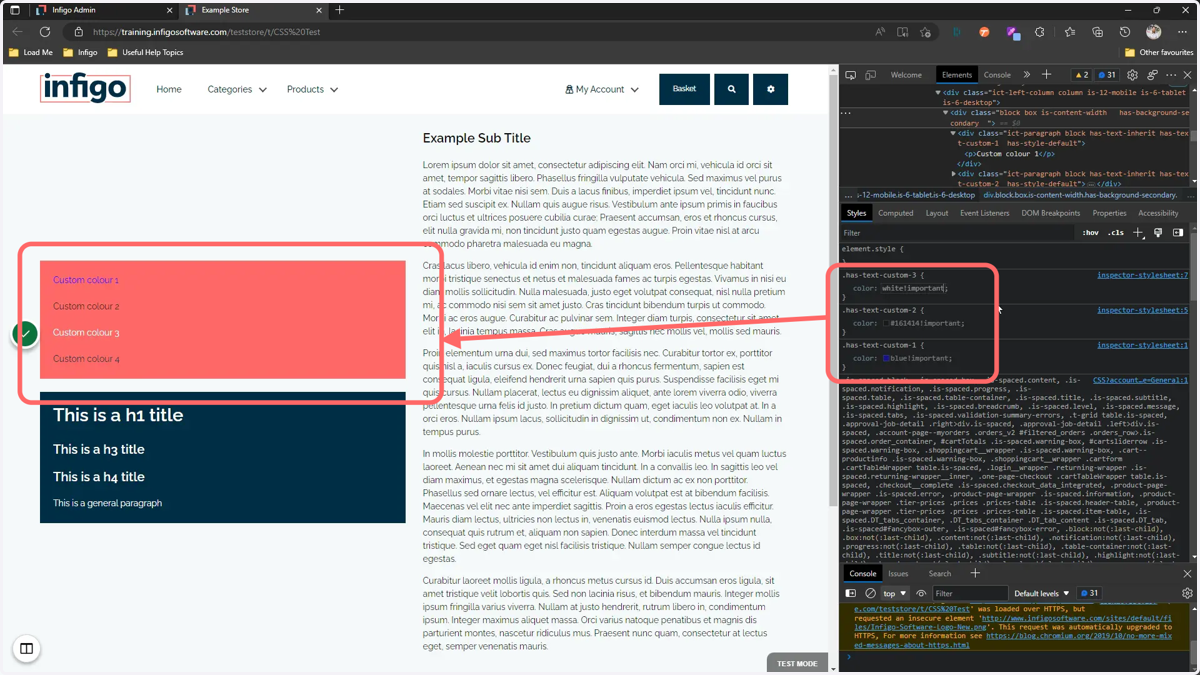
8. Once the desired effects are achieved, select and copy your newly created style rules
9. Paste your style rules into your CSS document
If you do not have any custom CSS on your storefront, this can be a blank document.
If you already have custom styling, then you will need to export your current styling document from the CSS Override area of Infigo and add these new style rules to it.
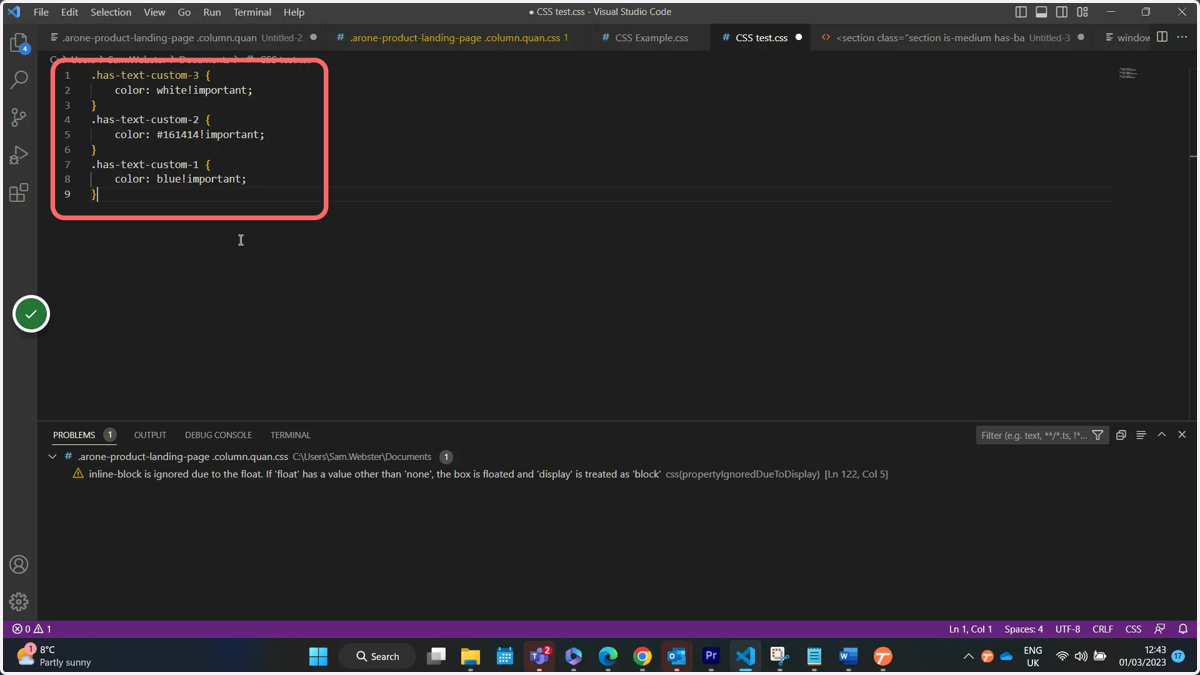
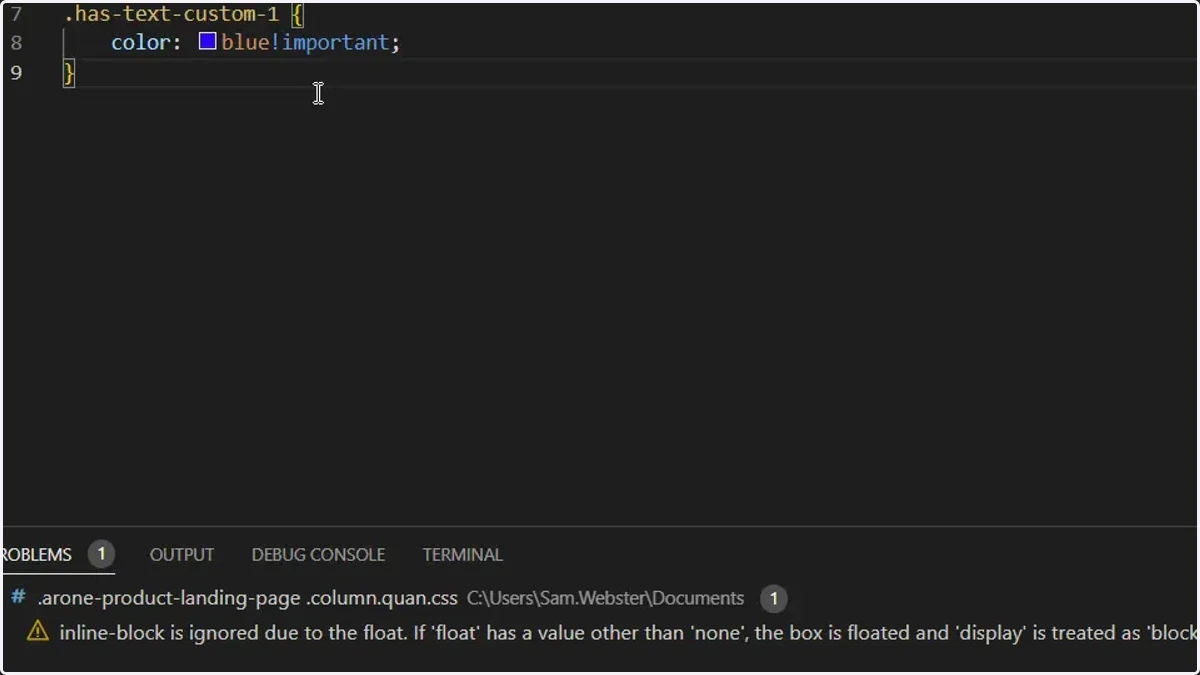
10. Save the document
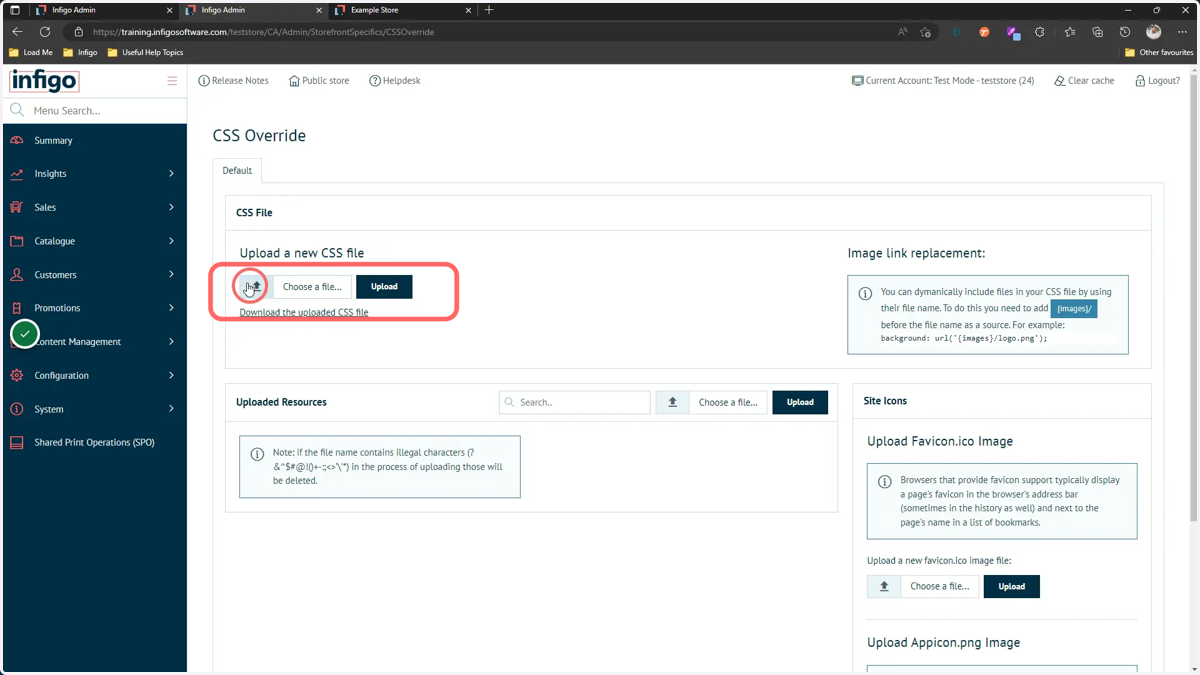
11. Navigate to the CSS Override area in Infigo admin
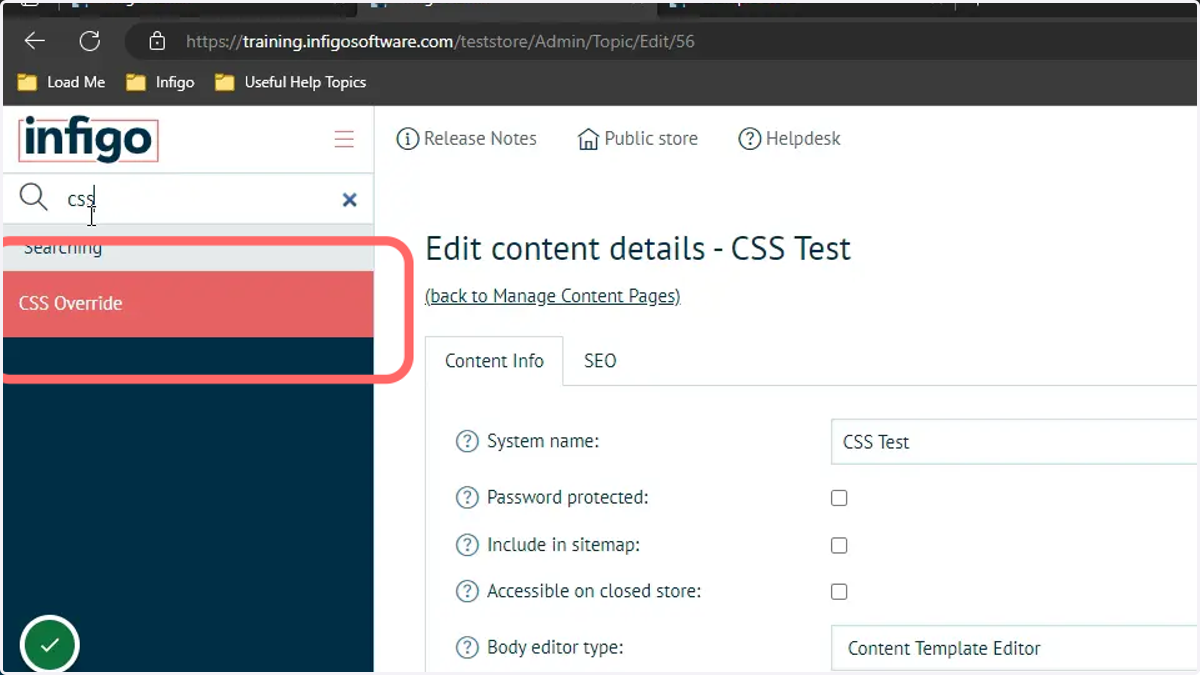
12. Upload your new or updated style sheet
13. Clear your browser cache and refresh the page
Your custom colours will now be applied as part of your storefront configuration.