How to Update Your Slack Profile

Login to the Slack application

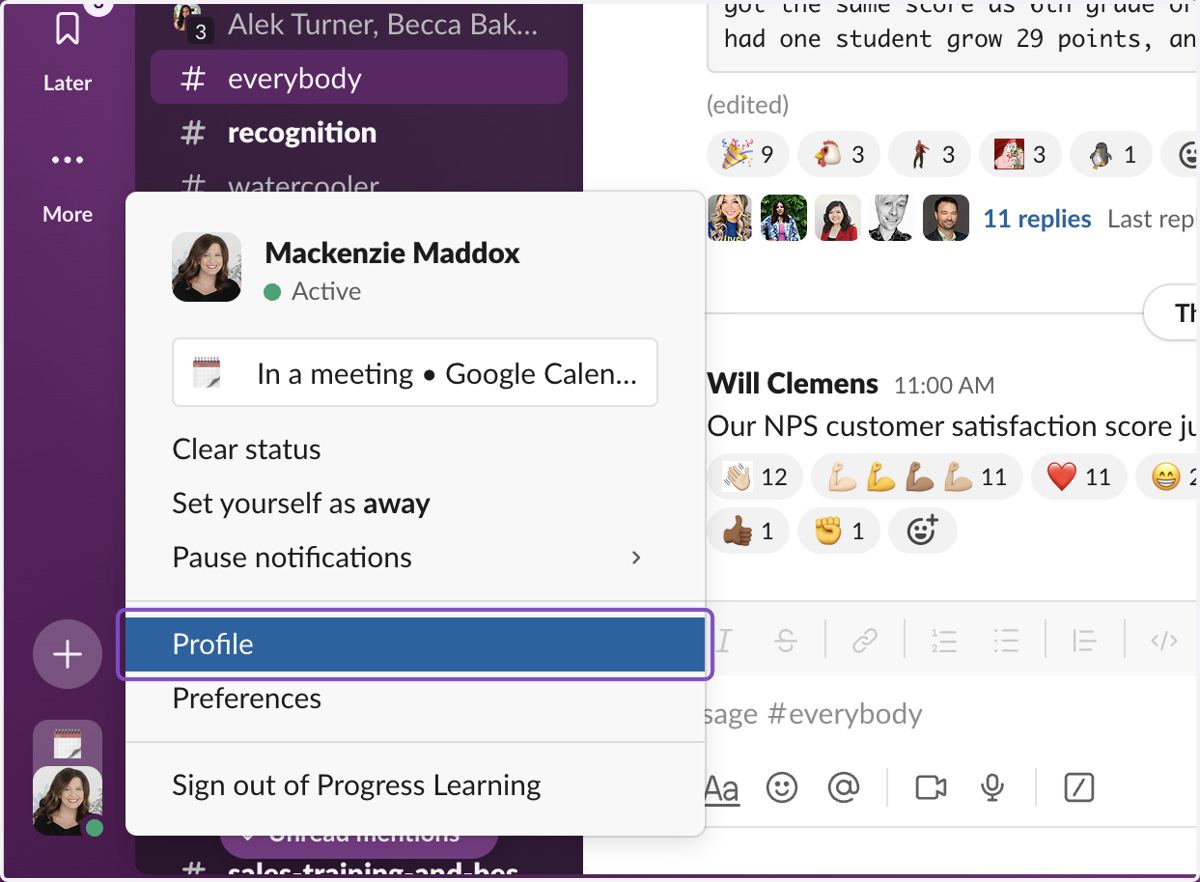
  1. 1. Click on the Profile Icon located in the bottom left corner of Slack
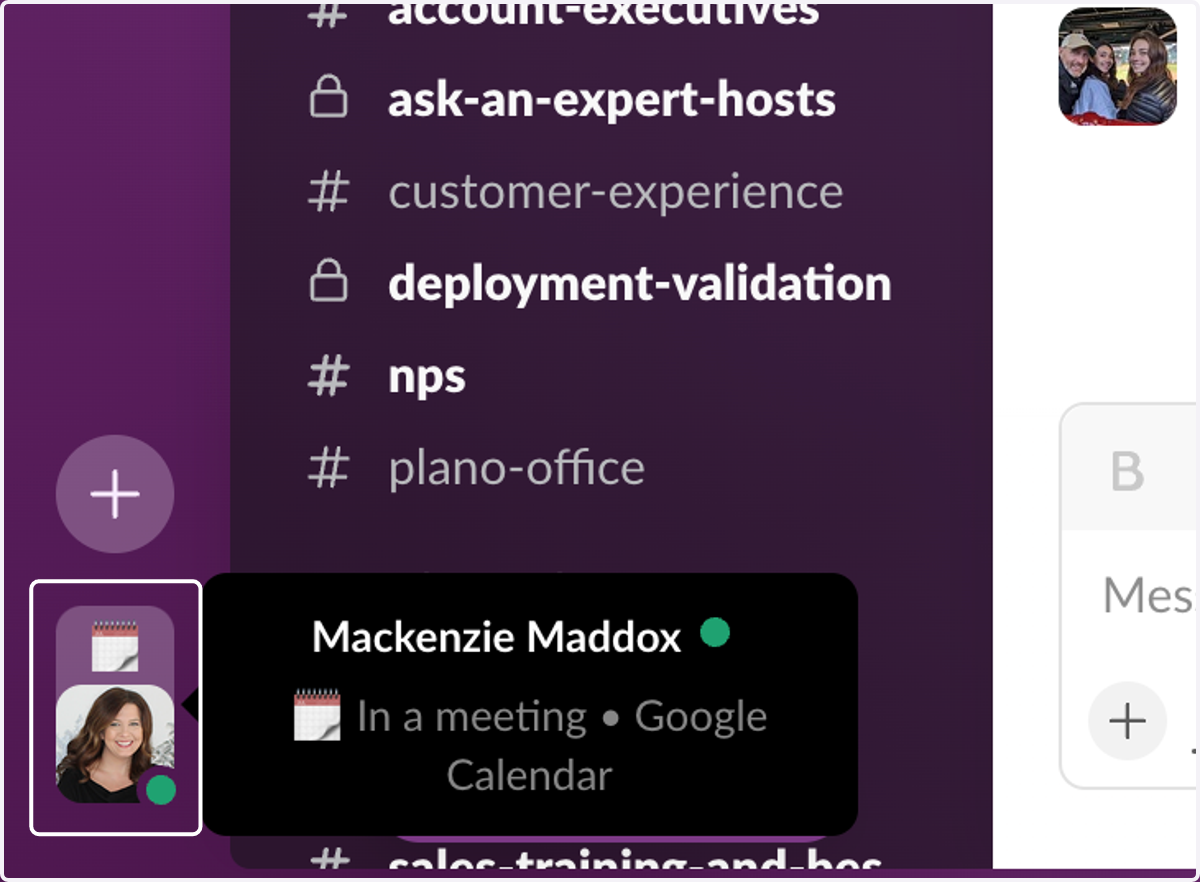
    Click on the Profile Icon located in the bottom left corner of Slack
  2. 2. Click on Profile

    Click on Profile
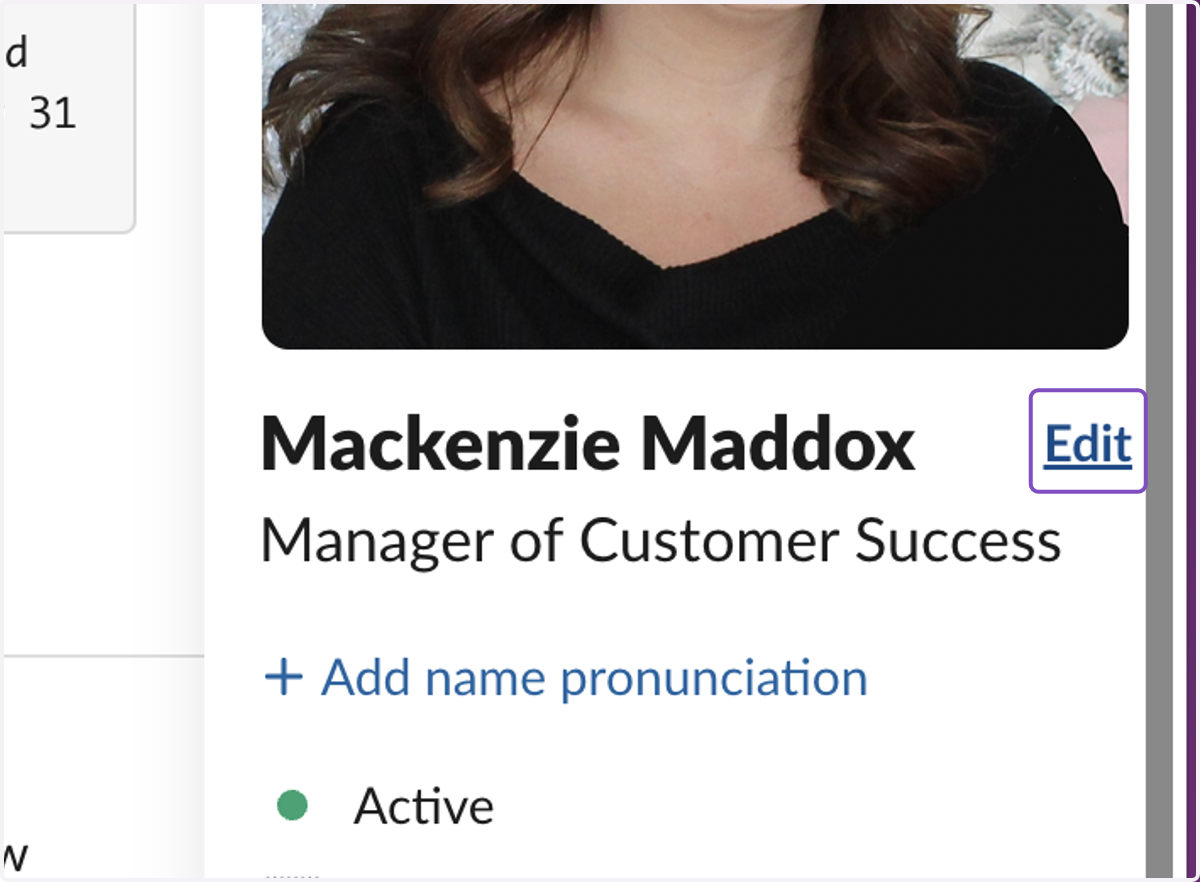
  3. 3. Click on Edit next to your name

    Click on Edit next to your name
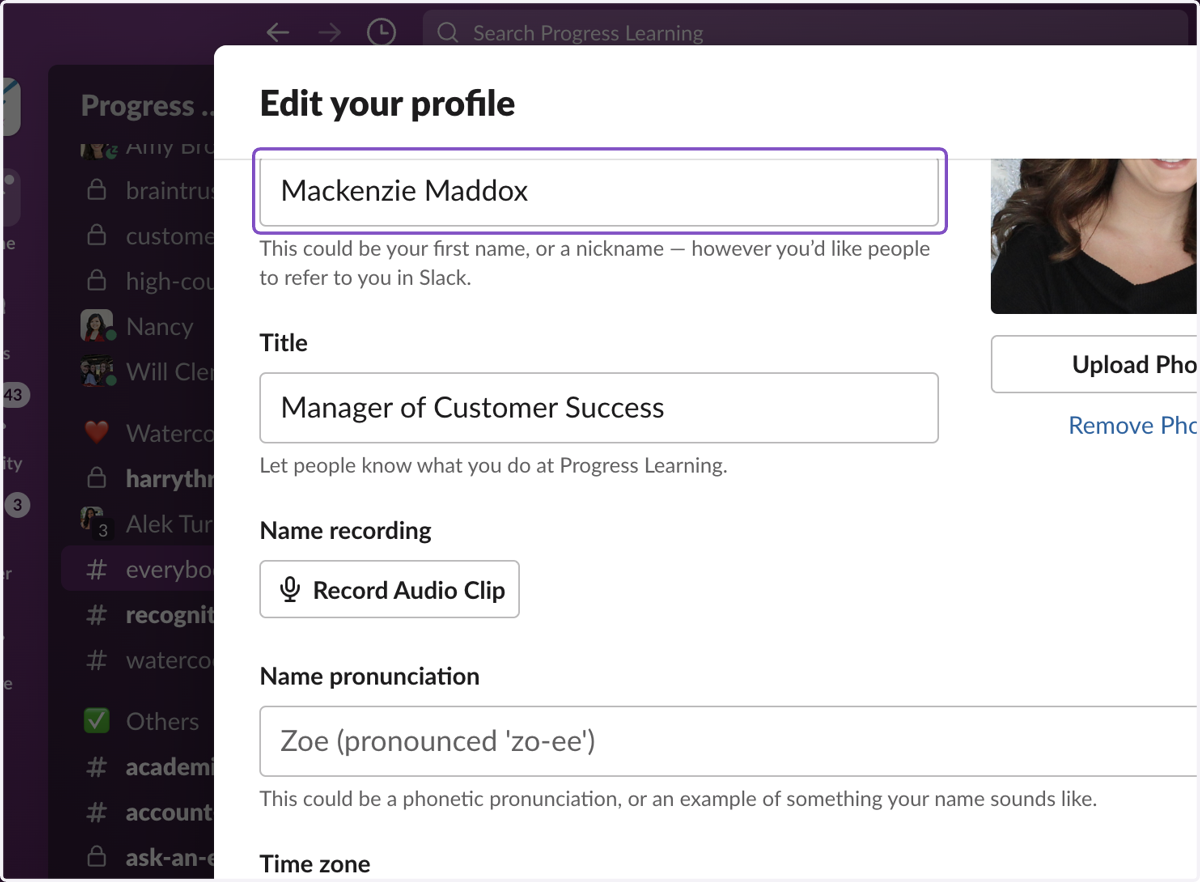
  4. 4. Ensure your Full Name is accurate

    Ensure your Full Name is accurate
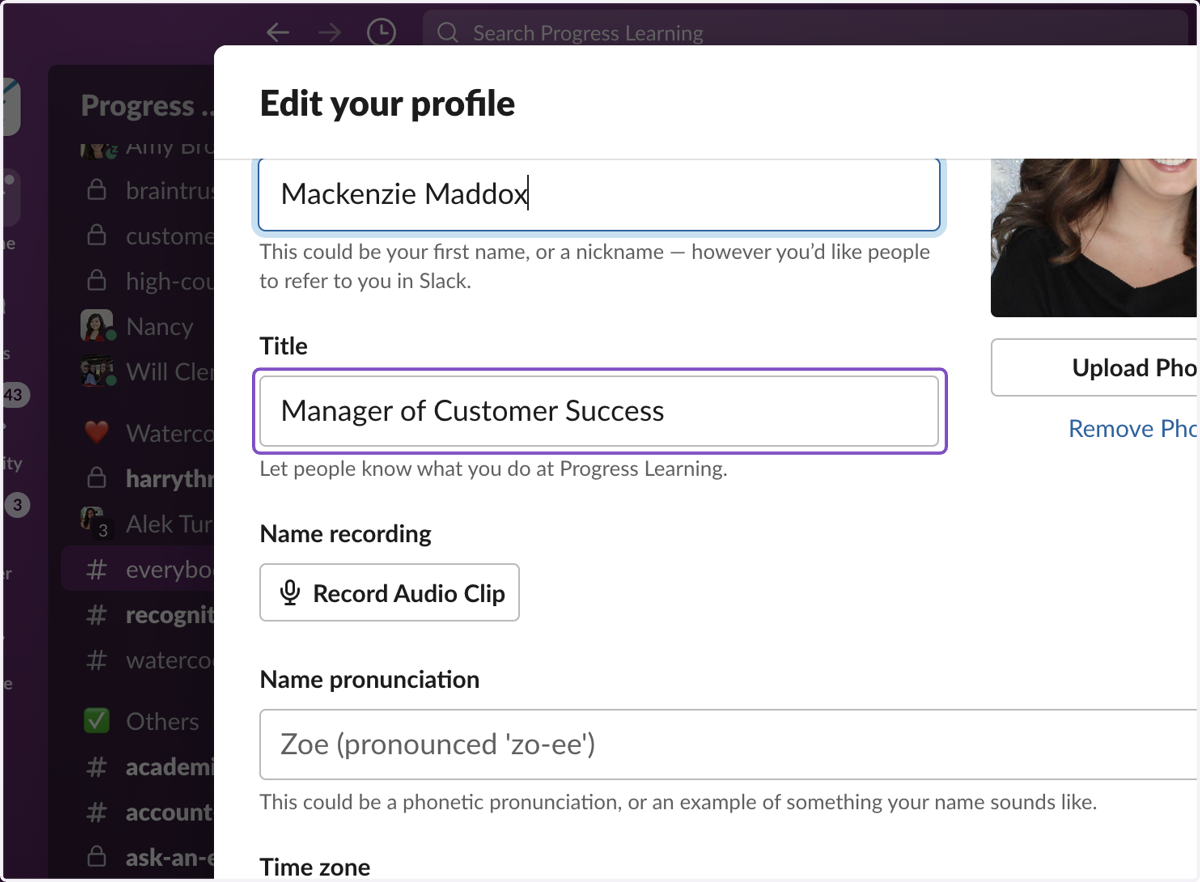
  5. 5. Ensure your Title is accurate

    Ensure your Title is accurate
  6. 6. Upload an Appropriate/Professional Photo of Yourself
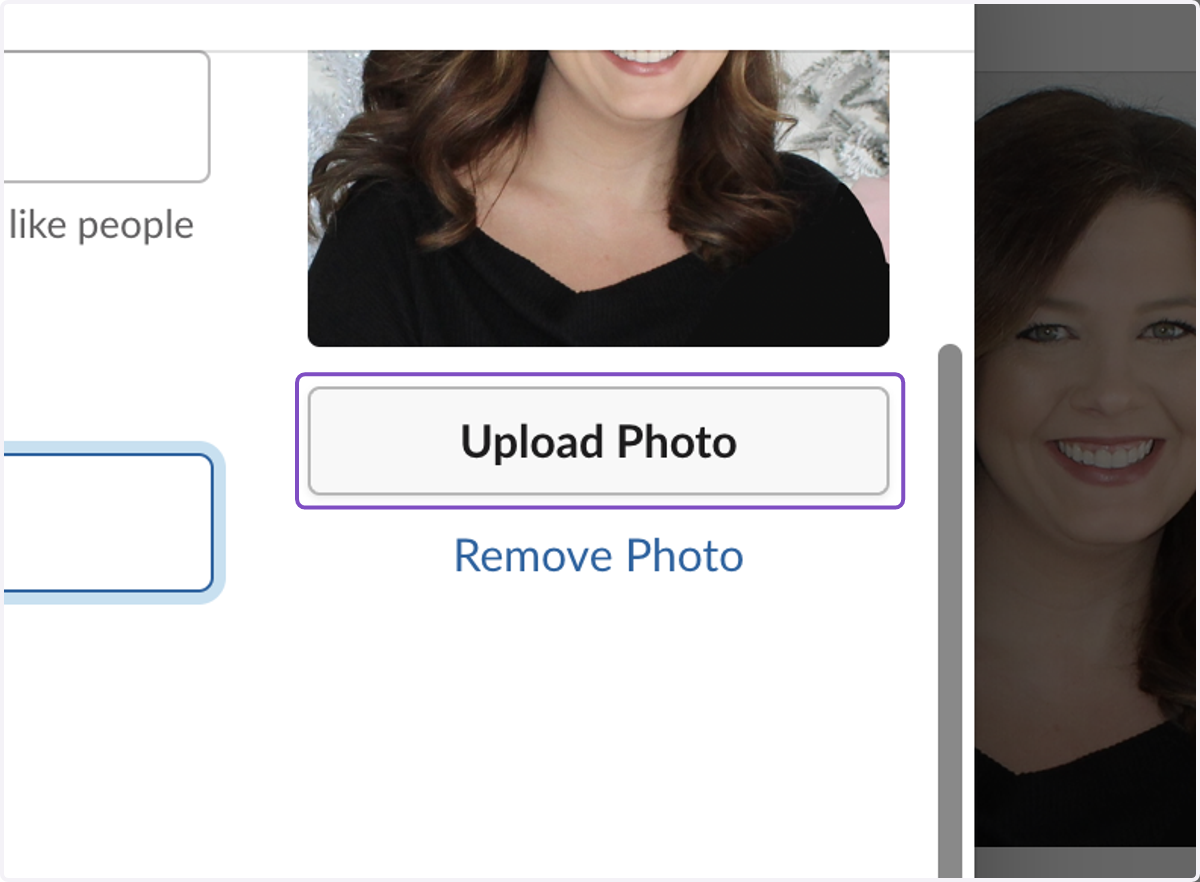
    Upload an Appropriate/Professional Photo of Yourself
  7. 7. Include Name pronunciation if applicable
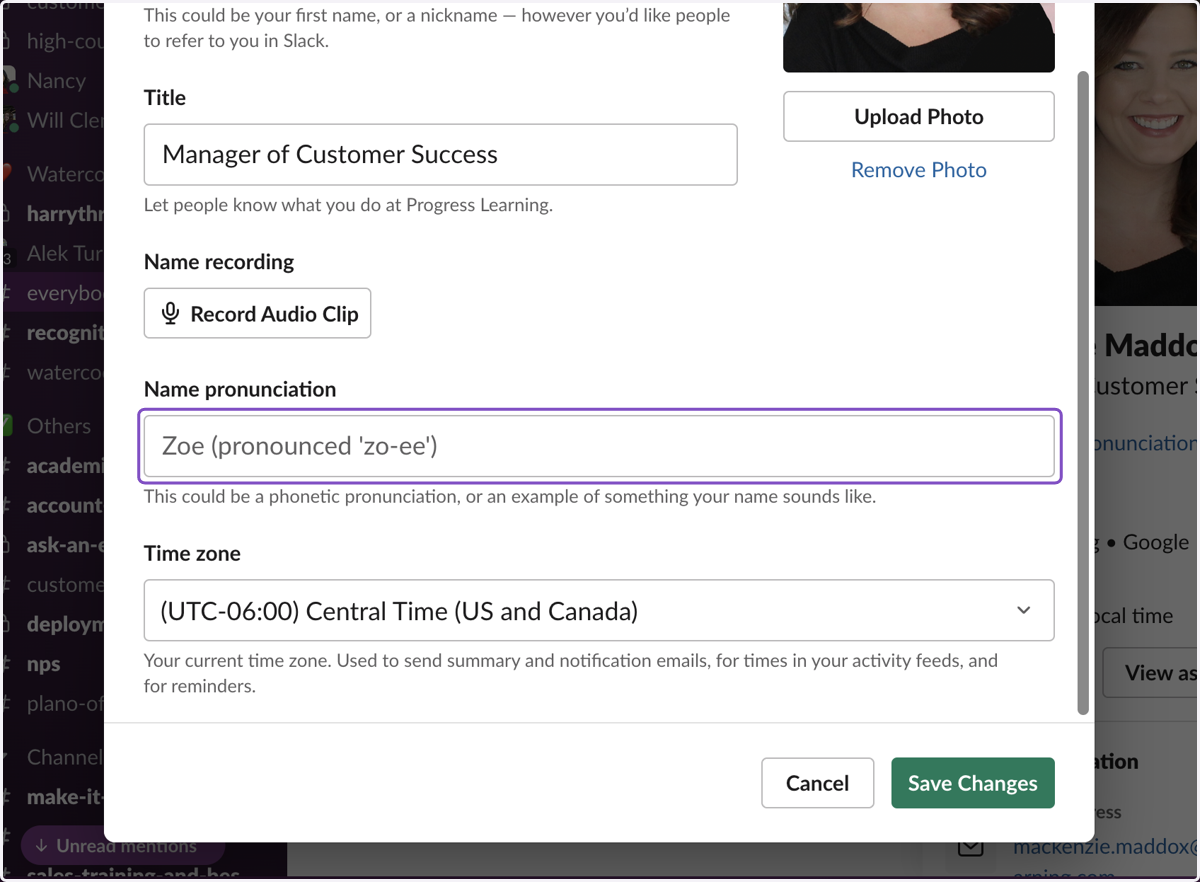
    Include Name pronunciation if applicable
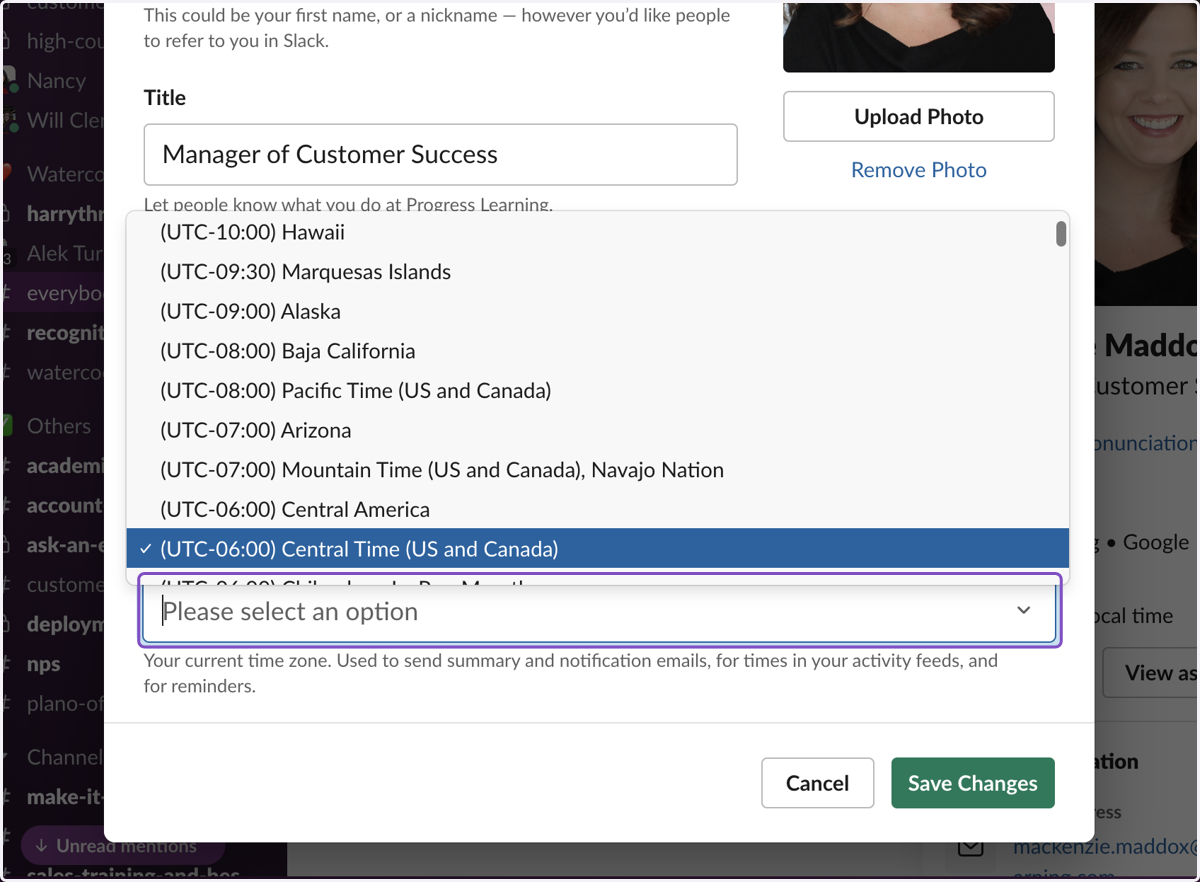
  8. 8. Select the time zone you live in

    Select the time zone you live in
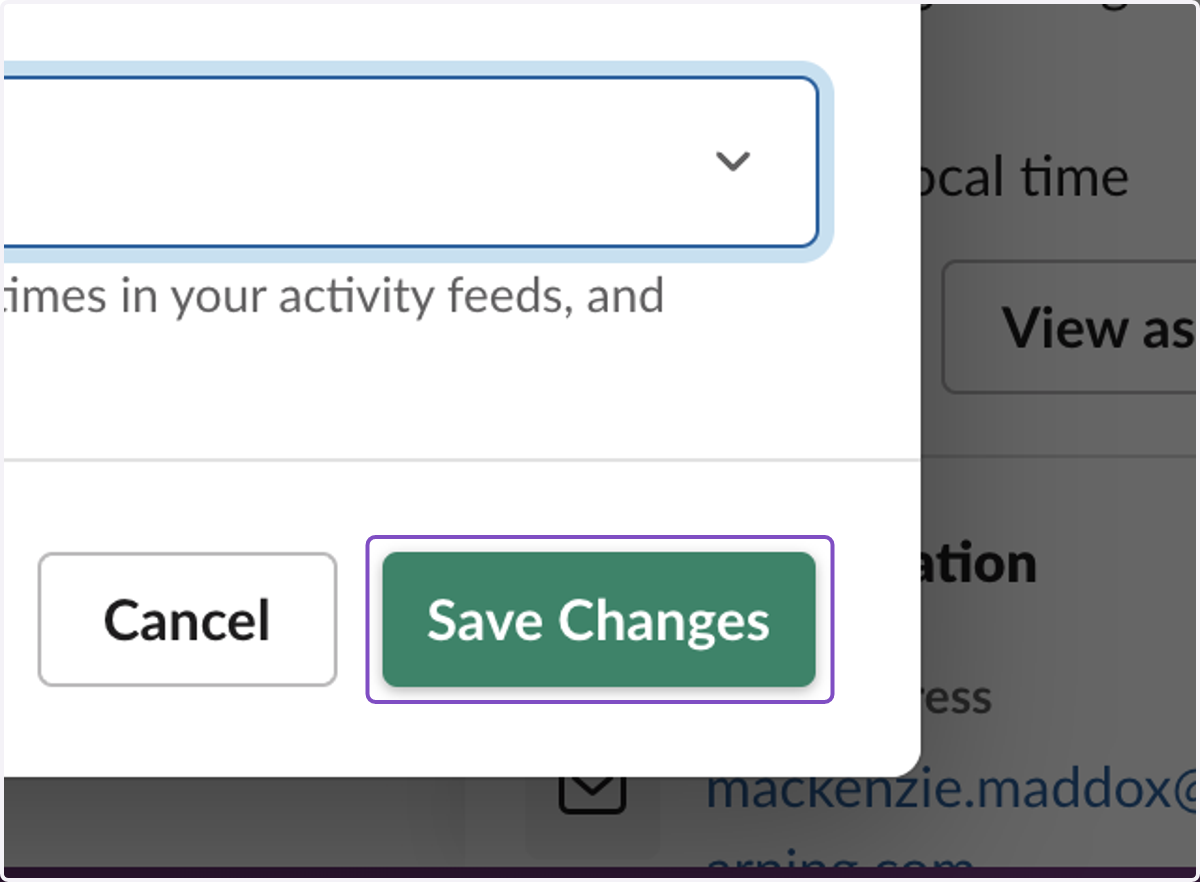
  9. 9. Click on Save Changes

    Click on Save Changes
  10. 10. Contact Information - Click on Edit
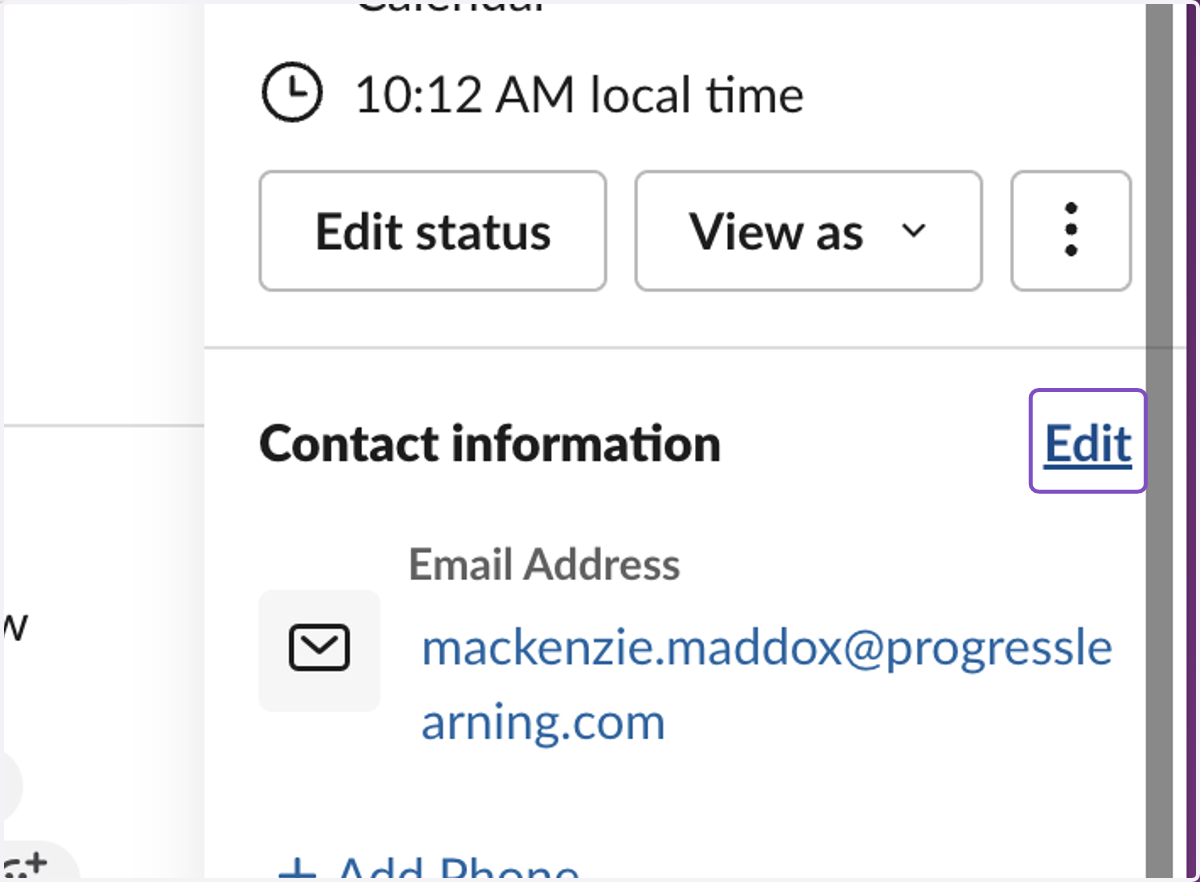
    Contact Information - Click on Edit
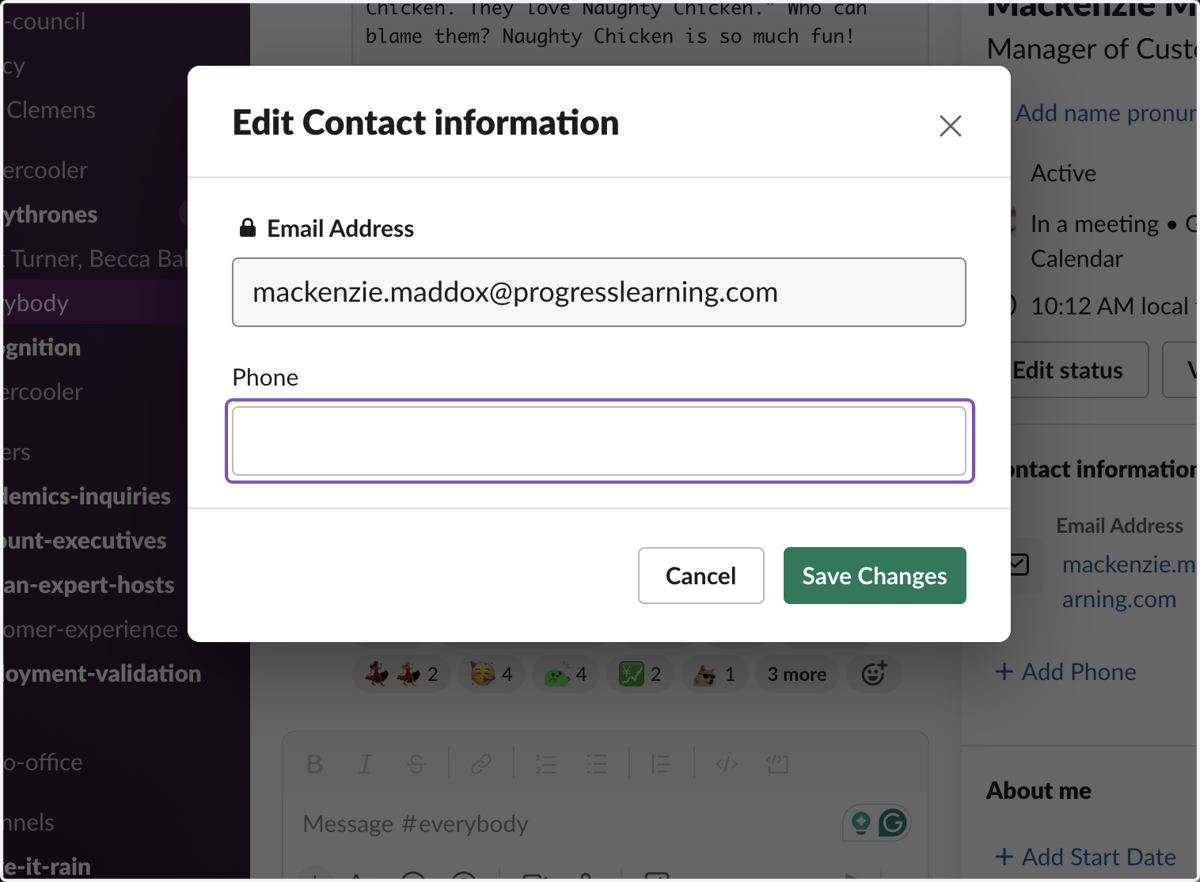
  11. 11. Click on Phone

    Click on Phone
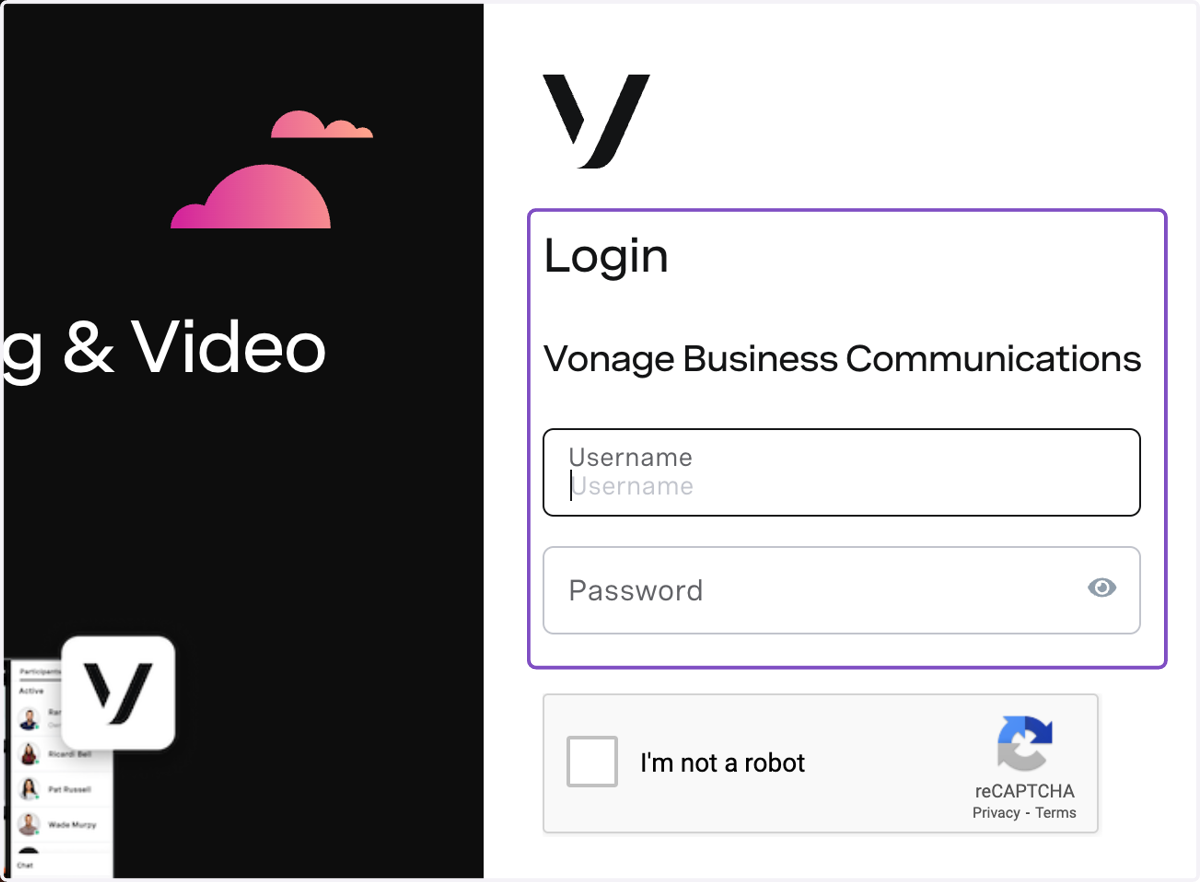
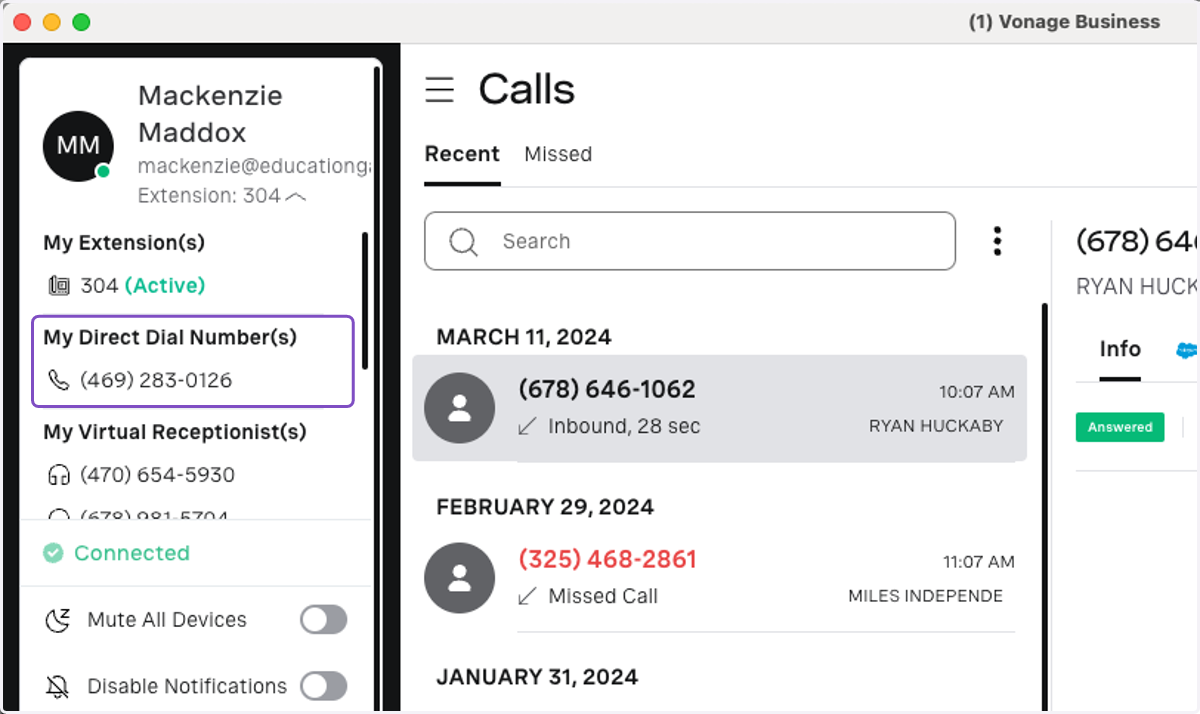
  12. 12. Login to the Vonage application

    Login to the Vonage application
  13. 13. Click on the Profile Icon in the upper left-hand corner
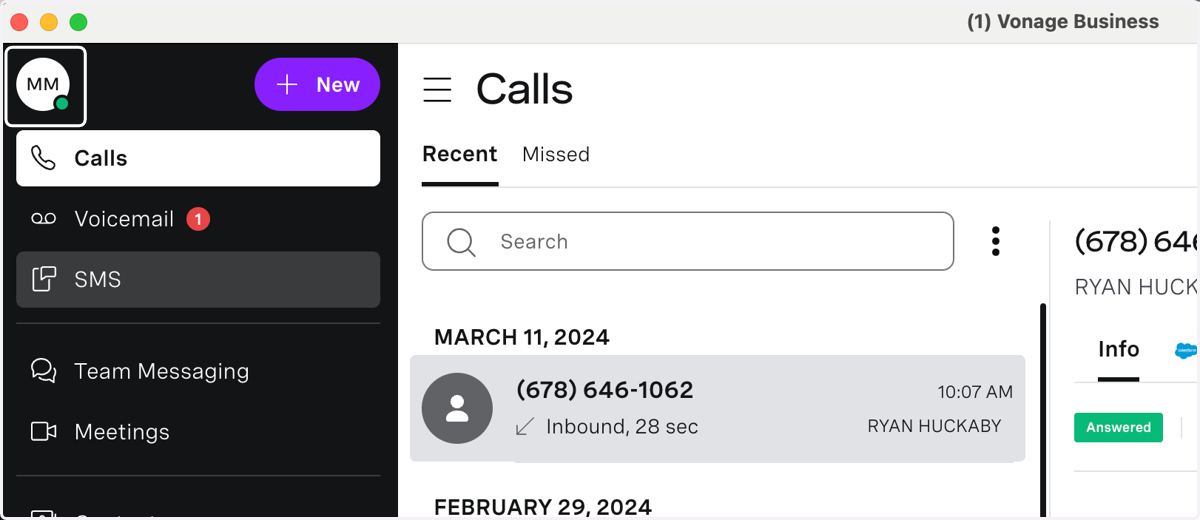
    Click on the Profile Icon in the upper left-hand corner
  14. 14. Click on the dropdown caret next to your name
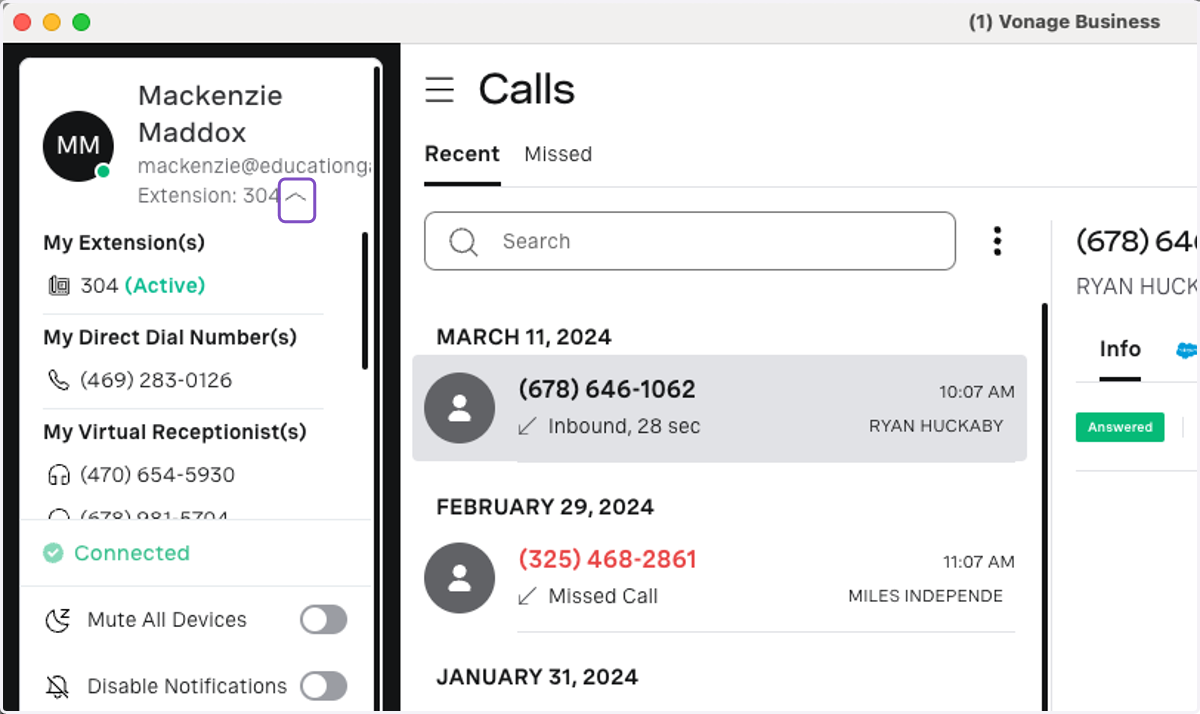
    Click on the dropdown caret next to your name
  15. 15. Copy your Direct Dial Number

    Copy your Direct Dial Number
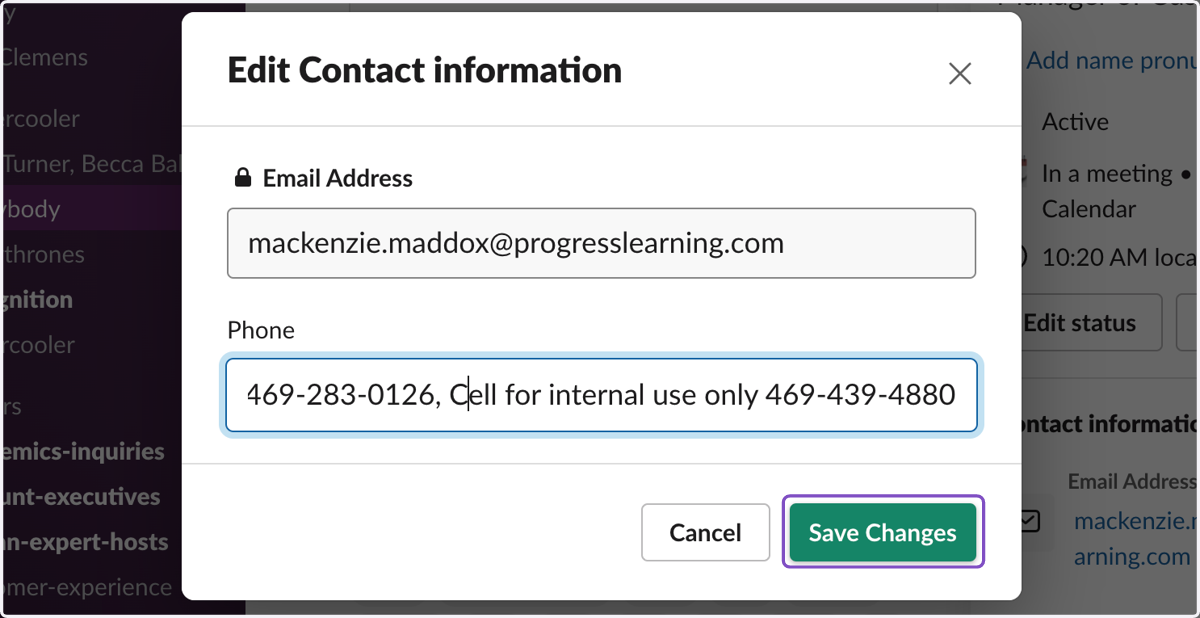
  16. 16. Paste your Vonage Direct Dial Number and/or your Cell Phone Number (at your discretion)
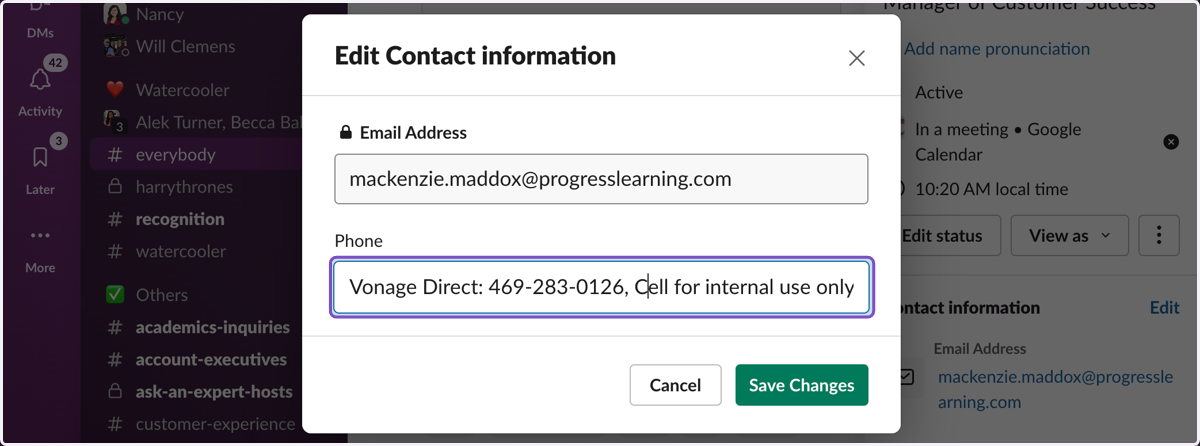
    Paste your Vonage Direct Dial Number and/or your Cell Phone Number (at your discretion)
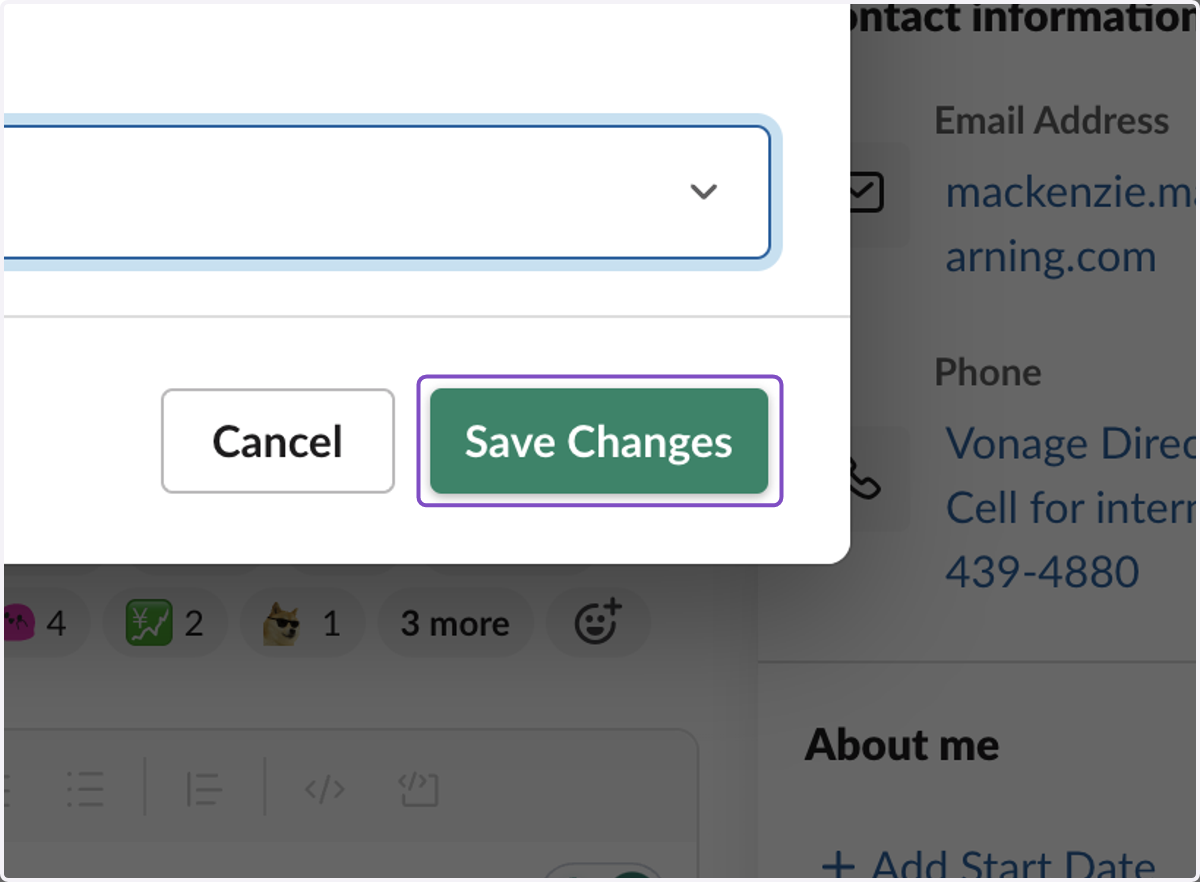
  17. 17. Click on Save Changes

    Click on Save Changes
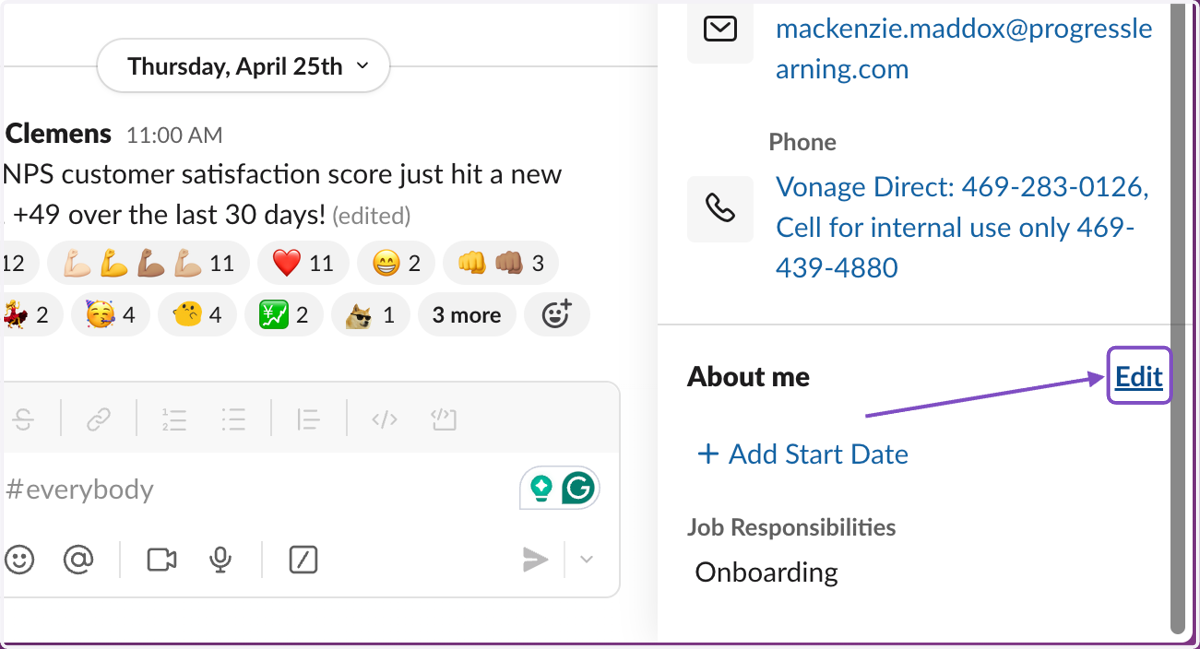
  18. 18. About Me - Click on Edit

    About Me - Click on Edit
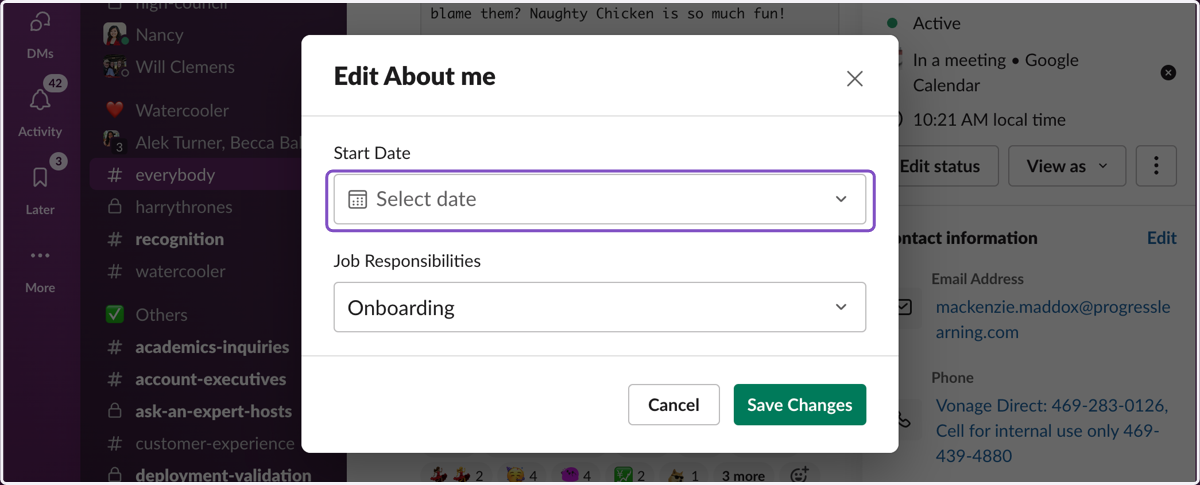
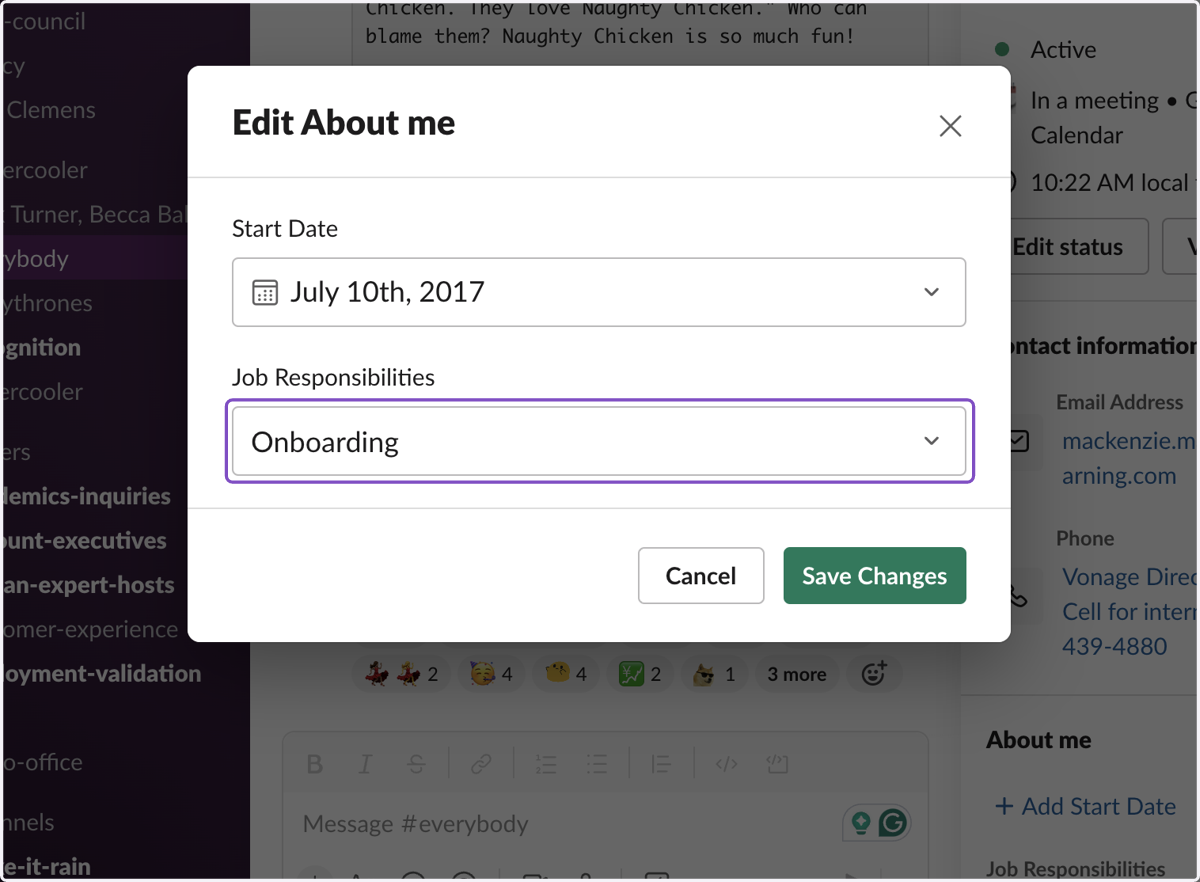
  19. 19. Choose your Start Date

    Choose your Start Date
  20. 20. Choose your Department

    Choose your Department
  21. 21. Click on Save Changes

    Click on Save Changes