Reading the Review Case
The steps below will show you how to open a review packet in Interfolio, read it, and annotate it.
A packet is a candidate's dossier, or portfolio. Interfolio calls these "packets."
A case in Interfolio is the packet, plus documents and forms that other people (department chair, external evaluators, etc.) add at subsequent steps of the process.
Interfolio
1. Log in
Go to this link and log into Interfolio using your Lehigh credentials.
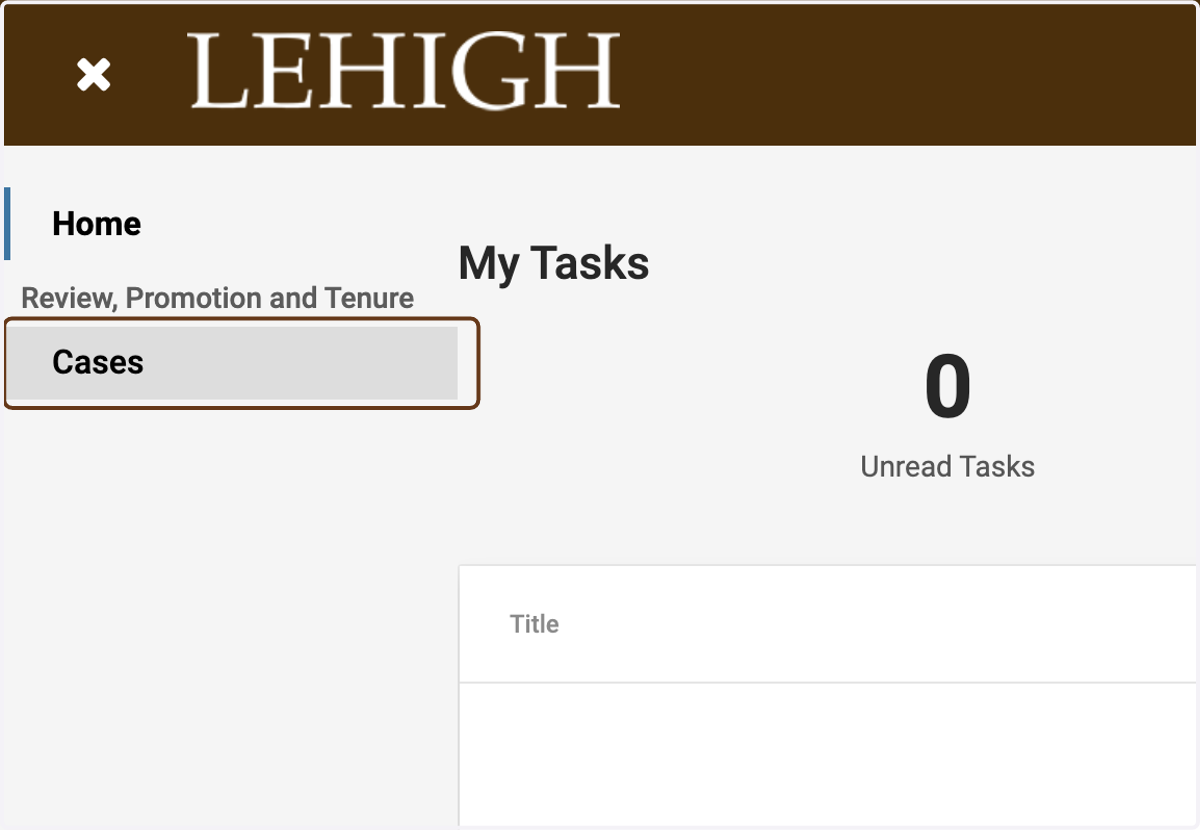
2. Click on Cases
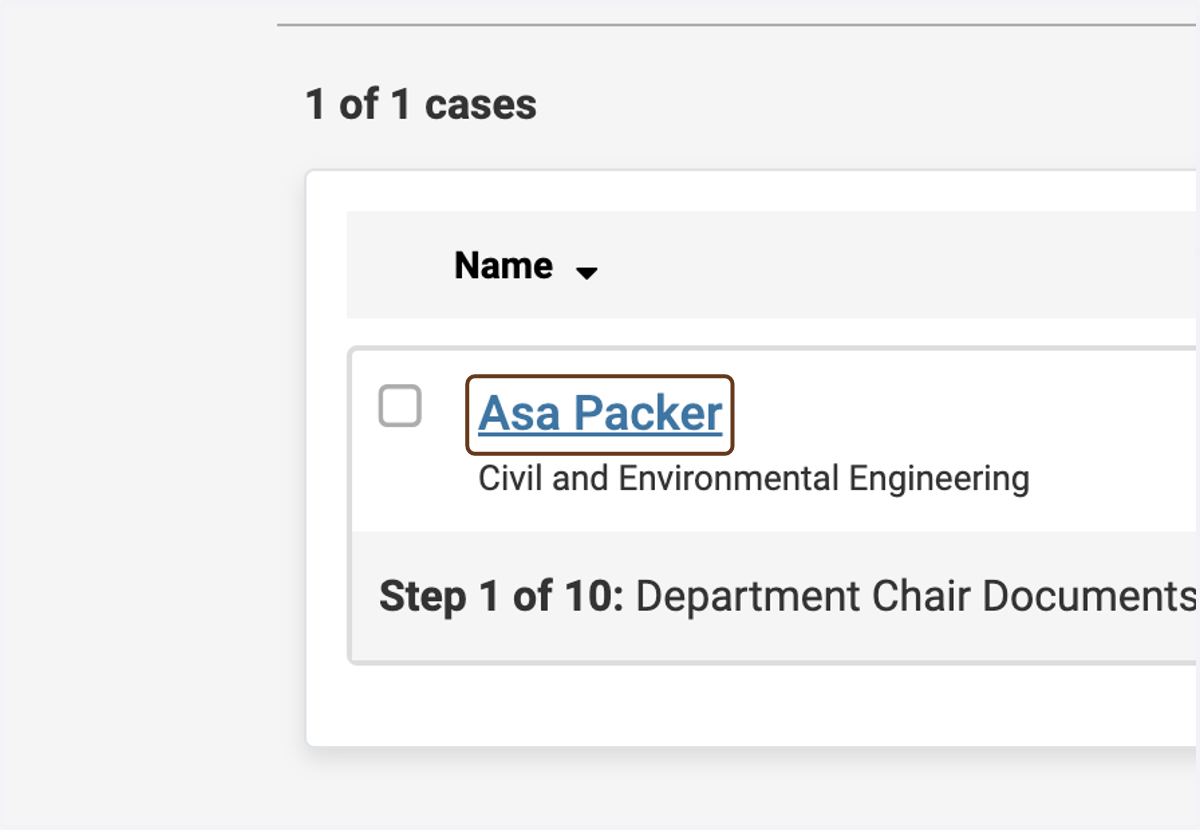
3. Click on the candidate's name
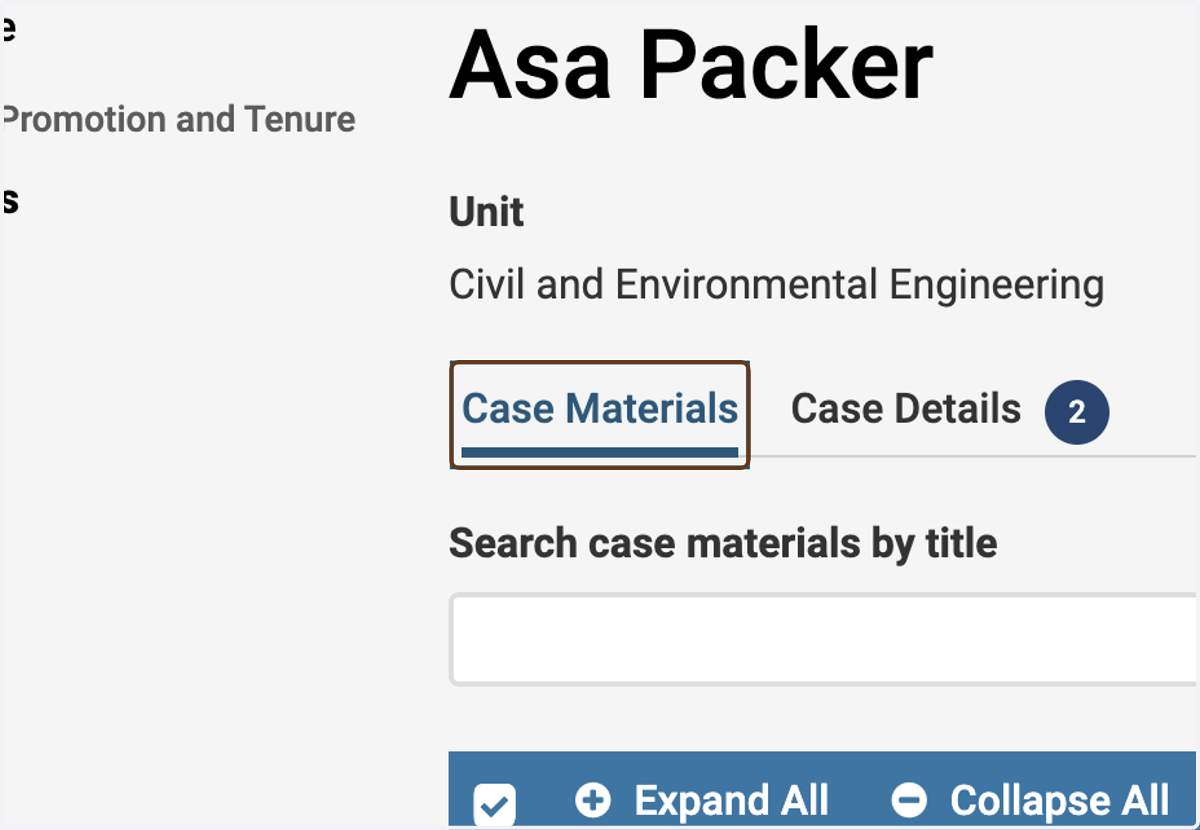
4. Click on Case Materials
The Case Materials tab contains the candidate's packet.
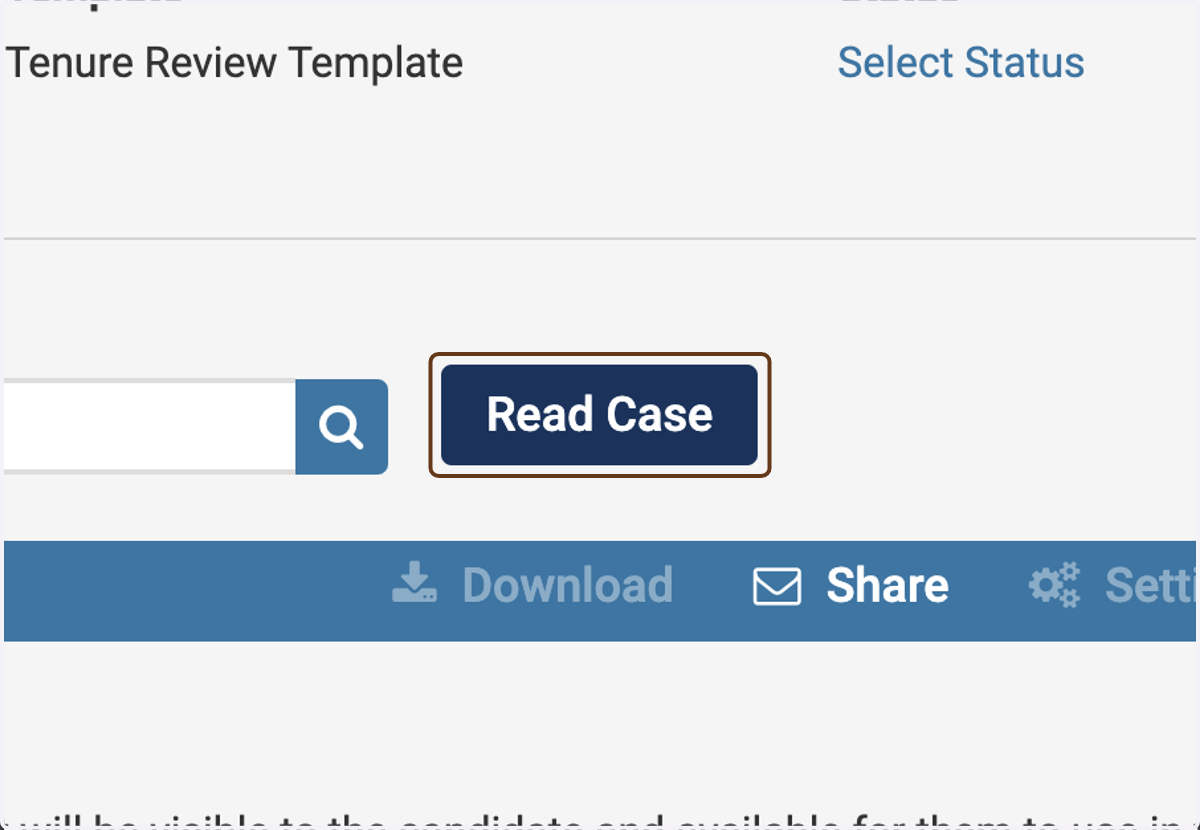
5. Click on Read Case
This will open a window where you can view the entire packet.
6. The packet materials appear in the main part of the window
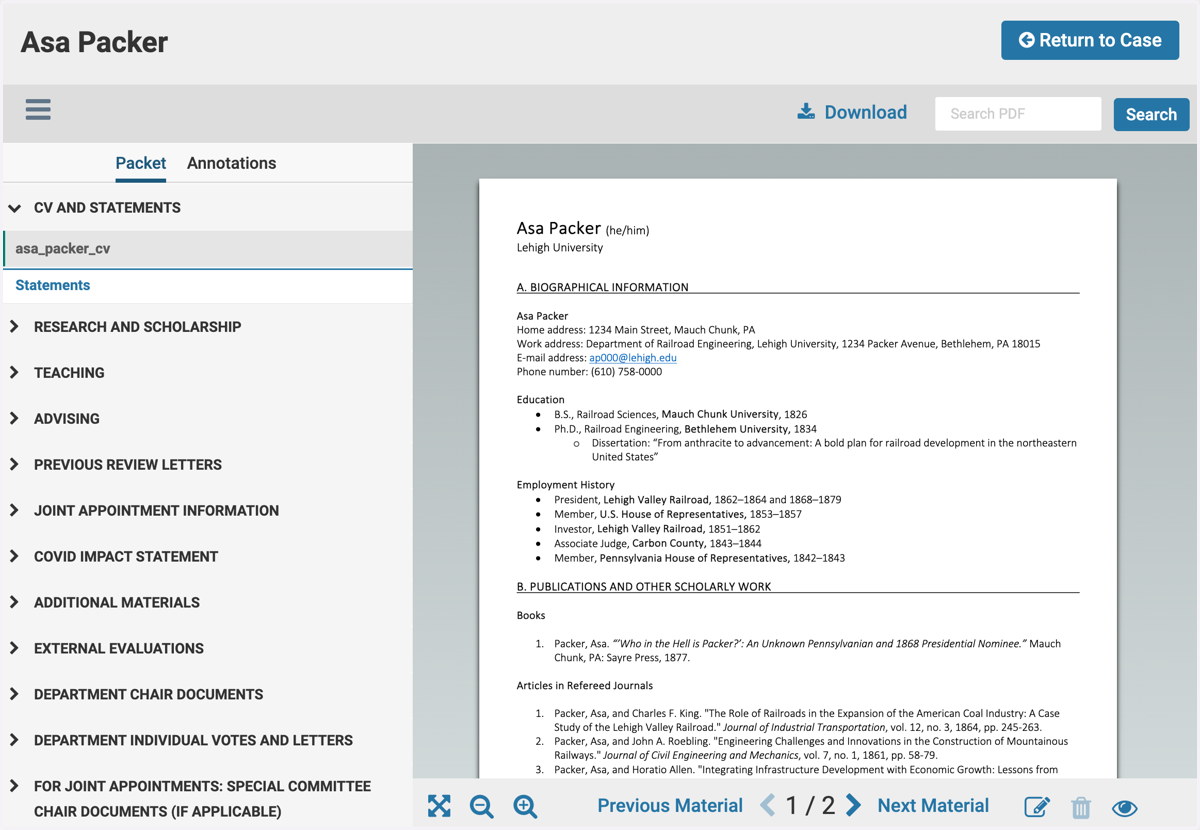
7. The navigation buttons at the bottom allow you to move among pages or sections of the packet

8. Add annotations
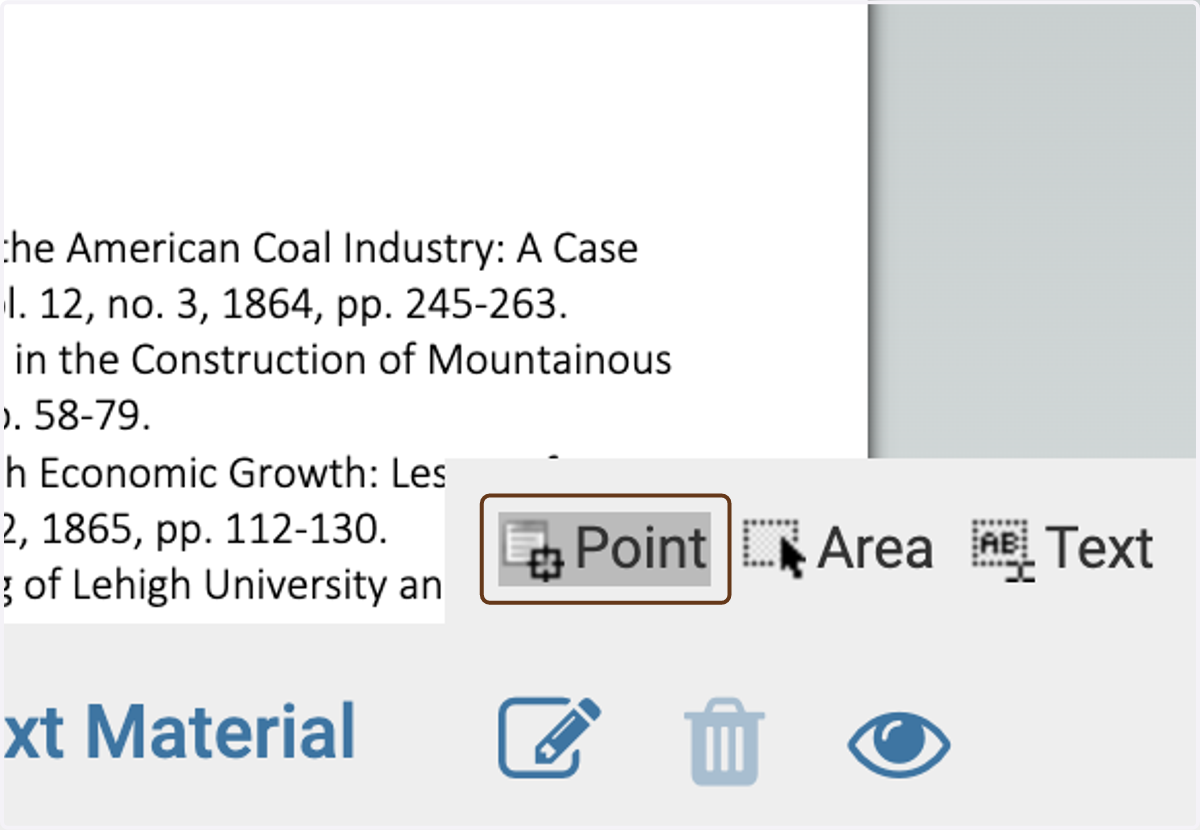
Click the pencil icon to add an annotation. There are three types of annotations: Point, Area, and Text.

9. Click on Point
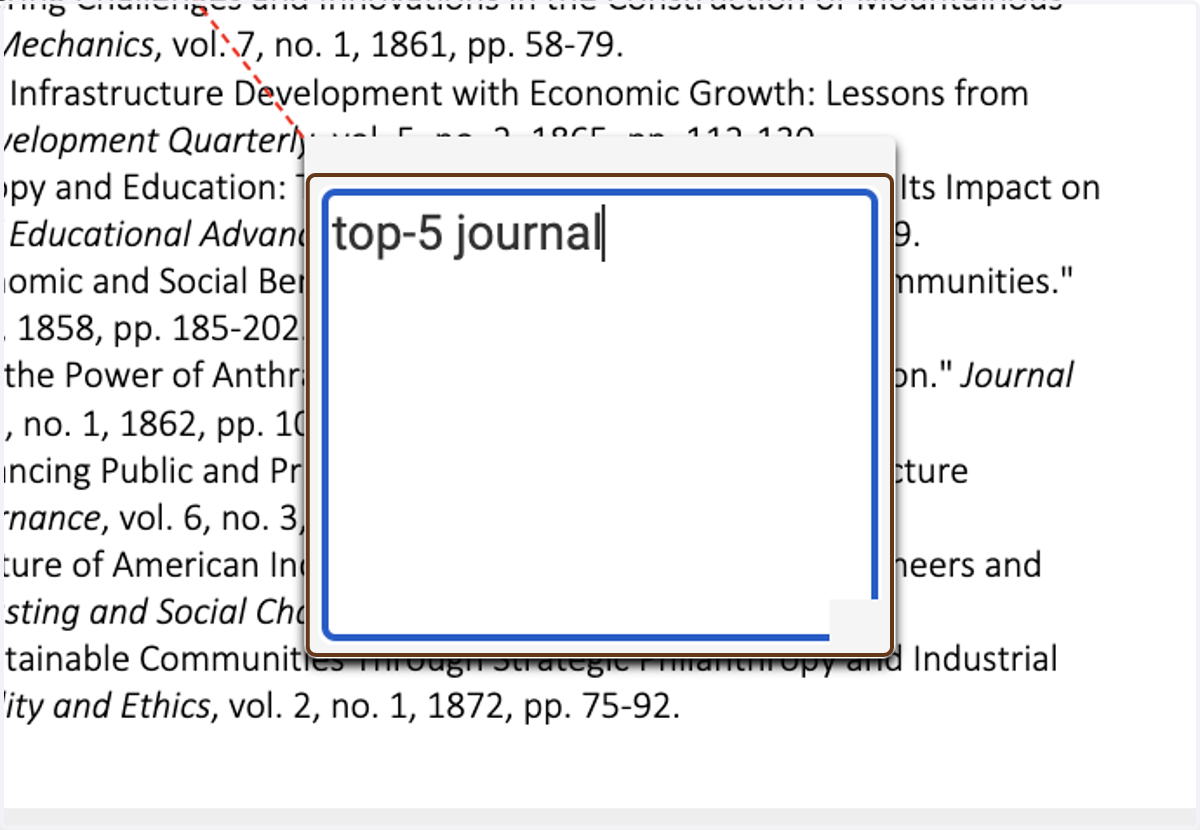
10. Add your annotation
Click the point in the document where you want to add an annotation, and type your note.
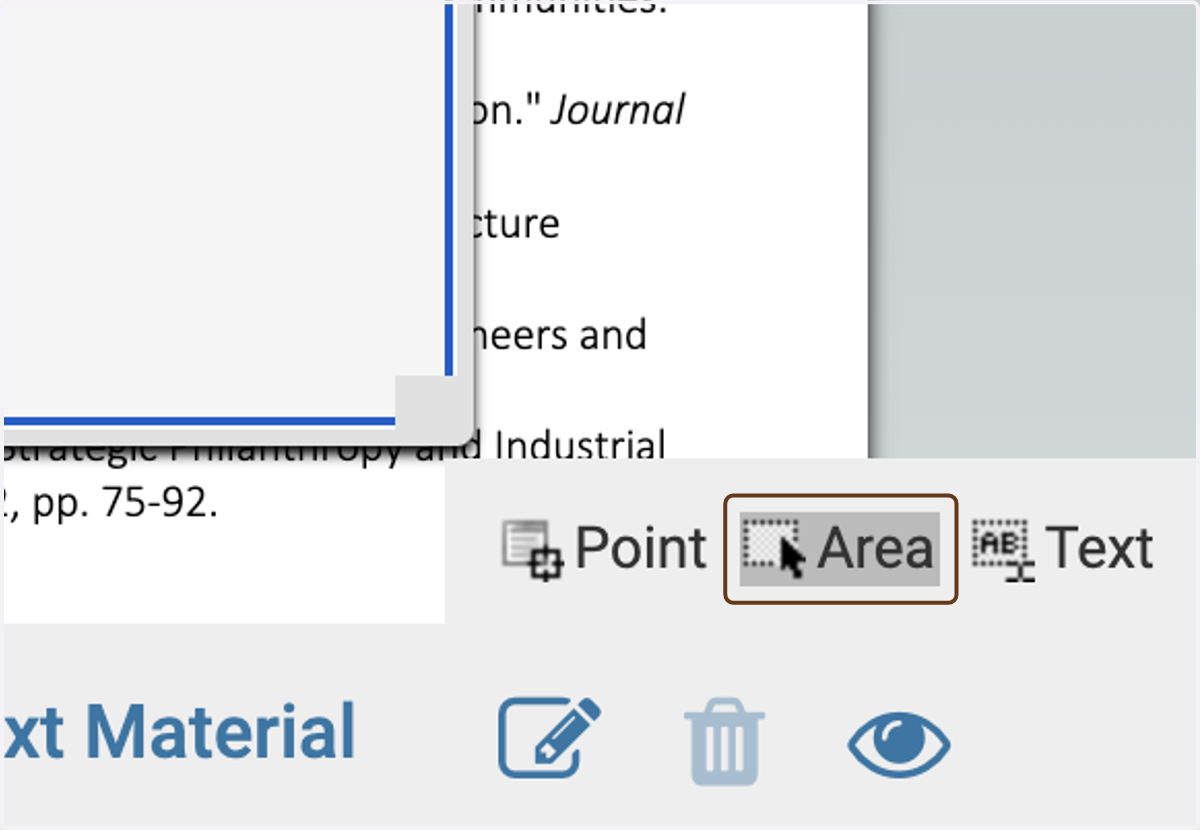
11. Click on Area
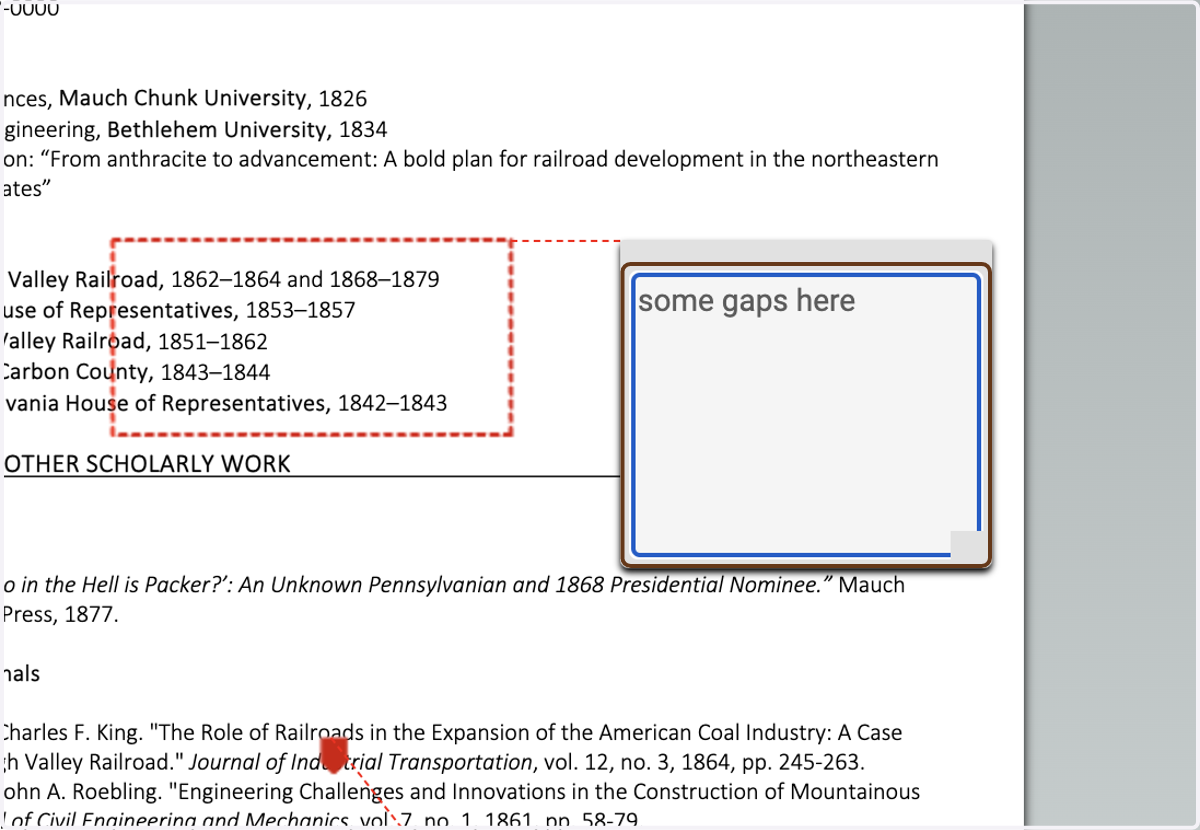
12. Add your annotation
Drag a box in the document where you want to add an annotation, and type your note.
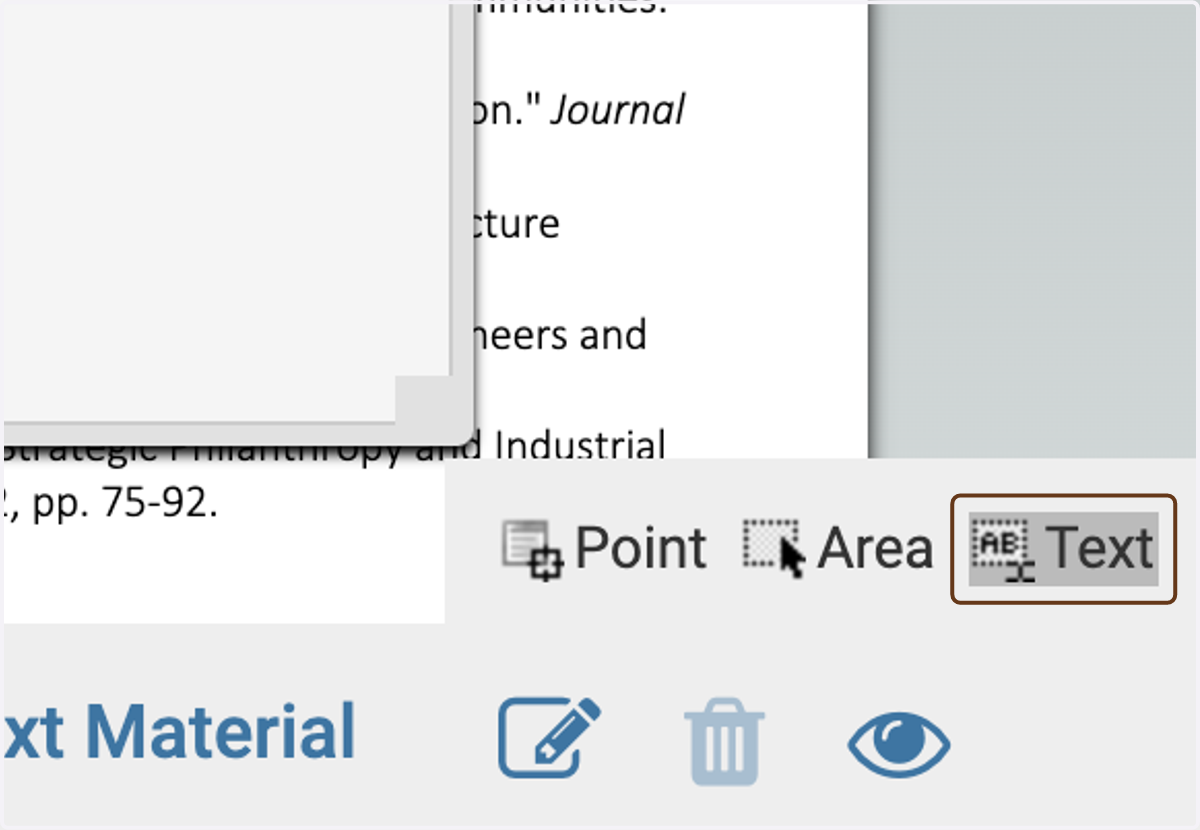
13. Click on Text
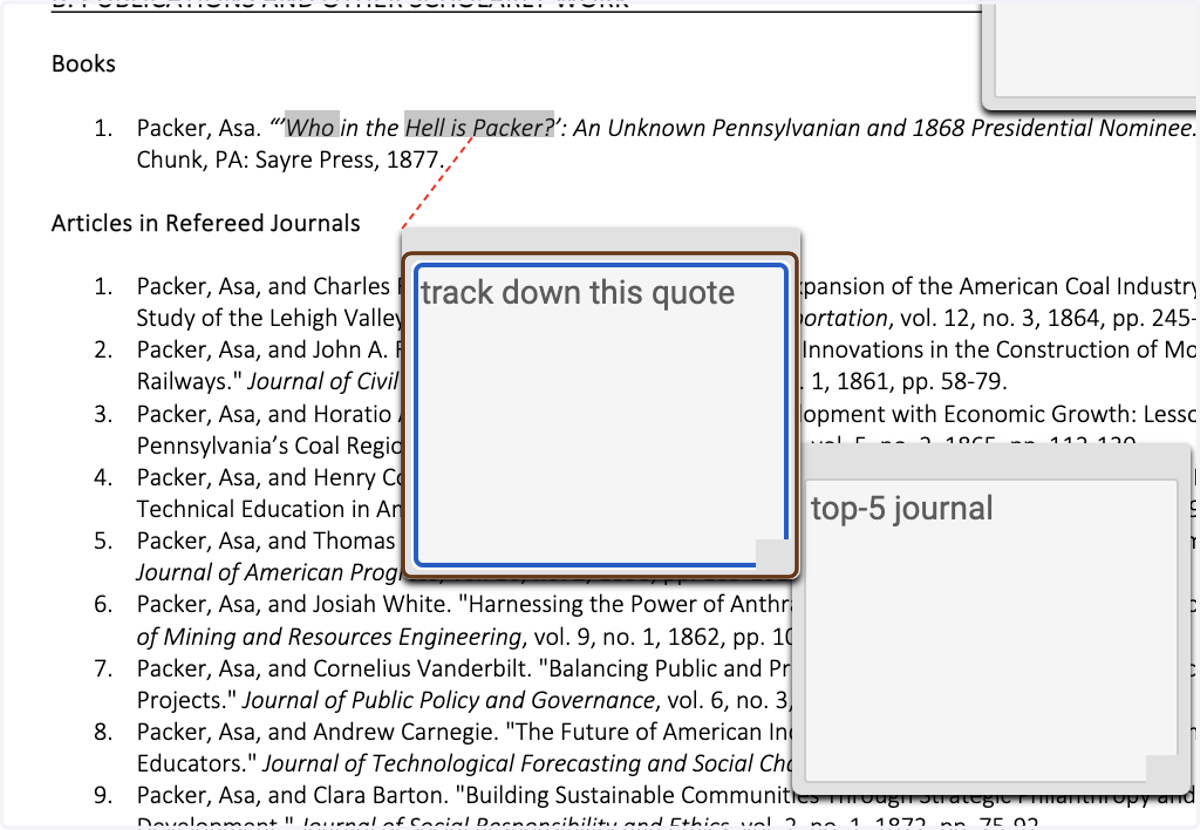
14. Add your annotation
Highlight the text in the document where you want to add an annotation, and type your note.
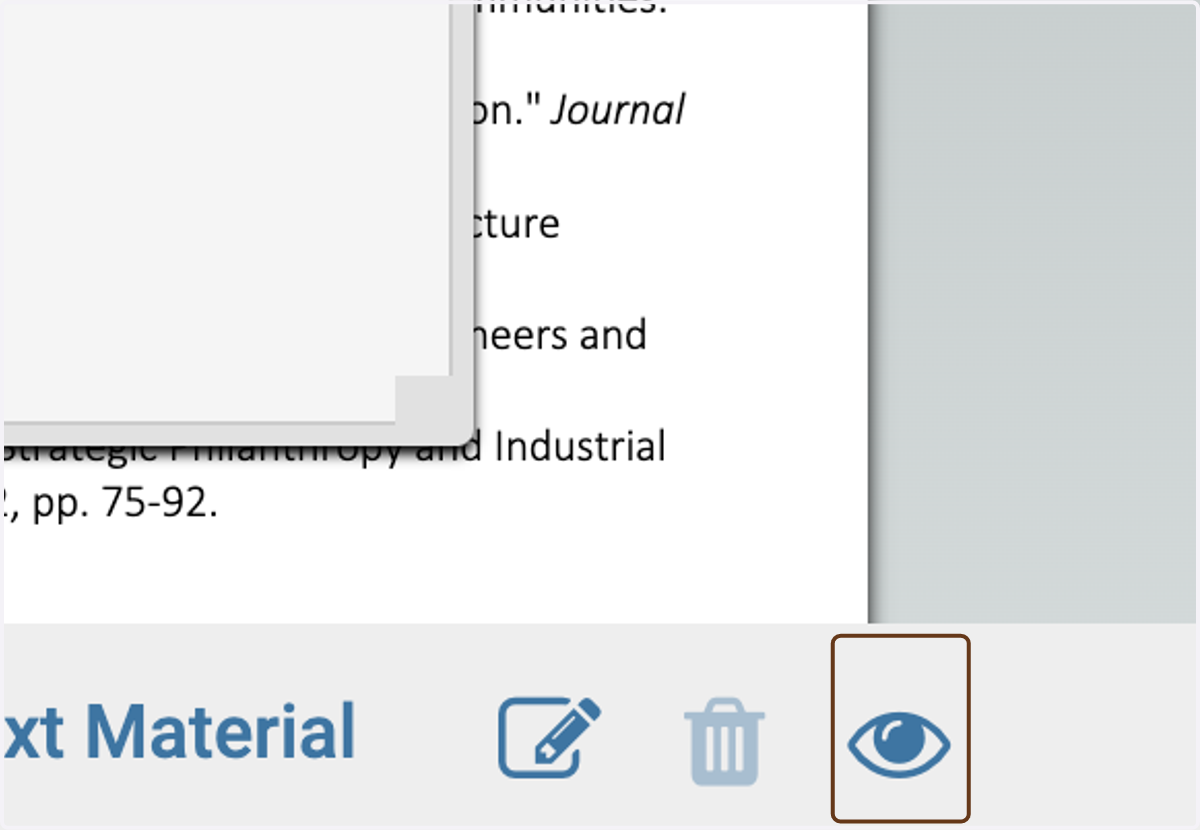
15. The Show/Hide Annotations icon toggles the annotation visibility
This only controls whether you can see the annotations while you are viewing the case. It does not control who sees the annotations—only you can see the annotations.
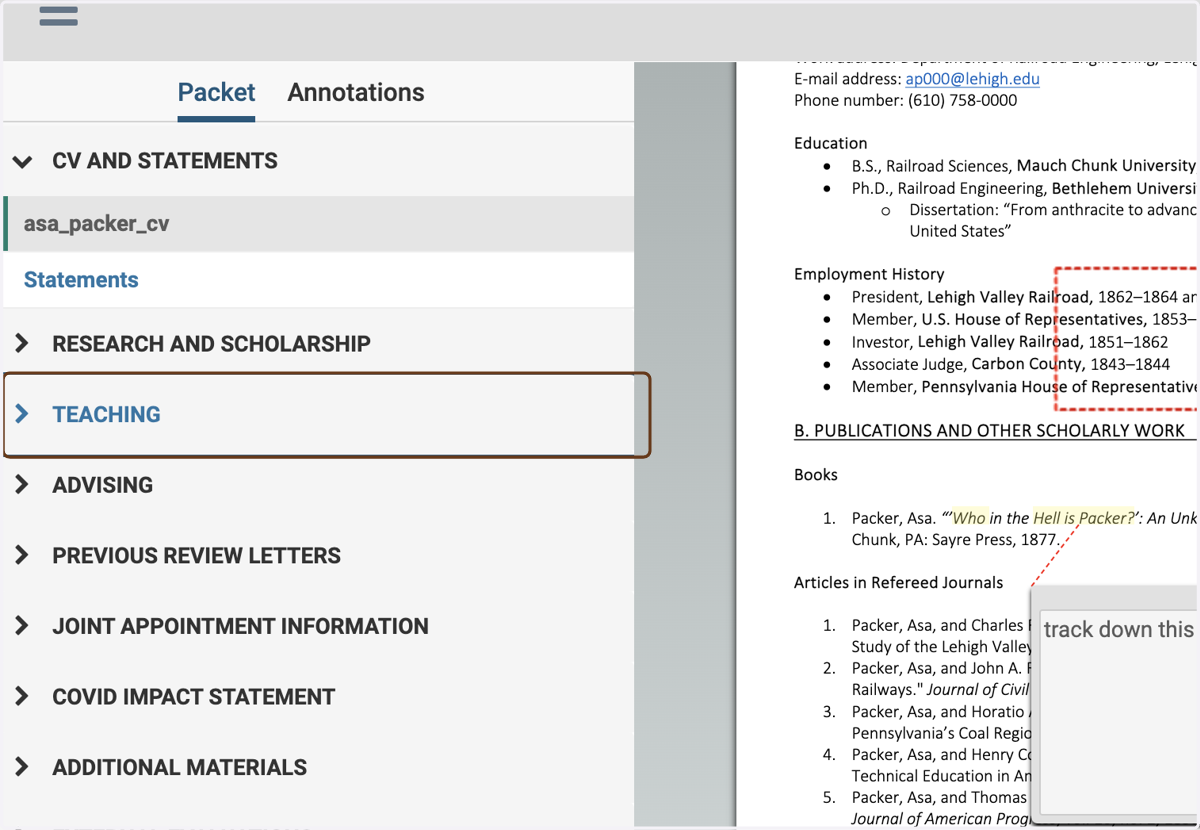
16. Use the navigation menu at the left to jump to a section of the packet
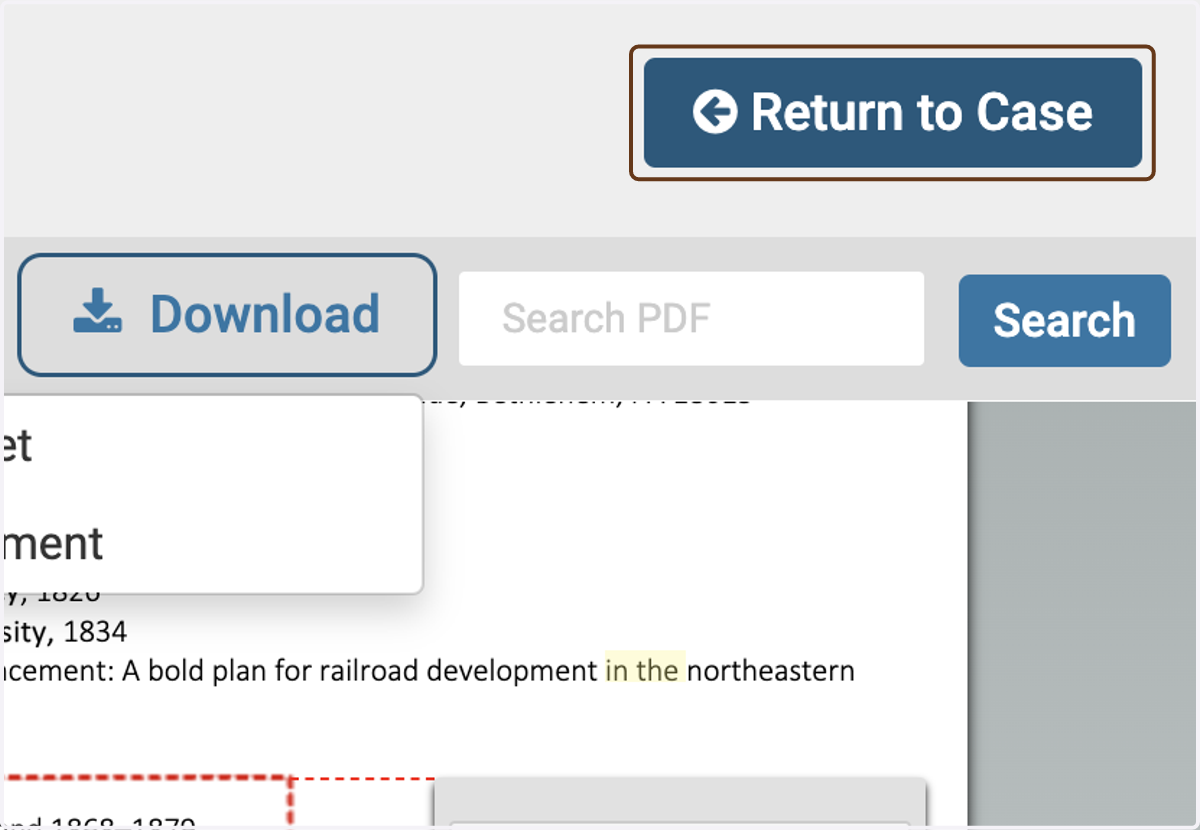
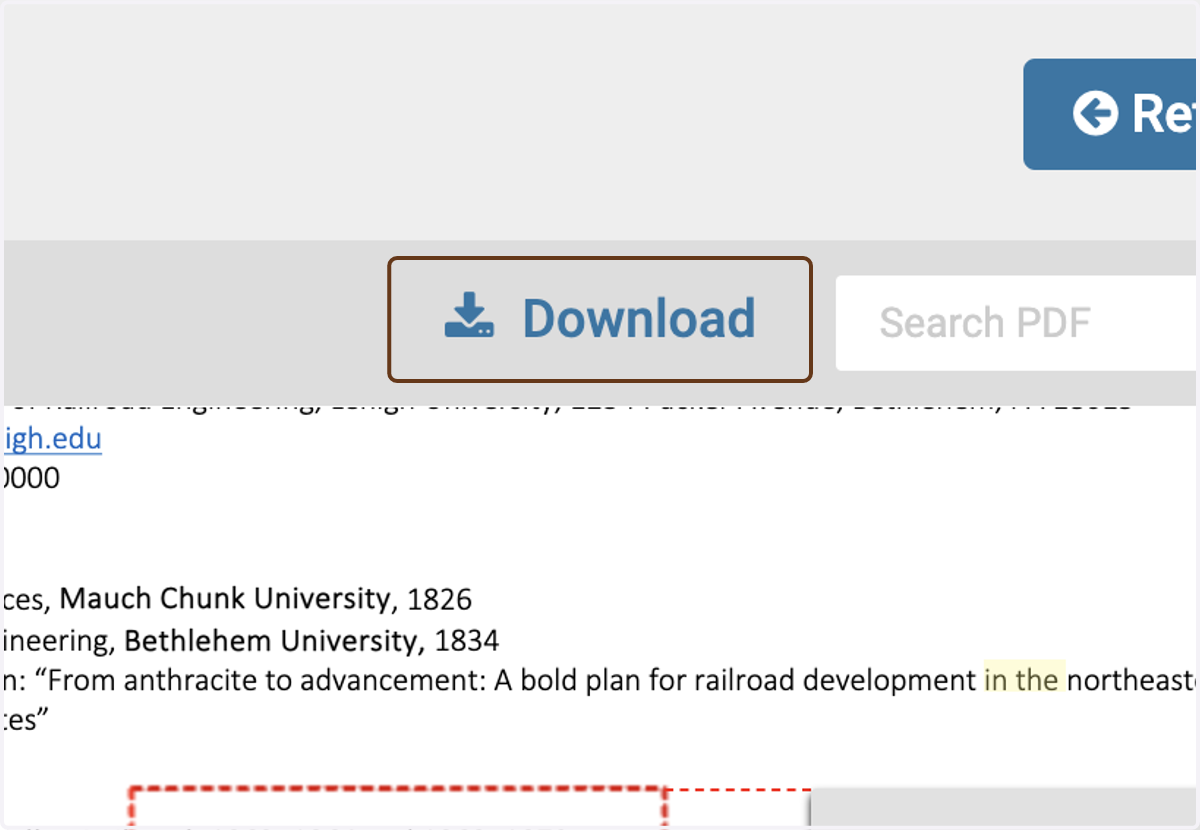
17. Use the Download button to download the packet as a PDF
You can download the whole packet or an individual document.
18. Click on Return to Case
When you are finished viewing the case, this button takes you back to the main Case page.