Creating Media with Text Content
Creating Media With Text content
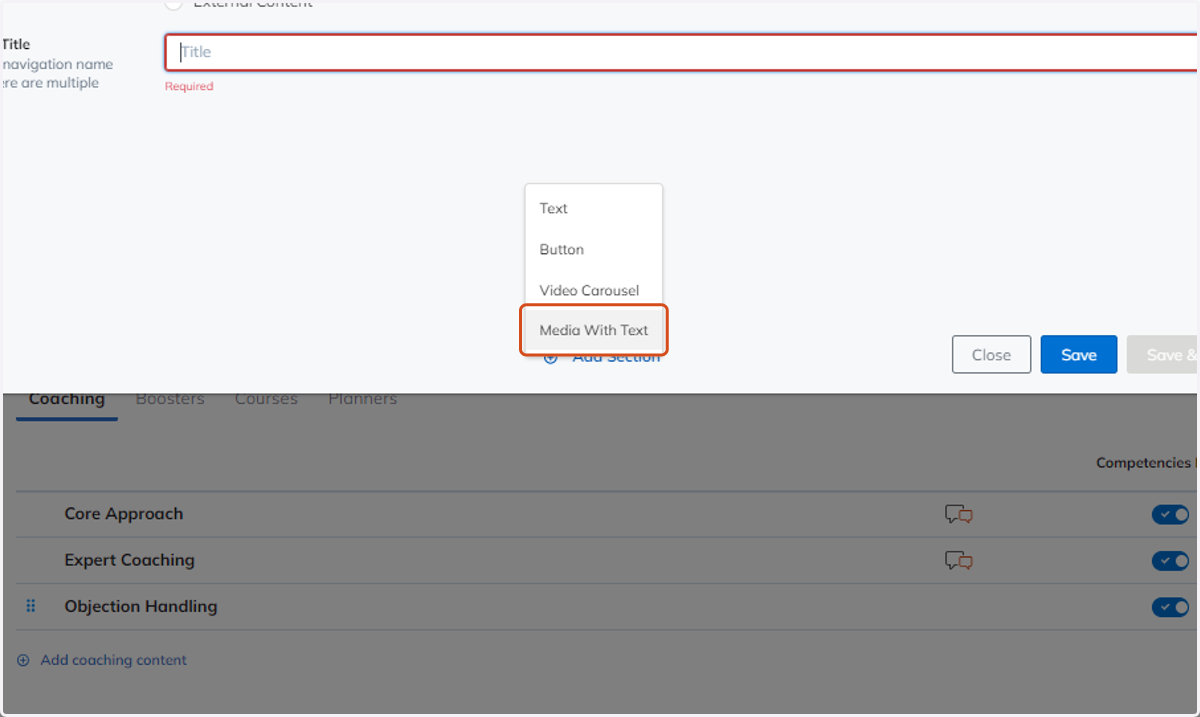
The "Media with Text" section allows you to add video content and provide text in the same section.
1. Click on Media With Text
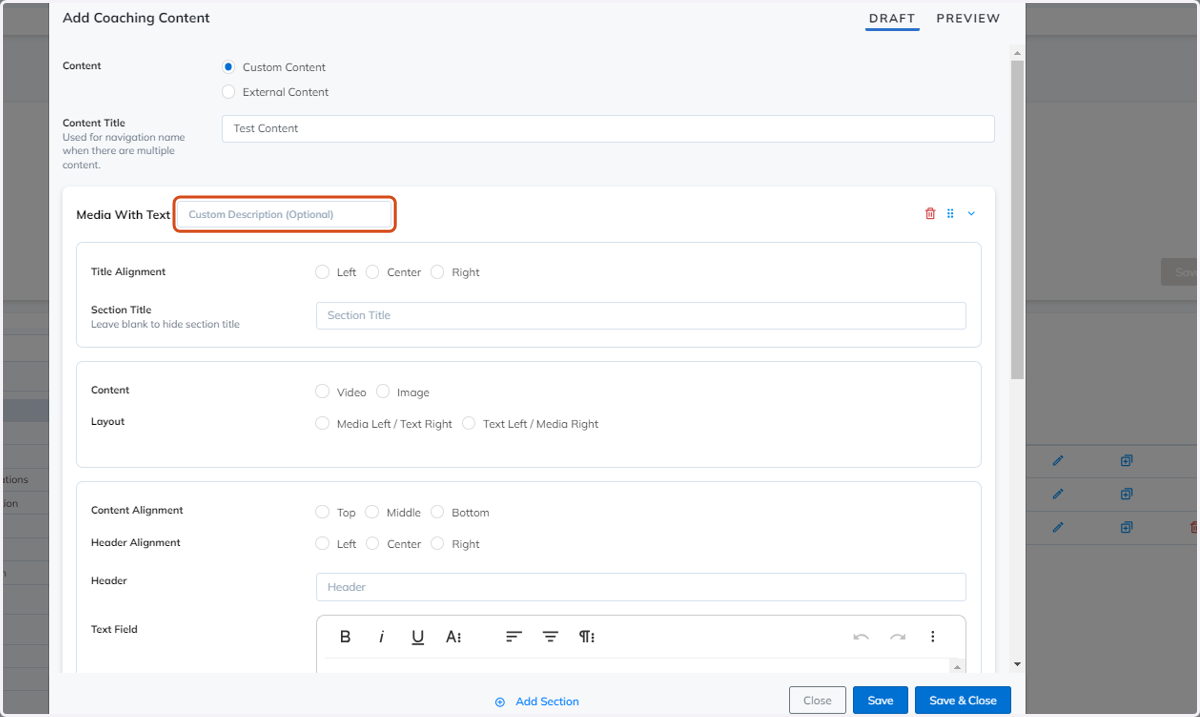
2. Optional field to add a custom description
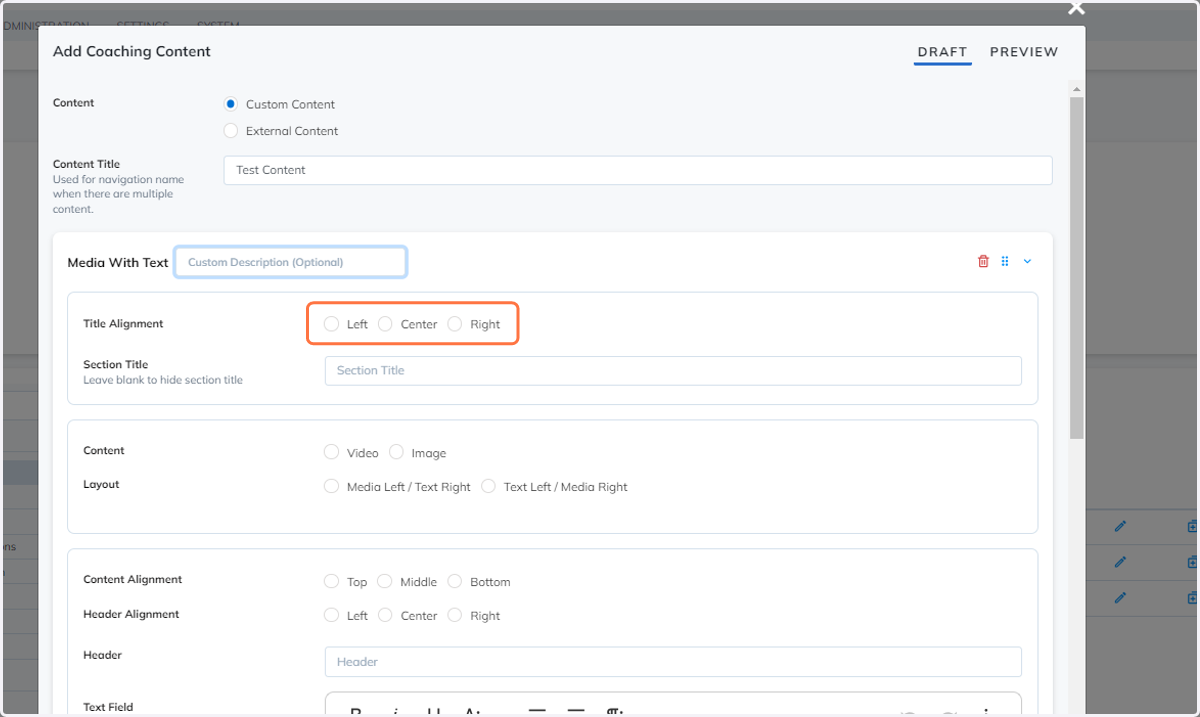
3. Select a Title Alignment option
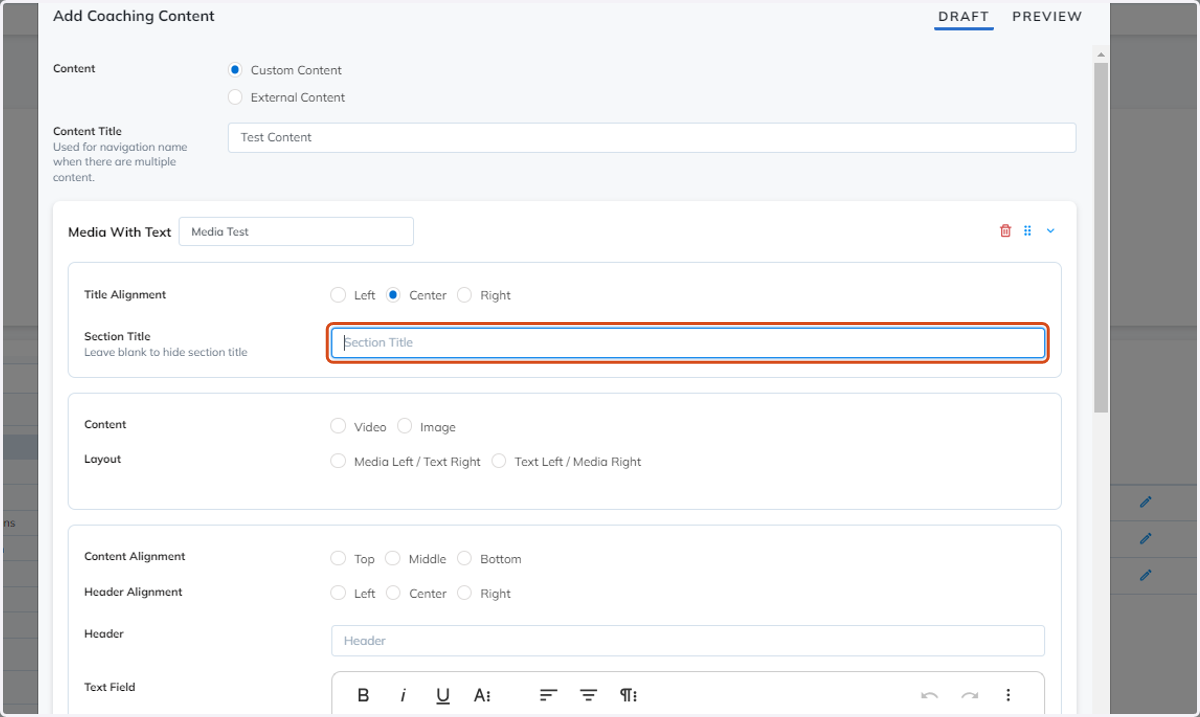
4. Add a Section Title
You have the option to add a section title or leave the field blank to hide the section title.
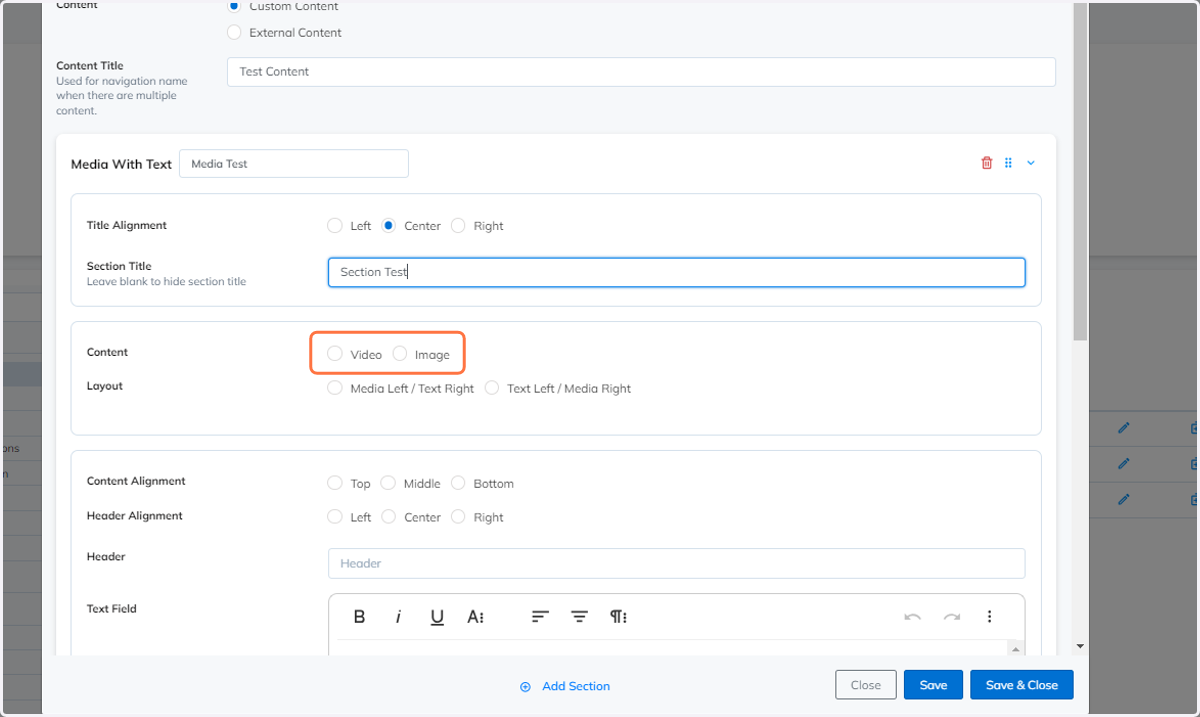
5. Select either a Video or Image
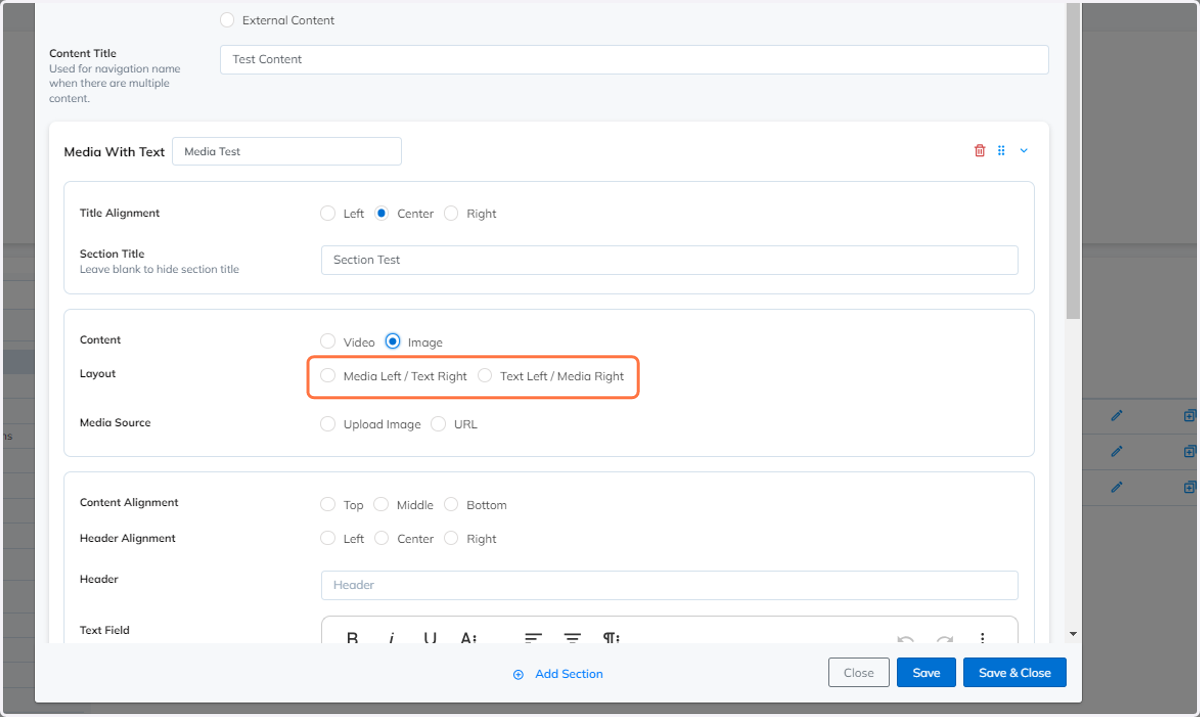
6. Select the Layout
7. Select the Media Source
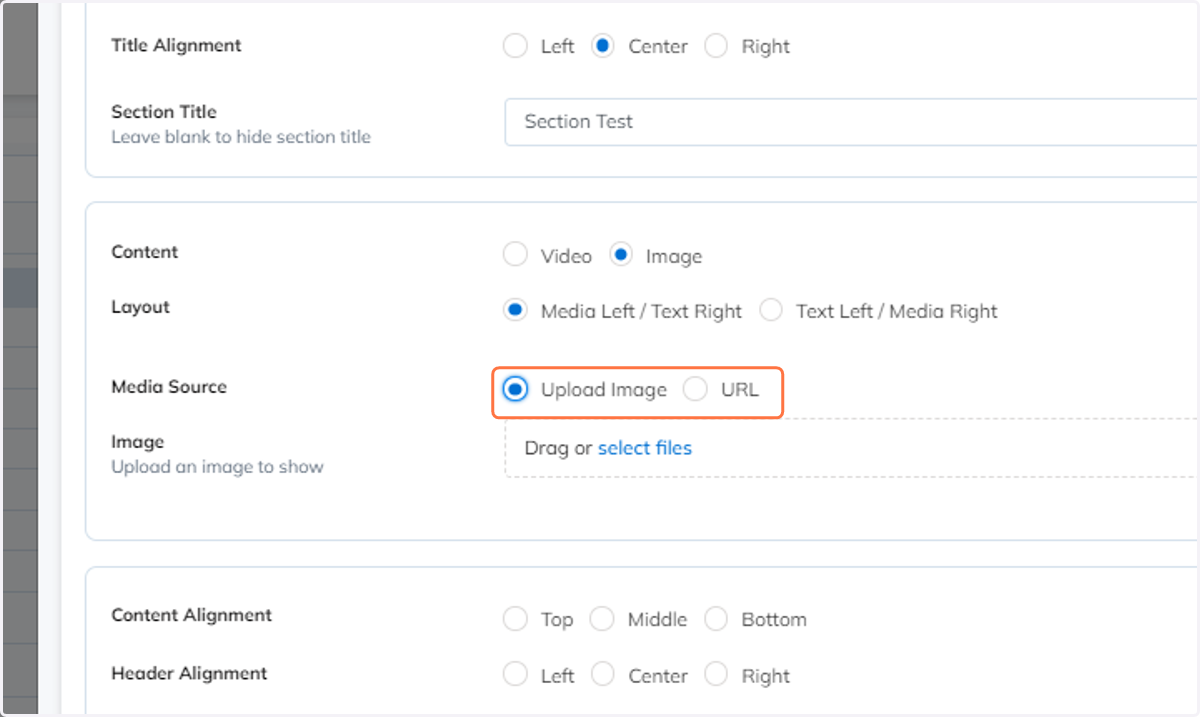
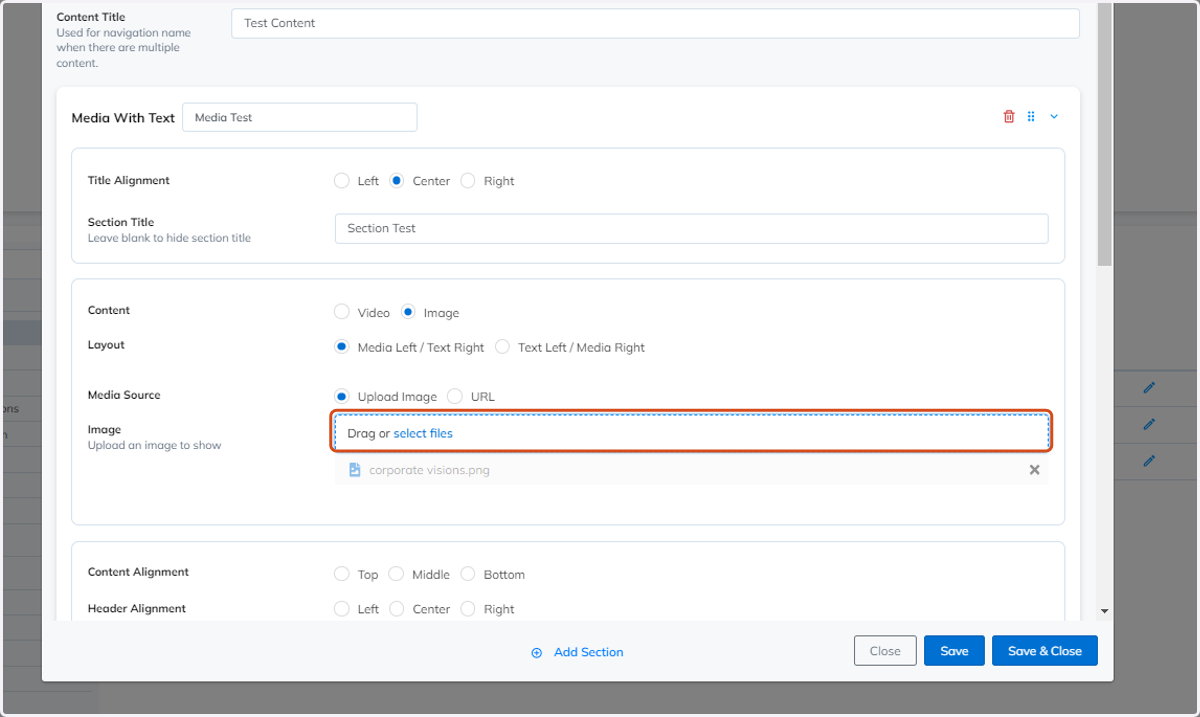
8. If Upload Image media source is selected upload the image file
You can also drag and drop the selected file into the field.
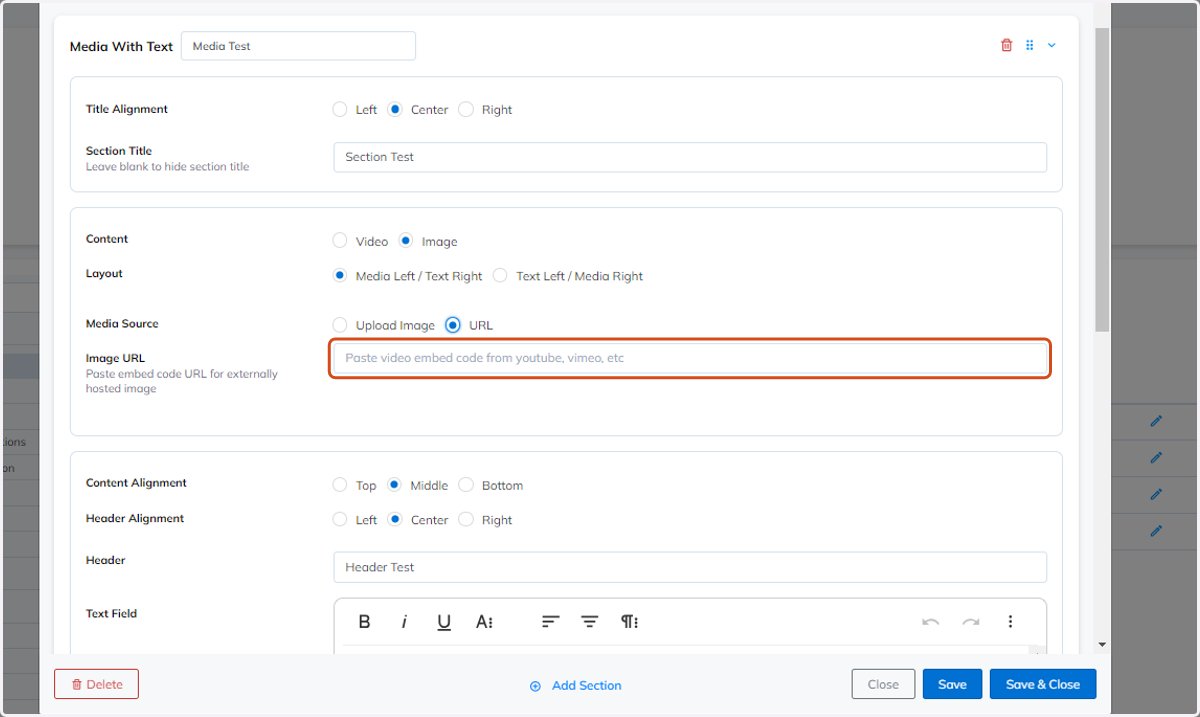
9. If URL media source is selected, paste the video embed code in the field
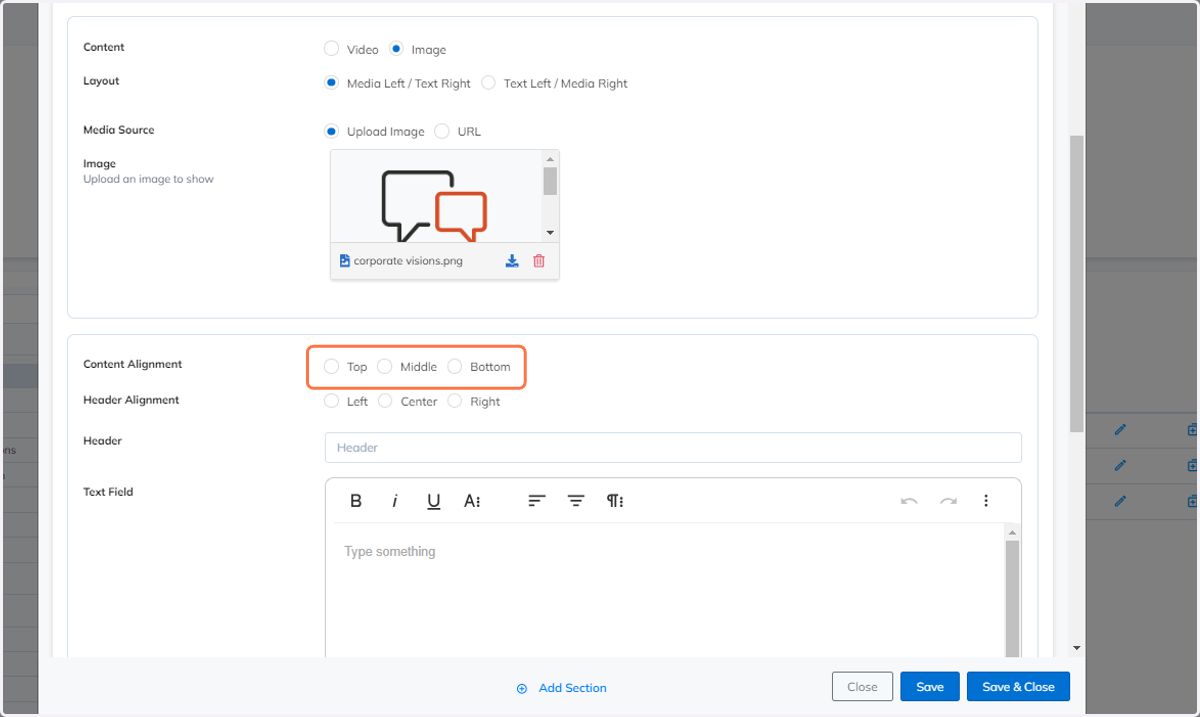
10. Select the Content Alignment
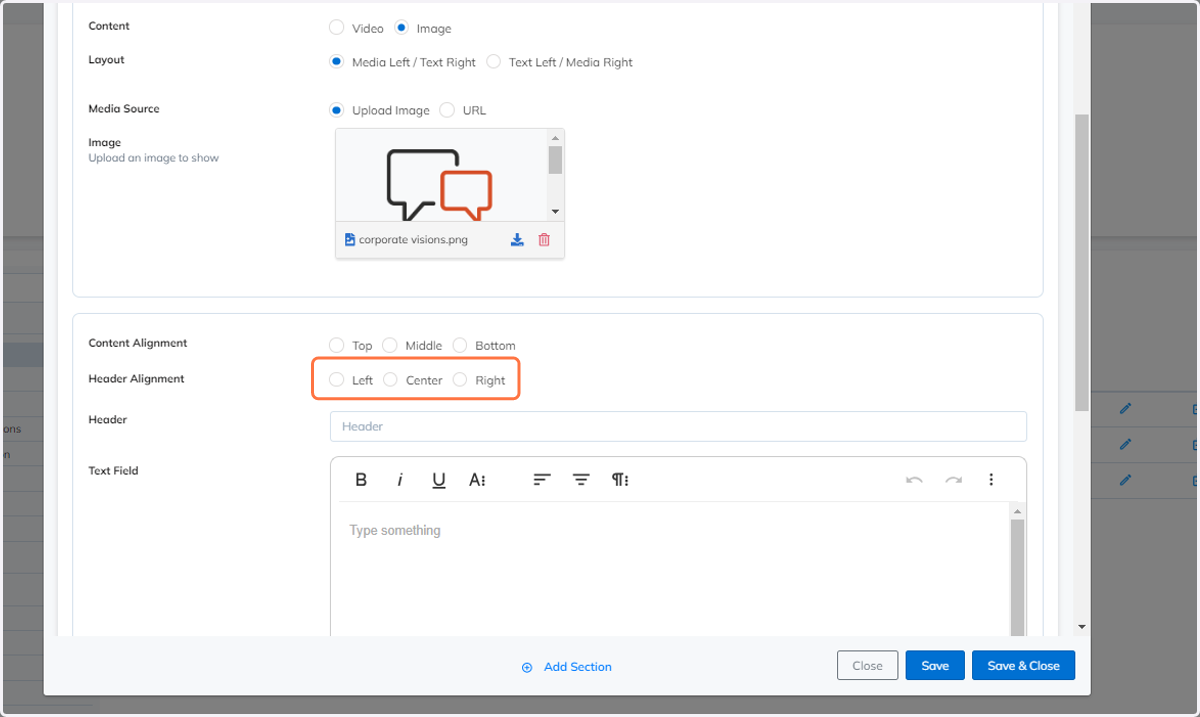
11. Select the Header Alignment
12. Add a Header
You have the option to add a header or leave the field blank.
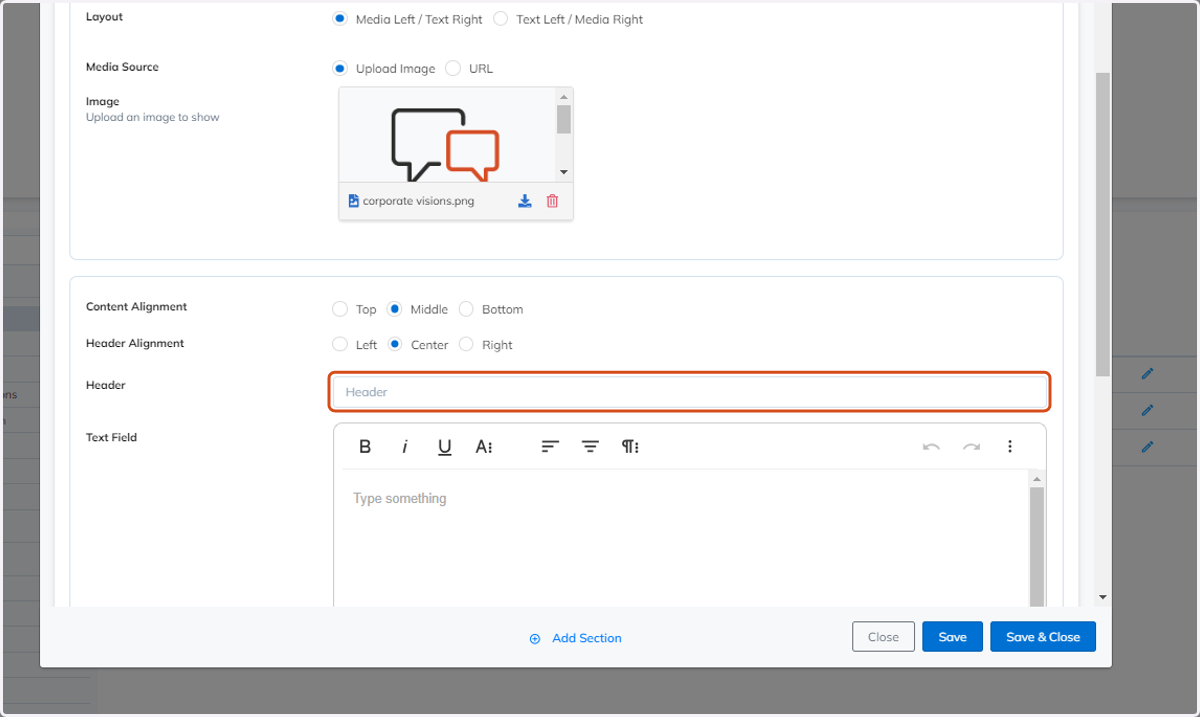
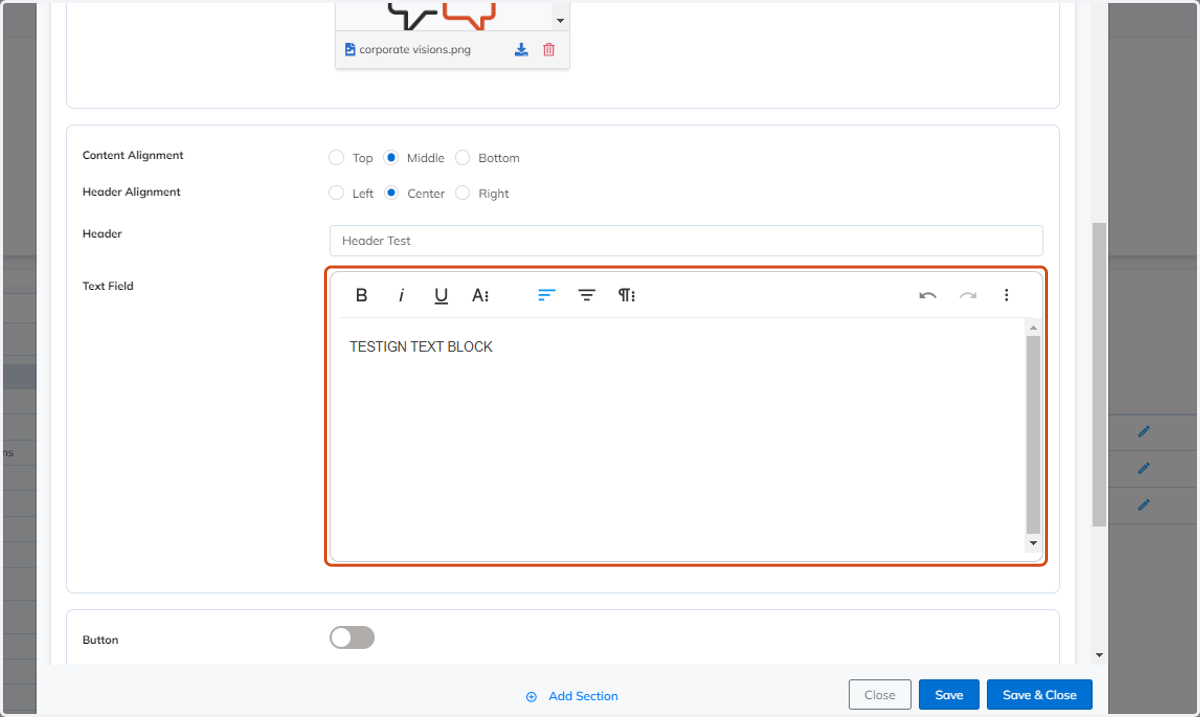
13. Fill in the Text Field
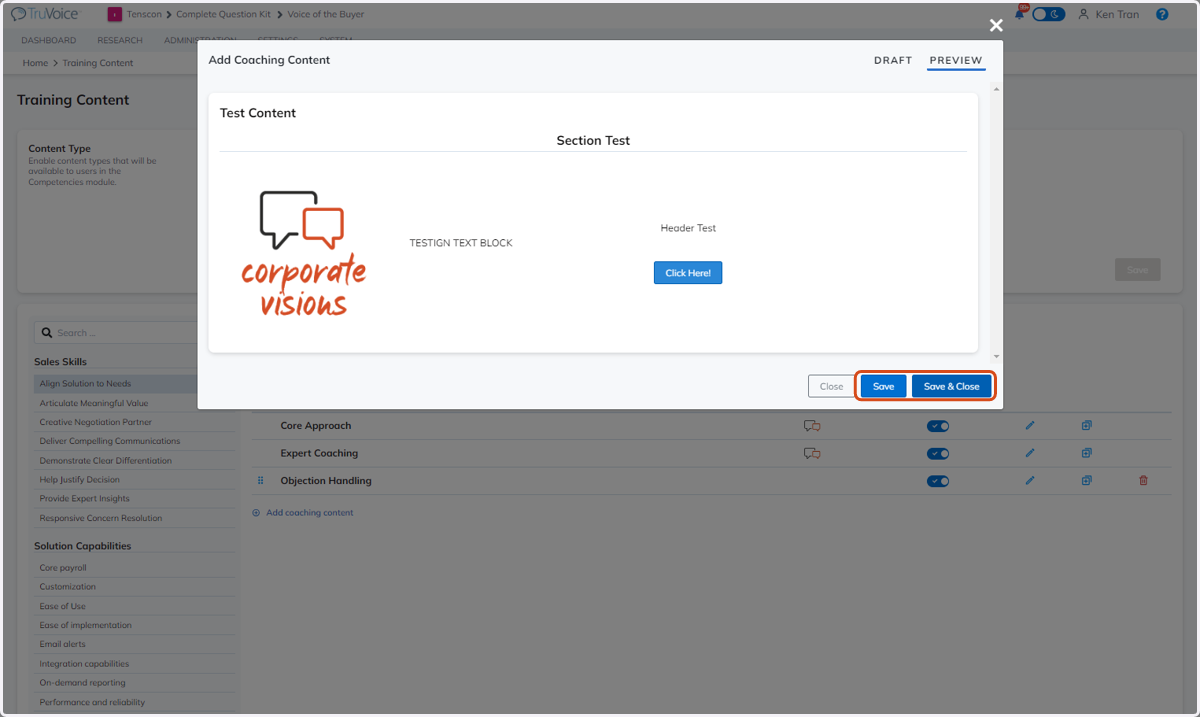
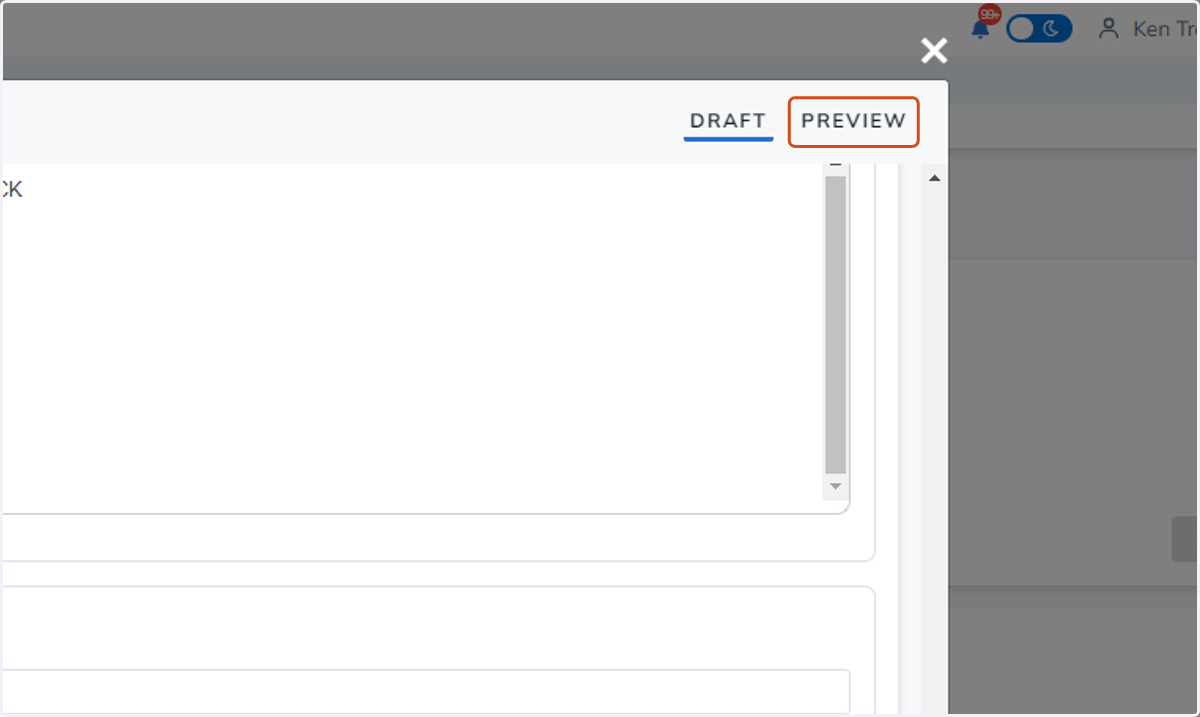
14. Click on PREVIEW to view the new content
This allows you to preview the content and make adjustments necessary before saving.
15. Save options
This allows you to preview the content and make adjustments necessary before saving.