Generate Flowchart in Professor Fox

    1. 1. A. Open Professor Fox…

    2. 1. B. Click on Choose and Create

    A. Open Professor Fox… B. Click on Choose and Create
  1. 2. Select the class for which you would like to create a flowchart.
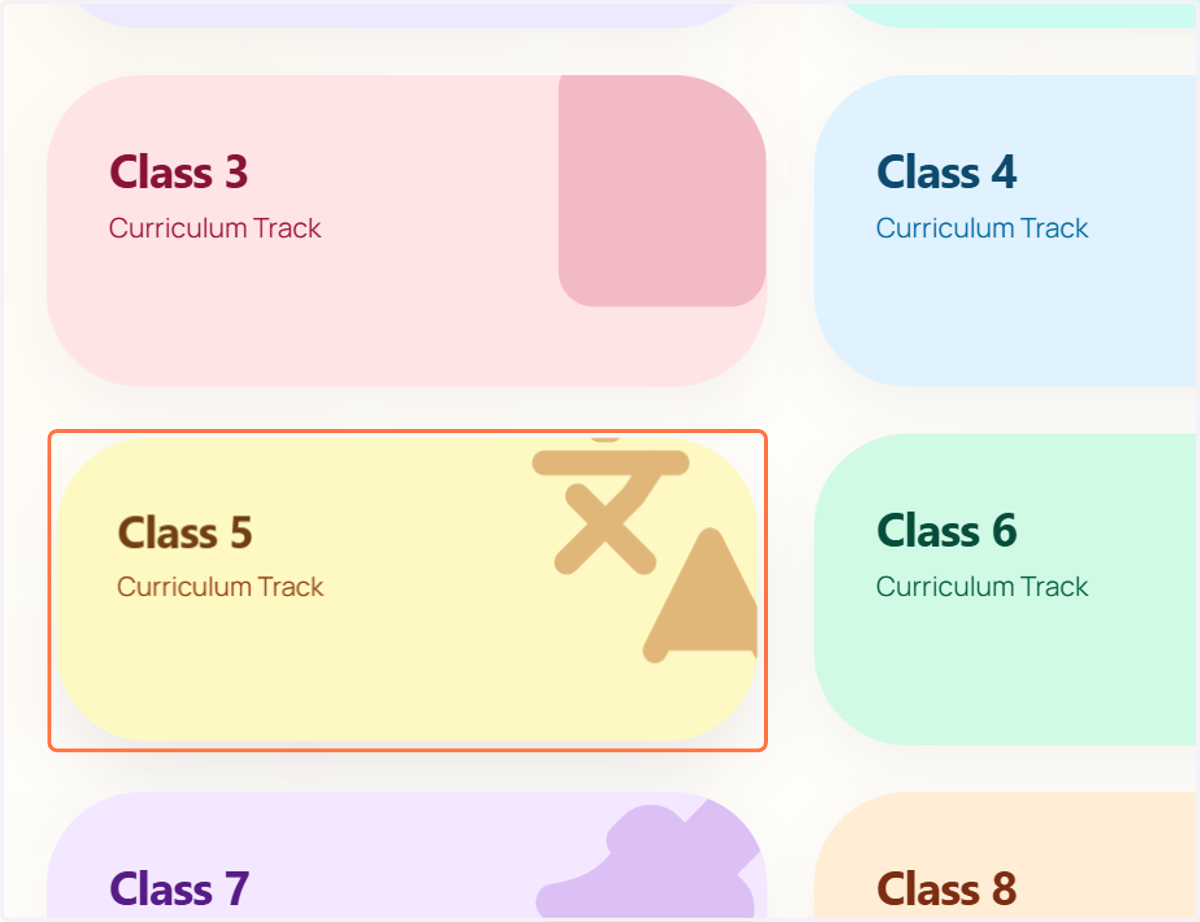
    Select the class for which you would like to create a flowchart.
  2. 3. Choose the subject for which you want to generate a visual flowchart. The flowchart will be tailored to the selected subject and curriculum.

    Choose the subject for which you want to generate a visual flowchart. The flowchart will be tailored to the selected subject and curriculum.
  3. 4. Select the chapter for which you would like to create a flowchart.

    Select the chapter for which you would like to create a flowchart.
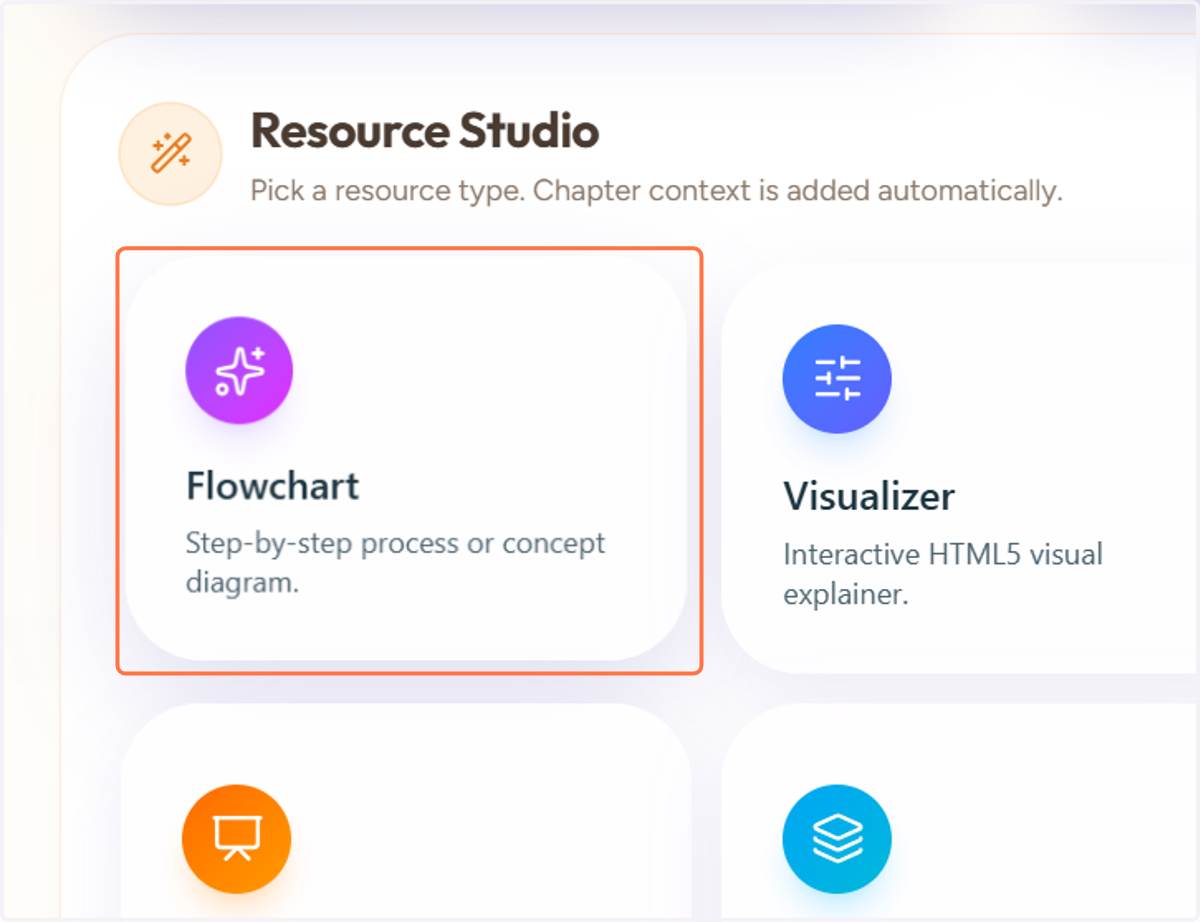
  4. 5. Click on Flowchart…

    Click on Flowchart…
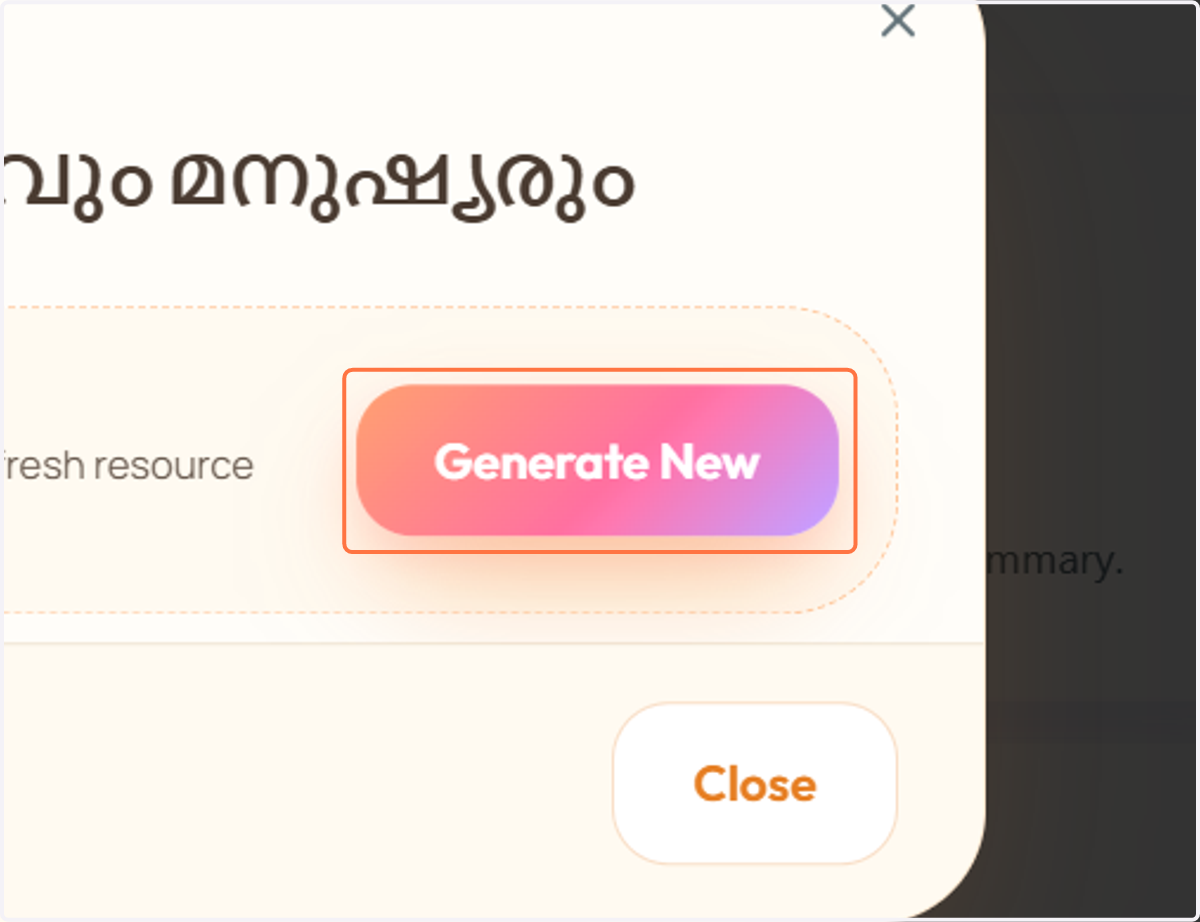
  5. 6. Click on Generate New

    Click on Generate New
  6. 7. Type a brief prompt describing what you would like the Flowchart to cover. AI GENERATION PROMPT
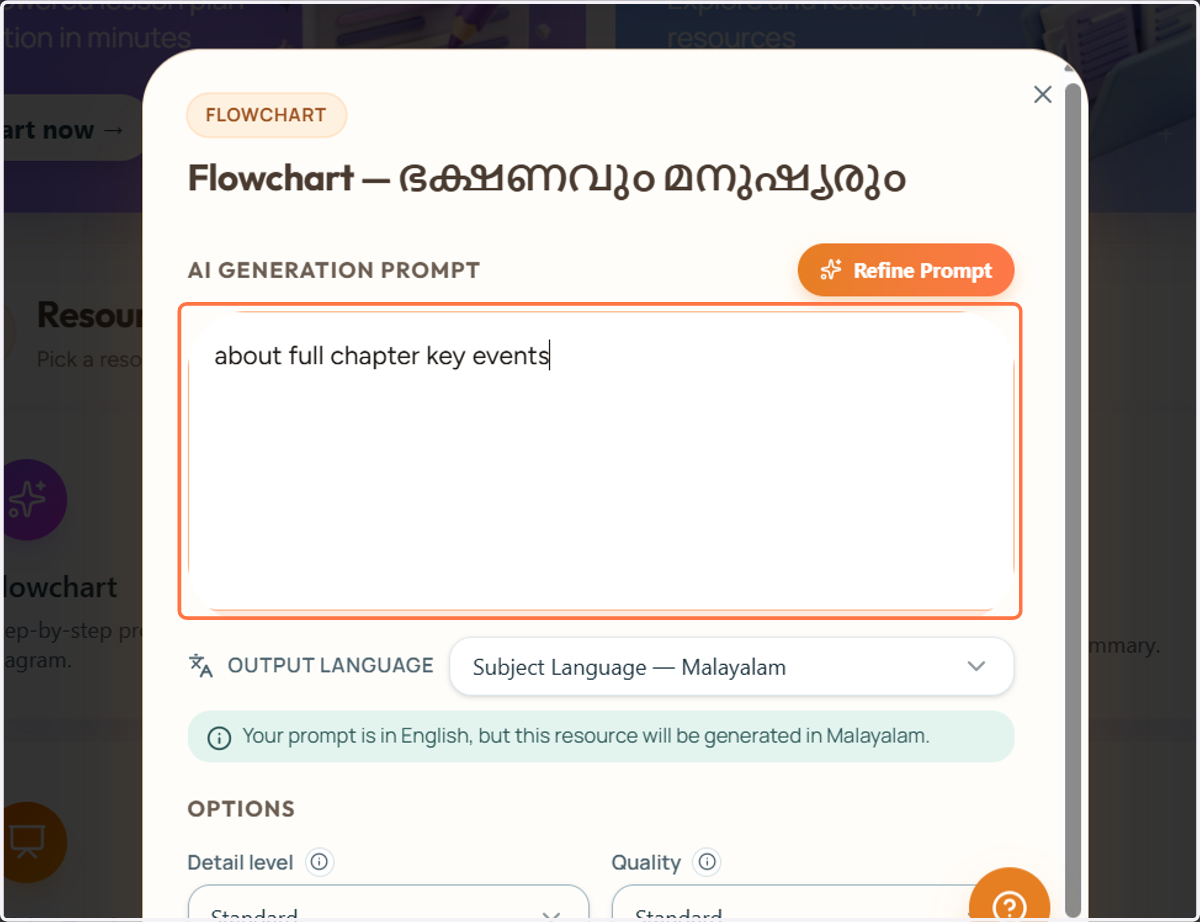
    Type a brief prompt describing what you would like the Flowchart to cover. AI GENERATION PROMPT
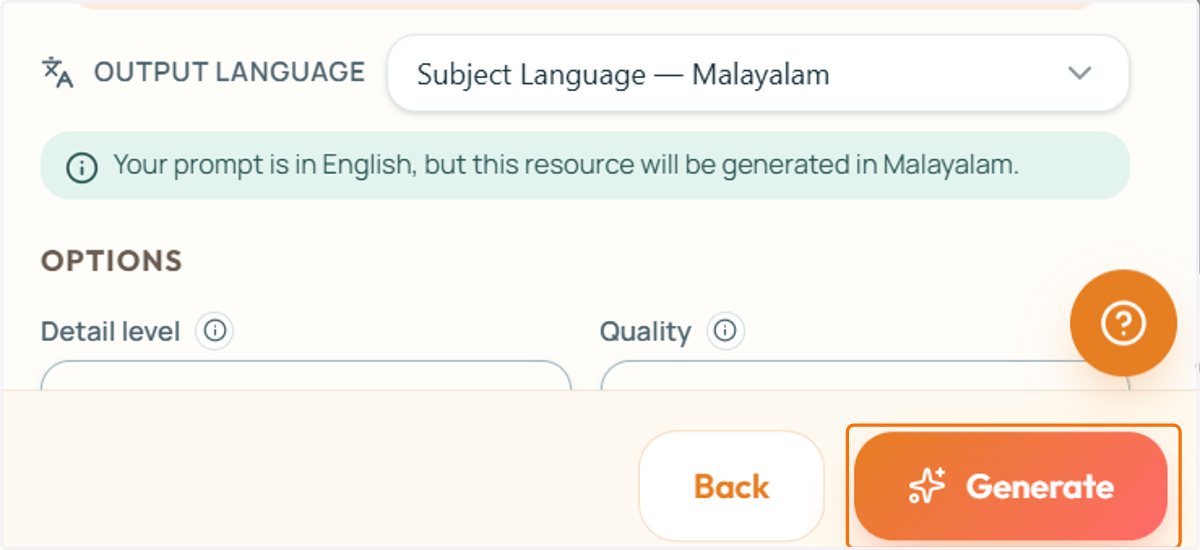
  7. 8. Click on Generate

    Click on Generate
  8. 9. The flowchart generation has started. Your flowchart will be ready in a few moments.
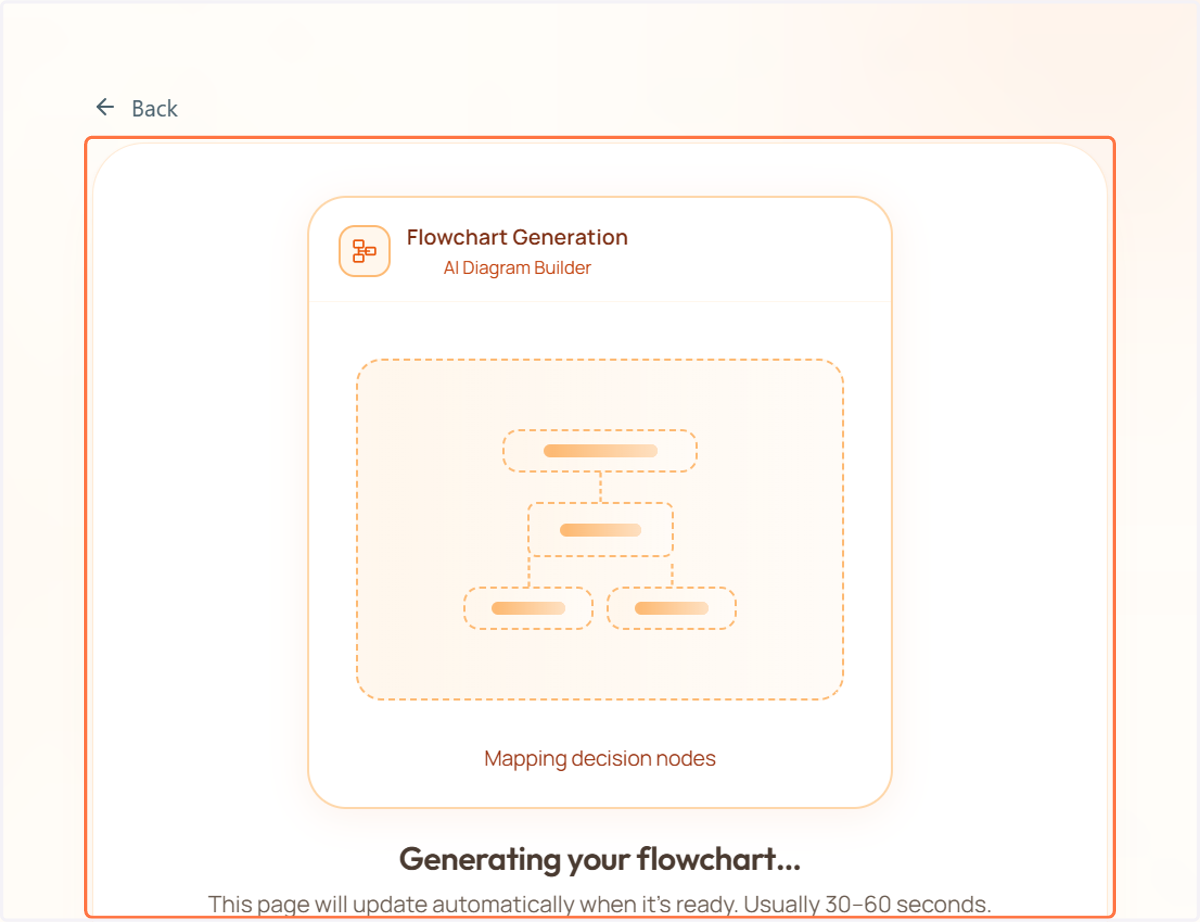
    The flowchart generation has started. Your flowchart will be ready in a few moments.
  9. 10. Your Flow chart has been generated successfully and is now ready to view.
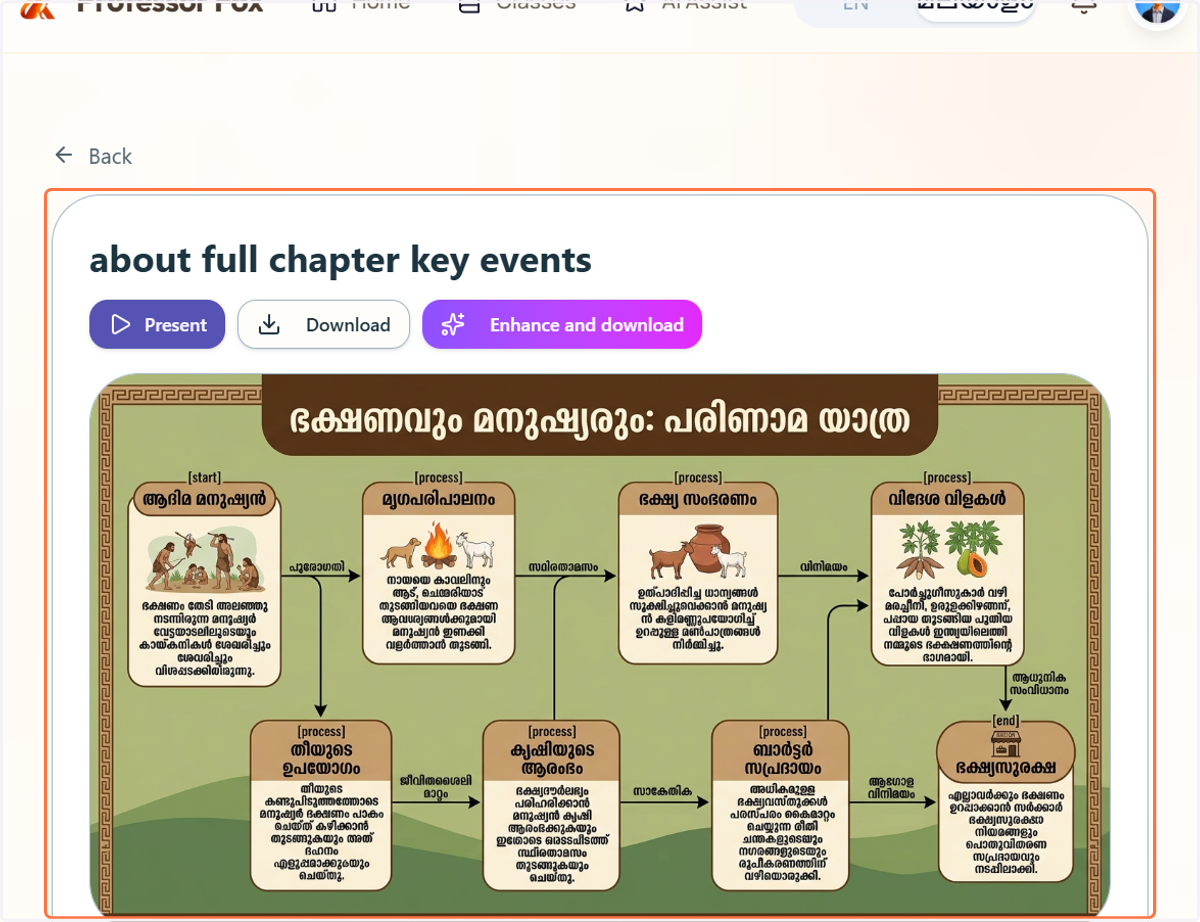
    Your Flow chart has been generated successfully and is now ready to view.
    1. 11. A. You can present it on a larger screen

    2. 11. B. You can download the flowchart,

    3. 11. C. You can enhance the image up to 4× resolution.
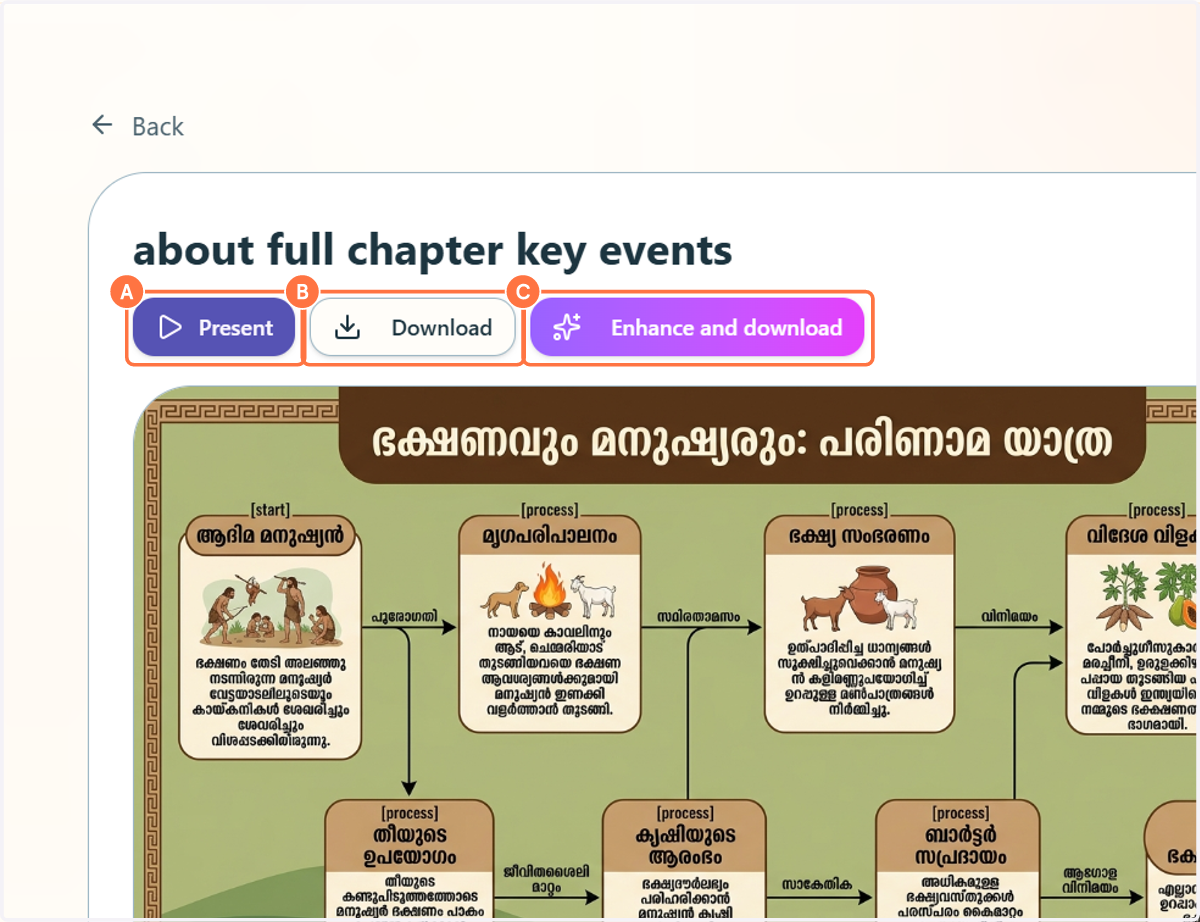
    A. You can present it on a larger screen B. You can download the flowchart, C. You can enhance the image up to 4× resolution.