Guide: Reports
MatrixIQ Telematics
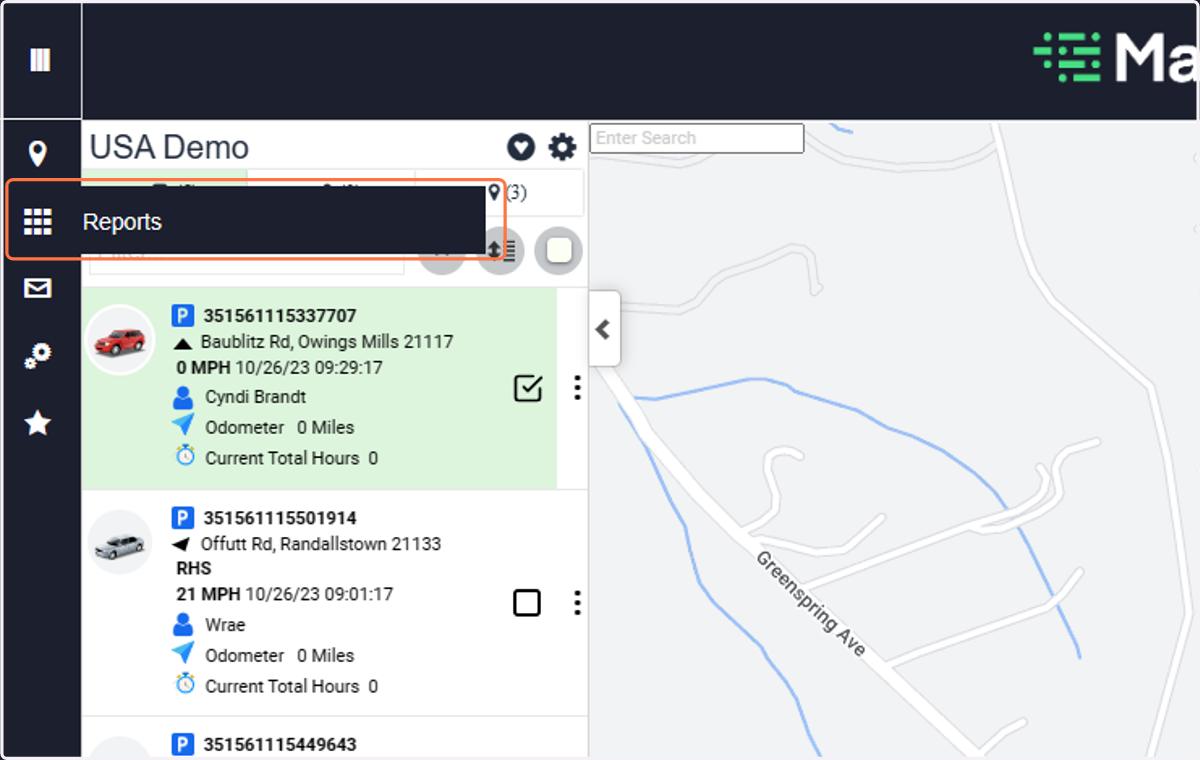
1. Click on Reports
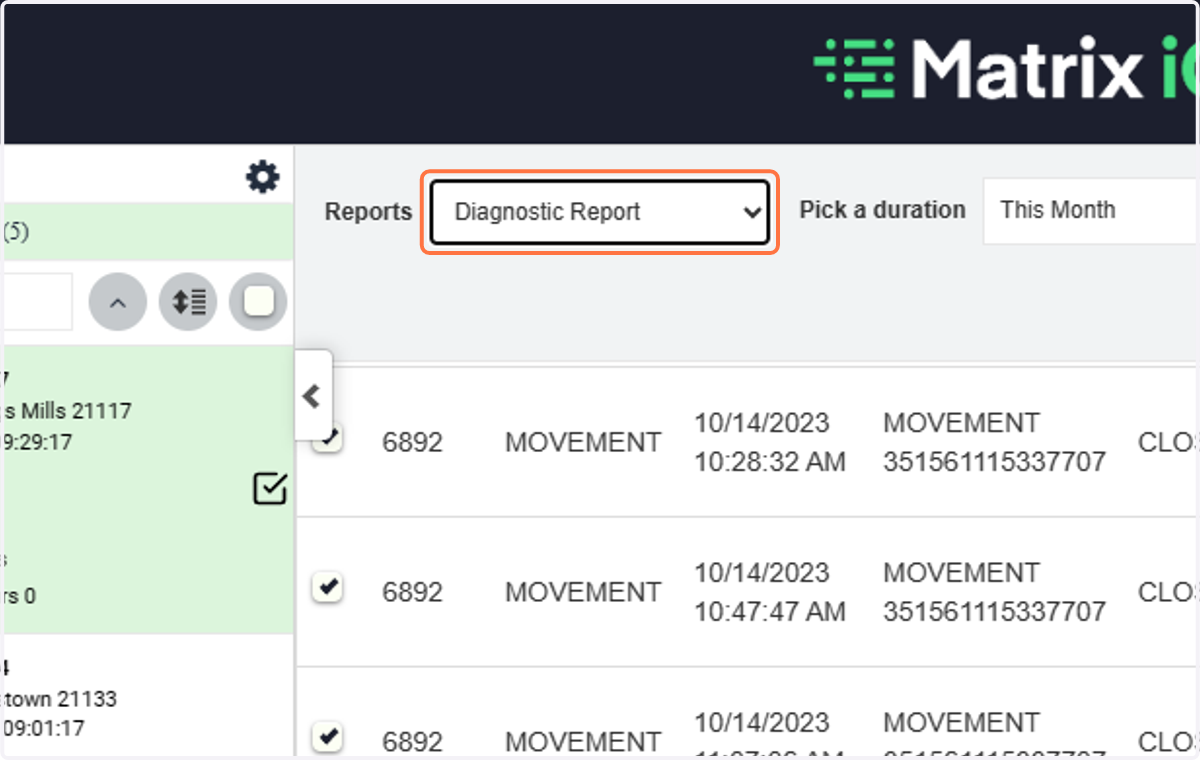
2. Select the report that you would like to view
In this example, we chose the Diagnostic Report
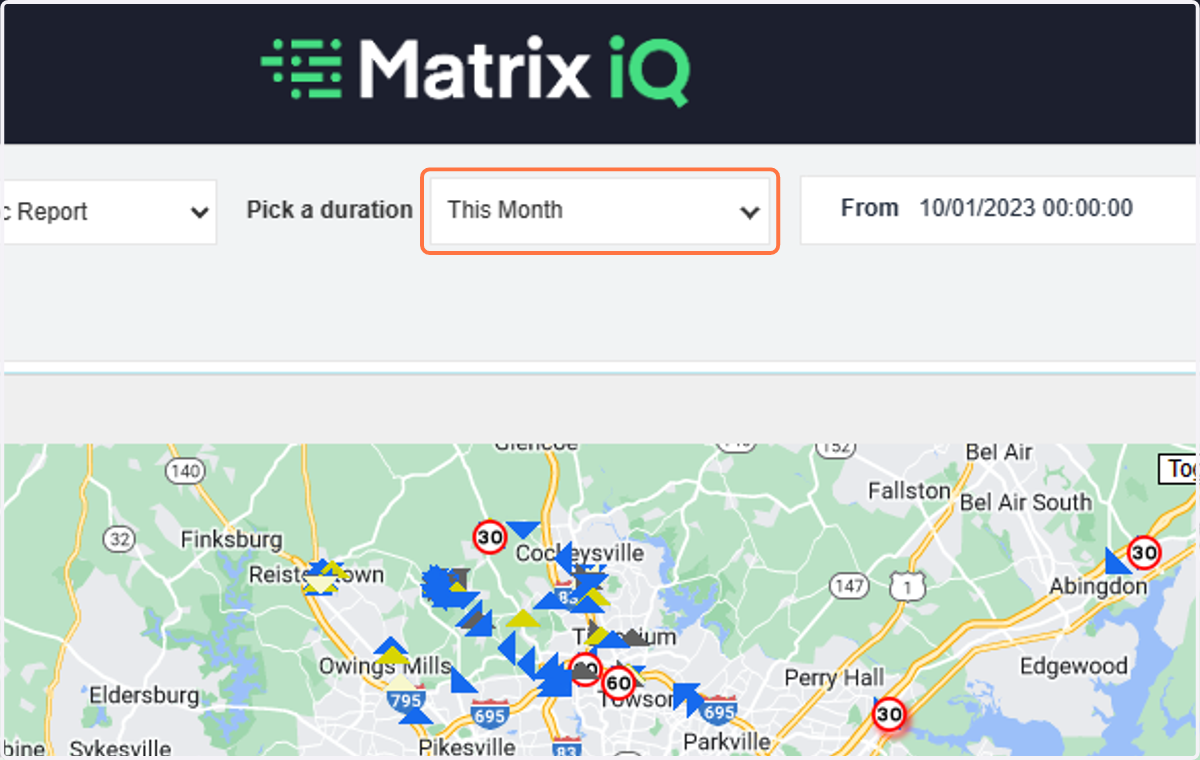
3. Click on the date range desired
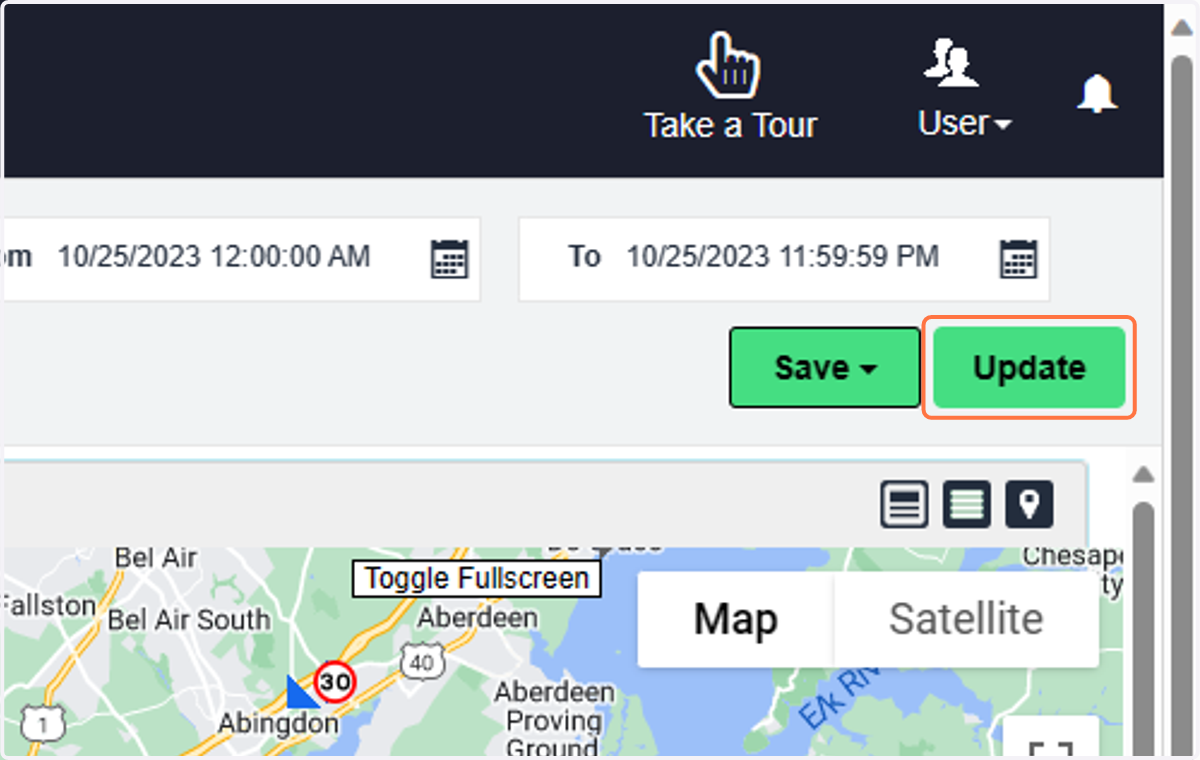
4. Click on Update
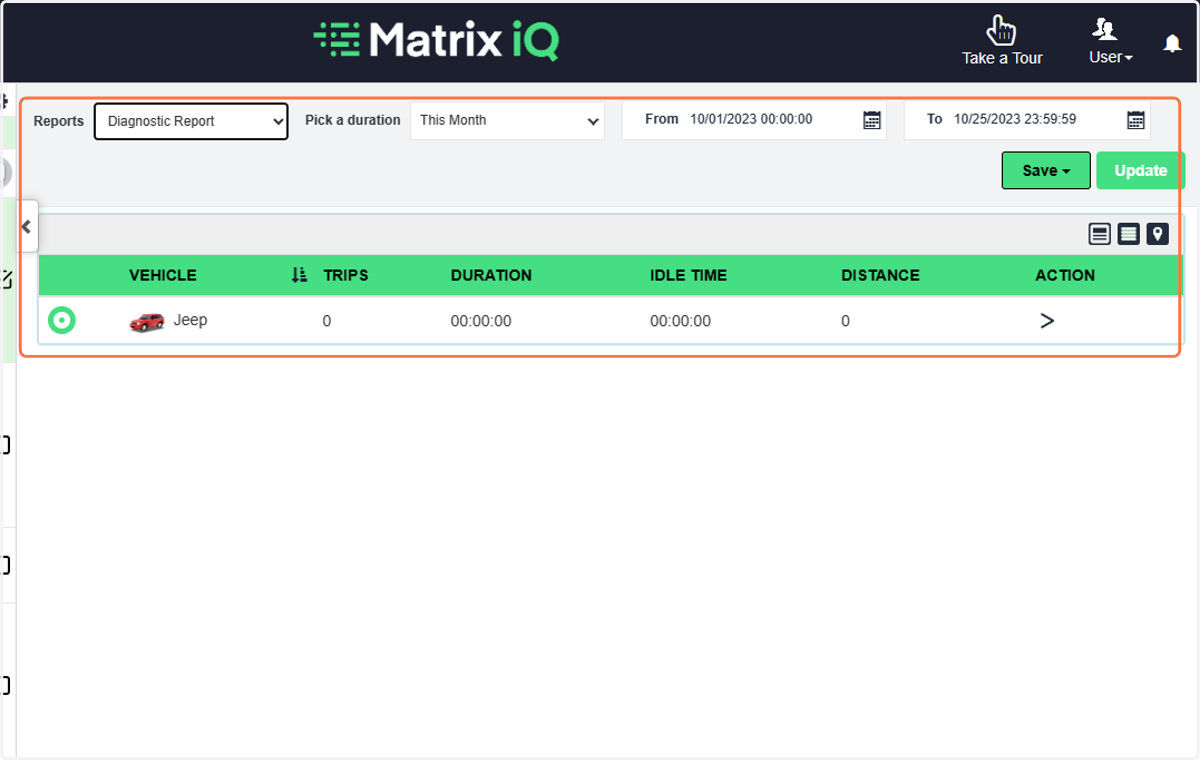
5. Choose the vehicles/asset you'd like to view and then click on the chevron to open the data
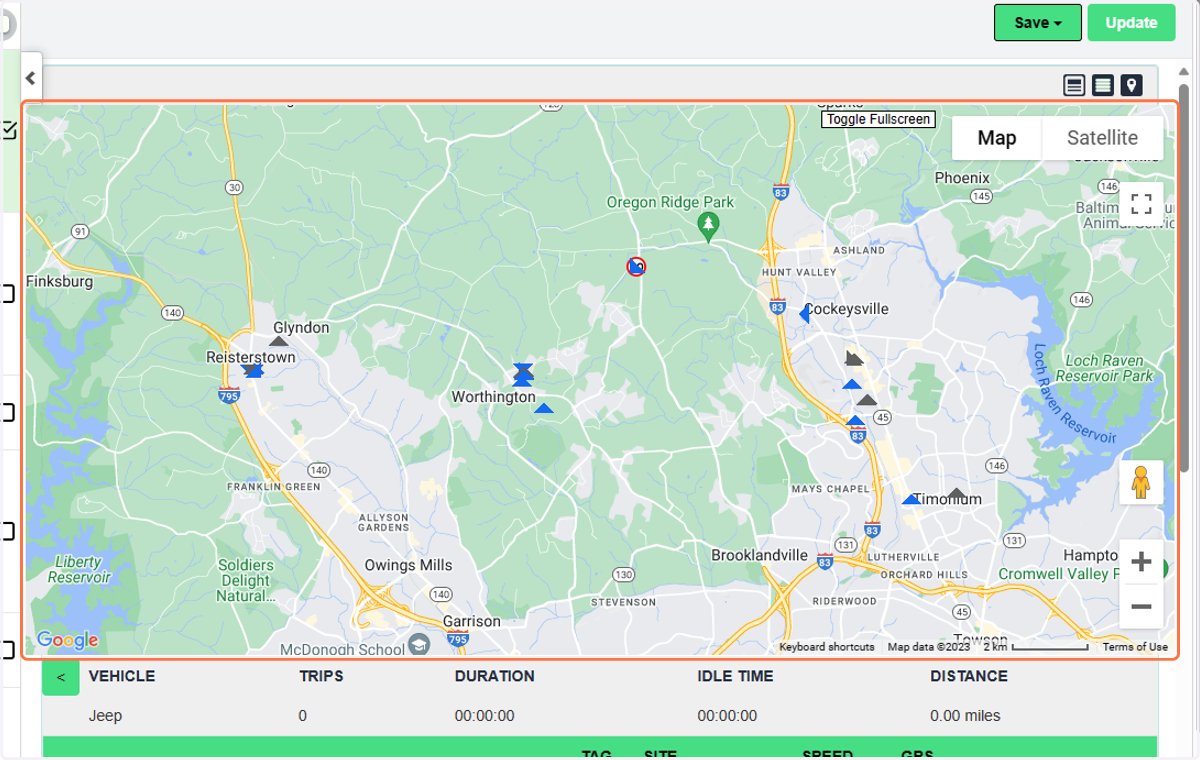
6. Map Displays with all of the diagnostic pings.
Hover over the pings to get data
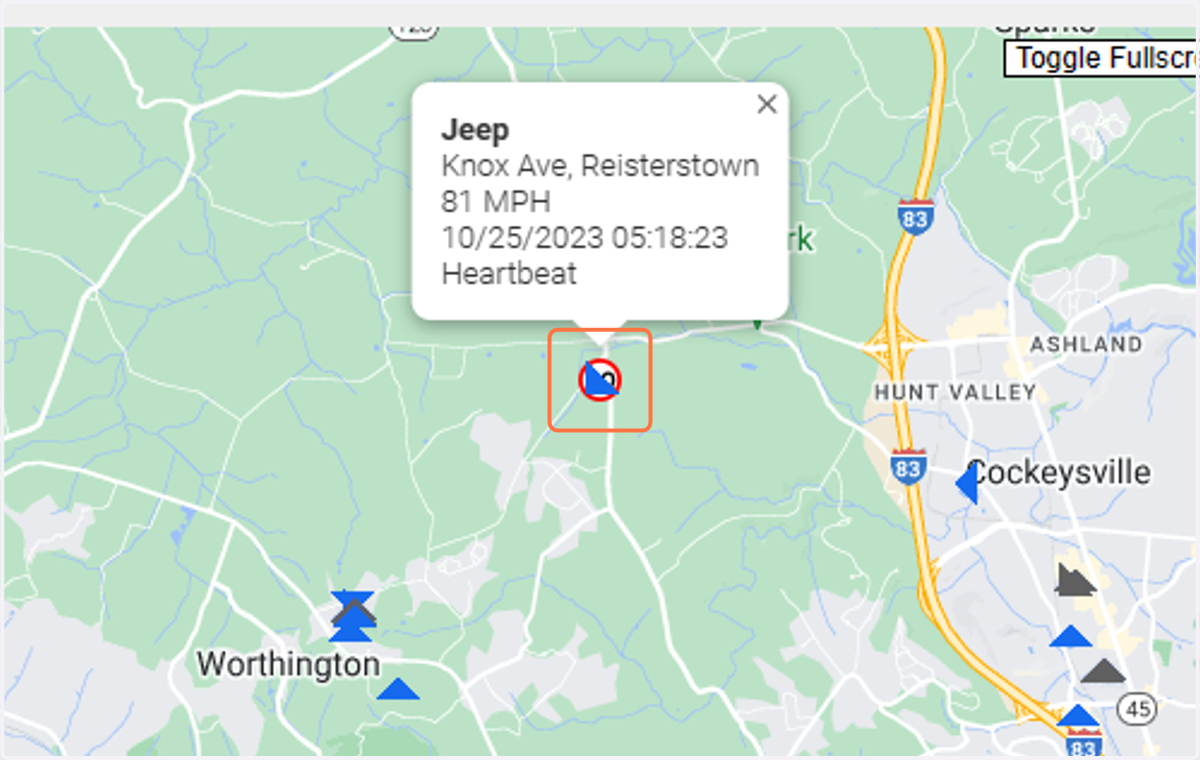
7. Click on one of the pings to see what happened.
Speeding while not a direct impact of asset tracking can be seen.
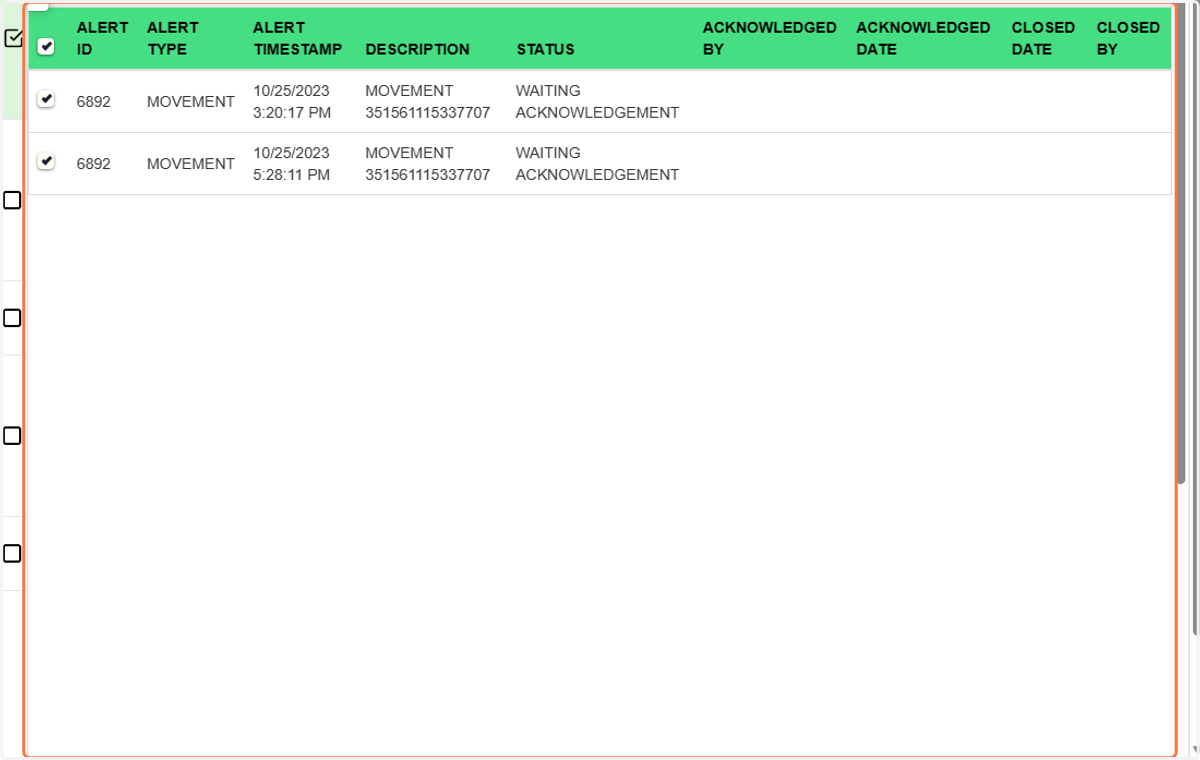
8. Select Alerts to see the other report
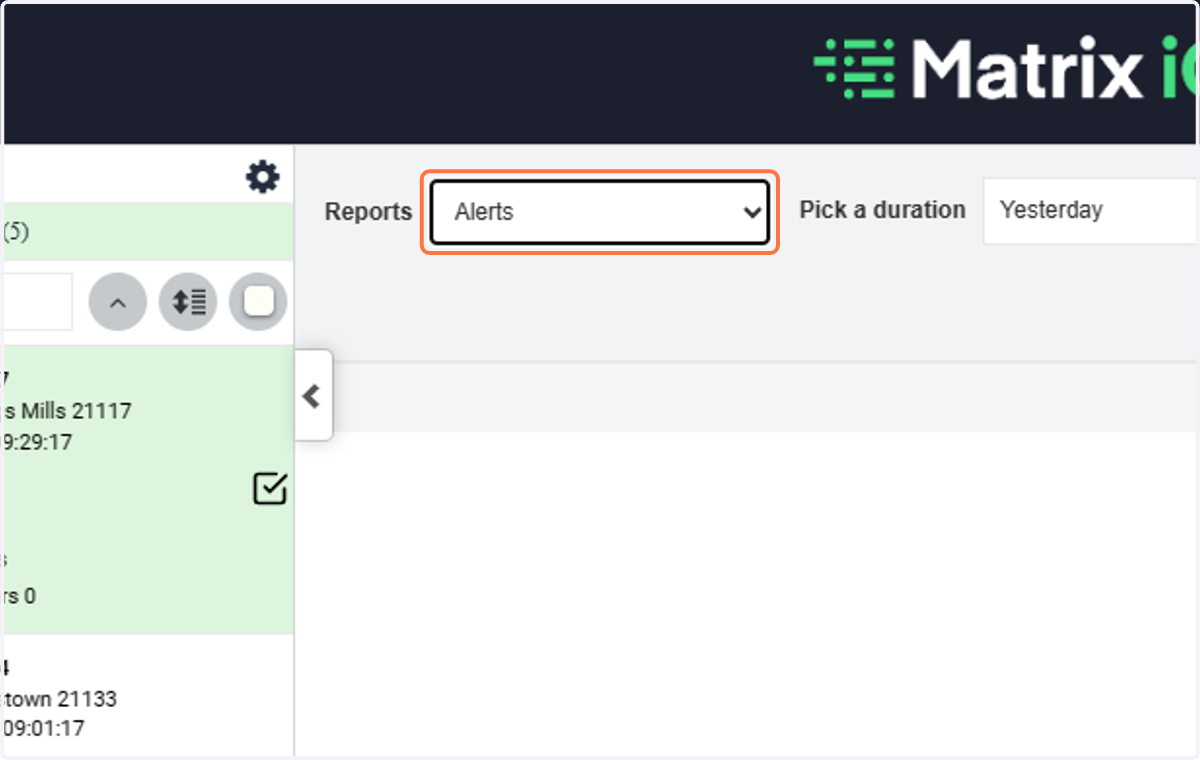
9. This shows that a movement alert occurred that has not been acknowledged