How to Import Employee Data from Excel sheet in Odoo-iLines HR

  1. 1. Click on Employees

    Click on Employees
  2. 2. Click on highlight

    Click on highlight
  3. 3. Enter the details of the employee with the Mention above headings, Name Code Job Positon ,IDExpire date , Nationality , Identification No etc

    Enter the details of the employee with the Mention above headings, Name Code Job Positon ,IDExpire date , Nationality , Identification No etc
  4. 4. Also add the Employee resouce name and working schedule are mandatory and which is Required in the Odoo without that you will not be able to import the employee data.

    Also add the Employee resouce name and working schedule are mandatory and which is Required in the Odoo without that you will not be able to import the employee data.
  5. 5. Click on Configuration

    Click on Configuration
  6. 6. Click on Working Schedules and Copy the working schedule which you want to add in excel sheet

    Click on Working Schedules and Copy the working schedule which you want to add in excel sheet
  7. 7. Click on Standard 40 hours/week and copy the name and paste in excel sheet

    Click on Standard 40 hours/week and copy the name and paste in excel sheet
  8. 8. Click on setting option after you have prepared the file for import

    Click on setting option after you have prepared the file for import
  9. 9. Click on Import records

    Click on Import records
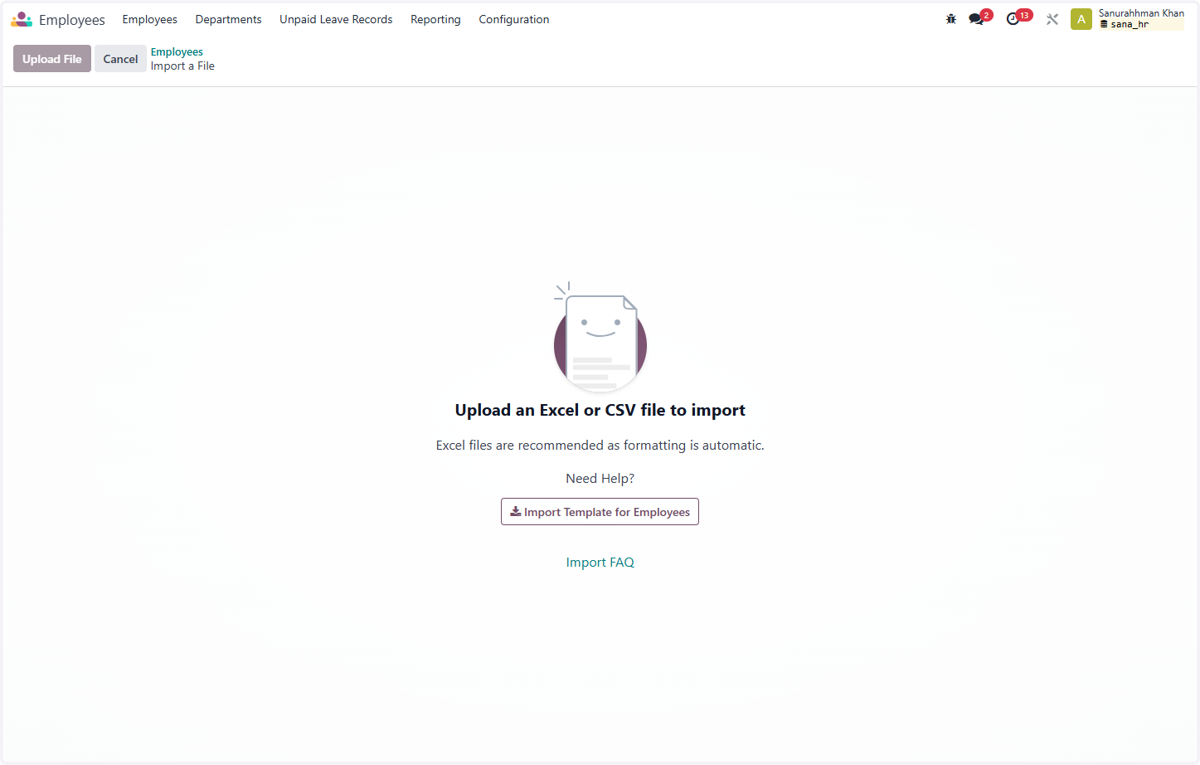
  10. 10. Click on Upload File

    Click on Upload File
  11. 11. Select "Untitled spreadsheet.xlsx" from file upload menu

    Select "Untitled spreadsheet.xlsx" from file upload menu
  12. 12. Click on To import, select a field accordingly

    Click on To import, select a field accordingly
  13. 13. Click on Nationality (Country)

    Click on Nationality (Country)
  14. 14. Click on To import, select a field...

    Click on To import, select a field...
  15. 15. Type "id ex"

    Type "id ex"
  16. 16. Click on To import, select a field...…

    Click on To import, select a field...…
  17. 17. Click on ID Expiry Date

    Click on ID Expiry Date
  18. 18. Click on Test

    Click on Test
  19. 19. Select Create new values

    Select Create new values
  20. 20. Click on Everything seems valid.

    Click on Everything seems valid.
  21. 21. Click on Import

    Click on Import
  22. 22. Click on 4 records successfully imported

    Click on 4 records successfully imported
  23. 23. Finally, employees are imported, and for your confirmation, you can click on the employee to check the details

    Finally, employees are imported, and for your confirmation, you can click on the employee to check the details